Did you get your dream Apple phone under the tree? Great! Basically, controlling Apple mobile devices is very intuitive and easy, everyone - and not just a beginner - will certainly welcome tips that may not be talked about as much, but which will take the use of your iPhone to an even better level.
You might be interested in
Increase password security
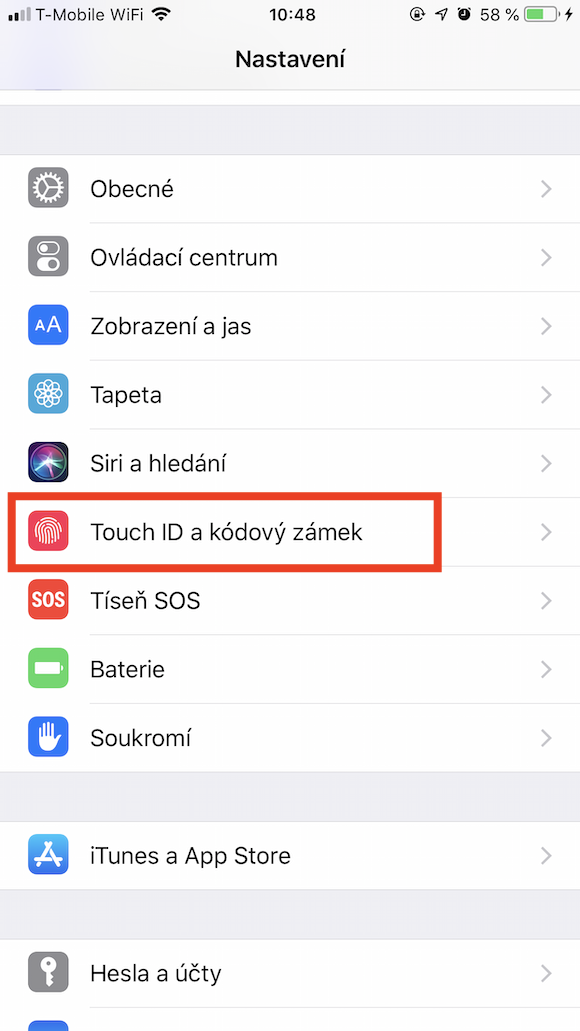
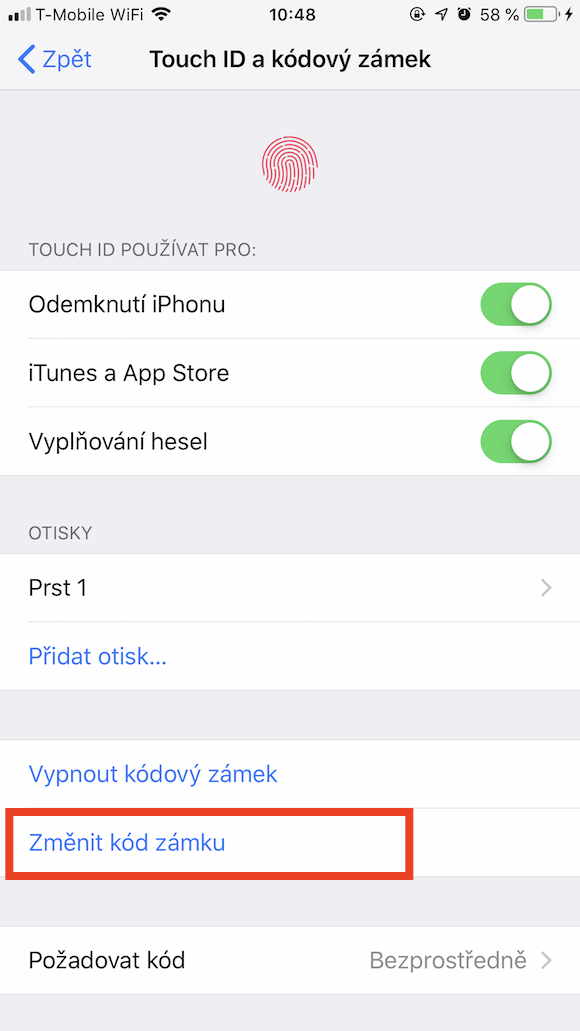
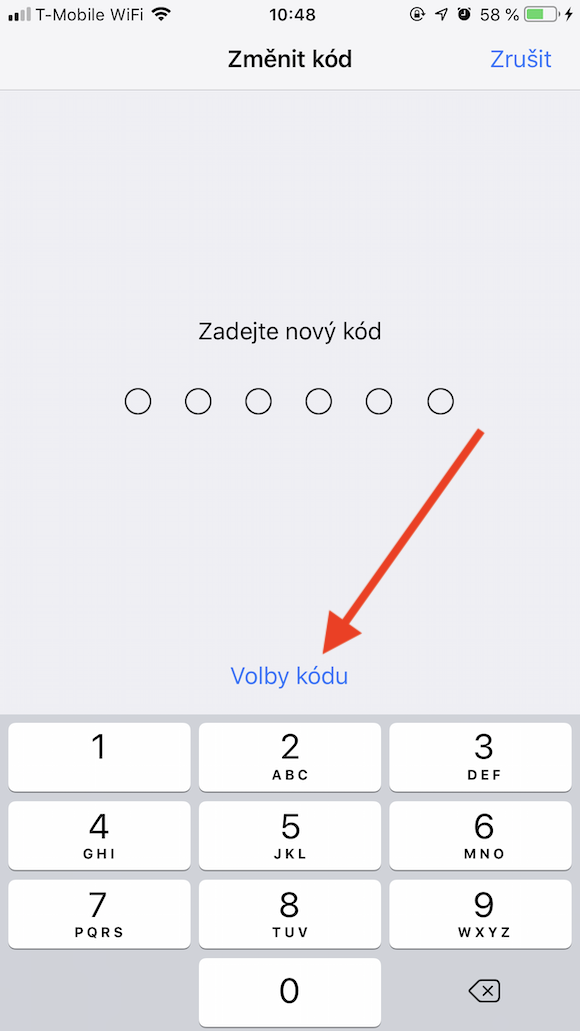
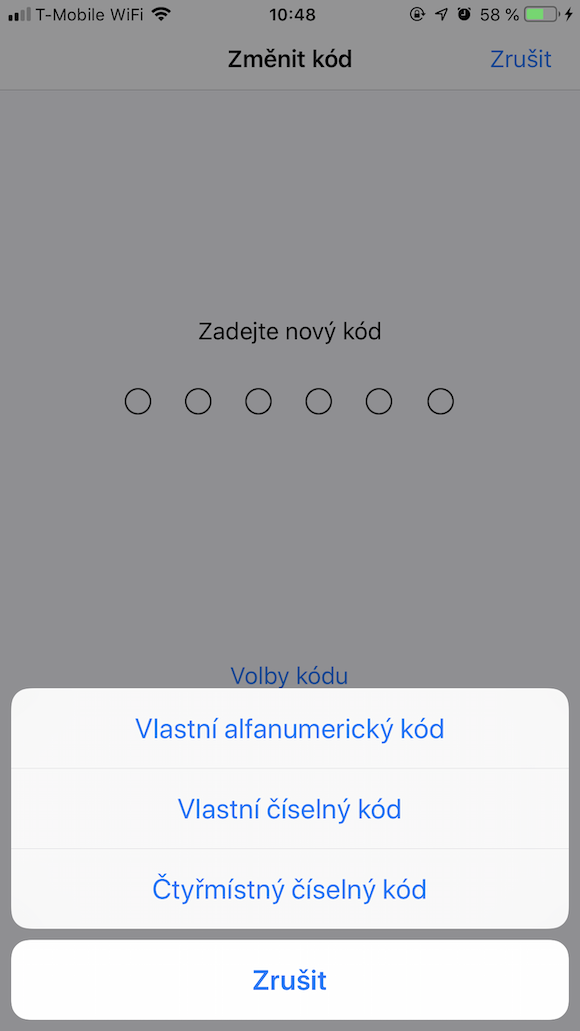
You can unlock your iPhone (on some last year's models) with your fingerprint, a face scan, or a numeric code. The latter option is the easiest to guess, so while "1234" may seem convenient, make this passcode as strong as possible. A six-digit number may seem safe. variant, iOS but it also offers the possibility of creating an alphanumeric code, which is practically unlimited in length and can be a combination of numbers and letters. How to create one?
Launch Settings -> Touch ID/Face ID and code lock -> Change lock code -> Code options -> Custom alphanumeric code.
Gallery
Let it be known that you are unavailable
There is not always the right time to answer a phone call. Pro these opportunities offer iOS the option to reply with your own automated message. Depending on which version iOS is running on your phone, you can activate reply with a message by either swiping up to the phone icon and selecting “Reply with message,” or by tapping the appropriate item above the call answer slider.
Create your own ringtone in GarageBand
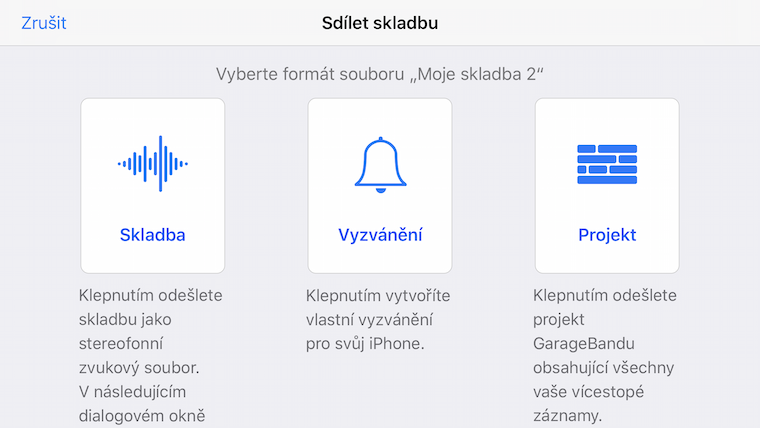
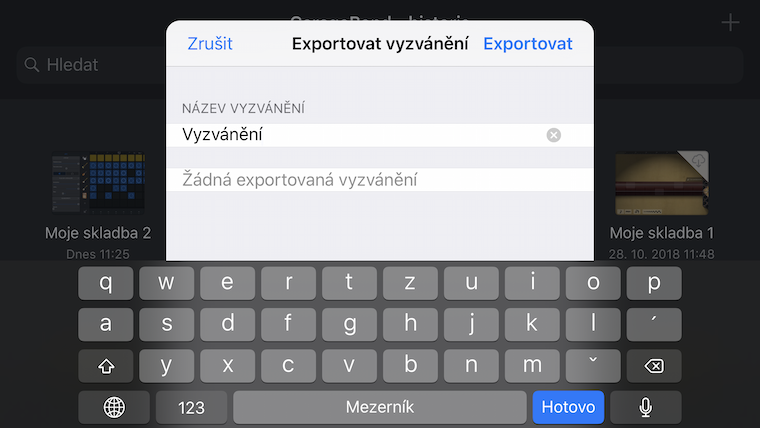
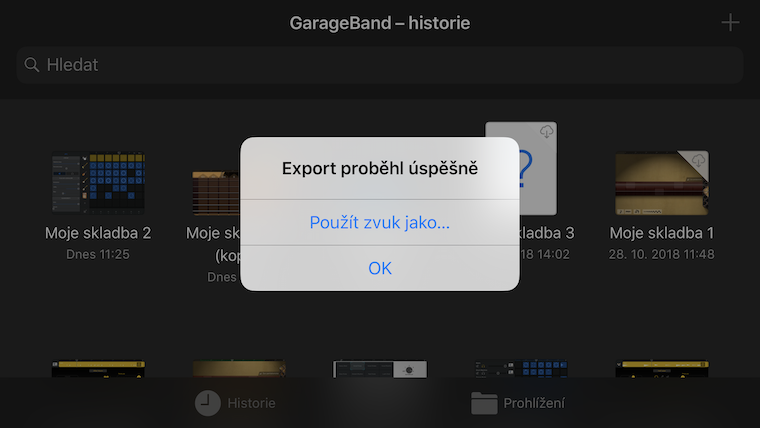
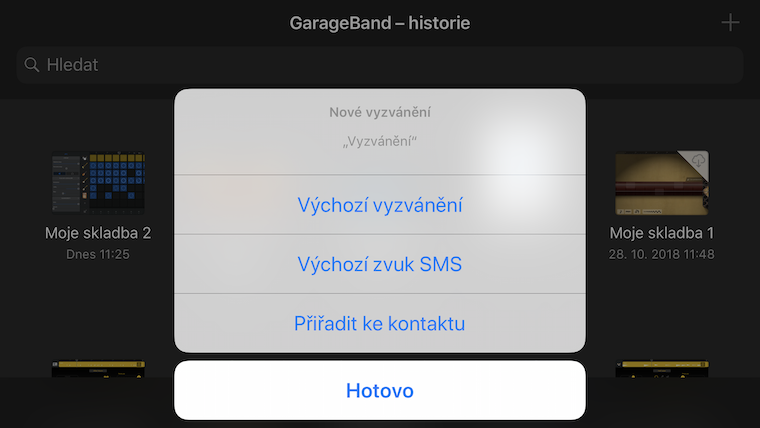
Want to get really creative with your ringtone creation? Use the native GarageBand application for this. Launch GarageBand to create your own thirty-second piece of musical art. Tap on sharing options and choose Share -> Ringtone. Name the ringtone and start exporting. After the successful export message is displayed, you can choose how to use the ringtone.
Gallery
Customize Control Center
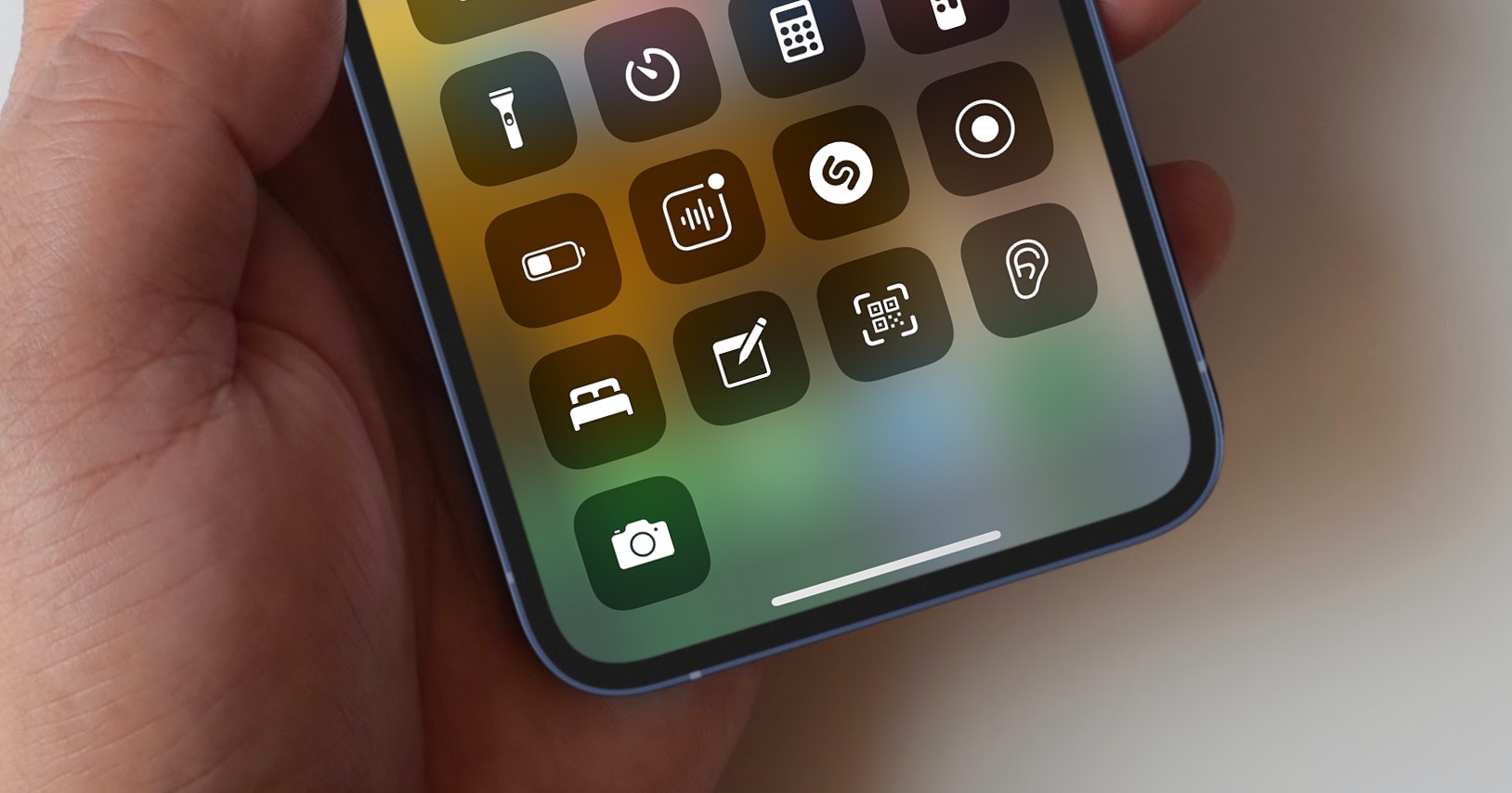
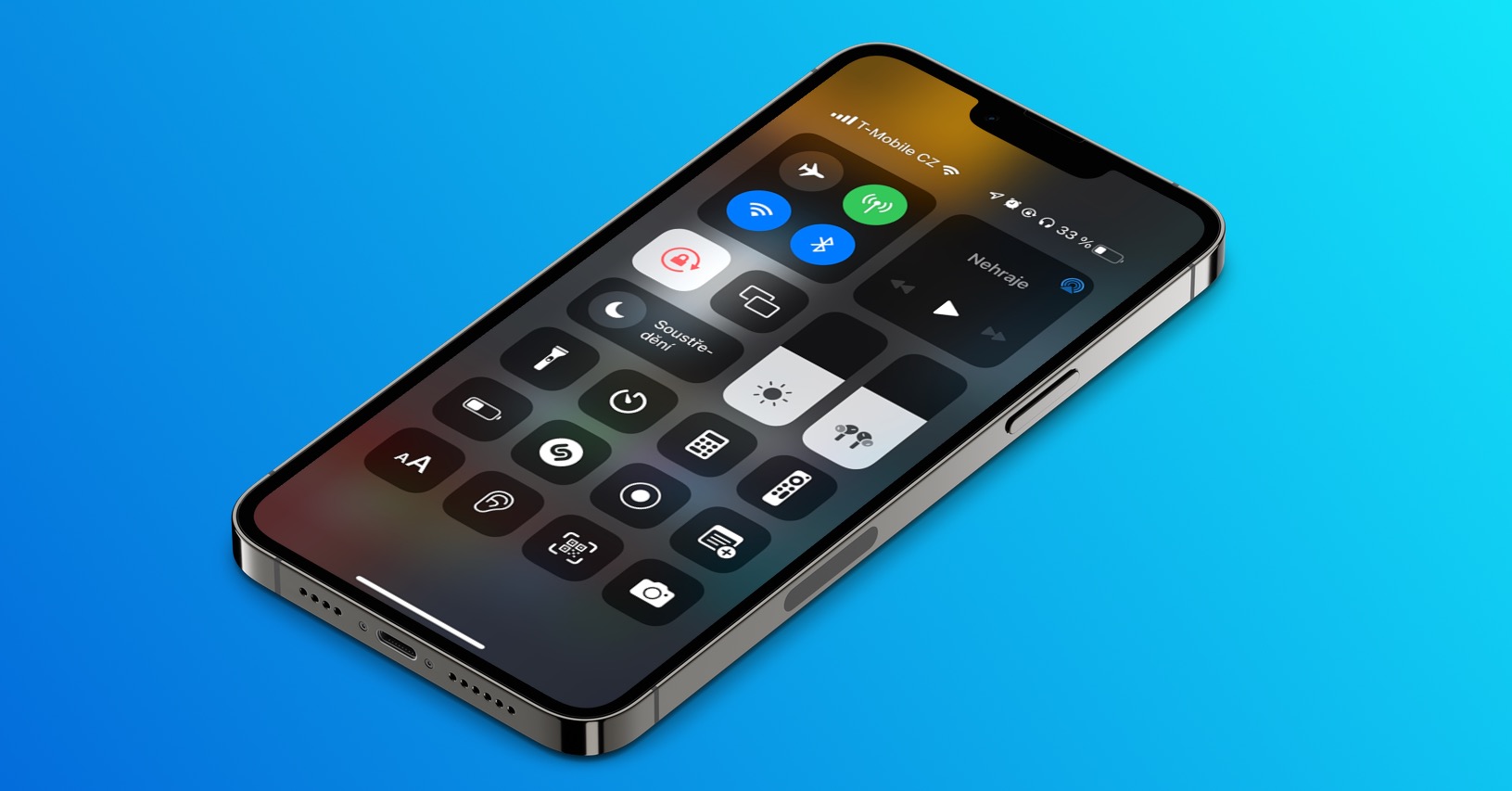
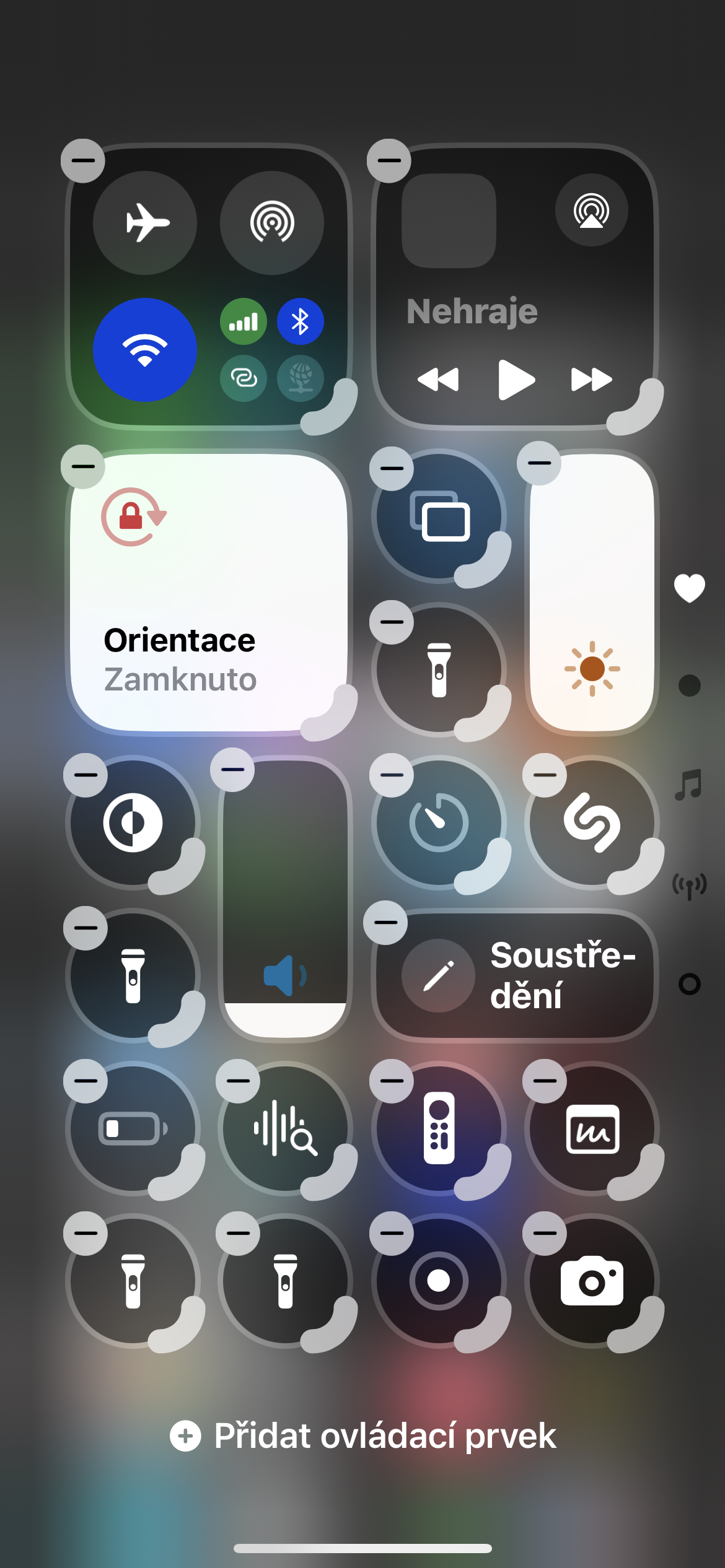
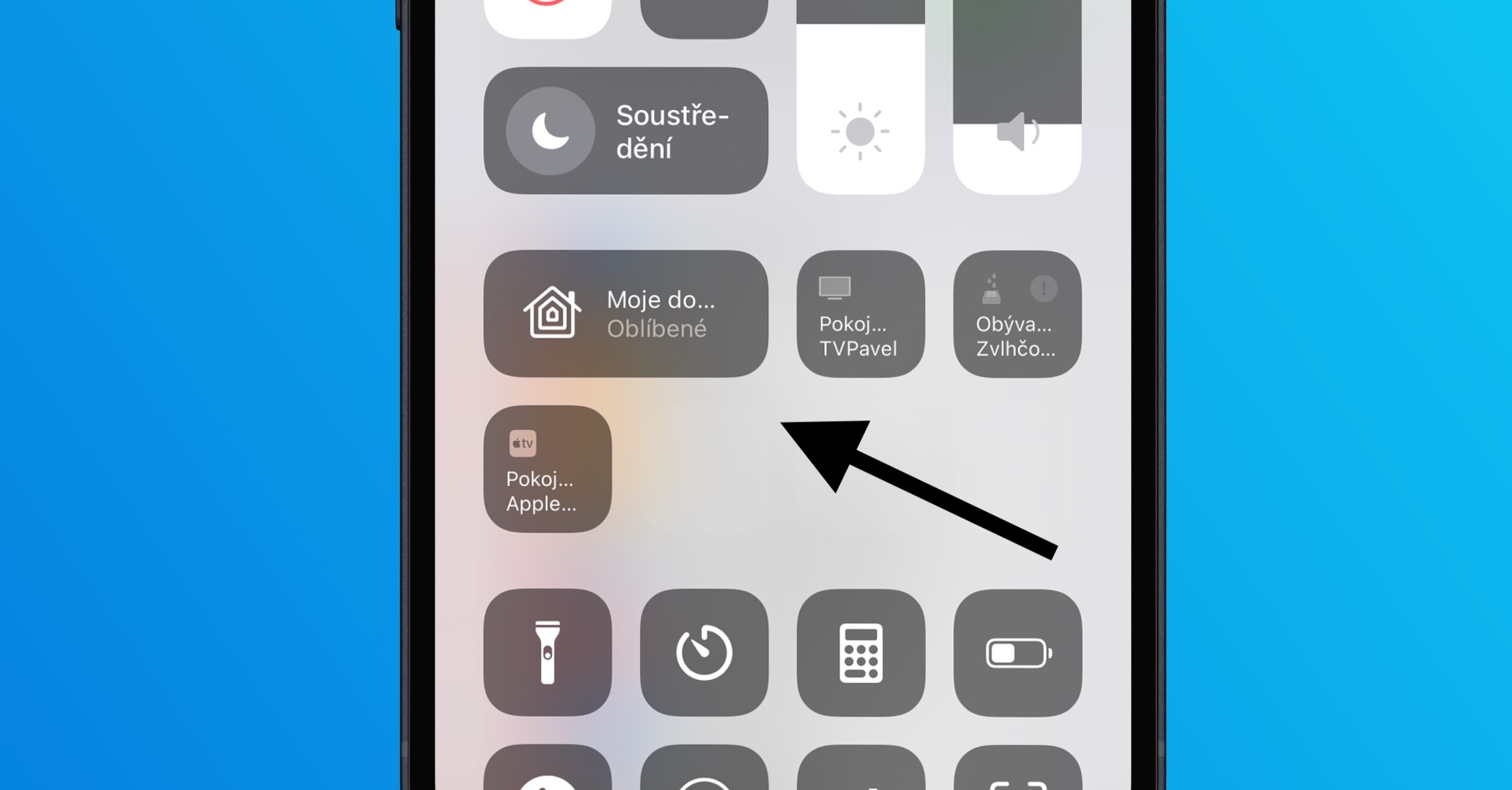
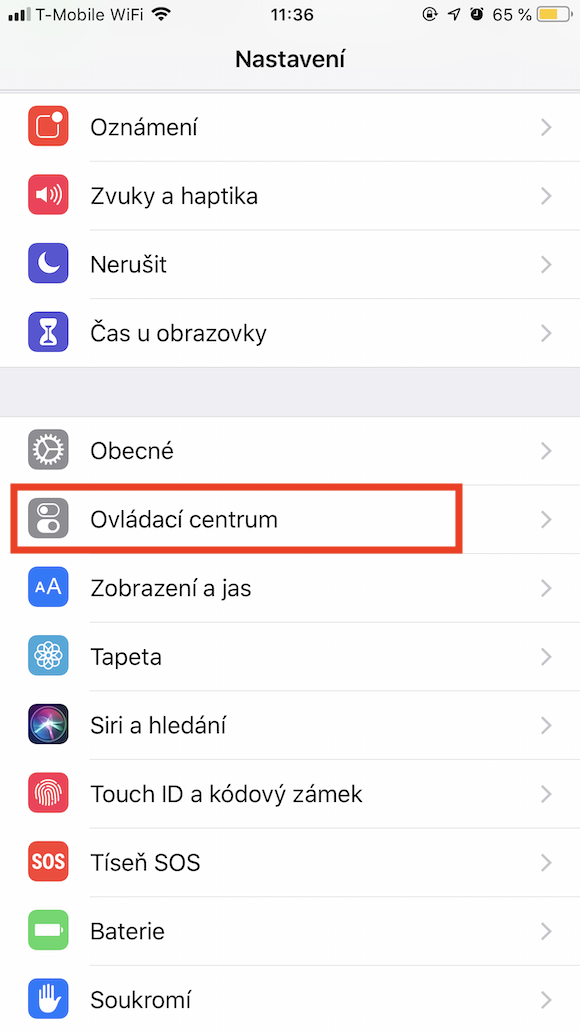
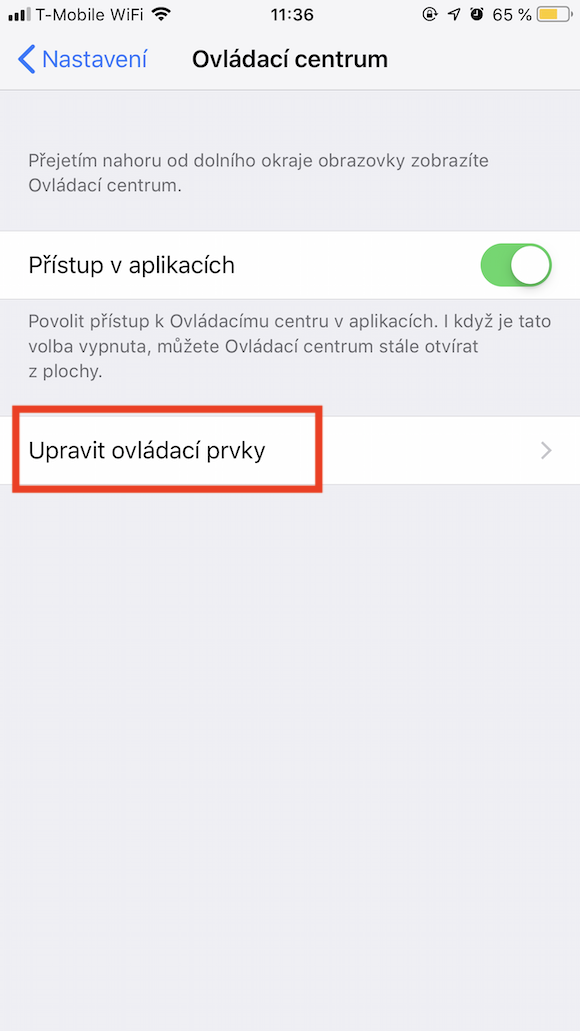
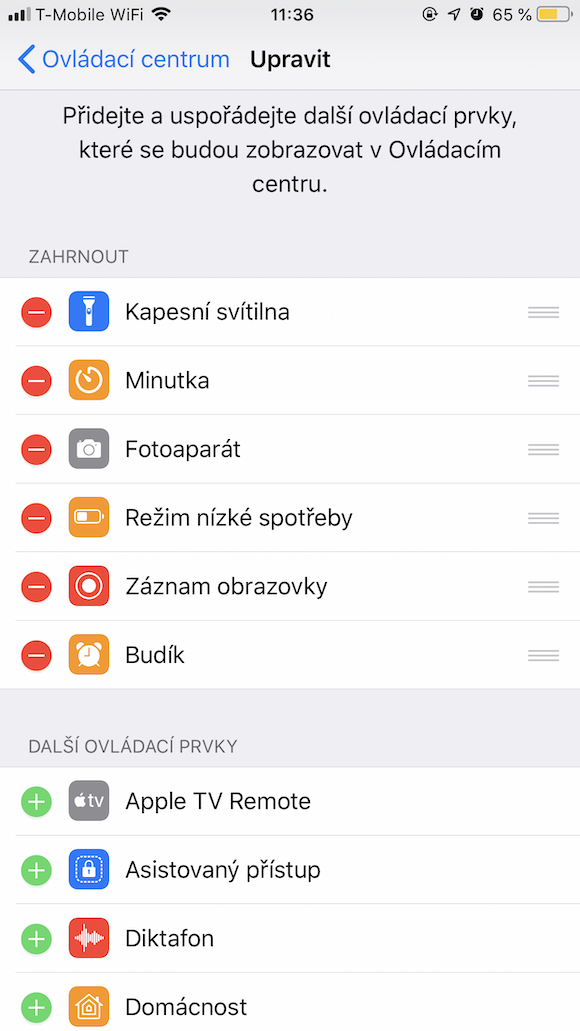
Apple since release iOS 11 allows users to take control of the Control Center in their iOS devices. Want to try it out? Go to Settings -> Control Center -> Controls and customize Control Center to suit your needs.
Save battery
When your iPhone's battery percentage drops below 20, you'll see a notification about entering Battery Saver mode. But you can actually switch to this mode whenever you want. ProYou can do this either via Settings -> Battery -> Low Power Mode, or add the option to switch to this mode directly to the Control Center.
Shaking as a way back
This feature may take some getting used to, but it's very useful. Have you just written a long sentence and accidentally deleted it? Or have you "succeeded" in some other disaster? Gently but firmly shake your iPhonem, and you can undo the unwanted action.
Up quickly
You have reached the veryonec long list in Notes, you have finished reading the extensive article in Safari or did you scroll all the way toonec your emails? No need to scroll back up the screen – just tap the top of the display in the area where the time is displayed.
Do not be disturbed
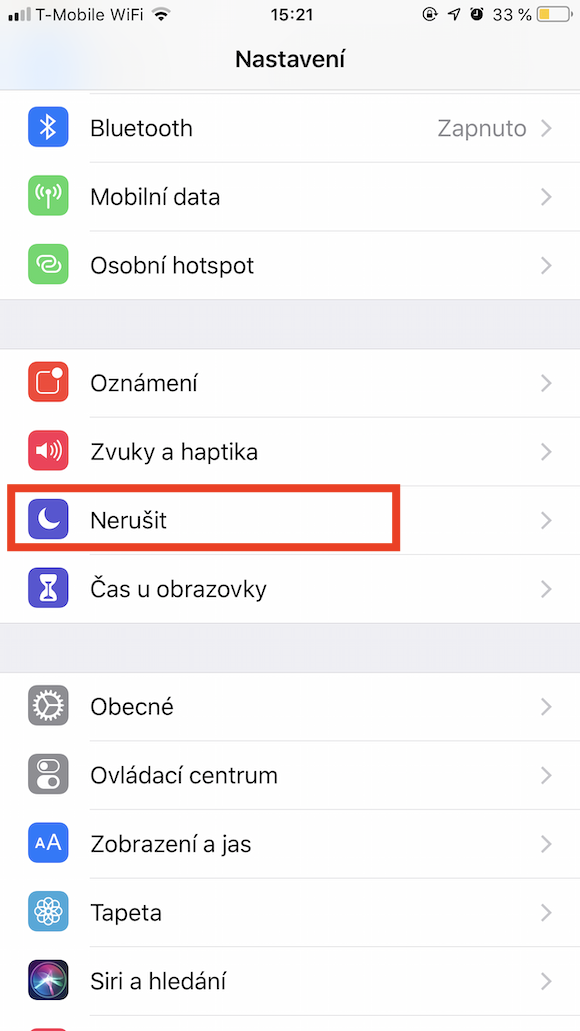
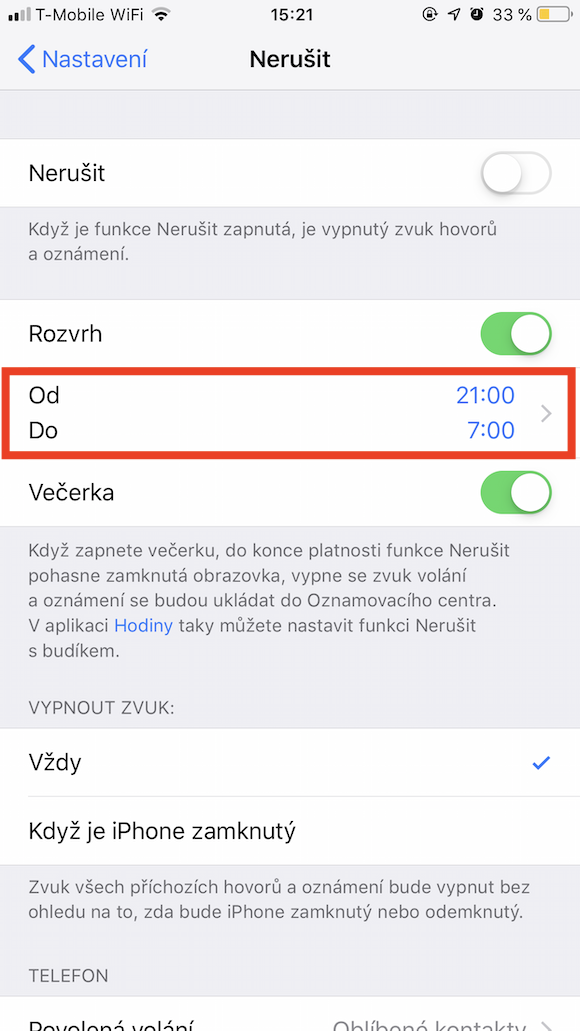
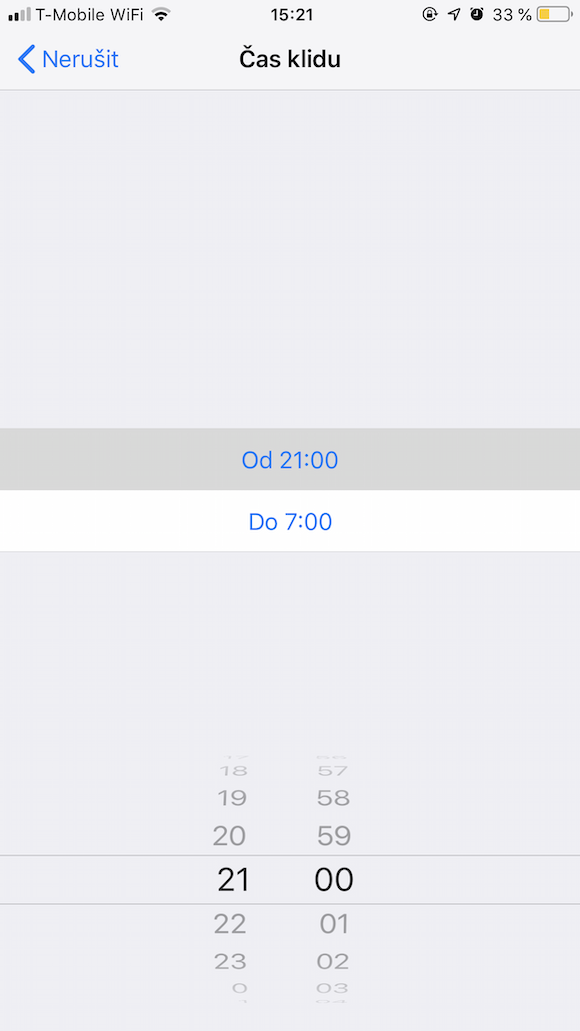
You have probably already found out that your new iPhone You can switch to Do Not Disturb mode when needed. This feature will relieve you of all calls, notifications, and other stimuli that could disturb you while you drive, work, or sleep. You activate Do Not Disturb mode in Control Center by tapping the crescent moon icon. But did you know that you can also set your own schedule for this mode? ProYou can manage this in Settings -> Do Not Disturb.
Selfie with headphones
Taking a photo with an iPhone can sometimes be a bit difficult. Especially on models with a larger display, one-handed operation can be inconvenient when trying to get the best possible shot. The solution comes in the form of headphones. Just connect them to your iPhone, open the Camera app, and press the volume down button instead of the shutter button.
Search the site
Are you on a website where you need to find one specific term? Enter it in the field for entering the web address - but you must not click the "Open" button on the keyboard. Once you've entered the entire term, scroll all the way down to "On this page" where you'll find search results for that term for the current page.