Sharing audio from AirPods
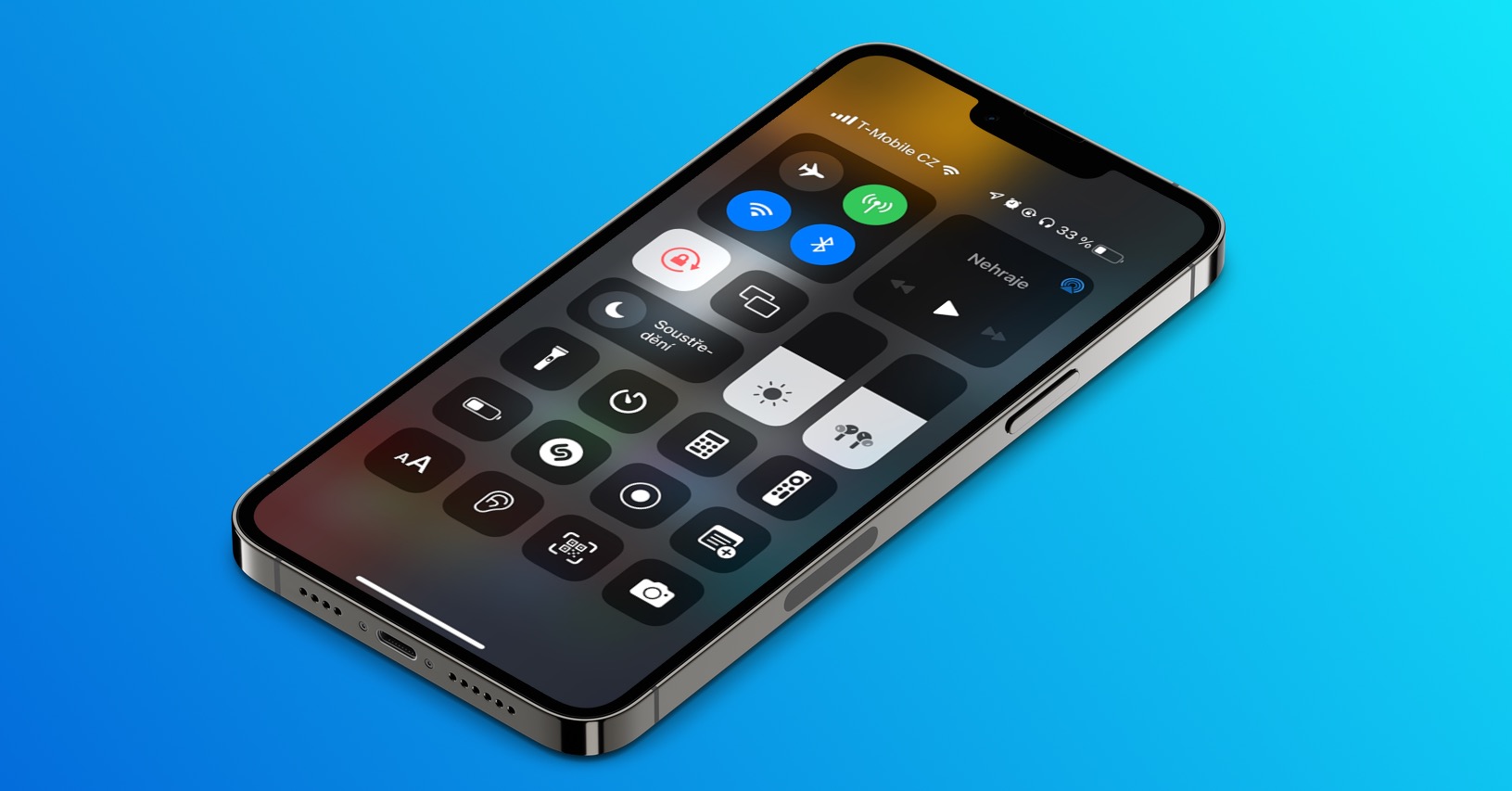
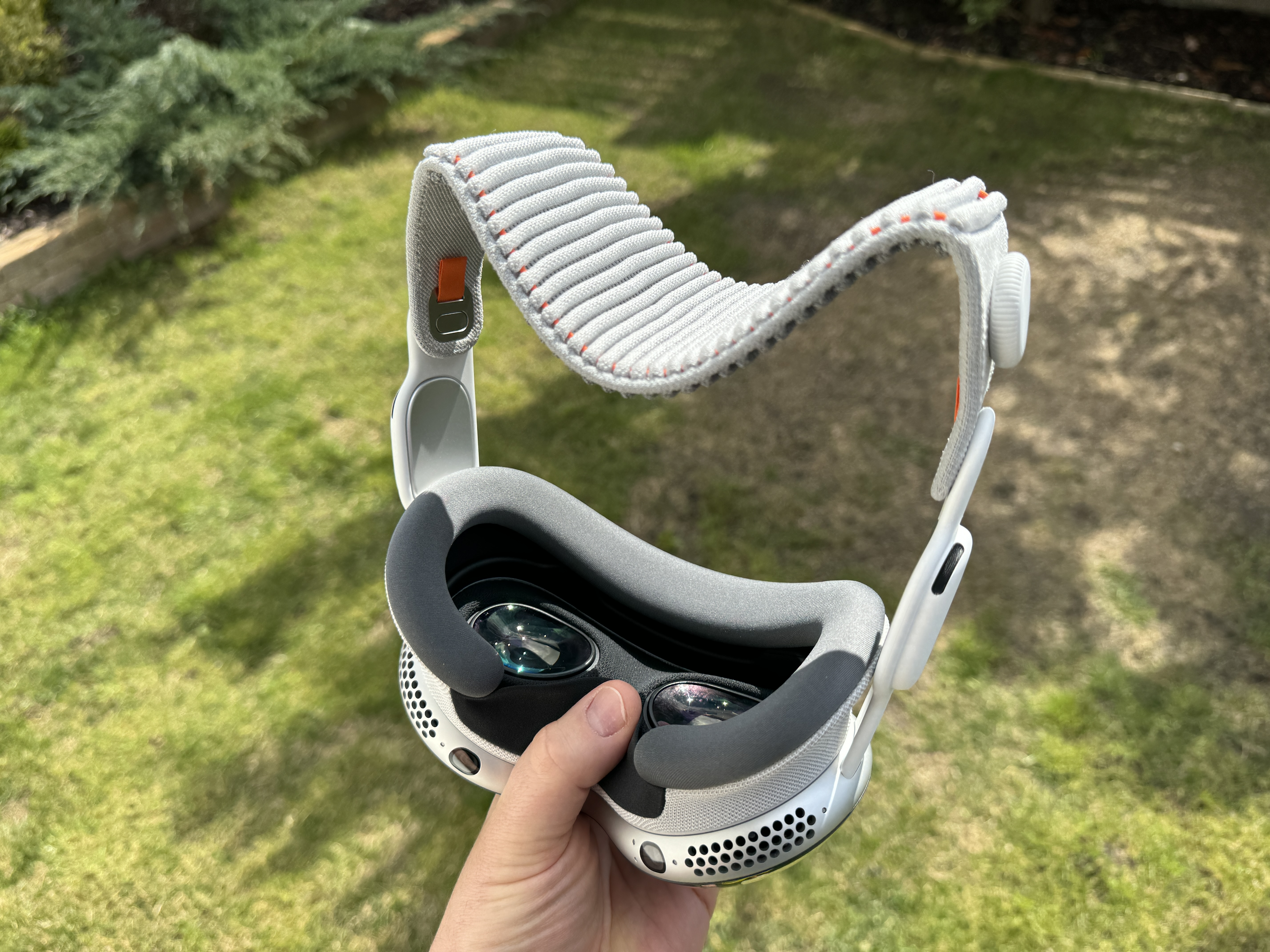
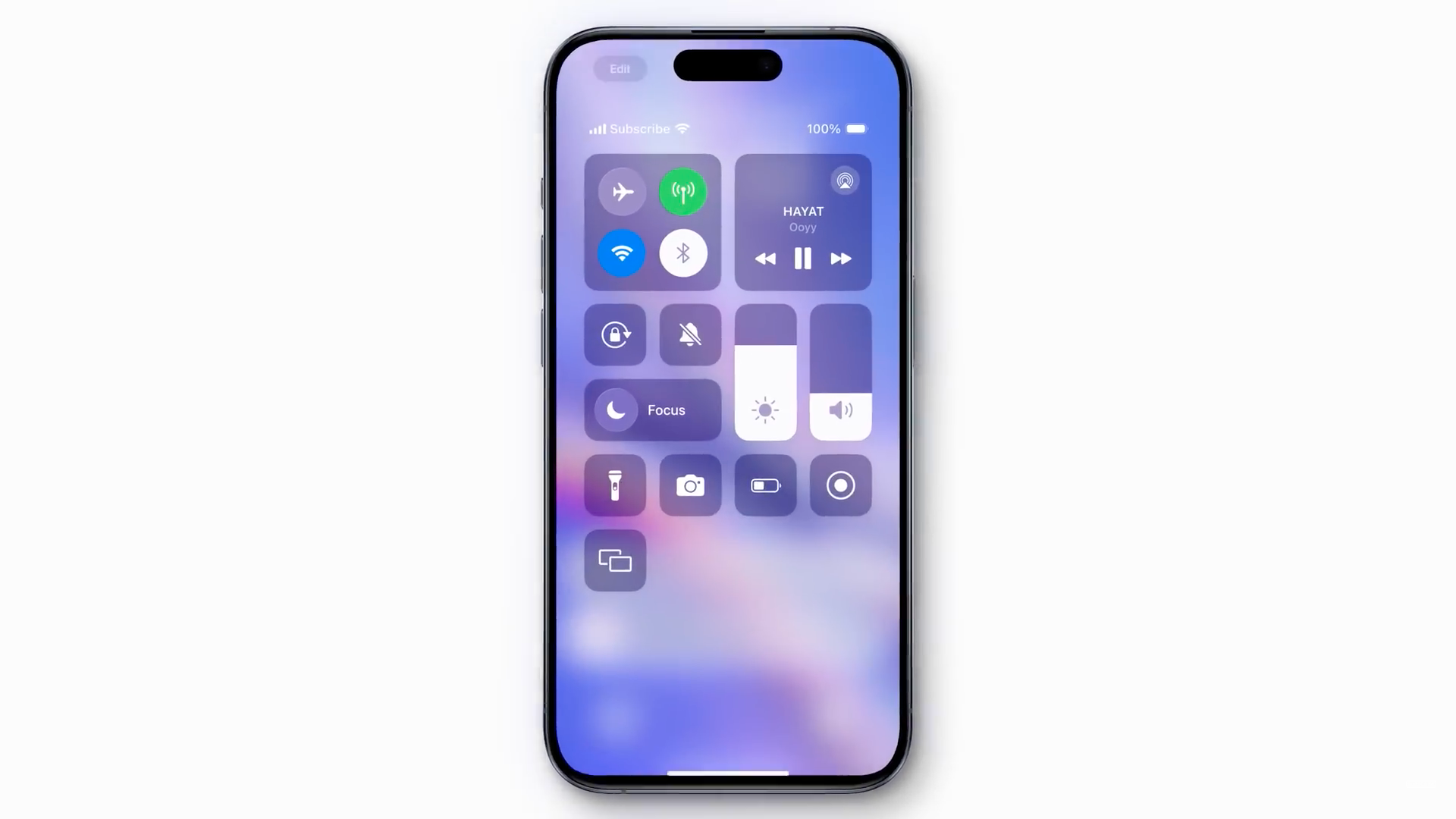
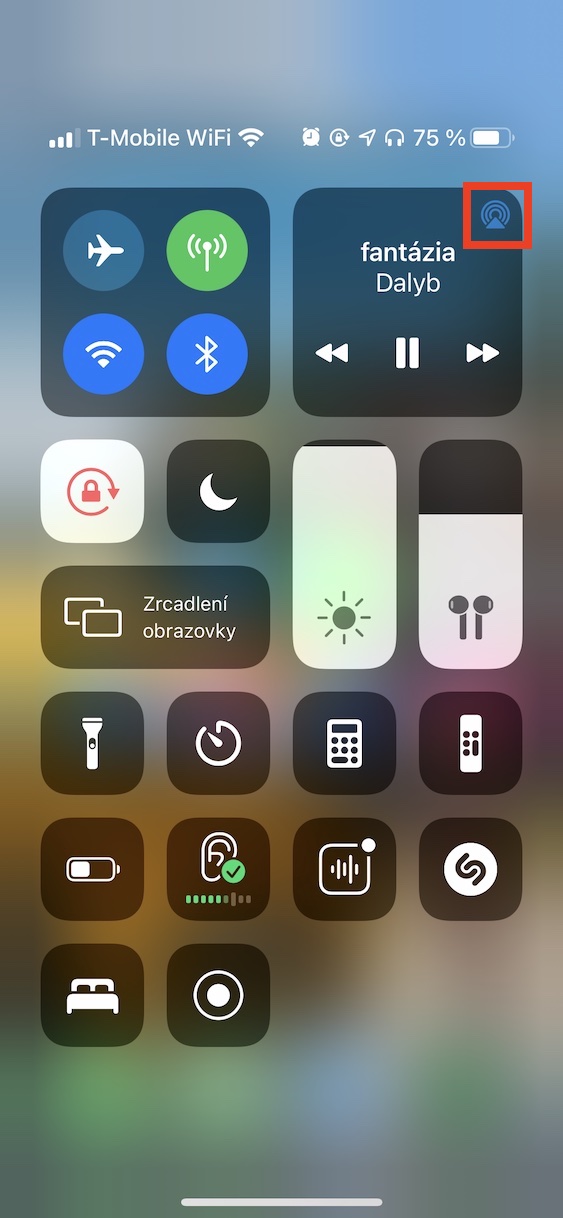
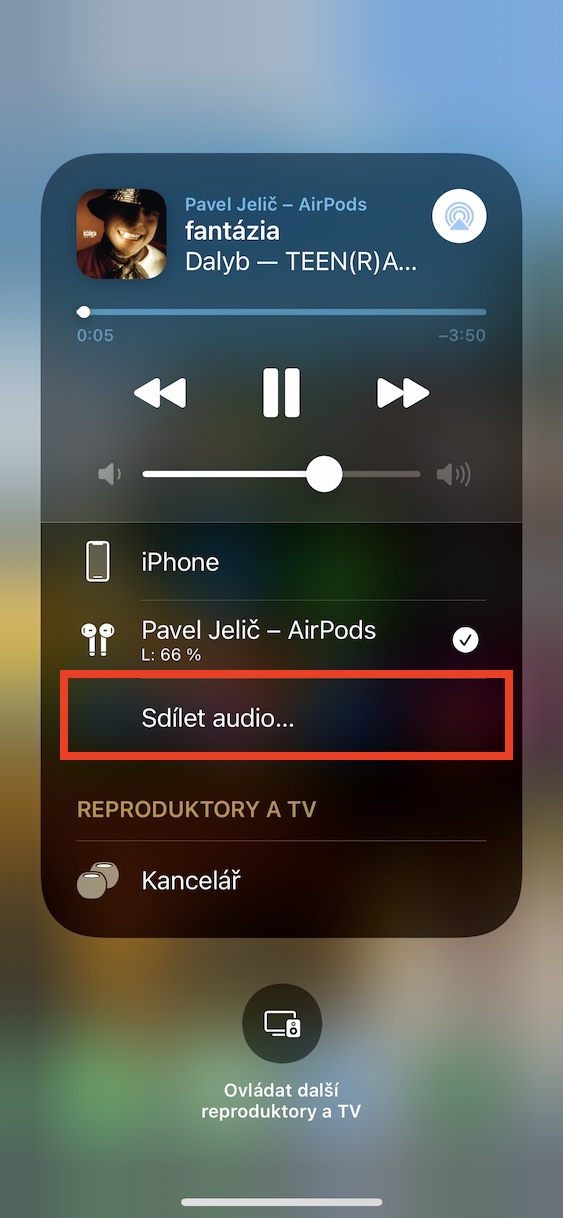
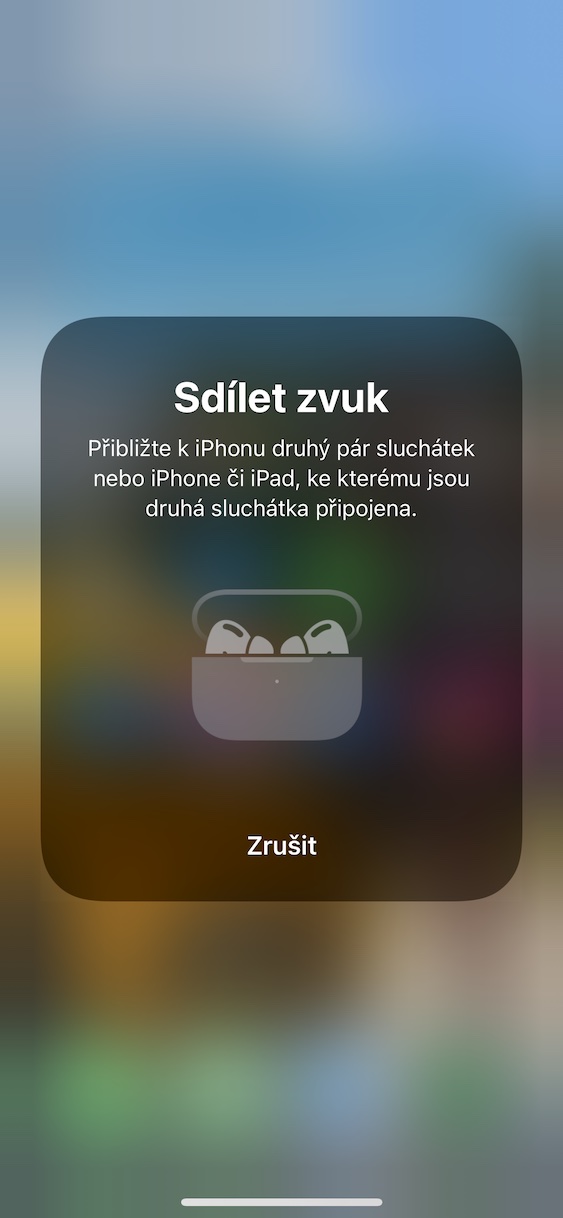
Want to enjoy listening to music or podcasts with your friend? Thanks to the audio sharing feature in AirPods are a breeze. Just plug in your AirPods to your iPhone, open Control Center and tap your AirPods. Here you select Share Audio and then select your friend's headphones. This way you can both enjoy the same audio experience without having to share one headphone.
Gallery
Triggering background sounds
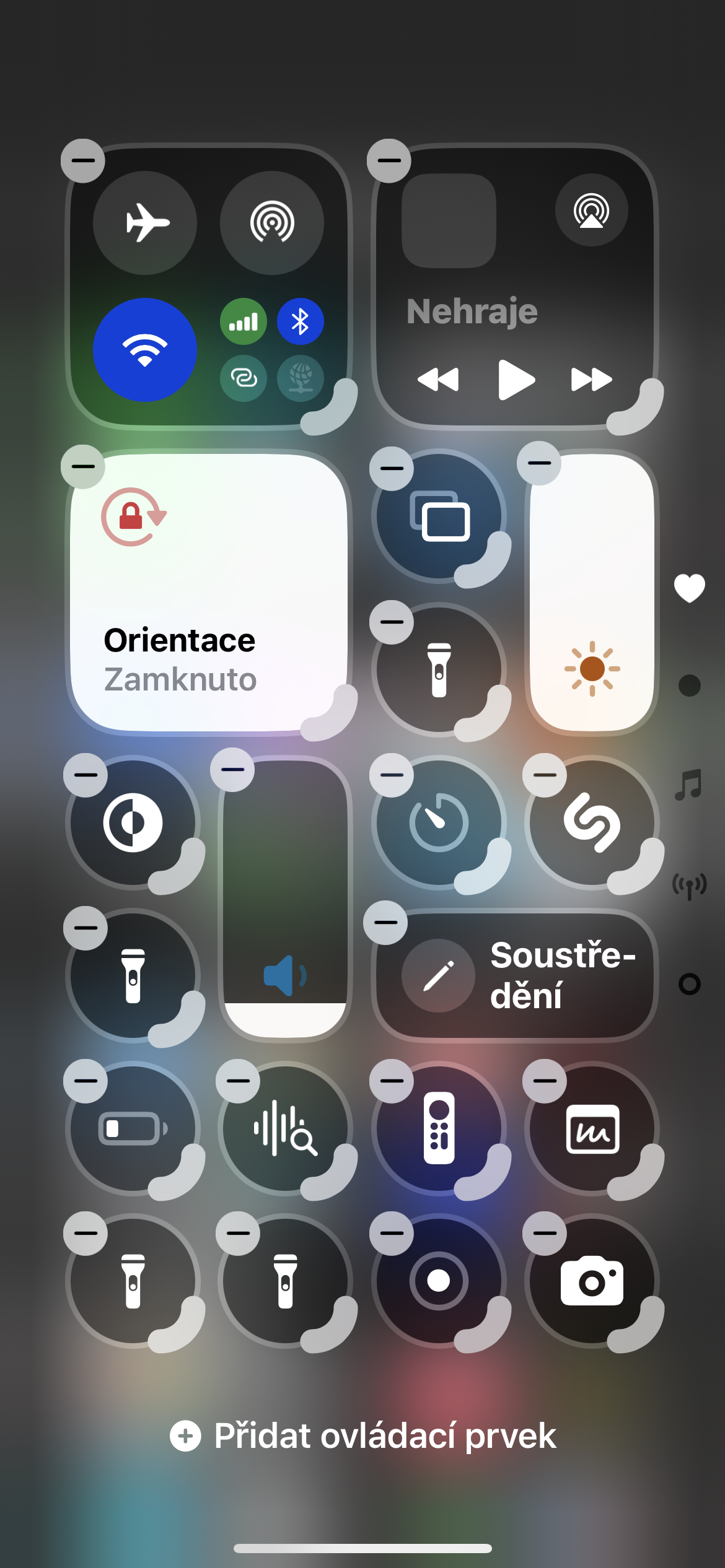
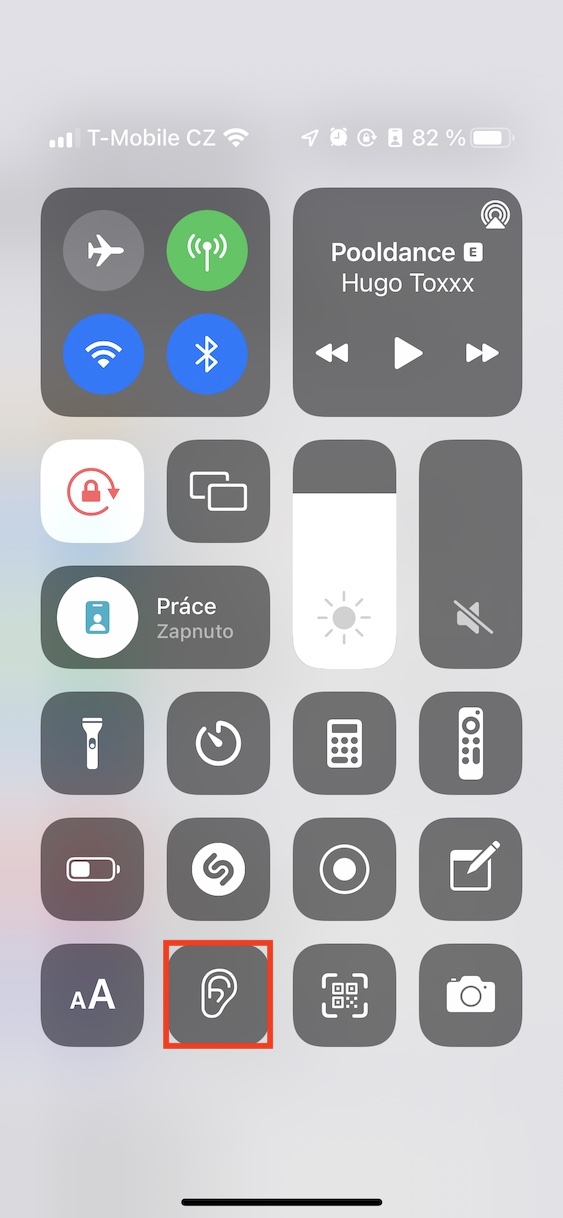
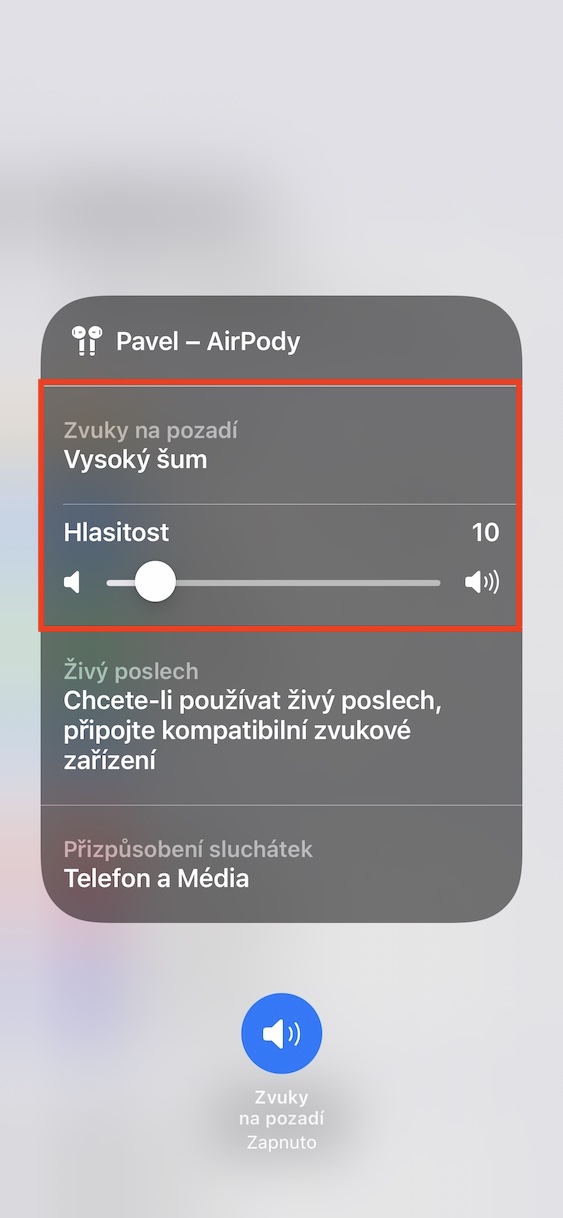
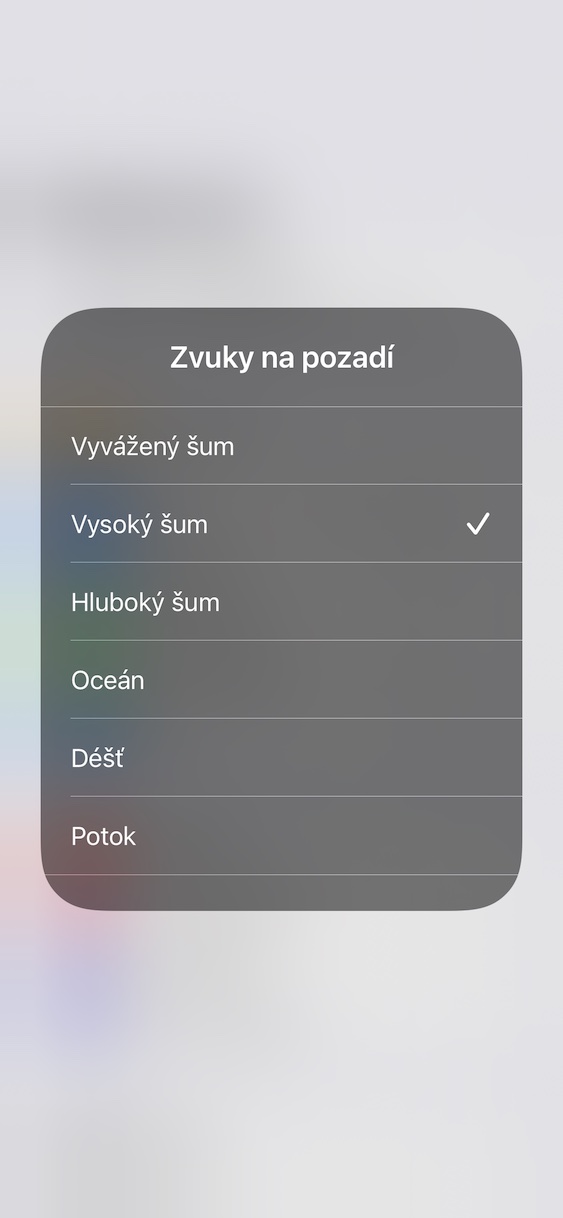
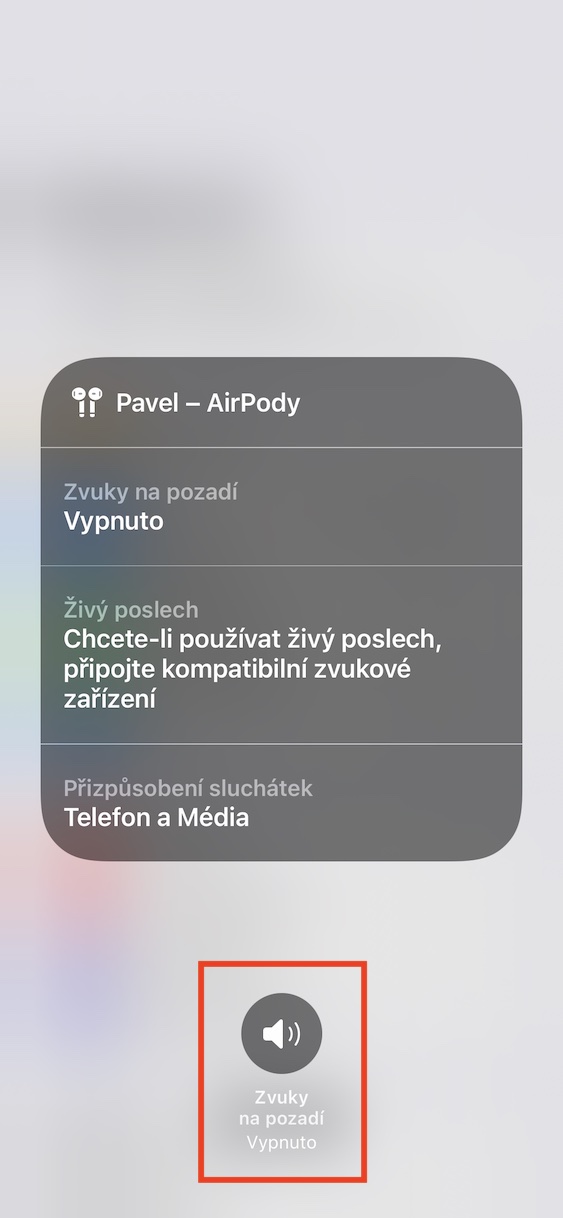
Need to focus on work, but the hustle and bustle of the city is keeping you from getting a good night’s sleep? Or do you want to fall asleep, but the hustle and bustle of the city is keeping you awake? The Background Sounds feature on your iPhone can help you create a peaceful environment, no matter where you are. Choose from a wide range of soothing sounds, like the ocean, birdsong, or a crackling fire, and let yourself drift off to the soothing melodies. Just add the Hearing widget to Control Center ( Settings > Accessibility > Control Center > More Controls ), open Control Center, and select Background Sounds. You can choose from sounds like rain, a ticking clock, or a heartbeat.
Gallery
Torch control
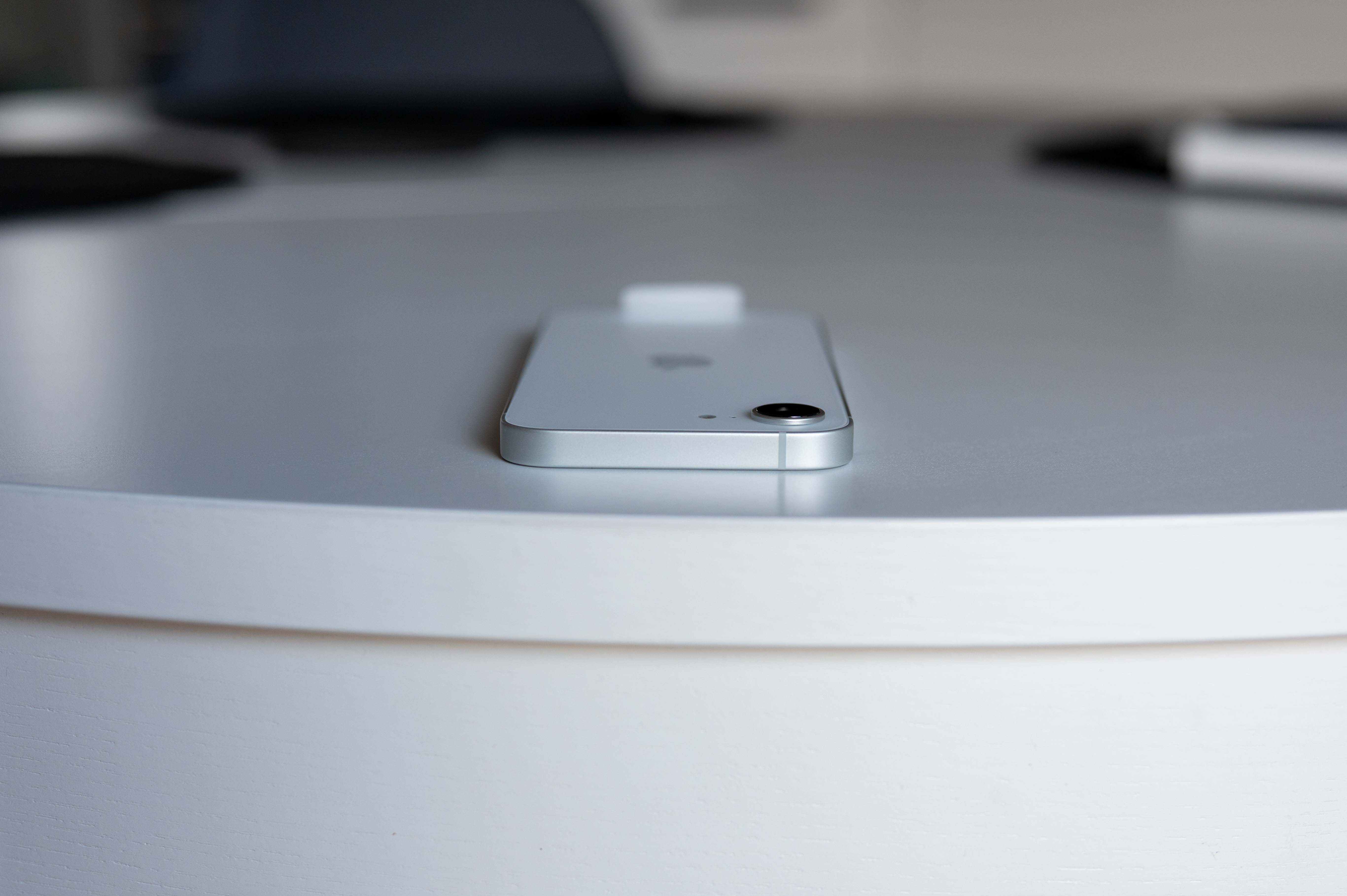
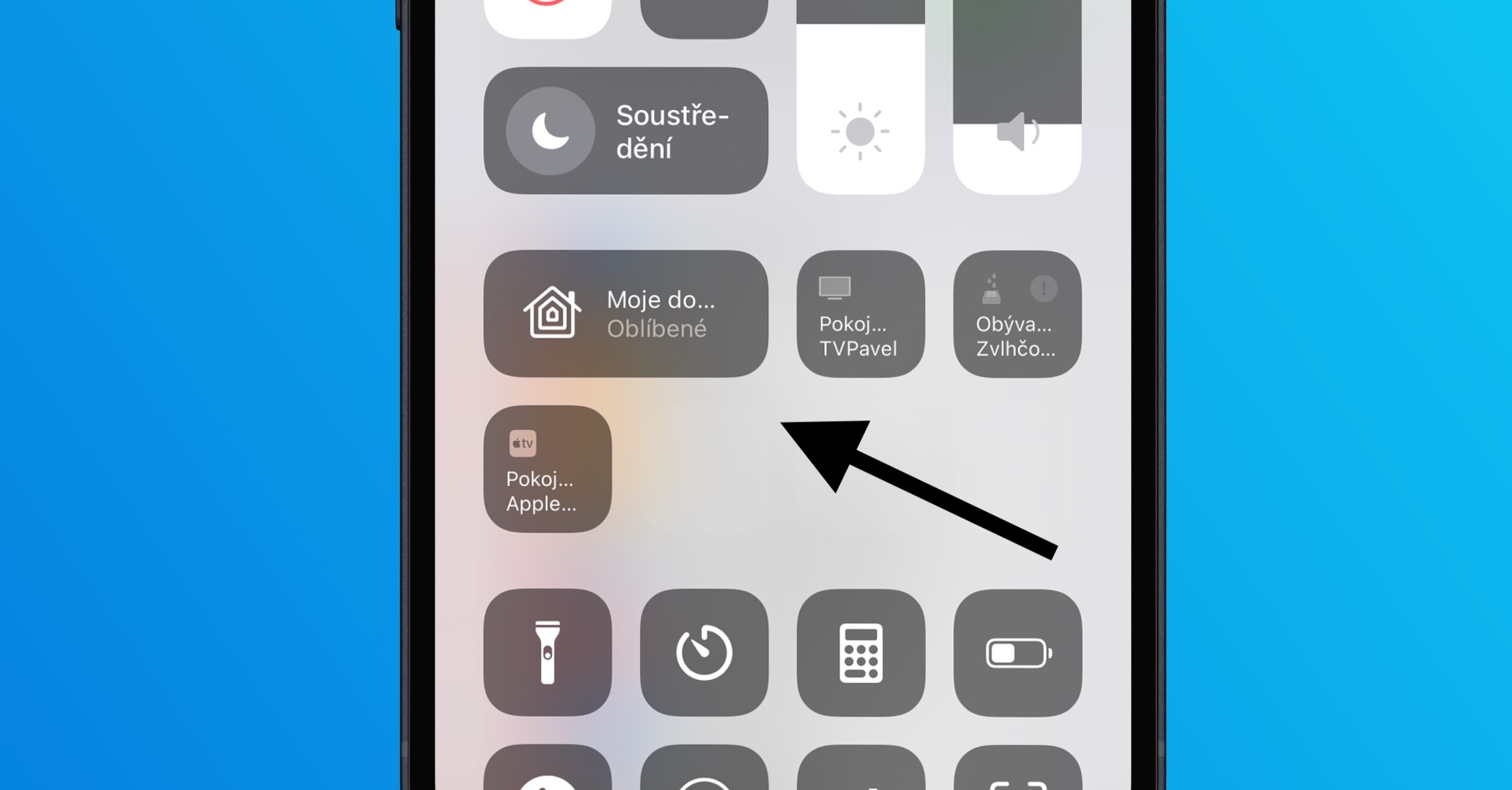
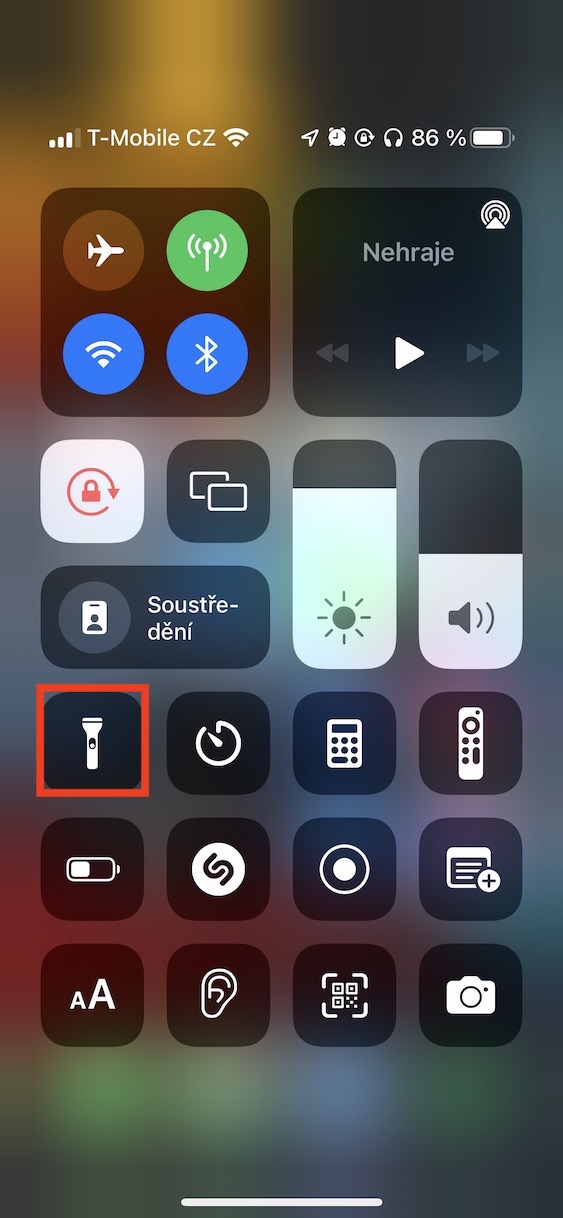
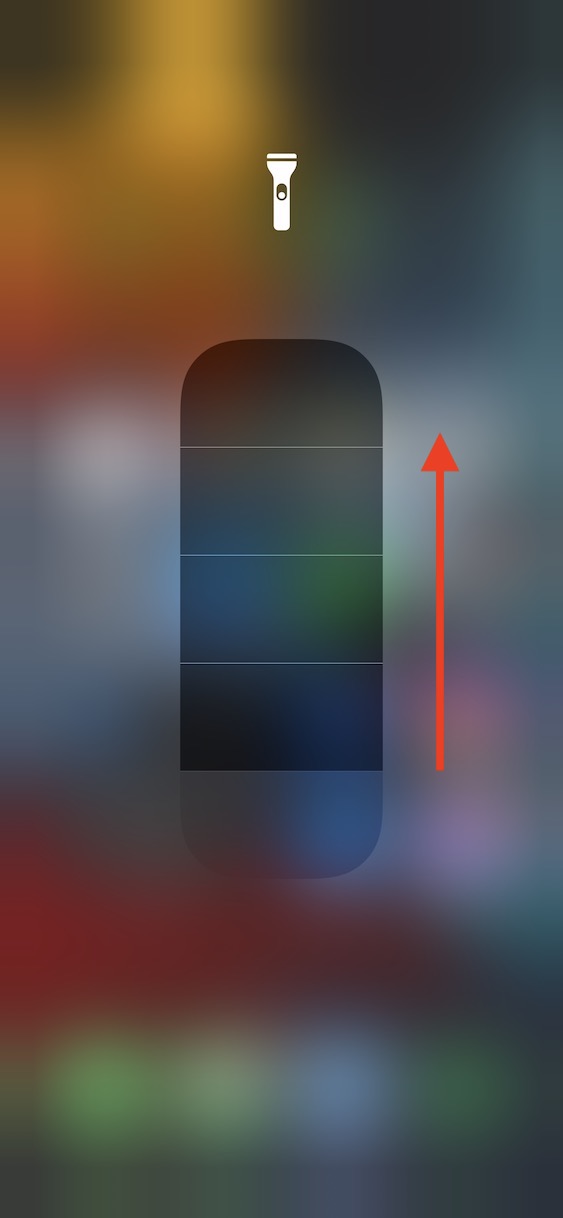
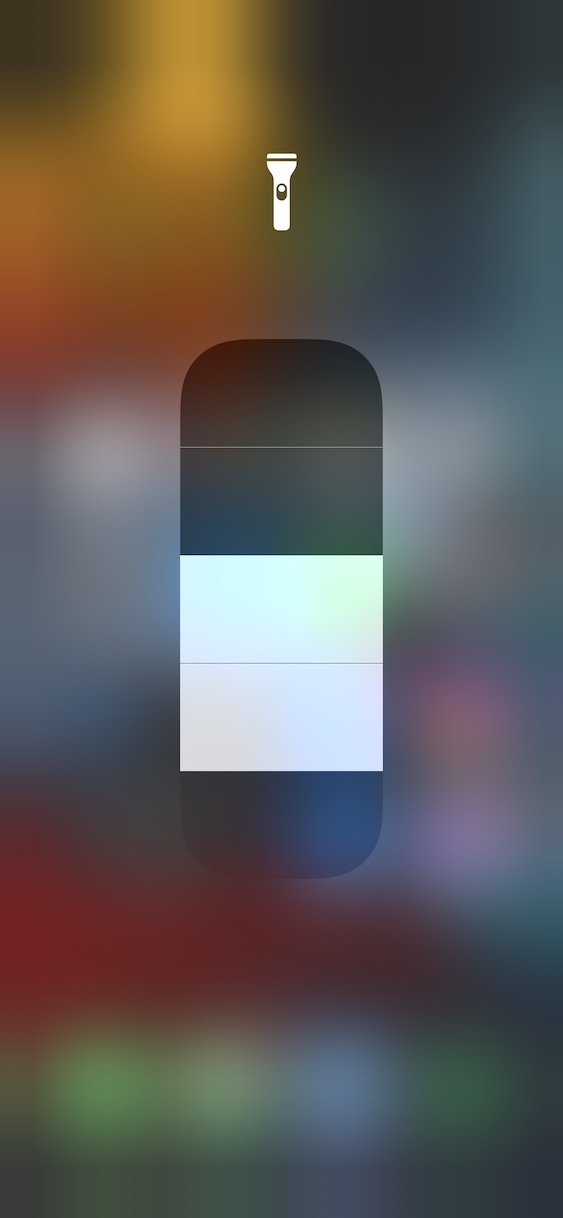
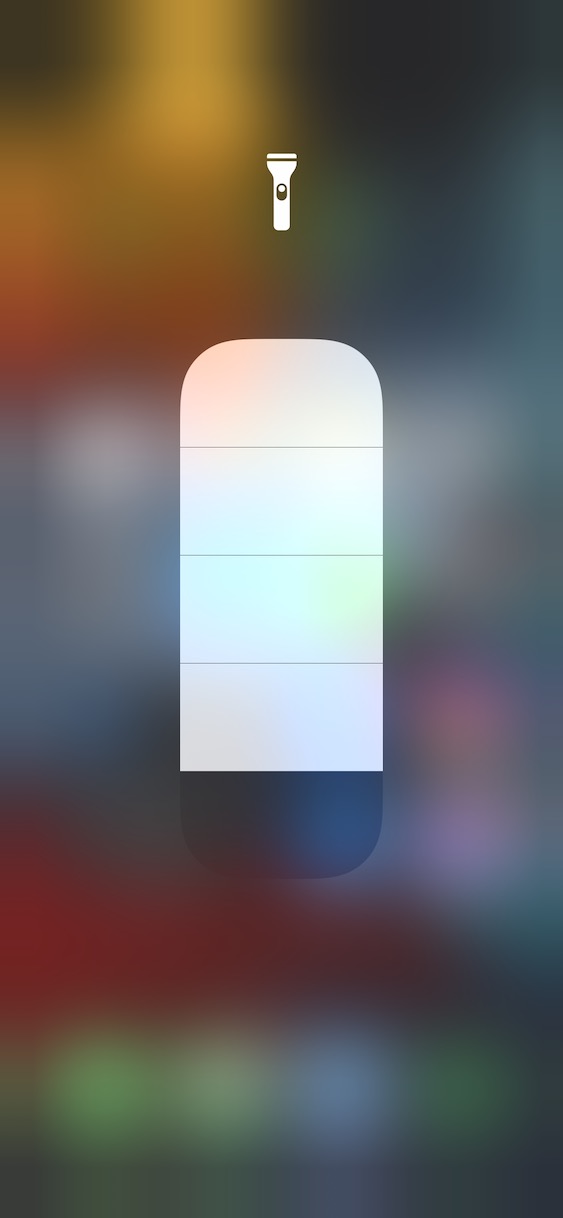
The LED on the back of your iPhone can serve not only as a flash when taking photos, but also as a practical flashlight. Its brightness (and on some iPhone models, depending on the version) can be adjusted. iOS You can customize the light cone directly in the Control Center - just open the Control Center, hold your finger on the flashlight icon and adjust the brightness.
Gallery
Access in applications
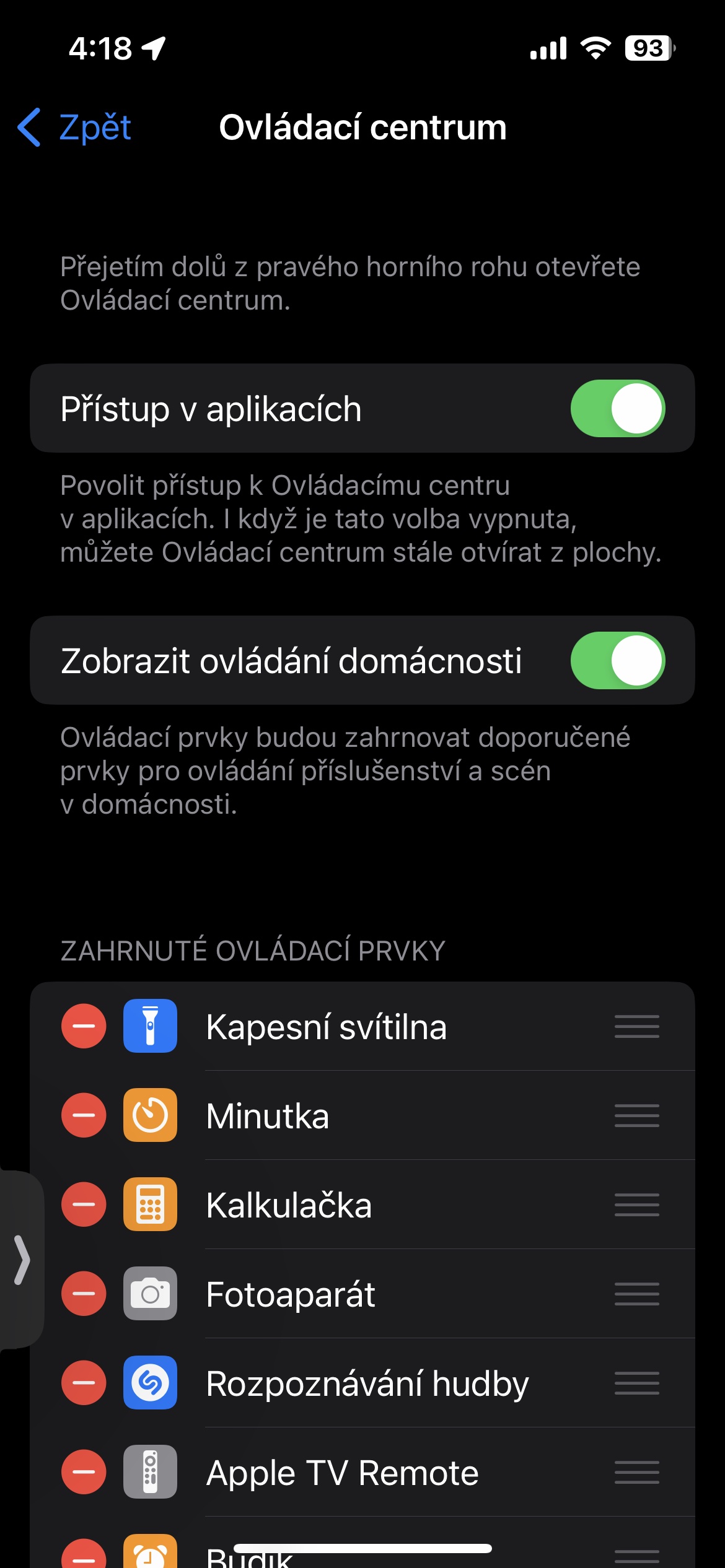
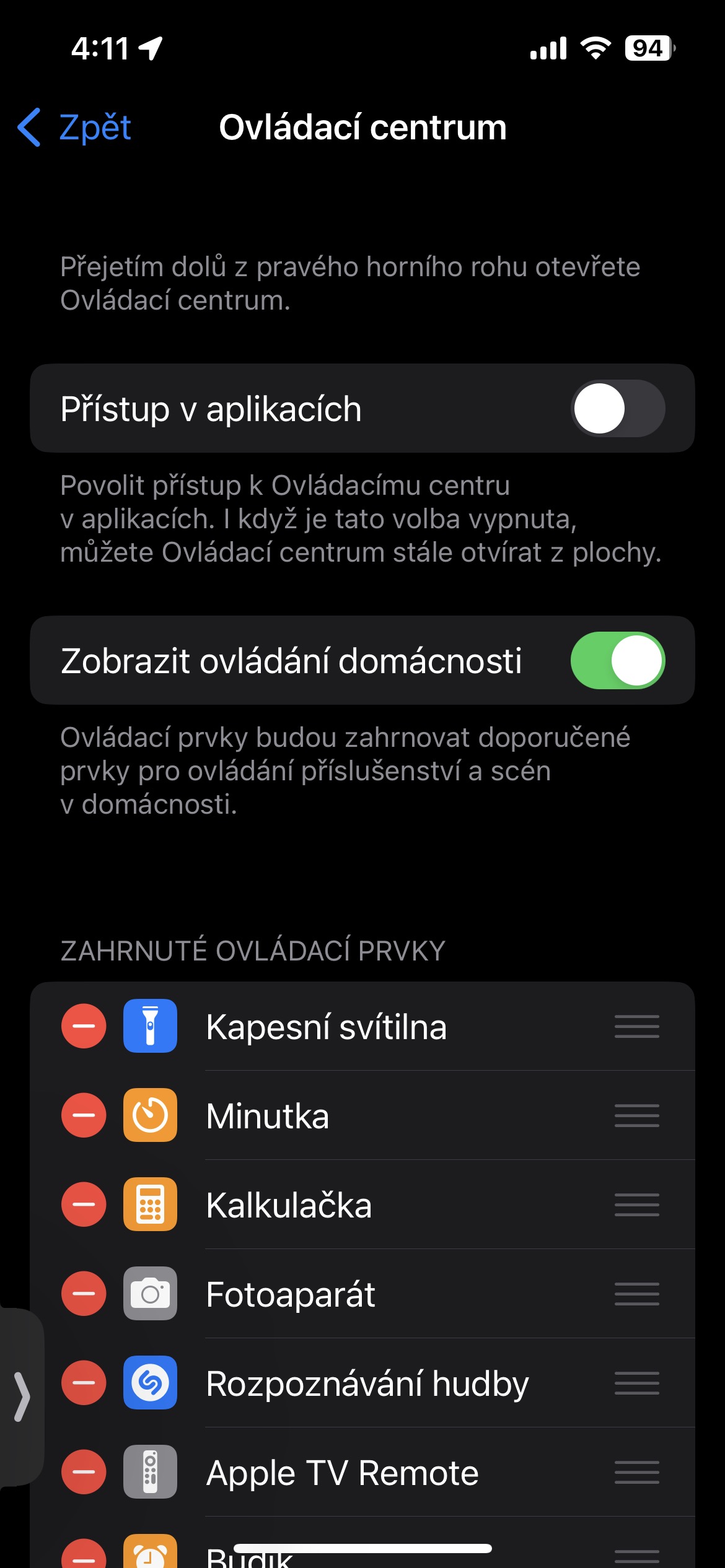
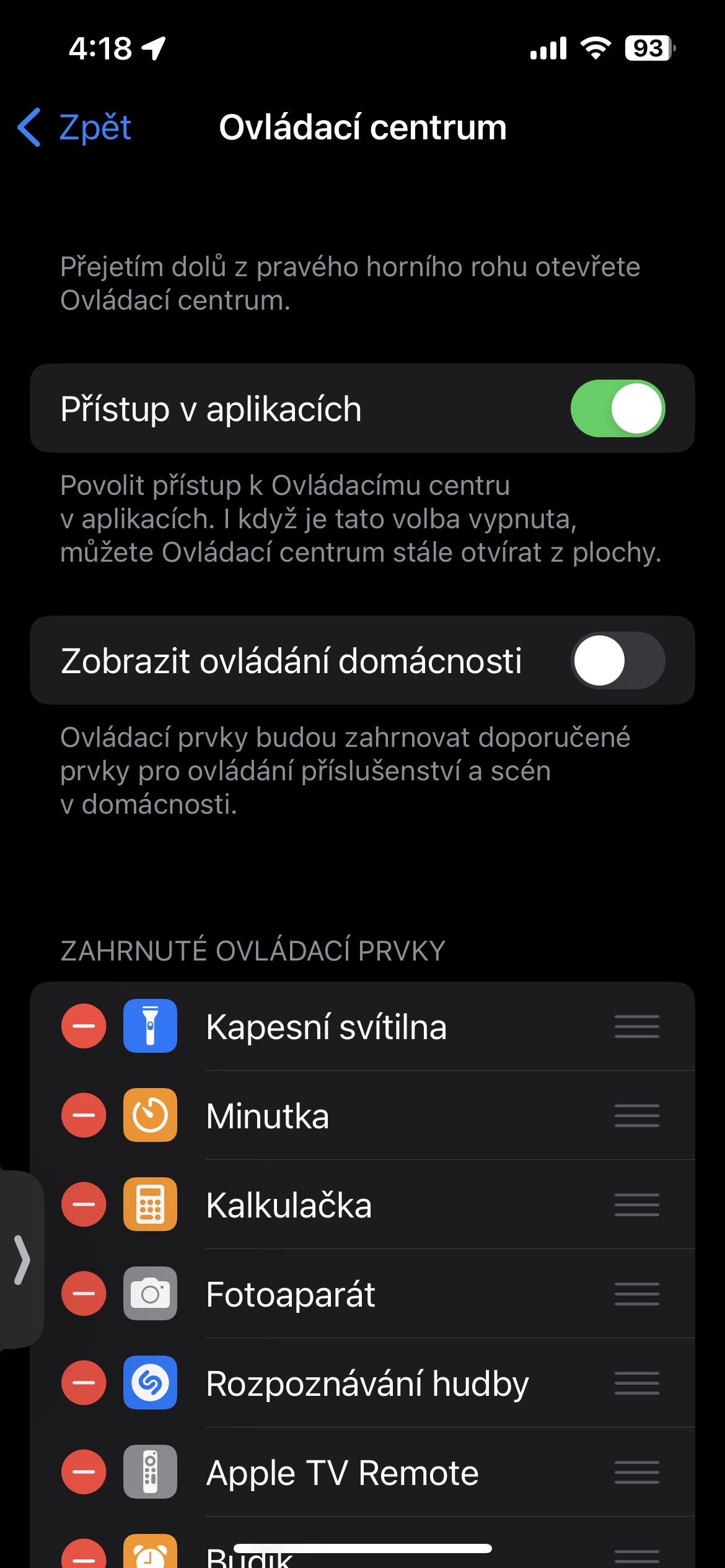
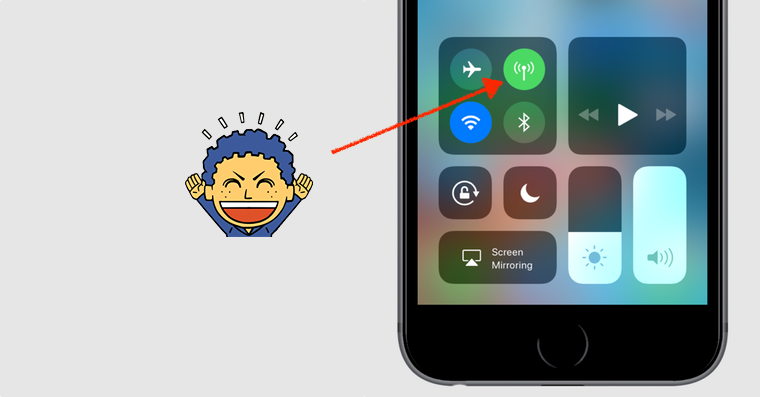
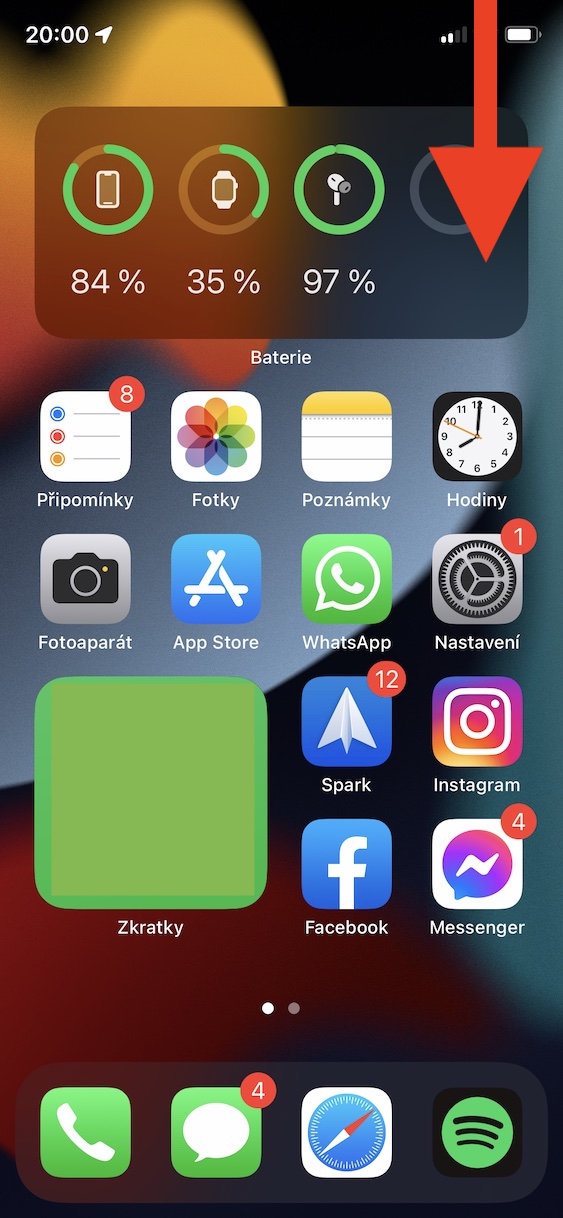
Control Center on iPhone is like your personal quick shortcut to all the important functions. Whether you want to quickly mute the sound, turn on the flashlight or change the brightness of the display, one gesture is all it takes. And thanks to the Access in applications setting, you can access it anytime and anywhere, even if you have an application running. You can find it in Settings > Control Center.
Gallery