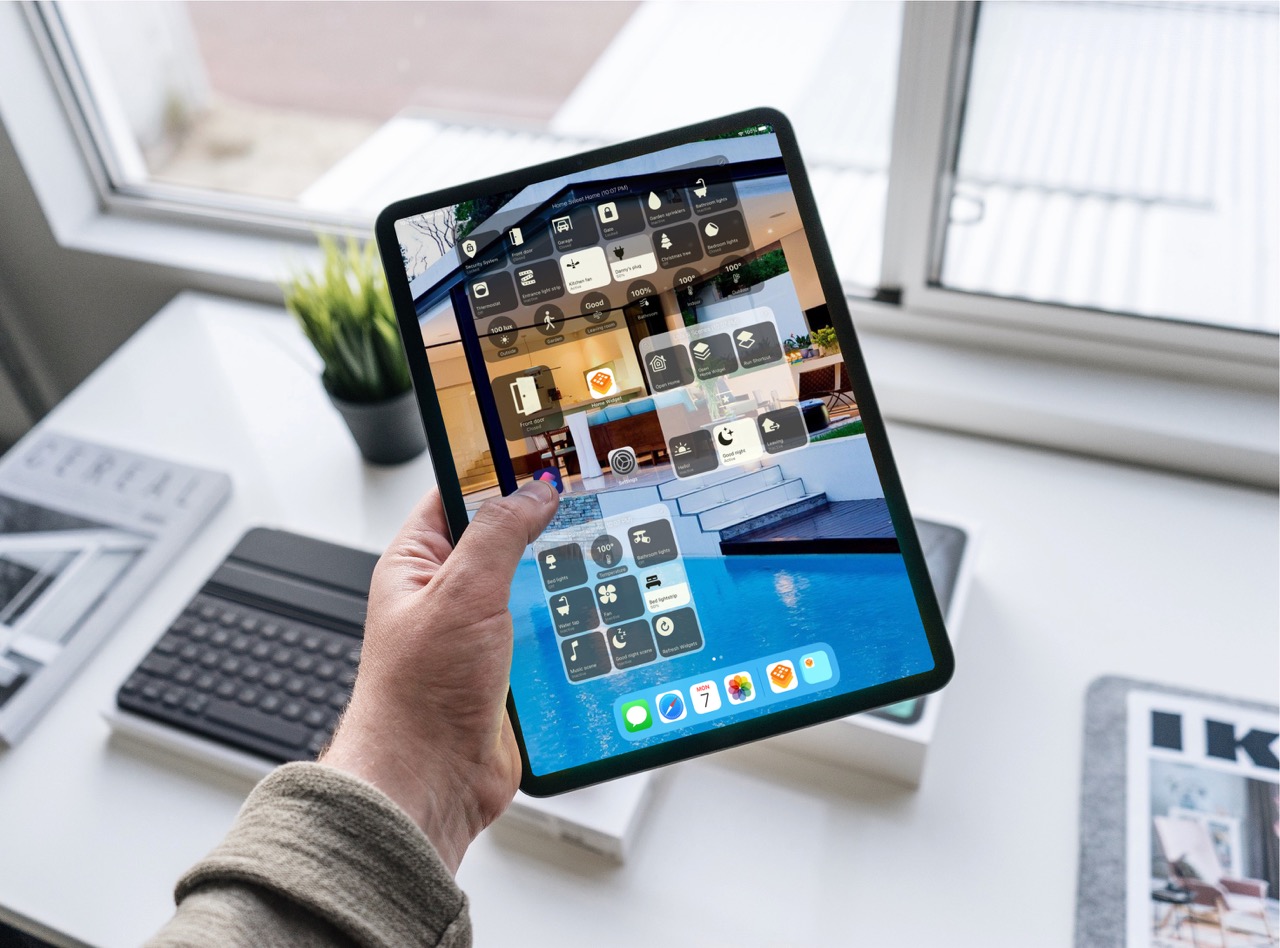
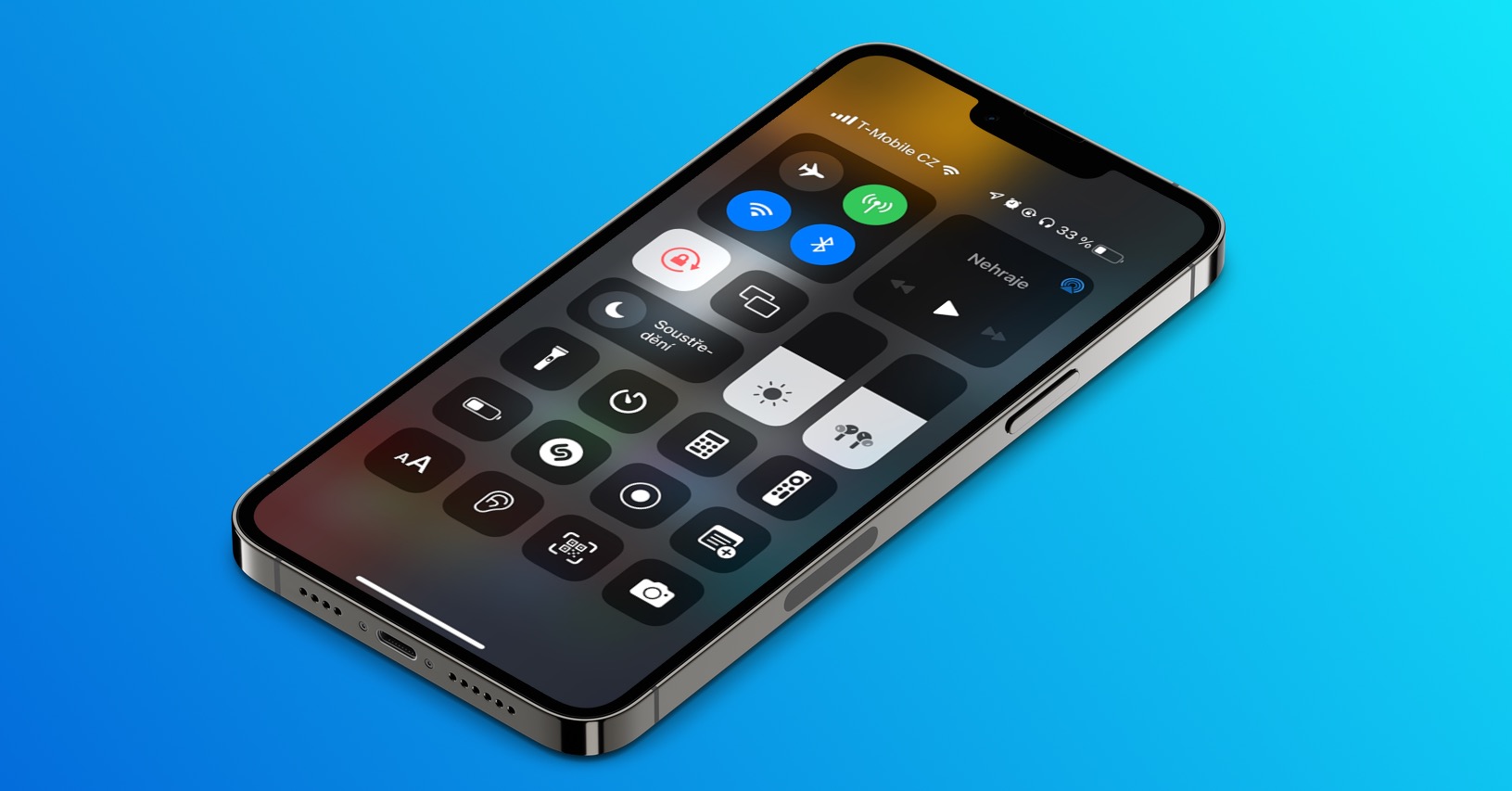
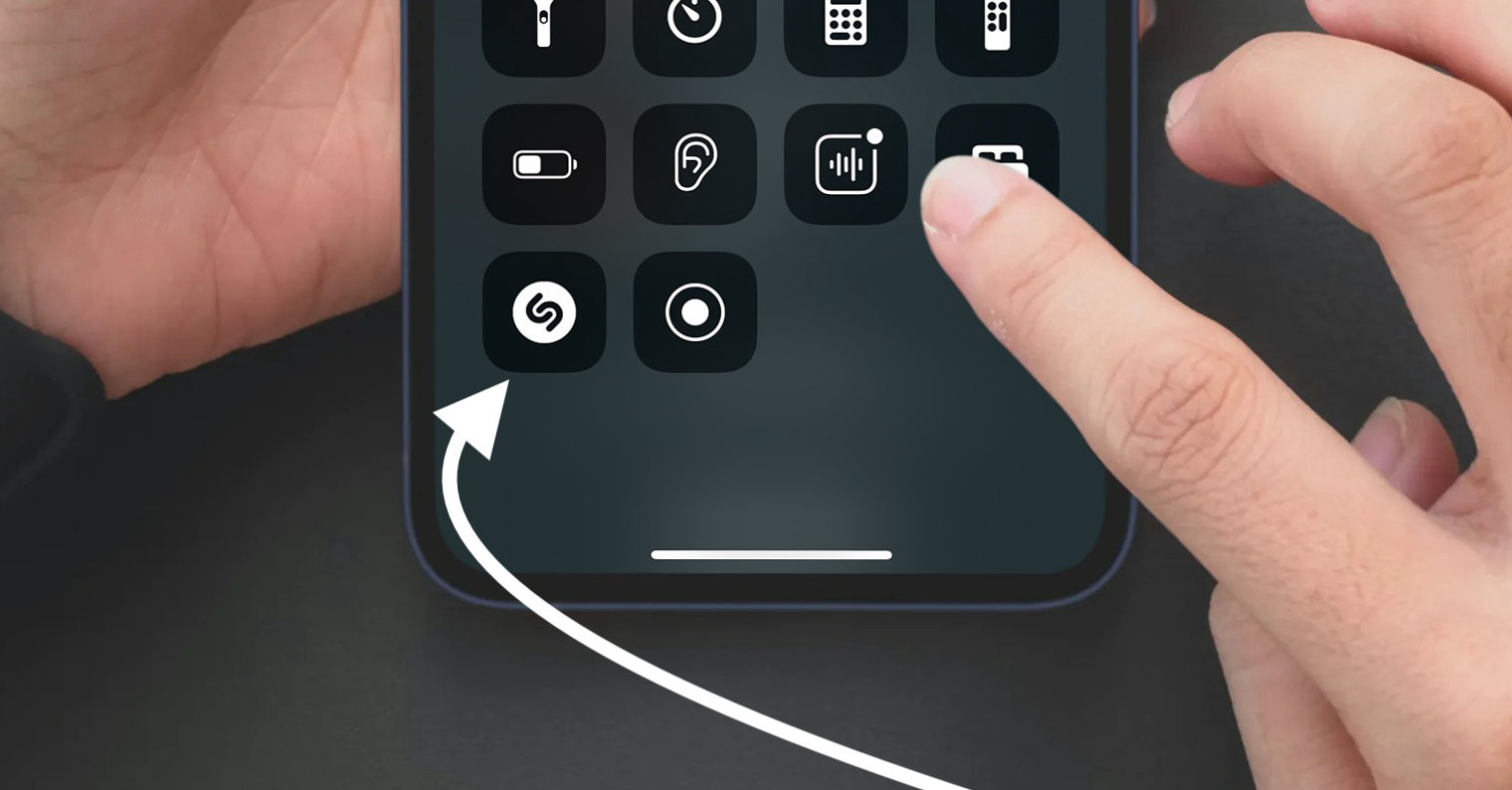
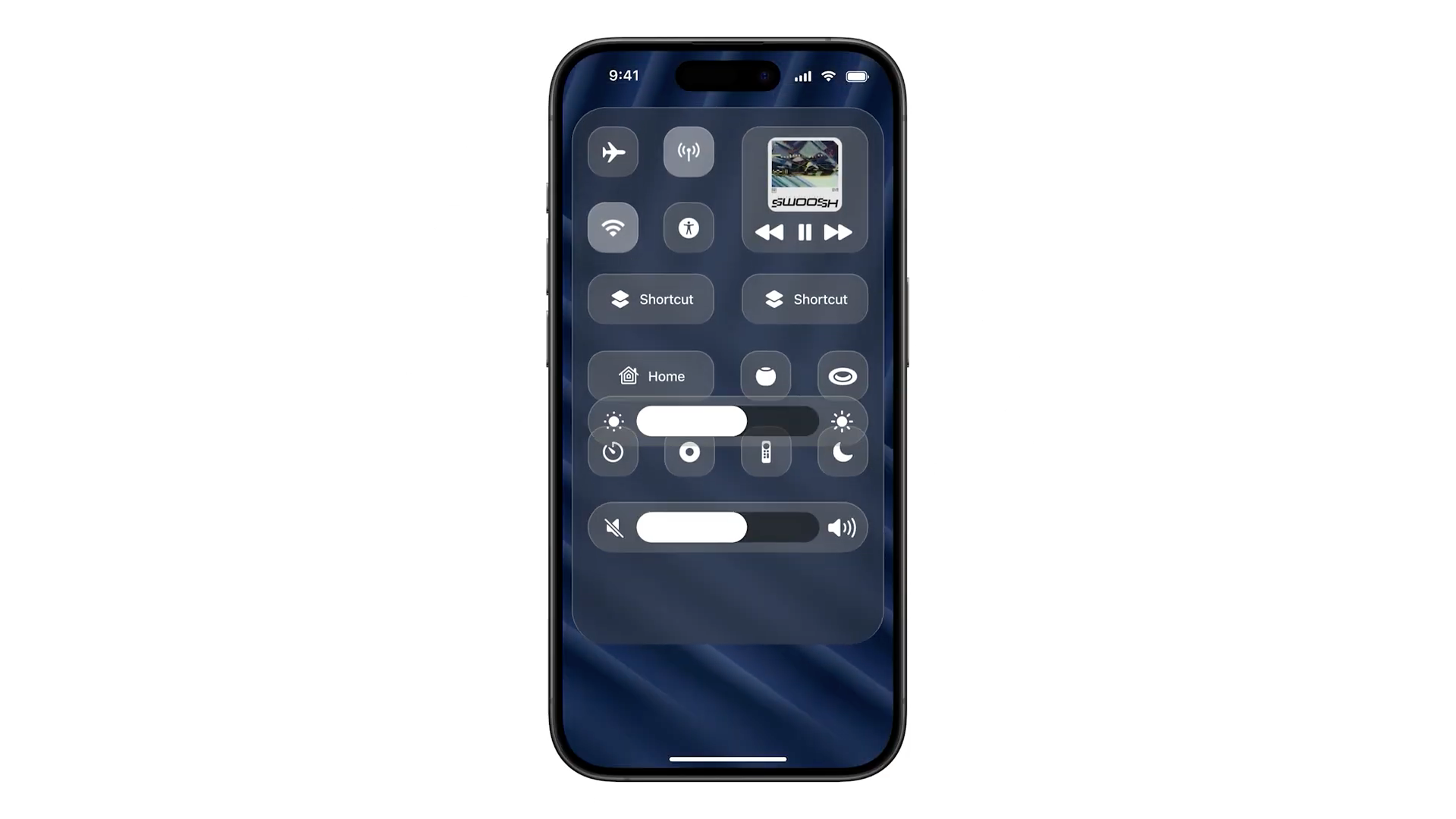
We use Control Center several times a day – for example, I use it to control brightness, volume, or manage my smart home – but customizing it often goes unnoticed. And this is where you can save the most time.
You might be interested in
Only add what you really use
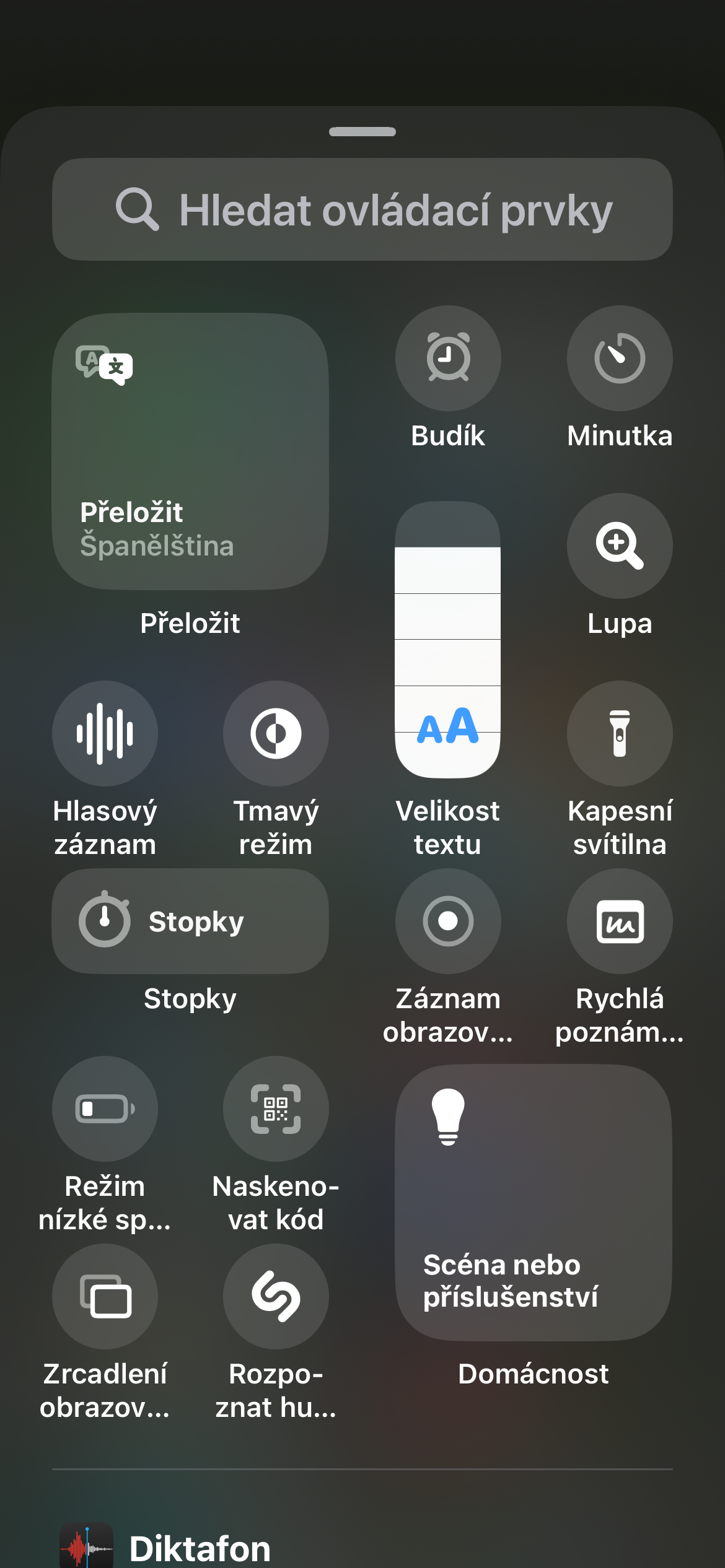
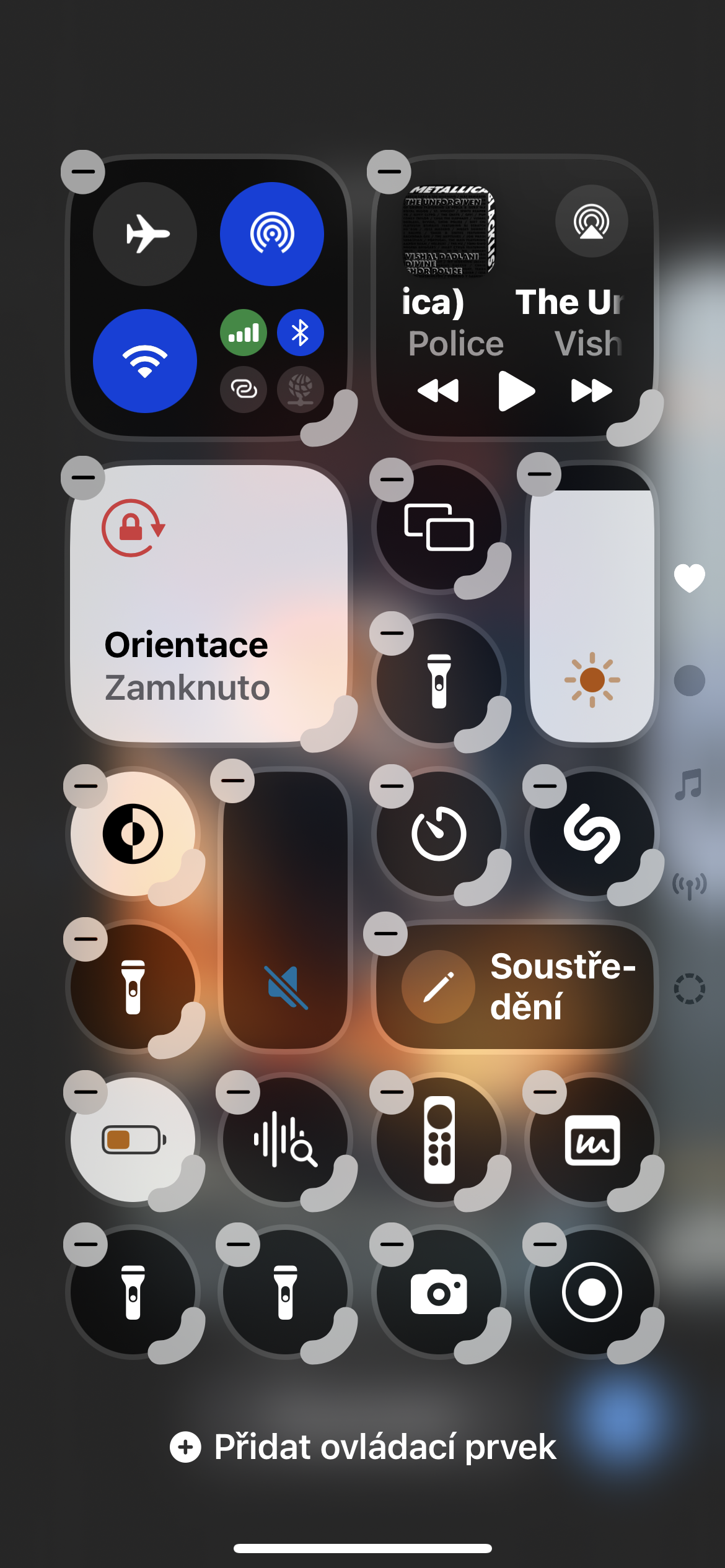
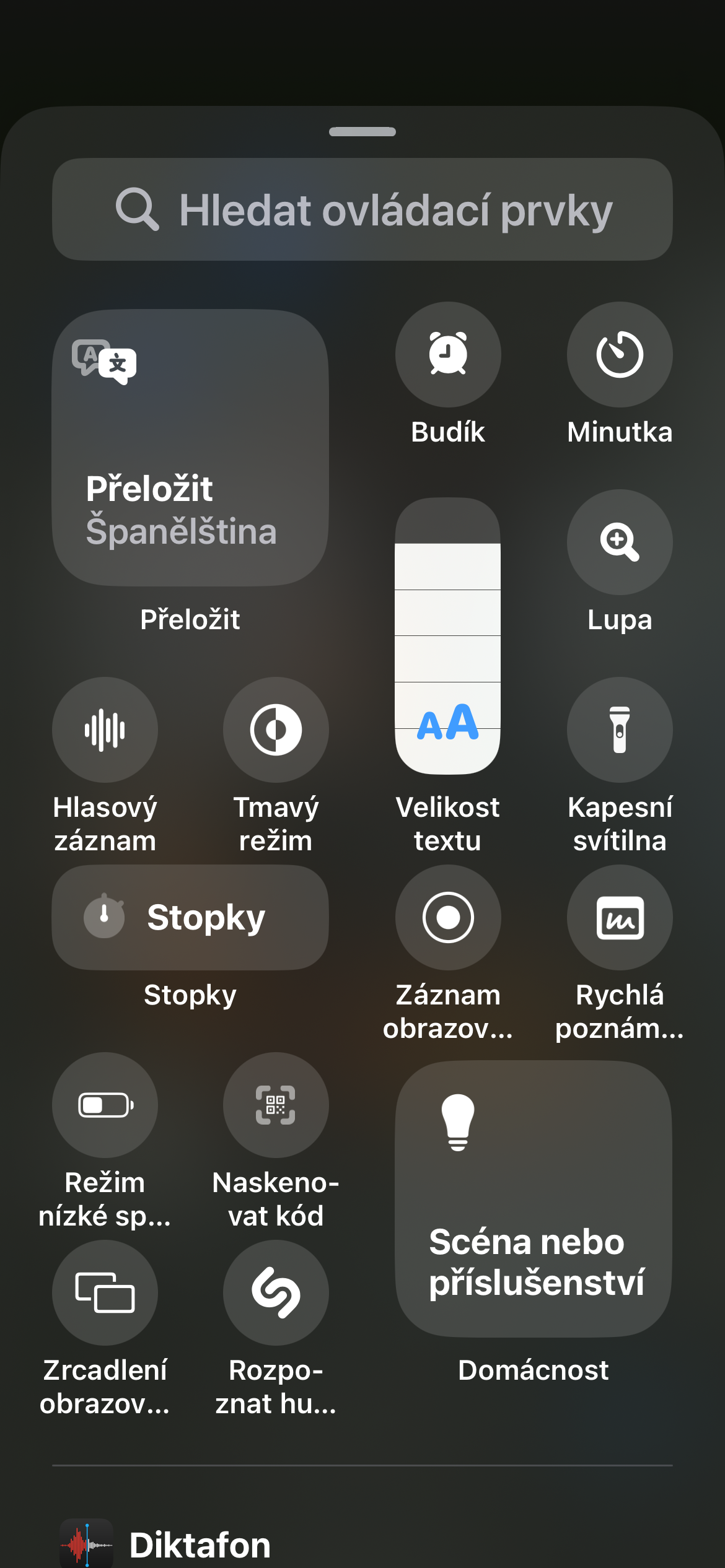
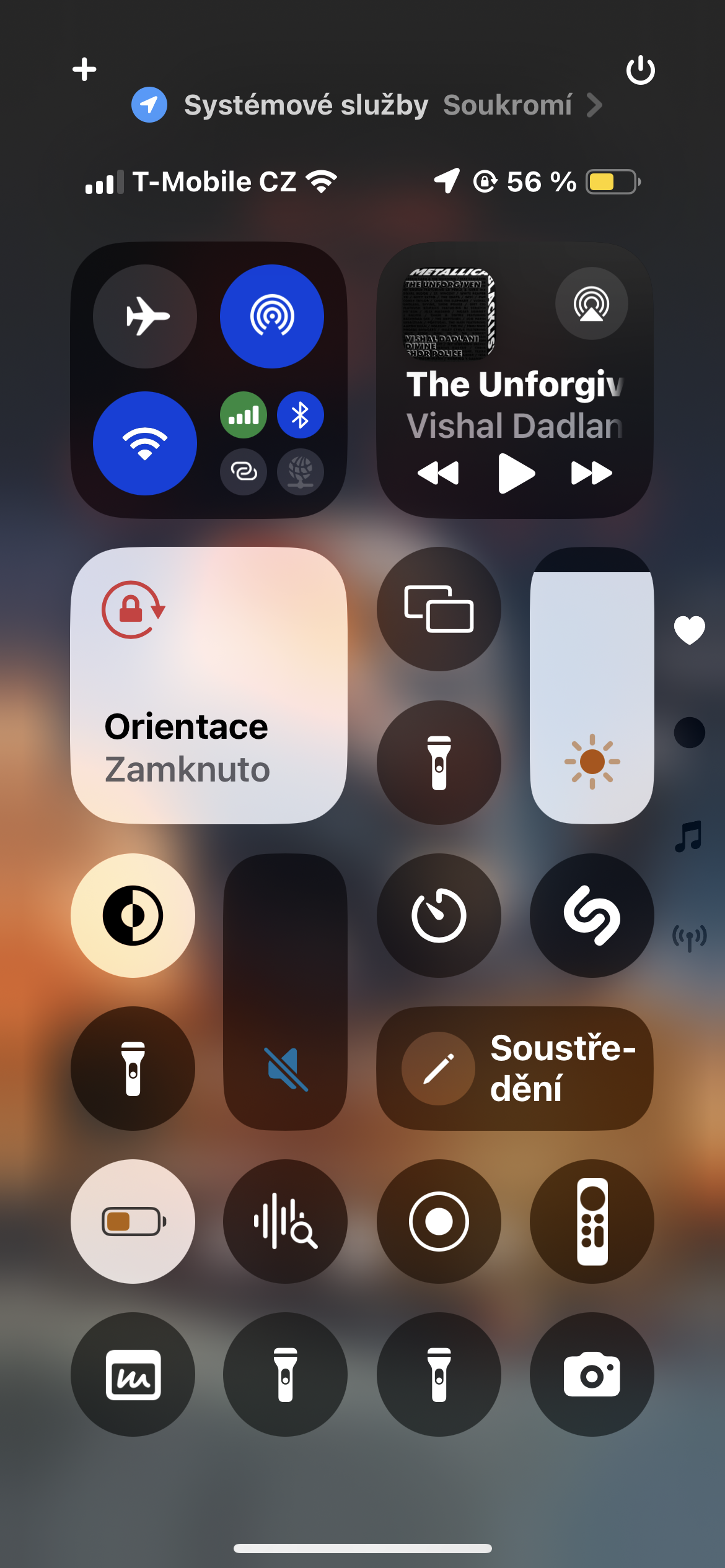
You can add a variety of controls to Control Center—from screen recording to notes to smart home controls. Just open Control Center, long-press the screen, tap + -> Add control, and select the control you want.
Order matters
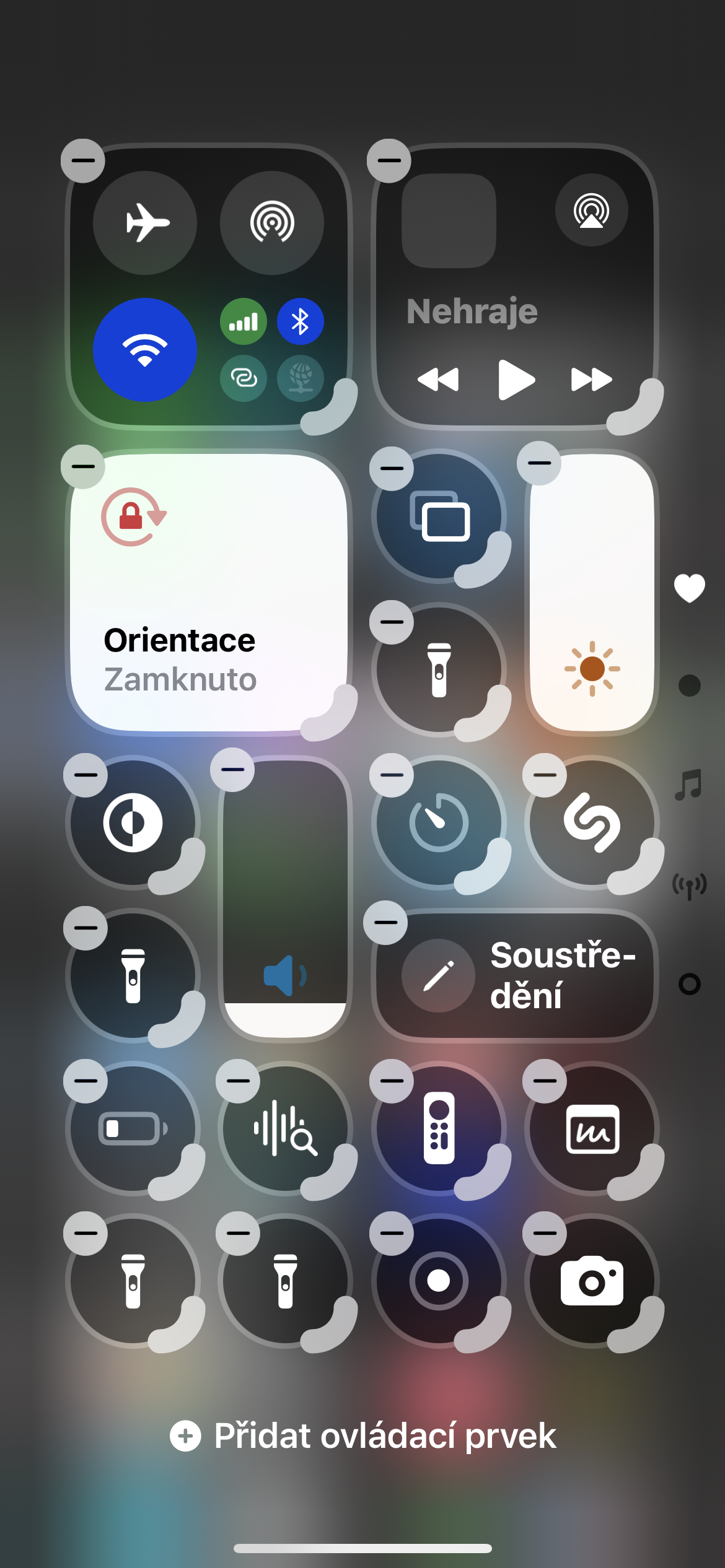
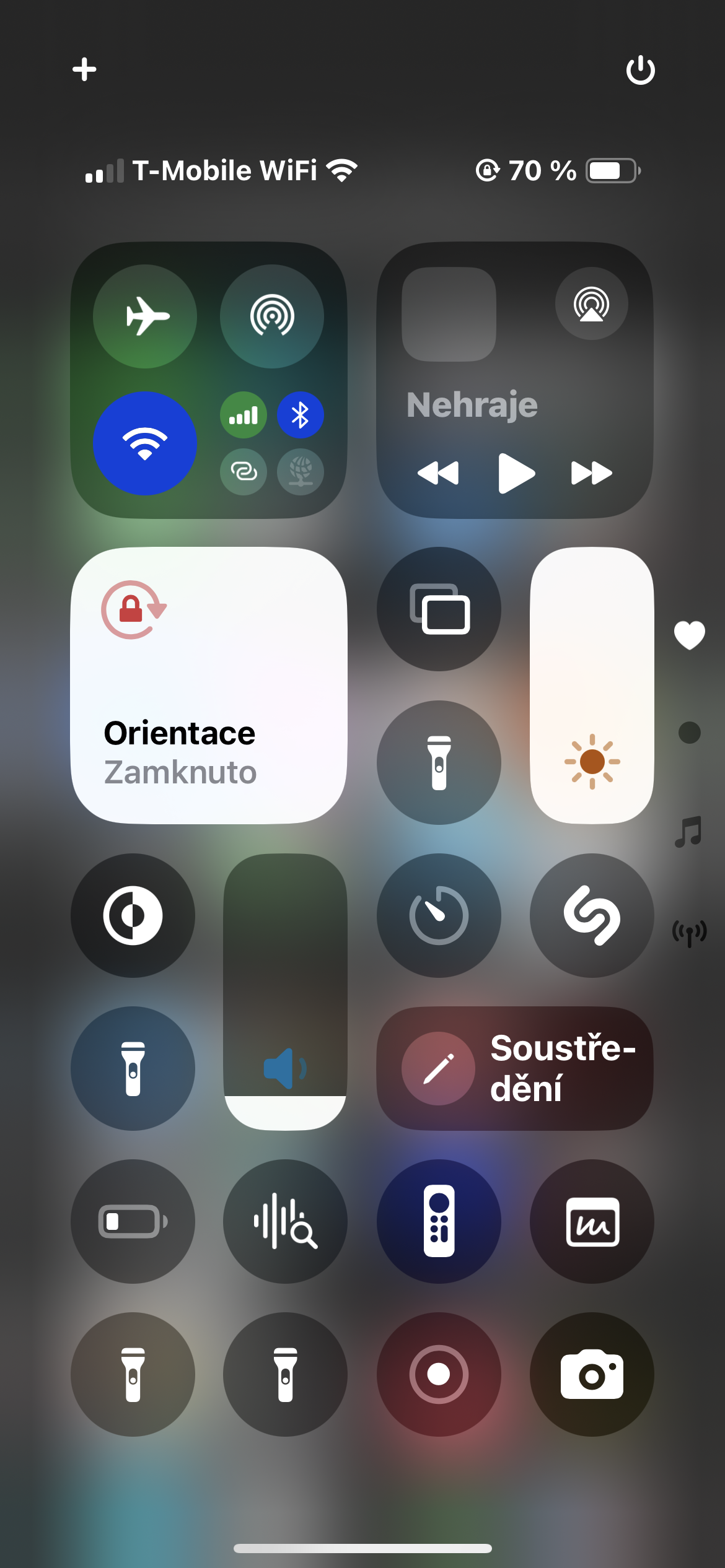
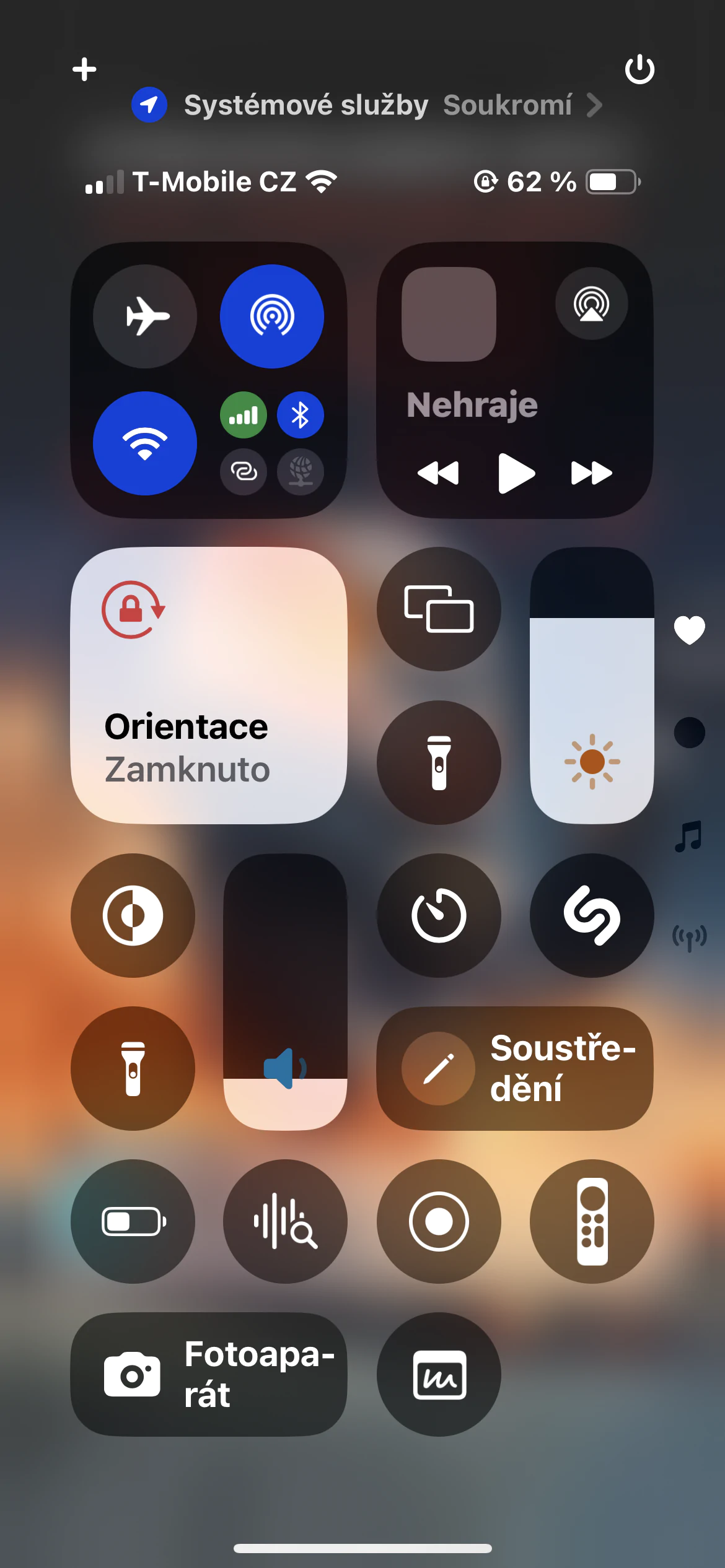
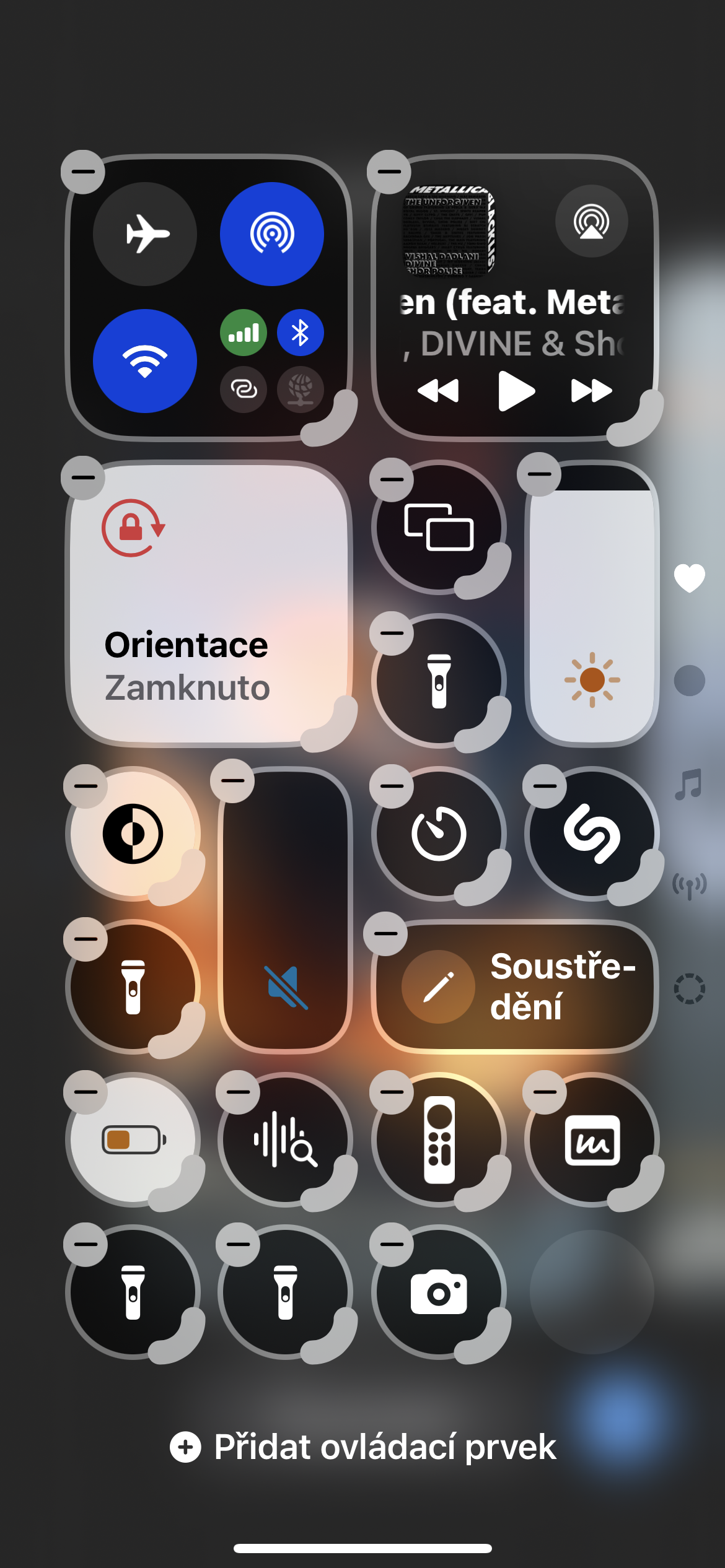
You can rearrange the individual panels as you wish. It pays to have the most used functions right at the top so that they are immediately available after opening. Personally, I found it helpful to first think about what I need to have at hand and where, and then adapt the layout of the individual elements in the Control Center to my habits and preferences. By the way, it is surprising how much muscle memory plays a role here. After adding a new element, at first I would accidentally tap a tile that I had previously removed from the Control Center.
Gallery
More control where it makes sense
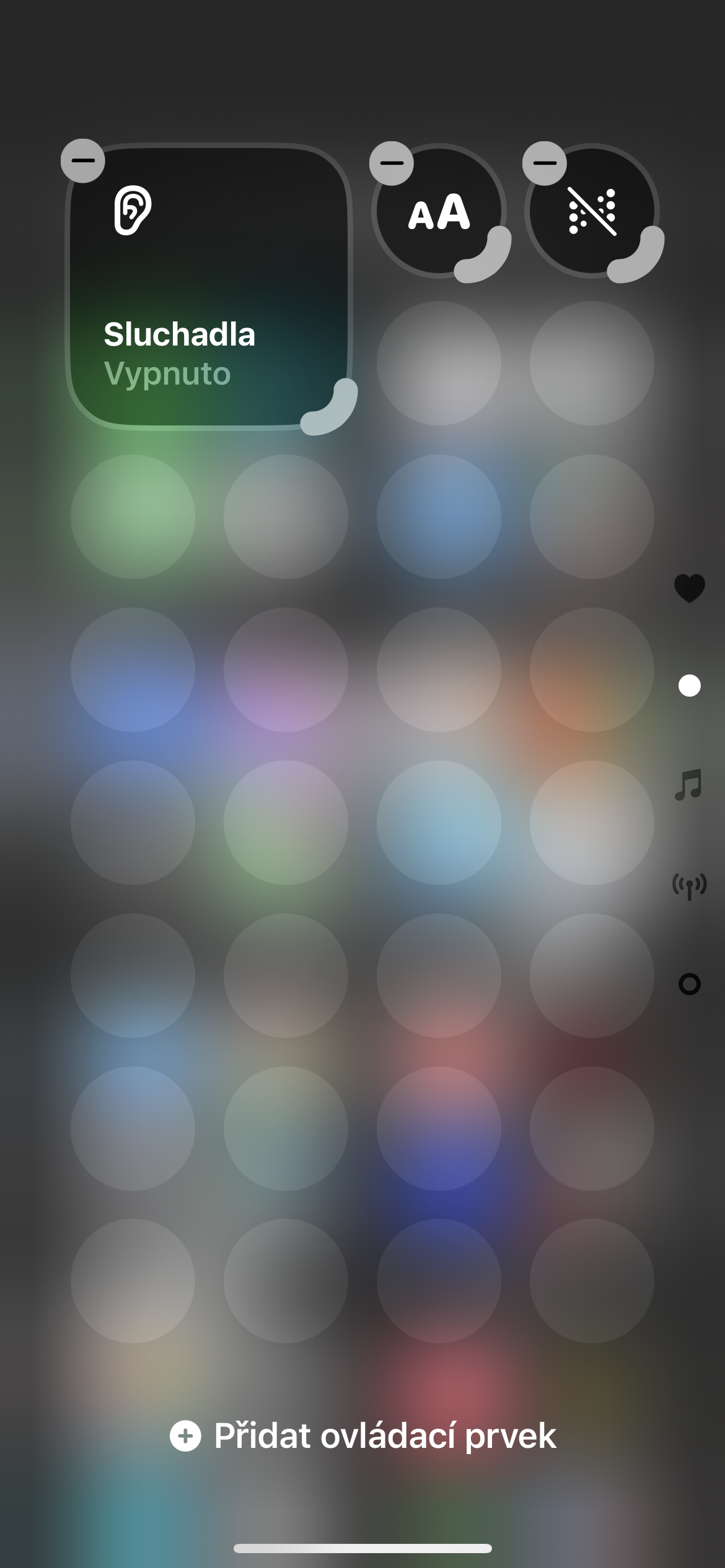
Some elements can be resized. A larger music or brightness panel is more convenient to use and makes the entire center clearer. You can resize elements simply by dragging the highlighted corner of the tile in edit mode.