
Elements in the Control Center
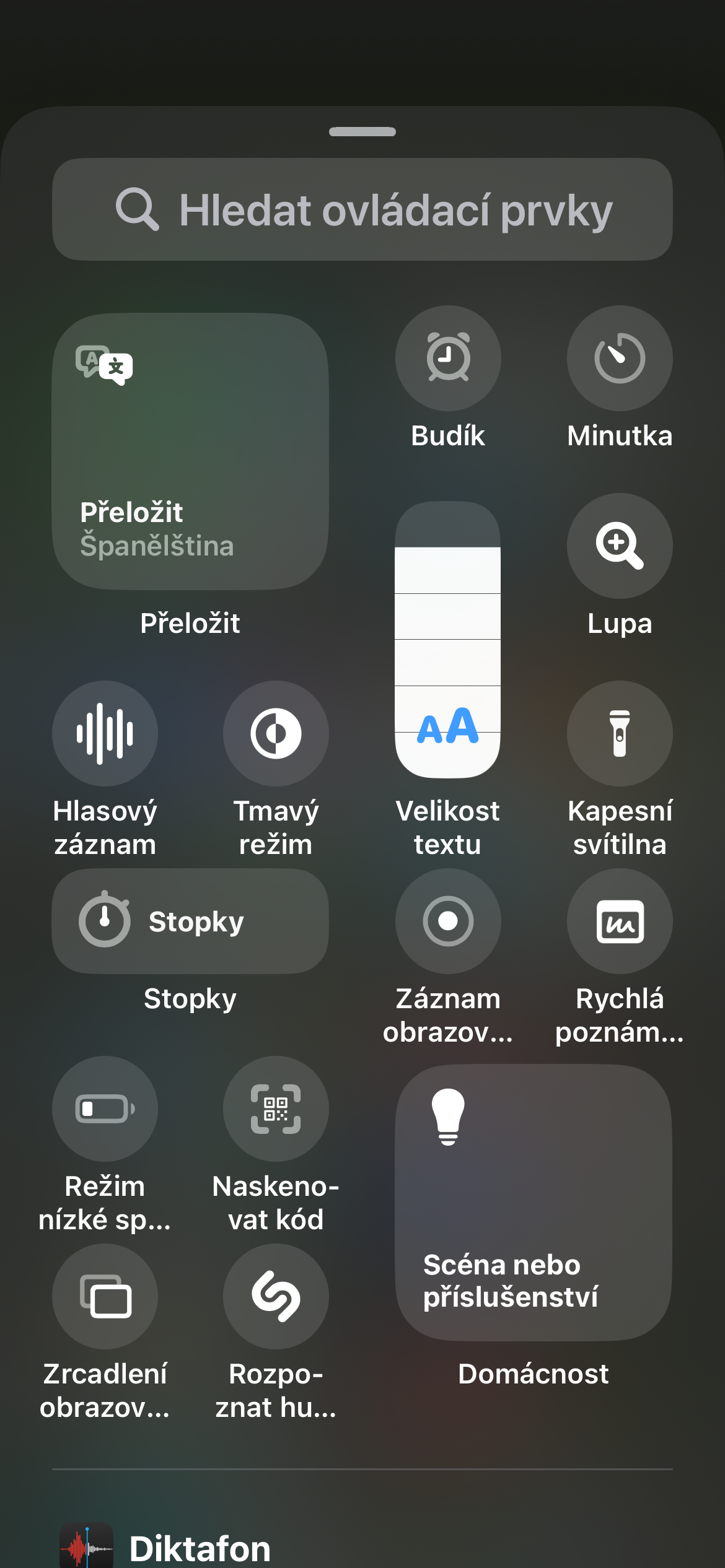
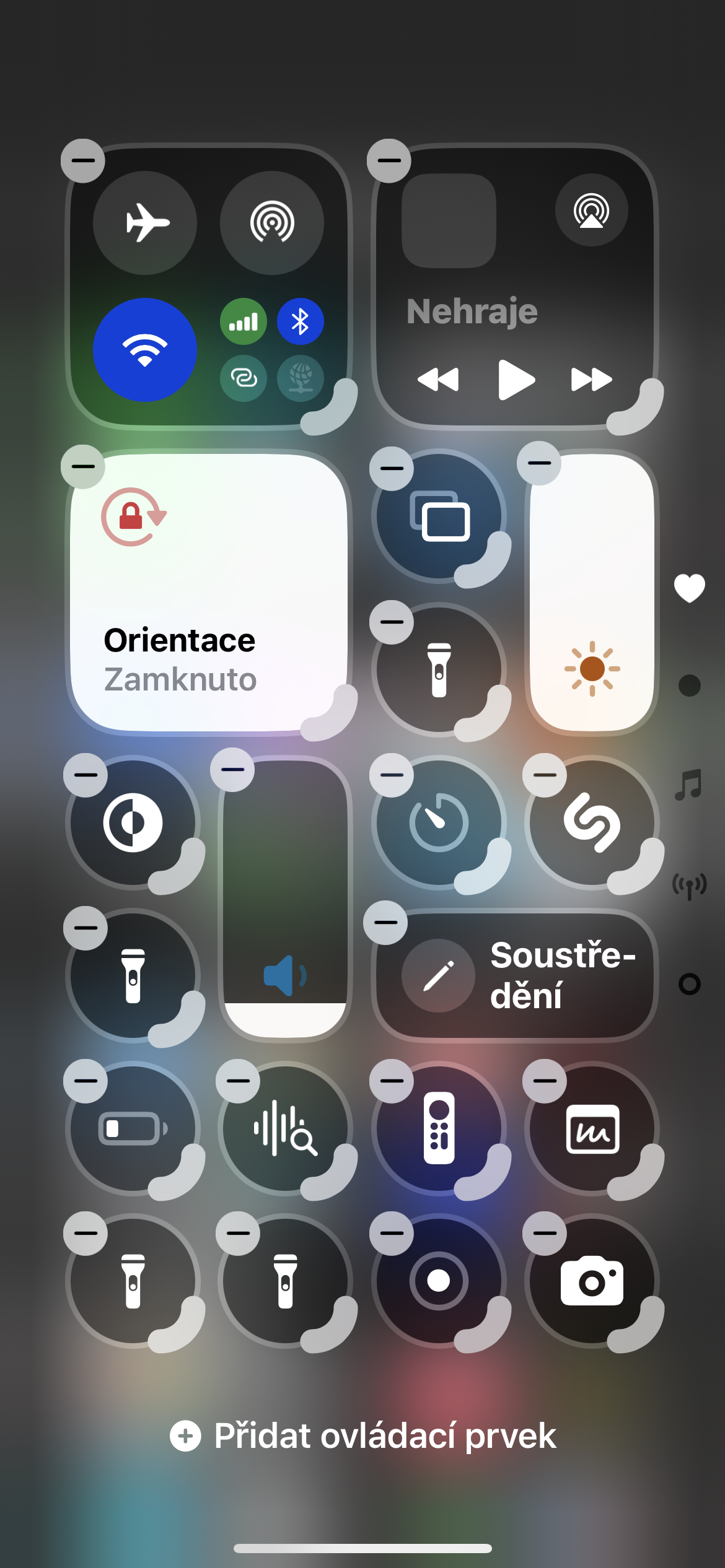
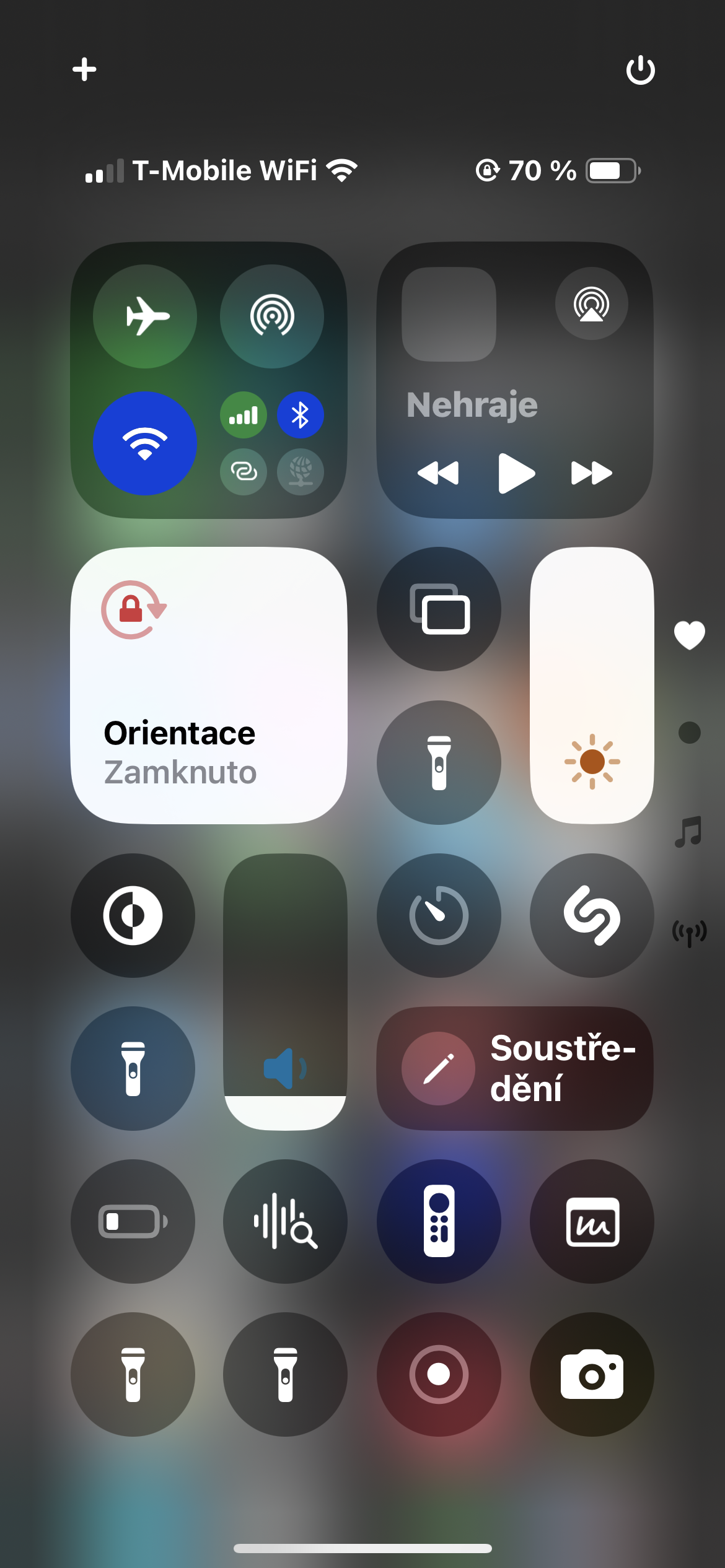
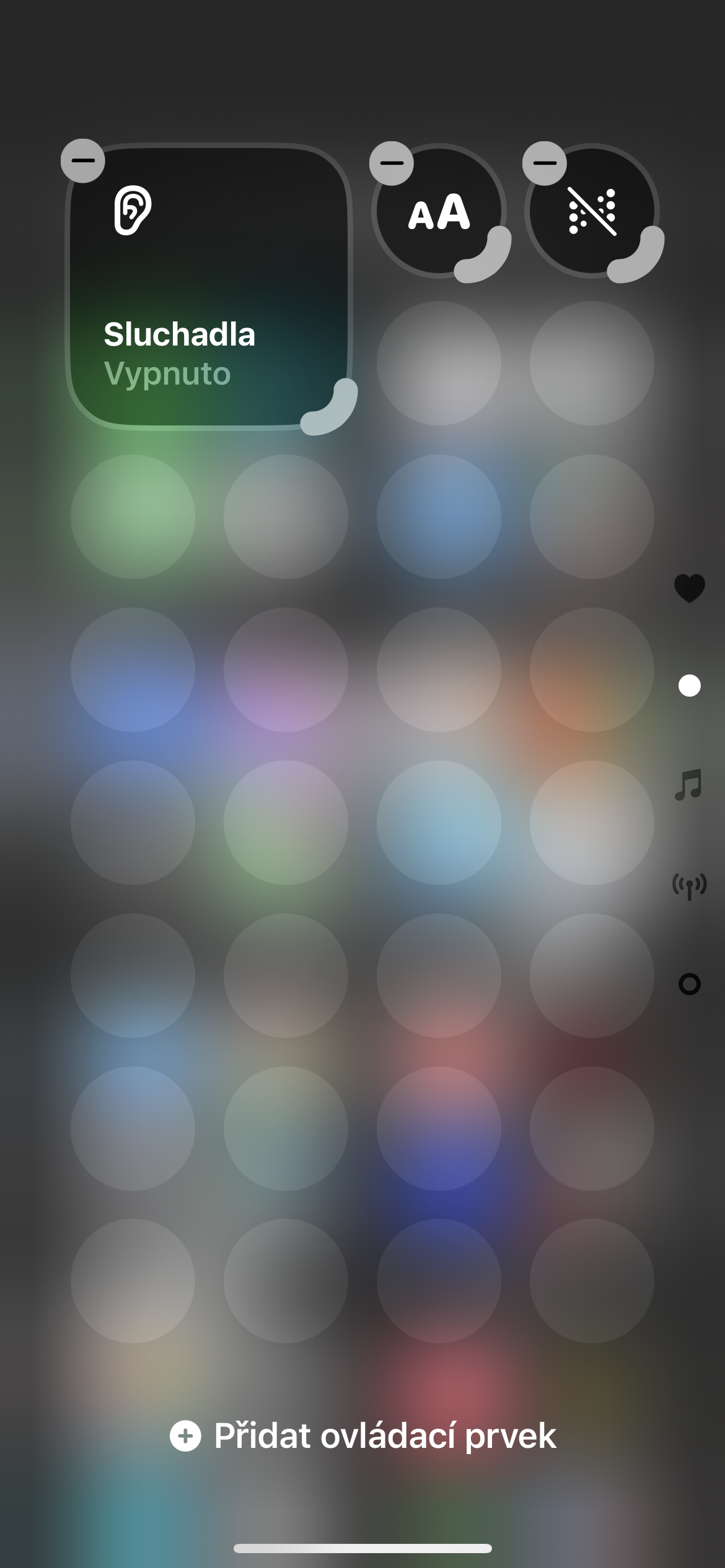
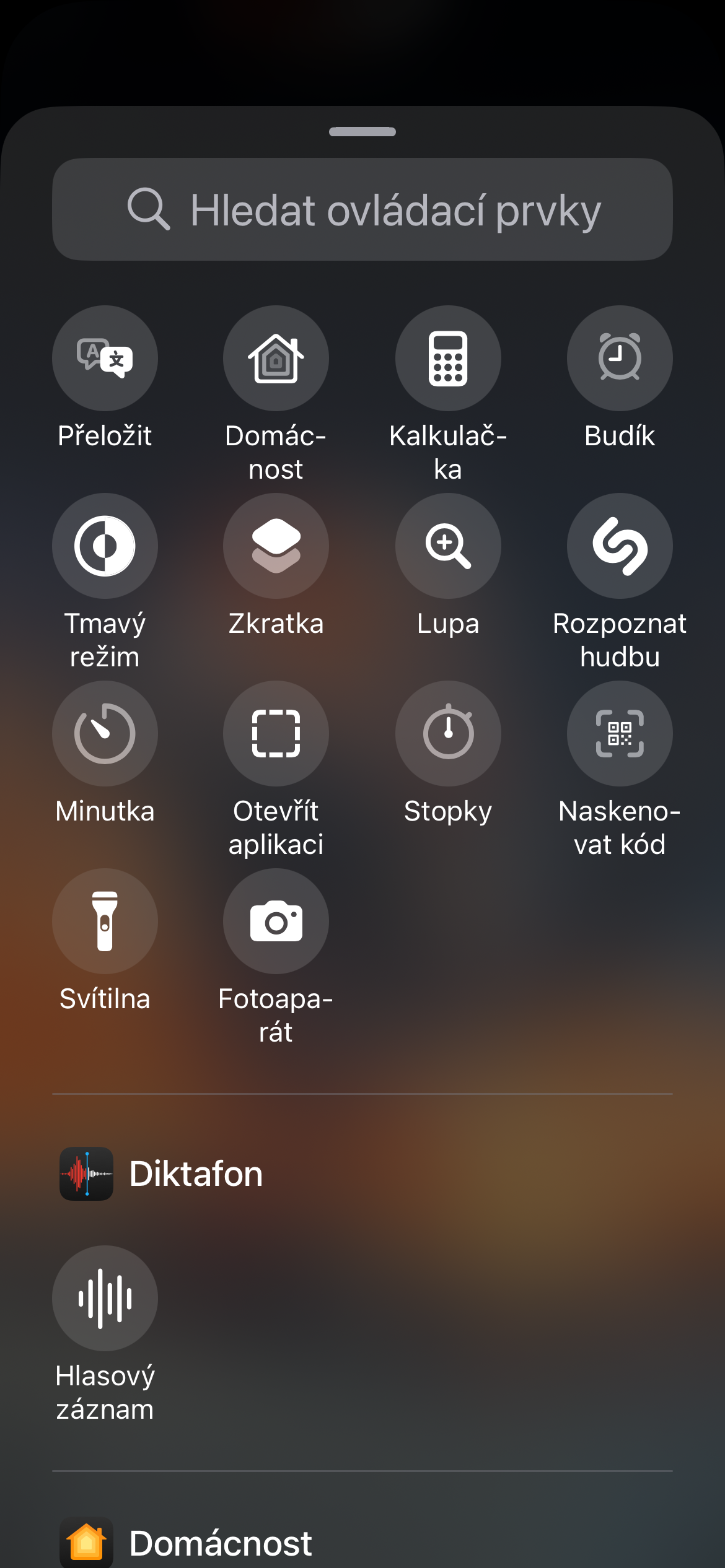
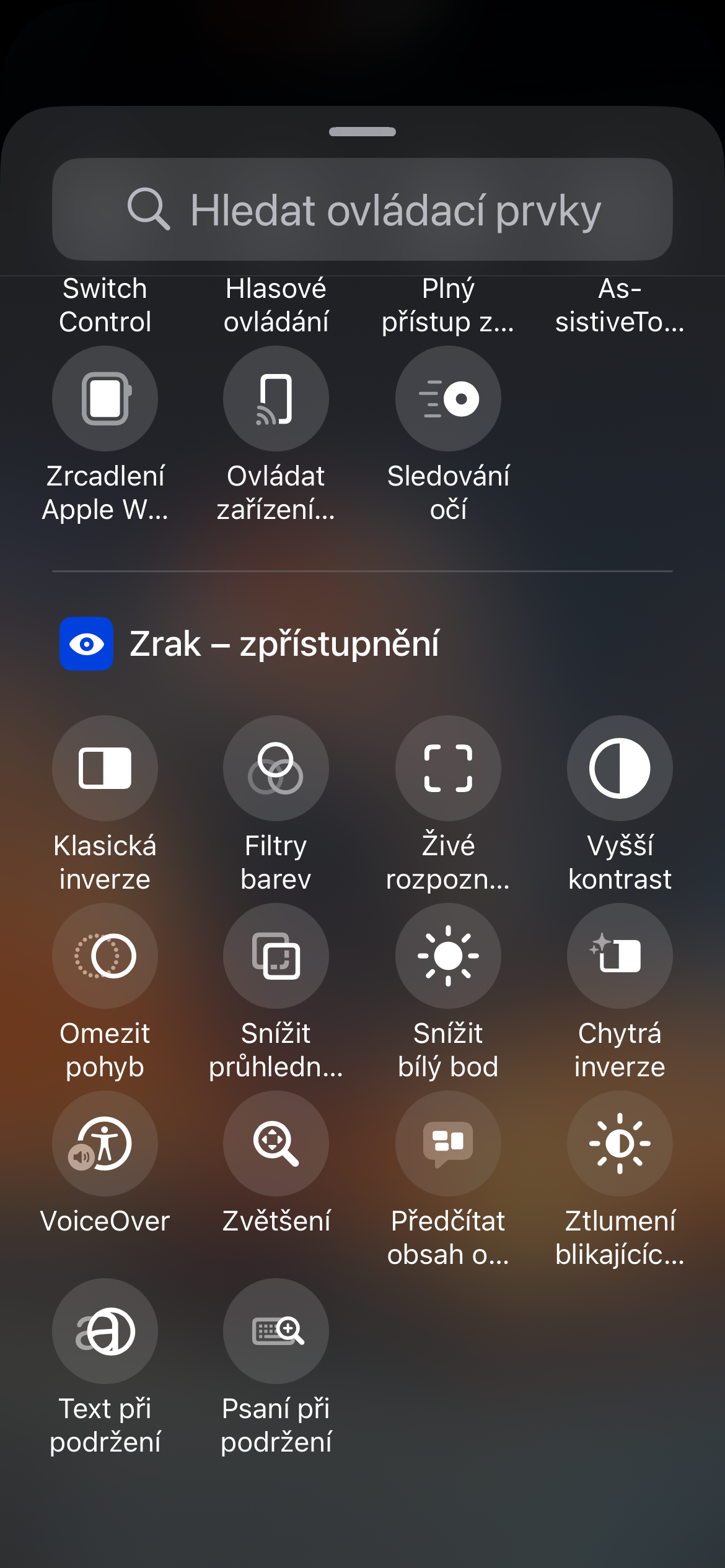
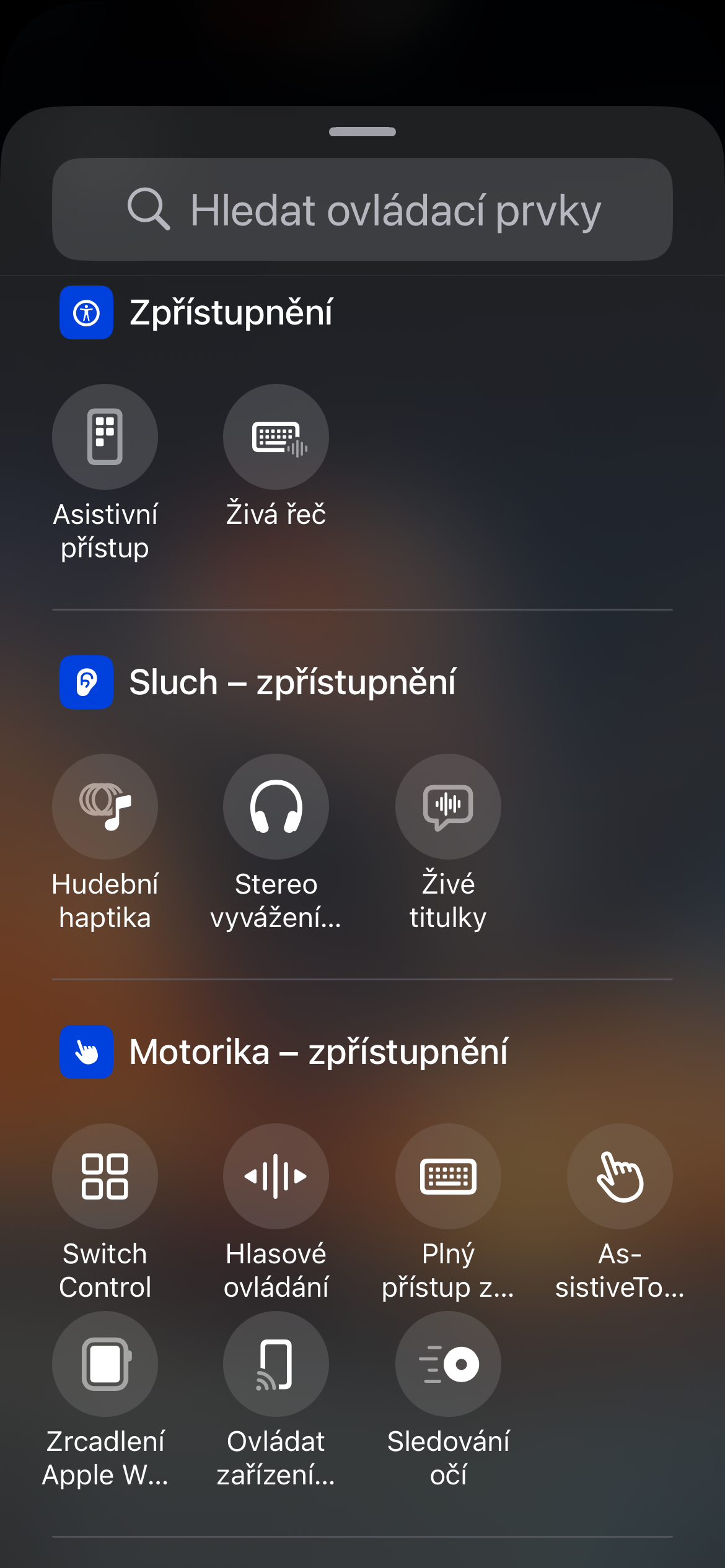
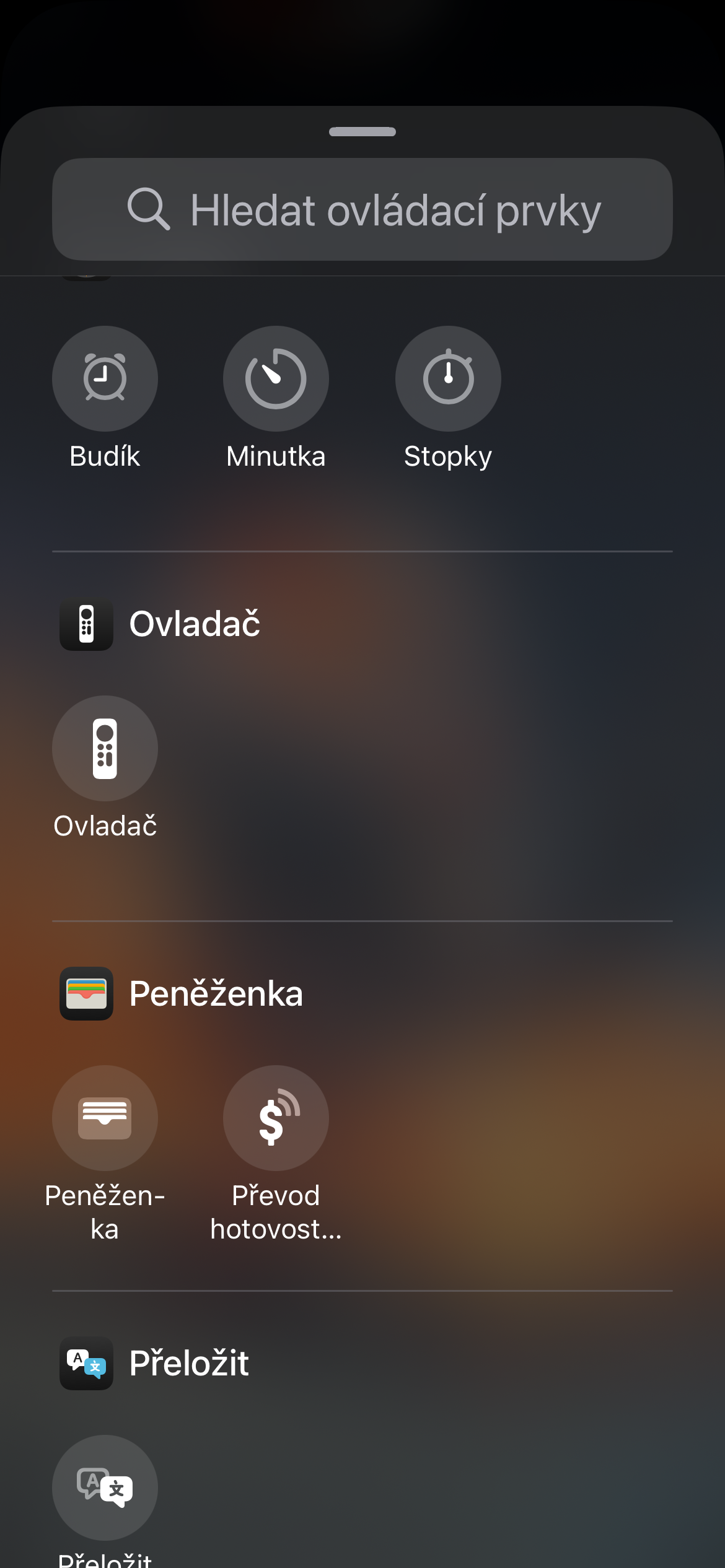
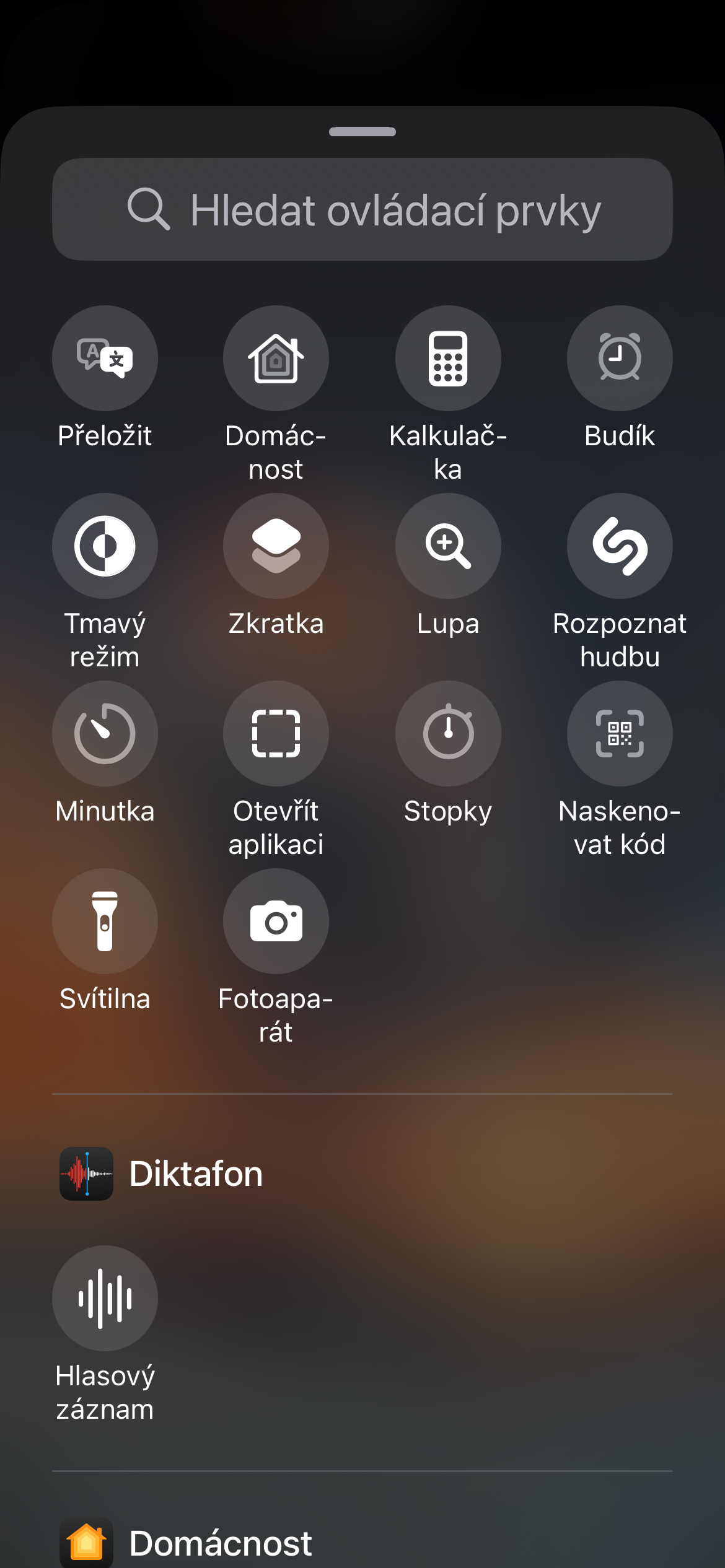
Do you want to customize the Control Center exactly to your liking? Just swipe down from the top right corner and the Control Center will open. To add, remove, or rearrange controls, tap the + icon in the upper left corner. Here you will see a list of all available controls.
To add one, simply click and drag it to the desired location. To change the order, just hold the icon with your finger and move it. To adjust the size of the panel, try gently dragging the edge of the panel with your finger.
Gallery
Elements on the lock screen
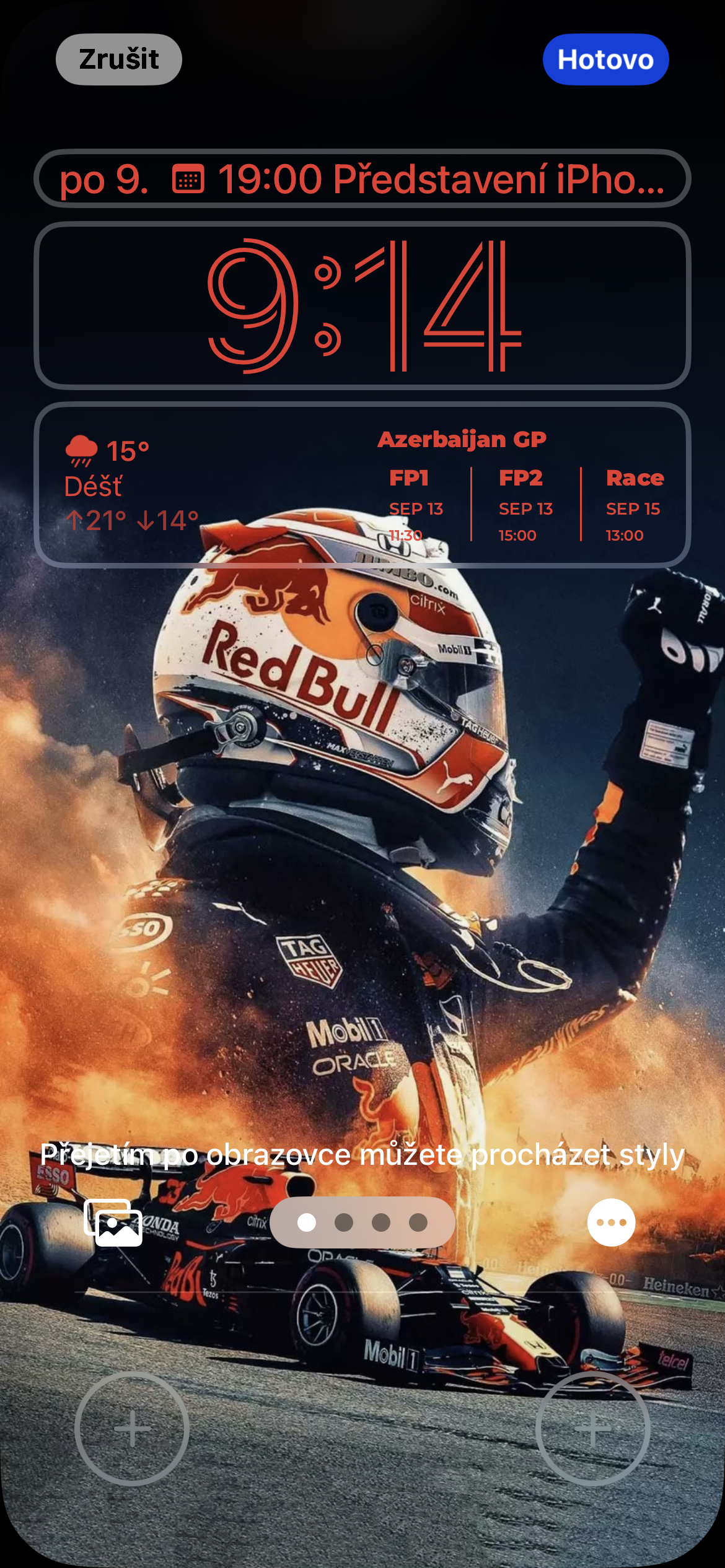
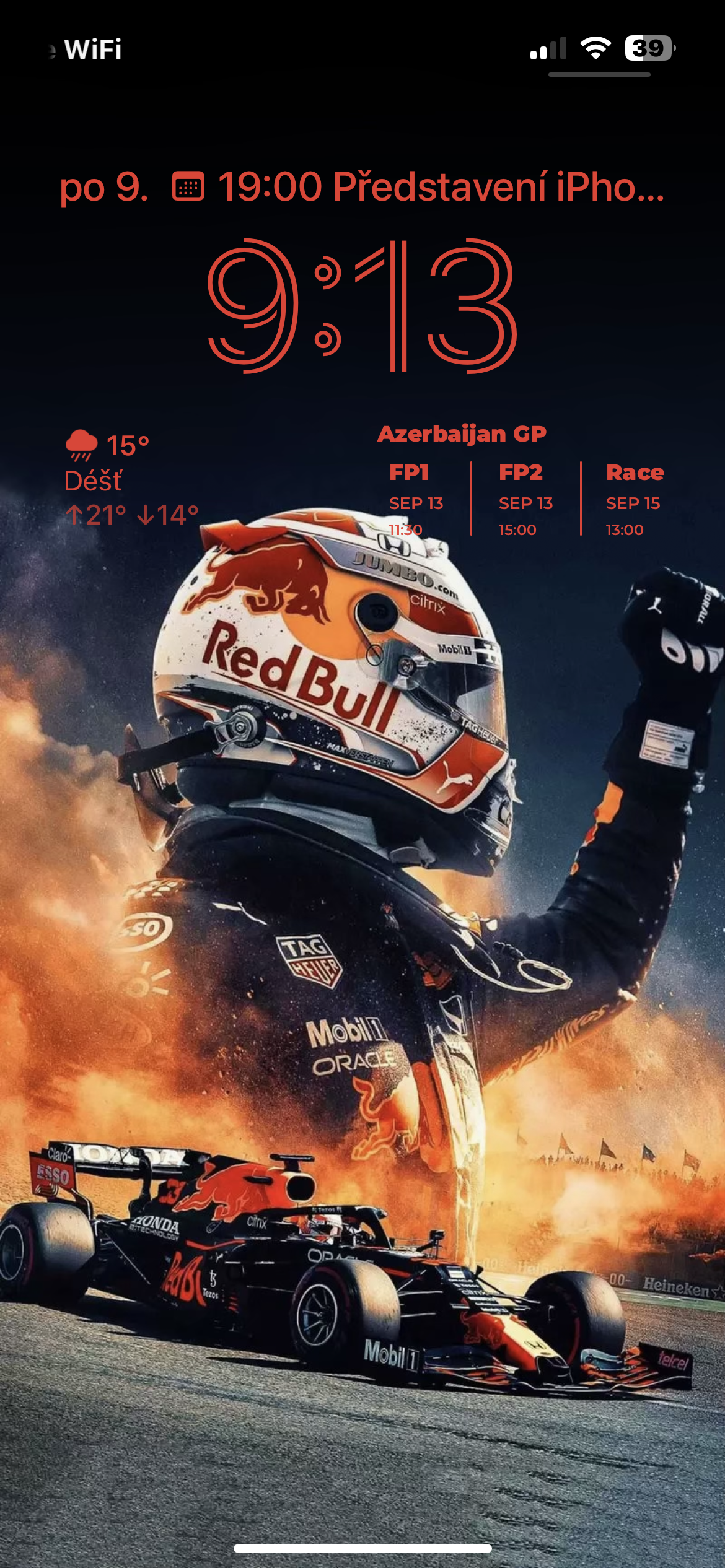
If you have it installed on your iPhone iOS 18 or later, you can also customize the elements at the bottom of the lock screen.
- Activate the lock screen.
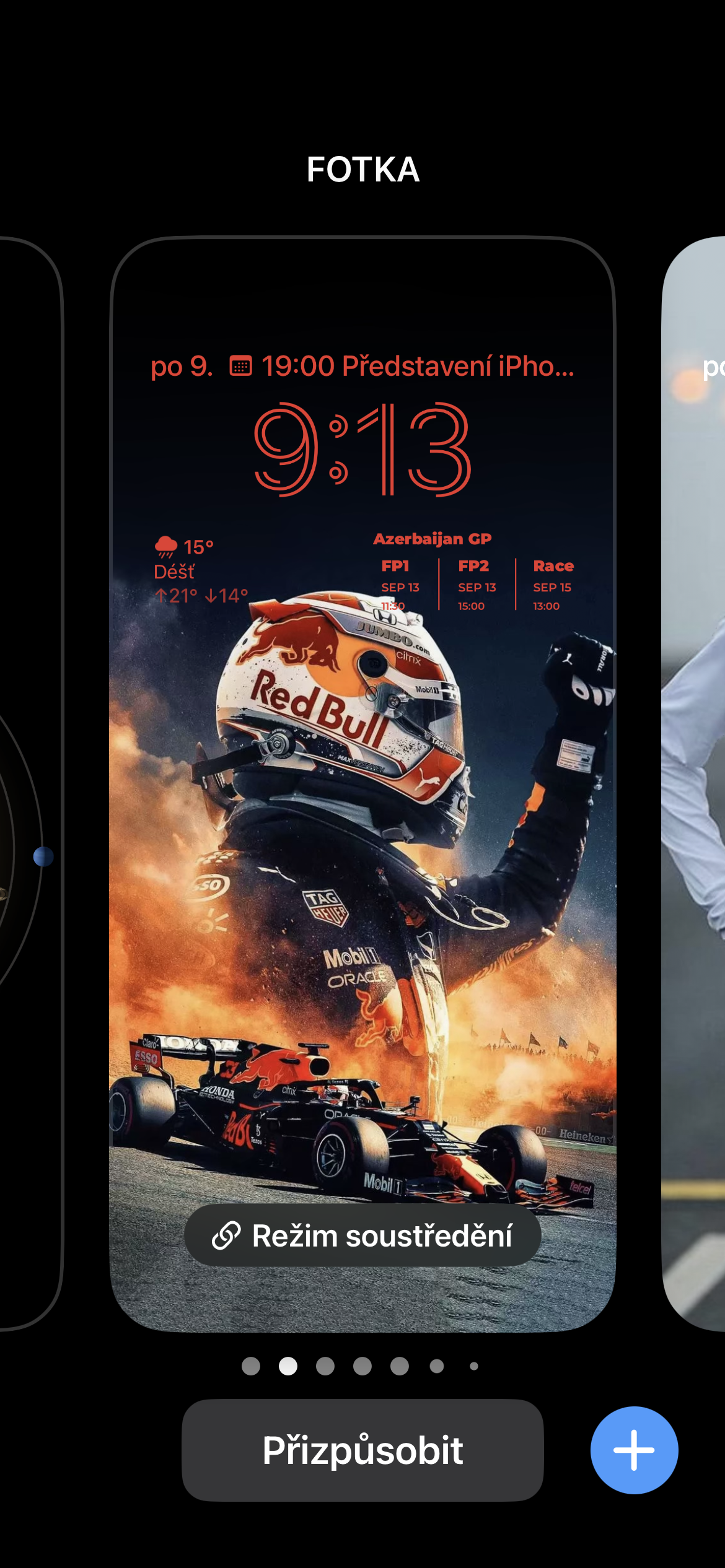
- Long press it.
- Tap Customize.
- Pro To remove elements at the bottom of the screen, tap the minus sign next to the corresponding icon.
- Pro To add a replacement for a removed element, click + in the appropriate location.
Gallery
Lock and hide apps
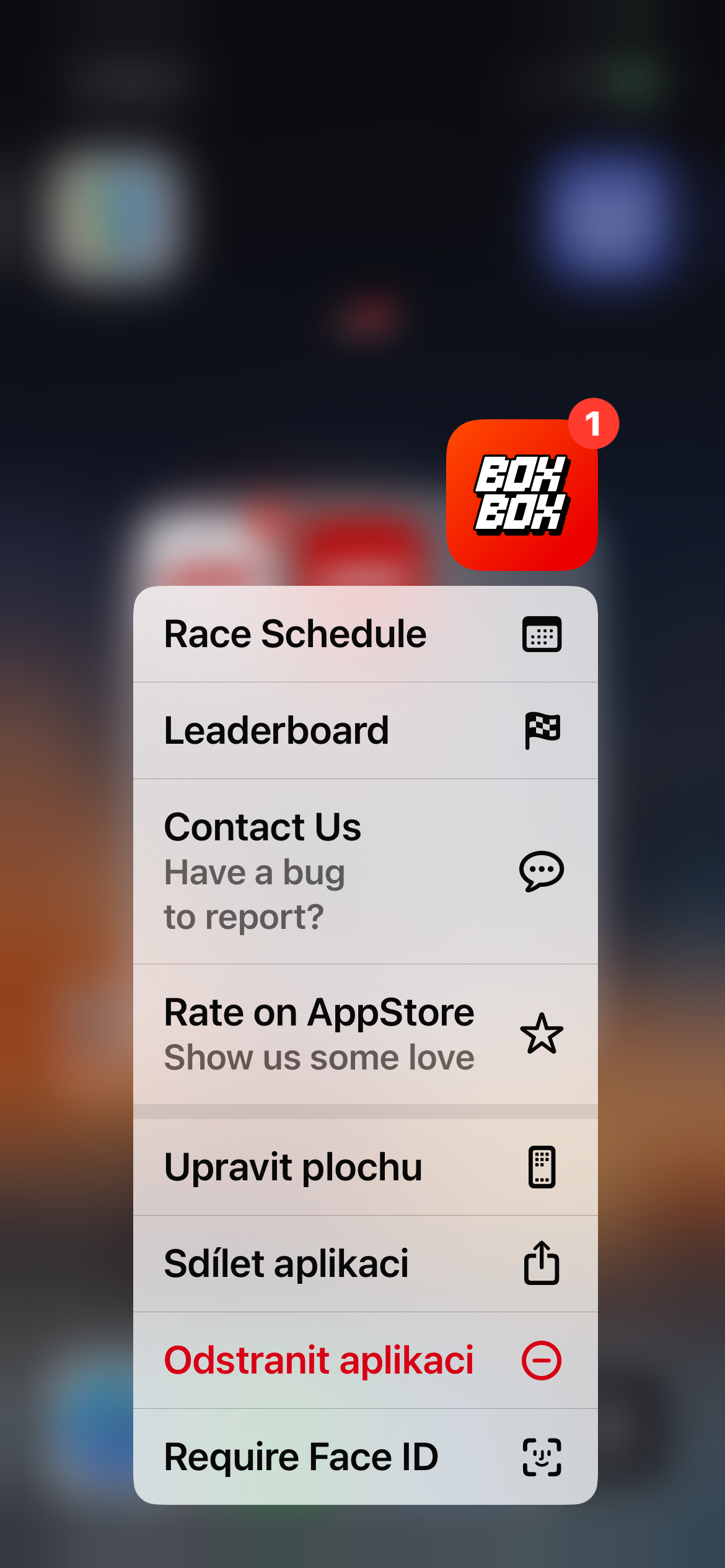
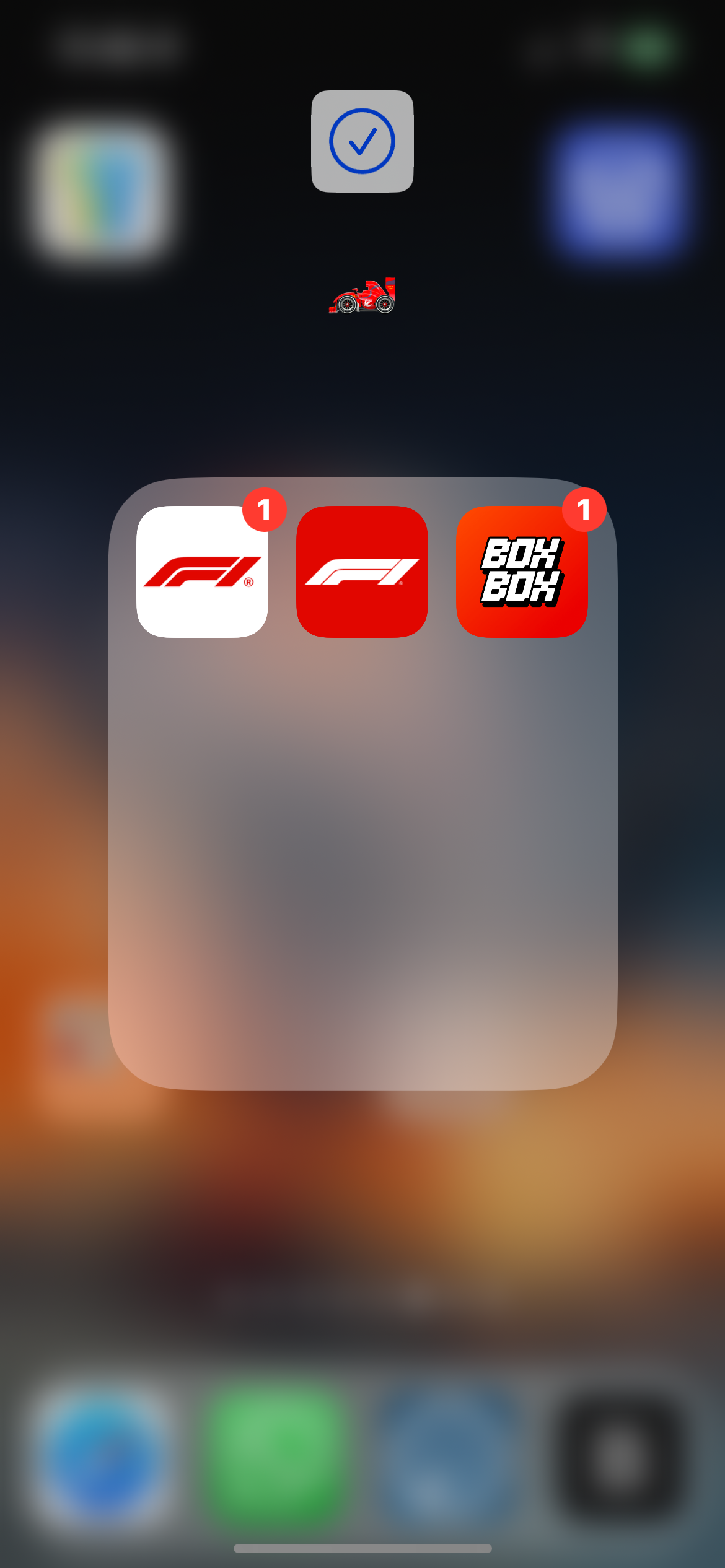
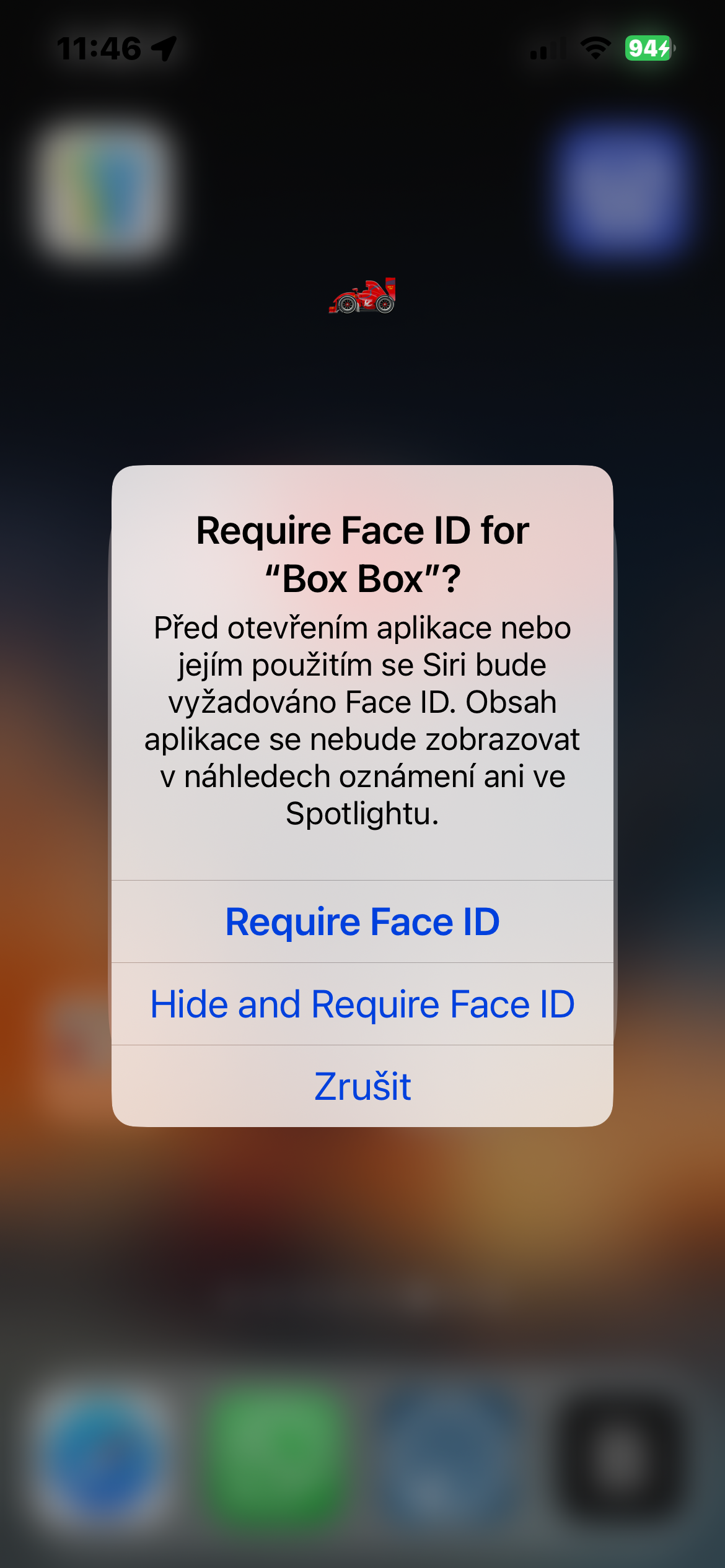
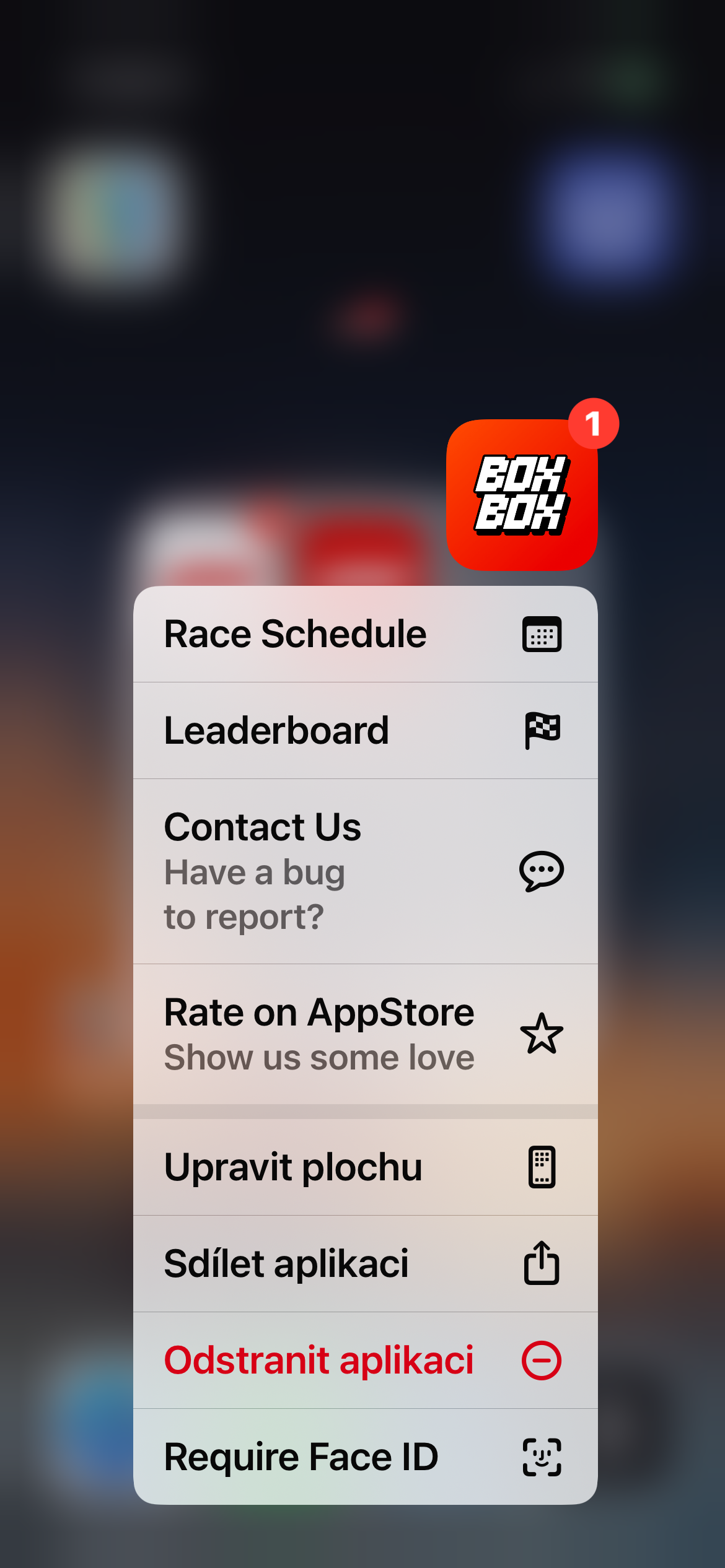
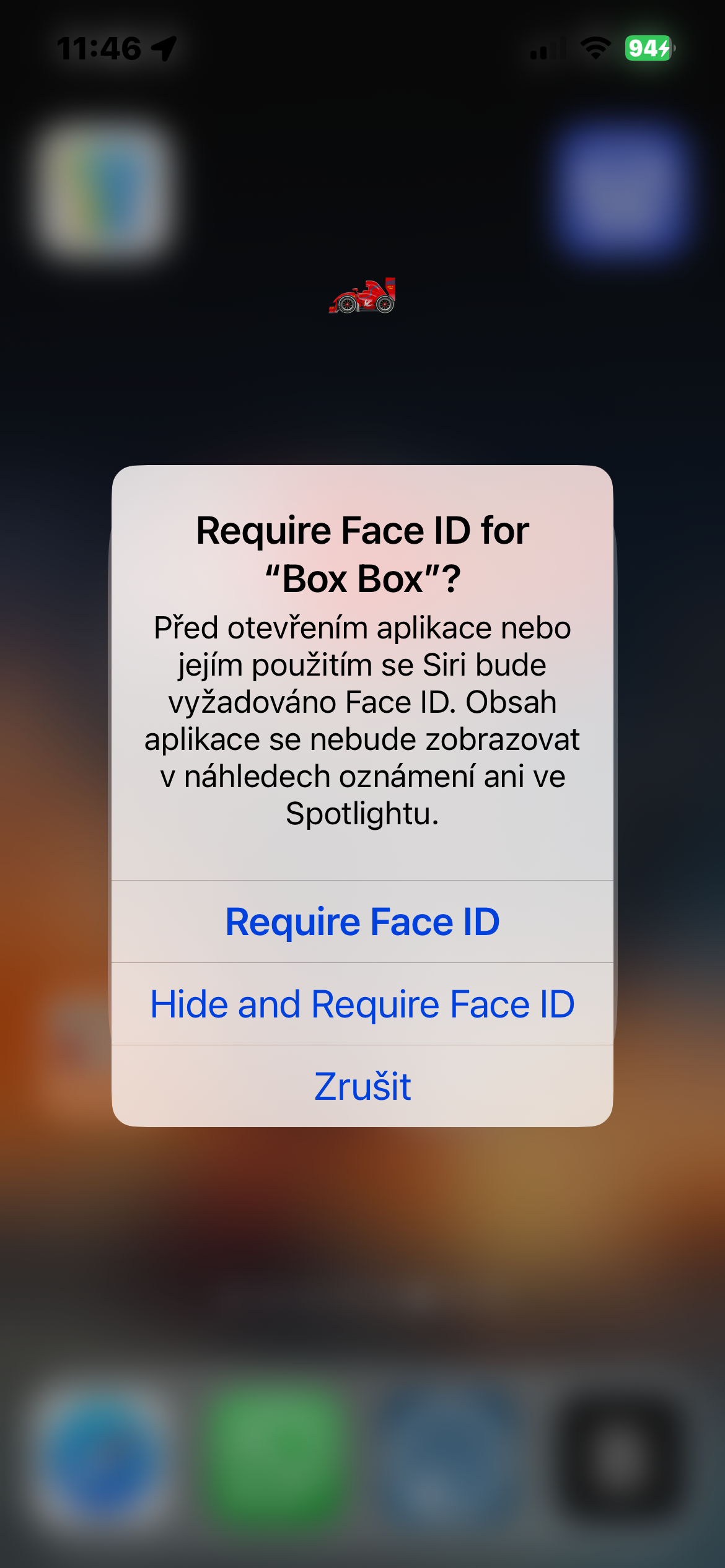
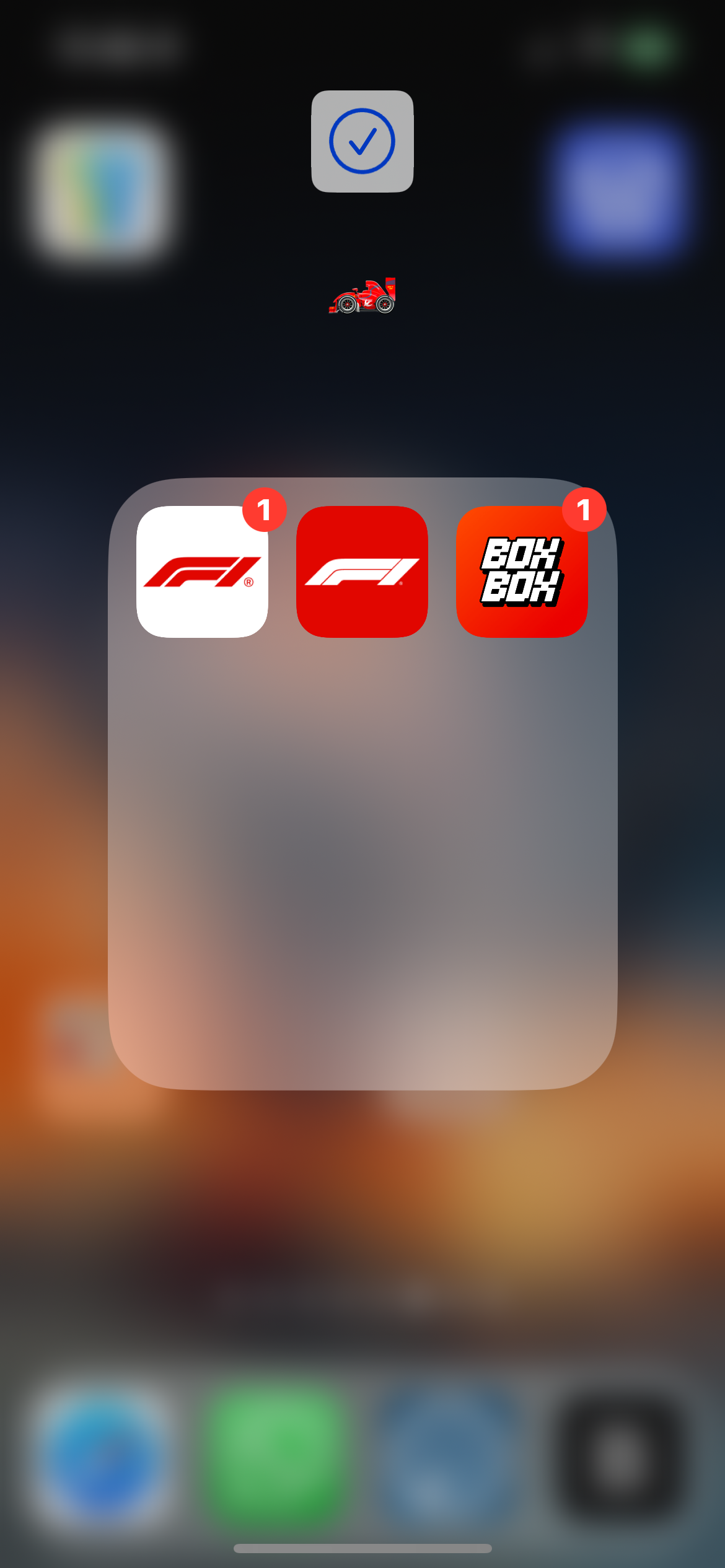
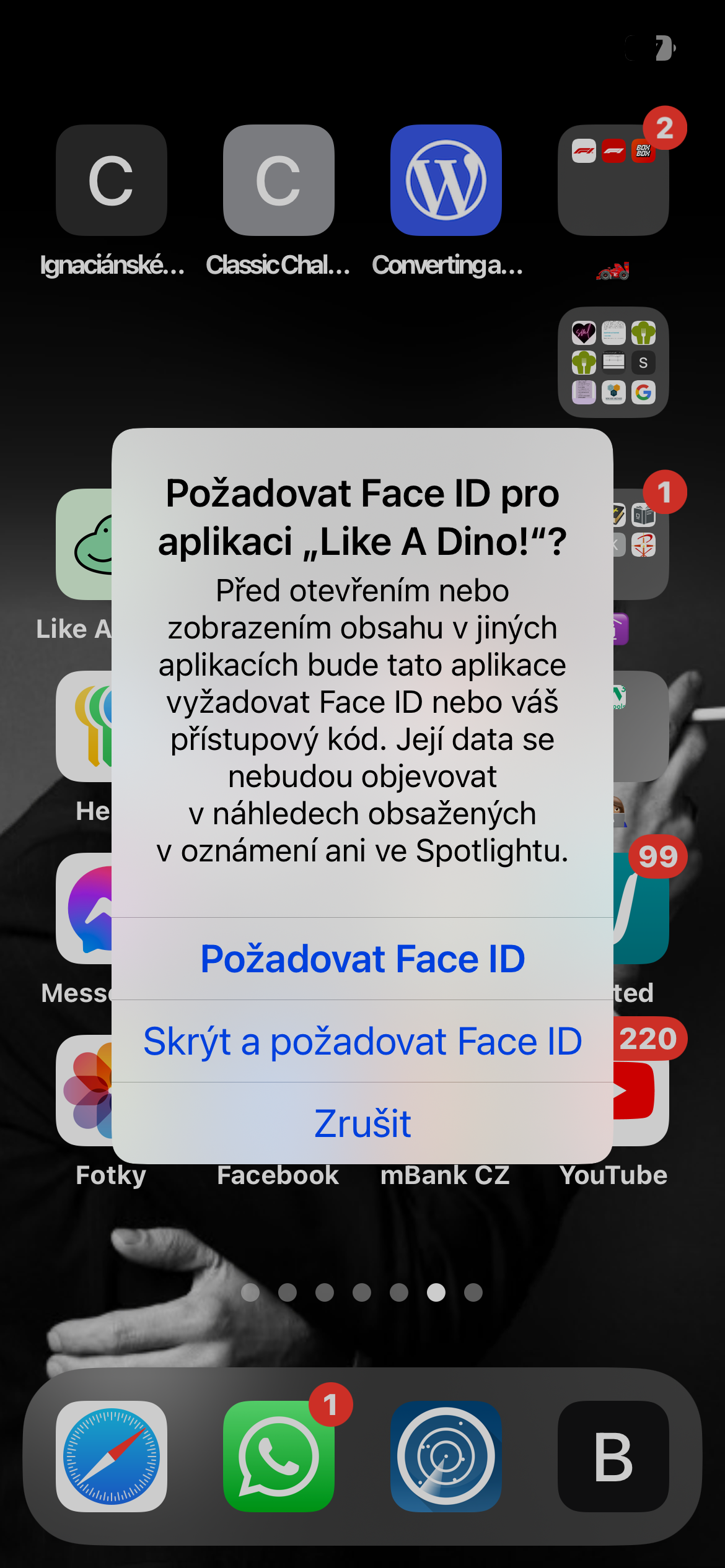
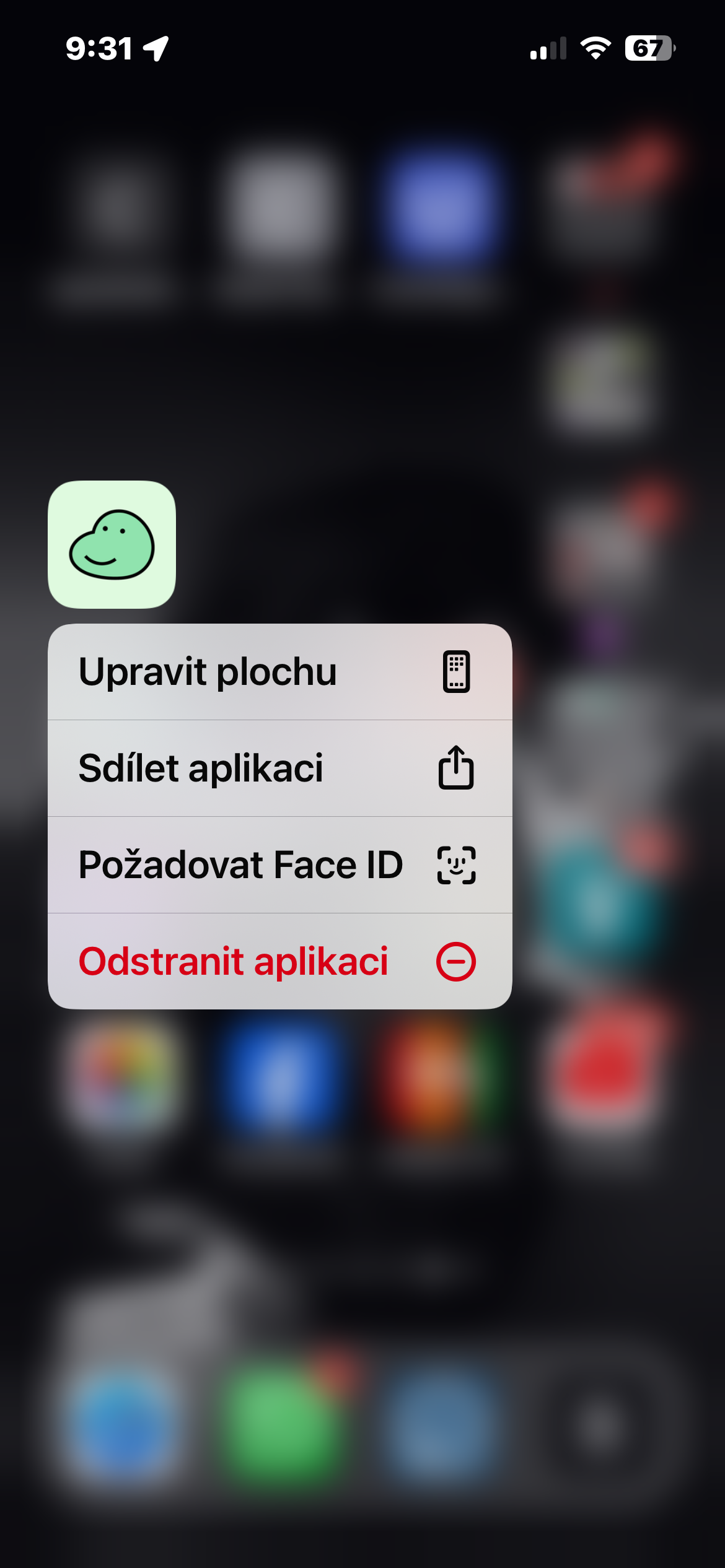
if you have iOS 18 and later, you can now not only hide apps from the desktop, but also require them to be displayed Face ID. How to do it? Long press the selected app icon on your iPhone's home screen. In the menu that appears, select Request Face ID and then Hide and Request Face ID.
Gallery
Applications without names
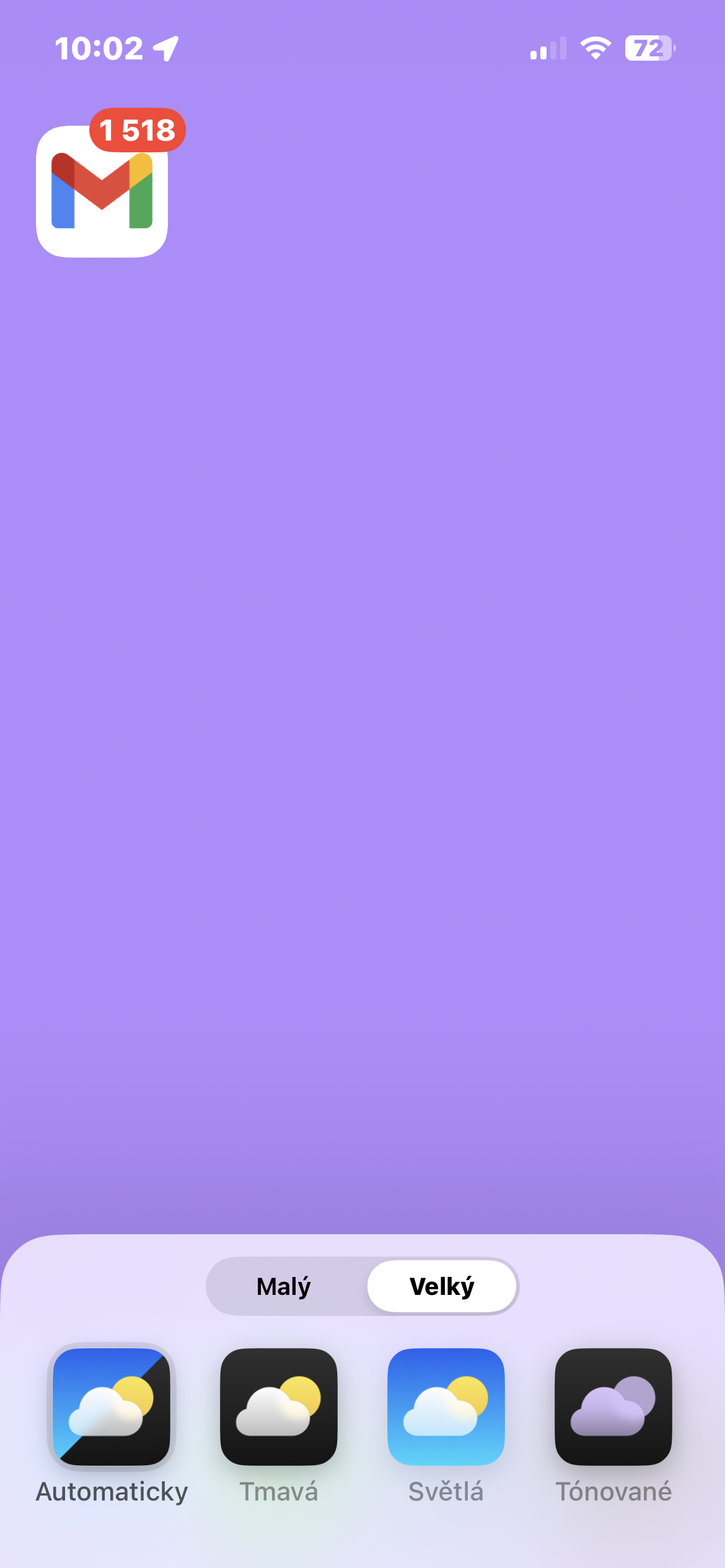
Do you want to create a truly unique and miniminimalist look of your iPhone? iOS 18 will allow you to. The new feature to hide app names not only brings aesthetic improvements, but also makes it easier to navigate the home screen, especially if you have a lot of apps. Just long press on an empty space on the desktop, select Edit -> Fit in the upper left corner, then select Large at the bottom of the display. This will enlarge the app icons and hide their names.
Pro For even greater clarity, you can group apps into folders. If you later want to display app names again, simply repeat this process and select a different customization mode.
Gallery






Is it possible to turn gps on/off in the control center?
You're wrong. Try the android forum. 🤦♂️
What are you talking about? You nestDo I always have to go to settings, then to privacy, and then turn it on there? Wouldn't it be easier to have it in the control center options? And no, I don't want to have it always on.
I don't understand why there isn't an option to add automatic brightness on and off to the control center, but I always have to in the settings.
I don't understand why Wifi and BT only disconnects but does not turn off the set from the control center. So many years and they still haven't learned from Android
This is the same as why you can't turn off GPS from Control Center. iPhones are inherently always connected/communicating even when you're not doing anything on them. Pro many functions it is needed, that's why it doesn't even Apple simply won't allow to turn off.