If you're a macOS user, you're probably familiar with how to take screenshots. You can use the keyboard shortcut Command + Shift + 4 to take a screenshot of a selection of your screen, which you can mark with your mouse. But did you know that this option offers a lot more than just taking a classic screenshot of a selection on your screen? In this article, we'll look at how you can take a screenshot on your Mac or MacBooku create screenshots of the selection screen on maximum.
You might be interested in
How to Create Screen Selection Screenshots on Mac
So in this article, we will learn together how to create screenshots of a selection on maximum using methods you may not have known about. First, let's look at how you can create a snapshot of only a specific windows. So press the hotkey Command + Shift + 4, and then enter cursor do windows, that you want to capture. Then press space bar, which will turn the window where the cursor is on blue. Pro To confirm the creation of the selection image, simply press the button Enter, or left click mouse (one finger on Trackpadu). You can use other tricks when creating snapshots of classic selections. If you press the keyboard shortcut Command + Shift + 4, mark the area to capture with the cursor, and then hold Shift and mouse over up or down, or left or right, so locks the width of the selection. In case you hold down in the same situation options, so they lock the proportions selection. In case you press while creating Shift along with the key Option and mouse over up or down, so there will be a choice expand up and down; if you move the mouse over left or right, so there will be a choice expand left and right.
Gallery

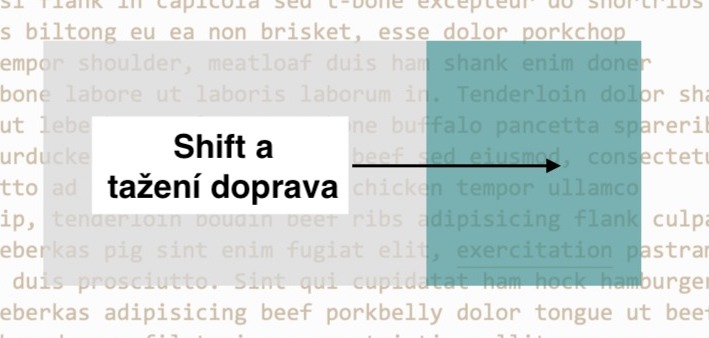
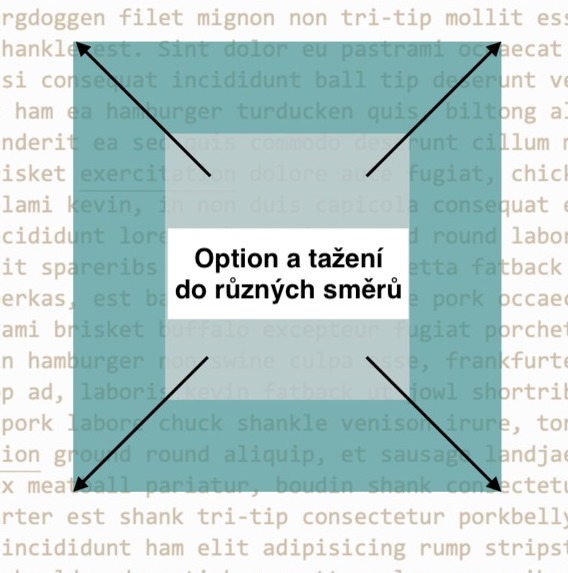
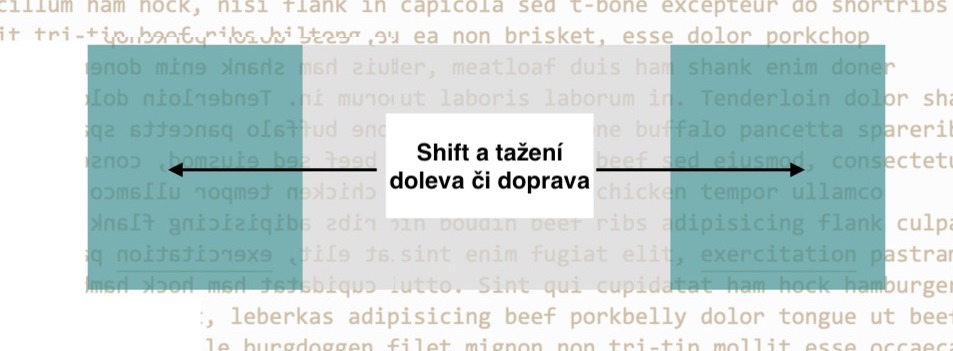
In conclusion, I will just repeat other keyboard shortcuts with which you can take screenshots (not only) of the screen. If you press Command + Shift + 3, you will take a screenshot of the entire screen (or screens if you have an external one connected). If you press Command + Shift + 5, you will see an extended menu for taking a screenshot or recording a video of the desktop, and if you press Command + Shift + 6, then you will take a screenshot of the Touch Bar (on MacBooks that have it, of course).