
More and more social media users are considering simply deleting their accounts. There can be several reasons for this - but the most basic ones are undoubtedly fear or disagreement with the collection of their personal data by social media operators. Practically the entire "social media era" began with the introduction of Facebookwhich was officially launched to the public 16 years ago. In this article, let's take a look at how you can Facebook completely cancel.
You might be interested in
Deactivation or cancellation?
Before we get into the cancellation process, let's look at two options that Facebook offers to cancel your account. In the first case, you can deactivate your account. If you deactivate your account, you can return to it at any time. From FacebookHowever, your profile will disappear and people will not be able to find or contact you. However, some user information will remain visible, such as messages you have sent to them. If you decide to delete your account, you will simply no longer be able to access it after the process is complete. You have 30 days from the time you submit your deletion request to get your account back. After that, you will no longer be able to. If you log in to your account during these 30 days, your account will not be deleted. After deletion, you will no longer be able to access your account. FacebookYou will not be able to find us and your account will be deleted.
How to do it on iPhone
Gallery
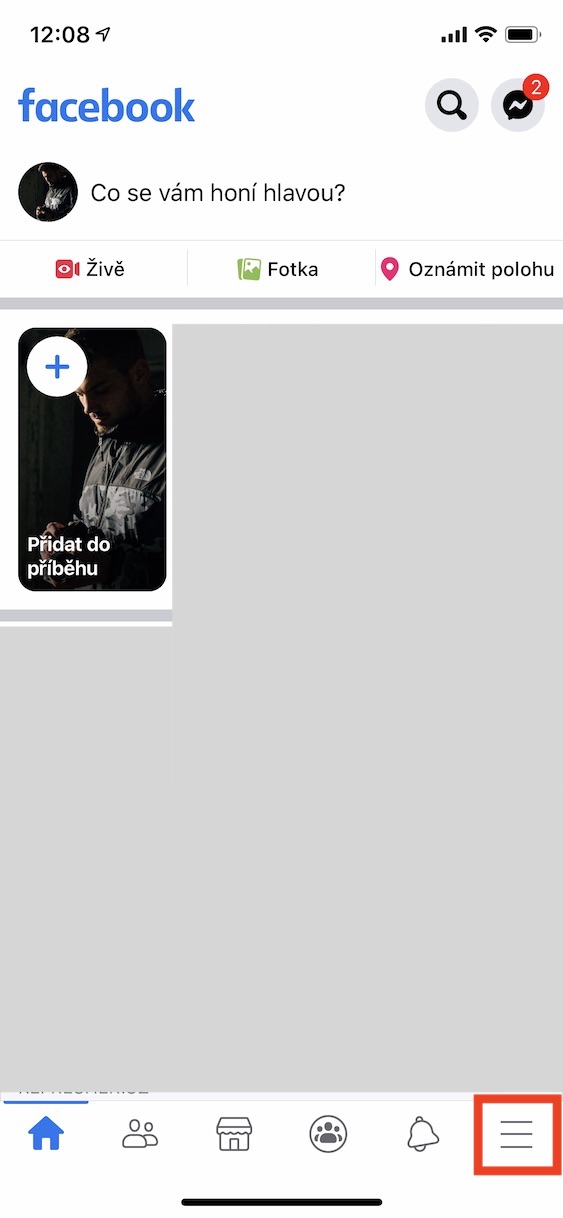
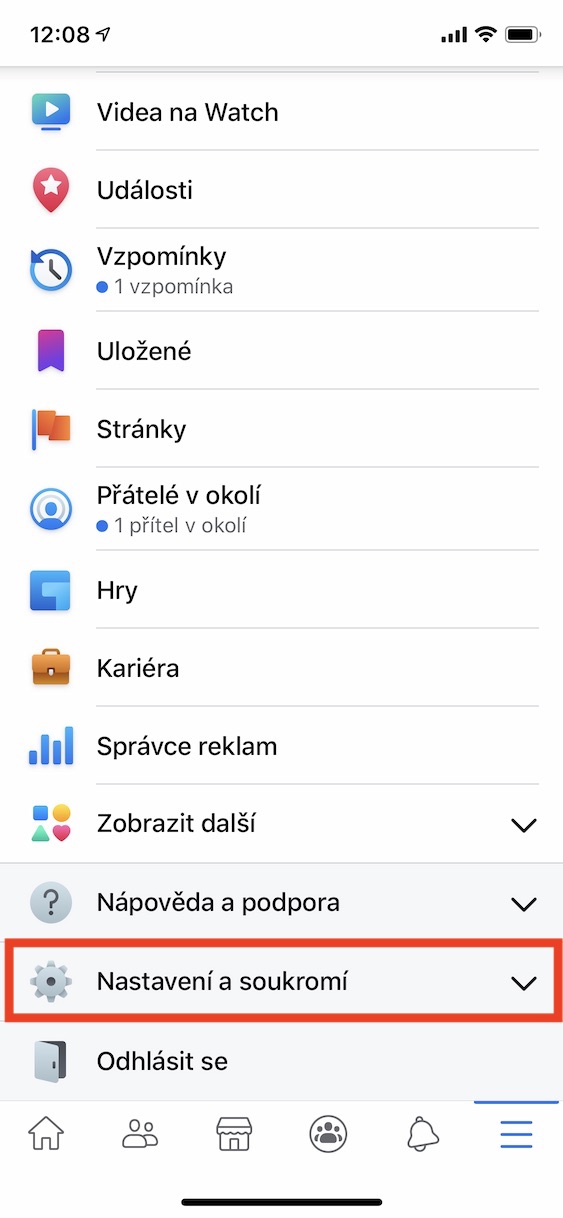
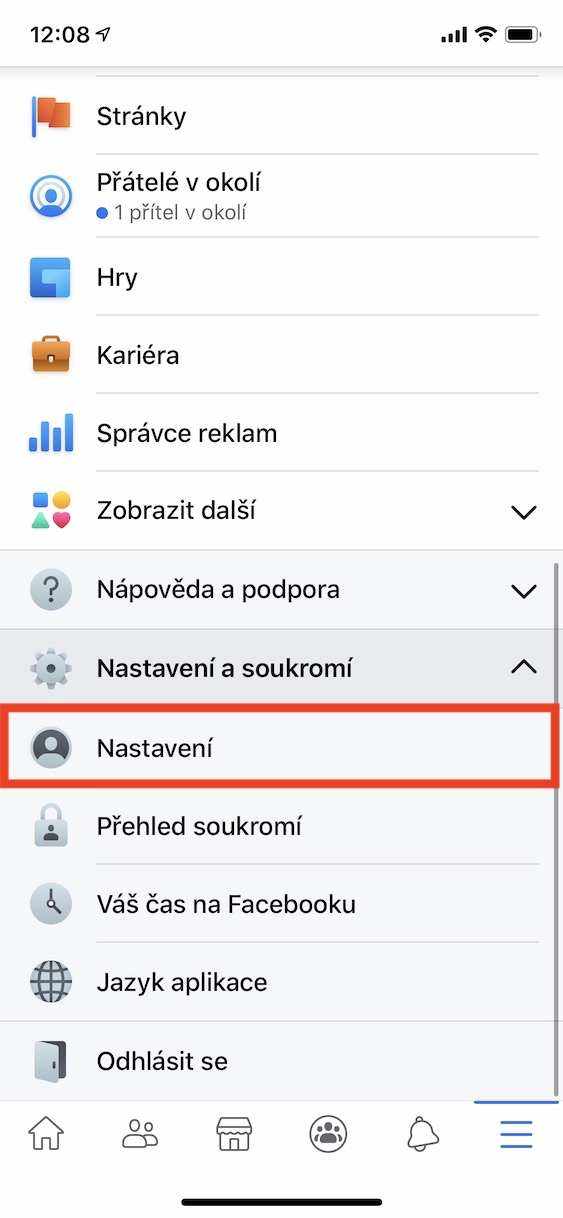
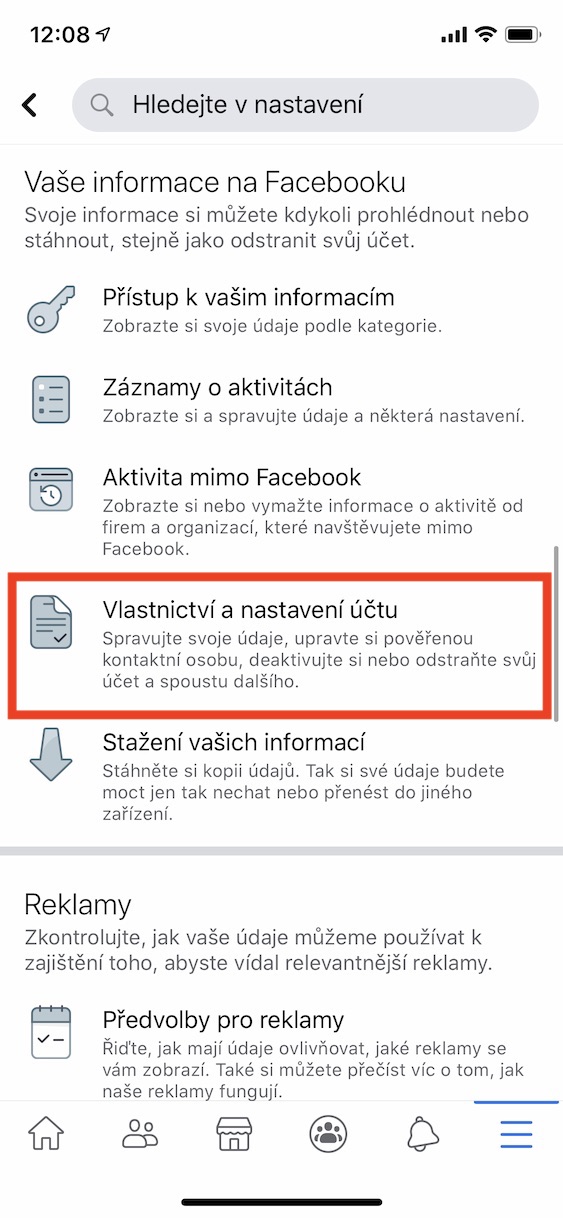
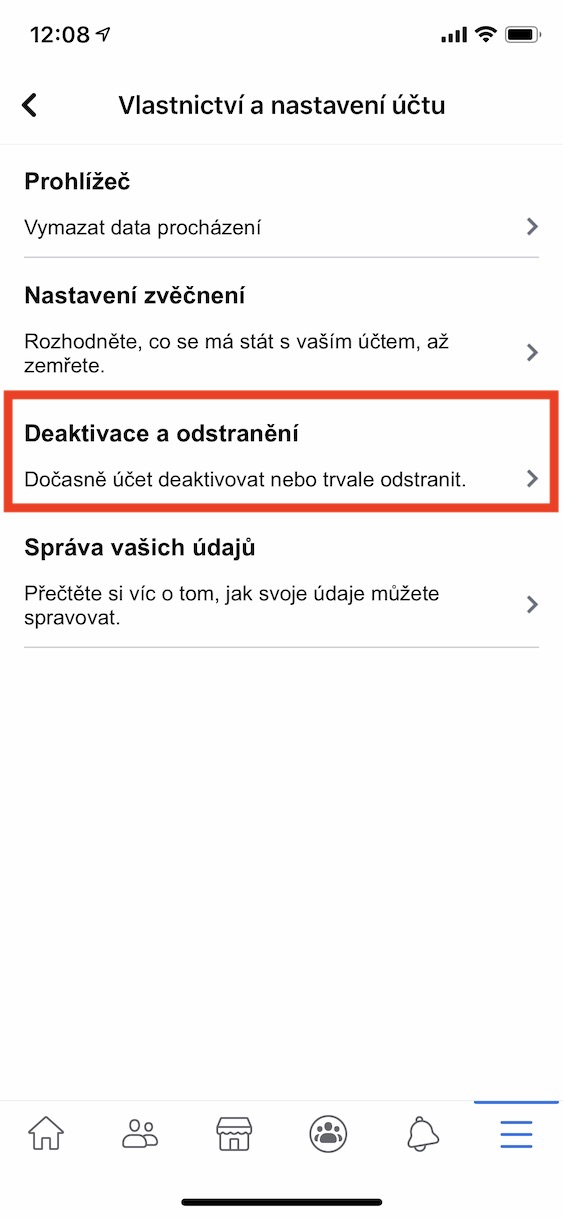
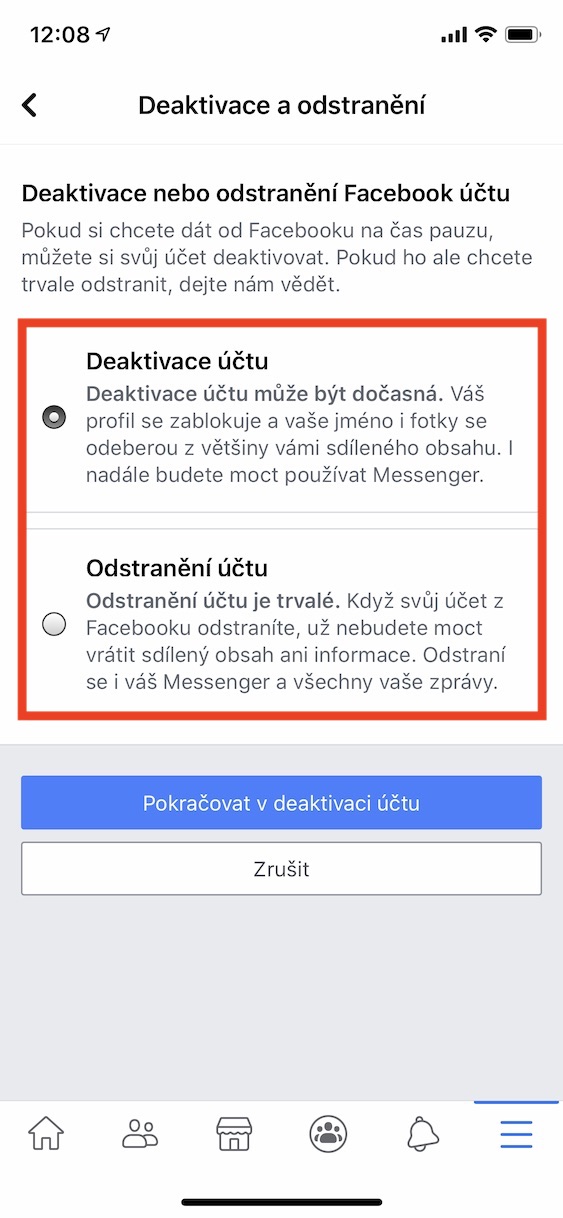
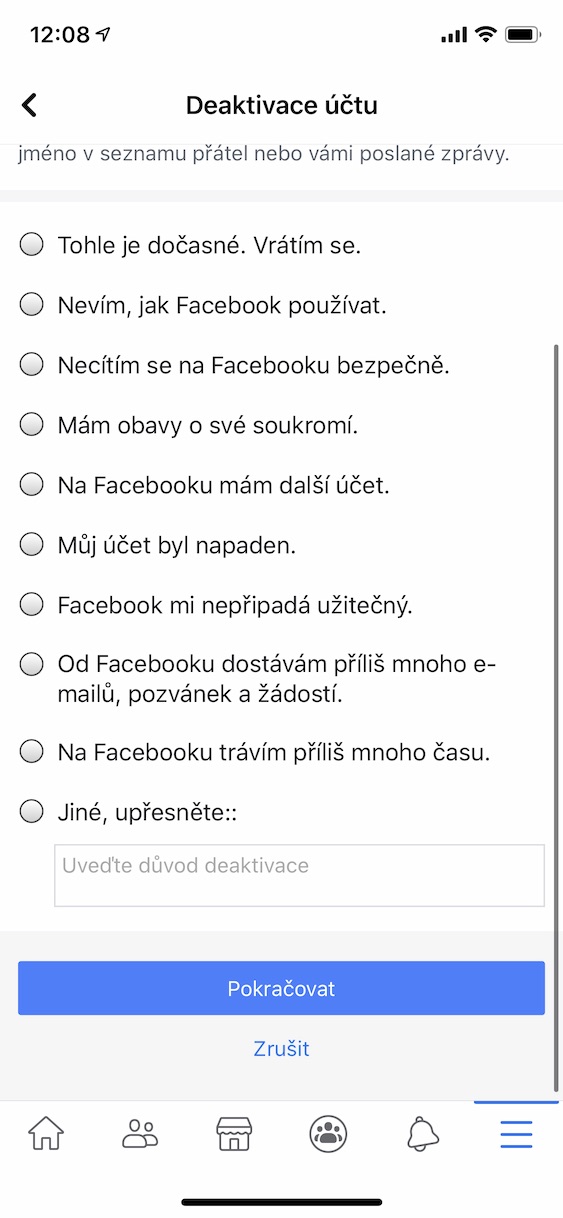
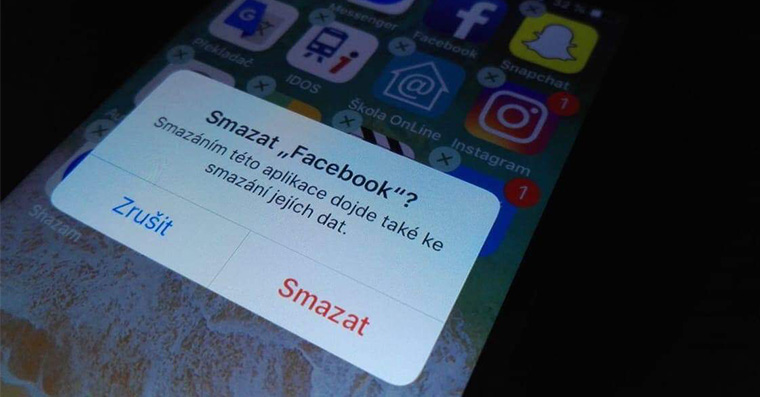
If you want to deactivate or delete your account on your iPhone (or iPad), proceed as follows. Move to the app Facebook, and then tap in the lower right corner three lines icon. In the menu that appears, move all the way down and press the option Settings and privacy. Then choose an option Settings. Now you just need to move in the settings Dolu to the category named Your information on Facebooku. Then click on the section here Account ownership and settings, where you select an option Deactivation and removal. Then just choose whether you want an account deactivate whether remove. Then enter yours password and press the button Continue. Now just choose reason to deactivate or delete, and then press the button again Continue.
Procedure on macOS
Gallery
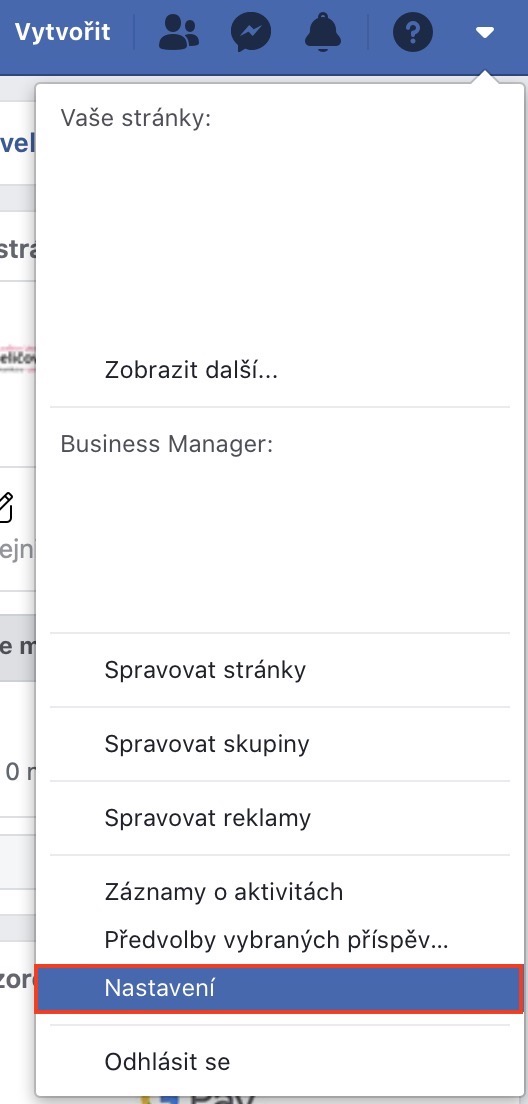
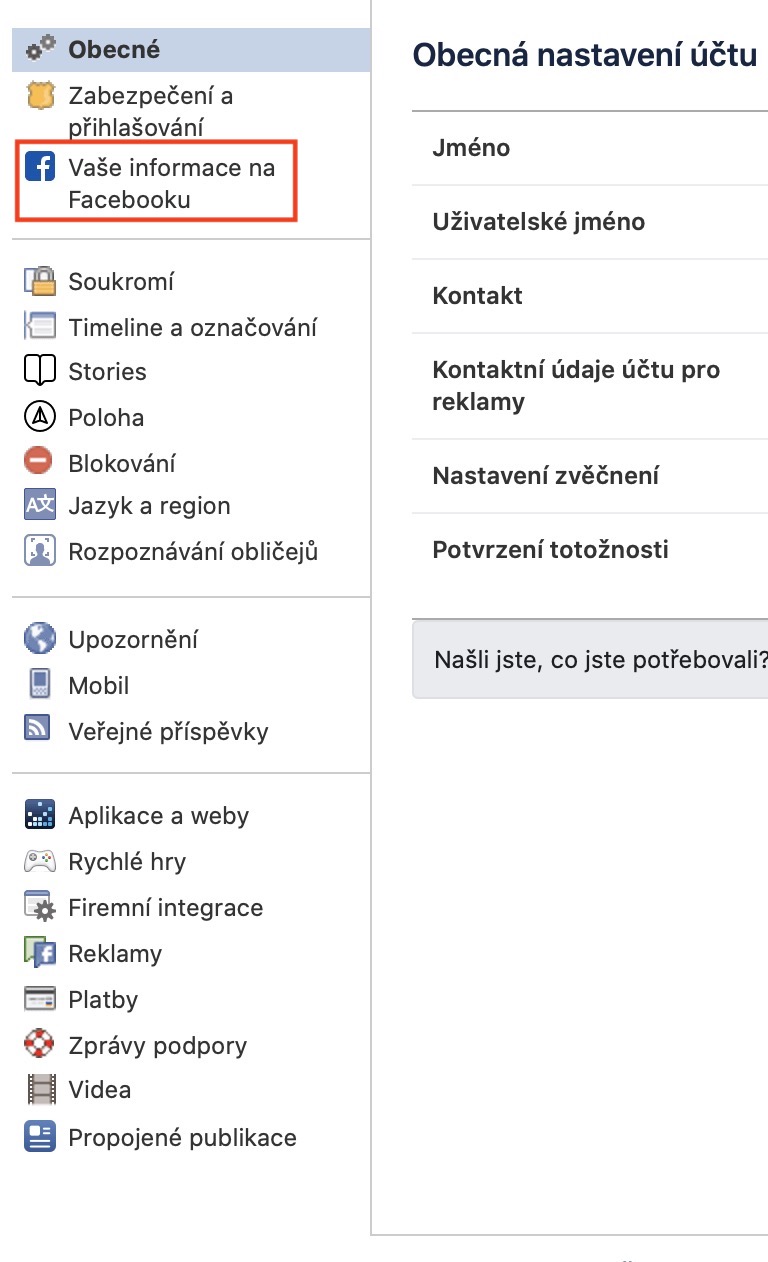
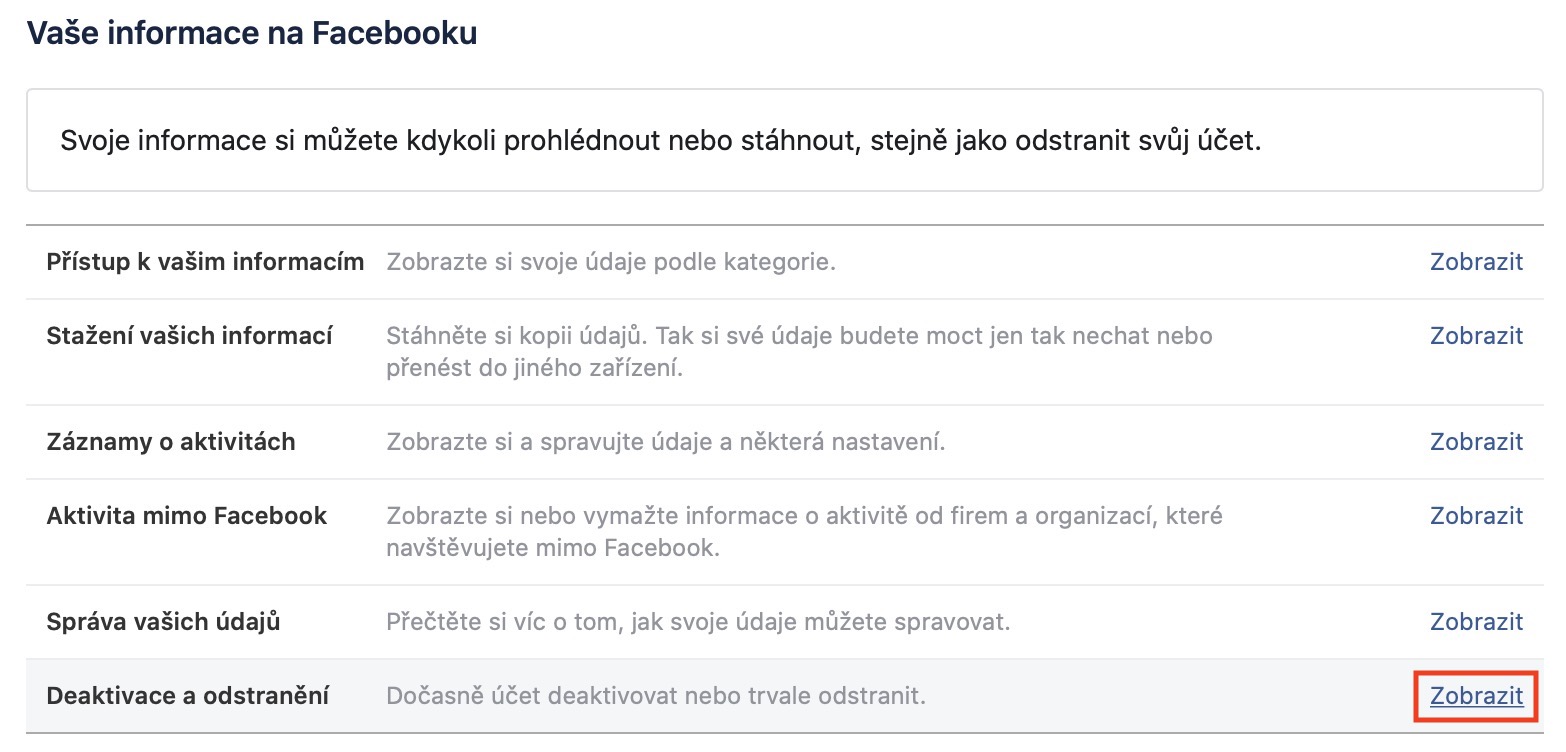
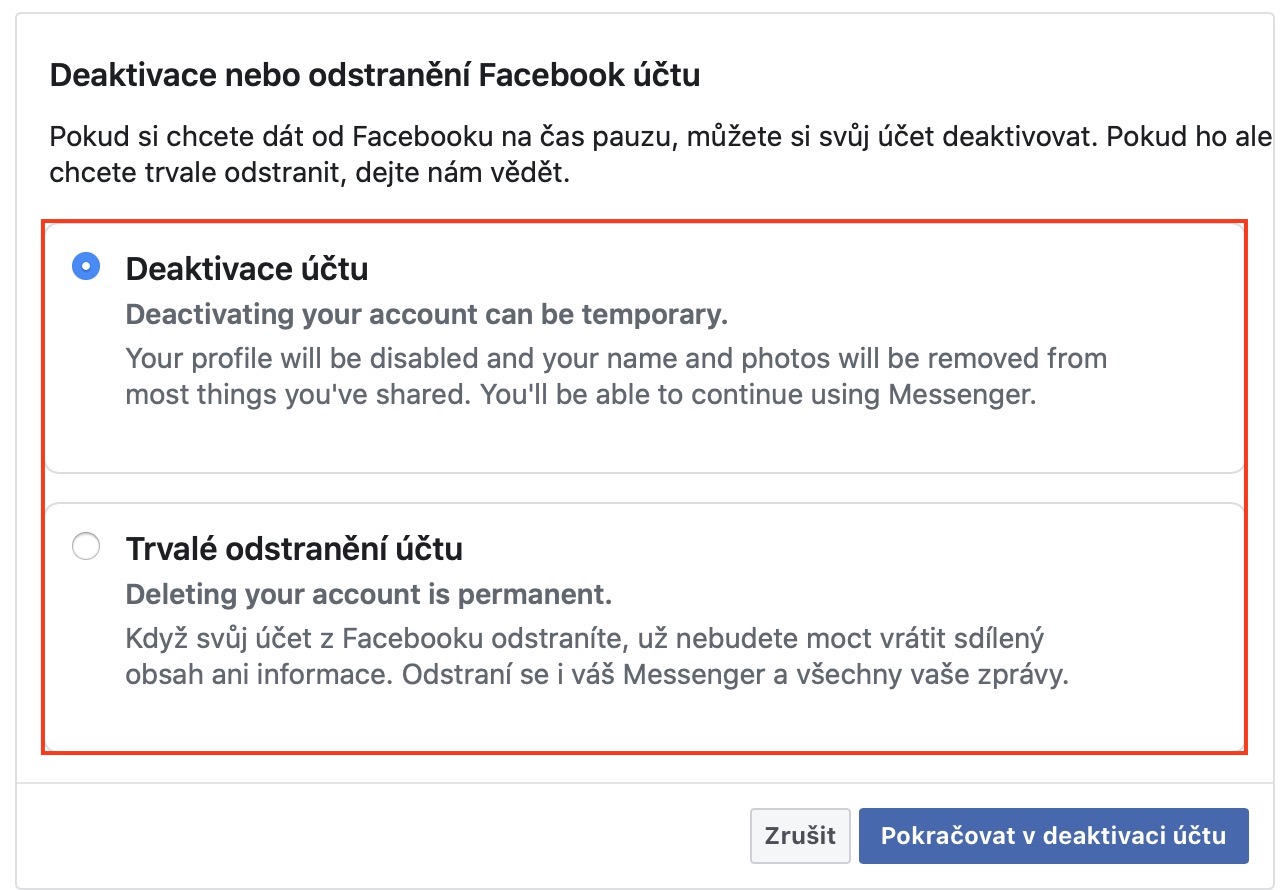
If you have decided to deactivate or delete your account on your Mac or MacBooku, so first log in to your account in any web browser facebookaccount. Once you've done that, tap on in the top right corner arrow icon and select an option from the drop-down menu that appears Settings. Then select the option in the left menu Your information on Facebooku and after loading this category, click the button See more u option Deactivation and removal. Now you just have to choose if you want an account deactivate whether remove. Then authorize using passwords, choose reason to deactivate or delete, and it's done.






I have had enough.
I have already successfully canceled 4 months....and I'm alive.
This possibility has always been there, so this article is not a little pointless. Everyone who has at least a little sense and uses social media. of the network, he probably got through the personal protection and setting options of his account = self-evident. And the fact that someone has or does not have an account on any network does not necessarily mean that it is defective, see for Mr. Vladimir "so what? ( it's not the Matrix ) what did you expect to happen?'
ProAre you reading and commenting on something that is unnecessary?
I unblocked FB about three years ago and I'm guessing the "unblocking" period was two weeks - now four??? Basically, I don't care, it just seems to me that these operations are trying to make FB users more and more comfortable ;-)
I canceled it already five years ago,,, after all, I don't need to have a million fictitious friends, I'd rather just have a few real ones that I can see in person,,, and I confess, I don't have any social networks.... I like my privacy…
If I want to cancel something, it should be done immediately and not wait 30 days
previously it could be canceled immediately and only on certain pages. fb blocks it for a month.
I had Facebook for about half a year, more than 10 years ago. He annoyed me terribly, I canceled, it was a bit difficult to find info on how, then I waited I think a month and that was it. And I am. And I have enough friends, the real ones. And most don't have Fb either 🙂
It is the evil of the twenty-first century. I know one that doesn't even log out. Or he takes a picture of something and waits until he gets likes. He last photographed a fly this week. The caption was ``a fly in March?'' Then he waited for comments and lay people.
Last year I went to the pub with my friends. There were six of us. Everyone was looking at their cell phones. I'm not the only one. I was weird. I left after an hour because it's not my style. I go to the pub to chat and not look at my mobile phone. No one said a word during that hour. Disgust.
I am against FB.
I canceled FB 10 years ago, it's still there.
Totally on ho–o !!!
I tried it. I logged in after a while and the account was not canceled. I then tried it several times. ProThe stereo doesn't work. MaxYou will probably disappear from search, but your Facebook account and data will remain.
I agree, I've been "cancelled" for 2 years and people still see me. But I haven't been there since the leak and didn't give subsequent consent.
I was facebookem blocked because I didn't put my real name there (that's right! I'll give you my real name, you idiot). Now I can't even cancel the account (according to GDPR) or unblock it and facebook He has my real data (email, photo, phone number that I entered there). I think it's already illegal. He didn't respond to emails to support.
I have the same problem. Is there any solution? I have some photos there that I would like to download, then let them keep the account.
The solution is to give Facebooka trillion dollar fine and kicked out of Europe. If someone is going to collect data on me and then arrogantly refuse to delete it, at least let it be a European company.
If so, put the procedure there on all platforms, if different (Android, Windows, ...)
I didn't read the article, does it also contain advice on where to bury the sugar cane?
And how do I delete an account that I haven't used for a long time, for which I've long forgotten both the password and the login email? Even though I haven't been on it for several years, it's still there. I read somewhere that after a period of inactivity, FB deletes the account. That hasn't happened to me yet. nestHello, even after 3 years since I left FB.
Does anyone know please?
I have NEVER had FB and I live.
It's enough that my data was sold by AVAST.
Good for us.
I don't have FB and I have peace of mind
FB is a pig!!!!!!!
FacebookI deleted (not deactivated) my account in 2013. After a few years I changed my mind and created it again, and now, what is important – under the same email as the original account. Without searching for anything or anyone, Facebook It showed me my old contacts ("friends") in the "Who you might know?" menu and suggested pages I once liked... So even if you delete the account, it will still be there. facebookYou won't find it, but it looks like it will still remain in their database (contacts, favorite pages, etc.)
Unnecessary FB
I also had, canceled 3 years, annoying time breakdown, knocks, disgust. Have a nice Sunday everyone
Of course, for example, there will be a photo of your butt on FB if you upload it there, then you will cry that FB is bad, that there is a photo of your butt. Then you go to the pub, and the others will be staring at their cell phones, so you're probably not as cool as you think. :D
Then if you want to cancel fb, cancel all accounts, mail, banking, after all you can talk, and you can go to the bank
Fcb can't be cancelled!! I deleted my account 6 years ago and recently I needed it again, so I tried my login details that I had saved and fcb wrote me welcome back and the complete profile as I had it, so there is no difference between deleting and deactivating, just that can't! and if you don't believe, try it...
With a fucking dick facebookI don't want to have anything to do with em ever again!!! They do whatever they want, block me, falsely accuse me of breaking unspecified rules, which is nestHello, it is not possible to contact them. Totalitarian bastards from whom the State Security Service could learn!!”