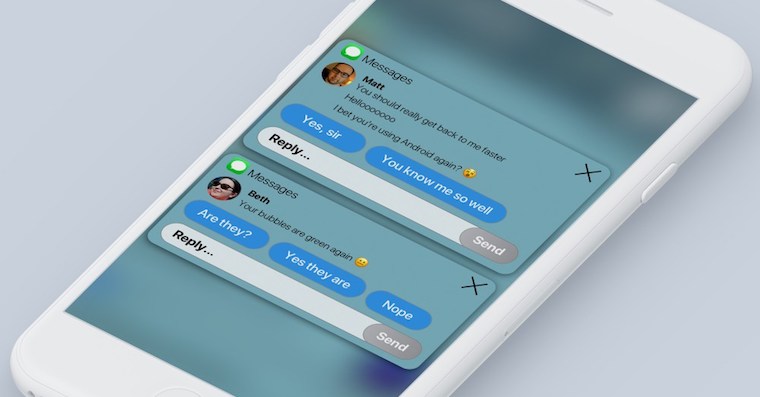
How to send a message on an iPhone without a preview in the notification? Whether a preview of the content of the message will be displayed in the notification on the iPhone display is entirely within the control of the recipient of the message within the framework of how they have set their privacy. However, there is a way that you, as the sender, can ensure that the recipient does not see a preview of the incoming message in the notification.
You might be interested in

In digital communication, there is an increasing emphasis on privacy and control over the information shared. Sometimes we may want to send a message whose content should not be previewed in the notification on the recipient's phone. In this tutorial, we will show you how to iPhone Send a message without previewing it in a notification using an effect called Invisible Ink.
How to send a message on iPhone without a preview in the notification
If you want to send a message on iPhone without a preview in the notification, follow the instructions below.
- Open the app News at yours iPhone.
- Select the conversation with the recipient you want to send a hidden message to.
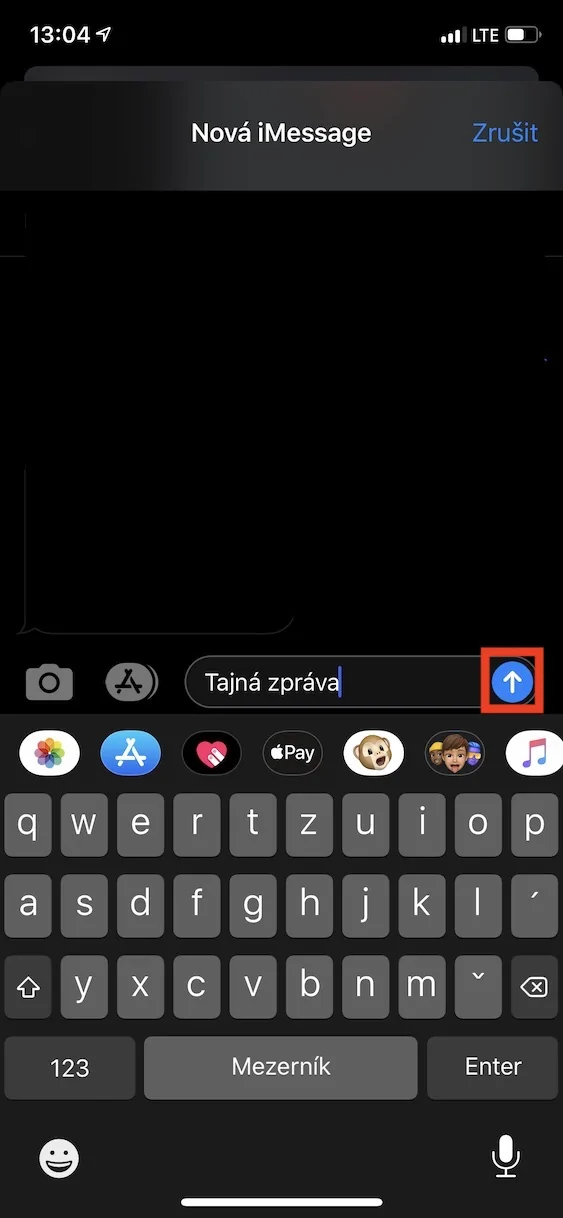
- Write the message you want to send.
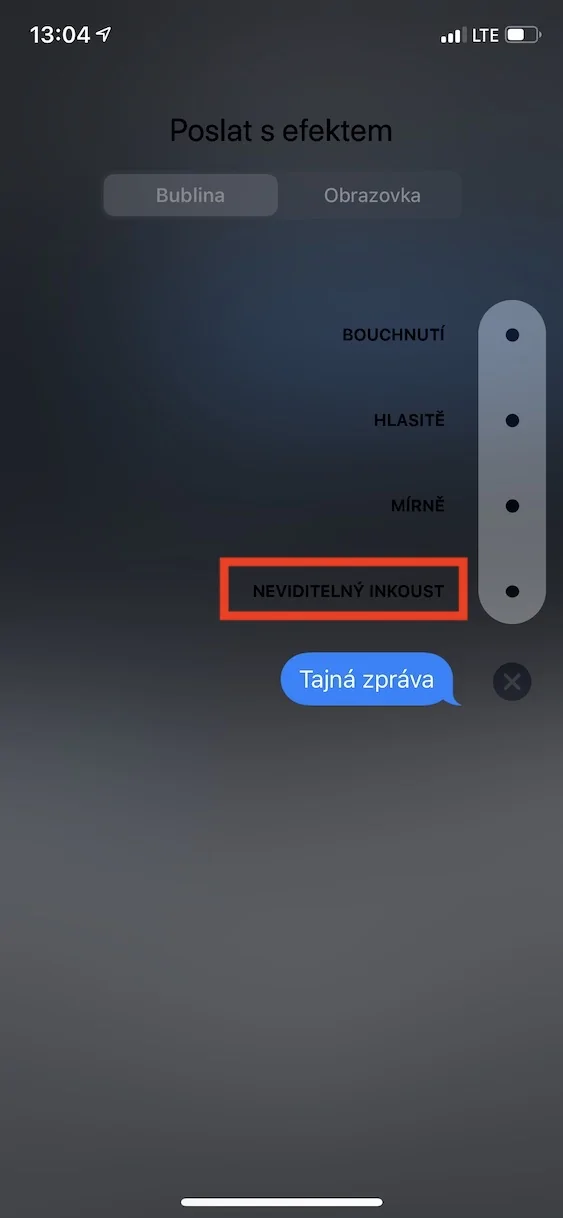
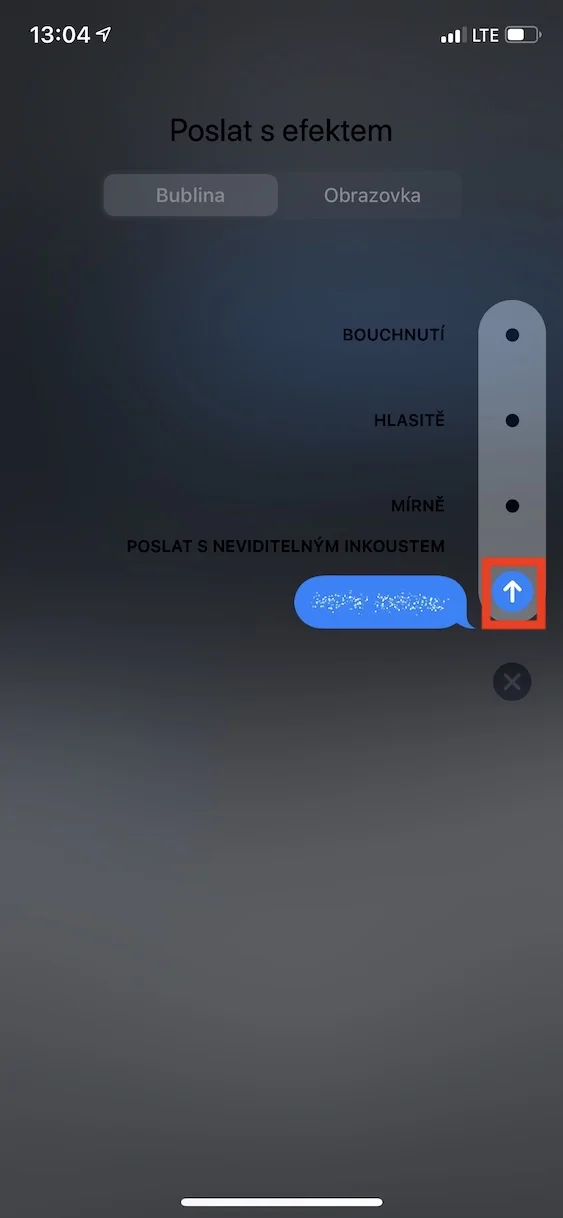
- Hold your finger on the blue button for sending.
- In the effects menu that appears, select Invisible ink.
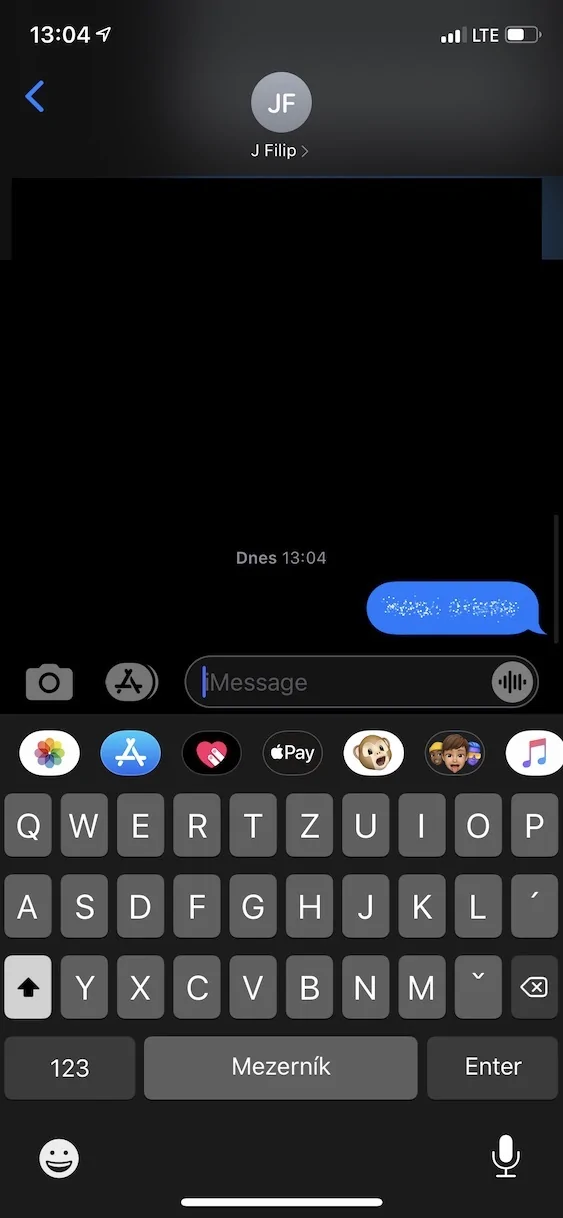
- Click the blue submit button again.
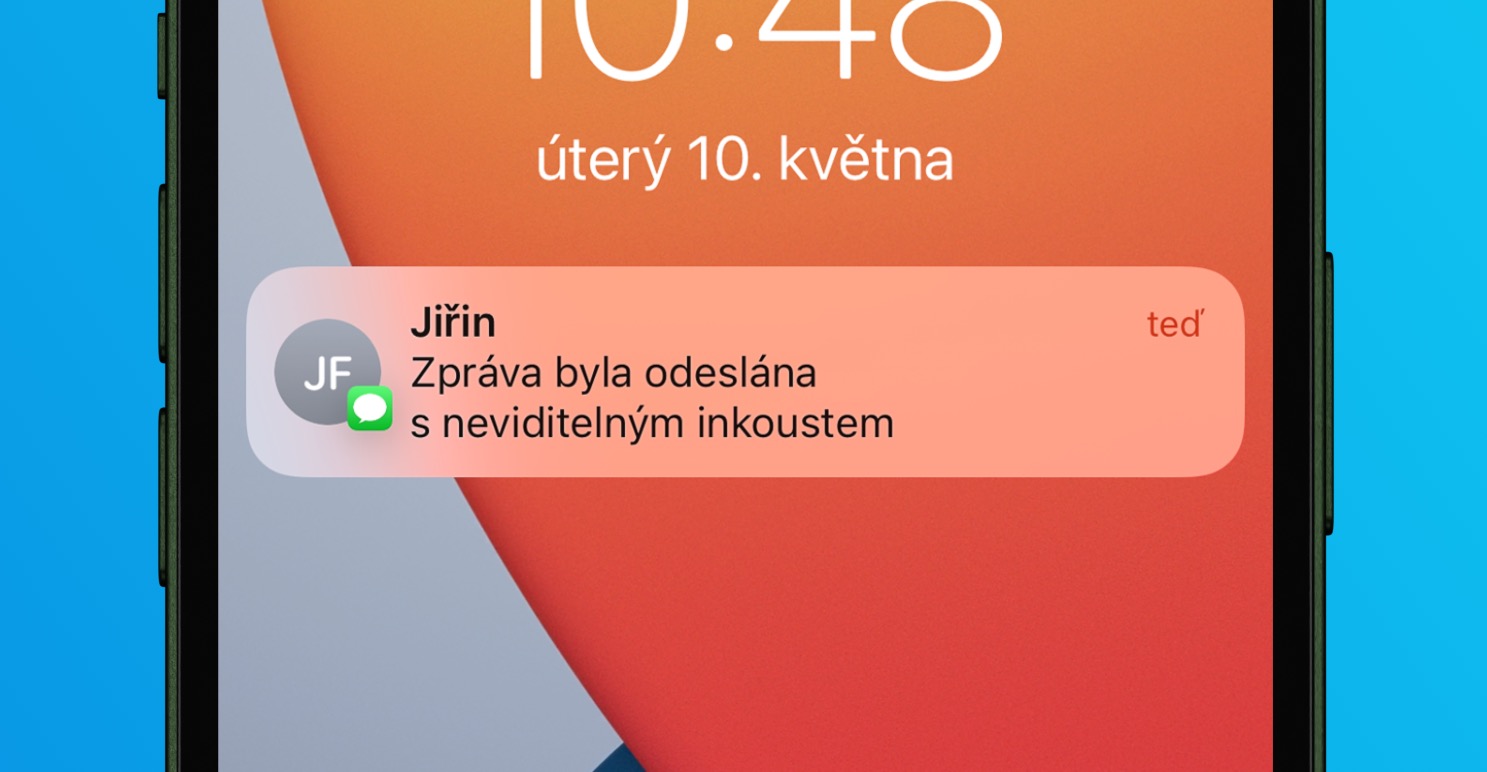
What will happen:
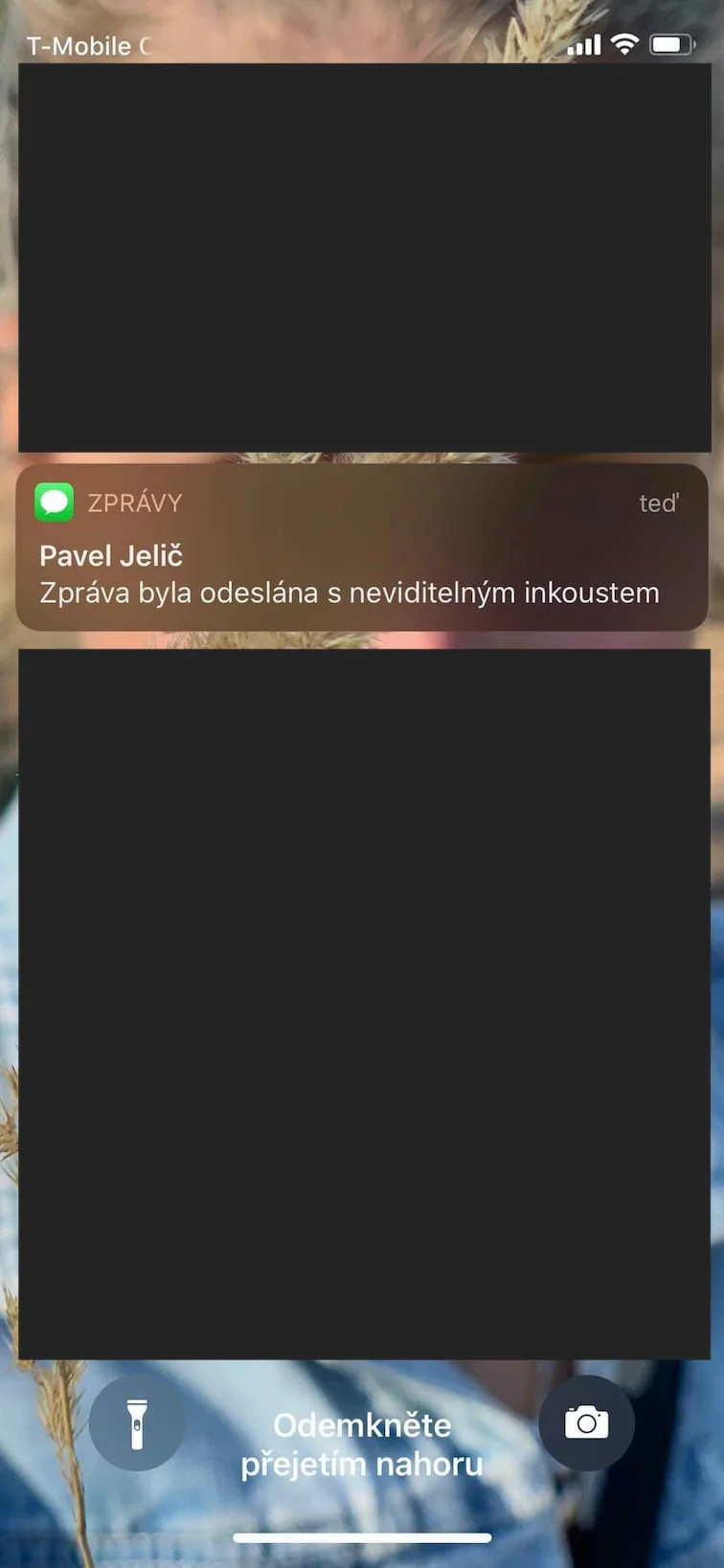
- The recipient will be notified of the delivery of the message, but will not be able to see its contents.
- Pro To view the message content, the recipient will have to tap the notification with their finger.
- The message will automatically become invisible after the recipient leaves the conversation.
Gallery
The feature is of course only available to iPhone owners or service users. iMessageIf you're not sure about the other party's privacy settings, using the invisible ink effect is a great way to ensure that the person doesn't see a preview of your message on their screen.