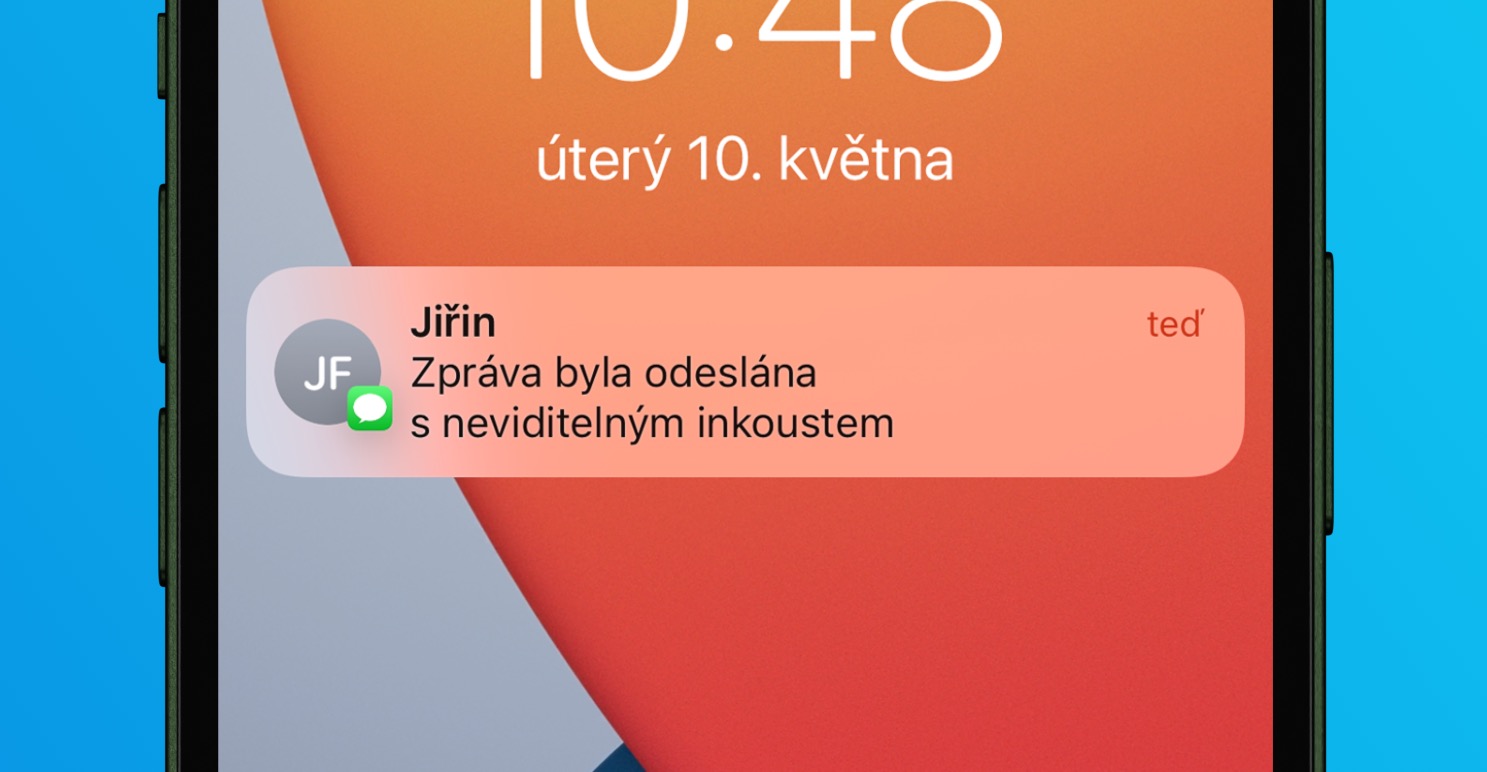
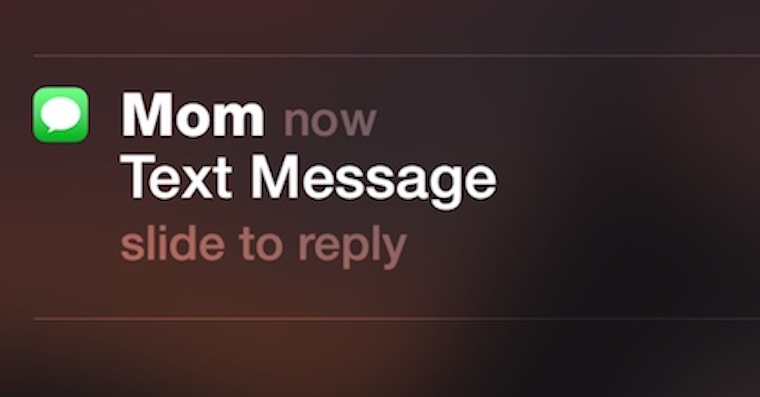
Notifications are an integral part iOS and other operating systems from Applu. You can use them to immediately receive various information, for example, about an incoming message and email, about some news from social networks, the balance on your account, etc. If a notification comes to you on iPhone s Face ID, it won't be previewed by default until you verify your face. On older iPhonetea Touch ID This is not the case and by default the notification is previewed, so practically anyone can read it. From a privacy perspective, this may not be ideal, as in some cases you simply want to be sure that only the recipient and no one else sees the message.
You might be interested in
As iPhone send a message without the recipient seeing a preview of it on their screen
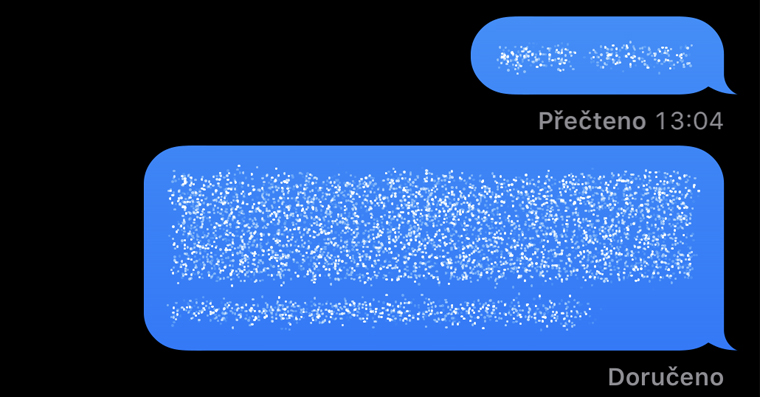
The good news is that in the native Messages app, and therefore in iMessage, you can easily force the notification preview to be hidden. And it's certainly not complicated - you just need to send a message with a specific effect that has been part of Messages for several long years. This effect is called Invisible Ink and, in addition to preventing the message preview from being displayed in the notification, the message will not be displayed immediately even after opening the conversation. The recipient will then determine when they want to look at such a message. The procedure for sending a message without a preview is as follows:
- First, you need to go to the native app on your iPhone News.
- Once you do, you are click on a specific conversation, in which you want to send the message without a preview.
- Subsequently you write the message in the classic way in the text field, but her for now do not send.
- After writing the message it is necessary that you held finger on send arrow in blue background.
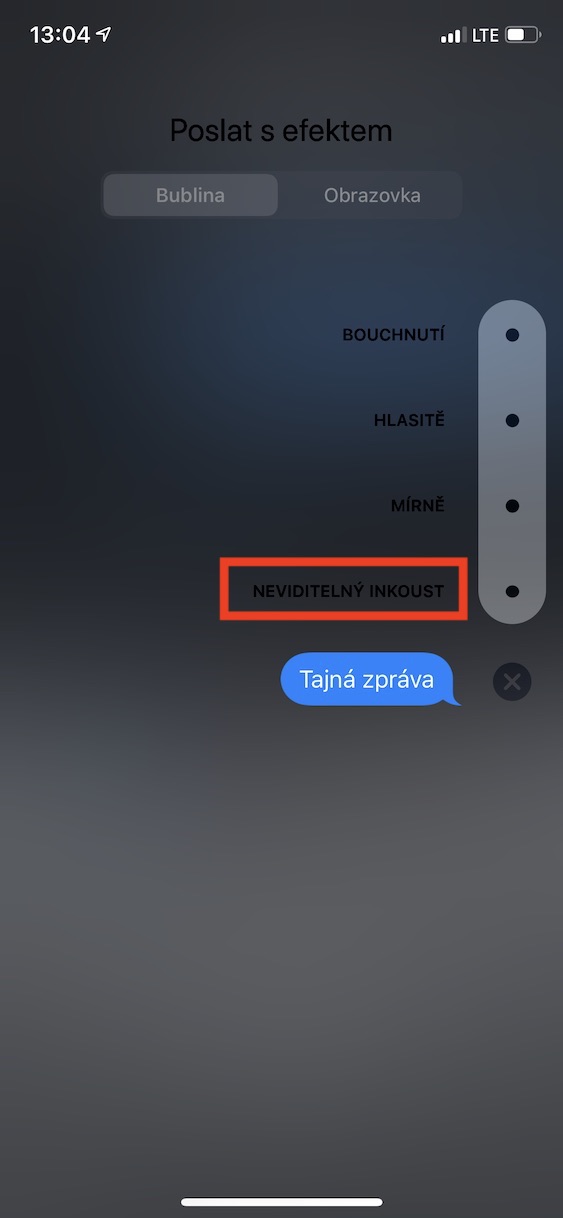
- This will bring you to the message effect selection interface.
- In this interface, in the category Bubble tap the effect Invisible ink.
- After selecting the effect, all you have to do is to they clicked the arrow in the blue background to submit.
Gallery
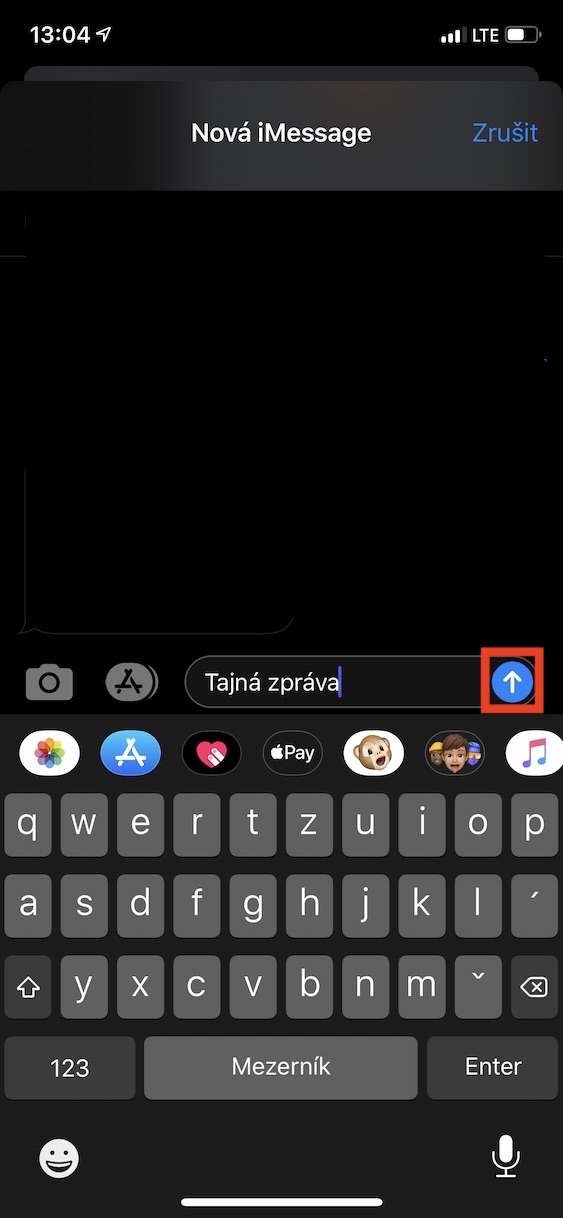
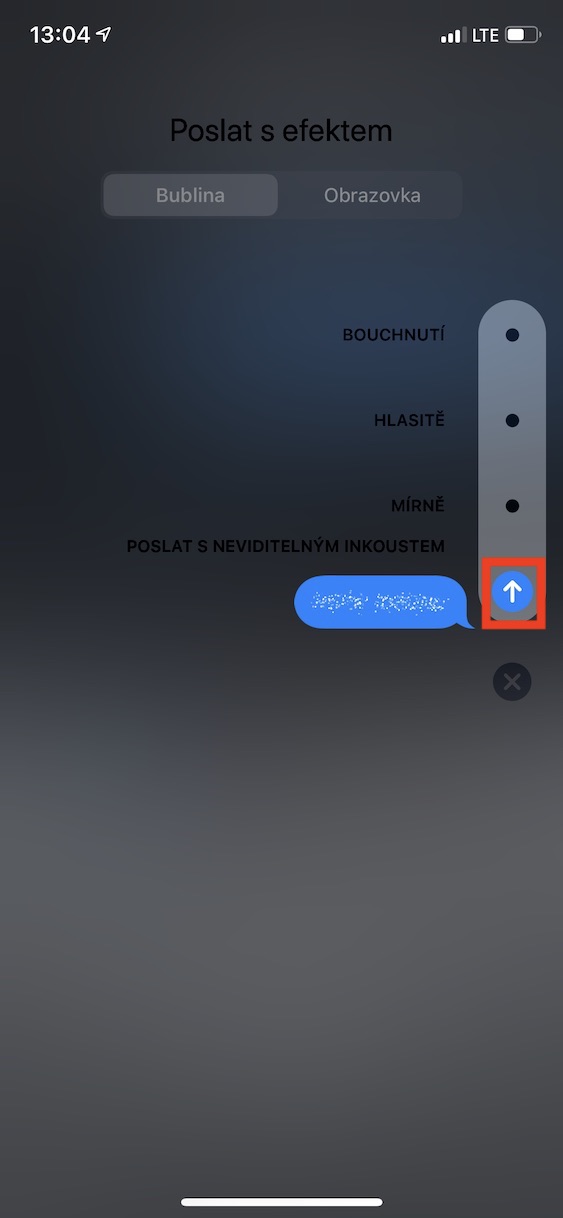
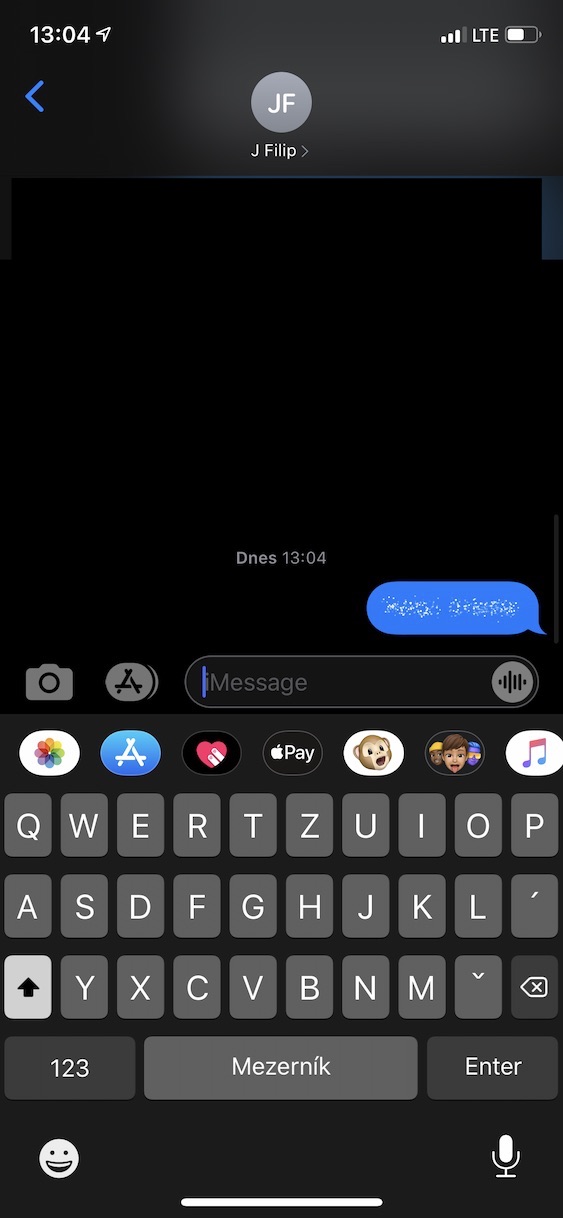

Using the above procedure, it is therefore possible to easily send a message on your iPhone without the recipient immediately seeing a preview of it in the notification. At the same time, the message will not be immediately visible after opening – in order for the recipient to read it, they must swipe over it. Finally, I would just like to mention that this feature for sending a message without a preview is unfortunately only available for iMessageAs for classic SMS messages, effects are not available for them, so the above procedure cannot be used. You can also send a message without preview on a Mac in the same way.