Among the useful native apps you can find on your Mac are Preview, among others. This software from the workshop of the company Apple it is used not only for basic work with photos and other image files, but also with documents in PDF format. If you want to speed up, simplify and make your work more efficient, knowing the keyboard shortcuts that we present to you in today's article will definitely come in handy.
Work with documents
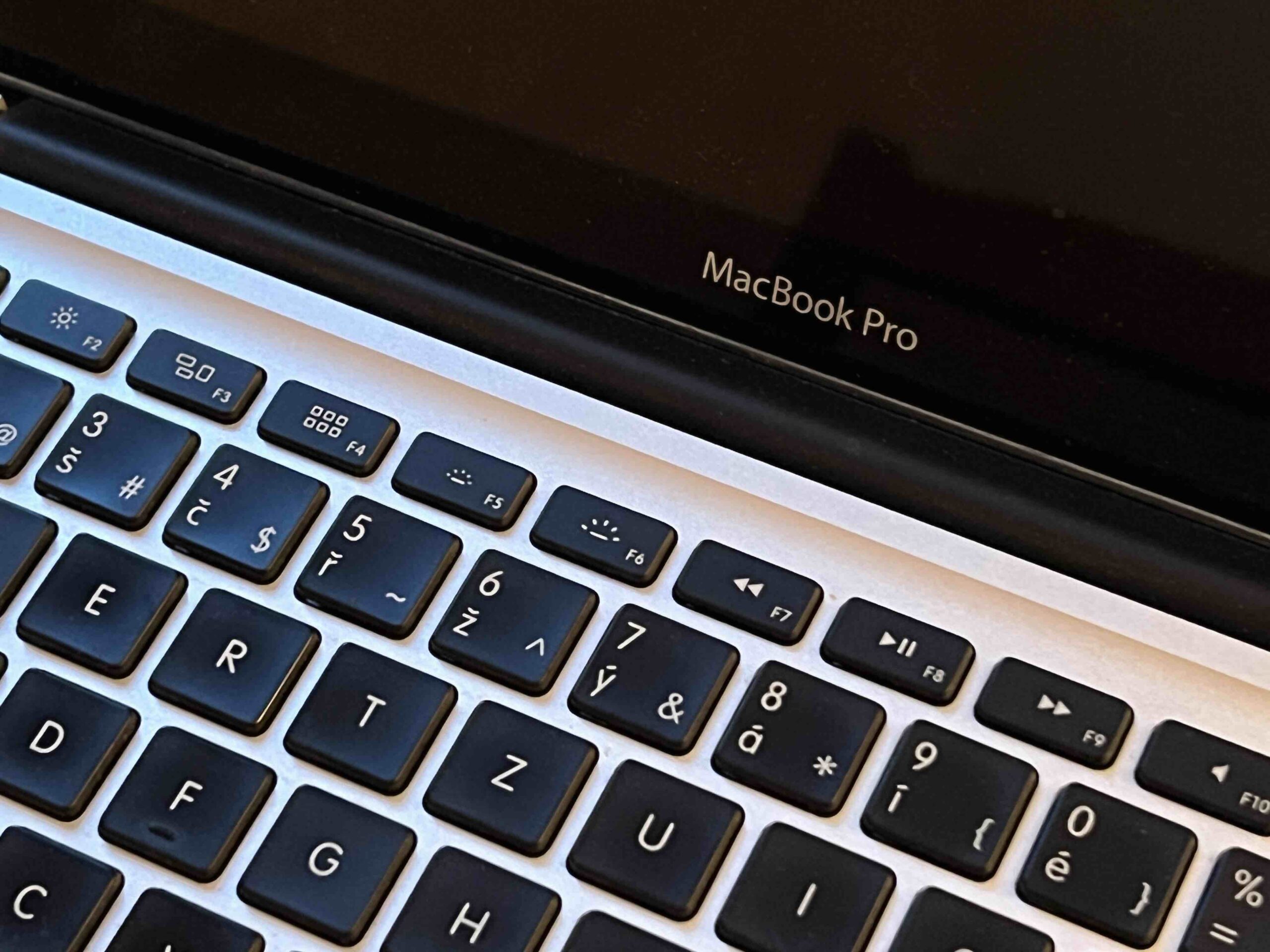
You are working with PDF documents in native Preview on your Mac and don't want to go through the complicated and time-consuming clicking and gesture work on the trackpadu, you can use a number of keyboard shortcuts. It probably goes without saying that you can use the corresponding arrow keys to move up or down one line in a document. If you want to move to the next document in the window, use the shortcut Alt (Option) + Fn + Down Arrow, use the shortcut to return Alt (Option) + Fn + Up Arrow. Pro use the shortcut to go to the next page in the document Alt (Option) + Down Arrow, a shortcut is used to return to the previous page Alt (Option) + Up Arrow.
You might be interested in
Working with images
ProAre you viewing multiple images or photos in the native Preview on your Mac and would like to switch to slideshow mode? Then there's nothing easier than using the keyboard shortcut Cmd + Shift + F. All content will be displayed in full-screen mode. Pro You can also use a keyboard shortcut to zoom in on the content. cmd + plus, vice versa for zooming out Cmd + minus. Do you want to zoom in on just a selection of the displayed content? In that case, first select the selection by dragging the mouse or trackpadu, and then press the shortcut key Cmd+Shift+8. You can start editing the colors of images or photos in the native Preview on Mac by pressing a keyboard shortcut Cmd + Alt (Option) + C, a shortcut is used to rotate the image 90° to the right Cmd+R, to rotate 90° to the left again use the keyboard shortcut Cmd+L. If you want to crop the image, first make a crop selection by dragging the mouse cursor or trackpadand then perform the actual cropping by pressing the shortcut key Cmd + Option (Alt).
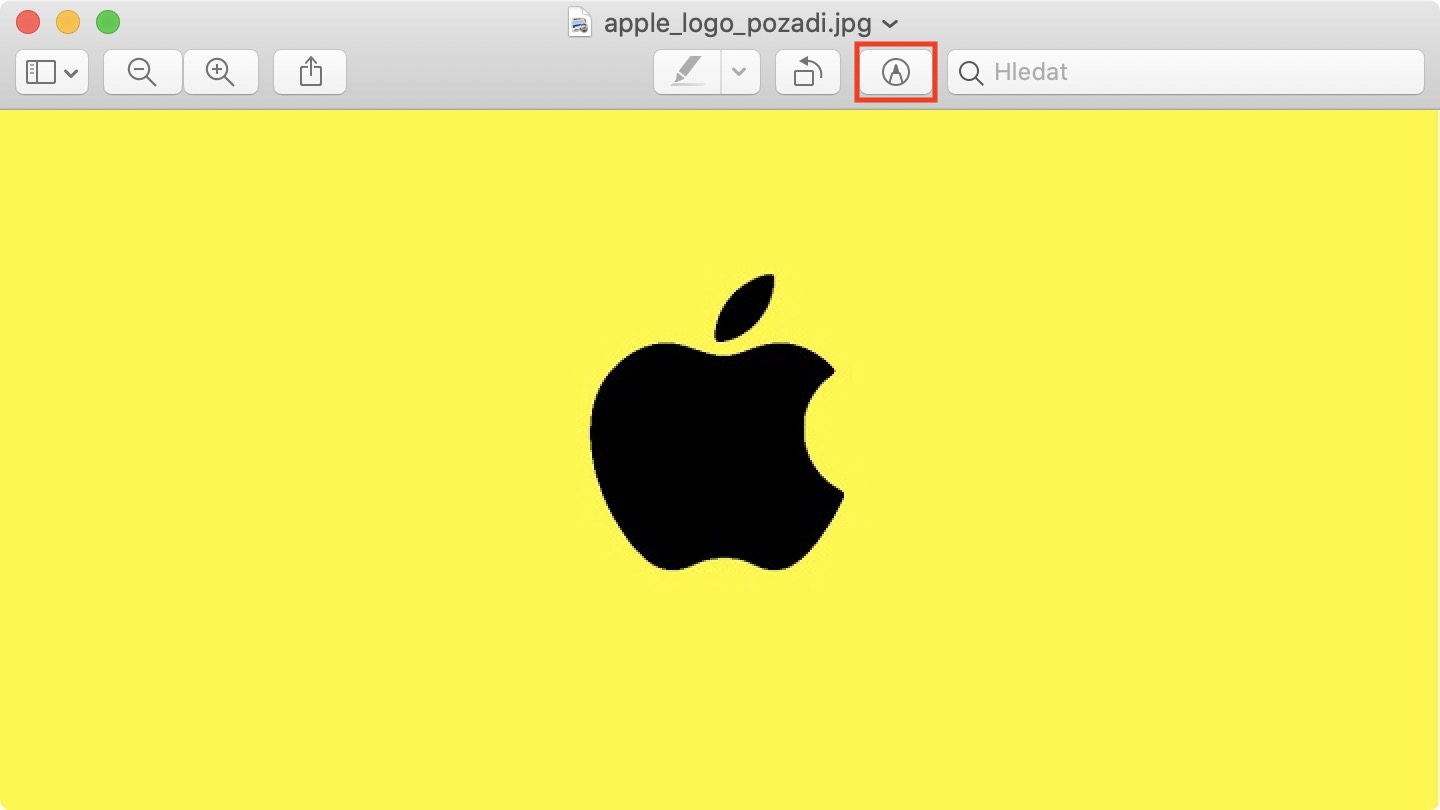
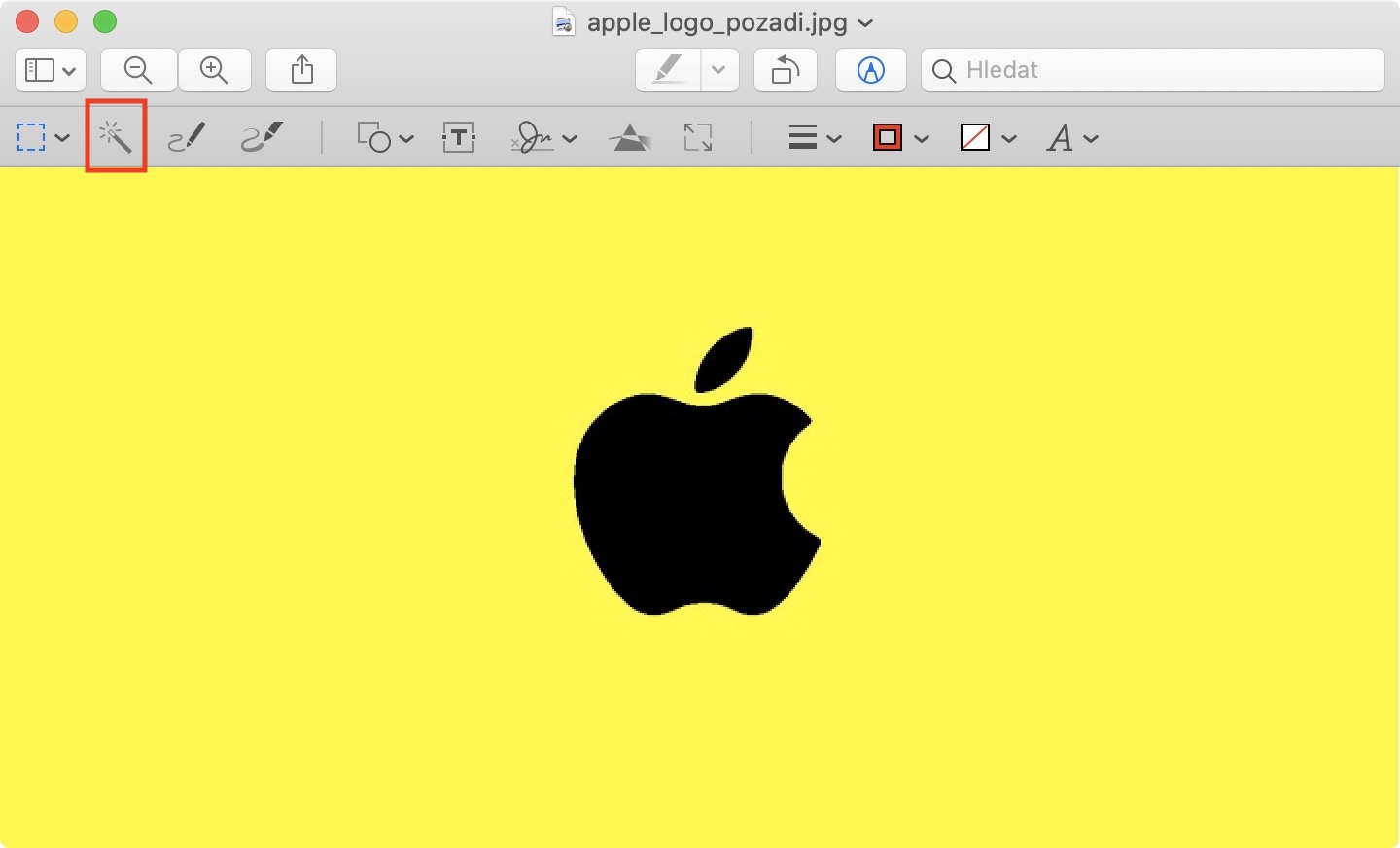
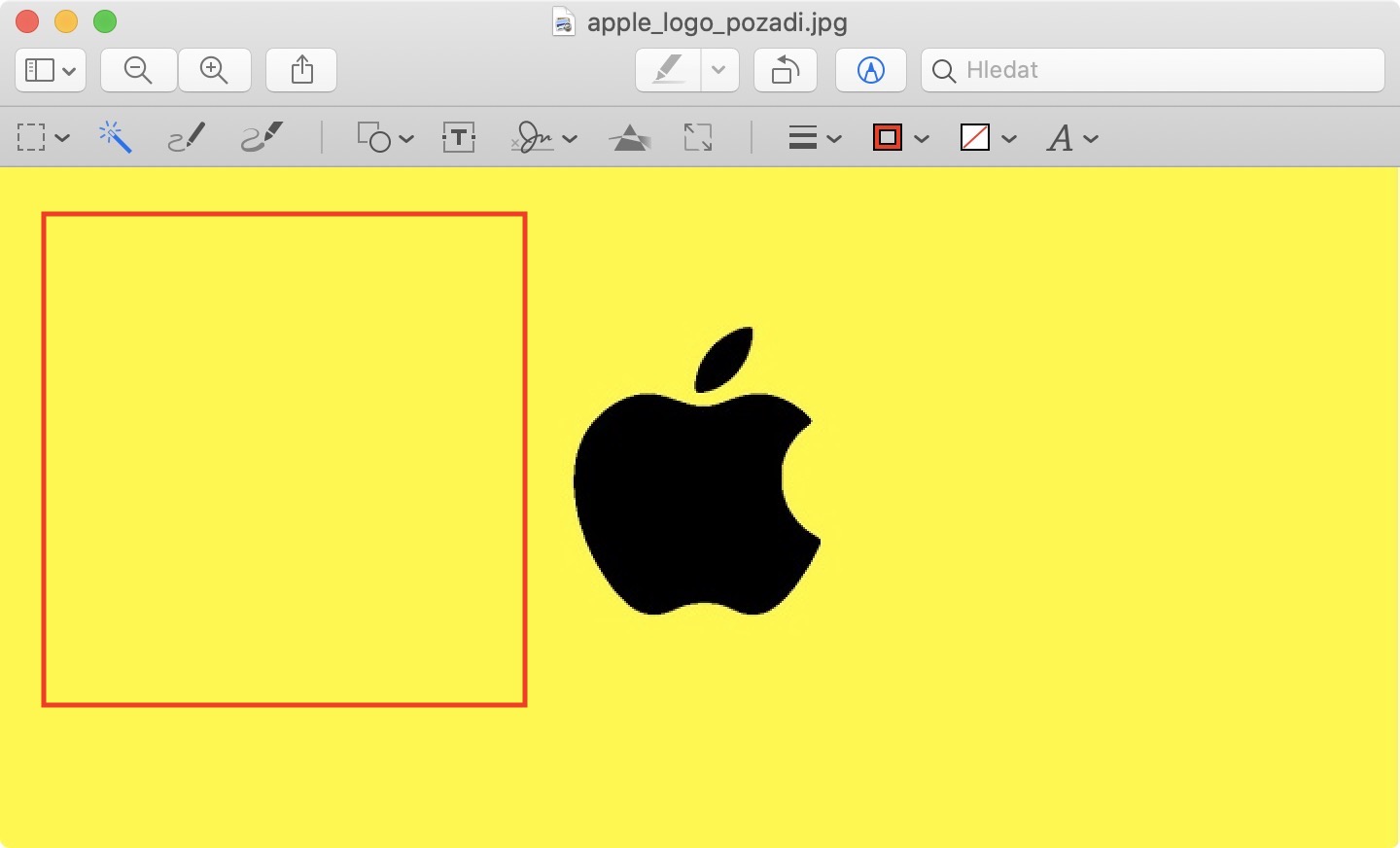
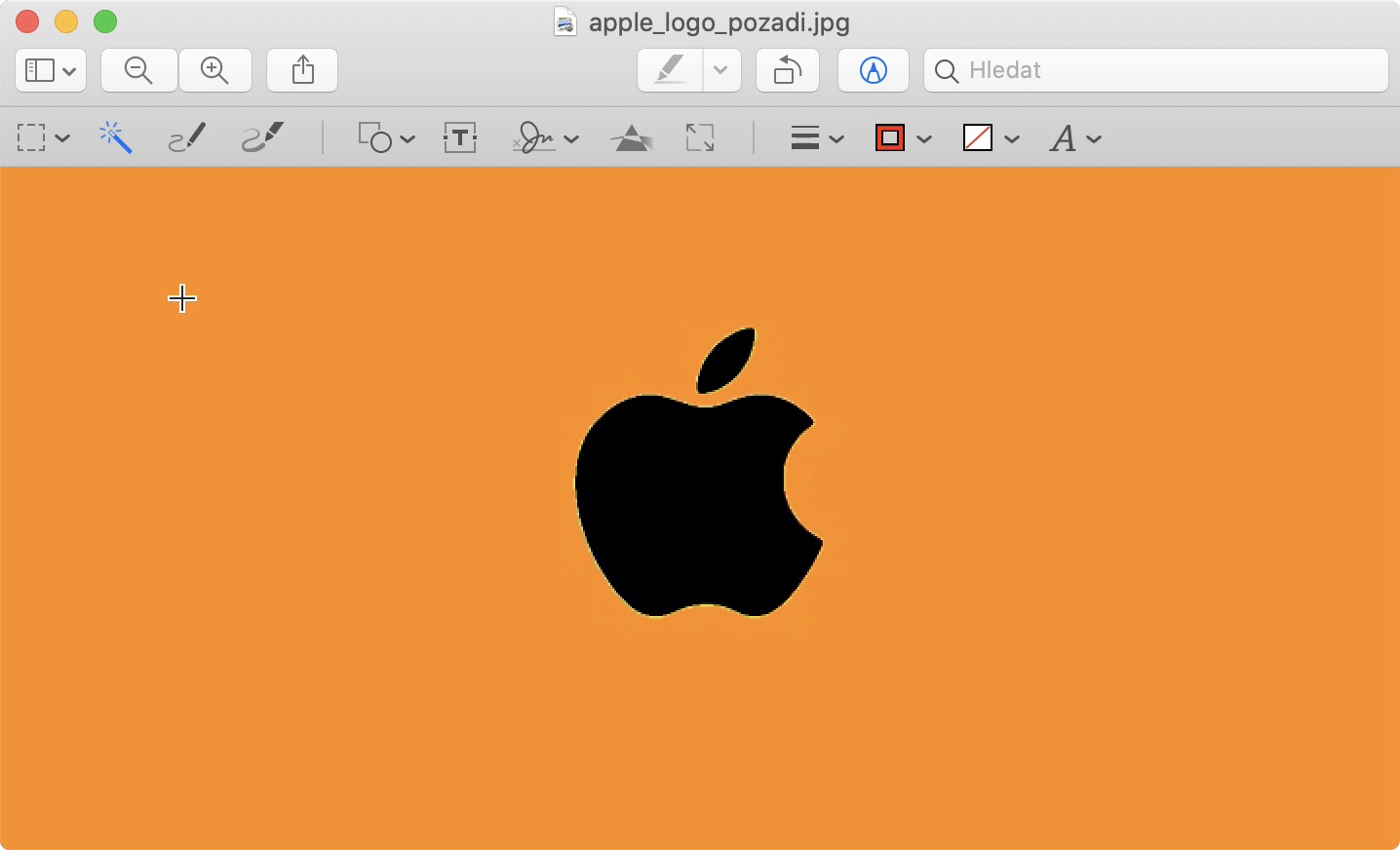
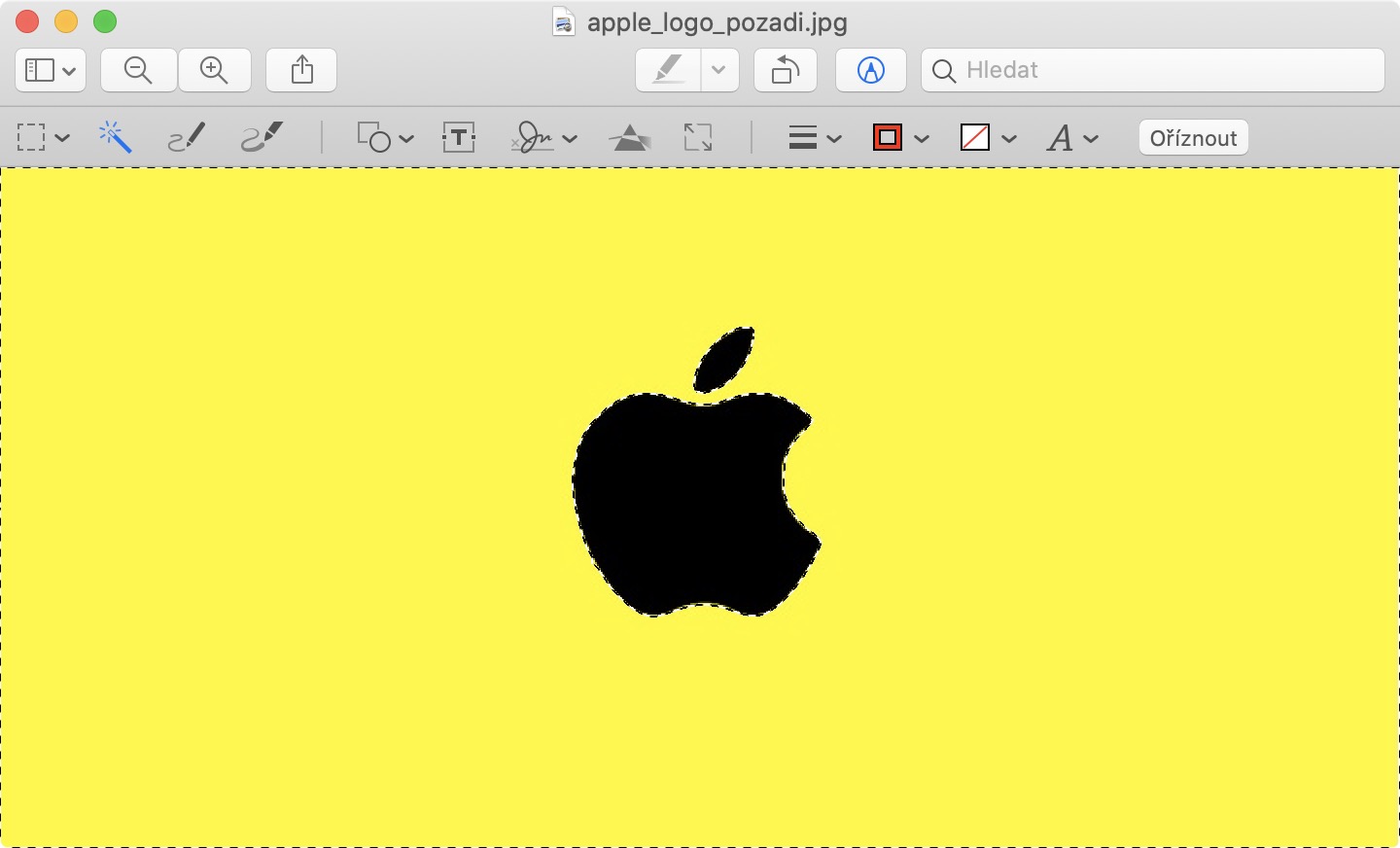
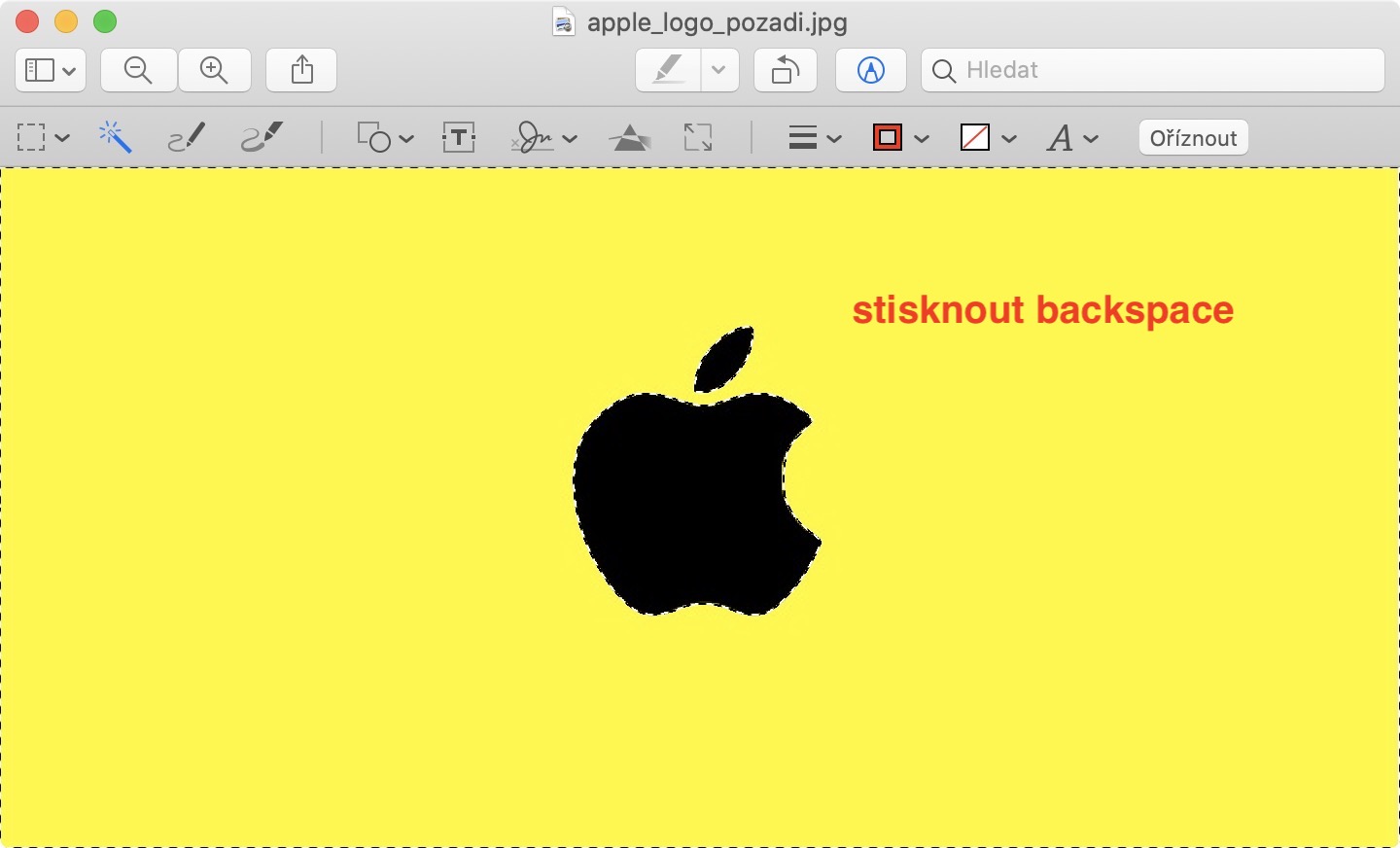
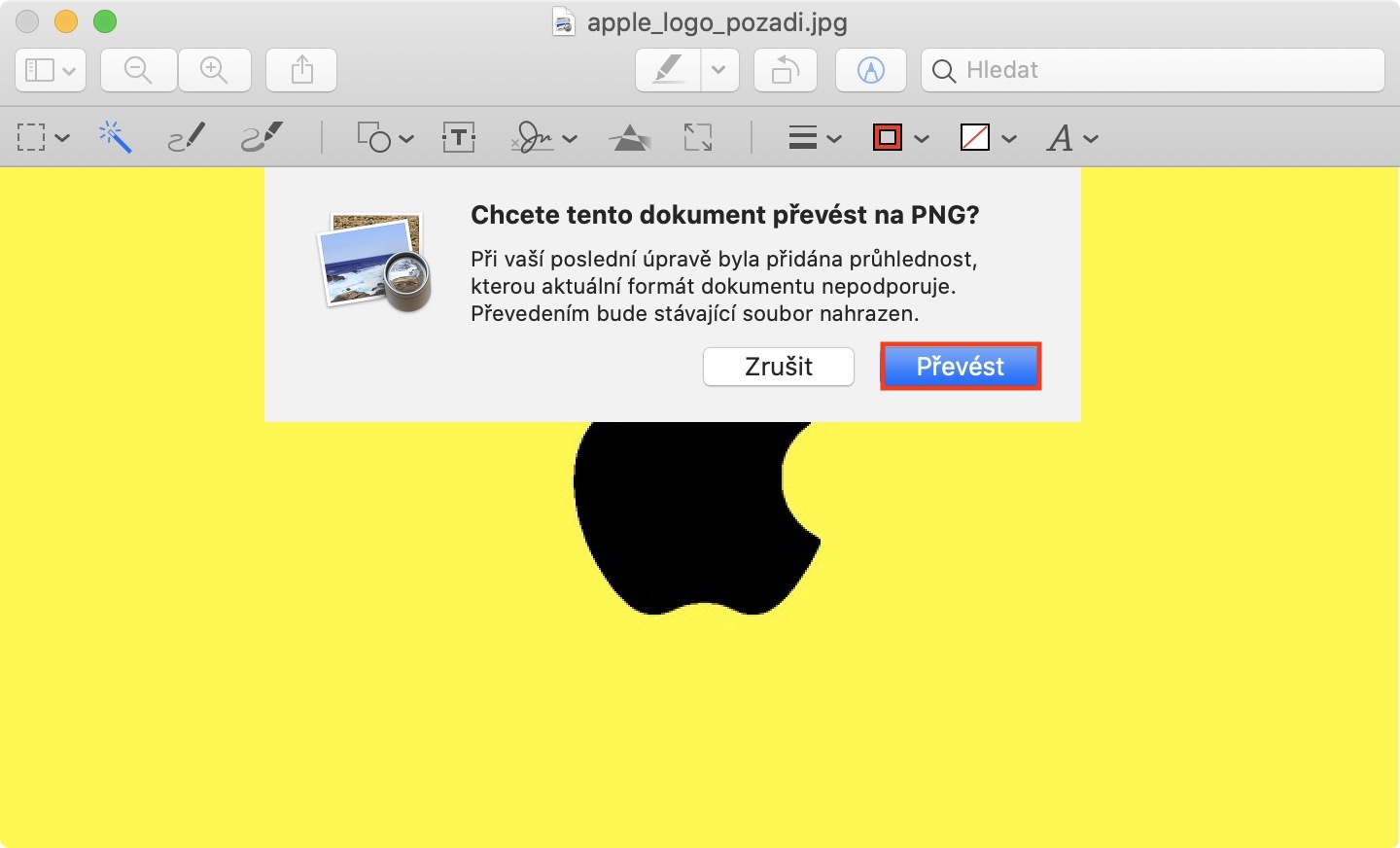
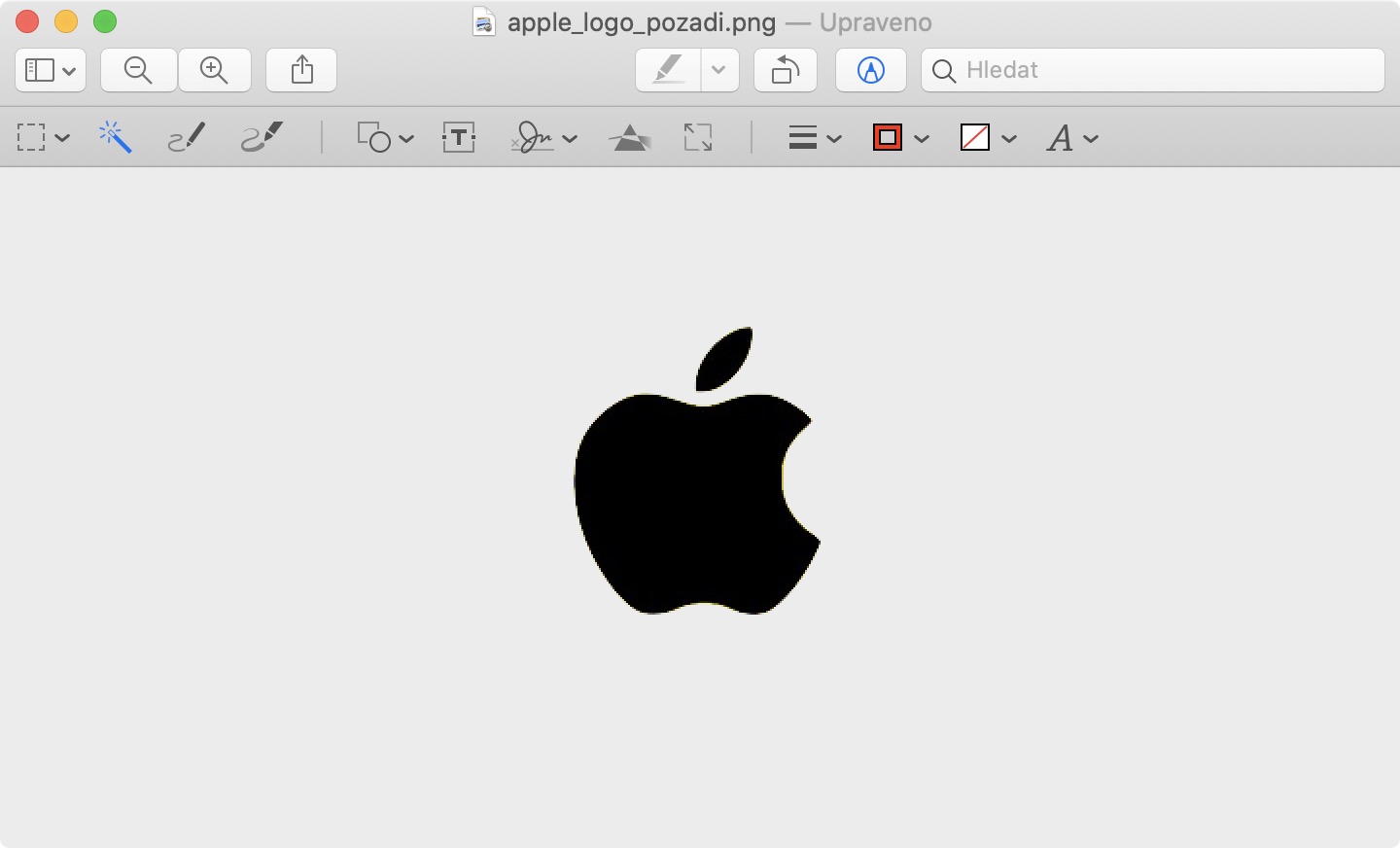
See how you can remove backgrounds from photos in Preview:
Gallery
General Abbreviations
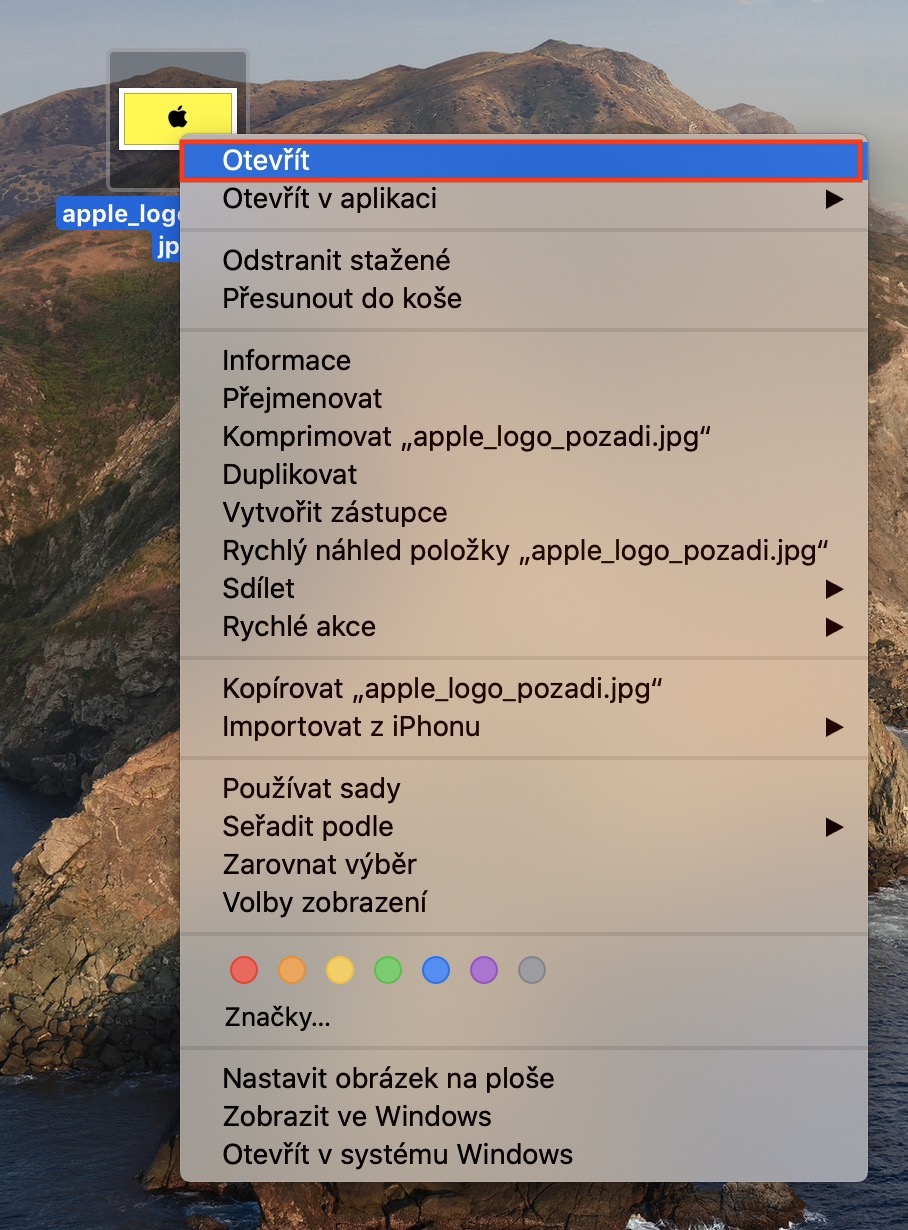
Want to change how Preview on Mac displays file previews in the left sidebar? A keyboard shortcut will help you Cmd + Option (Alt) + 3. Pro To completely hide this panel, you can use the shortcut Cmd + Option (Alt) + 1, a shortcut will be used to return to the display in the form of previews Cmd + Option (Alt) + 2. Pro To duplicate an open file, you can press the keys again. Cmd + Shift + S.