
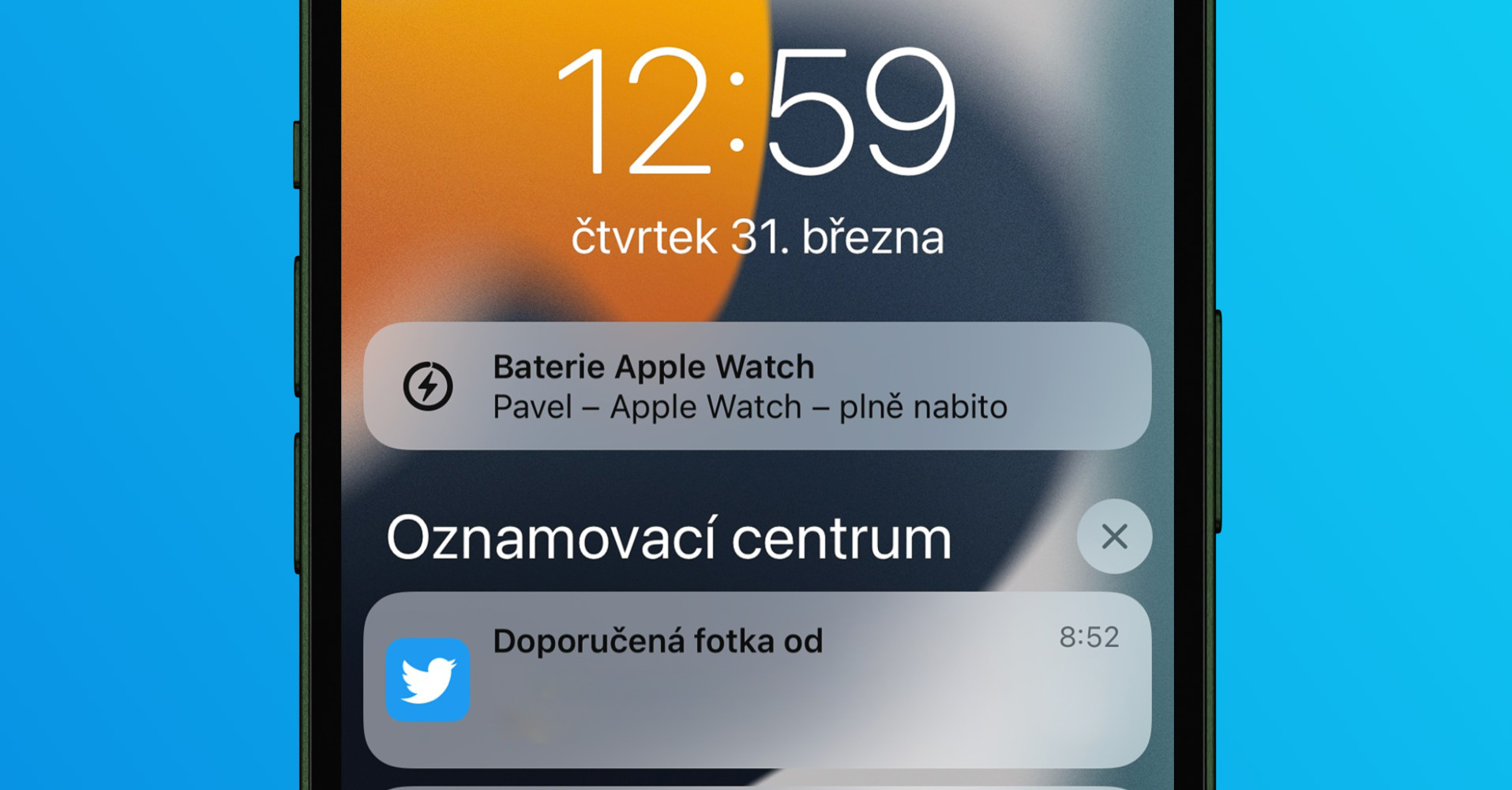
If you are a Mac user or MacBooku, you may be struggling with the fact that the display of your macOS device lights up from time to time after it goes to sleep. If you are wondering why the display lights up, we have a simple answer to this question - notifications are the cause. If the screen of your sleeping Mac or MacBookIf the light comes on (with the lid open), it is an incoming notification that the device simply displays. This would make sense if the Mac or MacBook had an OLED display, where only part of the screen with the notification would be activated. With current Retina However, LCD displays require the entire display to wake up, which is not entirely desirable. In this article, let's take a look at how you can prevent your macOS device's screen from lighting up in sleep mode.
You might be interested in
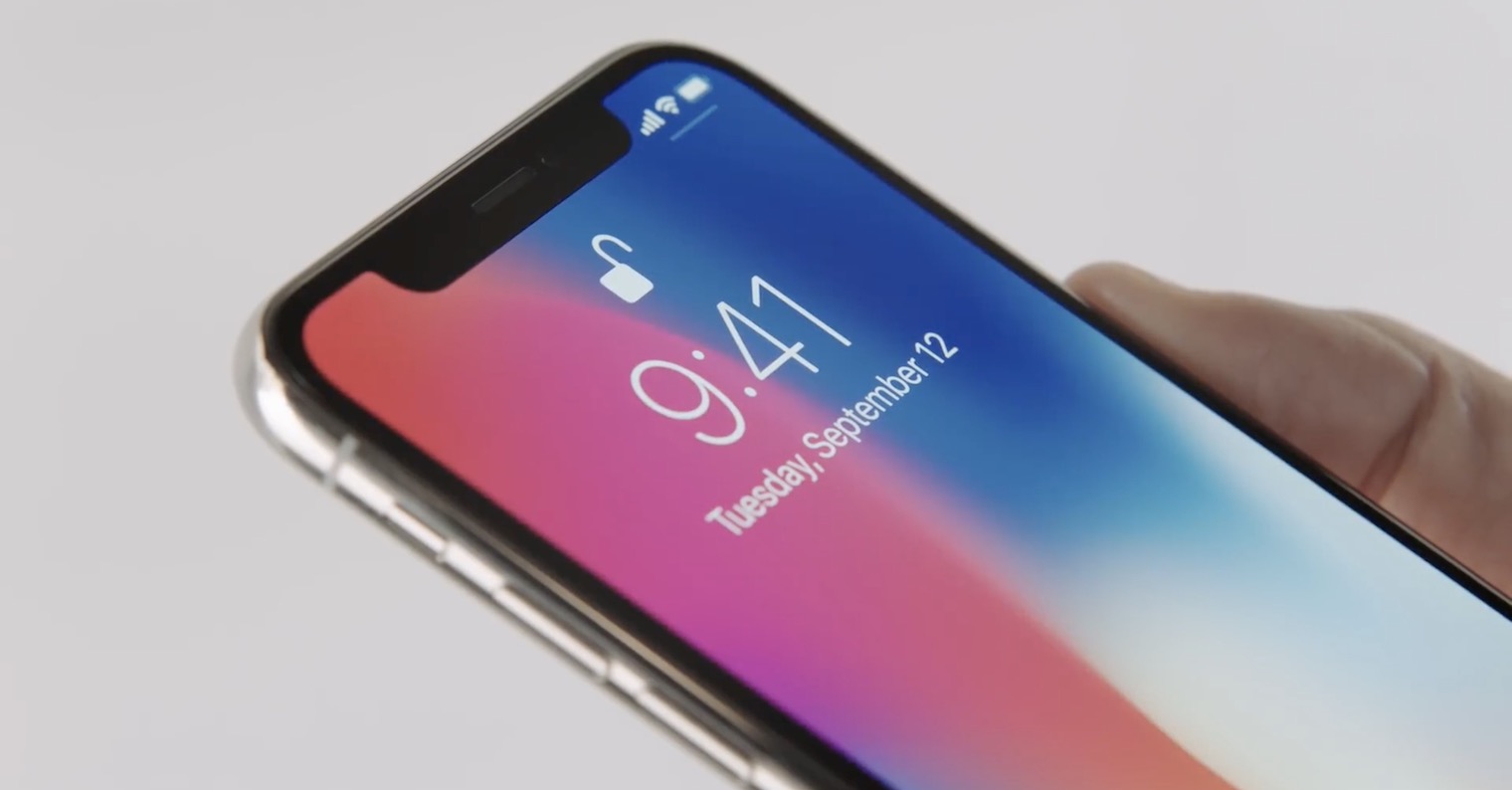
ProIs your Mac constantly waking up from sleep? Notifications are to blame
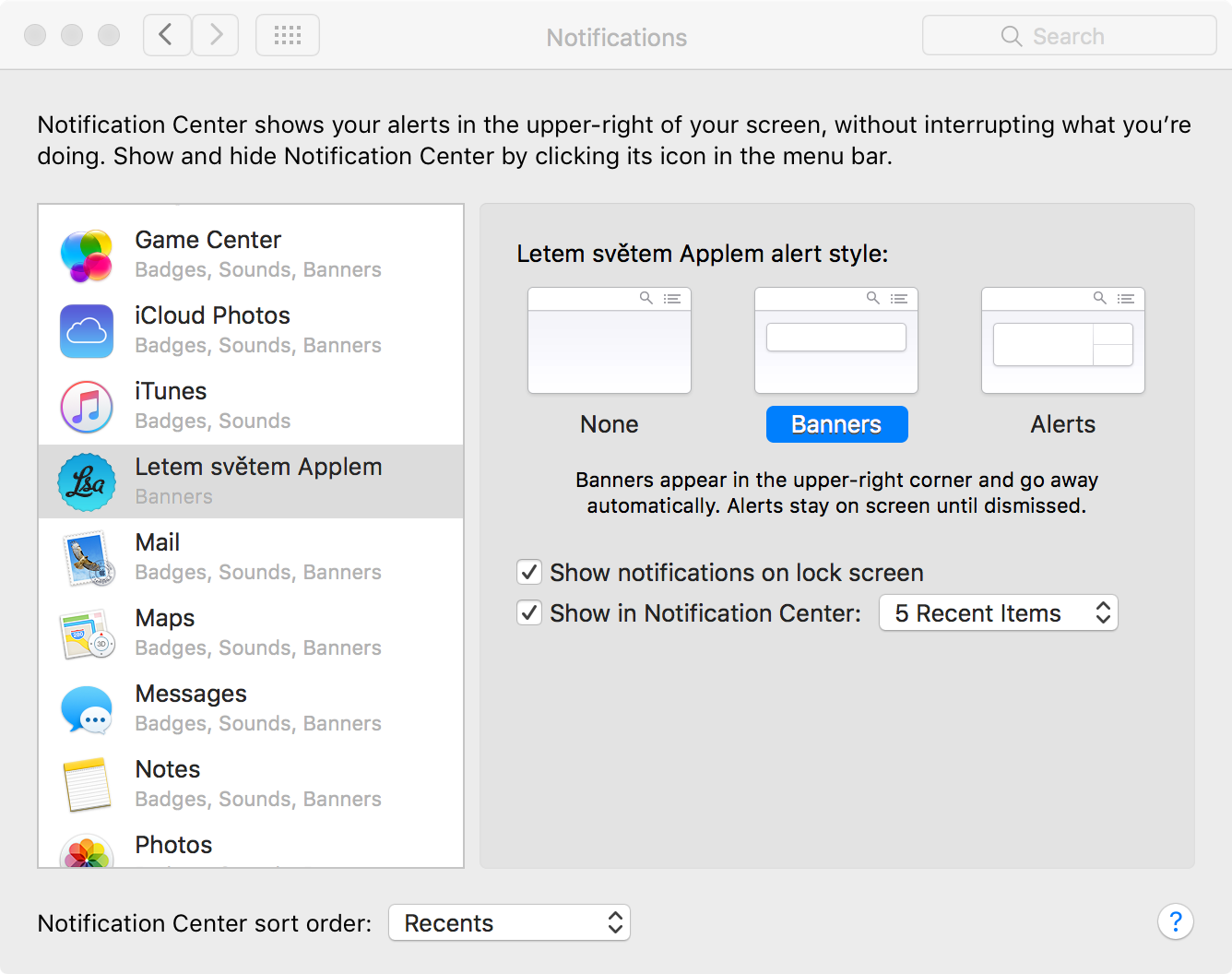
If you want to disable the display of notifications in sleep mode on your macOS device so that the screen does not automatically light up, just proceed as follows:
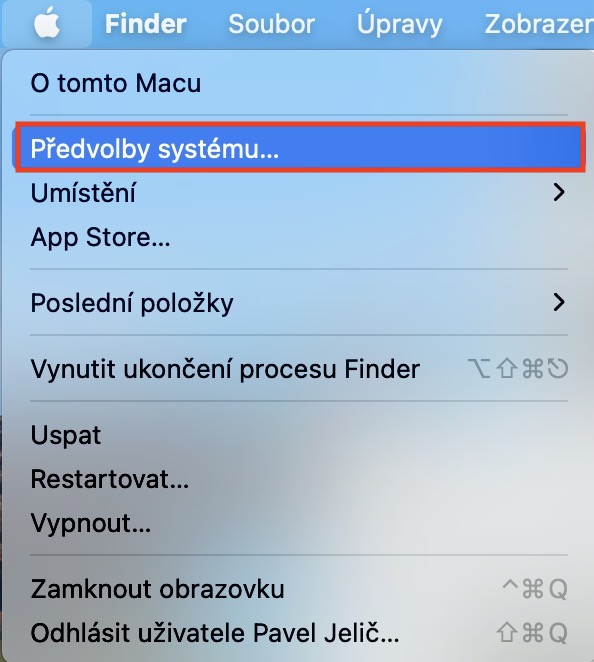
- First, you need to click in the upper left corner of your Mac or MacBookthey clicked on icon .
- Once you do so, select an option from the menu that appears System Preferences…
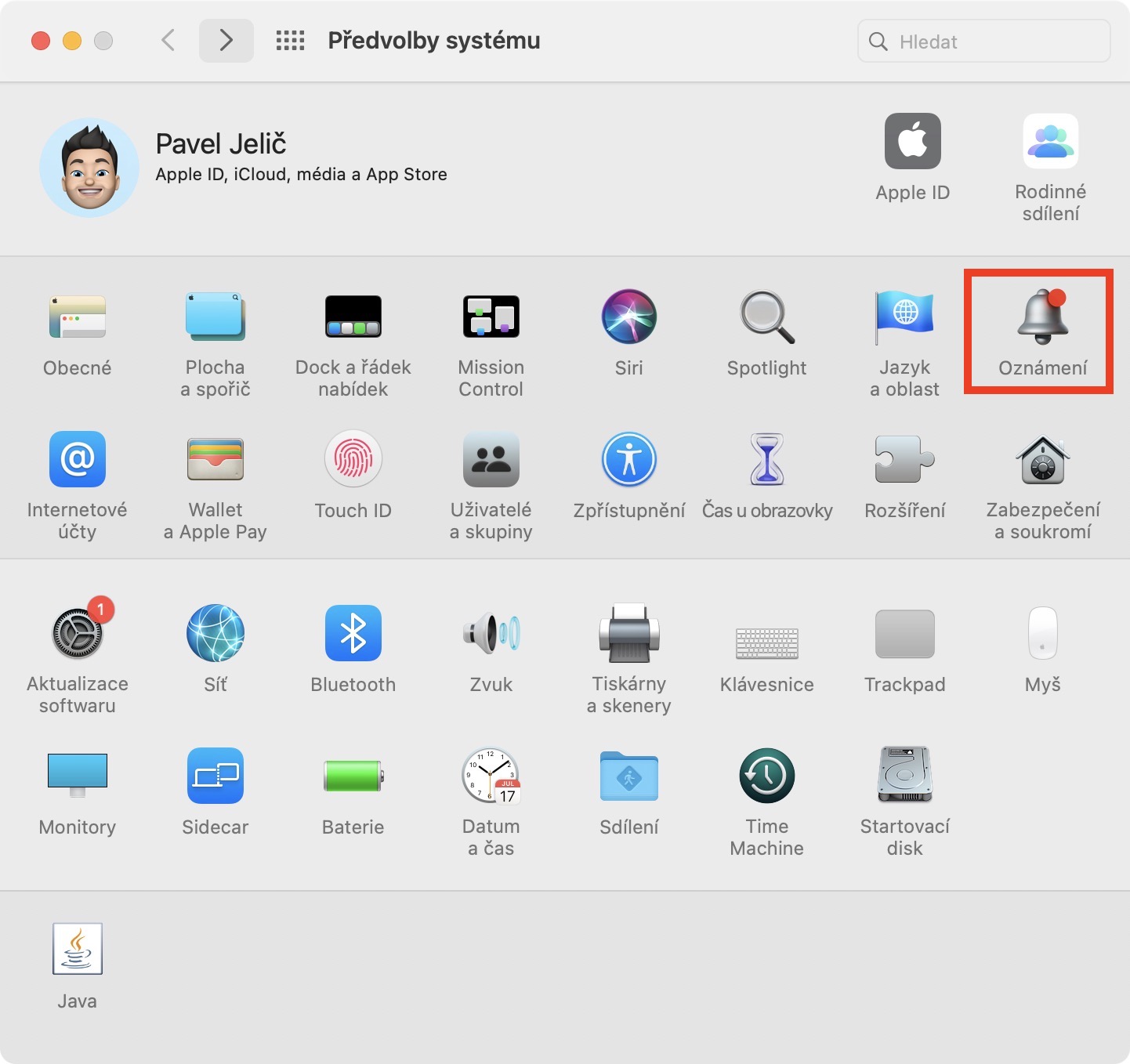
- After that, a new window will open, in which you are interested in the section named Notification.
- Now, in the left menu, make sure you are in the section Do not disturb.
- Then you just have to find the option If the monitor is in sleep mode a ticked at her box.
Gallery
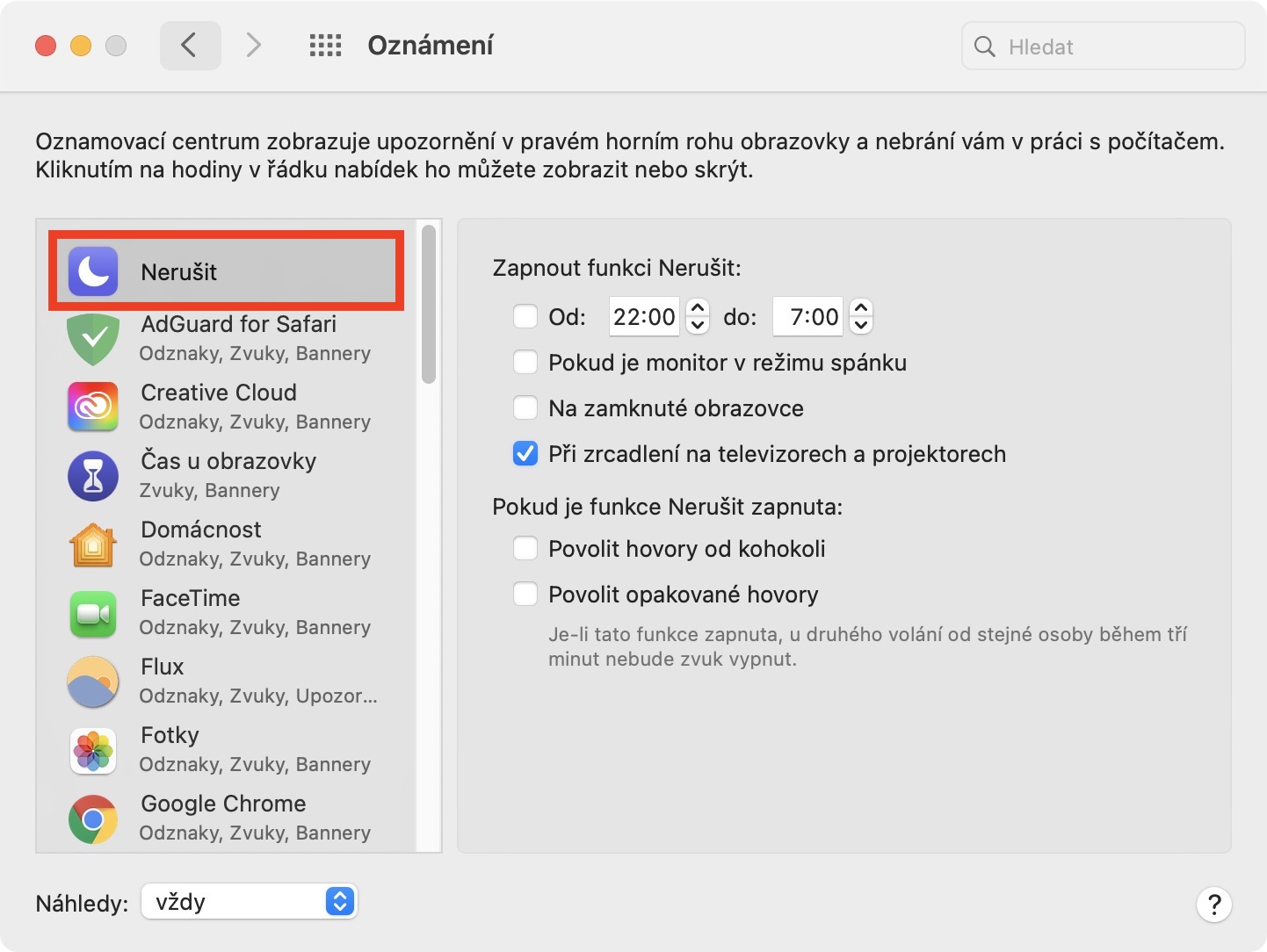
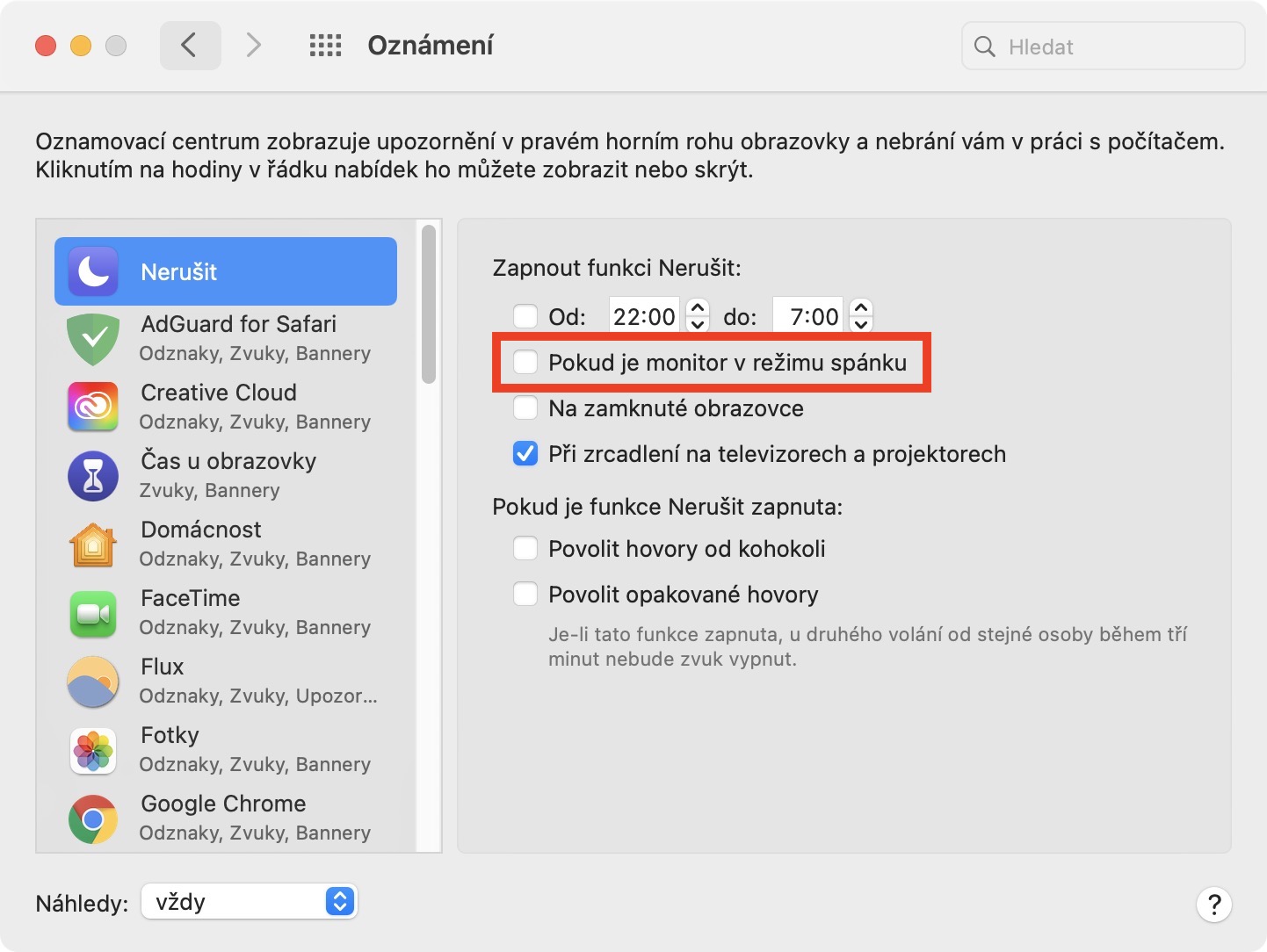
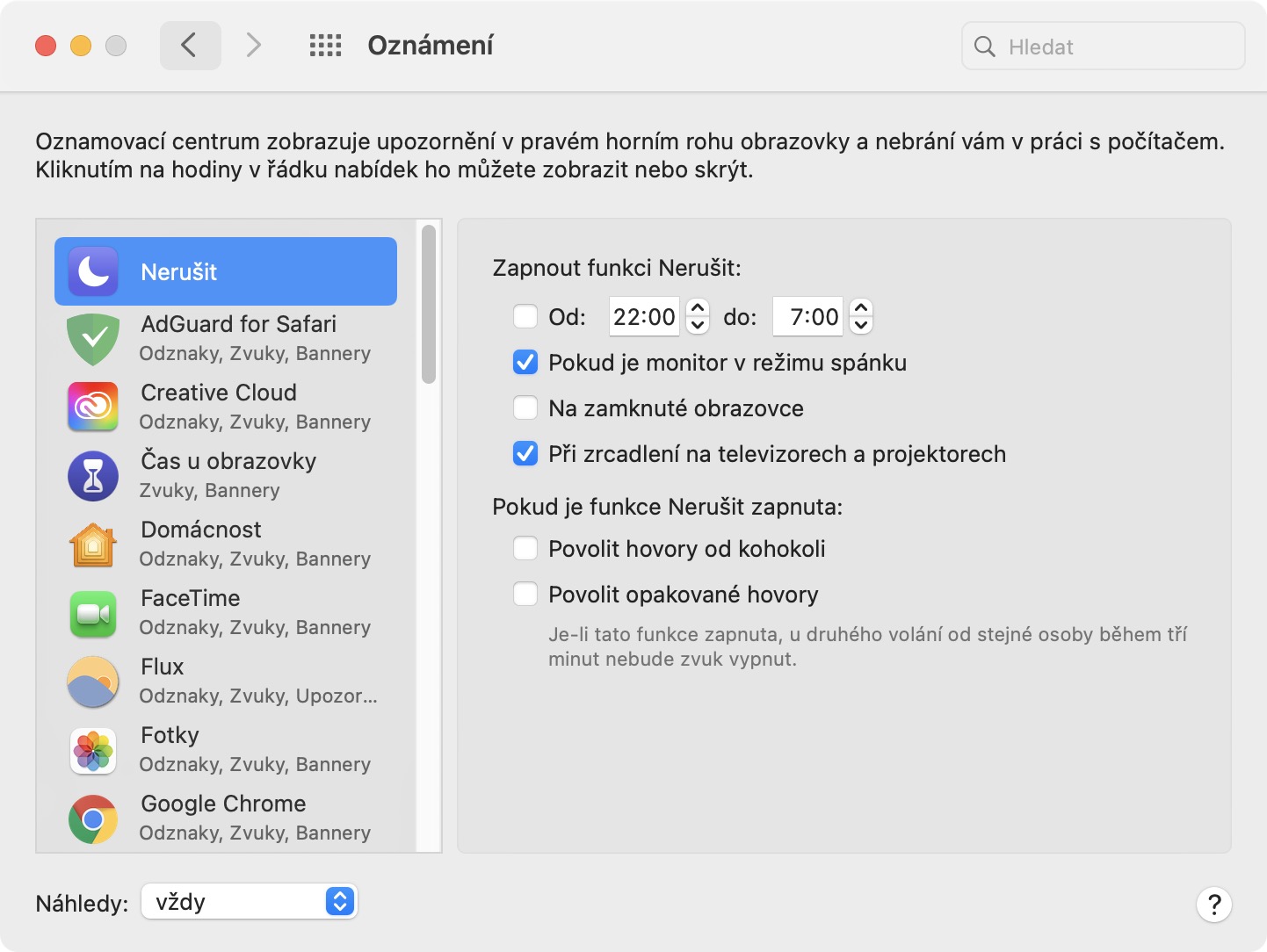
This will ensure that your macOS device's display does not automatically light up when a notification arrives. In addition, you can set when your Mac or MacBooku automatically turns on Do Not Disturb mode, as well as an option to prevent notifications from appearing when you are mirroring to a TV or projector. There is also an option to allow calls from anyone and repeated calls when your device is in Do Not Disturb mode - similar to iOS.





Thanks for the one with the display turned off .. I had no idea.
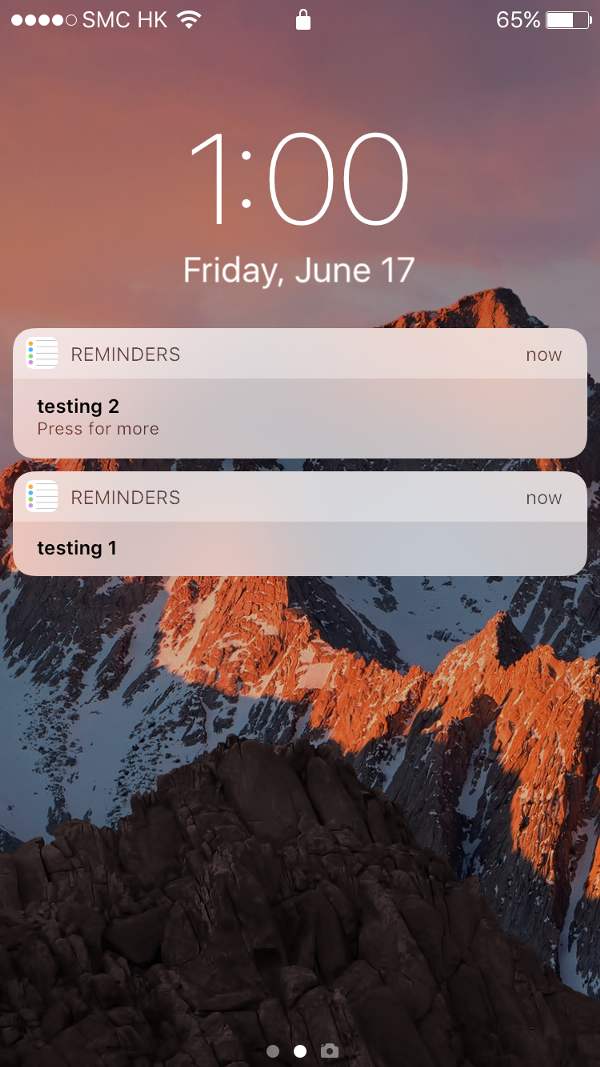
I hate to spoil your fun, but there is a described bug in Mac OS that will wake up the Mac all the time. Namely, notifications from Reminder and it doesn't matter what you set. Forums are full of it, but they always tell you on the line that every problem will be solved by buying a new device. It won't solve. 🙃