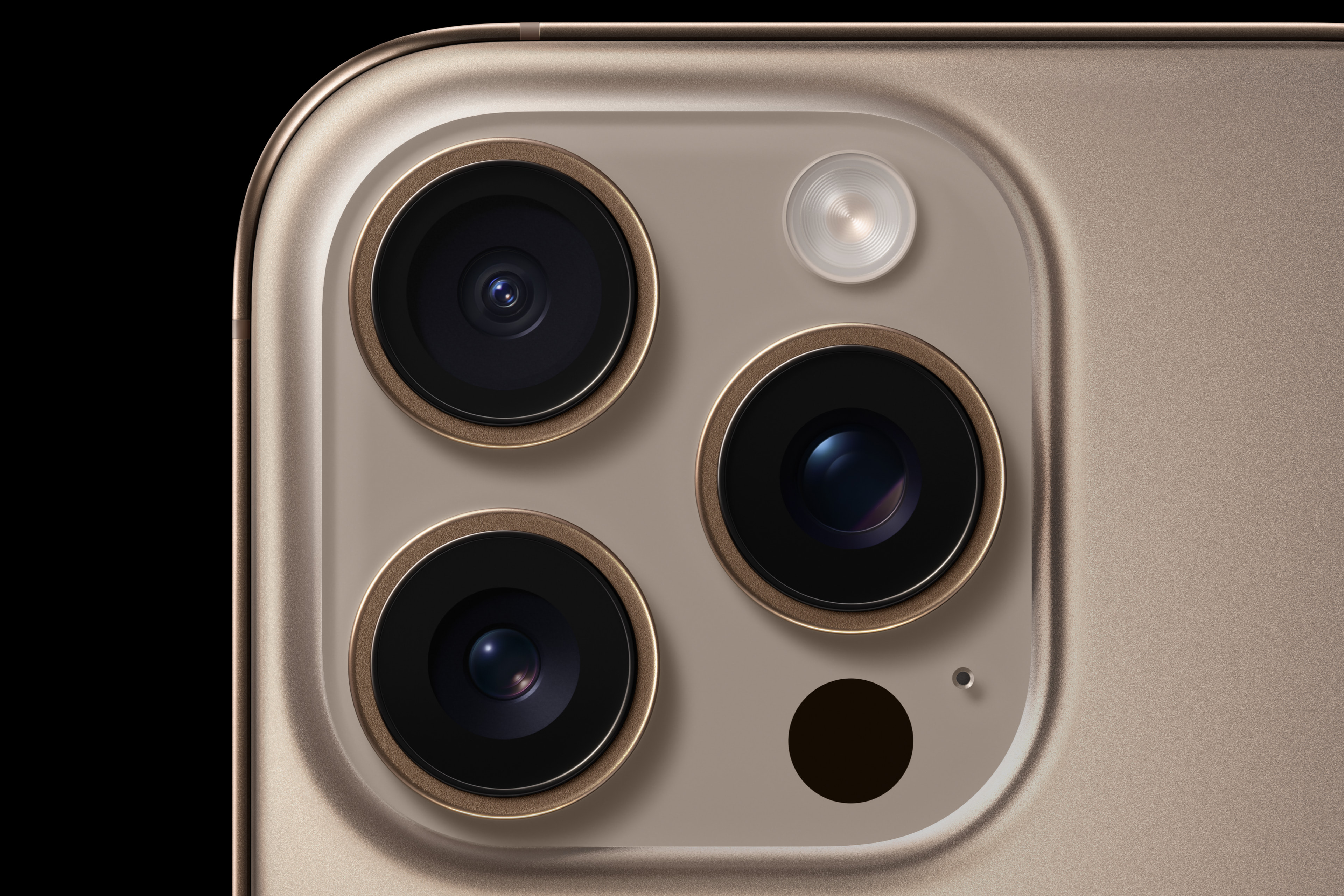
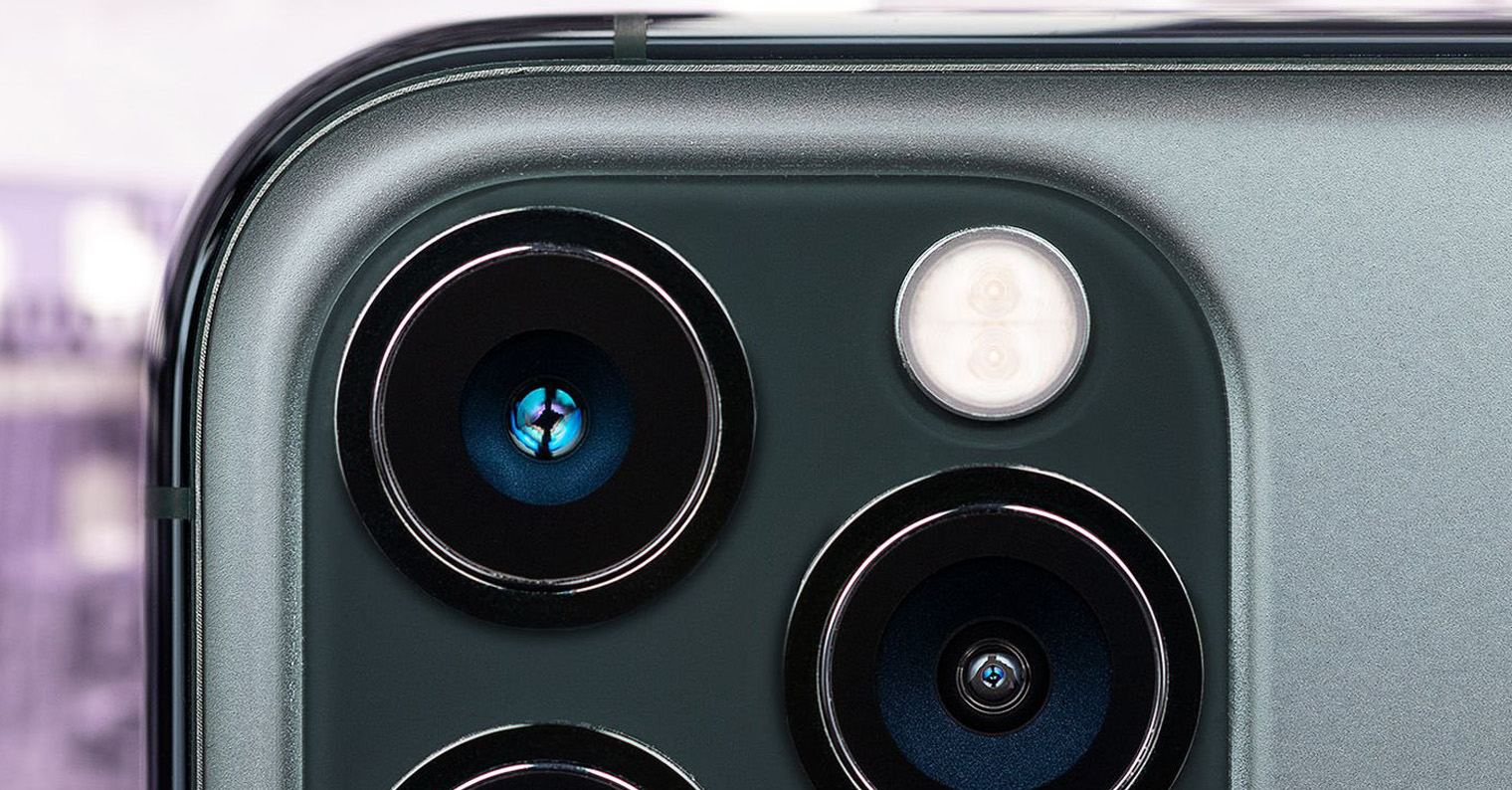
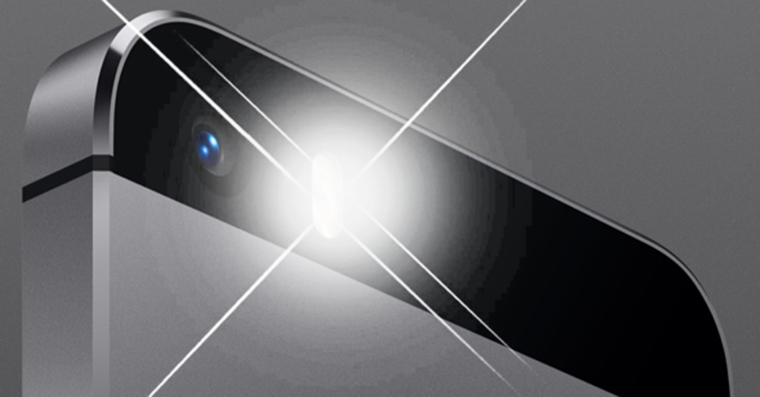
iPhone It never had the classic notification LED you might remember from some Android phones. No little dot that subtly flashes in the corner of the display. Apple went about it differently. For years, it has offered a feature that flashes the rear camera LED flash when a notification is received. And in iOS 26.2 adds a new feature that makes the whole thing much more meaningful: the display itself can also flash.
You might be interested in
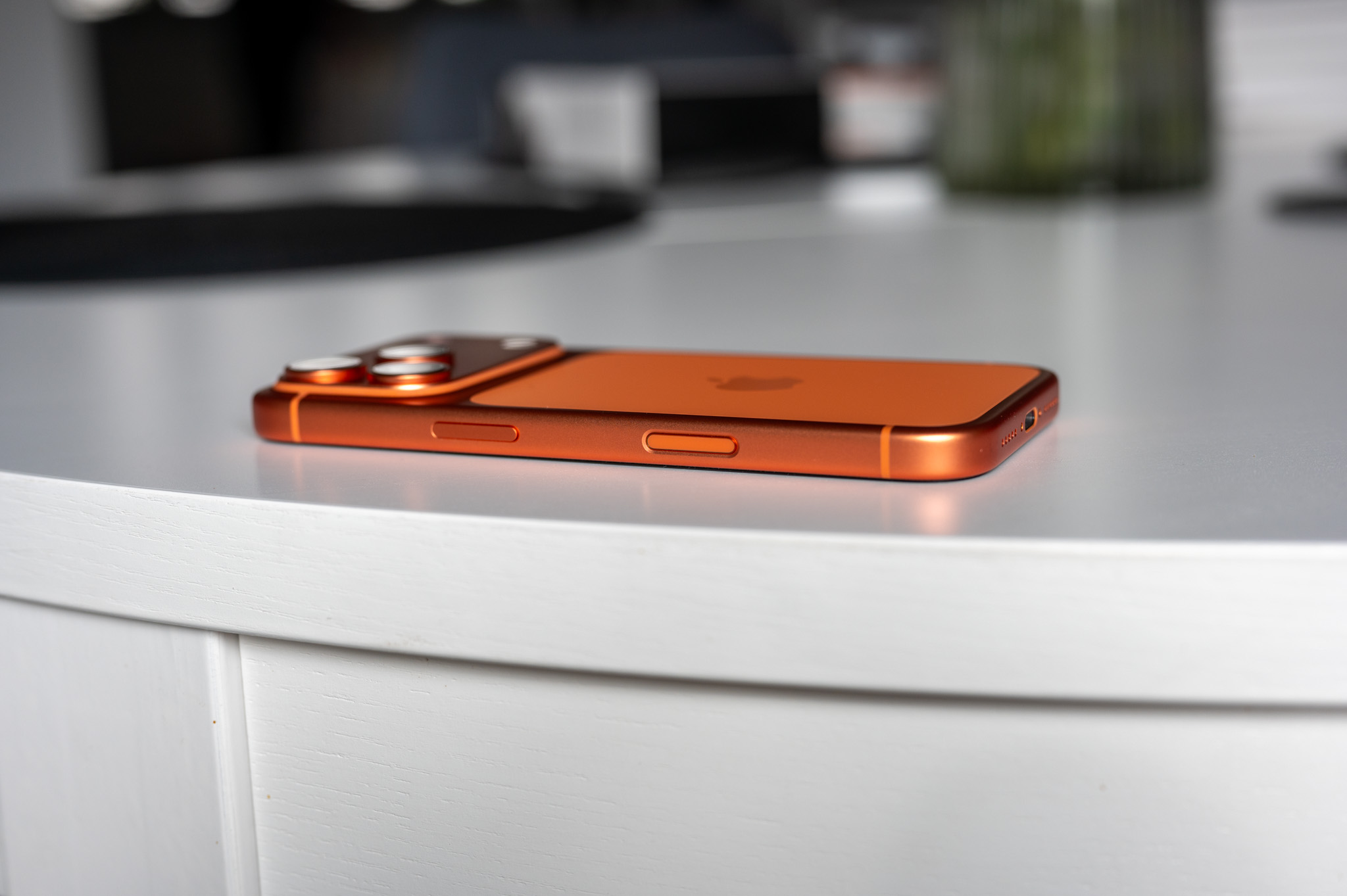
At first glance, this may seem like a small thing. In fact, it's a feature that can be surprisingly practical. Before I switched to iPhone, I was once the proud owner of HTC Dream, which was equipped, among other things, with a small LED for signaling notifications. iPhone Although it does not offer such a diode, that does not mean that Apple users are completely deprived of the flashing warning.
What is it actually good for?
This option was originally intended primarily for deaf and hard of hearing users. Instead of sound, you iPhone a clear visual signal. In practice, however, people with completely normal hearing will also use it. A typical situation might be, for example, that you are sitting in a library or in a meeting and you don't want your phone to disturb the silence by beeping. Vibration may not be the best solution at that moment either, because even a vibrating phone can be heard. However, you will notice a short flash with your peripheral vision immediately.
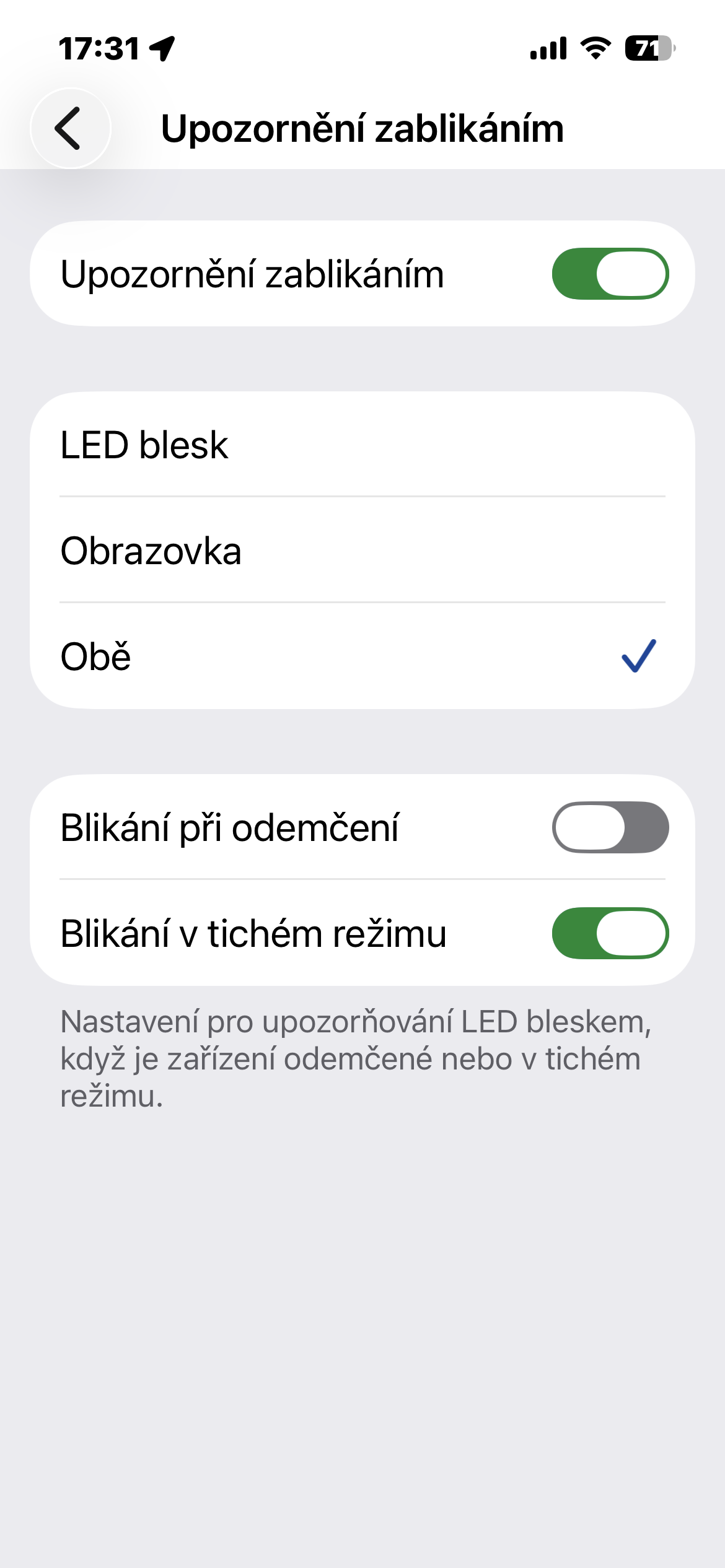
I tried the feature while writing this article and was very pleasantly surprised. When iPhone was lying with the screen up, the screen flash was subtle but unnoticeable. When I turned it with the screen down, the rear LED flash worked. And it is the combination of both modes that is in iOS 26.2 the biggest news.
How to turn on blinking for notifications
The procedure is simple and takes less than a minute.
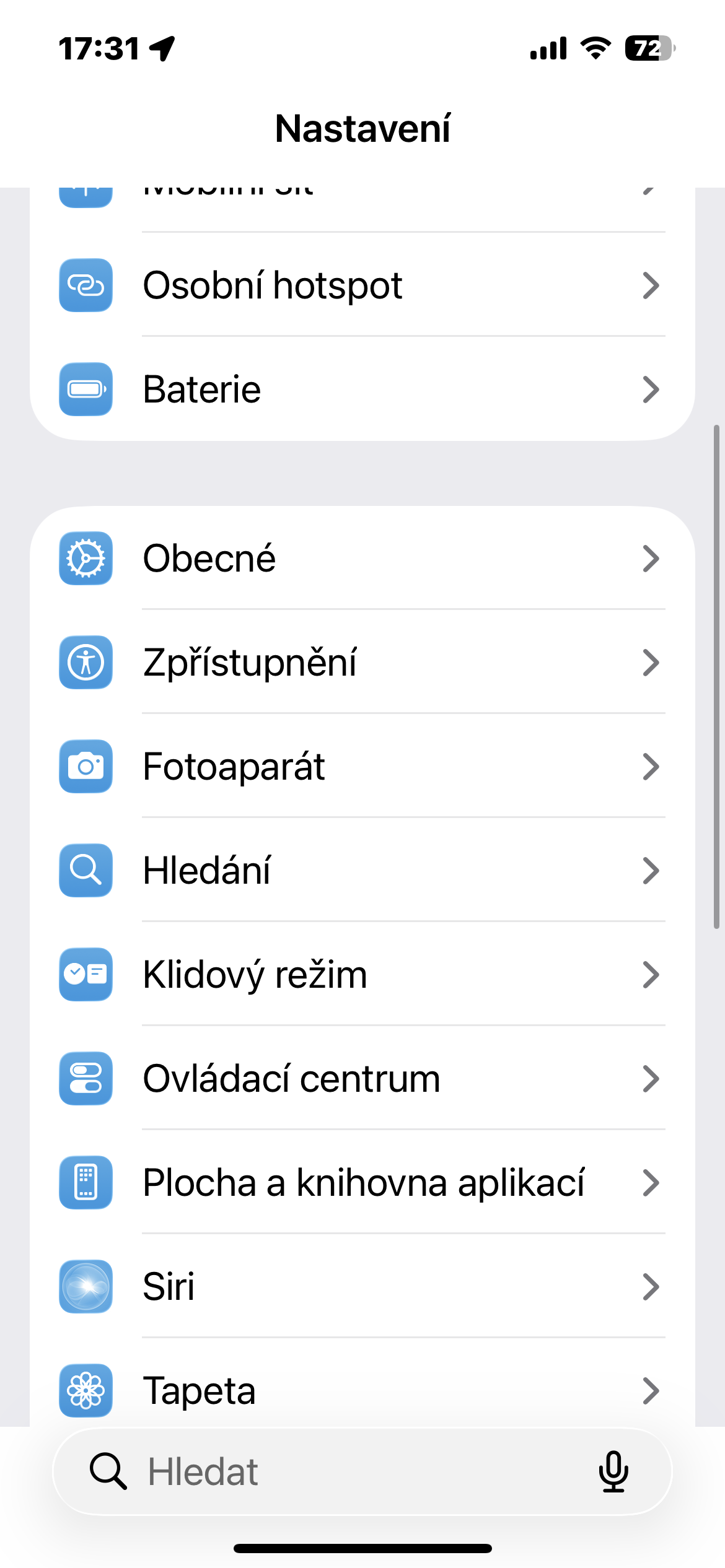
- Open Settings.
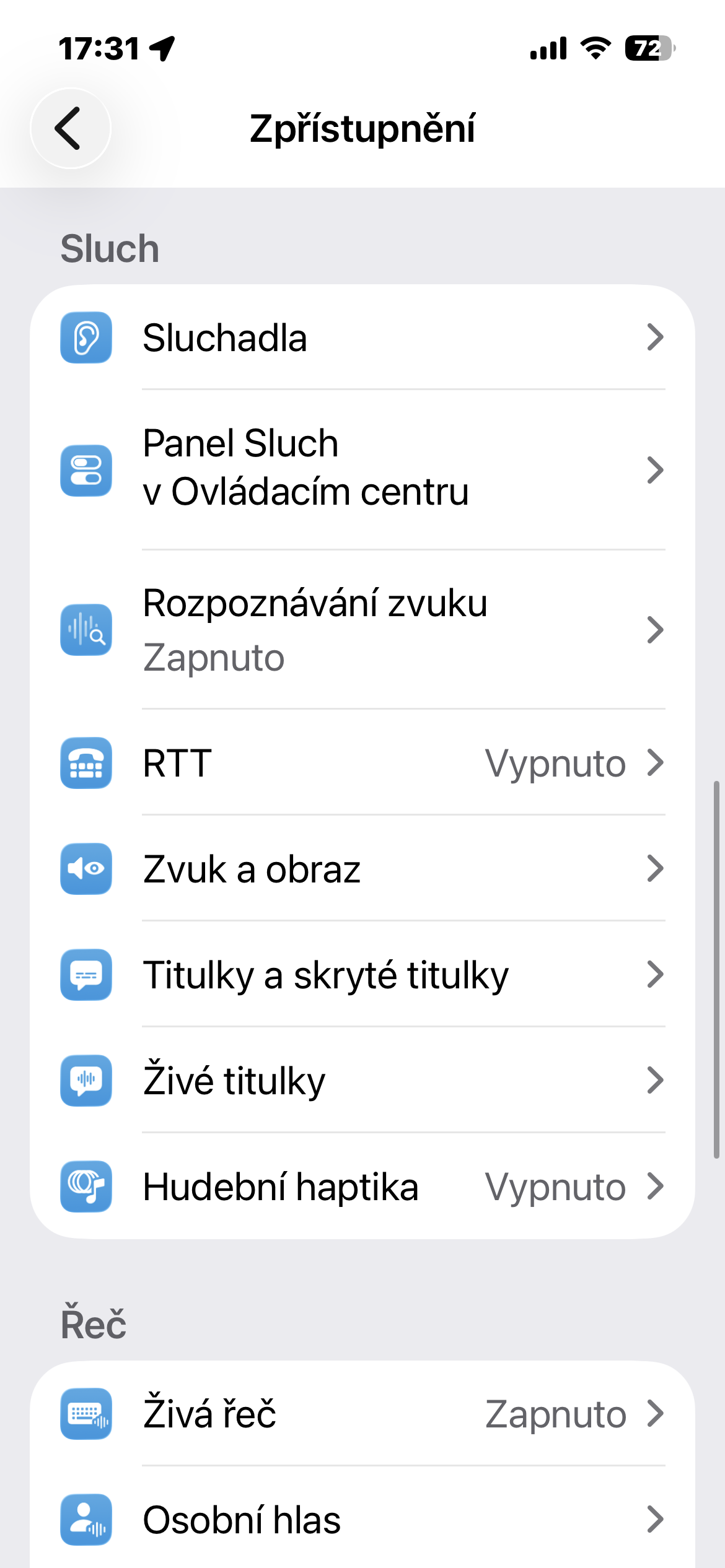
- Click on Accessibility.
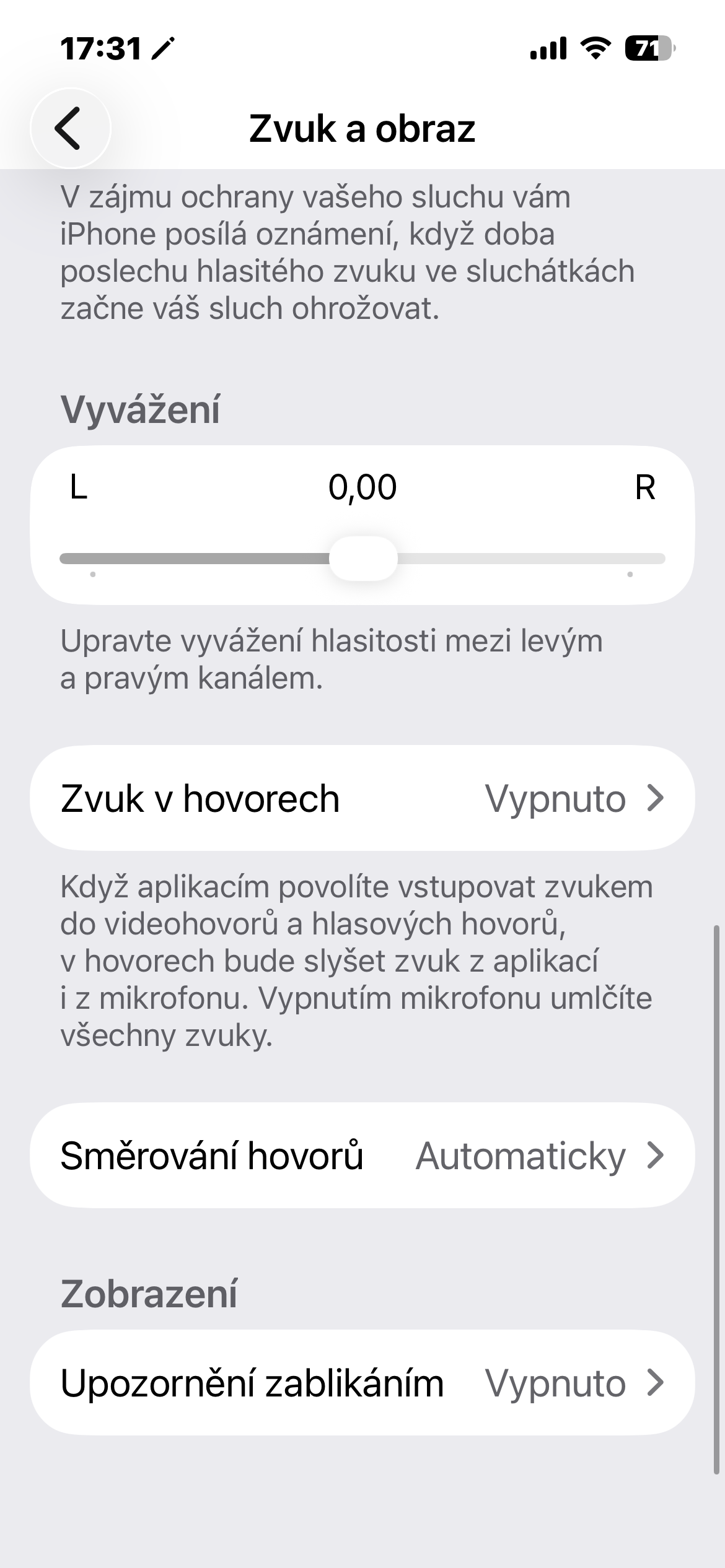
- In the Hearing section, select Sound and video.
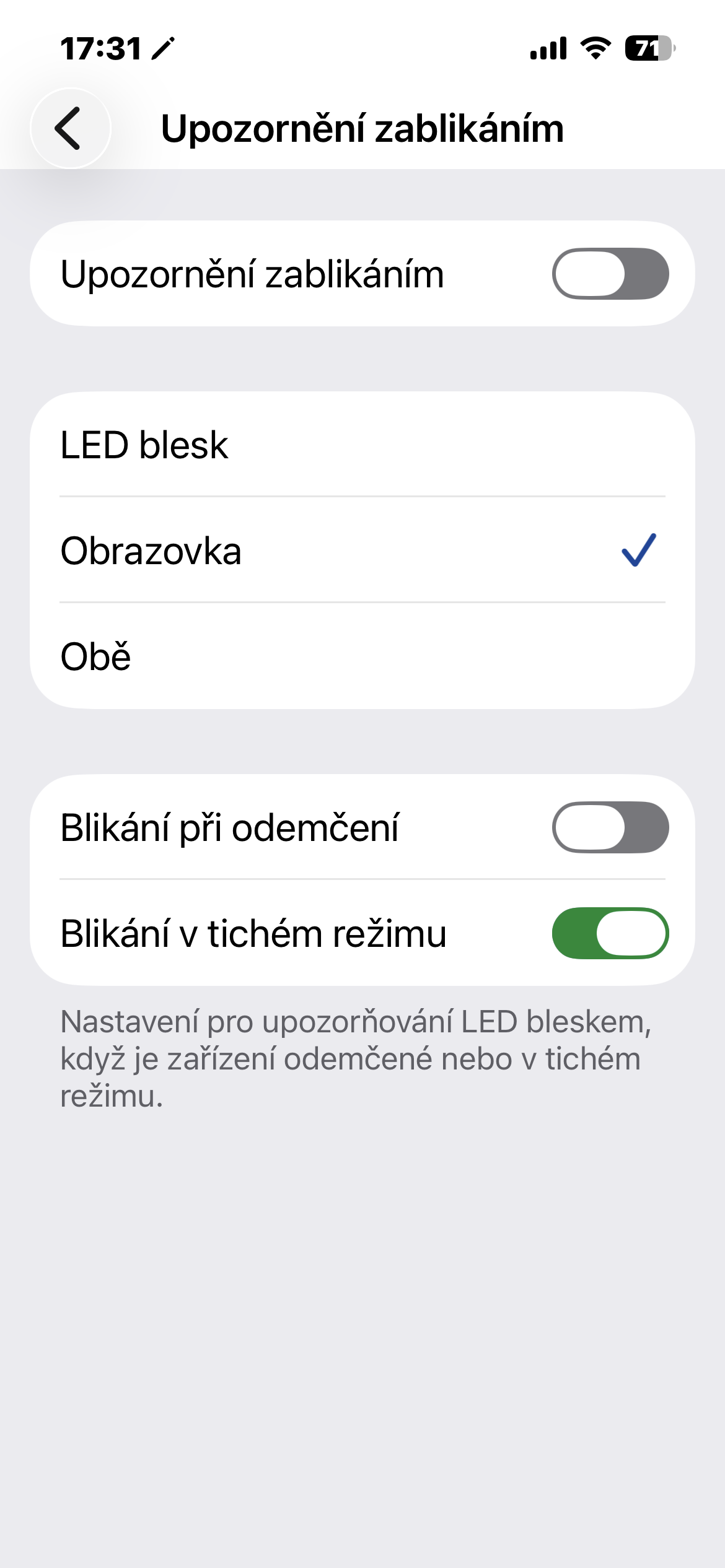
- Scroll down to Blink Alerts.
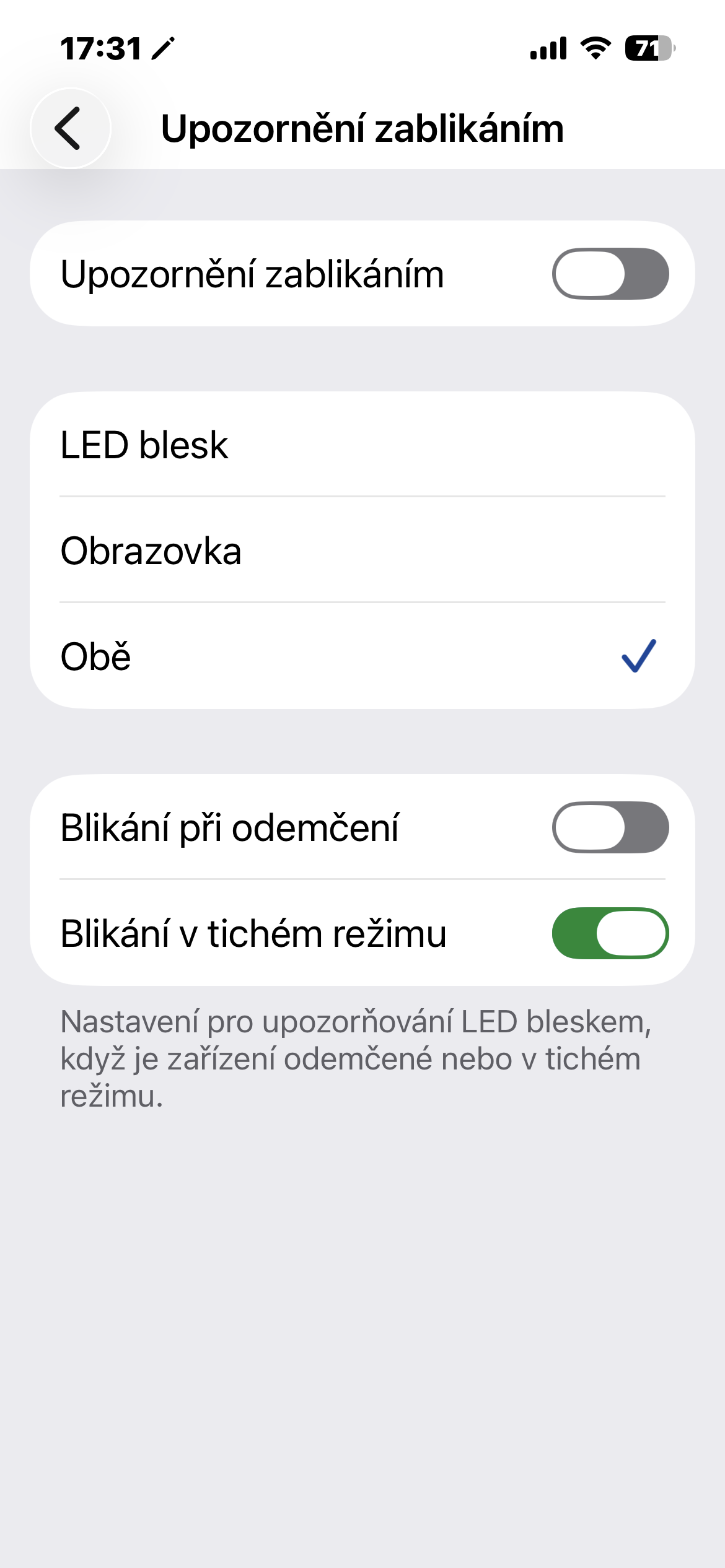
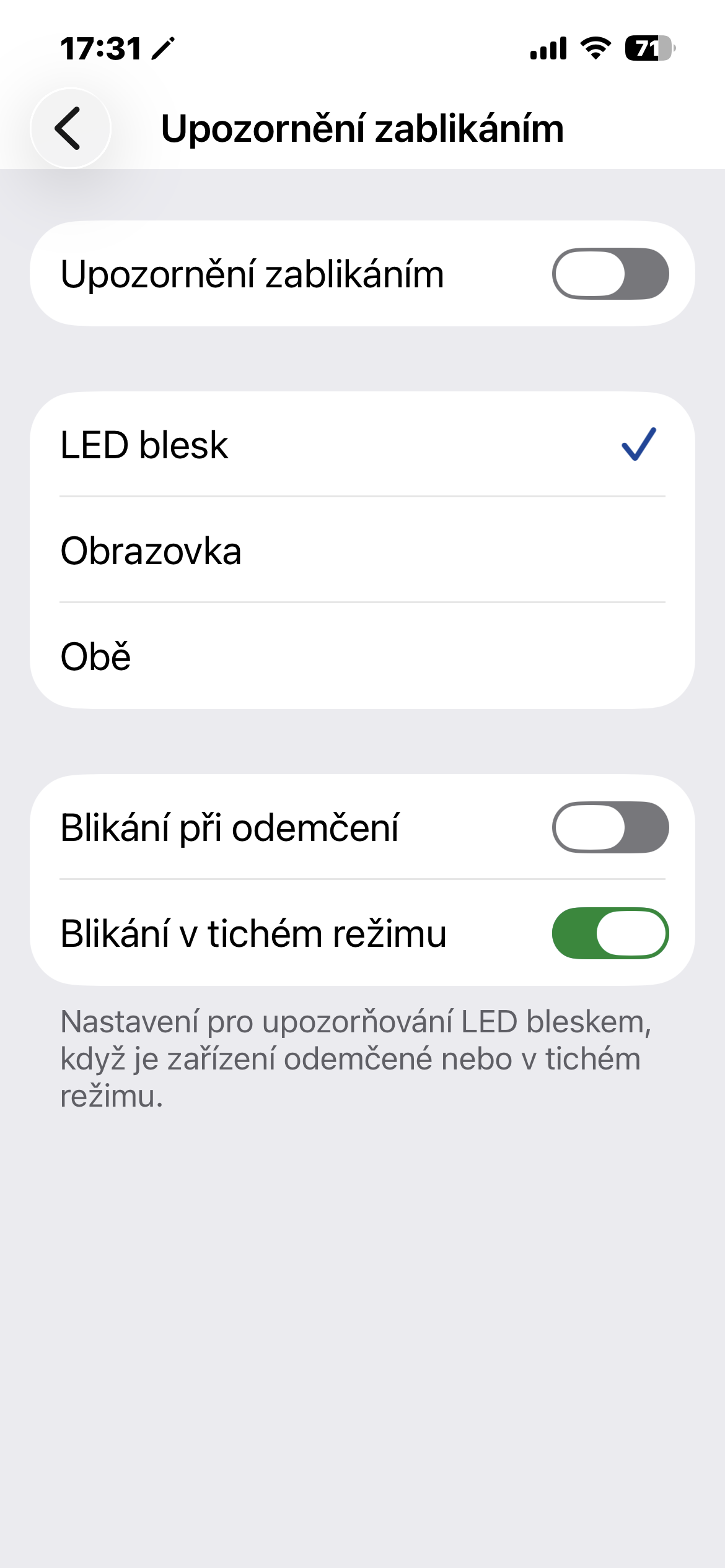
Here you activate the notification toggle as such and then choose whether the LED flash, the display, or both should blink. You can now also set whether the blinking should only occur when the device is locked, and whether it should also work in silent mode. This is especially important if you don't want your phone to literally shine through the fabric in your pocket.
Gallery
Annoying or useful?
The question is to what extent blinking is comfortable for those around you. There are certainly situations when it is best to disable any notifications altogether. Simply put, it depends on your settings and usage. If you get dozens of notifications per hour, this probably won't be the ideal solution. However, if you use notifications sparingly and want to be sure that you don't miss an important message, it can be very practical.
It's interesting, that Apple This way, it actually replaces the missing notification LED that some users have been calling for for years. Only instead of a small diode, it uses what is already on the phone. And as is often the case with similar features, it is best to try it out for a few days. You may find that you like it more than the classic vibration. And maybe you will turn it off again after a week. The main thing is that the option is there tooneIt is.