How to change the browser on your iPhone? If you want to use a browser other than Safari, it's no problem. In this article, we'll show you step by step how to easily change your default browser to personalize your iPhone even more to your needs.
You might be interested in
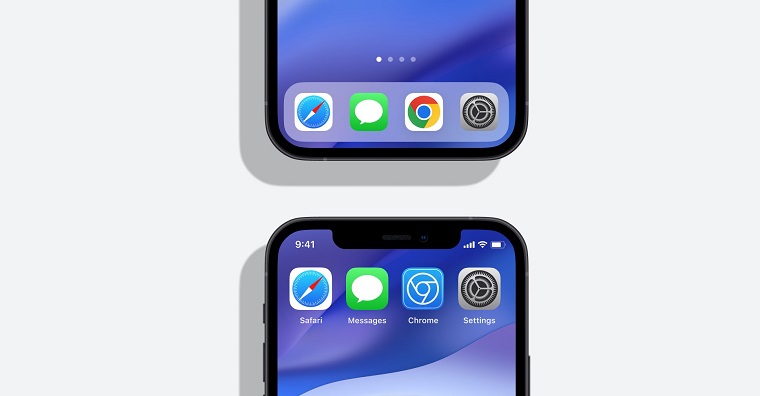
Apple although it offers its own browser Safari, which is pre-installed on all iPhonech, but many users prefer other browsers. Whatever your preference Chrome for its synchronization with other devices, Firefox for its privacy protection or perhaps Edge for integration with Windows, changing the default browser on your iPhone is very simple.
How to change the browser on your iPhone
Download the desired browser:
- Open it App Store.
- Find the browser you want to use (e.g. Chrome, firefox, Edge).
- Download and install the app.
- Set your browser as default:
Change browser:
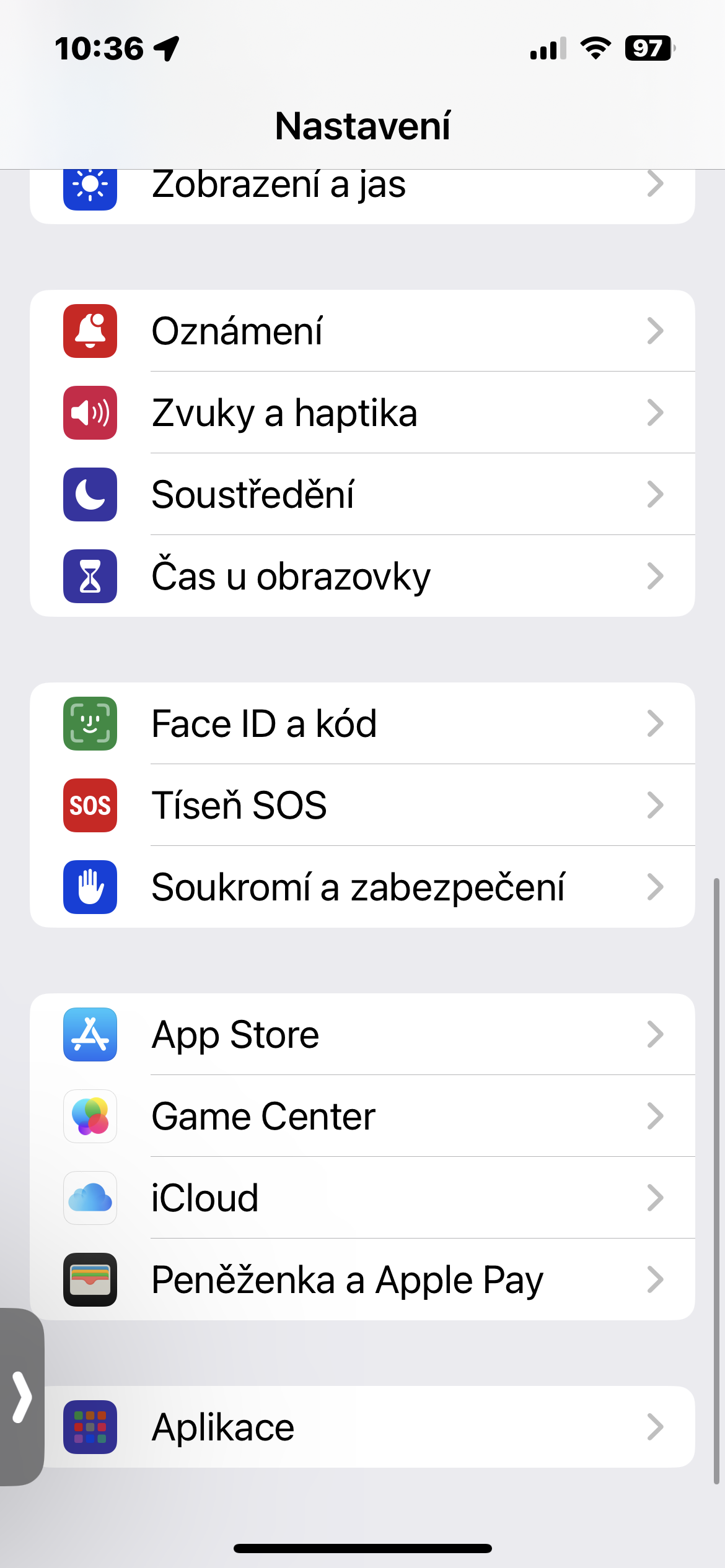
- Open the Settings app.
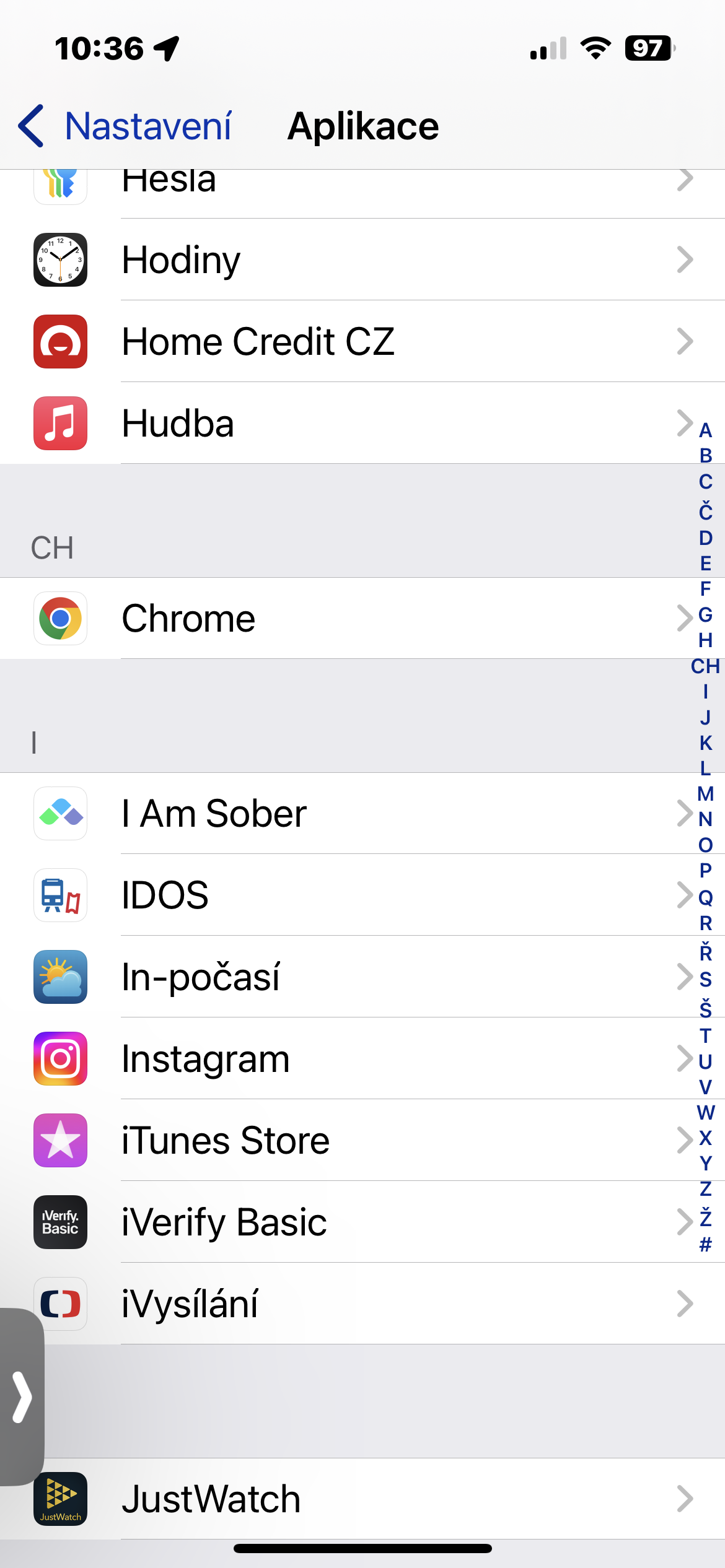
- Tap Applications.
- Look for the icon of the browser you just installed.
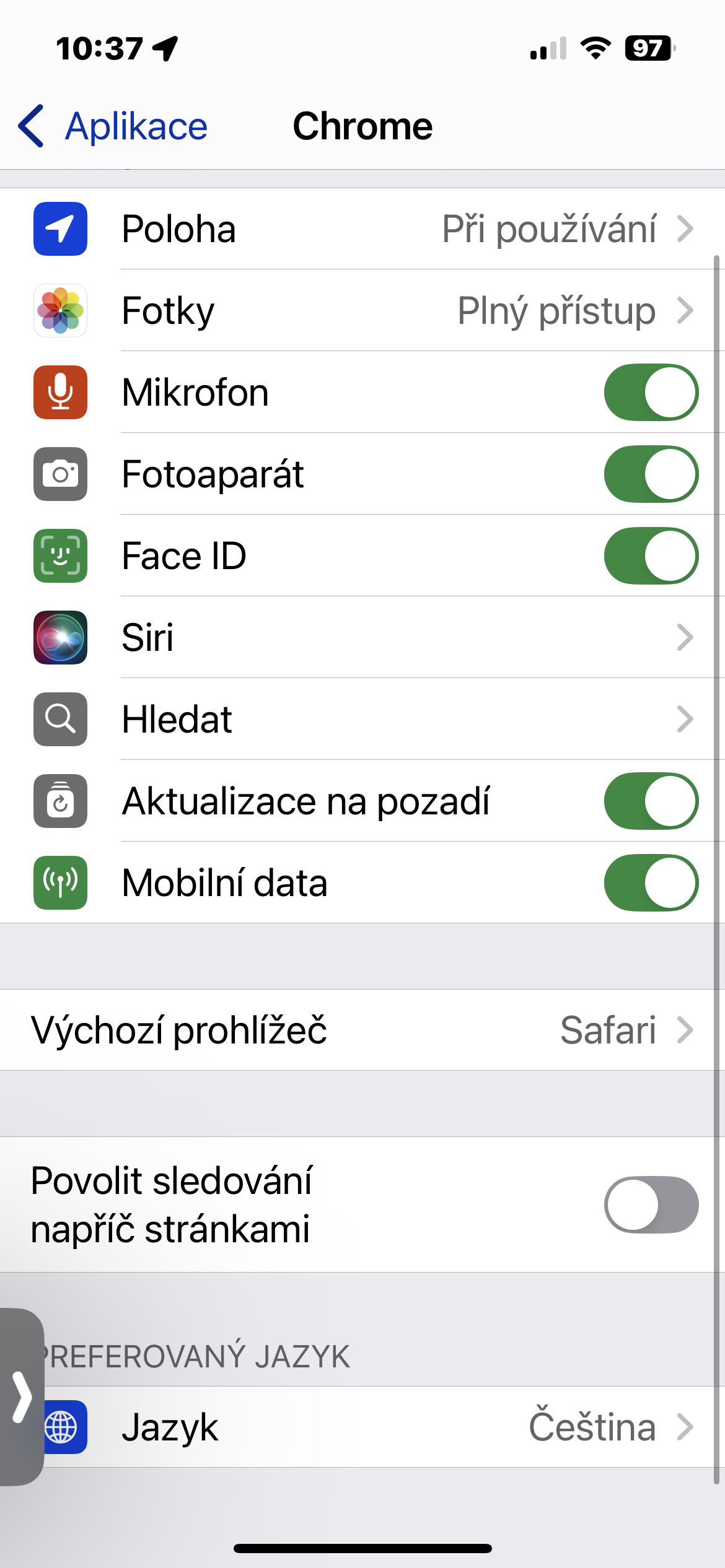
- Click this icon.
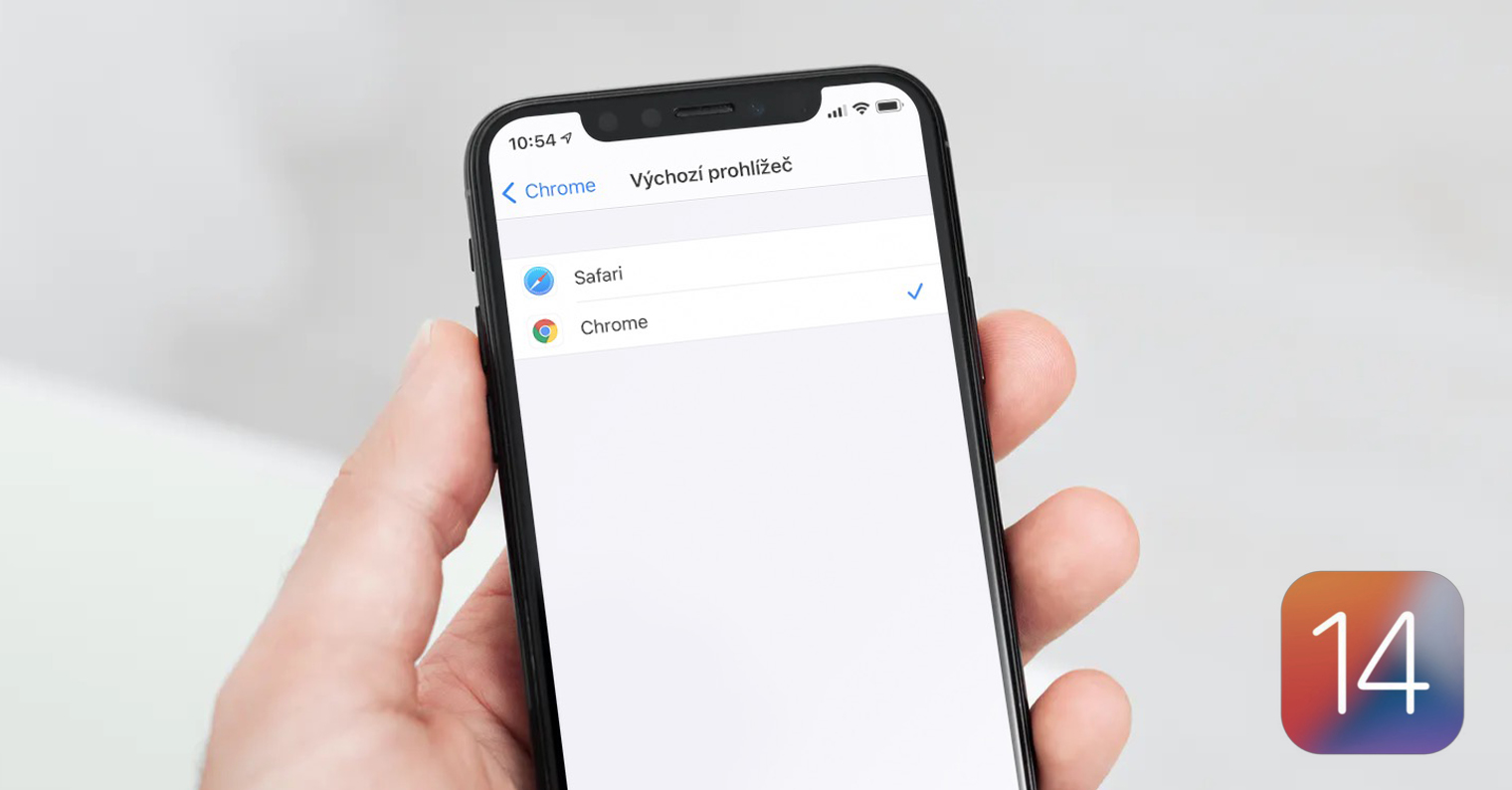
- Select Default browser.
- From the list of available browsers, select the one you want to set as the default.
Gallery
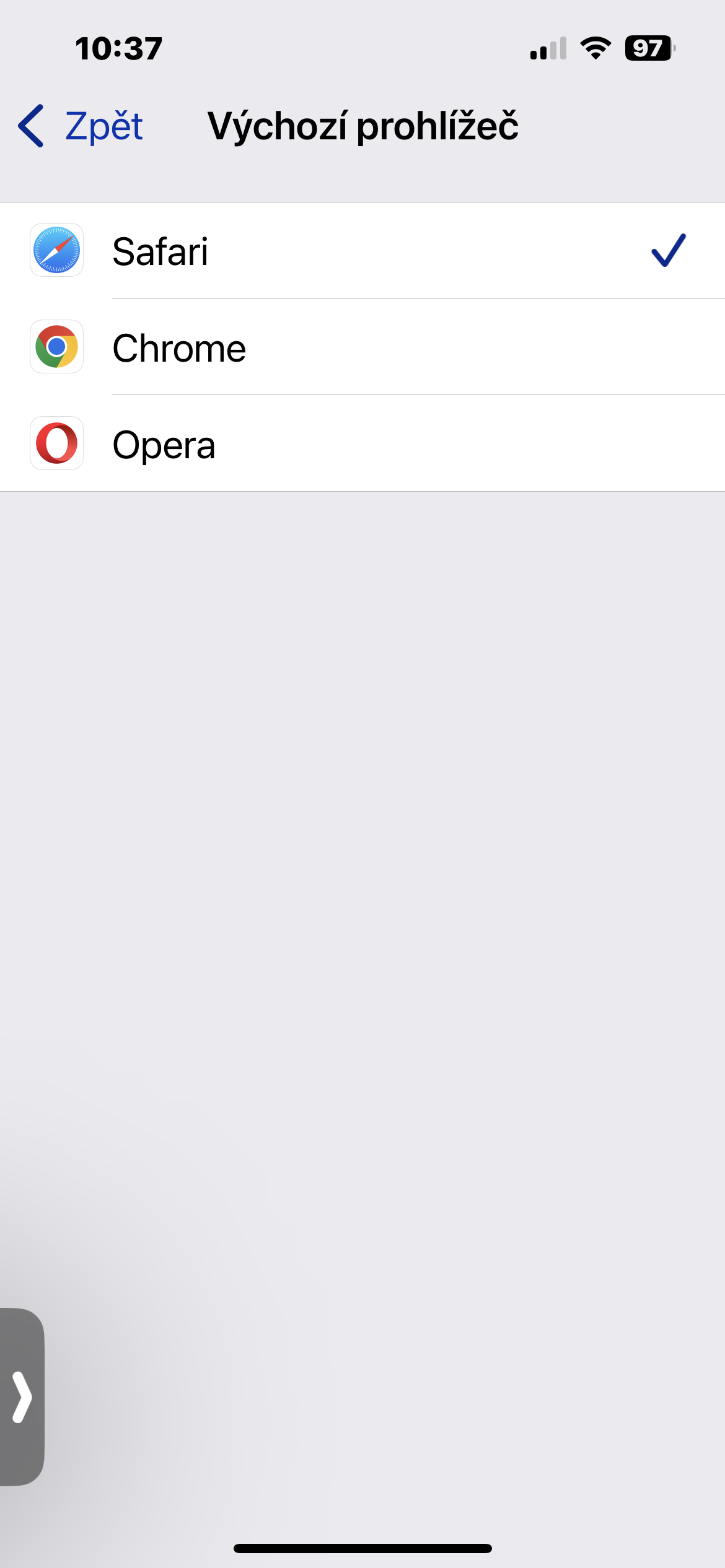
As you can see, changing the default browser on your iPhone is very easy and only takes a few moments. With this simple step, you can customize your iPhone even more to your needs and use the browser that suits you best. If you later want to change your default browser back, simply repeat the steps above and select a different browser.