How to set Accessibility shortcuts on iPhone? Want to make your life easier and access accessibility features on your iPhone faster? With Accessibility shortcuts, you can launch selected functions with a single gesture. Thanks to this, you will always have important tools at hand, whether you need to enlarge the text, change the volume or activate some other function.
You might be interested in
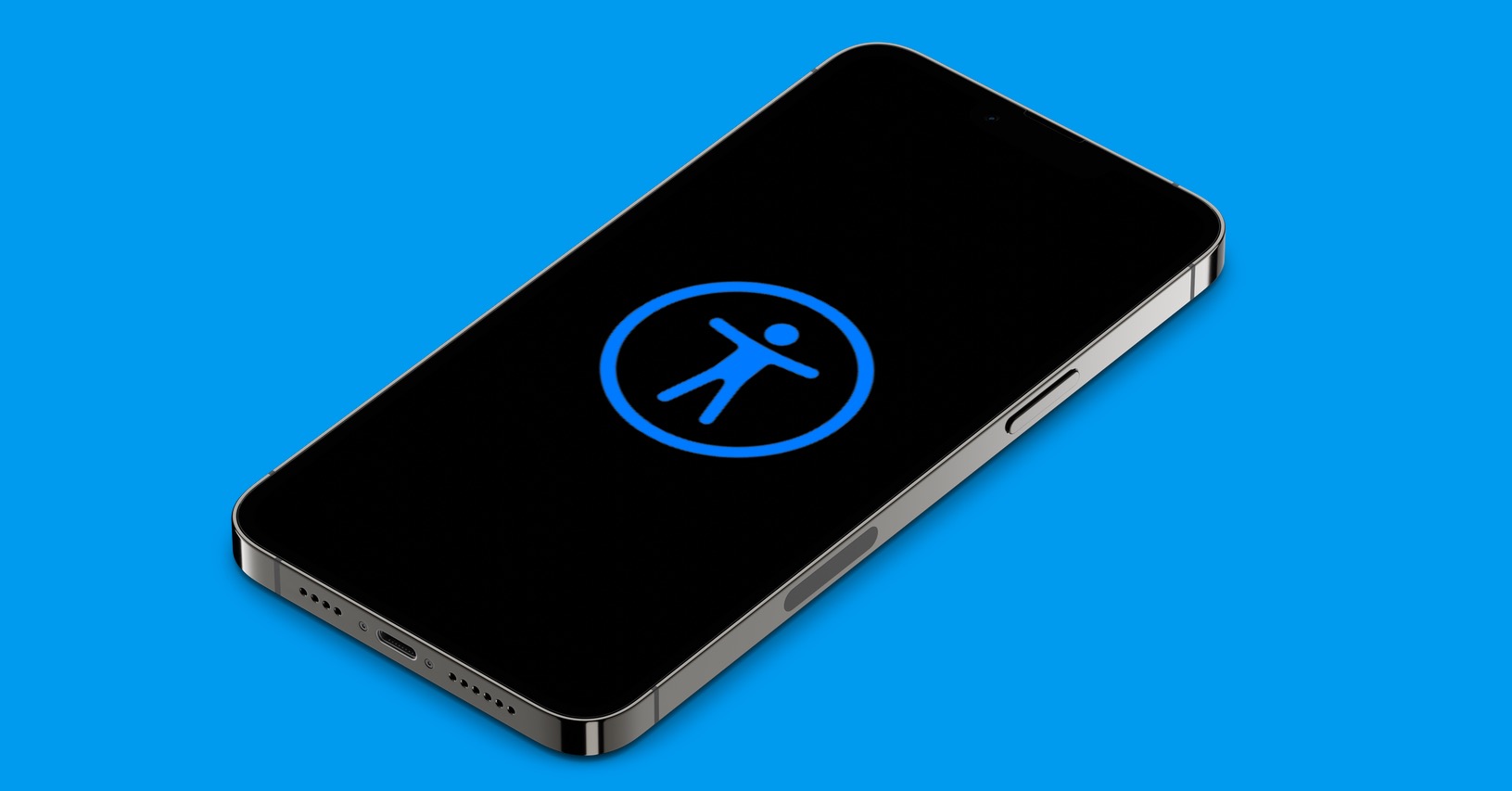
iPhone offers a wide range of accessibility features that can make life easier for people with vision, hearing, or other disabilities. Whether you need to enlarge text, change display colors, or activate voice control, iPhone offers you many options.
How to set Accessibility shortcuts on iPhone
An even more convenient way to use these features is through Accessibility shortcuts. Thanks to them, you can start selected functions with a single gesture, for example by pressing the side button three times. This is especially useful in situations where you need to make a quick change to a setting.
Detailed instructions:
- Open Settings.
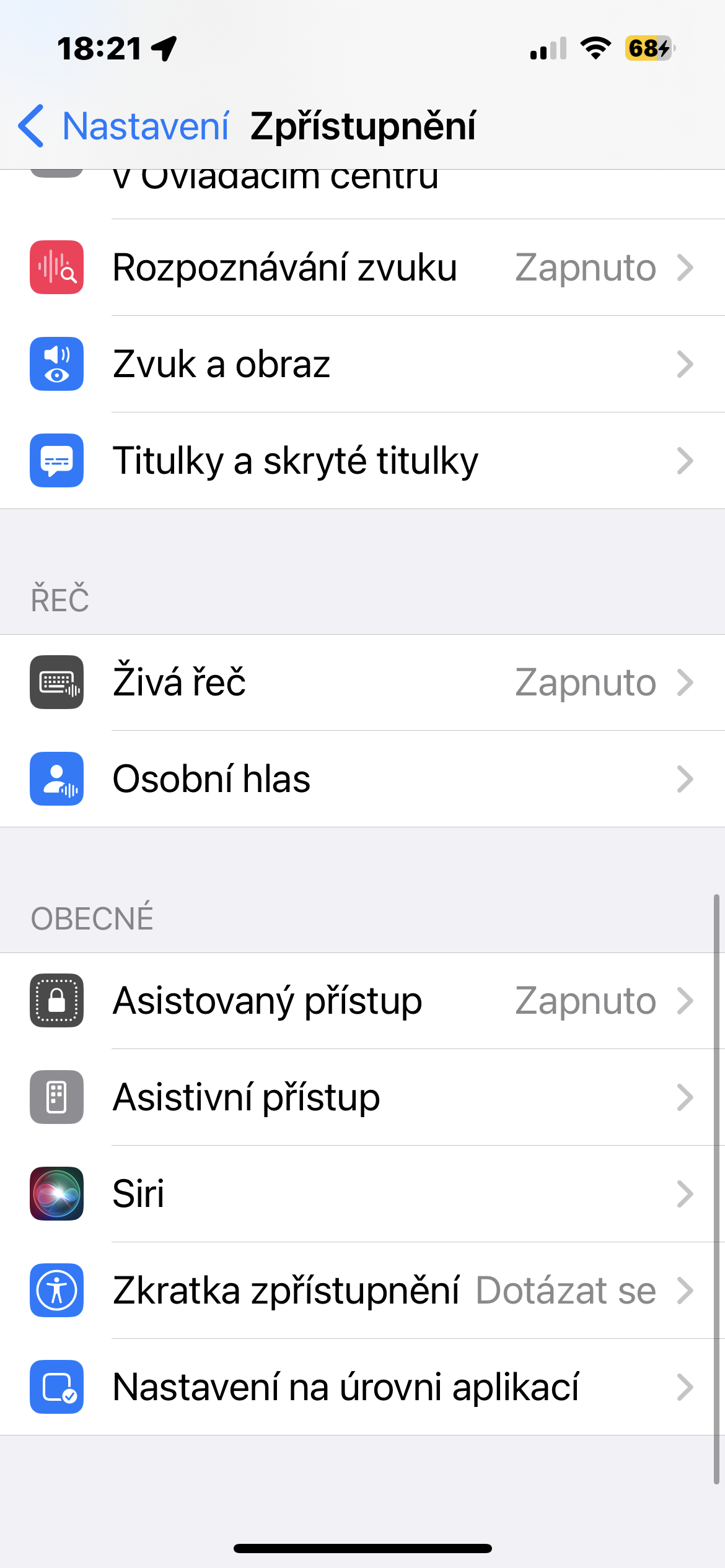
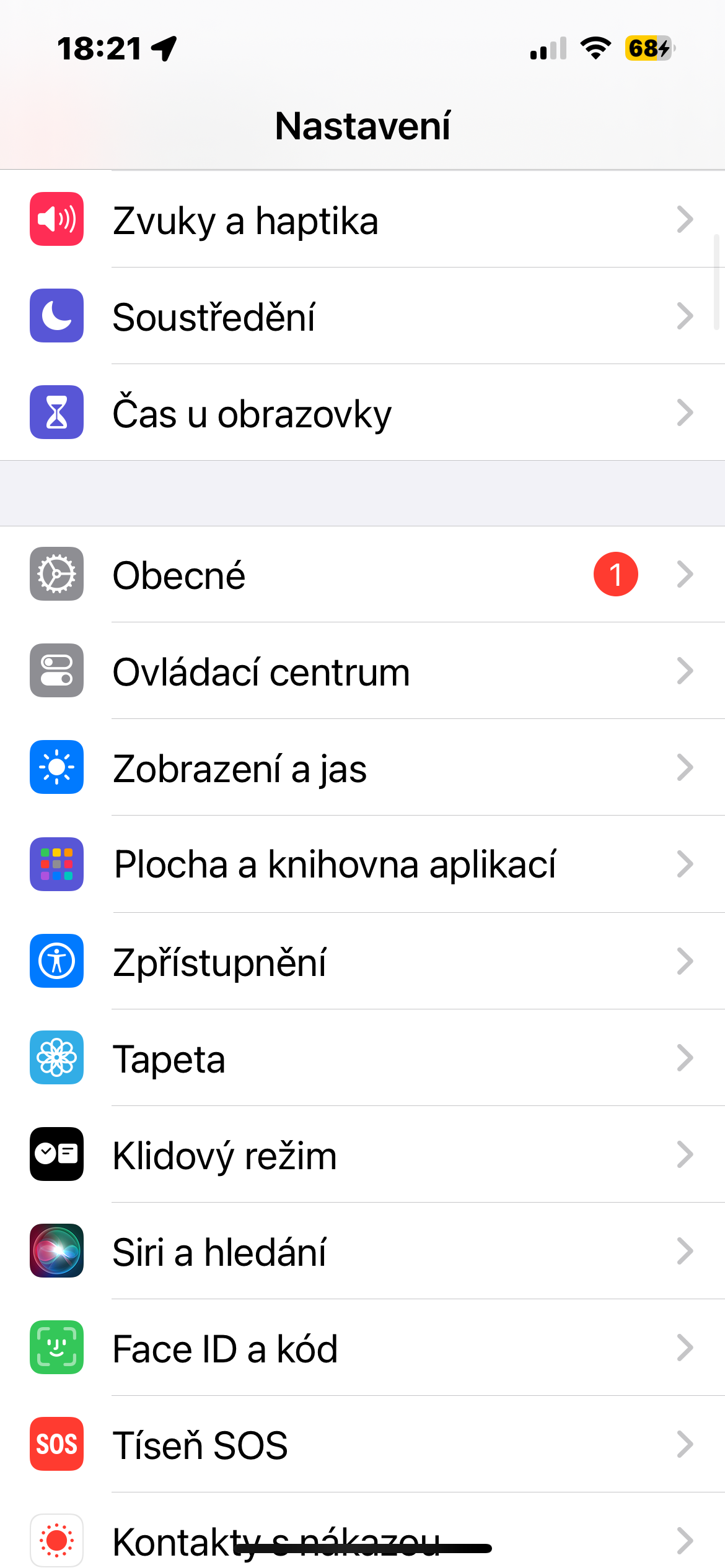
- Select Disclosure: In the settings, go to the Accessibility section. This section contains all the features that can make your iPhone easier to use.
- Find the Access Shortcut: ProScroll down the Accessibility settings until you find Accessibility Shortcut.
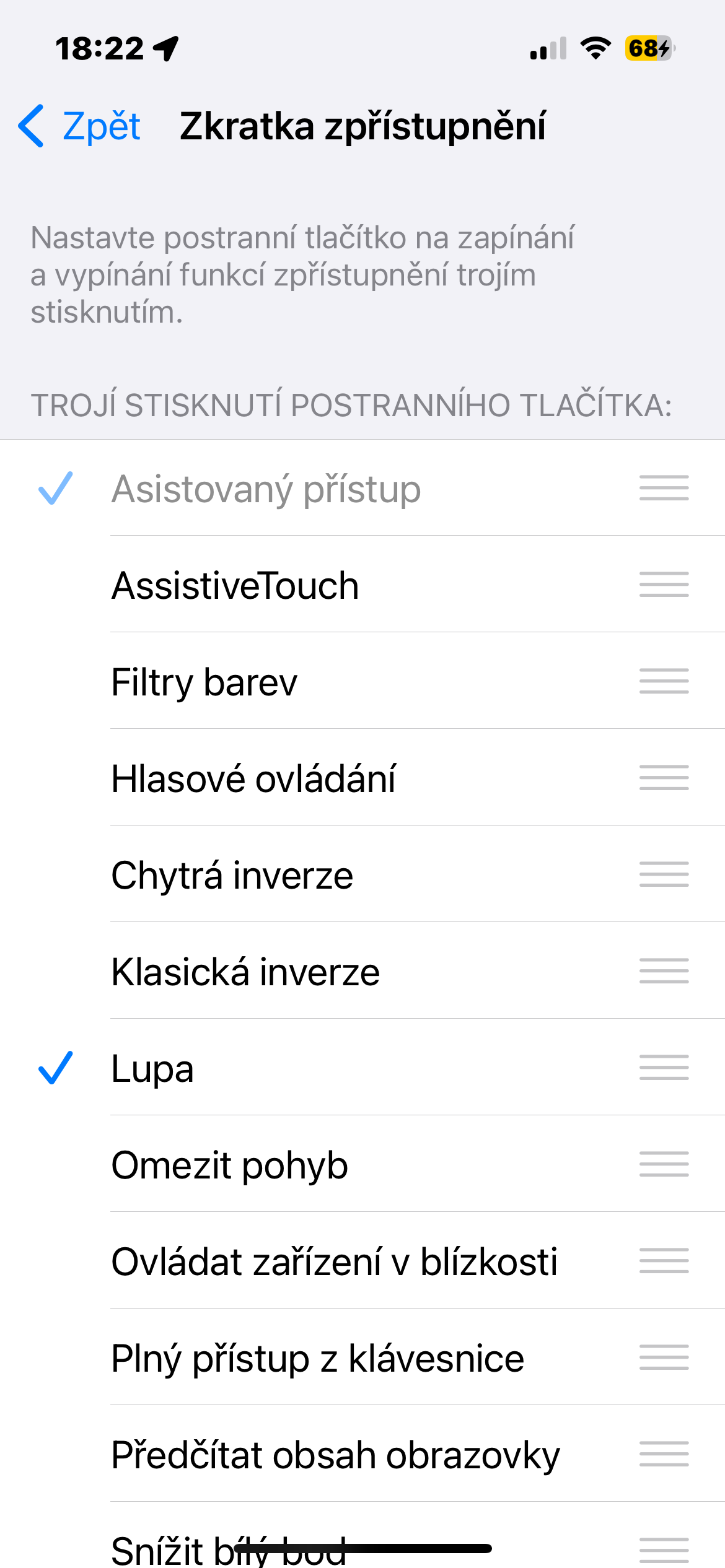
- Select shortcuts: Click on Access Shortcut to see a list of available shortcuts. Here, choose the functions you want to activate with a shortcut. You can choose multiple shortcuts.
You can activate selected shortcuts with different gestures, such as triple-pressing the side button, double-pressing the Home button, or a combination of both.
Gallery
Accessibility shortcuts are a great tool for anyone who wants to make the most of the features that iPhone offers. Thanks to them, you can quickly and easily access all important settings and thus facilitate the daily use of your device.