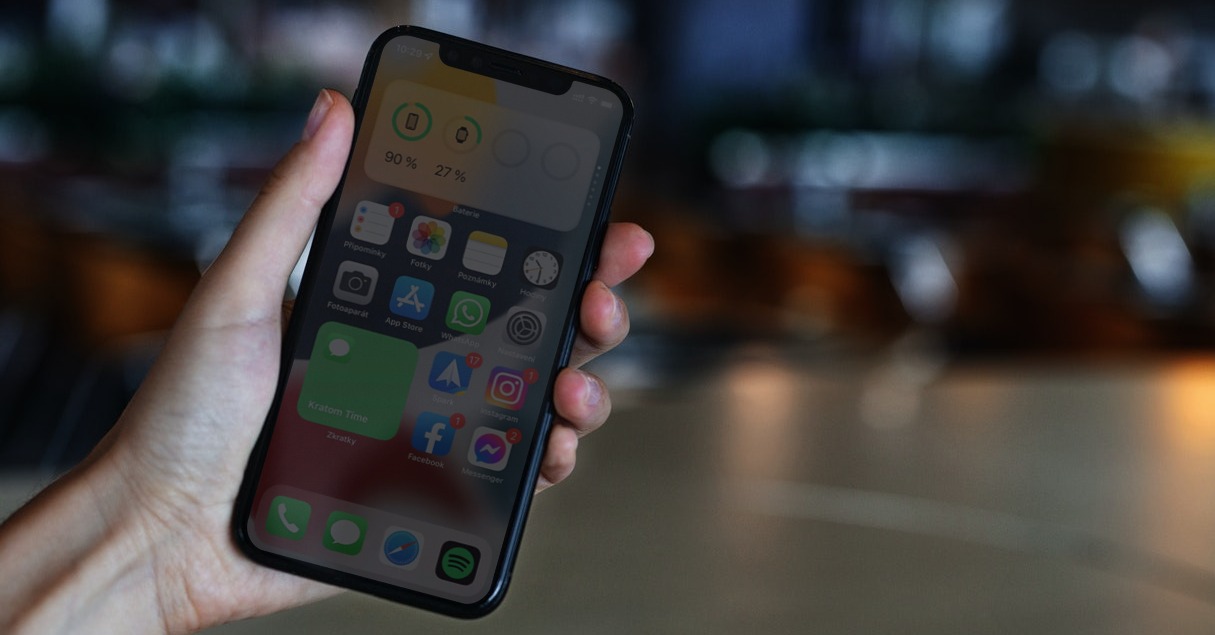
The brightness on your iPhone changes automatically depending on the intensity of the surrounding light. If you are outside in daylight, the brightness is automatically set to a higher value so that you can see the display clearly. At night, the brightness is set to the lowest value, because firstly, a high value is not needed, and secondly, the high brightness would hurt your eyes. But surely you have ever found yourself in a situation where you woke up at night and needed to look at your iPhone, for example, to find out the time, etc. Unfortunately, for sleepy eyes, it is also miniThe minimum possible brightness value is still high, so after turning on the display, you get a virtual slap from it and you feel like your eyes are slowly burning.
You might be interested in
As iPhone set the brightness below miniminimum possible level
The good news, however, is that within the operating system you iOS you can set a special feature that allows you to lower the brightness of your iPhone even lower than miniminimum possible level. If you manually turn this feature on every time before going to bed, you can be sure that looking at the display at night will be much more pleasant than the classic way. If you would like to find out how to do this, just follow these steps:
- First, you need to go to the native app on your iPhone Settings.
- Once you do, go down a little below, where find and click the section Disclosure.
- Then move all the way down and click on the line with the name Acronym for accessibility.
- Here in the list of functions find the one with the name Reduce white point a click on her.
Gallery
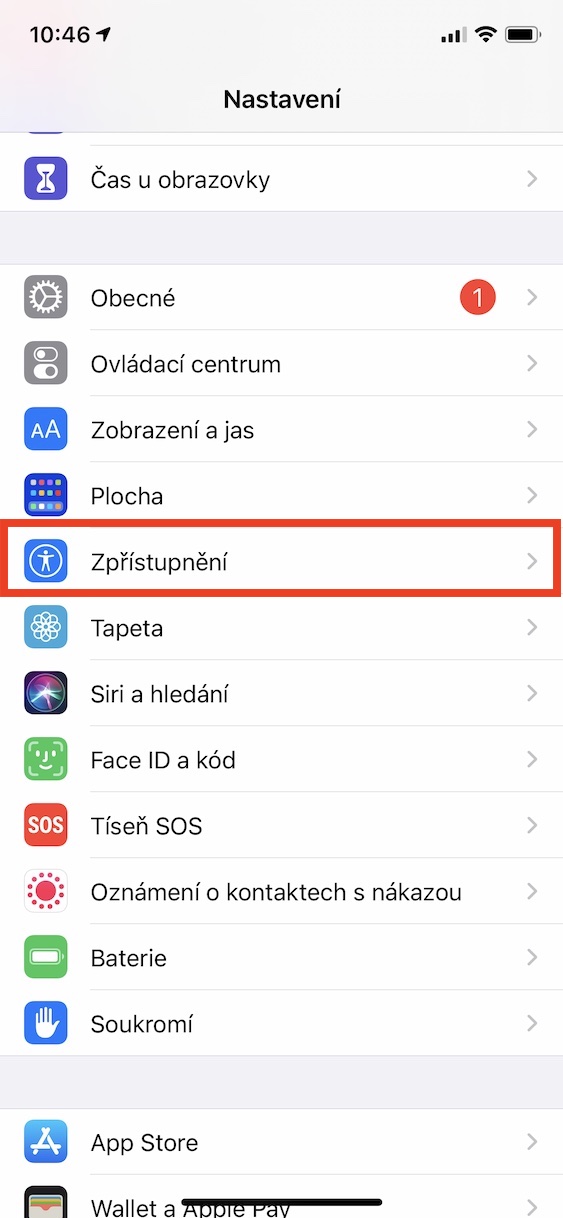
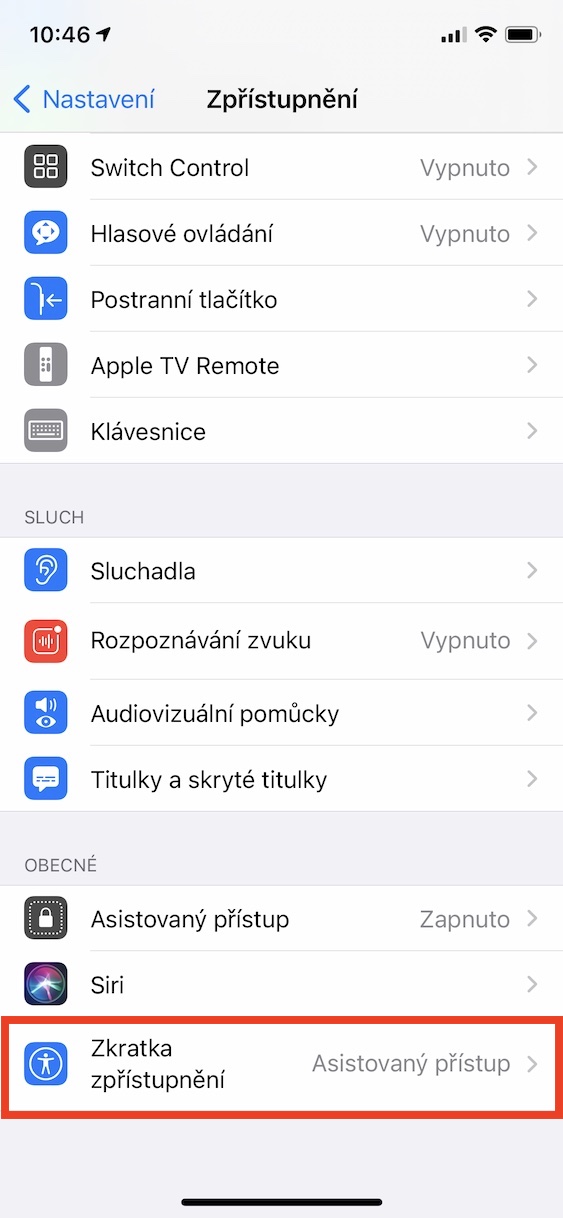
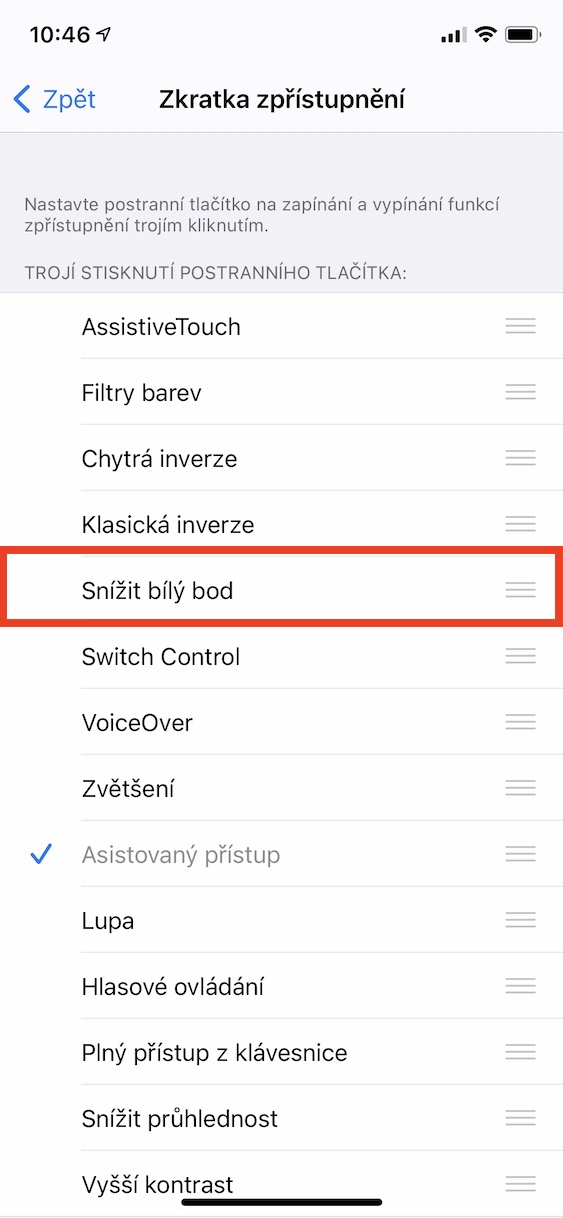
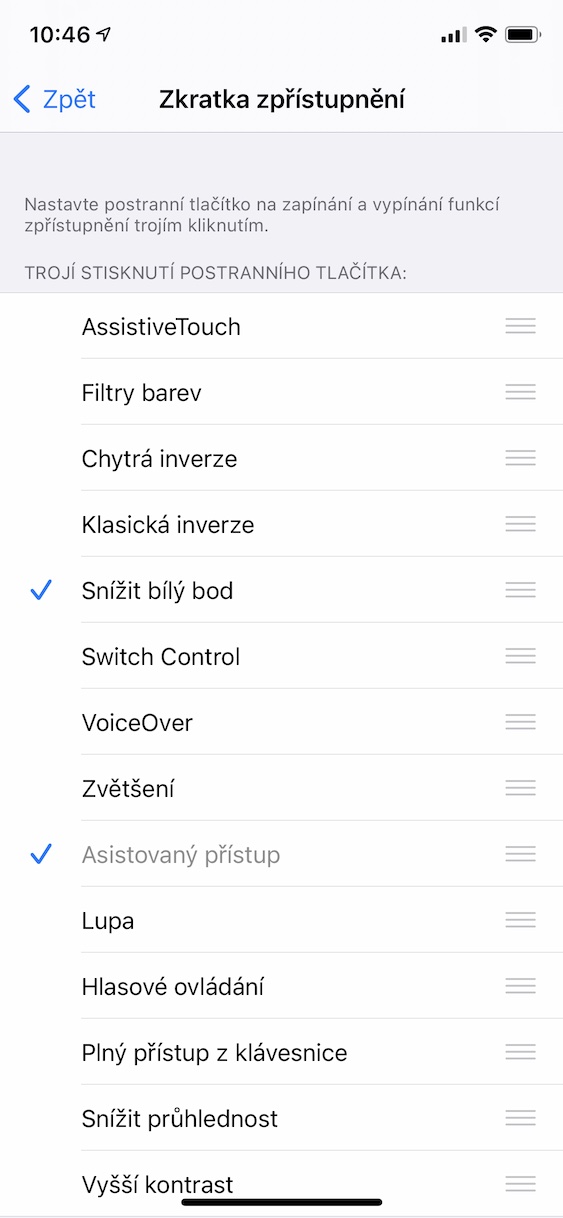
Using the above procedure, you have successfully activated the hidden option to set the brightness even lower than is classically possible. Pro To activate lower brightness, all you need to do is turn on your iPhone with Touch ID Press the home button three times in a row, the iPhone with Face ID then press the side button three times in a row. If you have multiple access shortcuts active, then you still need to select the function by clicking on it Reduce white point if you don't have other shortcuts set, it will start immediately. Shutdown You can then use the Reduce white point option to return the display brightness to normal values again by triple pressing the surface button or the side button. If you're skilled enough, you can even set an automation in Shortcuts to automatically start and turn off White Point Reduction at a certain time.