
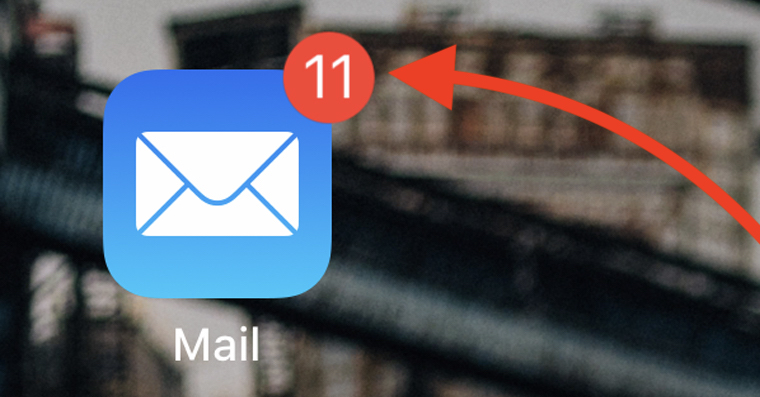
How to disable notification badges in Messages on iPhone? Badges with the number of unread messages are a practical help, but sometimes they can be rather a distraction. If the constantly glowing red circle next to the Messages icon freaks you out, we have a solution for you. In this article, we'll show you how to easily disable these badges to get quieter notifications.
You might be interested in
Nowadays, we are constantly bombarded with various alerts and notifications. iPhones offer us a wide range of options to customize these notifications. One of them is the ability to turn off badges for individual applications. If you are bothered by the notification badge next to the Messages icon that signals that you have new messages, you can easily disable this indicator.
How to disable the notification badge in Messages on iPhone
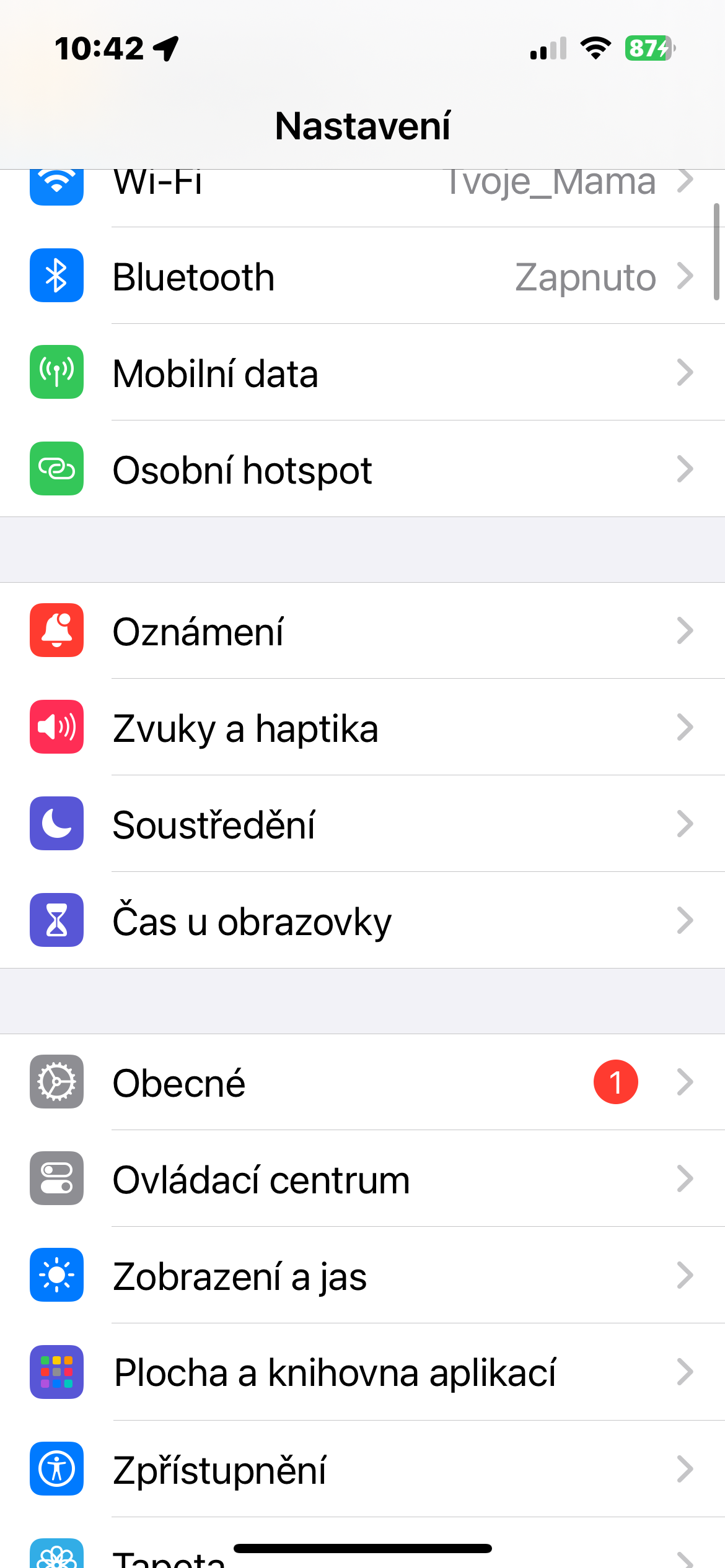
- Open Settings: On the home screen, find and tap the Settings icon (gear icon).
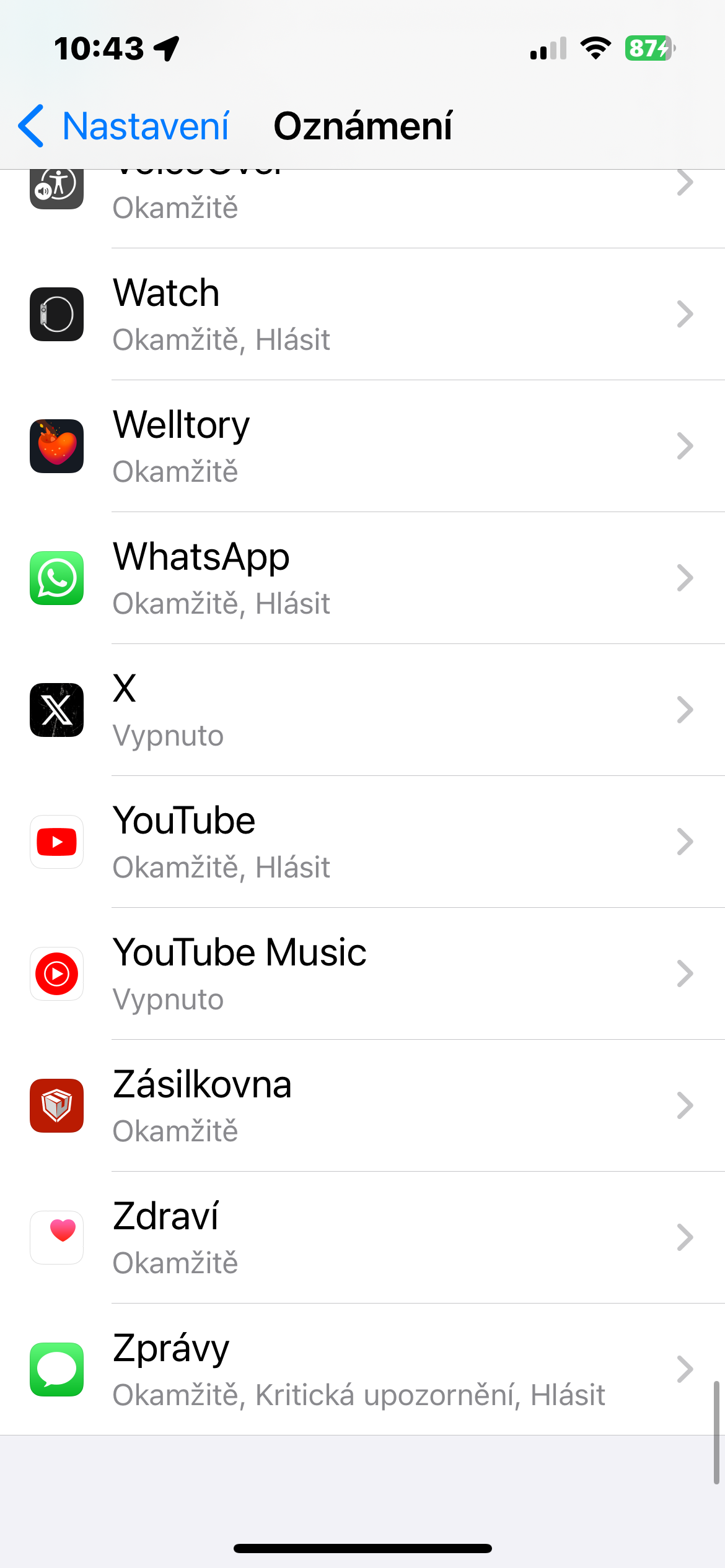
- Select Notifications: In settings, go to the Notifications section. Here you will find an overview of all applications and their notification settings.
- Find News: In the list of applications, find and tap Messaging. You will see the detailed notification settings for this application.
- Deactivate Badges: In the Messages settings, find the “Badges” option and toggle the switch to the off position. This step disables the display of badges with the number of unread messages on the Messages icon.
Gallery
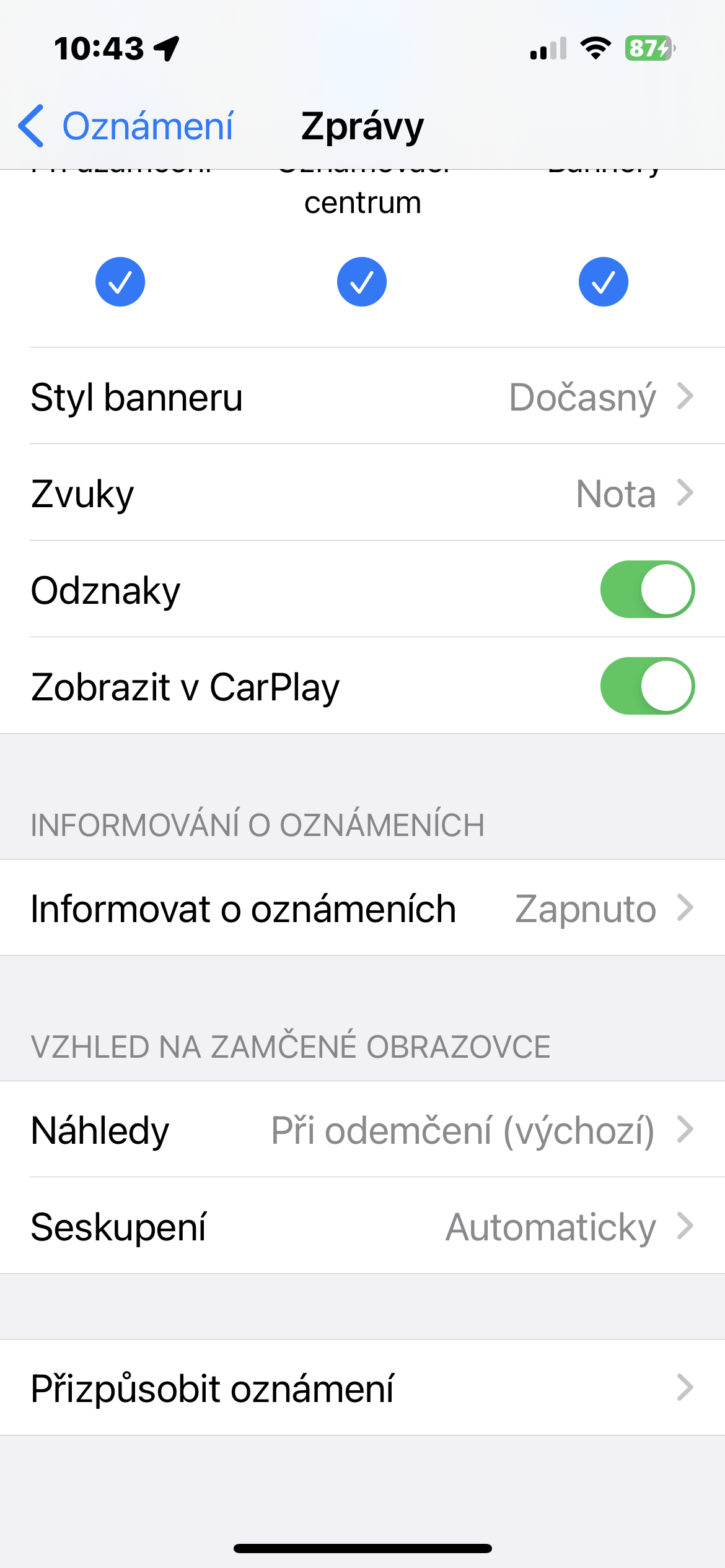
By turning off badges in Messages, you get a cleaner and more organized home screen. Nothing will distract you anymore and you will have calmer notifications. If you later change your mind and want to turn badges back on, just go back to your Messages settings and toggle the Badges switch back to on.




🤣you are not serious about this article. Do you think that none of the users know it? Are you kidding us? Totally useless article, don't be mad at me.
Useless? You clicked on it, commented on it – it’s not useless to me, and don’t be angry, but people who have iphone first day
They have iPhone first day and they switched to it from Nokia 3110, you see 🤣🤣. You're a smartass.
Vlado, I'm certainly not a smart person, we just have statistics and surveys of what he's doing apple, netmonitor, google and similar companies :) but you've had fun and have better Sundays :)