As iPhone Viewing the Wi-Fi password is a procedure that many Apple phone users are looking for. It is certainly not surprising, because from time to time you may find yourself in a situation where you need to share the password to a wireless network in some way - for example, to a family member or friend, or perhaps you want to connect on another device. In the first case, you can of course use the shared passwords function, but the problem is that it does not work as it should in all cases, so it may not be displayed. If you wanted to view the Wi-Fi password on your iPhone some time ago, you would not have been able to do so, because this function was only available on the Mac. However, the situation has changed.
You might be interested in
As iPhone show Wi-Fi password
If you ever need to view the Wi-Fi password on your iPhone, now you can, and it's definitely not complicated. System iOS Specifically, it can give you access to all the passwords from Wi-Fi networks you've ever connected to. It's important to note, however, that the Wi-Fi password display feature is only available in the operating system. iOS 16 and later. If you meet this condition, there are two ways to view the Wi-Fi password. Below you will find the procedure for viewing the password for the Wi-Fi you are currently connected to (or within range), and at the end of the article you will find a method for viewing passwords for all known Wi-Fi networks:
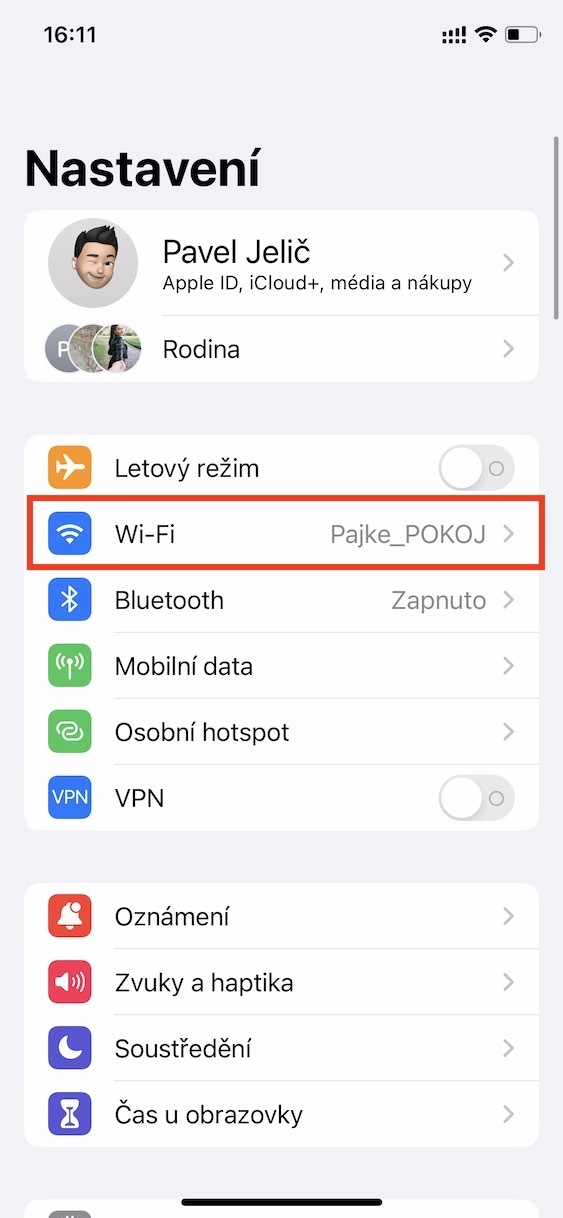
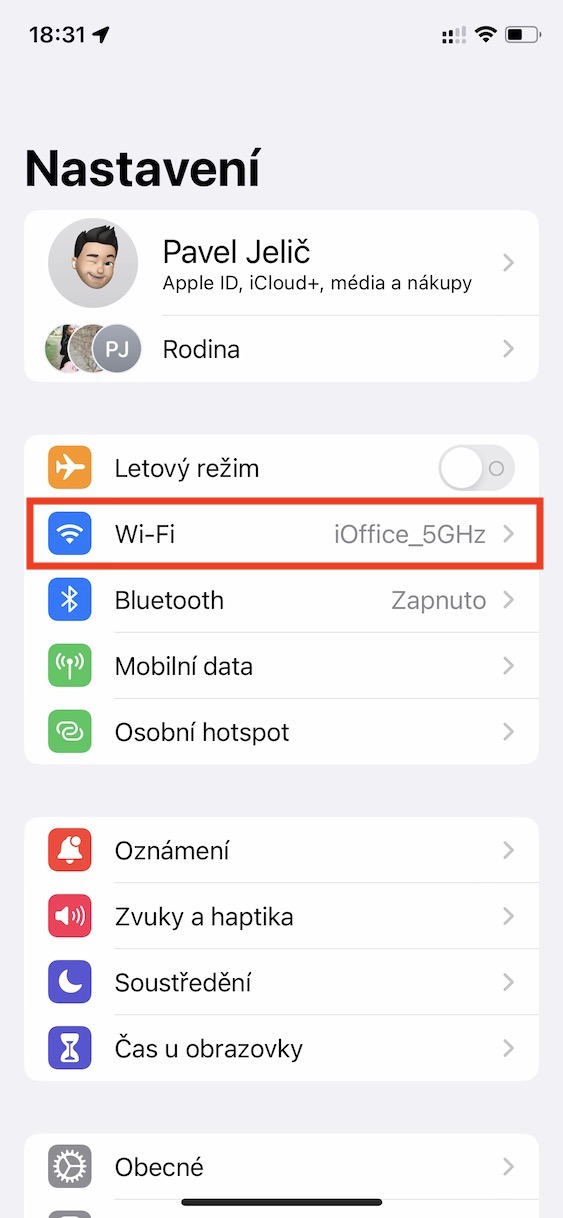
- First, go to the native app on your iPhone Settings.
- Once you have done so, click on the box with the name Wi-Fi access.
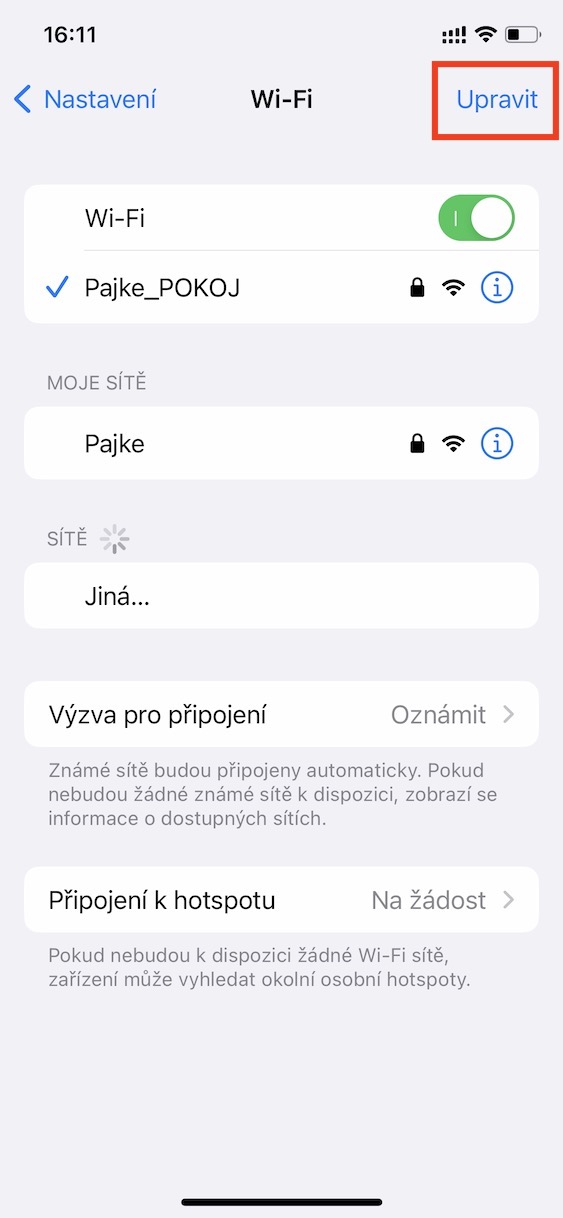
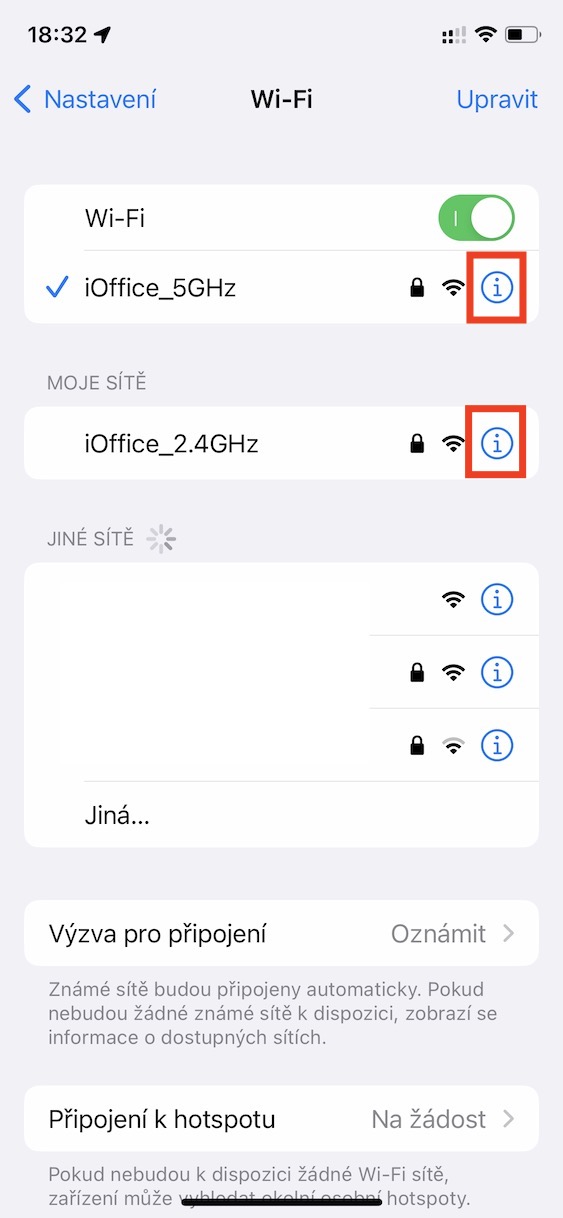
- Here then in the list of Wi-Fi networks find the network you want to view the password from.
- Subsequently, in the right part of the line with the name of the Wi-Fi network, click on icon ⓘ.
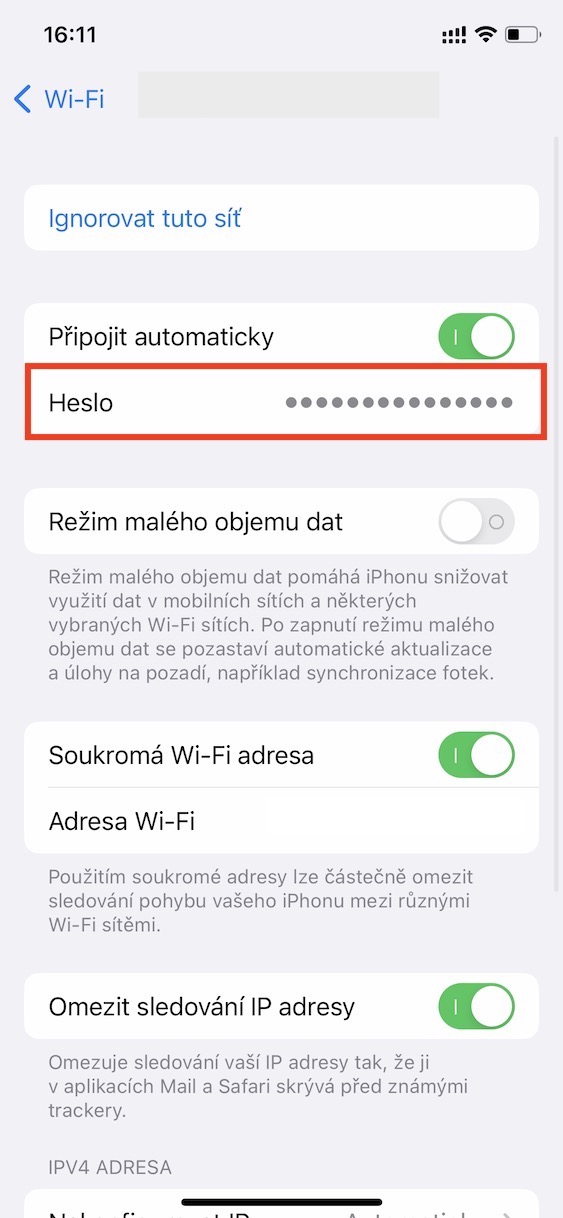
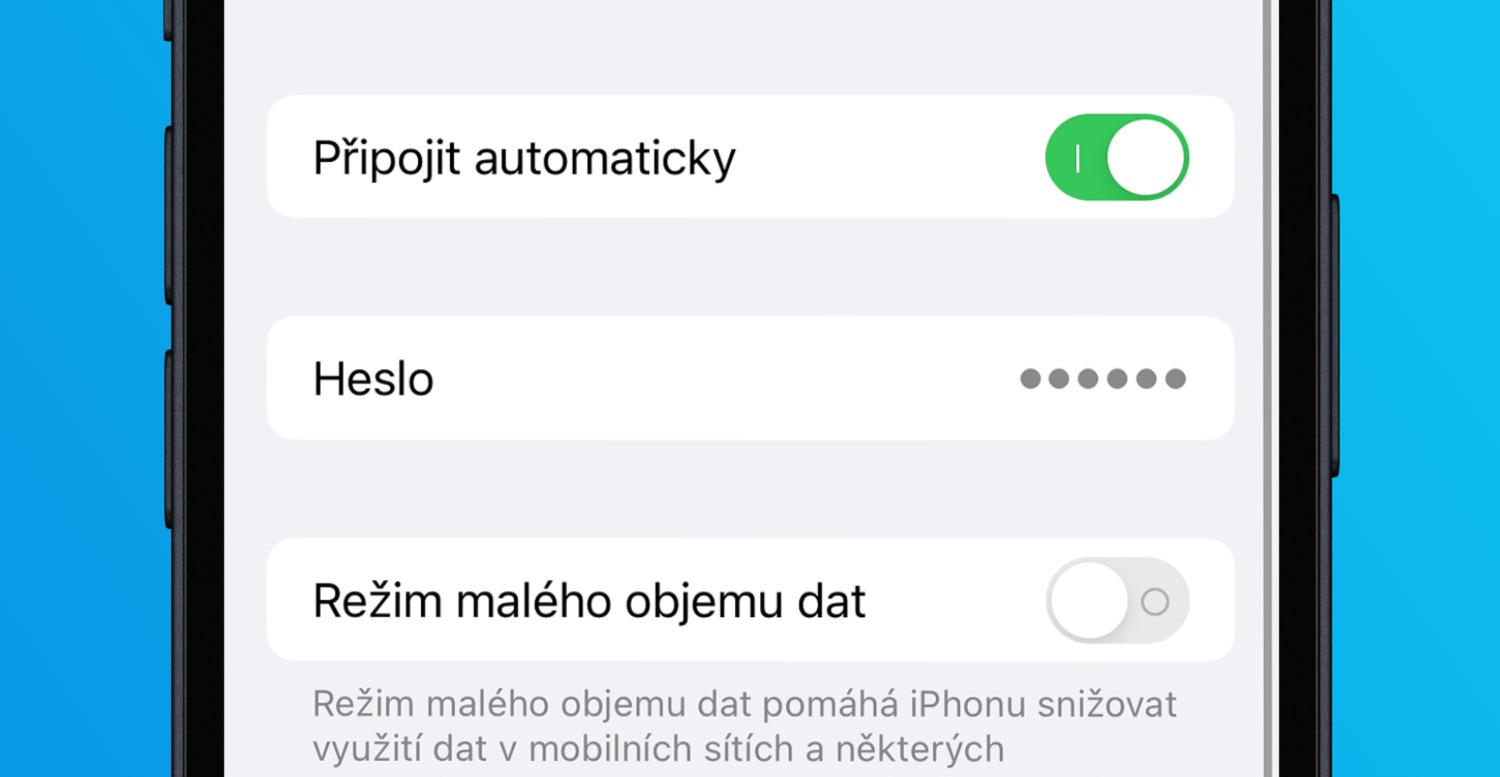
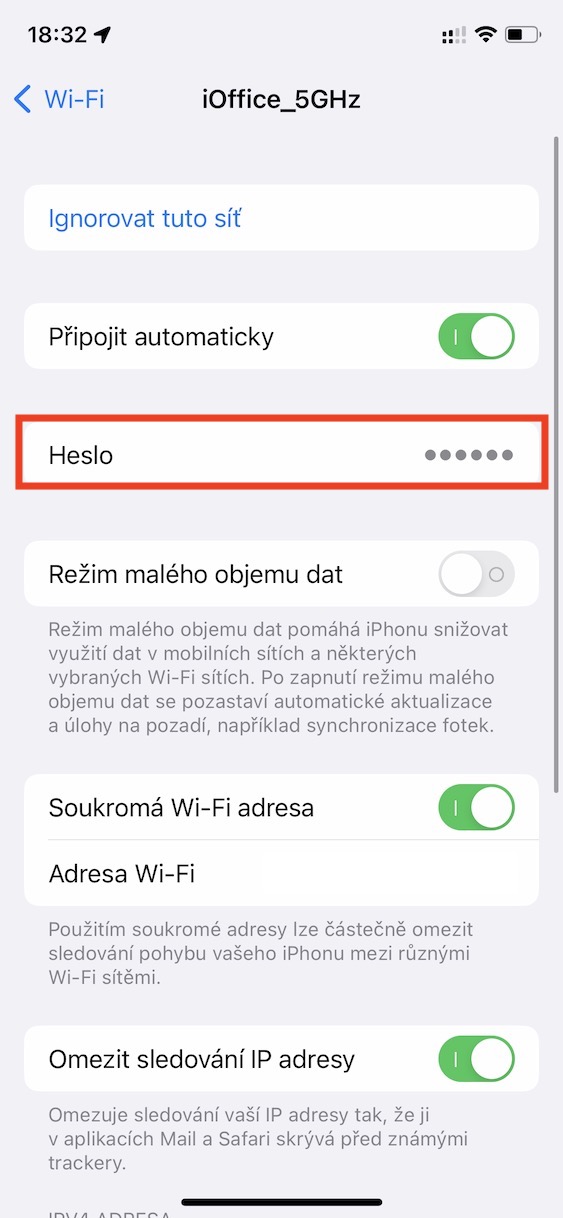
- Then, in the Wi-Fi network information and settings interface, click the line Password.
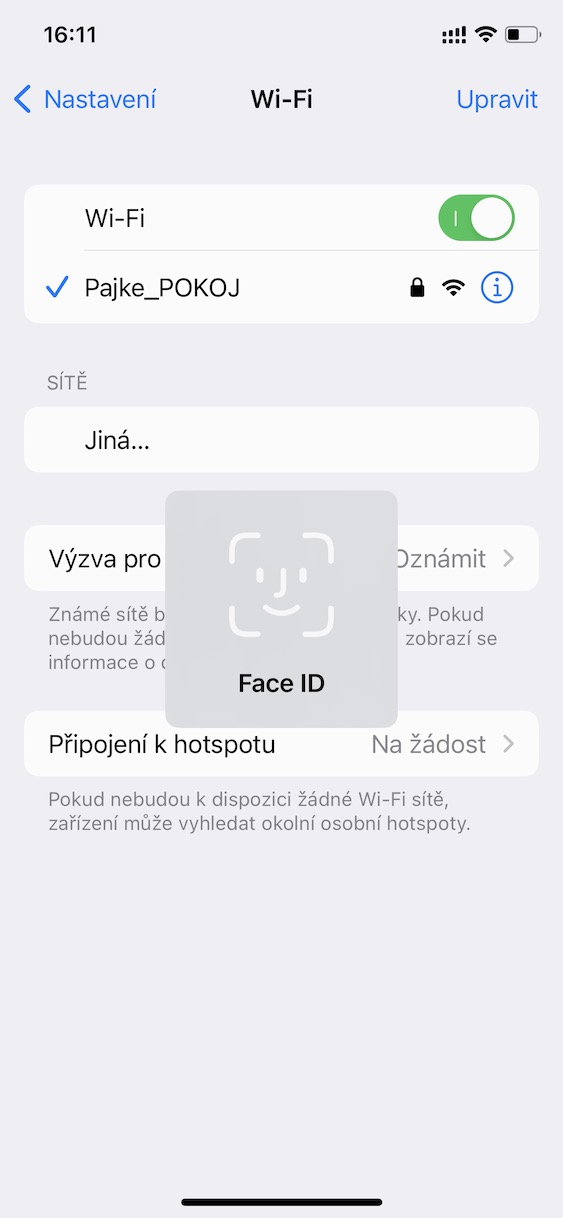
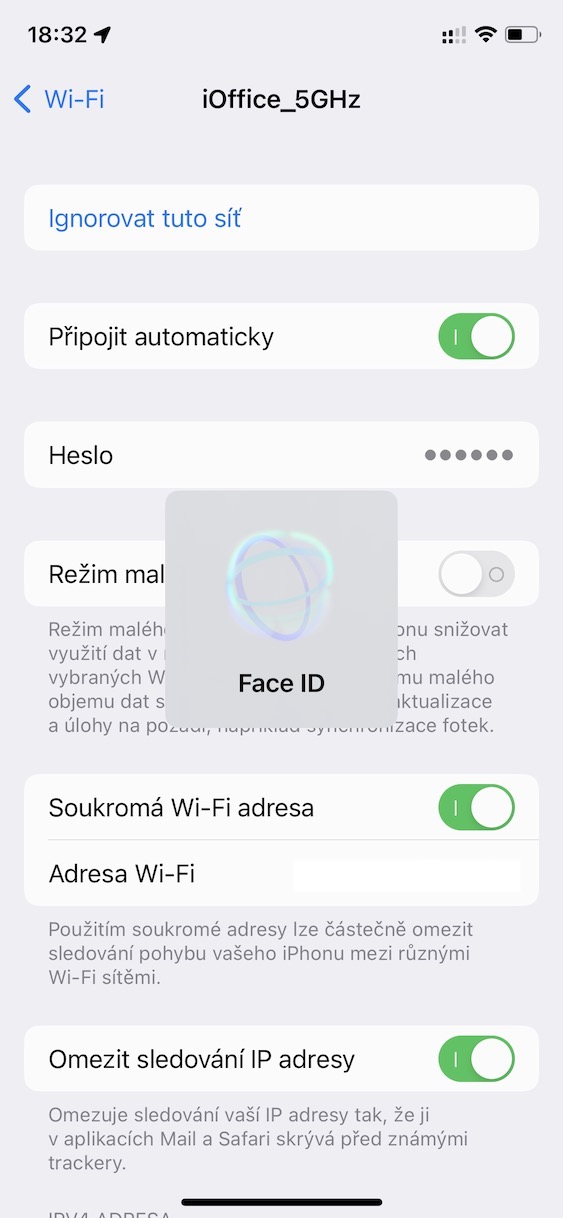
- Furthermore, it is necessary that you use Face ID whether Touch ID authorized.
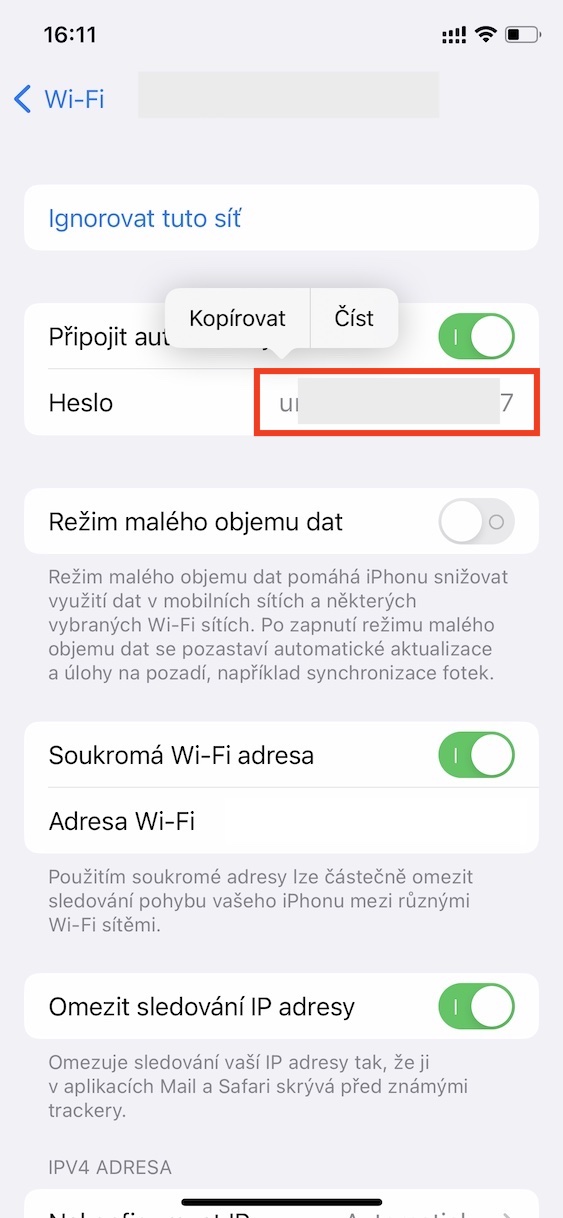
- Immediately after that, you will already be in the right part of the line the Wi-Fi password will be displayed.
Gallery
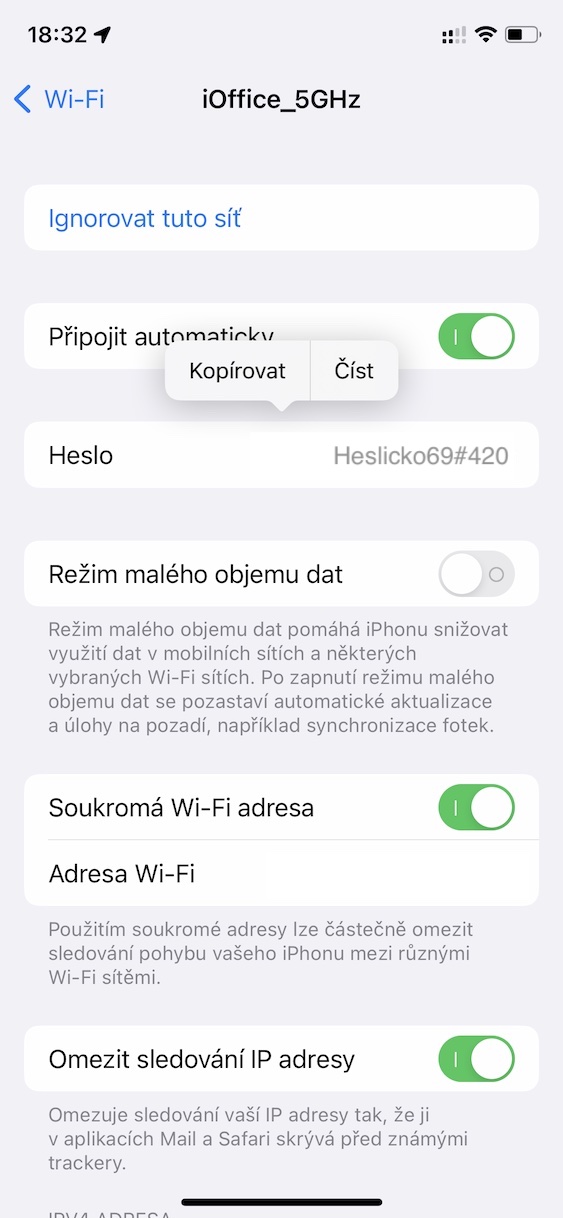
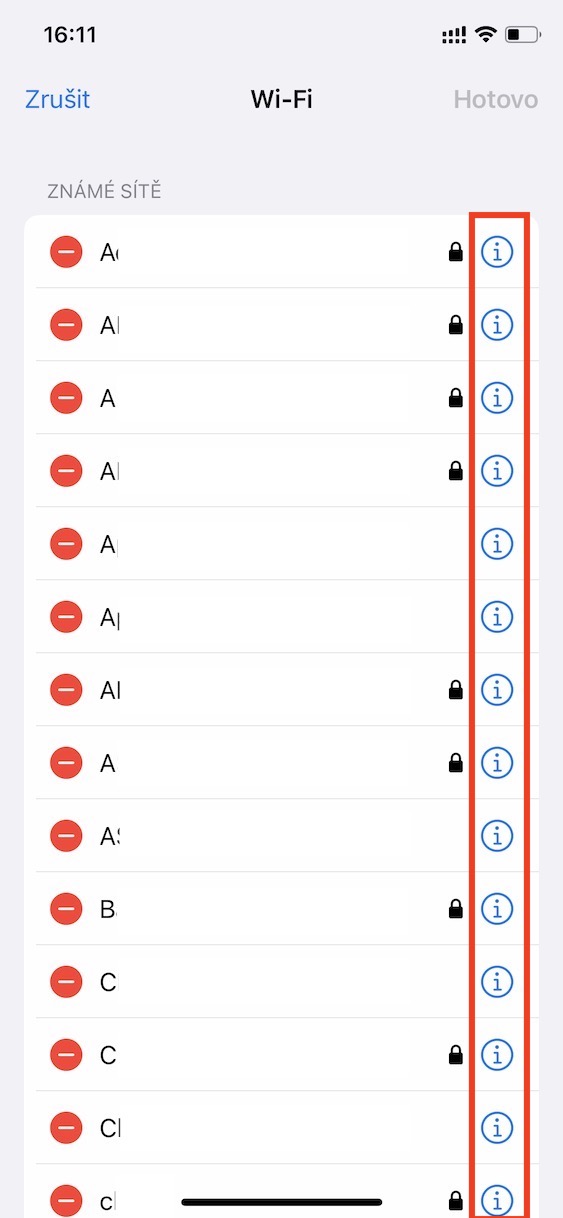
In the above-mentioned way, it is therefore possible to display the password of the Wi-Fi network to which you are currently connected on your iPhone, if it is currently within range. However, if you'd like to share a Wi-Fi password that's not in range, but you've already connected to it, you can. Just go to Settings → Wi-Fi, where at the top right click on edit, and then using Touch ID or Face ID authorize. Subsequently in the list find wifi from which you want to view the password, and tap next to it icon ⓘ. On the next page, just click in the box Password, which will thus be displayed. Of course you can copy it if needed.
Gallery