If you have a smart home, you will definitely need to control it Apple devices you use the native Home application. This application has received a pleasant redesign in new systems, and macOS Ventura is no exception in this case. The new Home application was also deployed here, which comes with a more modern and simpler look and new functions that can come in handy. Therefore, let's take a look together in this article at 5 tips in Home from macOS Ventura that you should know.
You might be interested in

Side panel with an overview
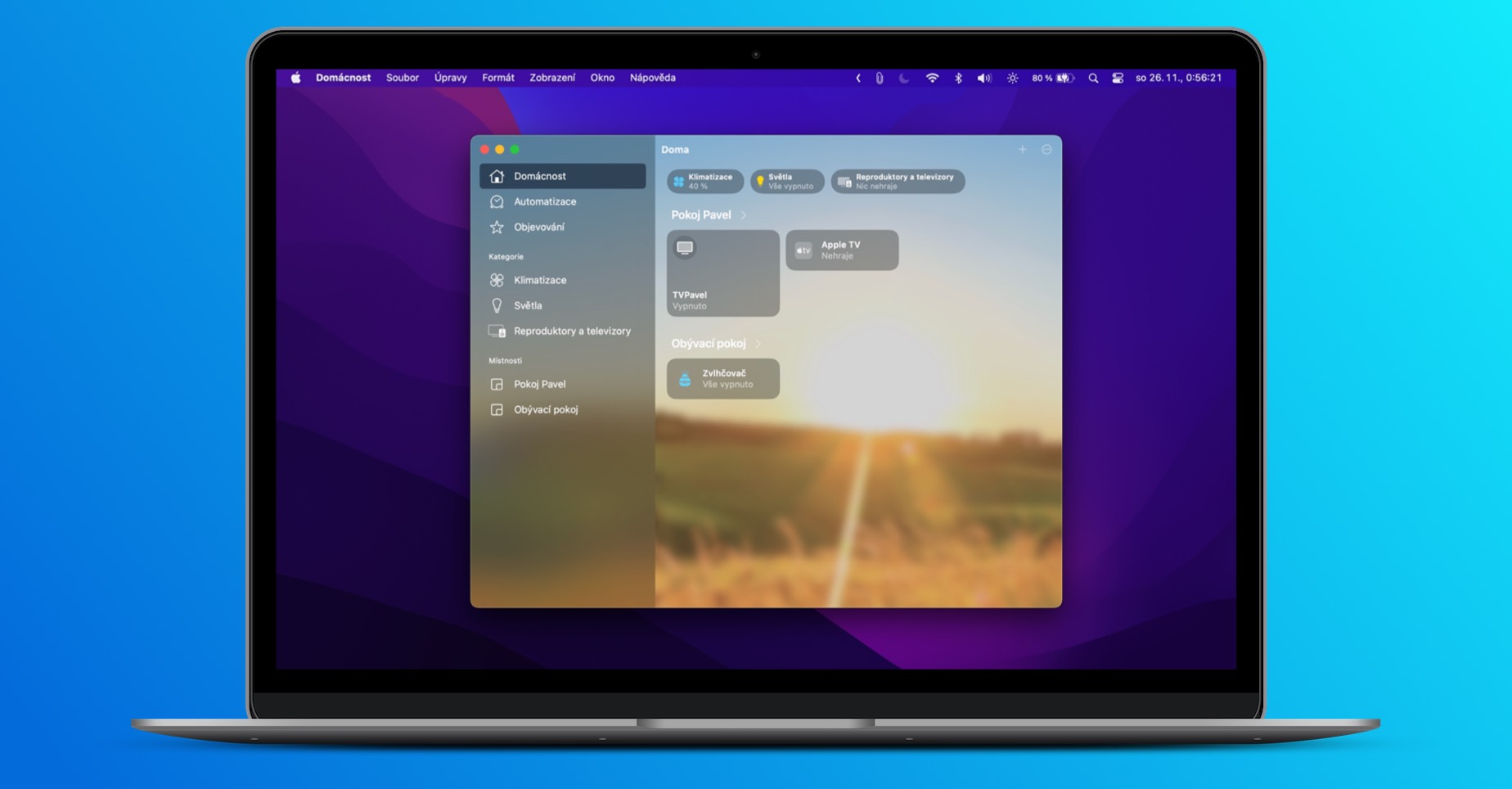
When you first launch the Home app in macOS Ventura, you'll notice a sidebar on the left side, with several sections. The main one is Home, where you can get an overview of your entire home and have it practically at your fingertips. This section displays the most important accessories, so you can get to them faster. In addition, you can switch to the automations and discovery section in the sidebar, as well as categories and rooms.
Categories
As I mentioned on the previous page, the redesigned Home app also includes so-called Categories. These are specifically available in the sidebar and are divided into Climate, Lights, Security, Speakers and TVs , and Water . So if you ever want to quickly view accessories from a specific category, you can simply open it. In each category, accessories are then divided into rooms, so again there is no shortage of overview and simplicity.
Gallery
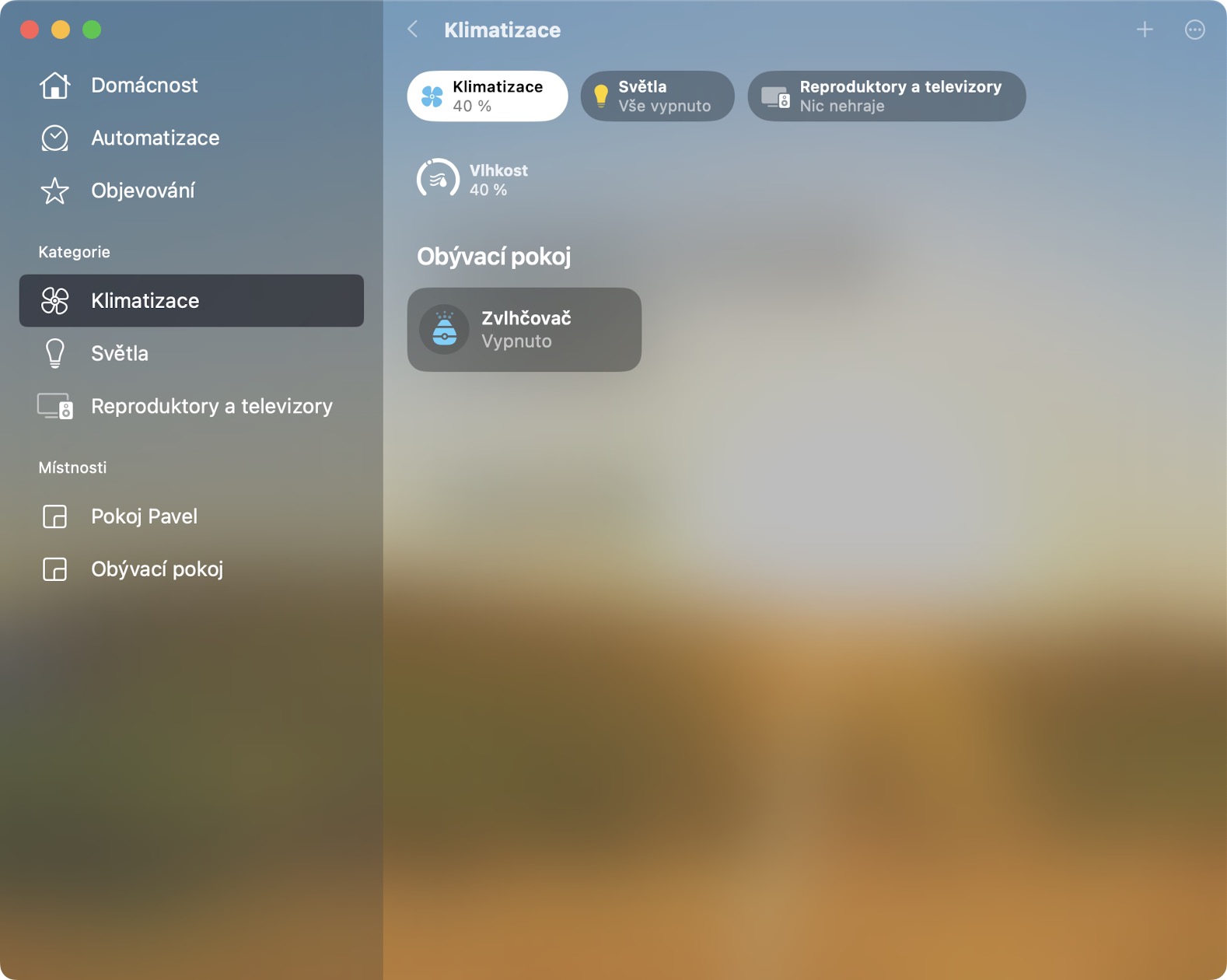
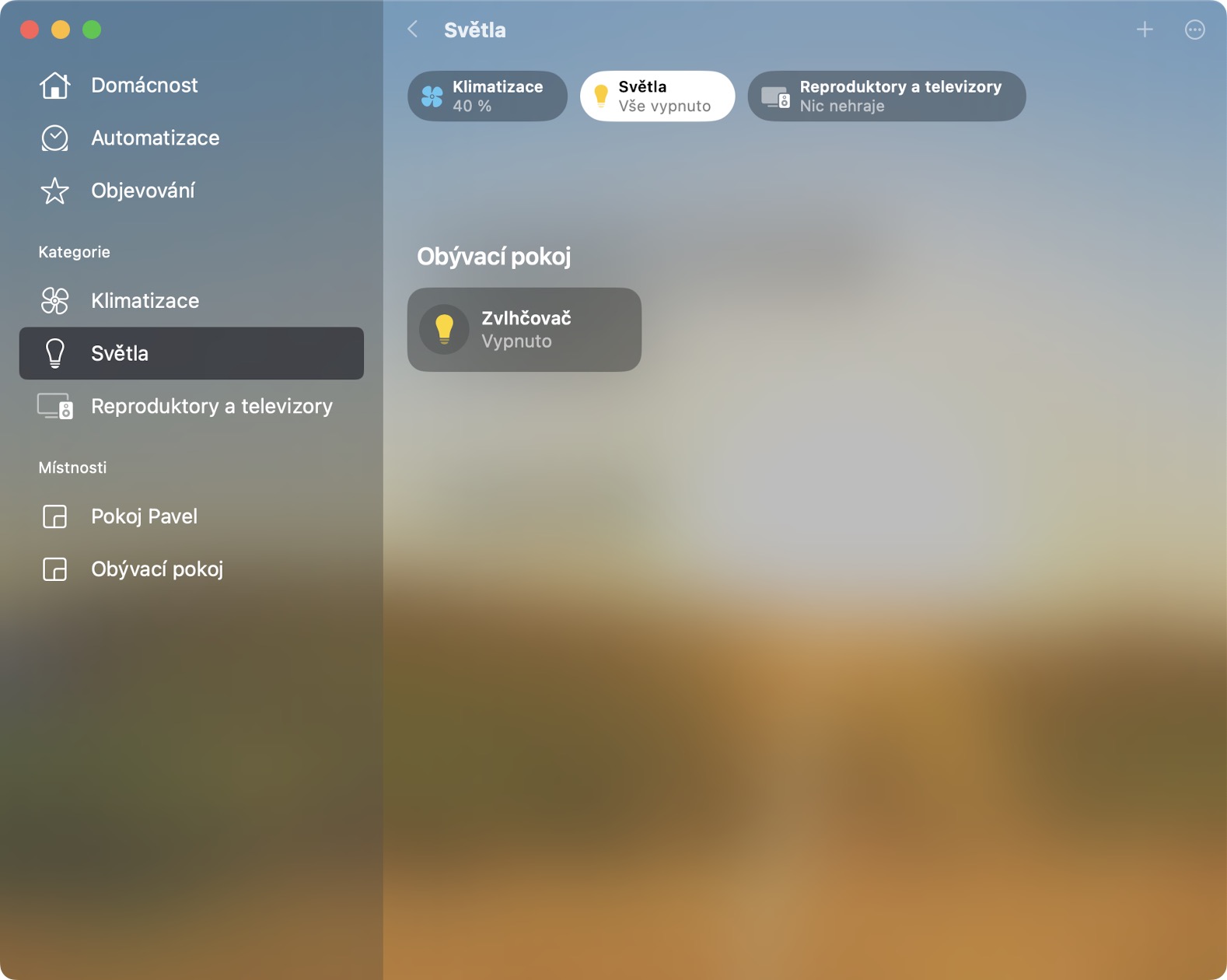
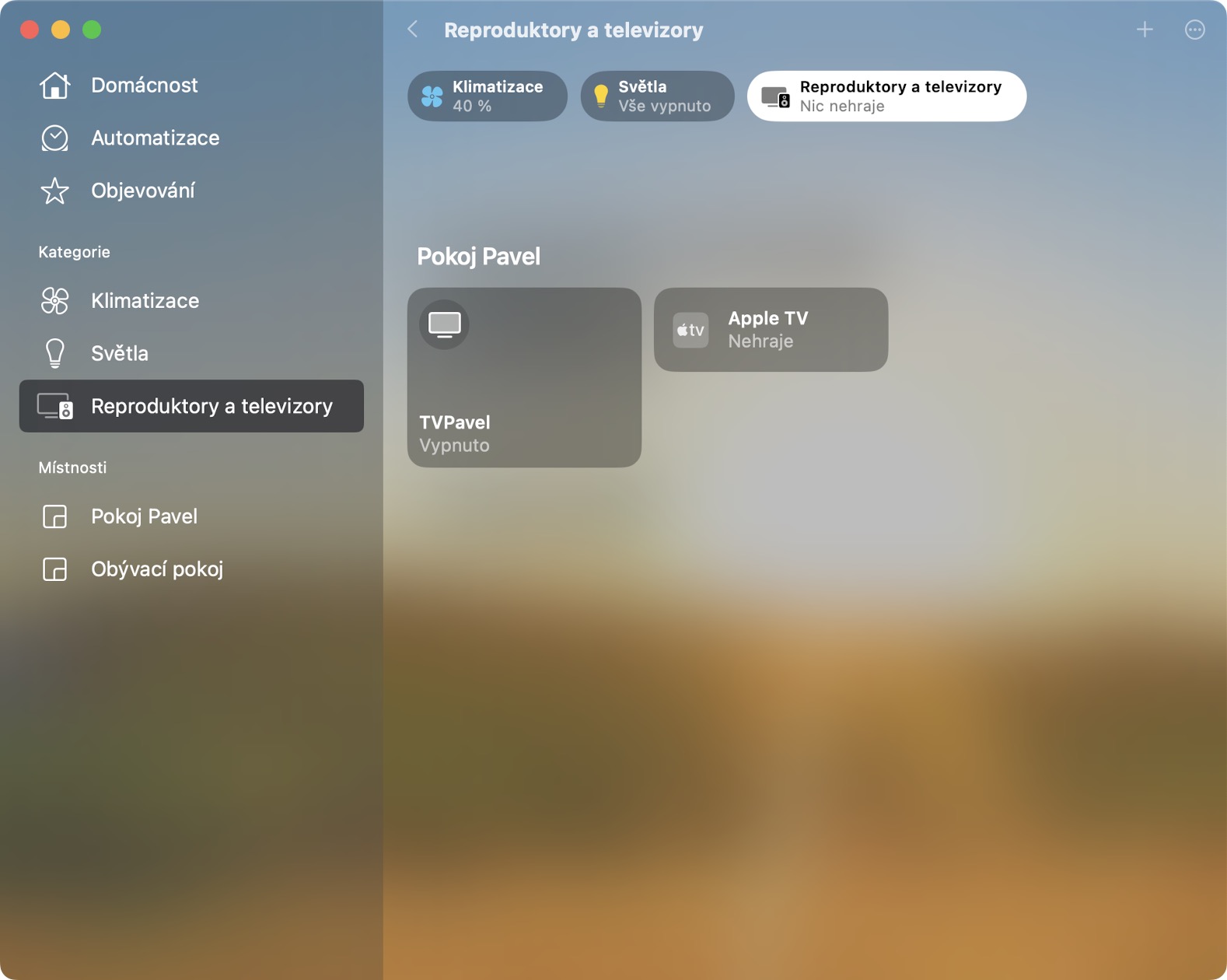
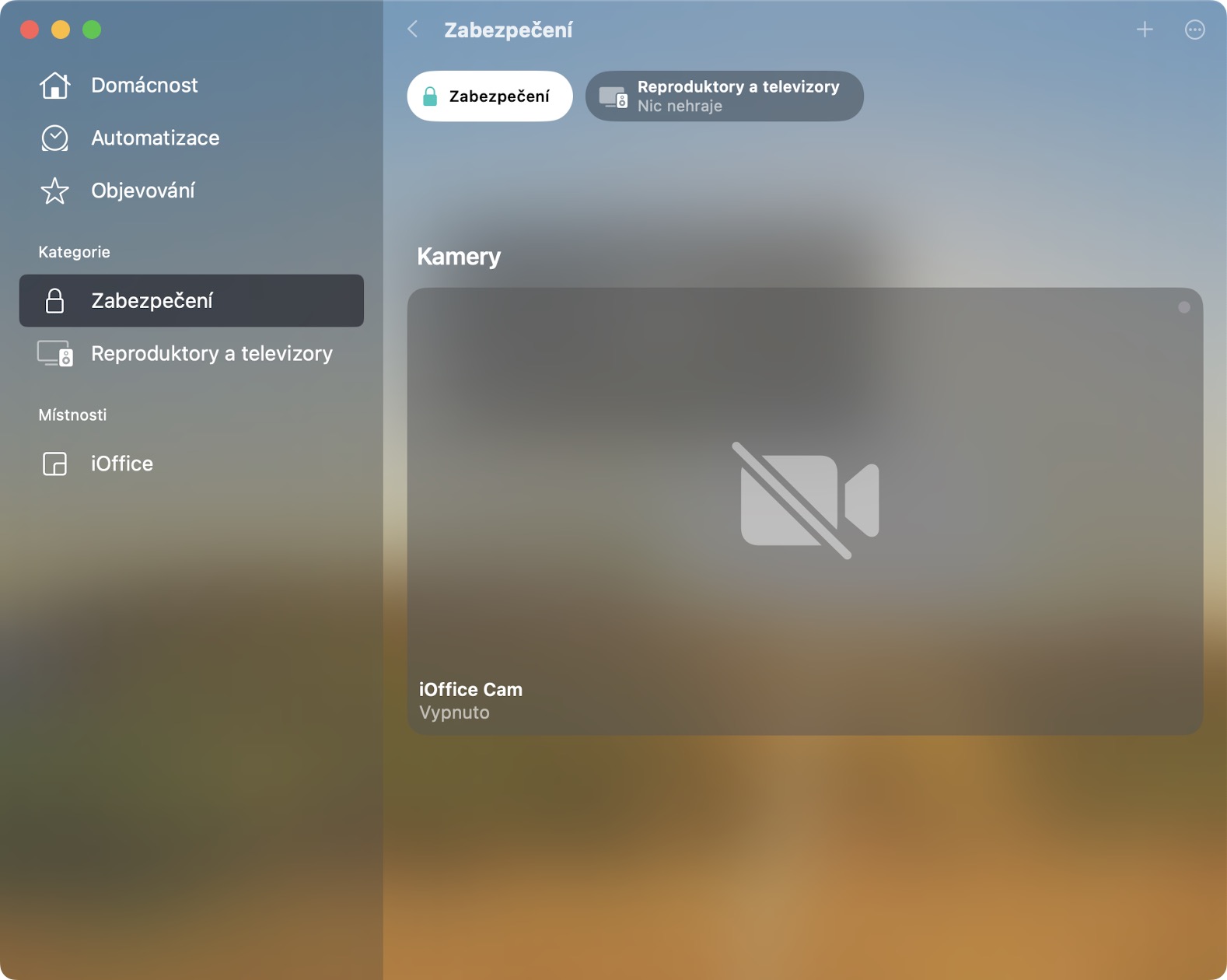
Footage from the cameras
Do you use security cameras in your smart home? If so, you'll definitely like the new Home app. It displays the images from security cameras directly in the overview , so you can see what's going on right away, without opening anything. Specifically, the home page can display up to nine camera views at once , which is just as handy. Tapping a camera will then display its interface, where you can move back and change settings.
Tiled view
Apple in the redesigned Home application, he bet on a tiled display, which has become more and more popular recently. The tile is really everywhere, whether you are on the home page or click on a category and room. In addition to looking good, they are also very easy to operate - with a single tap, you can immediately see the options for a specific accessory.
You might be interested in
support Matter
An integral part of the latest operating systems, and therefore also the Home application, is support for the standard MatterIf you haven't heard of this standard yet, its main goal is to improve cooperation between individual smart home devices. Manufacturers who decide Matter support, they will be able to ensure their add-ons are functional across all ecosystems in the form of Apple HomeKit, Amazon Alexa a Google Assistant. Simply put, thanks Matter you will be able to buy any smart home device with the certainty that it will work equally well in all ecosystems. Several of the world's largest technology giants are behind this standard, in addition to AppI still have Google, Amazon and other big names from Connectivity Standards Alliance.