
Probably every one of us has been there at least once iPhone used the option to connect to a personal hotspot, or on the contrary, provided it to other individuals. A personal hotspot is suitable if you want to connect to the Internet by using the mobile data of the user you are connected to. For example, if you have a small data package and your friend has unlimited, you can simply connect to him and use his package. However, the truth is that within iOS There aren't many options for setting up your personal hotspot. Apart from the password and family settings, you can't see anything else here, nor can you see details about connected devices. However, in iOS There is a way to check how many users are connected to your hotspot. To find out how, keep reading.
You might be interested in
As iPhone see how many users are connected to your personal hotspot
If you need to find out how many users are connected to your personal hotspot at the same time, it is not difficult. Just proceed as follows:
- First, of course, it is necessary that you have hotspot activated, and for someone to be there for him attached.
- You activate the personal hotspot in Settings -> Personal Hotspot.
- After activation and connection, open other devices control center.
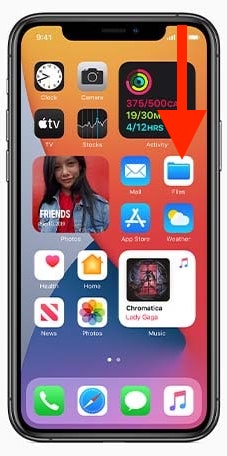
- Na iPhone s Face ID swipe top to bottom z upper right corner displays;
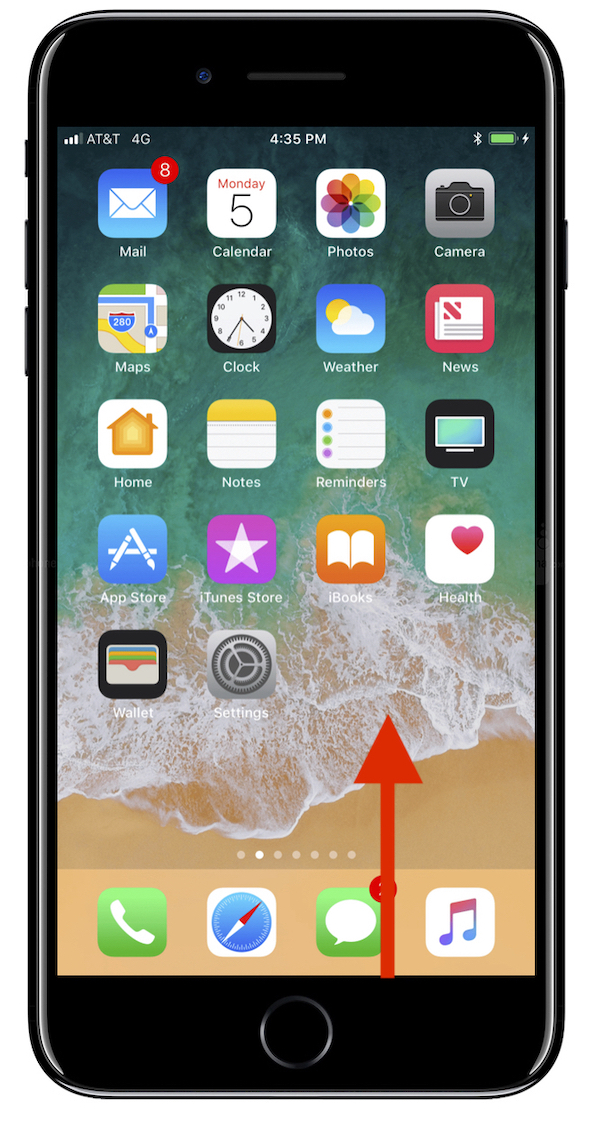
- na iPhone s Touch ID swipe bottom up po bottom edge display.
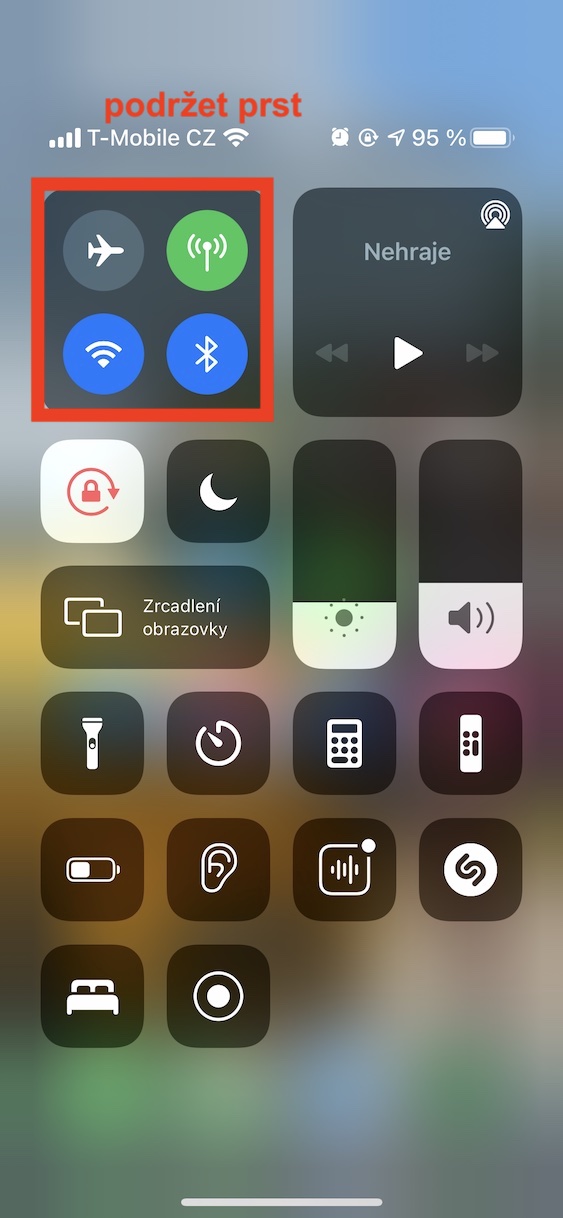
- Here after hold your finger on the connection element (airplane, mobile data, Wi-Fi and Bluetooth icons).
- After that, you will see the extended options, you will find on the bottom right the Personal Hotspot icon.
- Under the icon after that you can monitor the number of connected users.
Gallery
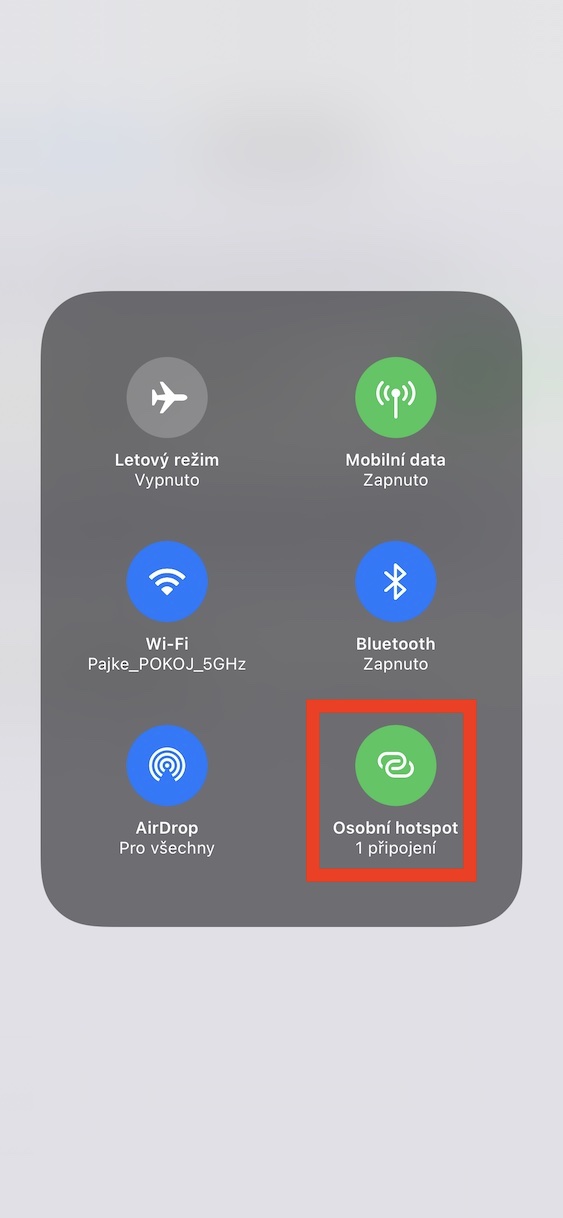
In this way, within the framework of iOS to see how many users are connected to your personal hotspot. This way you can easily see if your iPhone there is no "parasite" connected - in this case, of course, you just need to change the password. It is definitely a shame that we cannot look at the extended information and the number of active connections directly in Settings. For many of us, this would make it easier to identify connected devices. So we have no choice but to accept this and hope that Apple will add this option in one of the future updates.




0 by the word zero
Any changes to this topic? Not even on ios 15 beta x? What is some useful application? Thanks for the info