
Emoji, smileys, emoticons. Whatever you call them, you probably use them every day. There are already almost three thousand of them on your iPhone. But did you know that you can expand your emoji collection even further? Inside the system iOS is hidden a special keyboard, which includes hidden text emoticons. These emoticons are not in the form of classic pictures, they are composed of various characters. On the Internet, you can most often meet, for example, this text emoji: ( ͡° ͜ʖ ͡°), but there are countless others available. In the special keyboard inside iOS you will find over 500 of them, so there is definitely plenty to choose from. So let's take a look together at how in iOS activate this hidden keyboard.
You might be interested in
How to enable hidden emoji
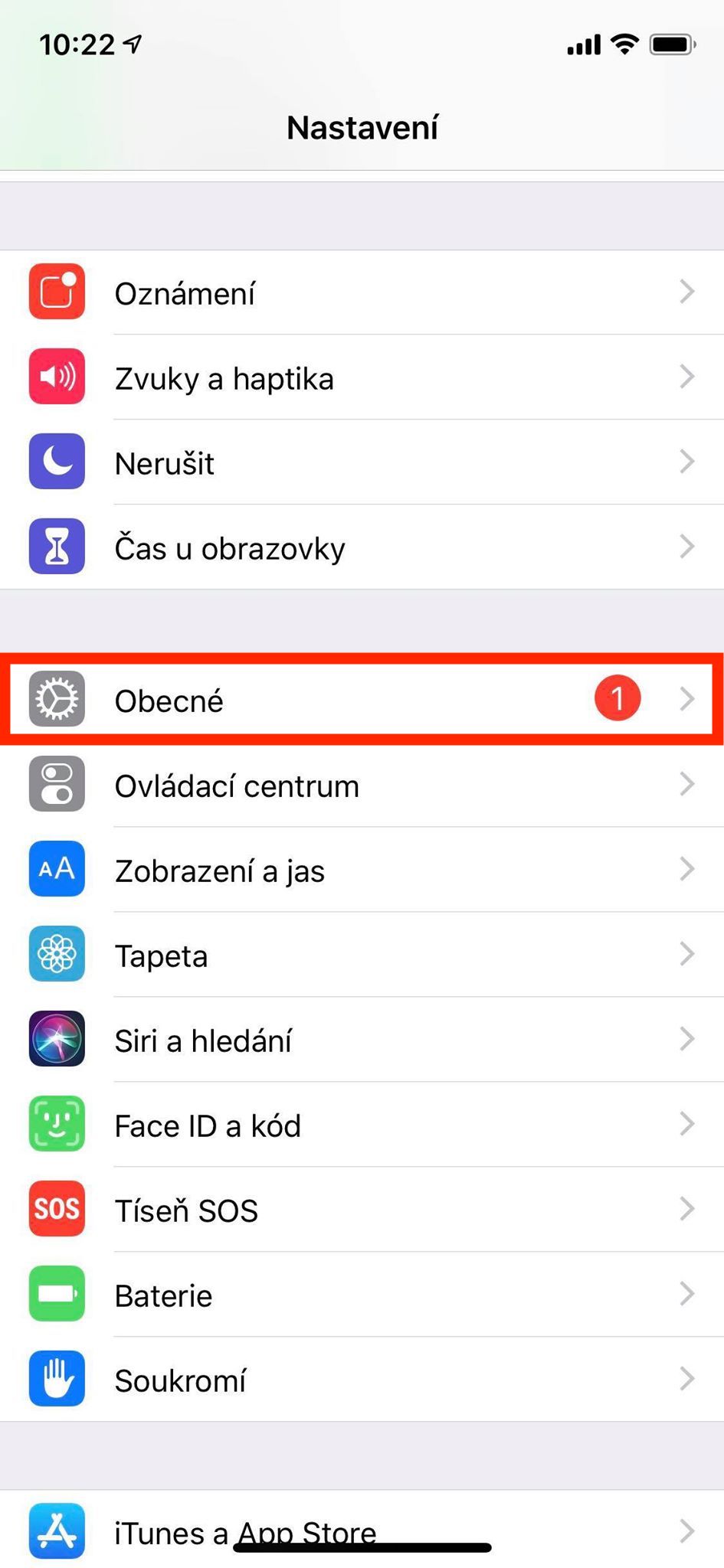
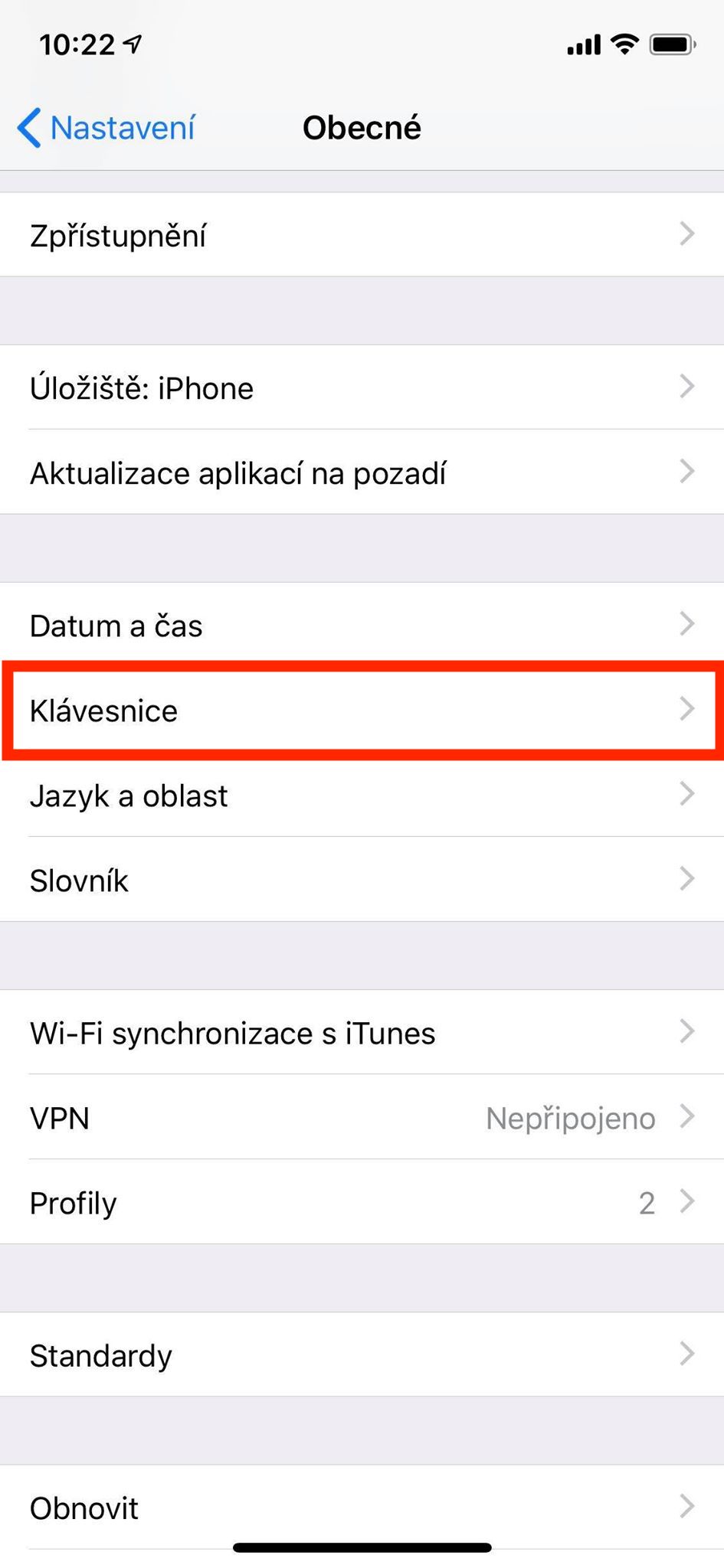
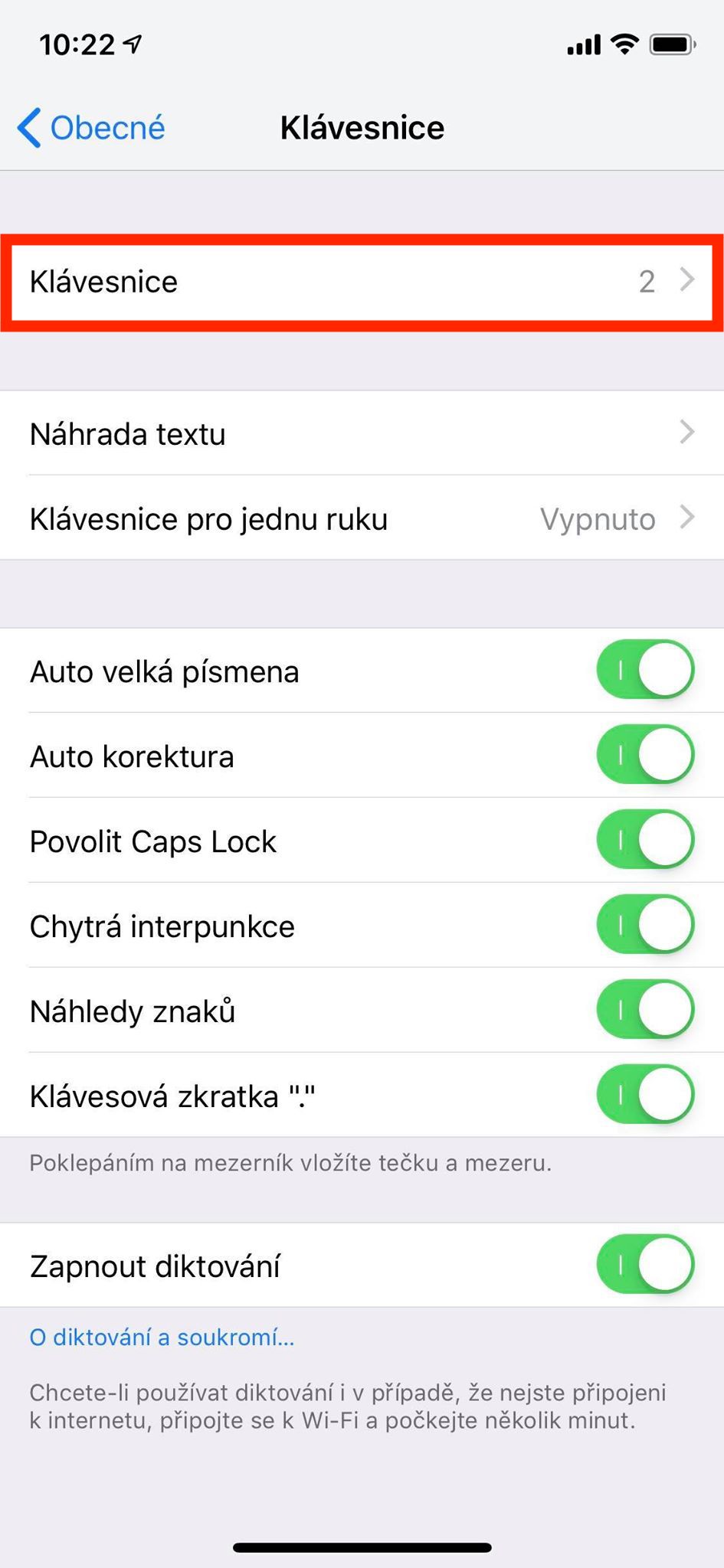
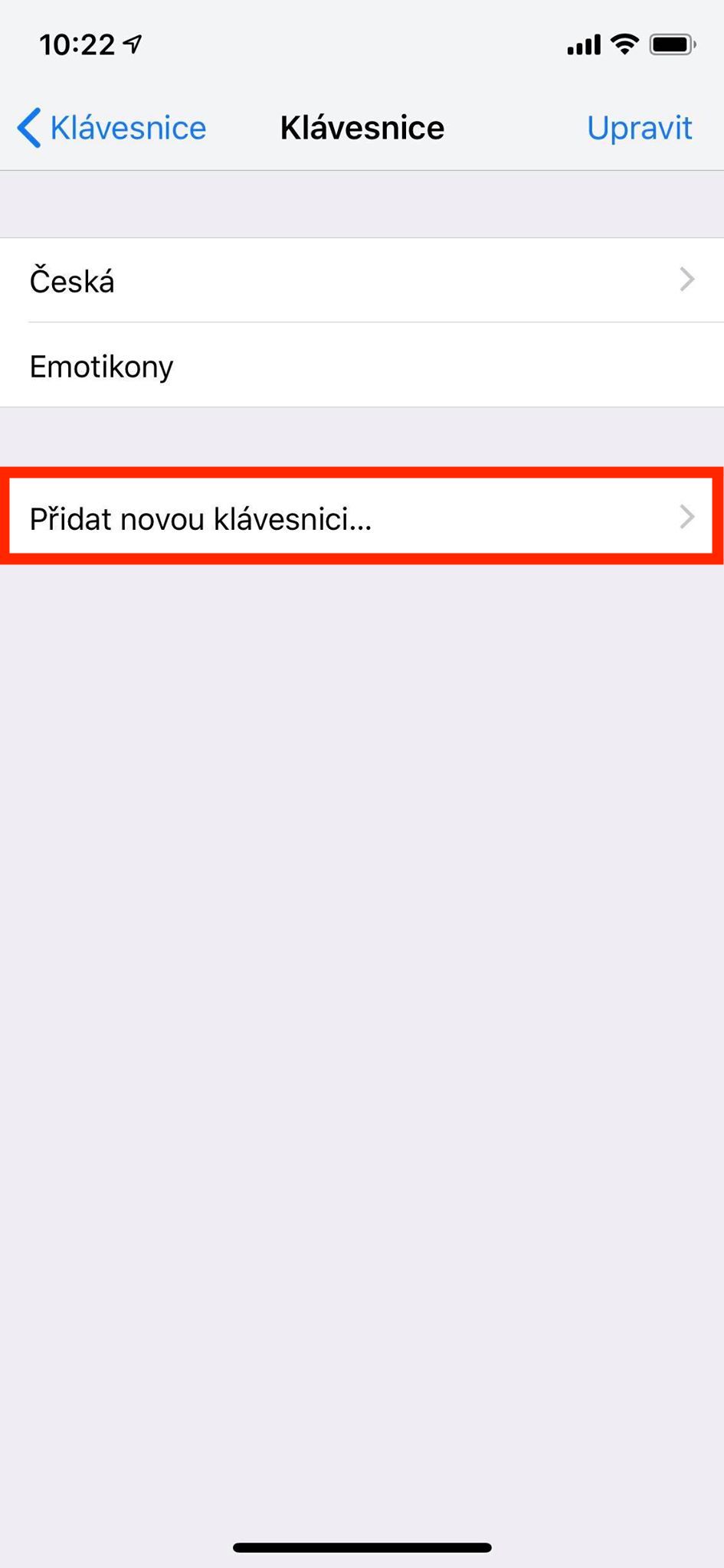
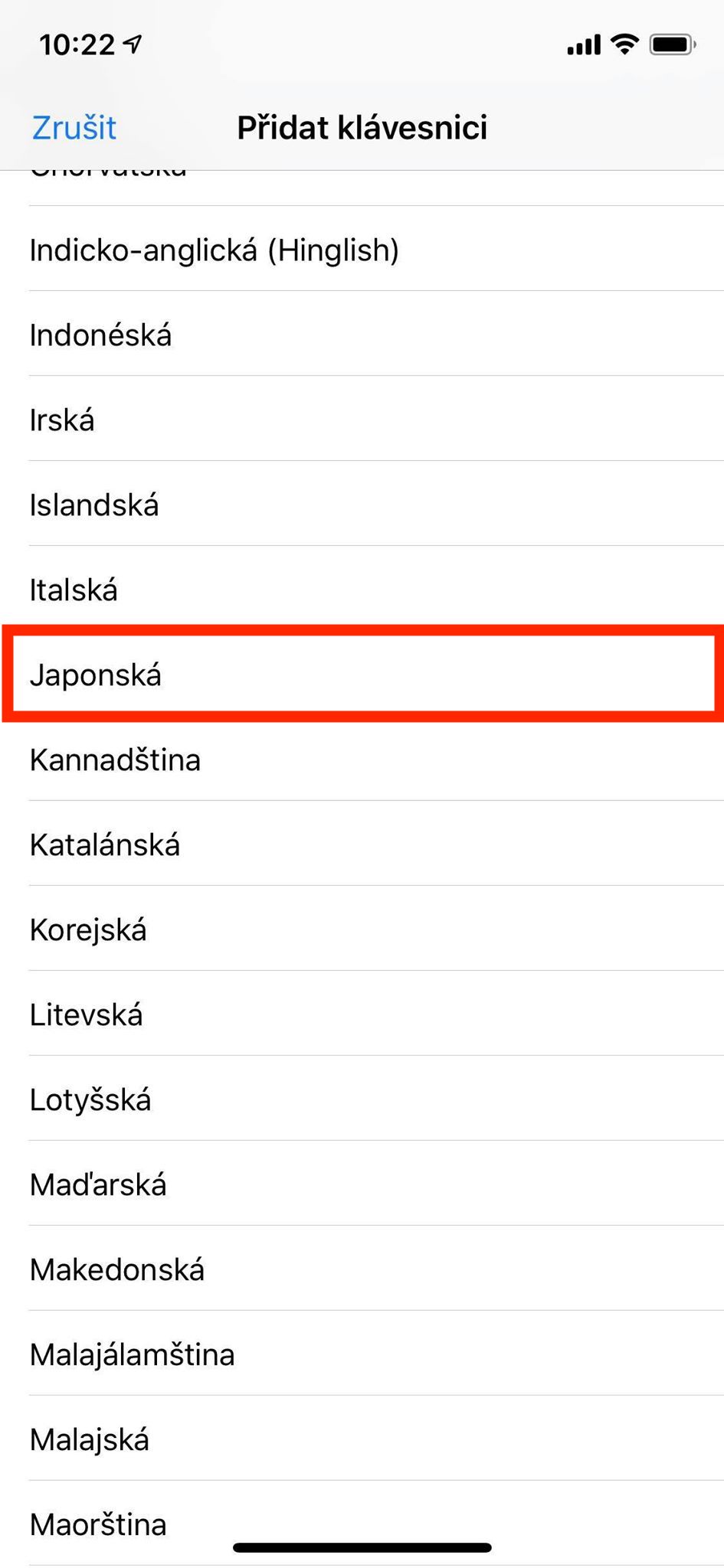
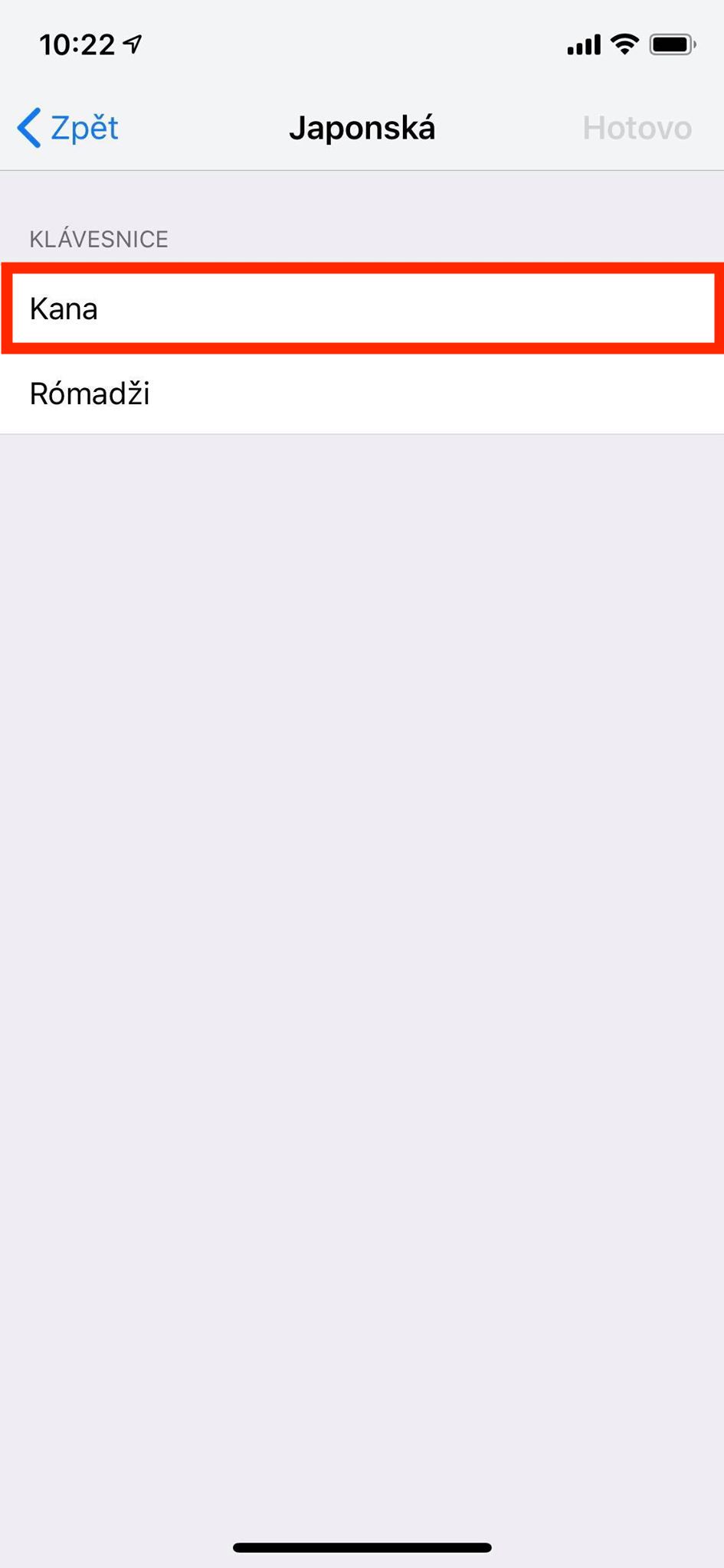
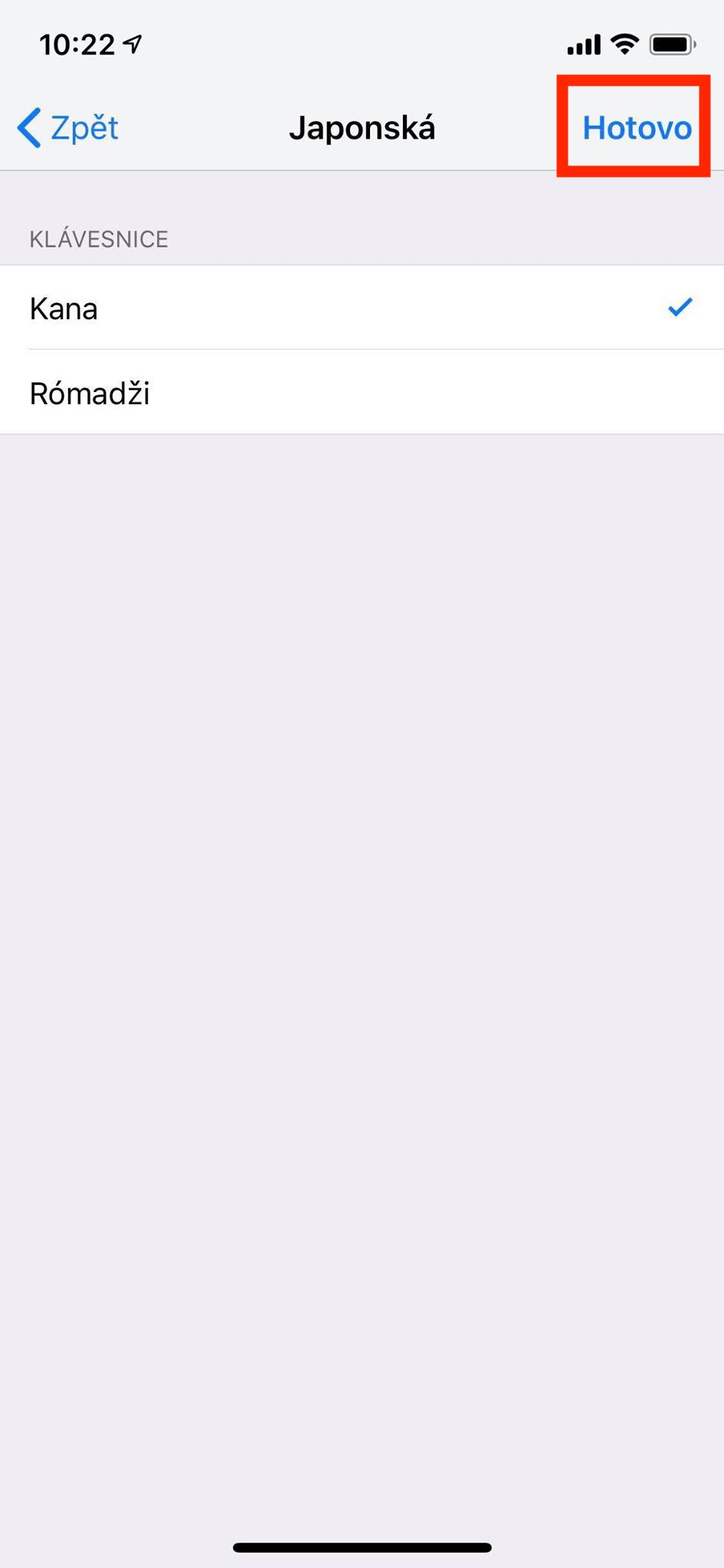
At yours iOS device, i.e. on an iPhone or iPad, go to the native application Settings. Here, then move to the bookmark In general, where you click the box Keyboard. Then choose the first option again Keyboard, and then click on Add new keyboard… Select an option from the list that appears Japanese and from the choice between Kana or Roma we will choose Kana and on the right side of the screen click on Done. The first step is complete, now let's see how the keyboard use.
Gallery
How to use hidden emoji
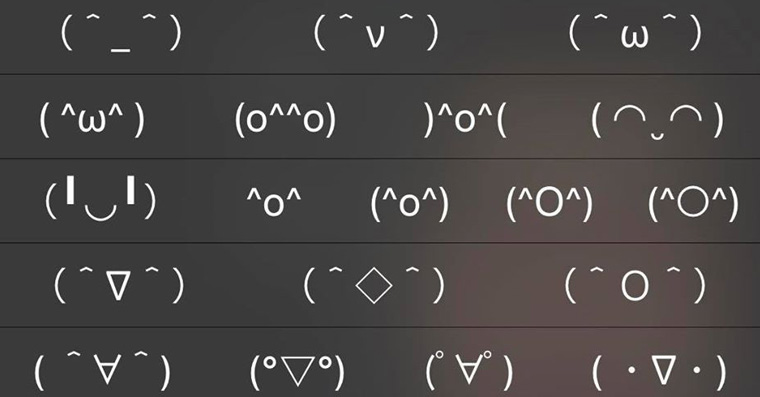
You can use the Japanese keyboard, which has hidden text emoji, anywhere you can type. So you can send emoji in any texting app – in Messengeru, WhatsAppu, Instagram and others. To activate the keyboard, click on the icon in the lower left part of the keyboard globe. Here you then choose Japanese keyboard (Japanese characters), and then click “^ _ ^". Then you will see a menu of some text emojis. If you want to see the entire collection of 500 emoji, then click on an arrow in the upper right corner of the keyboard.
Gallery
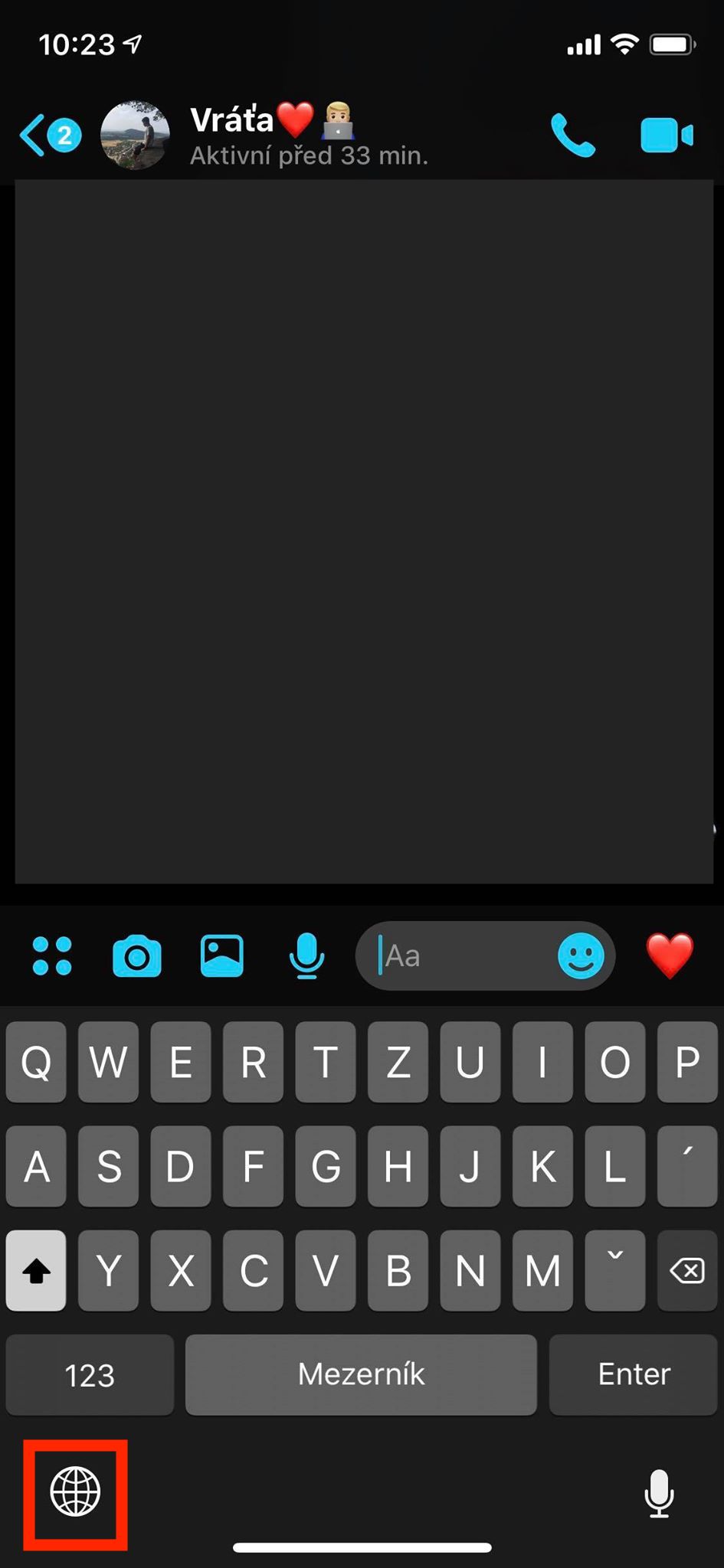
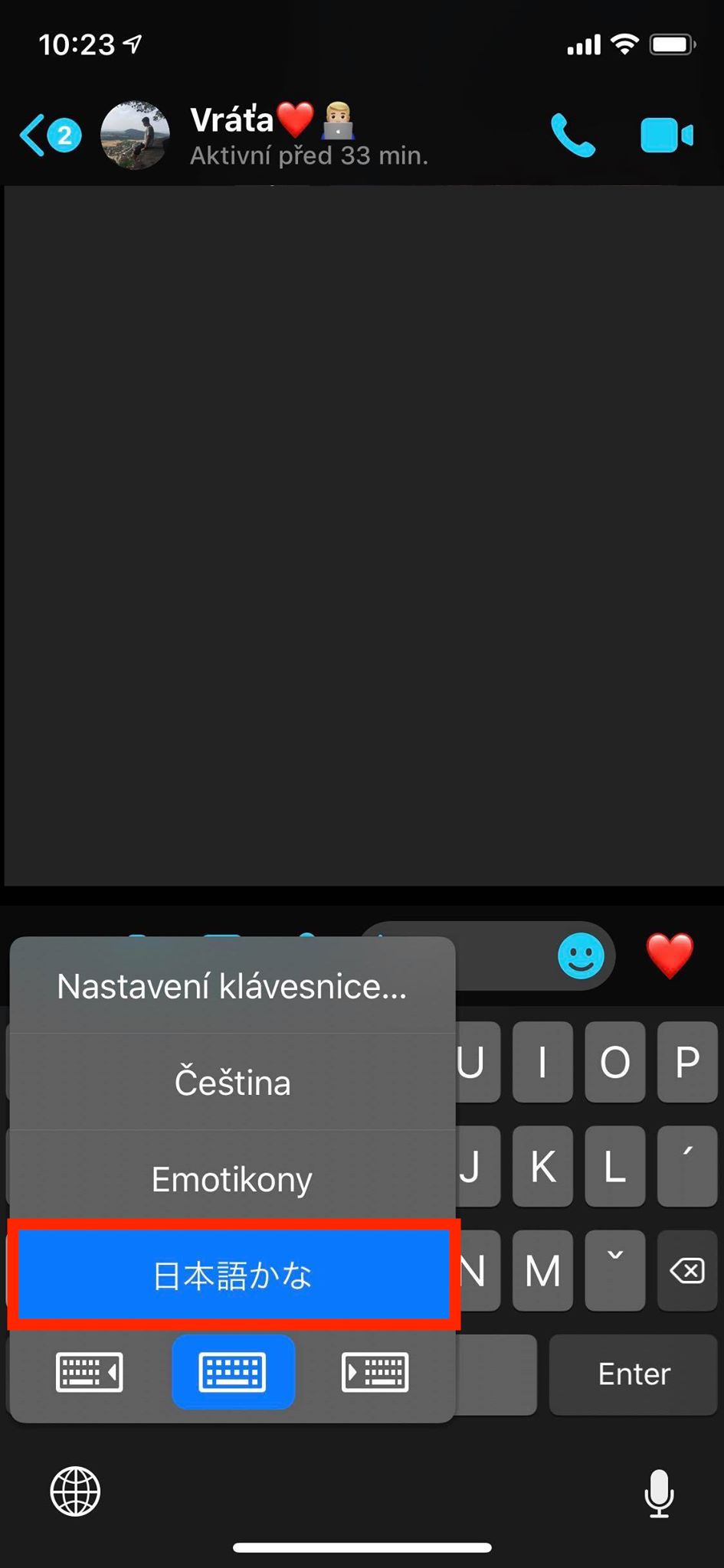
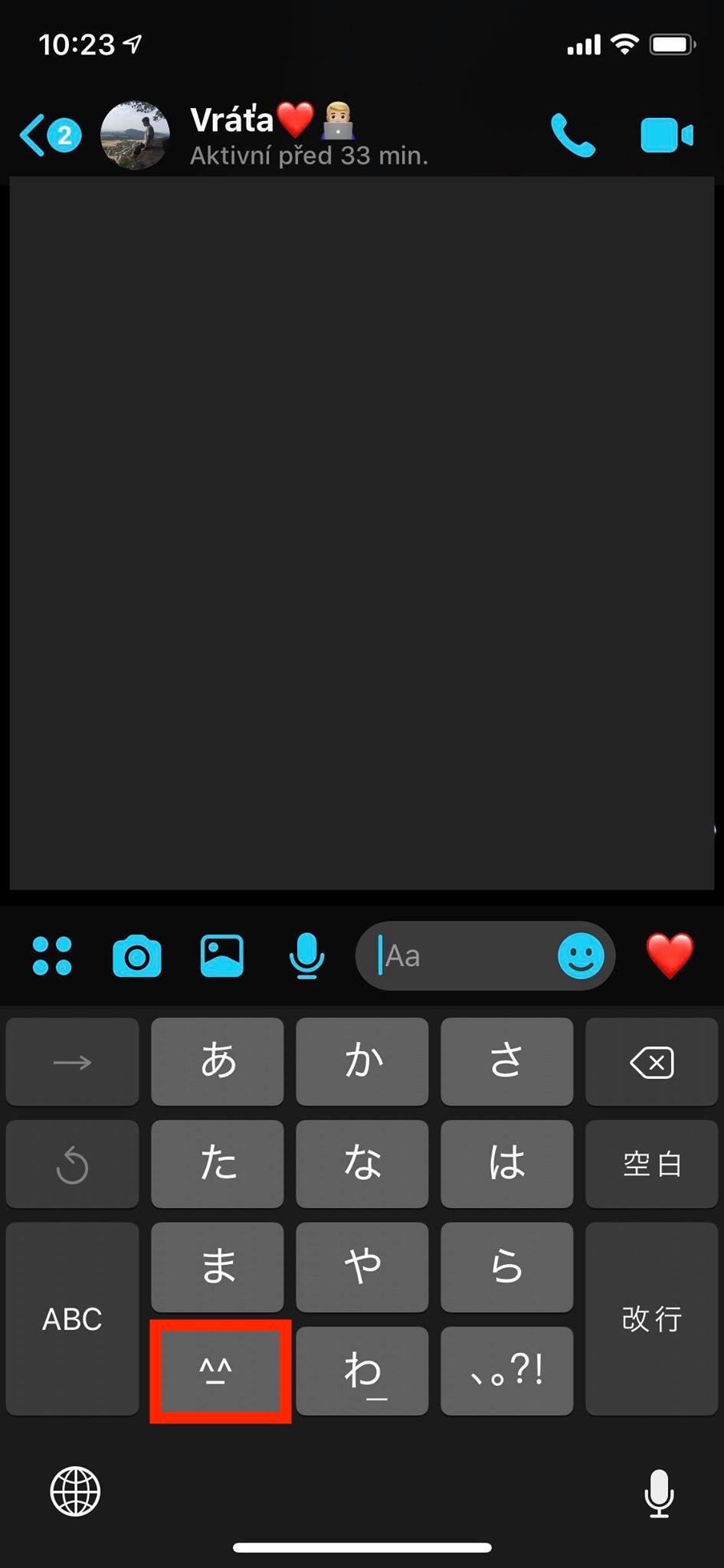
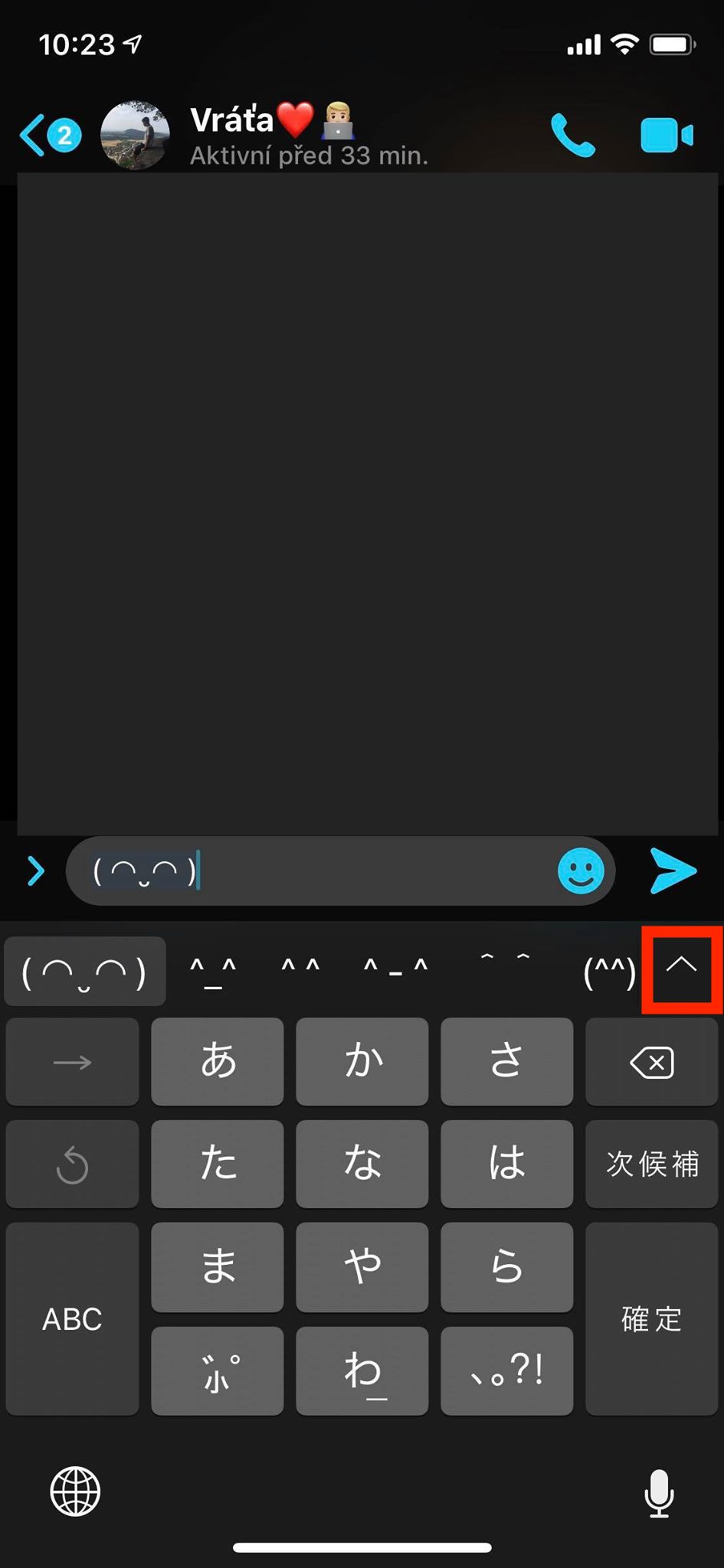
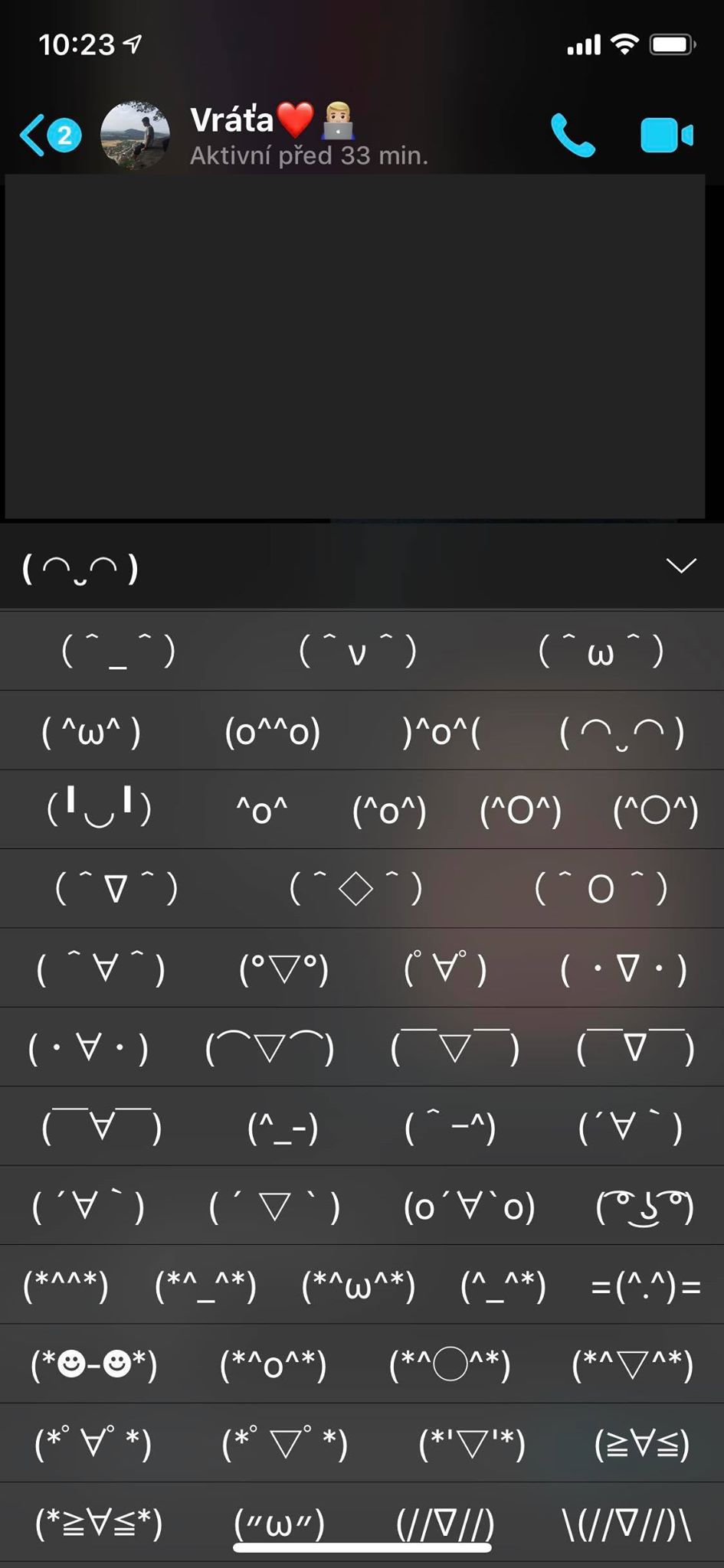
This is how you can easily start sending interesting emoticons to your friends. This is a great revival and alternative to the classic emoji. Definitely, at the very least, you can show off to your friends that you have something they don't know. Of course, you can refer your friends to this article to activate the emoticons as well. Finally, I will mention that the text emoji that you will use most often will start to appear in the top panel of the keyboard. If you want to switch back to the Czech keyboard from the Japanese keyboard, just press the globe icon again and select the Czech keyboard from the list.



It's called kaomoji 🤦♂️
ʕ•̫͡•ʕ•̫͡•ʔ•̫͡•ʔ•̫͡•ʕ•̫͡•ʔ•̫͡•ʕ•̫͡•ʕ•̫͡•ʔ•̫͡•ʔ•̫͡•ʕ•̫͡•ʔ•̫͡•ʔ
It also translated the Swarm app for me(°_°)😃
Well, good, I just added Japanese to my preferred languages in the iPhone settings, so I have spilled tea instead of English in a couple of applications..
If anyone knows what to do with it..
As you removed the keyboard, you must also remove the Japanese language. I don't know why it also added the Japanese language