How to filter messages from unknown senders in Messages on iPhone? Did you know that iOS does it have a feature that lets you filter the Messages app by known and unknown senders? A surprisingly large number of people don't know about this little feature, but it's a highly useful improvement.
You might be interested in
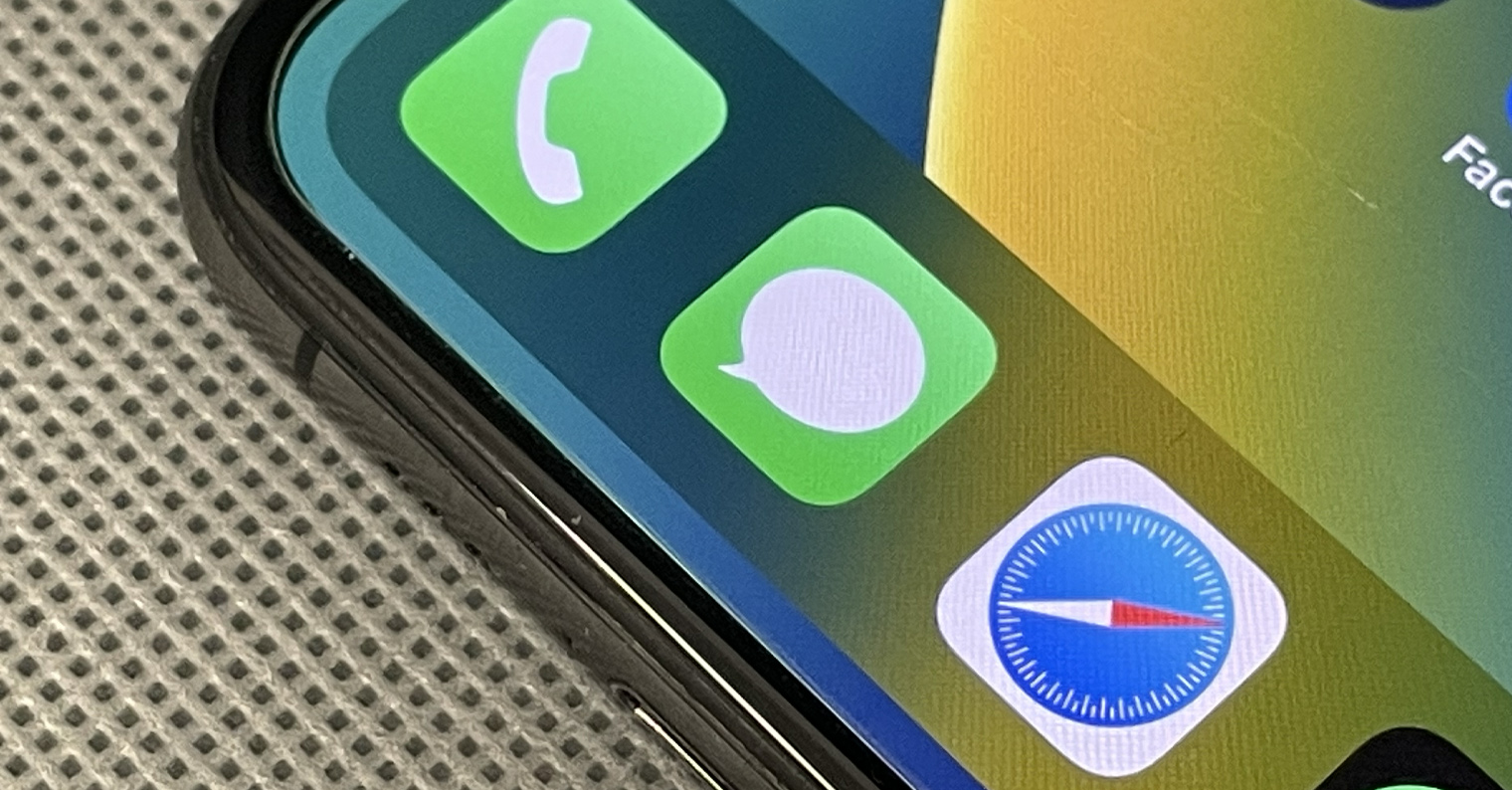
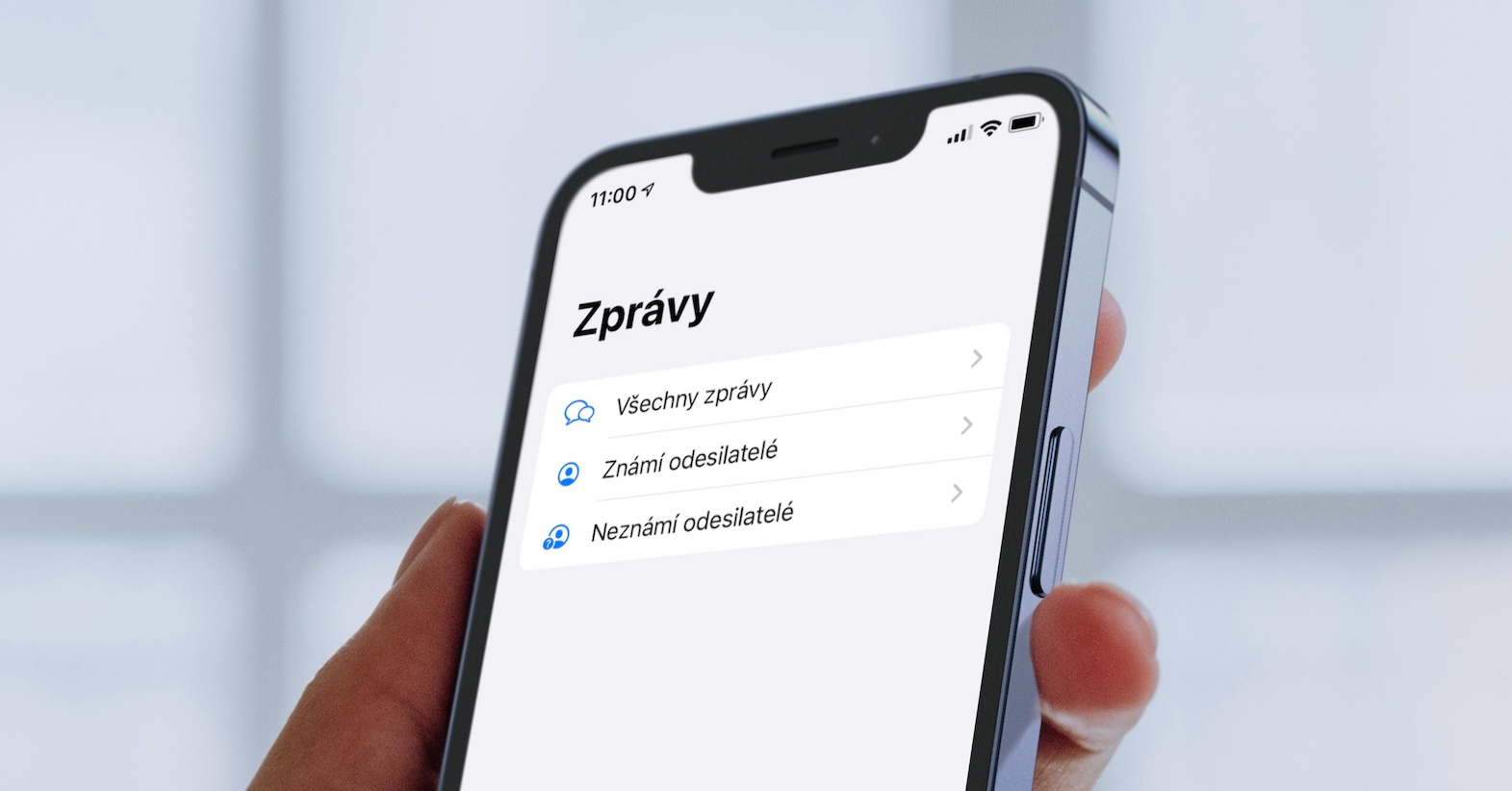
In this day and age, when we are bombarded with all sorts of marketing and spam messages, it is very important to have the ability to defend ourselves against them in some way. Fortunately, iPhone users have a tool at their disposal that can help them with this problem significantly. This is a message filtering feature that can separate messages from unknown senders and hide them in a separate folder. Thanks to this, you can focus only on communicating with people you know and not be bothered by unwanted messages.
How to filter messages from unknown senders on iPhone
Pro To activate filtering of messages from unknown senders, follow these steps:
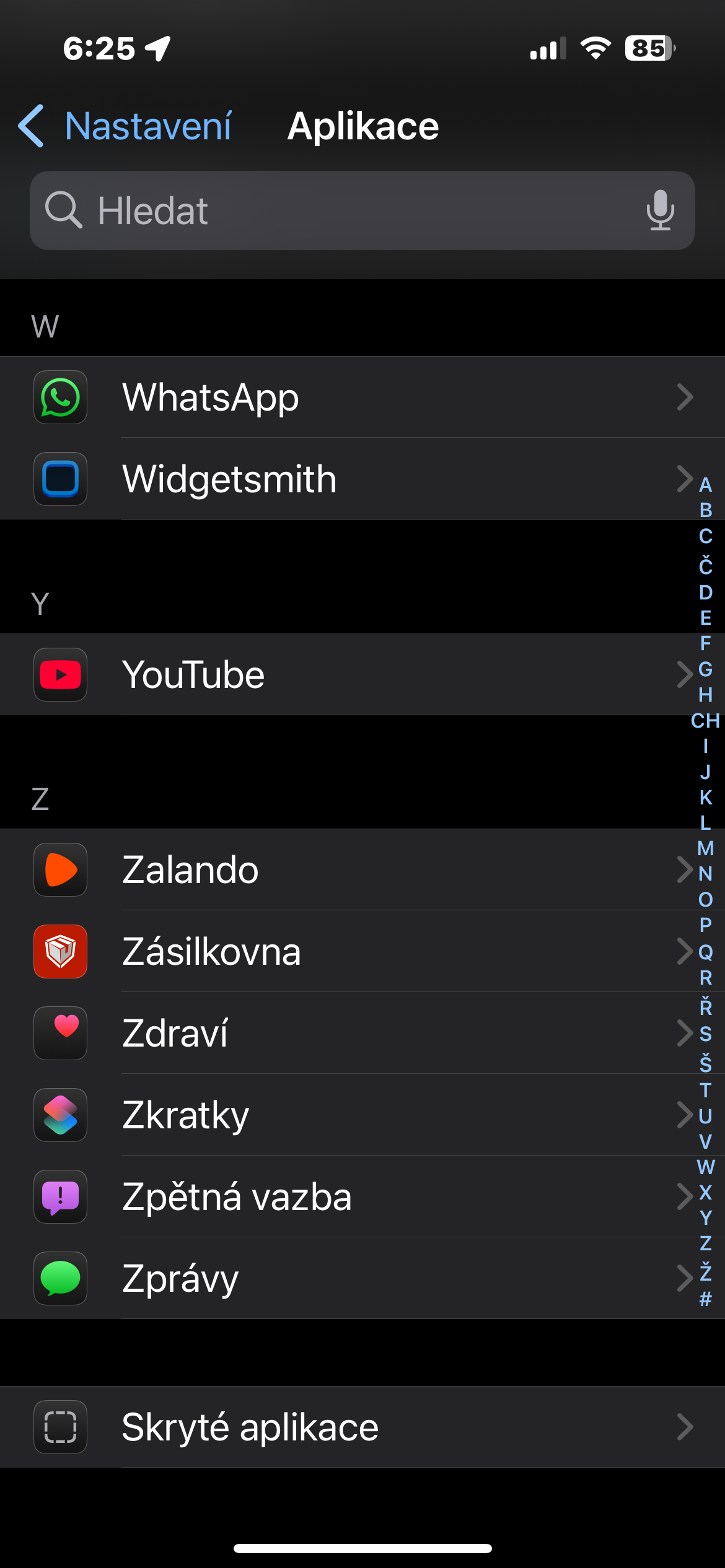
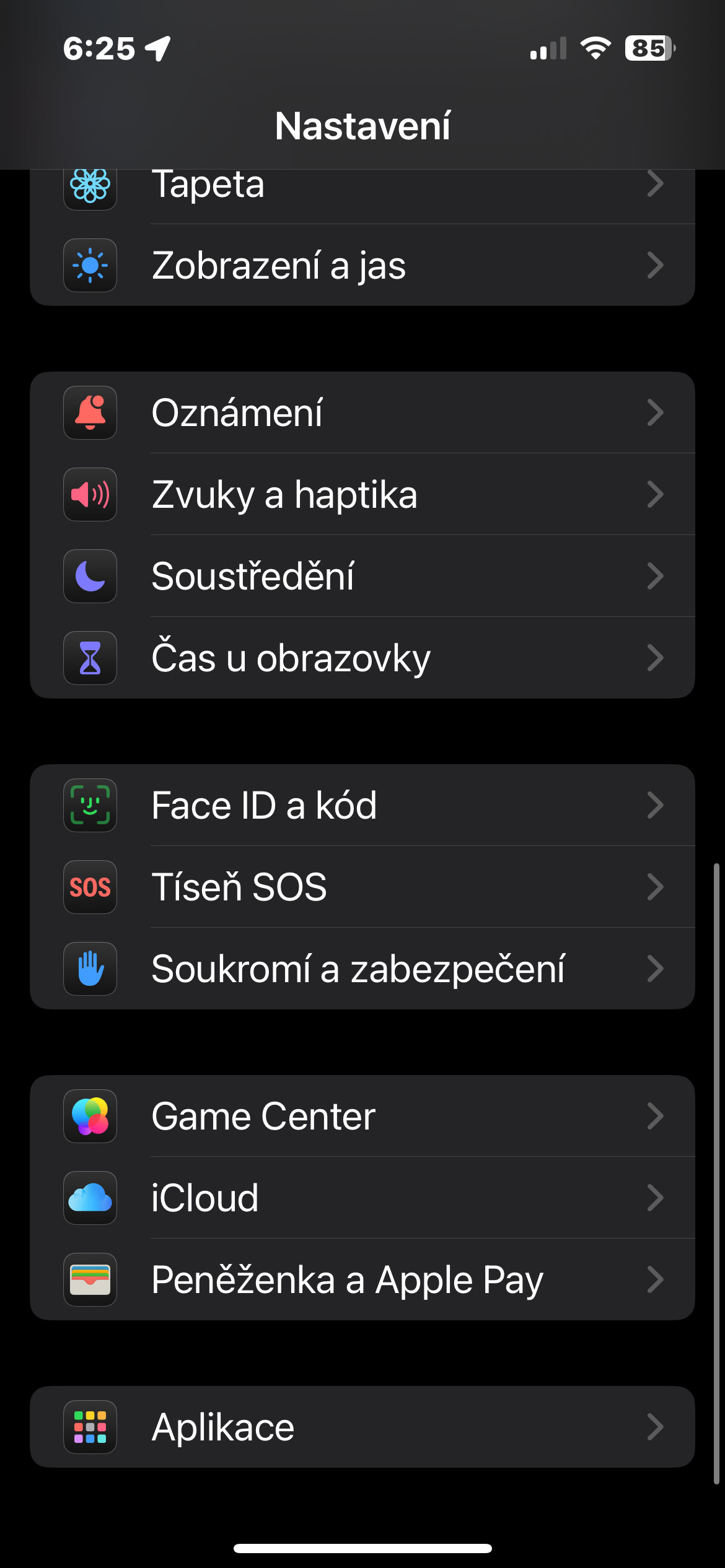
- Open Settings -> Apps.
- Go to the Messages section.
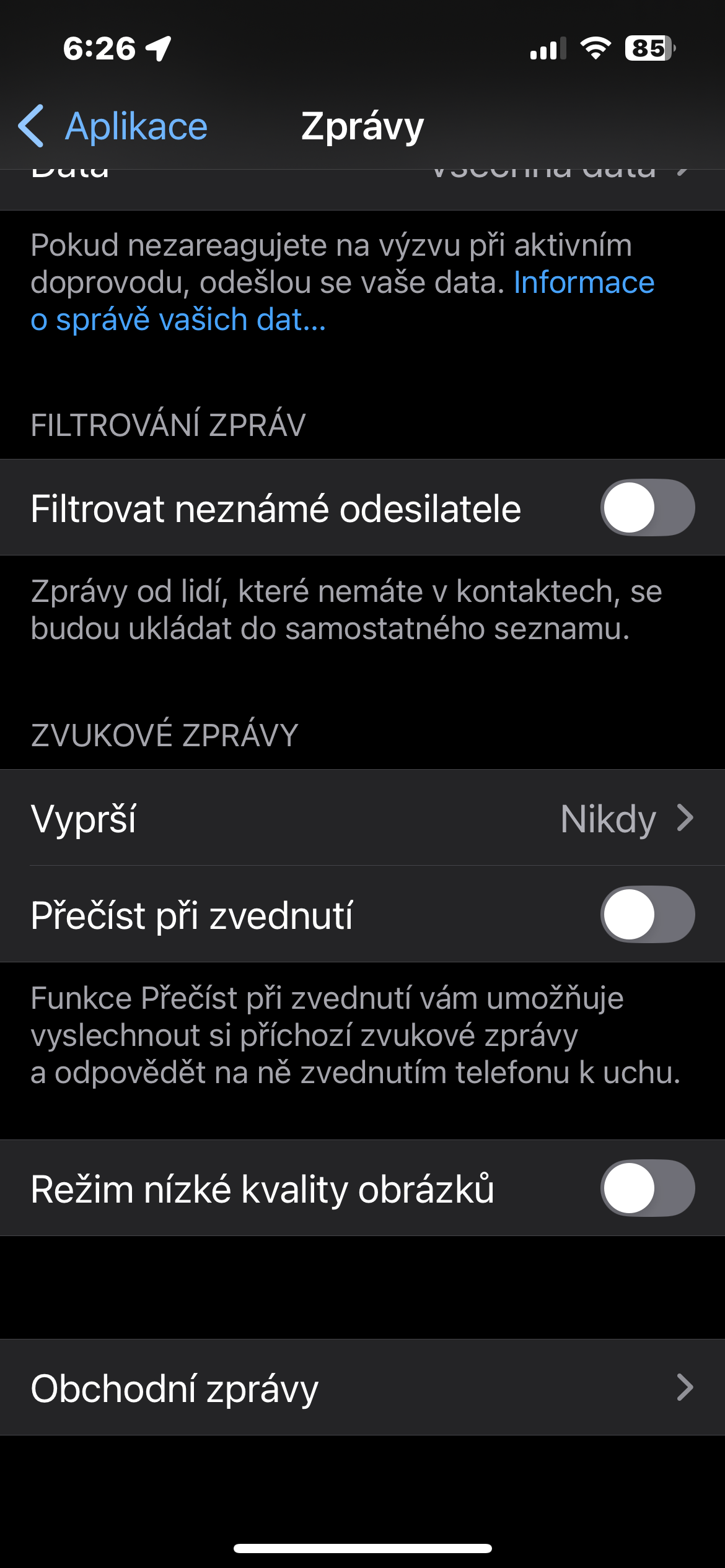
- Here you will see the Message Filtering section.
- In this section, activate the Filter unknown senders item.
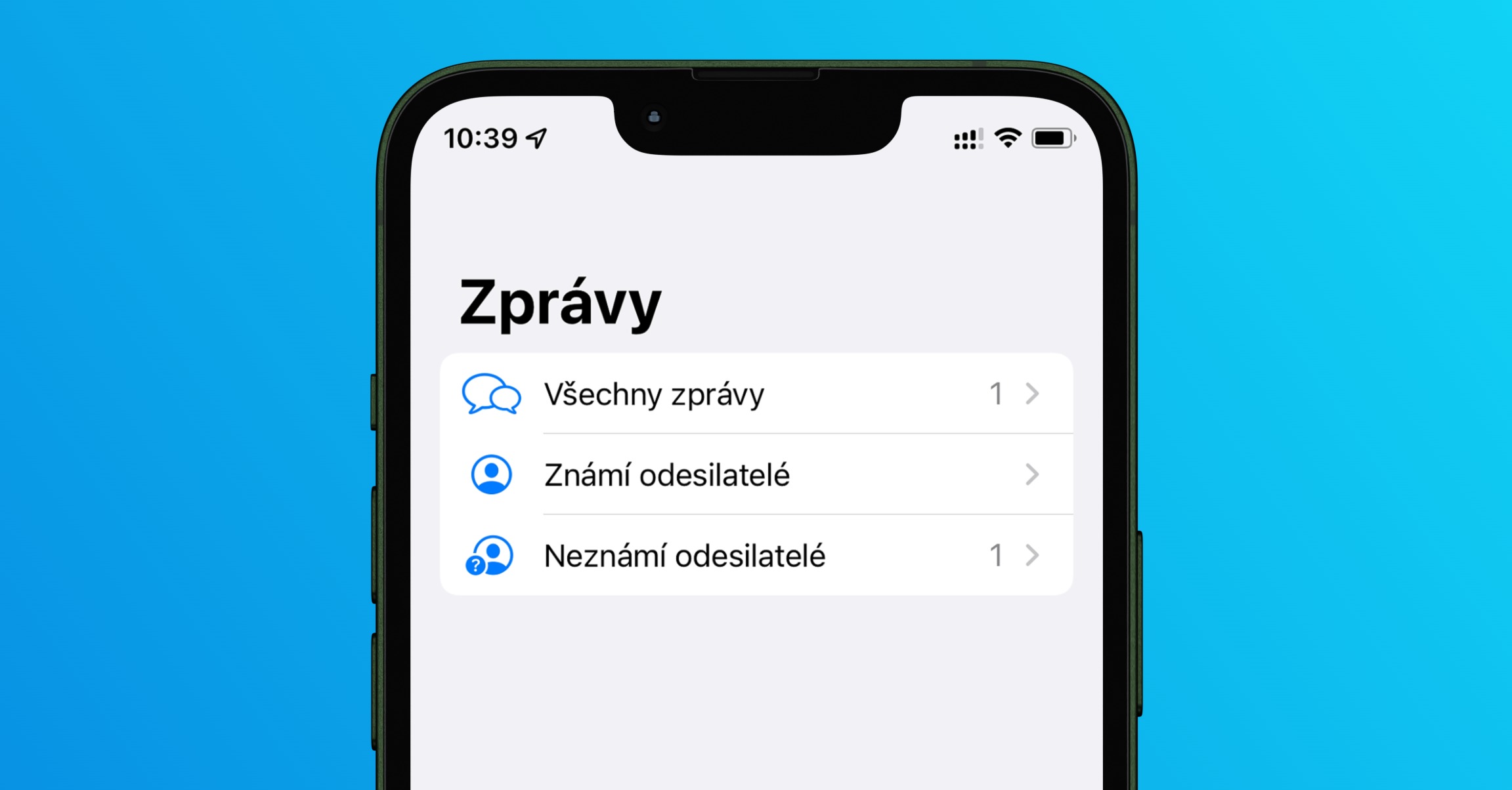
Once you enable this feature, all messages from unknown senders will be moved to a separate folder called “Unknown Senders.” Messages from people you have in your contacts will still appear in the main folder. This way, you’ll always know who’s writing to you and won’t have to waste time deleting unwanted messages.
Gallery
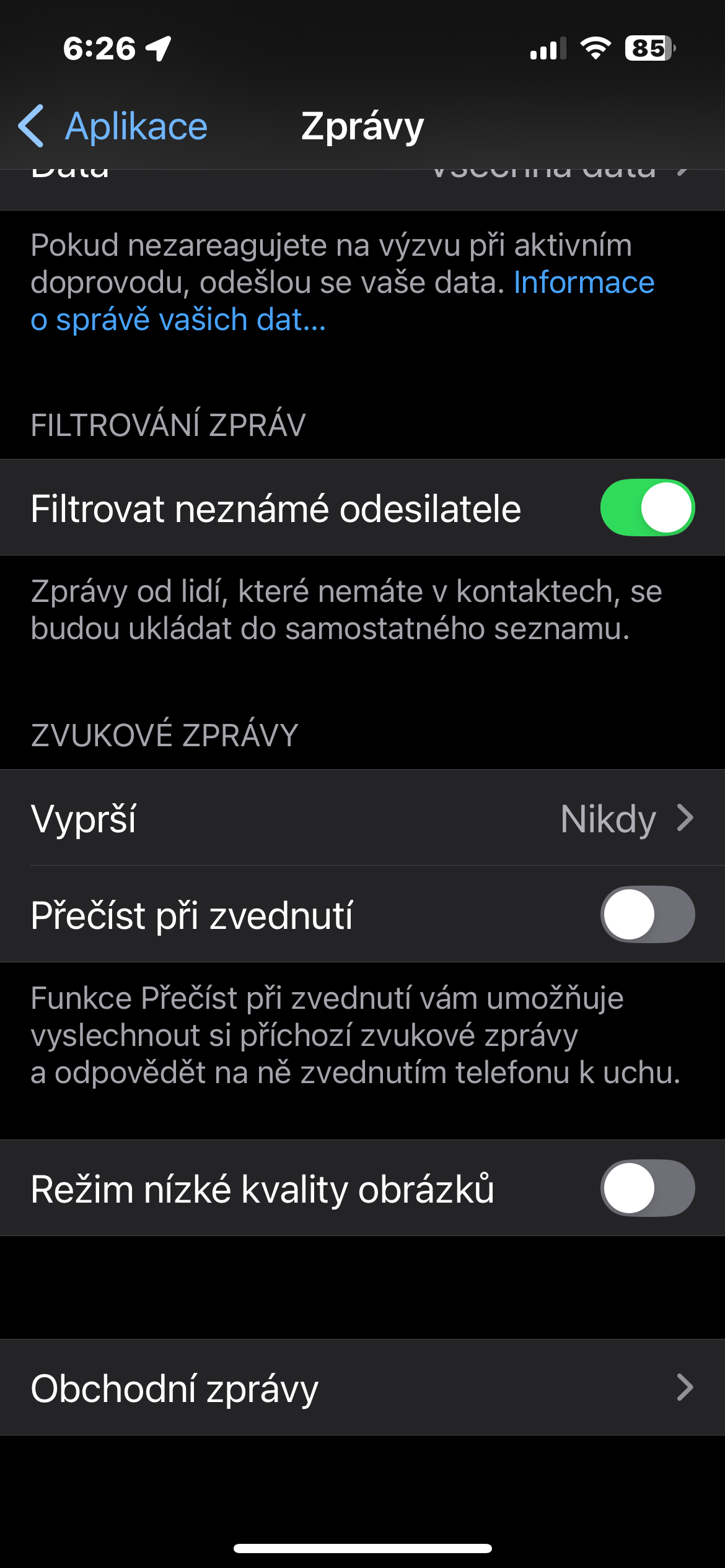
Filtering messages from unknown senders is a very useful feature that will help you keep your messages organized and save you time. It is very easy to activate and takes only a few seconds. If you are bothered by a large number of spam messages, you should definitely try this feature.