
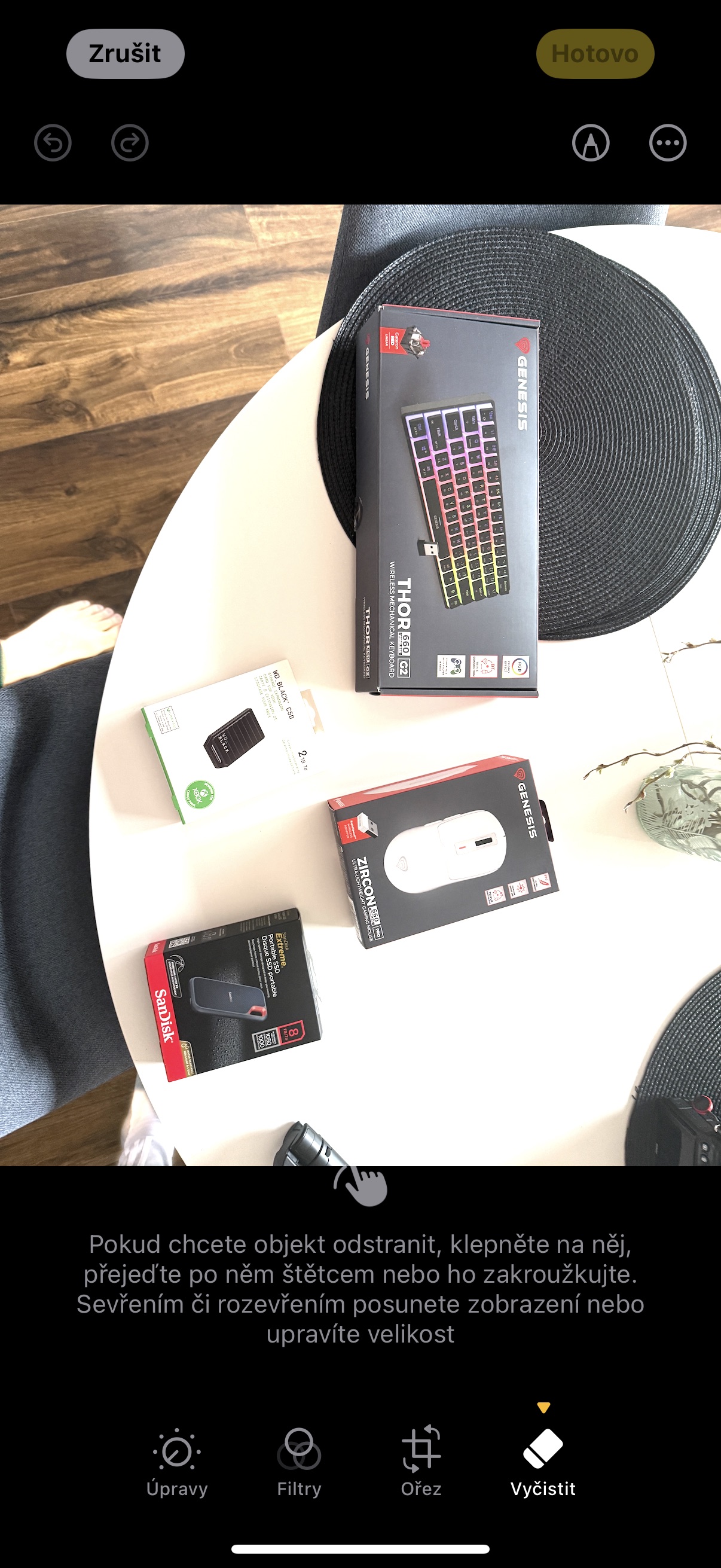
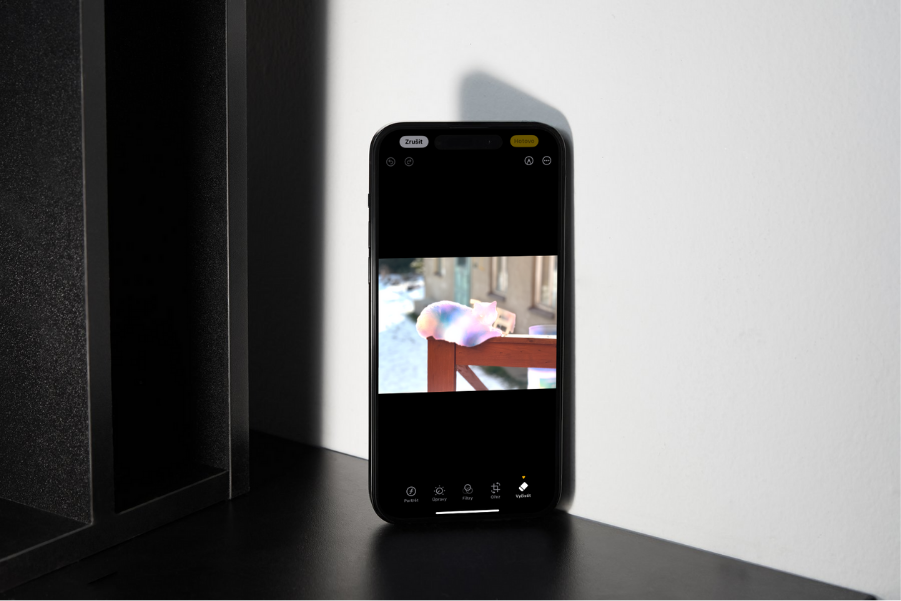
With the release iOS 18.4 has arrived on compatible iPhones in the European Union (i.e. iPhone 15 Pro and newer) tooneyes Apple Intelligence, albeit on a very small scale. If your phone is set to Czech or Slovak by default, you will actually only have access to one AI function, which Apple introduced last year – specifically Clean Up, which can remove unwanted objects from photos and draw a background in their place. The fact is that sometimes the AI fails and the result of this adjustment is too much nestOh, but sometimes it can work miracles and the edited images are indistinguishable from reality. How do you do that?
How to remove unwanted objects from a photo on iPhone using AI Clean Up
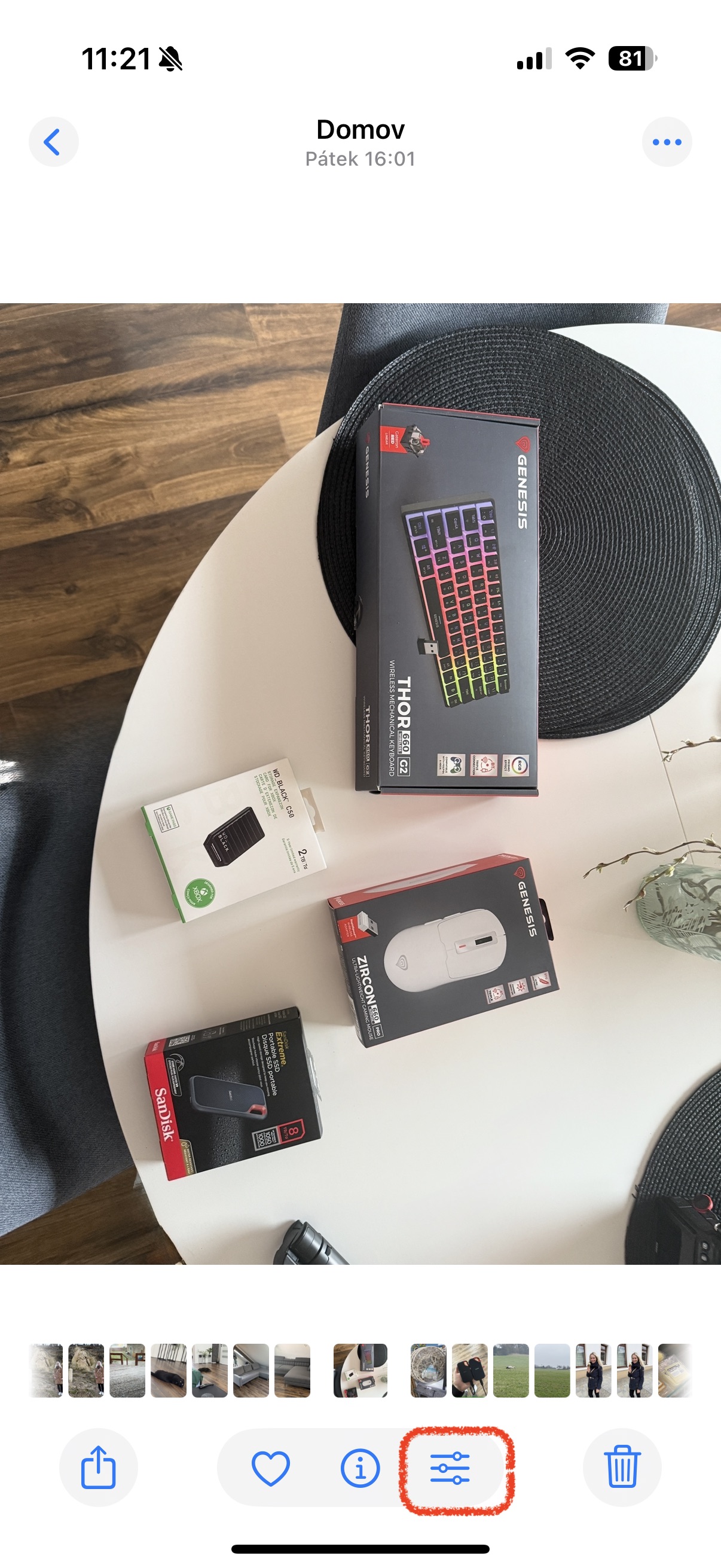
- Open Photos and select the image you want to remove the unwanted object from.
- Launch the native editor in the bottom bar (three sliders on horizontal lines)
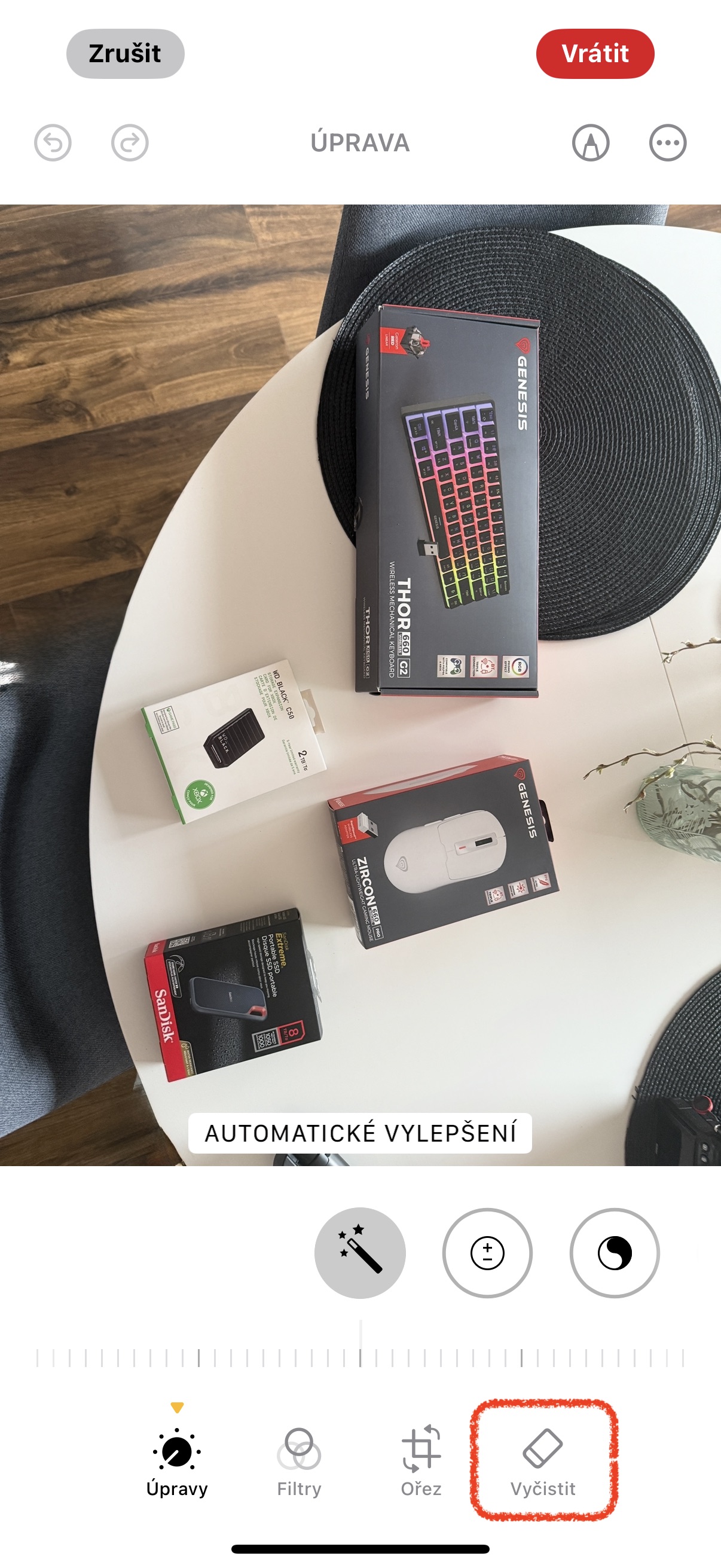
- Select Clean from the menu (first icon from the right)
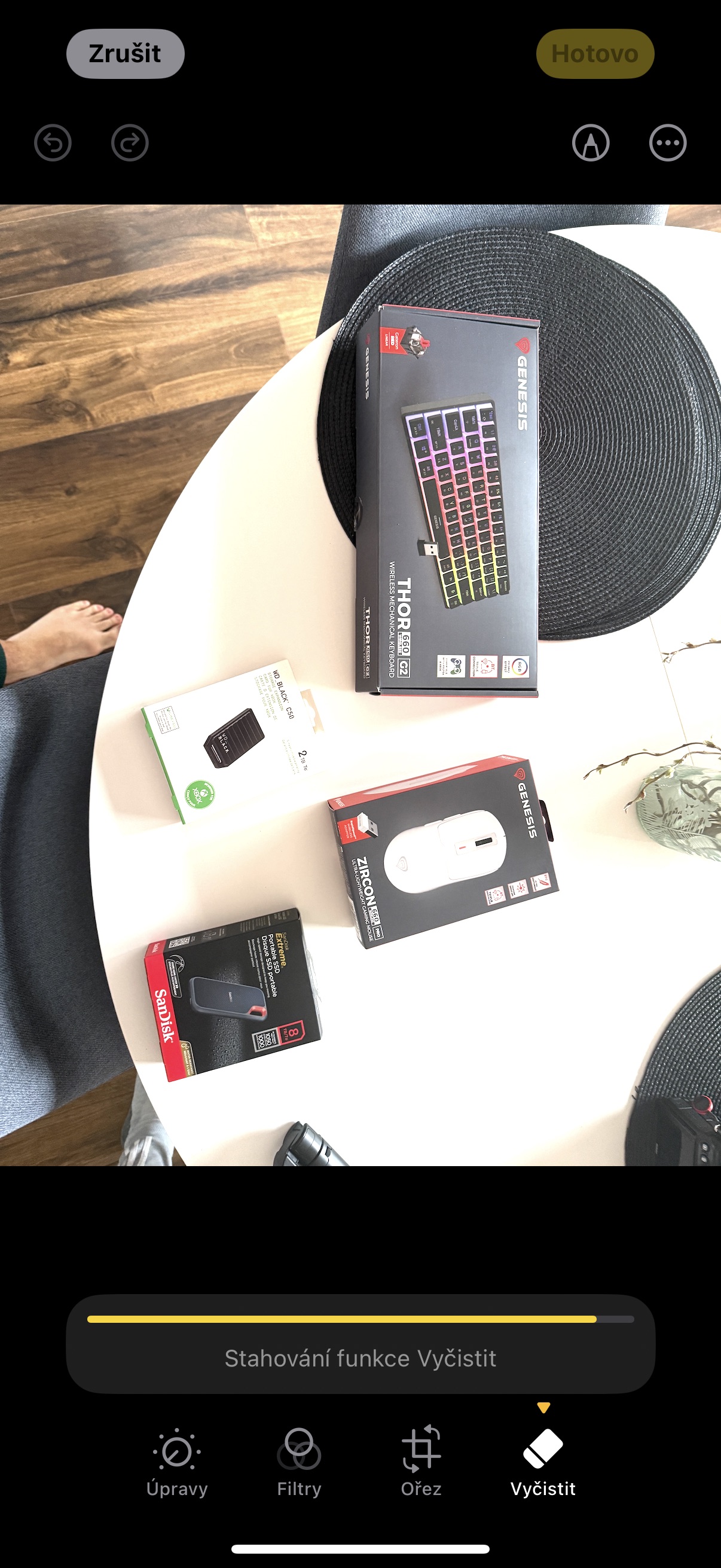
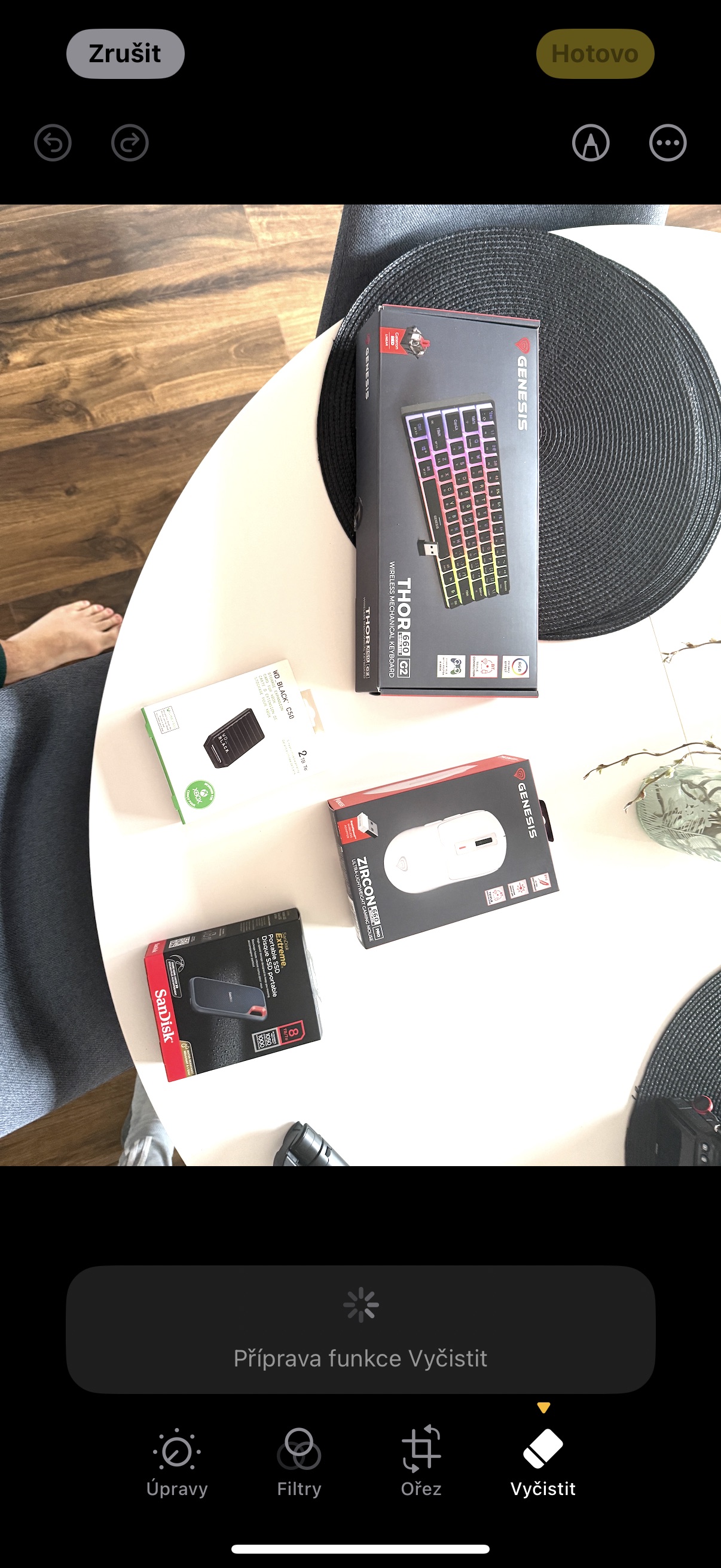
- Wait for the feature to download to your iPhone
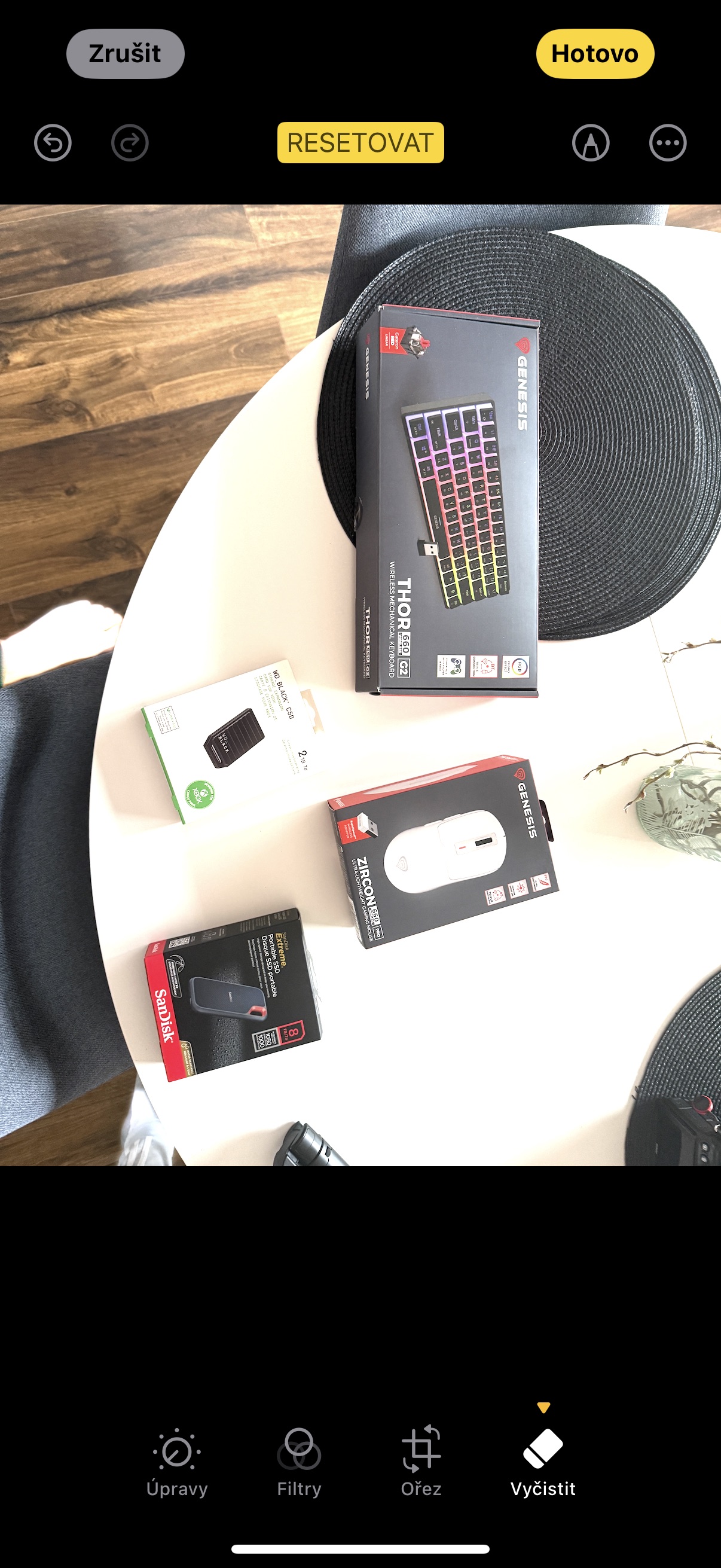
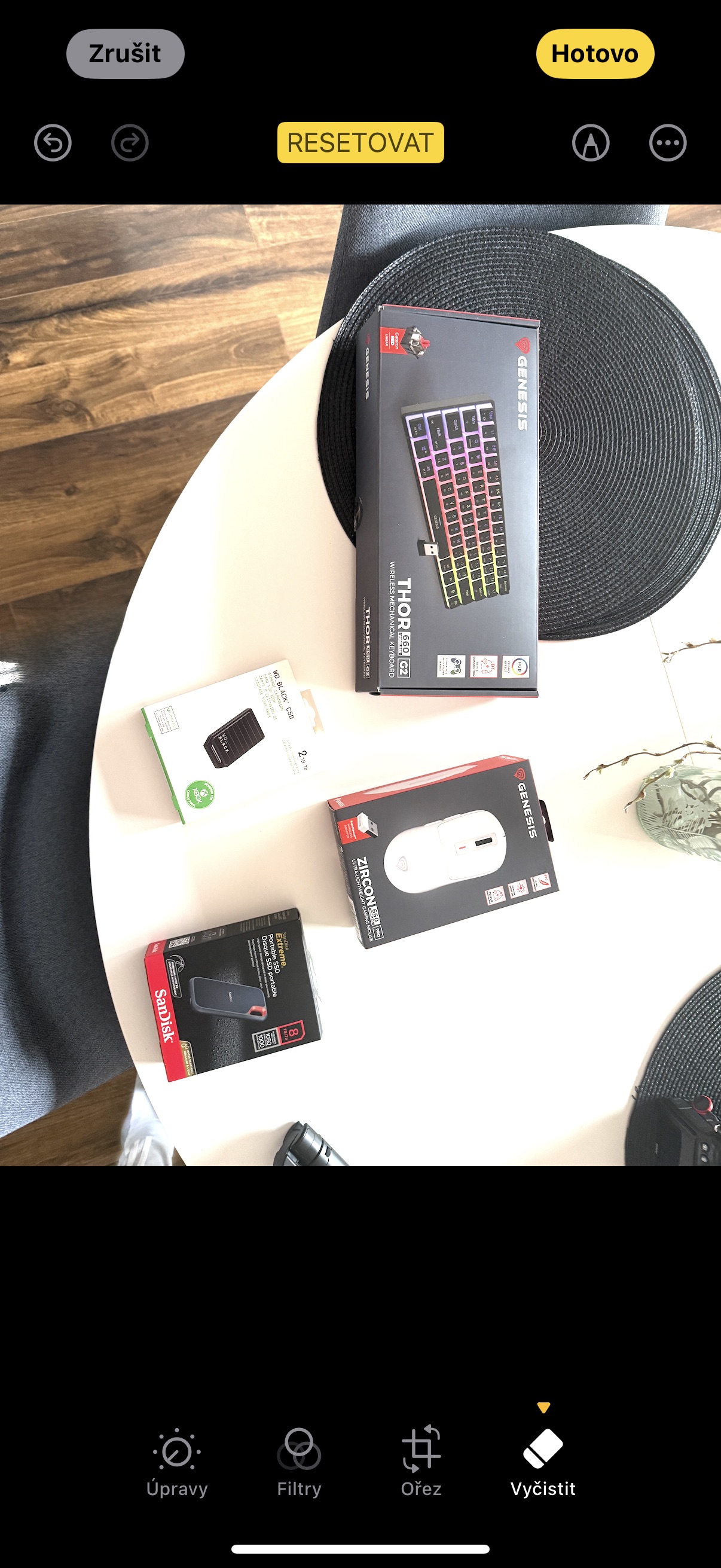
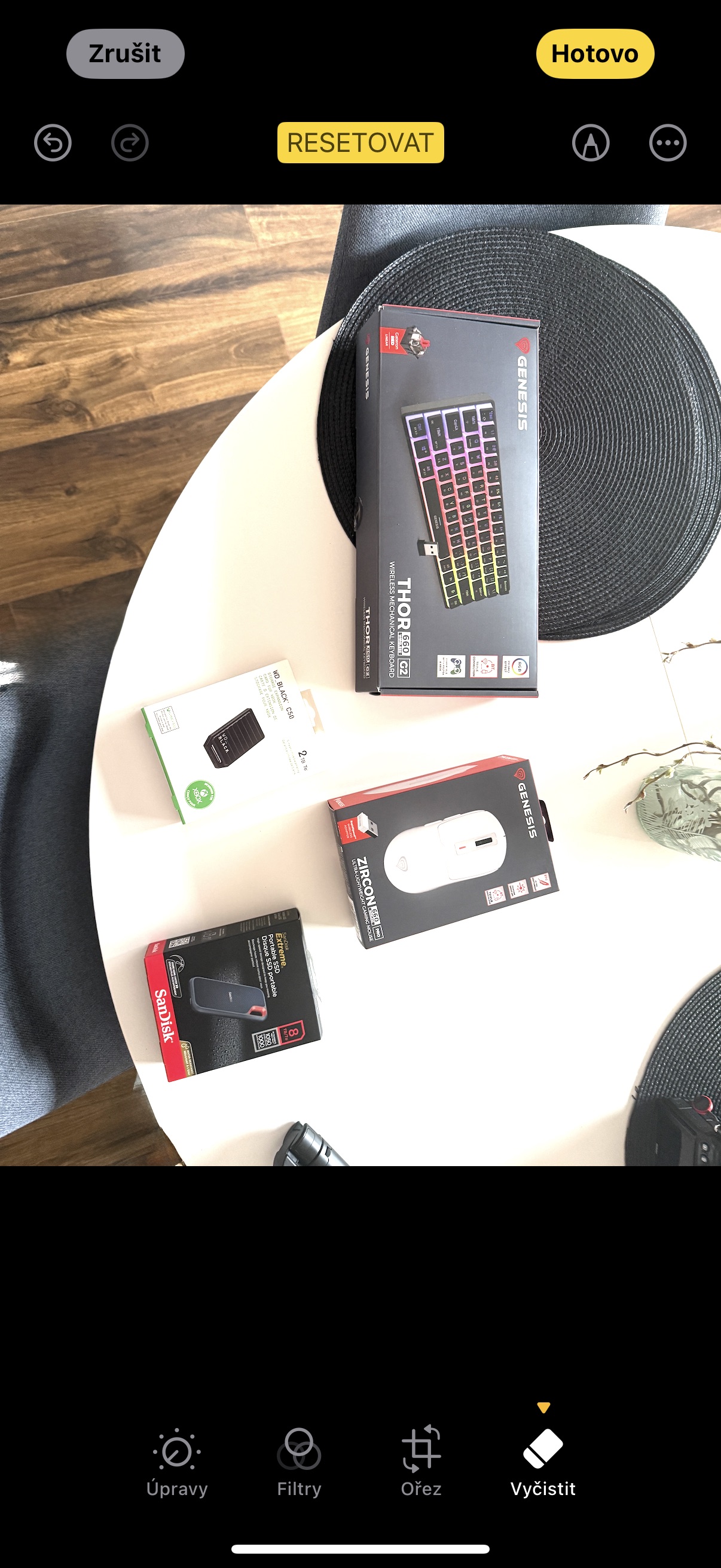
- Once downloaded, you can drag your finger to highlight the objects you want to remove from the image, or you can tap on the automatically highlighted (rainbow-lit) objects with your finger.
- Wait until the object is removed and if you are not satisfied, undo the action and try removing it again.
Gallery
You might be interested in

In the Slovak version, the function was called "Disappear".
Just a moment ago, an article about Xiaomi's AI popped up on my mind. This is probably not even a shame :-(
IP 14 Pro, yesterday update and I don't have it there .. any help ?
Od 15
Sorry but also from Applu is a parody of artificial intelligence – it reminds me of when painting was used. I don't understand how you can do that Appto forgive constantly
Countless funny videos have already been created on the topic of the tragic results of deleting objects from photos. A sad sight.
I swear very often here. apple AI so I have to admit that this works. although late! but it's here. I tried it, in one minute I perfectly removed the label from the t-shirt, the t-shirt remained black as I wanted. I still have to play with the team more, but it's ok for me, the first step. just let them continue!
In that parody? No one can take that seriously..