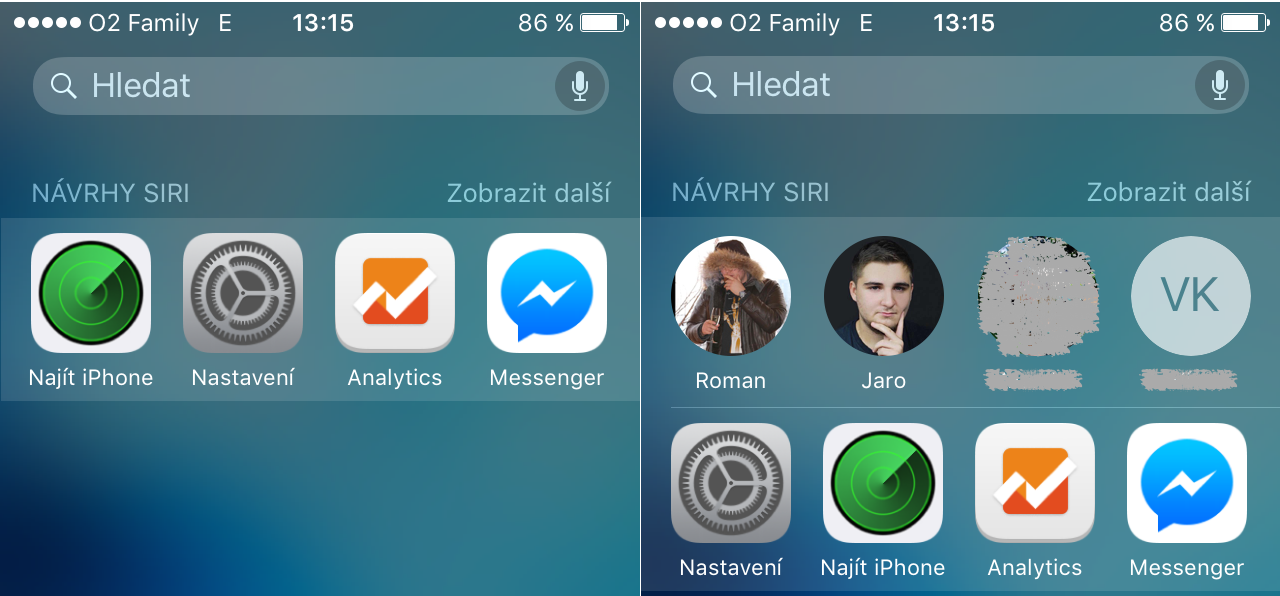
Spotlight isn't just an ordinary iPhone search. It can do so much more for you. Company Apple is constantly trying to improve its Spotlight and add new features. Let's take a look at the Spotlight features that are guaranteed to make your life with your smartphone easier.onem.
Quick actions for apps
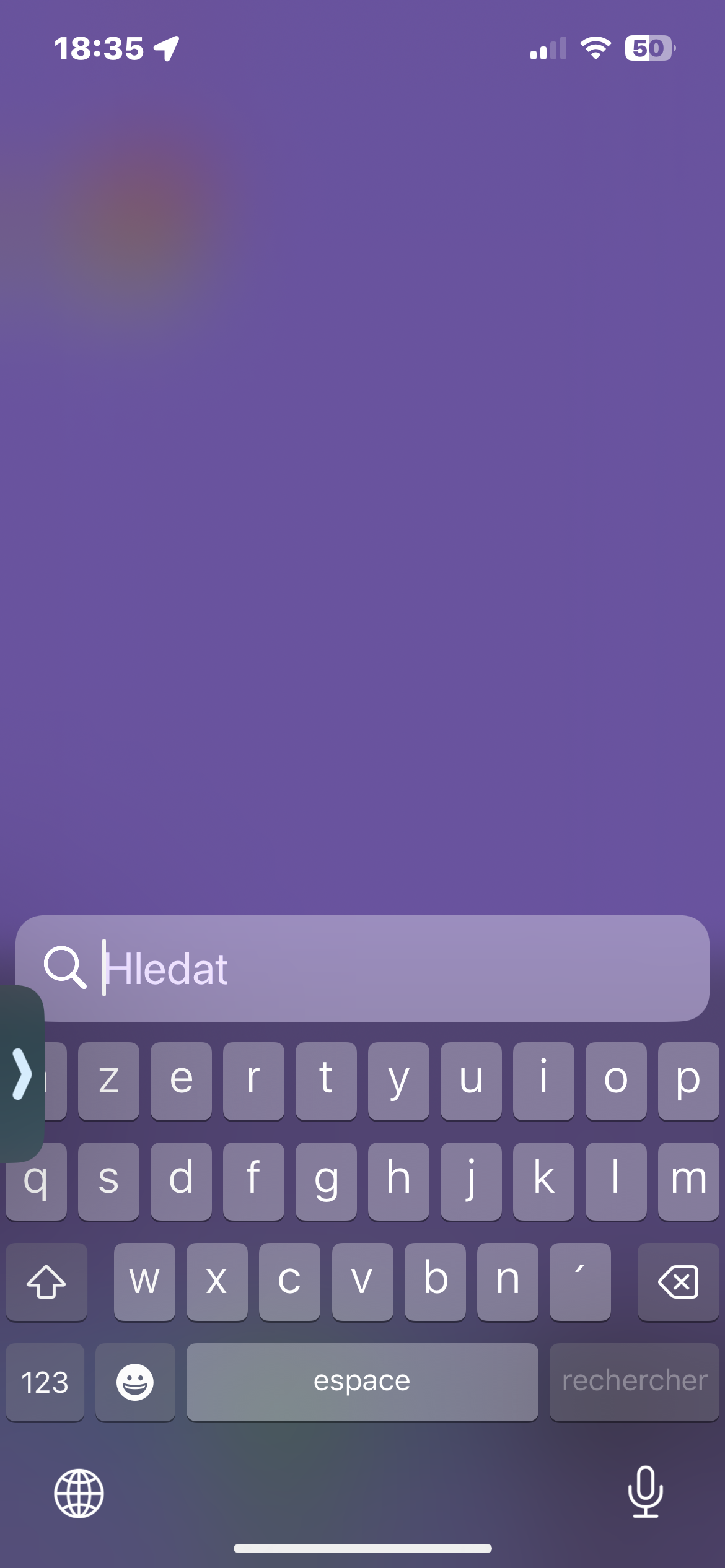
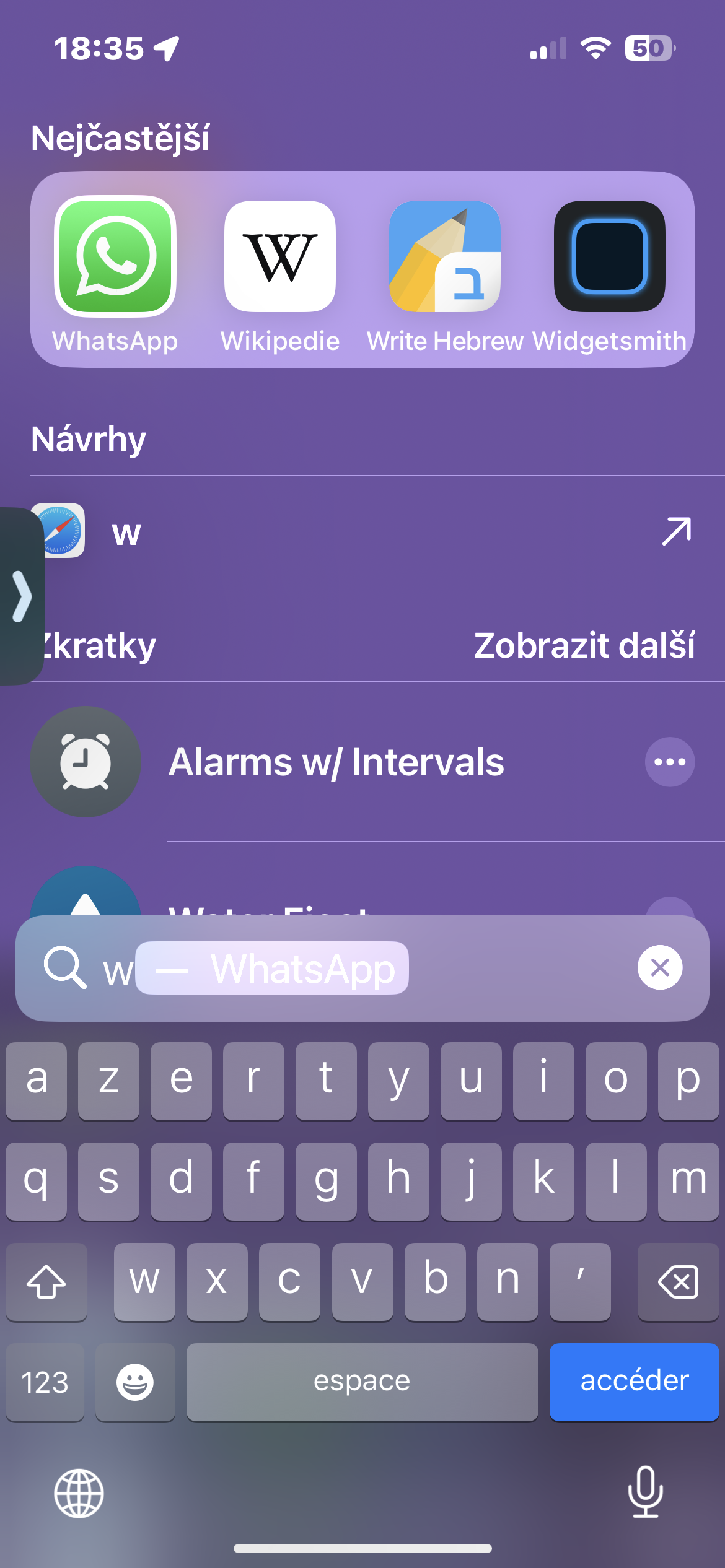
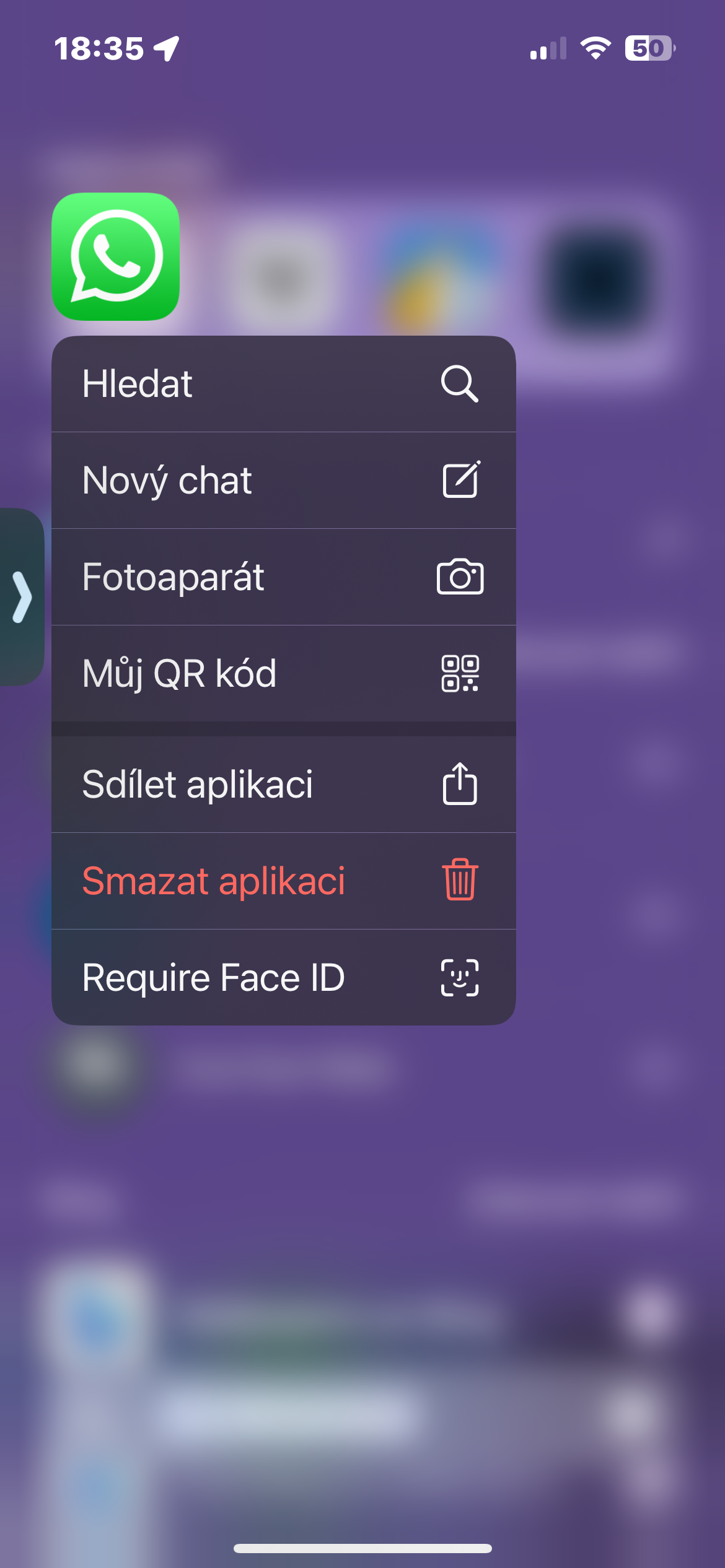
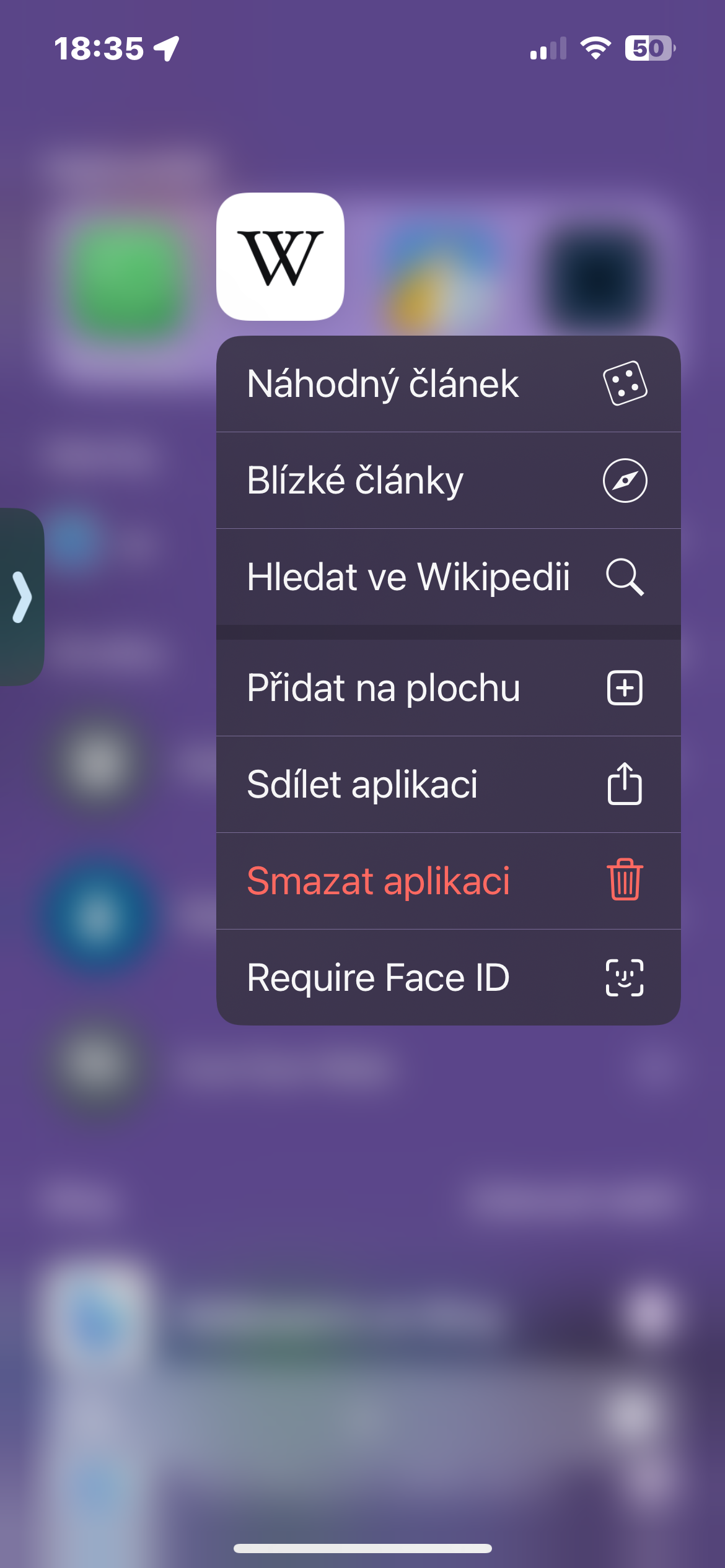
Can't find an app on your desktop and don't want to go through the hassle of searching for it in your app library? Just open Spotlight and search for it by name. You can launch the app with just a tap. But did you know that you can also perform quick actions here, just like on the desktop and in the app library? Hold your finger on an app's icon in Spotlight and a menu of quick actions will appear. For basic apps, you can share or uninstall the app, but some apps offer more advanced options.
Gallery
Activate your Focus profiles
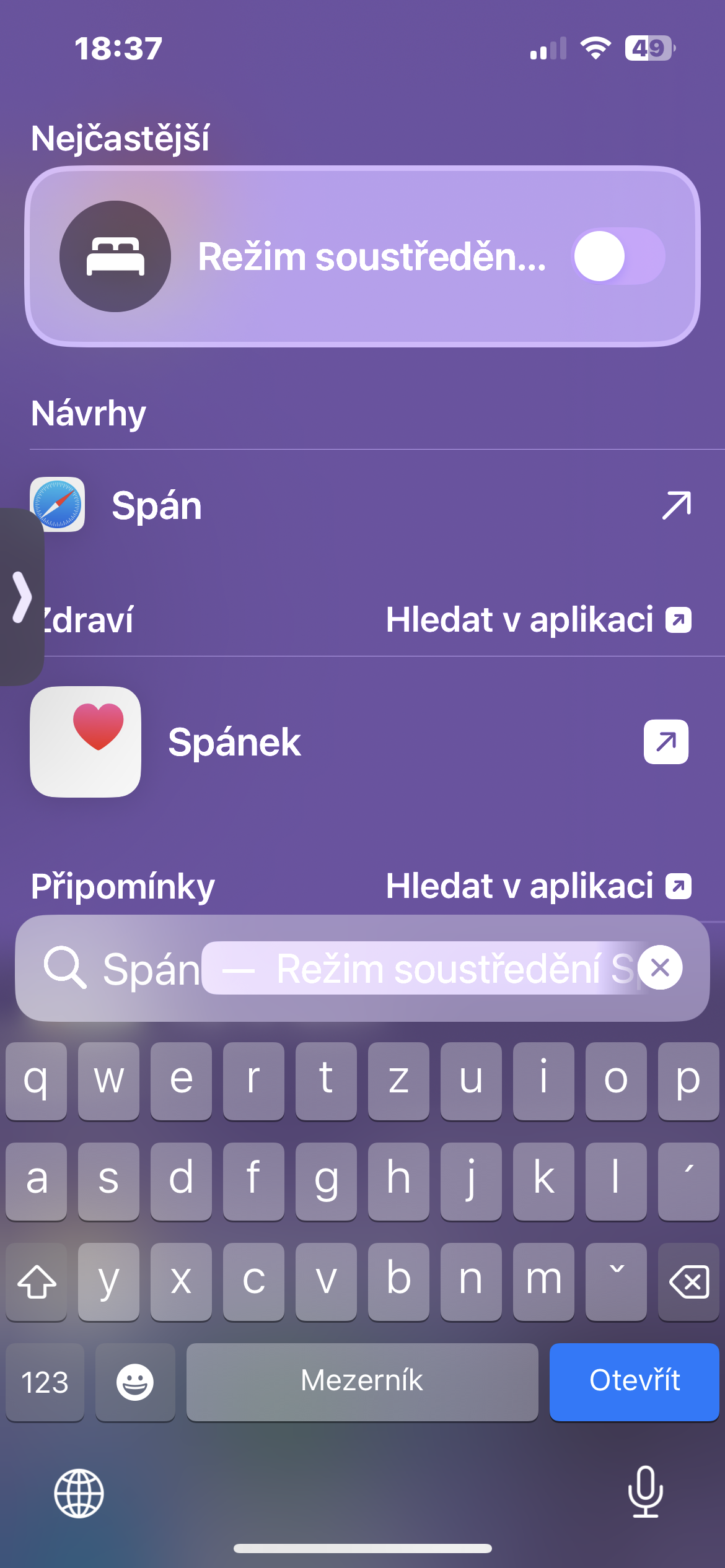
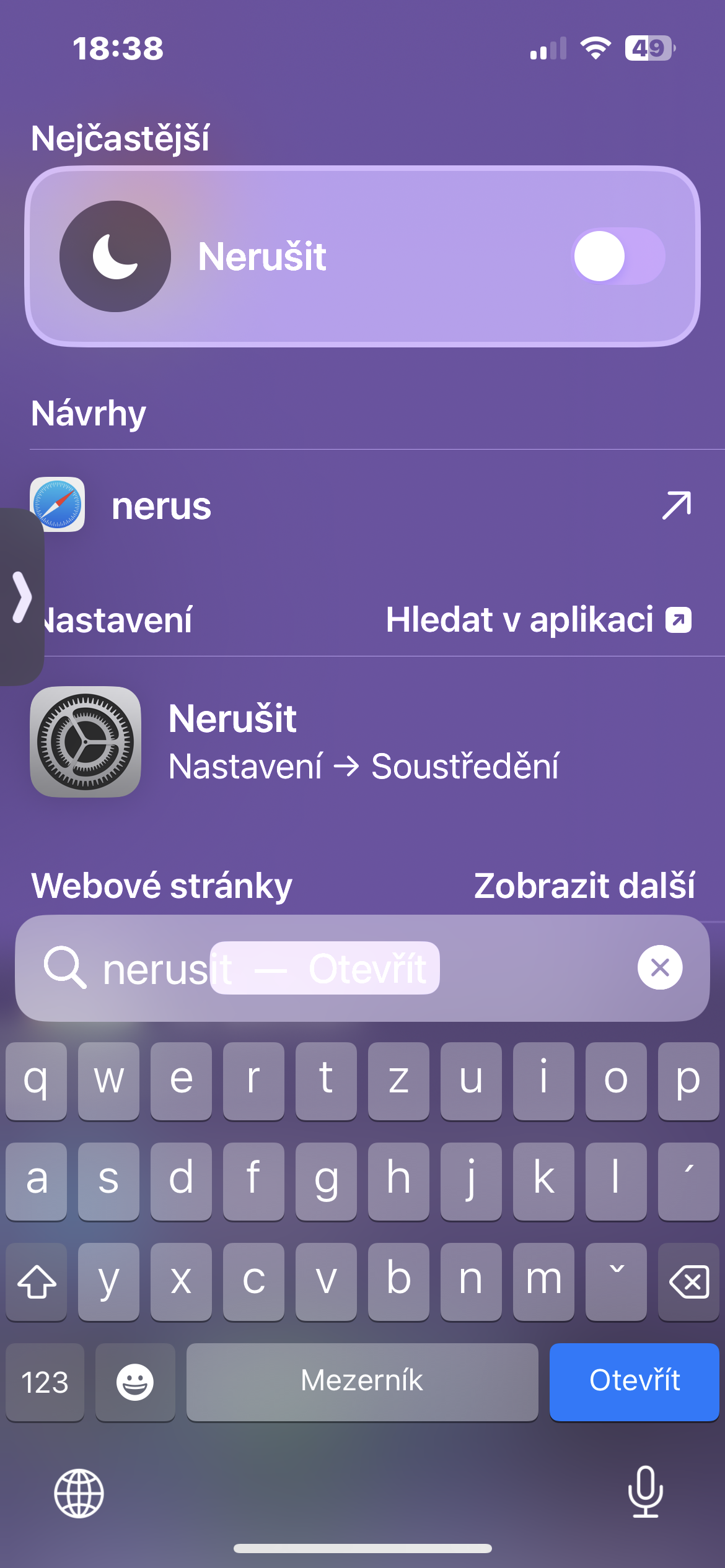
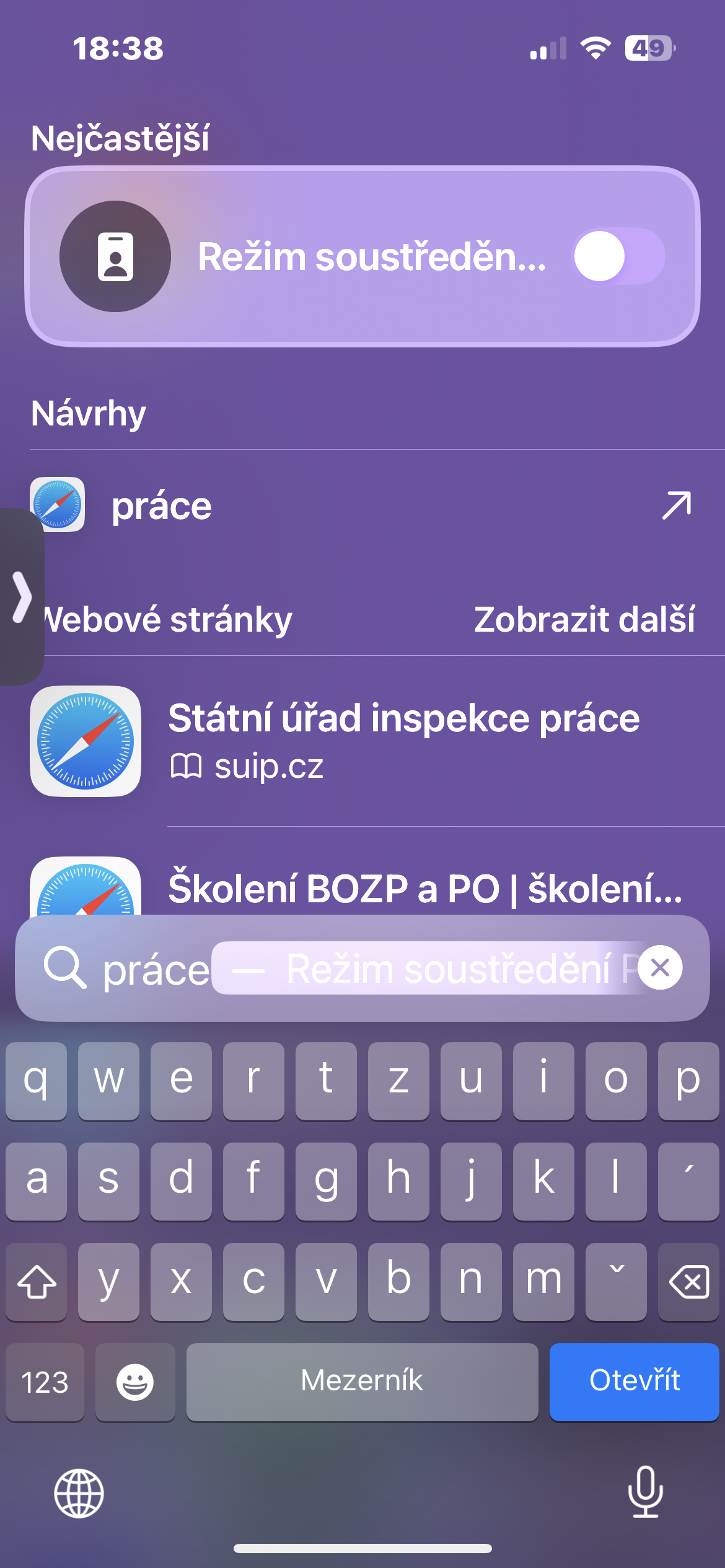
ProFocus apps have become a big hit on iPhone. They let you create different user experiences where you have control over who can contact you and when, which apps can send you notifications, which home screen pages you see, and more. You can launch Focus from Control Center or by using Siri, but Spotlight can be nakonec your favorite method. You can search for “Focus” and see all available Focus profiles in the menu. But it’s even easier to search for a specific Focus by name, including Do Not Disturb, and the toggle will appear right at the top.
Gallery
Change the settings
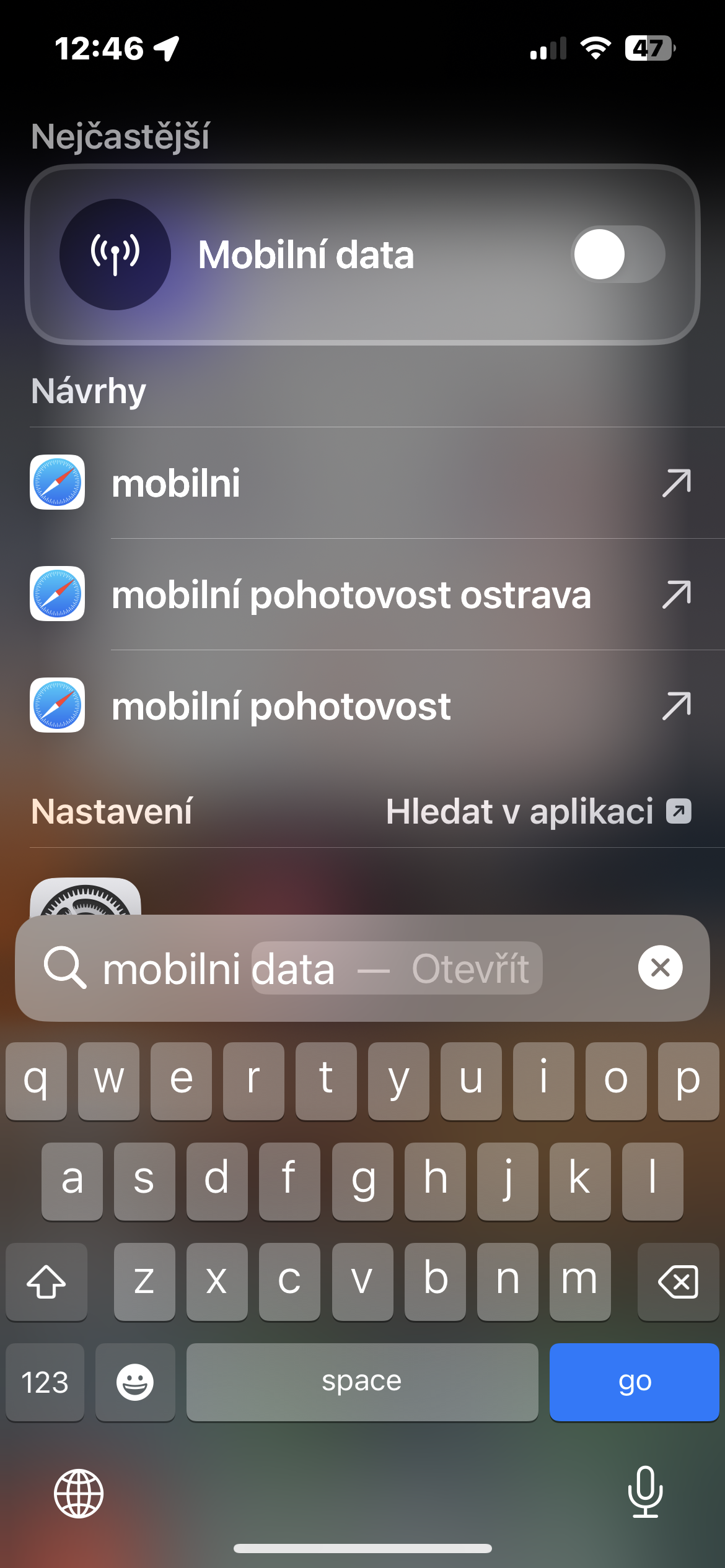
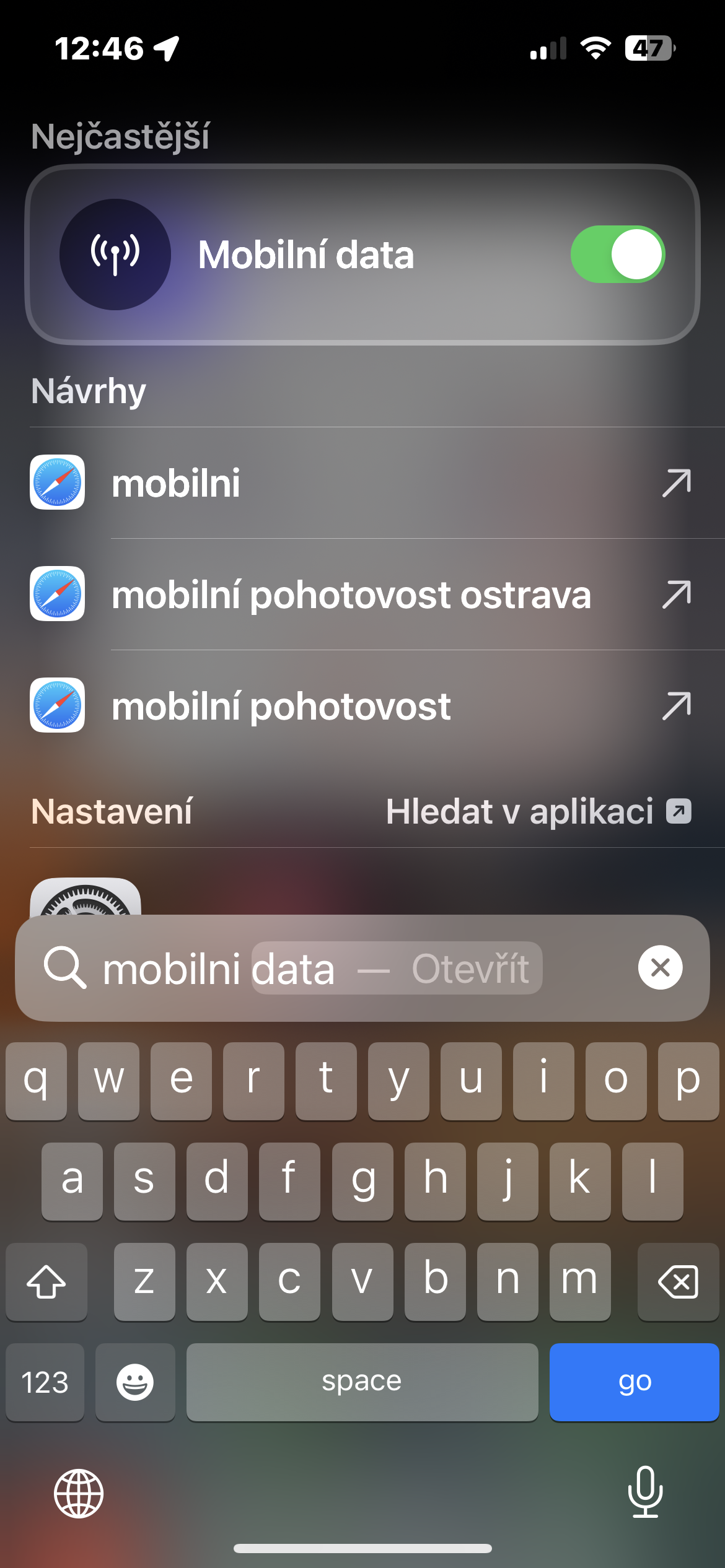
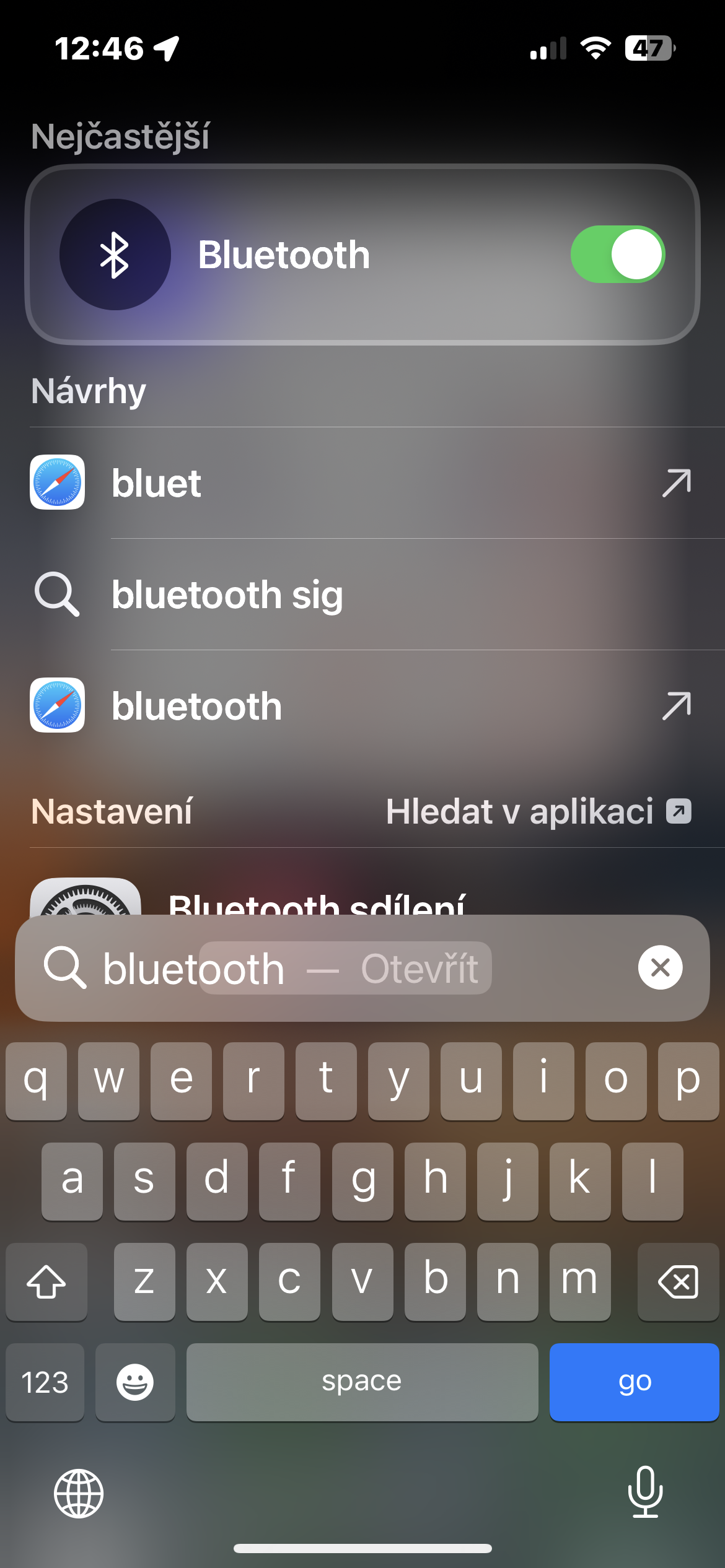
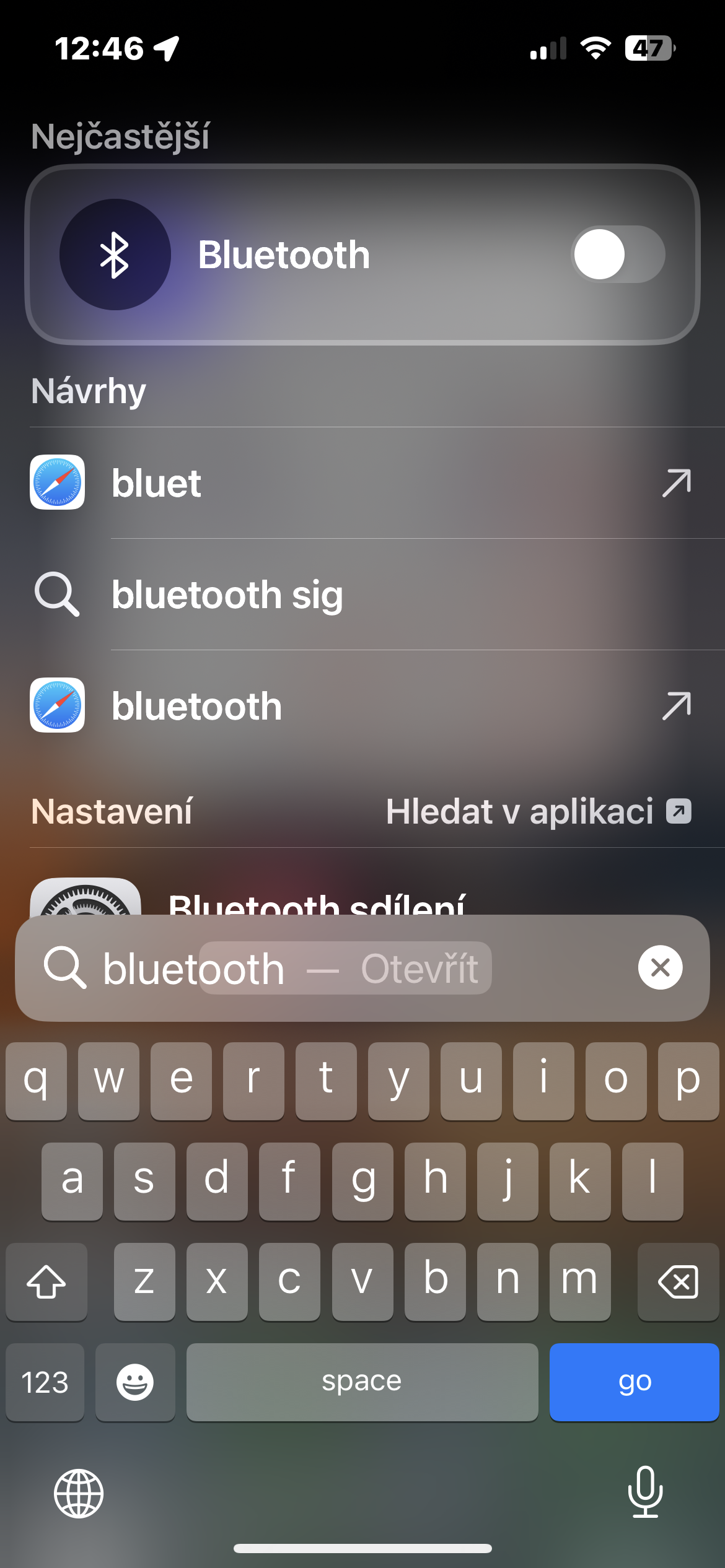
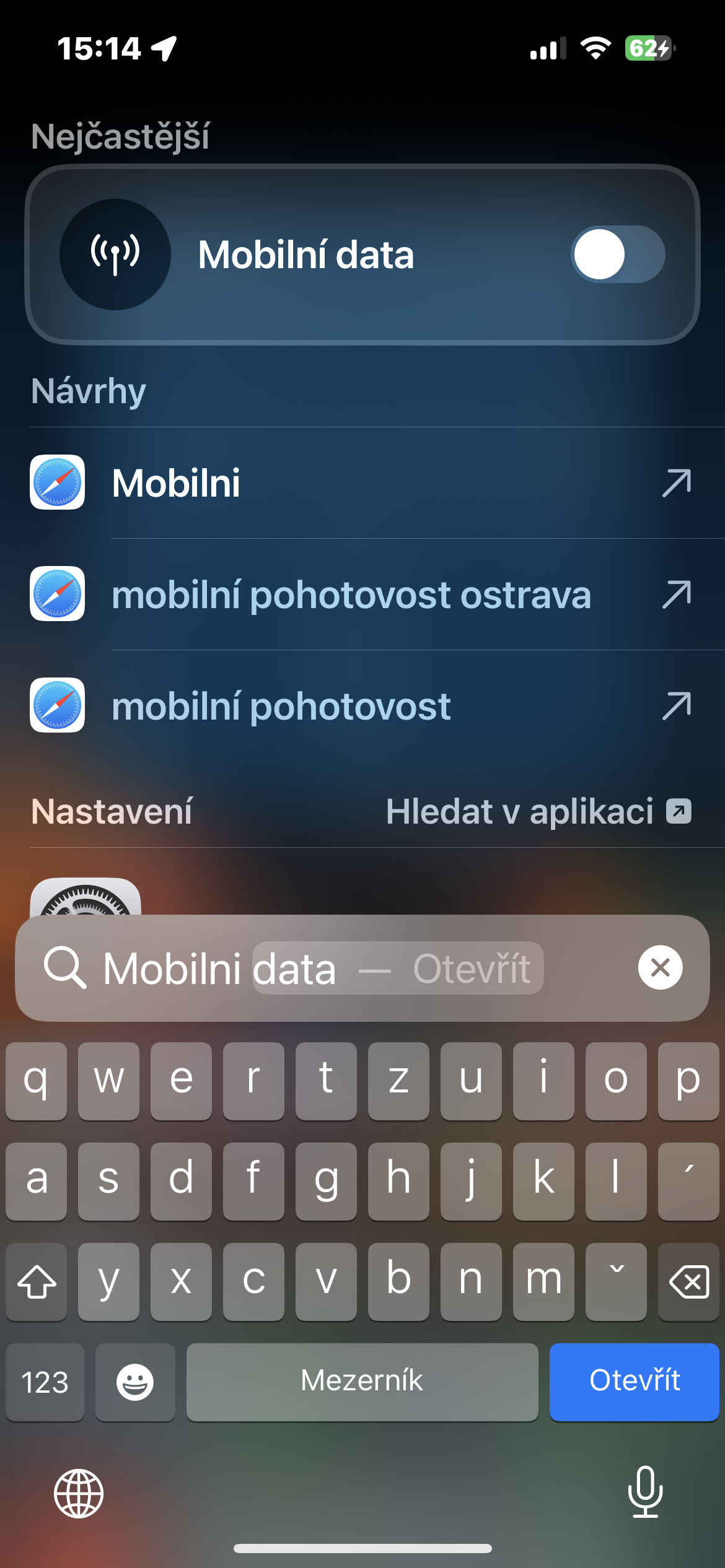
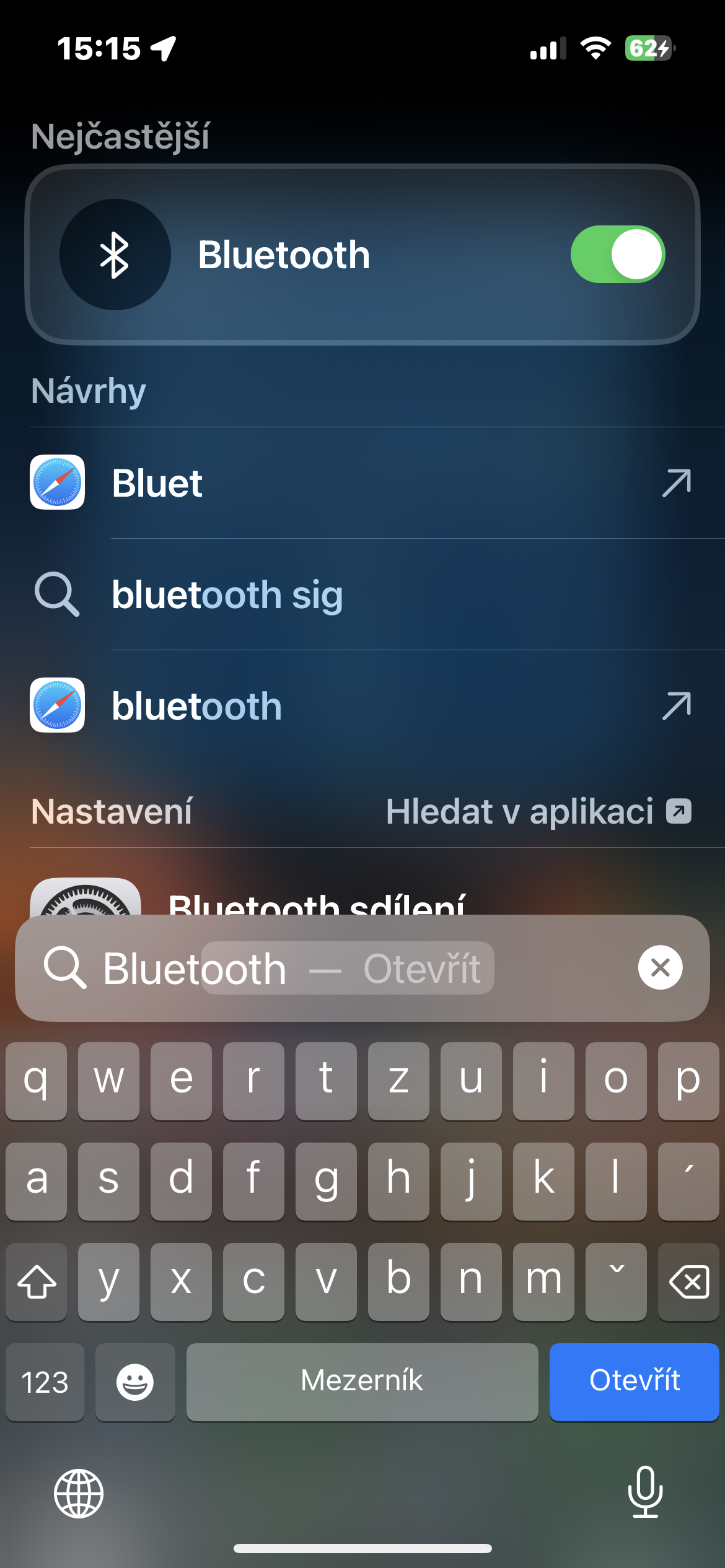
The Settings app is full of options for customizing your iPhone, but many of them can be difficult to access. Fortunately, Spotlight can help you not only find these options, but also change the settings right from its interface. However, not all setting switches work in the Spotlight interface. Some of the ones that work include Bluetooth, Cellular Data, Classic Invert, Color Filters, Contrast Boost, Motion Limit, Transparency Limit, White Point Limit, Smart Invert, VoiceOver, Voice Control, and Zoom. If there's no switch available in the Spotlight interface, you can still tap the name of a setting to see its location in the Settings app menu, where you can easily change or learn more about that option.
Gallery
Properform mathematical calculations
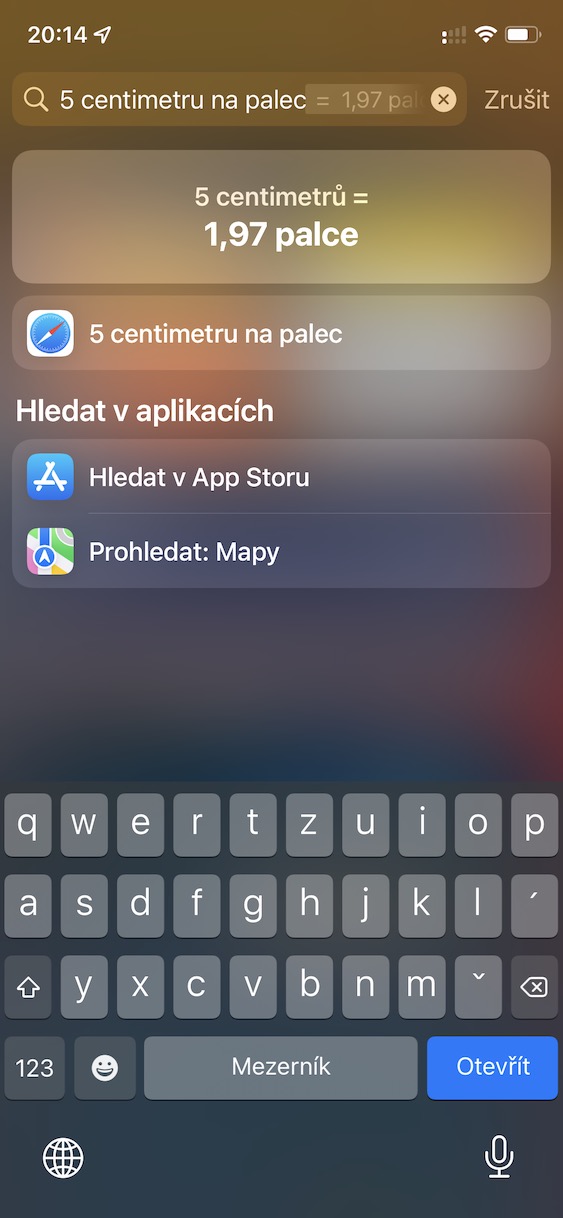
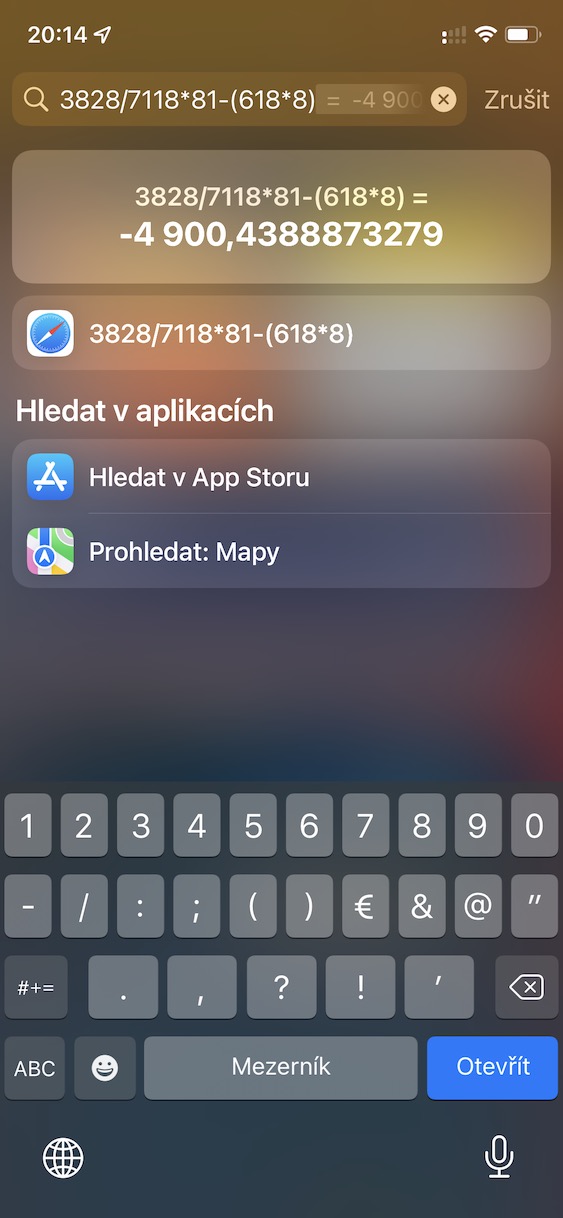
One of my favorite Spotlight features since its initial release on Mac OS X 10.4 was the ability to perform mathematical calculations—and it's still considered incredibly useful even on newer versions of macOS. Spotlight also works on iOS and iPadOS. To have Spotlight perform some calculations, simply type a mathematical expression and you'll get the result instantly.
Gallery

Create and manage alarms and timers
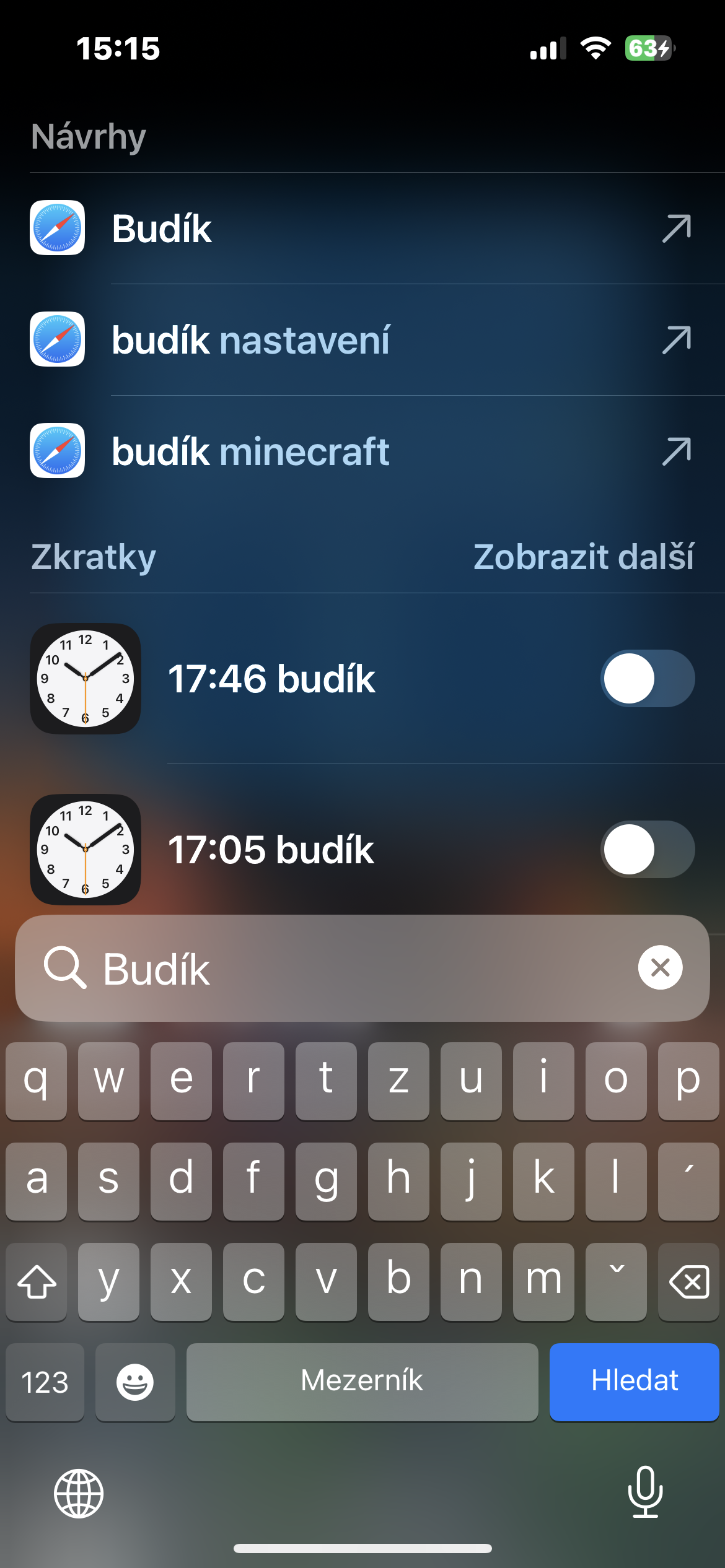
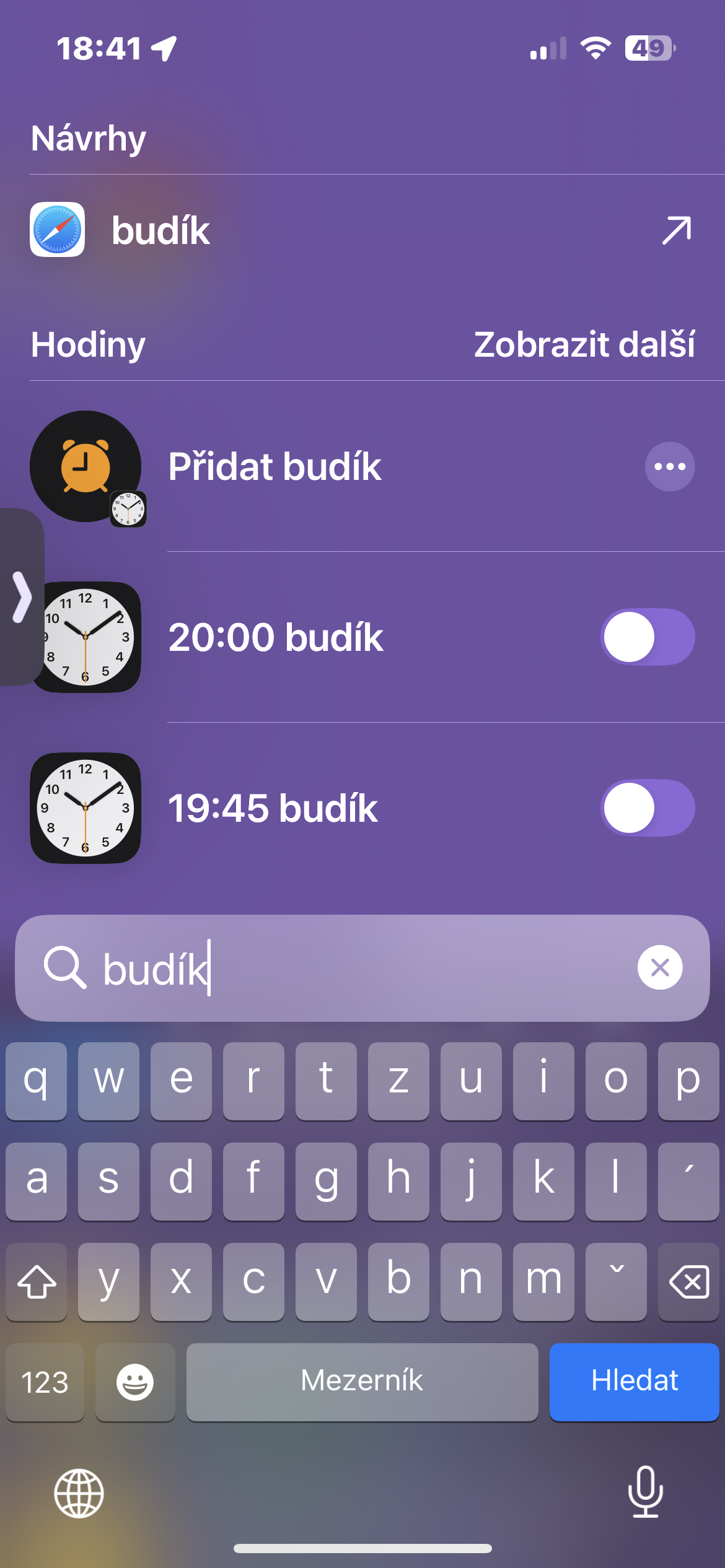
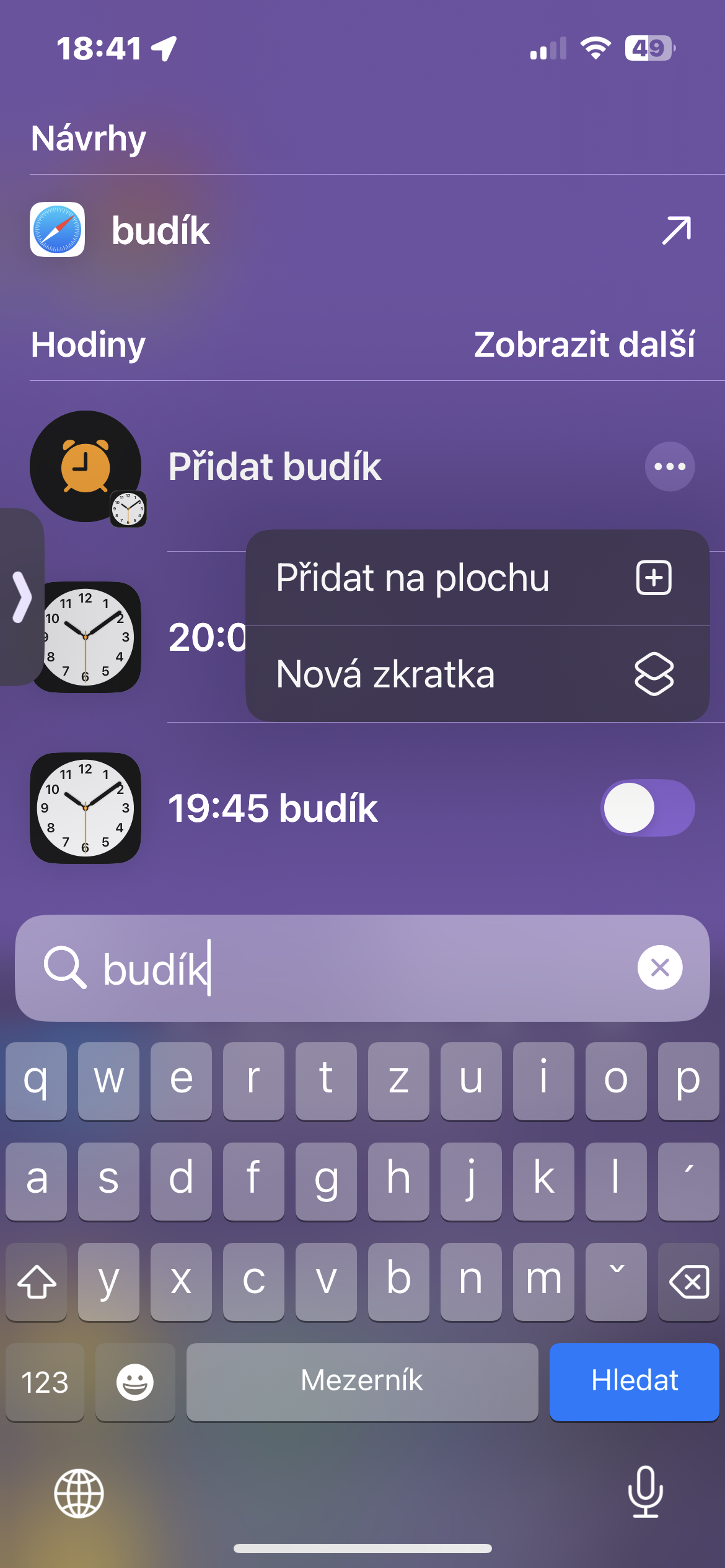
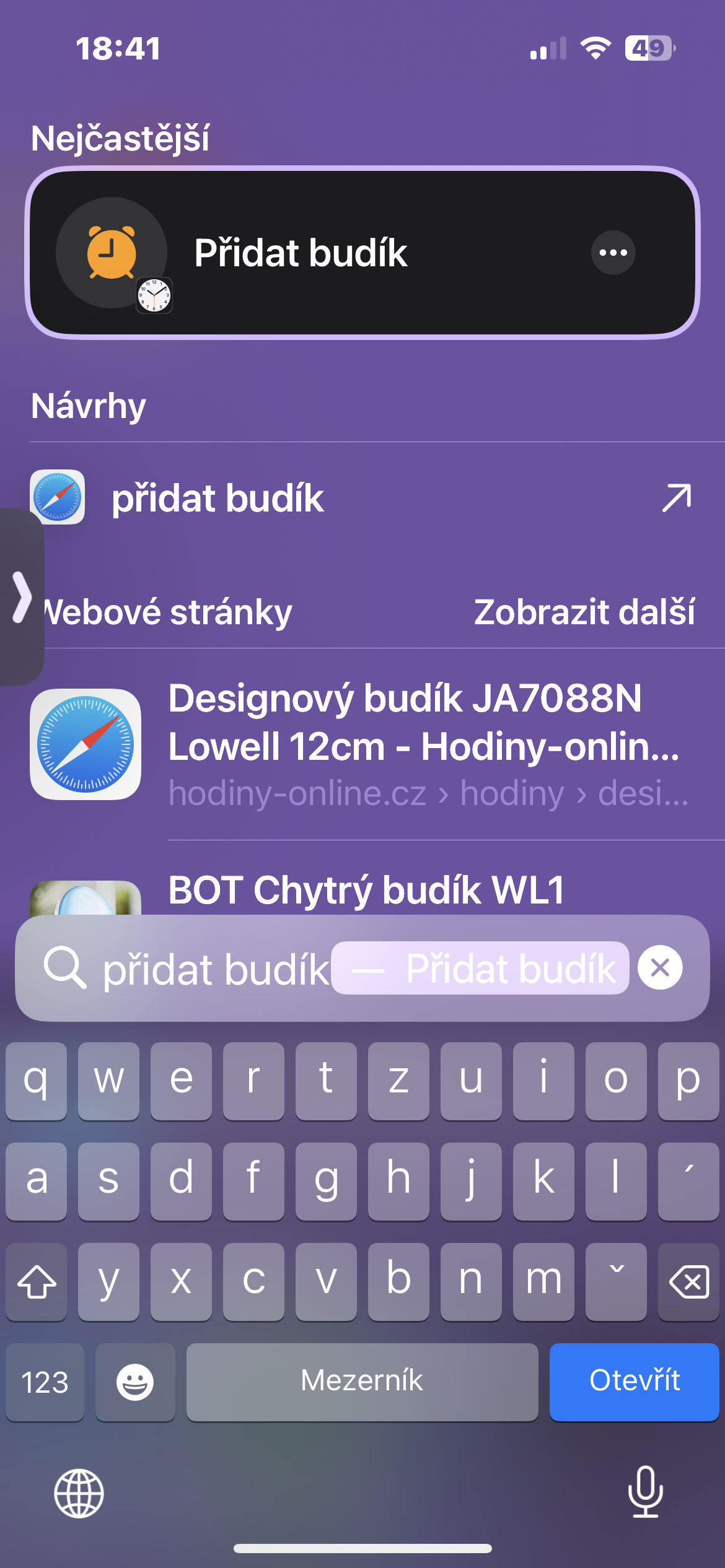
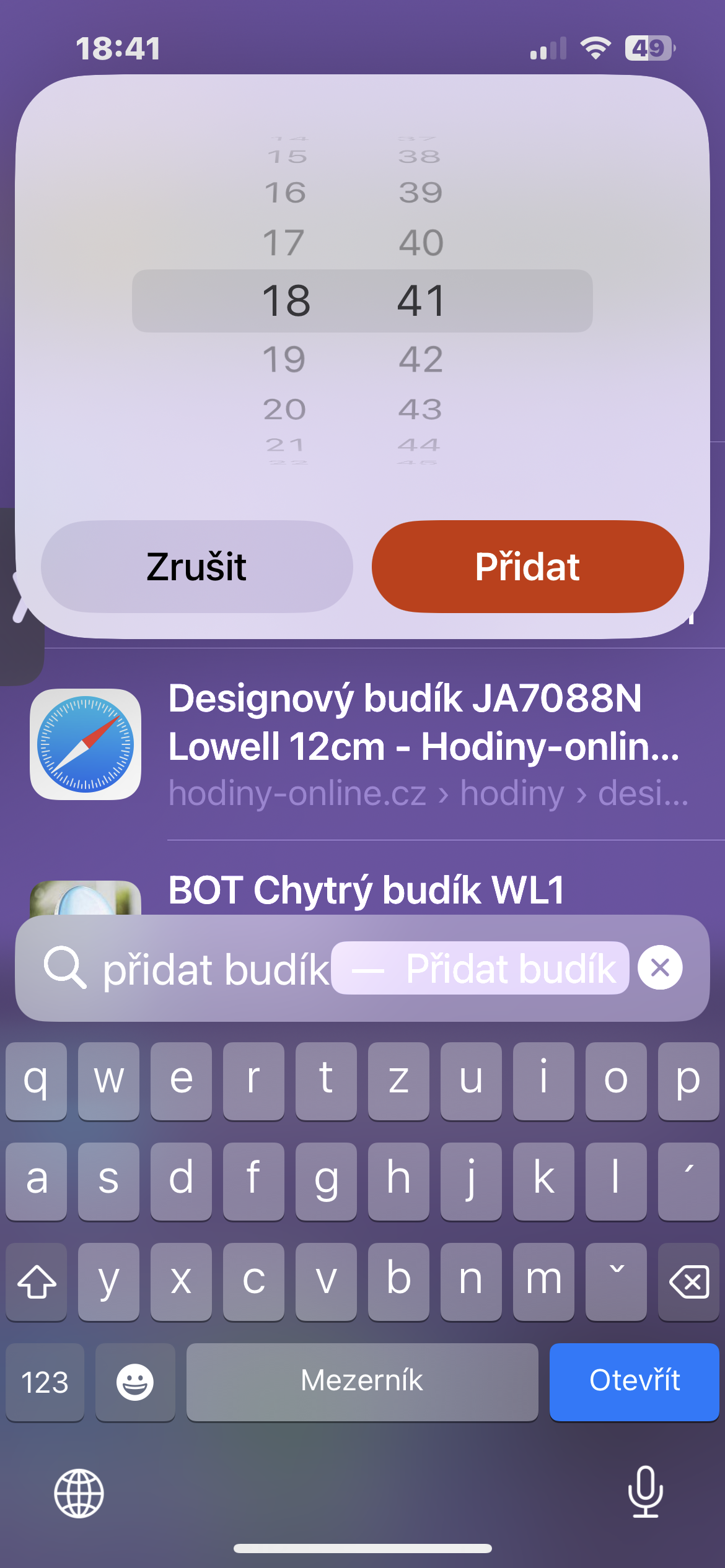
You can also create a new alarm directly from Spotlight. Search for “alarm clock” or “add alarm clock” and you will see the “Add Alarm Clock” option. It can appear as a top search term among other actions or occupy the entire top search term space.
Gallery
Find images in apps
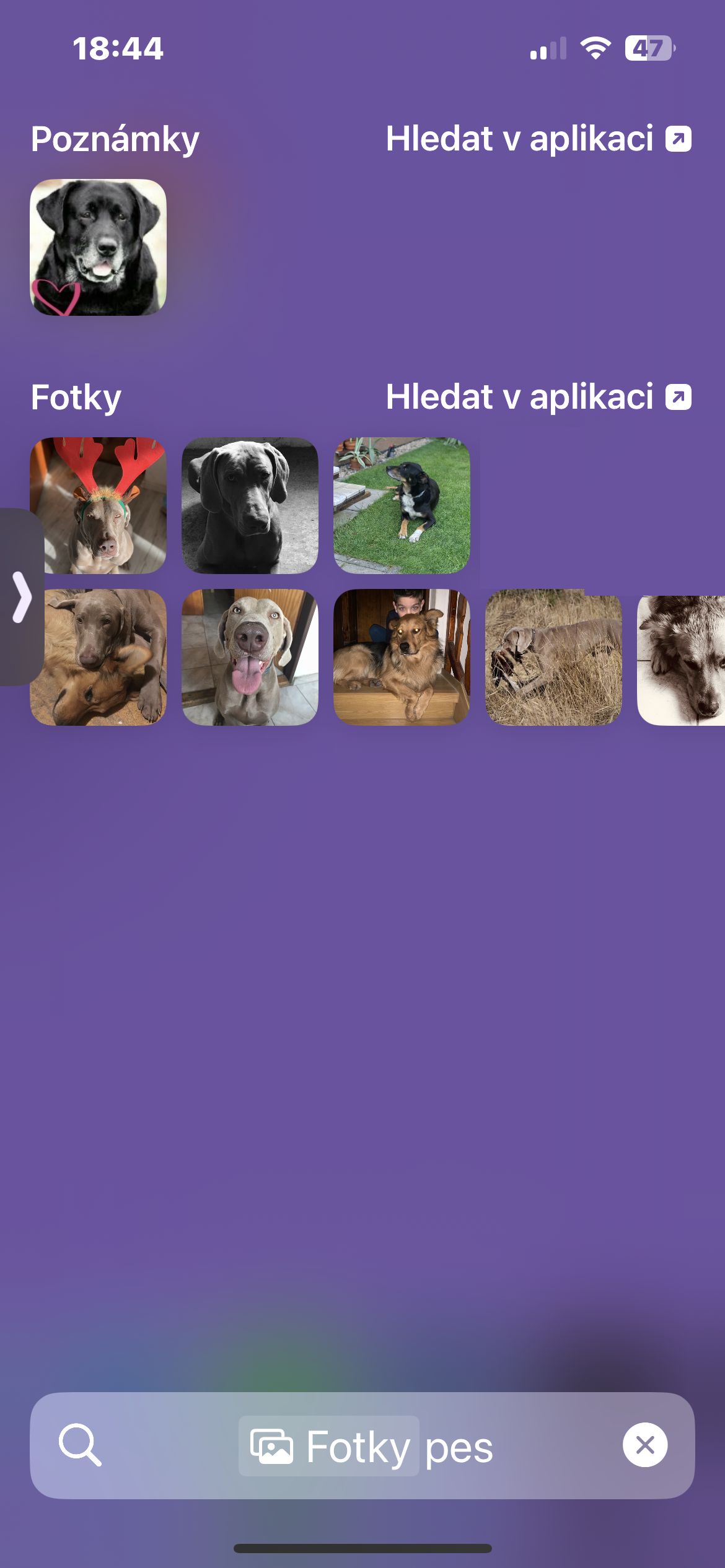
Looking for a specific photo, but don't know which app it's stored in? This is where Spotlight can help you, provided the application has integrated the correct Core Spotlight interfaces for searching data. You can search for people, places, and categories of objects, and Spotlight will show you images that match your results. Enter your search query, go to Photos from Apps, and tap Show More. This will open a new Spotlight view with results across all apps that display photos in Spotlight. Tap an image to open an app like Messages, Photos, or Files.
Gallery


Shazam the song
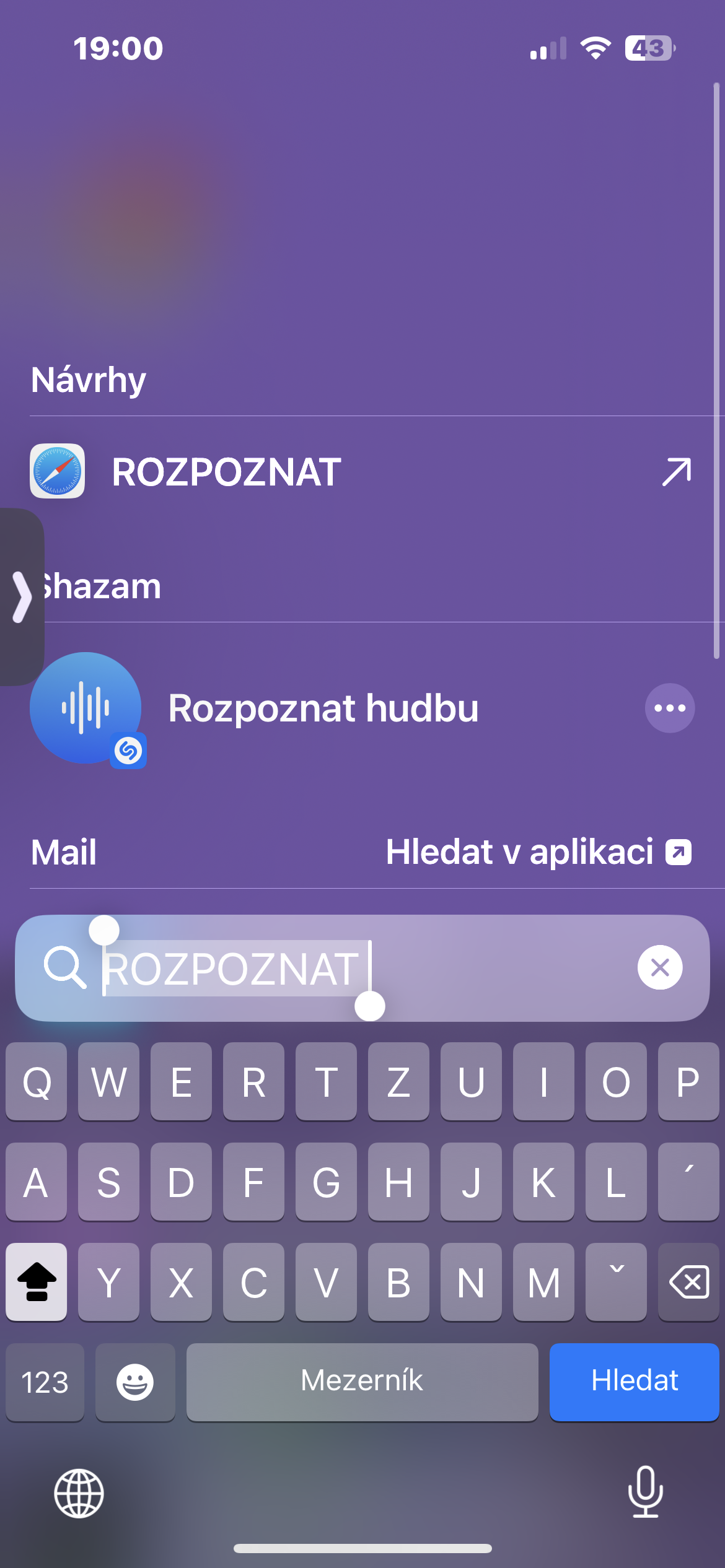
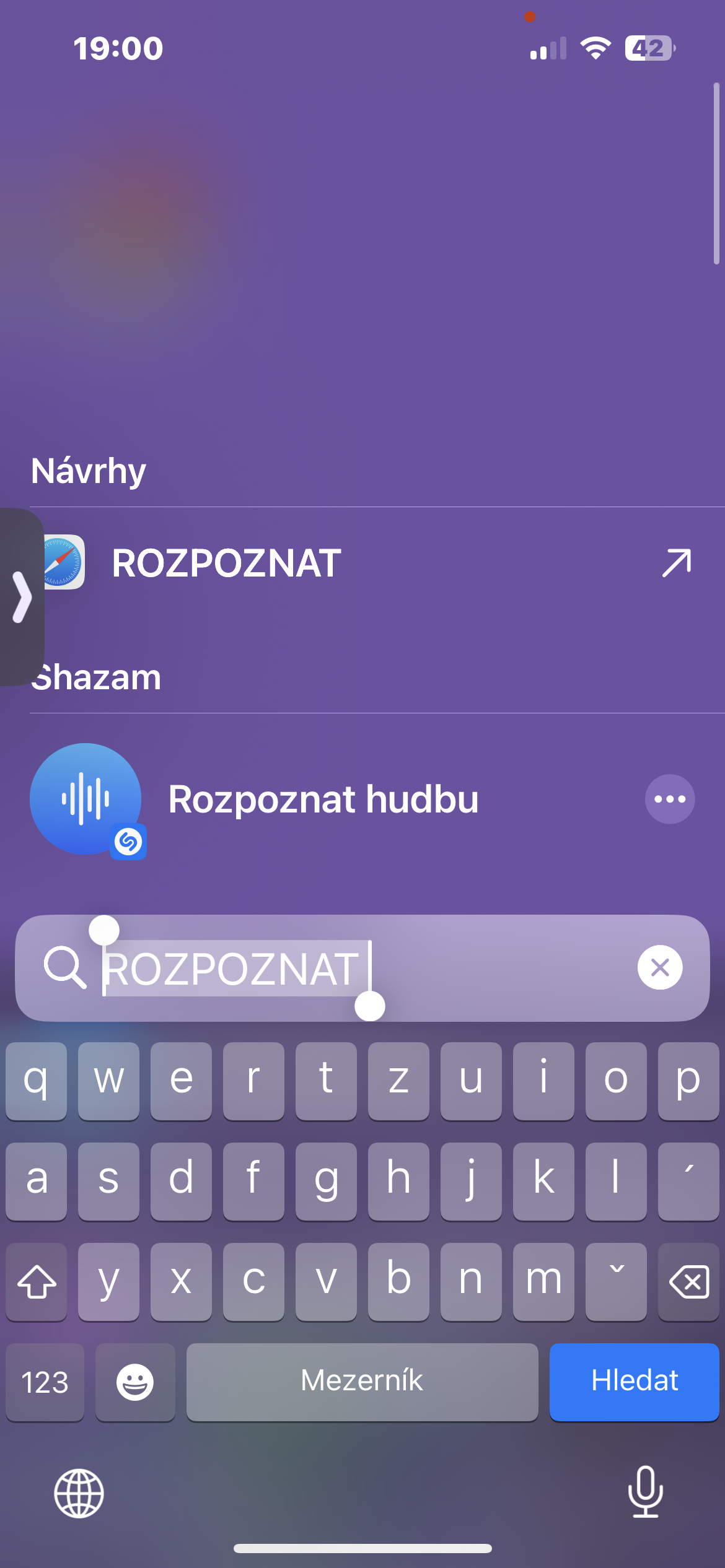
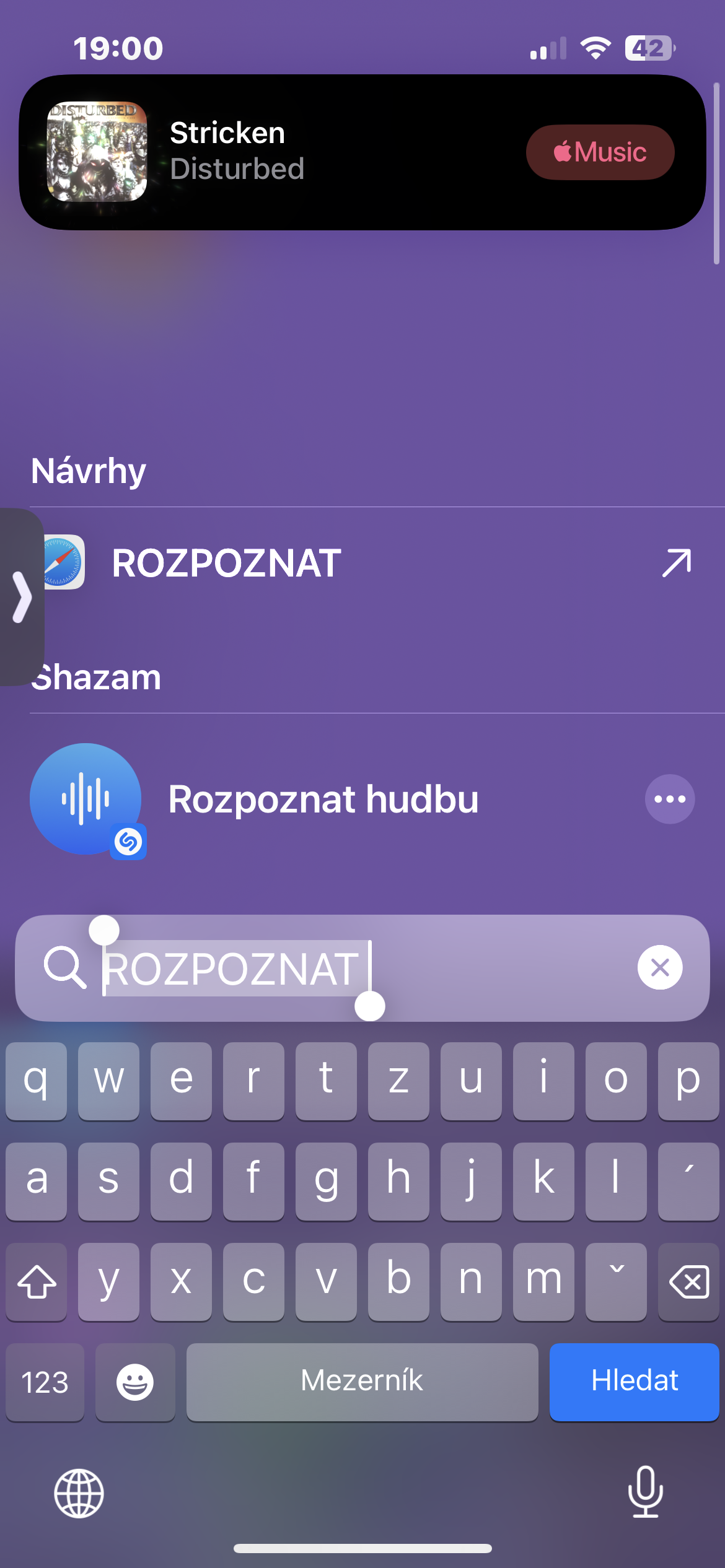
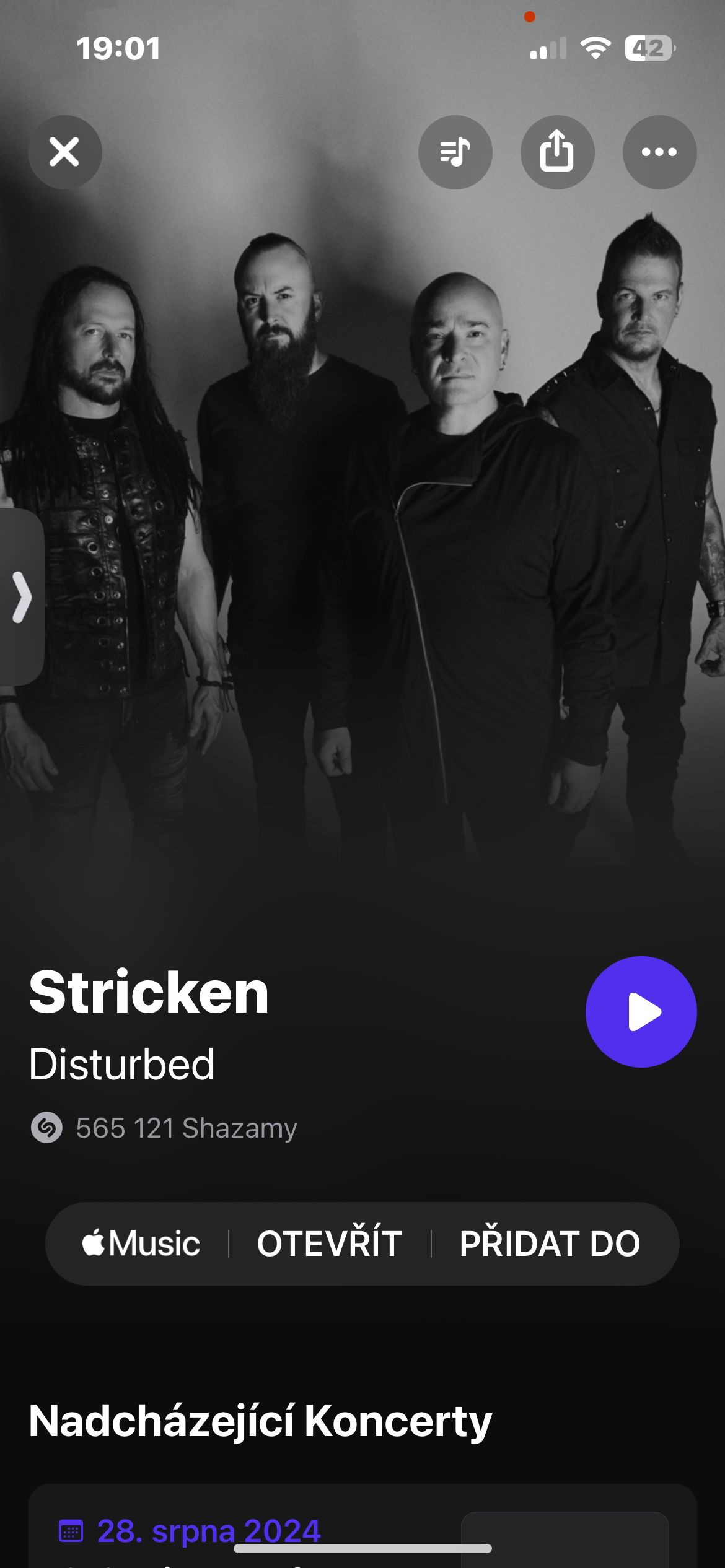
If you want to find out the name of the artist or song playing on your iPhone or nearby, Spotlight can help again. Just type “identify music” and tap the result. For faster results without typing, add the Shazam tile to your iPhone’s Control Center.
Gallery