Whether you're trying to find your way to the nearest coffee shop with Apple Maps or maybe track where your device is located Apple to use the Find function, you need to have location services turned on on your iPhone. But what to do in rare cases when these services stop working out of nowhere?
You might be interested in
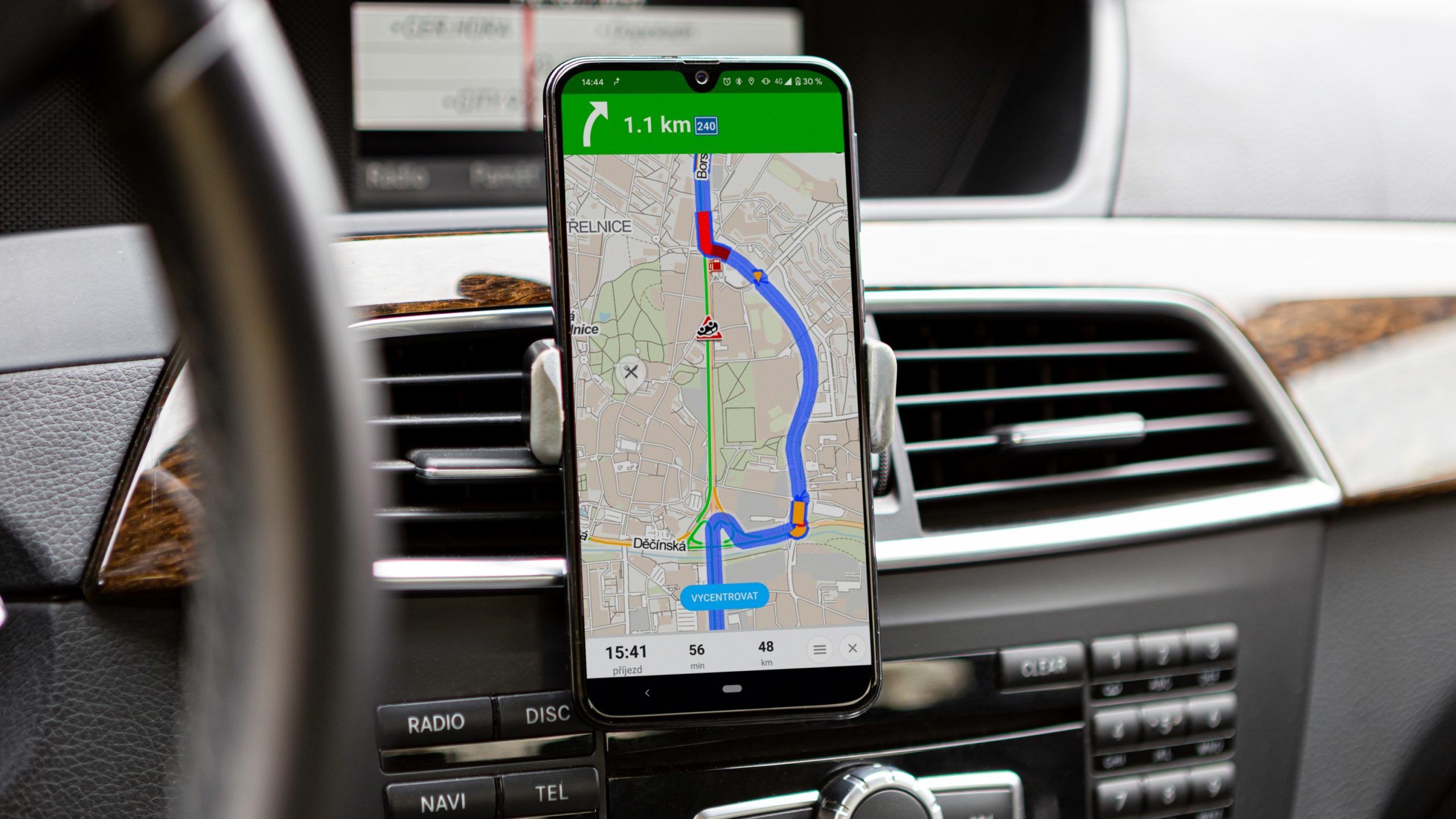
This quick troubleshooting guide will walk you through some quick fixes that you can use to get location services working on your iPhone.
Make sure location services are actually turned on
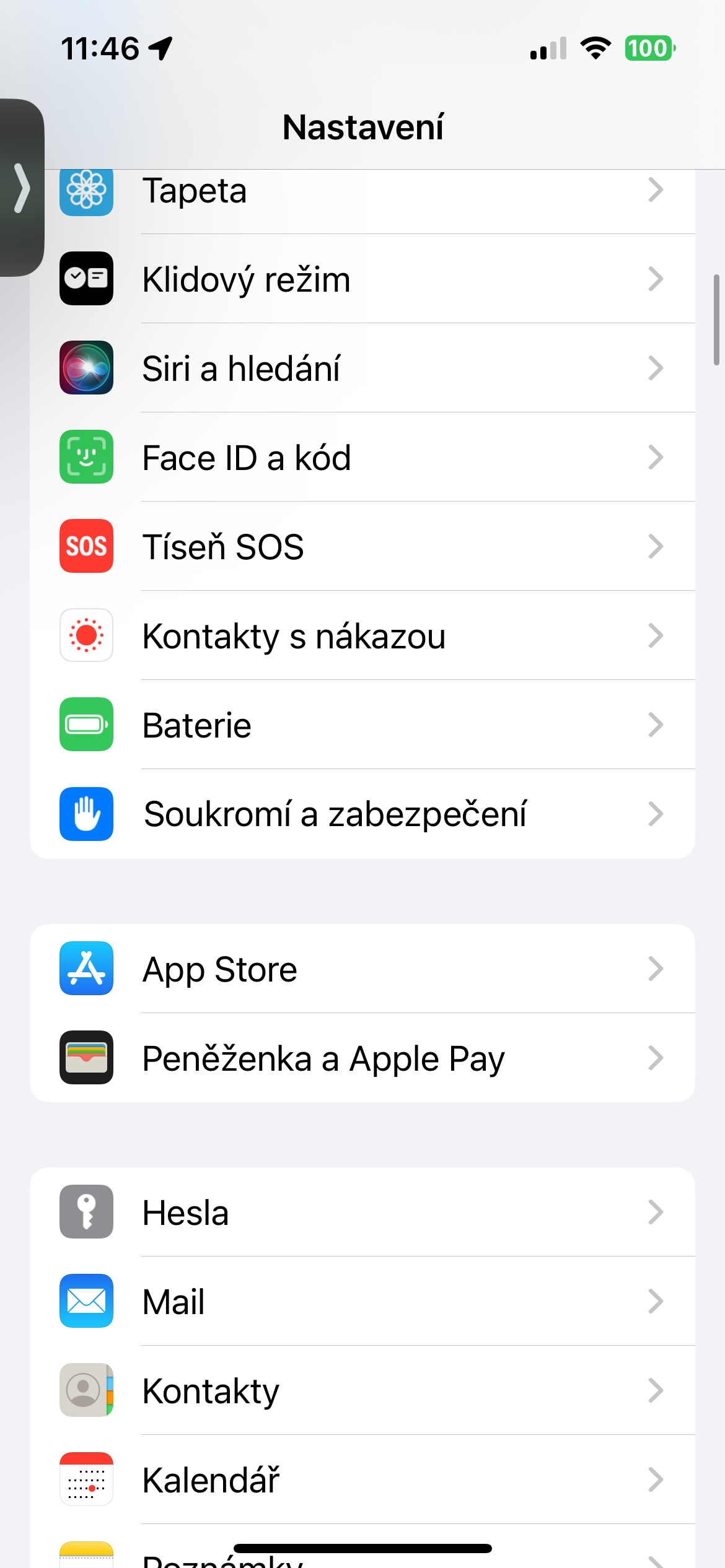
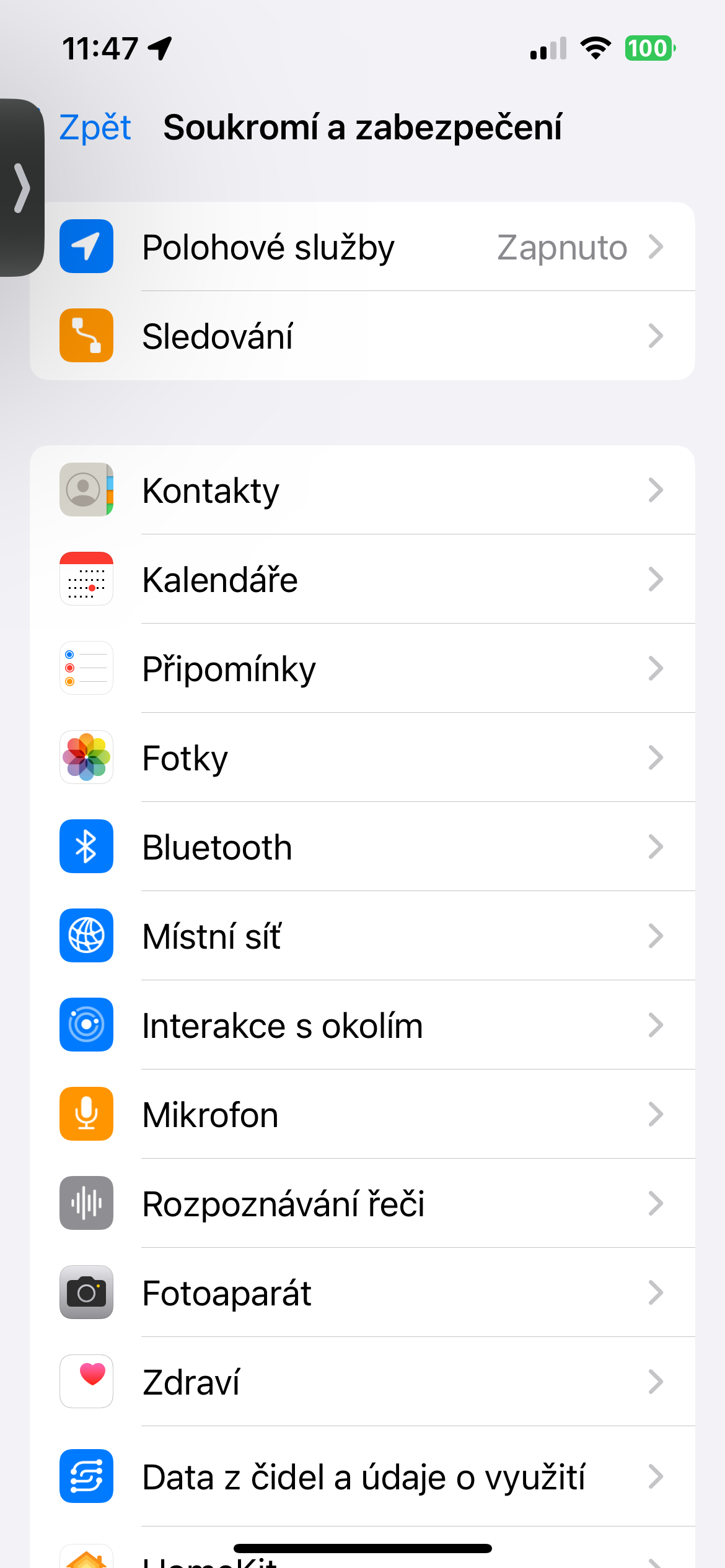
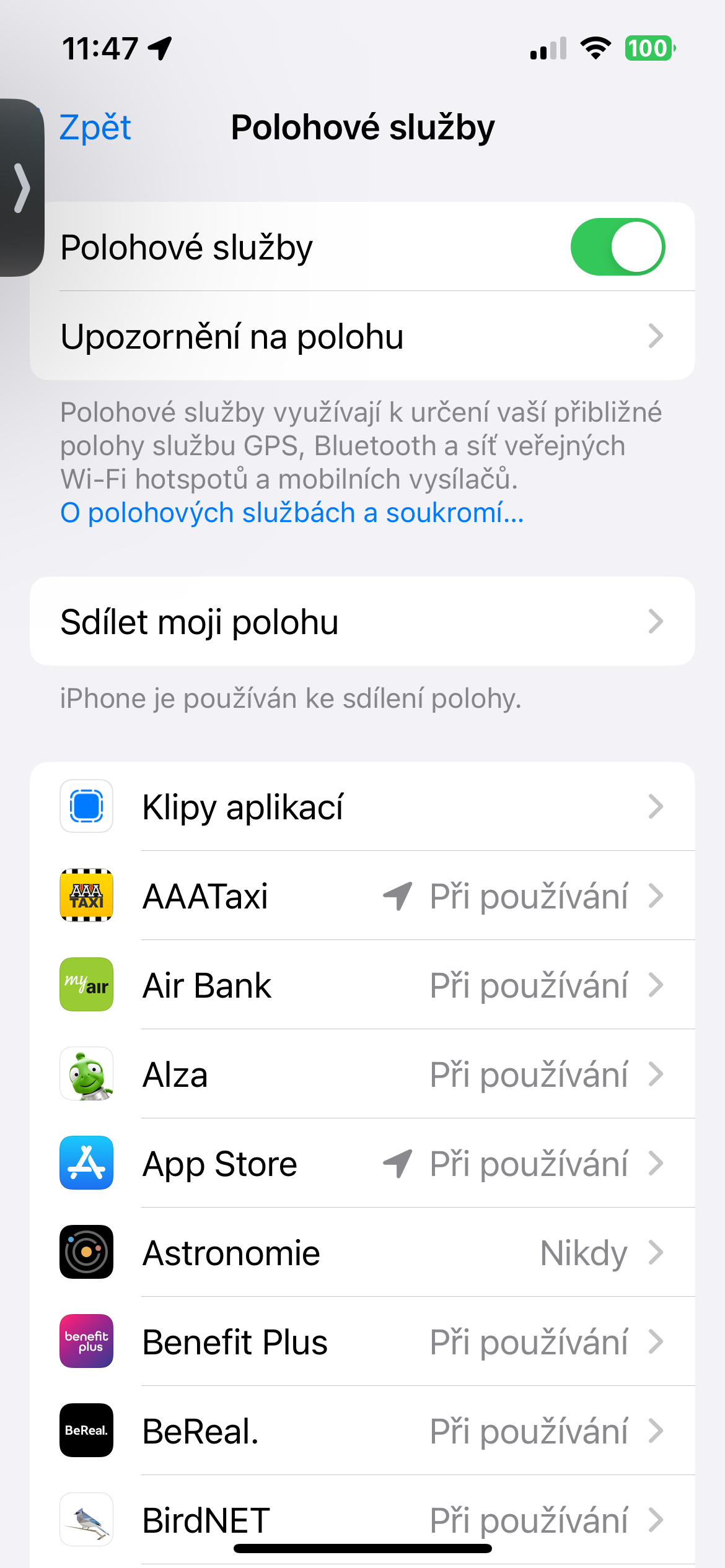
Before moving on to the advanced solutions, you should first make sure that Location Services are enabled on your iPhone. On your iPhone, launch Settings -> Privacy & Security . Here, at the top of the screen, make sure that Location Services is enabled , and if not, tap on it to enable it.
Restart the app in question
Most app issues, including those related to location services, can often be resolved by simply closing and reopening the app that is experiencing the issues. So try to close the application completely, wait a while and then start it again - it is possible that everything will work again after that.
Check the exact location activity
Many third-party apps on your iPhone require your precise location information to function properly. ProTo do this, you need to follow the steps below to check if the app has access to your precise location. On your iPhone, run Settings -> Privacy & Security. Click on Location services, select the app you're having issues with and make sure it's allowed access to your exact location.
Gallery
Check the date and time settings
Inaccurate date and time settings can also negatively affect the proper functioning of location services in iPhonech. So if you have set the date and time on your iPhone manually in the past for any reason, try switching to automatic date and time setting. On your iPhone, run Settings -> General -> Date & Time, and activate the item Set automatically.