If you want to be productive not only when using your iPhone, it is necessary to have a system for individual things. This also applies to the desktop, or rather the home screen, which is used not only for launching applications, but also for many other things. Therefore, let's take a look at 5 tips in this article to help you manage your desktop on iPhone so that you have some system in it and ensure better organization.
You might be interested in
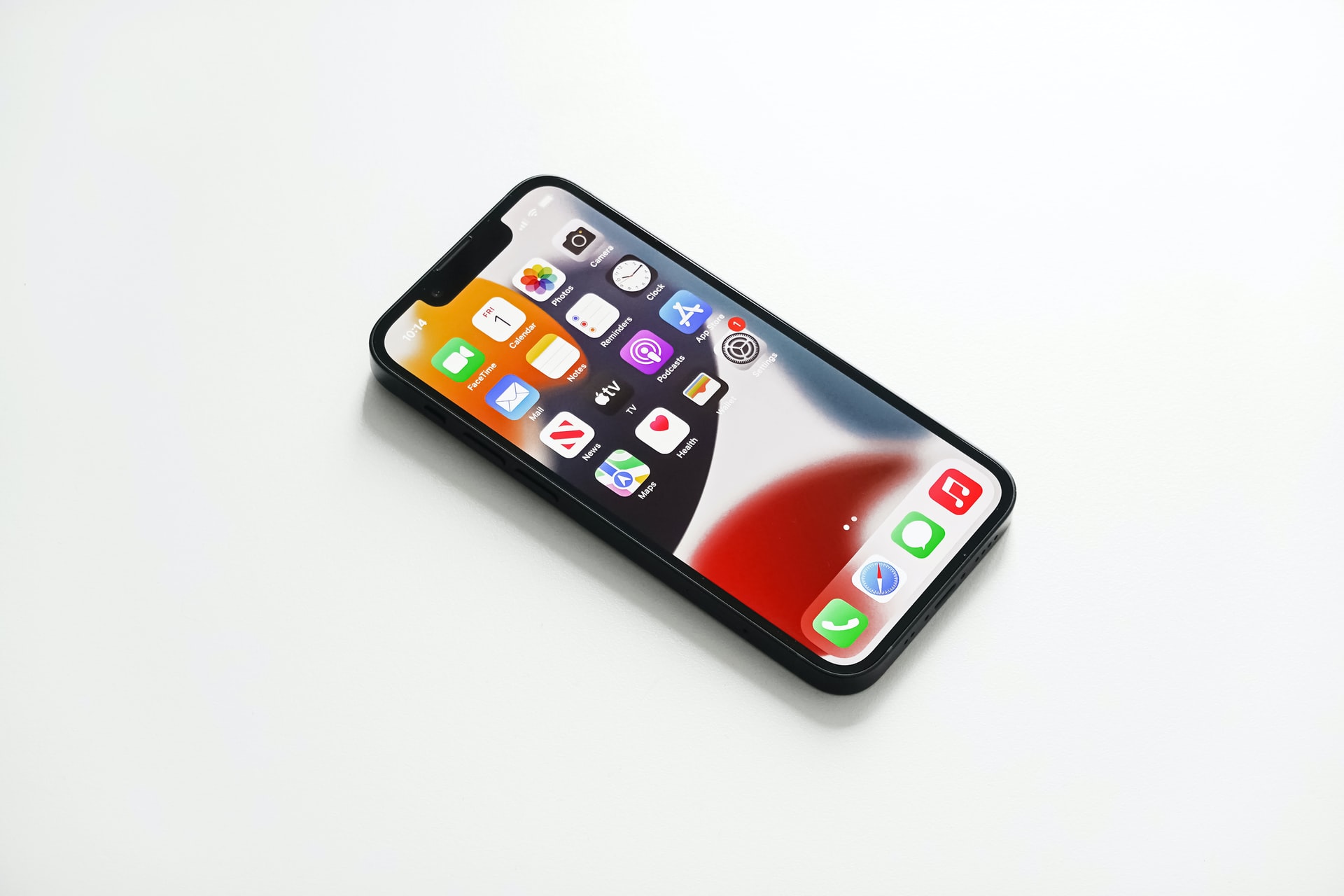
Surface management
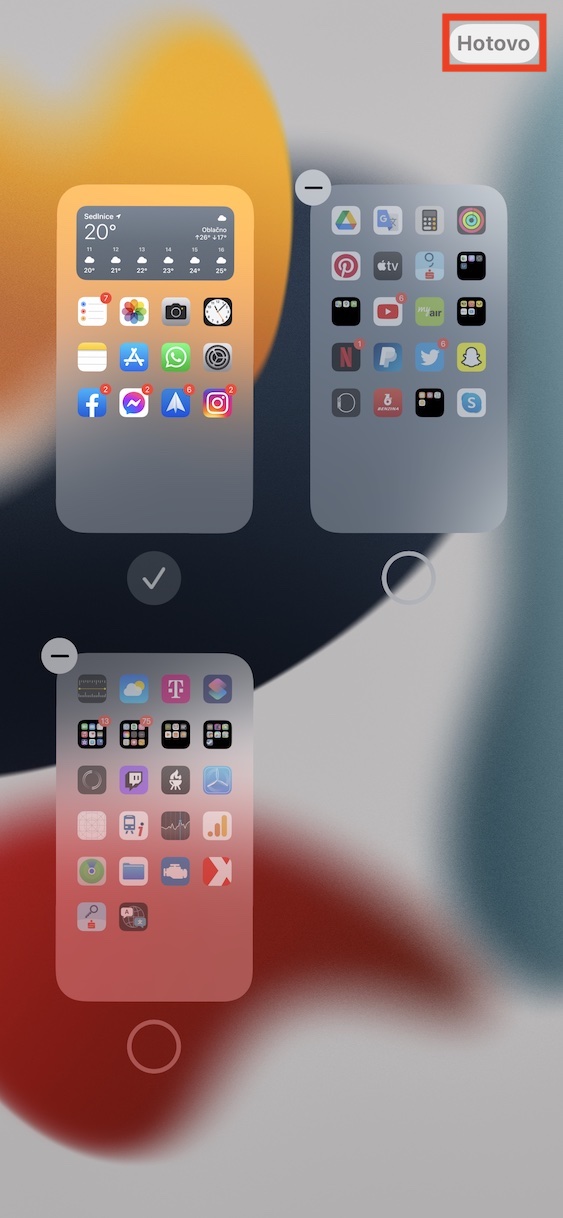
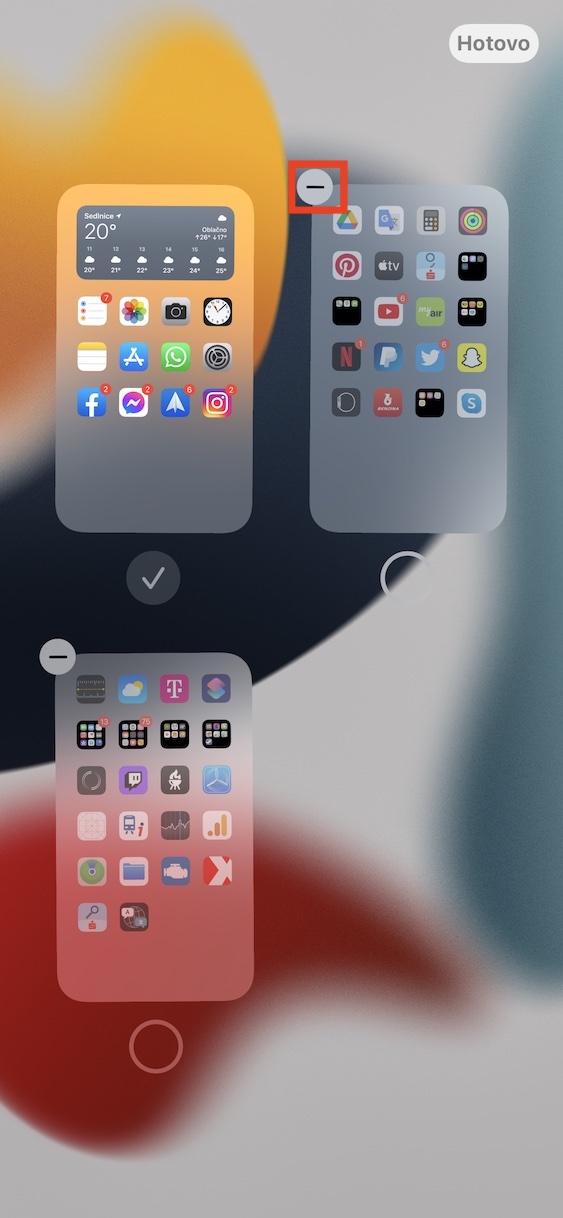
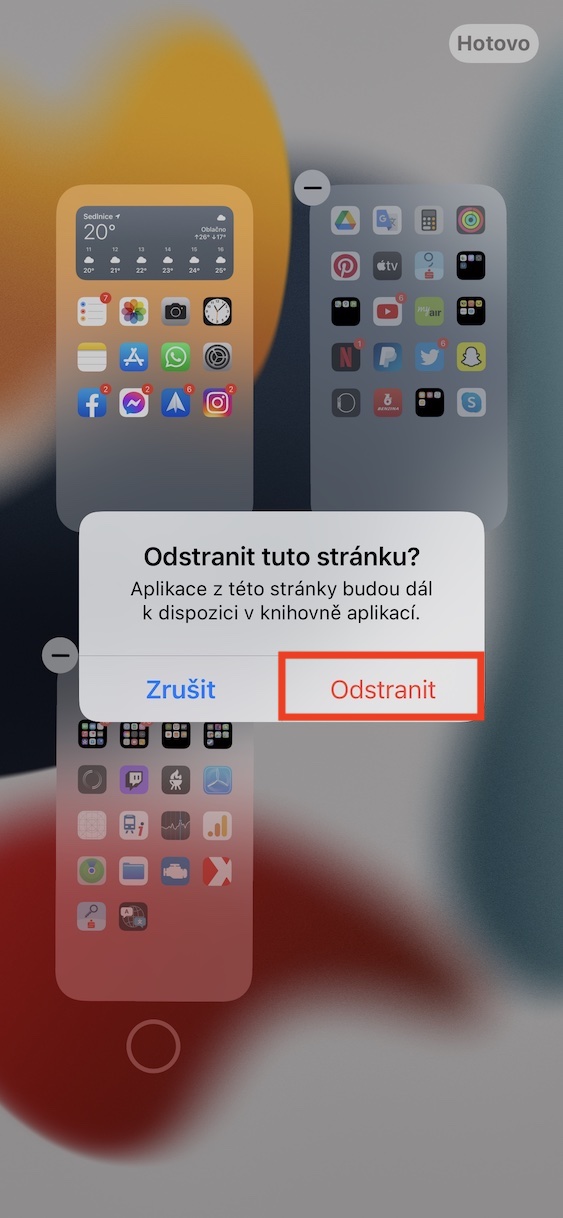
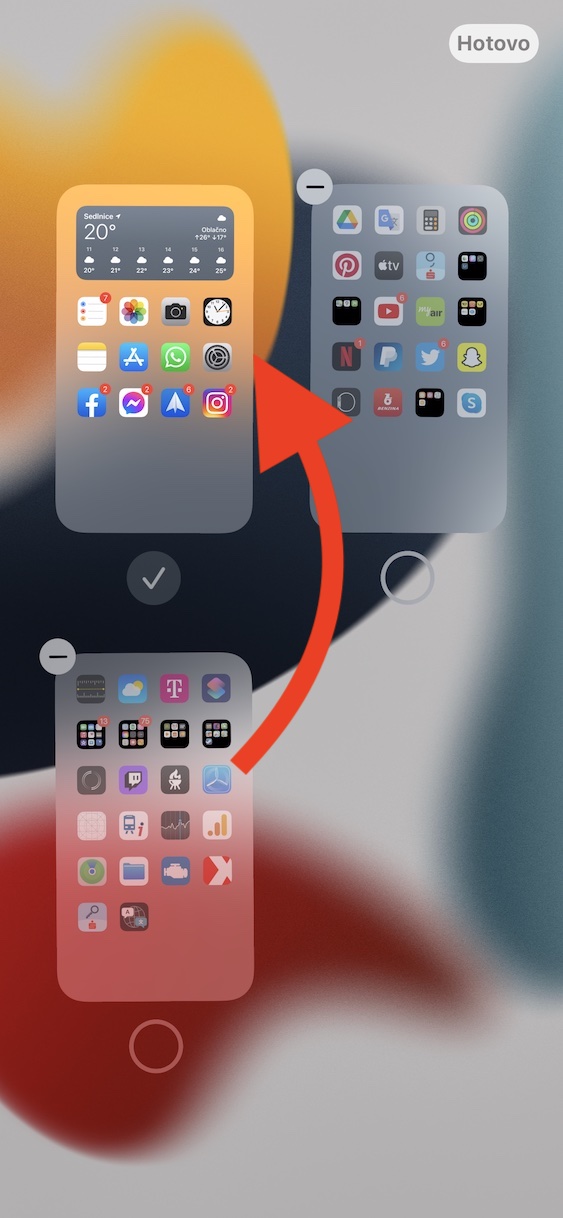
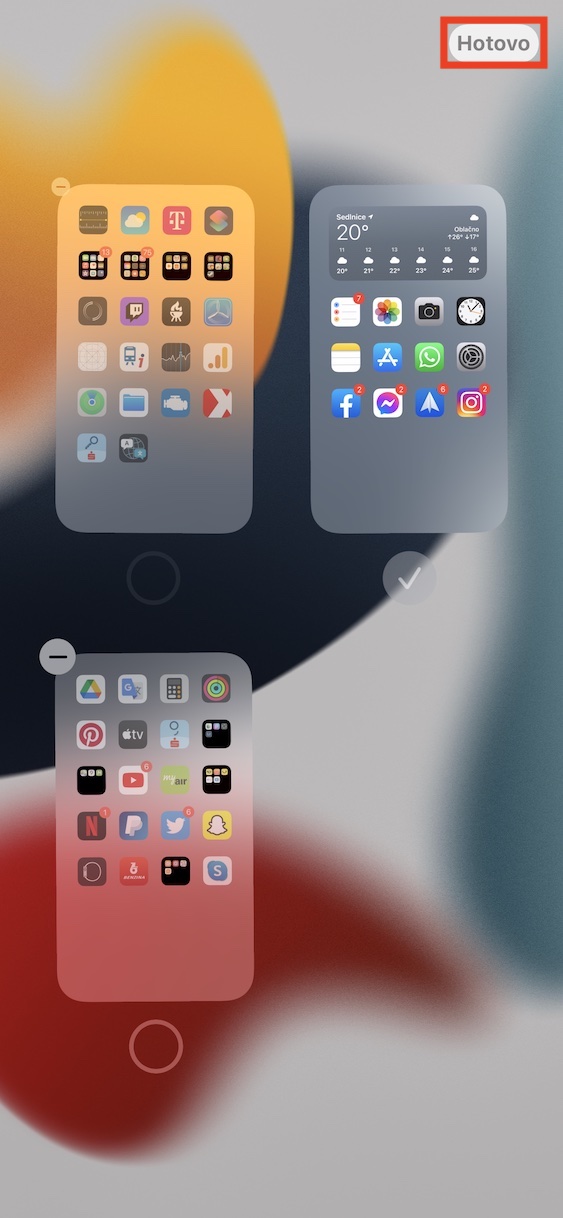
Apps on the iPhone can be displayed on individual surfaces, which are the basic building blocks of organization. A few years ago, we saw the arrival of improvements that made it much easier to manage surfaces, which is definitely useful. For example, you can hide and delete individual surfaces , or you can also change their order, which was not possible some time ago. If you would like to move to this surface management interface, just hold your finger on an empty space , which will take you to editing mode. Then just tap the page number indicator at the bottom .
As iPhone hide desktop pages
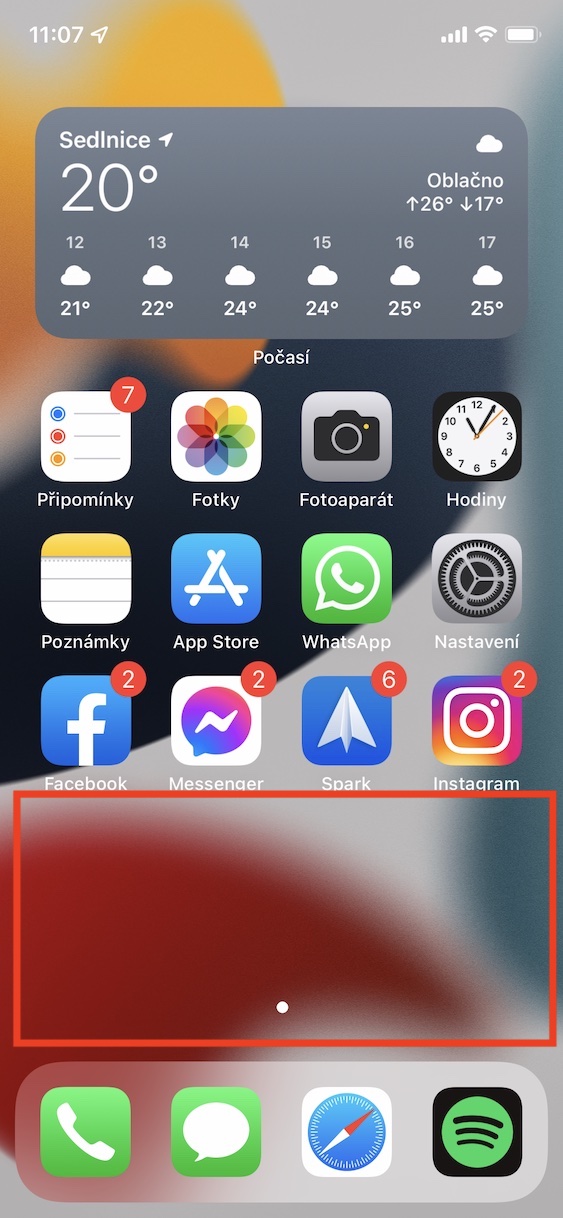
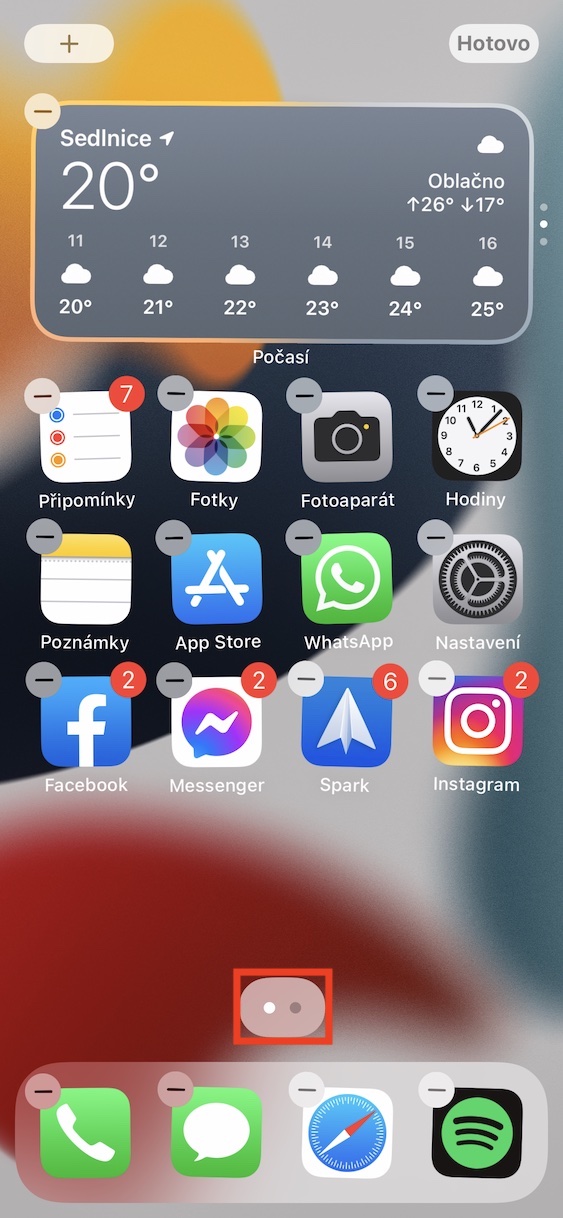
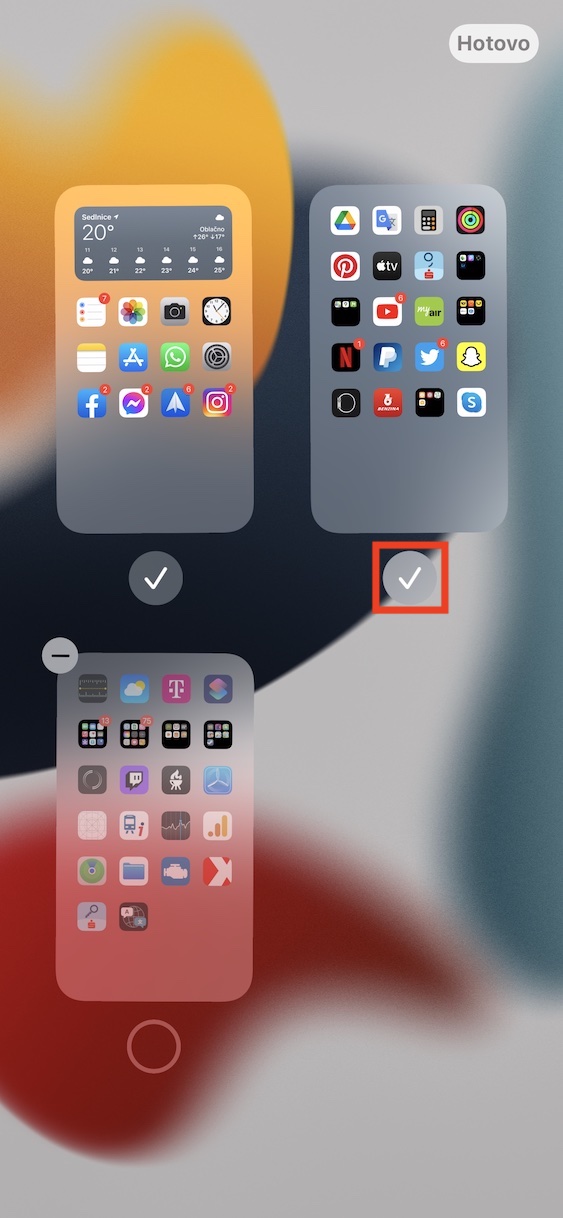
As iPhone delete desktop pages
As iPhone change the order of desktop pages
Use the app library…
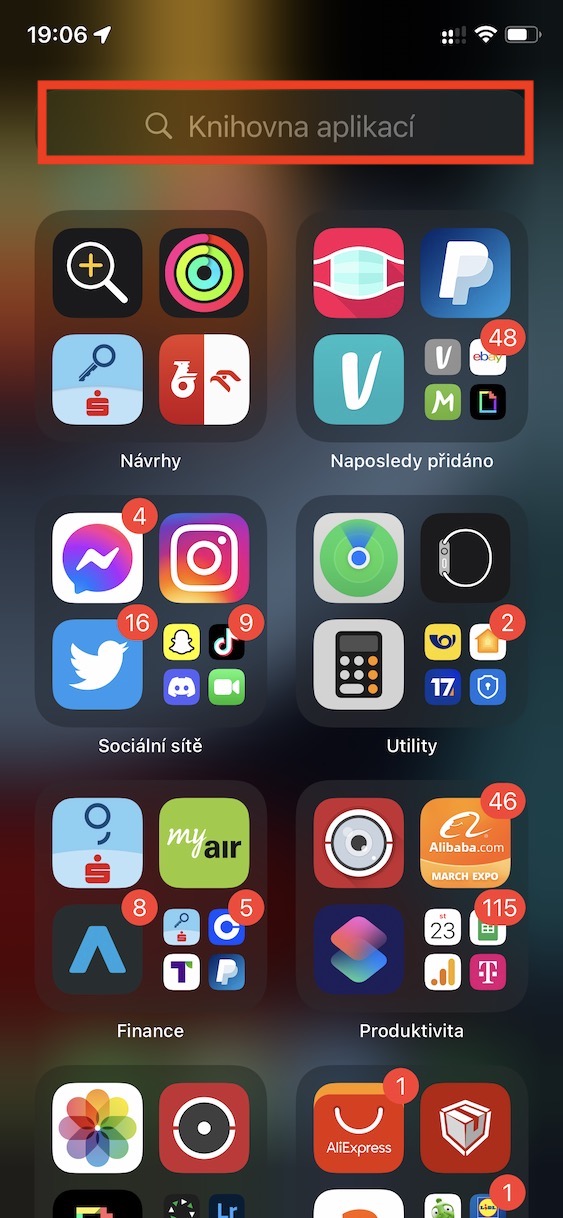
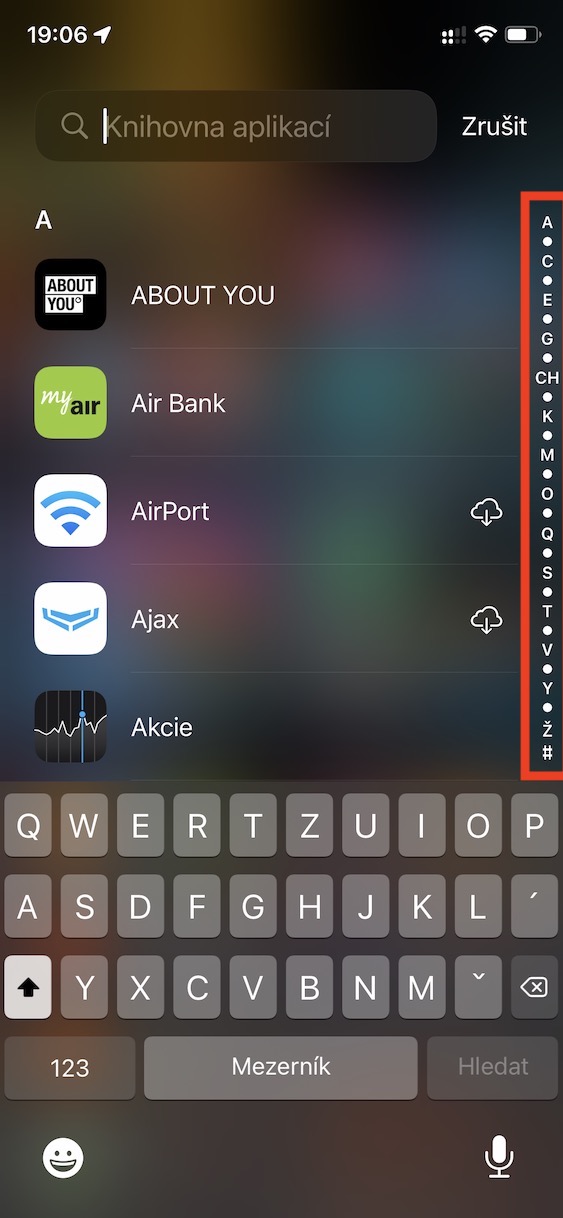
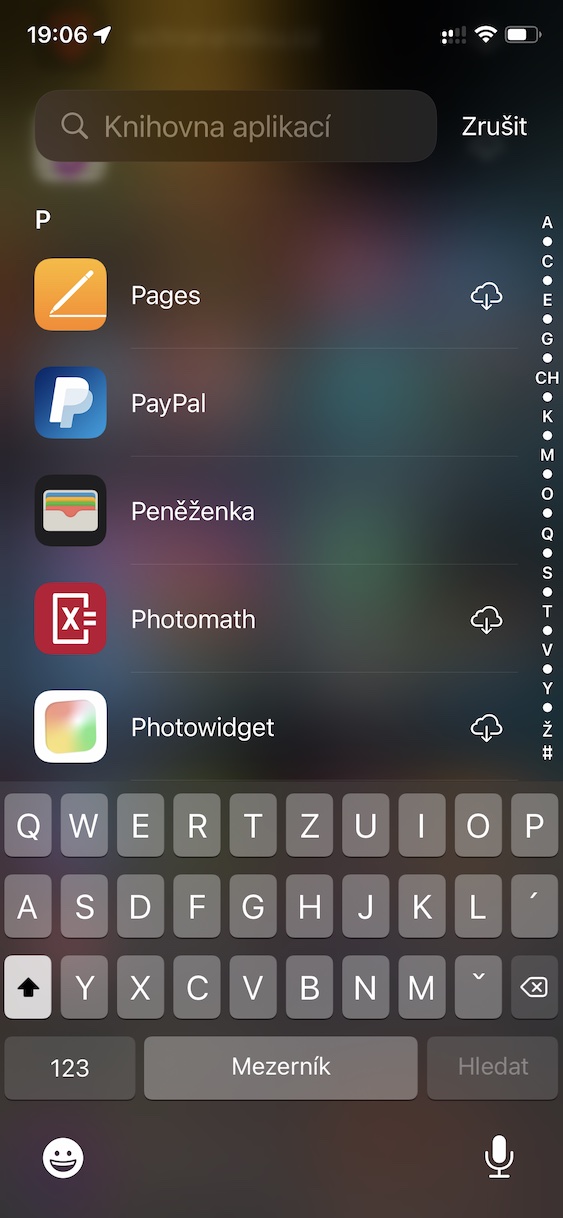
Along with the improvement of the home screen management on the iPhone, we also saw the arrival of the app library some time ago. It is always located on the last page of the home screen and displays all the apps that you are not currently using. Many users initially criticized the app library, but I personally loved it because I started using it despite my initial resistance and realized that it can really simplify the operation. So if you also don't like the app library from the beginning, definitely give it another try.anci, because it deserves it. Thanks to it, you can significantly speed up the search for any applications and there is no need to rummage through individual pages. Moreover, the application library is intelligent and always shows you the applications you use most often first in the categories.
Gallery
...or make a system in order
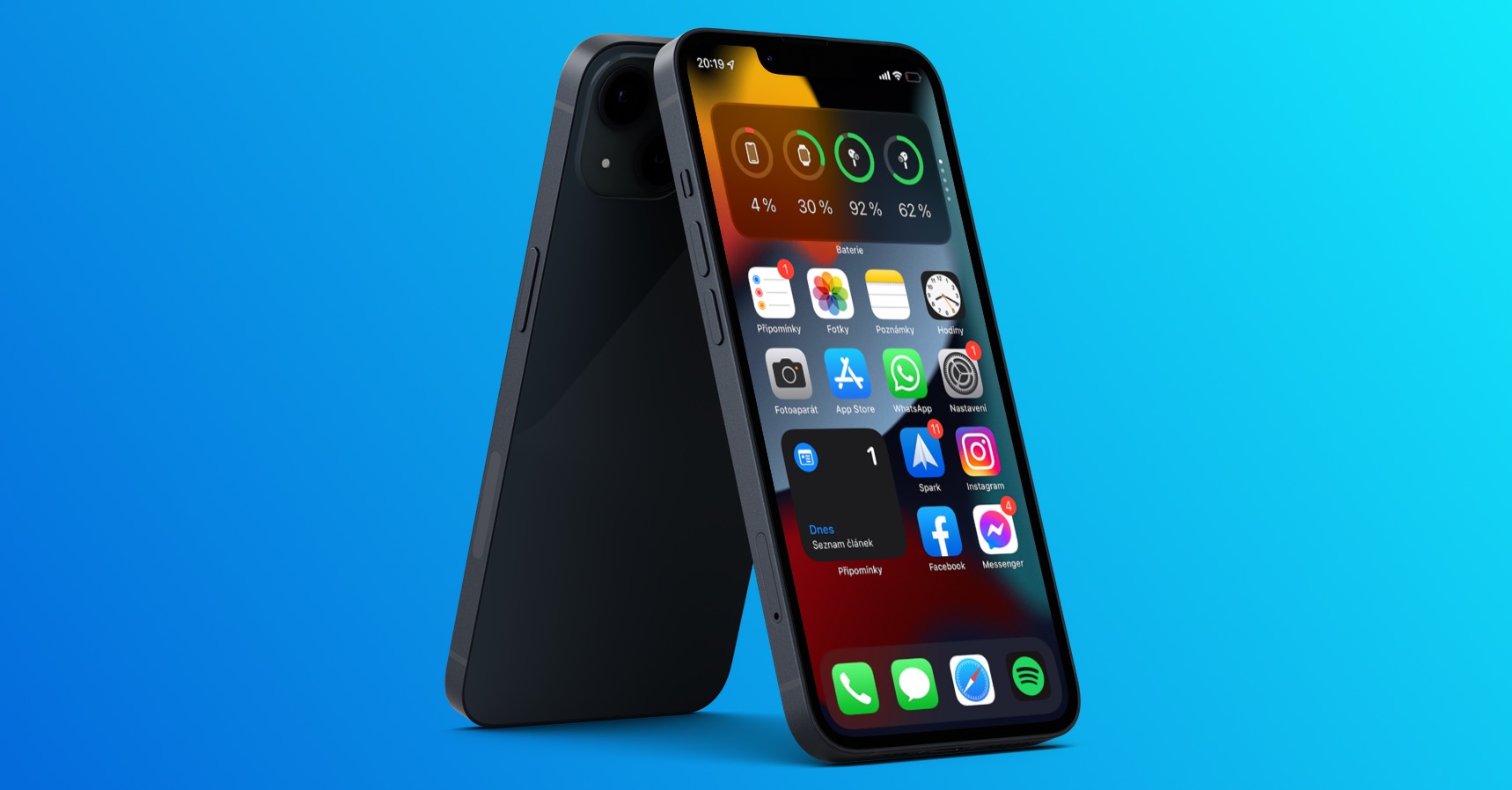
If you have tried using the application library several times but have never gotten used to it, it is definitely a shame - but there is nothing you can do about it. In this case, you should create a system for sorting individual applications on the desktop. There are several such systems that you can stick to. For example, some users sort applications alphabetically, while others rely on the same color of application icons that they group together. Of course, there is also the option to sort according to what the application is used for , i.e. for example, entertainment applications, social networks, work tools, etc. In addition, you should also set whether new applications can be placed on the desktop after downloading, which you can do in Settings → Desktop, in the Newly downloaded applications category.
Don't forget the folders
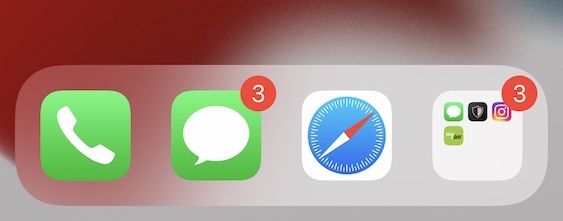
Many users are not even aware that there is a iOS It is still possible to create folders with individual applications, which makes organization much easier. Thanks to folders, you can unite selected applications together, so that they will occupy only one icon on the desktop, and not more. In addition, folders are also available sites, so you can insert practically anything hereoneof different applications. Folders are most often used by users to unify applications of the same category, but you can use them to your own taste. And don't forget that even the folder can be placed in the bottom docku, so you can easily expand maxminimal number of applications that can fit here.
Reset desktop
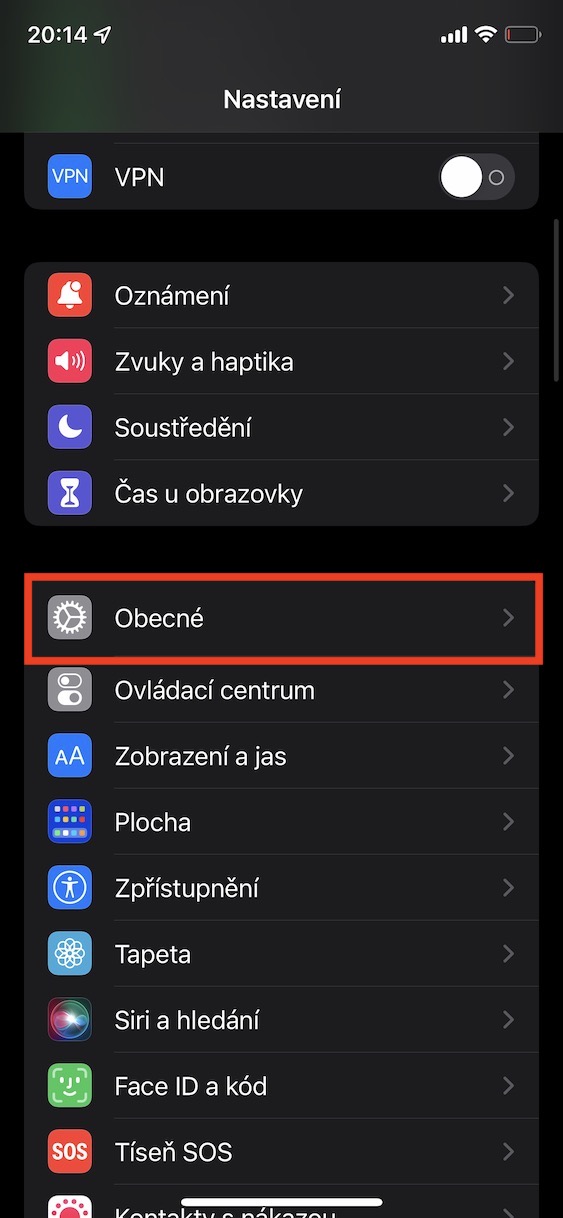
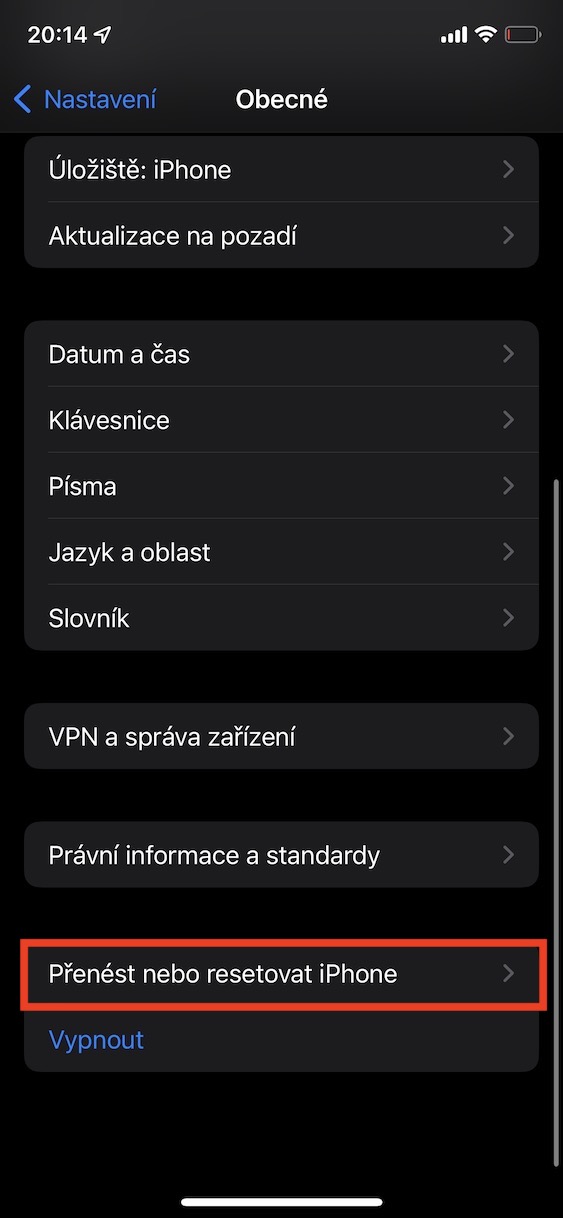
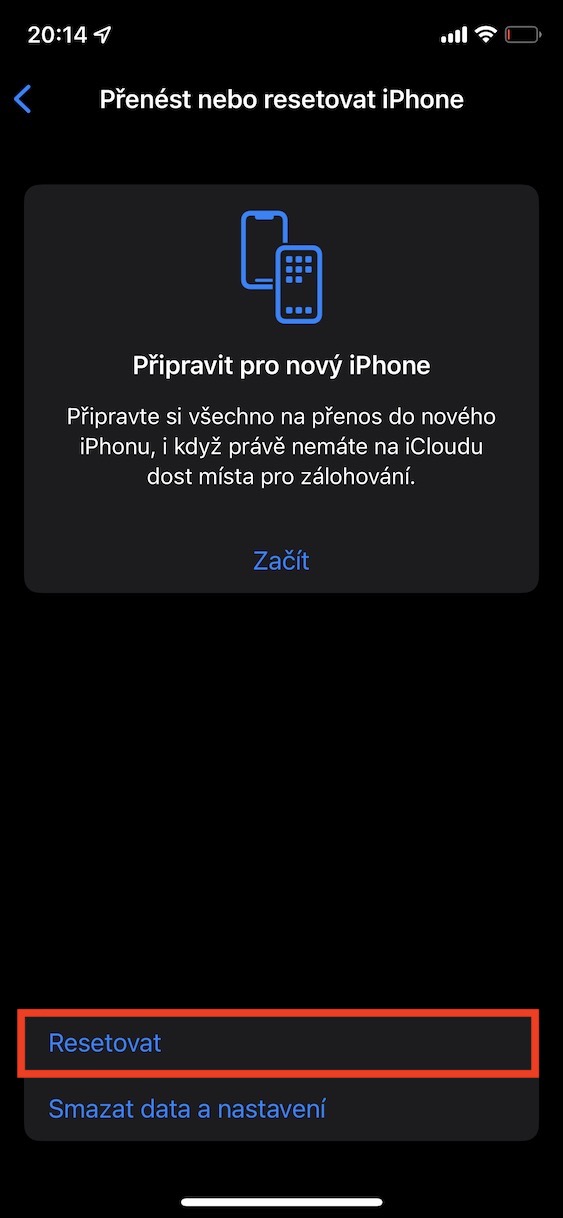
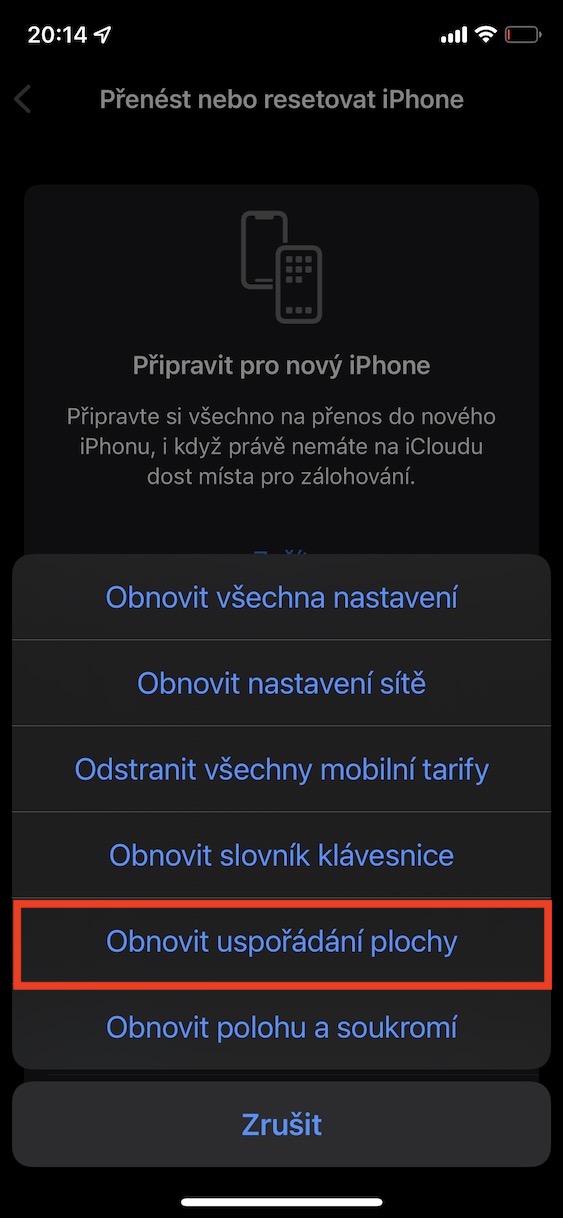
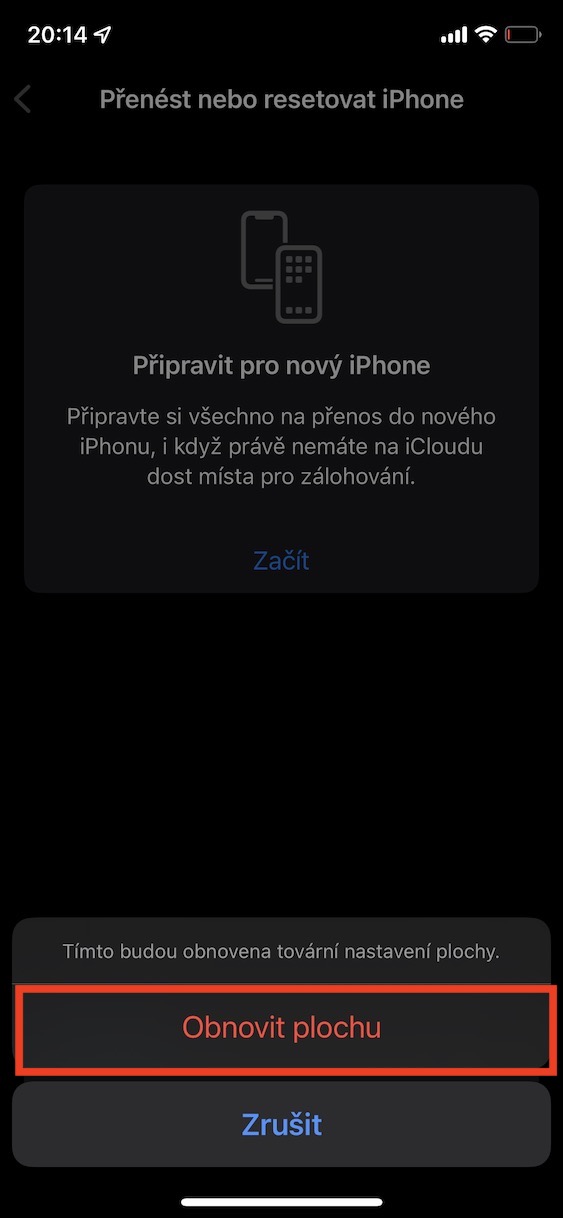
Have you reached a stage where you no longer like your desktop? ProFor example, have you made changes that didn't work for you? Would you simply like to start over with a clean slate? If you answered yes, you can simply reset your desktop to factory settings, which many users don't even know about. If you do this reset, all the icons on your desktop will be arranged as they are on a brand new iPhone with a clean slate. iOS. Note that this will also delete any folders you created. However, you don't need to worry about third-party apps being removed - they will be placed alphabetically on other pages. To reset the desktop, go to Settings → General → Transfer or reset iPhone → Reset, where to select Reset desktop layout.
Gallery