
A while ago Apple after several long months of waiting foroneApple has released the highly anticipated macOS Ventura. This operating system, like iPadOS 16, was delayed by several weeks, so we had to wait an unusually long time. However, if you are one of the users who owns a supported Mac or MacBook, so you can now go to System Preferences and download and install the update. And so that you can start using all the new features right away, in this article we will take a look at the 10 most interesting tips in macOS Ventura that you simply must know about.
You might be interested in
Camera via Continuity
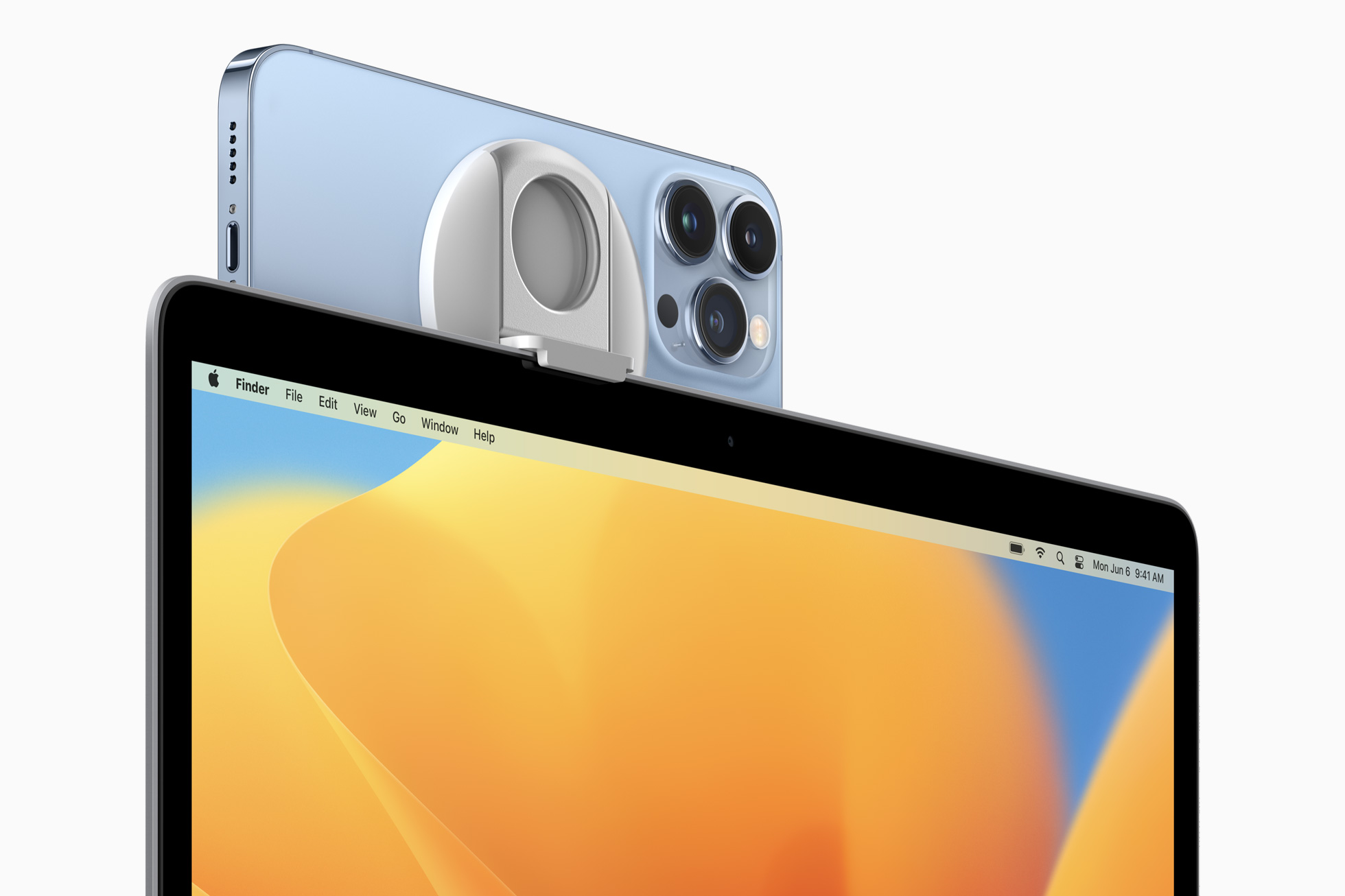
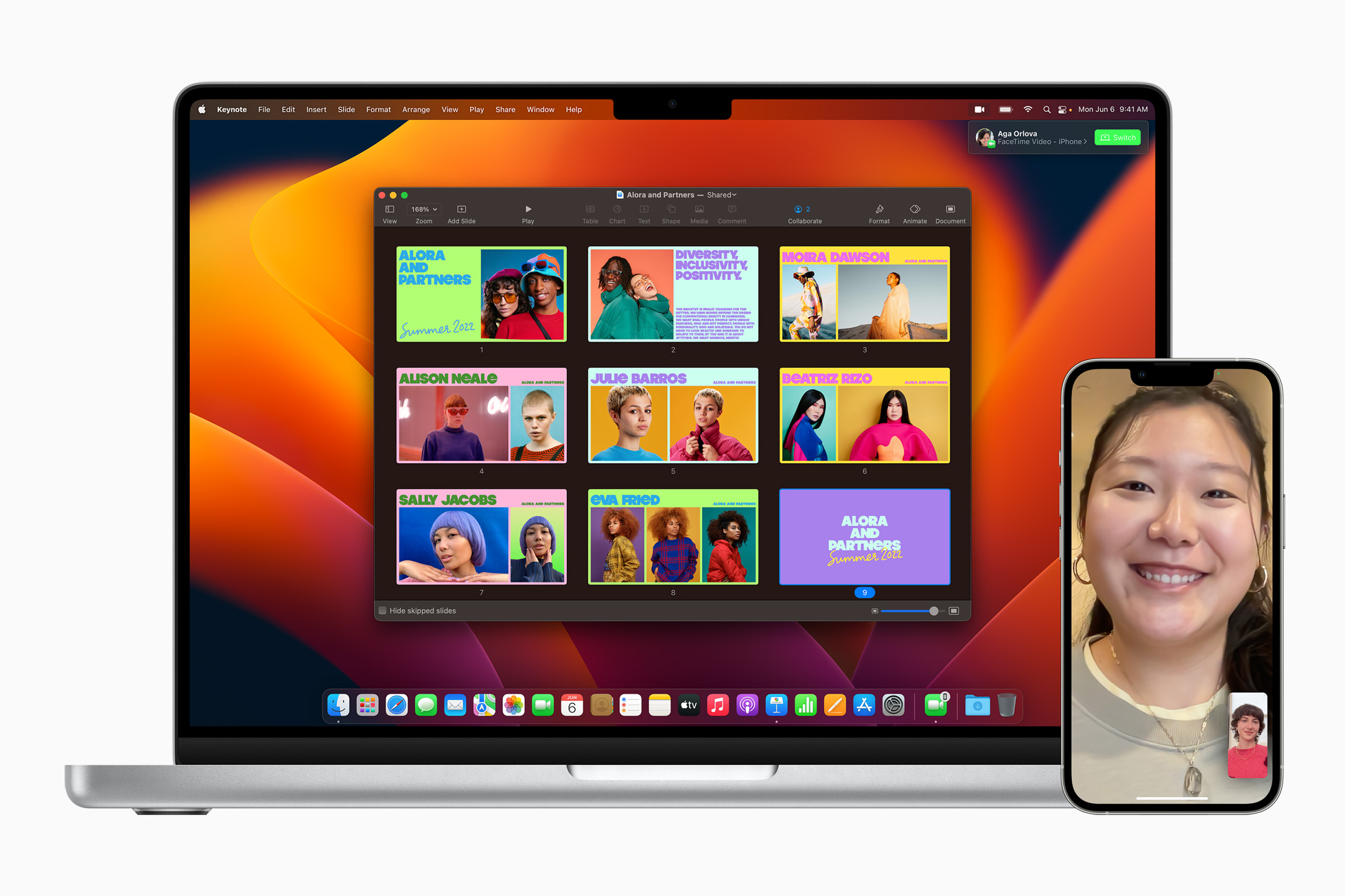
One of the main new features of macOS Ventura is definitely Continuity Camera. This feature specifically provides the ability to connect your iPhone to your Mac, which you can then use as a webcam and microphone, so you don't necessarily have to use the built-in camera. Using your iPhone will give you better quality, and if you have ultra-wide-angle camera, as well as a special Table View mode. ProConnecting your iPhone to your Mac can be done anytime, anywhere, all you need to do is have iOS 16, or macOS Ventura. You can use this feature, for example, during a FaceTime call, on Discord, and in other applications. Pro Try it out immediately, just open the app QuickTime, where in the top bar click on File → New movie recording and press the small arrow next to the record button. It's enough here select iPhone and it is done.
Activation Stage Manager
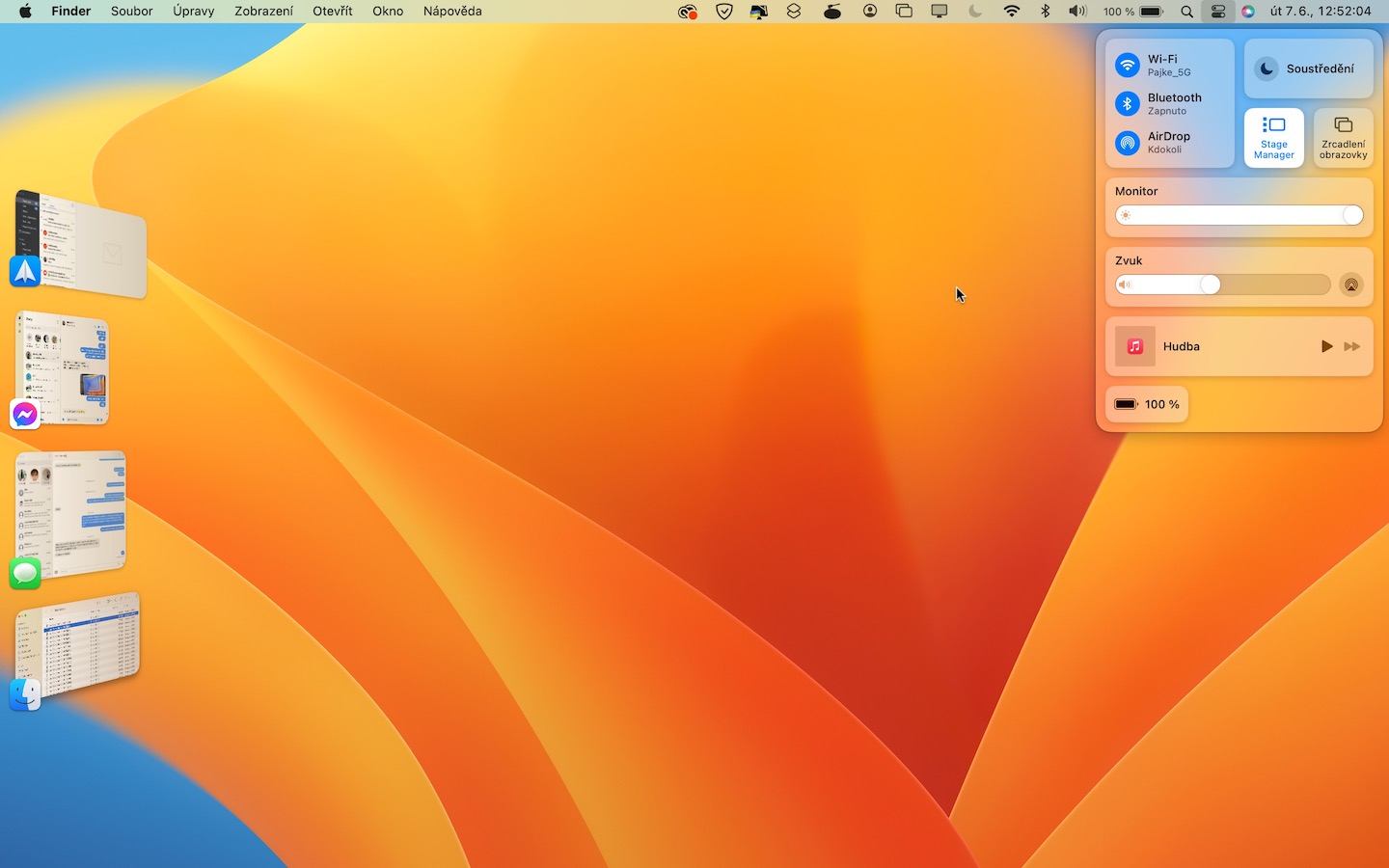
Another new feature, which in my opinion is much more interesting in iPadOS 16, is Stage Manager. It is specifically supposed to bring a completely new option for multitasking on Apple computers (and tablets), but most users simply didn't love it because they don't want to change the way they use their Mac - and I'm not surprised, to be honest. Anyway, if you Stage Manager they wanted to try it, that's enough open Control Center, where only on Internship Manager tap to execute activation.
Gallery
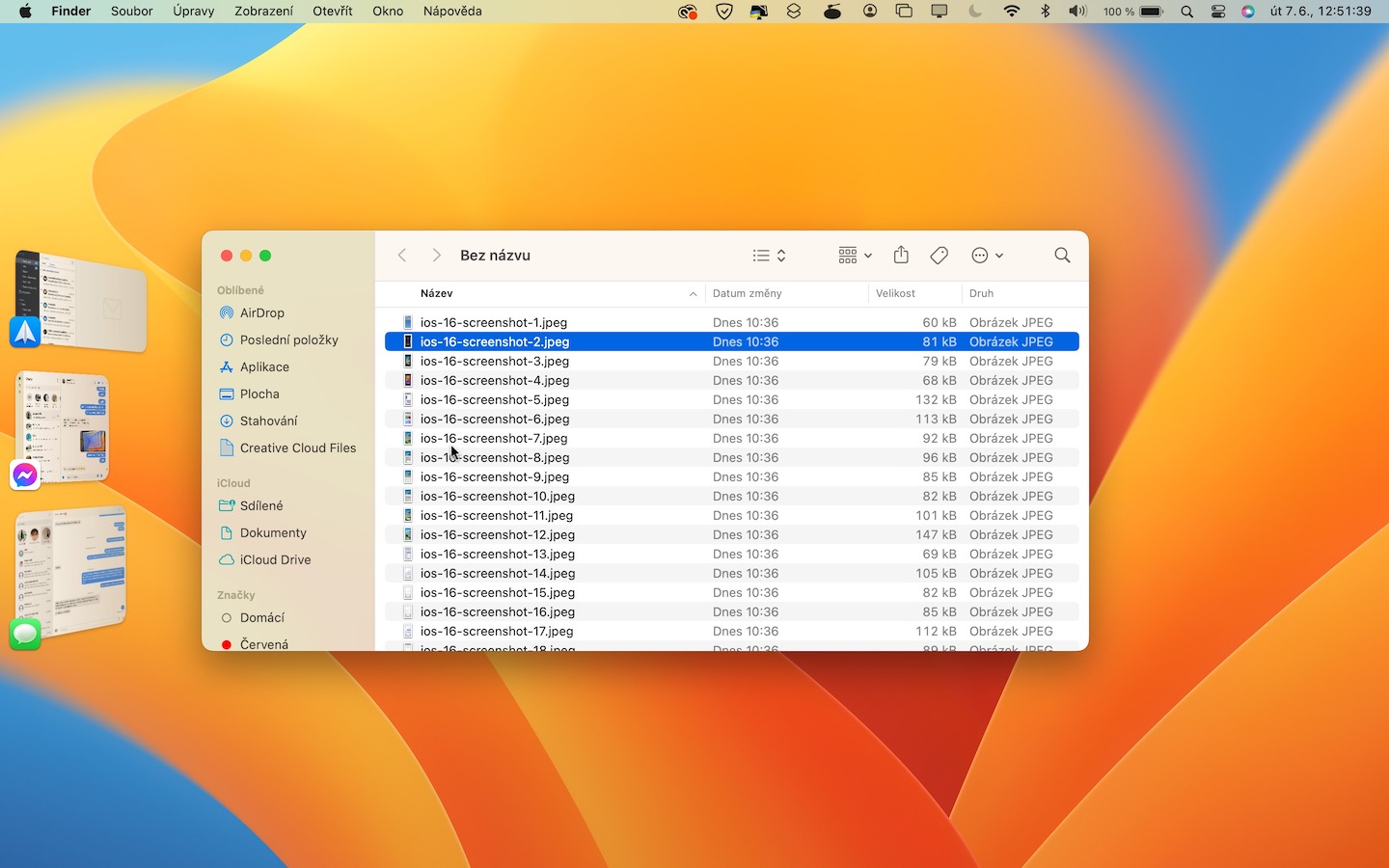
A better and smarter Spotlight
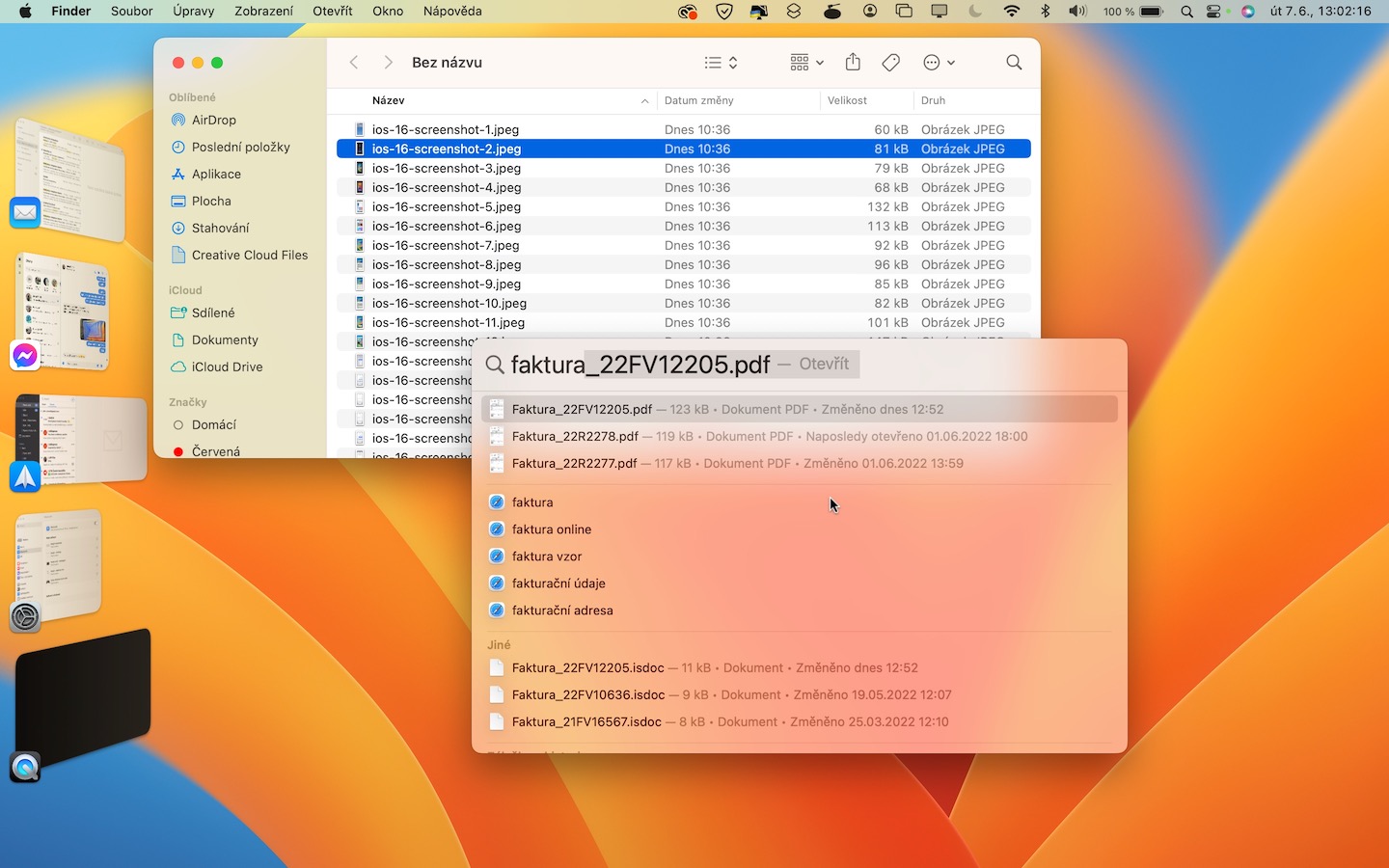
Spotlight can be thought of as a kind of local Google on your Mac. By itself it is already very fast and capable, but in macOS Ventura it is not Apple decided to improve it even more. Specifically, you can immediately notice the design upgrade, which is not particularly significant, but can definitely be considered a kind of face-lift. In terms of functionality, we can mention, for example, text search in images and other improvements that we are used to from iOS 16. Tap to open Spotlight magnifying glass top right or a keyboard shortcut Command + Spacebar.
Deleting and editing a sent message
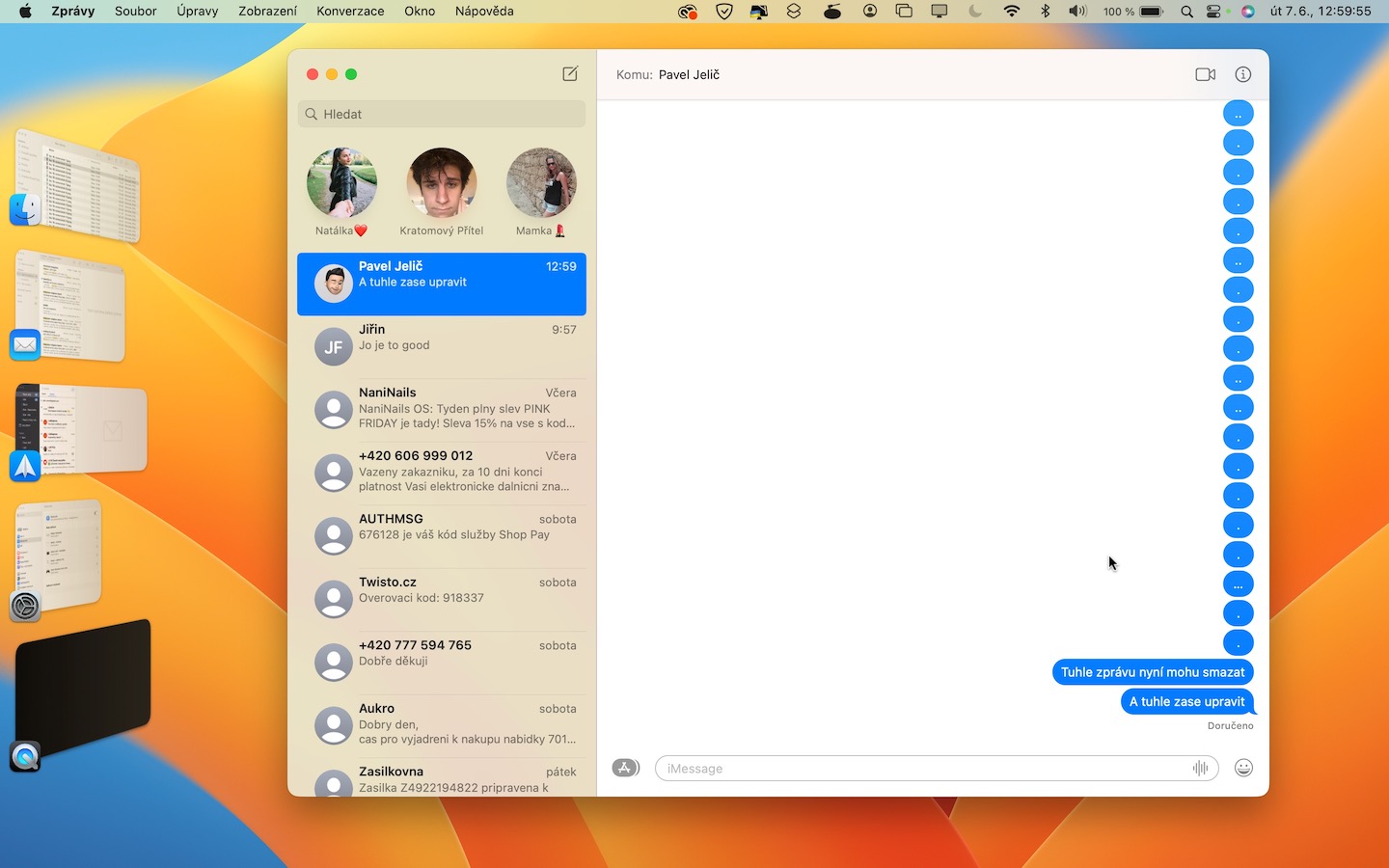
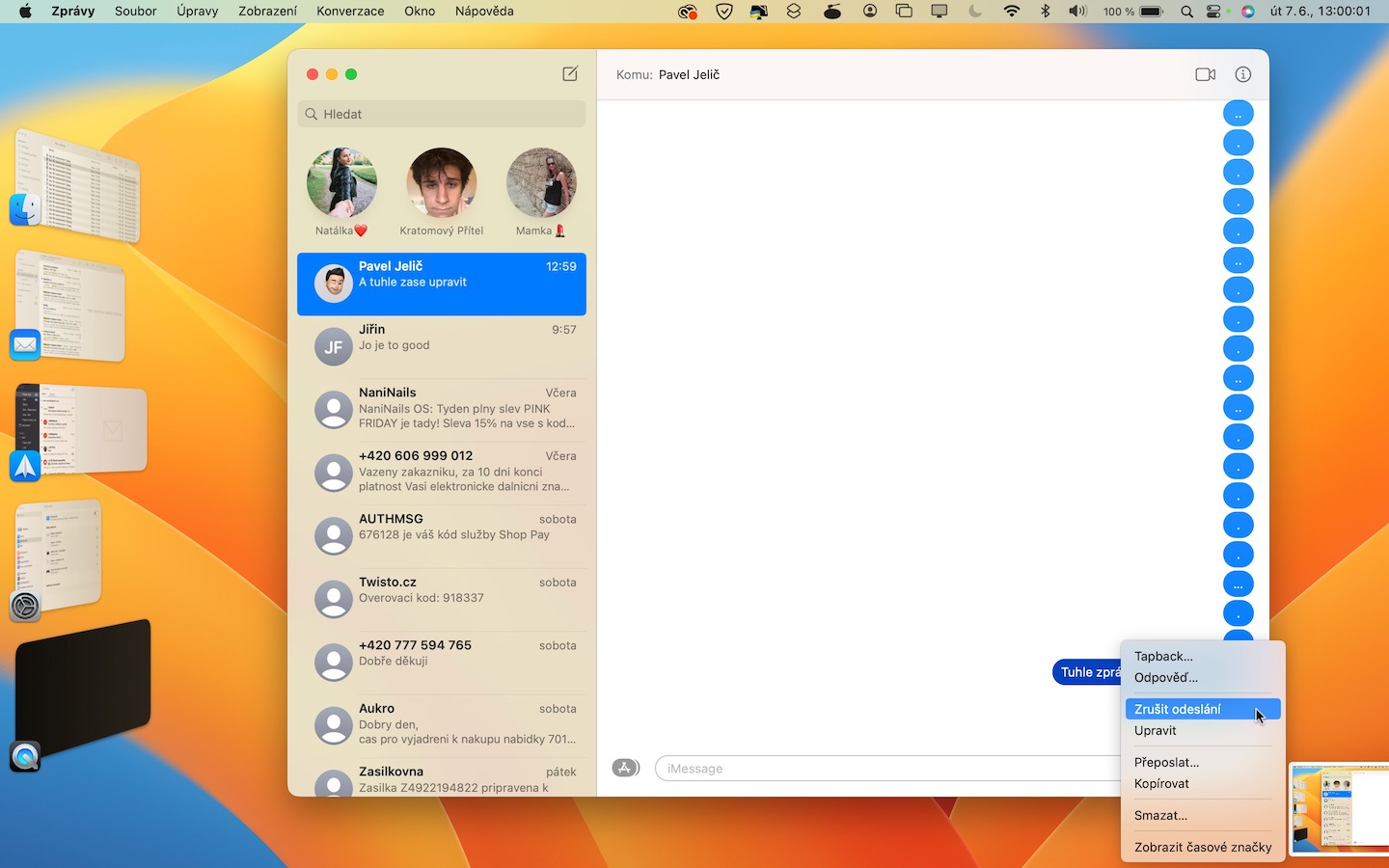
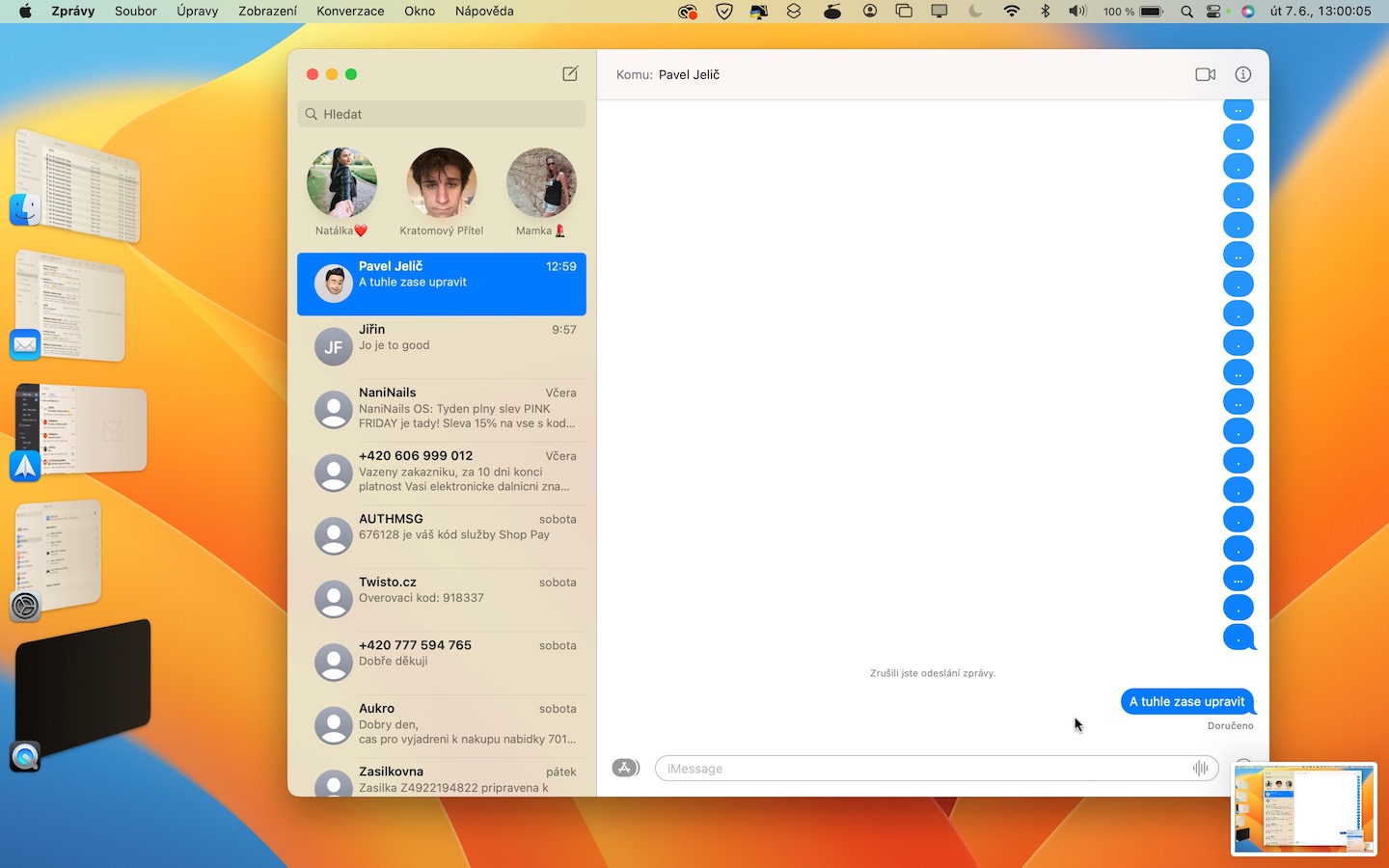
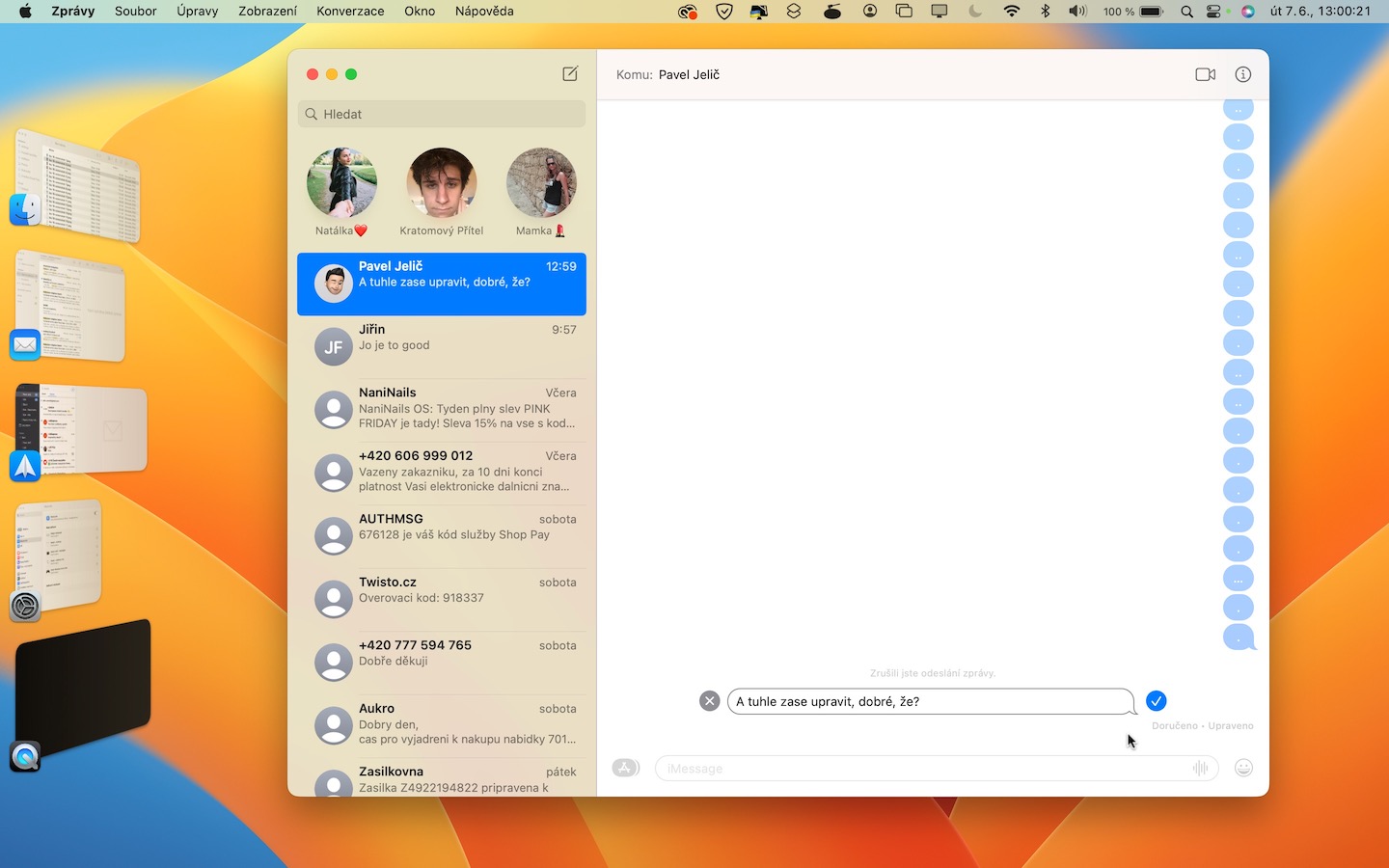
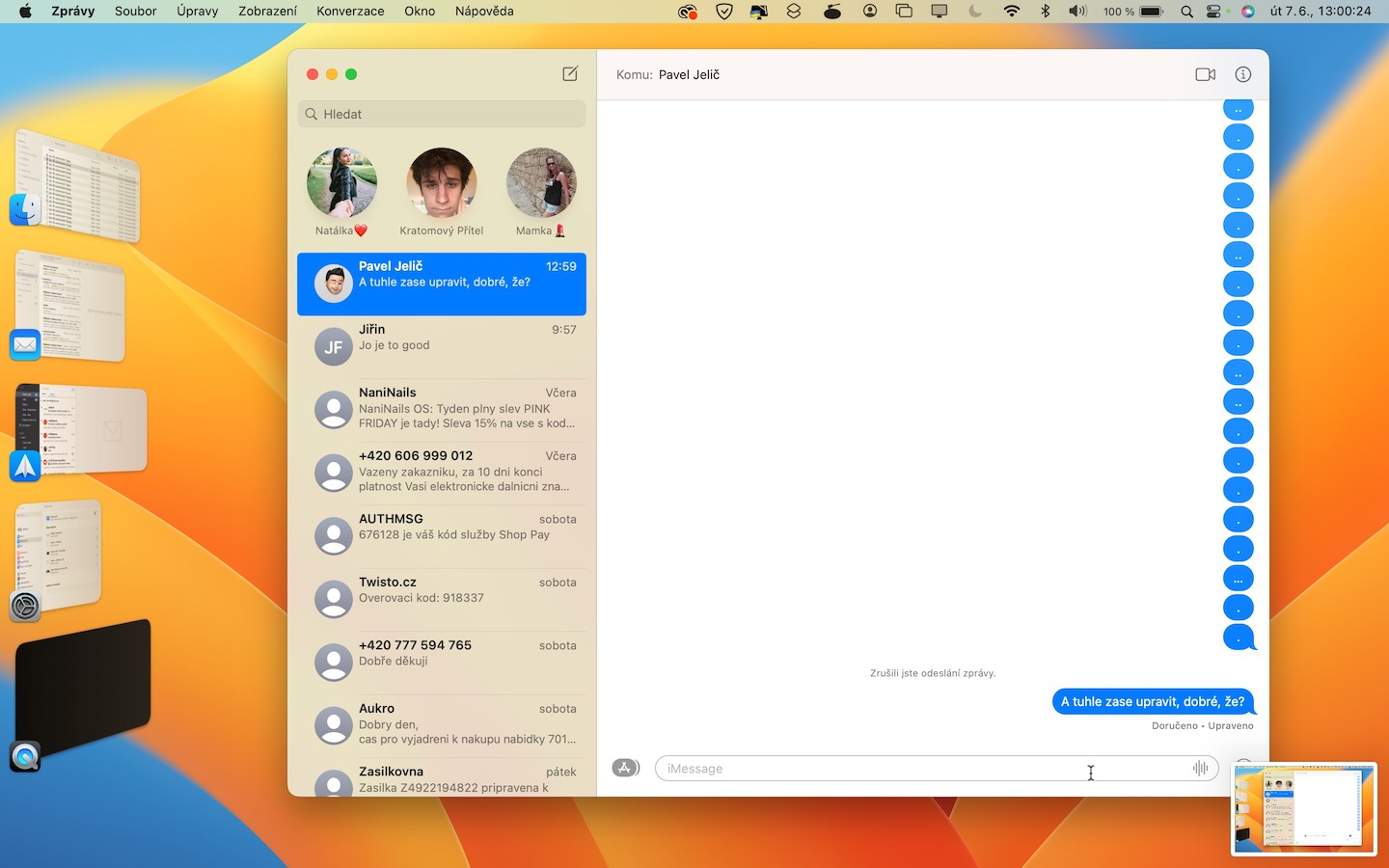
Same as in iOS 16, macOS Ventura also features improvements to the native Messages app, which brings new common features to all systems. The most interesting improvement is definitely the ability to delete and edit a message that has already been sent. iMessageIf you would like to send message delete or edit, that's enough hold cursor and then select from the menu cancel sending respectively Edit.
Gallery
New Weather and Clock apps
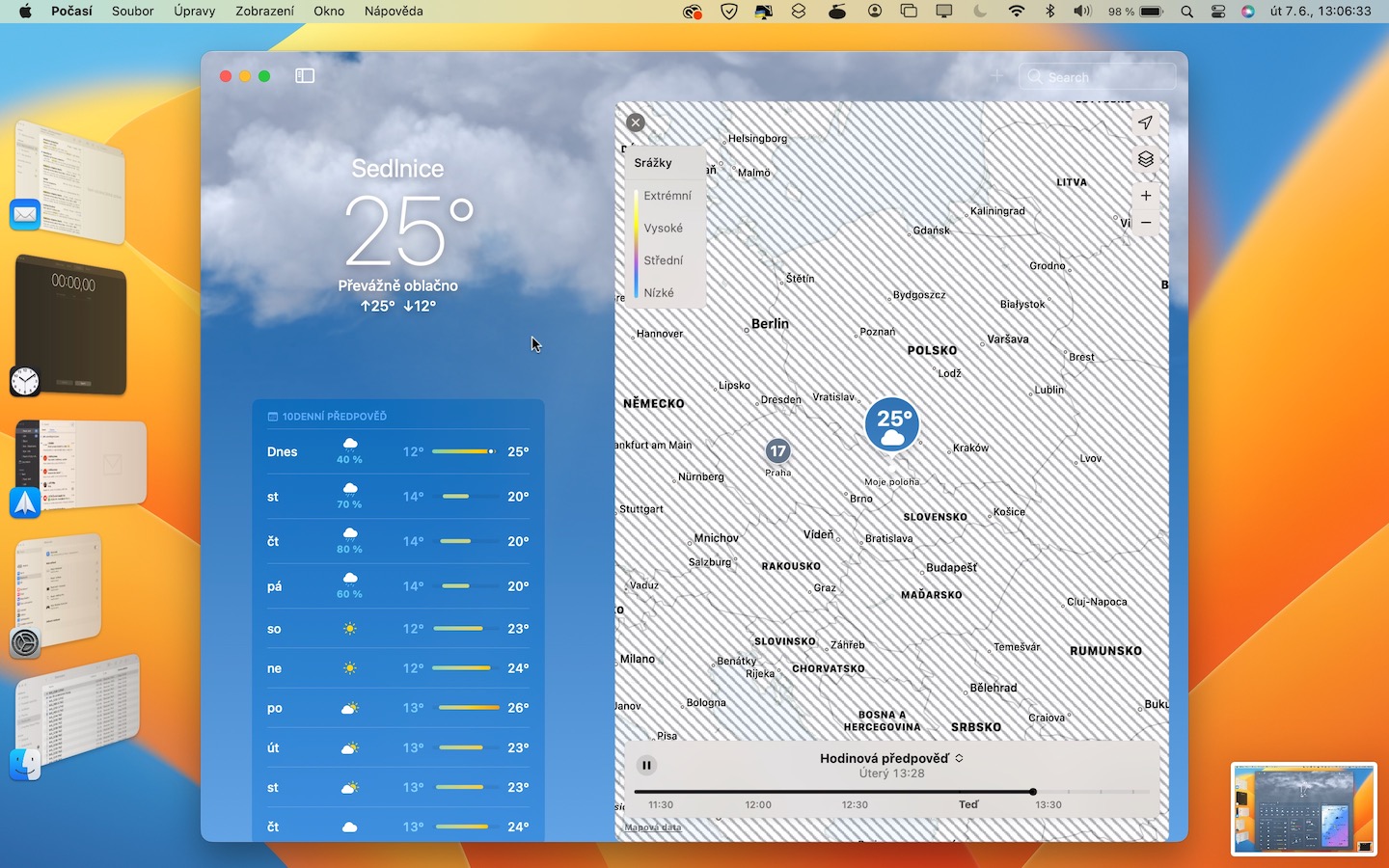
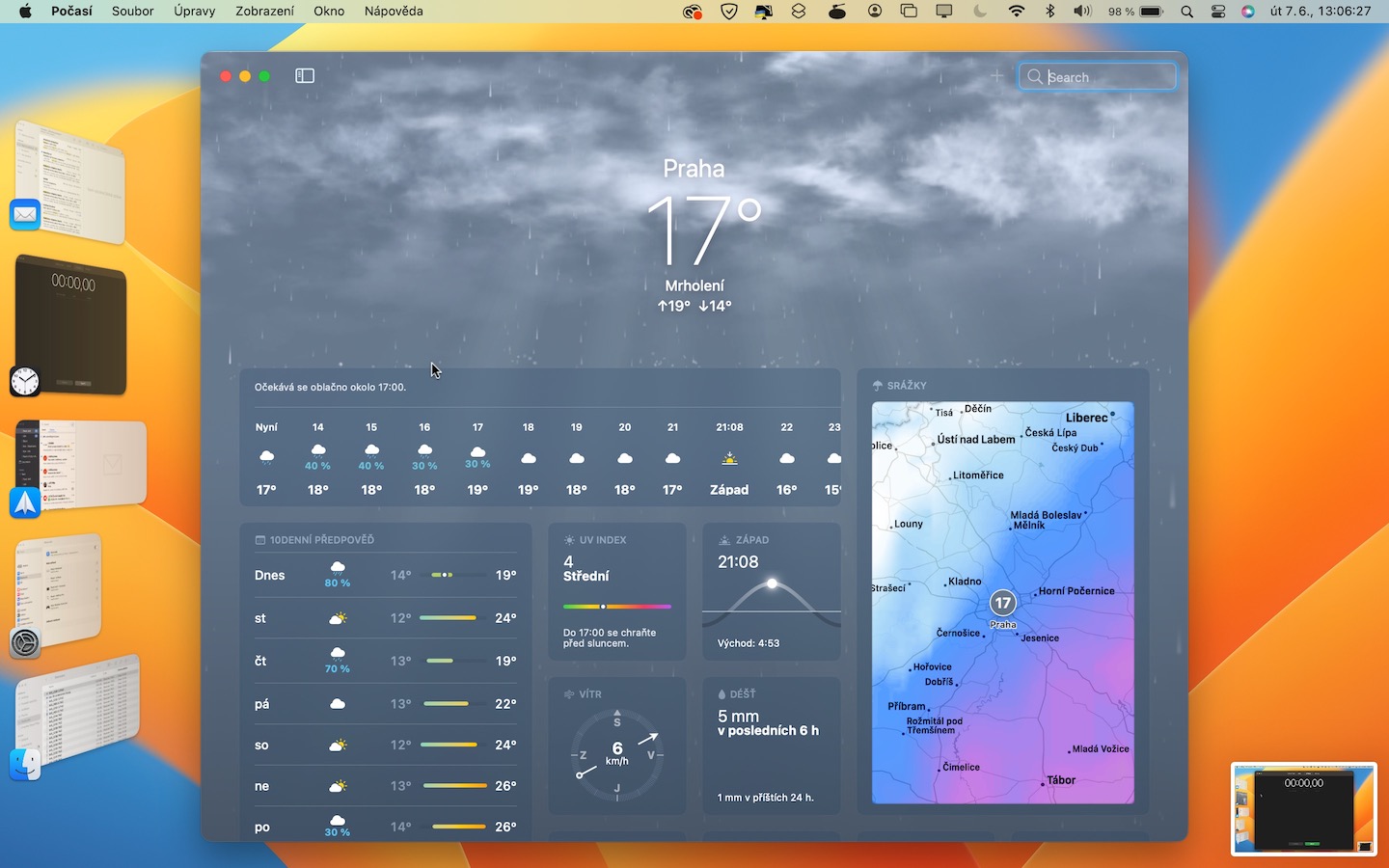
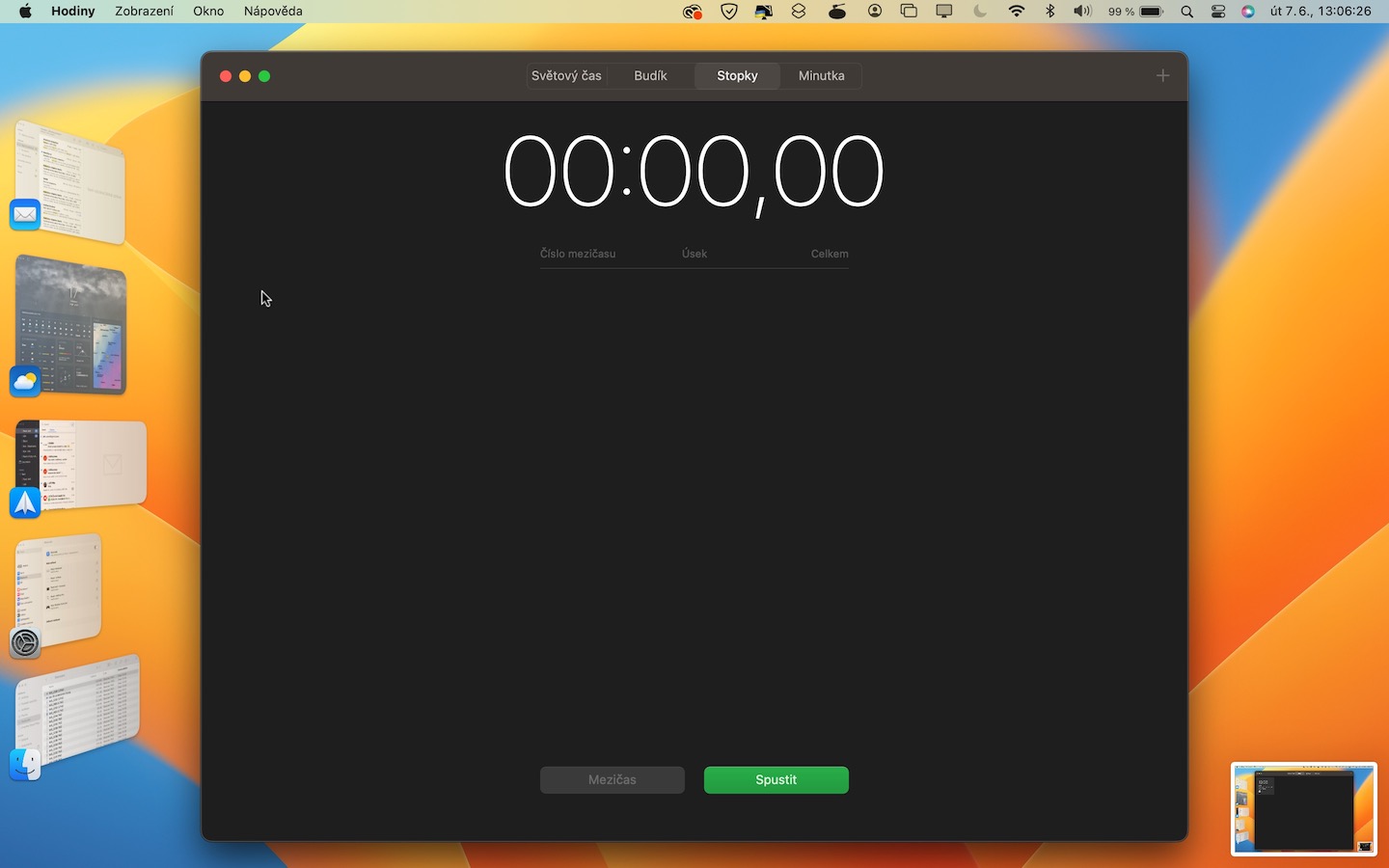
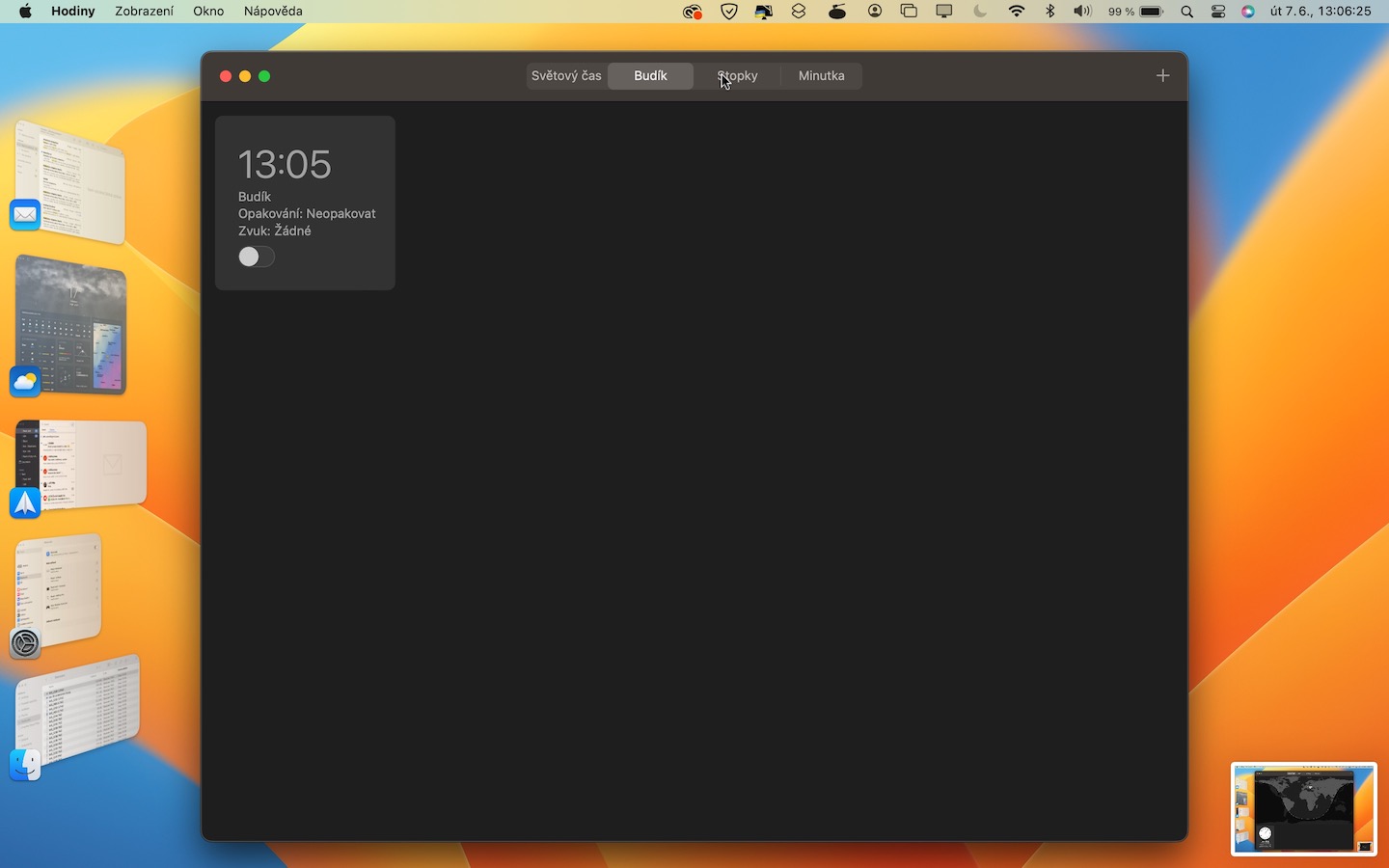
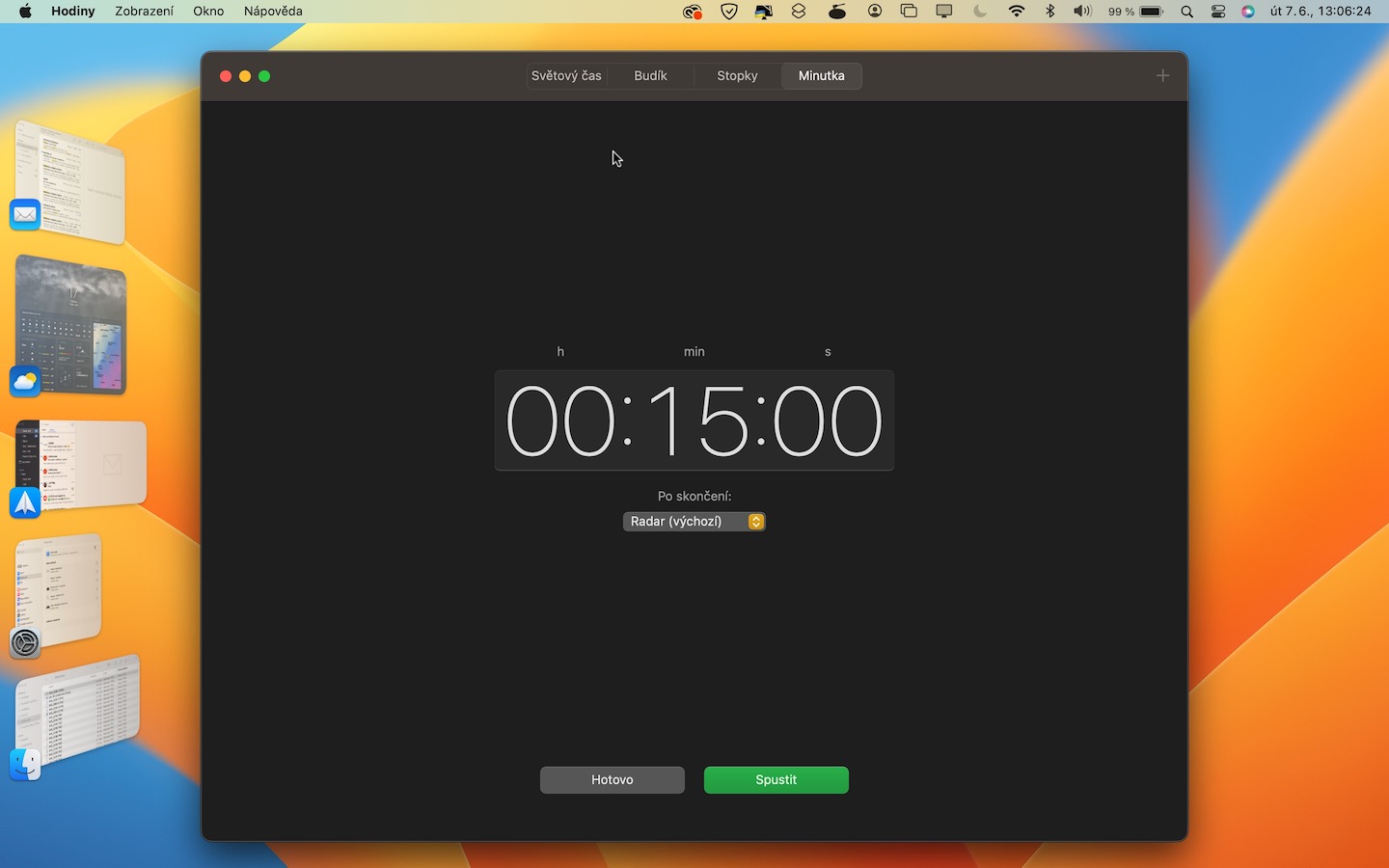
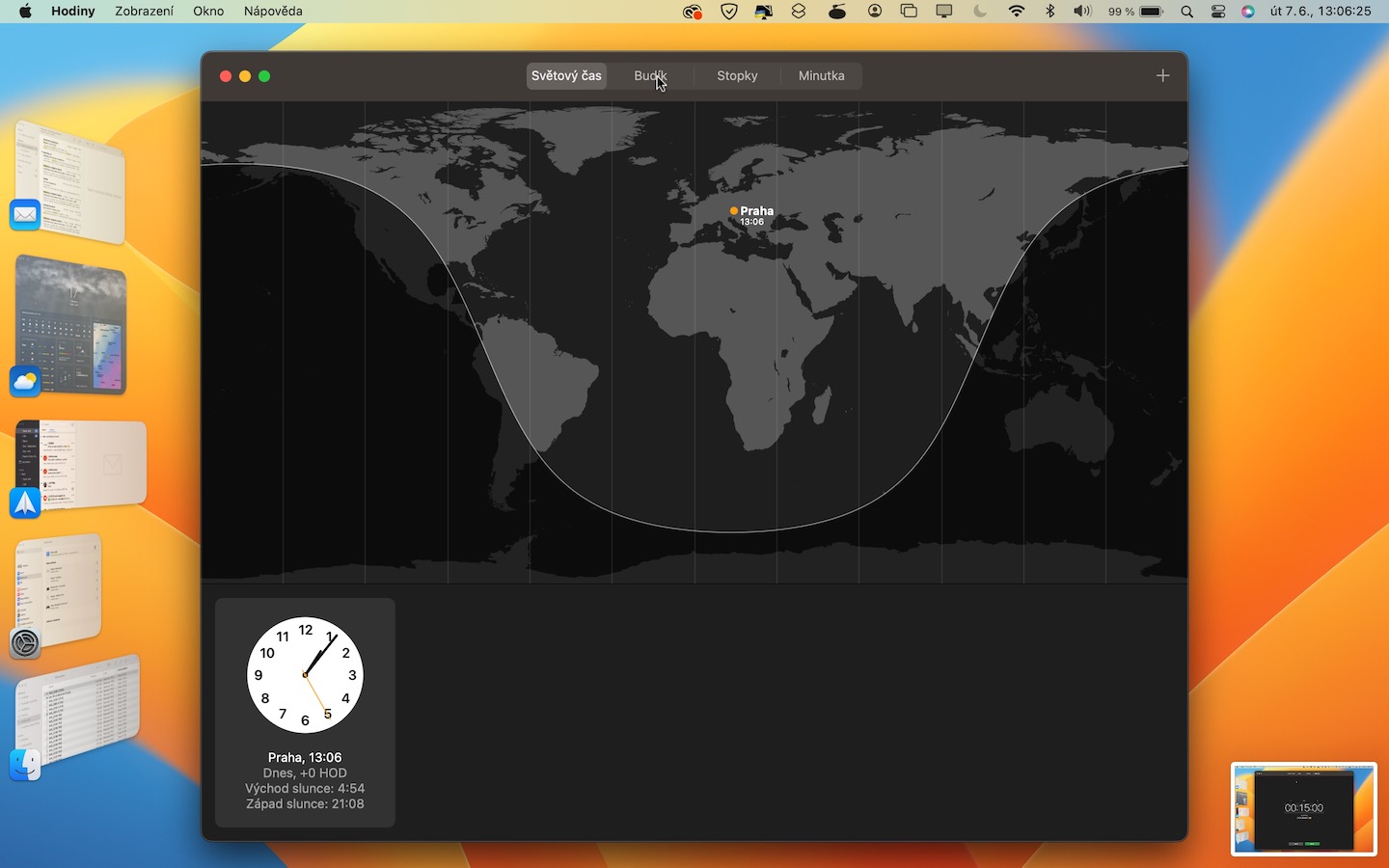
Apple computer users have been clamoring for a long time to Apple koneIt has added two missing apps, Weather and Clock. Both of these apps have been available on the iPhone for a long time, but on the Mac, they are Apple simply put on time. The positive news is that the Weather and Clock apps are available in macOS VenturaoneIt's available now and I can honestly say it was worth the wait. Weather It looks really great on your Mac display and clearly displays all the necessary information, which can also be placed in widgetoh, and then as for the application Clock, so you areoneYou can easily set alarms, timers, stopwatches and view world time, which comes in handy.
Gallery
New System Settings
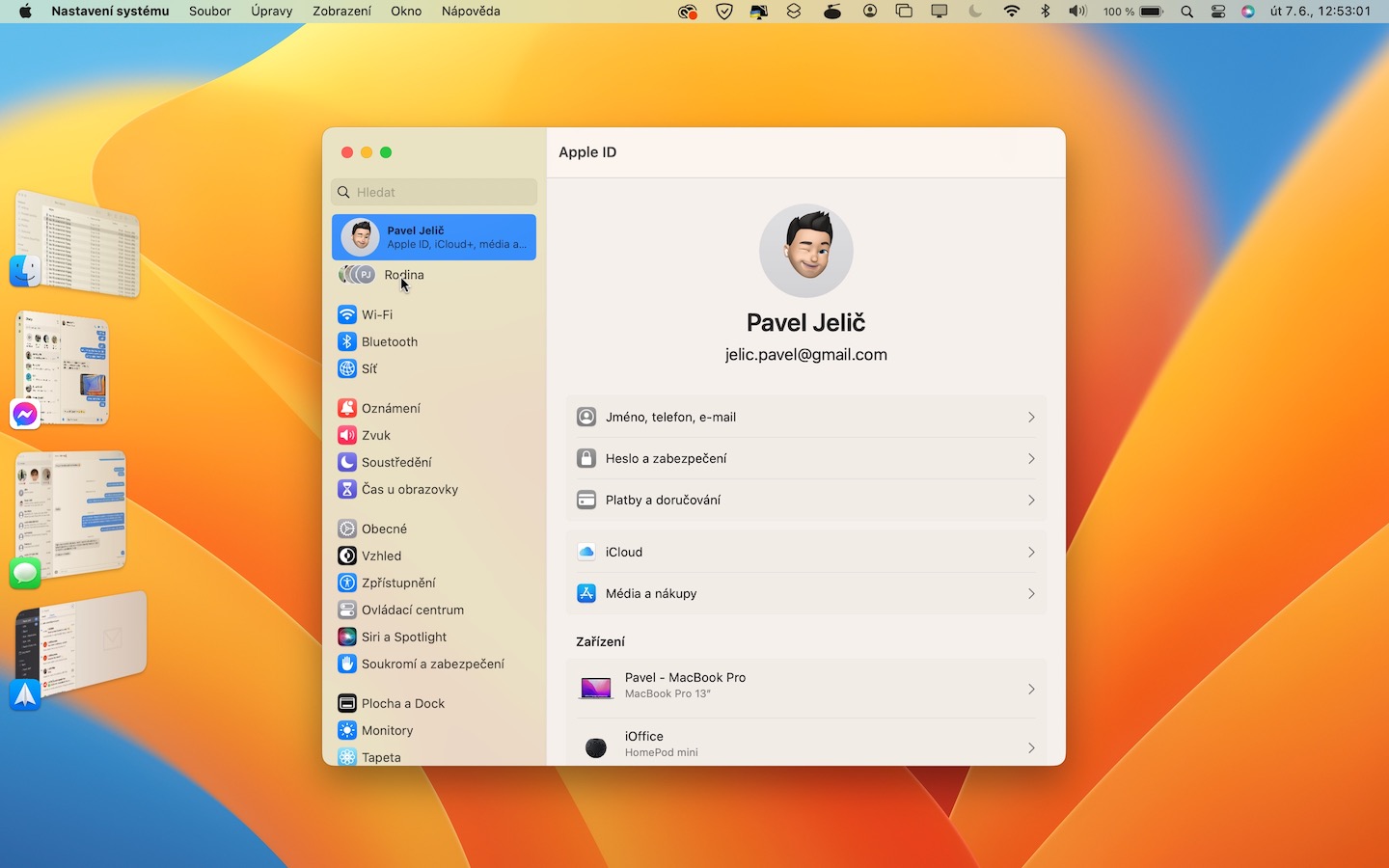
By far the most controversial change in macOS Ventura is System Preferences, currently System Settings. Apple Specifically, in the new System Settings, Apple has once again tried to make all its systems unified in some way, so there was a rework that ultimately resembles the Settings from iPadOS. To be completely honest, I don't like the new System Settings and I find them confusing. In addition, be prepared to search for all the preferences, as they have been divided into more sections than were available before. So if you're not new to using a Mac, it will probably take you some time to get used to it - I've been using macOS Ventura since the first beta version and I haven't gotten used to it yet. You can make your own picture in → System Settings…
Sharing panel groups in Safari
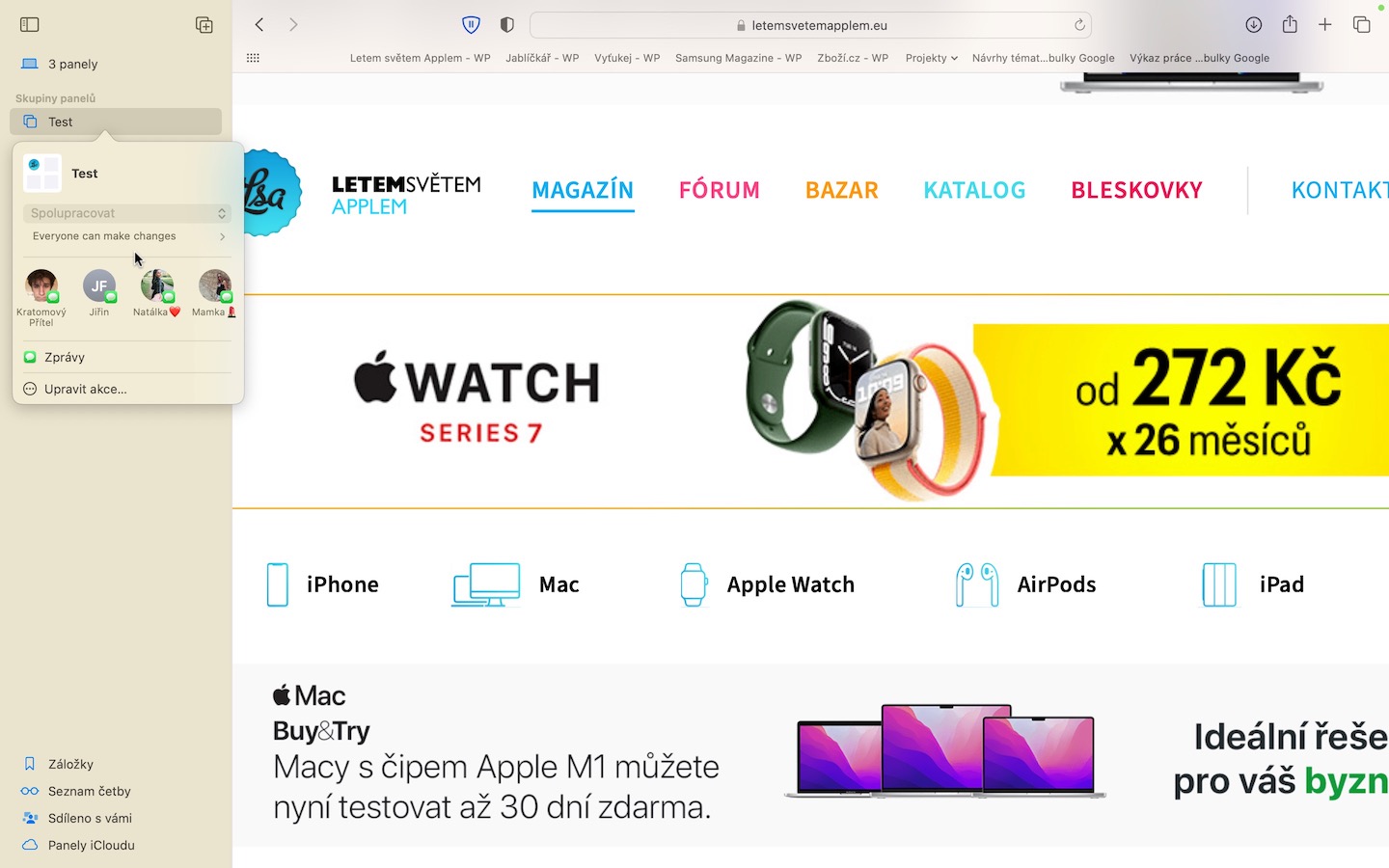
In the last macOS Monterey (and other systems from last year) came Apple with groups of panels in Safari, which allows users to easily separate different panels. This can be useful, for example, for dividing home and work panels, or panels for a project. In the new macOS Ventura, we have a new feature in the form of sharing groups of panels, so for the first time ever, you can Safari collaborate with multiple users. Pro sharing panel groups in Safari open the sidebar and by choice a group of panels click right click (two fingers). Then just select the option Share a group of panels.
Live text in video
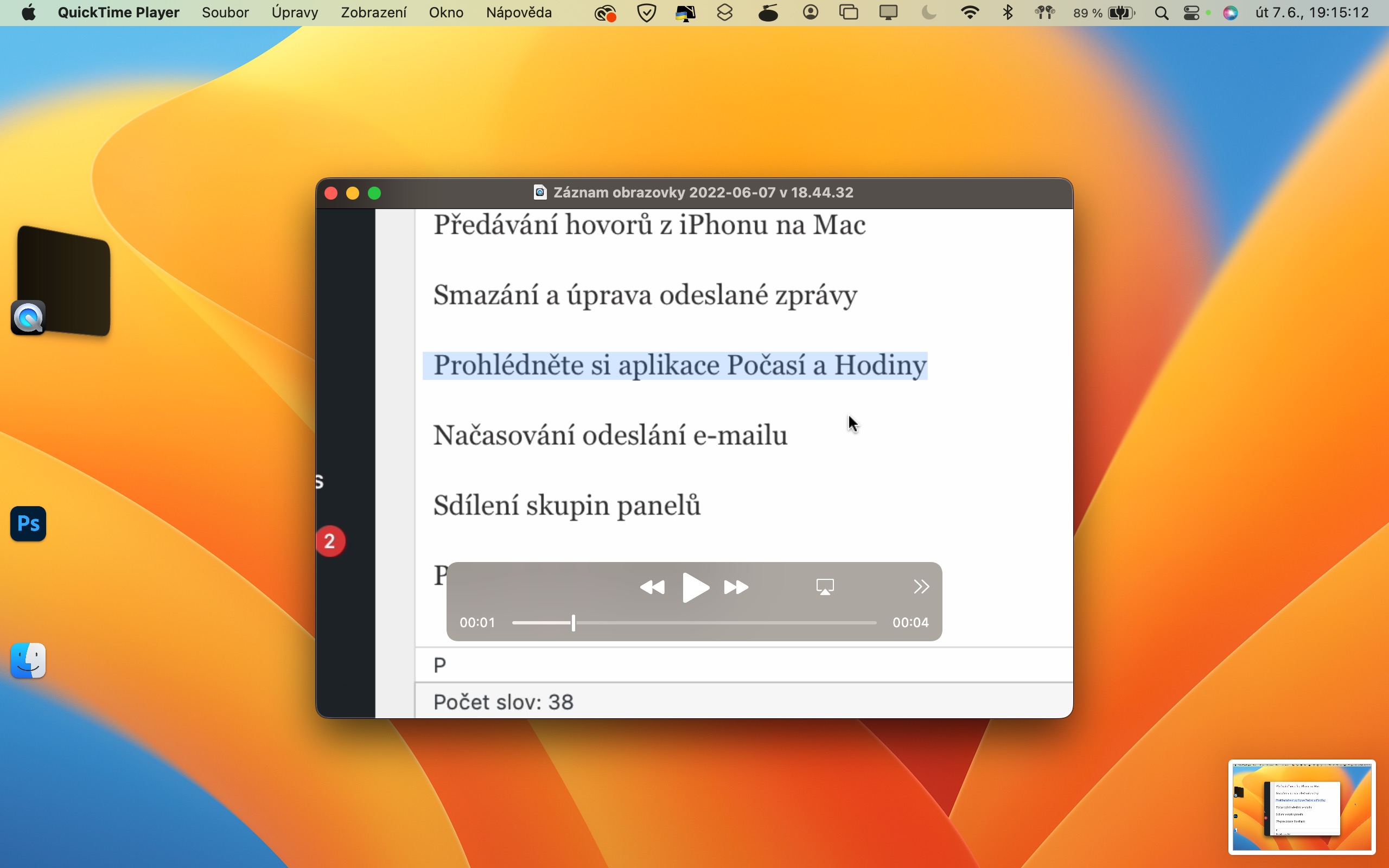
ProWith the Live Text feature, you can Apple devices simply do notchat recognize text in images, and then work with it in all sorts of ways, i.e. copy it, search, translate it, etc. If you have ever wanted some text notchat to recognize text from a video, you had to pause it, take a screenshot, and then go to Photos, where this option is now available. However, Live Text has been improved in macOS Ventura and can now be used in videos. So, all you have to do is pause the video, and then you can use Live Text to recognize text.
Transfer calls from iPhone to Mac
You may have found yourself in a situation where you received an incoming call on your iPhone and didn't expect it to be that long. However, you need to work on your Mac during the call, but you don't want to put it down. Until now, you could only solve this by hanging up the call and calling it again, but in the new macOS Ventura, you canoneCall forwarding from iPhone to Mac is now available. So if you no longer want to hold iPhone to your ear and transfer the call to your Mac, so tooneYou can do it – and no one will know anything.
Schedule an email to be sent
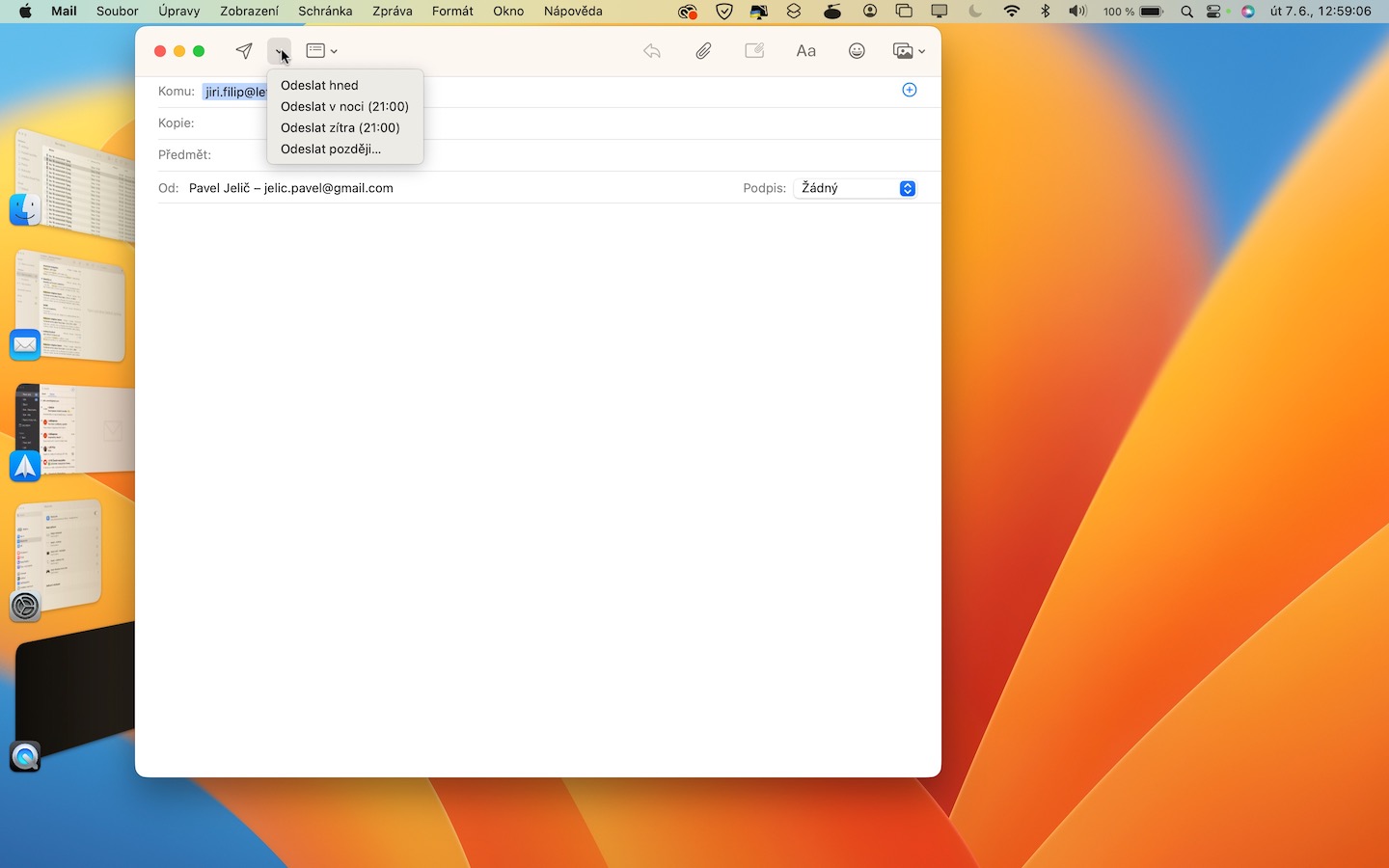
Are you one of those people who likes to work in Mail late at night? If so, you may find it annoying to send emails late at night. Competing email clients have offered the ability to schedule emails for a long time, but native Mail didn't—until macOS Ventura arrived. TooneThis way, users don't have to save emails in drafts and send them in bulk one by one in the morning. Pro To schedule an email to be sent, all you need to do is type it they clicked the arrow next to the submit button, where you can select date and time. After that, planning is enough confirm and you don't have to worry about anything else - the email will be sent automatically at the set time.

Dobrý den. Iphone 8 to MacBook Pro 2017, on both latest OS. Camera cannot be selected via Continuity. Is it possible that old devices can't do this?
Can't, you need iPhone XS (XR) and later.
Thank you for the reply. And the old Mac can do it? I don't need silicone?
I've been using call forwarding from iPhone to Mac and back for a few years, as well as forwarding to iPad, Watch and HomeUnder and back.
I'm definitely not arguing because I don't know for sure, but I feel like it's always only worked ON iPhone from other devices, but I've never seen it offer me From an iPhone.