In the latest operating systems from Applu – iOS and iPadOS 16, macOS 13 Ventura and watchOS 9 – which are still available in beta versions, countless different new features await users, both system and application-related. In any case, the public will have to wait a few more months for the release. Several new features come with the new system and in the native Mail application, and one of them is the option to cancel sending an email. This means that if you send an email, you still have a few seconds to undo this action, for example, if you realize that you did not attach an attachment, made a mistake in the text, etc.
You might be interested in
iOS 16: How to change the time for canceling sending an email
Most other e-mail clients have had the above-mentioned feature for a long time, so it's definitely nice, isn't it Apple came up with this news. Until now, the time to cancel sending an email was 10 seconds. Apple however, he realized that this might not suit some users completely, so he added an option that allows users to choose a different time to possibly have enough time to think. The time for canceling the sending of an e-mail can therefore be changed as follows:
- First, you need to have a iOS 16 moved to native app Settings.
- Once you do, slide down a piece below, where find and click the section Mail
- Then swipe here all the way down where in the category Sending unclick Undo Send Delay (will be honored).
- nakonec just click away select the time you want to use for the option to cancel sending the email.
Gallery
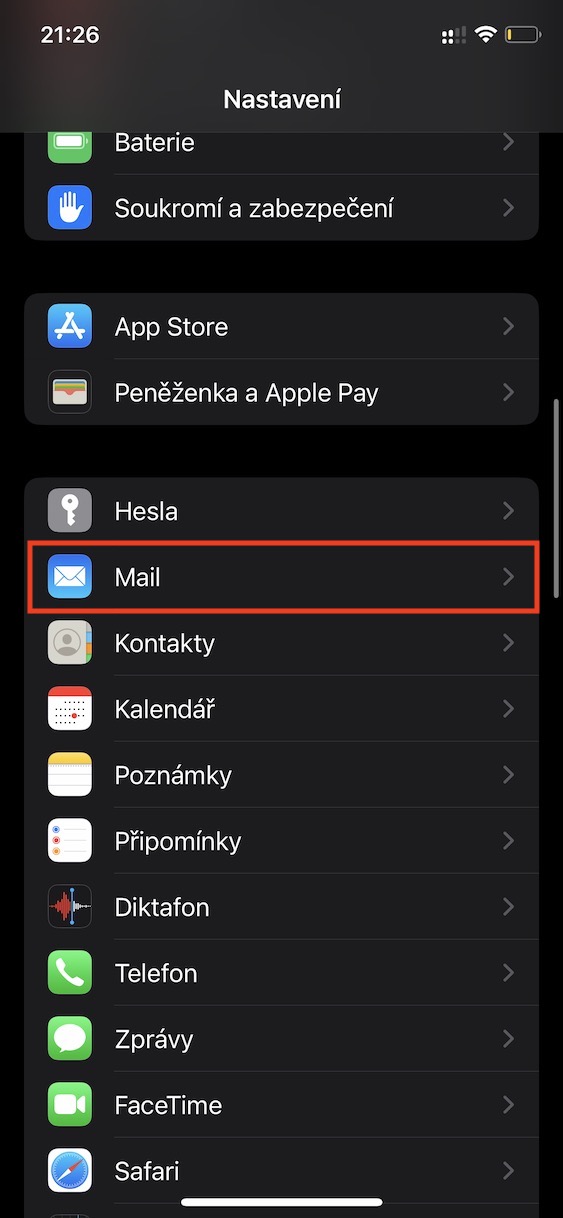
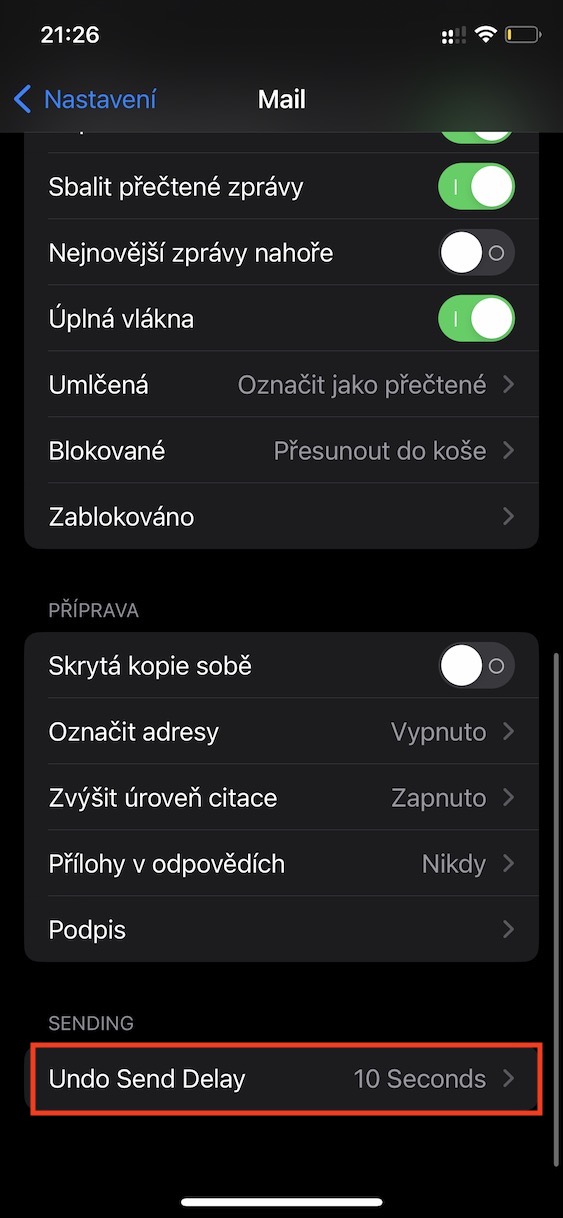
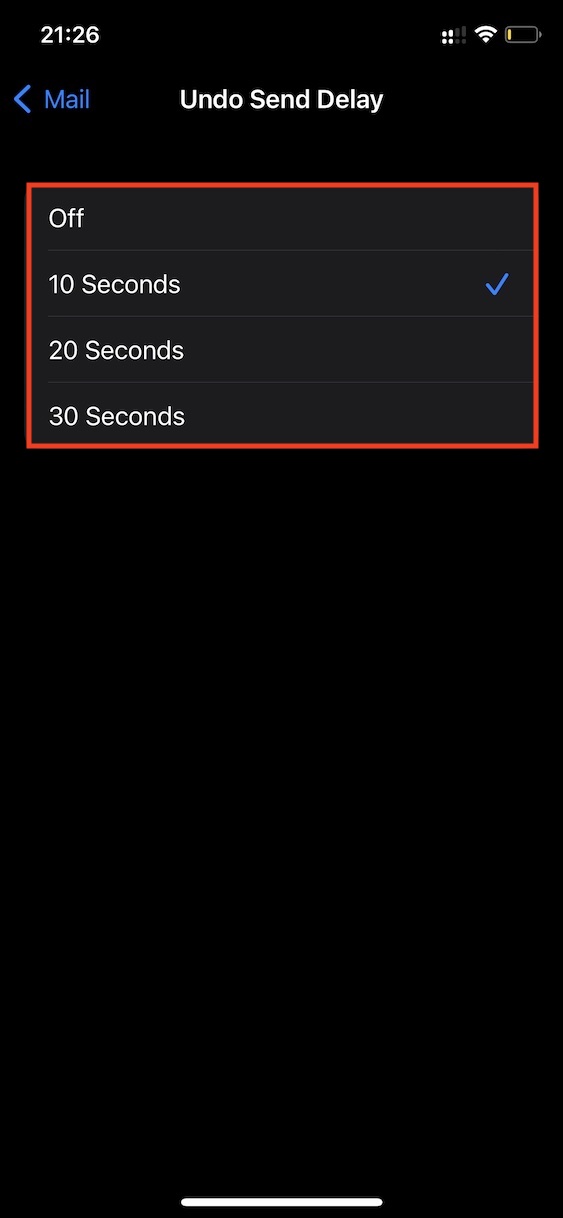
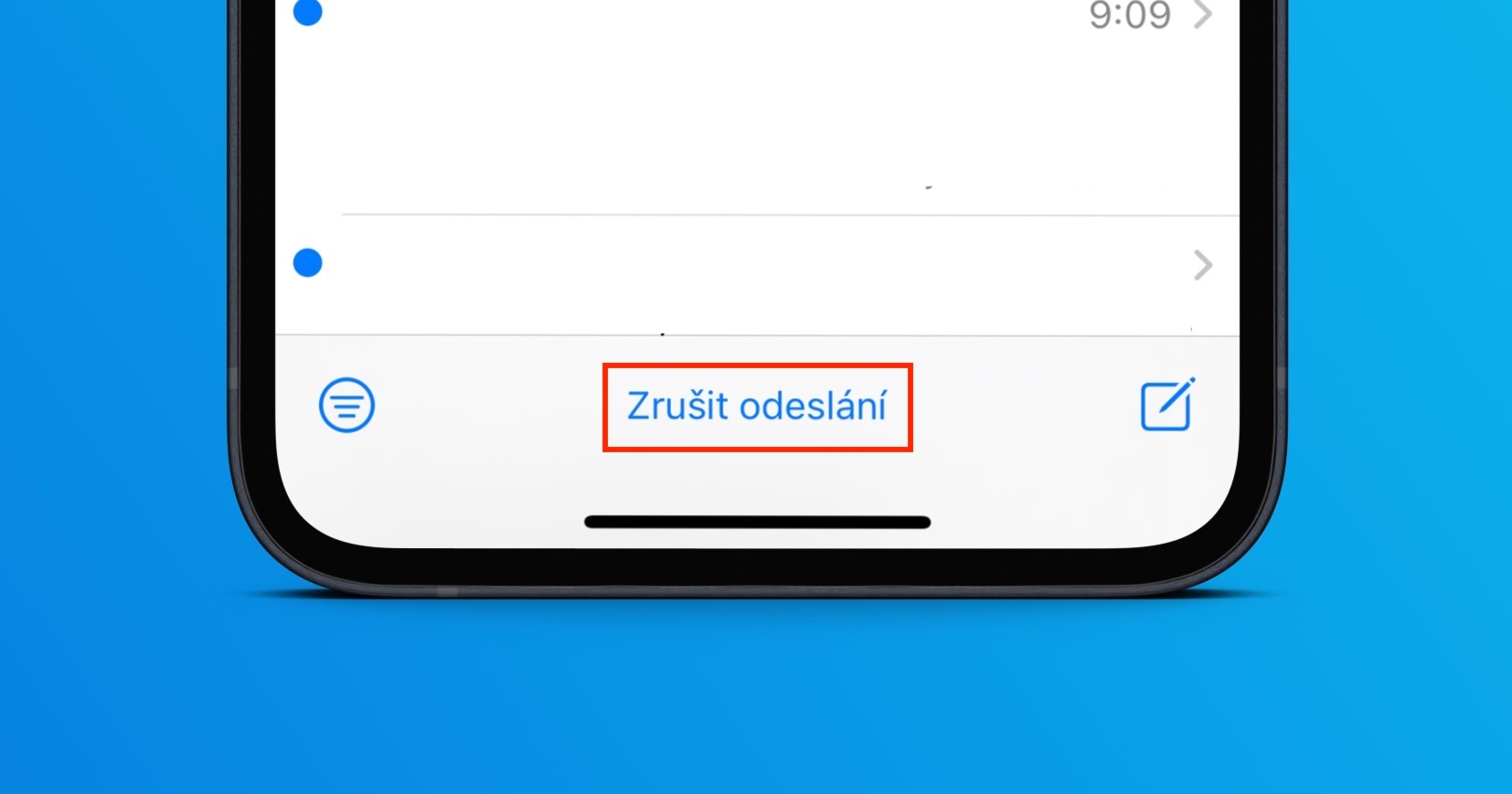
Using the above procedure, it is therefore possible on your iPhone with iOS 16 within the Mail application, set the time period during which it will still be possible to cancel sending an email. There are four options in total, namely 10 seconds, 20 seconds and 30 seconds, possibly you can this function turn off completely so that the option to cancel sending an email is not available. You can then simply unsend the email by sending it and then tapping at the bottom of the screen cancel sending see image below.