
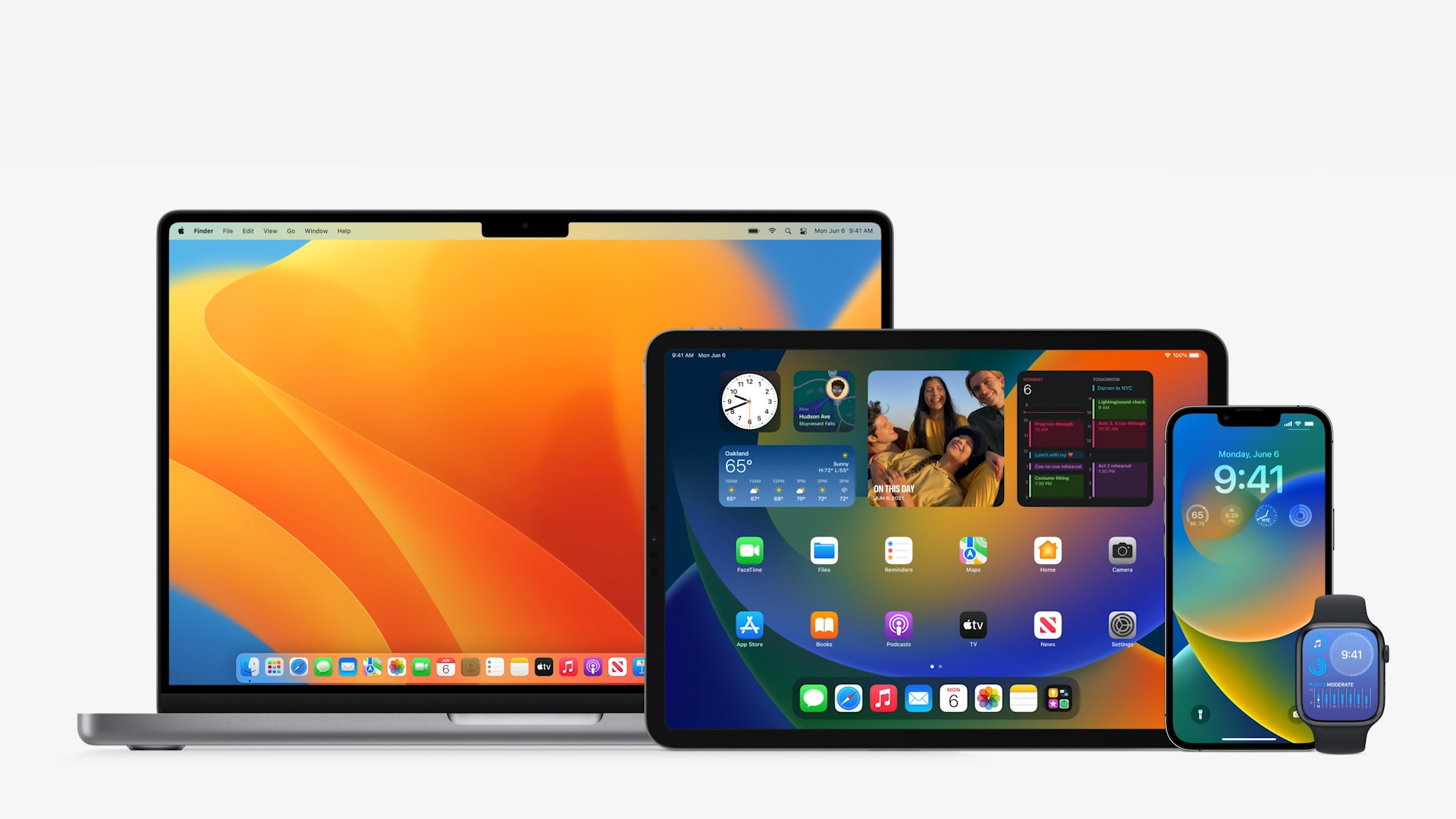
At yesterday's developer conference WWDCOn the 22nd, we quite expectedly saw the introduction of new operating systems from Appyou. Pro reminder there was a performance iOS and iPadOS 16, macOS 13 Ventura and watchOS 9. In this article, let's take a look at 10 tips and new features in macOS 13 Ventura that you should definitely know about.
You might be interested in
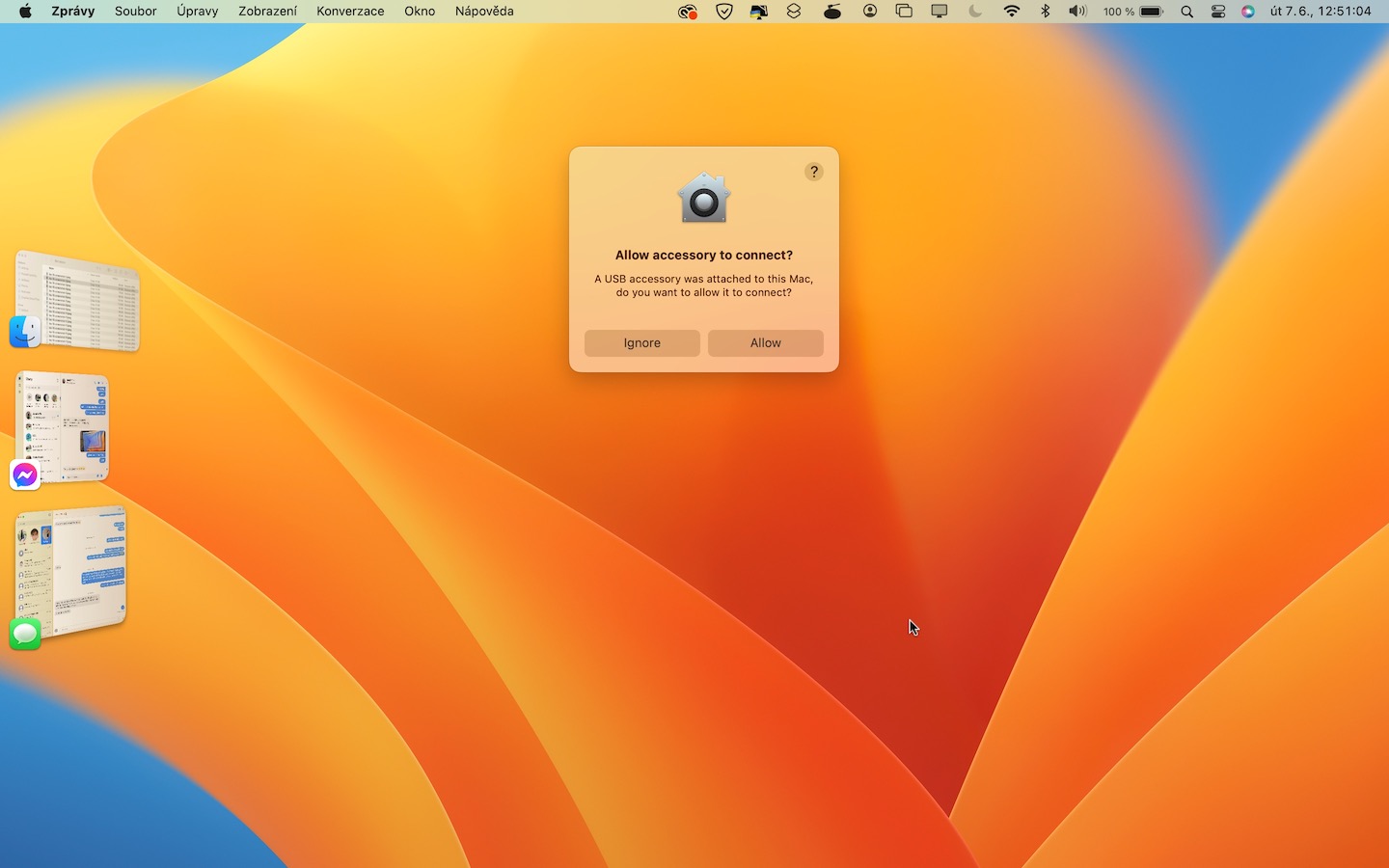
Activation Stage Manager
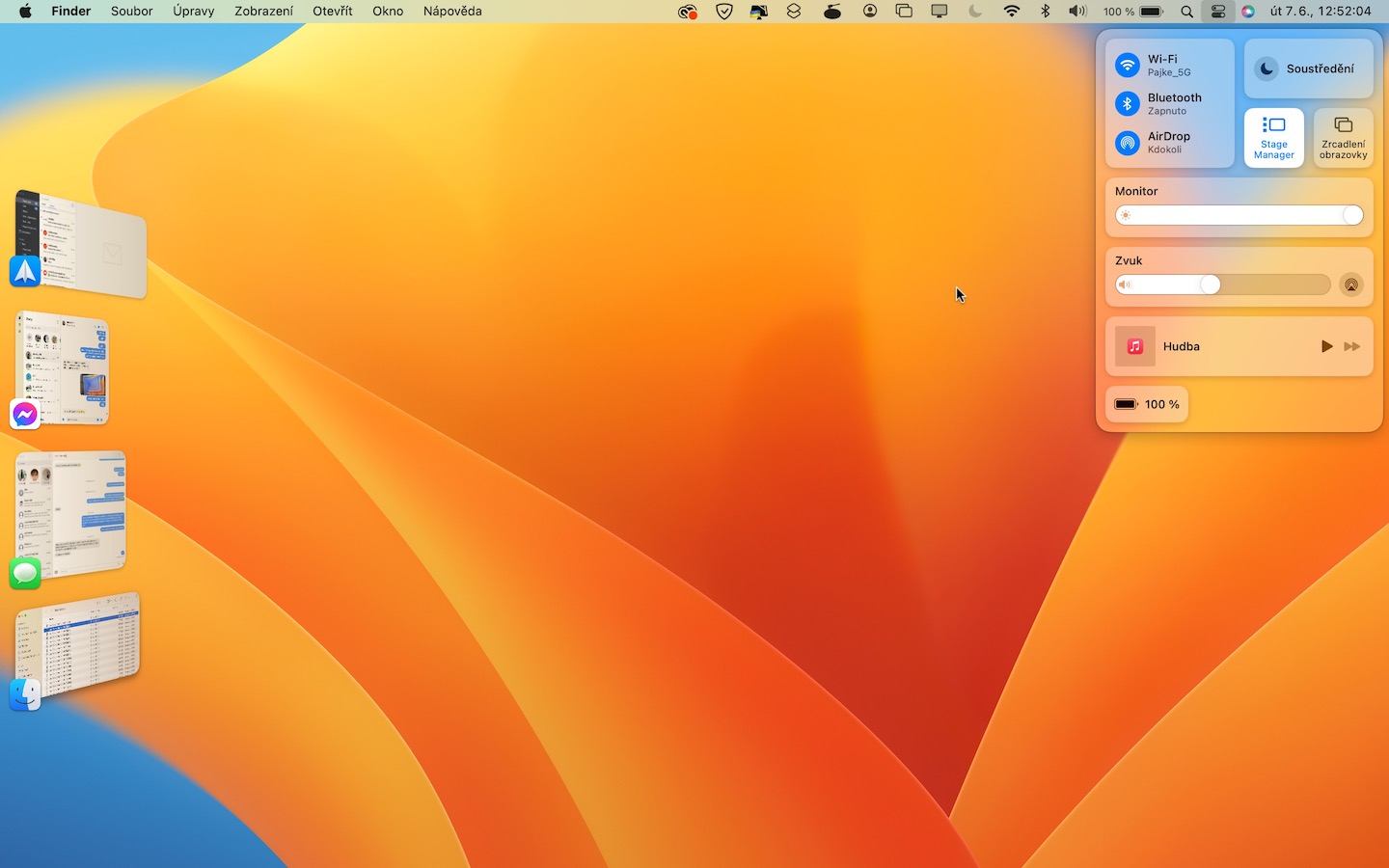
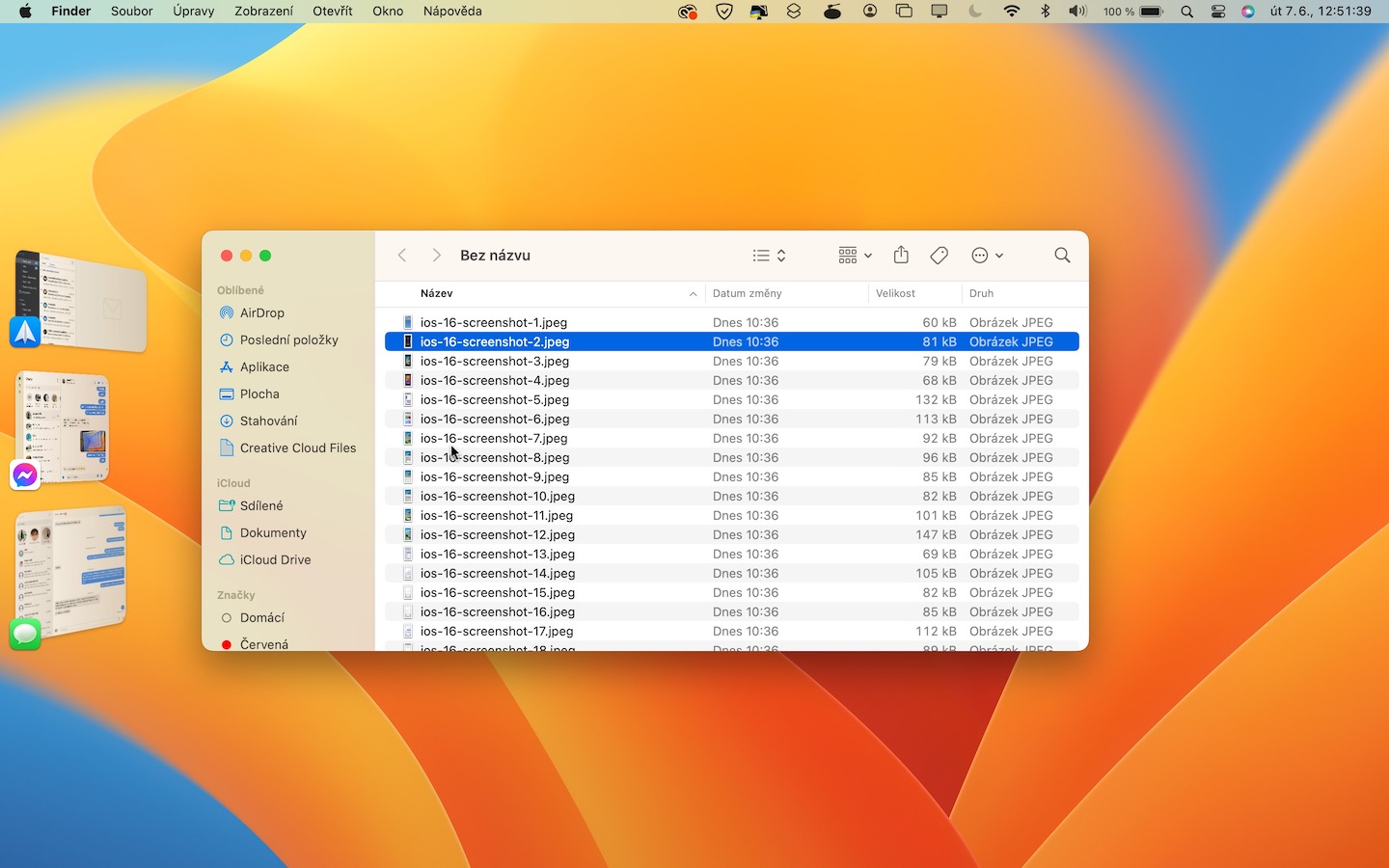
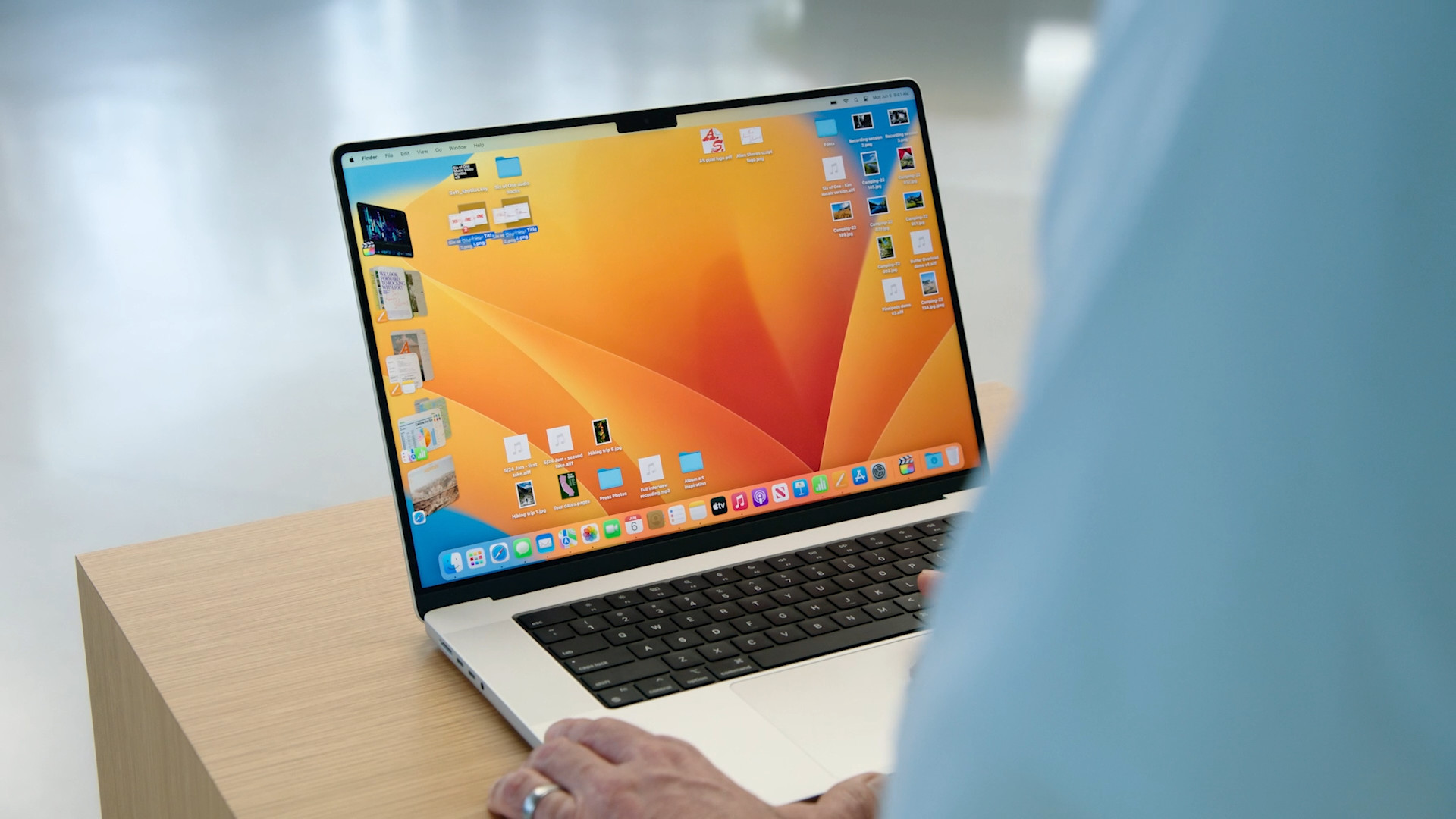
Among one of the very interesting functions with which Apple came in both macOS 13 Ventura and iPadOS 16, it is Stage Manager. This is a special new interface that allows users to work better when they have multiple windows open. From my own experience, I can say that I Stage Manager I really like it and use it. You can activate it by clicking on the right part of the top bar control center icon, and then on Stage Manager.
Gallery
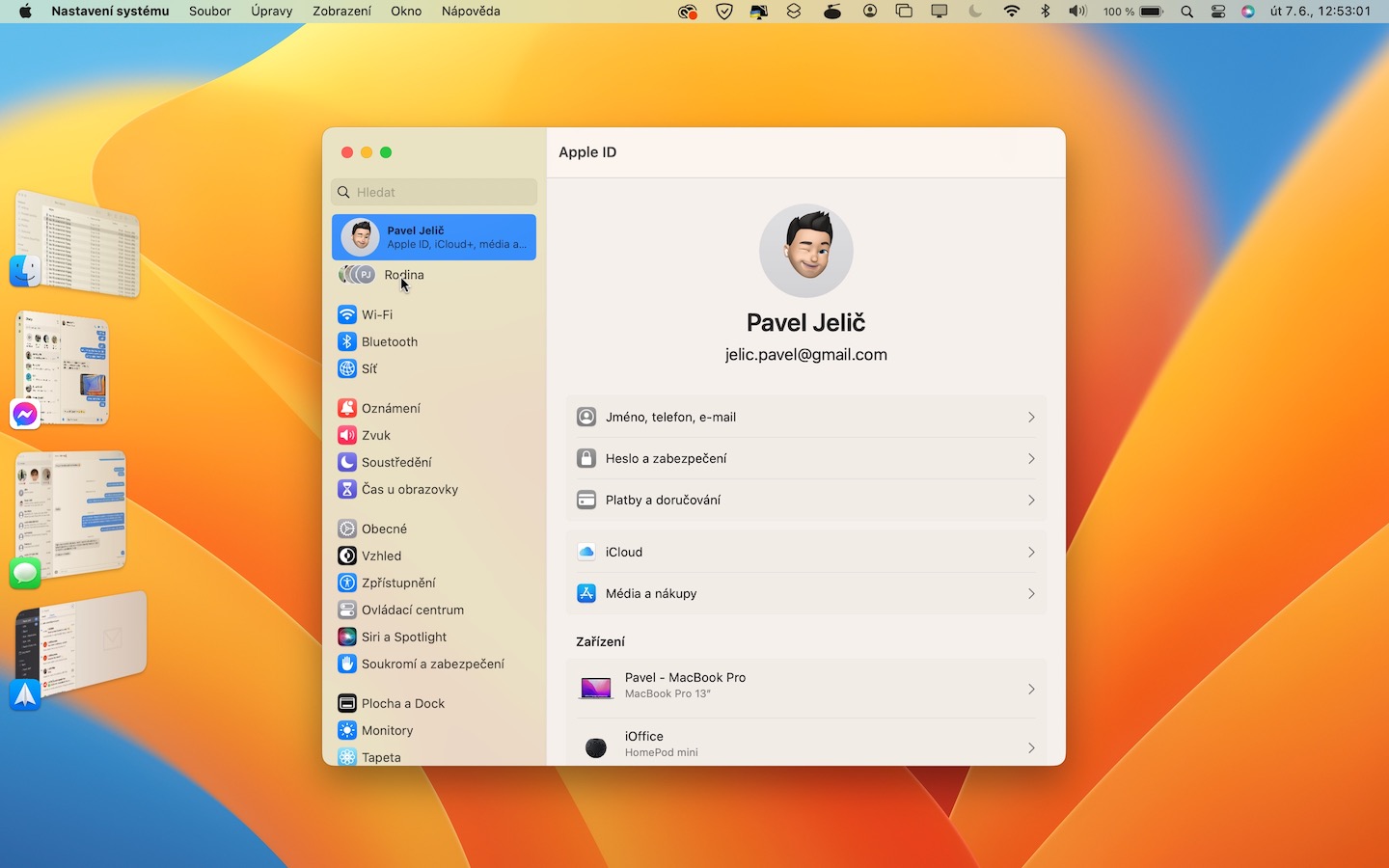
Prosee the new System Settings
I have been preparing the instructions that we publish in our magazine every day for you for 5 long years. And now, with the arrival of macOS 13 Ventura, I will unfortunately have to dig through almost all of them. Apple It completely revamped the System Preferences application, where most of the changes took place. Specifically, the name was changed to System Settings, and of course, the design was also changed, making it more similar to iOS and iPadOS. ProYou can view this new application by clicking → System Settings…
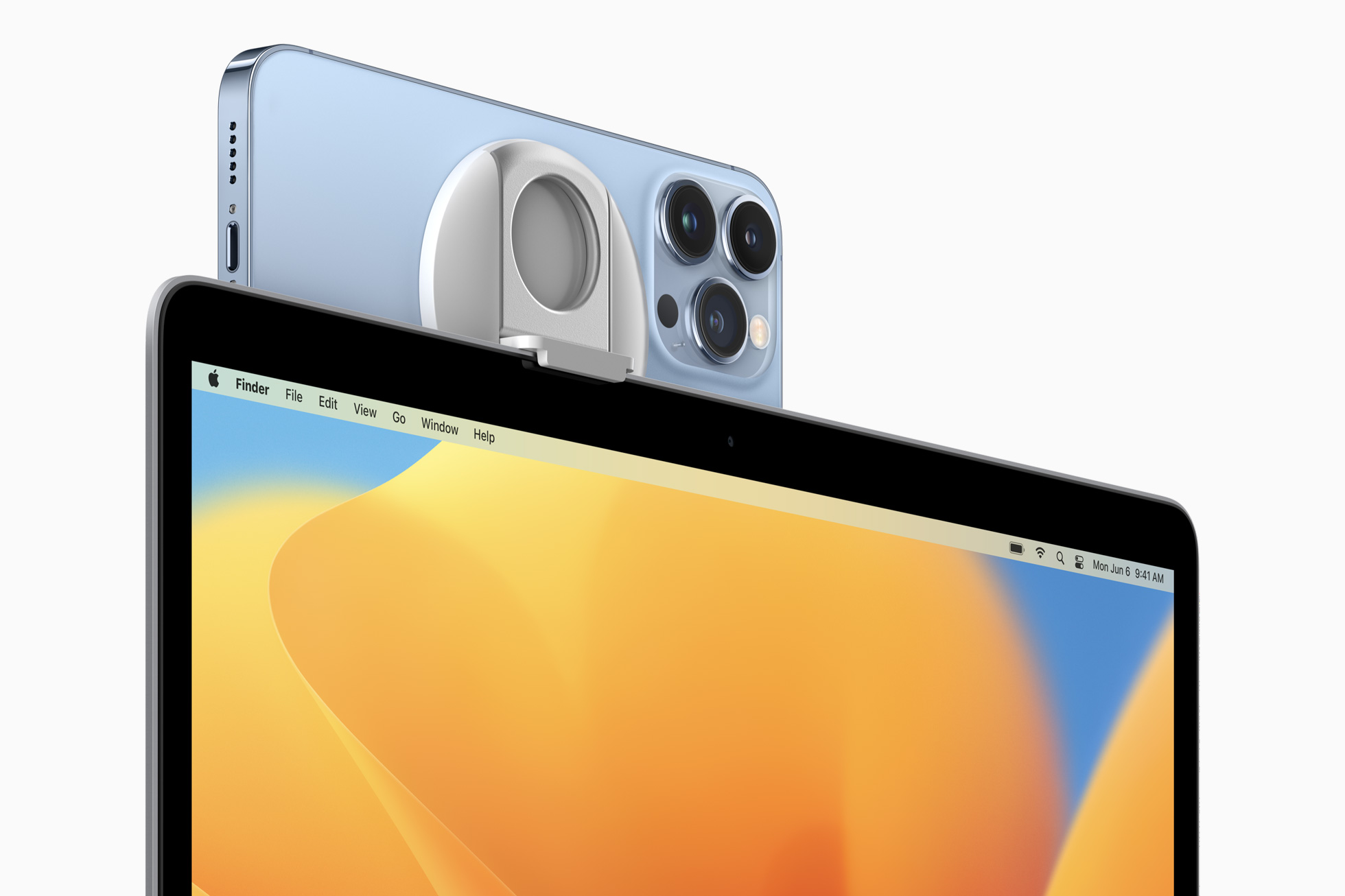
Try it out iPhone as a webcam
Apple computers have a front-facing camera – most of them have a resolution of either 720p or 1080p in the case of newer devices. The quality of these cameras is relatively good, but if you need to ensure the highest possible quality of the webcam, you can use iPhone. Specifically, you connect it to your Mac in macOS 13 Ventura, and then you can use its rear camera instead of the built-in webcam on your Mac. You can try this feature in the app QuickTime, where in the top bar click on File → New movie recording and tap on the small arrow next to the record button. It's enough here select iPhone and it is done.
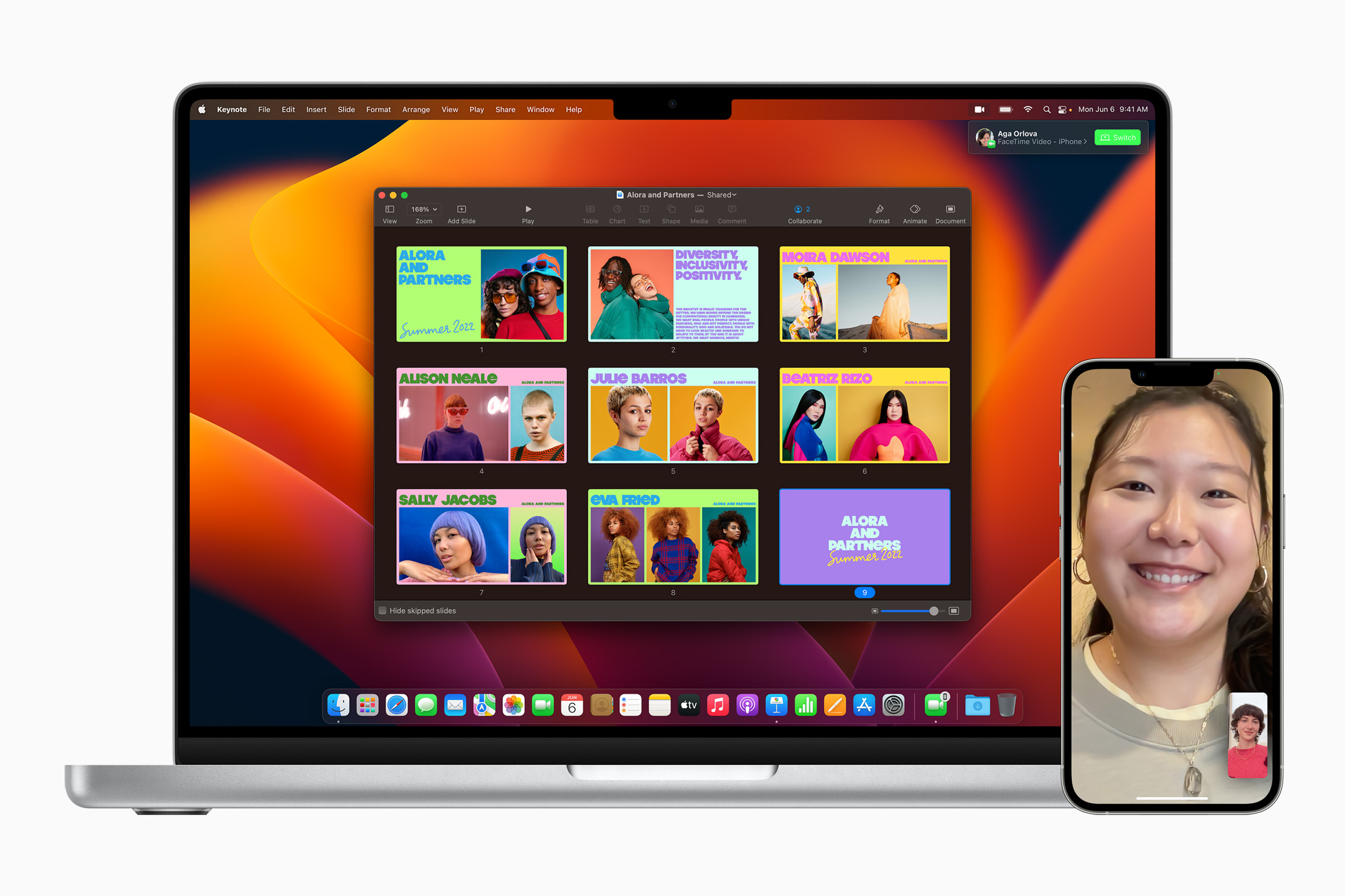
Transfer calls from iPhone to Mac
You've probably found yourself in a situation where you had a long call that you answered on your iPhone, but you needed to work while it was happening. In that case, you either had to connect AirPods or set the call to the speaker. However, macOS 13 Ventura is coming Handoff for FaceTime, which makes it possible transfer calls from iPhone to Mac. Simply use iPhoneWhen you are on a call, you can approach your Mac and a notification will immediately appear, allowing you to switch the call.
Deleting and editing a sent message
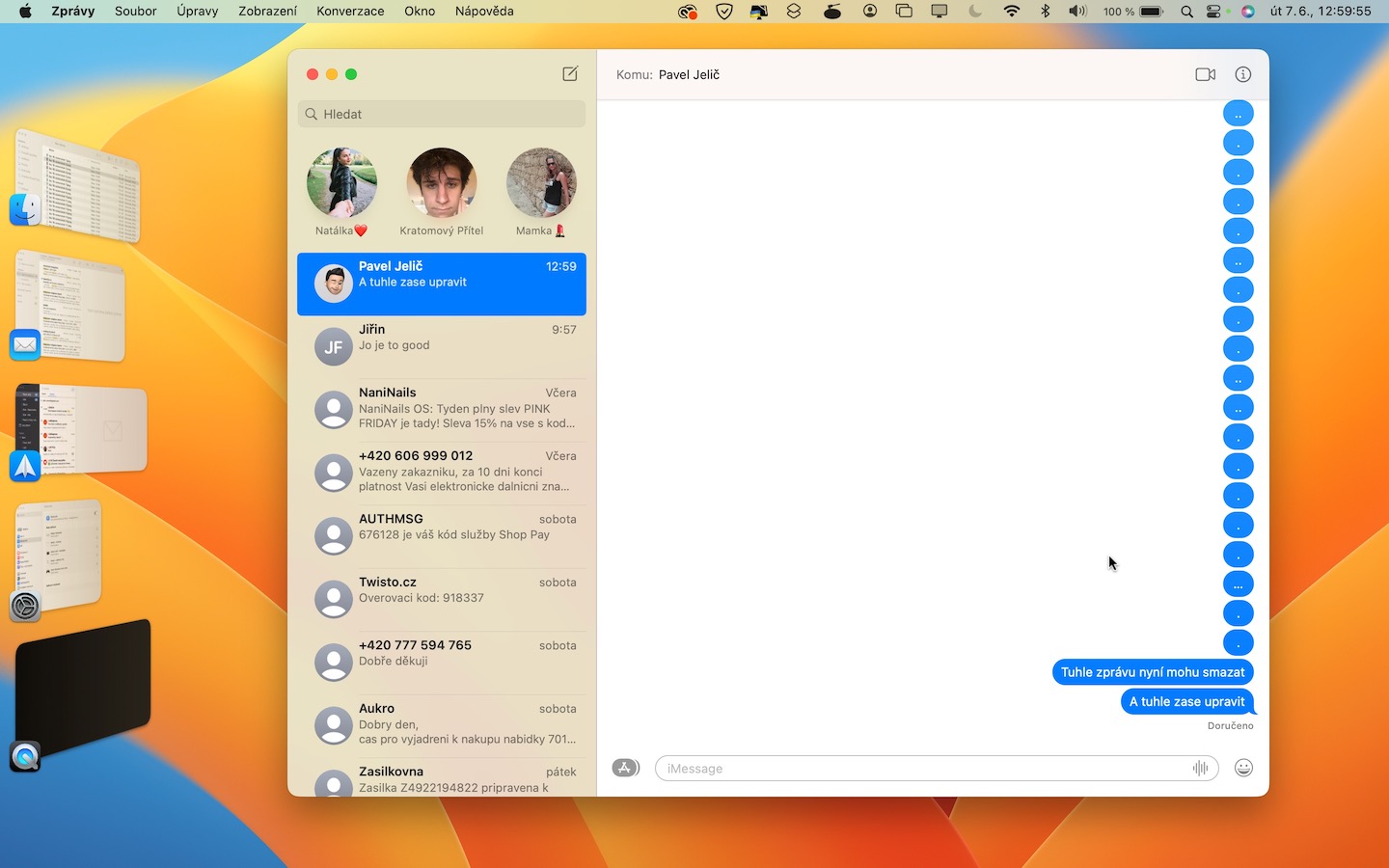
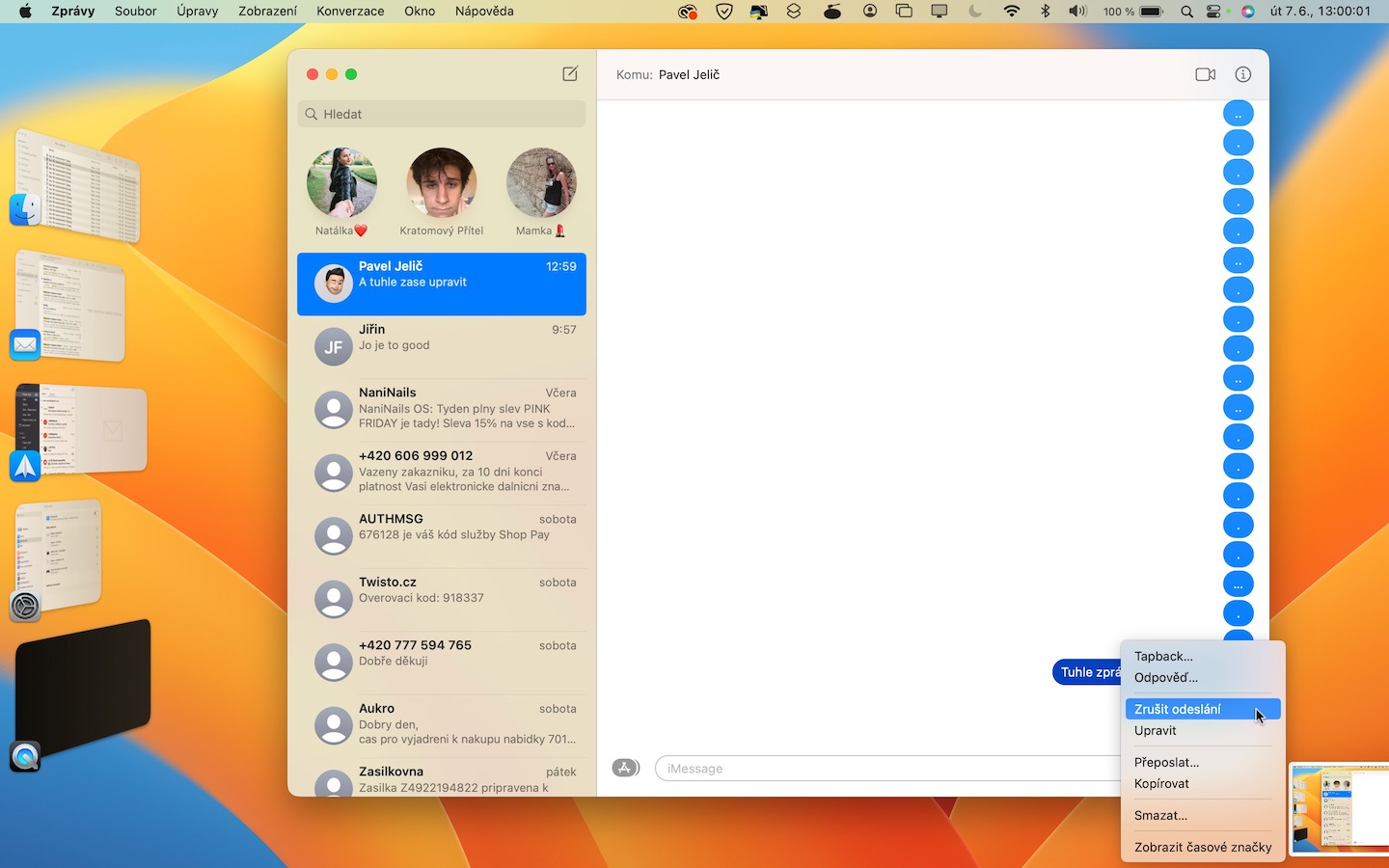
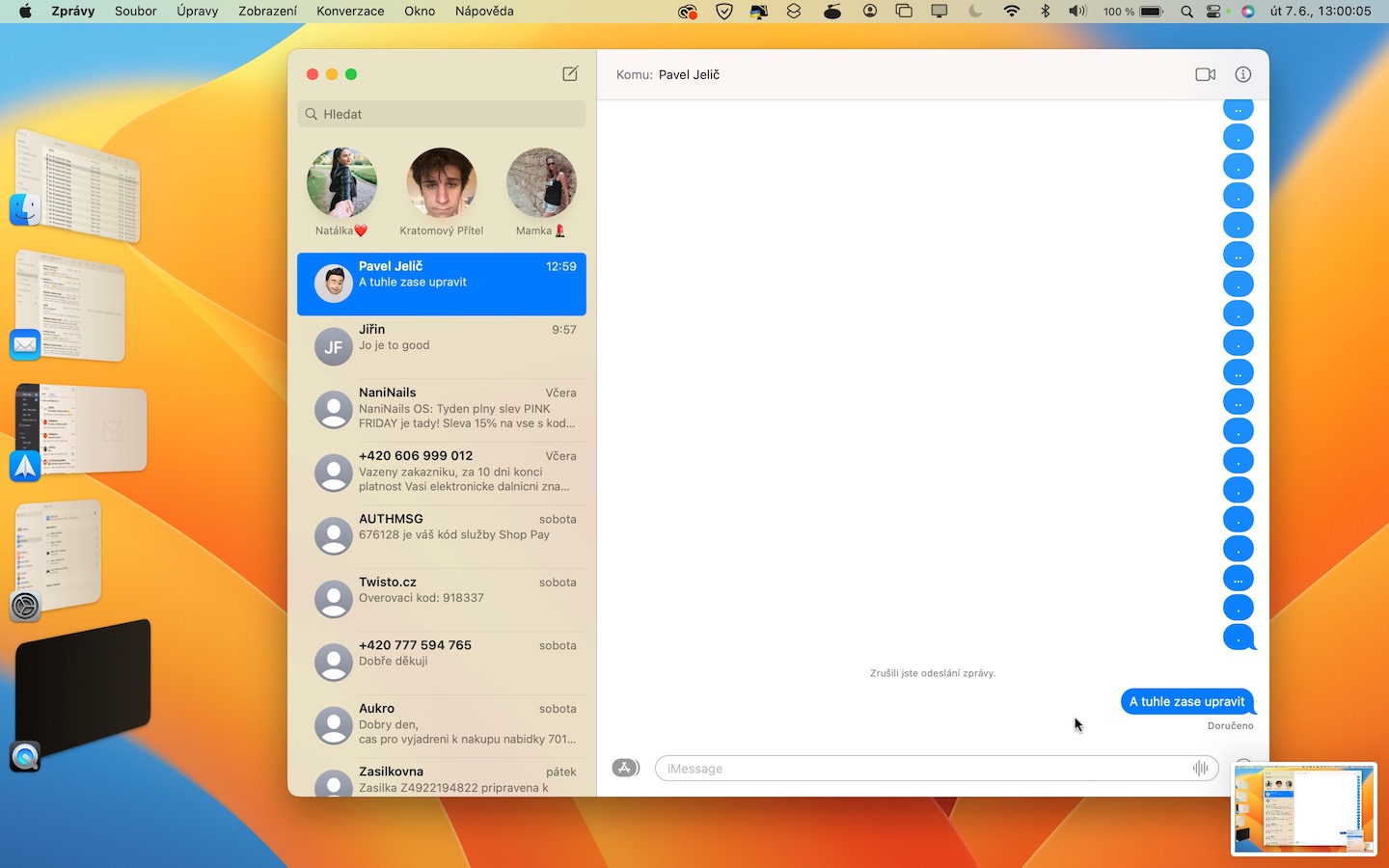
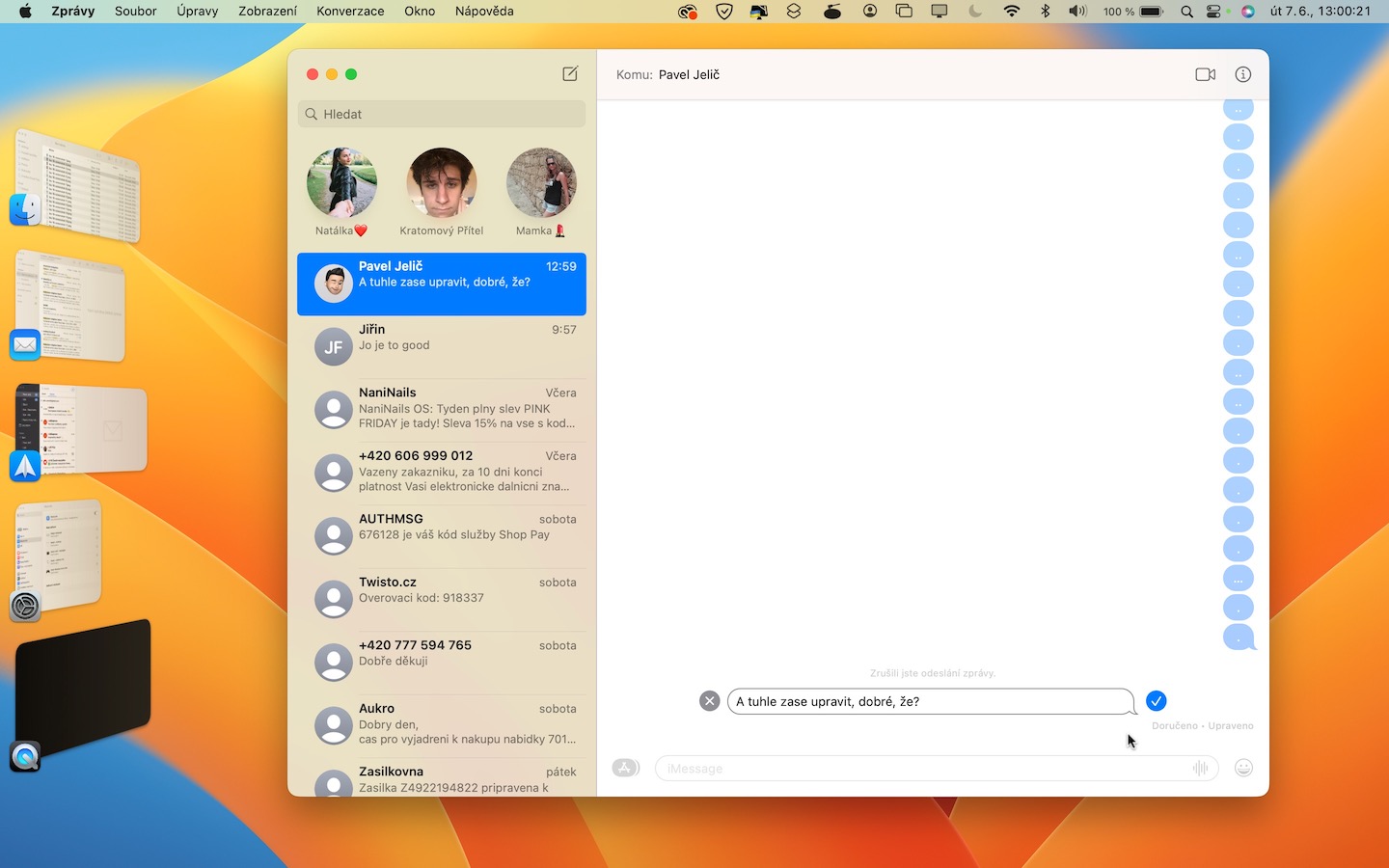
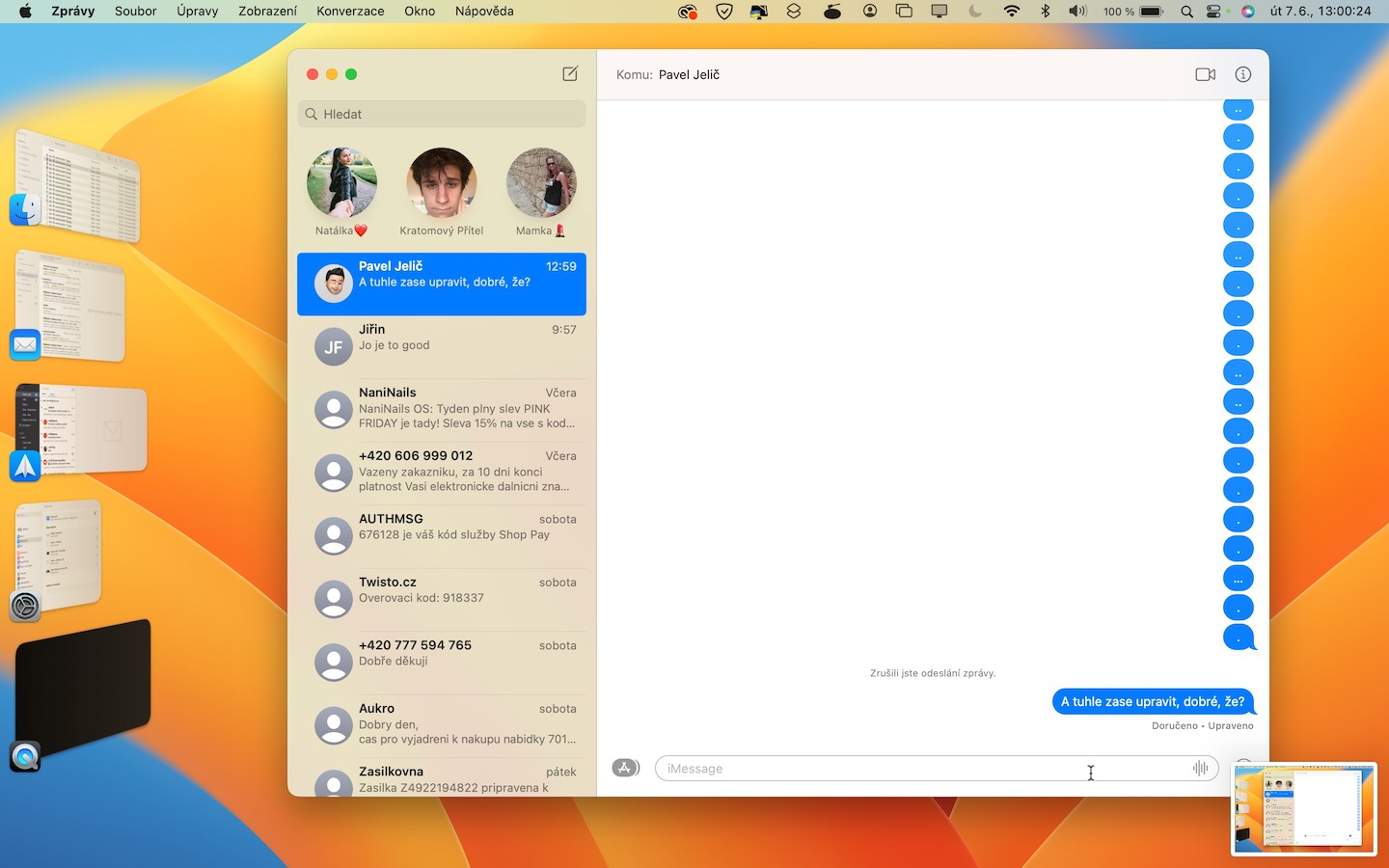
News, or rather iMessage, we all love. We can communicate with all users completely free of charge within them Apple products, which is simply great. In iMessage However, basic functions such as deleting and editing a sent message were missing – and this feature was added in macOS 13 Ventura. Pro deleting or editing a message on it is enough hold cursor and then choose either from the menu cancel sending or Edit. It's that simple.
Gallery
Prosee Weather and Clock apps
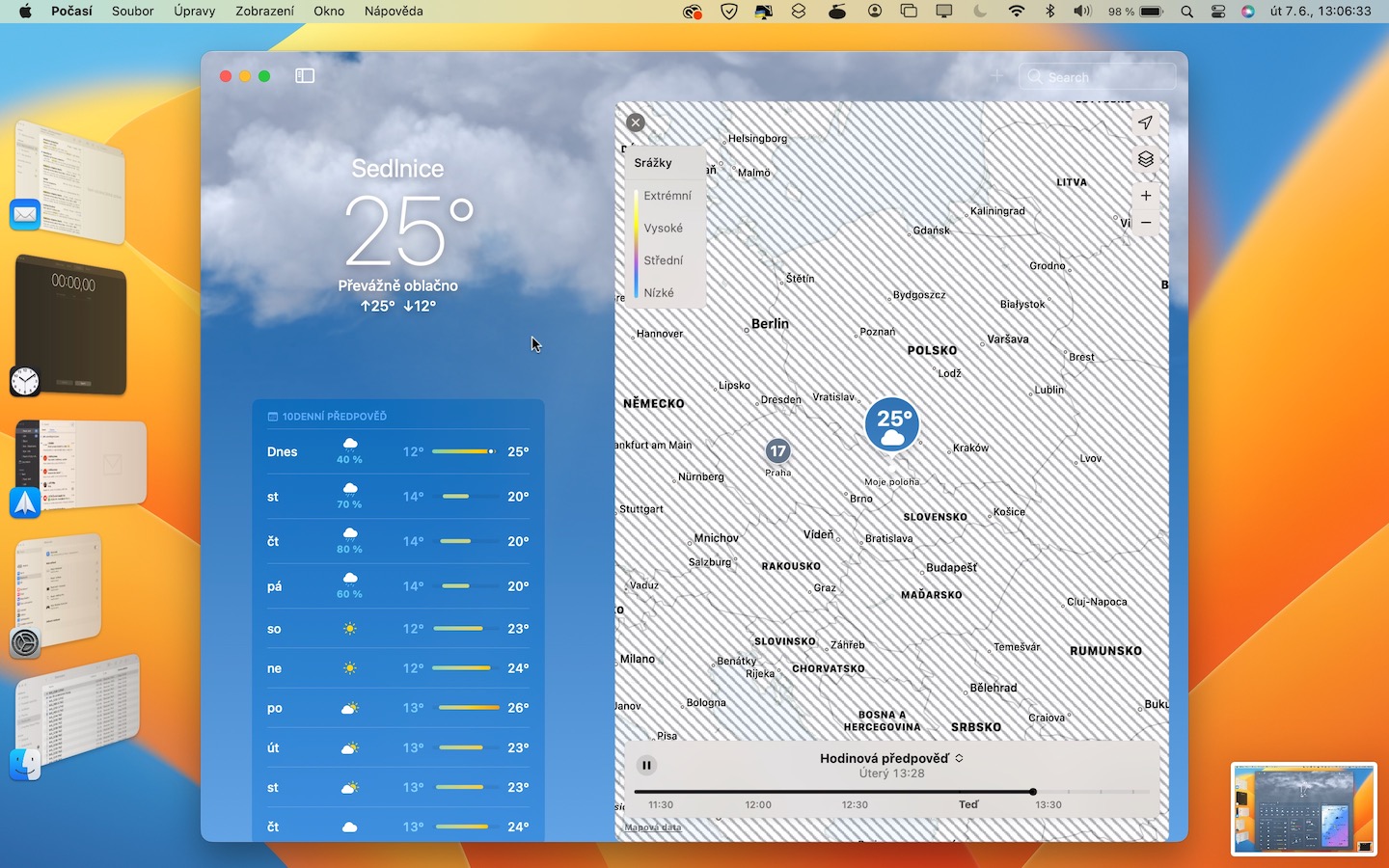
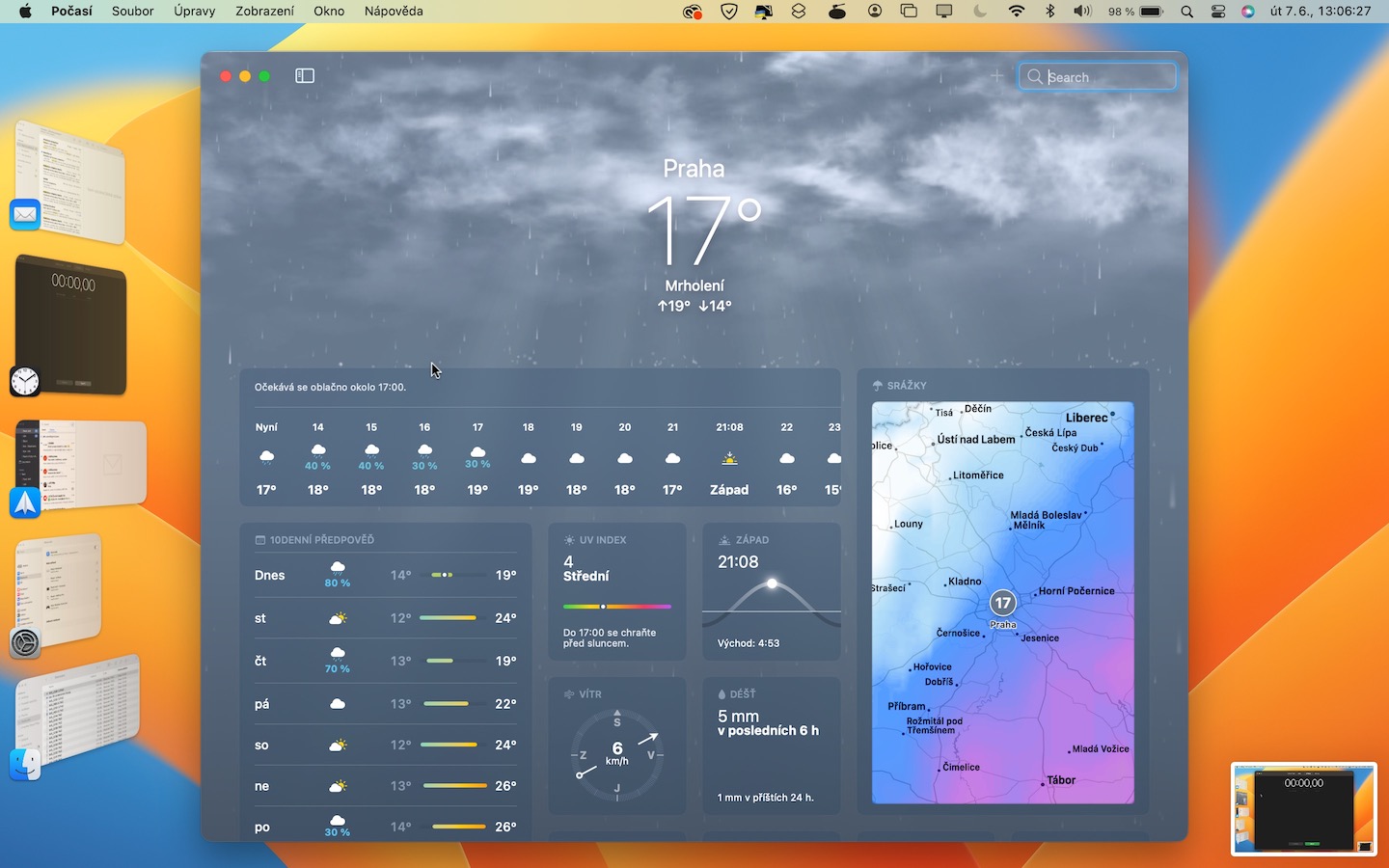
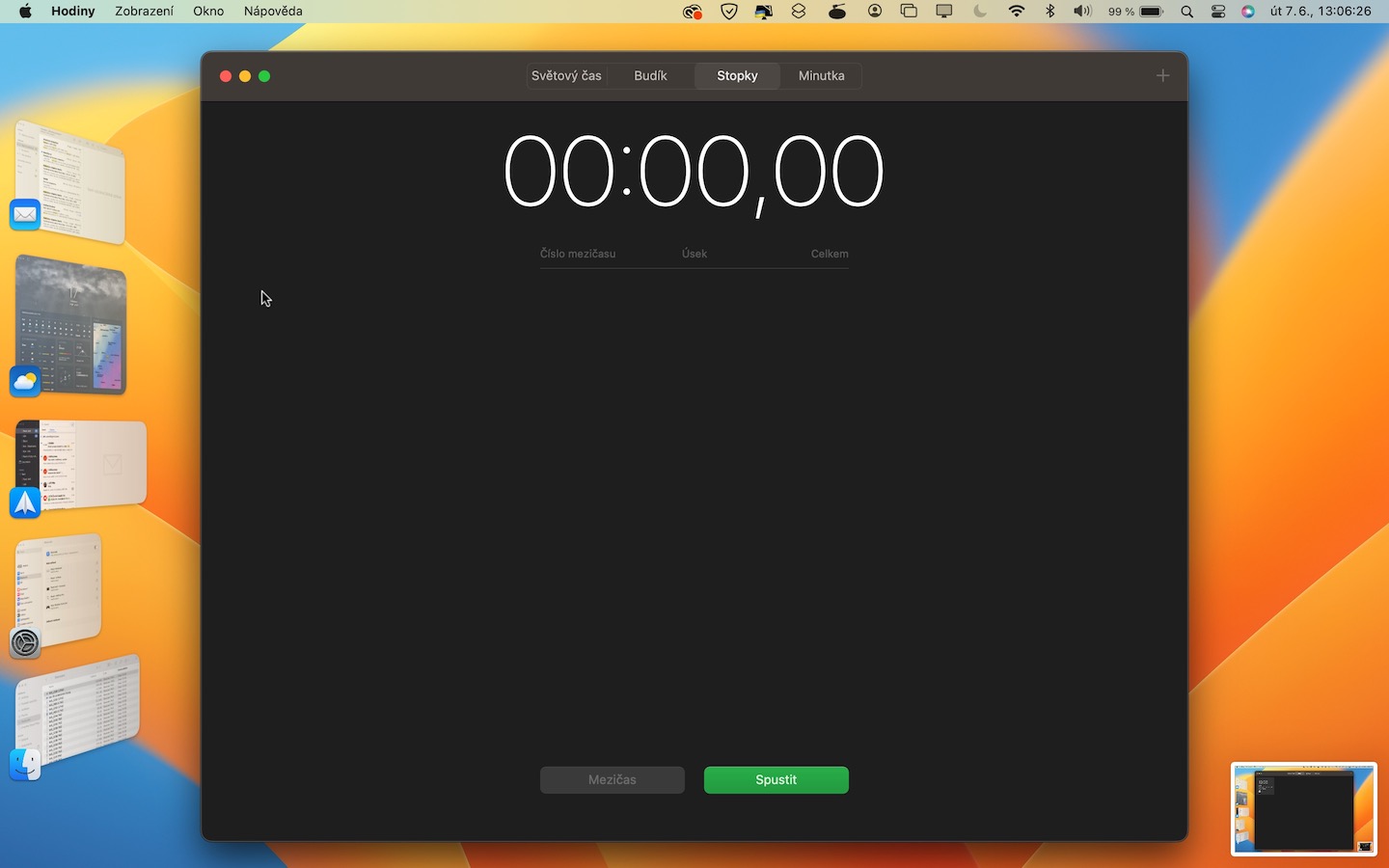
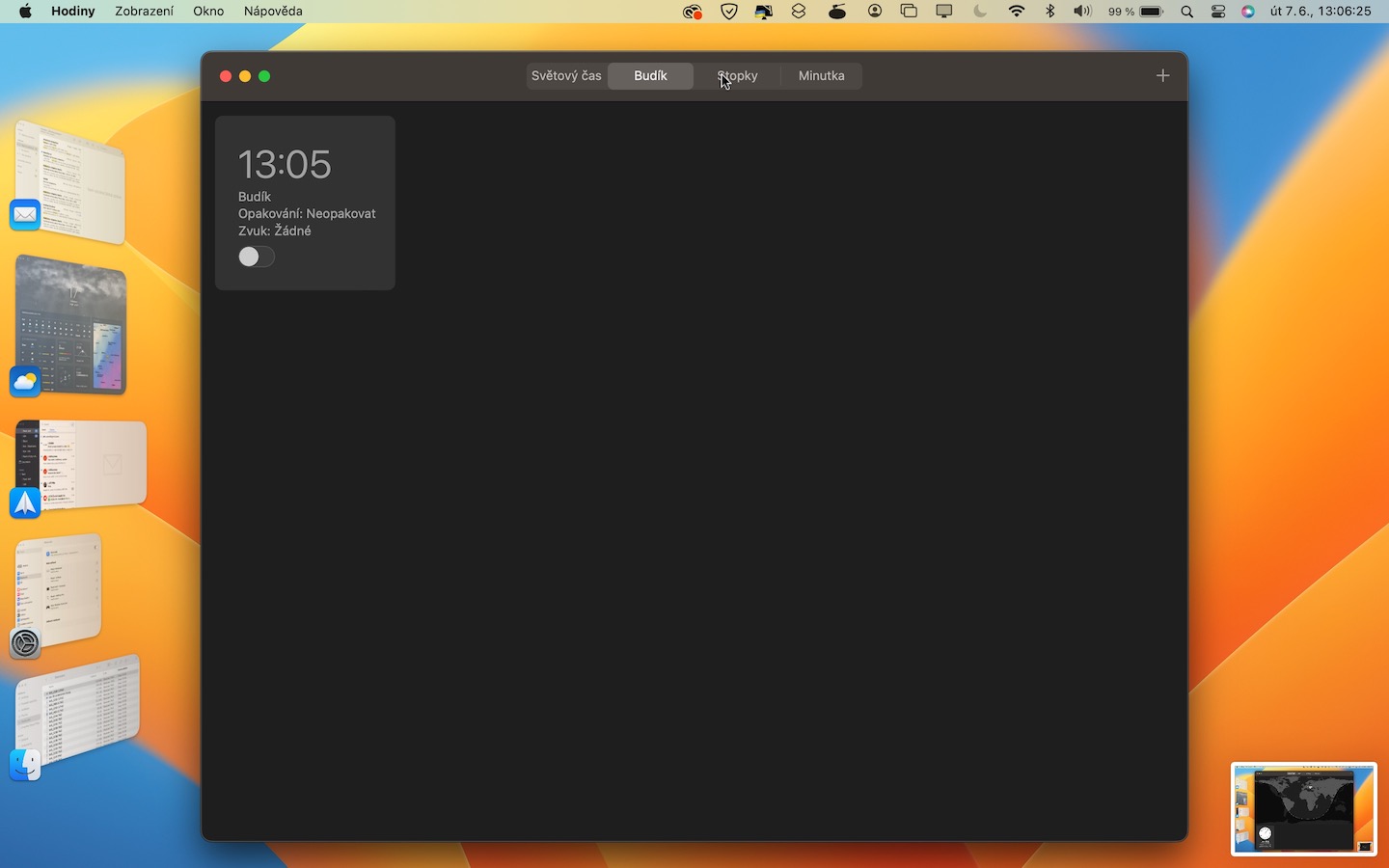
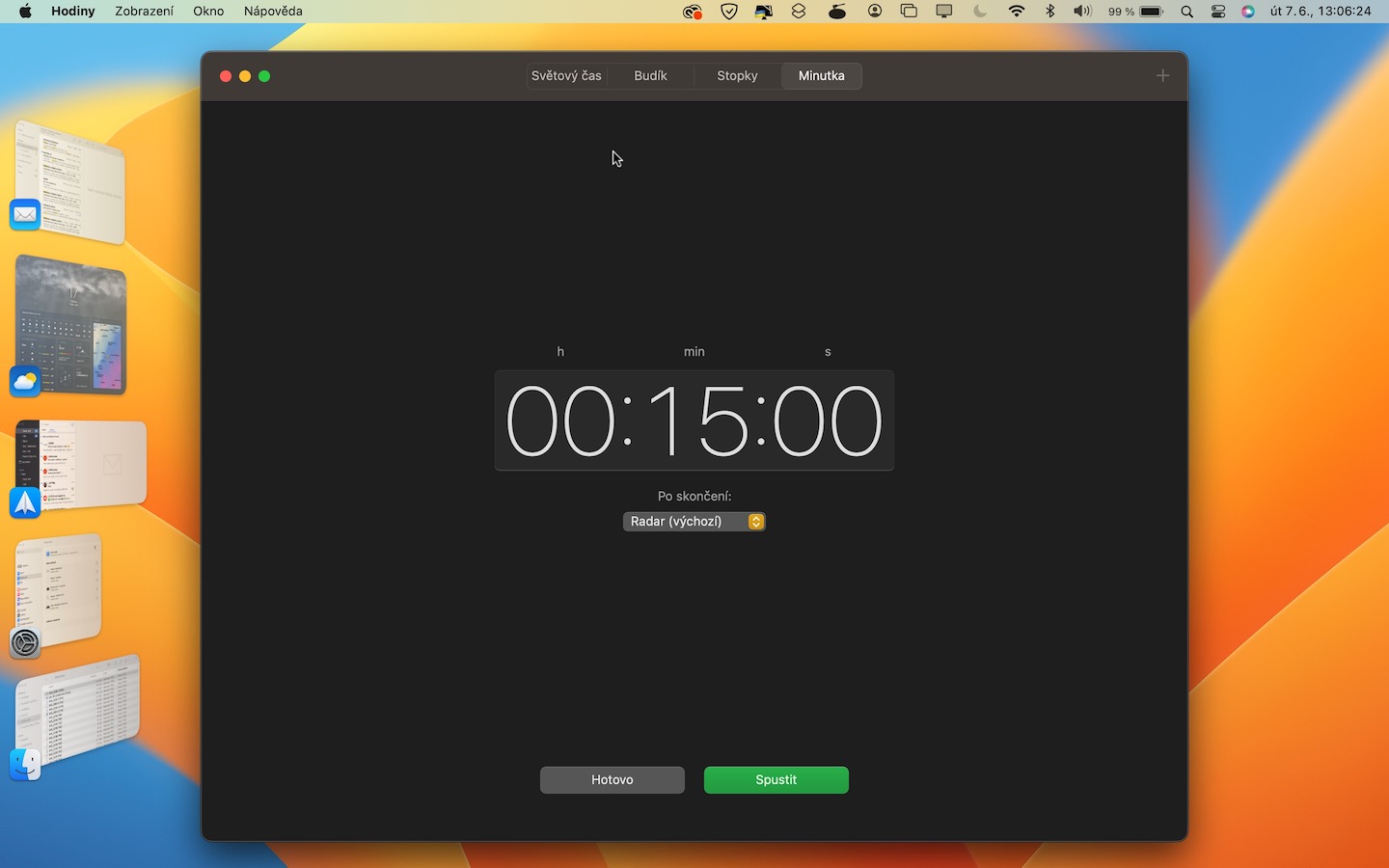
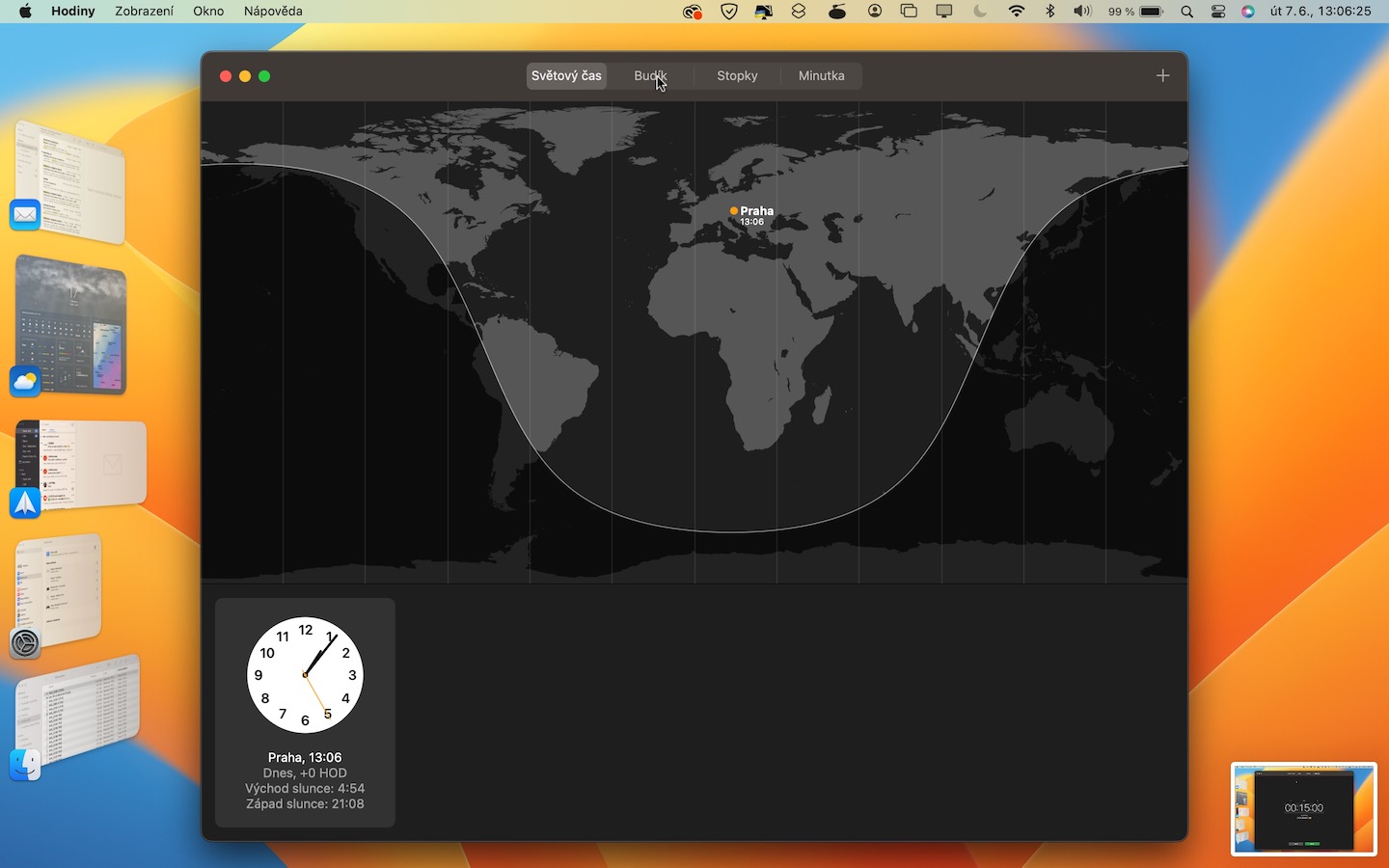
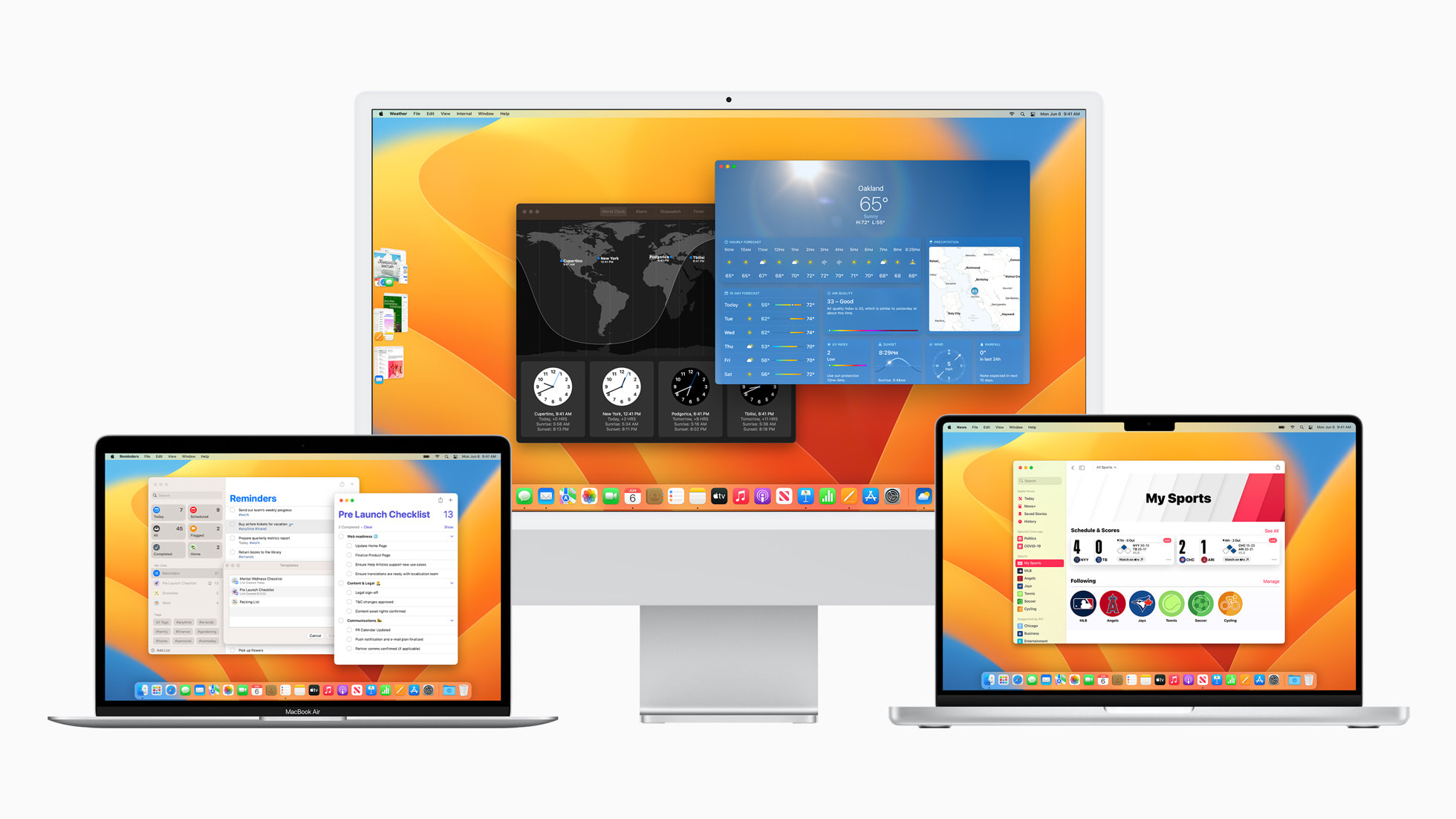
Users have been asking for a Calculator app on the iPad for a long time. Unfortunately, we didn't get this app in iPadOS 16 either. But we're probably on the right track, as macOS 13 Ventura brought the long-awaited Weather app, along with a native Clock app. The native Weather app looks really great on the big Mac display and I think it will find a lot of admirers. The Clock can then be used to set alarms, timers, etc., which can be useful.
Gallery
Timing of sending email
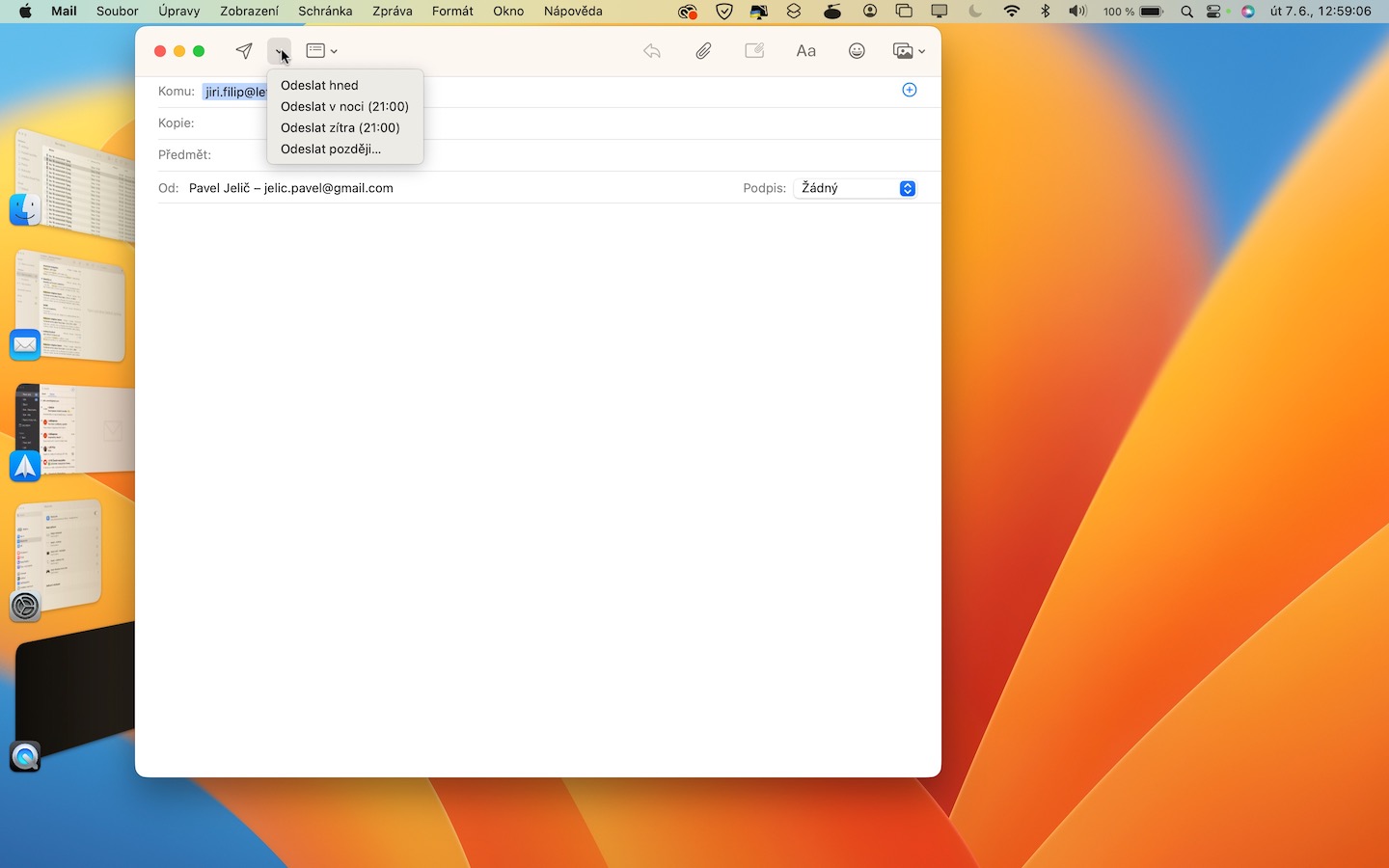
macOS 13 Ventura also brings some interesting changes to the native Mail app. Specifically, search has been improved, but there are also other great features that have been part of competing clients for a long time. These include scheduling email sending and unsending email. Pro timing it is enough when writing an e-mail tap the arrow next to the submit button and time to choose, to cancel sending the email, just tap on the appropriate option.
Sharing groups of panels
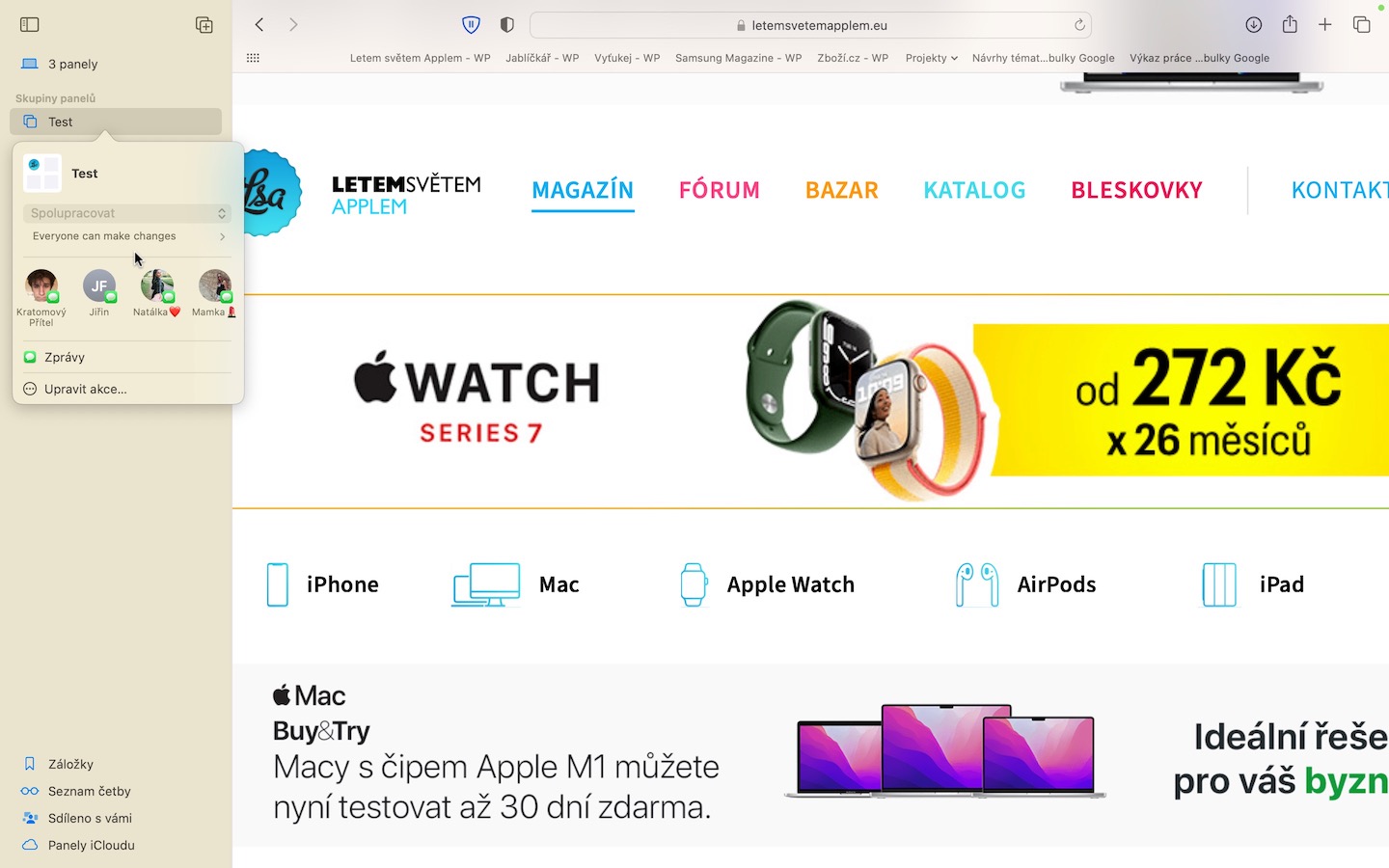
Last year Apple added a new feature not only to macOS 12 Monterey, but also to Safari, namely panel groups. Thanks to them, you can easily separate selected panels, for example, you can create a group for entertainment and for work separately, etc. In macOS 13 Ventura, there have been improvements and you can share these panel groups, which can be used as part of the new Collaboration feature. Pro panel group sharing open the sidebar and by choice a group of panels click right click (two fingers). Then just select the option Share a group of panels.
Redesigned Spotlight
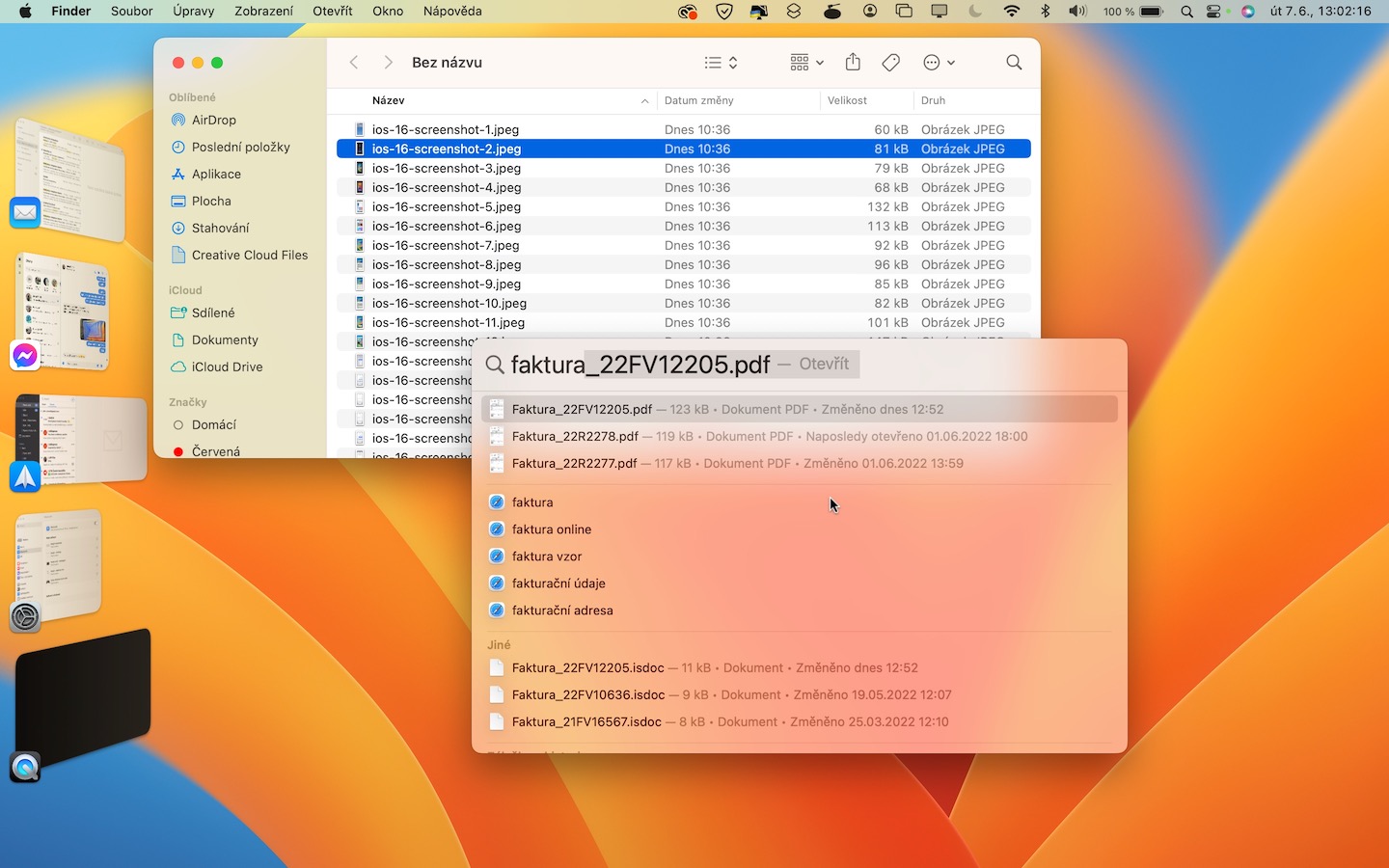
Many different applications and sections in macOS 13 Ventura have received slight changes. One such face-lift also came for Spotlight, which looks a bit more modern and simply fits into the new system like a pot. Apple stated that in addition to the visual overhaul, Spotlight also has better search capabilities, but I honestly couldn't tell the difference between the new and old Spotlight. It is quite possible that a better search is available mainly for the United States of America, or it will come in the next update.
Live text and video
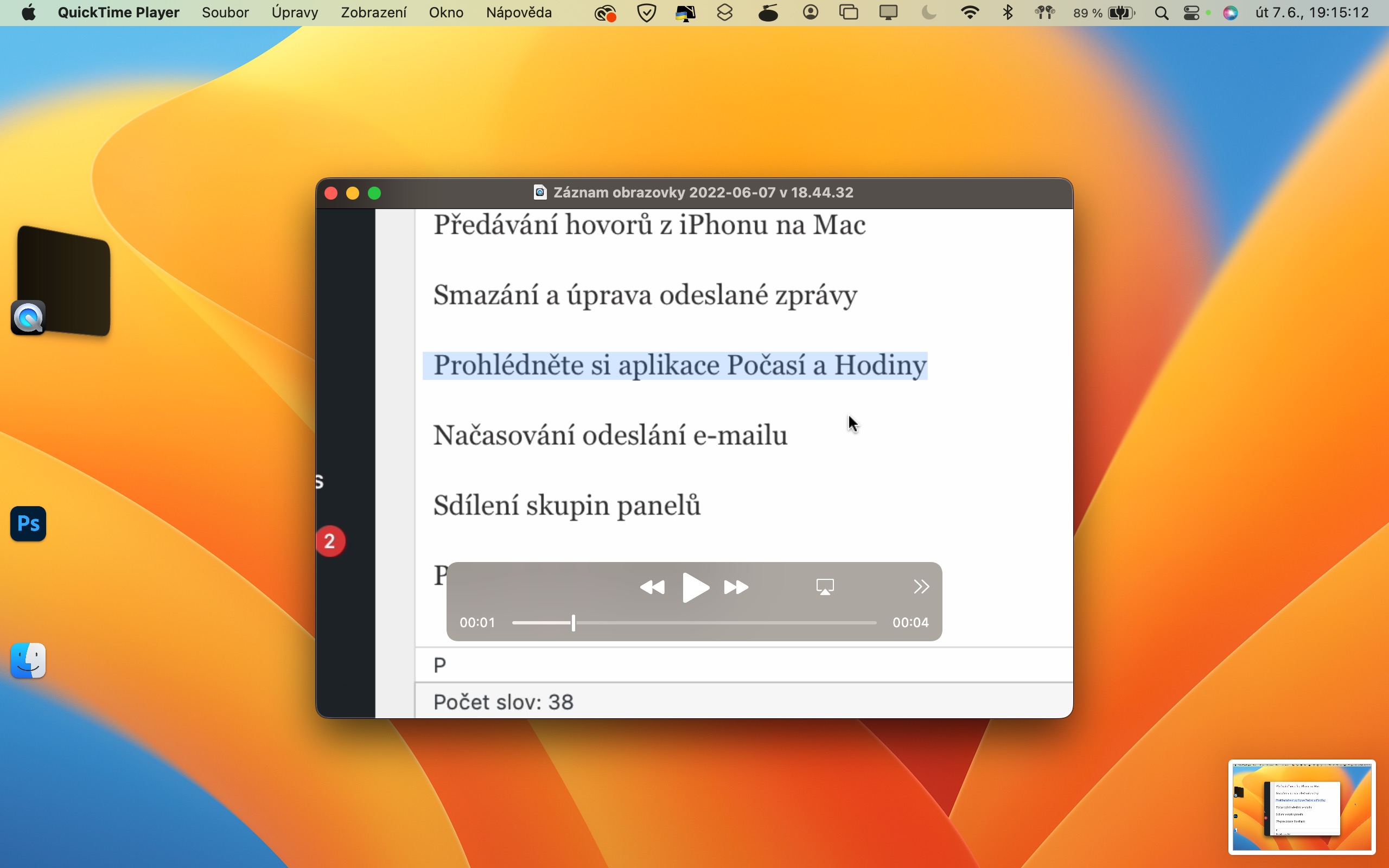
As you surely know, he came last year Apple in virtually all systems, even with the Live Text feature, if you want Live Text. This feature can recognize text in photos, and then you can work with it just like any other text, for example from the web. The good news is that in macOS 13 Ventura, Live Text is also available in video. This means that you can simply pause the video, mark what you need, perform the desired action, and then continue watching.



How will it be possible to edit/delete already sent messages? iMessage when I have time apple id account and device with an older version of the system? Thanks.
If you send someone a message that you delete and they have an older iOS, the message will not be deleted on their device. The same applies when making edits.
Thanks for the info.
Hello, could you please check whether they have fixed the "m1 + external monitor" error, when the external monitor sometimes flickers with darker colors? I have tried many advices from the net but nothing has helped so far. Thank you for answer. Tom
Thanks for the article. I want to ask two things. He added apple to filter messages known/unknown senders? Furthermore, you register in apple maps a greater amount of displayed information in the Czech Republic?