
By default, macOS devices are set to be as energy efficient as possible. This means that Macs try to use as little power as possible while still providing sufficient performance. In addition, Apple computers can then start a screensaver after a period of inactivity and then go into sleep mode. In sleep mode, a Mac maintains minipower only to preserve all the data in progress. This means that all the various processes and services are interrupted. However, in certain situations it is necessary to turn off the Macchat work even when we are not with it, for example when rendering a video or uploading it to the Internet. In this article, we will look at 5 great applications that you can use to temporarily deactivate sleep mode.
You might be interested in

Native function in Terminal
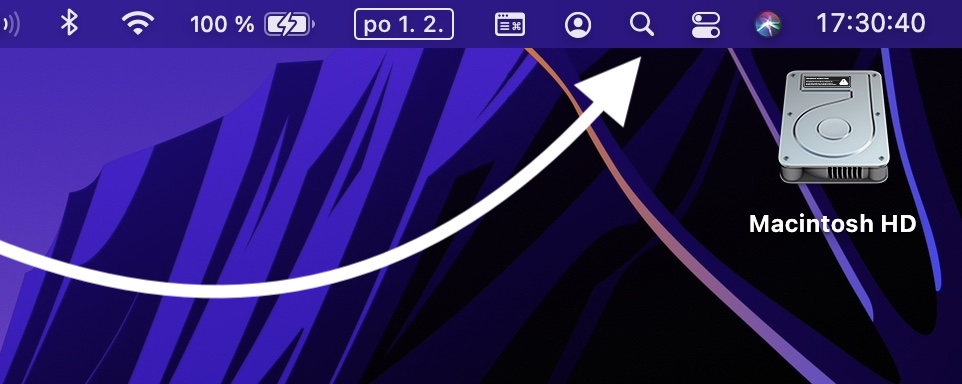
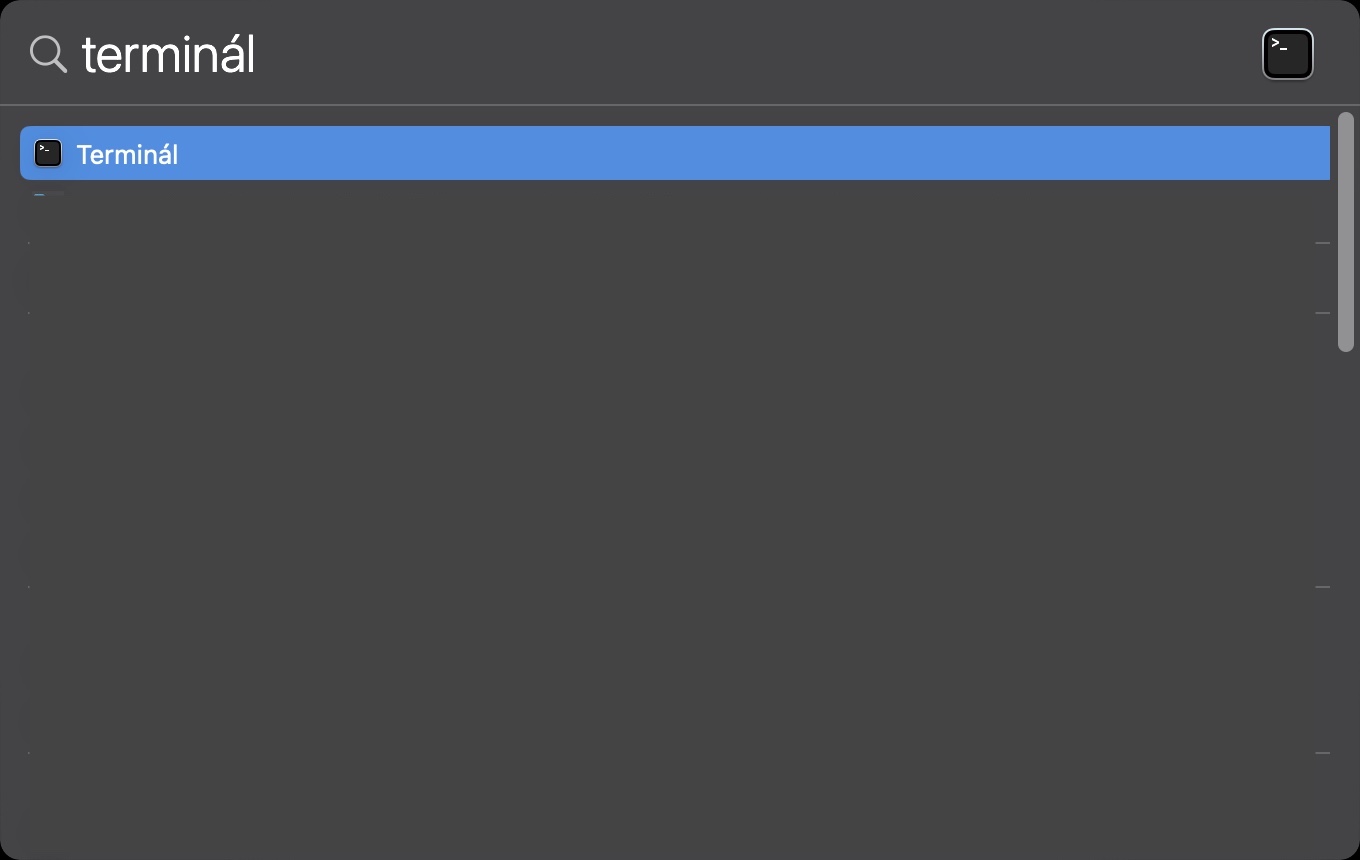
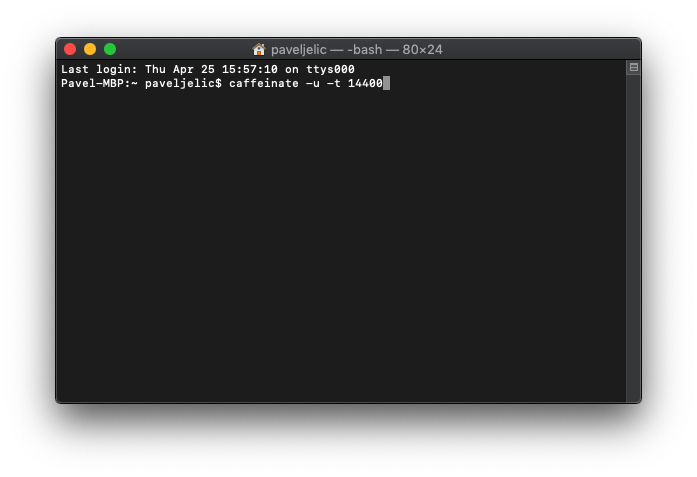
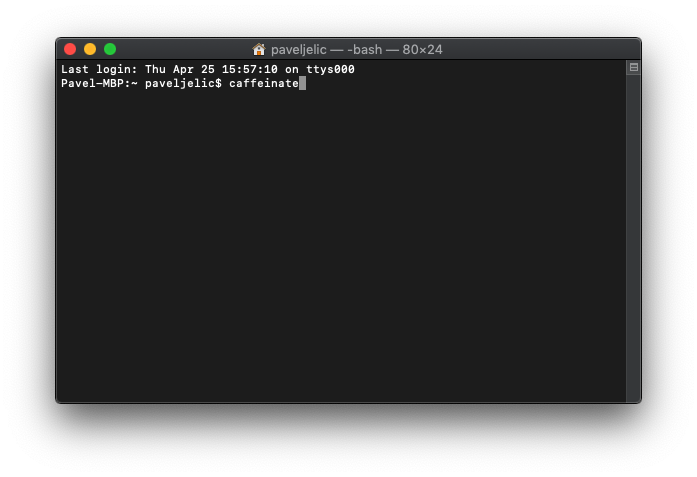
In general, it can be said that all applications that can temporarily deactivate sleep mode use a native function called caffeinate . The function got its name from the word caffeine, so figuratively you give your Apple computer coffee so that it can work longer without having to go to sleep. You can also use this command without having to install a third-party application, but of course it lacks a graphical interface and everything is done via Terminal. You can find this application in Applications, in the Utilities folder, or you can launch it via Spotlight. In the application window that appears, you must then enter the command that I attach below. The letters x must then be replaced with the number of seconds that determine how long the Mac will not switch to sleep mode, i.e. if you enter the number 3600, the Mac will not turn on sleep mode for 3600 seconds (60 minutes or 1 hour).
caffeinated -t xxxx
Gallery
amphetamine
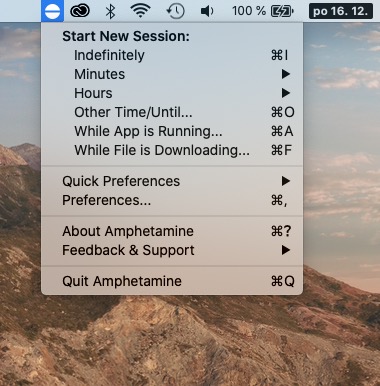
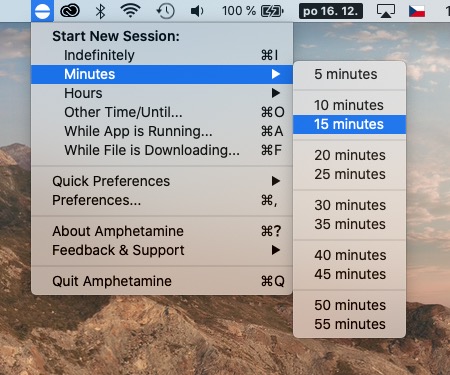
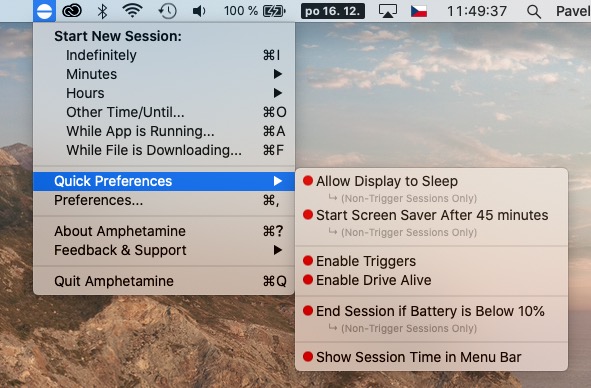
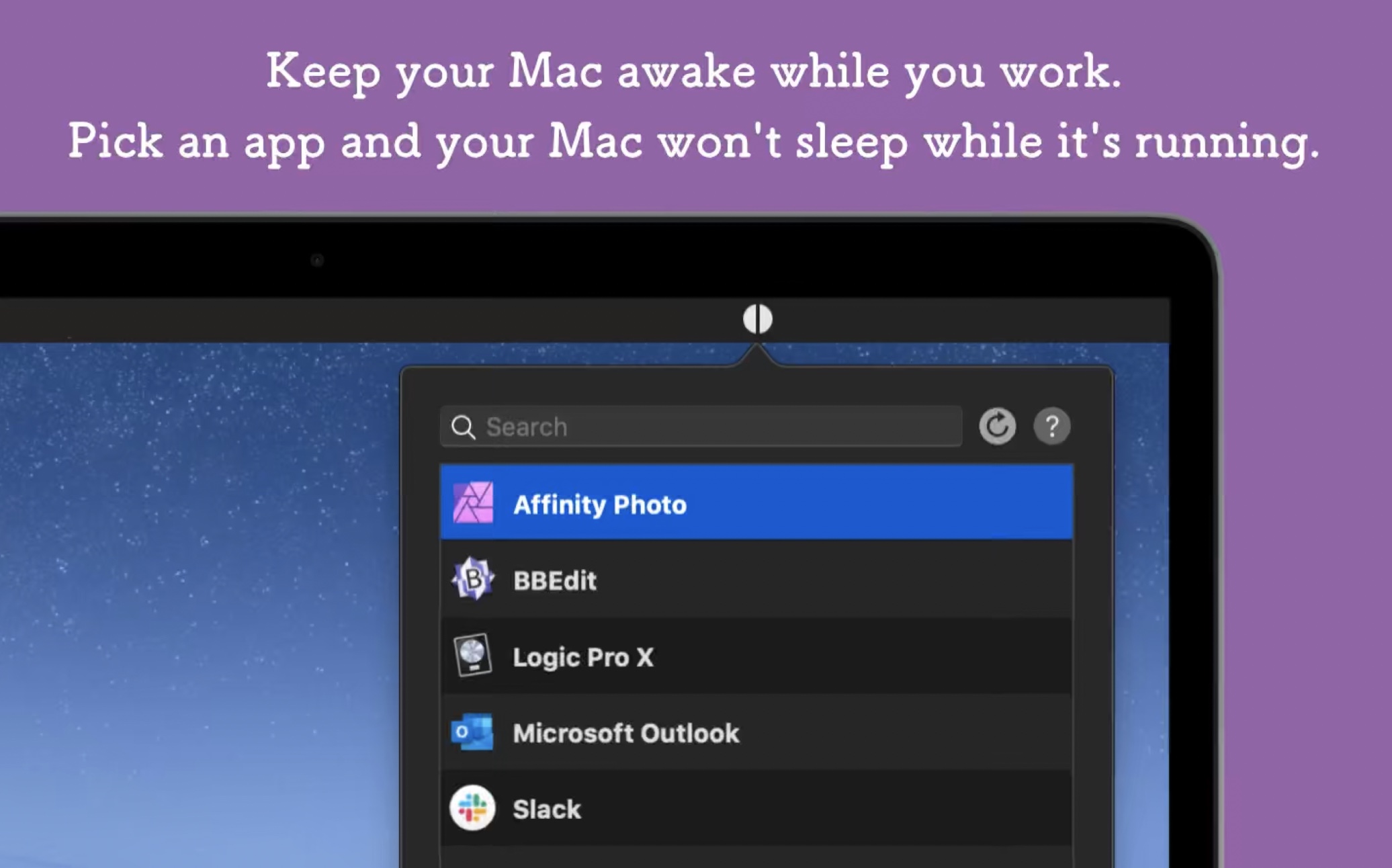
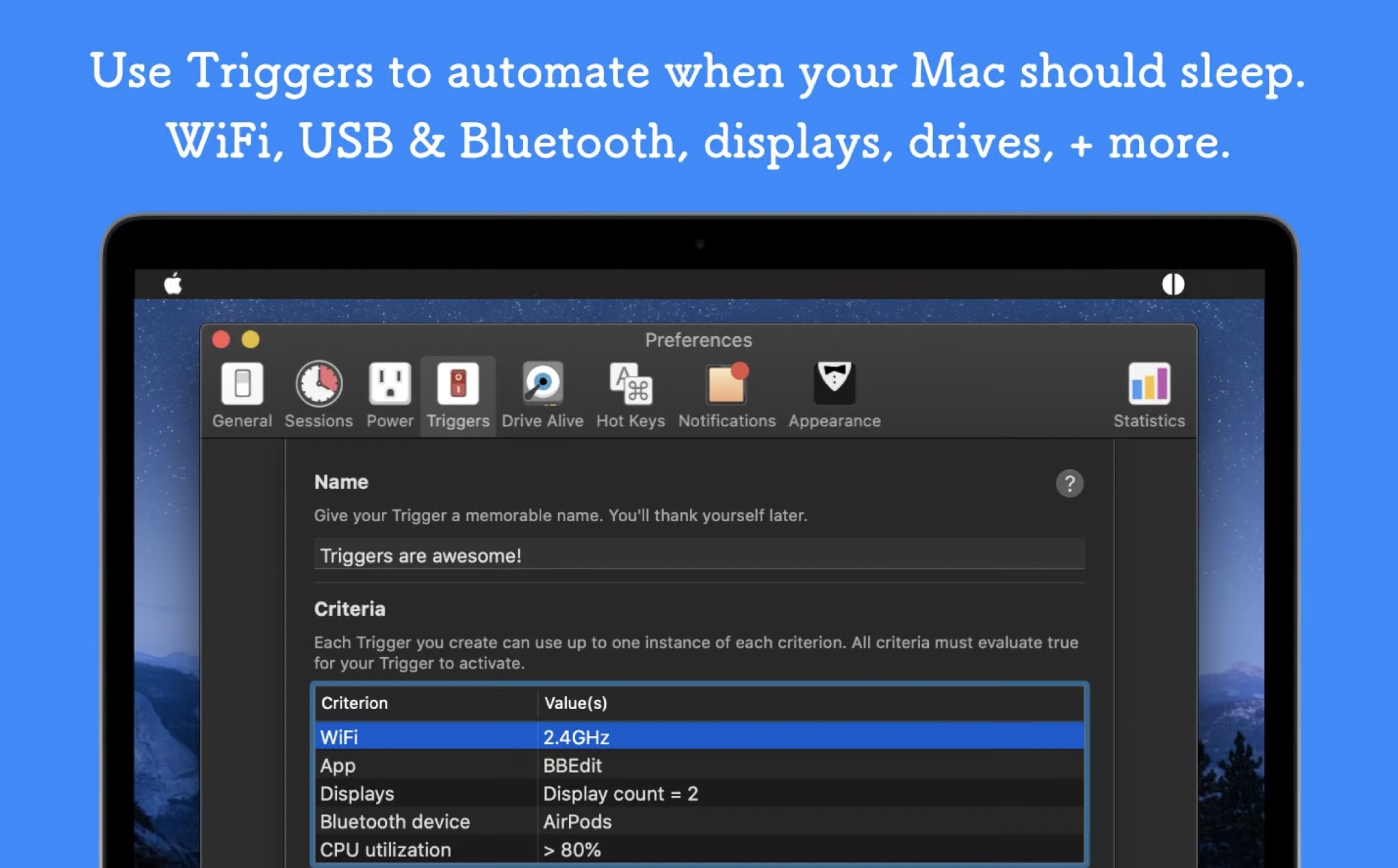
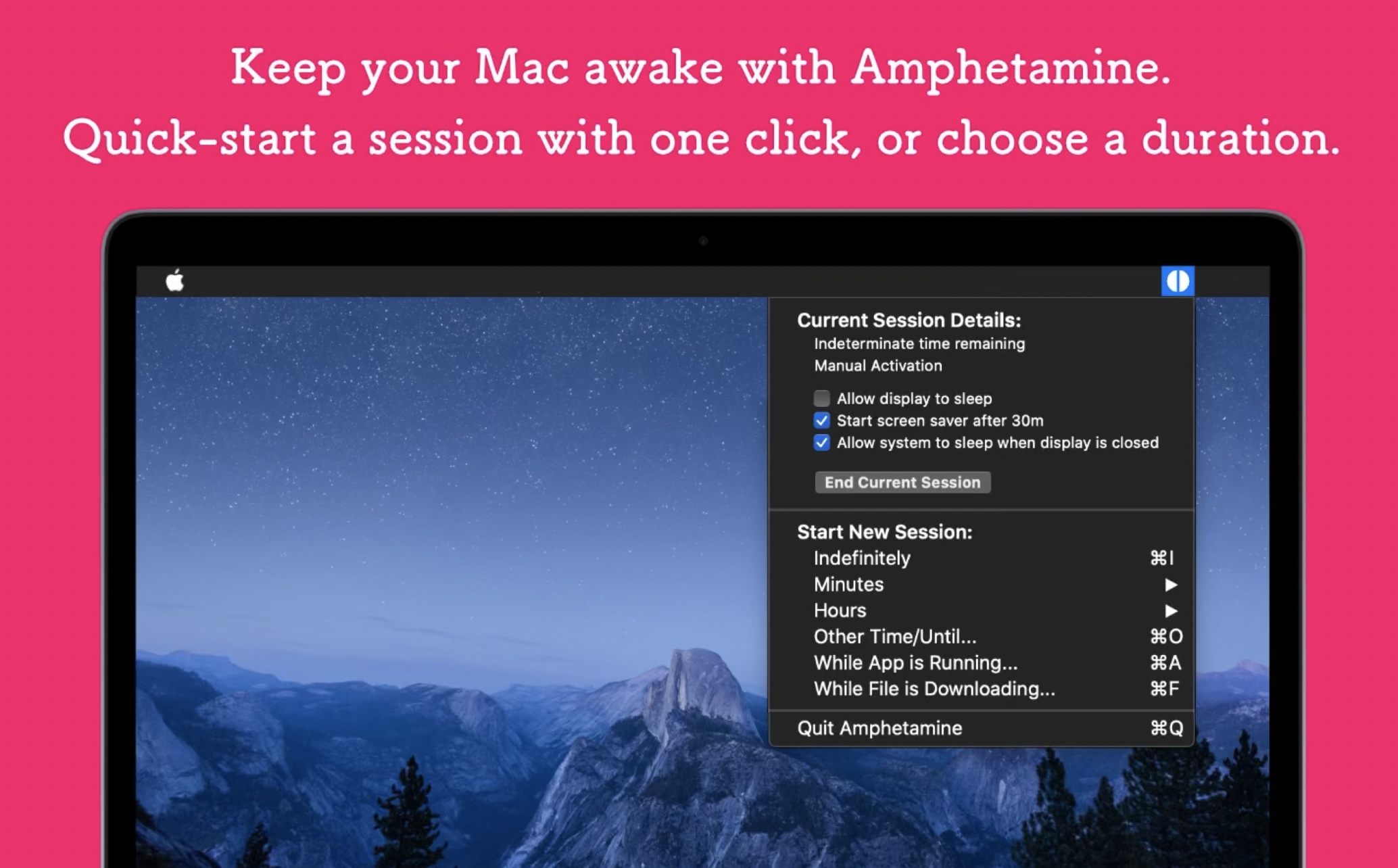
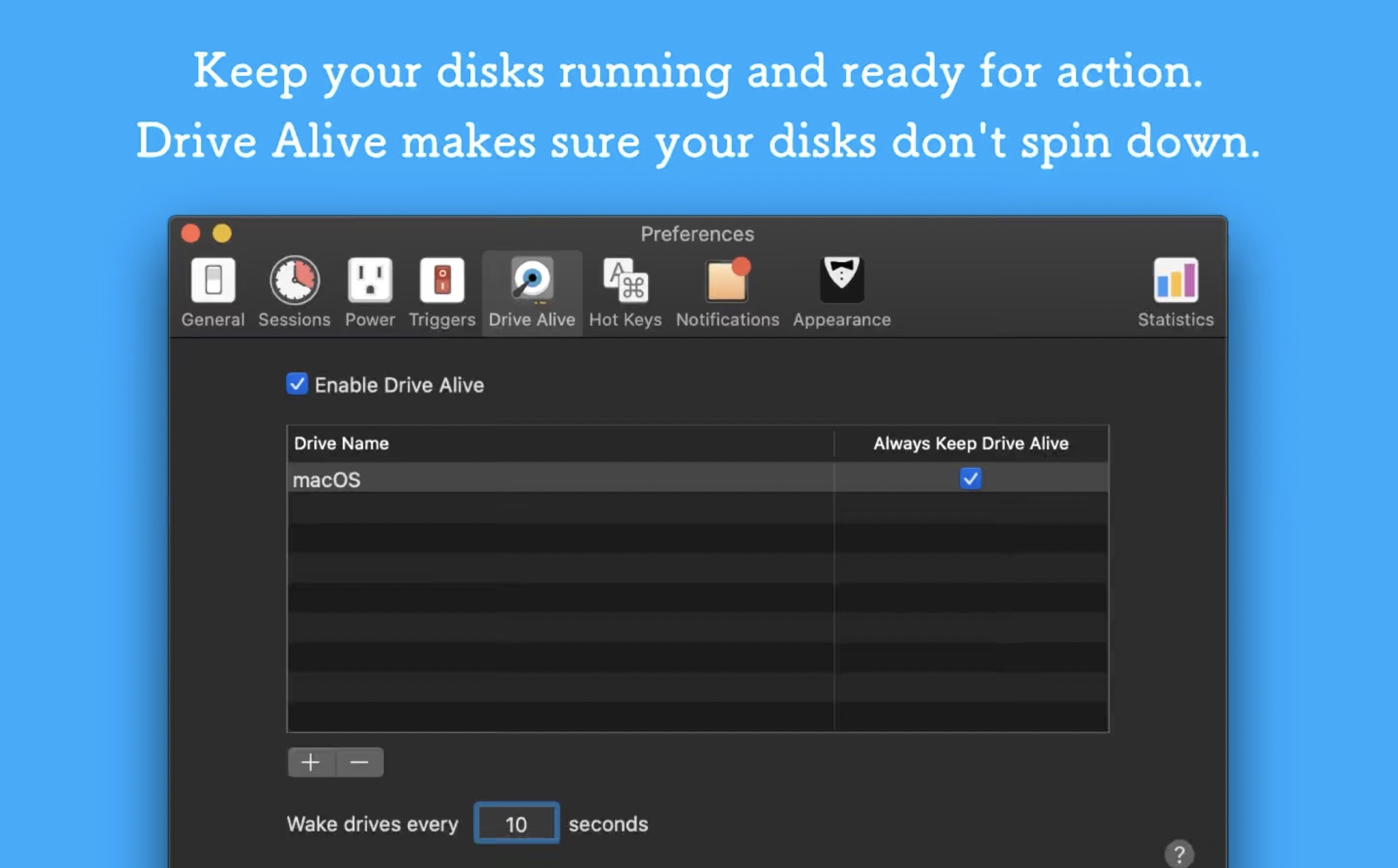
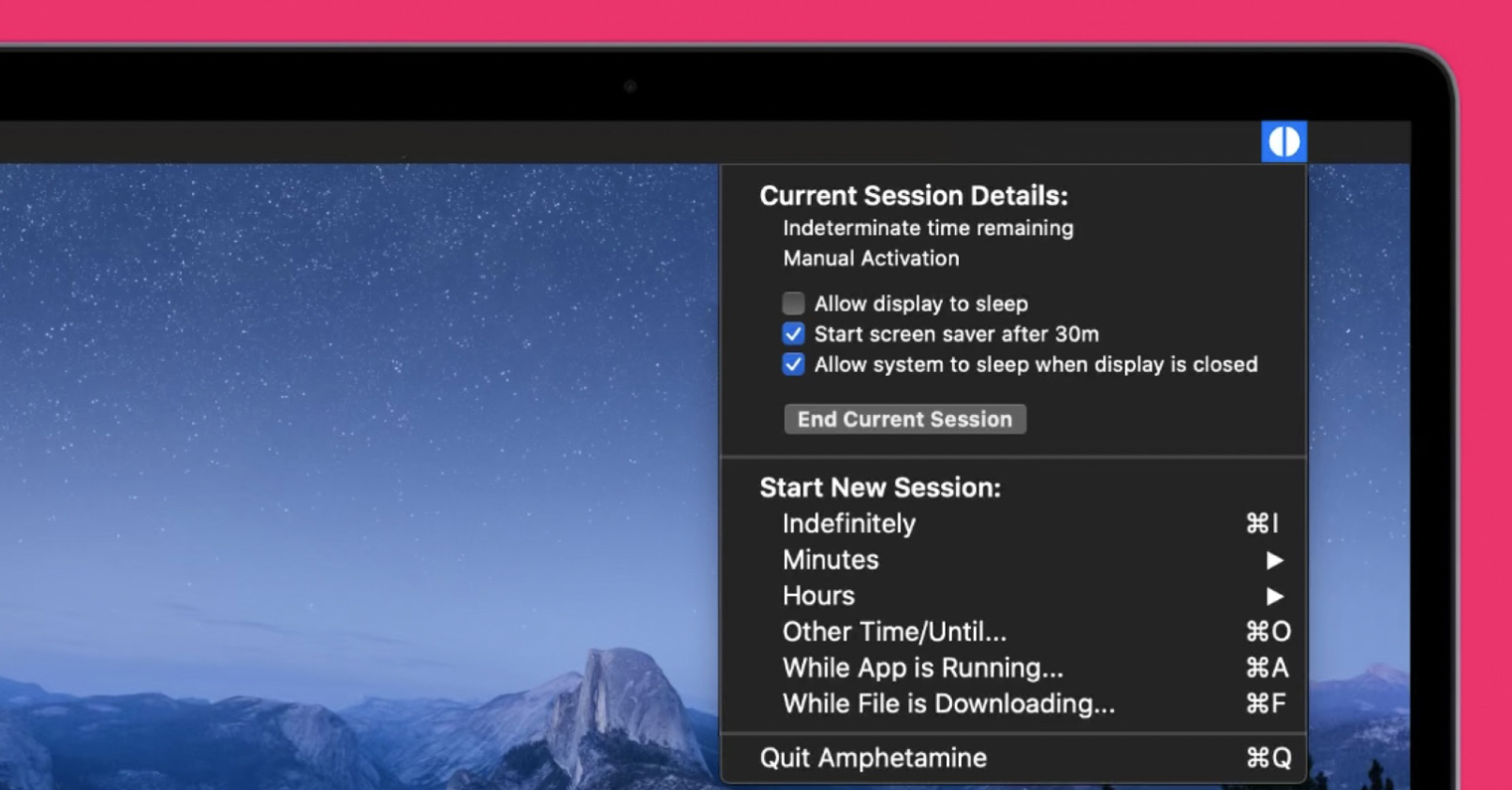
Among the most used applications that you can use to temporarily activate sleep mode is Amphetamine. This application has a very specific name, which even outraged itself Apple. Some time ago, he demanded a name change from the developers, but fortunately this did not happen. Amphetamine is completely free to use, and once installed, it sits right in the top bar of your Mac. If you click on the icon of the tablet used by the application, you can quickly set the time for which the Mac should avoid going into sleep mode. In addition, you can set the Mac not to go to sleep until a process is completed, along with other extensions. Amphetamine is intended for both absolute beginners and professionals who would like to set up various automations.
Gallery

KeepingYouAwake
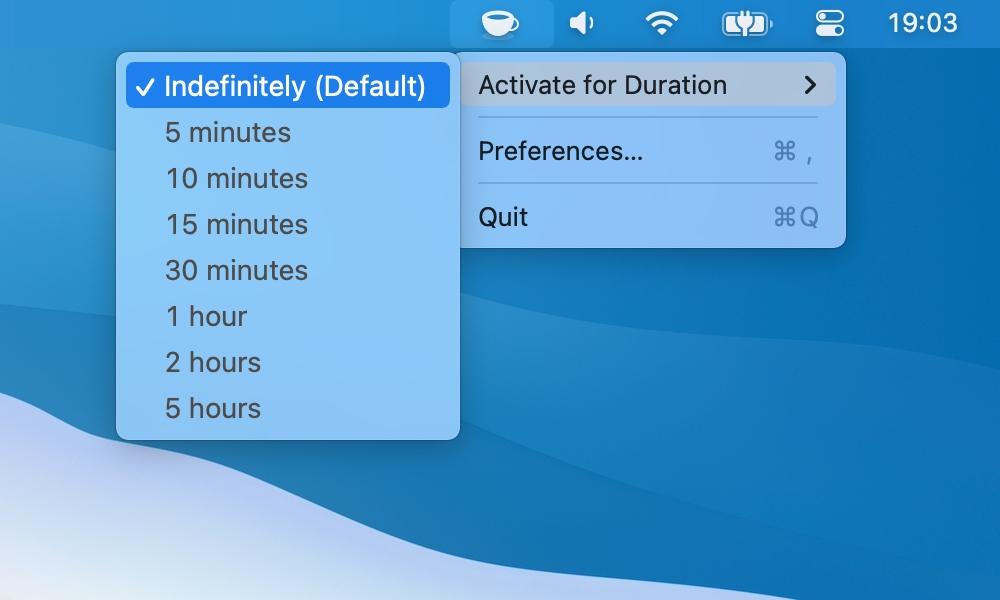
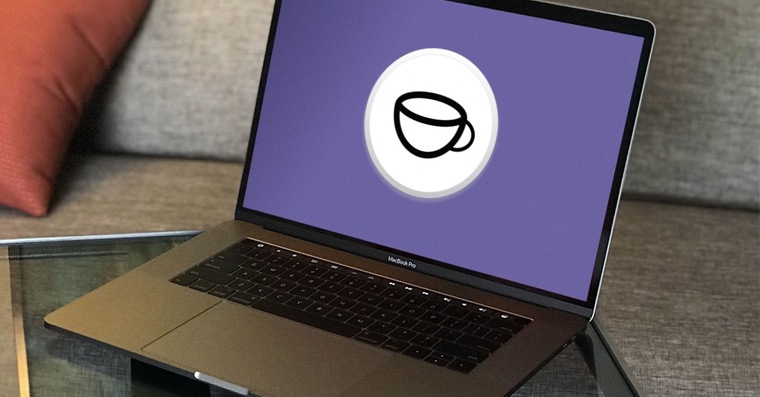
If you are looking for a simple application that can work with the caffeinate command within a graphical interface, you might like the one called KeepingYouAwake. If you decide to install KeepingYouAwake, then in this case, after installing the application, it will also sit in the top bar, in the form of a coffee mug icon. After clicking on this icon, you can simply choose one of the pre-prepared time values that determine how long your Mac will not go to sleep. You won’t find much more in the application – it is really simple and does exactly what is required of it. It is also available completely free of charge.
Long
The Lungo application is modern and, as in the cases above, you can control it directly from the top bar. It is also a simple application, but it offers certain features for developers. Specifically, in Lungo, various developers can use various scripts, which can be run, for example, directly in the native Terminal. Classically, Lungo offers several predefined time data in its interface that determine how long the Mac will not switch to sleep mode. The application also offers several presets, within which you can set, for example, the option to turn off the display without activating sleep mode, thanks to which the computer operation becomes less demanding. There is also a section where you can set keyboard shortcuts for quickly activating and deactivating the mode. You will pay 79 crowns for the Lungo application, for which you will get certain professional features, intended primarily for developers. Examples of possible uses of commands can be found in the documentation.
Sleep Control Center
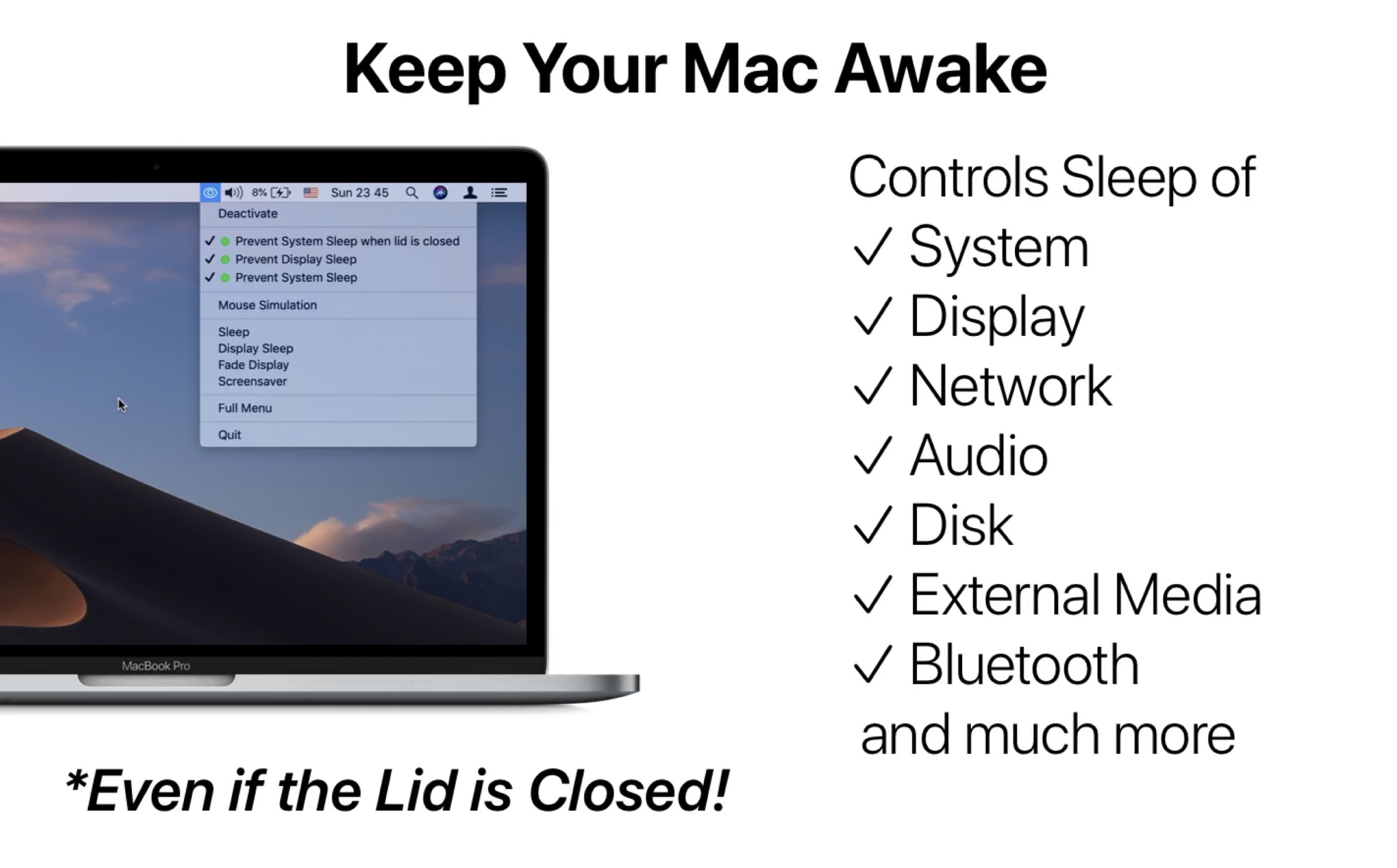
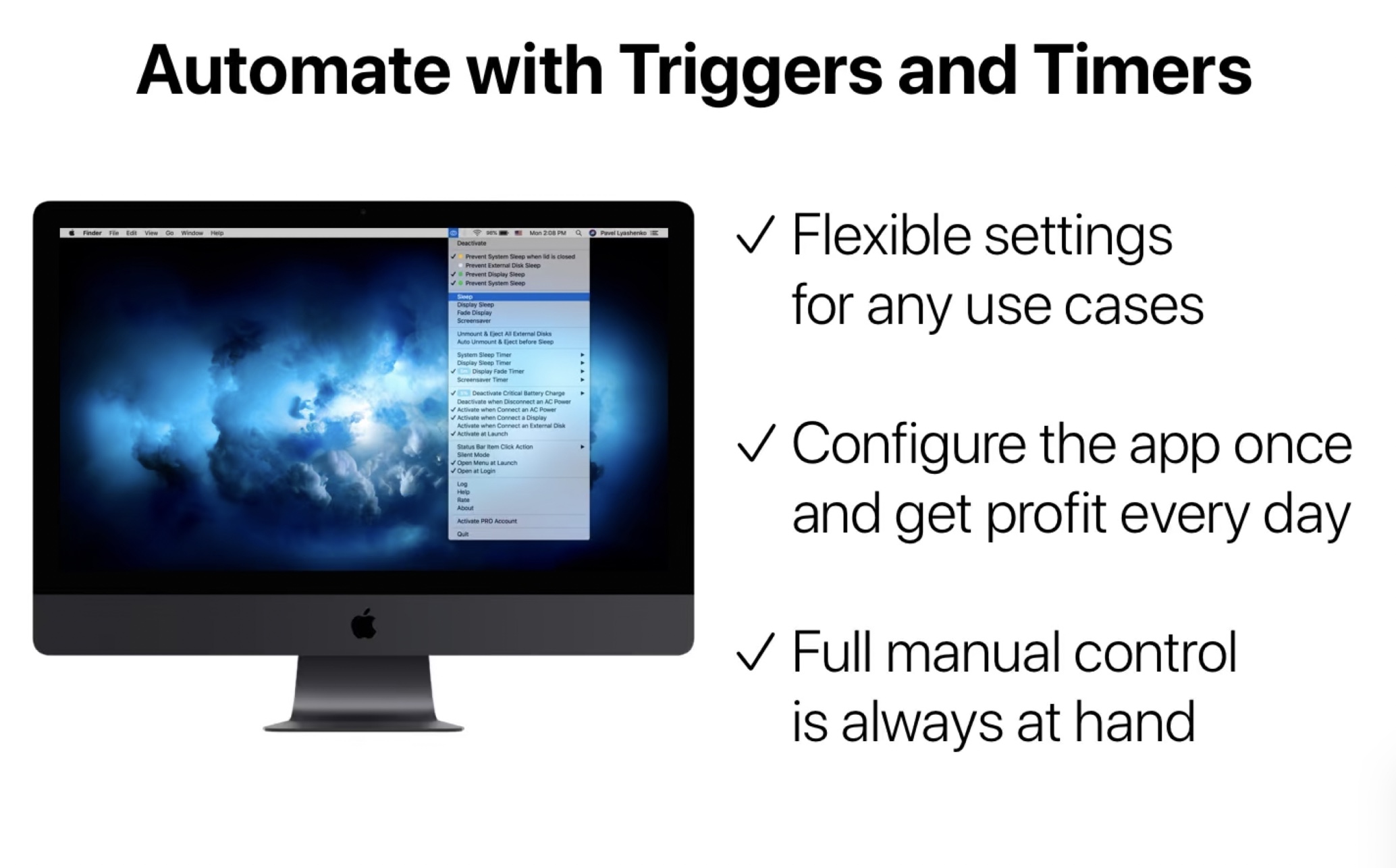
The last entrant in our list of applications that can "caffeine" your Mac is Sleep Control Center. This application is also controlled via an icon that appears in the top bar of the system after installation. Compared to other applications, it is relatively complex, as it offers extended options that can determine in which case the apple computer can switch to sleep mode, and in which case it cannot. This means that it can automatically activate the mode according to specific conditions caffeinatedThe Sleep Control Center includes functions that allow you to set the screen to turn off and the device to continue working, as well as an option that ensures that MacBook will continue to work even if you close its lid. In addition, Sleep Control Center can also work with the current charge, so if the charge percentage drops below a certain value, the mode is deactivated - and much more. You can try Sleep Control Center for free for one month, after which you must purchase the application for $ 10.
Gallery






Great, this is exactly what I needed! Thanks
I must have misunderstood something, but it can be set simply in the settings...
I guess I didn't understand either... After all, it's enough to turn off the sleep mode in the settings and you don't need any applications.