
The holiday season is also a time for cleaning. If you don't feel like cleaning, mopping, or dusting, you can think of Christmas cleaning as a way to cleanse your products of Applu. In today's article, we'll look at how to clean your iPad, both inside and out.
You might be interested in
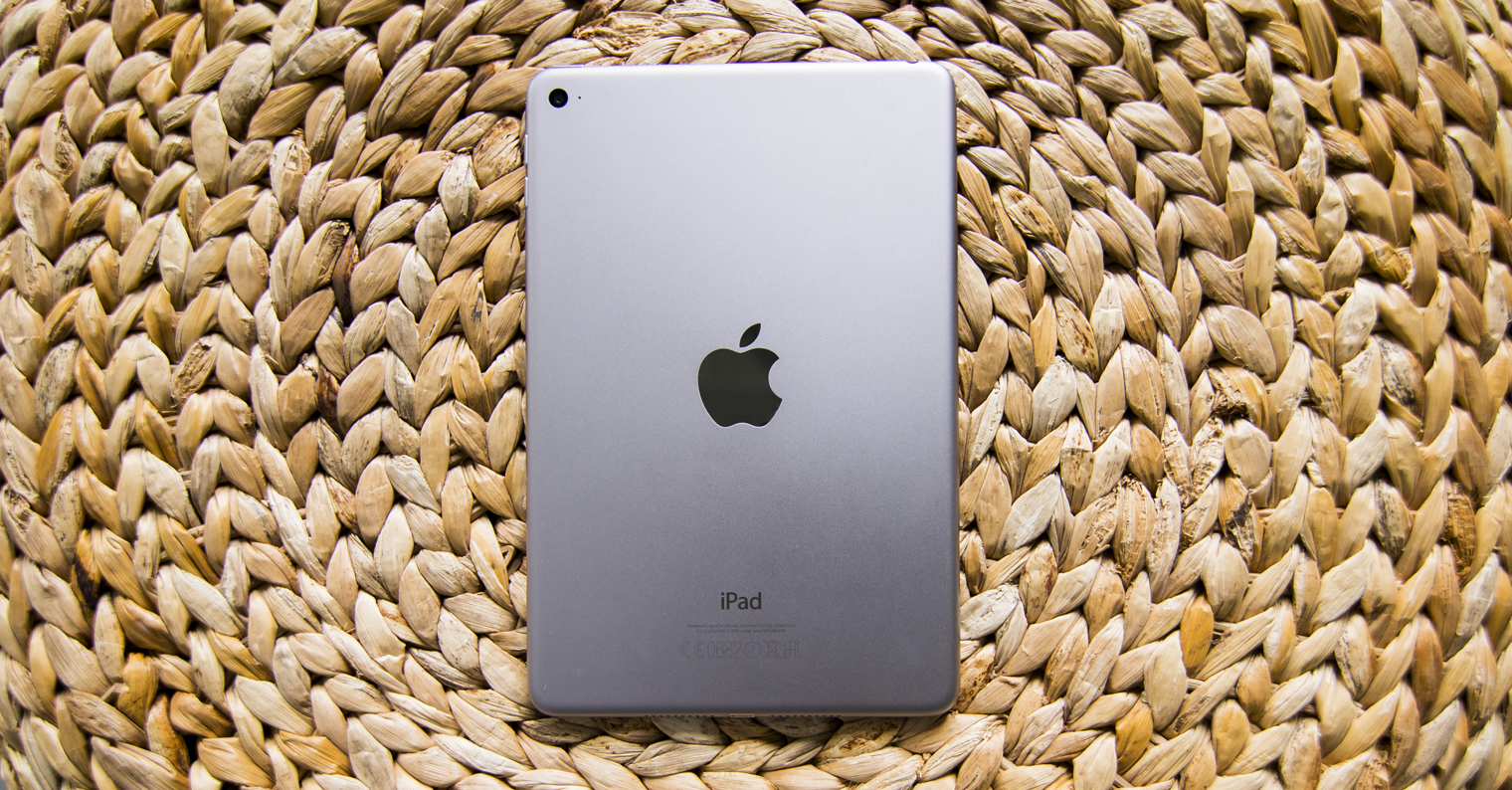
Cleaning from the outside
Gallery
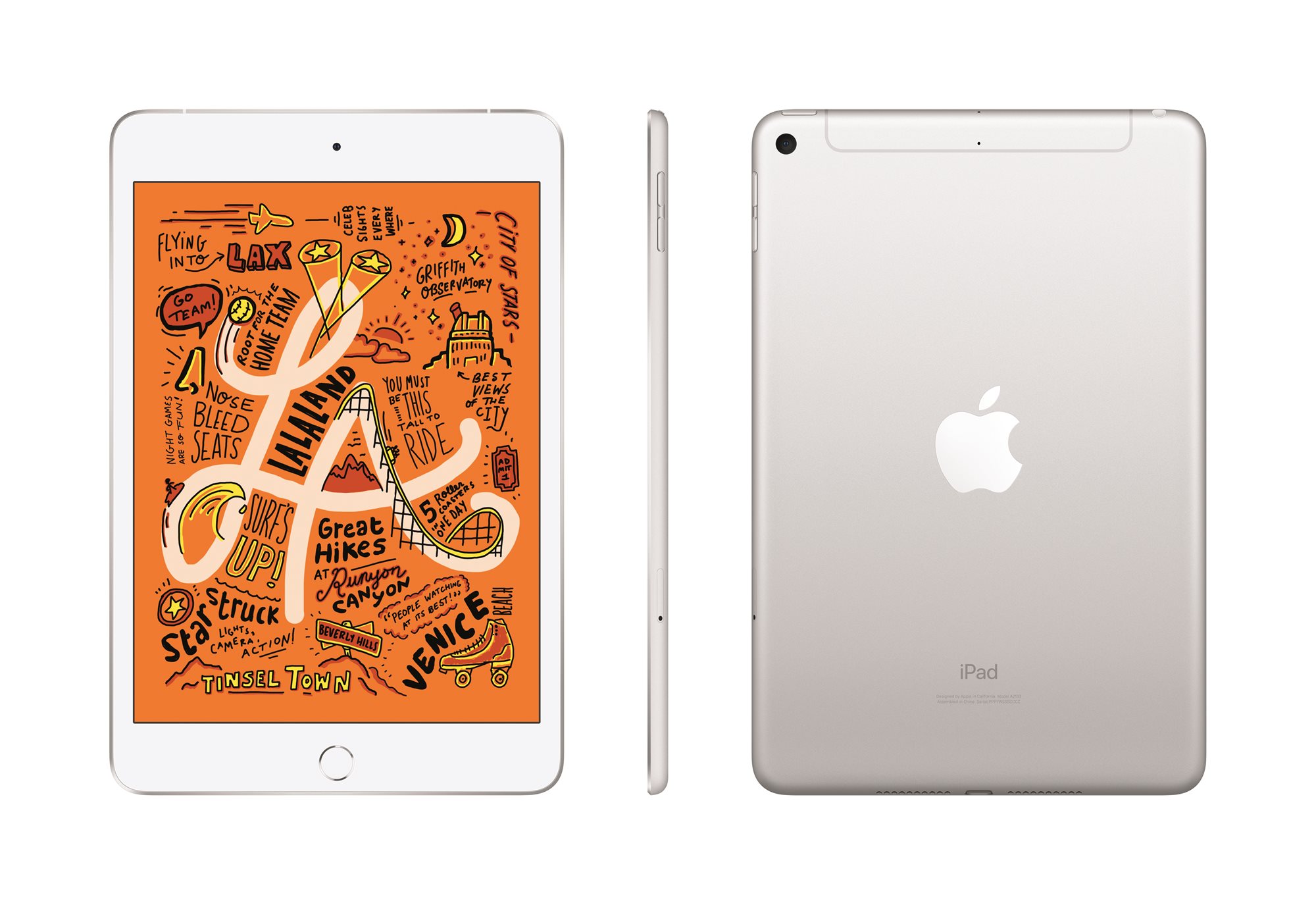
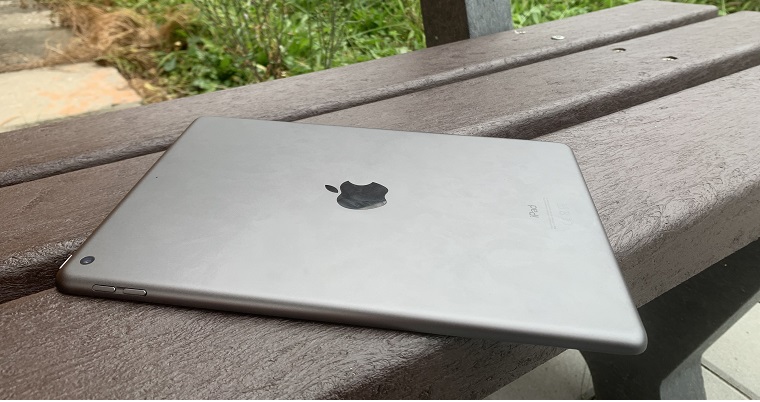
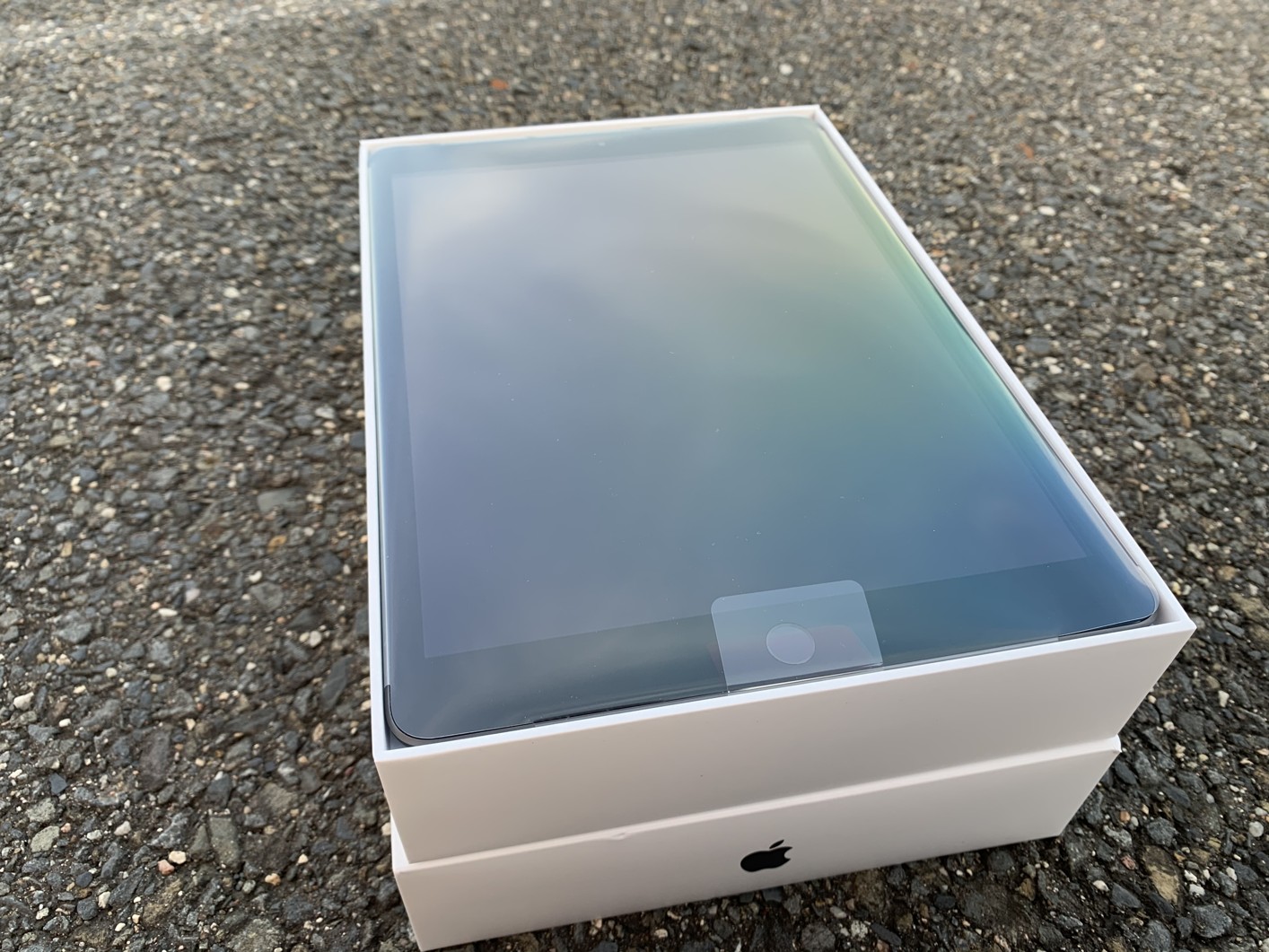
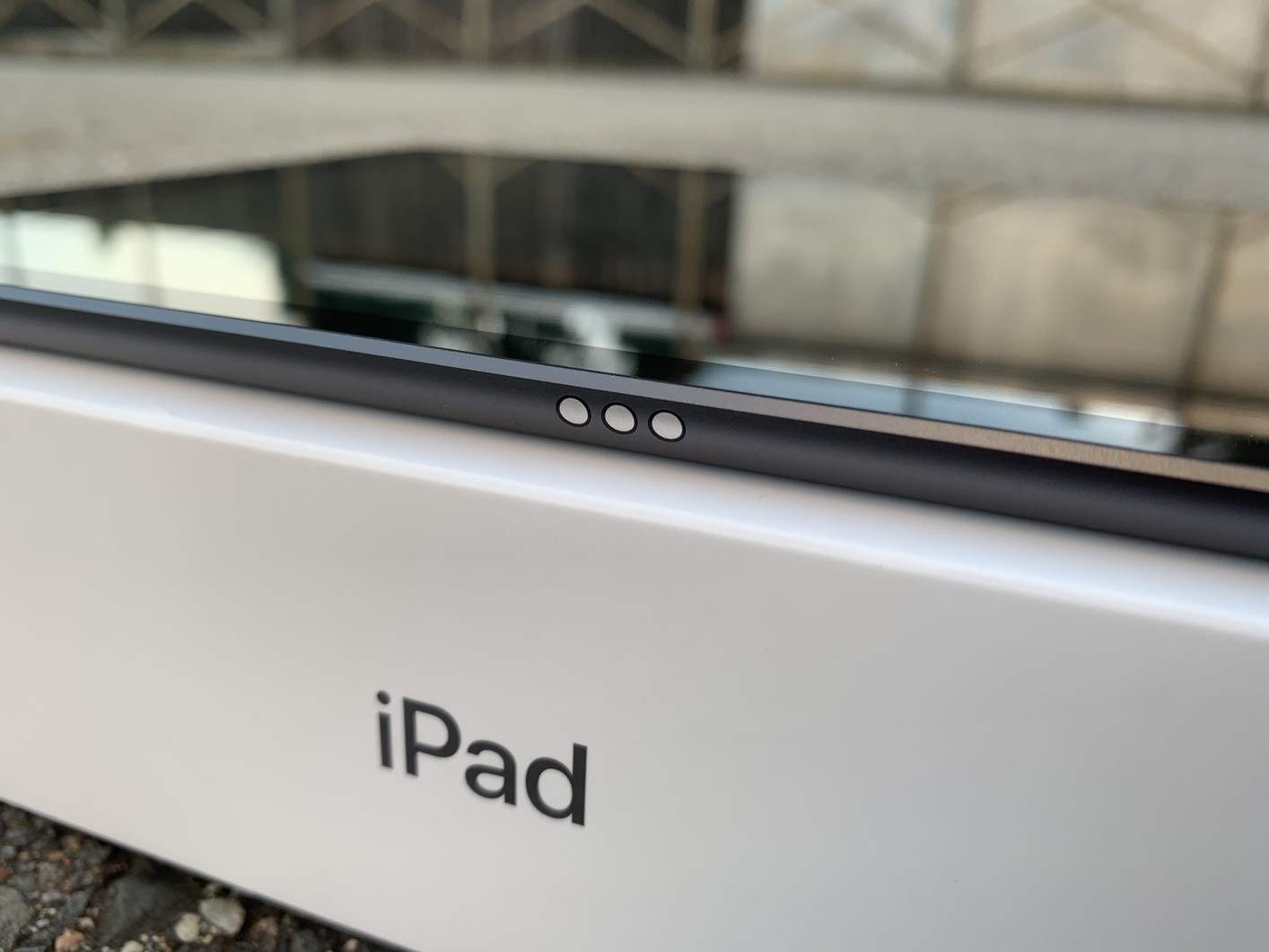
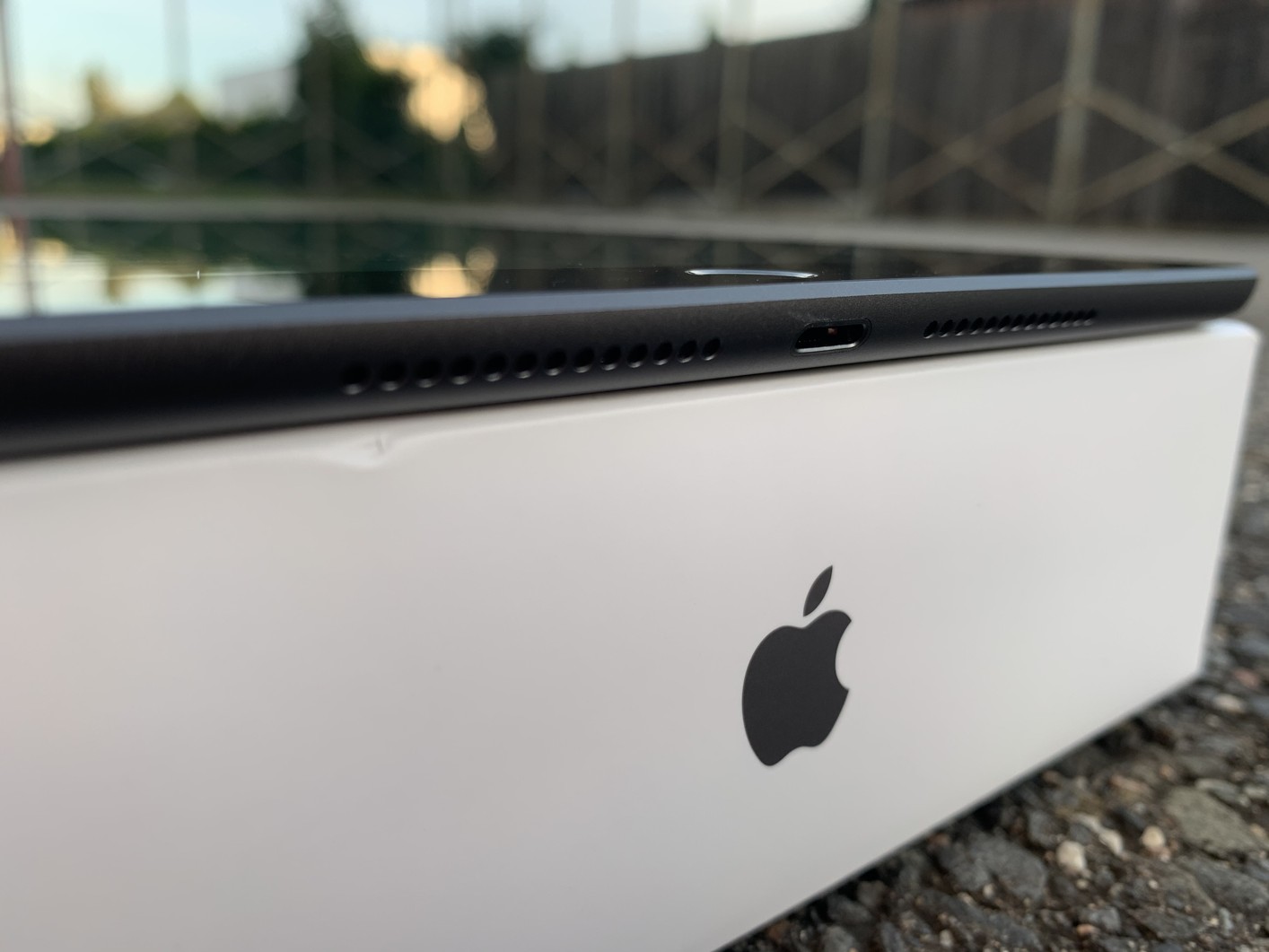
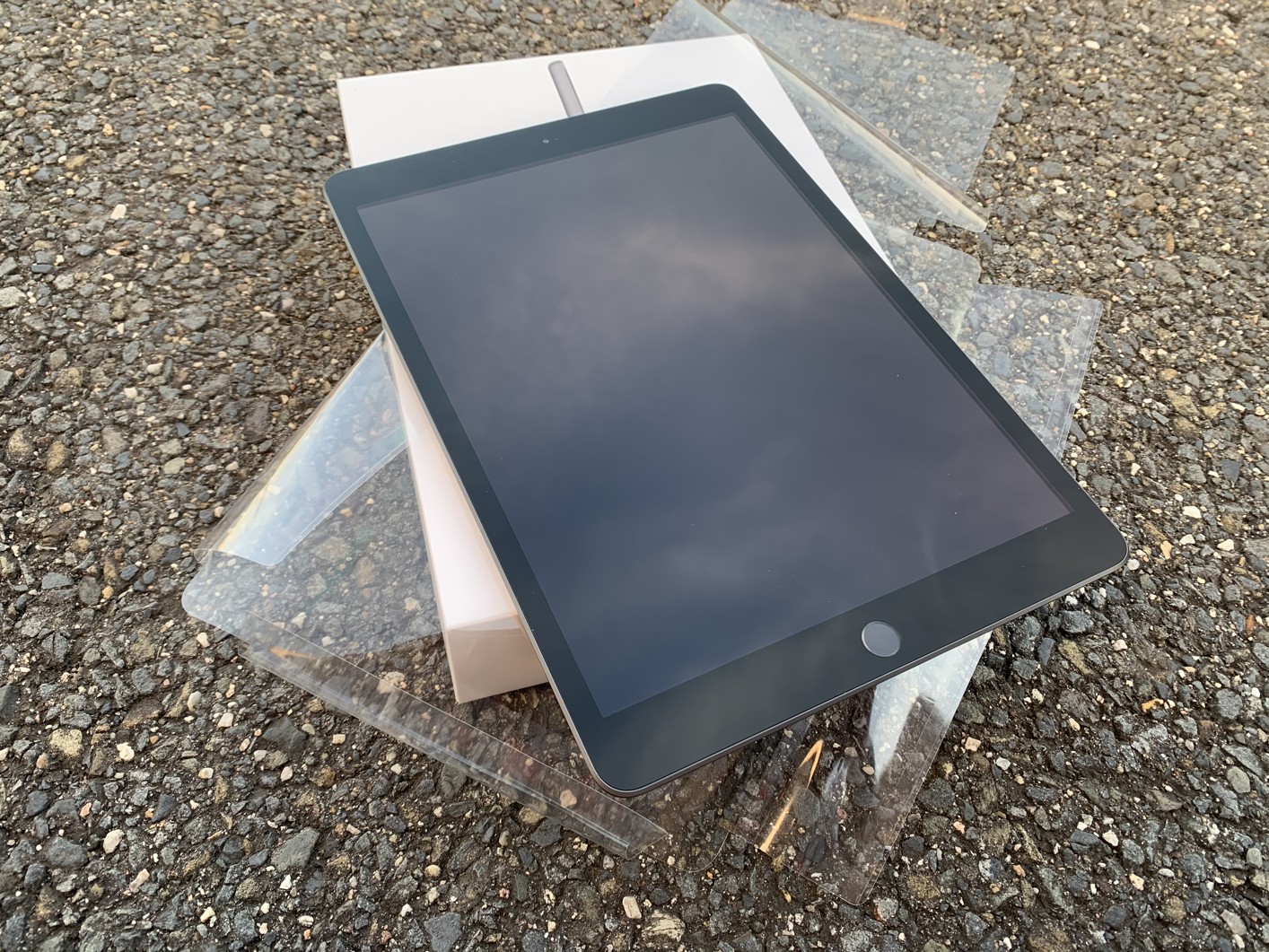
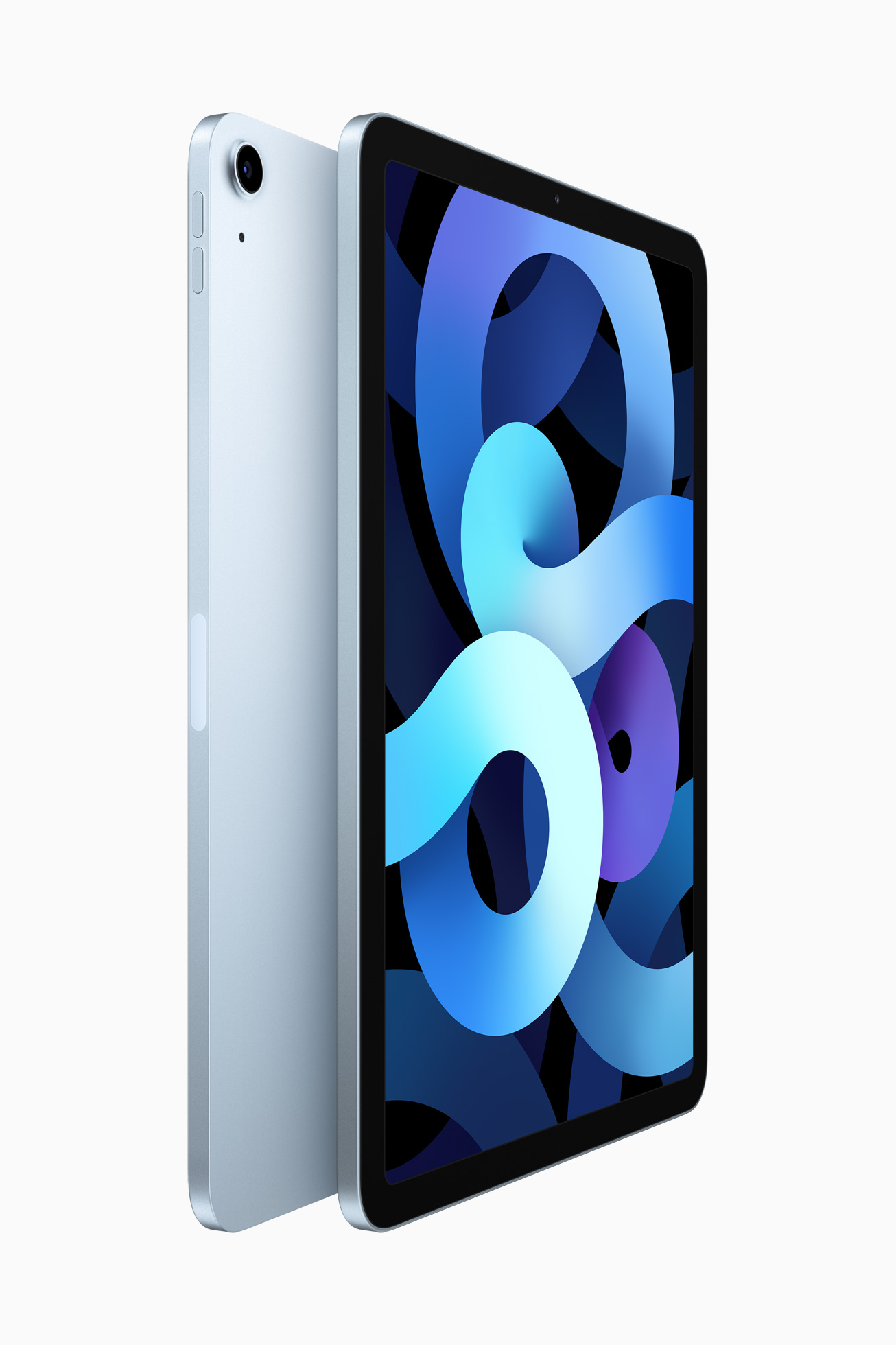
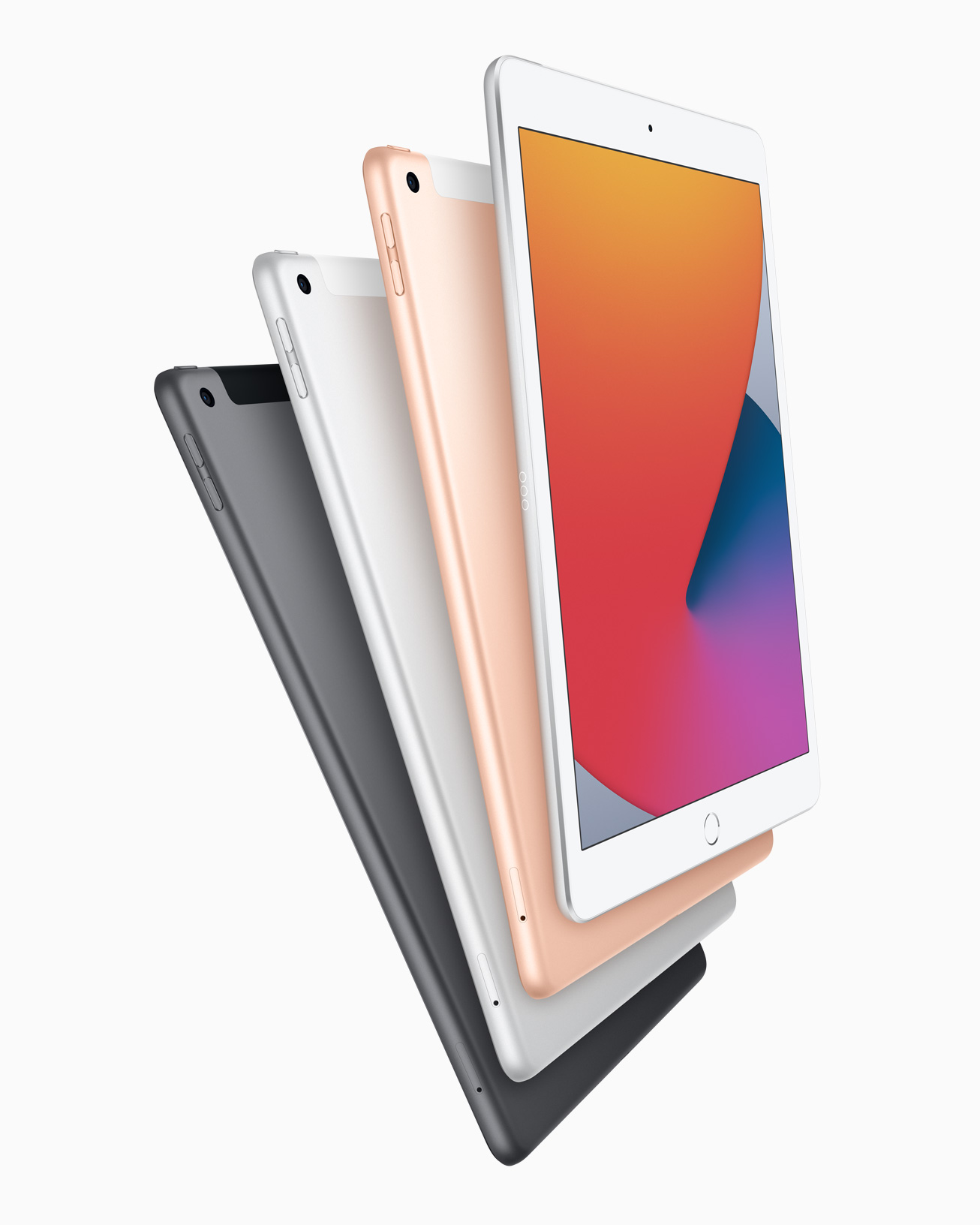
As with other electronic devices from AppThe same applies to the iPad, that you should avoid direct contact with any liquid. Before cleaning, it is better to turn off the iPad and be sure to disconnect it from charging. A soft, clean, lint-free cloth is more than enough for normal wiping of the display and the back of your tablet. To remove any dirt that a dry cloth cannot handle, you can use a cleaning agent specifically designed for cleaning electronics. Always follow the manufacturer's manual; the golden rule is to apply a reasonable amount of the product to the cloth, carefully but carefully clean the tablet with the cloth, and wipe it again with a dry cloth. Dirt from Lightning or USB-C toonewhich you can carefully remove with a good quality brush – again, be careful not to let the hair grow. Avoid using sharp metal objects such as needles, a toothpick is also not very suitable, as it canonewhich can easily break. You can again use a brush or a cotton swab to clean the speakers. If you would like to disinfect your iPad at the same time, the company recommends Apple use isopropyl alcohol for this purpose. Always use only products intended for this purpose to clean the iPad screen. Do not under any circumstances press the iPad when cleaning, and also avoid using abrasive materials such as sponges or excessively rough napkins or cloths - this could result in unwanted scratches on your tablet, which certainly no one wants.
Cleaning from the inside
Gallery
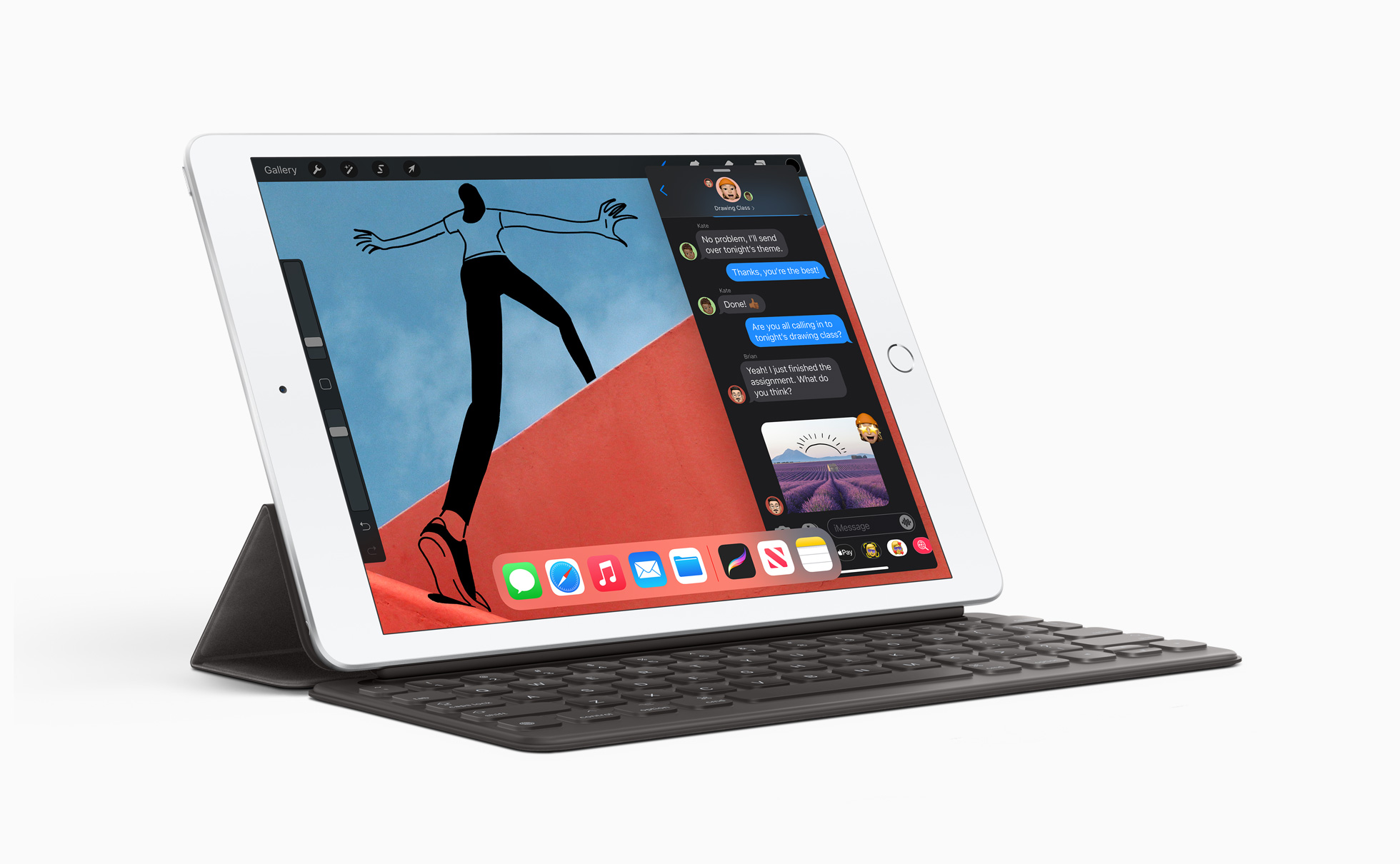
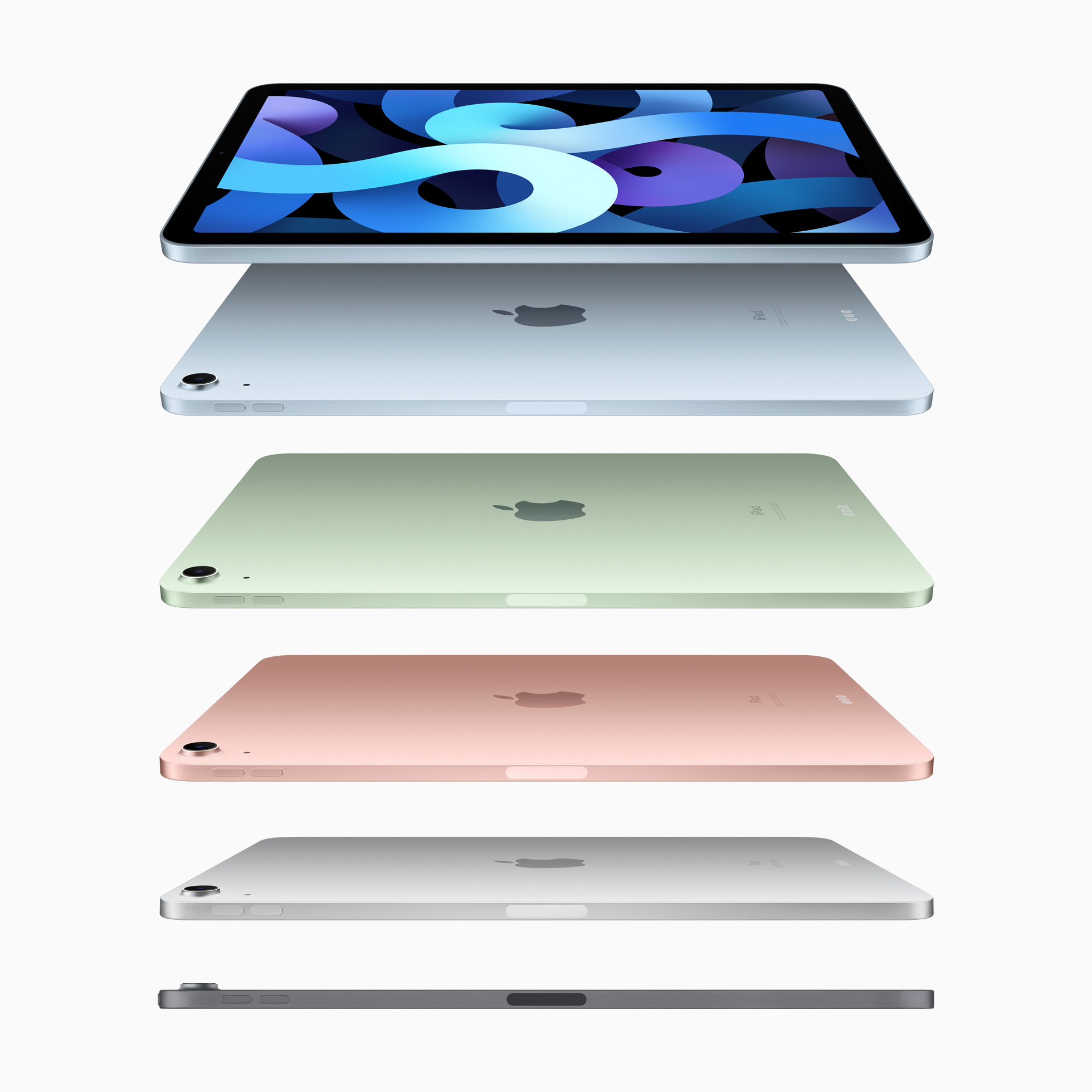
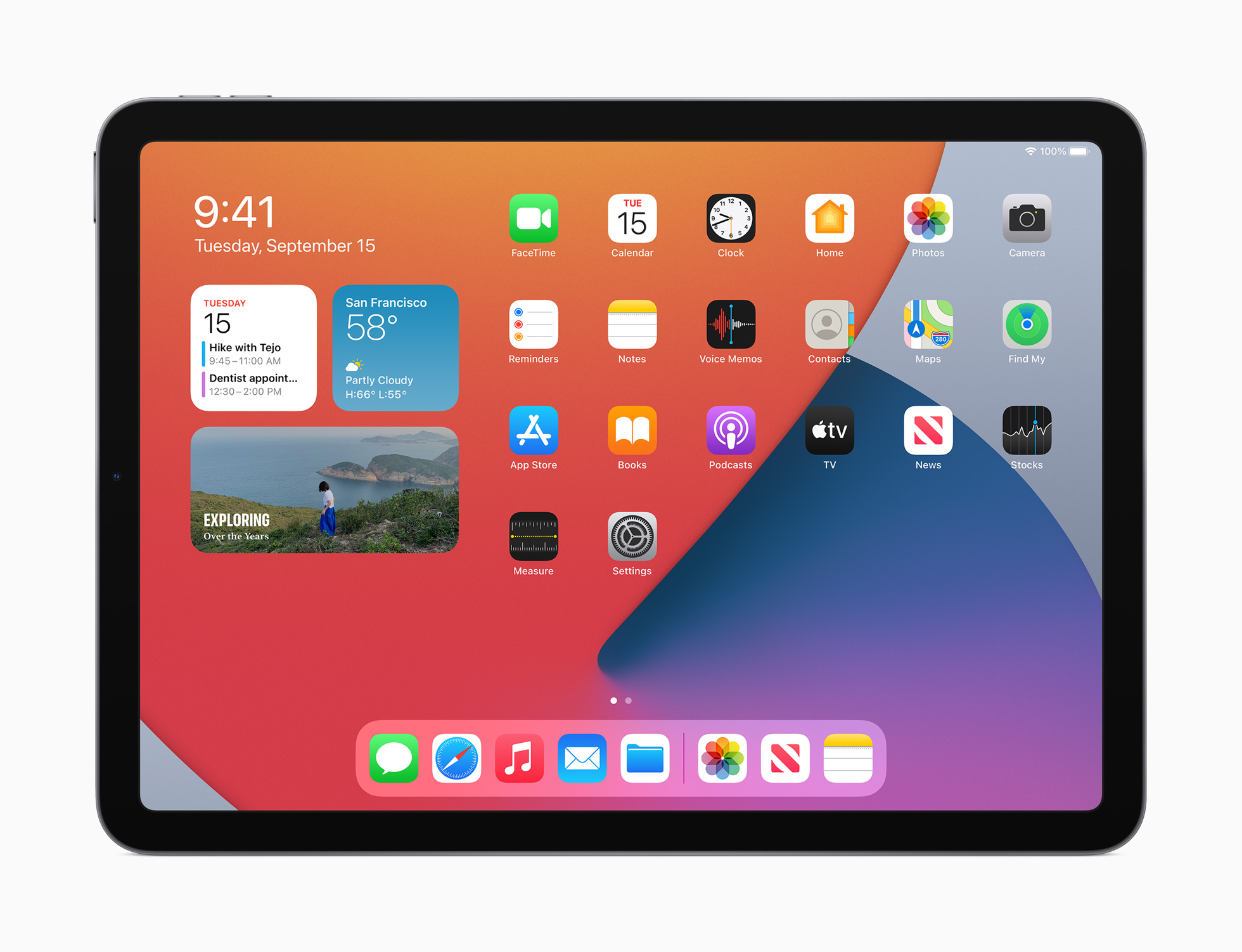
Your iPad will certainly benefit from a clean-up, not just before Christmas. This will get rid of unnecessary apps, free up valuable storage space, and can also speed up your tablet a bit. The easiest way to free up space on your iPad is to delete unused apps – simply go to your tablet’s home screen, long-press the app icon you want to delete, and select Delete App. In Settings -> App Store You can also enable the postponement of unused apps. Apps you don't use will be automatically deleted, but documents and data will not be deleted. Your next steps when cleaning up your iPad should lead you to the photo gallery, where you will delete all unnecessary photos and videos. Then tap Albums -> Recently Deleted in the sidebar, tap Select in the upper right corner, and then Delete All in the lower left. Messages and their attachments can also take up a significant portion of your iPad's storage - go through the native Messages and Mail apps thoroughly, and delete unnecessary messages and attachments. In Settings -> Messages -> Ponechat messages, you can also set messages to automatically delete after a certain period of time. If you have content in the Books app on your iPad that you no longer read, you can easily delete it from your device. Open the Books app, tap Books, and tap Edit in the top right. Tap to select the titles you want to delete, then tap the trash can icon in the bottom left corner.


So I don't know what anyone needs to clean, but even the tablet that my petite children use is basically clean after three-quarters of a year. He usually drags it with him, her with her... He only gets a new screen once a week and it's like new.