
With the advent of new operating systems iOS and iPadOS 14 has added countless features that we can now fully use for several weeks. Some features are visible at first glance, while others need to be figured out. One of the most discussed new features is the green and orange dot that appears at the top of the iPhone or iPad display. We have already explained why this is the case - just move to the article using the link below. Simply put, these dots have to do with the use of the camera and microphone. If you have found that an application is using the camera or microphone without your knowledge, it is a good idea to reset this preference. If you want to find out how to do this, continue reading.
You might be interested in
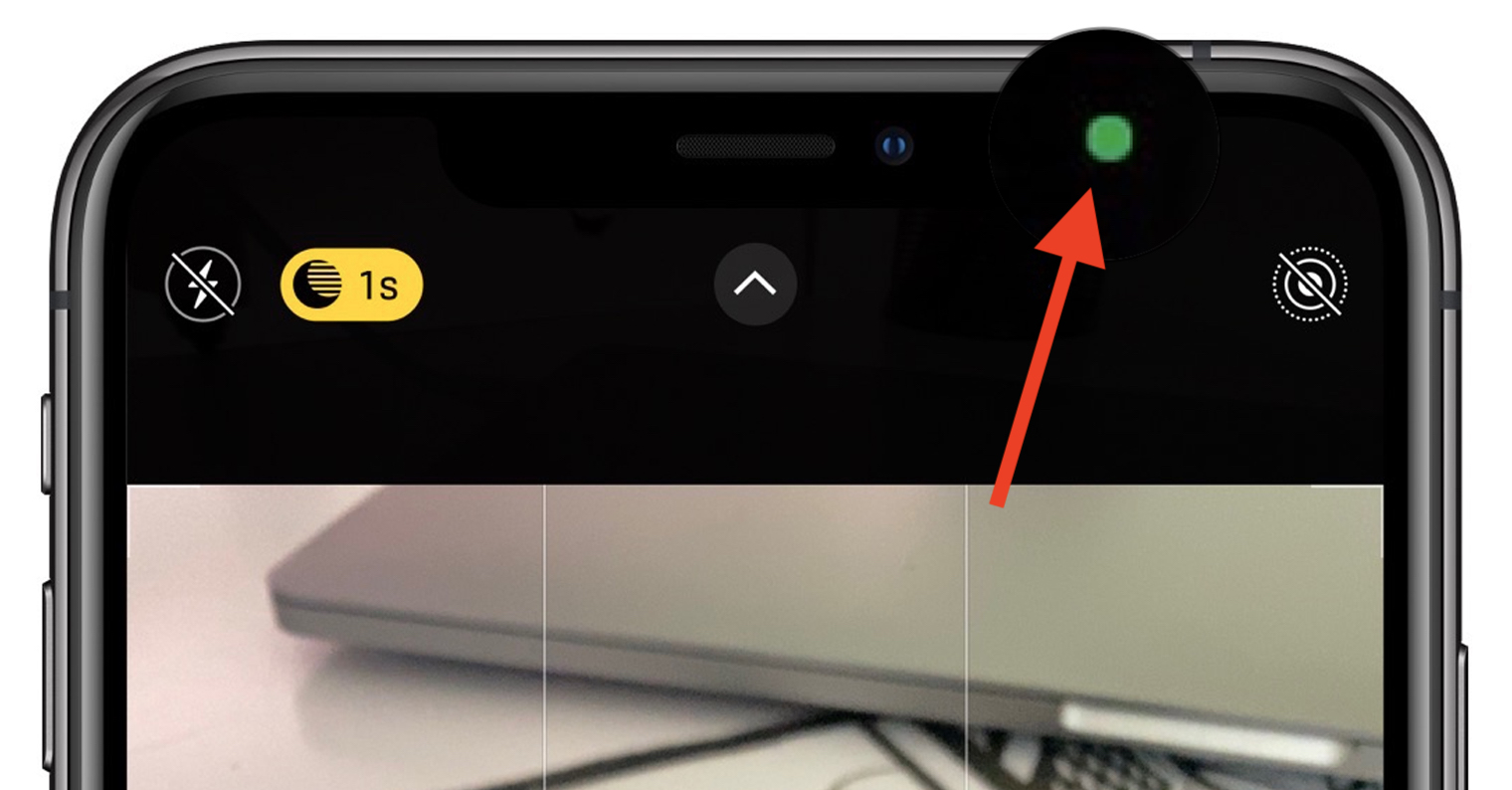
As iPhone change camera or microphone access rights for applications
If you want to change the access rights to the camera or microphone on your iPhone or iPad, it is not difficult. Just stick to the following lines:
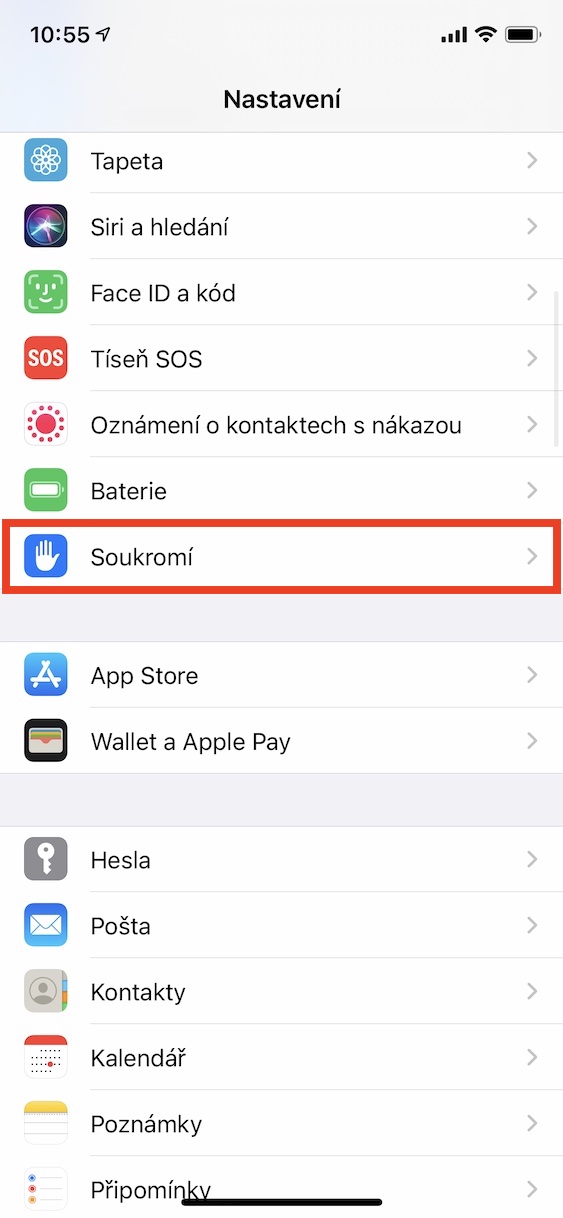
- First on your iOS or iPadOS device to open the native app Settings.
- Once you've done that, go down a notch below, where to locate the box Privacy, which you tap.
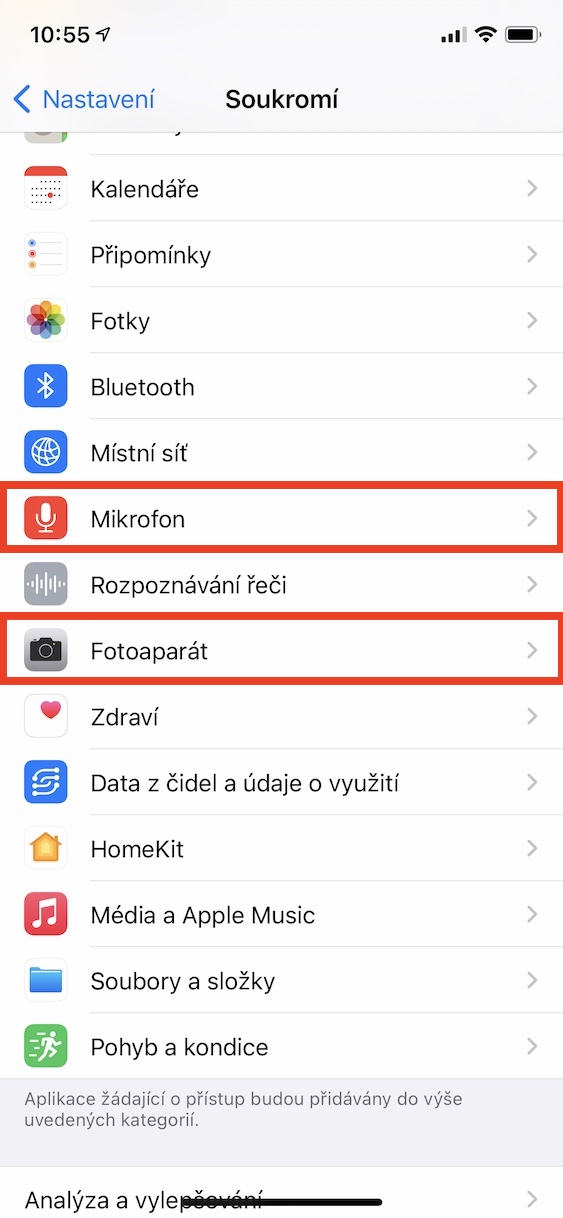
- Within this section, simply find and tap on the list below box:
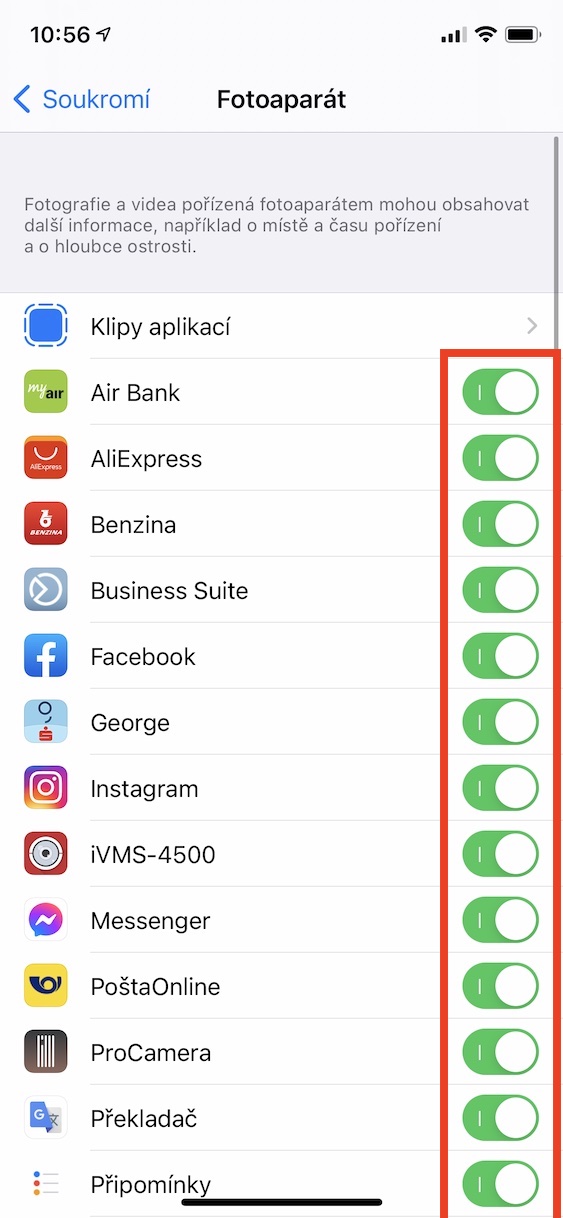
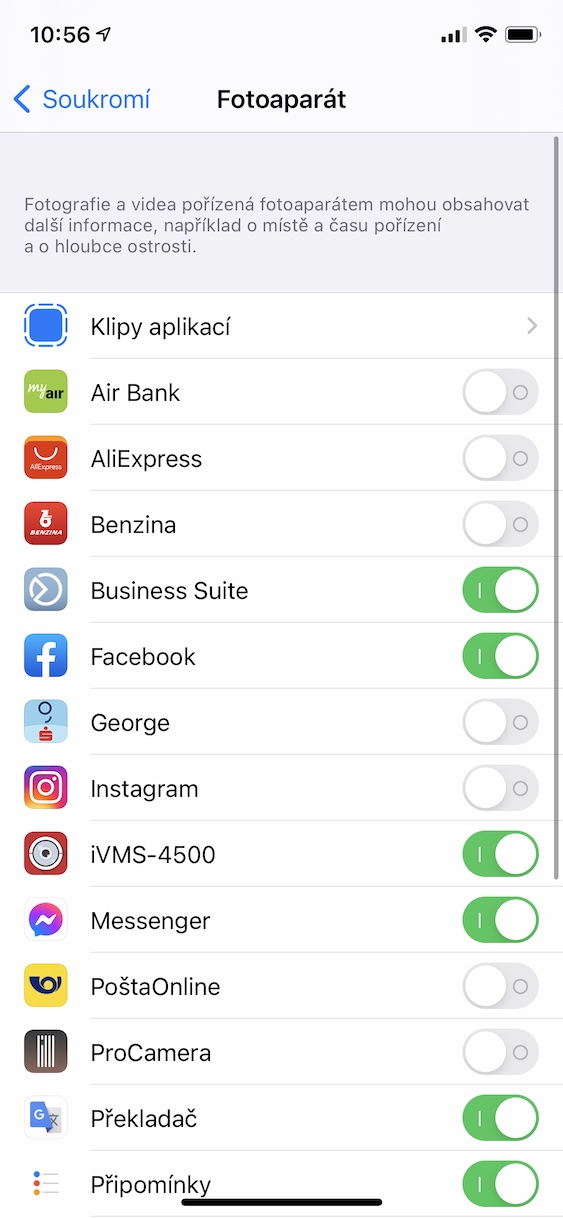
- Camera – if you want to change the rights of applications access to the camera;
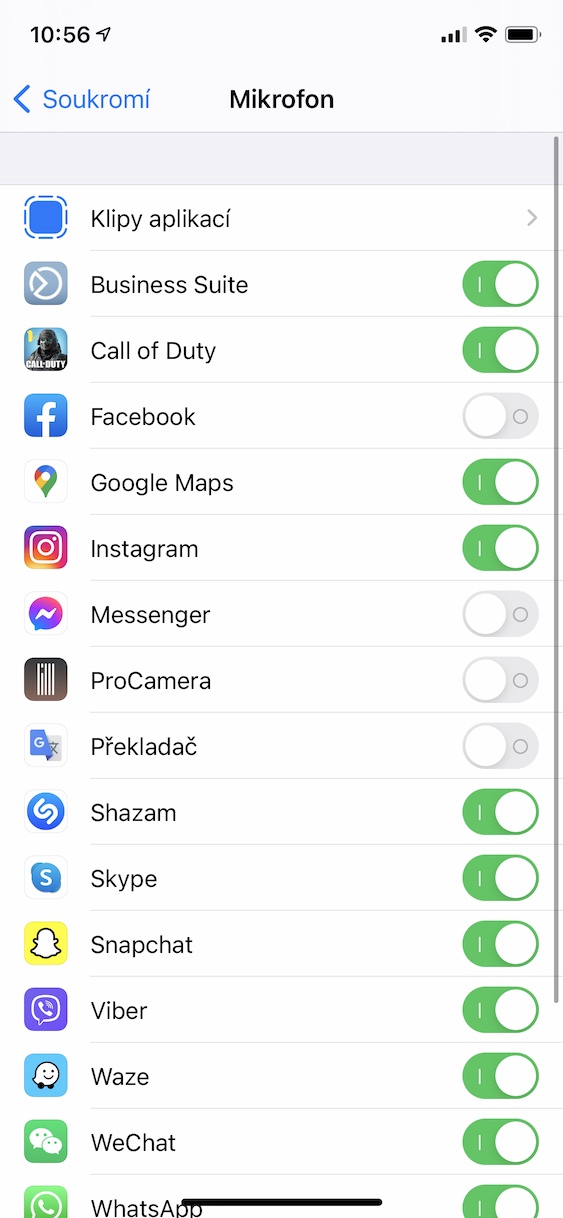
- Microphone – if you want to change the rights of applications access to the microphone.
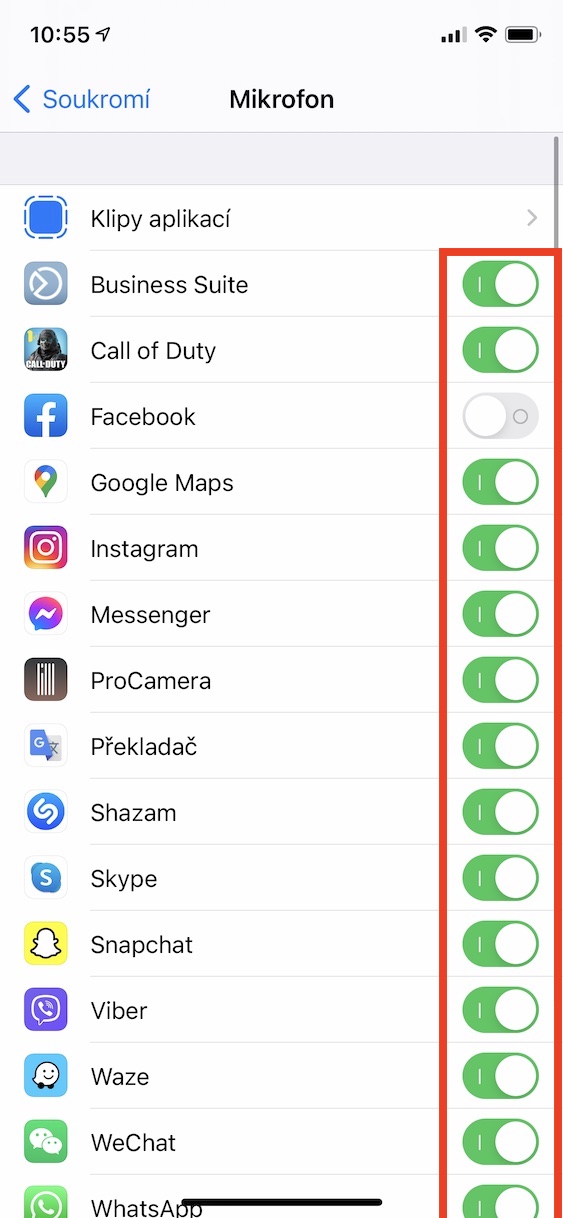
- After one of the above roundsoneIf you click on it, it will appear list of installed application.
- For these applications, it is then found switch, which means that access to the camera or microphone is (not) allowed.
- So if you want access to the camera/microphone app prohibit, so flip the switch to inactive positions.
Gallery
Apple is one of the few companies that cares about the privacy and security of its users. That is precisely why Apple's systems include countless different security features that prevent applications or websites from tracking you, for example. New in iOS 14, you can also set which specific photos the application will have access to, and in addition, for new applications it is necessary to manually allow all access, for example to the camera, microphone or location. So if you have an Apple device, you practically don't have to worry about anything.




so I'm also a moron for not seeing it...
I have the cloud app, but for some reason I can't use the camera for some apps. When I go to security - camera, I can't find a single app there that I can allow access to. You don't know what it is?