
For several months now, it has been observed that Launchpad It is used by fewer and fewer users within macOS. Launchpad as such, it seemed like a great option that would allow you to neatly organize and launch applications with just a few clicks. But let's face it - in this case, it's much easier to call up Spotlight with the Command + Spacebar shortcut and then immediately type in the application you want to launch. However, there are still users who LaunchpadThey don't want to give up and use it on a daily basis. I Launchpad you can personalize it in your own way, specifically change the size and number of icons that fit on one page LaunchpadLet's see together how to do it.
You might be interested in

How to adjust the size and number of icons on Mac Launchpadu
If you want to adjust the size and number of icons on one page on your macOS device, Launchpadu, then this is a slightly more complicated process. The system does not natively have a graphical interface through which you could adjust these preferences. In this case, you need to make all changes through the Terminal. But don't worry, you can certainly do everything using the procedure below:
- First, of course, you need to move to a native application Terminal.
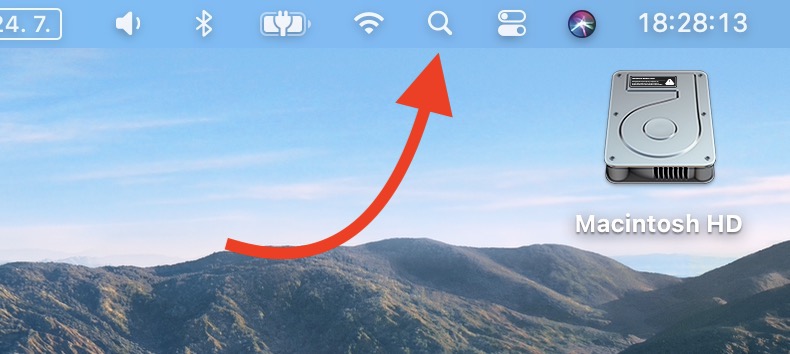
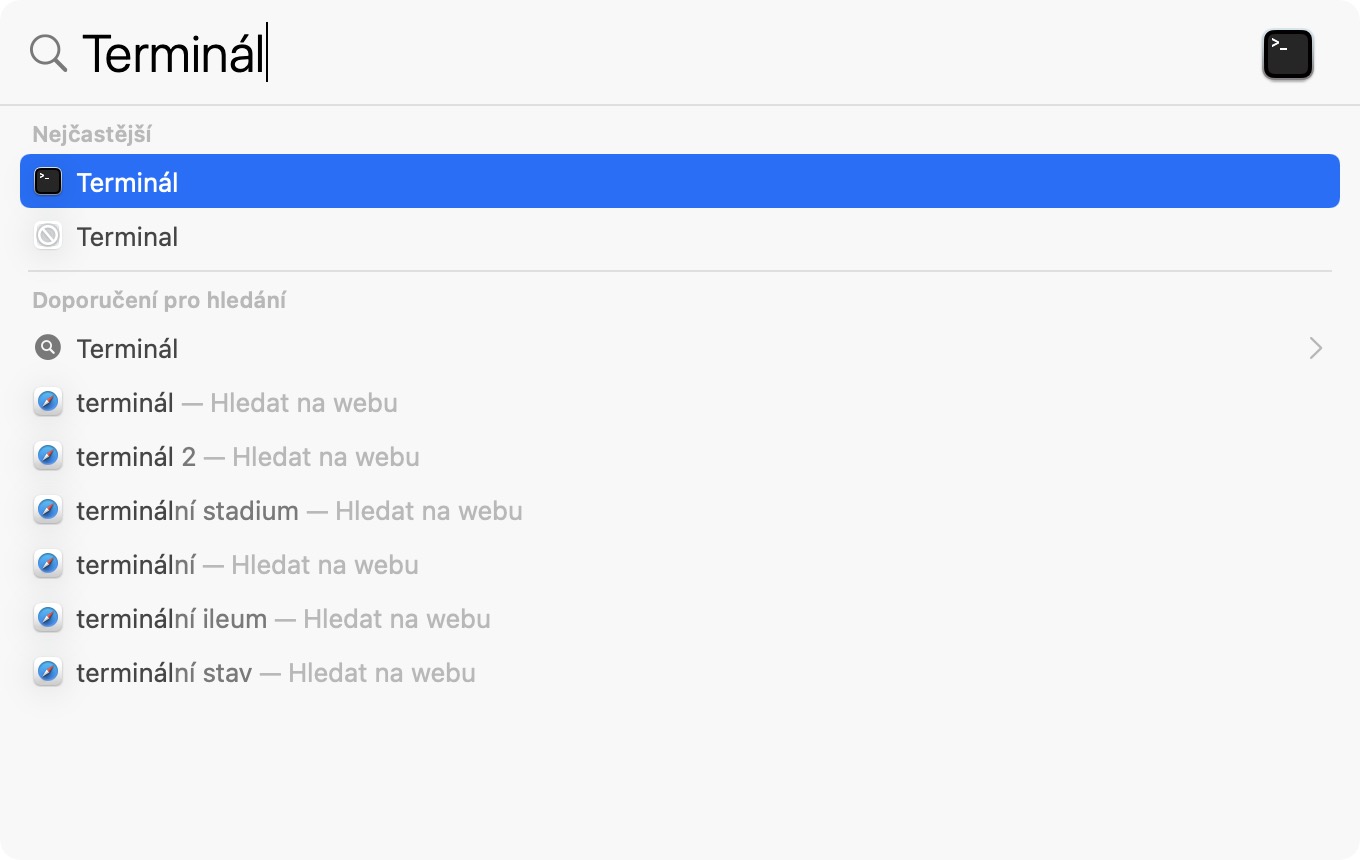
- You can do so by using spotlight, in which you just need to write Terminal and run the application.
- Alternatively, you can find Terminal v Applications in the folder Utilities.
- It will appear after starting Terminal small window into which they insert commands.
- Using the command I am attaching below, you can change number of lines v Launchpadu:
defaults write com.apple.dock springboard-rows -int X;killall Dock
- Using the command I am attaching below, you can change number of columns v Launchpadu:
defaults write com.apple.dock springboard-columns -int X; killall Dock
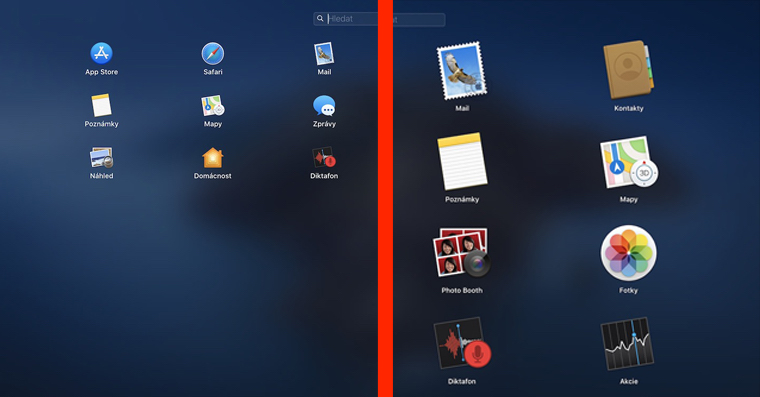
An illustrative example
- Of course, both commands must be modified accordingly, how many rows/columns you want to display.
- In this case it is necessary swap the letter X in the command for number, which the number of rows/columns represents.
- For example, if you want your Launchpad 10 rows and 15 columns, so it is necessary to enter and confirm the following commands separately:
defaults write com.apple.dock springboard-rows -int 10;killall Dock
defaults write com.apple.dock springboard-columns -int 15;killall Dock
Gallery


Just note that after changes, the icons within the Launchpadu "scatter" in different ways. If the grid LaunchpadIf you make the grid smaller (i.e. more icons), the icons from other pages will not shrink to one and you will need to move them manually. If the grid LaunchpadIf you make it larger (i.e. fewer icons), one page may be divided into more and icons from other pages will not be added. So you will have to completely move the icons manually.
Return to original view
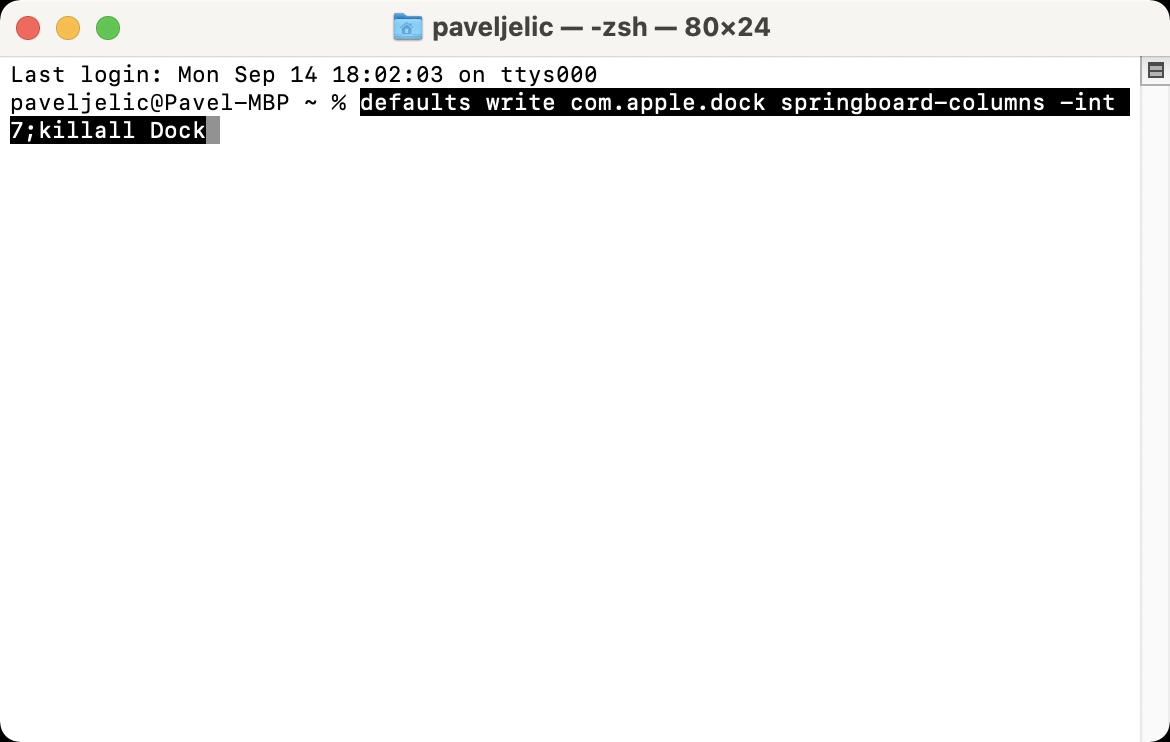
If you don't like the changes you made, just return the number of rows and columns to their original values, i.e. 5 rows and 7 columns . Specifically, you can use these two commands:
defaults write com.apple.dock springboard-rows -int 5;killall Dock
defaults write com.apple.dock springboard-columns -int 7;killall Dock
Gallery





Thanks for the article, konesomething more specific than translated gossip. Although I haven't used Launcher for quite some time, I'll try this and maybe I'll go old school again. Thanks and have a nice day
I'm glad you like the article, anyway I don't understand where you came up with "translated gossip"? Do you really think we need to translate manuals?