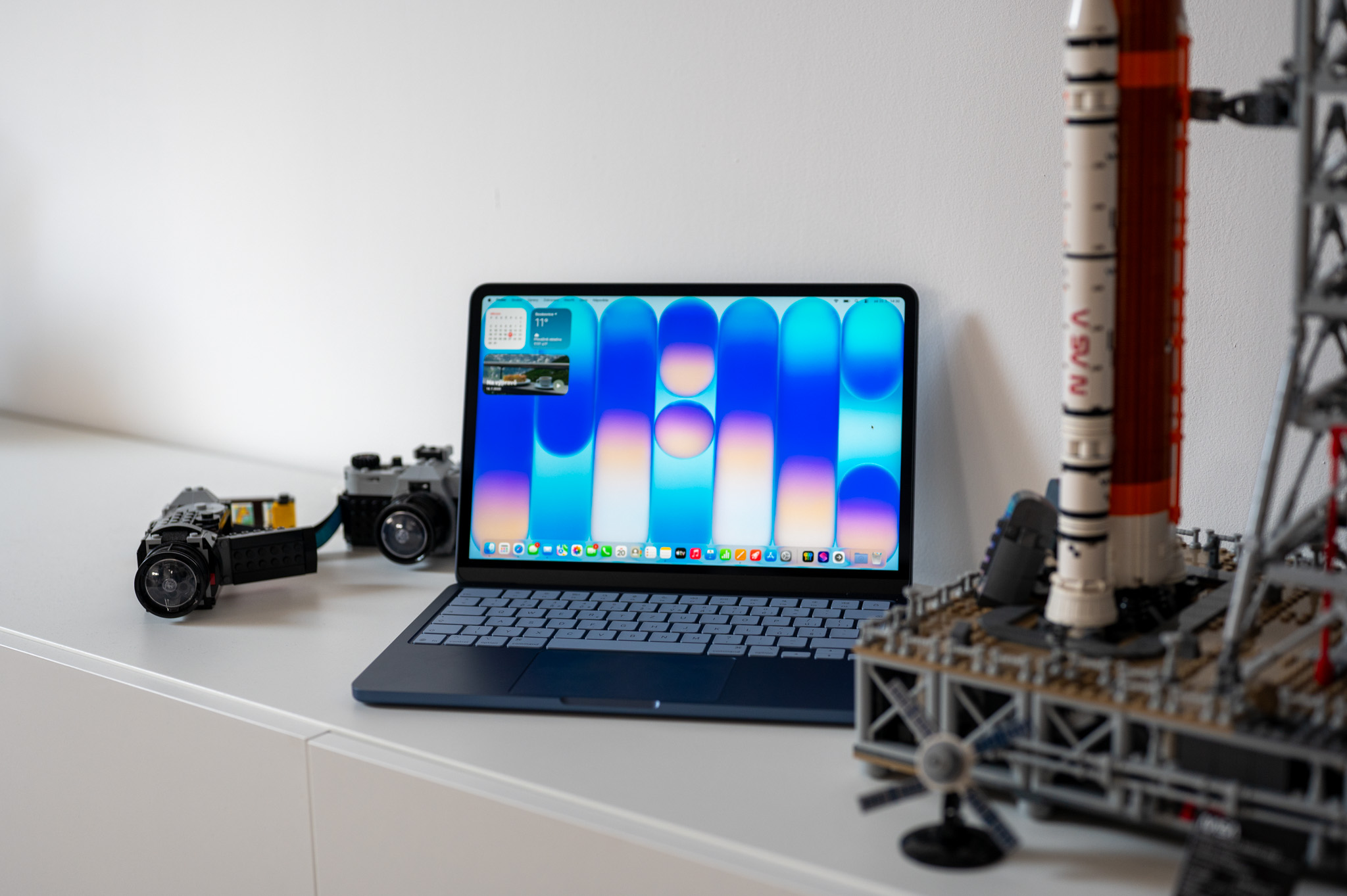
Dock can be used within the macOS operating system to launch applications, open folders, or view recently downloaded files. In addition, you can also add smart folders to it, which can display certain data according to the settings you choose. Although users often prefer to reach for Spotlight recently, it is Dock still an integral part of the macOS operating system. It is therefore certainly not expected that it should Apple plan to remove or significantly change it in some way – macOS Big Sur has practically only undergone design changes. After some time of use DockYou may find yourself in a situation where you want to revert it back to its original appearance. This article will show you how to do that.
You might be interested in

How to restore Dock on Mac to default state
To reset your macOS device Dock, i.e. to display it in the default state it was in when you first started the device, the procedure below is not complicated. Just follow these steps:
- The whole process takes place in Terminal – so the latter is necessary first start.
- You start the terminal from By application from the folder utilities, or using Spotlight.
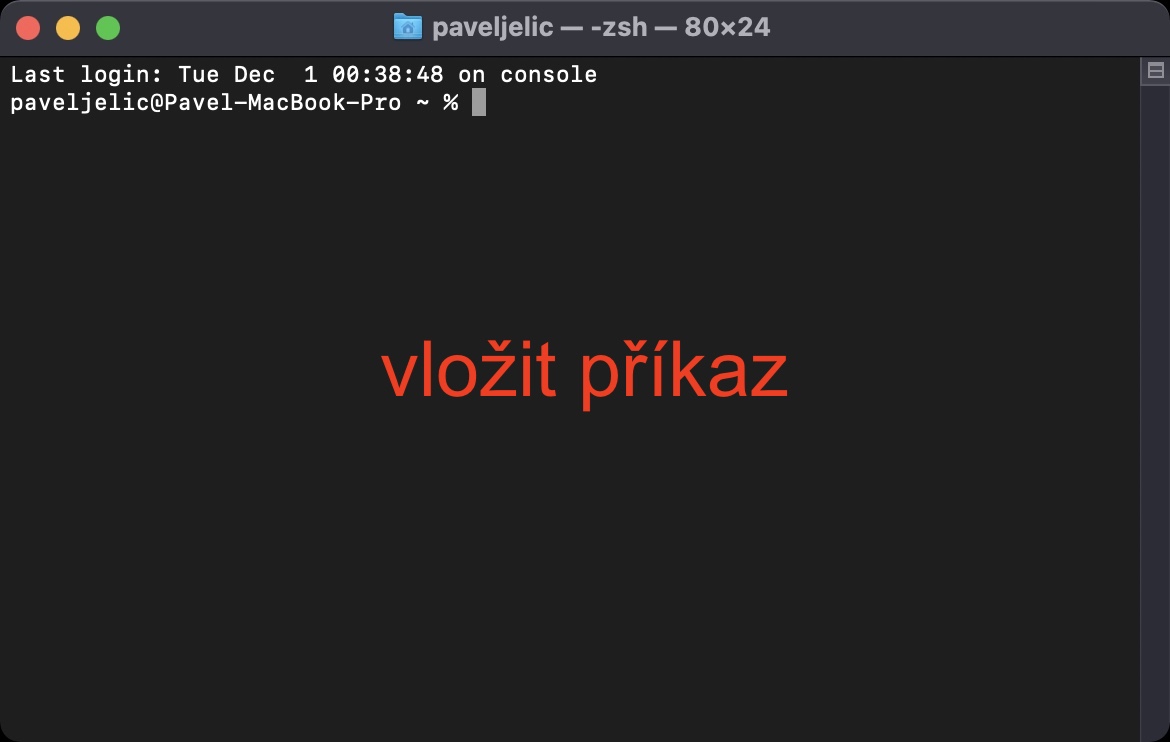
- As soon as the Terminal starts, it will be displayed small window into which commands are inserted.
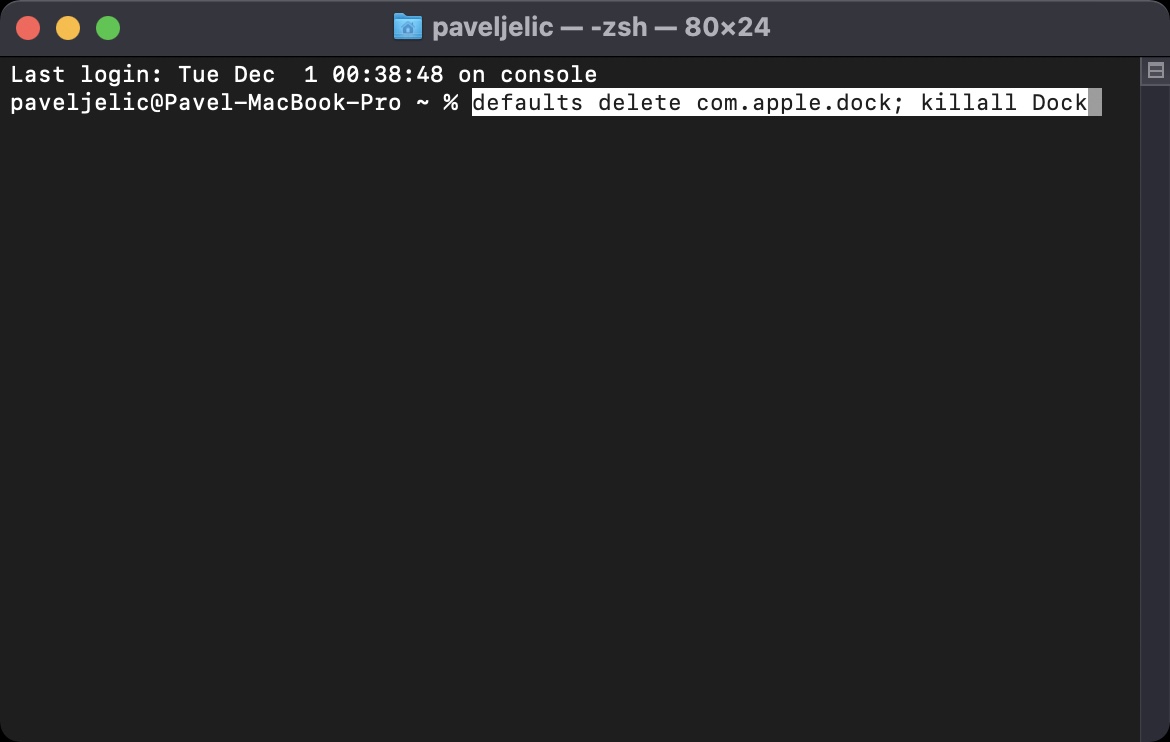
- Now it is necessary that you copied the command which I am attaching below:
defaults delete com.apple.dock; killall Dock
- After copying the command, move back to Terminal window a command here insert
- nakonec you just need to press Enter. Immediately after Dock will restore to default state.
Gallery
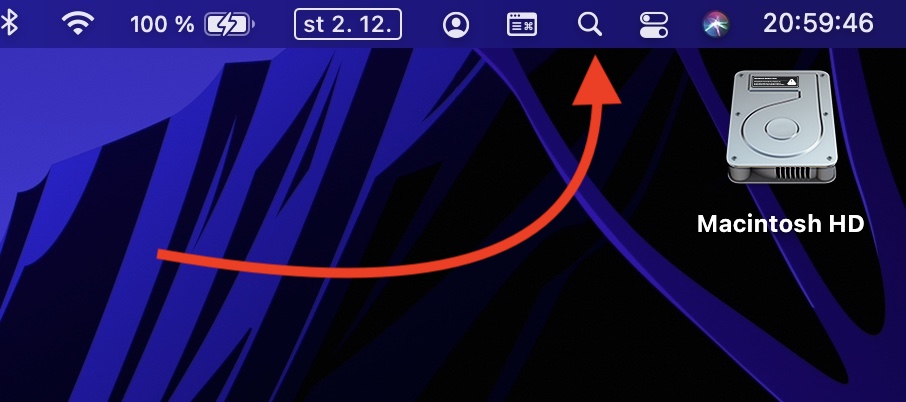
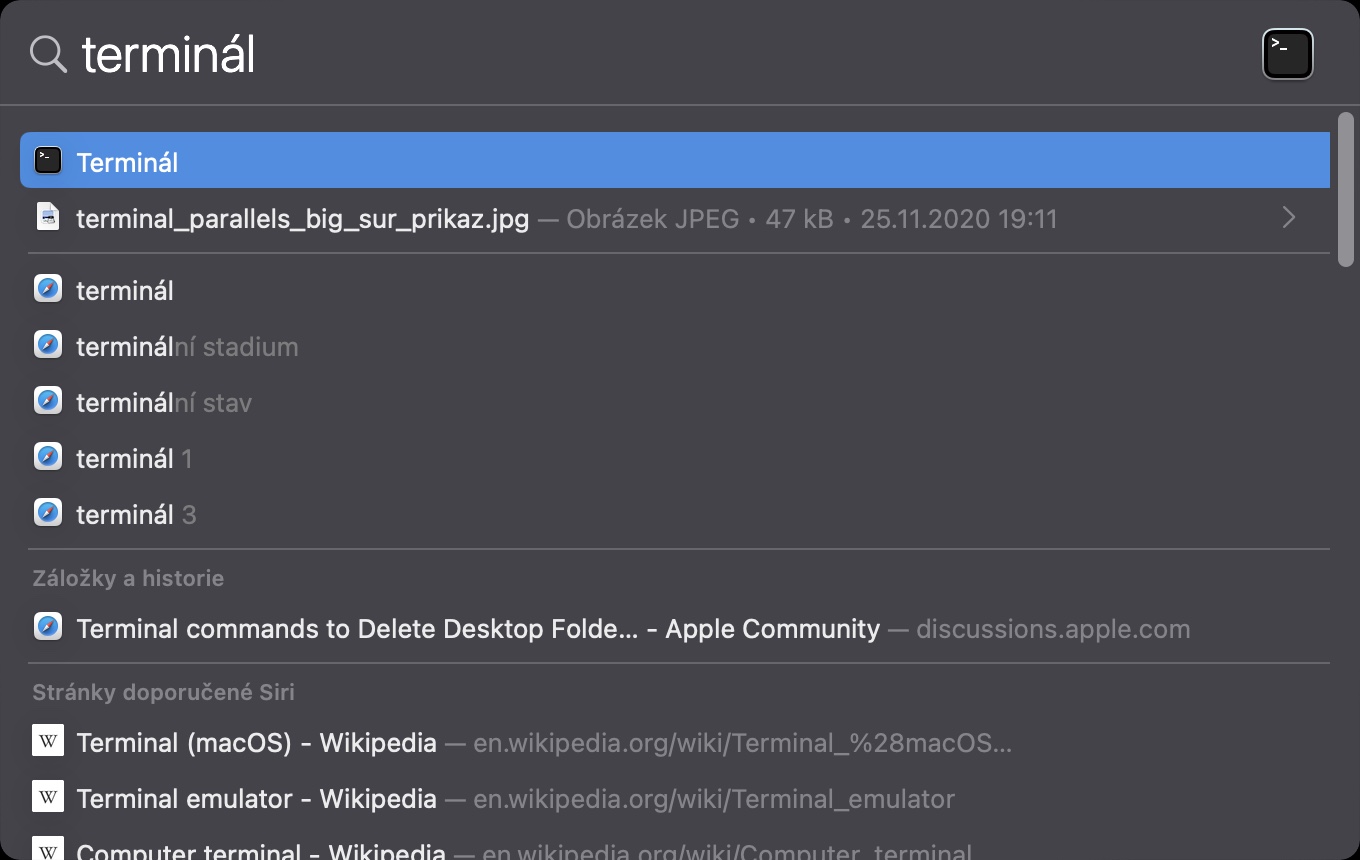

When the command is activated, it can Dock or the screen itself flashes, so don't be alarmed - this is a classic procedure. Using the above method, you can easily do this on your macOS device Dock to the default view. This is useful, for example, if you have decided after using the shield for a long time that you do not like the current view and would like to start with a new shield. Now all you have to do is Dock You can re-adjust it to your own preferences, or you can leave it for a while.onechat just in the default view.