
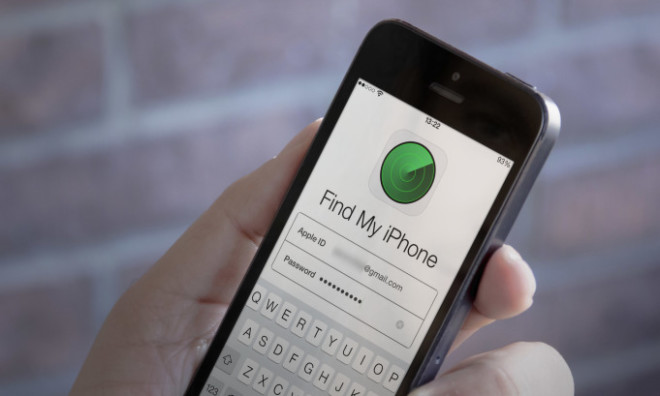
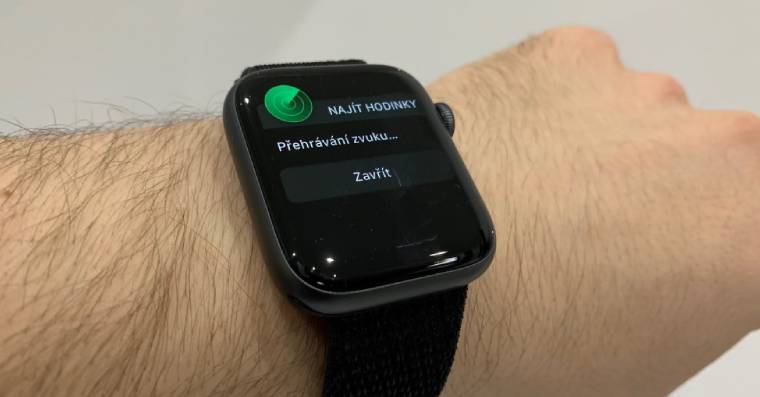
In case you lose your Apple device or someone steals it, there is still some way to recover it.ancand that you will be able to find it again and get it back. Apple has a Find application for these cases, which can be used on practically all devices from Applu. With the help of this application, you can easily find your device that is connected to the Internet within the application. Apple is constantly improving the Find app so that it is possible to find the device even if it is not connected to the Internet or if it is turned off. As soon as you realize that your device is lost, you should activate the so-called lost mode. Let's take a look at 5 things you should know about this mode in this article.
You might be interested in
What can loss mode do?
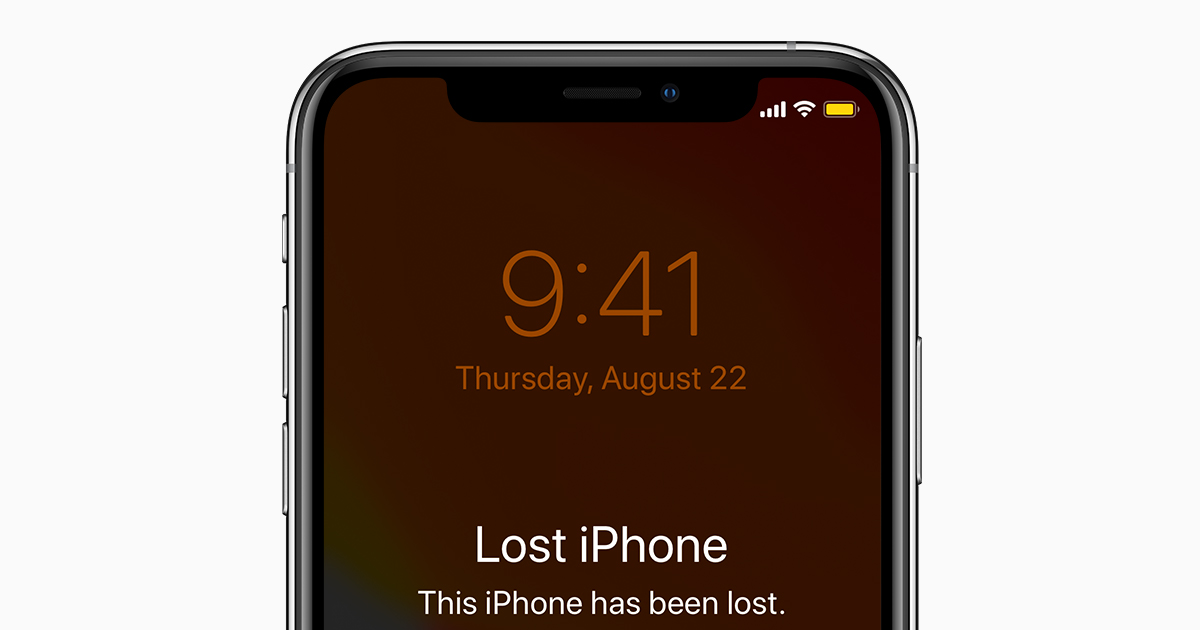
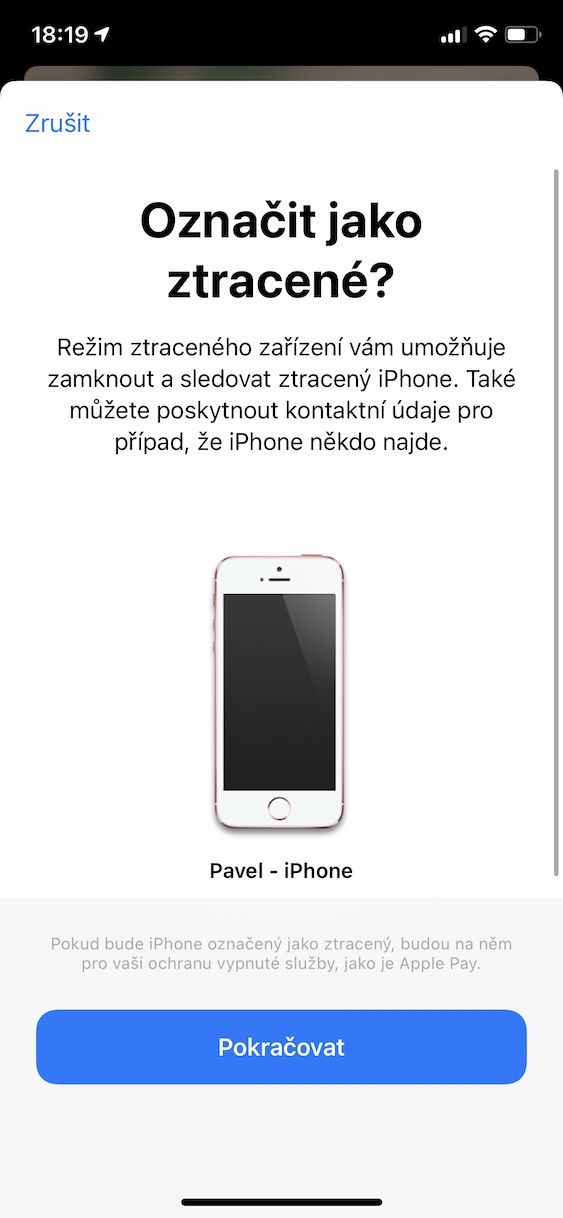
As soon as you activate the lost mode on your lost or stolen device, several automatic actions are performed. First, the entire device is locked and no one can access it until the device is unlocked. In addition, it is possible to write a message on the locked screen, for example a contact for a possible finder. Automatic deactivation will also occur Apple Payso that no one can pay with the found device. Nakonec an email confirming the activation of the lost mode will be automatically sent to your account Apple IDThese conditions are ideal for a potential finder who may try to return your device to you. Unfortunately, these steps don't mean much to someone who stole your device.
How to activate loss mode?
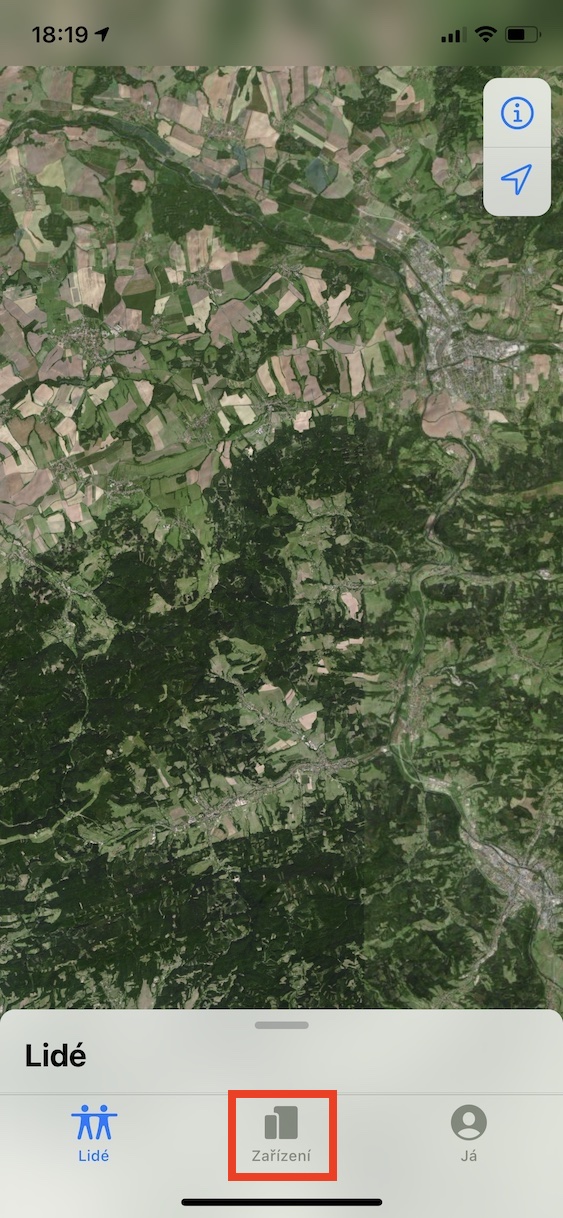
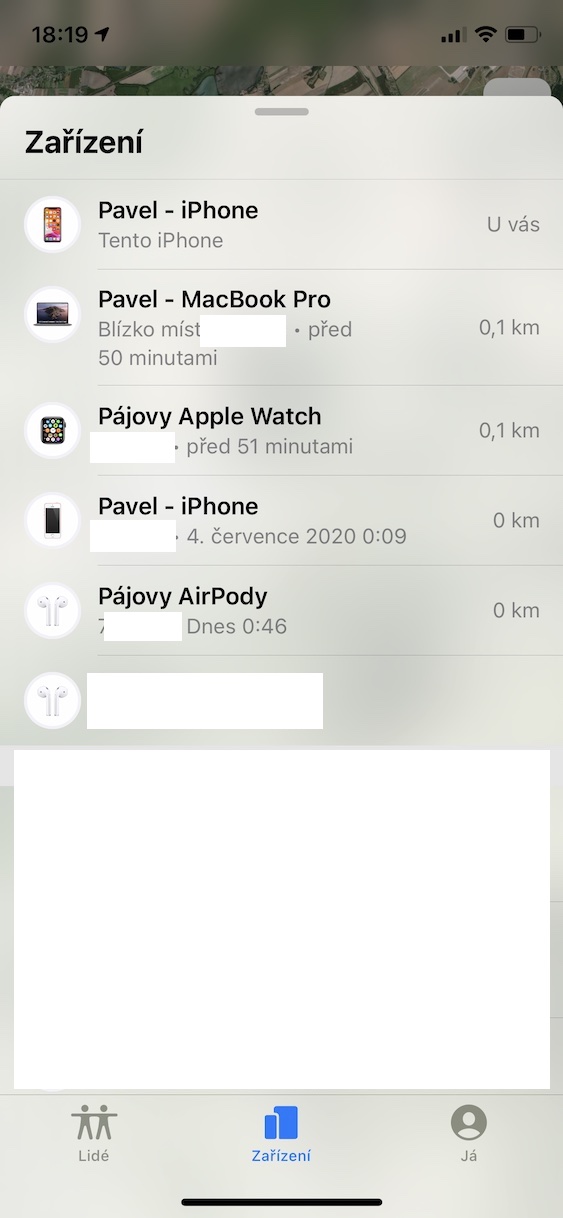
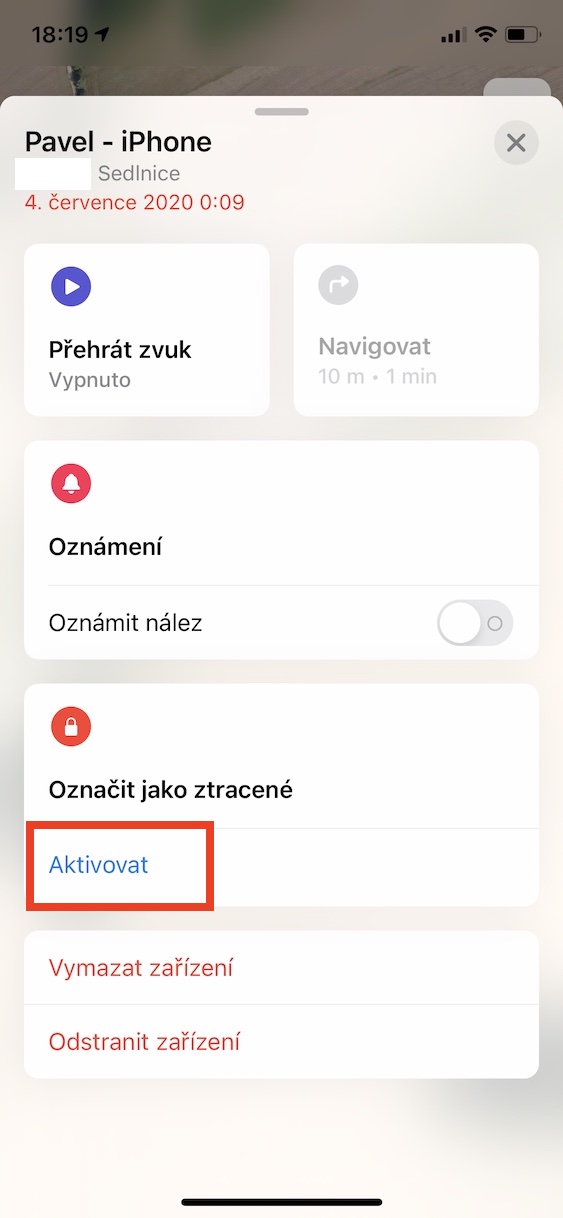
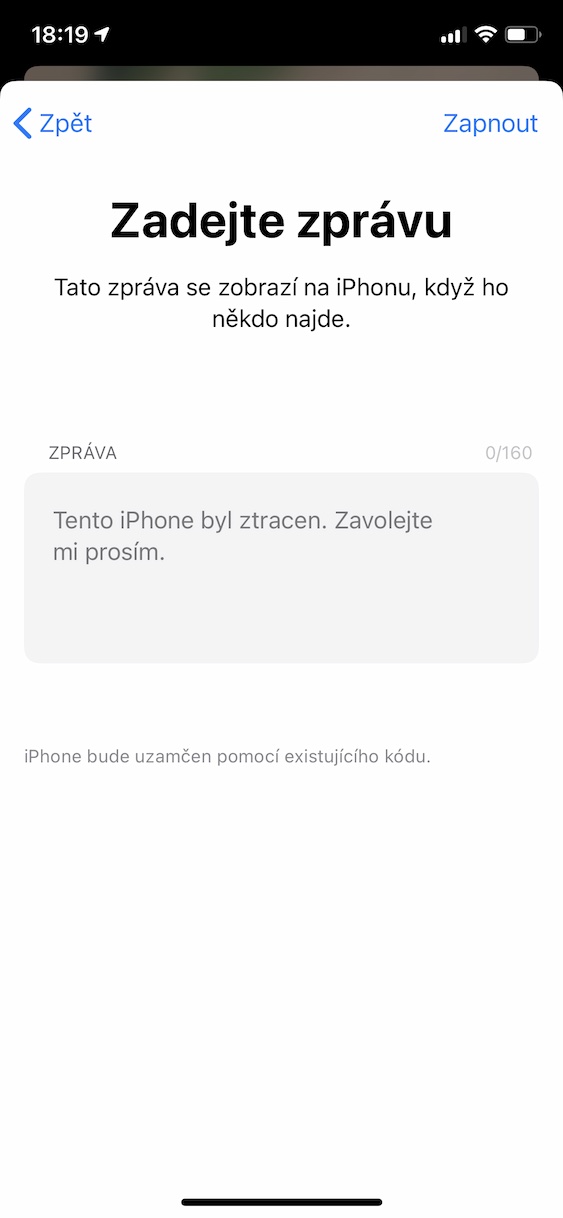
You can simply activate lost mode on any device that belongs to you Apple ID, or you can do it directly in the web interface iCloud.com, where to your Apple ID just log in. Activation is practically the same on all devices. Just open the app Find, and then unclick device, which you lost or which was stolen from you. Once you've done that, click the button here Activate at option Mark as lost. After that, you just need to set whether certain ones should be displayed on the device's lock screen telephone number, possibly any message. Of course, when entering a phone number, it is necessary that you enter a number other than yours (if you have lost it). iPhone). Simply calm down first, and only then start filling in the fields that appear. In the message, you can then motivate the person to return the device - for example, with a free coffee or some kind of financial reward.
Gallery

Loss Mode vs Activation Lock
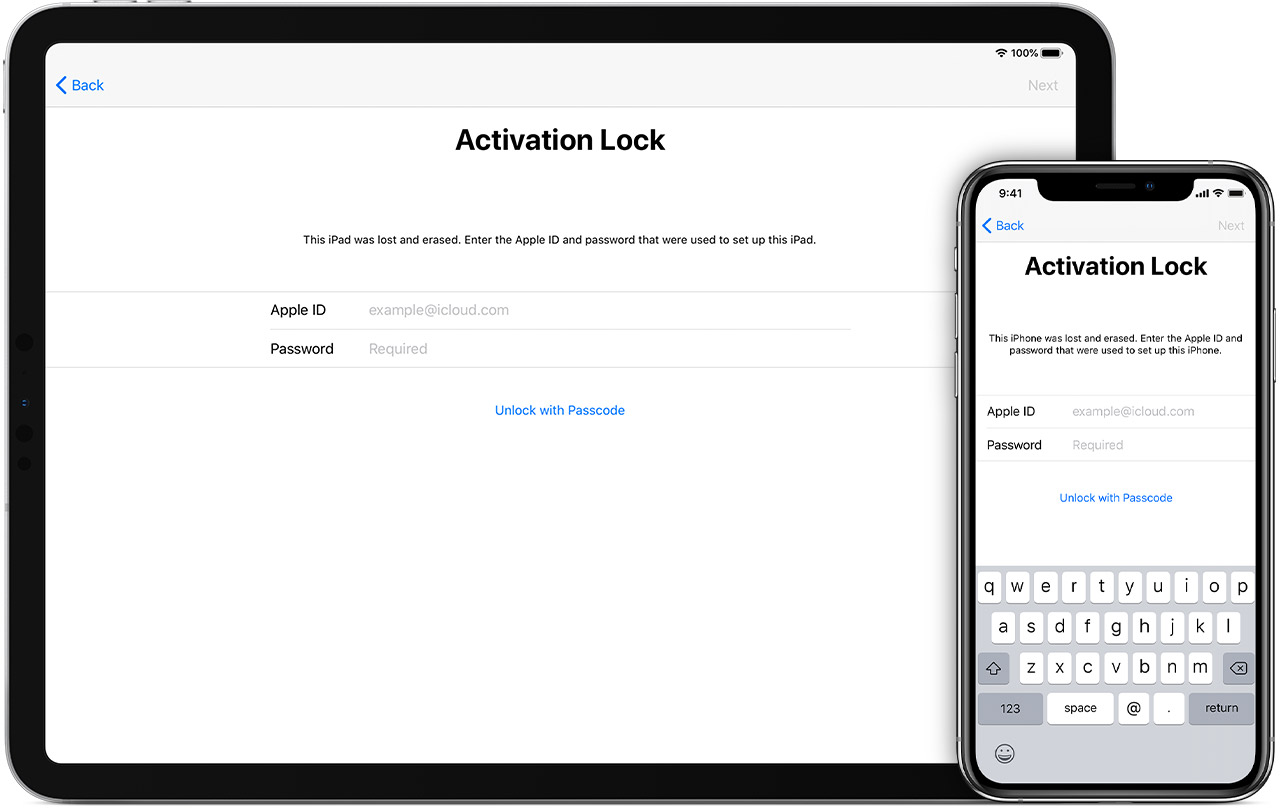
Some of you may be confusing the terms loss mode and activation lock. It should be noted that these are definitely not different designations of the same thing - both of these terms mean something completely different. You have to manually activate lost mode through the Find interface, so this feature will not activate. Activation Lock runs sort of in the background of your device all the time, and a possible individual who stole the device simply can't get past it, even if they perform a factory reset. Although the data will be deleted in this case, after restarting the device, a screen will appear in which it is necessary to use Apple ID and passwords to log in to the original account to which the device was registered. If the thief does not know this information, the device is completely useless to him - maxHe can at least sell it for parts except for the motherboard, which will remain locked.
What to do after activating the loss mode
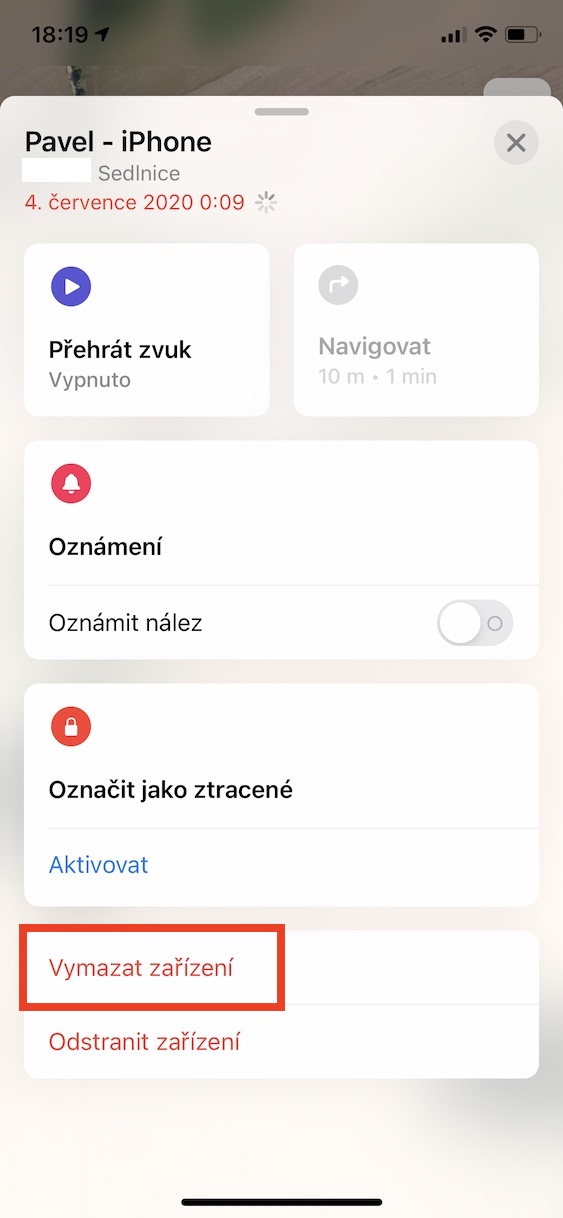
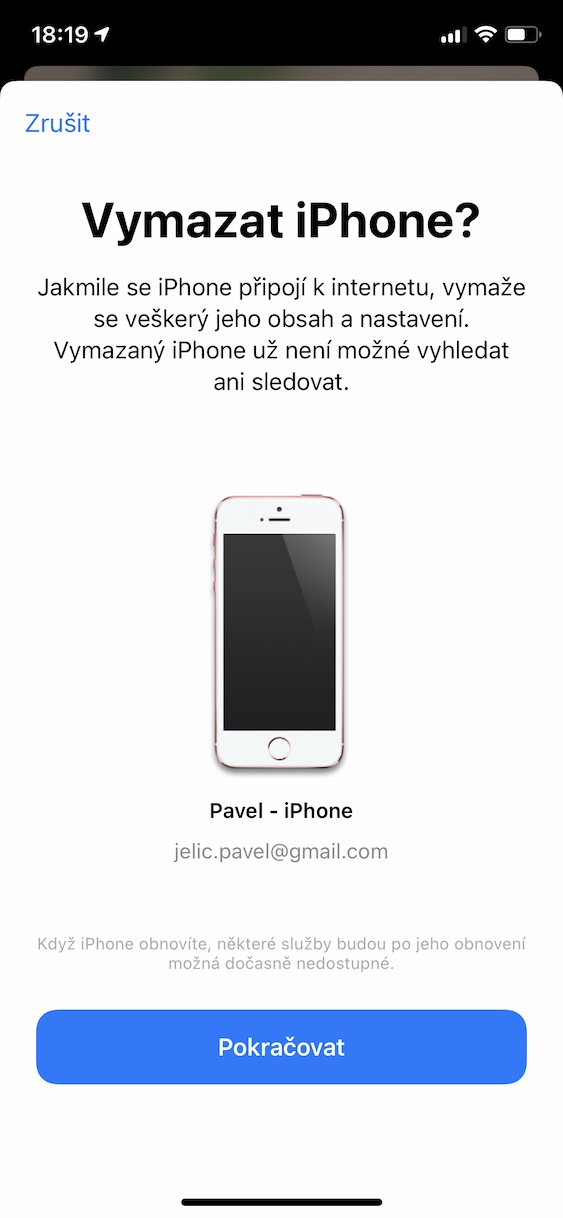
Once you have activated the lost mode on your device, you should try to find your device as soon as possible, and you should always have the phone number you entered in the message that appears on the locked lost device with you. If you are slowly losing hope and want to be sure that the finder in question will not be able to access your data in any way, you can erase all data from the device with a few clicks. Just go to Find, click on the device, and then click on Erase device. Then just click through the other windows that appear. This will erase the data and settings of the device. In any case, after erasing, it will no longer be possible to find the device in any way. However, the device will still remain locked with Activation Lock, so the device will still be useless to the finder - at least without your personal data.
Gallery


How to turn off loss mode
If you are one of the lucky few who managed to find your lost device, it is time to do two things – disable Lost Mode and also start paying more attention to your devices to avoid further losses. If you want to disable Lost Mode, go back to the Find My app interface. Then find your device that has Lost Mode active, click on it and simply disable the said mode.
You might be interested in






Hello, what if the phone is discharged and the SIM is deactivated (of course, I already work with the same number on another phoneone)?