Apple takes the privacy of its users seriously compared to other tech giants. Despite the fact that we have witnessed various security lapses at the Californian giant, it must be noted that we have always received quick solutions. One of the most commonly misused sensitive information about a user is their exact location. Virtually every Apple device, or the application in it, can find out exactly where you are. Apple has taken certain steps in its operating systems that prevent the tracking of the user's location. In addition, when using location services on an iPhone or iPad, an icon will appear in the top bar to inform you of this fact. Did you know that you can add the same icon to the top bar of your Mac? If you want to find out how, then read this article to the end.
You might be interested in
How to set an icon to appear in the top bar when using location services on a Mac
In case you want to use the top bar of your Mac or MacBookTo display the icon that appears on your iPhone or iPad when using location services, follow these steps:
Gallery
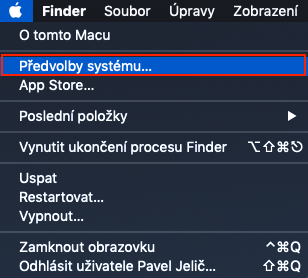
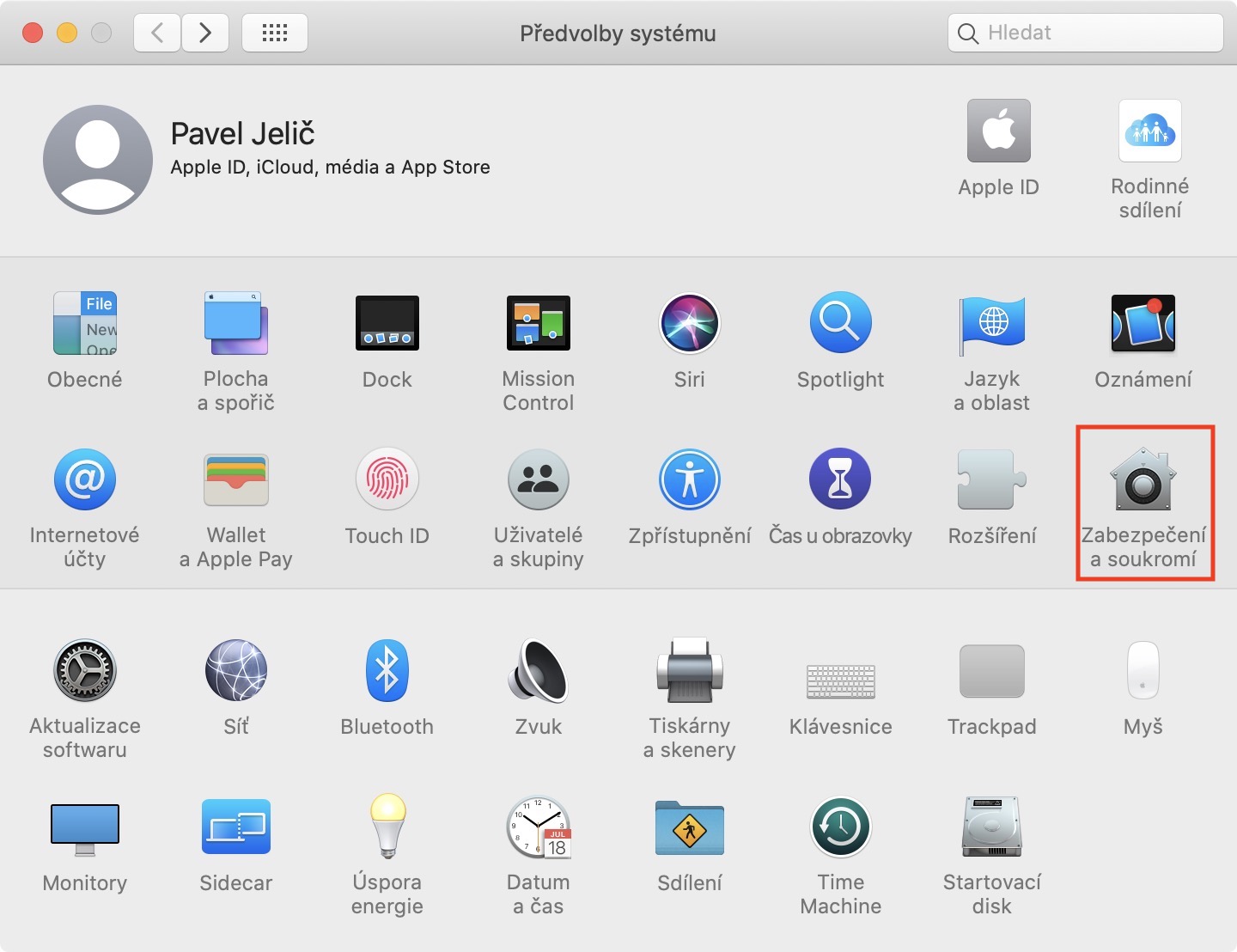
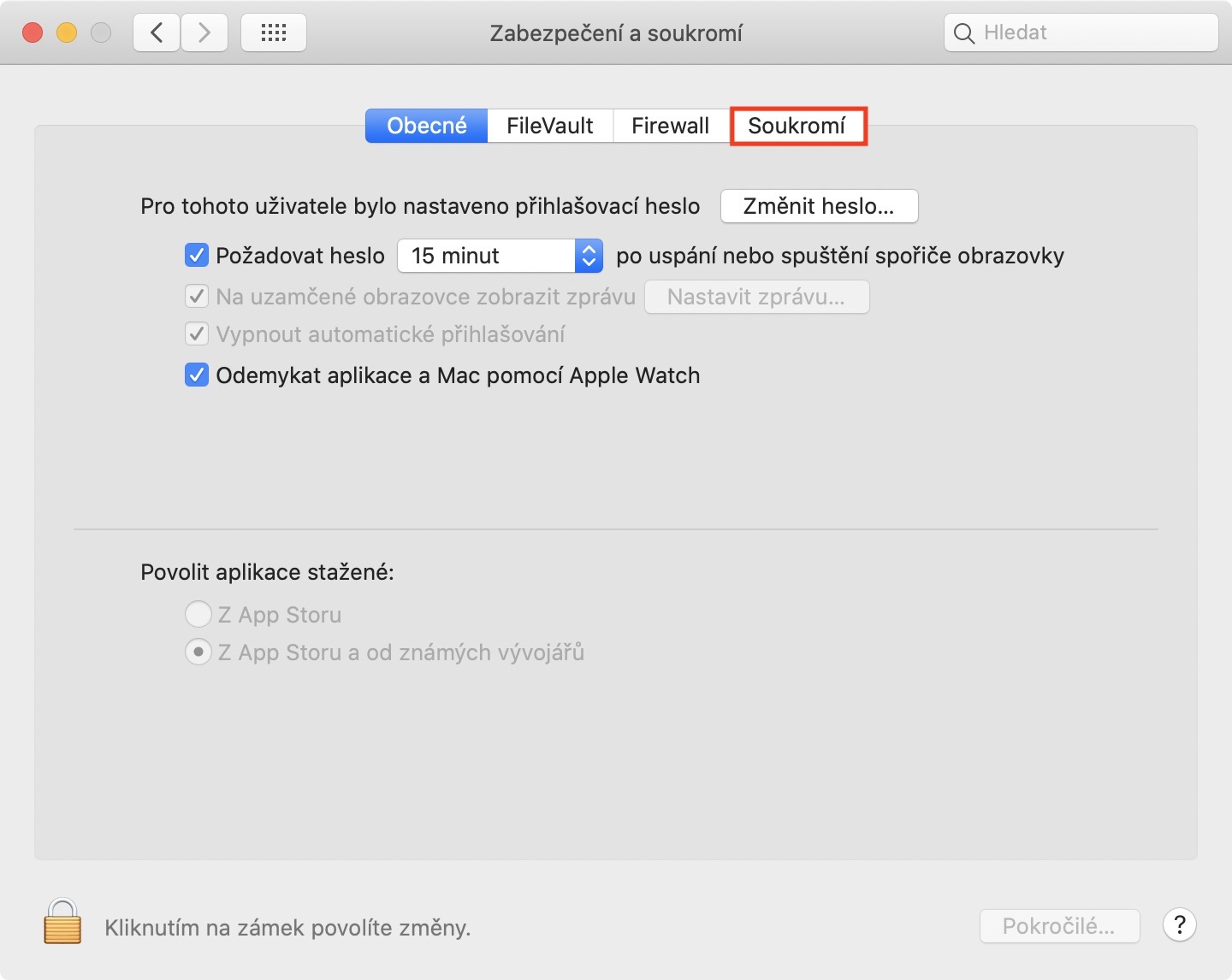
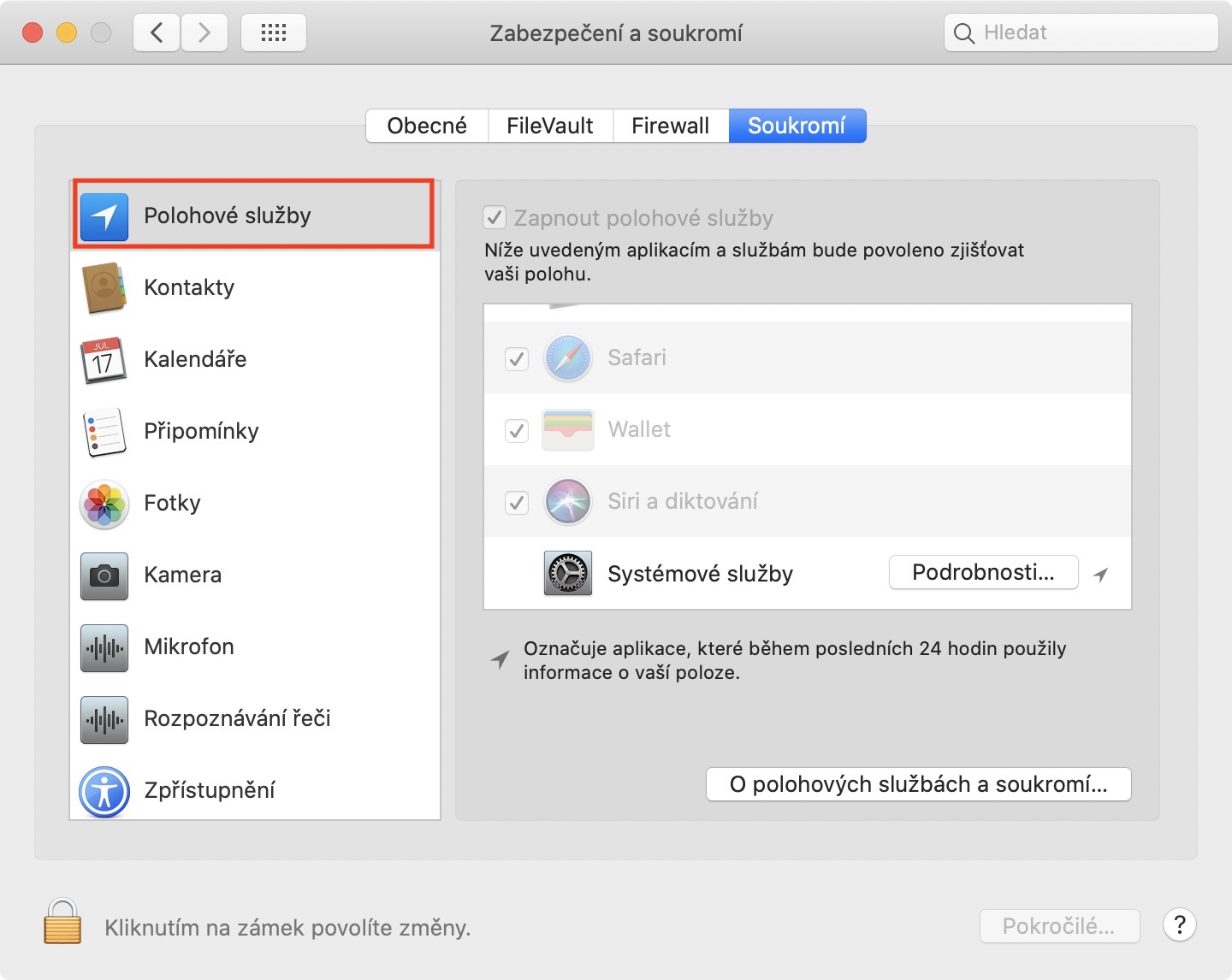
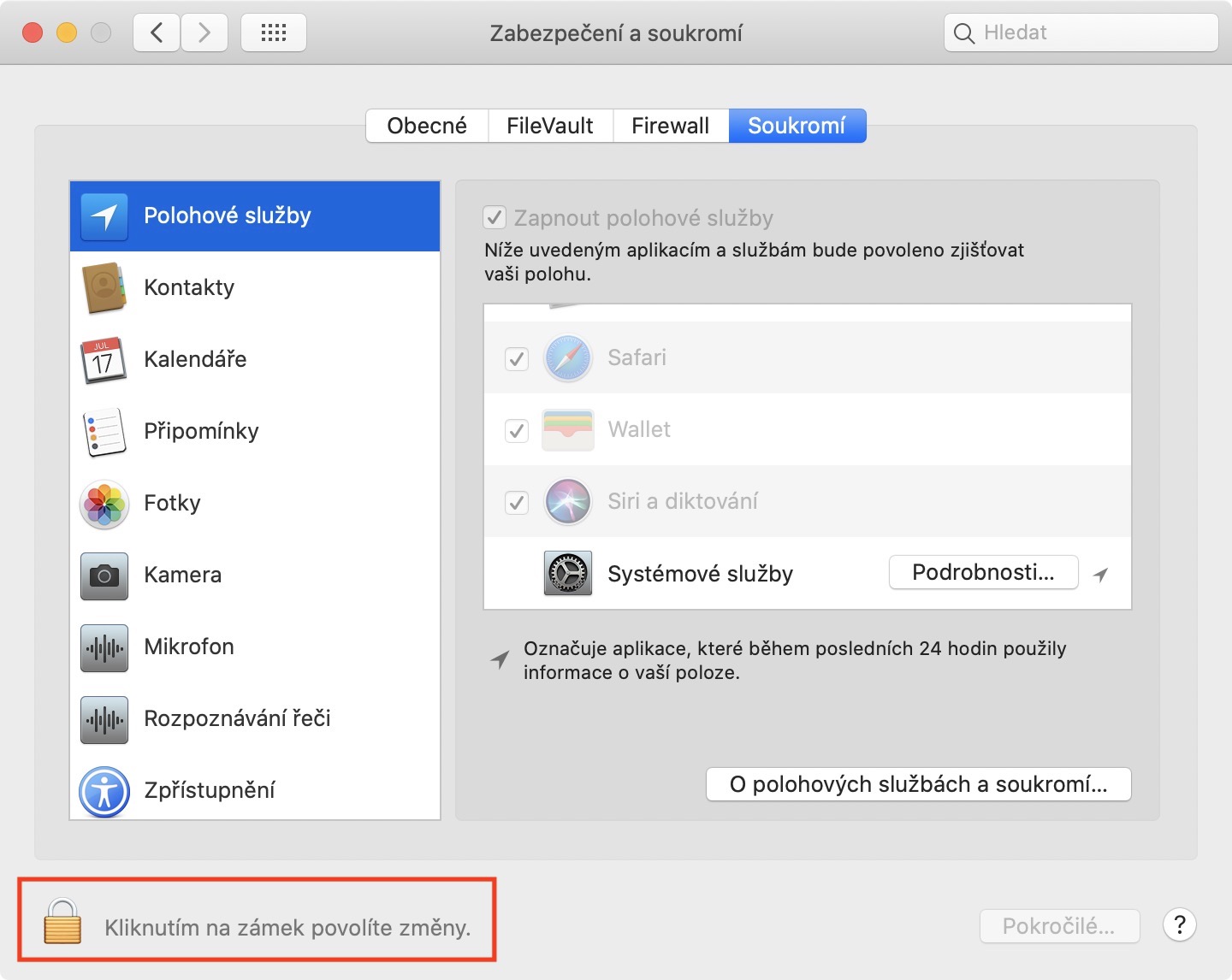
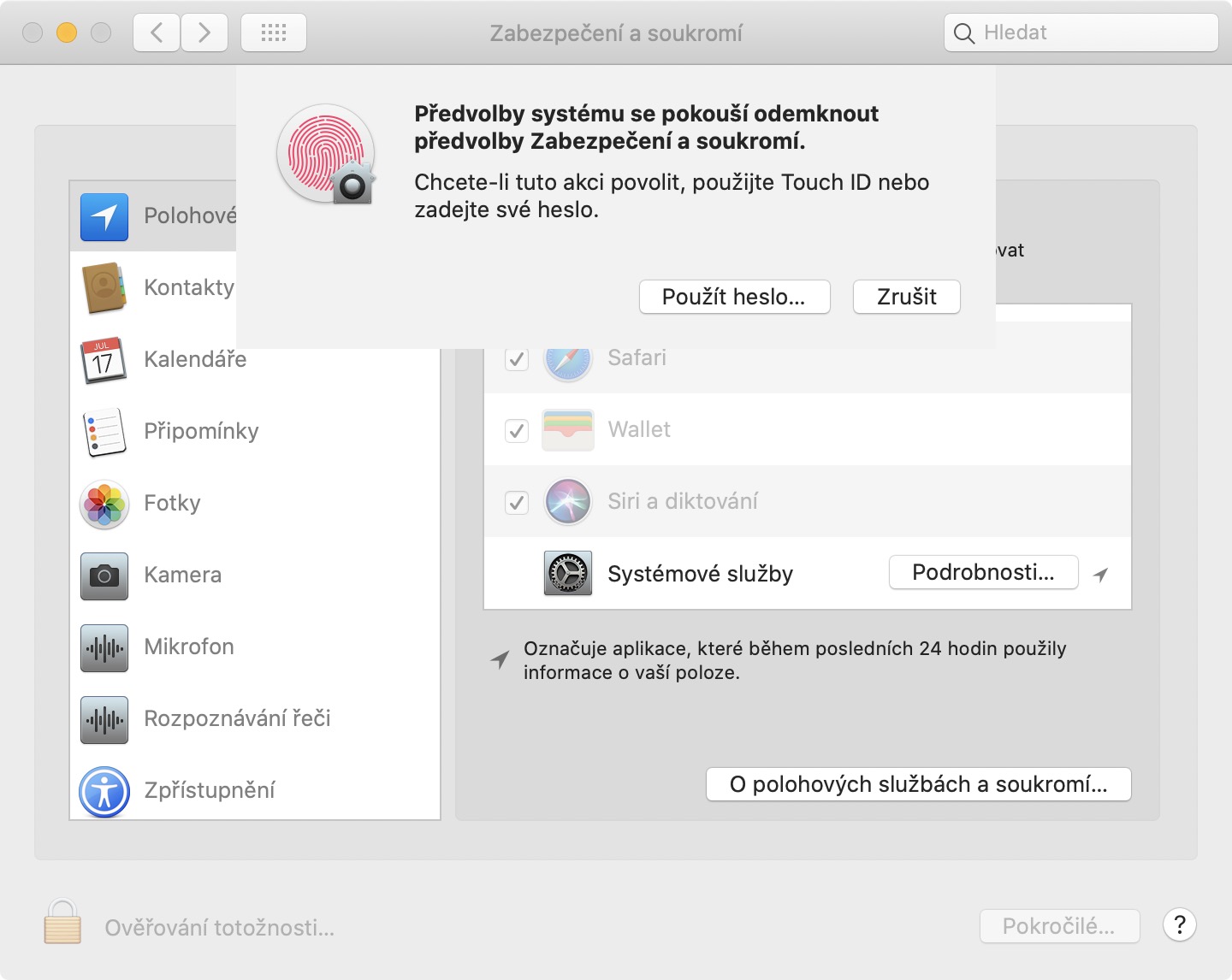
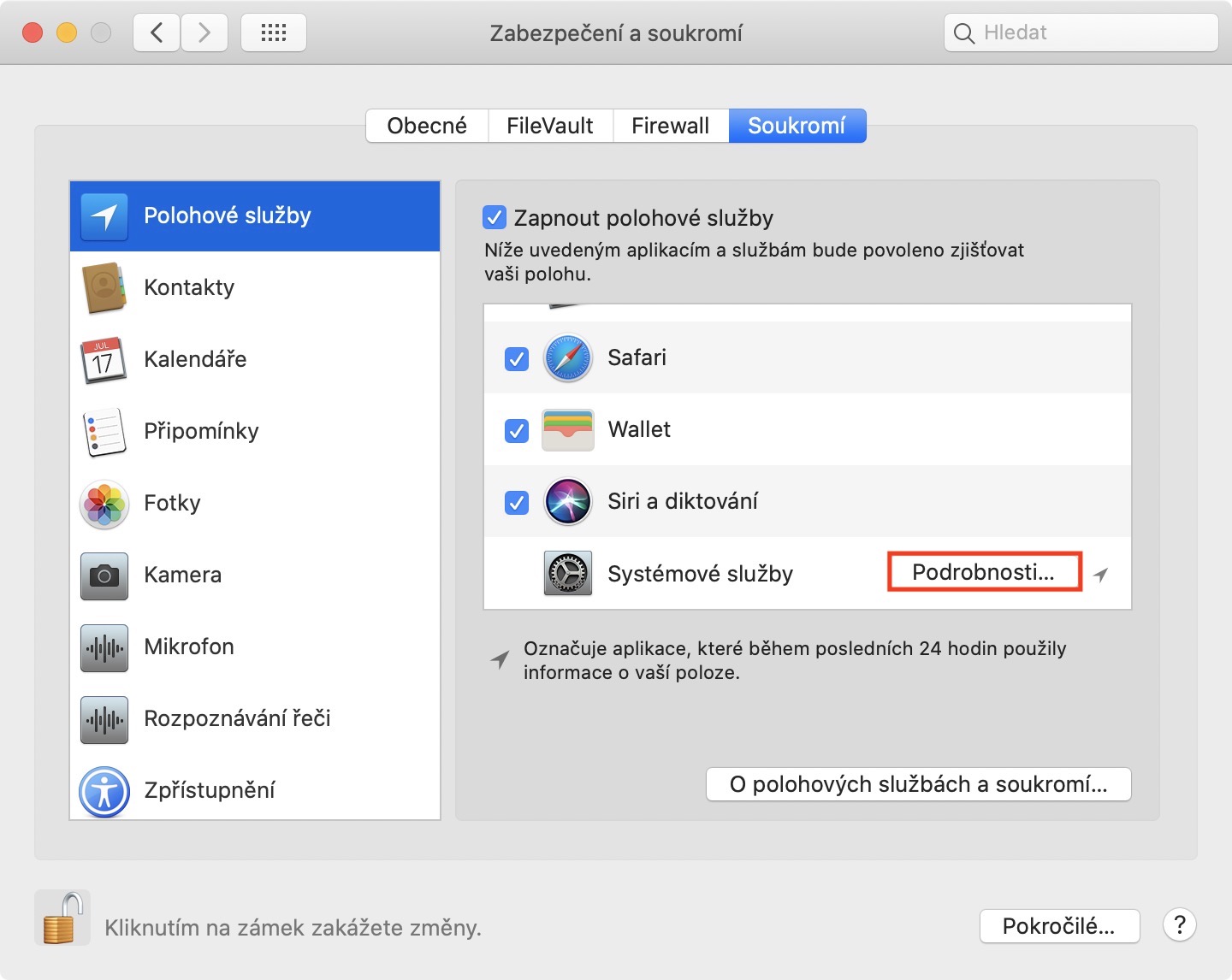
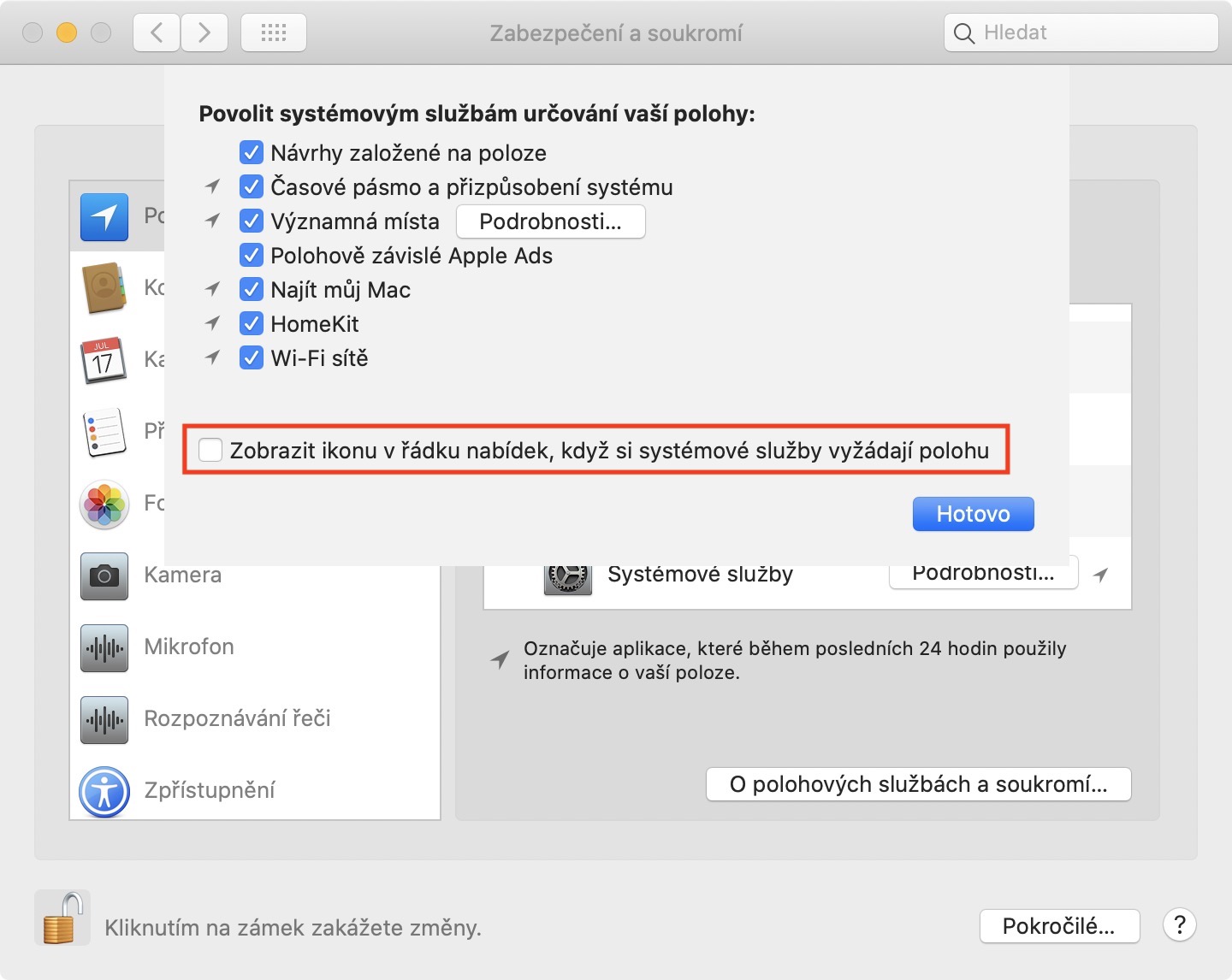
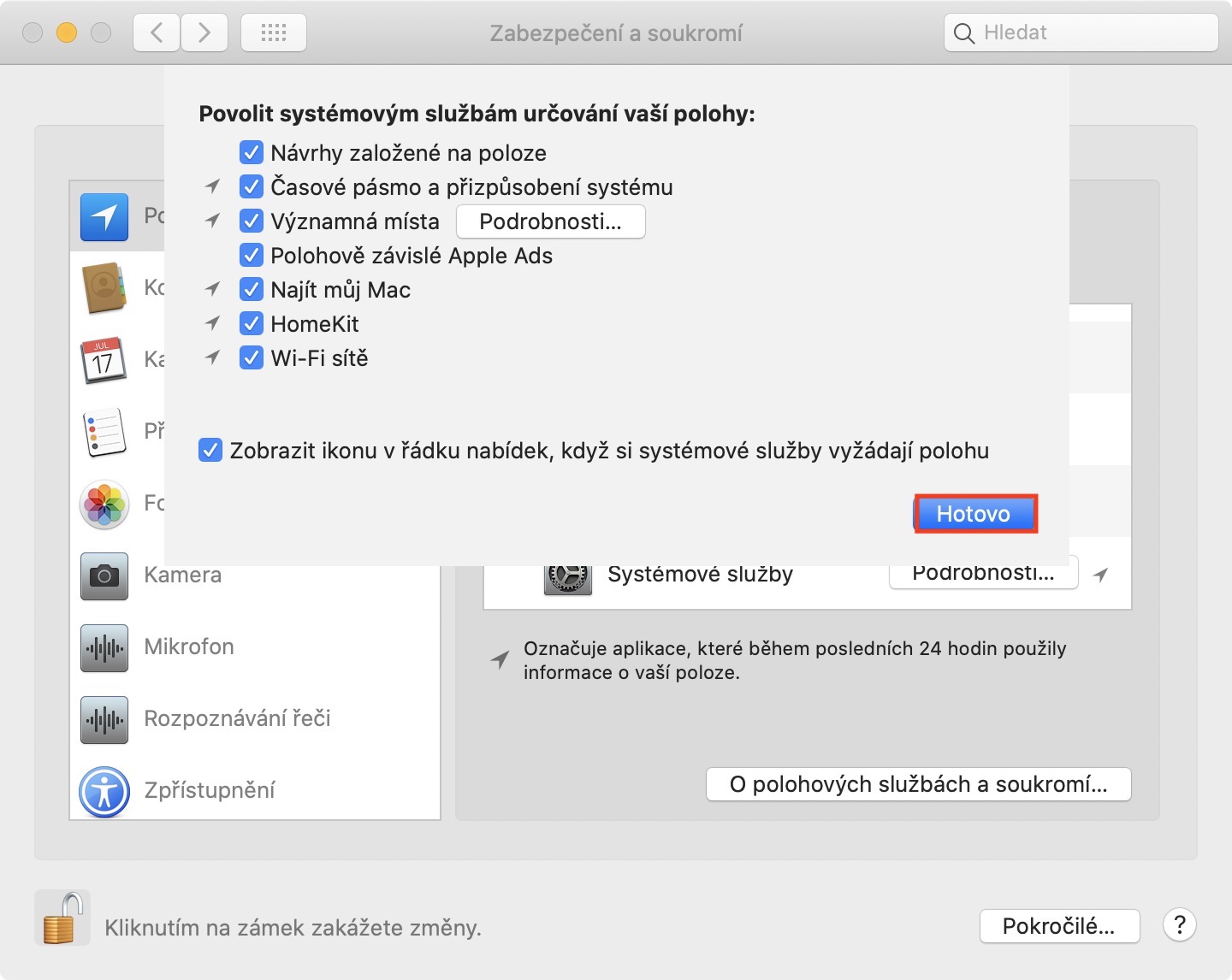
- On your Mac or MacBooku Move the cursor to the upper left corner of the screen, where you click icon .
- Once you do so, select an option from the menu that appears System Preferences…
- A new window will open in which you can move to the section Security and privacy.
- Here, in the top menu, move to the tab with the name Privacy.
- In the left menu, make sure you are in the column Location services.
- Now in the lower left corner of the screen tap on lock icon and using the password se authorize.
- On the right side of the window, scroll all the way down the list until you find the box System services.
- Click on this box. Details…
- A new window will open, in which you just need to check the option at the bottom Show an icon in the menu bar when system services request a location.
- nakonec click on All done.
- Now you can System Preferences forsake.
In addition to the fact that in the above-mentioned window you can set the display of the icon when using location services, there are many other options available with which you can disable access to location services. For example, the Landmarks feature "collects" data about you based on where you are. Location dependent option Apple For example, Ads makes sure that ads are shown to you based on your location, etc.