
We share data from our iPhone all the time. Whether it's pictures, documents, or links, most of us send dozens of them to other people. You probably know that when sharing, you first have to choose which application you want to share certain data through. The first application is usually the Messages application, or perhaps Mail. However, if you want to share a certain photo or anything else through Messenger, you first have to swipe from right to left to access the option to share via third-party apps. However, in today's tutorial, we'll show you how to get rid of this unnecessary search for other apps for good.
You might be interested in
How to change the order of icons in the share menu
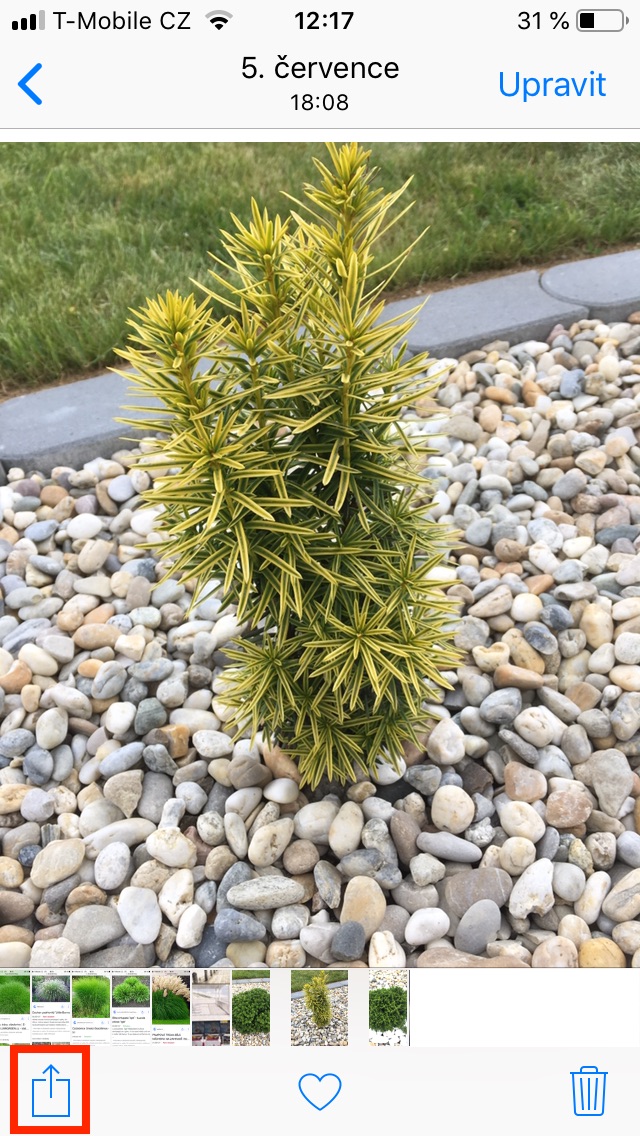
At yours iOS device, i.e. on your iPhone or iPad, navigate to some data you want to share. The easiest way to do this is through the app Fotky, where you can find any photos, which in the lower left corner click on share icon (square with arrow). The classic sharing menu will now appear with sharing options using AirDrop, Messages, Mail and other apps. Messenger or another application, however, is usually somewhere in the fifth position. To get this popular application to the first position, you just need to click on it they held up their finger, and then her moved where you want. This is similar to moving app icons on the home page.
Gallery
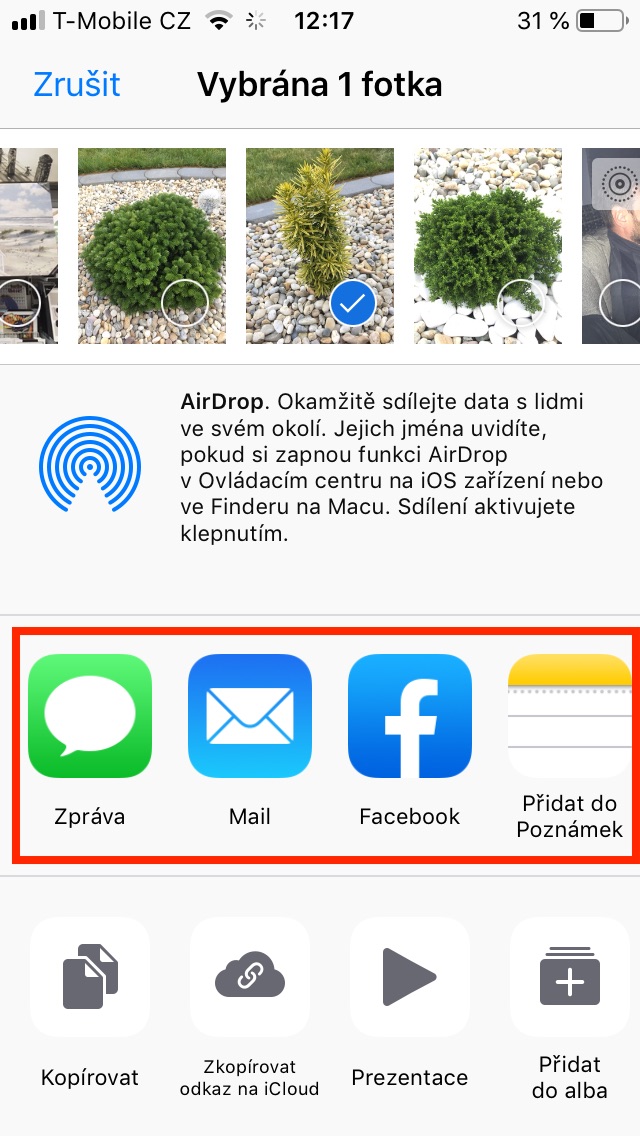
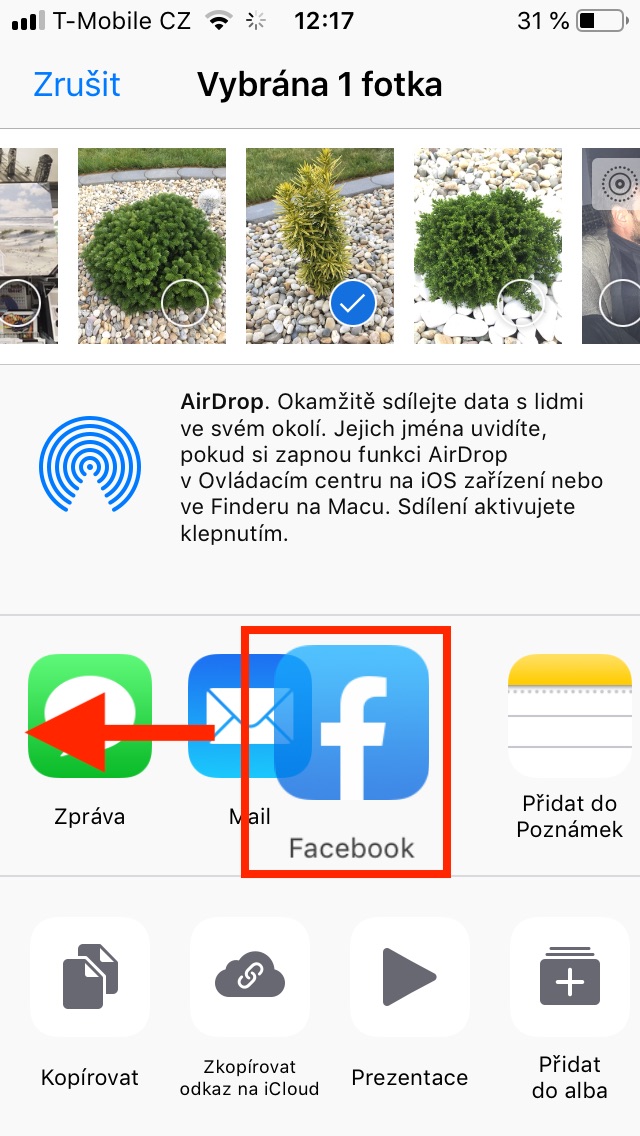
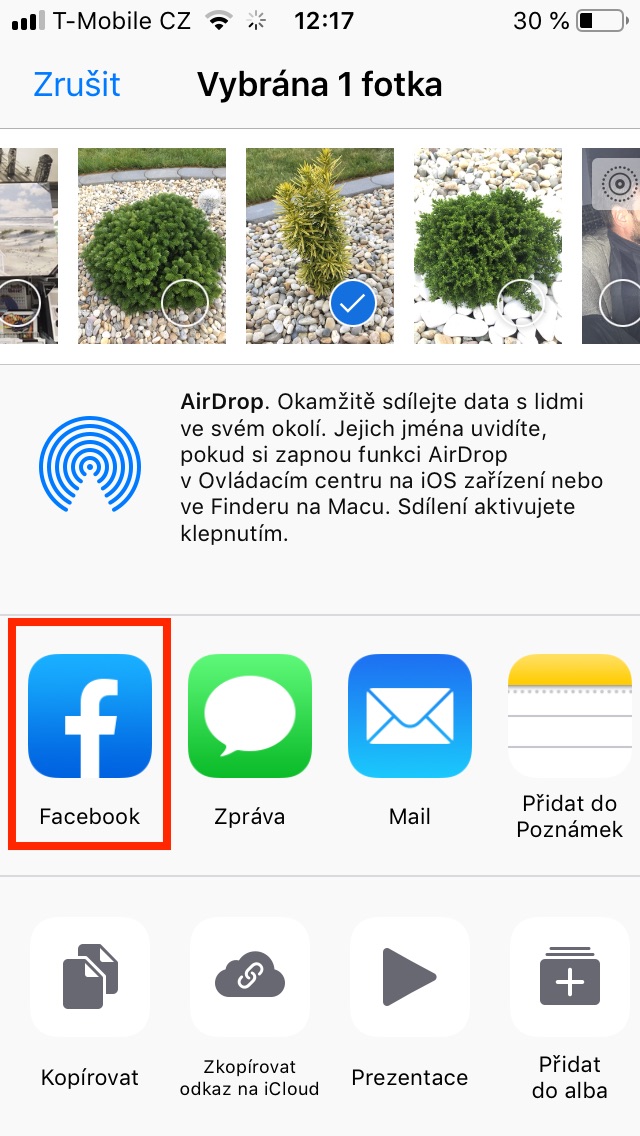
Once you have sorted all the applications in the sharing menu, this order is saved throughout the system. After sorting, it does not matter whether you are sharing a photo or a link. In all cases, the order of the icons will be displayed as you have set it. I personally did not know about this feature for a long time and I think many of you did not either. TooneThis way I don't have to search unnecessarily for the applications I use most often for sharing.
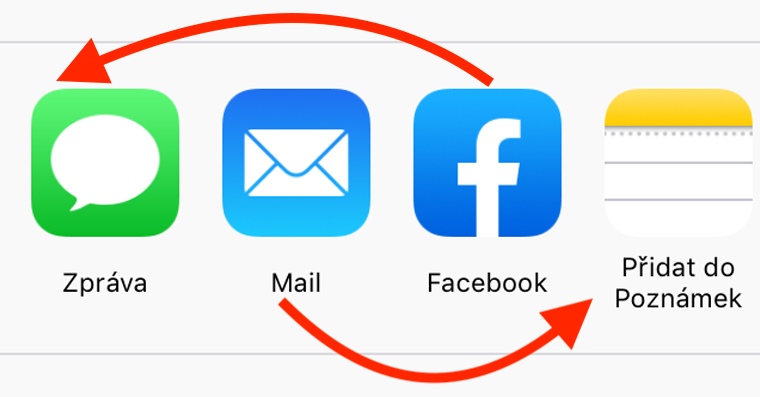
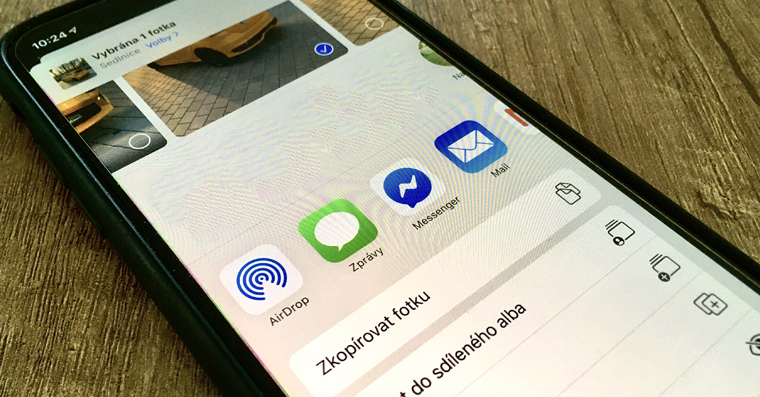






I've known about this for a long time. It's better to type than to move it. In the icon menu, scroll down to the bottom.onec. Add data. A beautiful table will pop up where you can turn on or off whatever you want. And you can put it together yourself. It's very useful.
I lost the sharing options via whatsapp,messenger etc. Can you advise how to turn it on? Thanks. Al.