
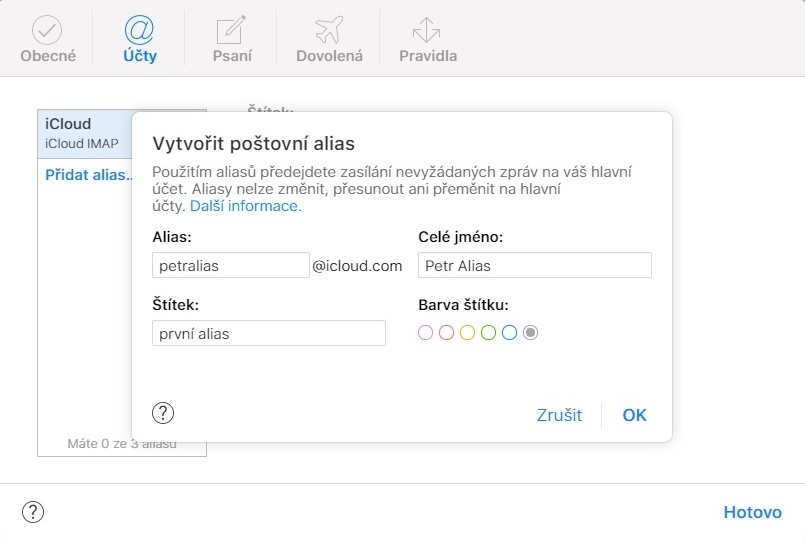
The Apple company offers all its users the option of using aliases for their email addresses. Most of you probably don't know what aliases are, so for a quick explanation: email address aliases are a kind of "fake" email addresses. When you create one of these aliases, you can use it anywhere on the Internet. However, you can be sure that no one will find your real email address using the alias. So, for example, if you have the email address petrnovak@icloud.com, you can set up an alias, for example, to petralias@icloud.com. Once you use the created alias anywhere on the web, the service or application will not detect your real email, but only the alias, i.e. the de facto nickname.
You might be interested in
How are you?Cloudu create an alias for your email address
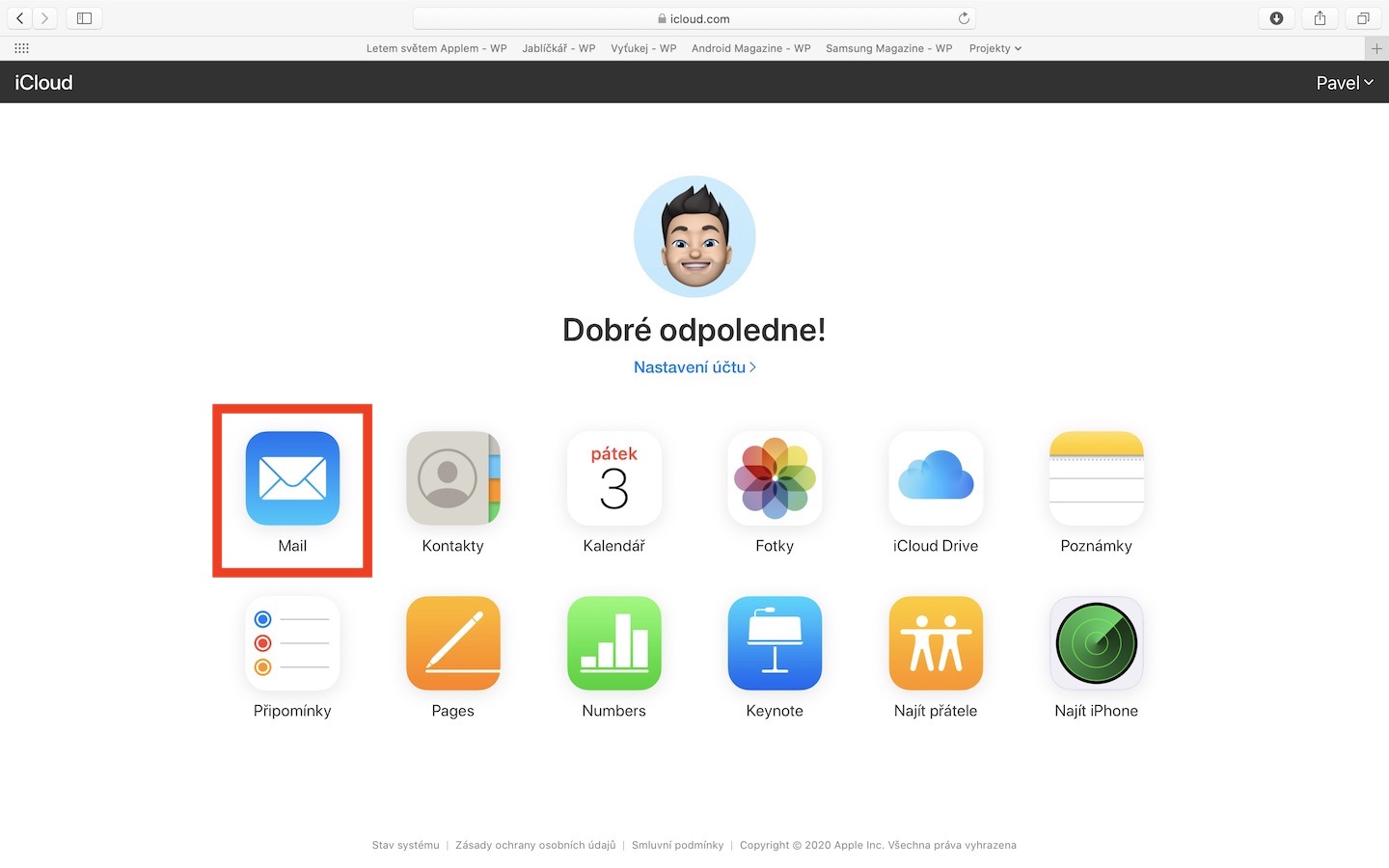
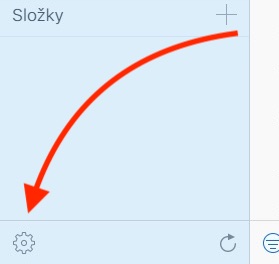
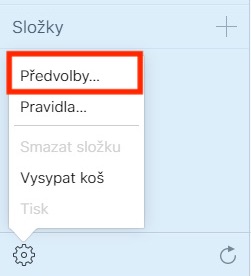
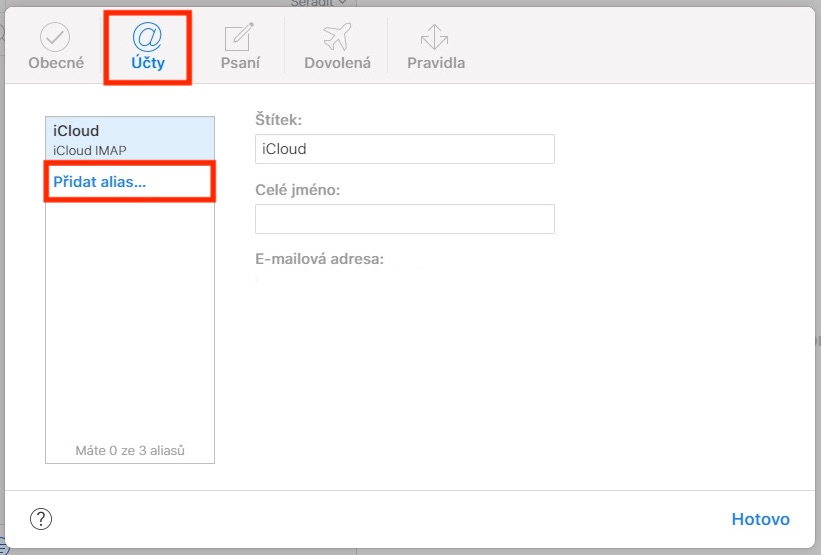
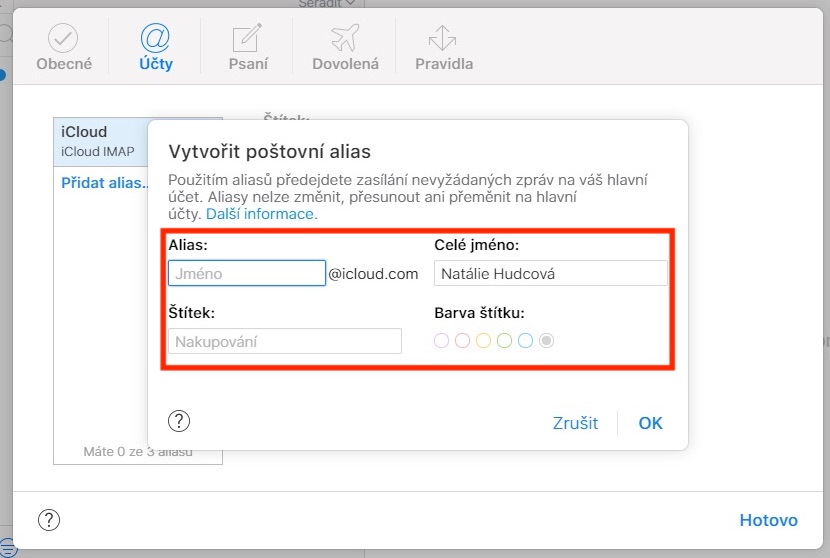
First, on your Mac or MacBooku navigate to the web address using a web browser icloud.com. Once you have done so, using your e-mail address and password to Apple ID sign in to yours iCloud account. After you appear on the main page of the web interface iCloudu, so tap the first app icon Mail Then move the cursor to the bottom left corner where click on gear wheel icon. Then select an option from the menu Preferences… A new window will open, in which you can move to the section in the top menu Accounts. Then in the left part of the new window, click on Create a new alias… Now all you have to do is fill it out name alias, together with on behalf of, under which it will appear. You can also set it label, in case you use multiple aliases.
Gallery
Aliases can then be simply activated as in iOS, so in macOS. In the first case, move to Settings -> your name -> iCloud -> Email, where then switch in a new window for alias, switch to active position. For macOS, navigate to the app Mail, where in the upper corner click on the tab Mail, and then move to in the menu Preferences… Here you goonec move to section Accounts and click your iCloud account, where u option E-mail unclick menu and select an option Edit Email Addresses… The application will then take you to the web interface andCloudwhere you can set aliases after logging in.





Great, but I'm more interested in how to set up mail downloads from created aliases, e.g. in Outlook on Mac. I've tried and searched but haven't found a solution. E.g. generate a password for your own service/app It doesn't work for me.
Alias is not a second mailbox. Emails delivered to the alias are sent to the primary email inbox.
And yes, I'm a bit confused. Well, I've only been on Apple for a while so this didn't really click for me. And is there a way to sort the emails somehow? Maybe using a filter?
Thanks for the instructions. Does anyone know how to get the email account to alsocloud (when checking push) synchronized the status of read email messages between individual devices? Thanks.
If it doesn't work for you, it's not a setting.
Helpful post, thanks. Do not publish appleId, but a deleteable alias instead, I find at least appropriate. This will create the possibility of some kind of reaction to the possible leakage of emails from third-party services and subsequent spam.
Previously, it was possible to use an alias including @xyz, but unfortunately this is no longer possible. It must be @icloud. Which is to h….