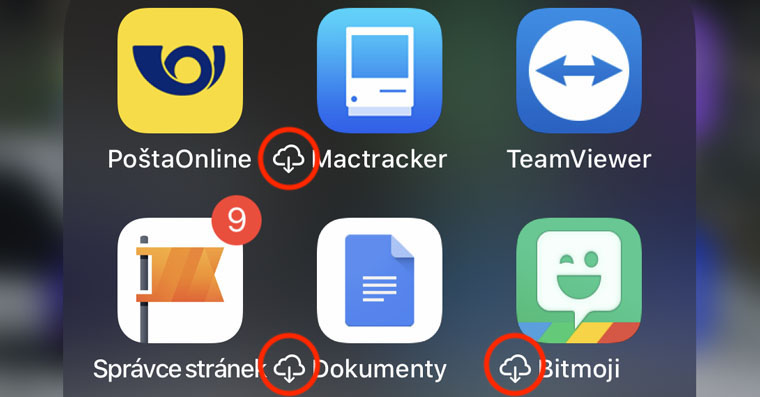
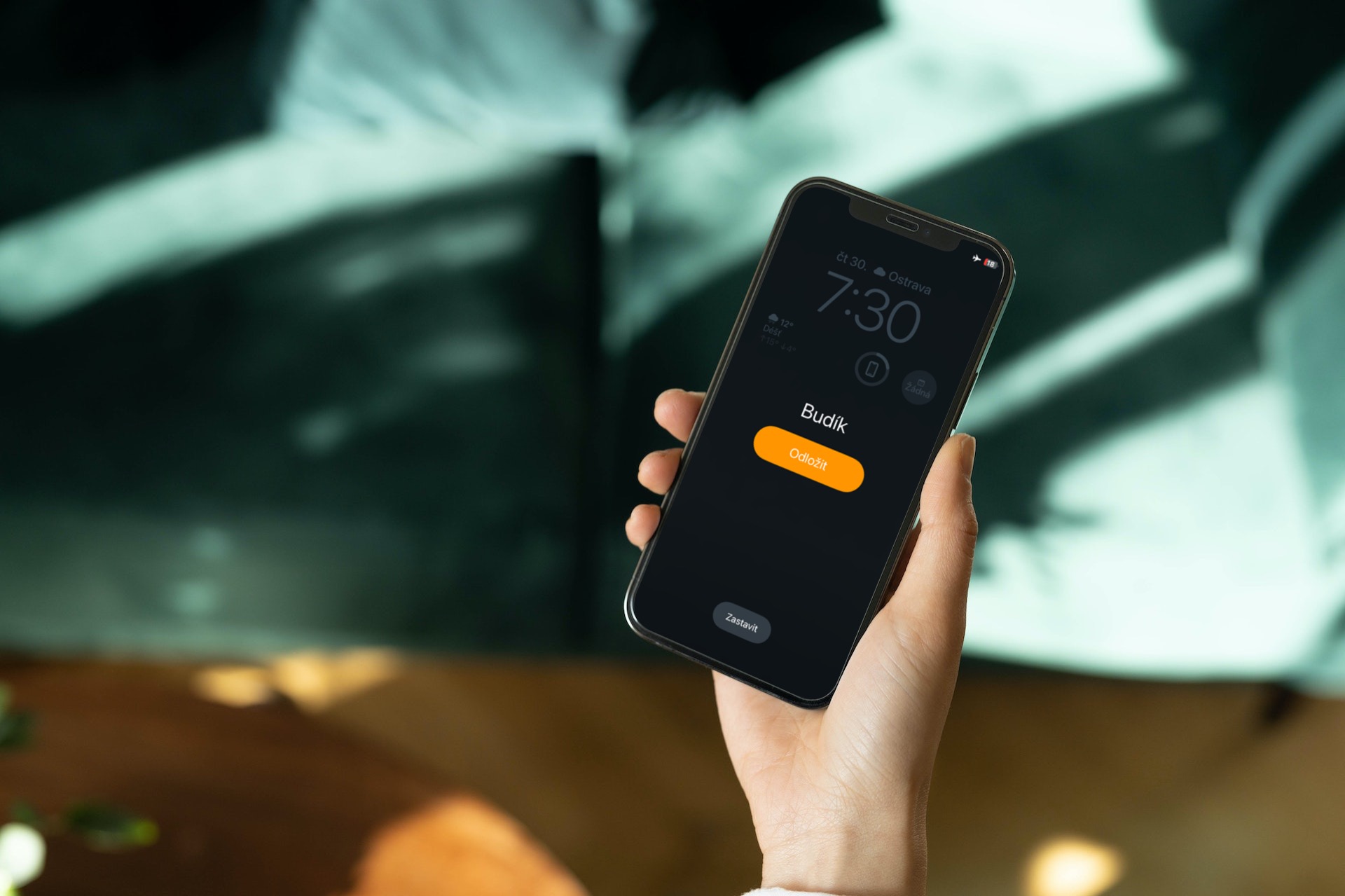
If you have noticed that before launching an application in iOS or iPadOS you have to download it first and you don't know what it is, so get smart. This is one of the features of iPhones (and iPads), which is designed to free up space when there is little free space in the storage. However, in some cases it is an annoying feature because it forces you to wait. You can read how you can turn this feature off and how it works exactly below.
What to do if you have to repeatedly download already downloaded applications on your iPhone before launching them
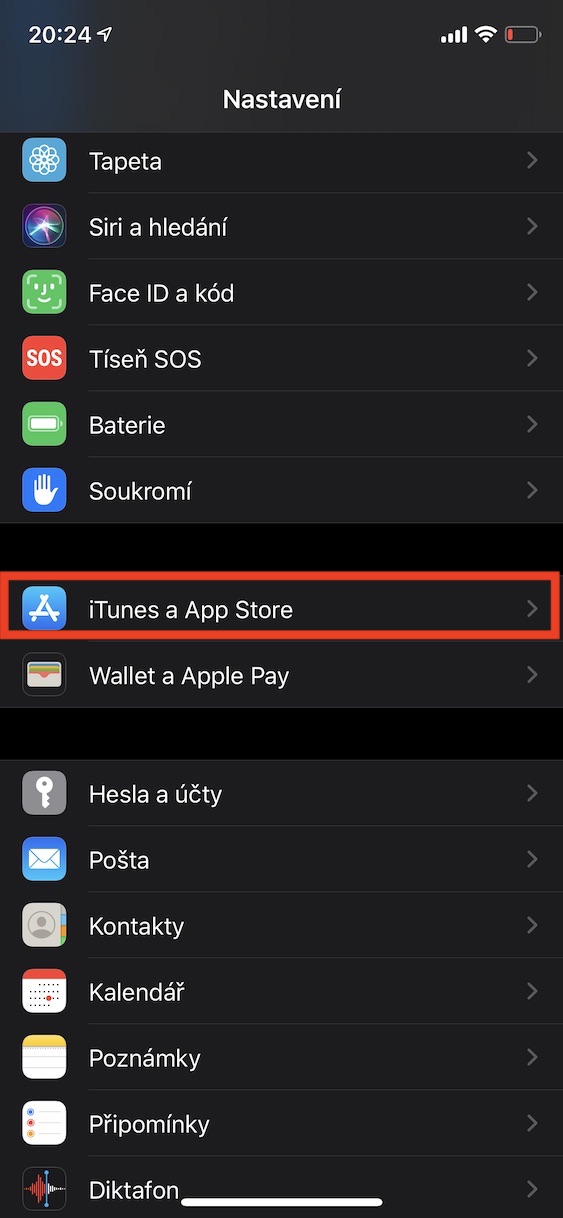
The feature that takes care of automatically removing unused apps is called Snooze unused apps. The exact definition of this function is as follows: Unused applications will be automatically deleted, but documents and data will remain intact. If the application is available in App Store, you will get your data back when you reinstall it. So if you want to turn off this feature and avoid having to download apps you no longer use, go to the native app Settings. After that, go down for something below and click the option iTunes and App Store. Here, then go down again a bit lower, until you come across an option Put away unused applications, at which to switch switch do inactive positions.
Gallery
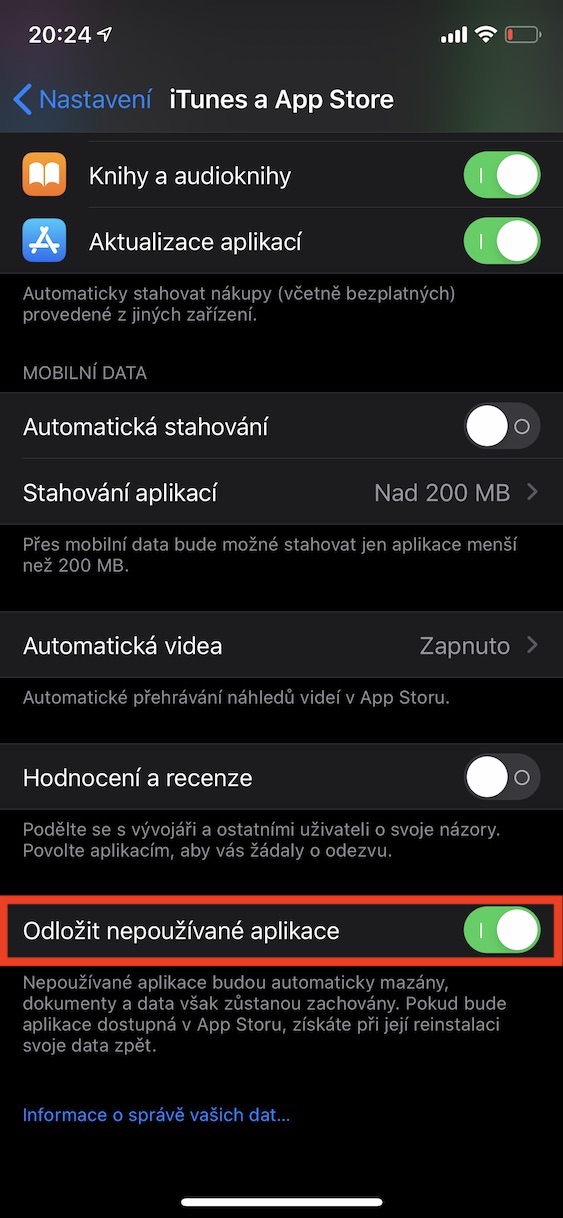
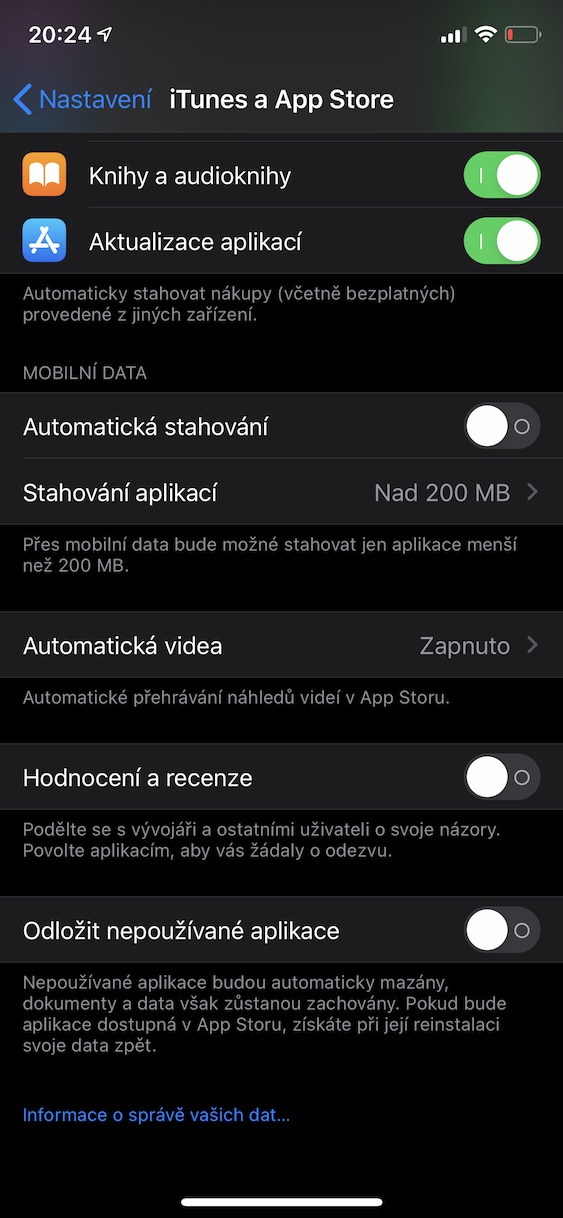
Simply put, the app hibernation feature automatically deletes apps that you haven't opened in a while. However, it doesn't delete the app data, it just deletes the app package. So if you decide to launch the app again, it will be downloaded. However, once you launch it, you won't even know that the app has been deleted, as the data will be preserved. Pro For example, let's take a game where you have a certain progress created. When you put the app aside, only the game is deleted, but the progress remains saved on your device. When you want to start the game again, only the app itself is downloaded, and then the game progress is loaded exactly where you left off, so you don't lose it.