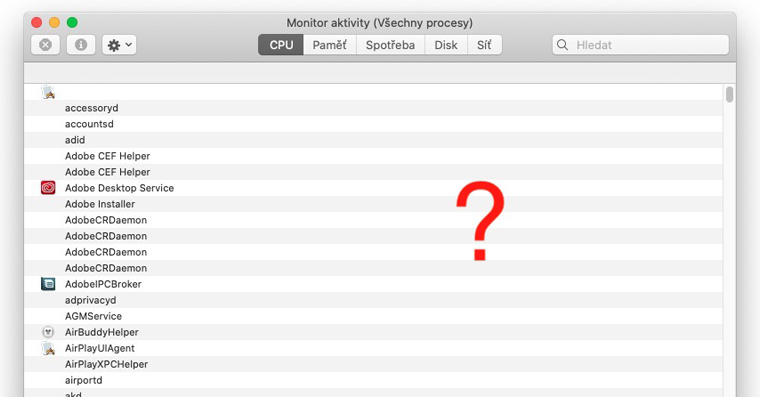
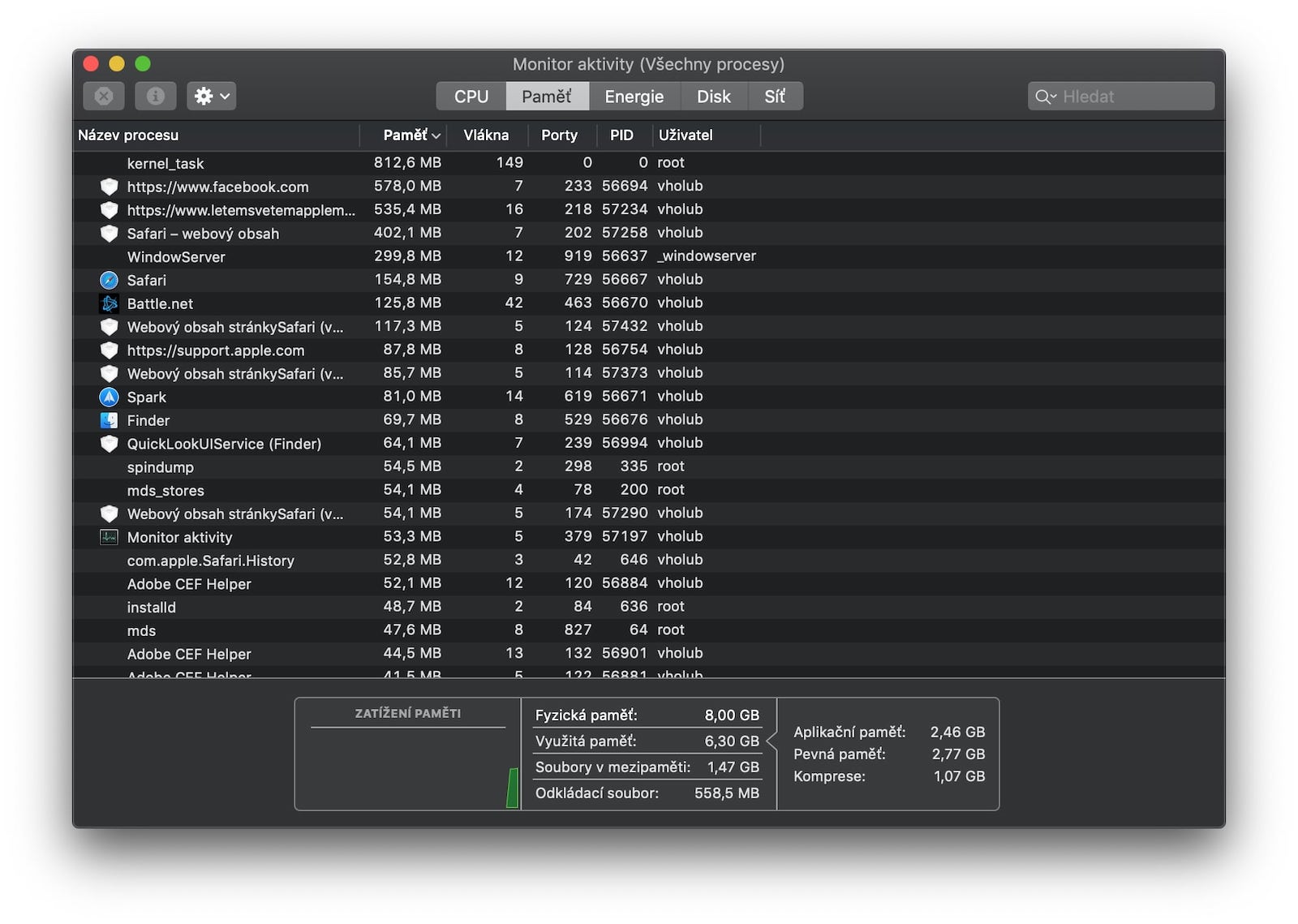
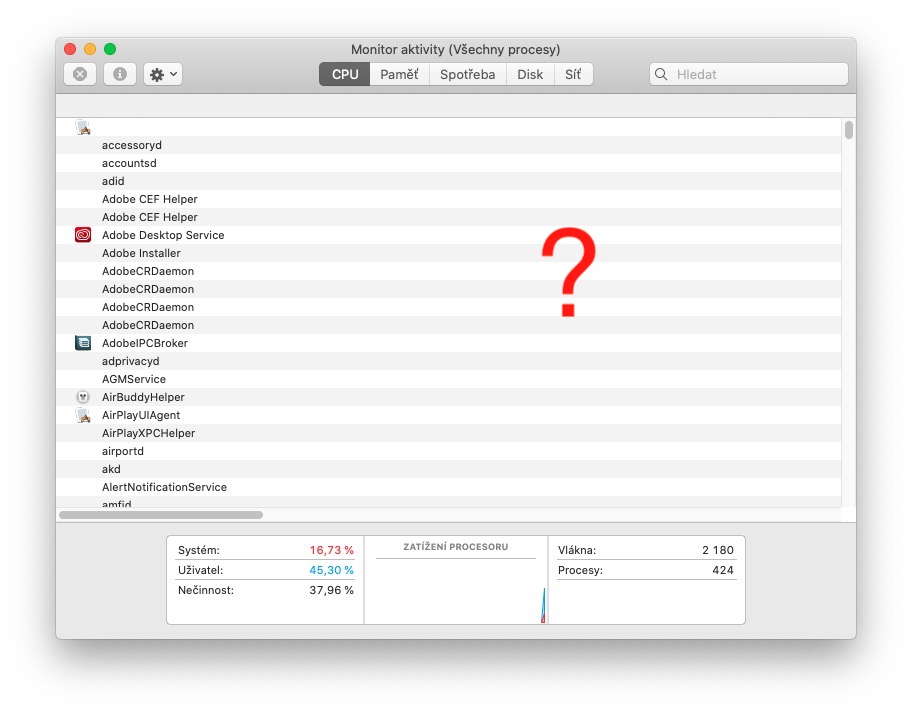
If you want to find out what programs or applications are using your system resources, you can use the Activity Monitor application for this. But sometimes it can happen that this whole application "breaks" and stops displaying the columns that contain the most important info regarding % CPU usage, CPU usage time and others. Instead, only a list of applications is displayed, without any additional information. What can you do in this case?
You might be interested in

What to do if you don't see columns in the Activity Monitor app on your Mac
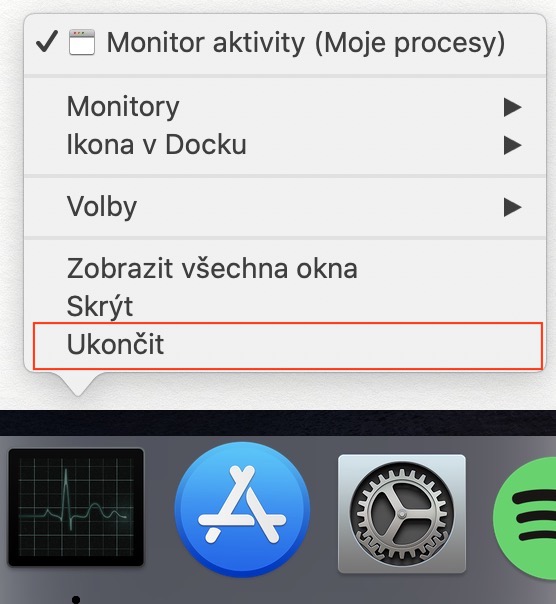
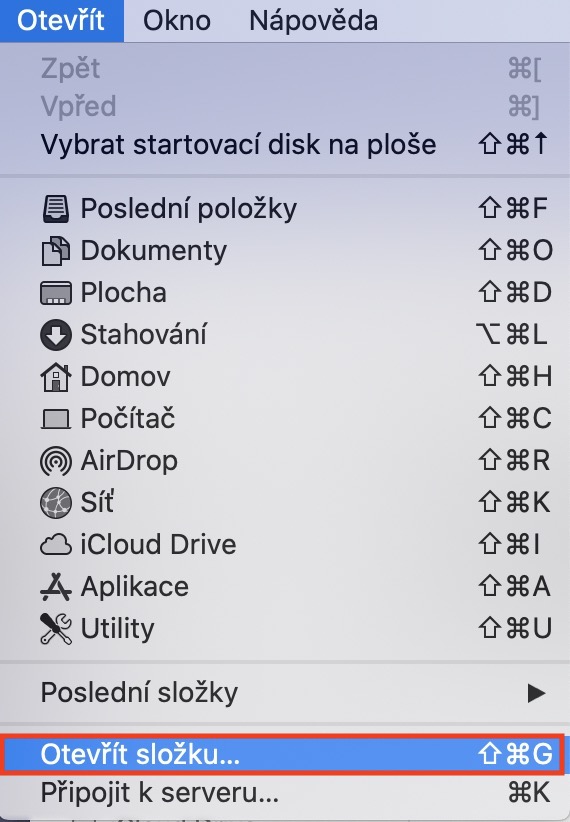
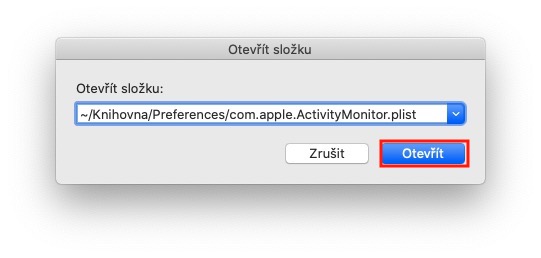
Before we get into a more "brutal" solution to the problem, run Activity monitor, and then in top bar click on the tab Display. Check here to see if you have checked item Columns. If yes, continue reading. Now it is necessary that you application Activity monitor completely they finished You can achieve this by Docku tap the Activity Monitor icon right click (two fingers), and then select an option End. When finished, move to the active application window Finder, and then click the tab in the top bar Open. Then select an option from the menu Open folder…, or you can use keyboard shortcuts Shift + Command + G. Then a small window will appear in which insert the following path:
~/Library/Preferences/com.apple.ActivityMonitor.plist
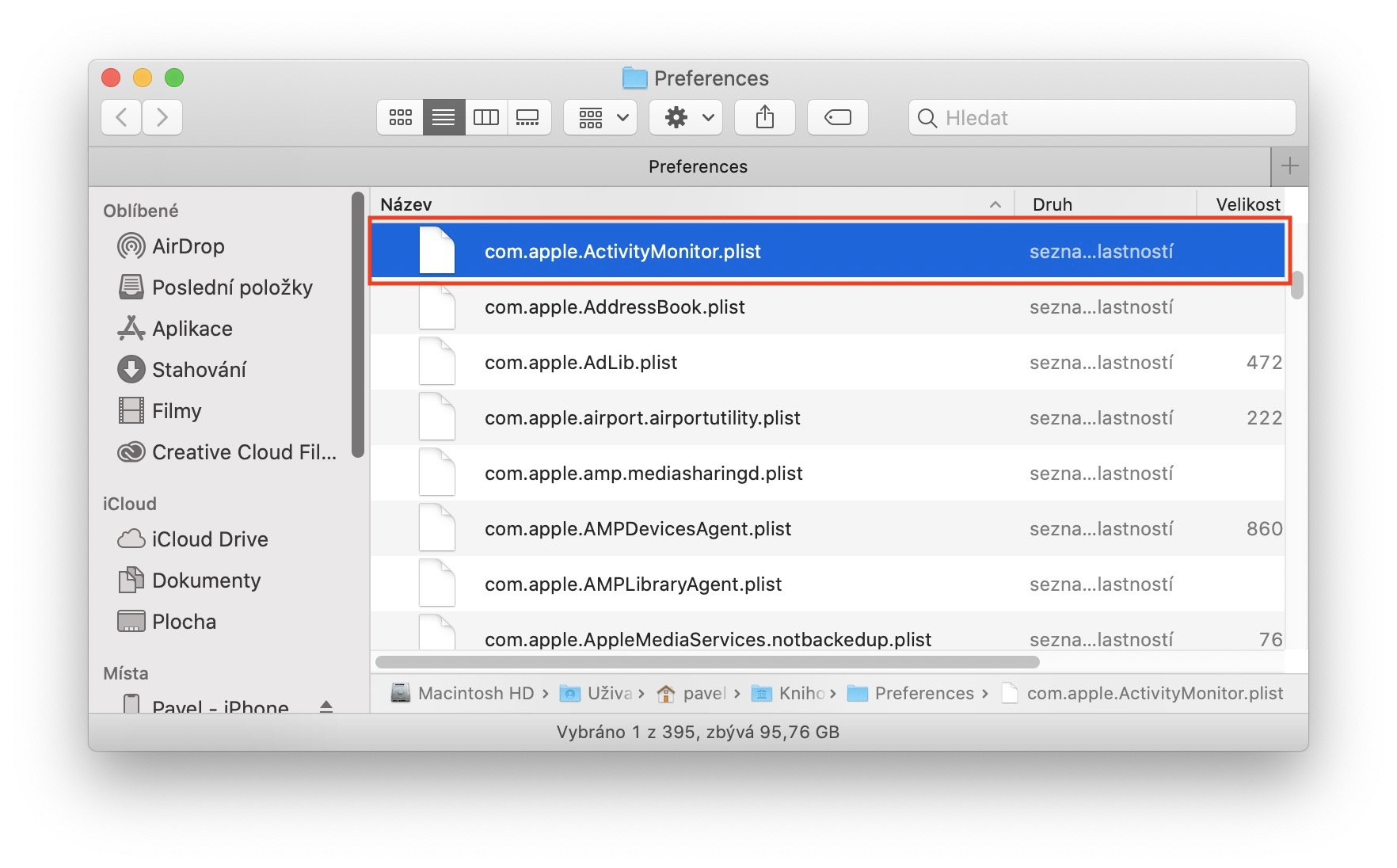
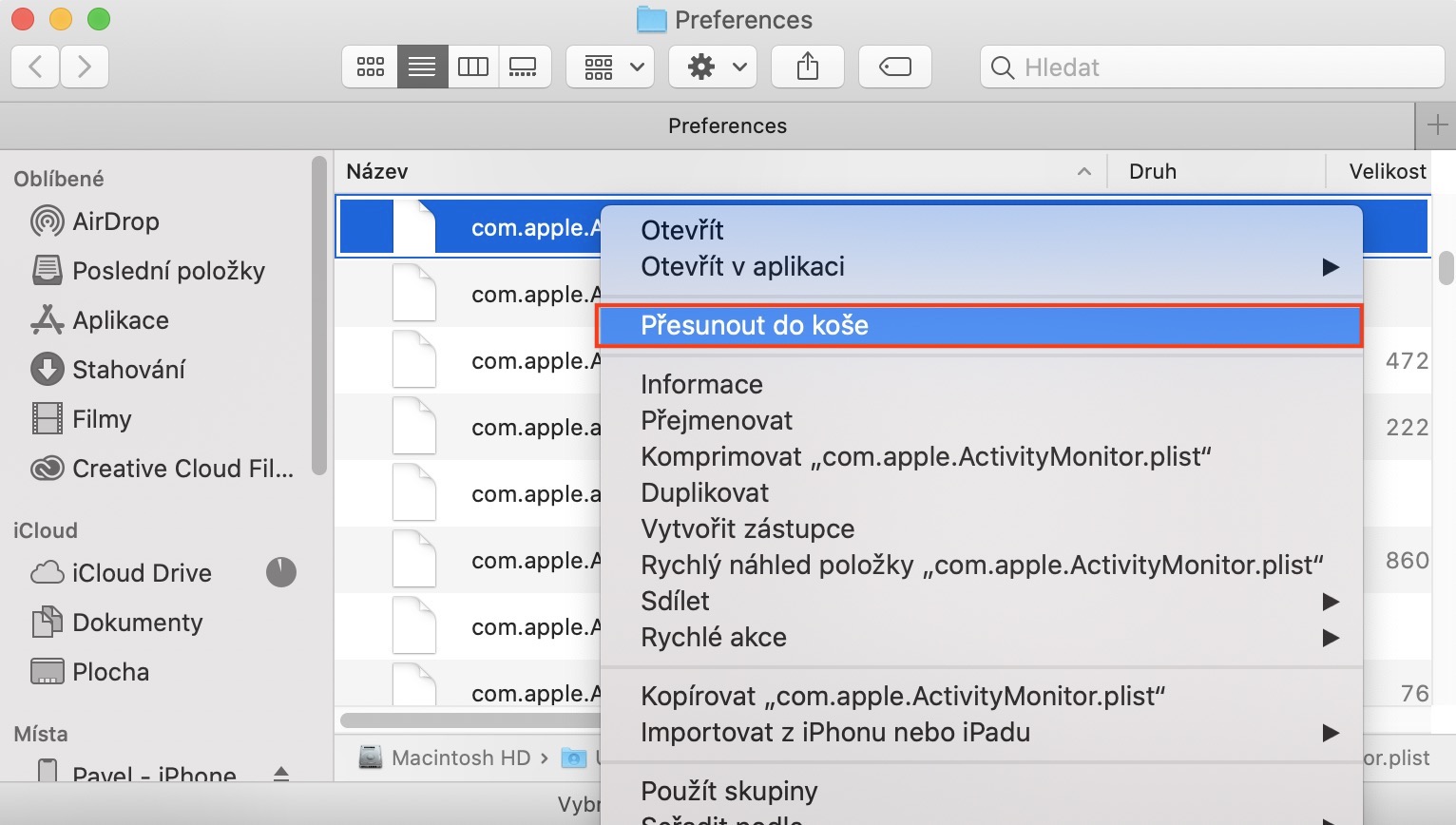
Once you've done that, press the button Open. A window will open for you. Finderwith the marked file com.apple.ActivityMonitor.plist. Finally, make sure you have the program Activity monitor off, and then the mentioned file move to trash (pressing the right button, or with two fingers, and then selecting an option Move to trash).
Gallery

After you have completed this process, all you have to do is turn on the Activity Monitor application again . Now all the columns should be visible again. If they are not visible, click on the View tab in the top bar again and select Columns from the menu that appears . Here you can then choose which columns should be displayed and which should not.