
Today will be firmly etched in the memory of the vast majority of Czech apple cider lovers.oneWe can literally throw away our wallet and all other payment cards, because wherever you pay with a card, you will now also pay with yours. iPhonem. Paying has never been easier, as confirmed by my friend who returned from New Zealand after a year, where Apple Pay it has been working for some time now. According to him, he only processed the payment card, uploaded it to his iPhone and never used it again. If you are also interested in this option, read this article in which you will learn how the function works Apple Pay activate.
You might be interested in
How to make it work Apple Pay on iPhone and iPad
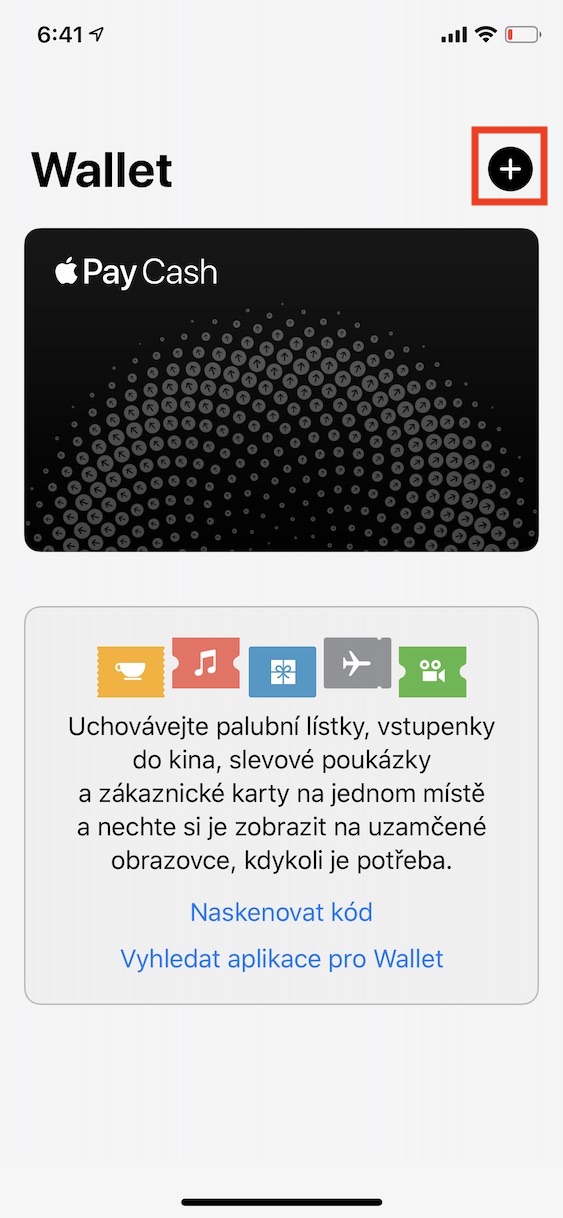
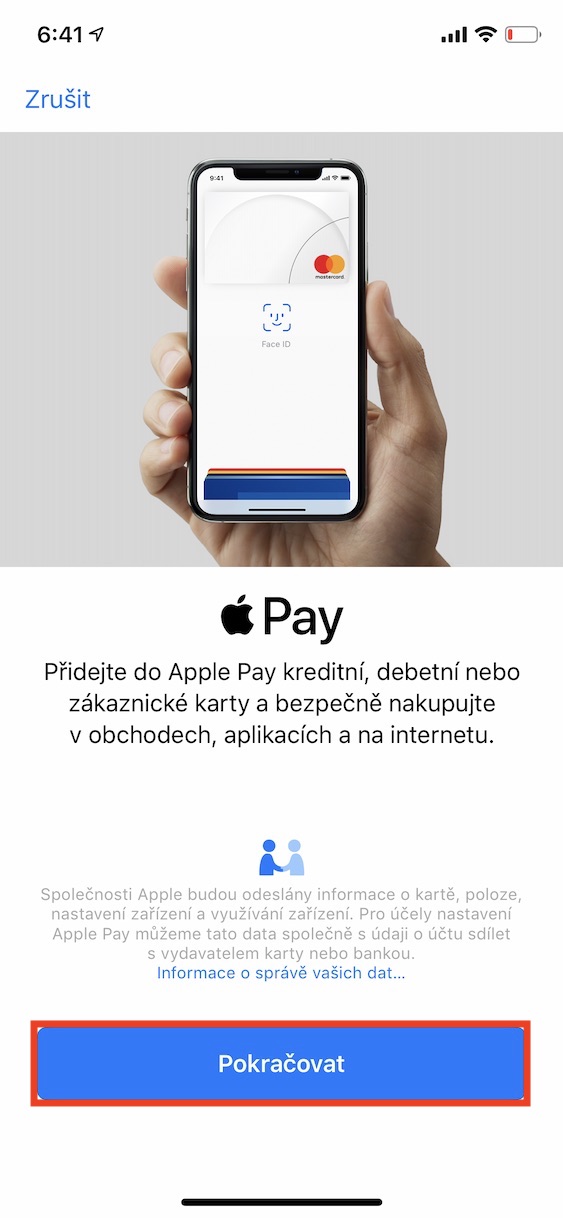
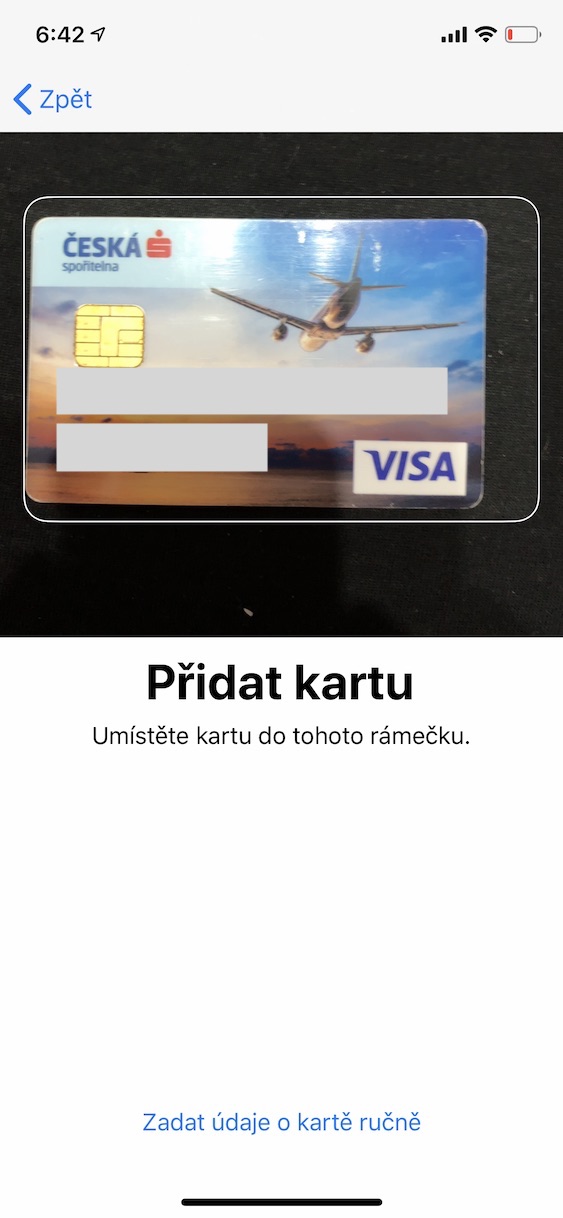
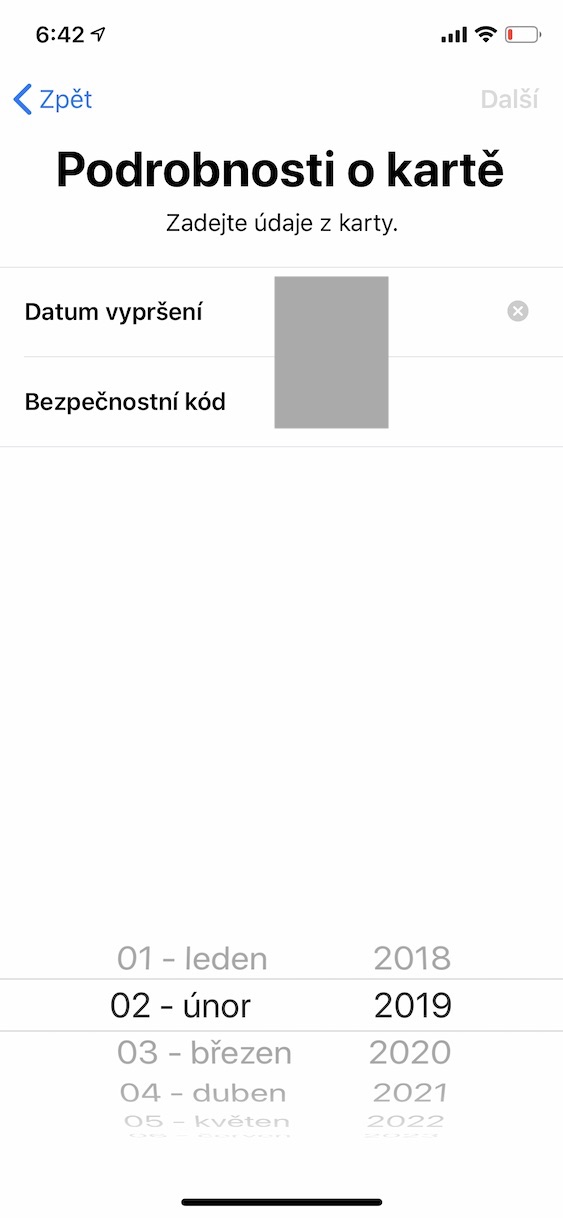
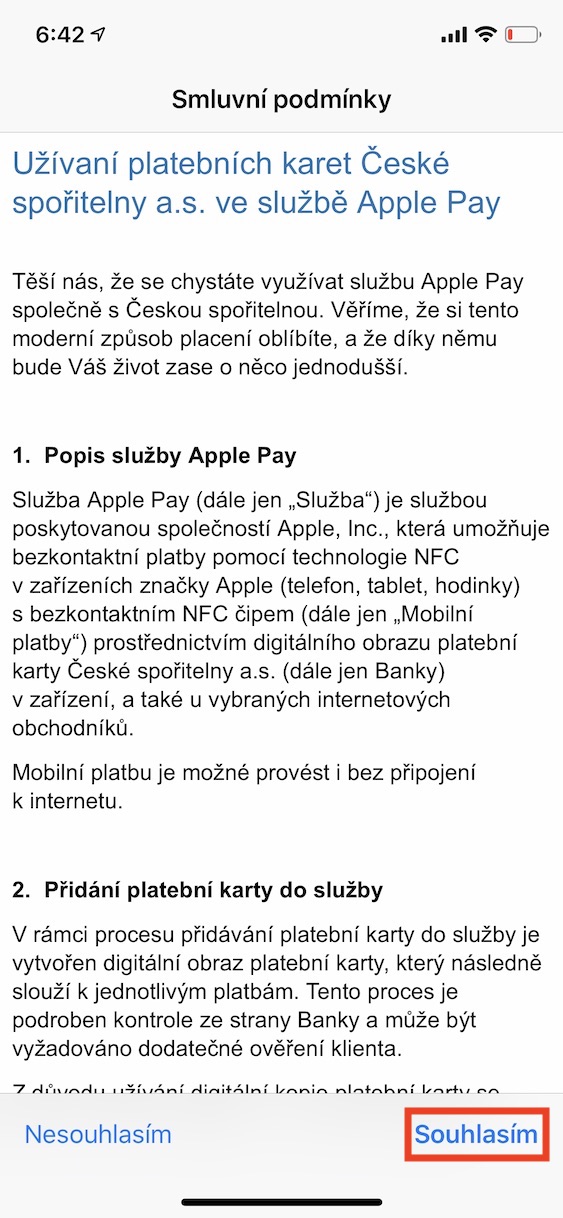
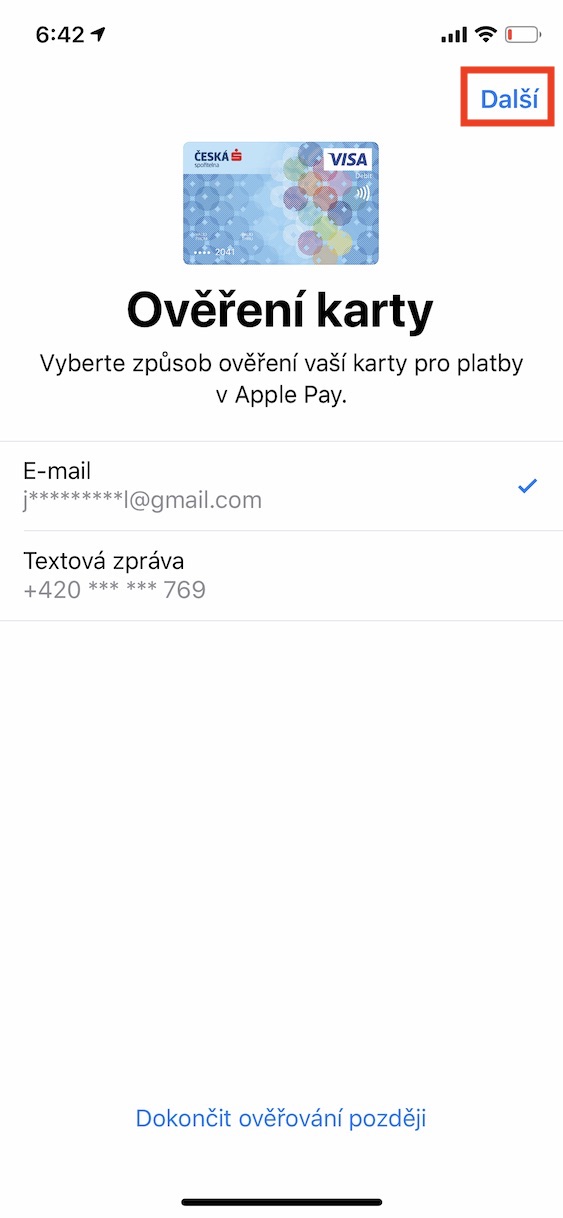
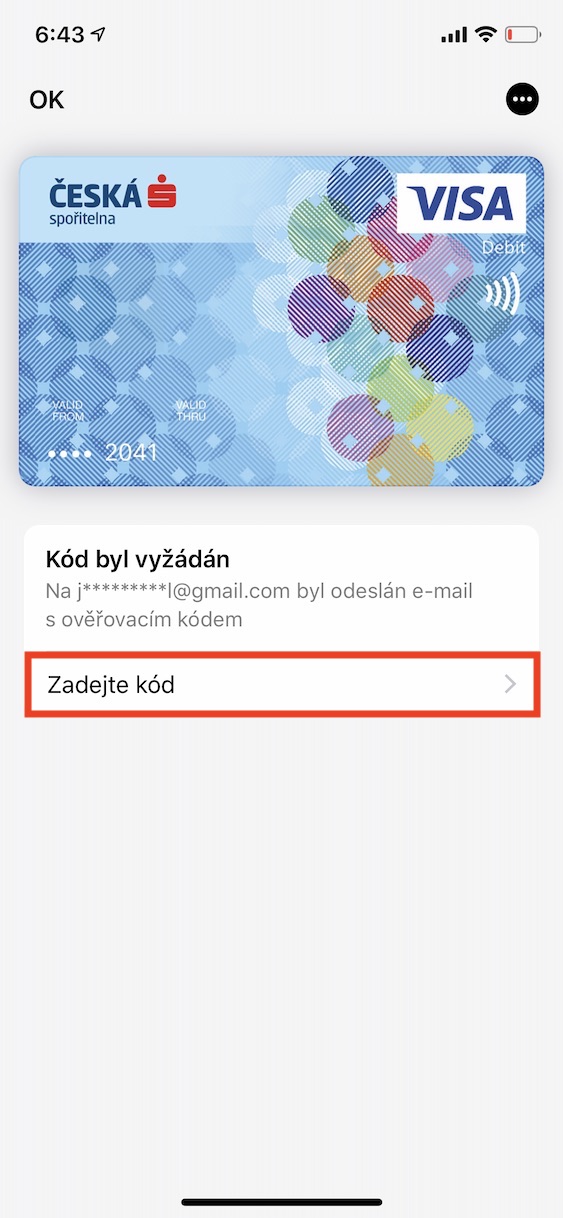
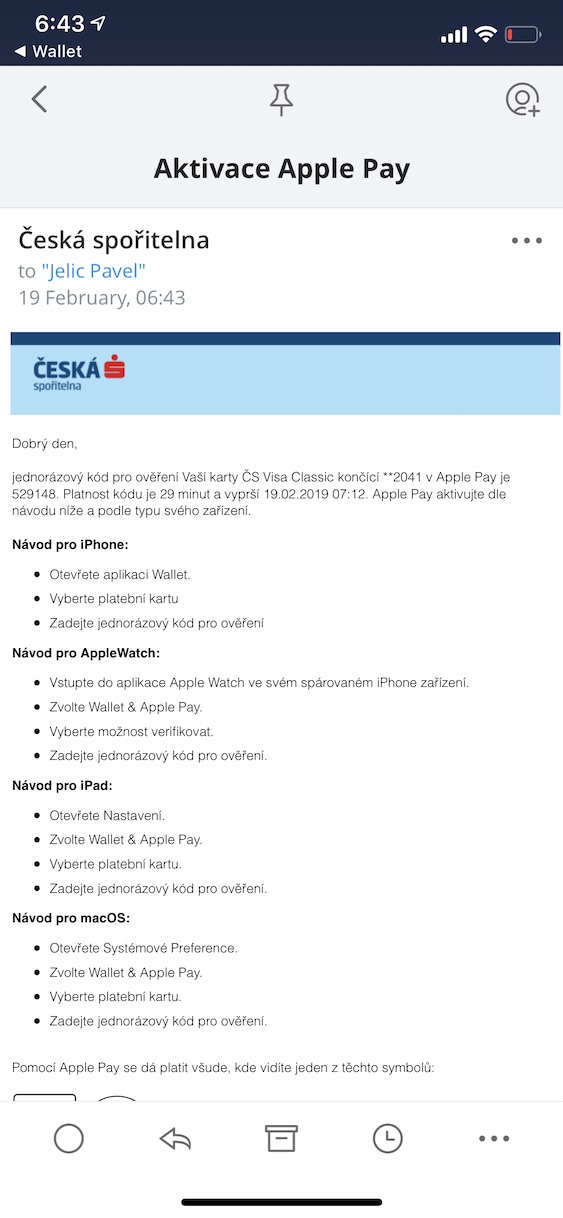
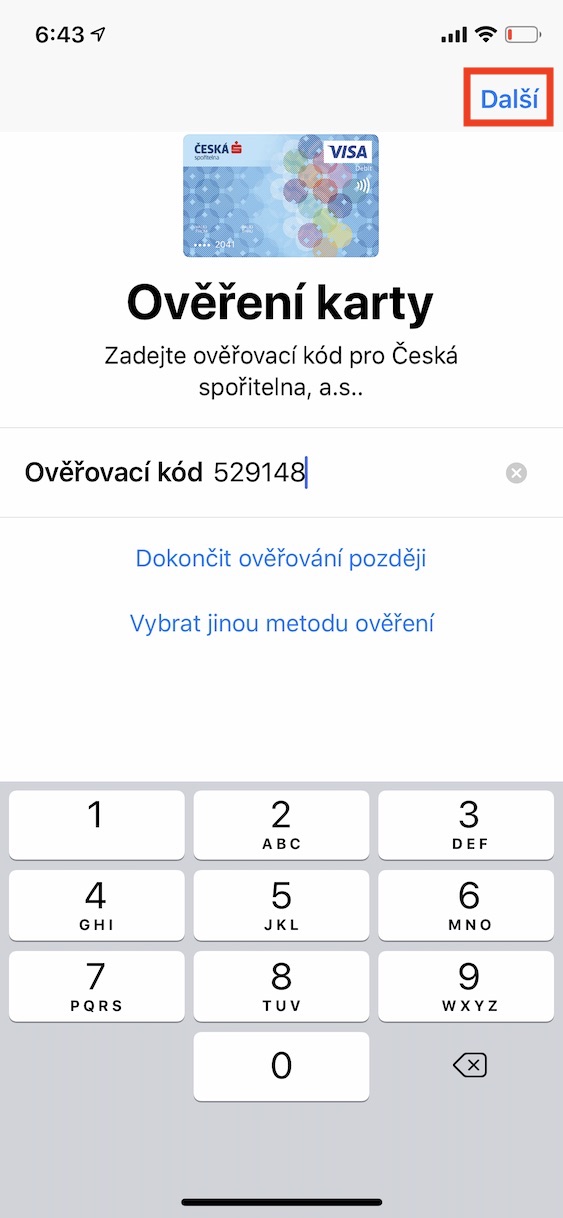
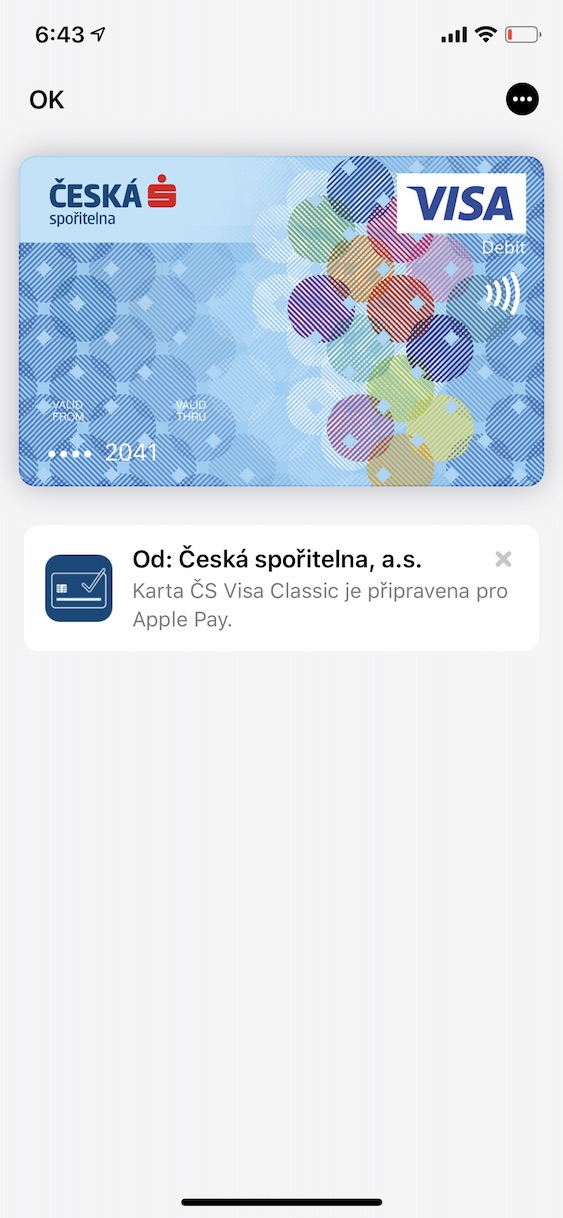
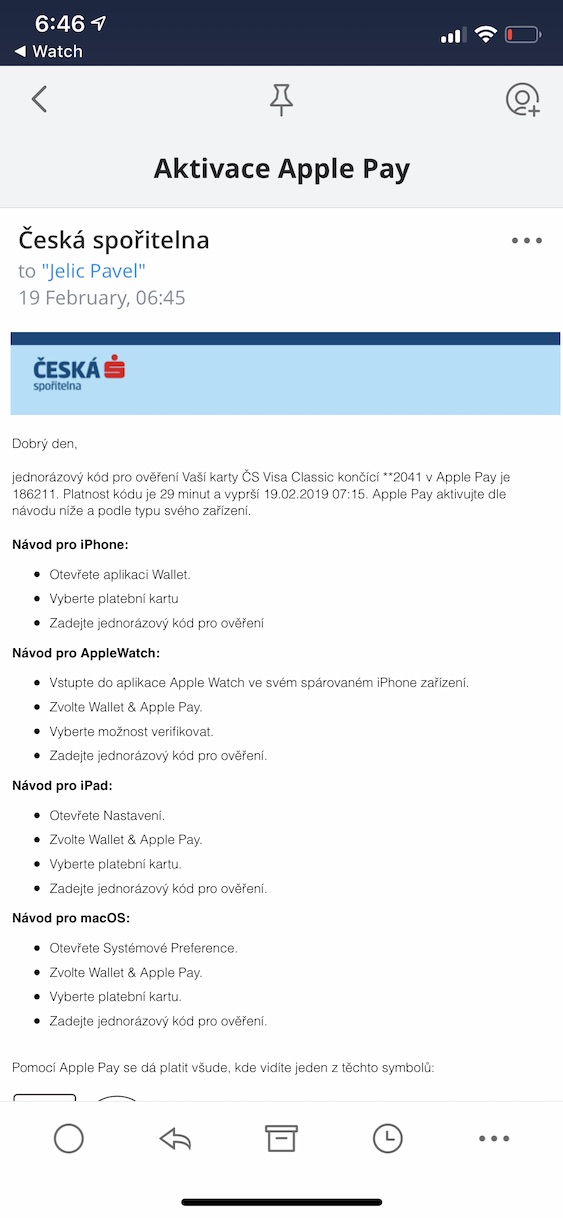
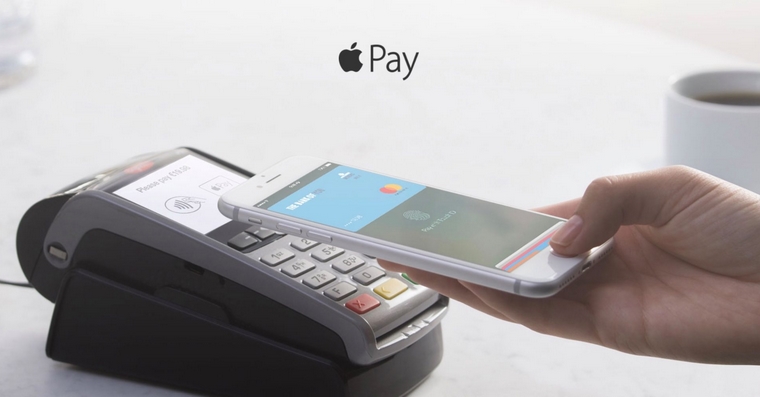
We open the native application on our iPhone Wallet. After opening, click on the blue icon in the upper right corner+". Then a card is enough to scan or enter its data manually. A card will be required after scanning activate. Depending on theance to which your card is linked, it will need to be activated either by SMS, email or by phone call, which will require us to confirm our identity. In most cases, this process takes a few seconds, but if we need to verify our identity, it may take longer. After activating the card, it's done - now we can use our card to pay in restaurants, gas stations, shops and everywhere else. Just hold it to the terminal and confirm the payment via Face ID whether Touch ID, but before that, it is necessary to activate the "wallet" by double-pressing the Power Button.
For the iPad, the procedure is practically the same as for the iPhone. The only exception is that the application Wallet it is not accessible directly from the desktop and therefore we have to open it through Settings and item Wallet & Apple Pay. After that, the procedure is exactly the same as in the case of an iPhone - that is, after selecting "+" in the upper right corner, you scan the card, activate it, authorize it and you're done.
Gallery


How to make it work Apple Pay na Apple Watch
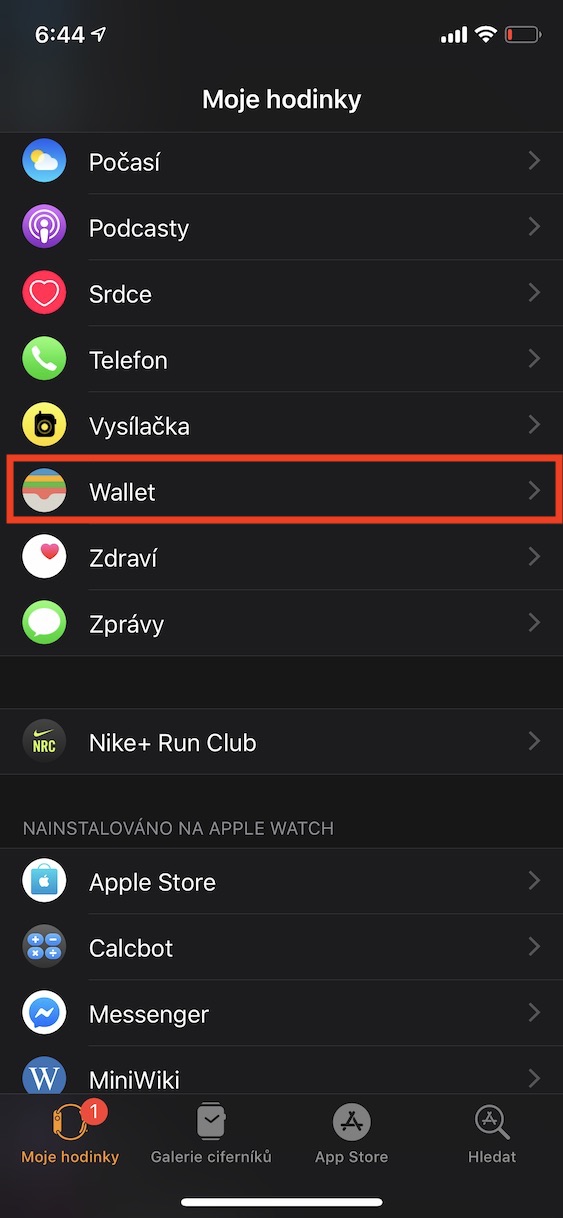
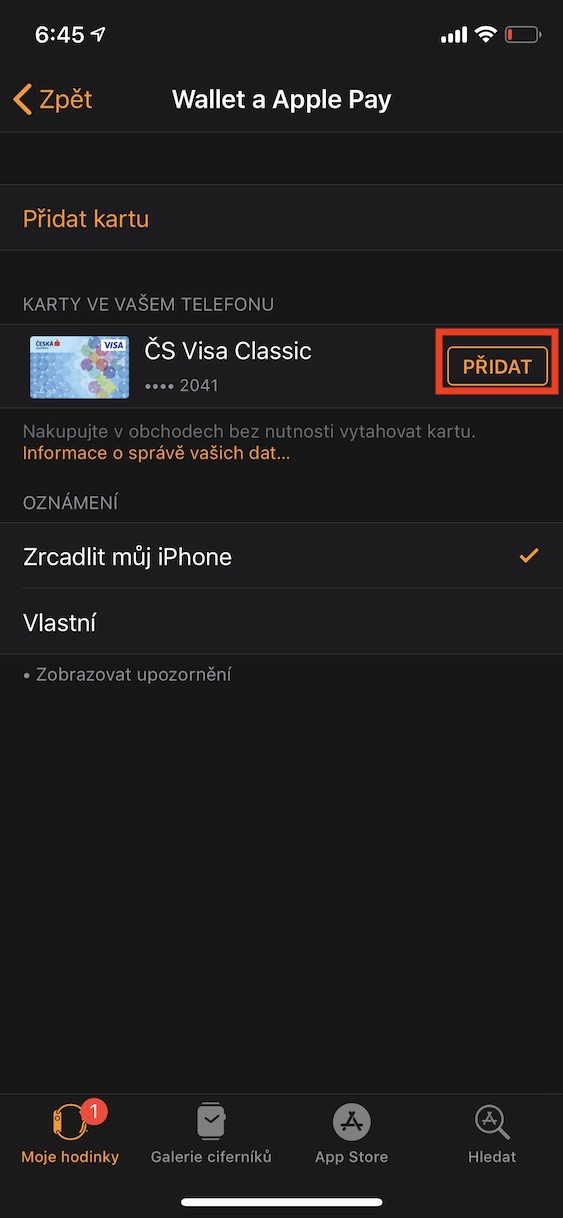
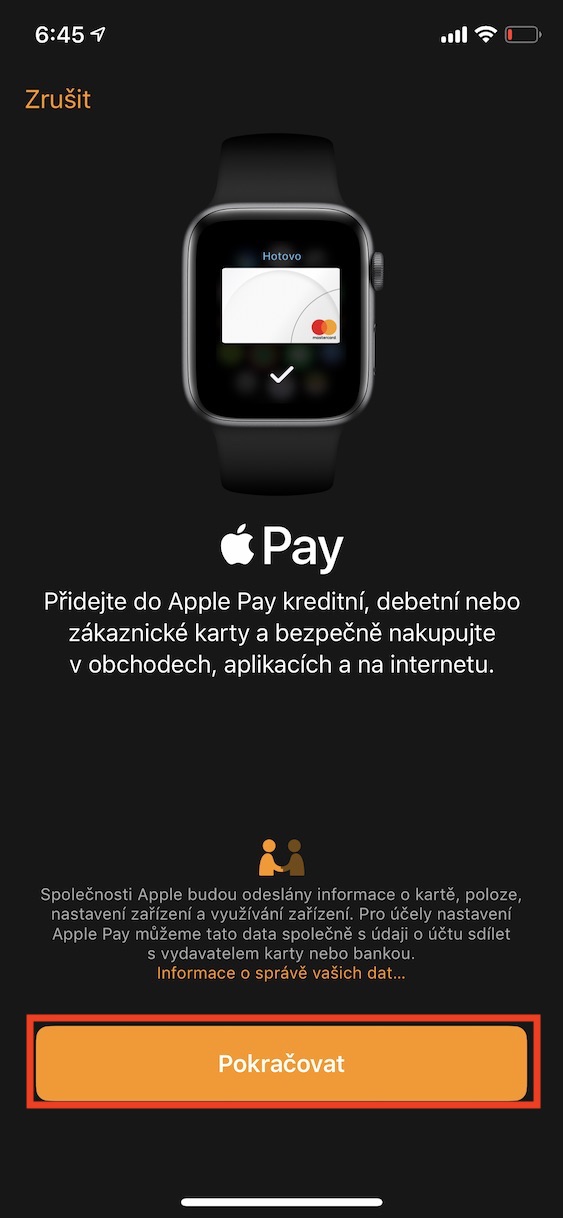
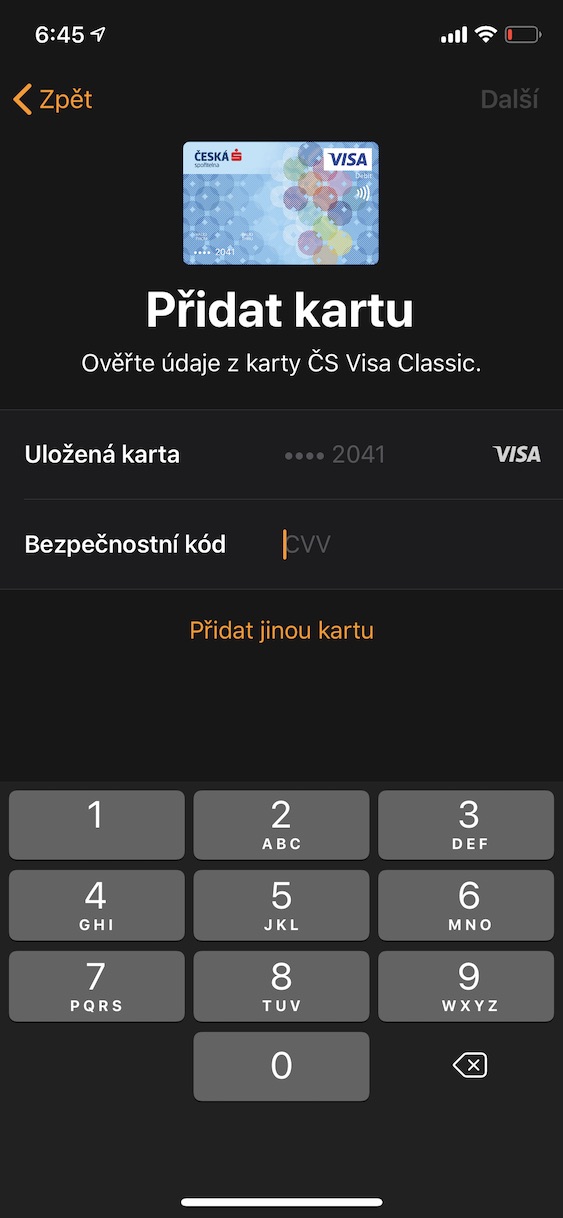
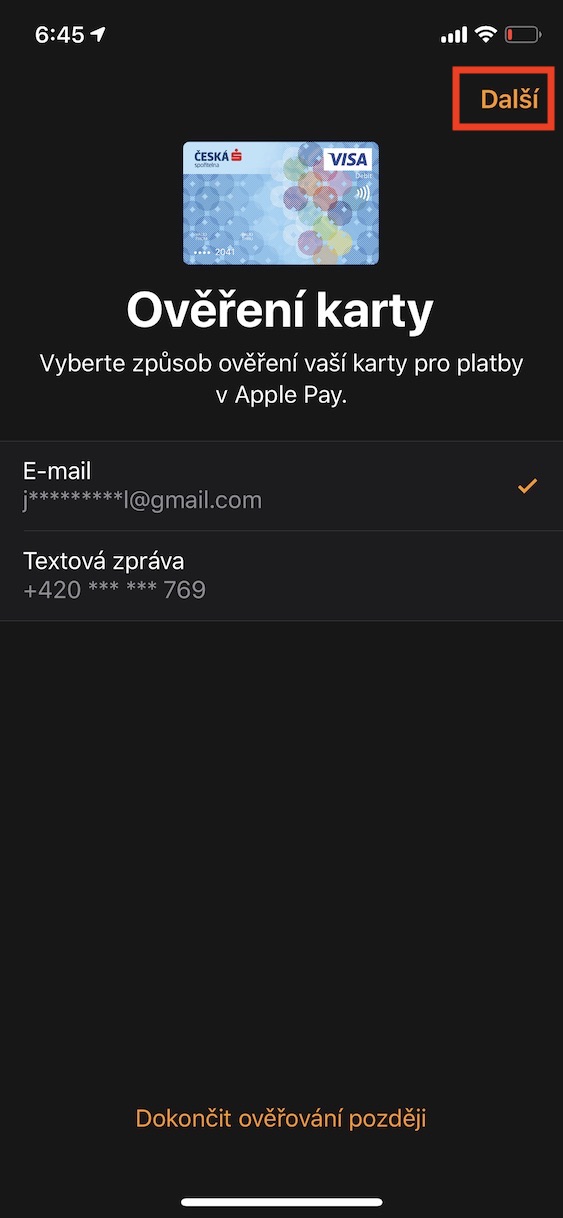
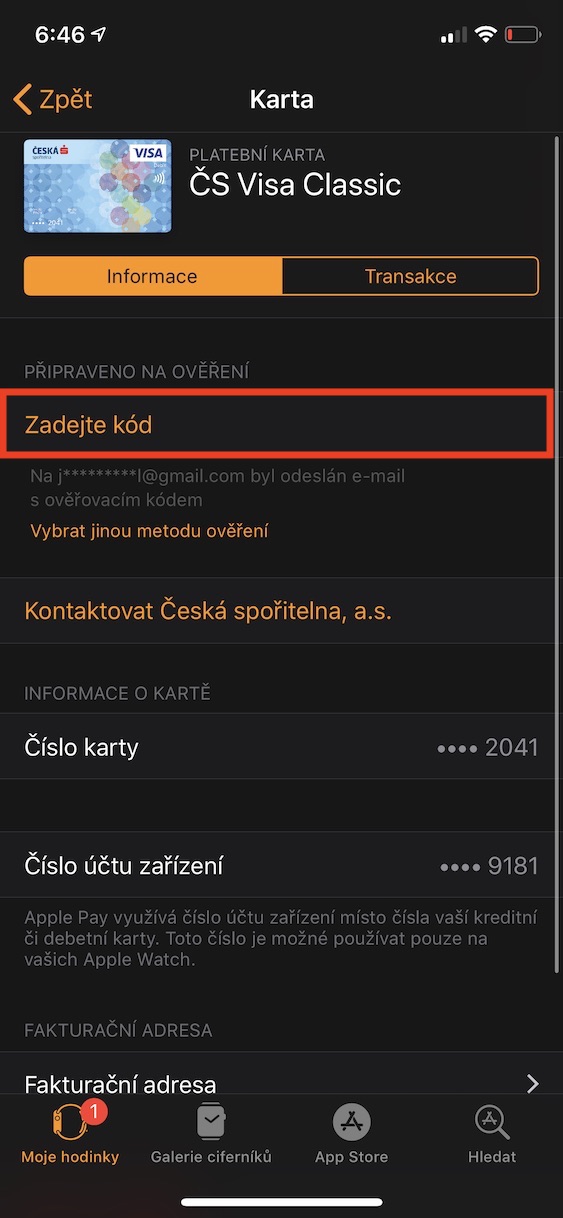
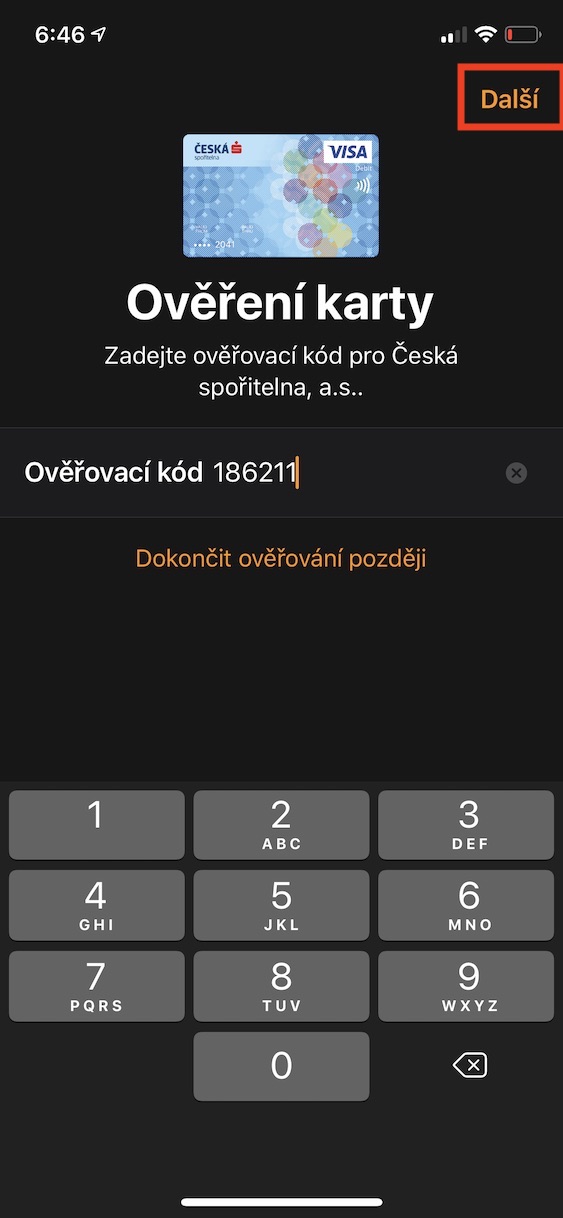
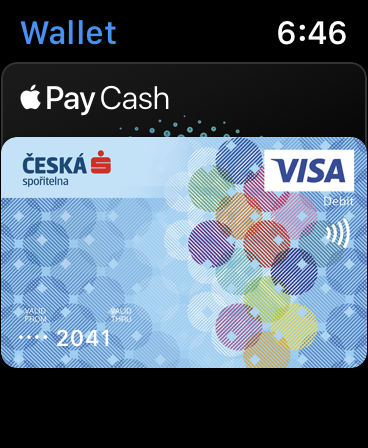
Pro Settings Apple Pay on yours Apple Watch you have to visit the app Watch on your iPhone. Then just go to Wallet and choose "Add a credit card” or “Add" for the card mirrored from the iPhone. Now you need to fill in all the necessary information from the card that the application will ask you and verify the card with the bank. As in the case of the iPhone, this process takes a few moments, even if the bank requires any verification of your identity. After performing all these actions, it is Apple Pay set on the watch and you can start using it. You can always activate it on the watch by double-pressing the oblong side button under the digital crown.
Gallery

How to make it work Apple Pay on a Mac
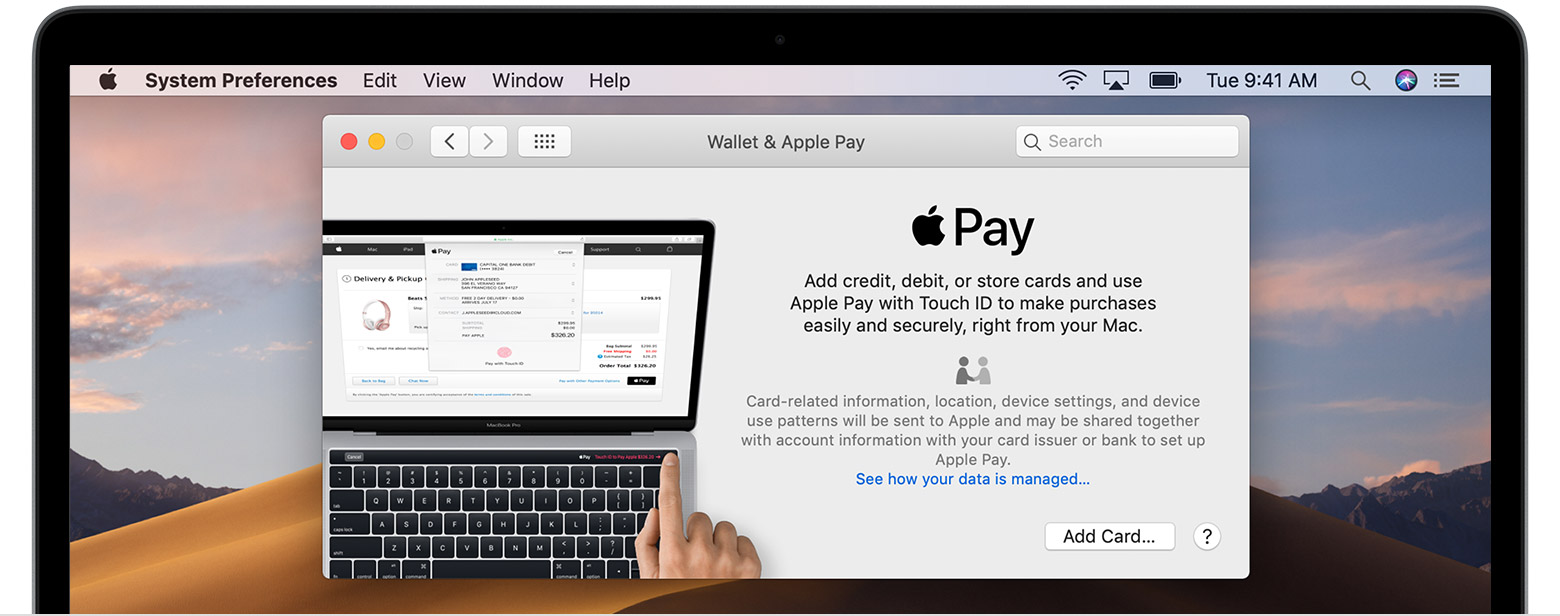
If you don't want to Apple Pay to use on your Mac, it needs to be equipped with Touch ID – so you must own either MacBook Pro with Touch Bar or MacBook Air (2018). Settings Apple Pay it's here just like in the case of the iPhone and Apple Watch very simple. Just visit System Preferences and choose Wallet & Apple Pay. Here you select the option “Add a card” and follow the steps that Mac gives you. As in the case of the iPhone or Apple Watch you need to fill in the card details and wait for the bank to verify it. After completing these steps, the card is already added to the Mac and you can pay with it, for example, in various e-shops.


Sooo first payment with KB made.
I paid with a watch today, so did Komerčka and without any problems, great!
Hooray, I'm going to get rolls for the test this afternoon.:D
ProI'm looking for advice: What am I doing wrong when app Wallet I don't have a "+" button to add a card at all?
I will add: iPhone XS, iOS 12.1.4
Region in phone settings?
I have the same problem
I also checked that... Language Czech, region Czech... 🤔
I didn't like it either. Log out and log in to iCloud helped.
Hey, that didn't happen in app Wallet but directly in the settings tab "wallet a apple pay” see?!!😉
You can also use the + button in the app. wallet, it's the same as in the settings, but both will only show up after connecting to the internet, a while ago I saw a colleague's how he didn't have it there either, then we found out that for wallet I have disabled data and lo and behold, everything suddenly started working
Check if you have pro wallet data connection enabled.
Thanks for the advice, but it didn't help... I had mobile data disabled, called them, reset the phone and still nothing. I'm still on wifi though.
Do Apple the watch card was added, but still nothing on the iPhone. In the settings item Apple pay of course I can't see either.
Those who don't like it, what kind of operator do you have?
I didn't like it either, people, change the region to the united kingdom. It hit me at that moment. I added the card and returned it to the Czech Republic, and at that moment it stayed there
I didn't like it either, I didn't have +.
ProFor now, you can get around this by changing the region to Poland, then the plus sign will appear, add cards and you can change back to the Czech Republic.
Some bug or I don't want to release them all at once...
So what?oneChanging the region to UK helped.
The funny thing is that when I wanted to add another tab on the iPad, it was possible in the settings (for a change, it doesn't show up here Wallet). But still not on iPhone, just through a different region 🤪
I called the American apple support, I had a problem apple pay cash...but not even after cancellation apple pay cash didn't help. It was followed by restore with a backup restore and now I can add cards...but I thought I would throw the phone through the window!!
What region do you have set?
So Moneit also works without any problems and as a bonus I found out that the Ticket Restaurant card also works. You just have to enter the activation codes. How iPhone So Watch :)
And is it working now?
Do I have to unlock the phone via TouchID when paying or is it enough to just attach it to the terminal?
You definitely have to do the verification!!
On the locked screen, double-click the main button (on older devices), the tab will start, on new ones I don't know
Thanks for the tip
Just put it close to the terminal (even a short distance from it) and stroke the TouchID. :-)))
How does it work when multiple cards are loaded, do I have to scroll to Wallet and on the display have that specific card probably from ?
It works.
One less card in your wallet again.
Apple pay cash? Can you set it up?
It only works in the US.
It's like I'm 15 years old so I can't use it Apple Pay?😕
Is there a way around this without having to change my date of birth?😕
It goes. You wait a few years 😉
Thanks for the advice😔
It's Maestro by KB
Does anyone know if Sodexo will work?
As far as I know Sodexo, it definitely won't work. They use some of their own incompatible solutions, even contactless ones. terminalI need special FW for it to work without them :-(
Apple Pay I don't see it either. I have the region set correctly. Data enabled. Restarting didn't help. :(
In the settings menu wallet&apple pay will only show after the phone is restarted. In addition, the double-click function for activating the payment is disabled by default (without the need to run appku wallet), in settings/wallet then this function can be activated
How will it work apple pay on the watch? You will also need to have your phone handy because touch ID or is it not necessary? Or can the watch only be used for amounts up to 500..?
The phone is not needed if it is apple pay set in the watch, a PIN may be required for payments over 500
Great, thanks for the info.
Pin will not be required!!
Well, I'm already paid. Works great ☺️
Airbank uploaded without any problems.
Now how to get the other plastic cards, such as CostaCoffee Club, Lítačka, Benefit plus and the like
It will be quite difficult for Costa :D
I have a master record of Litac.carYes, you can move it and you don't have to wait until you buy another month/year.
Try a Hundredcard. I use it for all cards and it works great. 👍
????
U Moneyou done right away
Has anyone already tested the Czech savings bank?
It loaded my Česká spořitelna card.
Yes, a matter of less than a minute. Visa. Now I'm going to test 😊
Česká spořitelna will allow you to add Master cardscard until sometime in March 2019. For now, only Visa can be added. :)
I don't know about you, but I don't activate the wallet by double pressing the app and it starts automatically 🙂
Air bank, meal voucher card from Edenred and Twisto without any problem. How iphone, so watch📱⌚️
here's a short video tutorial ;)
https://youtu.be/g_UErzVlNDU
Moneit's ready as always 🙂 done, I'm paying..
Hi, I want to ask, can I do it this way? Apple pay pay anywhere abroad (EU)? I would also like to ask one more thing and that is ... before that, however, it is necessary to activate the "wallet" by double-pressing the Power Button ... can someone please explain this to me ??? Thank you :)
You need to take the switched off phone in your hand, press it twice and you will understand ;-)
The Power Button only works with FaceID, Touch ID you don't have to do anything, just place your phone on the terminal and put your finger on Home Button and that's it.
Hello,
yes, it works abroad also outside the EU. Tested in UAE, Airbank and Master card.
J.
Does anyone know if I can add multiple cards and if so, how does it work when paying? If it is charged, which card do I want to pay from?
Yes, I have three there now including boon. After double-clicking, you then choose which one you want to pay for. I just couldn't find how to set the default…
In the app wallet is a semi-automatic "default card" for both mobile and watch
Ah, I already found it, it's in the settings…
The card was added in less than a minute, it was a snap 😊 and hooray for shopping.
Hello, it works Apple Pay also for Revolut? Thanks
No, it is expected during the year. As expected during the last...
AirSame bank, thumbs up for the preparation and VISA at Spořka 🙂
For mBanka, you need to open the link not in Safari, it ends with an error there...
in the morning after five, I confirmed it normally on the link, then a verification SMS code came and I already paid :)
At the savings bank, only Visa and Master credit cards are accepted.card doesn't support it yet. but I think it's a matter of a few hours before it starts :-) otherwise great, on the phone and watch
Helpppp
Do you think it can also be used in the Brno MHD during verification by the auditor? 🙂
airbank and edenred work :)
😀👍
KB works great)) still get Sodexo and these pizzas there 😃😃
U MoneGood. I did it directly through the Apka Wallet and everything went OK on the watch and iPad. I'm at work, so I'll try the payment in the afternoon.
😊 started at 6:00 and at 6:12 already paid with a watch 👍 I enjoy how people look at me like I'm crazy 😁😁😁 that I pay with digital cards 🤣
So tested in the store and maximal satisfaction 😊 the transaction went through, I dare say, even faster than usual when I pay by card! Česká spořitelna Visa card :) Unfortunately, my watch is due for a battery change, so I couldn't test it
ProI'm sorry, how is it possible that I don't have it in my preferences on my Mac? wallet ?
Do you have a 2012 or newer model?
Just restart and it will be
What is this for?
You must have a new Mac that has the feature Touch ID.
Just have iPhone placed next to the Mac and works without it Touch ID :-)
FYI, it also works in the combination of iP5s + Watch 4. That is, only on the watch, but it works
Na Iphone X updated :F
Does anyone know how it is with paying over 500? Will it want a Pin or not?? Thanks for the info. Otherwise Čs , M bank and Twisto Super work.
Petr Mára said in the last video that he still nestHello, it requires a PIN above 500, but it depends on how the merchant has it set up.
You don't know how it is with apple pay abroad? I mean if I can pay mine iphonem needed in Germany, Austria, Slovakia, Belgium, francii, … just within Europe… thank you for the answer…🙂
Then there is Apollo. pay in these European countries:
Belgium
Czech Republic
Denmark
Finland
France
Germany
Guernsey
Ireland
Isle of Man
Italy
Jersey
Monaco
norway
poland
Russia
San Marino
Spain
Sweden
Switzerland
Ukraine
United Kingdom
Vatican City
Apple Pay it basically emulates a classic contactless card. Apple Pay could be paid in the Czech Republic at any contactless terminal already in the past. Only from today Apple it also issues these virtual cards in the Czech Republic. Apple Pay can be paid worldwide at any payment terminal accepting VISA or EMC. Apple Pay can also be paid in Slovakia, where ApplePay They do not issue virtual cards.
And where are those scoundrels now who claimed that they would actually release it in Slovakia at the same time as in the Czech Republic?
Probably in a different part of the department than you.
Raiffka just fart :-((
RB toonec year something like csob
...and you don't know if it is possible to add one payment card under two different ones Apple ID? 🤔
It works, it works without a problem. An activation SMS is sent to the card owner.
I am beyond satisfied 😇
Visa savings card without any problems.
When will this be available?onealso available on SVK 🤷♂️🙏
If I set it up on the Czech account, will it be possible to pay on the Czech account as well??
Has anyone tried ČSOB master?card? It tells me that it is not supported 😩
Anet, first of all it is good to find out which banks support it :-D
CSOB SHIT and at the end of the year...the bank needs to be sent to hell and go to another one...innovators on X here and there CSOB
Savings bank added without problem. It works OK.
Does it also work through the cover?
Clearly
Monethe one on iPhone SE read the card, but the terminal iPhone prohundred can't see and so I have two cards in Wallet, but I won't pay anything anyway :-( tried at two ATMs and one terminal in the store. NOTHING
iPhone SE and CSas everything works as it should, you don't know how to Wallet add loyalty cards – iBod, Penny, etc., thank you
App Onecard
websites have mystified us as to how they will go wallet add customer cards too... and wow wallet rejects them... again the crap of professional websites...
When will he go to RB?
Koneof the year
Dear Mr. xxxxx,
Thank you for contacting our Client mailbox.
We would like to inform you that Apple Pay we are currently working on it and plan to launch it in the second half of this year.
In case of further questions, we are still at your disposal.
Best regards
Monika Krejciřová
Contact center
Raiffeisenbank a.s
Information line: 800 900 900
Email: info@rb.cz
http://www.rb.cz
We would like to inform you that Apple Pay we are currently working on it and plan to launch it in the second half of this year.
Iphone a airthe bank is fine, wait a minute. But I don't stick to the watch. There is no back card to see, even on iphone I have it. (I only see the mirrored message) I don't know, I'll try to wait for later reactions.
You have to wait a while, it only alerted me after a few minutes if I wanted to add the card to the Watch as well.
for me the main reason to come in the afternoon for SE, now I have 5s :-D
It works even with the leather cover from Applu or I have to take it off, don't you know?
Of course it works.
Prono Airbank (mastercard) I don't enter the CVV code, but I do with KB (visa)?
Hmm, I don't know why everyone has it and I don't 😕
I would like to ask. I want to set up a Visa card from the Czech Savings Bank there, everything is added there and then it tells me that your phone needs to be updated when adding this card. I have an ip6s ios 12.1. So it probably only works at higher ios?
Nowhere in the discussions or in the article did I say anything about ios compatibility not found.
Update to 12.1.4 last
If you don't want to upgrade iOS Maybe because you're waiting for Jailbreak, when Jailbreak comes, you can get around it by editing system files. Apple always wants the device to have the latest system, but this is how it is possible apple pay set also in iOS 10.
The link to the instructions is here (it is necessary to understand everything - I am not responsible for poor execution)
https://yalujailbreak.net/apple-pay-card-without-updating/
Hope this helps someone.
Thanks a lot, I'll try it right away.
Thanks for the tutorial, works fine.
So I have to confirm that while at the same merchant with a card it takes about 5 seconds iPhone second? NestI didn't even learn to attach it 😁
Hm, so the terminal of the cafe machine is rejected, in the pub when paying for lunch the format is invalid, I pull out the payment card and attach it! so I don't know, maybe a firmware update of the payment card terminalu,
Tragedy at the Czech Republic!!!!!!! Support only for VISA cards. MastercarMaybe it will be during March!!! I really don't understand that and it's a huge problem for me –
So I inserted the card without any problem, but the self-service cashier in Alberta didn't take it.. does anyone have experience with this?
It's fine with me. I put the card in wallet via mobile banking. I also paid at the self-service checkout in Albert. I was pleasantly surprised by the speed. iPhone Xr, Moneyour.
I already have
U iPhone 6s card AirBank added without any problems, but when paying at the terminal it doesn't work. It shows me on the display: Hold the device near the reader. And nothing :-(
I have the same problem with iPhone SE, which is the same hardware
Hello, did you solve it? I have iPhone 7 and I KNOW from CSas. It says hold the device near the reader and nothing. I tried on several terminaleh and nahoneI always have to pull out my contactless card. Thank you very much!
The setup took 3 minutes. Great
When will the side button start working? iPhone X to start Apple Pay and when I add payment cards to the Application Wallet? Is it only after activation?Apple Pay?
When adding KB Visa, it required verification using a code from SMS, but when I switched to the SMS application to read the code and then back to Wallet, so in Wallet there was no place to enter it. Now the card is in Wallet written The card is ready for Apple Pay. Will it work even without SMS code verification?
Will be. The code was automatically filled in there from the incoming SMS.
Can someone explain to me how payment is processed on the 6s?🤔I know it works via NFC, but that requires a glass body, right? How is it with IPhone?🙄
Check out this article.
They probably have more antennas or can even share antennas.
https://www.nfcworld.com/2014/05/27/329379/apple-patents-nfc-antenna-works-sides-mobile-device/
U iPhone SE/6 all antennas are located at the top.
Isn't the need for a glass body more for wireless charging?
Works great abroad.
I set up on my phone i Apple Watch, authorized by SMS code and paid directly in the store. Everything set outside the Czech Republic.
AirBank
Comfortable and functional.
I confirm functionality. KB Master cardCard works. Česká spořitelna VISA card works. When adding a KB card, the incoming SMS and the code in it for confirmation are automatically read by the application Wallet.
But I also came across a terminal where I failed. Gas station on Jižní Prerov (info for Prerov residents).
Otherwise a bomb thing.
MG
I tried 3 terminals Albert, Mcdonald in Šantovka and then the pear on Jižní in Přerov and none of them worked for me.. :/
That's weird. Today around 16 pm I paid in Albert in Jeseník and ok! Then Penny and the ski pass and everything happened. I will try Albert in Přerov.
What model do you have? iPhone ?
6S and a VISA card from KB, in the morning I received an email and sms that the service is active.
Am I the only one who doesn't have it in Settings? Wallet???? And the possibility of managing it?? I have the card loaded normally in the application and everything works as it should!!
You're not, I feel the same way…
A iphone Xs …
I guess I'm out of the loop, but when I activated it asked me to log in to iCloud and when I listened, it asked me to update ios!
In it appI guess everyone has already fucked up. They nest11.2.1, and it is not ios when in the USA they've been running it for 5 years and there it was definitely something like 9.3.5 or something like that...
That's a real disadvantage. iOSu. This will make you Apple forces itself to keep buying new models, even though it pretends to be immortal. After all, not everything that is closed is good... On Android Google Pay it will run on a 5 year old system.
Well, to my great delight, e.g. malware... After all, it's only about money, so why have the latest firmware that...
.X KB without a problem 👍😁
Is it true that you really have to enter a PIN when paying with the kraka over CZK 500?
Unlike your kraksna, no ;-)
George, George You live in a delusion.
I have a problem when verifying the card, because the verification code comes to my former number and I don't know where to change it to the current one. At the same time, I have already changed the number everywhere. Anyone have any advice???
Just for the introduction AIREverything works as it should and I haven't encountered any problems.
However, he ran into a problem with ČS, the ATM read the watch, let me into the menu, but wanted to enter a PIN, I had no idea that it was necessary to enter a PIN. After correctly entering the pin, I chose the amount and a note came out saying that it is not possible to use contactless withdrawal with this card.... is it about some kind of card setting in banking? Does anyone have experience with this?
In iPphone I am appku Wallet it didn't have it, it's possible that I - as unused - threw it away sometime in the past. On App Store was not available. ProI went to Settings – General – Reset – Reset All Settings – then I found it using the search box and uploaded the payment card without any problems. Then I got appka Wallet It appeared again on the desktop. The only annoying thing was that I had to log in to all the "friendly" wifi networks again and try again. Face ID (which resulted in reinstalling the login to all appok with Face ID)…Maybe it can be done more simply, but I solved the problem and that's it.
What to do when your wife is sleeping badly touch id?? Her fingers are cracked from work and sometimes it works and sometimes it doesn't... Isn't it possible that after putting her finger in place she has to enter some kind of pin?? It's like that when unlocking an iPhone...Iphone 7
Dekuji
Turn it off in Nastrveni- Touch ID and a combination lock....
There you choose what to use it for. touch ID and why not.
Thank you, and now after attaching it to terminalHe will be after his wife and will want the code that unlocks it. iphone?And or pin to internet bank??And or without touch id ji apple pay won't go?? Thanks..
It works nicely, pro Apple is in the US Apple Pay the trojan horse that taught Americans to pay contactless.
I was quite amused by the Android situation, even though they have Google Pay launched, but it doesn't actually pay with the watch, payments on the Huawei Watch were stopped after some time for some reason and still don't work. Samsung Galaxy Watch Google Pay do not support and Samsung Pay it doesn't work for us. (I found info that the Oreo update turned off support for Android Pay outside the UK and US?)
When I asked a colleague if Google Pay uses, so he diverted the conversation... I don't know...
Hi, I need some advice. I added the card to Walet in good time, the verification from KB was successful. When I want to pay, I open it by double-clicking, confirm with a fingerprint, but nothing happens after I put it on. ProIt's like the phone doesn't see it. What am I doing wrong? Or is there a setting error somewhere? Thanks for the advice
Still, I have Iphone 7. I called the KB infoline and they said I don't have it turned on. NFCbut I don't even know where to turn it on
I have the same problem, but the card is from Airbank, added to wallet without any problems. When paying later, the fingerprint is verified, but nothing happens :-(
Defective antenna, defective contact, defective NFC chip?
The same problem, in Air The bank didn't help me with this, they said the same thing.
Some solution???
Díky
Same, I have. iPhone 7 and I KNOW from CSas. It says hold the device near the reader and nothing. I tried on several terminaleh and nahoneI always have to pull out my contactless card. Has anyone solved this please?
Is it possible for me to pay with the app? Wallet without internet connection?😀
ProI'm looking for advice. It works for me. Apple Pay absolutely no problems, but when I want to run it on my daughter's phone (iP7), it tells her that "this account iCloud does not allow the use Apple Pay". The daughter has her ownCloud account, but iTunes payments (family subscription) Apple music…) has via family sharing via my card via my iCloud account. There is no age limit, I know that in the USA it is only from 18 years old, my daughter is 15 years old. My daughter has her own debit card from KB.
It's not about bance, or card, the point is that wallet refuses to add any card to it.
Hello, I have the same problem, did you manage to solve it? Thank you
Unfortunately not, the same problem has been solved all over the world for several years. It is surprising that when a question describing this problem is asked, the answer is either a non-solution, or more often none. ProI've read everything I could and it seems that if the account is in Family Sharing, you can't add a card to the "child" account and there's probably no solution other than separating the accounts.
https://discussions.apple.com/thread/7939255
Twisto does not have a virtual card for apple pay it will be in a few months, and only for those with a fee of 49 or 99/month.
I tried all the procedures recommended here. Restart, change region, log out and log in to iCloud and nothing helped. I still don't have Wallet + button. Don't know what to do with it?
Good day, please, I have you. iphone 7 without any problems I added an Edenred card and a card from KB. ProThe problem occurs when I want to pay, I press the home button twice, the verification went through fine, I put the device near the reader. From now on, nothing happens. nestyes. Does anyone know what it should be? I also noticed that when the function airI can't see all the people, and the others don't have a problem.
Hello, it's working fine on 6 but I want to ask my girlfriend, she has SE, we have the same bank, it's like under my account but she has her own account, I entered her card on SE and after a while it says card not approved and she can't double click on it Touch ID thanks for the reply
Hello, I would like to ask if anyone has experience and advice for Apple Pay. It bothers me that when I activate a payment card on my iPhone, I have to have an active touch ID and code lock, then automatically iPhone locks. I need it without a screen lock, but I can't combine it with the function Apple Pay. Does anyone have any advice on how to do this? Is there any solution, option? Thanks in advance.