Teachers, instructors, and students now have the ability to design interactive language-learning reels with the assistance of AI avatars. It is sometimes hard to teach words accurately and guide students with pronunciation.
AI avatars learn the words correctly, and therefore, the reels are interactive and straightforward. CapCut Desktop Video Editor provides all these in one platform, from which it is simple to make a video promptly and effortlessly.
Educators can even overlay images or backgrounds using an AI image generator to make vocabulary steps more captivating and presentable.
This is a merge of avatars and photographs that forces students to study and memorize words within a shorter timeframe, with the process of studying becoming simple and fun.
Why Use AI Avatars for Language-Learning Reels
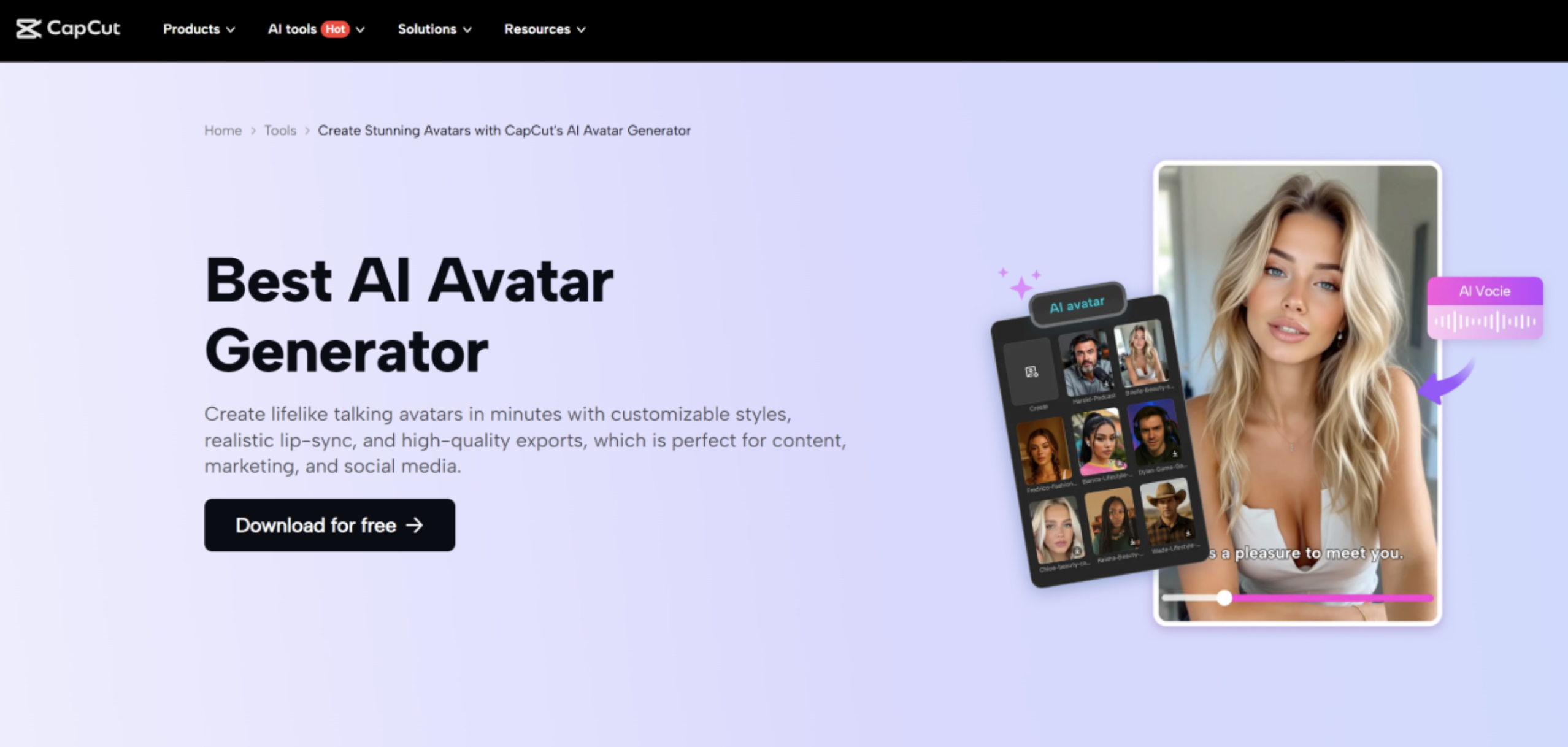
AI avatars read out each vocabulary word exactly, so students do not find it difficult to remain in sync without losing their way. Students learn the word better when they watch it show up on screen and hear the AI avatar read it because of double vision and hearing. Educators can enrich reels by adding graphics or illustrations created with an AI image generator to highlight important words and ideas.
After the script and avatar are ready, several reels can be recorded in just minutes, and the teachers save time and effort. The AI avatars give the videos a professional appearance by making them smooth and whole, without the teacher having to appear on camera. This helps in prepping the content regularly for students or language learners.
CapCut Desktop Video Editor includes over 1,000 avatars and 150 AI voices. Educators can use the most suitable AI avatar and voice per language, lesson type, or instructional strategy.
This allows each educator the ability to create every reel as similar as possible in tone and grade to the lesson. Using avatars in this way makes learning vocabulary fun, accessible, and entertaining without interfering with the pace of video production for instructors.
Maximizing AI Avatars for Language-Learning Reels
CapCut Desktop Video Editor offers an AI avatar tool and voice options, making it easy for educators to start creating interactive language-learning reels.
Premium features such as unique voices, special avatars, or one-time characters are available if you want additional customization. With thoughtful pre-scripting and visual planning, teachers can reduce repeated edits and make efficient use of both free and paid features.
Planning word lists, example visuals, and narration scripts ahead of time ensures a smooth workflow. By keeping these strategies in mind, educators can create polished, engaging, and professional reels while minimizing costs and maximizing the app’s capabilities.
Steps to Create Language-Learning Reels in CapCut Desktop Video Editor
Step 1: Download CapCut Desktop Video Editor
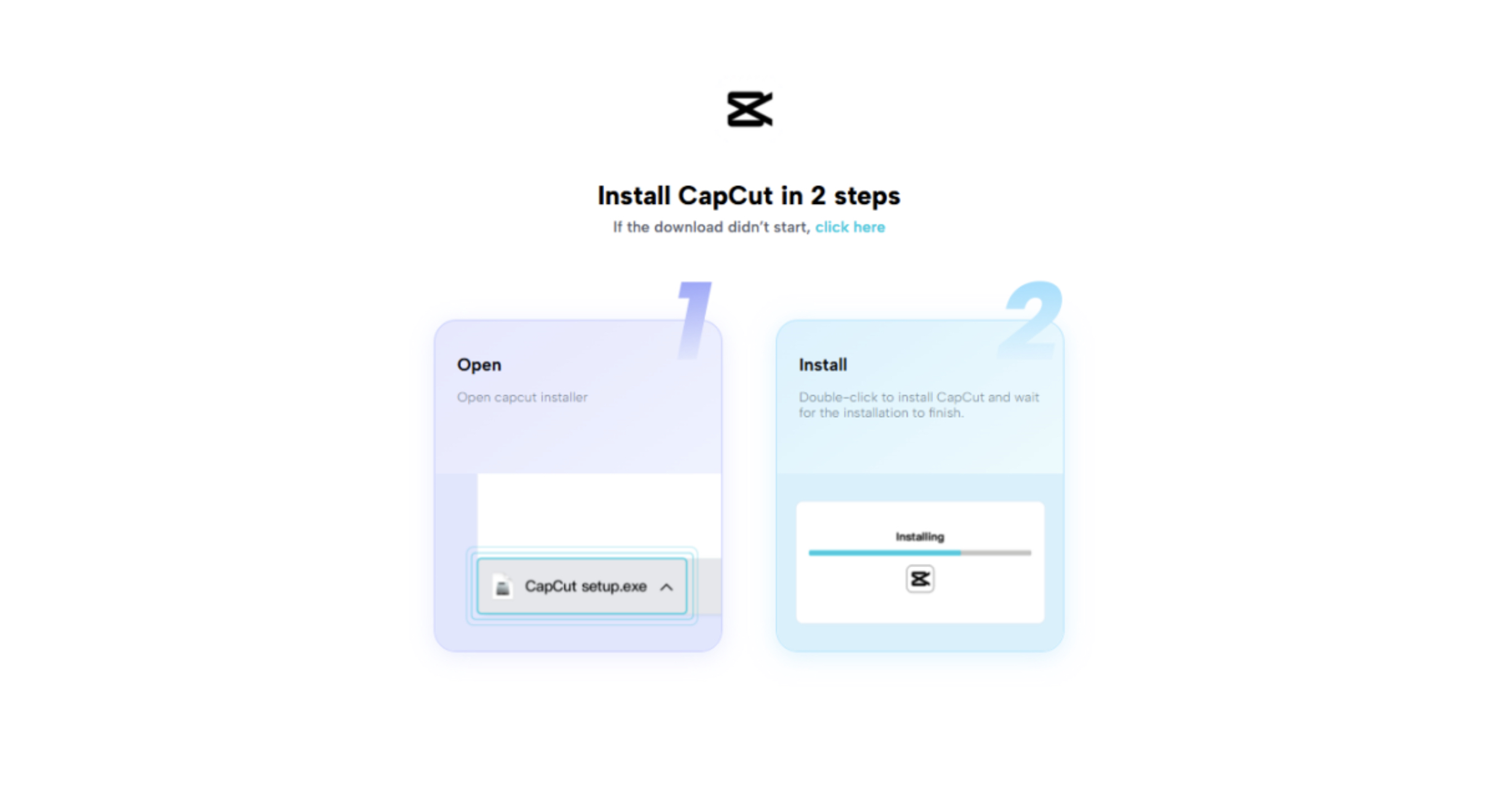
Download CapCut PC only from its official website. Make sure it is compatible with your system. Install and follow the instructions to execute the setup process.
Open CapCut PC and register or log in. The AI avatar pronunciation under basic features is cost-free. Special avatars, premium voice, or expressions cost money.
Step 2: Select AI Avatar
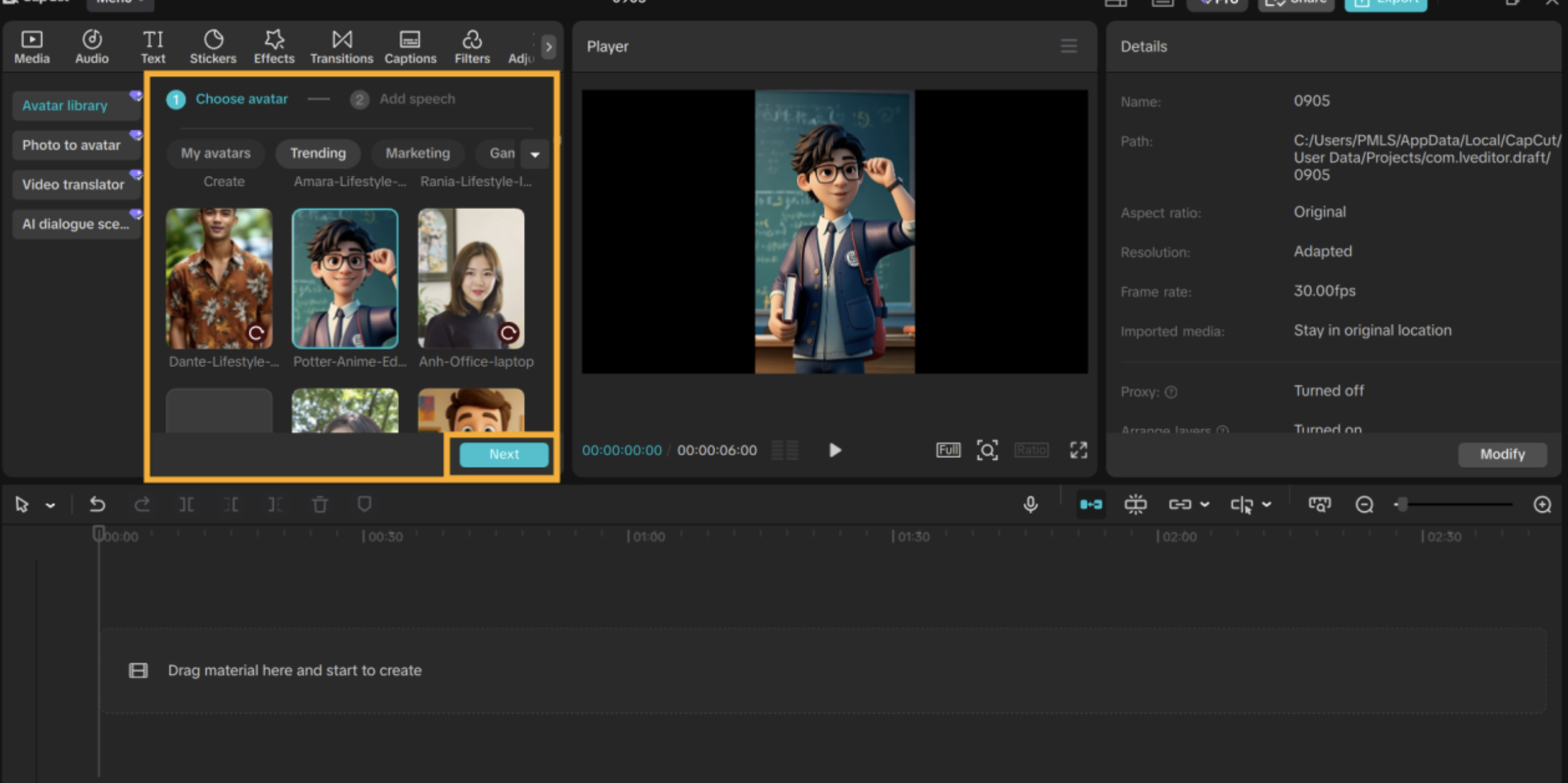
Open CapCut PC and go to the AI Avatar tab. Browse through over 1,000 avatars and select one that fits your lesson style. Pick a voice from 150 AI options and adjust speed, pitch, and expressions for a natural and engaging look. Placing the avatar first ensures all subsequent content aligns with its narration style.
Step 3: Generate Captions and Sync
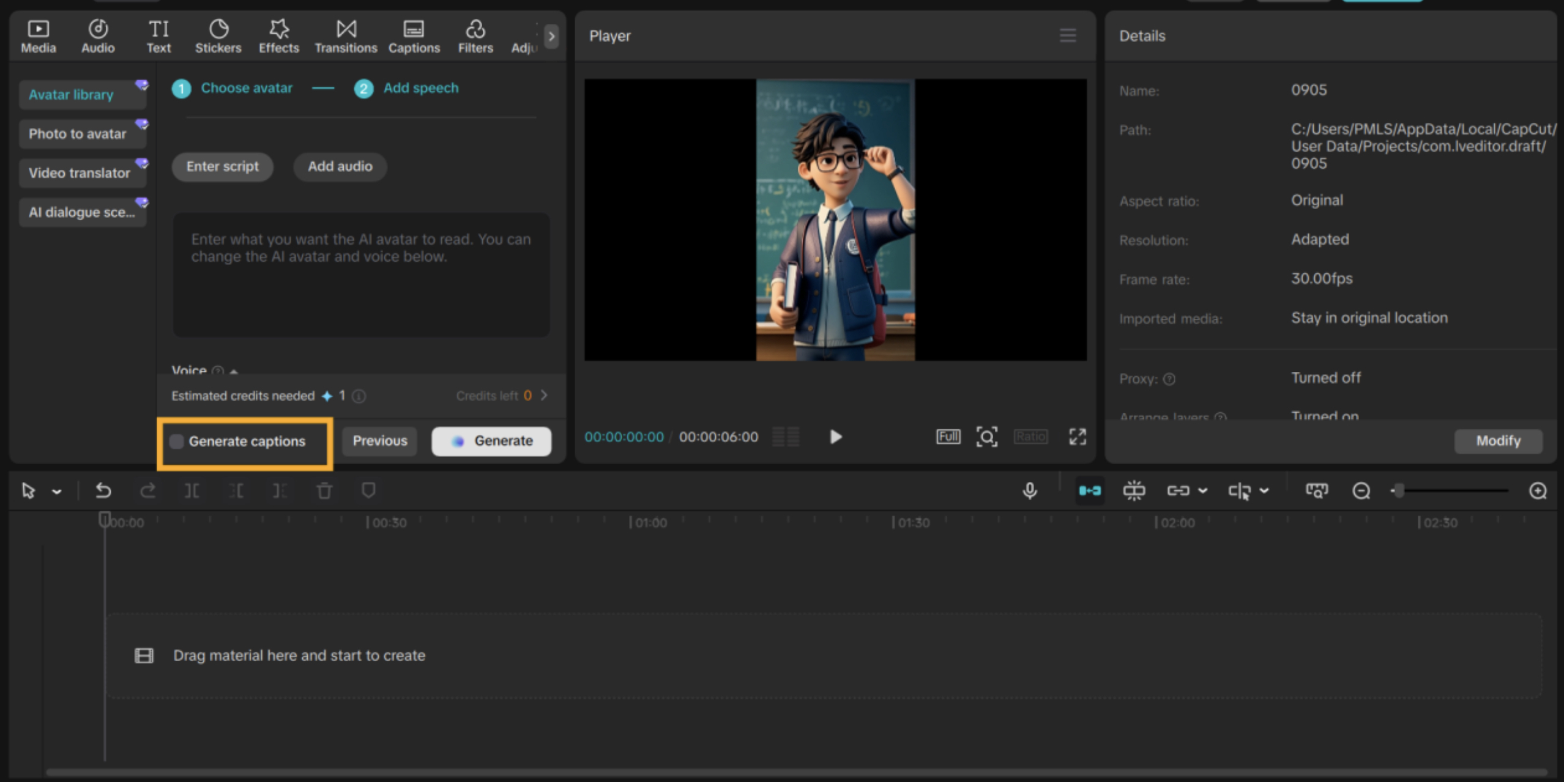
While the avatar speaks, click Generate Caption to display each word on screen automatically. Adjust the timing, font size, and placement of captions to match the narration perfectly. This synchronization improves comprehension, retention, and ensures the vocabulary reel is both interactive and easy for students to follow.
Step 4: Add Vocabulary Content
Type each vocabulary word into the speech box for the avatar to read aloud. You can add multiple words in sequence, so the avatar pronounces them clearly. Click Generate to produce the audio, creating a lively narration that helps students follow along and focus on each word.
Step 5: Preview, Edit, and Export
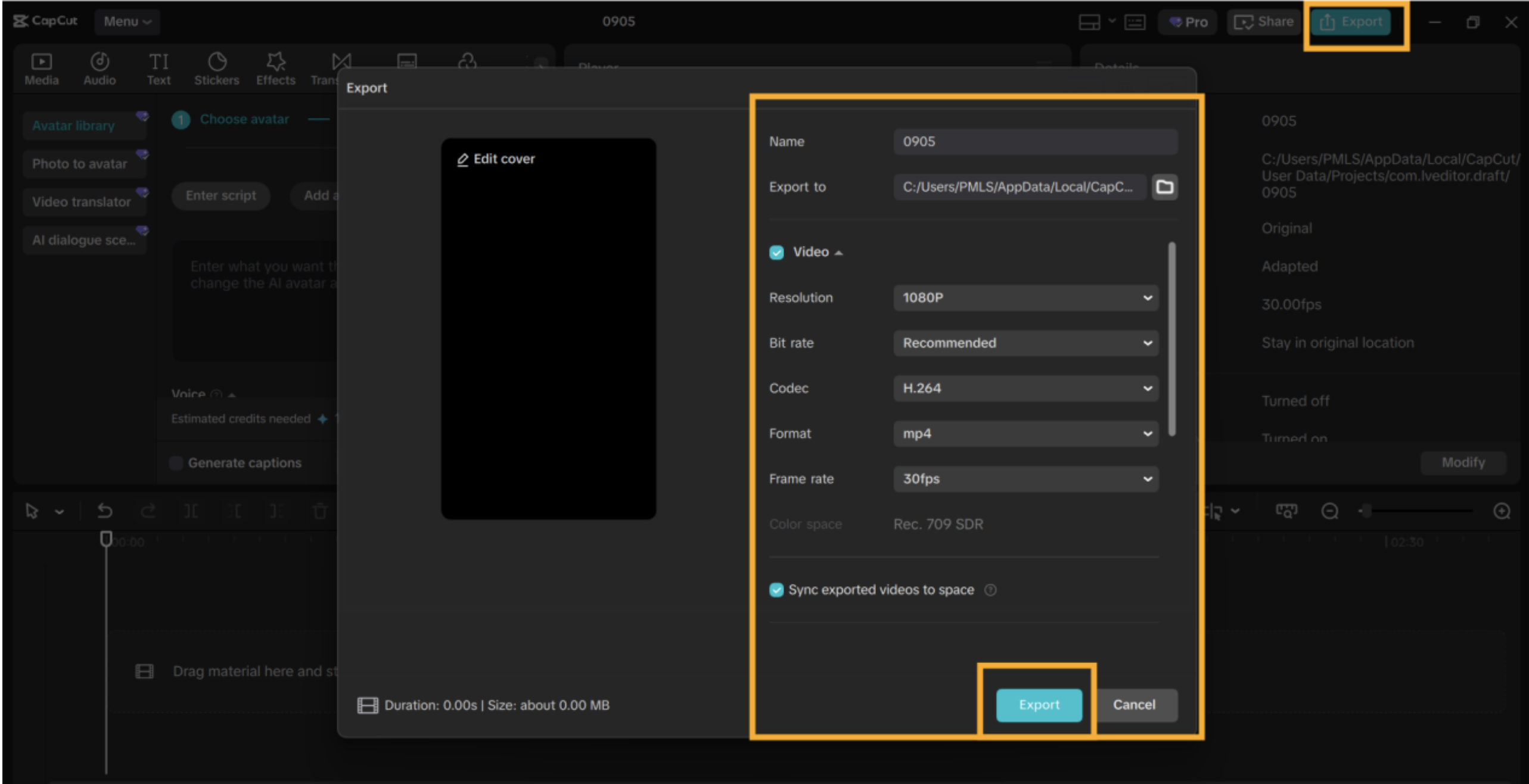
Preview the reel with AI avatar pronunciation. Time, voice, or avatar position adjustment if required. Click „Export“, choose resolution, frame rate, and format.
Exported reels are now prepared for posting on learning or social media sites. The final reel check is to ensure it is professional, clear, and effective to assist learners in studying vocabulary.
Conclusion
AI avatars make language-learning reels professional, engaging, and clear. They enable the students to hear the proper pronunciation while simultaneously having a visual exposure to all the words, which results in comprehension and memorability.
CapCut Desktop Video Editor is the teacher’s best friend and allows multiple reels to be created with efficiency. Even though advanced features like special avatar facial expressions or high-definition voices are chargeable features, simple avatars and pronunciation are available for free.
Students and teachers can start making vocabulary reels today to learn more quickly and efficiently. Start making your first language-learning reel with AI avatars today using CapCut Desktop Video Editor and make it possible for students to learn new words more easily and quickly!