You've probably been in similar situations. Someone sends you a long message with directions to their accommodation, but all you need from it is an access code. Or you want to copy the tracking number that's hidden between the greeting and a few sentences about the delivery.
You might be interested in

Copying the entire message, pasting it into Notes, and then deleting everything around it is a waste of work. Since the arrival of the Messages app, iOS 26 you can mark and copy only a specific snippet. You just need to know where to look for this option.
The trick is the Select option, which you'll find in the menu after holding down on a message. If you've been automatically tapping Copy, you might have missed it. There's a key difference between these two options: one copies the entire bubble, while the other lets you decide what you really want from it first.
How to copy only selected text
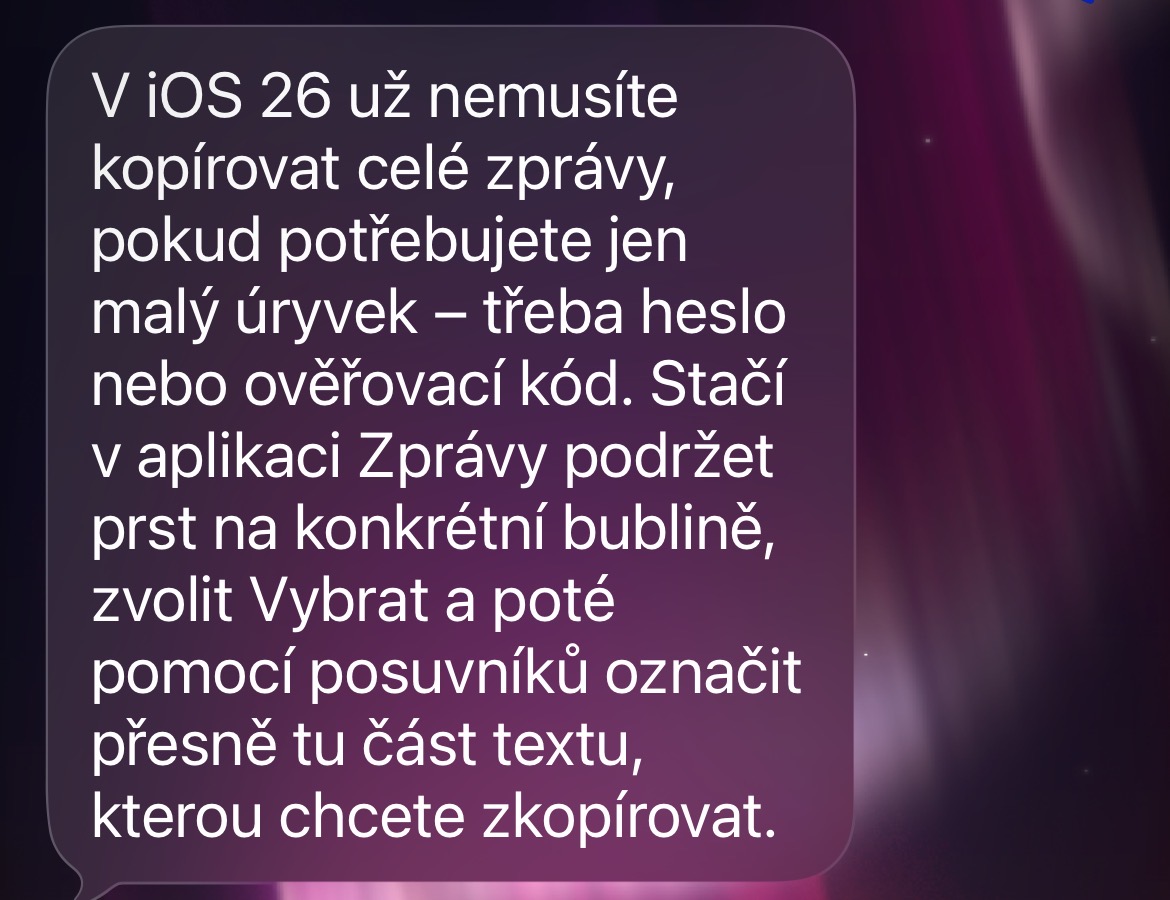
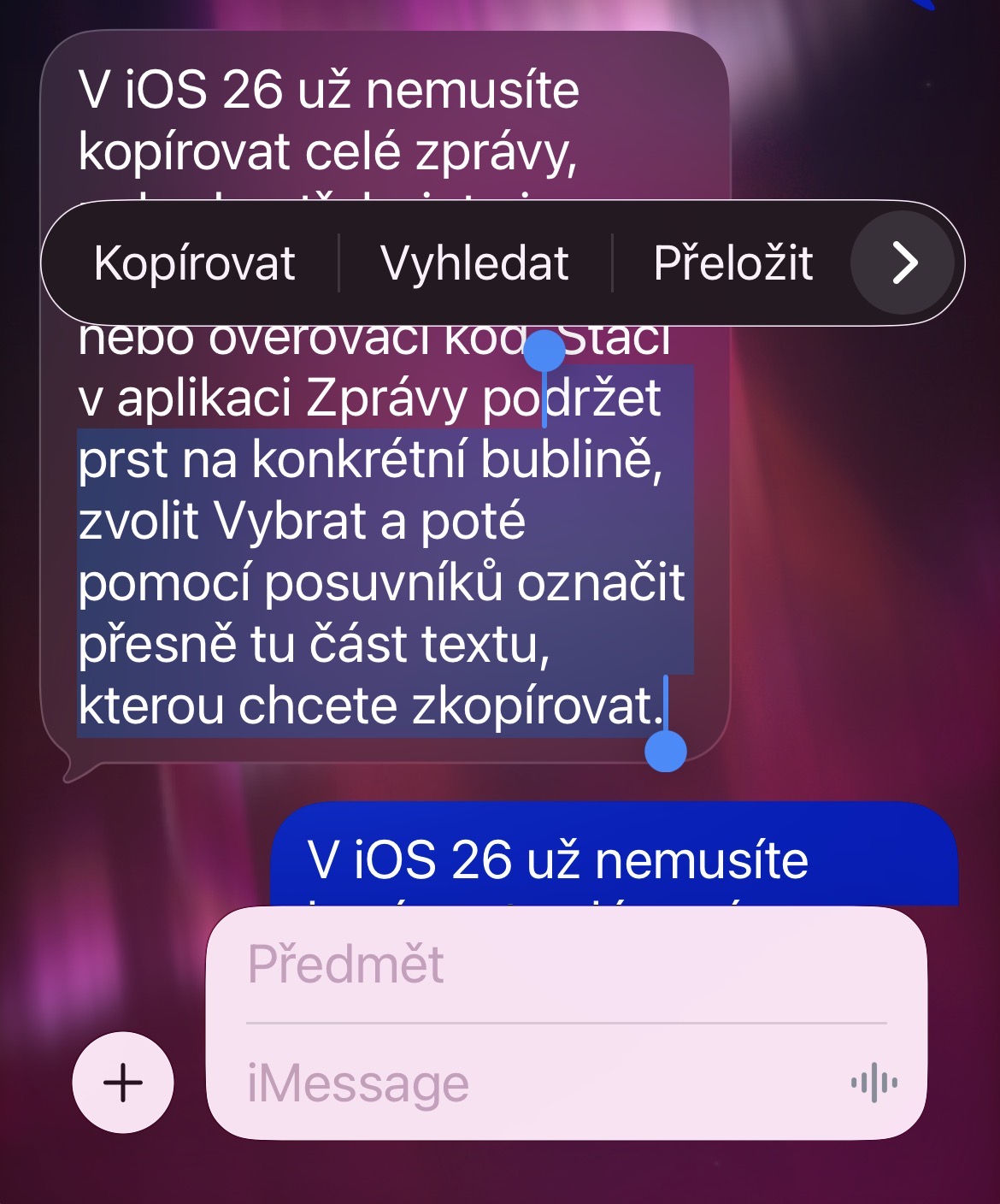
Open the Messages app and go to the conversation with the text you need. Touch and hold the text bubble until a menu appears. Tap Select.
Then, use the handles at the beginning and end of the selection to select the part you want. It can be a single word, a numeric code, or several sentences. When exactly what you need is highlighted, tap Copy. Then open the destination app, tap and hold in the text field, and select Paste.
For numbers and passwords, it is worth checking both ends of the selection before copying. A period after a sentence or a space before the data itself usually does not belong in it. This will prevent a situation where the correct data does not pass because of just one extra character, especially when pasting into forms.
Gallery
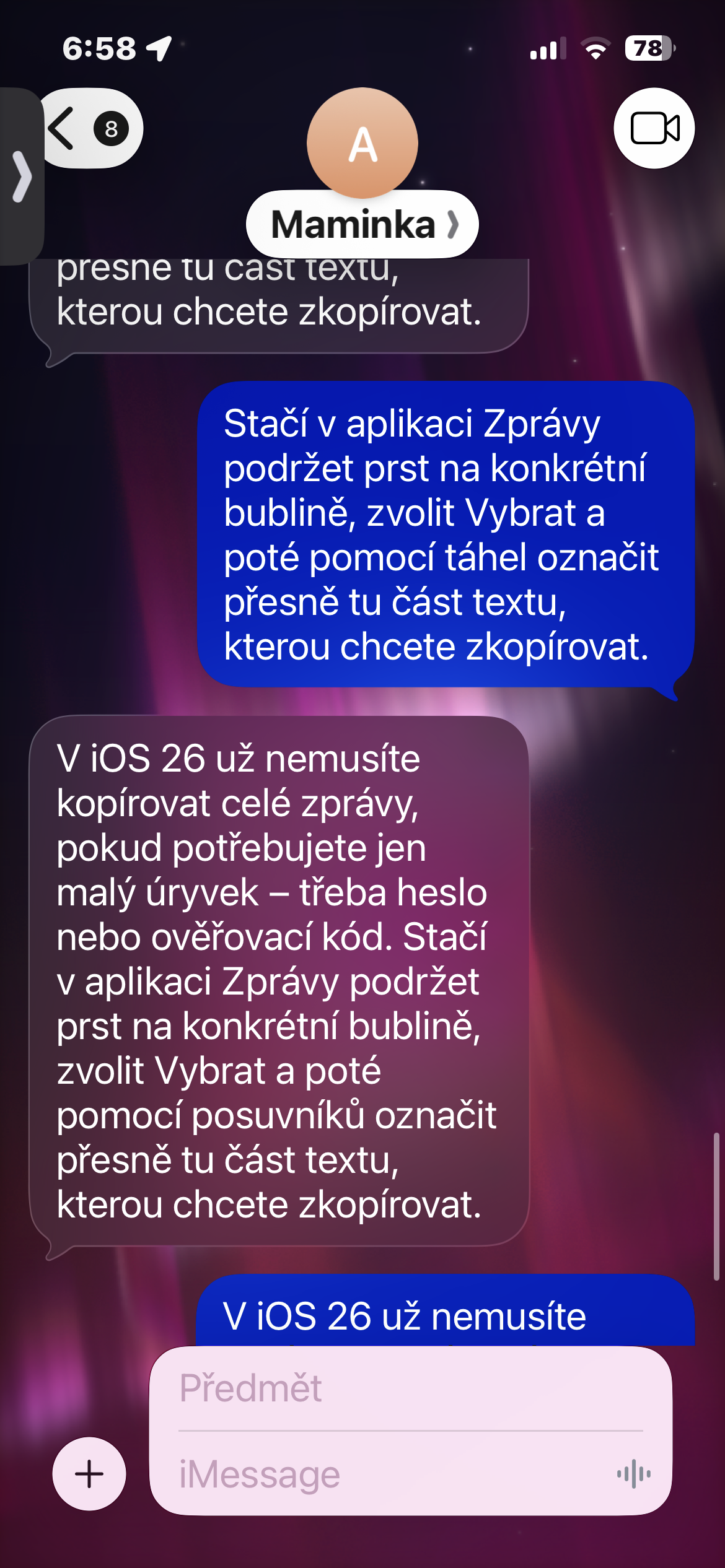
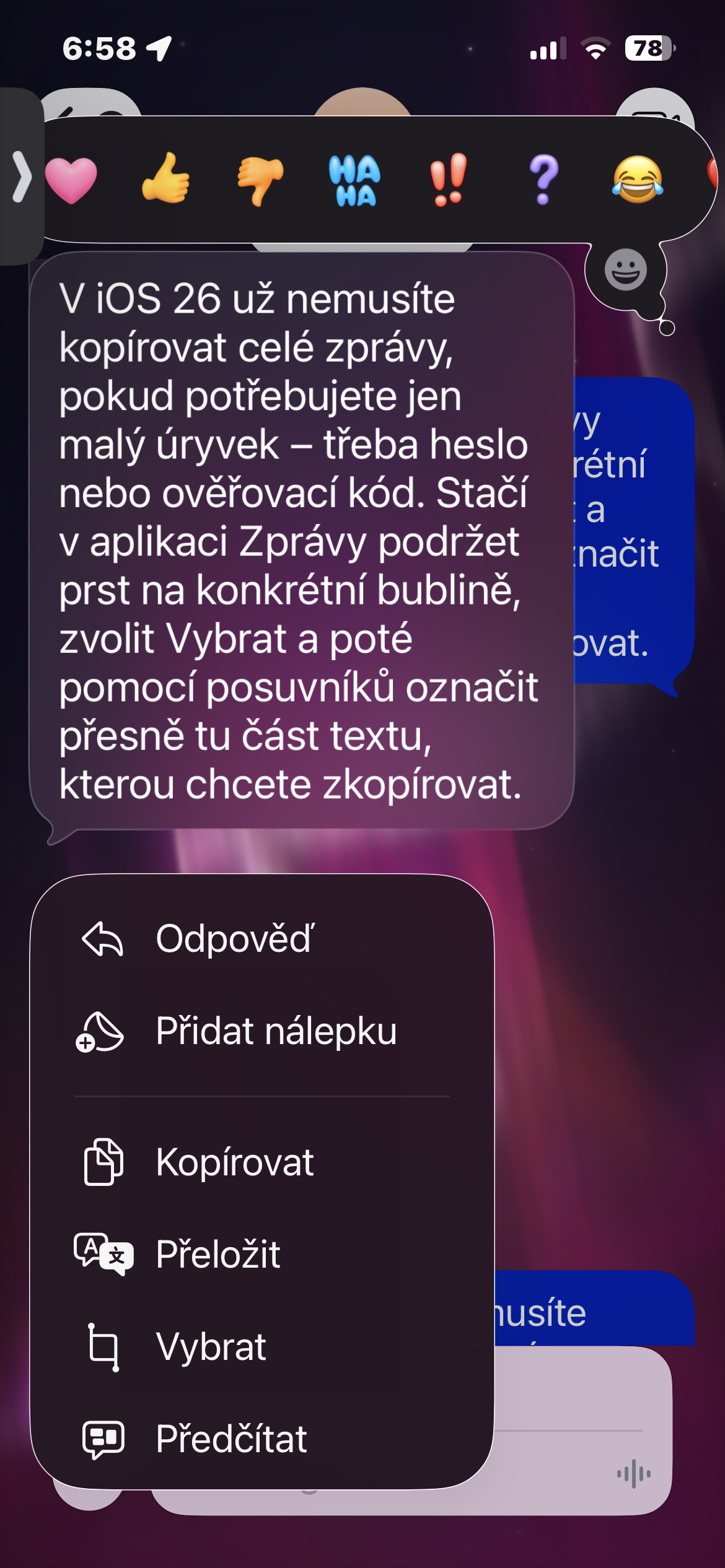
When does this little thing really come in handy?
Imagine a message from your host that contains the apartment address, floor, key box code, and Wi-Fi password. You only need the address for navigation, you want to send key instructions to your fellow traveler, and you use the password to connect to the internet. You can copy all the information directly from the original message, without any notes or retyping.
The selection is equally practical for a longer shopping list or work instructions. If you want to forward just one sentence to someone, you don't have to send the rest of the conversation contained in the bubble with it. Of course, the original message is not changed in any way, you are just working with a copy of it.
If you don't see the Select option, make sure you're using iOS 26 or later and that you are actually working in the Messages app. This procedure applies to the text in the message, not the captions inside the attached photo. On older systems, you can still copy the entire bubble to Notes and select the desired snippet there. With the newer version iOS But you can forgive this detour.