The iPhone camera offers more and more features, but this brings with it a rather logical problem. While some people are constantly changing exposure, image format, or photography styles, others practically only need a flash and a timer. Apple for many years, it has determined what controls you will see and where in the application. In iOS 27 is itoneThe camera can be customized to your needs to some extent.
You might be interested in
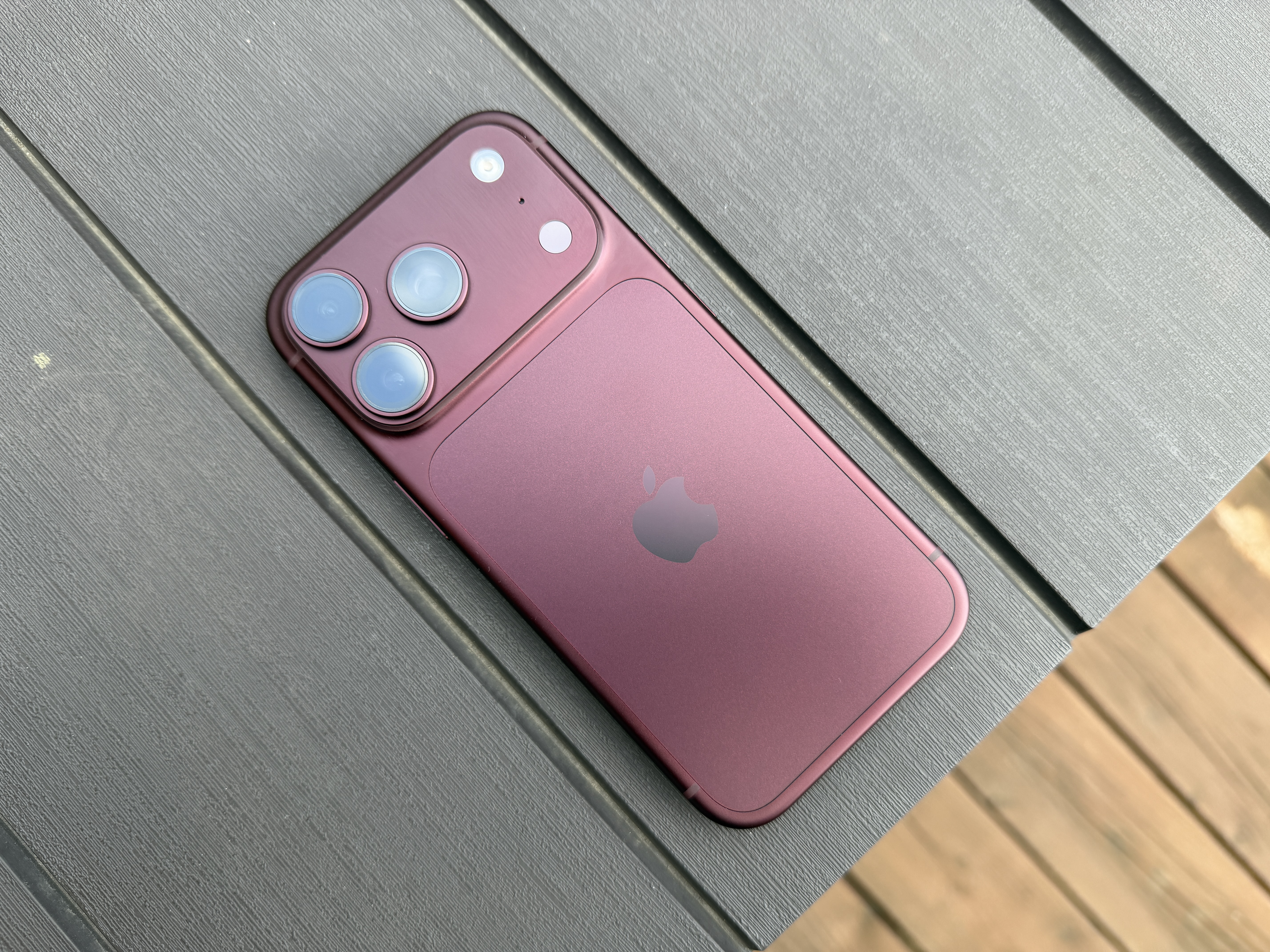
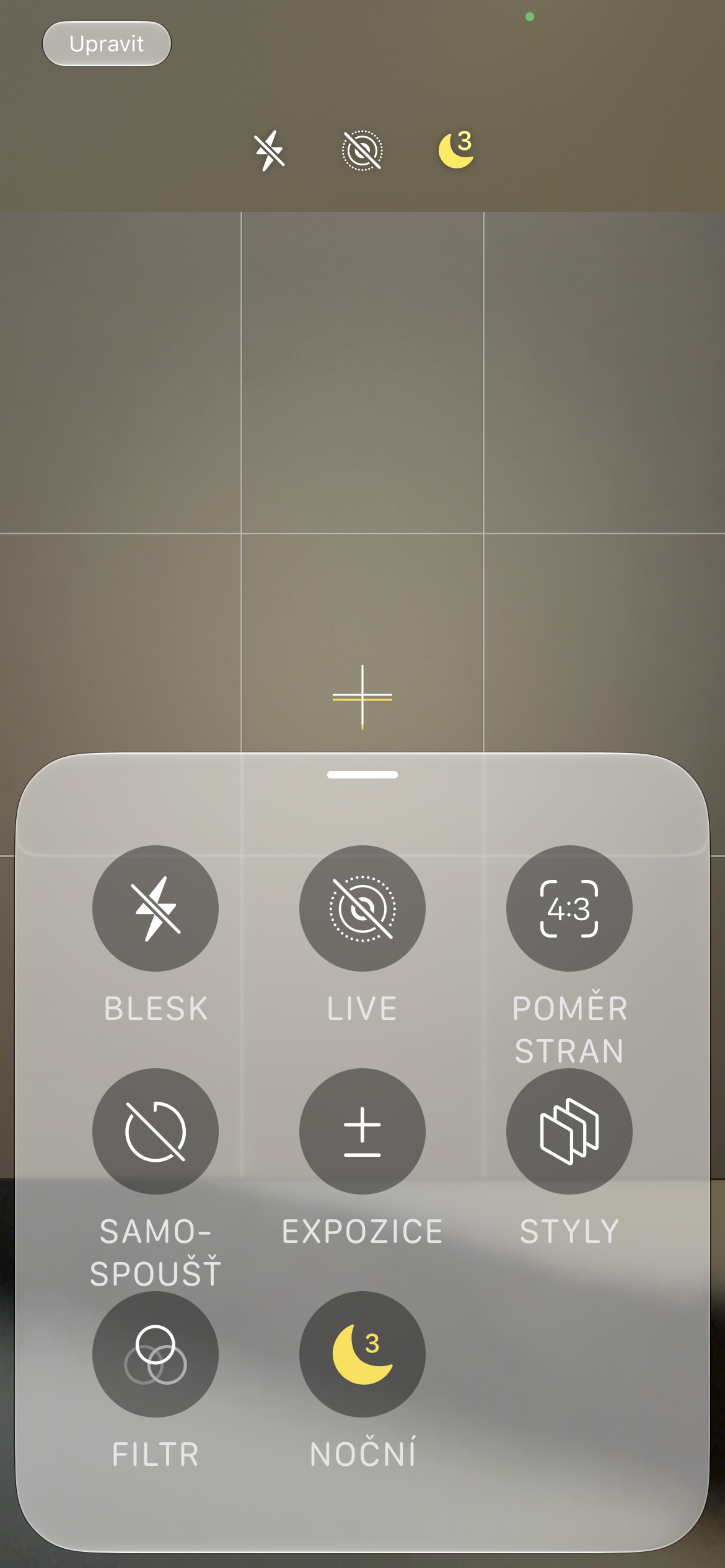
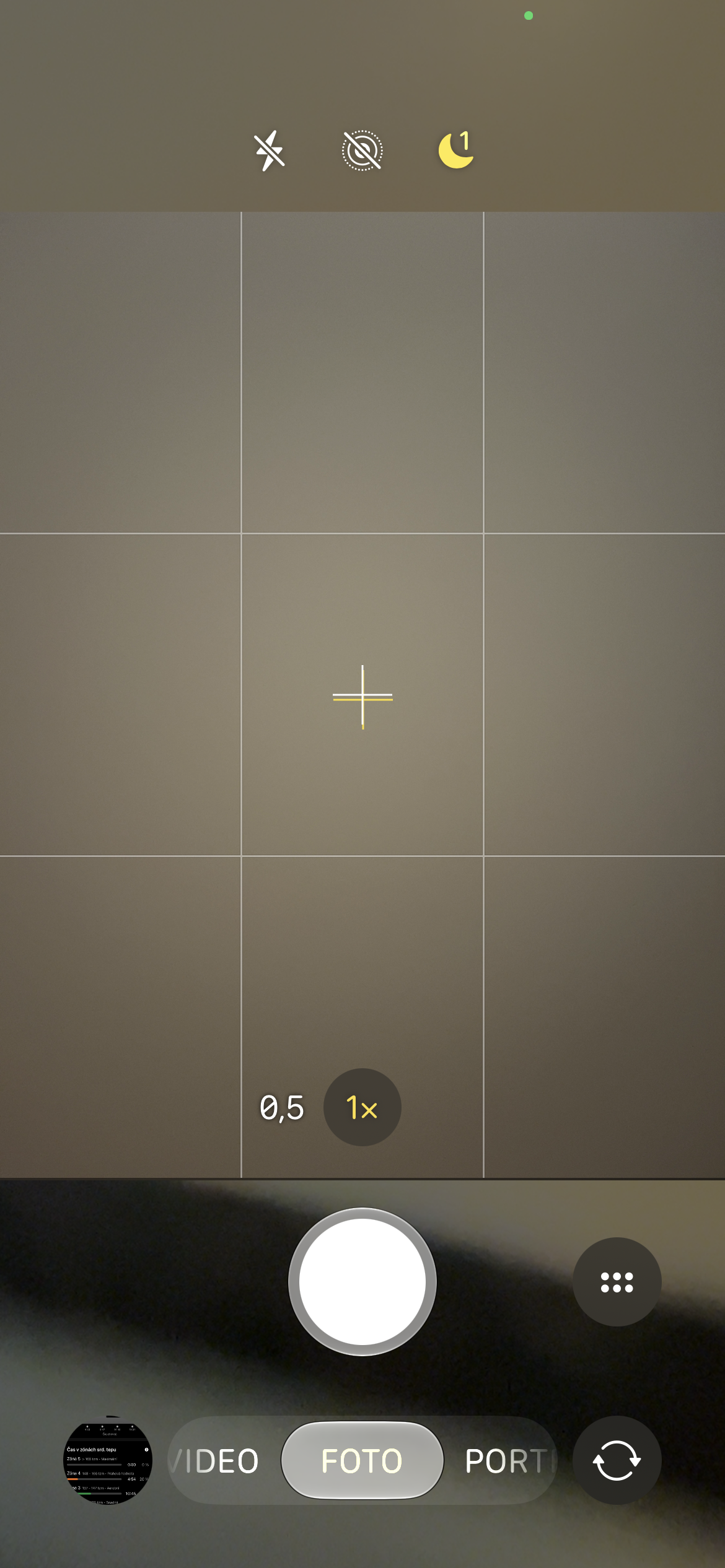
New customization options let you add and remove controls at the top of the Camera interface. Depending on your iPhone model, you might have flash, Live Photo, aspect ratio, timer, exposure, photo styles, filters, depth of field control, night mode, Center Stage, file format, or Shared Library.
How to adjust Camera controls
Launch Camera on your iPhone and tap the six-circle button in the bottom right corner. Then tap Edit in the top left corner. This will bring up a menu for adding controls, where you can simply select the features you want to have available in the Camera interface and remove the ones you don't use. Once you're happy with the results, tap Done in the top right.
Gallery
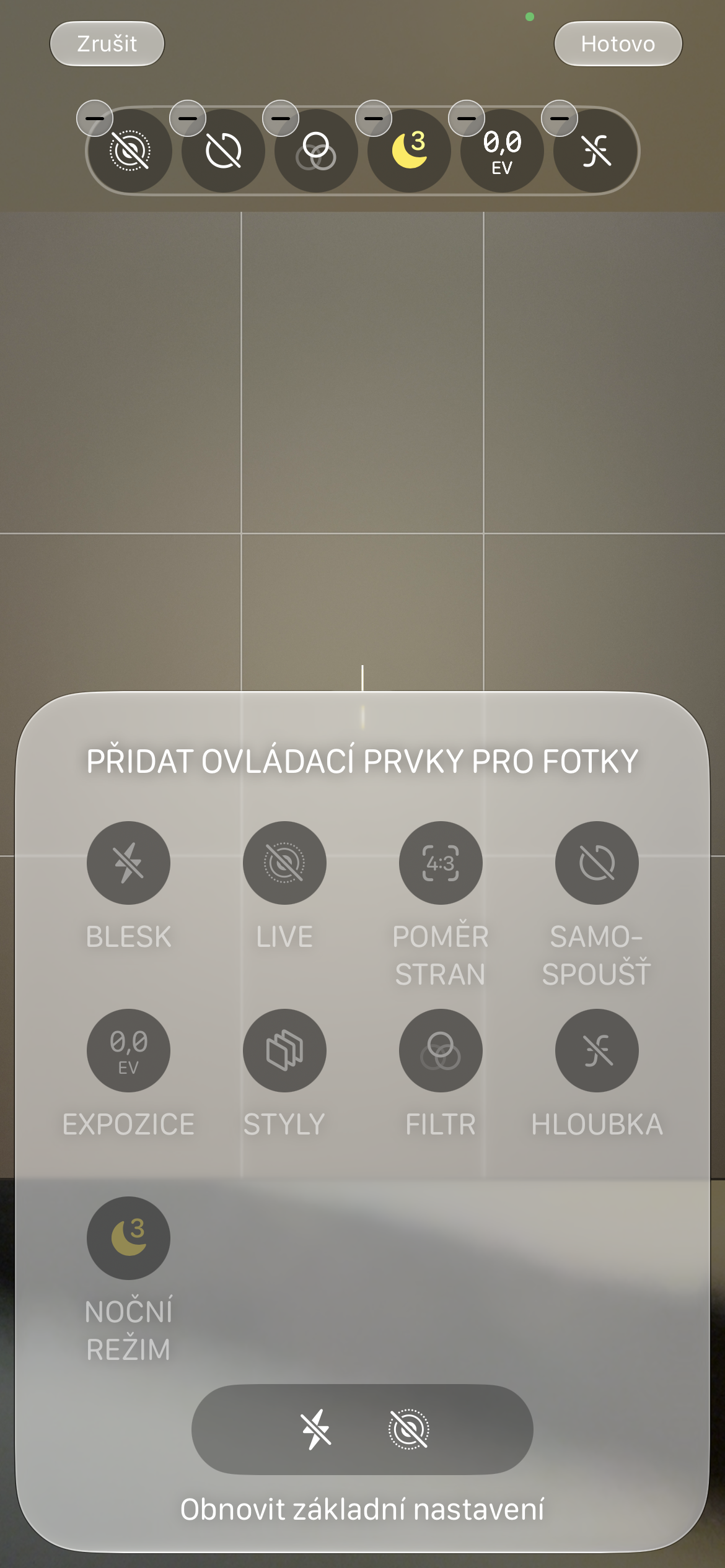
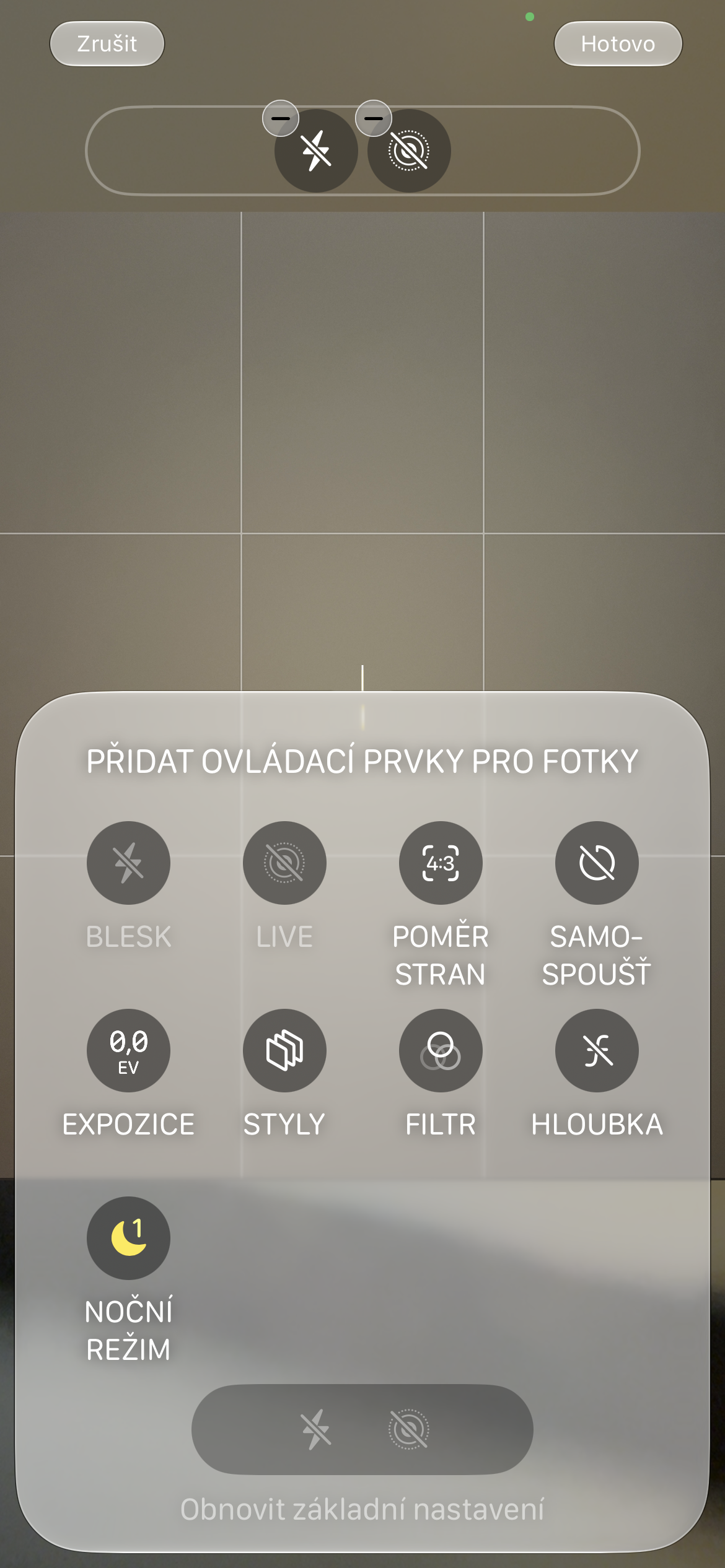
If you end up modifying the layout too much over time and want to go back to the beginning, you don't have to laboriously change individual items back. There's an option at the bottom of the menu to restore the basic selection of controls.
The main thing that is nice about the whole function is that Apple it doesn't force users into a more complex interface, but only gives them the opportunity to decide what they really want to have at hand. Moreover, customization is part of iOS 27 in all iPhonethat support this system, and is therefore not reserved only for the latest models iPhone 18.