Once you have dozens or hundreds of entries in the Notes app, classic folders are no longer ideal. You have to manually save each new note where it belongs, and with a large amount of content, it can be quite easy to get lost. This is where dynamic folders come in, which can do some of the organizing for you.
You might be interested in

Unlike a regular folder, they don't contain notes that you manually moved into them. They work using filters and automatically display all records that match the conditions you set.
One note can be in multiple places
For example, a dynamic folder can display all notes with a certain tag, shared records, or notes with attachments. Once a note no longer meets the set rule, it automatically disappears from the folder.
The main practical thing is that you don't have to place a note in just one place. If it meets the rules of several dynamic folders, it will appear in all of them. A note about a business trip can be both among work materials and among entries tagged with a travel tag.
This is especially useful when studying, managing multiple projects, or storing recipes, shopping lists, and various documents that you want to quickly return to later.
How to create a dynamic folder in Notes
The setup itself only takes a moment:
- Open the Notes app on your iPhone.
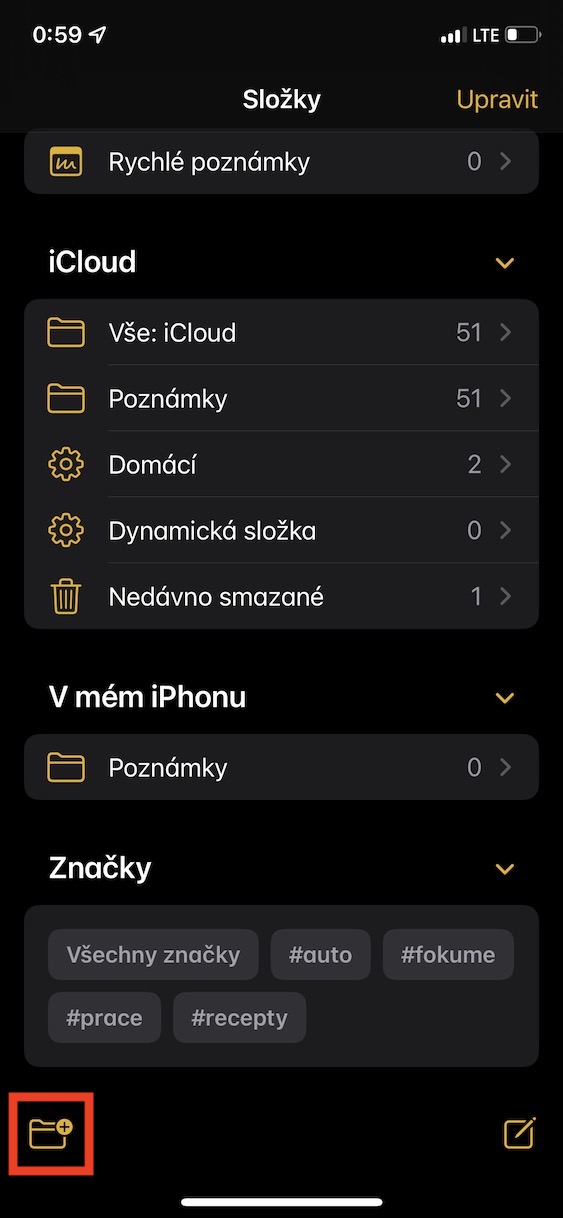
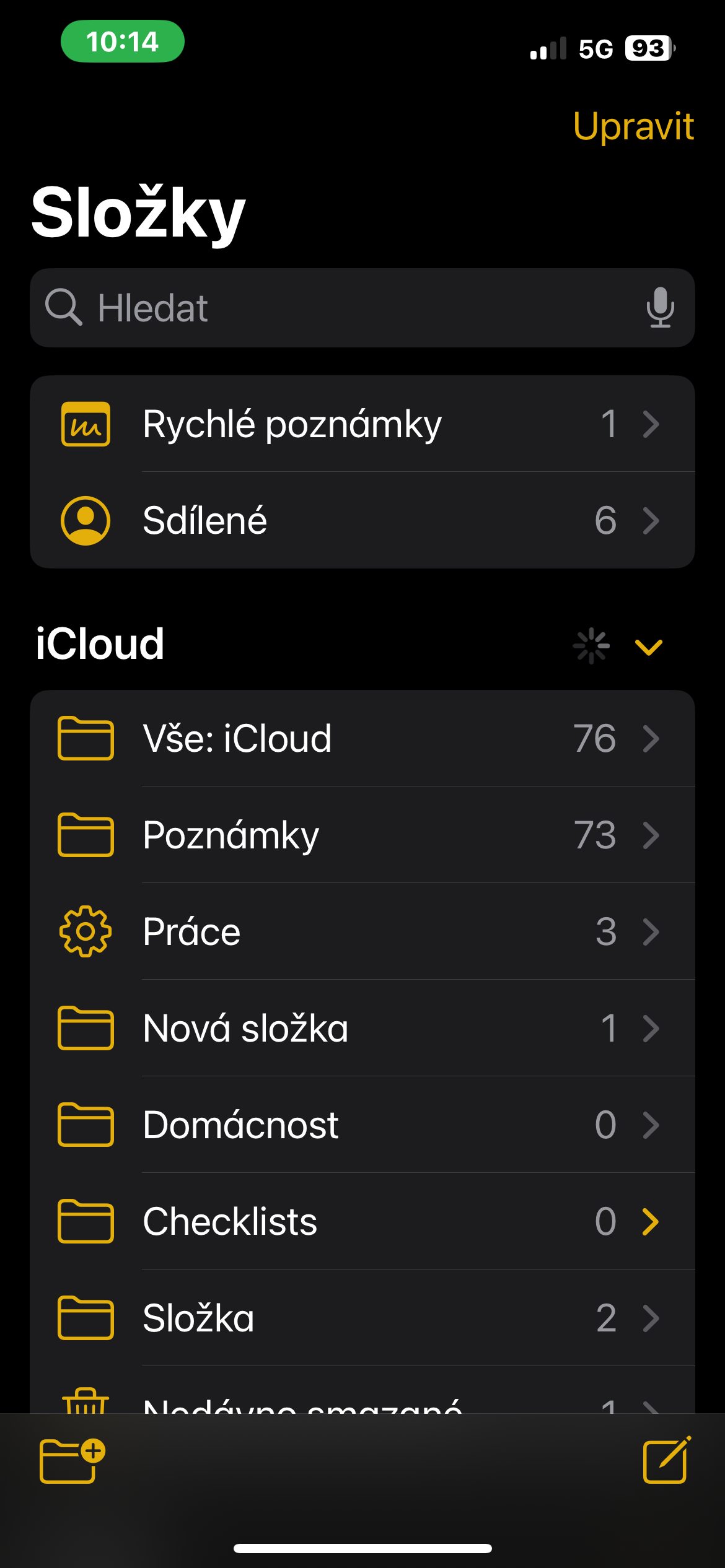
- Go to the folder list screen.
- Click the icon at the bottom left to create a new folder.
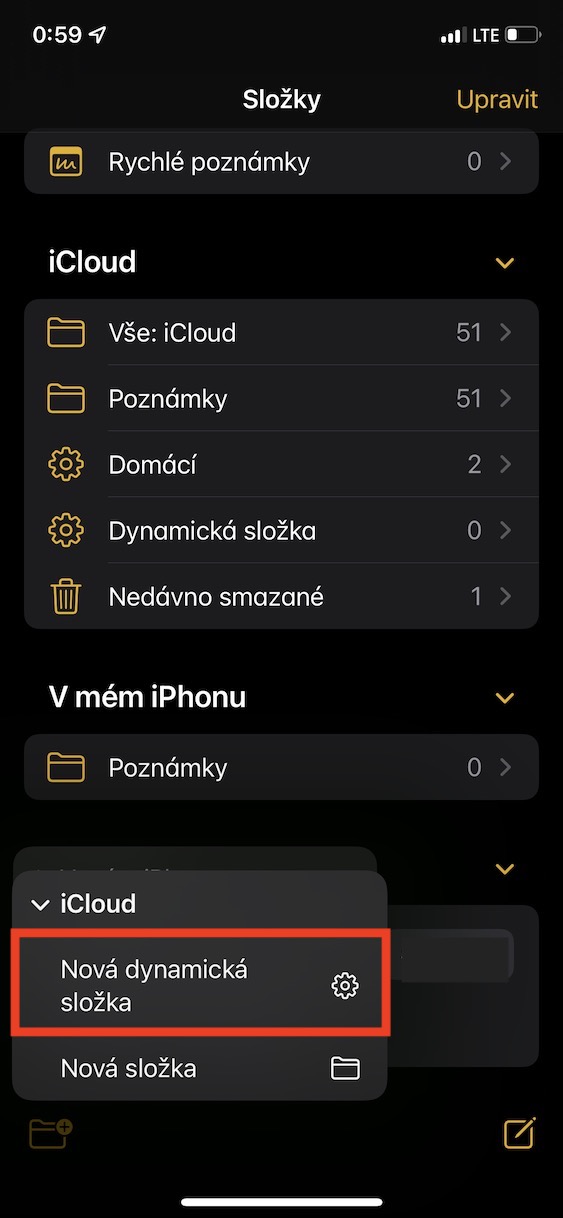
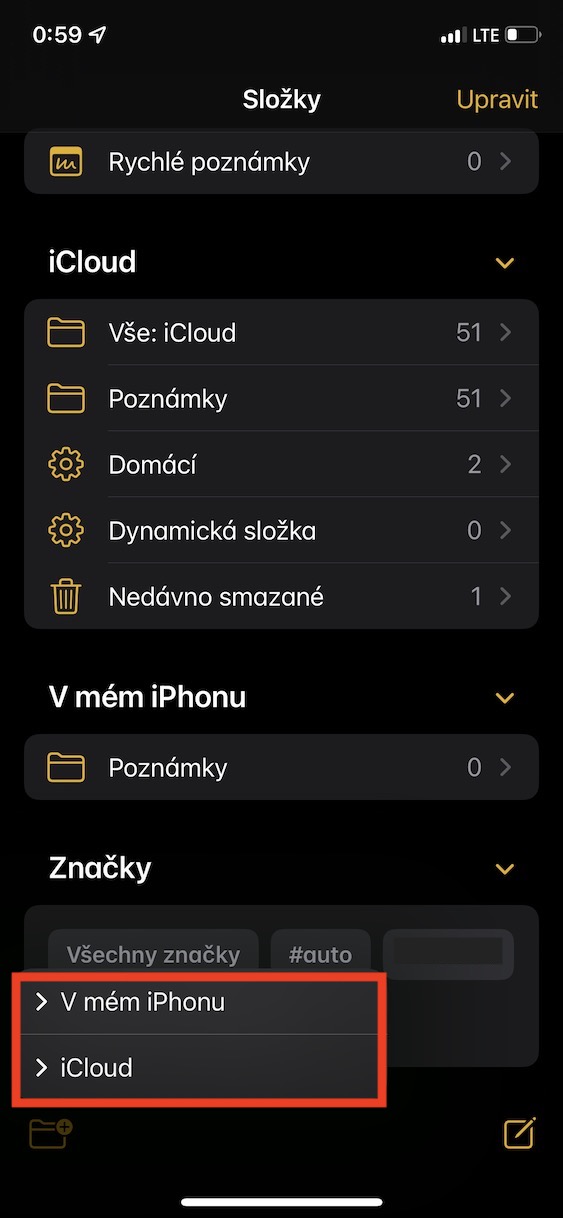
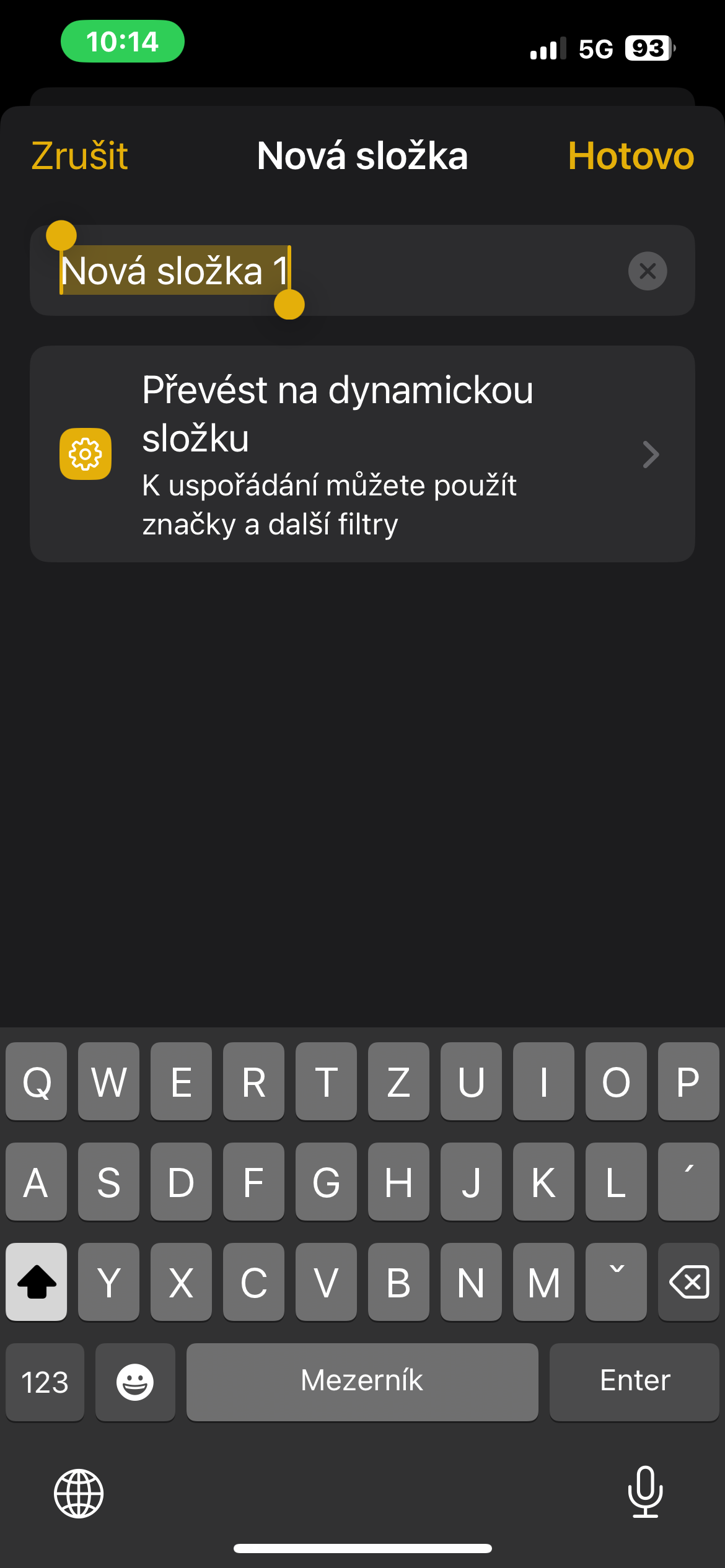
- Choose where you want to save the folder.
- Select Convert to Dynamic Folder.
- Set the rules by which notes should be filtered.
Gallery
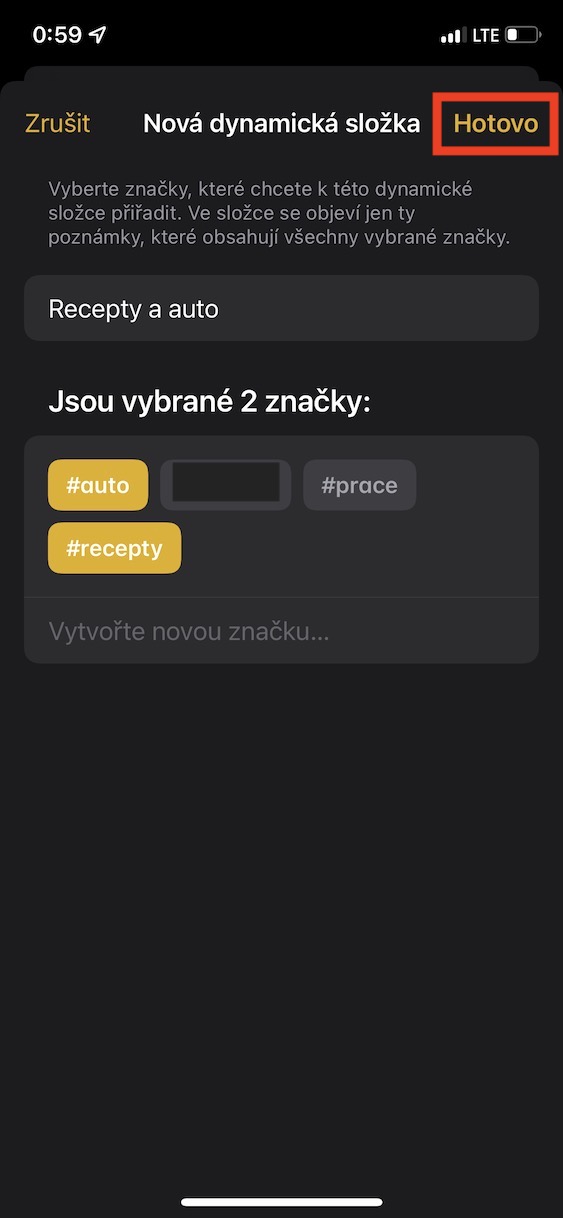
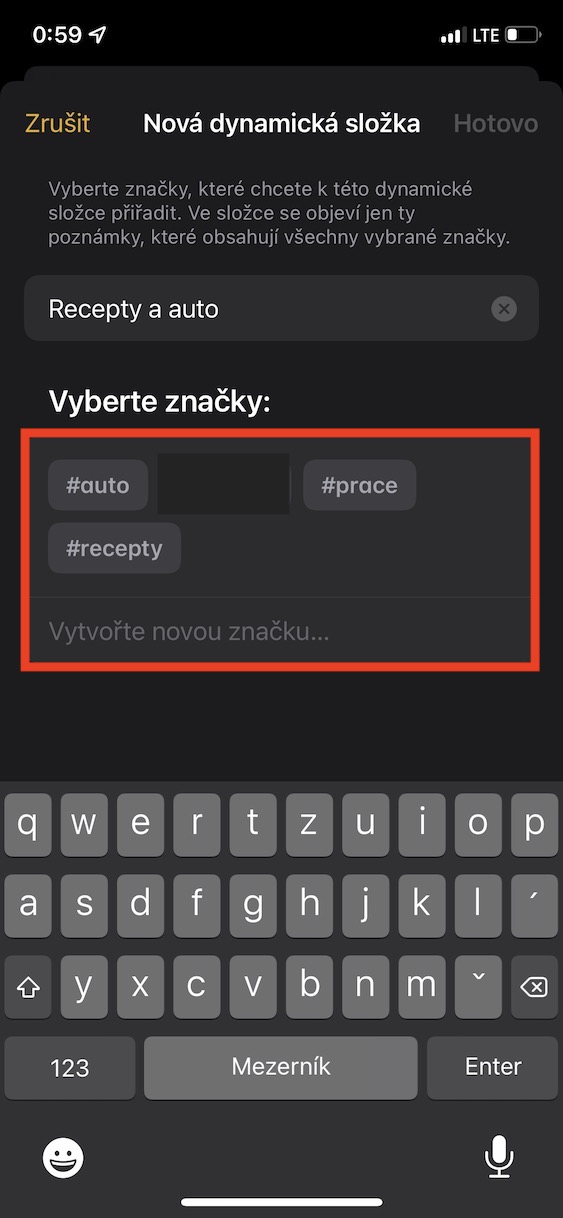
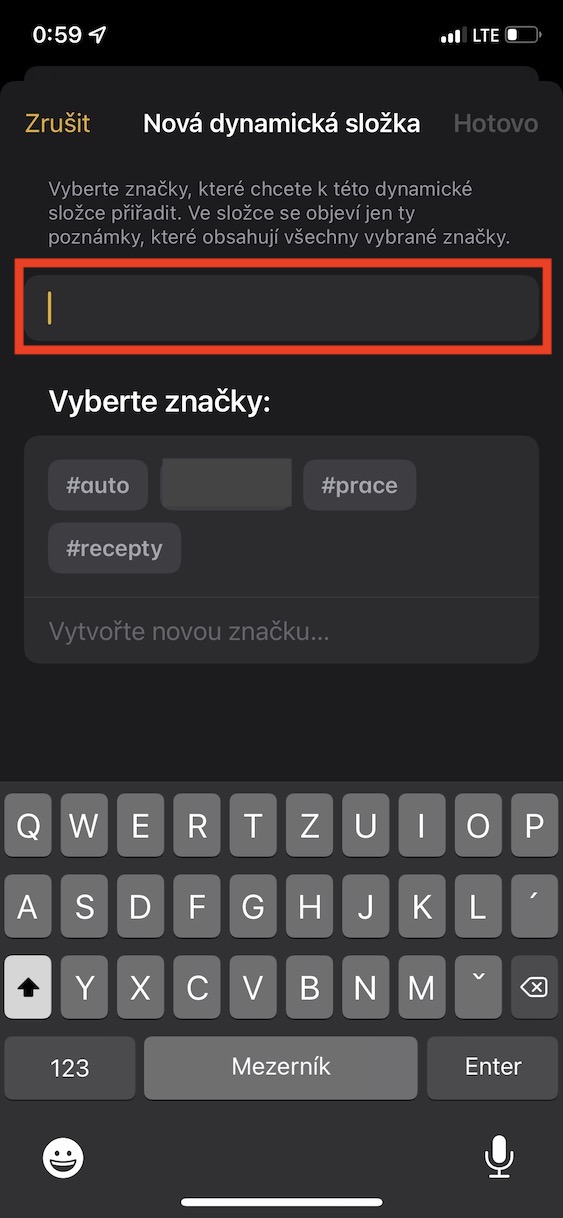
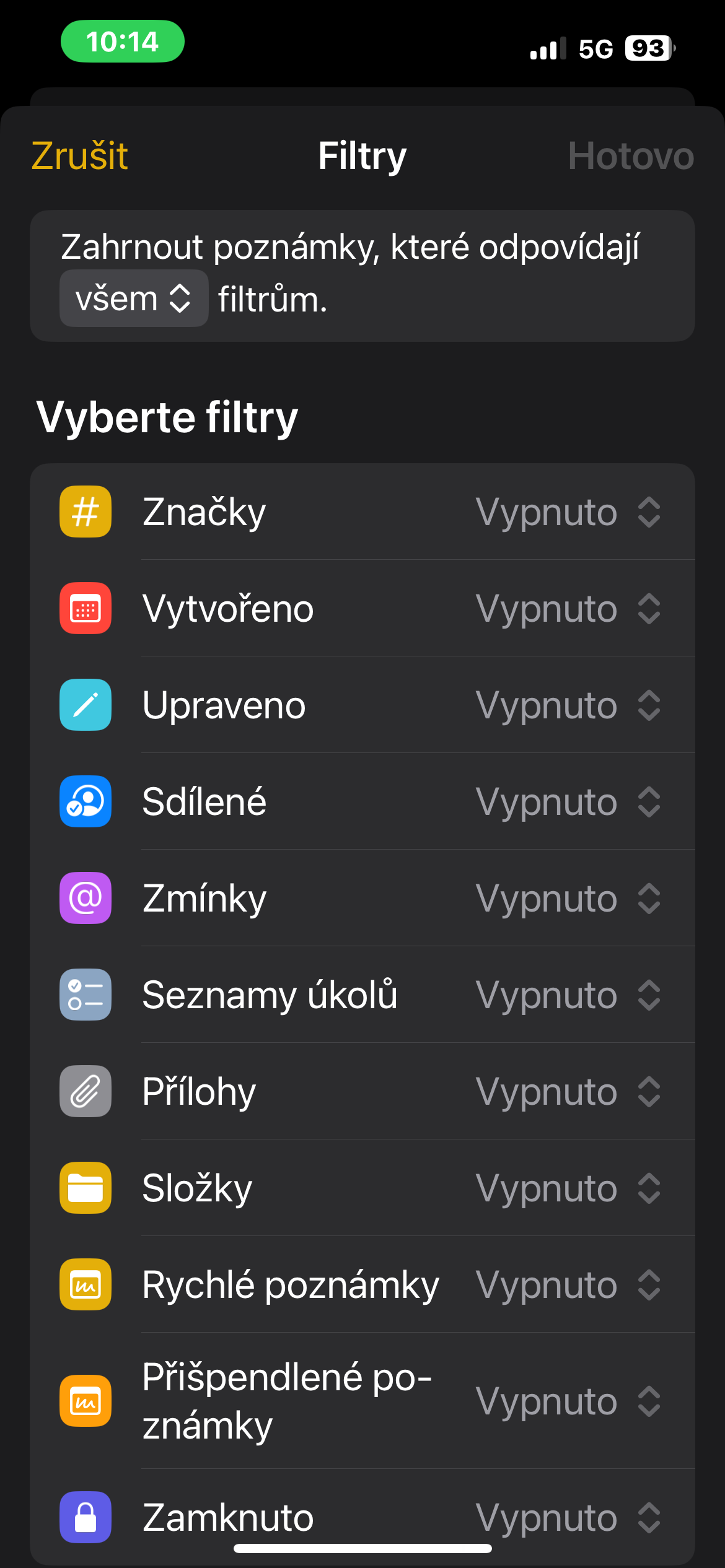
Once saved, there is no need to manually manage the contents of the folder. Notes will appear in it based on whether they match the conditions you set.
Dynamic folders make the most sense when you use Notes regularly and don't want to keep moving each new item somewhere. You just need to think about the system of tags and filters once, and the application then keeps the individual groups up to date on its own. This can easily turn a simple list of notes into a much more organized work system.