If you often create very similar lists in Reminders, there's no need to start from scratch every time. Apple added the ability to save a finished list as a template and later create a new one from it in a few seconds. This is especially useful for tasks that always have the same or very similar structure.
You might be interested in
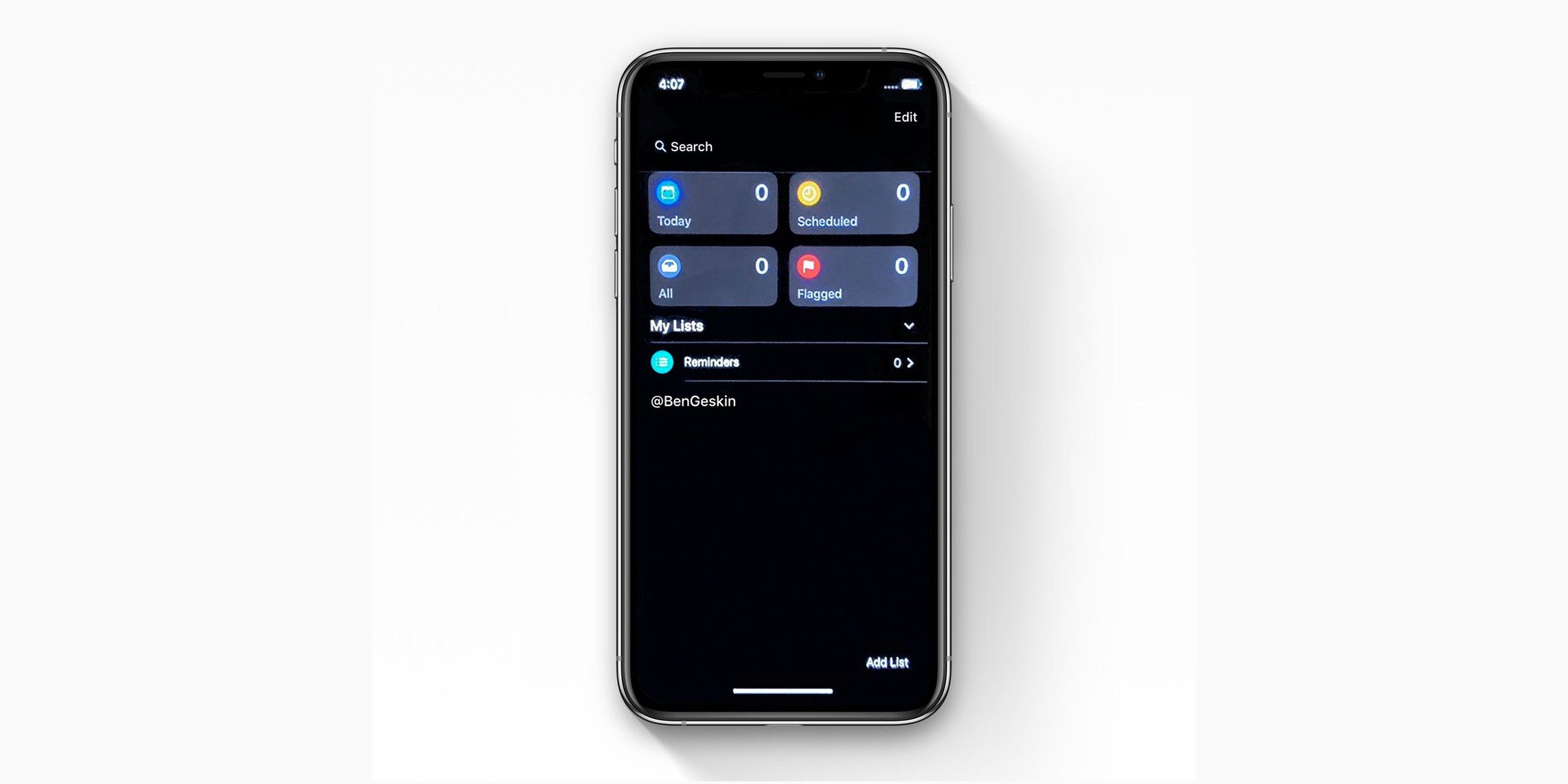
The main advantage of templates is that they preserve the prepared items and basic list organization. Then, when you need to use the same procedure again, you create a new copy and possibly only edit what is different this time. The original template remains unchanged and can be used repeatedly.
How to save a list as a template
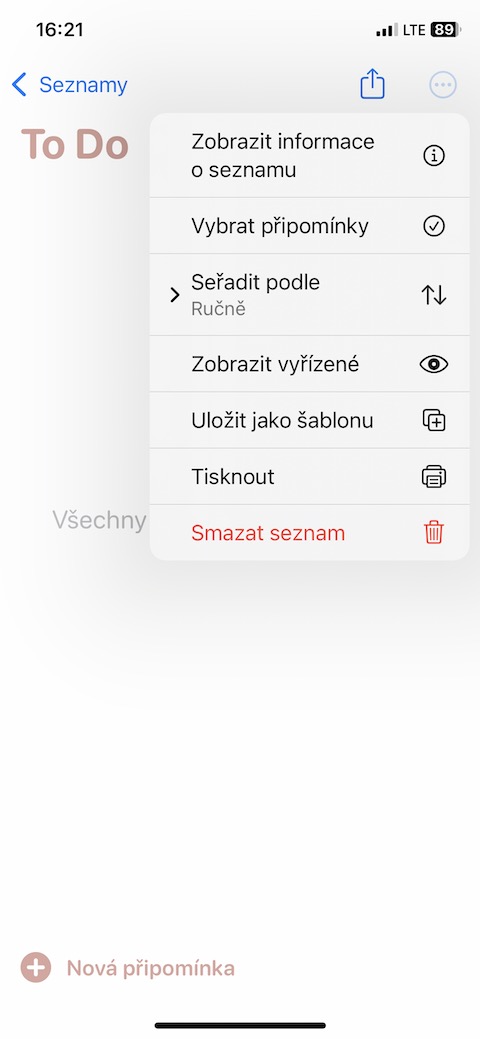
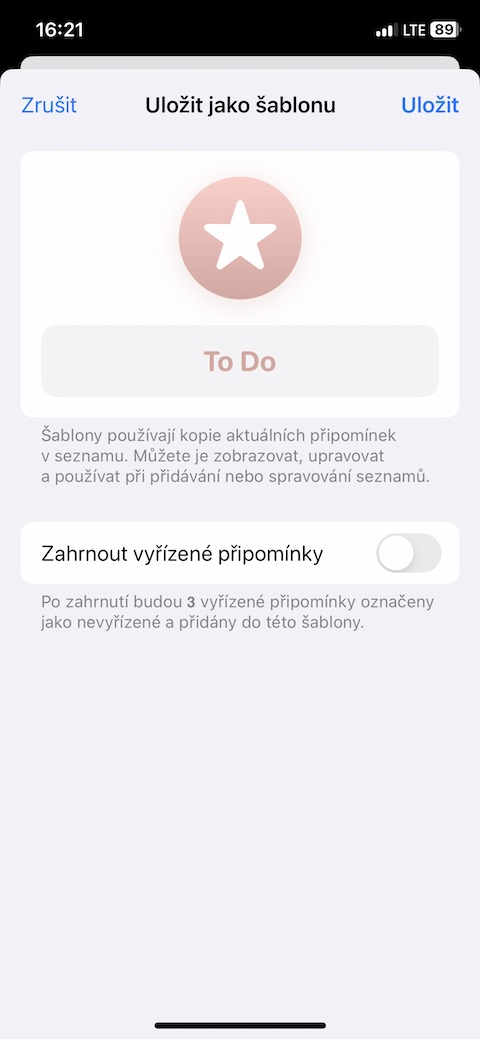
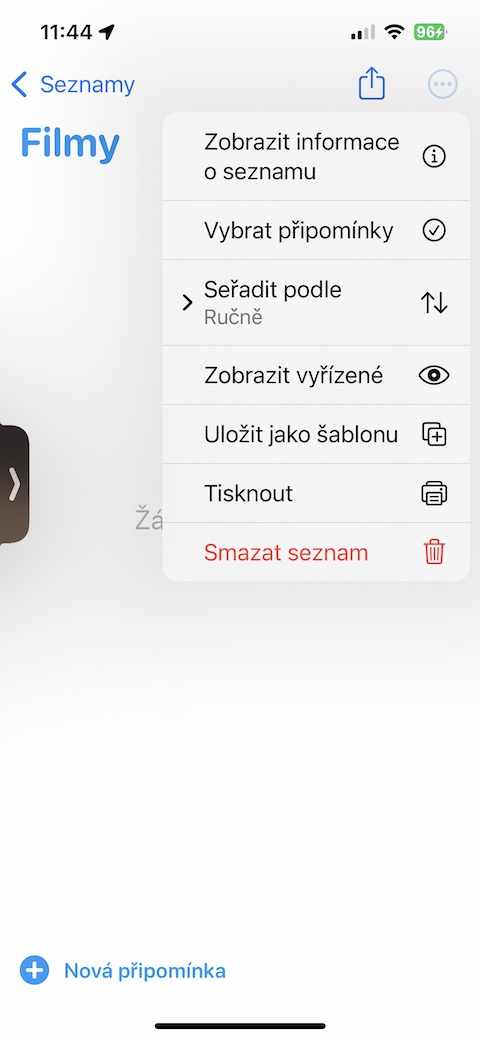
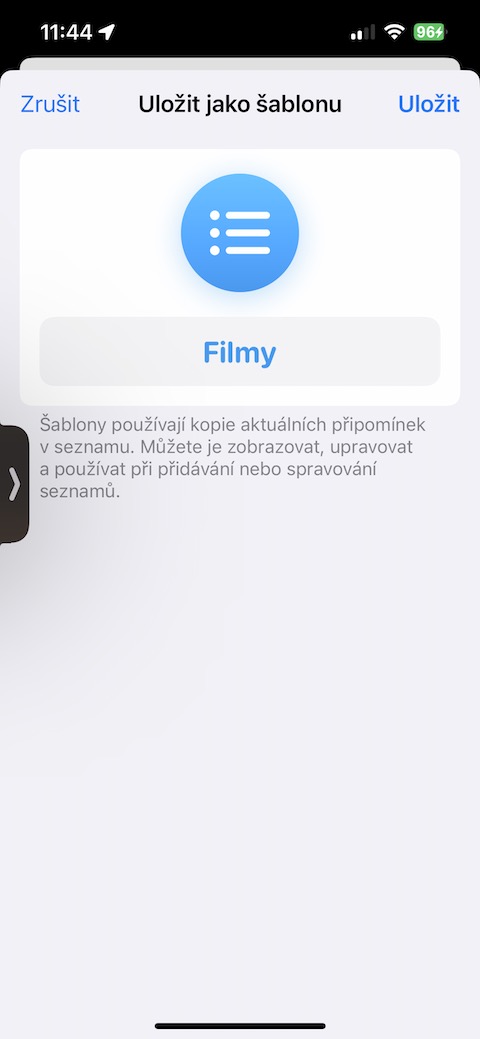
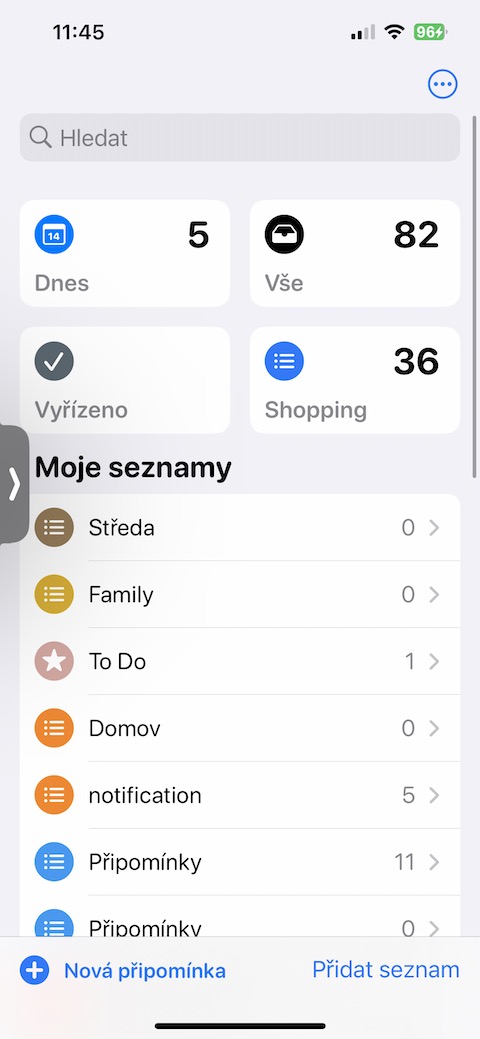
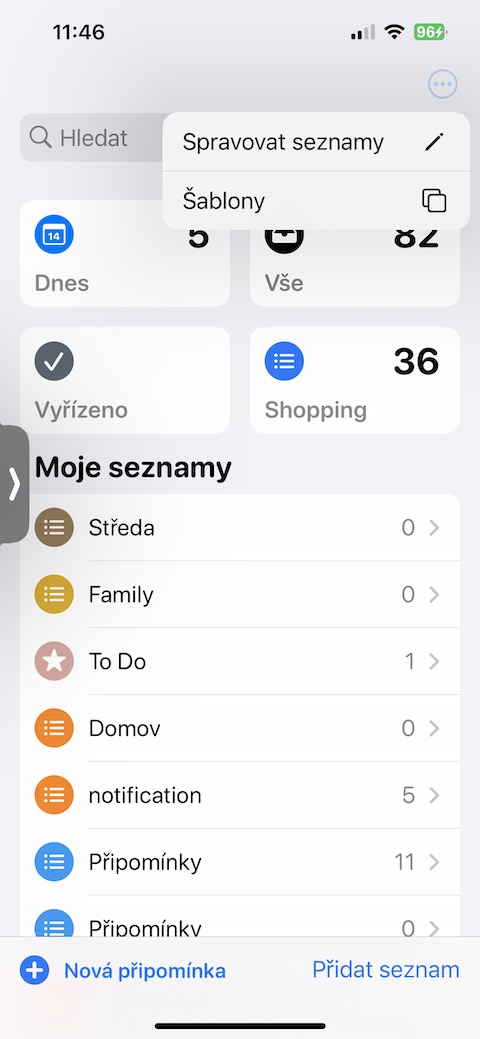
First, prepare your list in the Reminders app the way you want to use it in the future. Once it's ready, open it and tap the three-dot icon in the top right corner. From the menu, select Save as Template, name the template, and confirm creation.
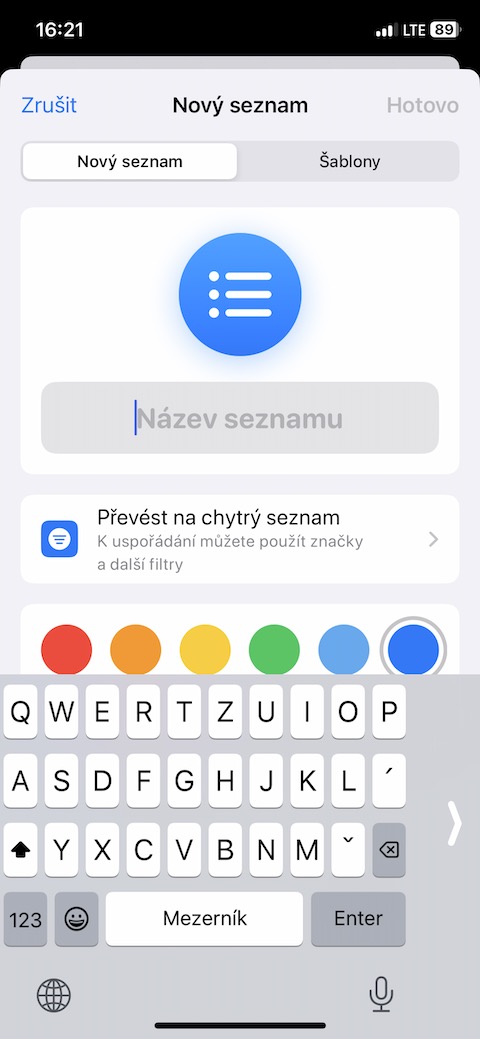
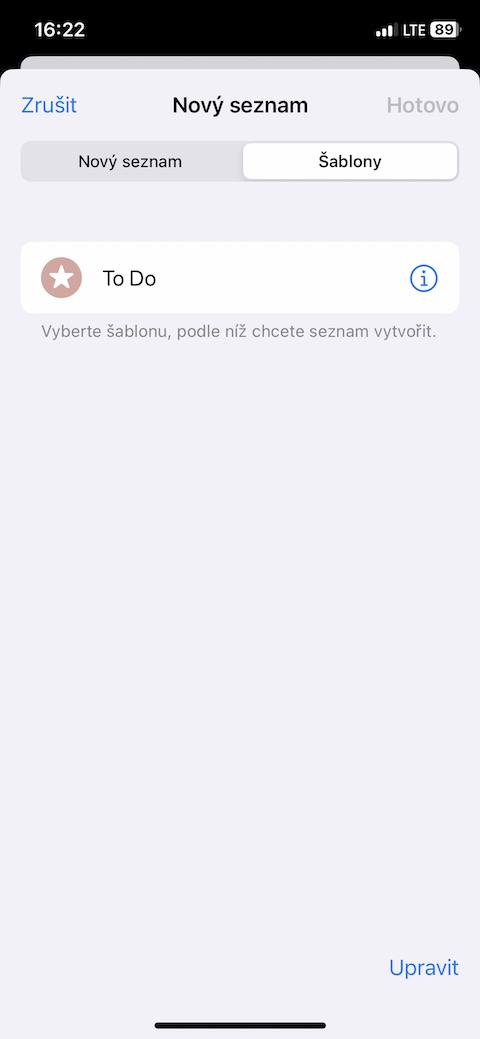
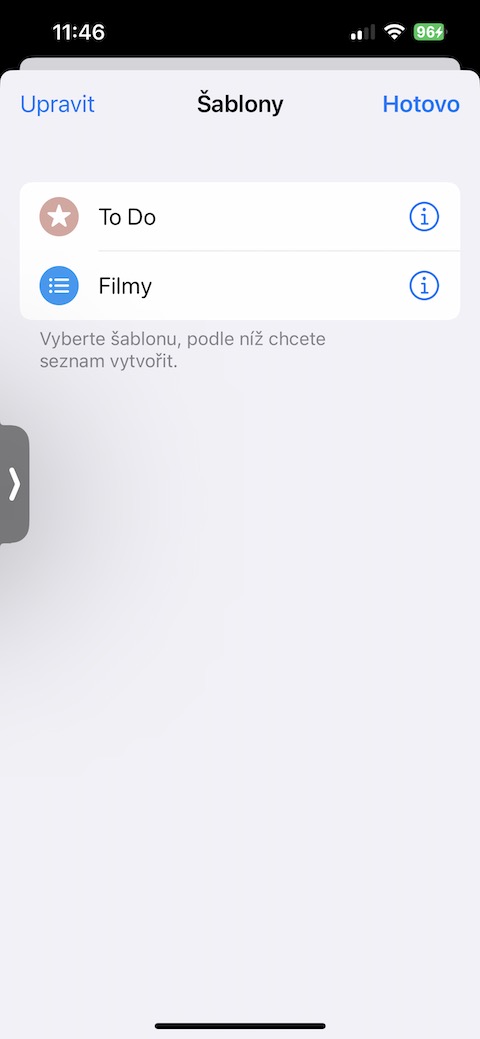
From now on, you don't have to list individual items again. When creating another list, just open the template overview, select the desired one variantu and nochat Reminders create a new list based on a saved template.
Gallery

A template and a regular list are not the same thing
The practical thing is that by using a template you do not create a linked copy of the original list. The newly created list can be changed, added to, or deleted at will without affecting the template itself.
It makes sense to save only the items that are actually repeated in the template, and add specific details to the newly created list. This way, the template remains universal and does not need to be edited every time.
It’s a subtle feature, but if you use Reminders regularly, it can eliminate a lot of unnecessary rewriting. Instead of building the same structure over and over again, you can create a base once and then reuse it. This can transform Reminders from a simple to-do list into a much more practical tool for activities you revisit regularly.