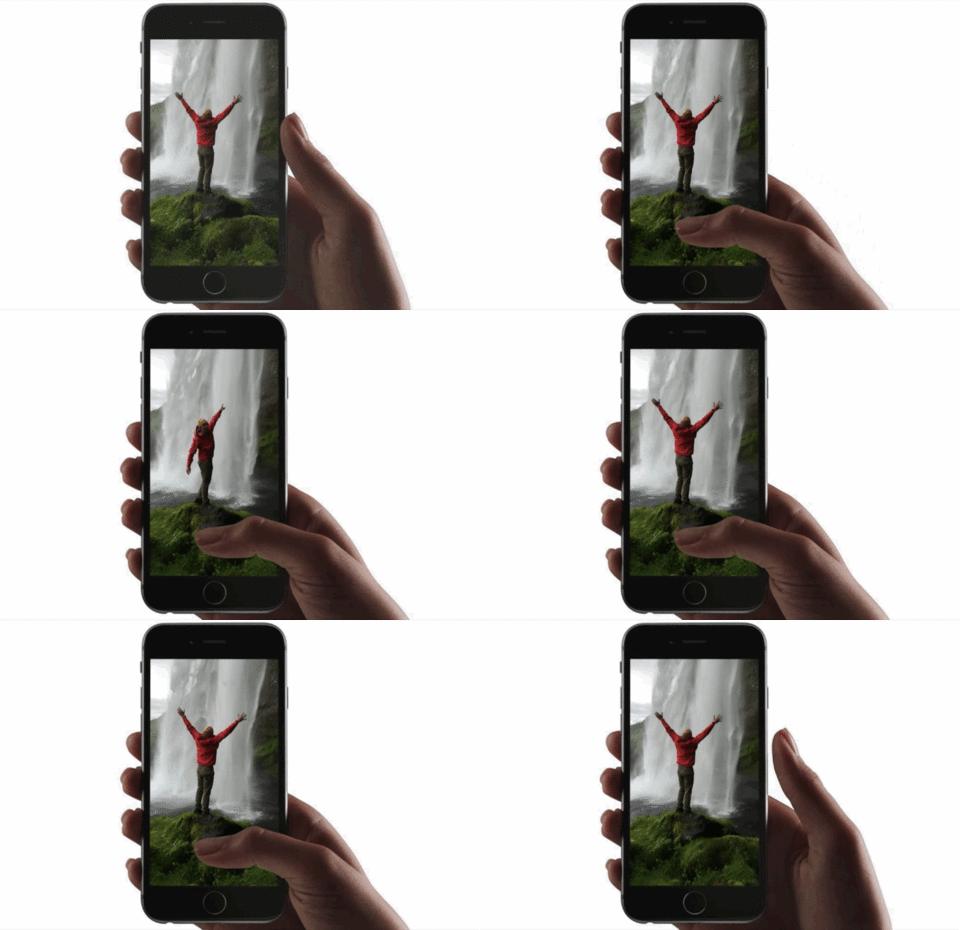
Stickers from Live Photos for iMessage are a great tool for anyone who likes to spice up their messages with creative and fun elements. With the Live Stickers feature, you can take your favorite Live Photos and turn them into animated stickers that play on a loop. This simple process allows you to add more dynamism and fun to your messages.
You might be interested in
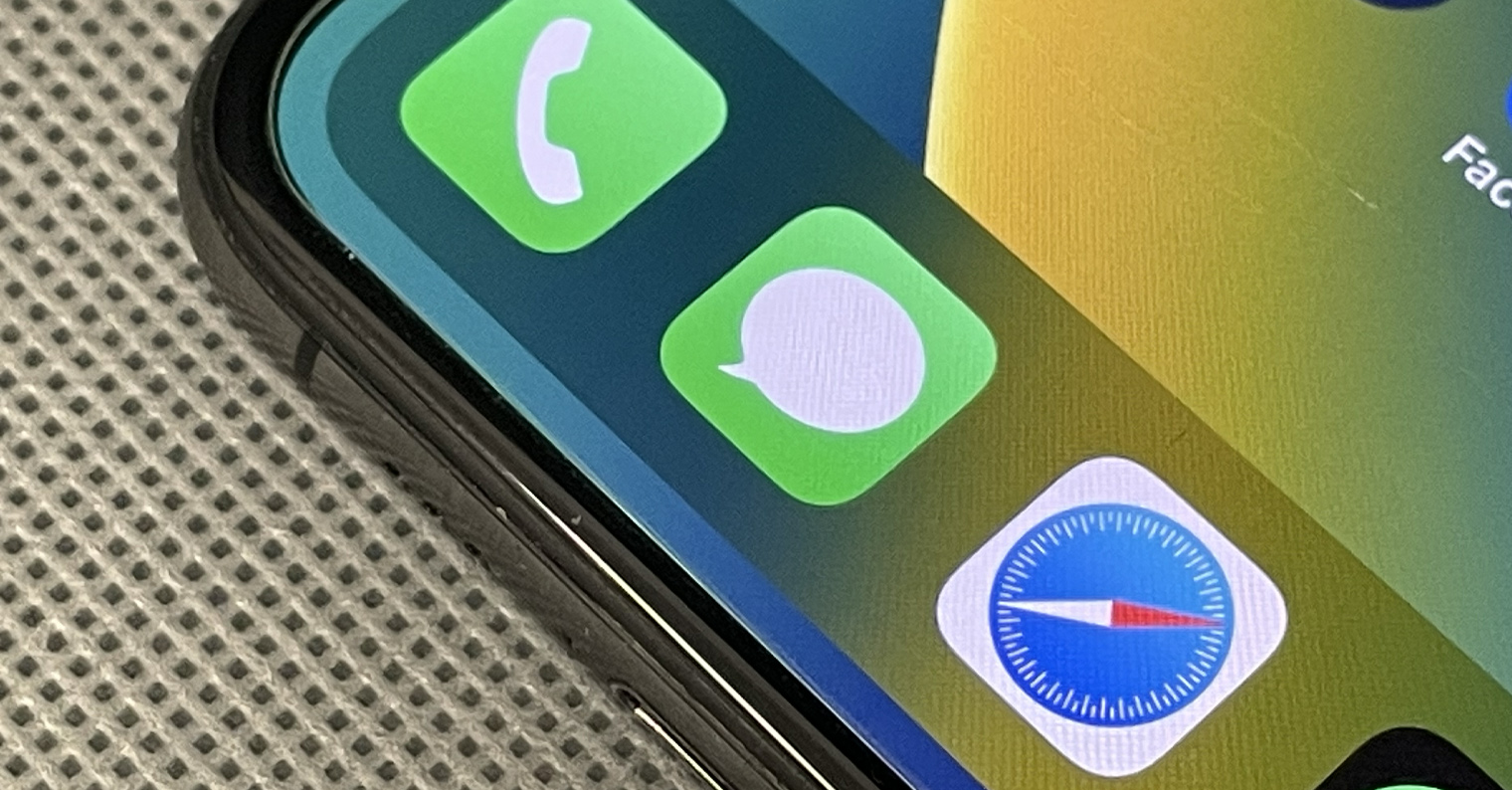
If you are one of those who love personalizing their messages and communication with the help of various images and stickers, we have great news for you. Since the arrival iOS 17, you can use the Live Stickers feature, which allows you to transform your Live Photos into animated stickers. This new feature in the Messages app makes it easy and quick to create fun animations that you can share with family and friends. How to do it? Follow the simple steps we'll show you.
How to start using Live Photos stickers on your iPhone iMessage
To start using Live Photo stickers on your iPhone, follow these steps.
- Open the Messages app on your iPhone.
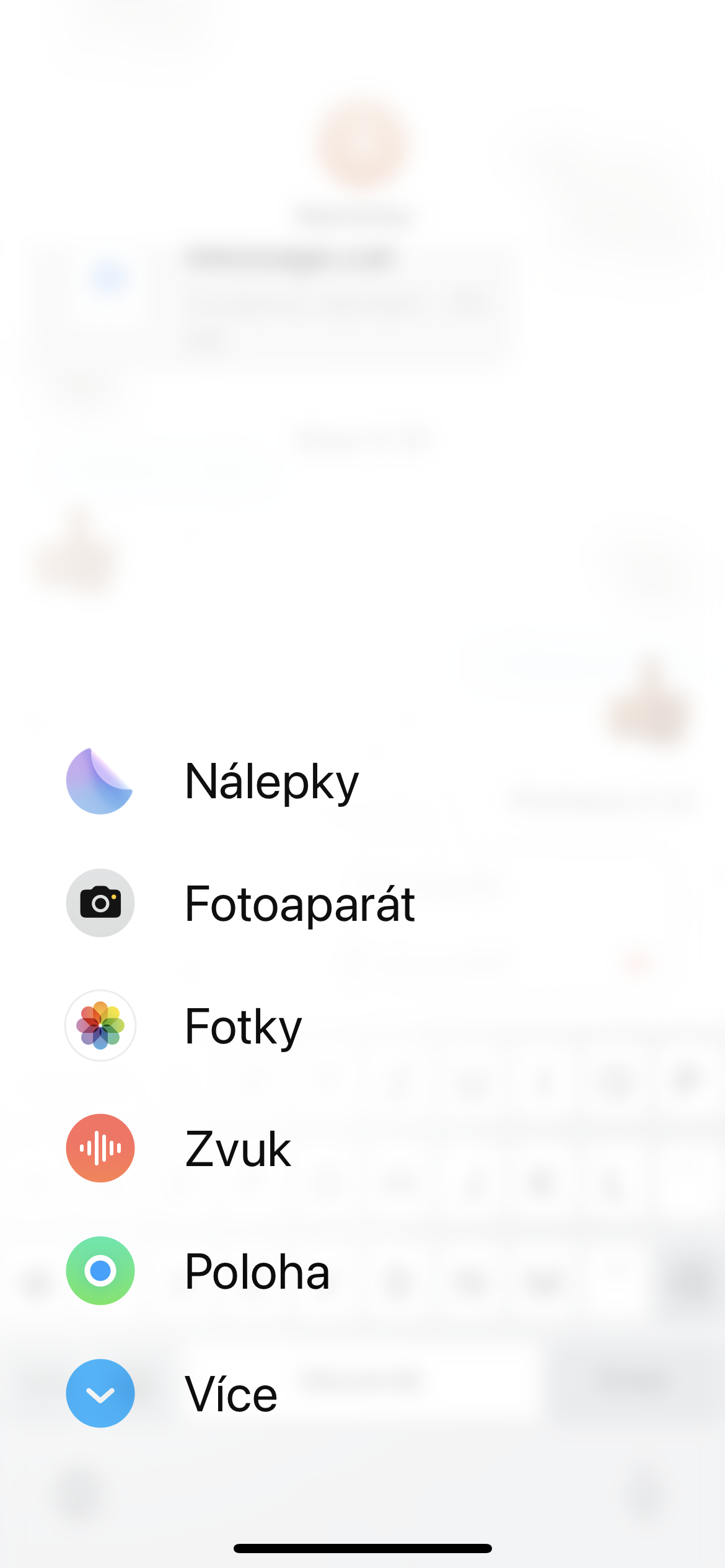
- To the left of the message input field, tap the + icon.
- Select Stickers.
- Tap the + icon in the upper right corner again.
- Select the Live Photos album.
- Select the photo you want to turn into a sticker.
- After selecting a photo, tap the Add Sticker button at the bottom right.
Gallery
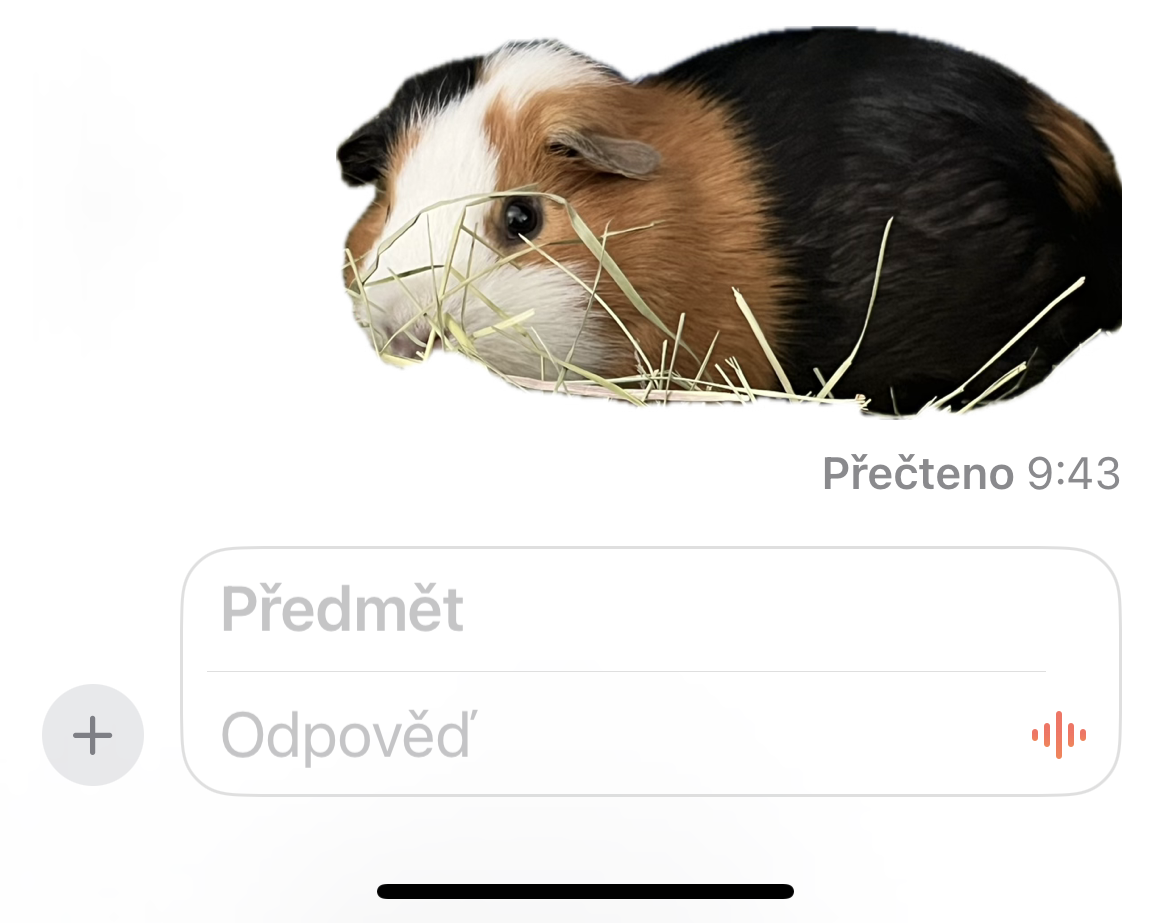

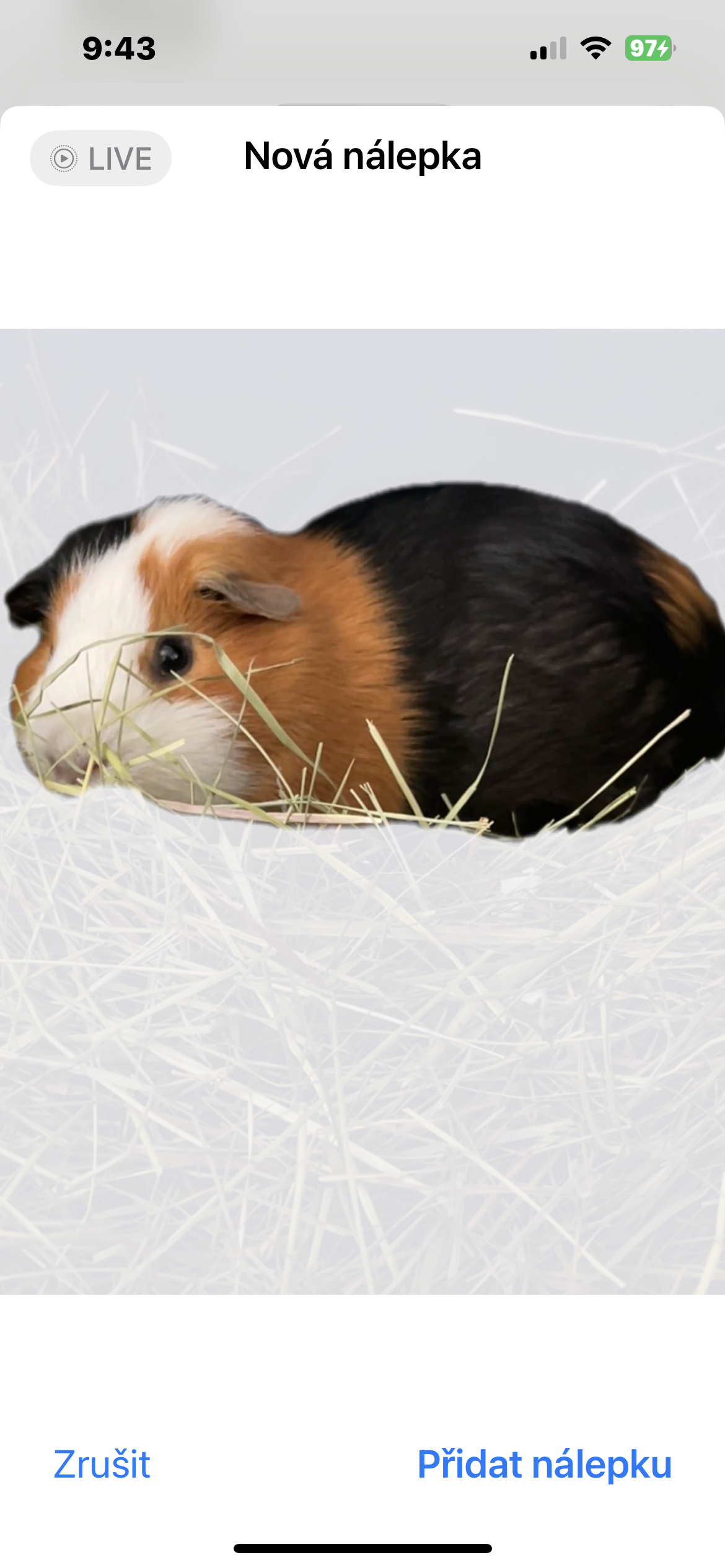
This will turn the selected Live Photo into a sticker that you can immediately use in your conversation. The stickers found will appear as a looping animation that will add a new dimension to your messages. Live stickers are a great way to simplify and enrich your communication with animated photos. Whether you want to send a funny or emotional message, it's quick and easy. With the Live Stickers feature, you can liven up any conversation and share fun memories with others.