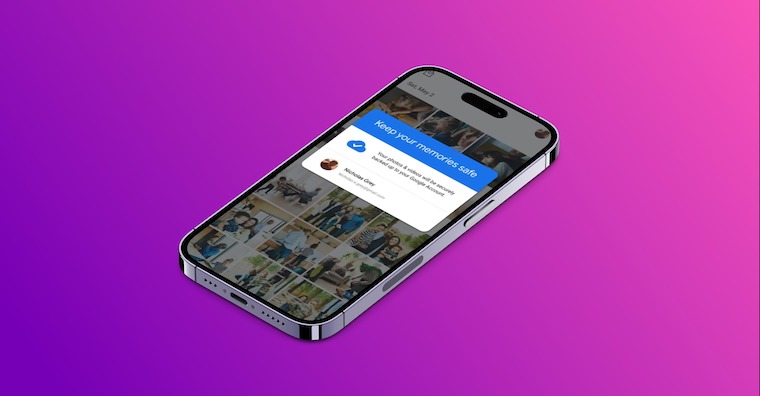
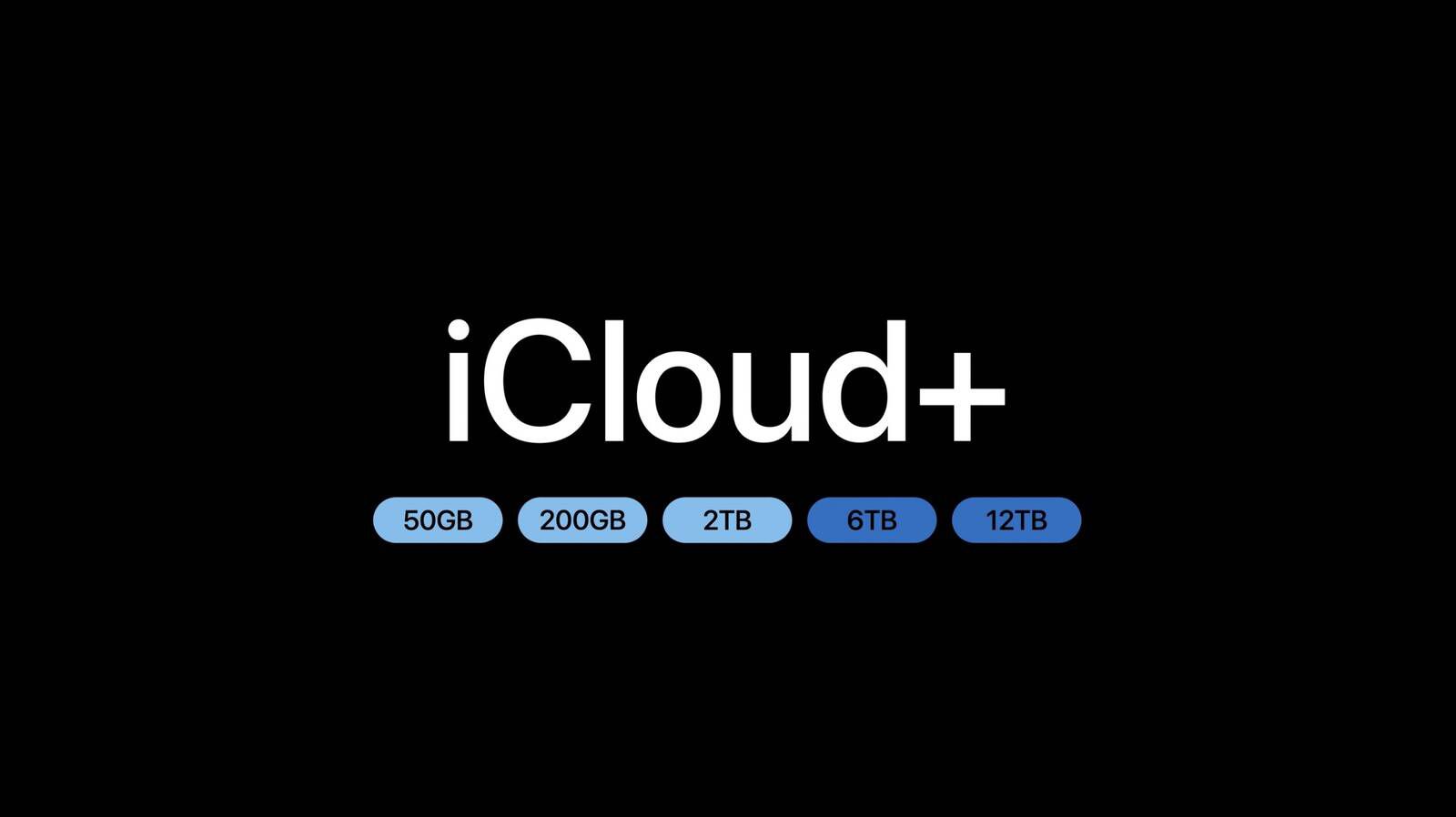
iCloud is key cloudcompany service Apple, which allows you to easily sync and share data between your devices. Whether it's photos, contacts, documents or backups, iCloud ensures that your content is always available and up-to-date. Although it offers many advantages, some users occasionally encounter synchronization problems. So howCloud use it correctly and how to ensure that you don't lose your data?
Data always and everywhere
Nowadays, it is a given to have your data available anytime, anywhere. AndCloud offers an elegant solution for users Apple ecosystem – enables automatic backup and synchronization of files between iPhonem, iPad, Mac and more. Just set it up once and it takes care of the rest cloudHowever, there may be times when synchronization does not work as smoothly as expected, or when storage capacity is insufficient. nestIn this article we will look at how andCloud works, how to use it properly and what to do if problems arise.
iCloud Drive
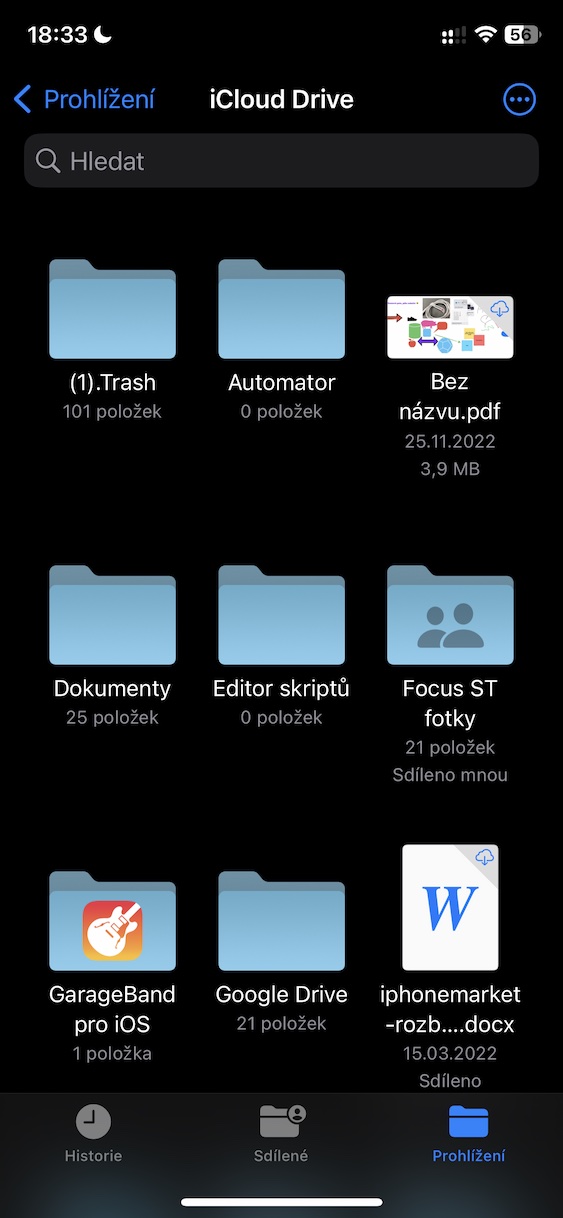
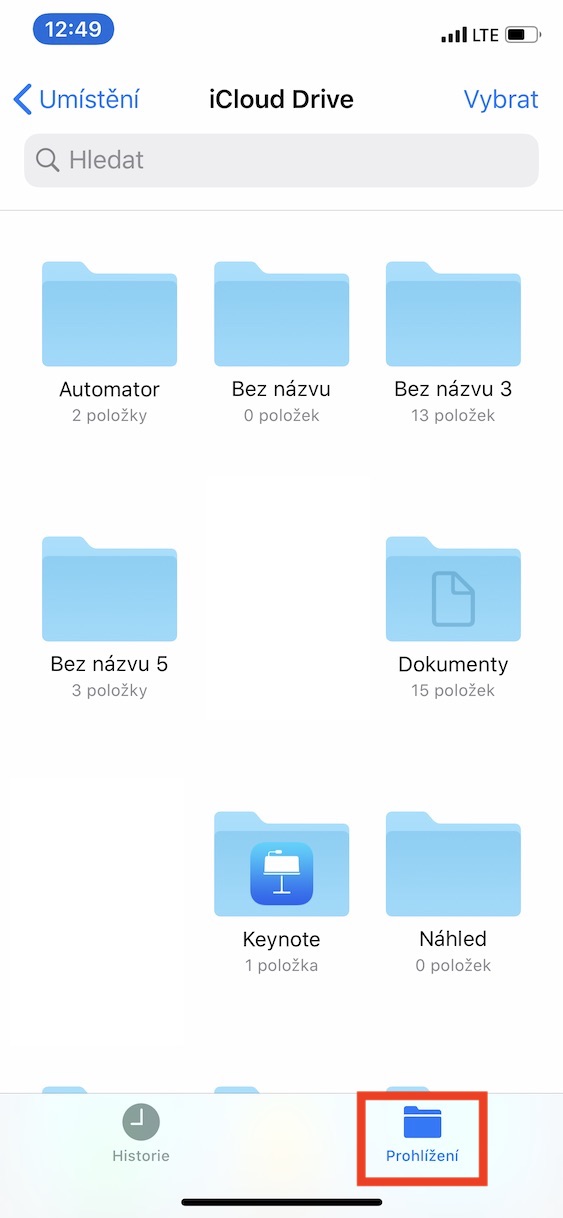
iCloud Drive je cloudelectronic storage from Applu, which allows you to easily store, organize, and sync files between all devices connected to your Apple ID. It works as a digital drive accessible from the Files app in iOS and iPadOS or directly from Finderu on macOS. Users can create folders, upload documents, images or videos and access them from anywhere. There is also a seamless integration with native applications Applu, such as Pages, Numbers or Keynote, but also support for third-party apps. This ensures that all content stays up-to-date and synchronized across all devices without the need to manually transfer files.
Gallery


Sharing on iCloudu
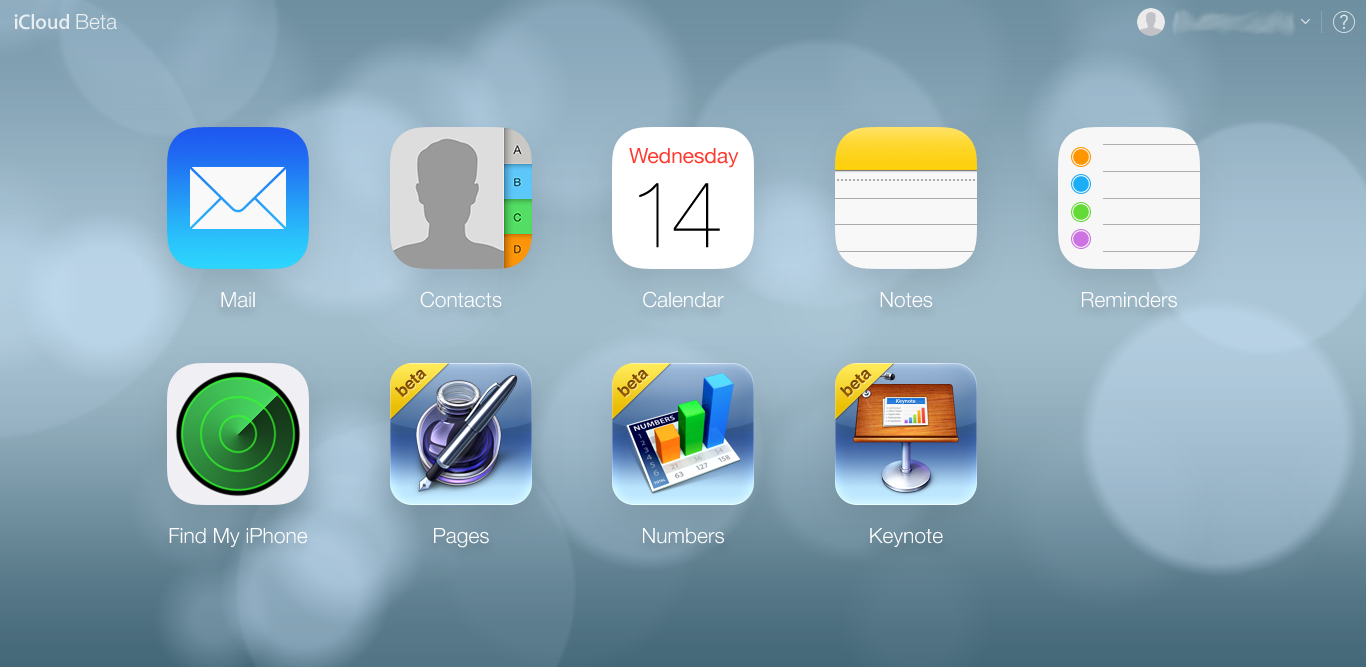
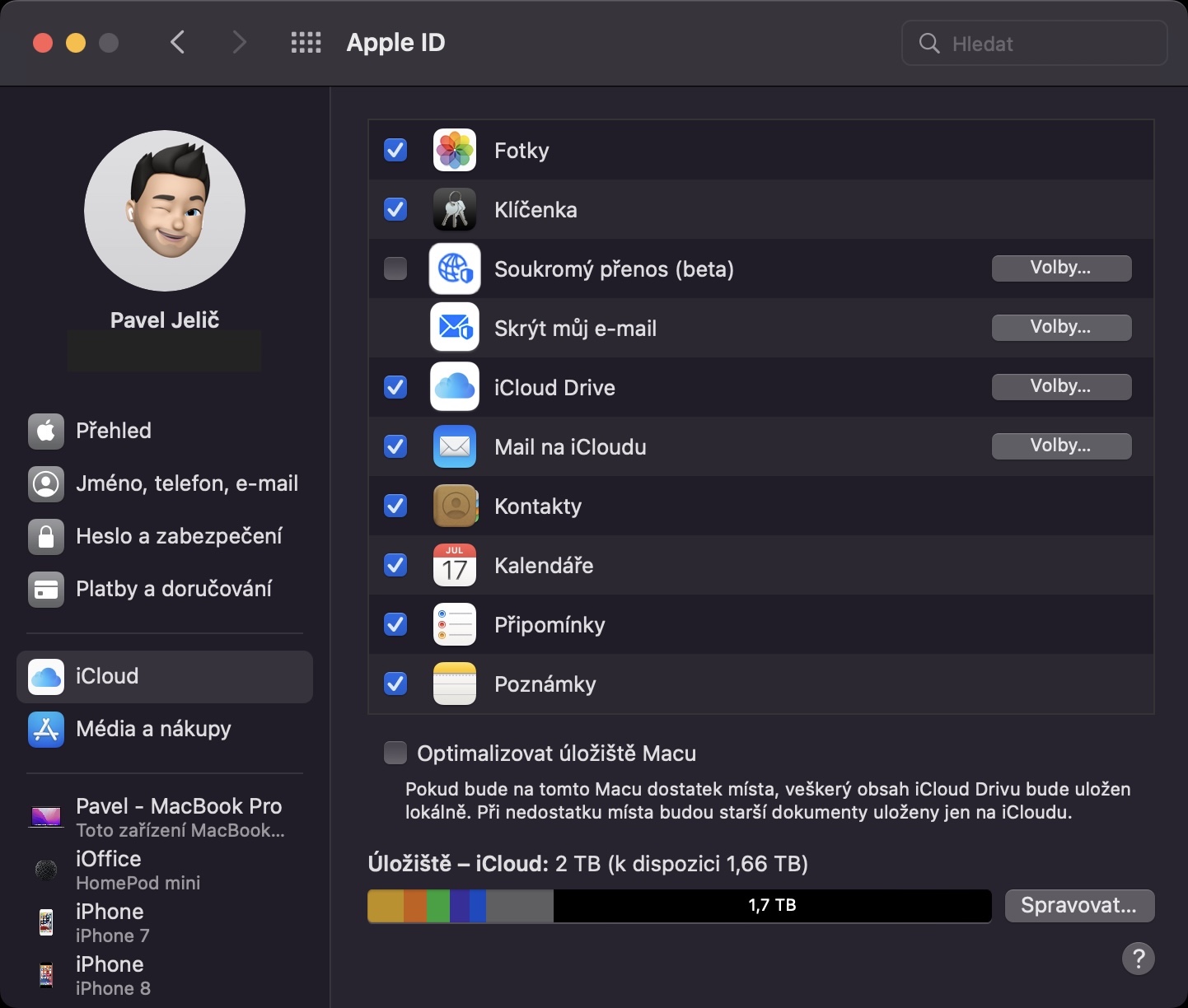
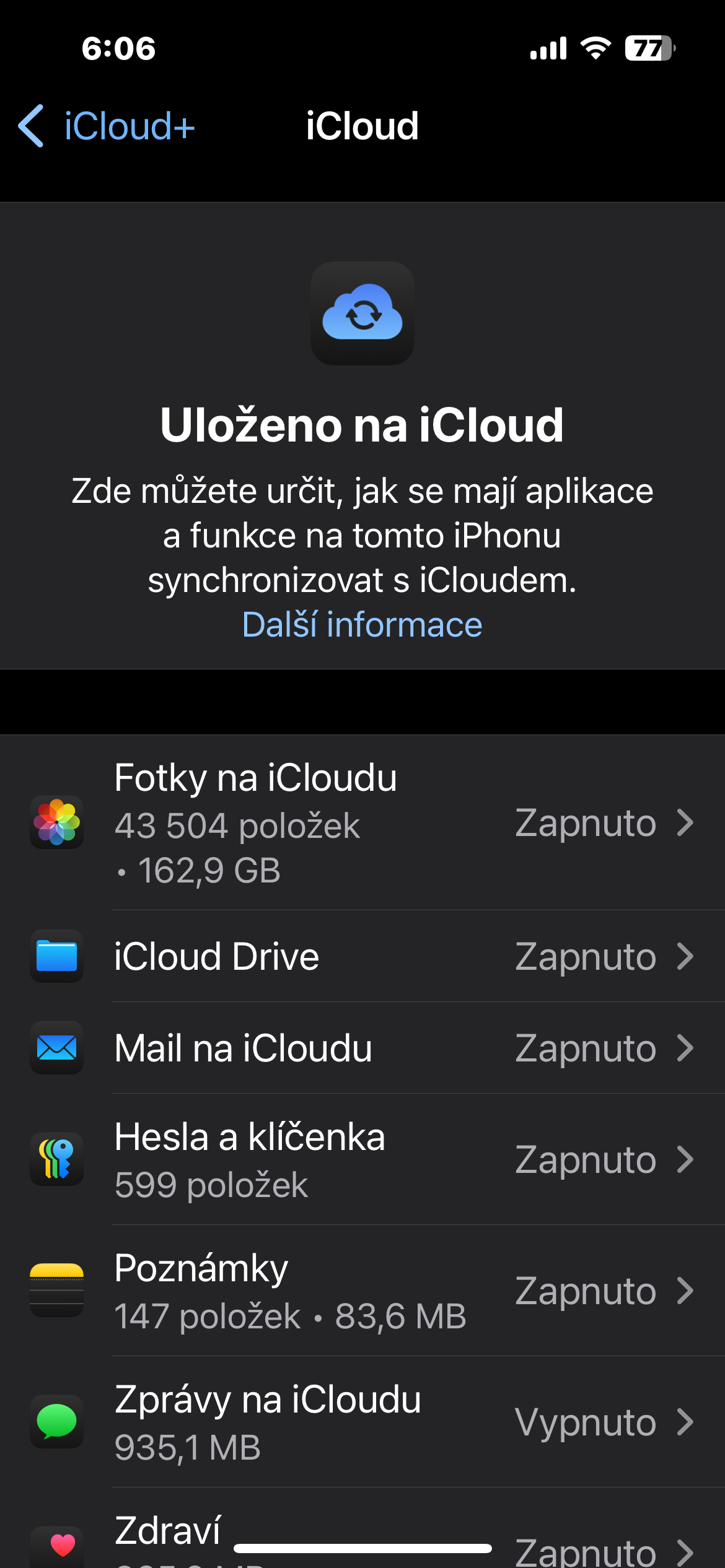
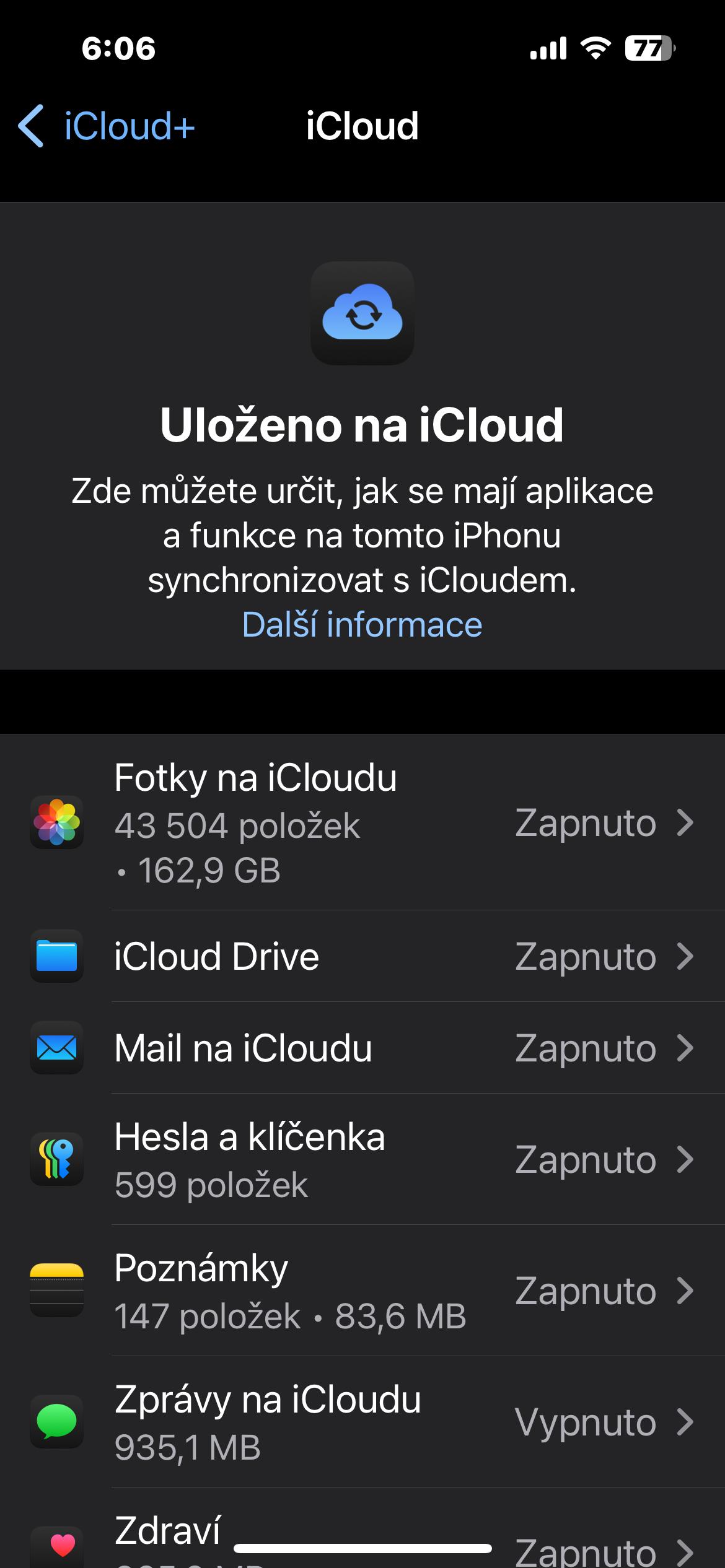
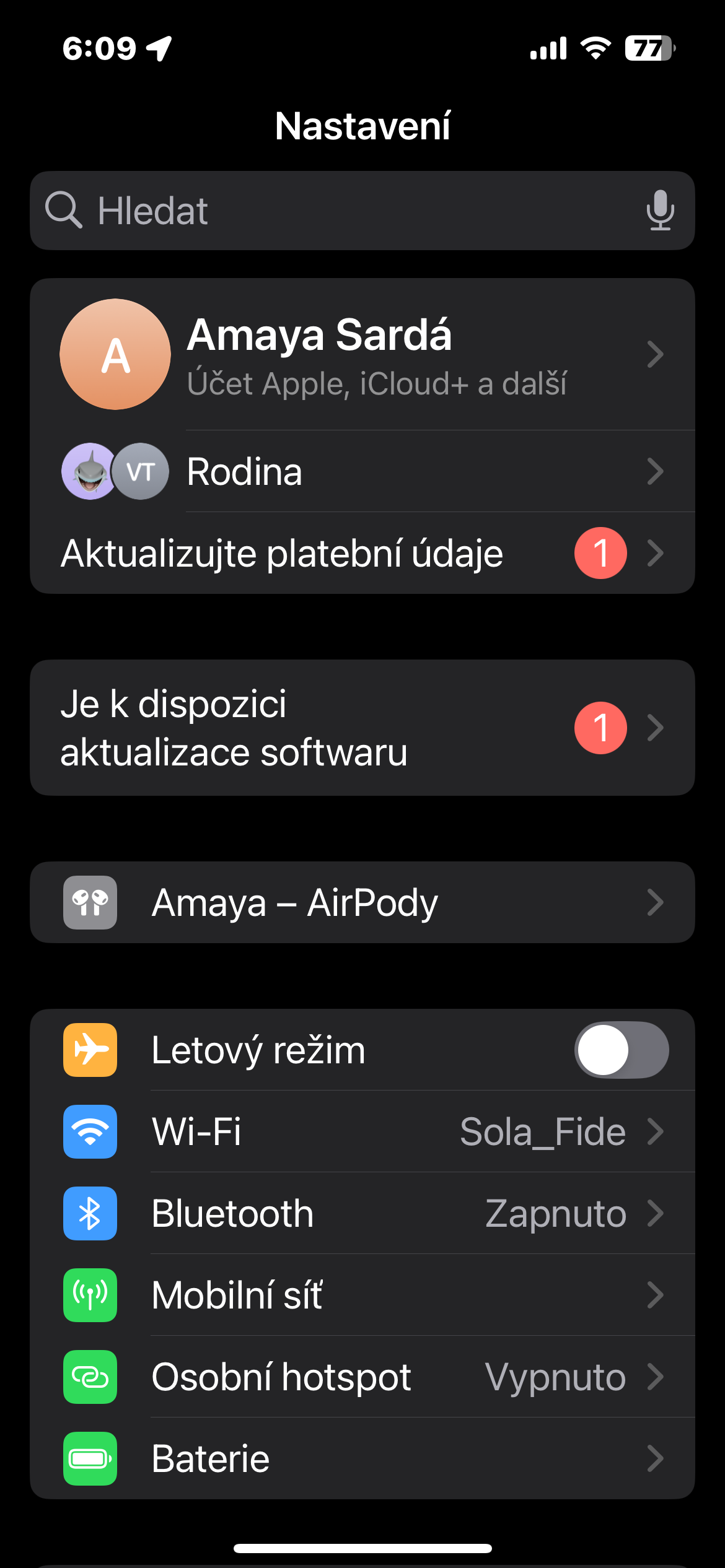
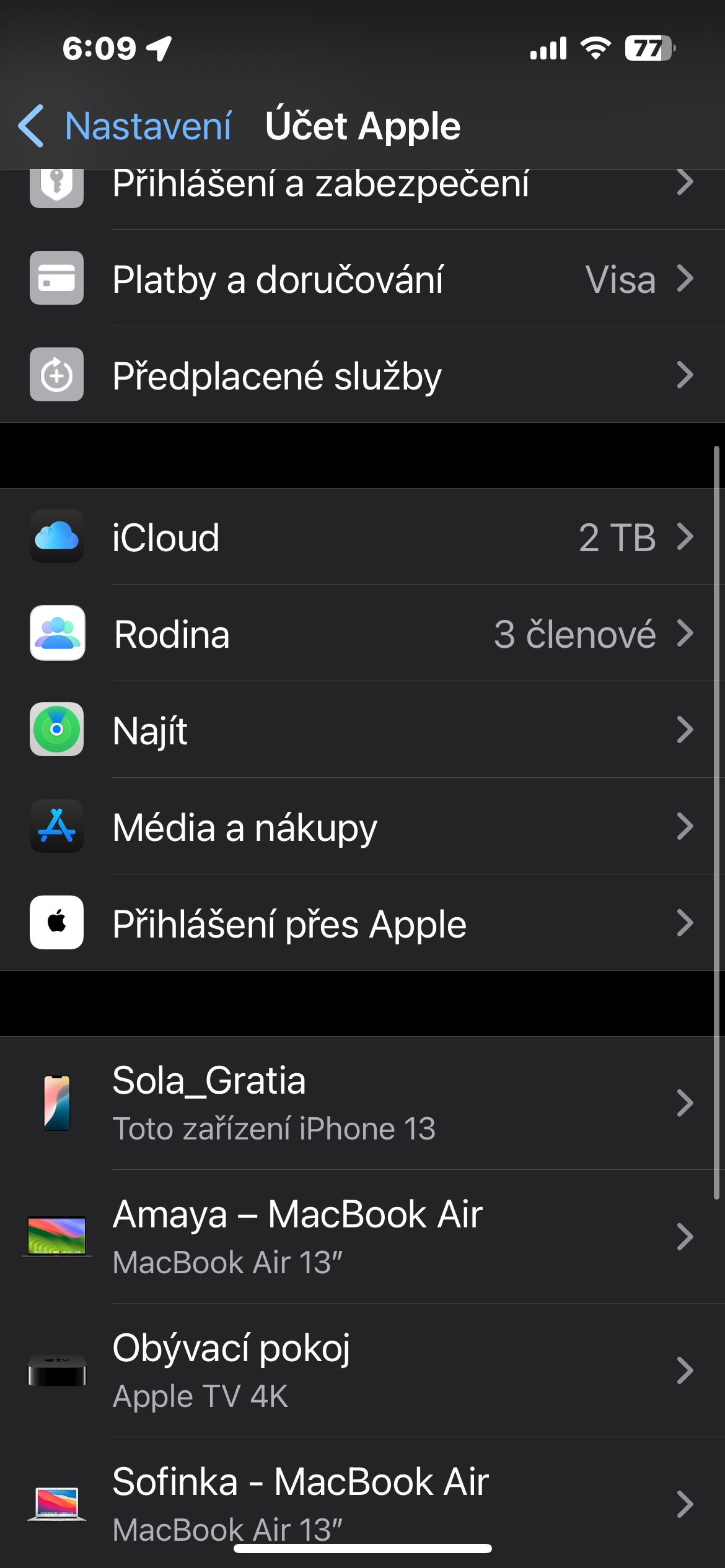
Apple iCloud enables seamless synchronization and data sharing between all devices connected to one Apple ID. It allows users to automatically store and update content in apps like Photos, Contacts, Reminders, Calendar, or Notes, eliminating the need to manually transfer files. Activation iCloudfor specific application is simple and can be managed directly in the device settings. If the user decides to turn off synchronization, the application will remain fully functional, it will only stop sharing content across devices. This alsoCloud offers flexibility in how and where data is stored, allowing each user to customize cloudservices according to your own needs. Pro share management on iCloudu run on iPhone Settings -> Panel with your name -> iCloud. In the Saved on i sectionCloudu tap Show all.
Gallery
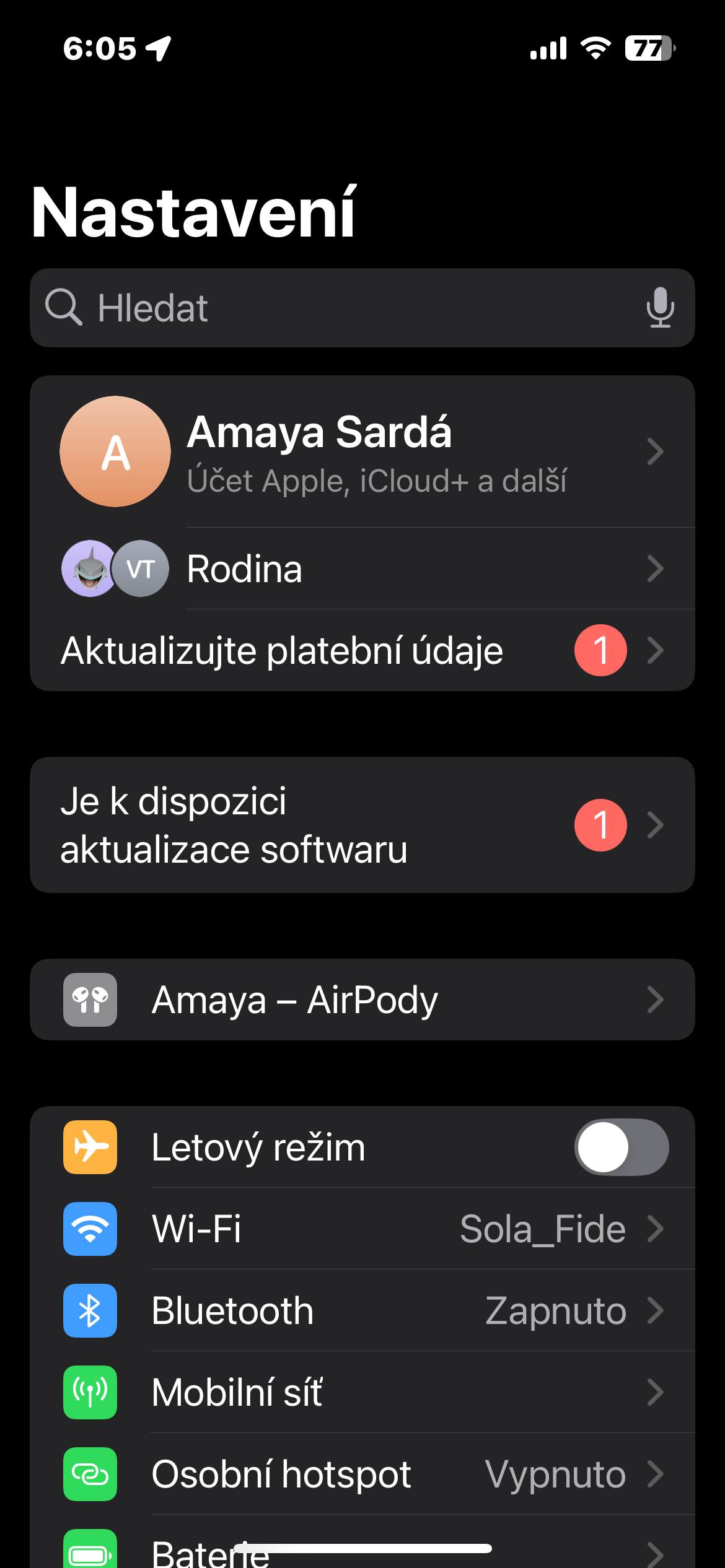
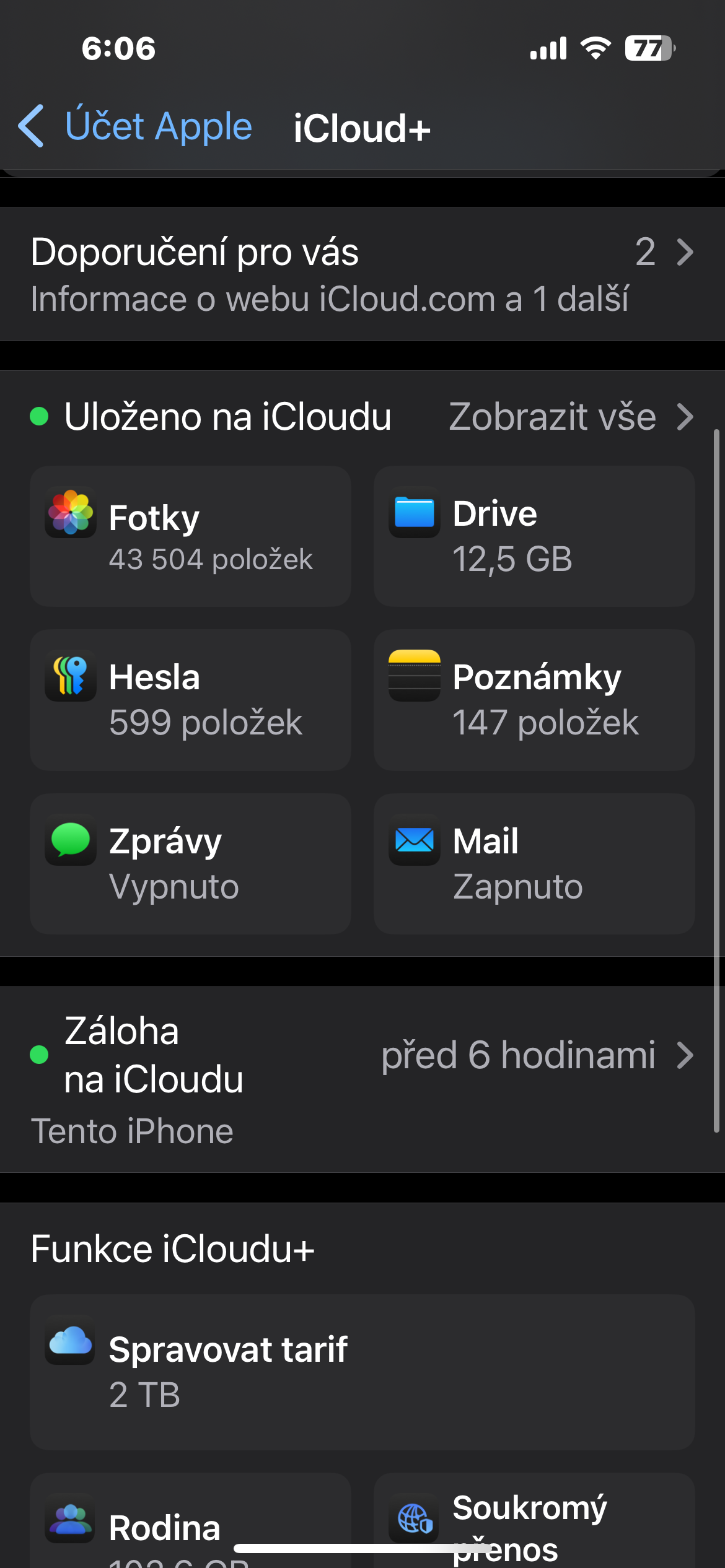
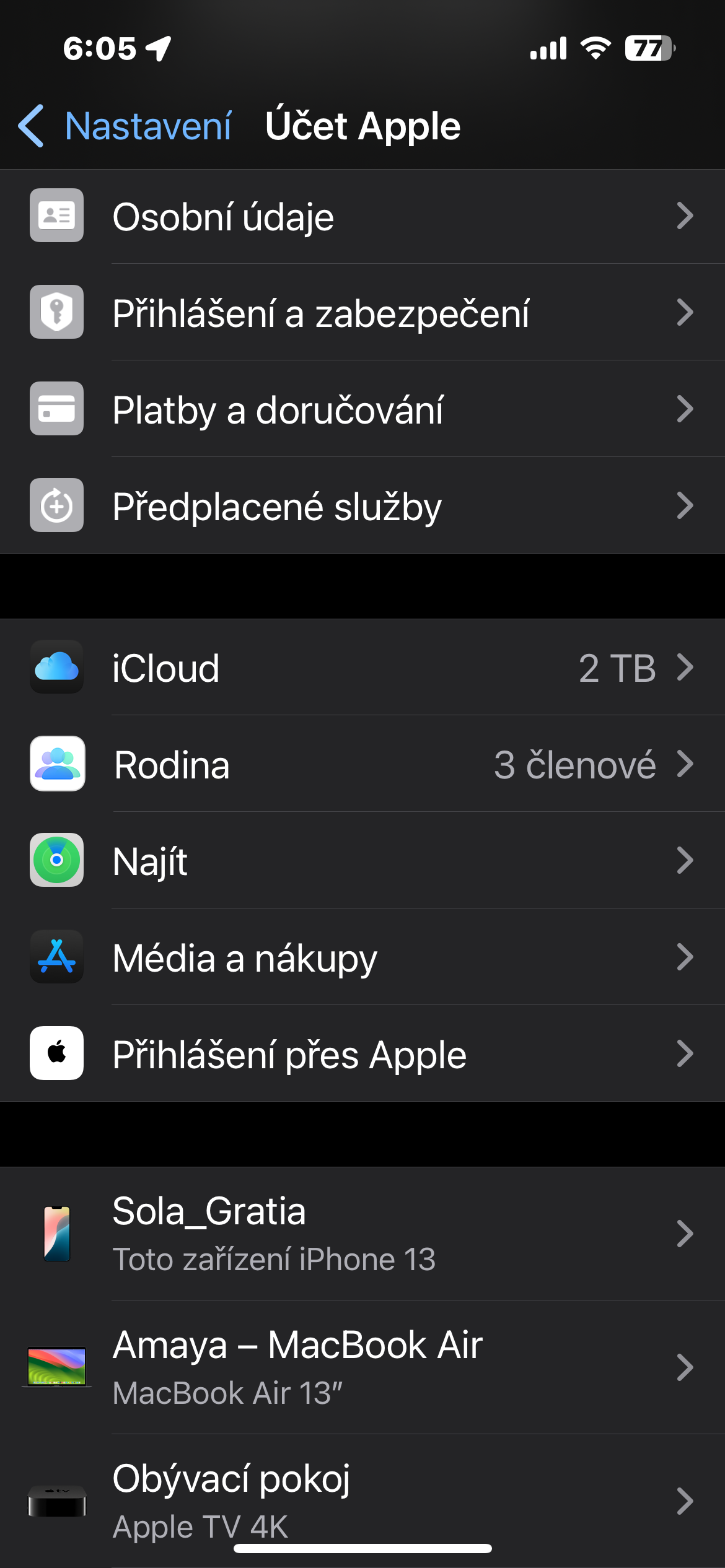
Backup to iCloudu
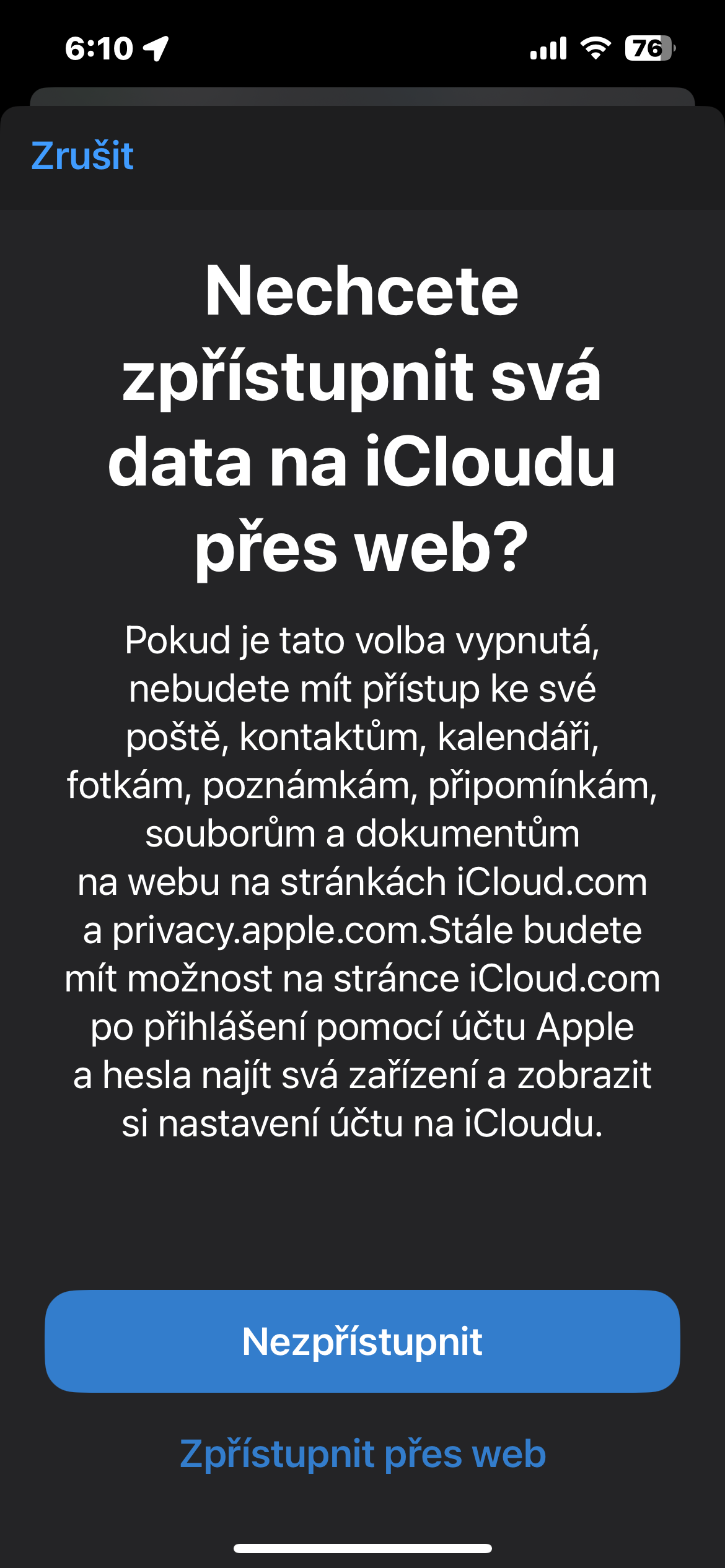
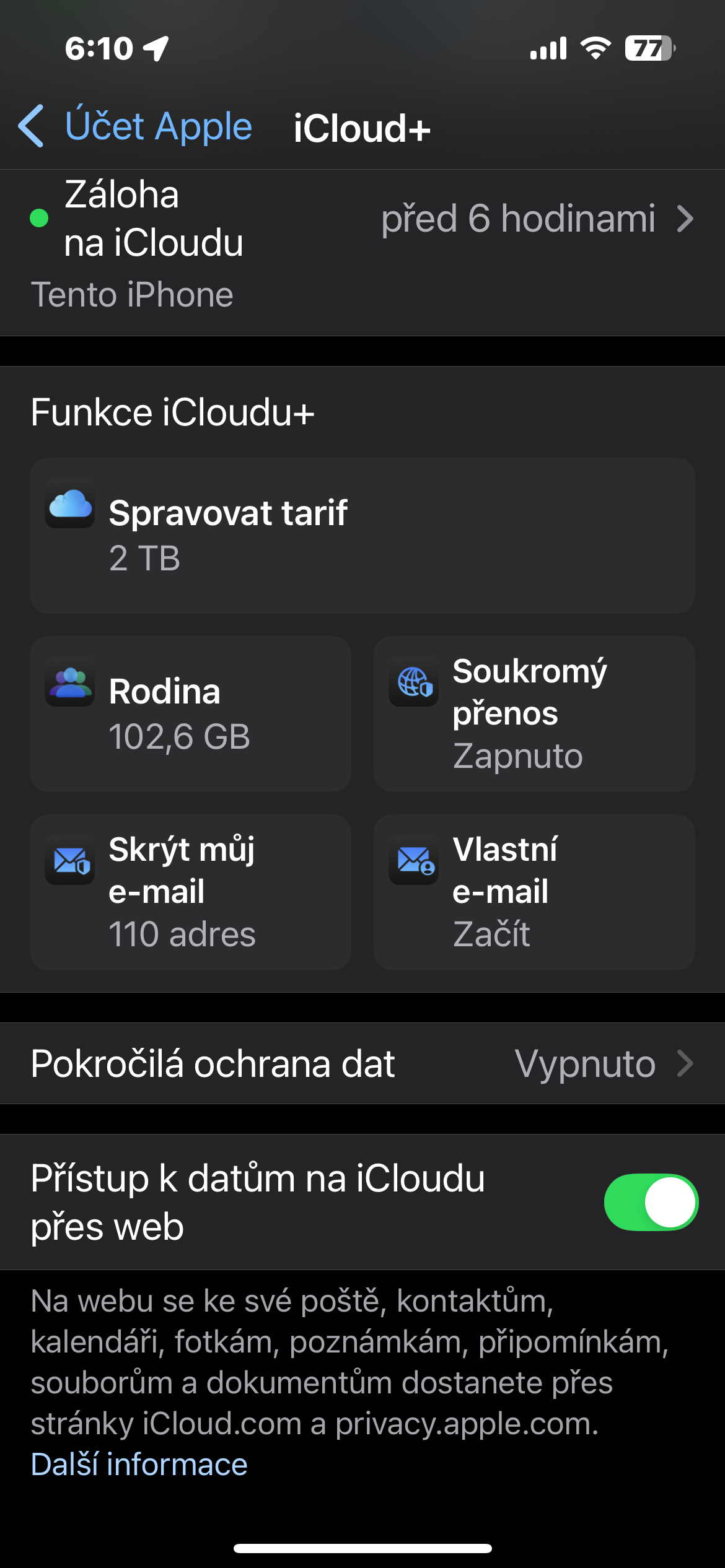
Within iOS and iPadOS you have the option to back up your data using iCloudu. Pro To activate this feature, simply go to Settings, click on the panel with your name, then select the option iCloud and go to the Backup section on iCloudu. Here you can manage backups for individual applications and edit which applications should have their data stored on iCloudu. However, keep in mind that even though backup is automatic, not all data is automatically included. If you want to access this data via the web, open Settings, go to the panel with your name, select iCloud, scroll all the way down and enable Data access on iCloudvia the web.
Gallery
Recover deleted data
If you accidentally delete important data, you can sometimes recover it from iCloudu. To do this via the web, go to the i pageCloud.com and log in with your Apple ID. Once you're logged in, scroll all the way down and click on Data Recovery. You'll see a list of files that have been deleted in the last 30 days. Simply select the item you want to recover and click the Recover button to get your data back.