
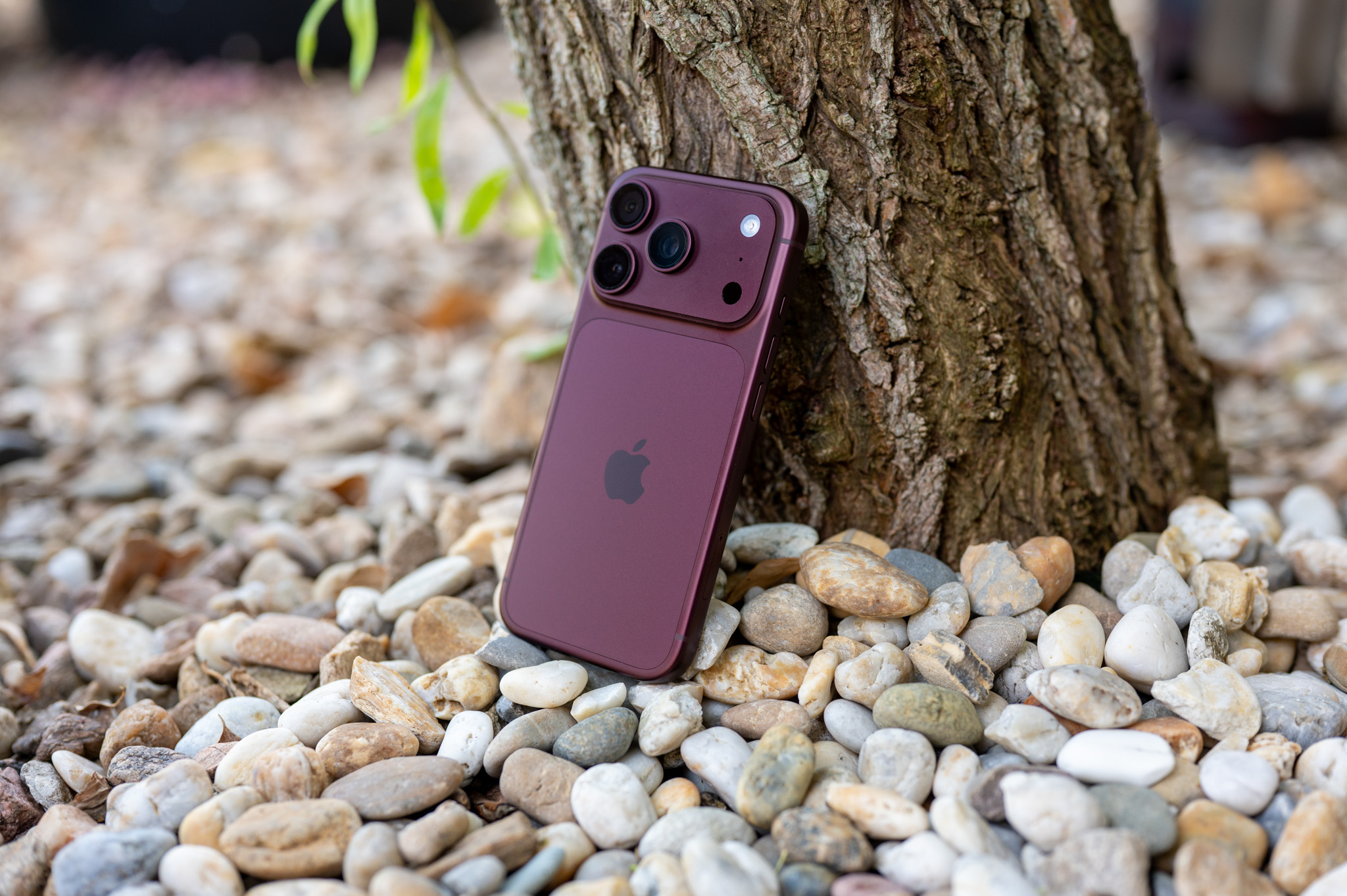
It's been more than two months since I first got my hands on it. iPhone 16 Pro with the brand new Camera Control button, but I still can't quite get the hang of it. Even though I've tried to give it a lot ofancWhen taking photos in various situations, due to its unfortunate position, I am still unable to "accept" it as a shutter button for the iPhone camera instead of the digital one that lights up on the display. However, recently I have slowly started to find my way to this button and I believe that you will succeed too thanks to my little tip.
You might be interested in

When Apple announced in June iOS 18 with the ability to reset the icons on the Lock Screen to quickly launch various actions, I was very happy. This is because the flashlight, which until then was set by default on the lower left corner of the phone, had been set on the action button since last year, so the digital button on the display was absolutely useless to me. So I clicked on the lower left button right after the release iOS 18 I set the Home app to start because I turn it on countless times a day and it's nice to have it at hand. In the bottom right corner I then had up to donea long time ago, the camera, which I have learned over the past few years to launch with the phone locked via this element. Of course, I know that the camera can also be launched by swiping from right to left, but I have always found launching via the on-screen button more convenient.
Gallery
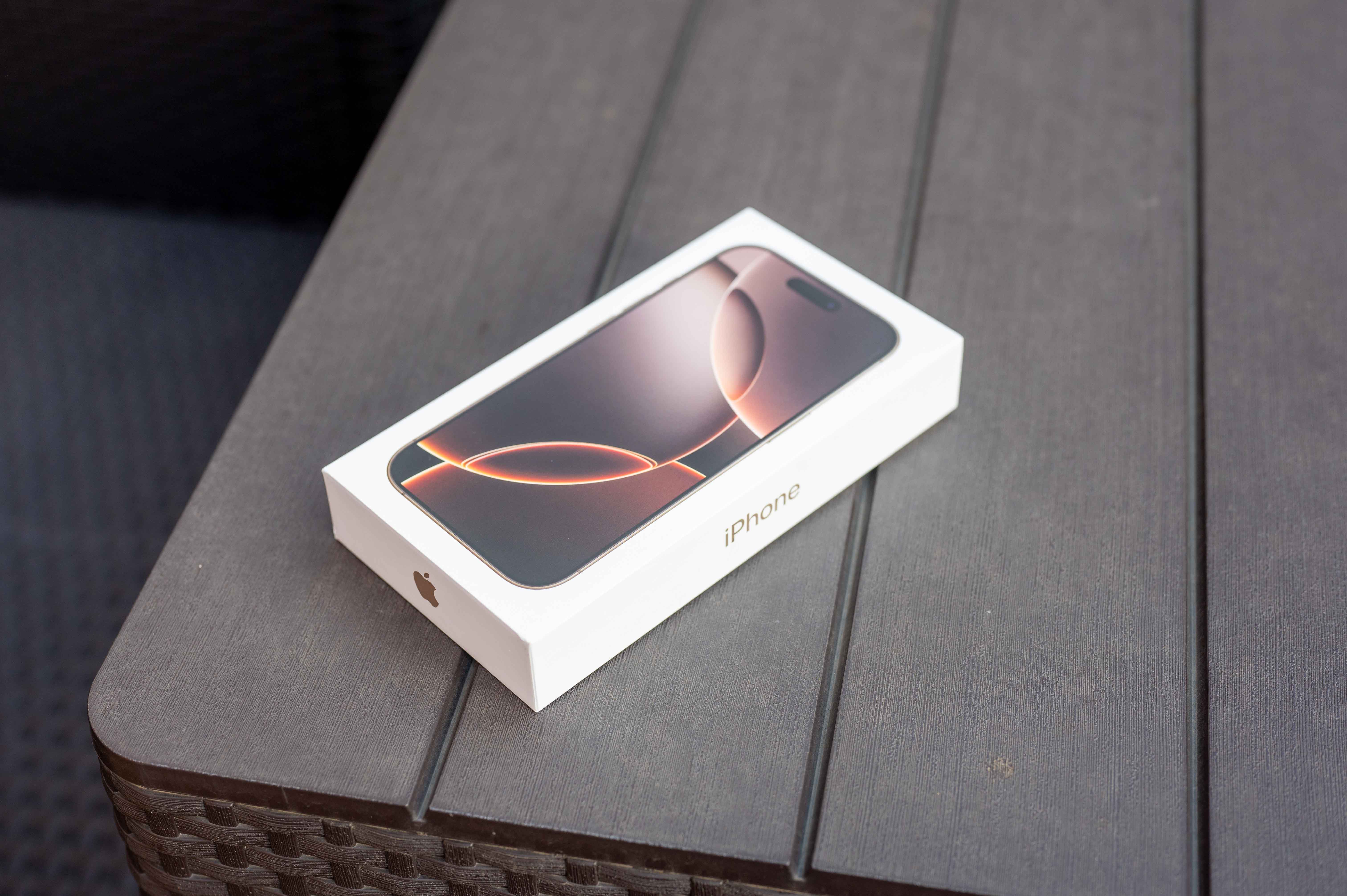
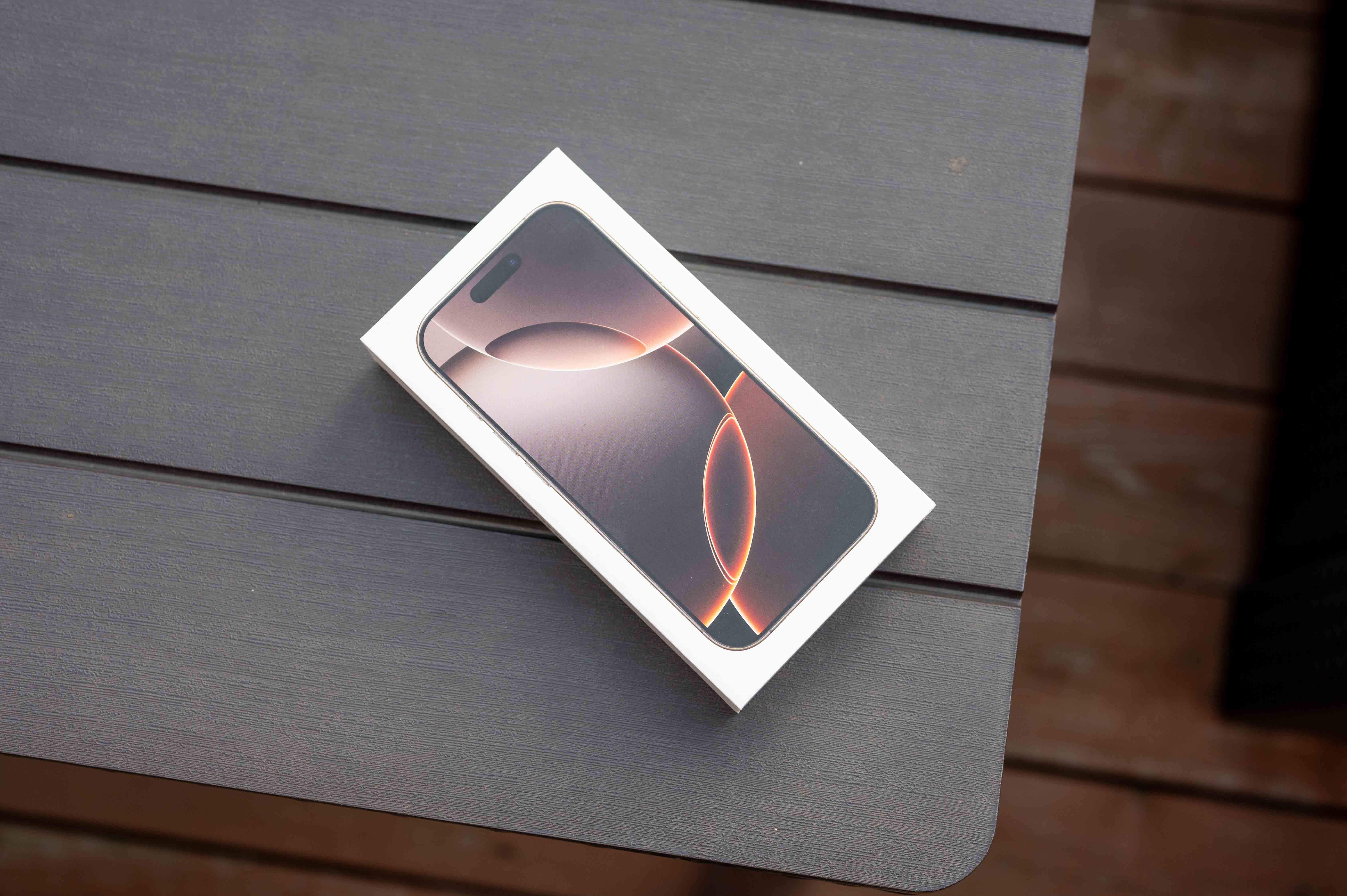
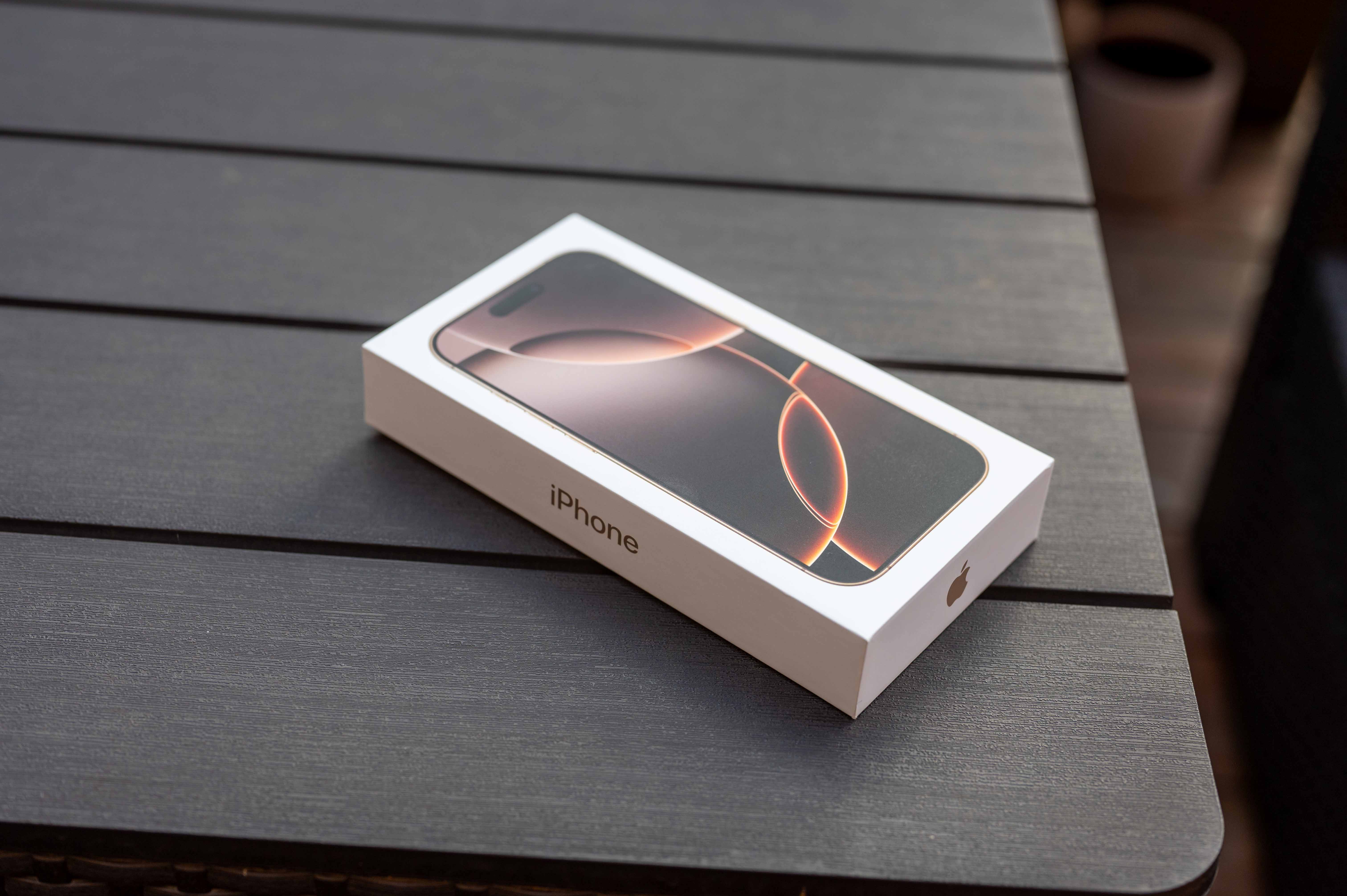
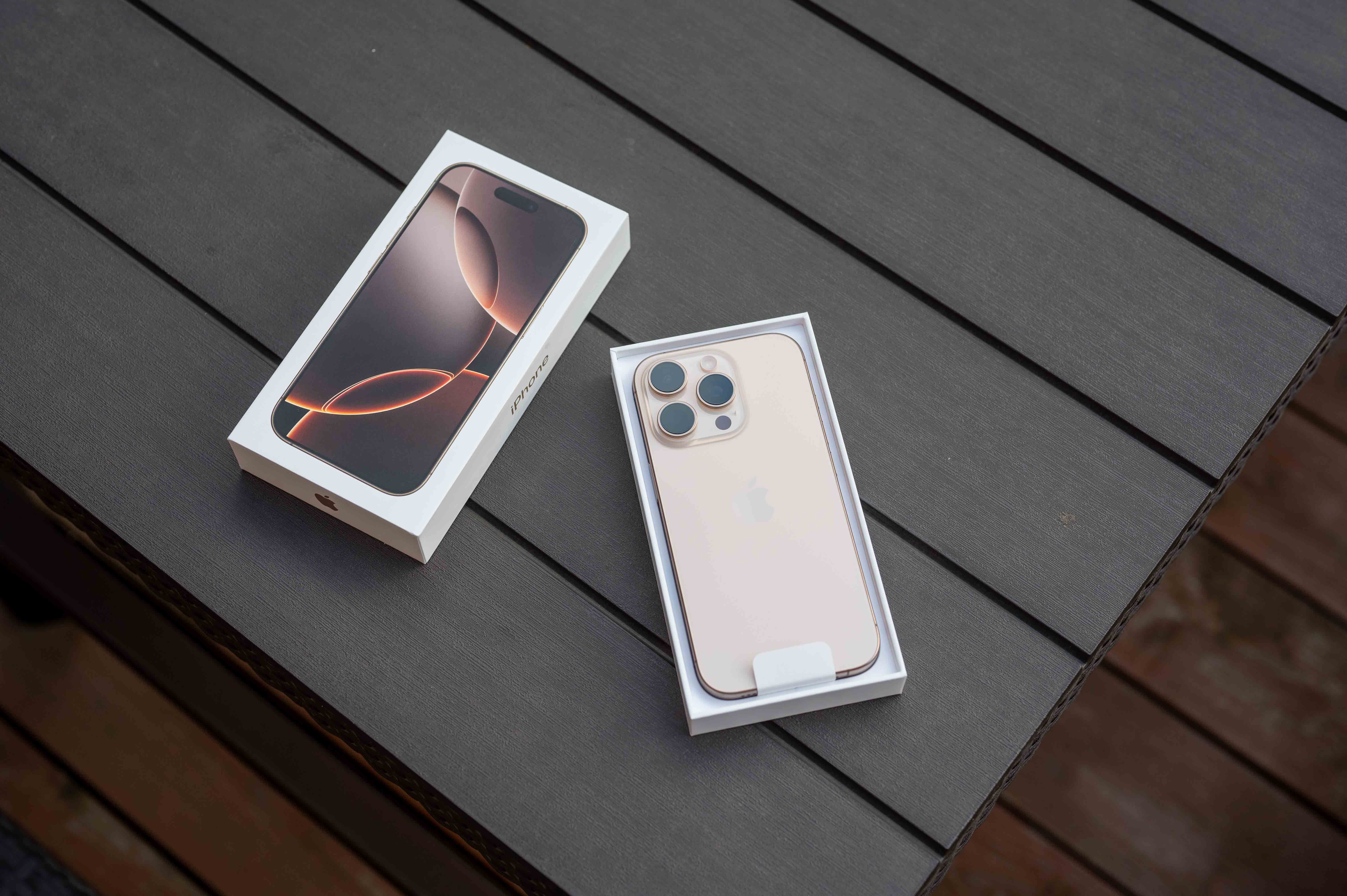
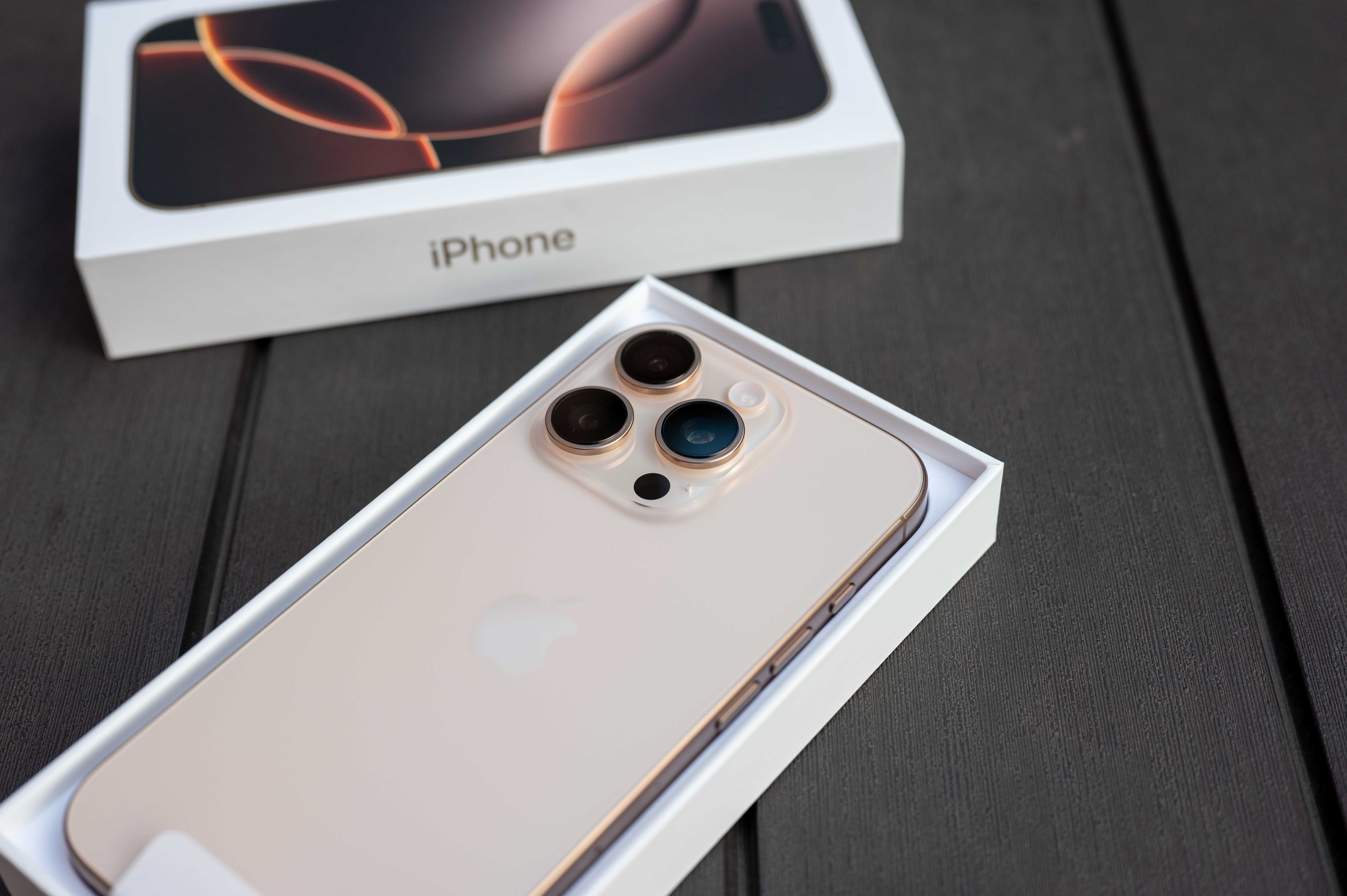
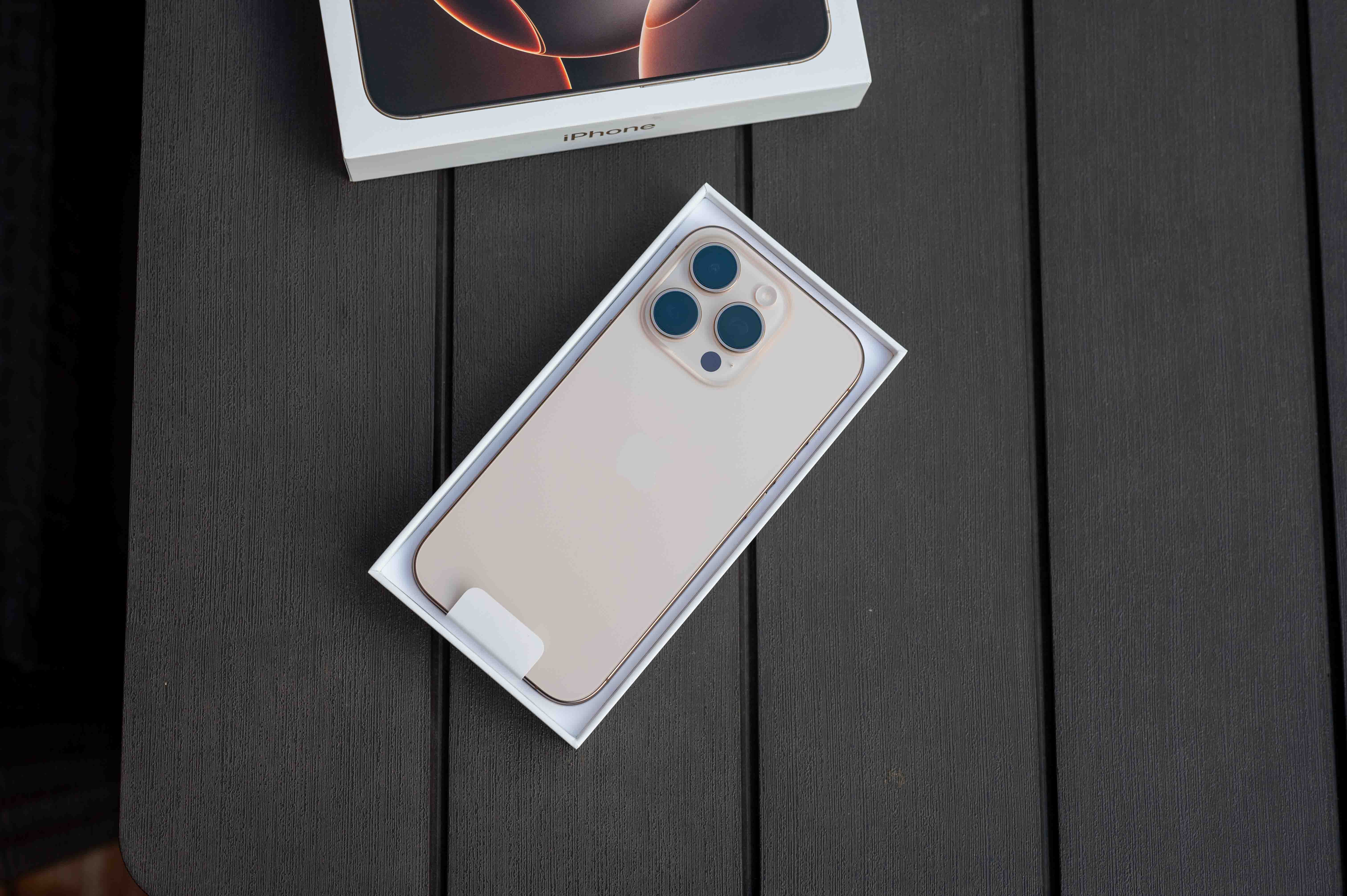
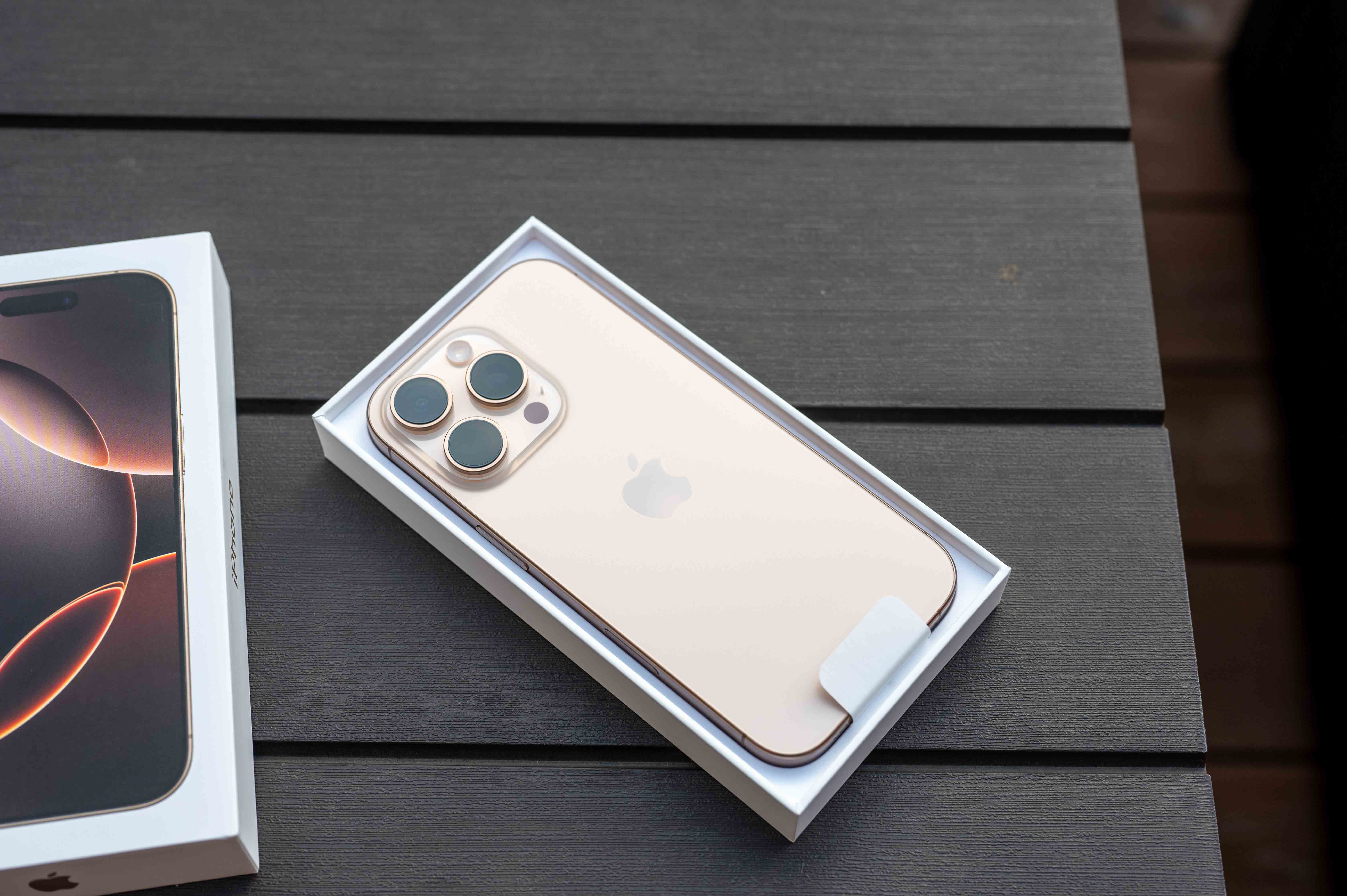
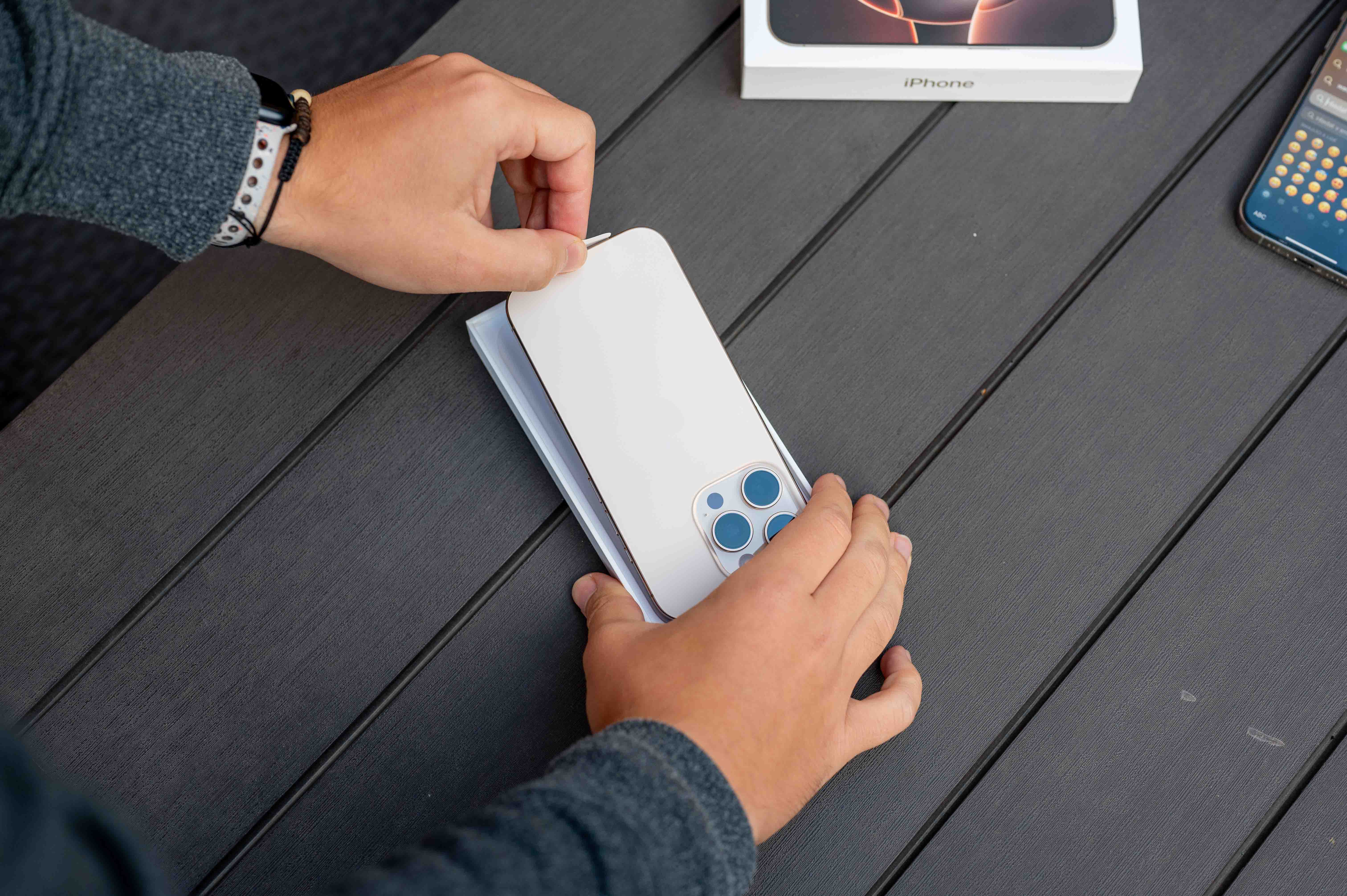
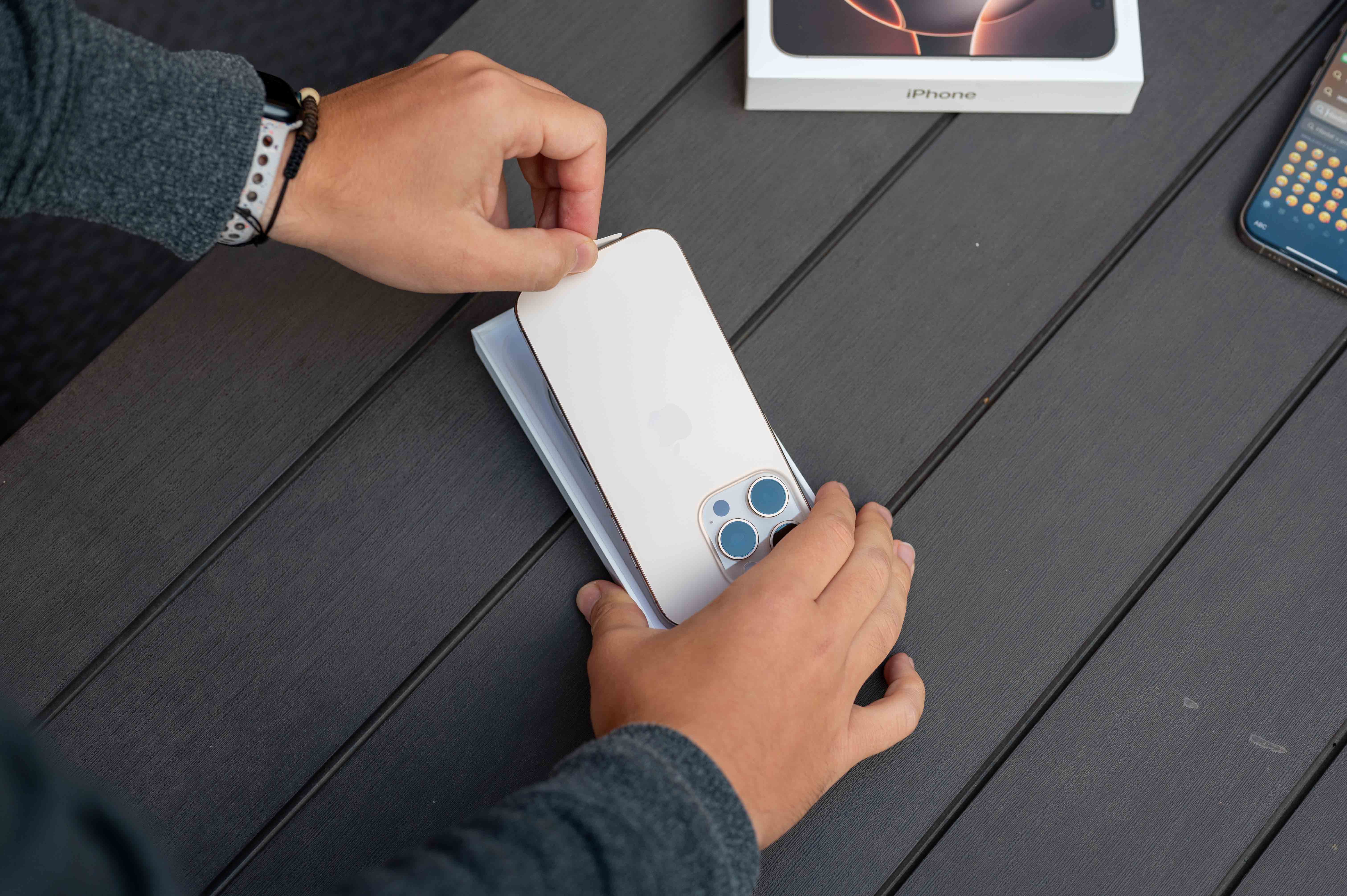
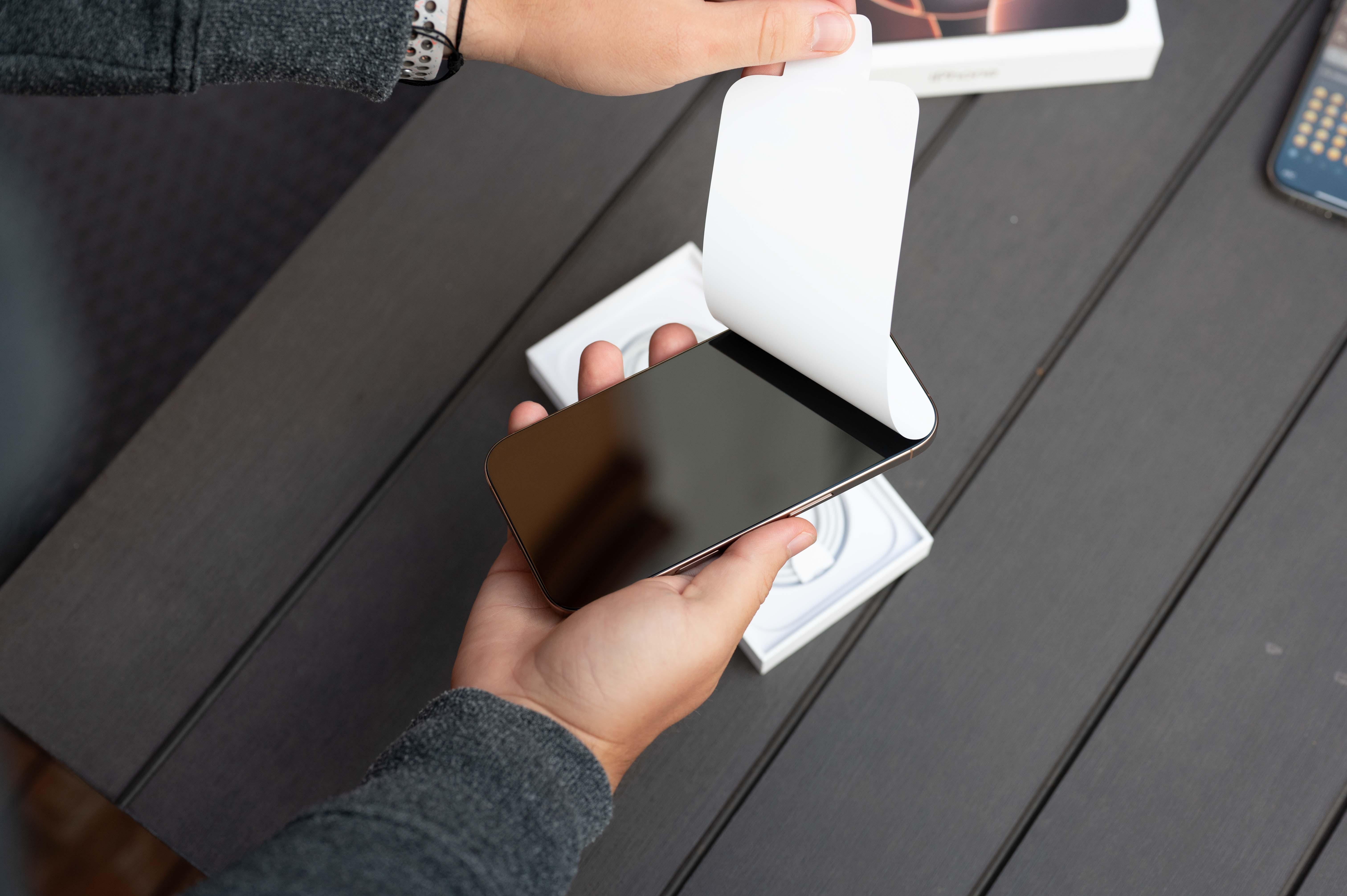
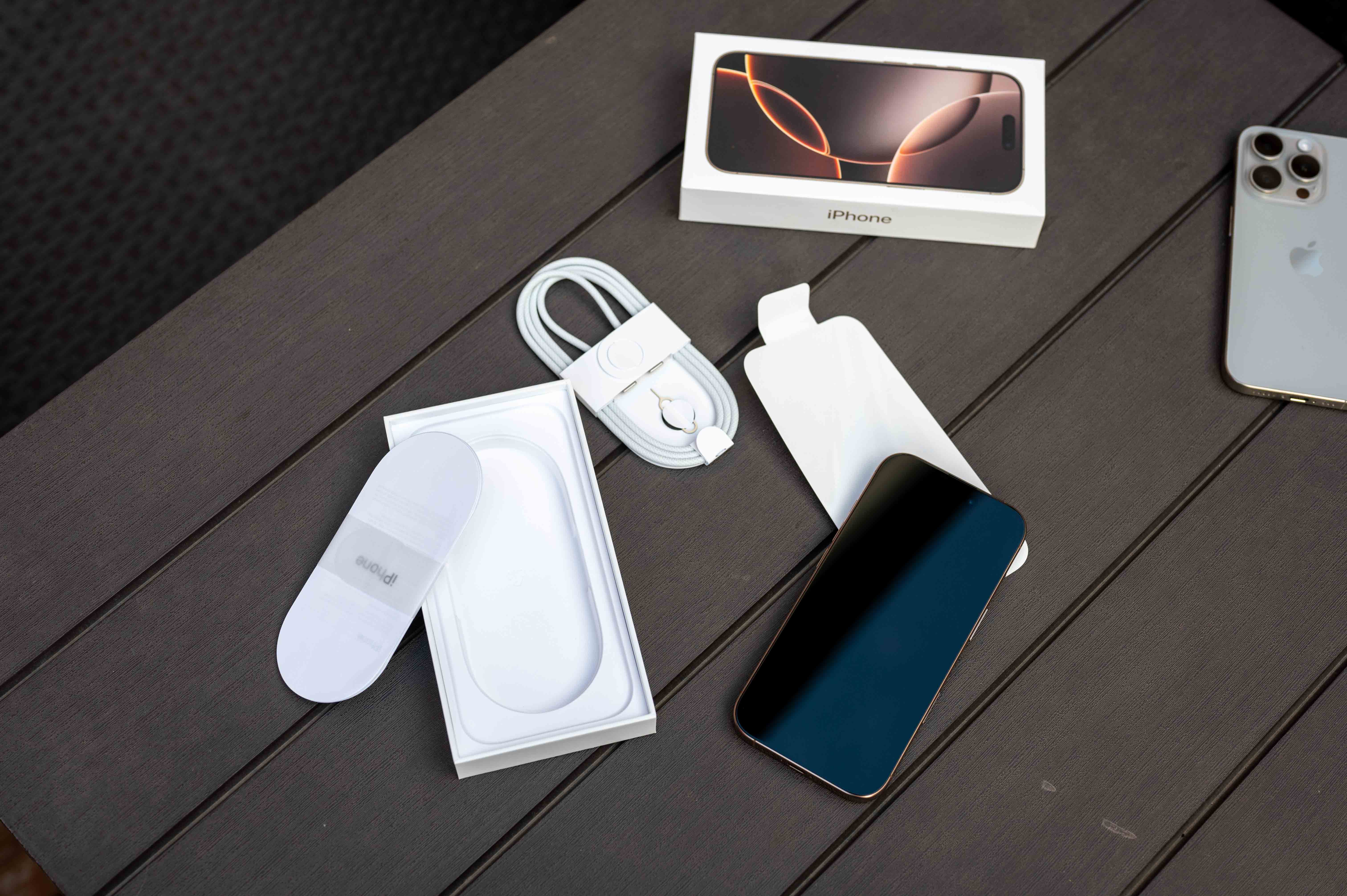
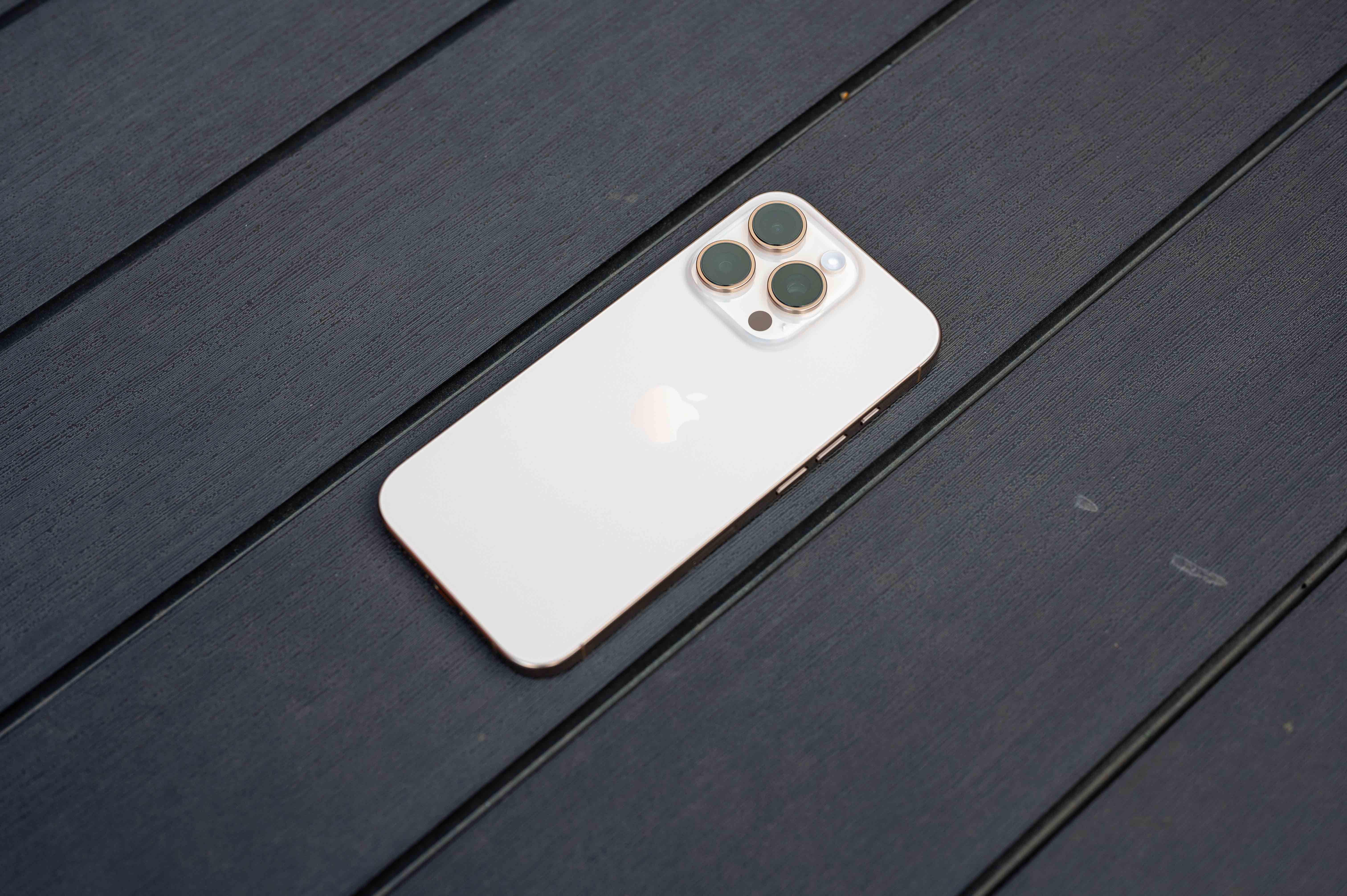
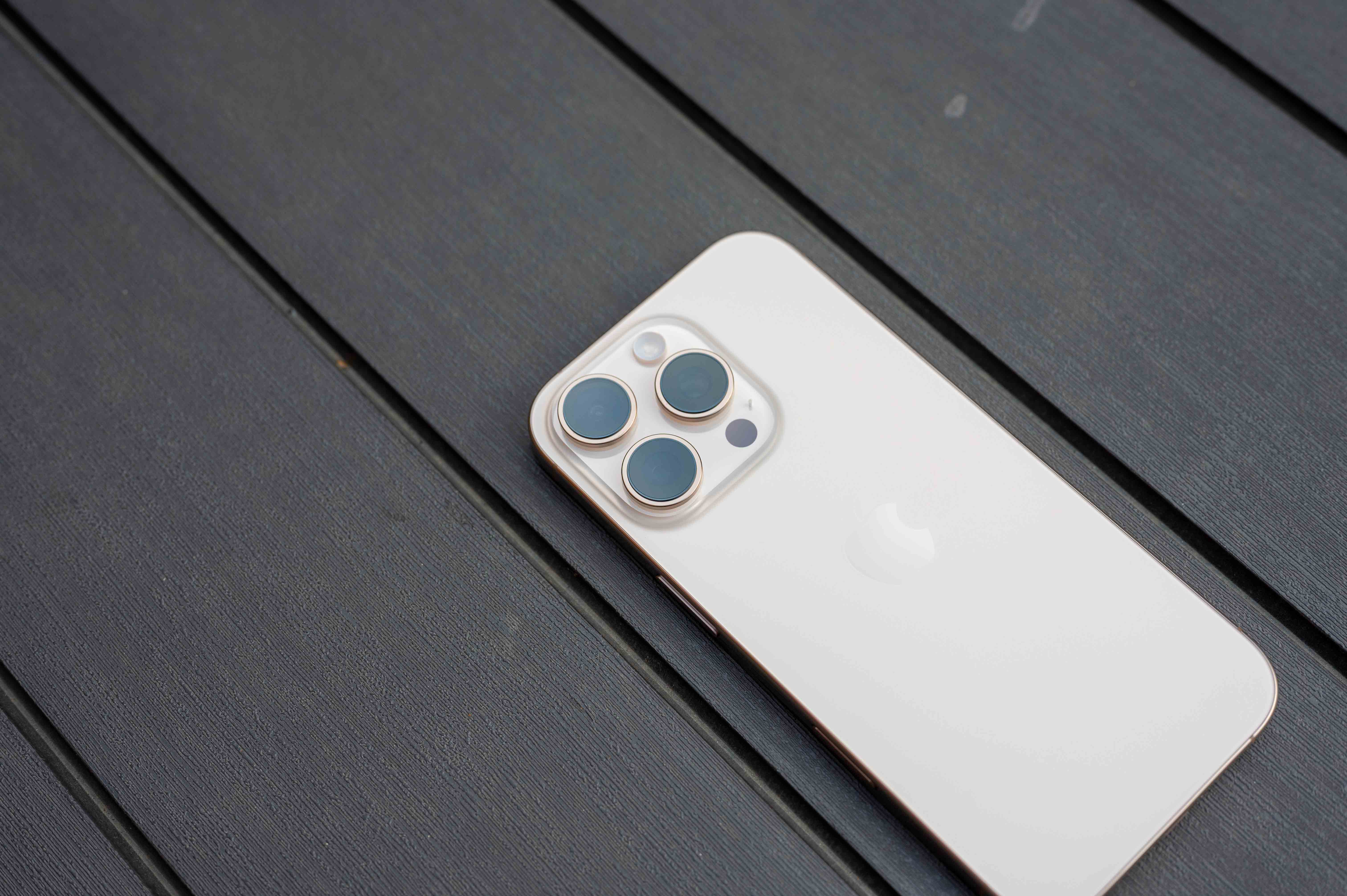
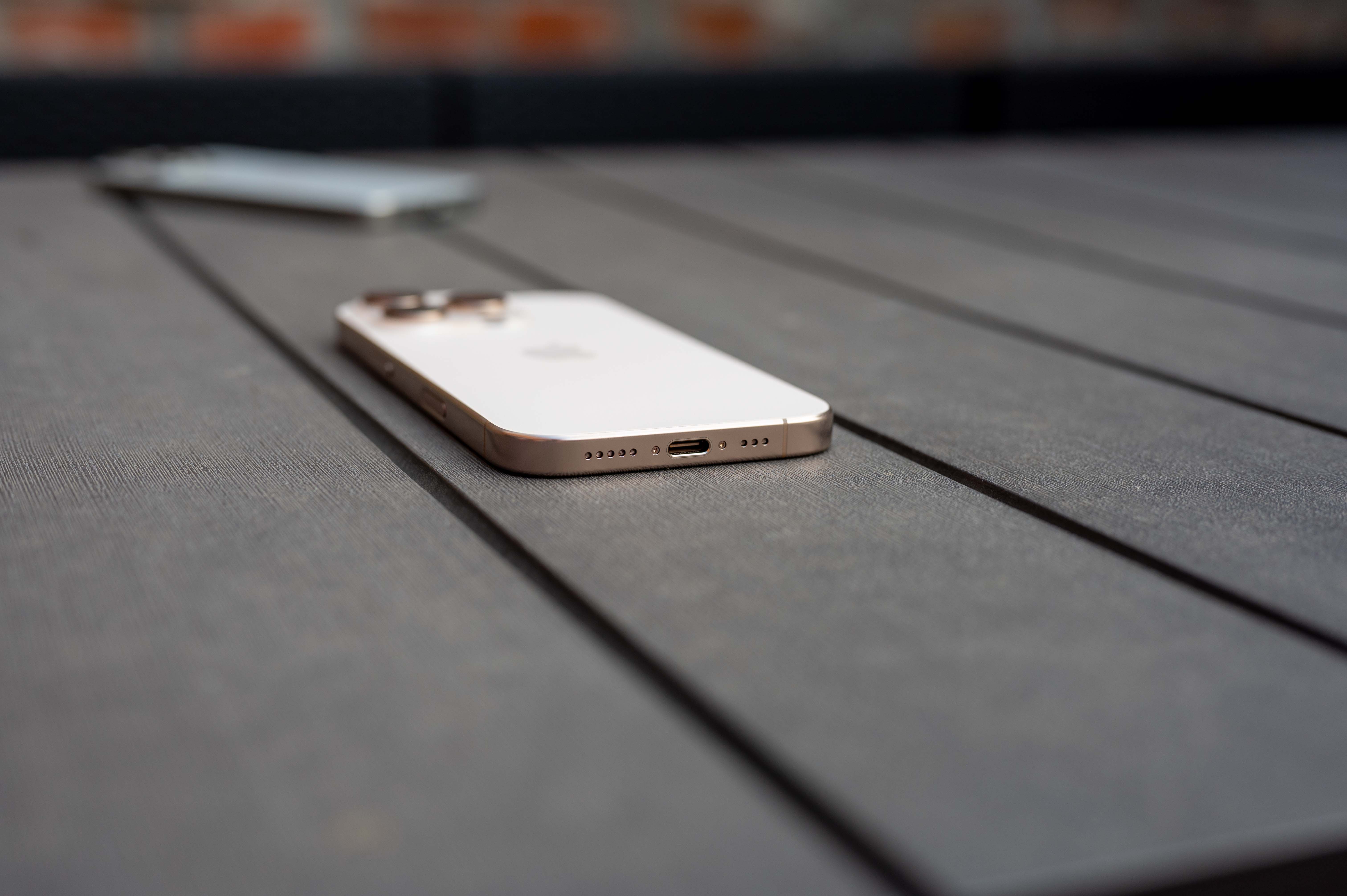
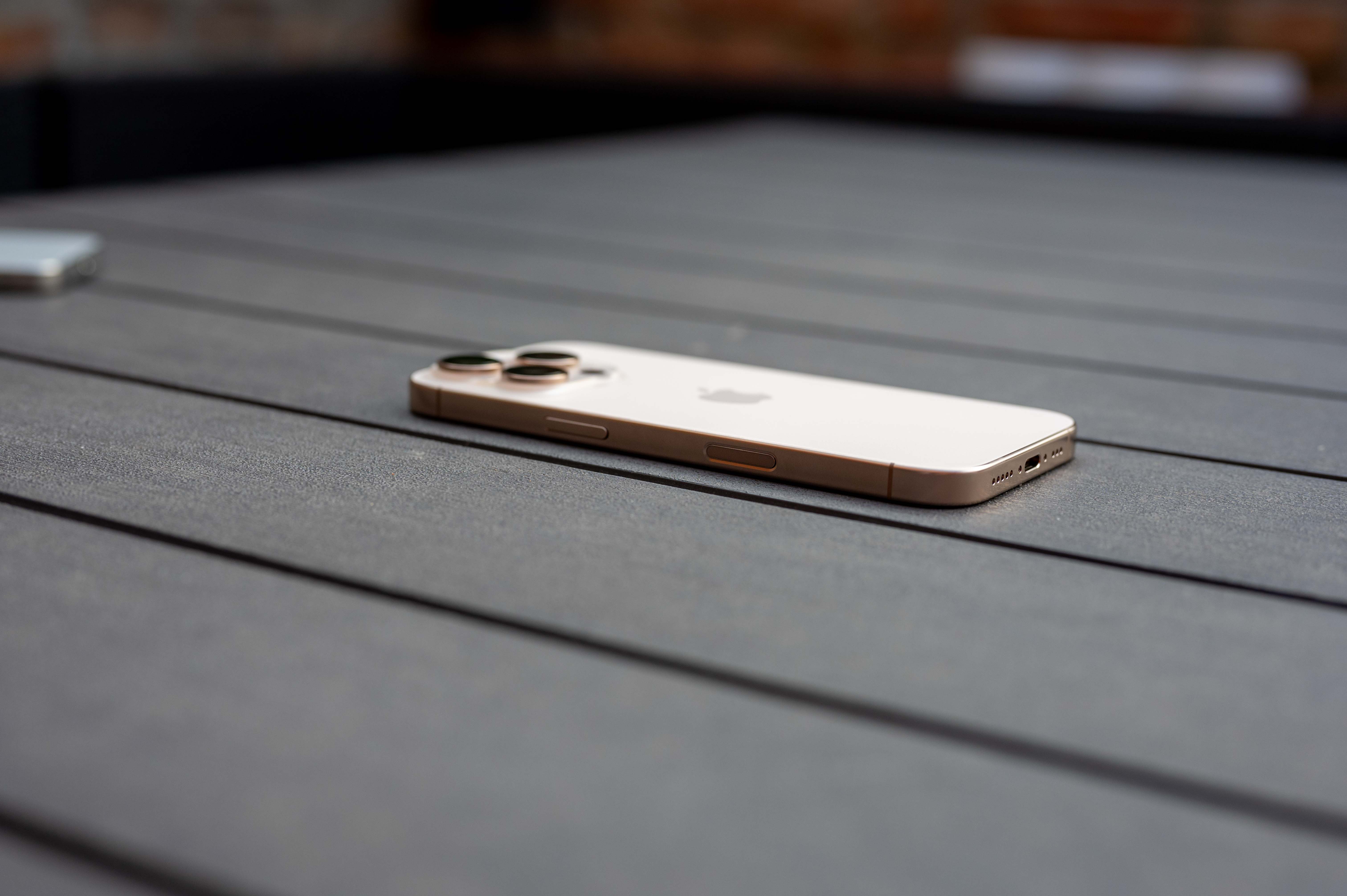
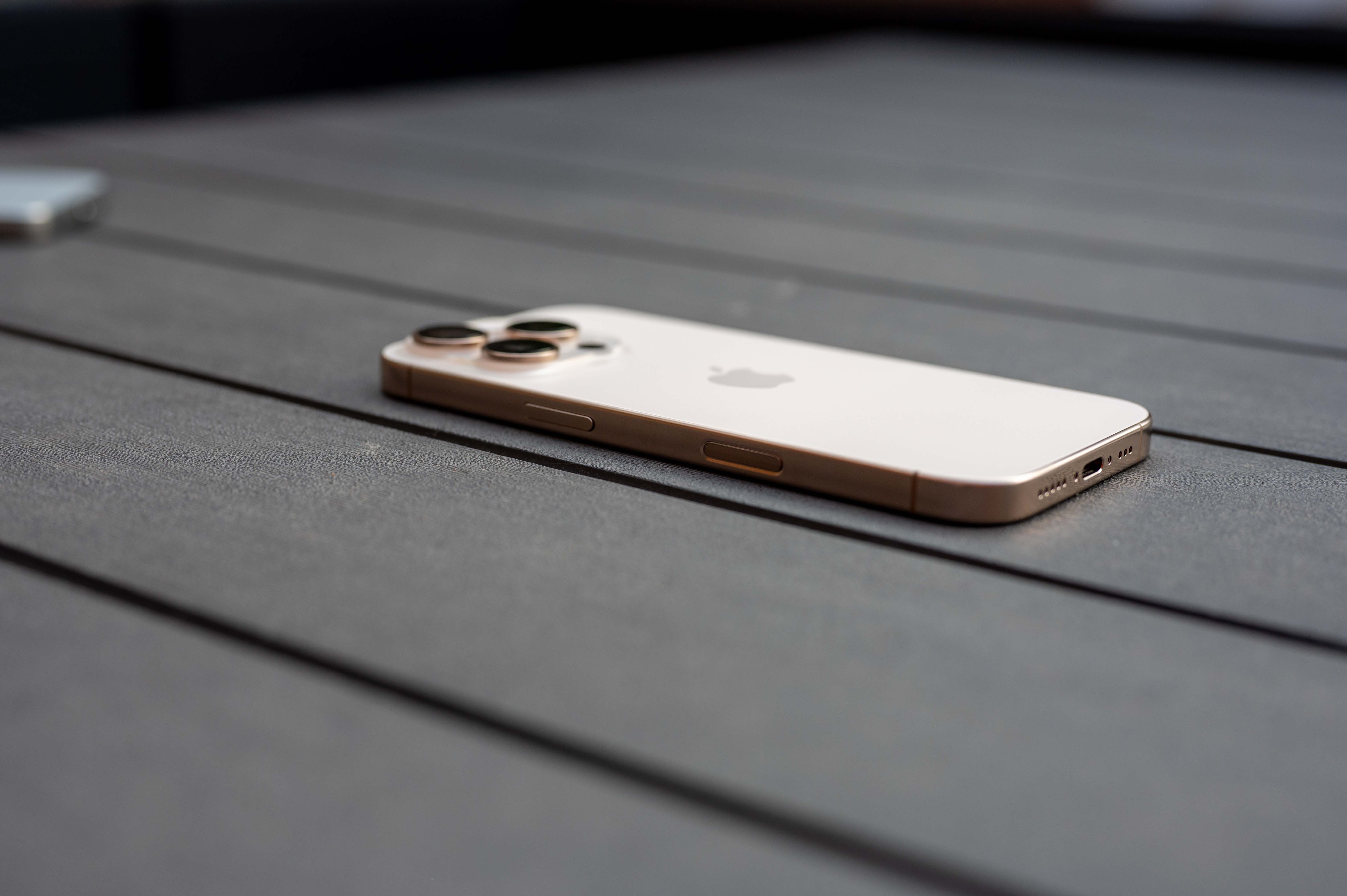
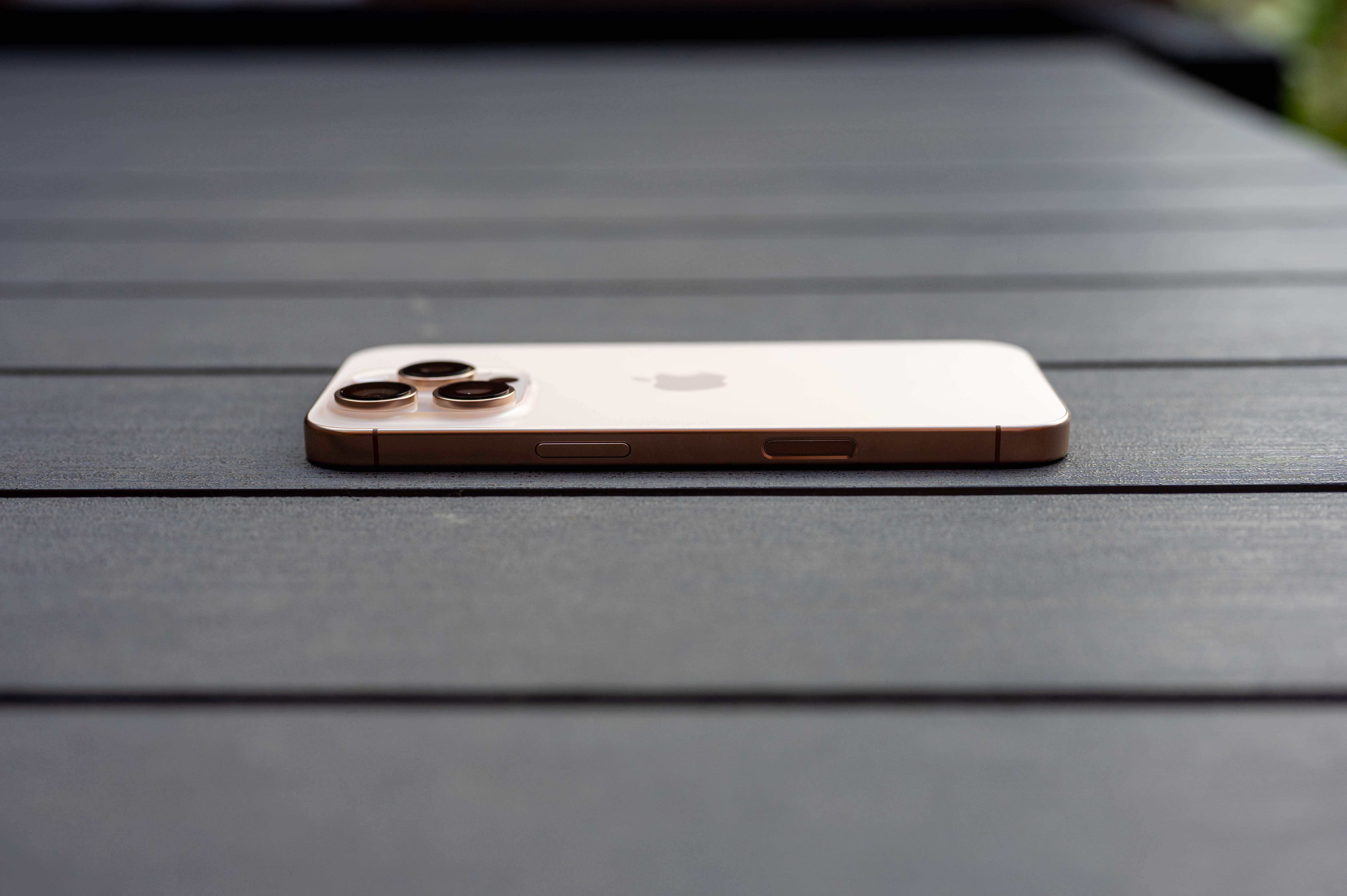
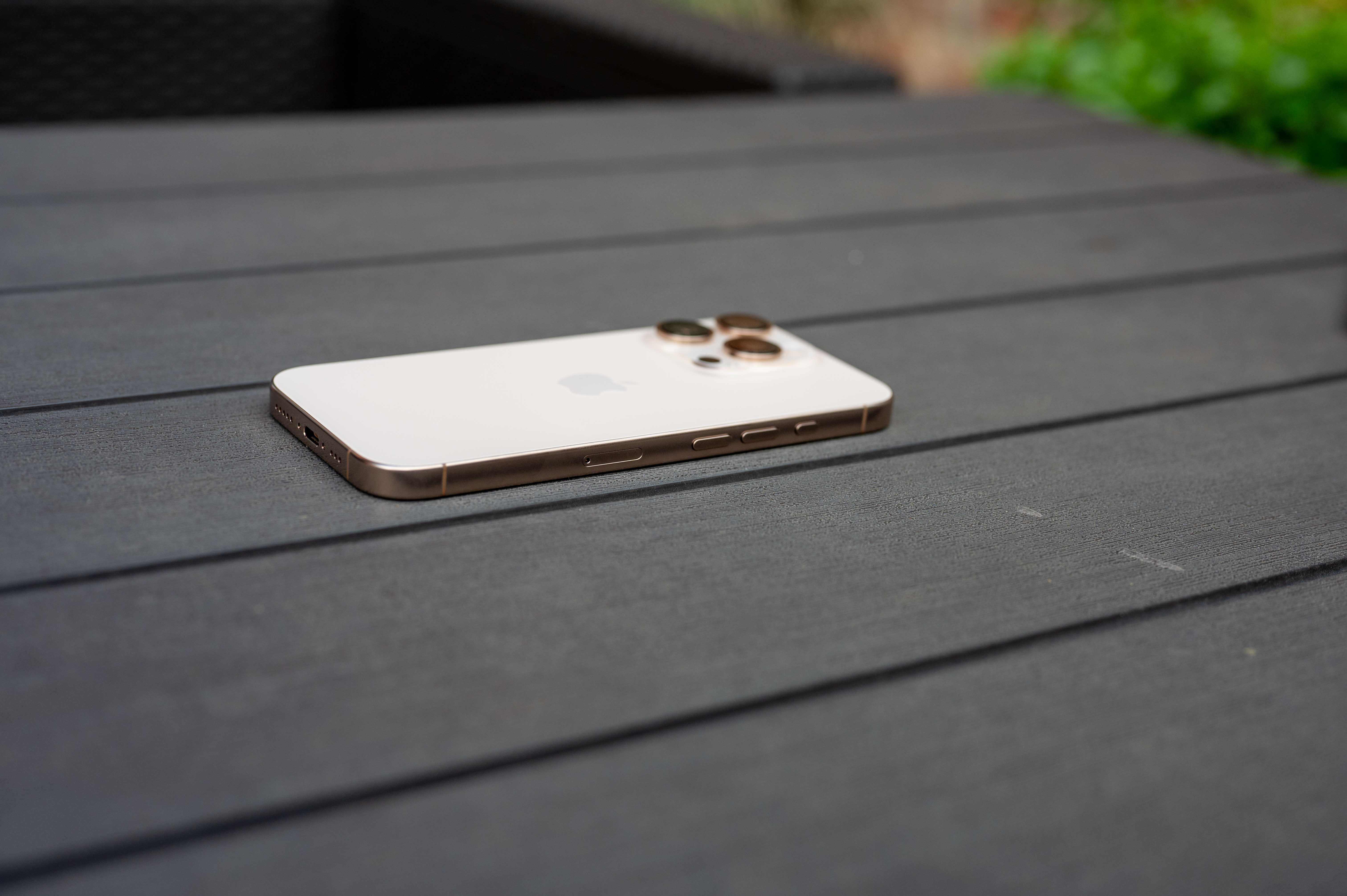
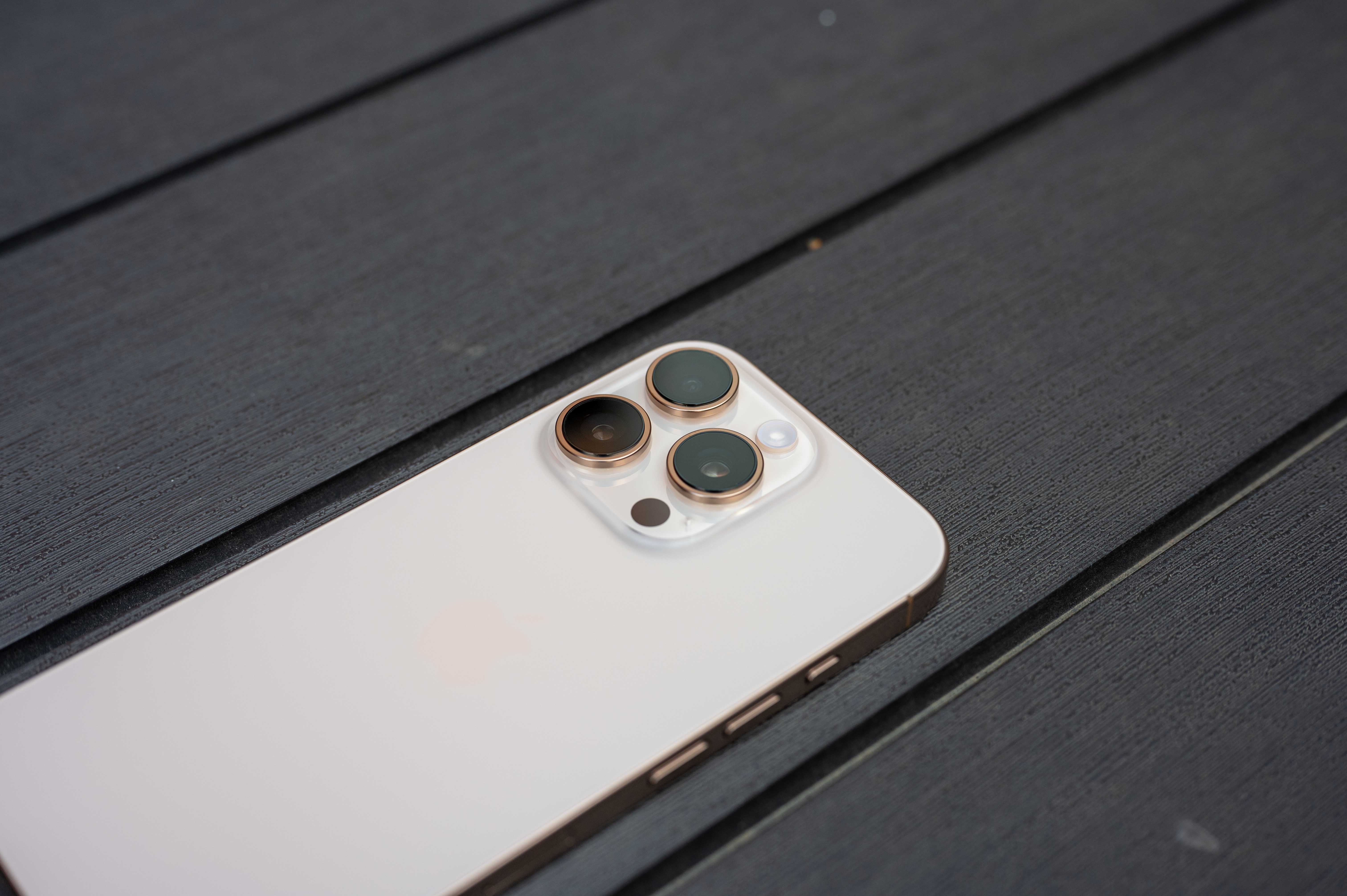
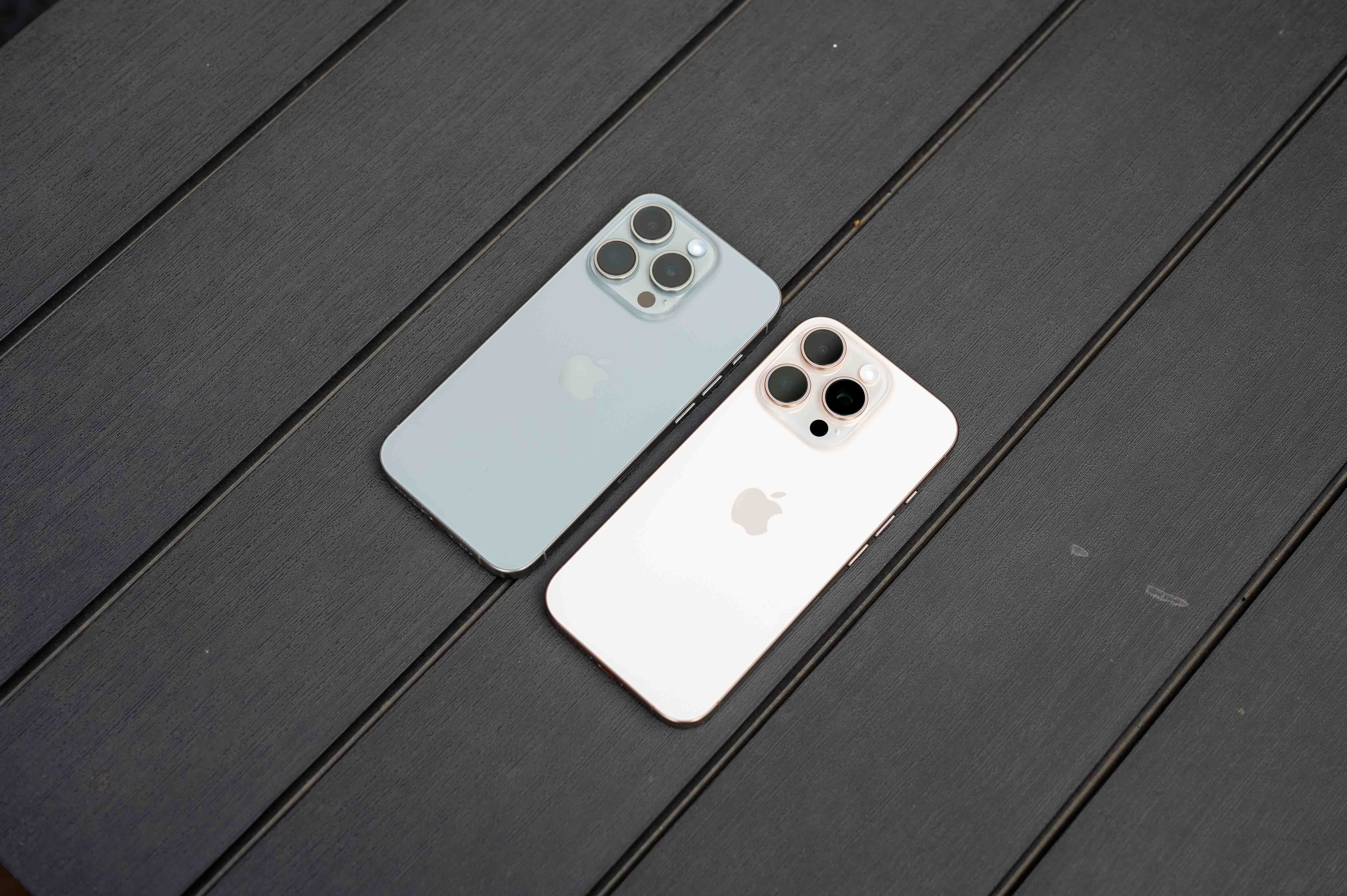
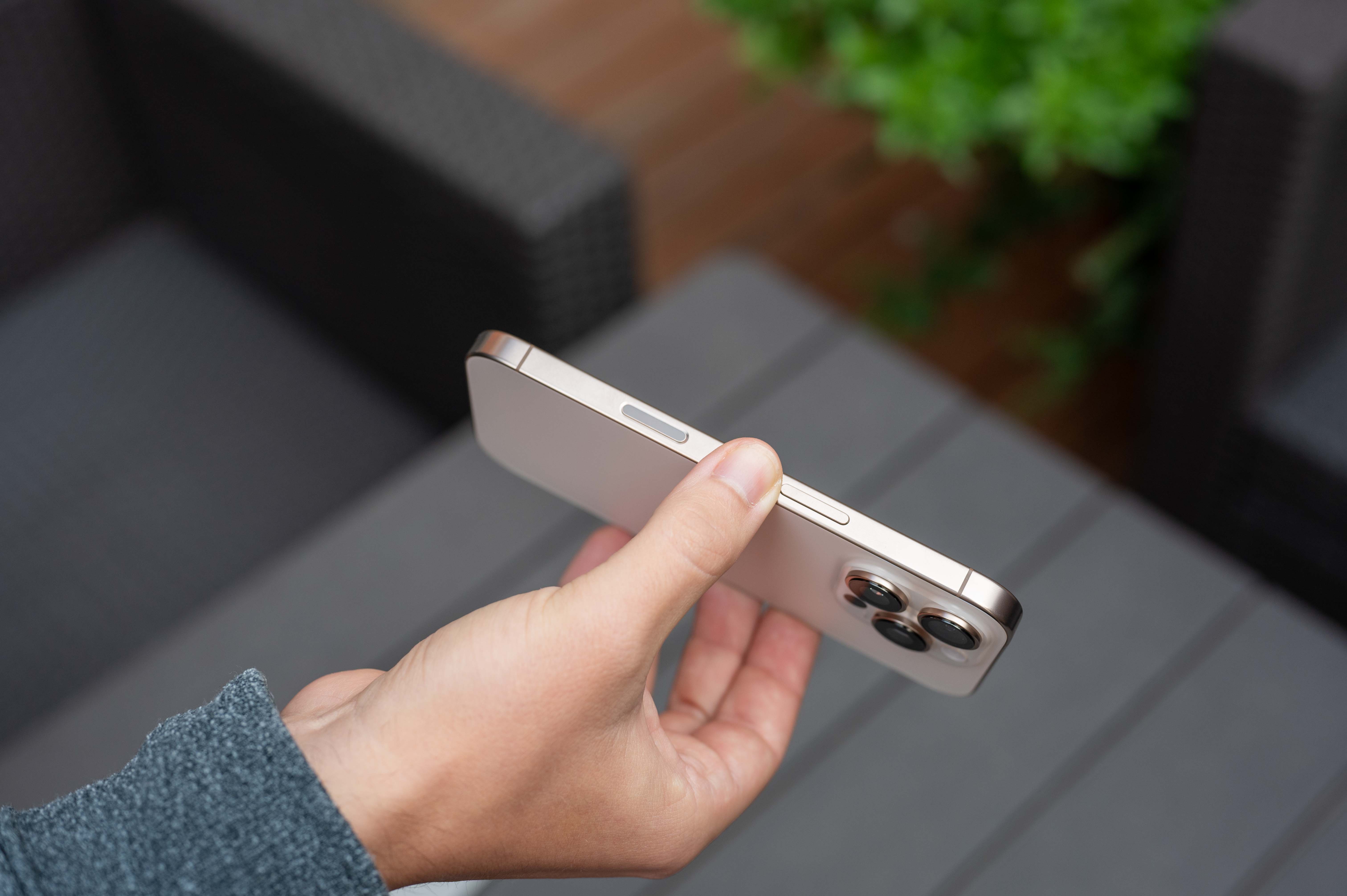
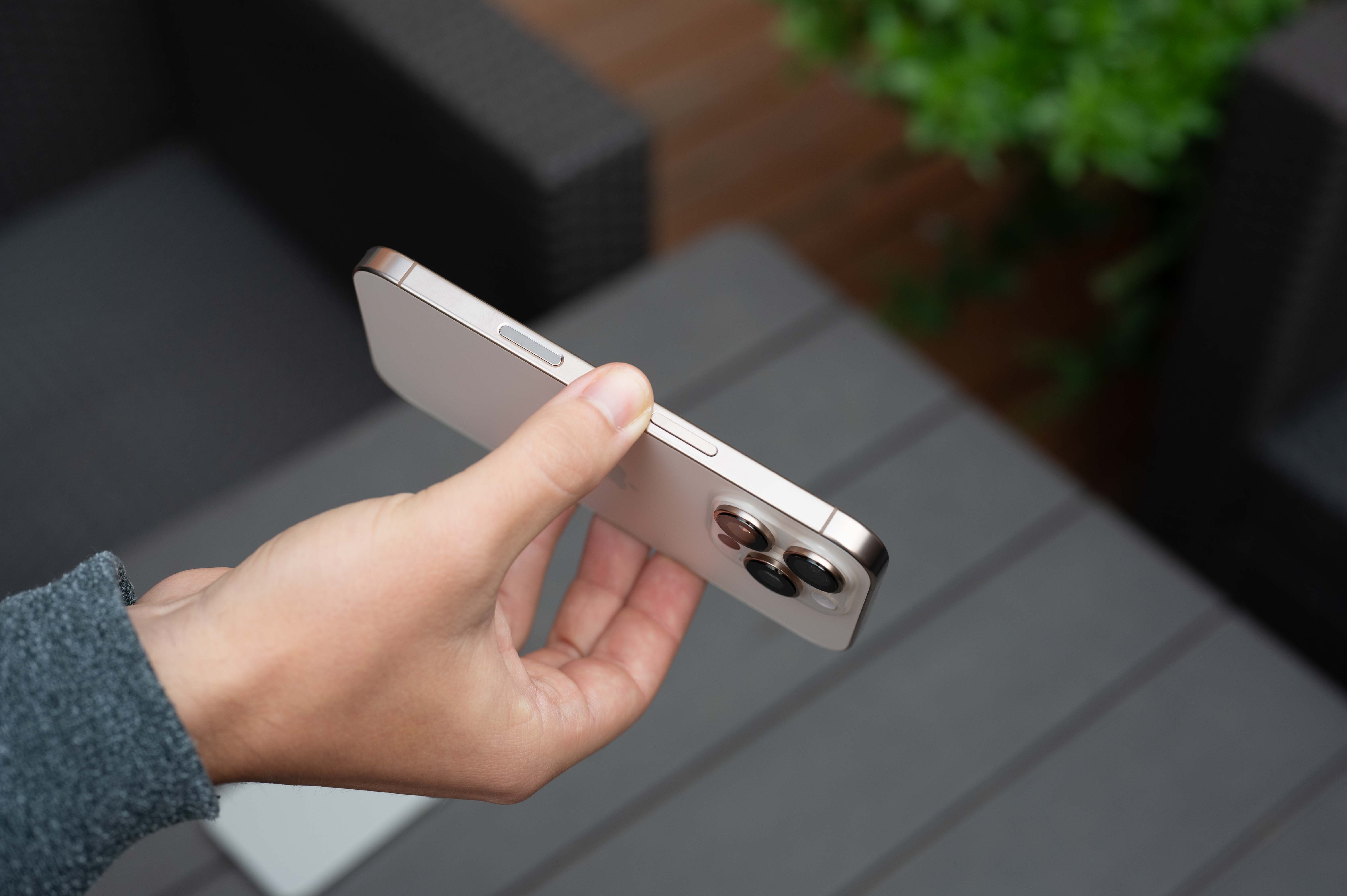
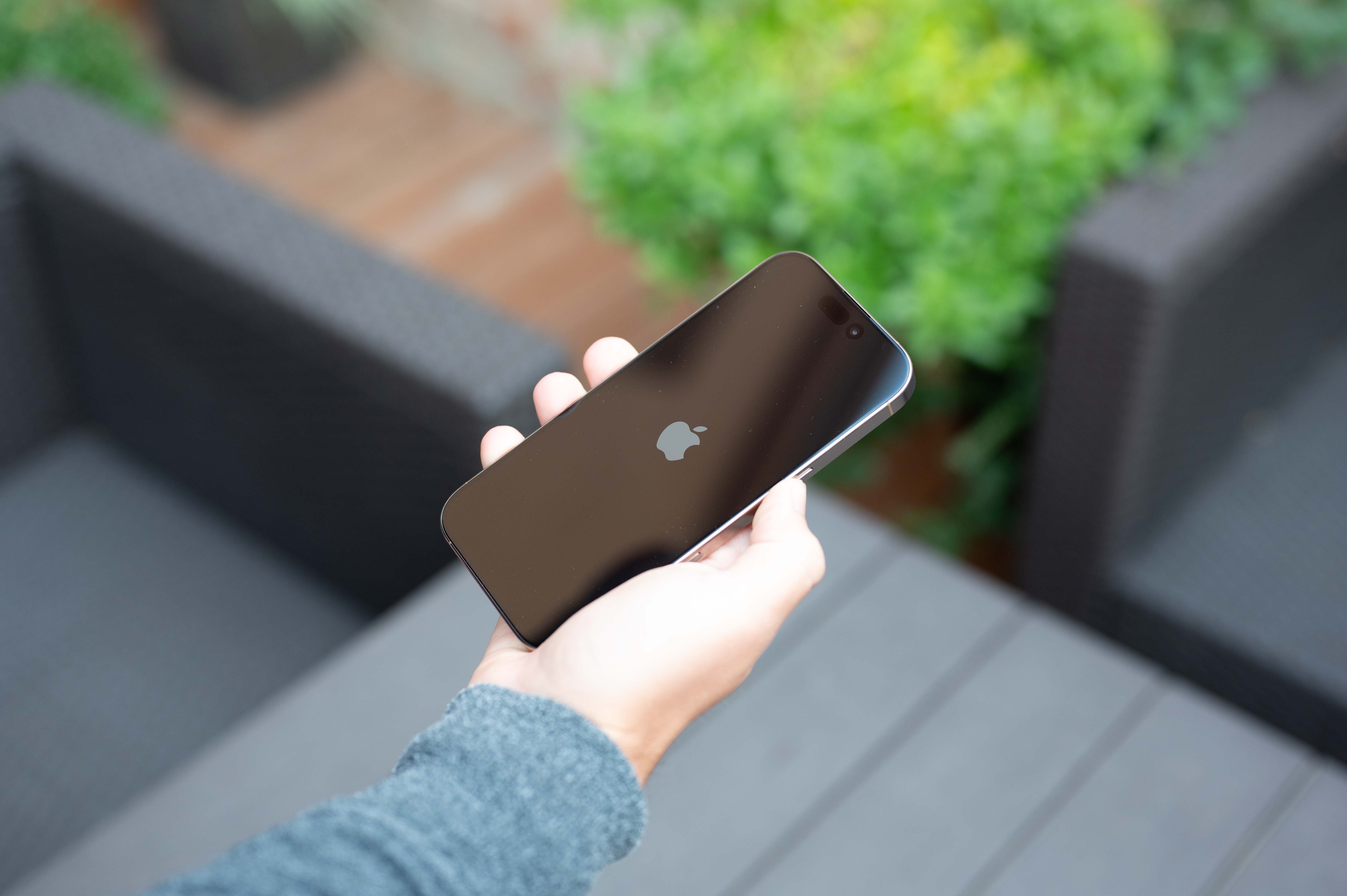
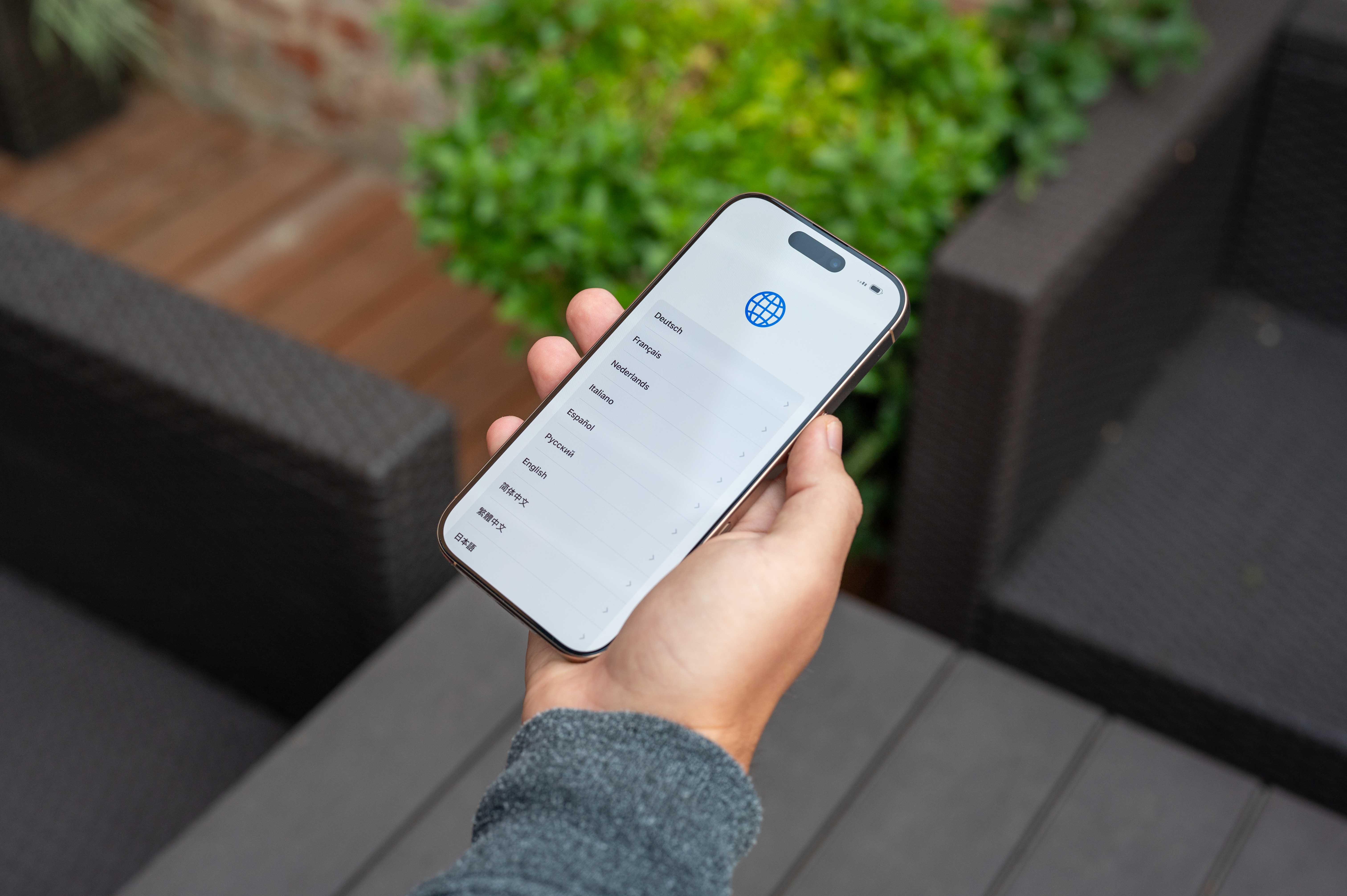
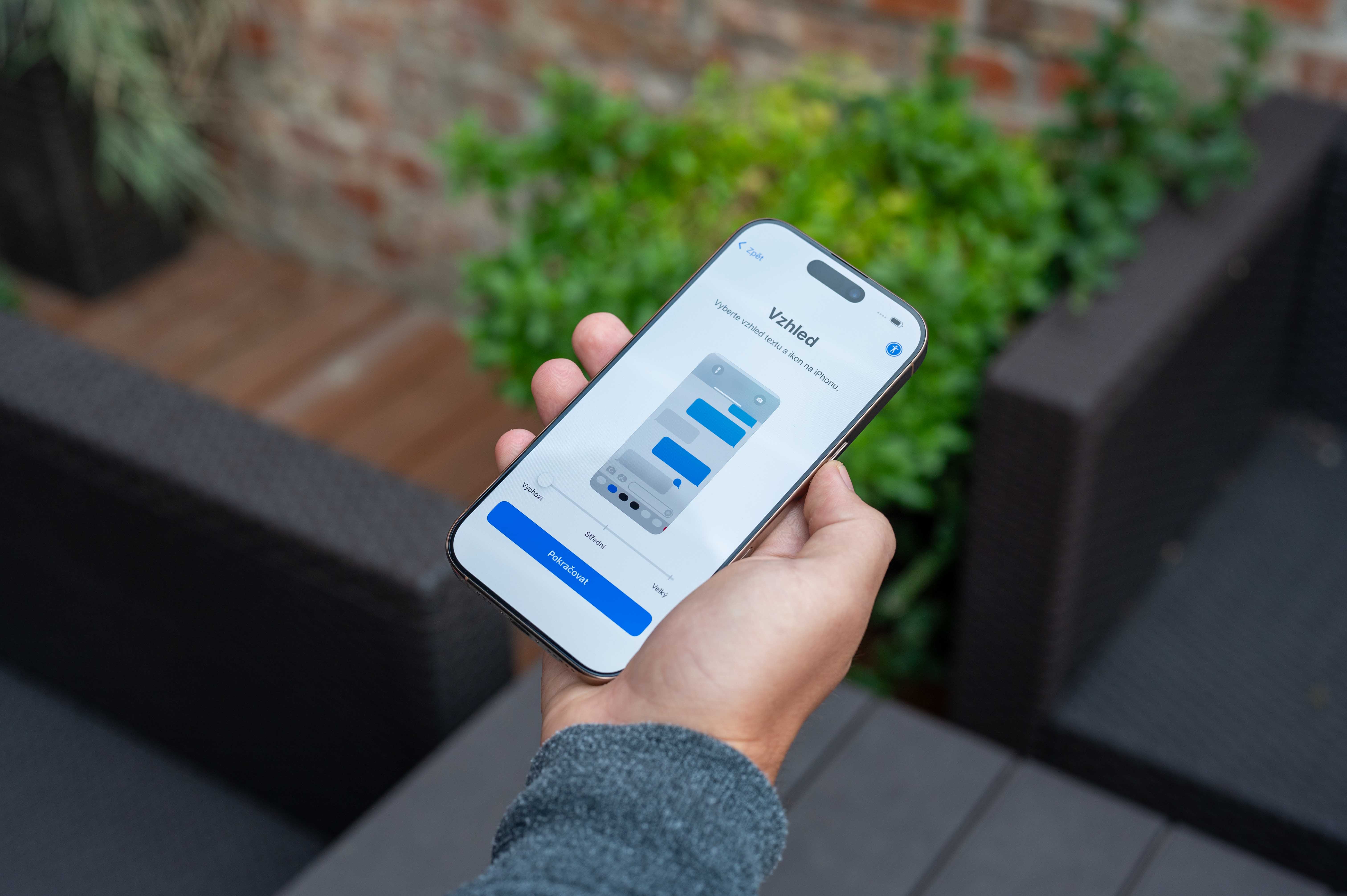
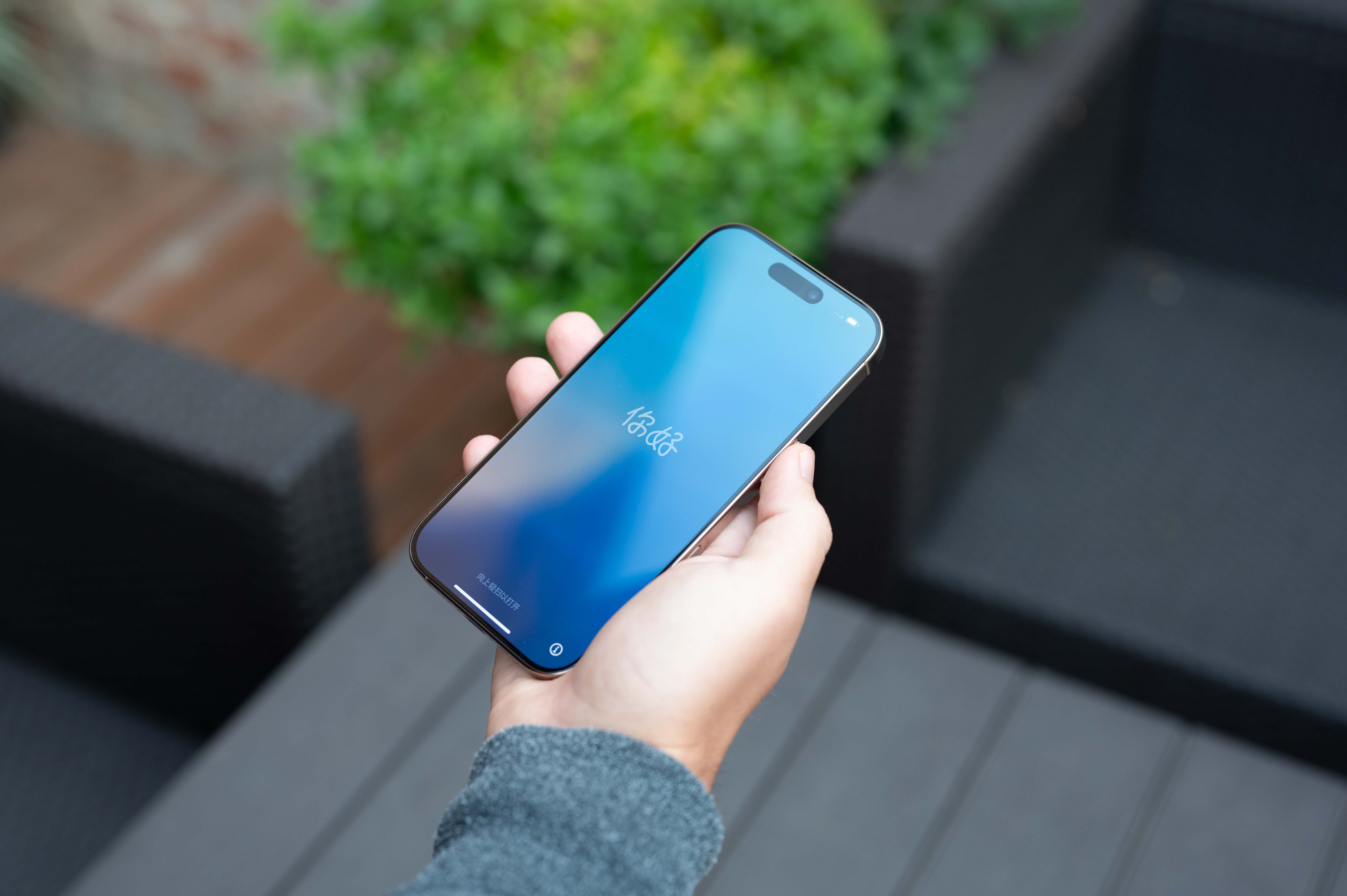
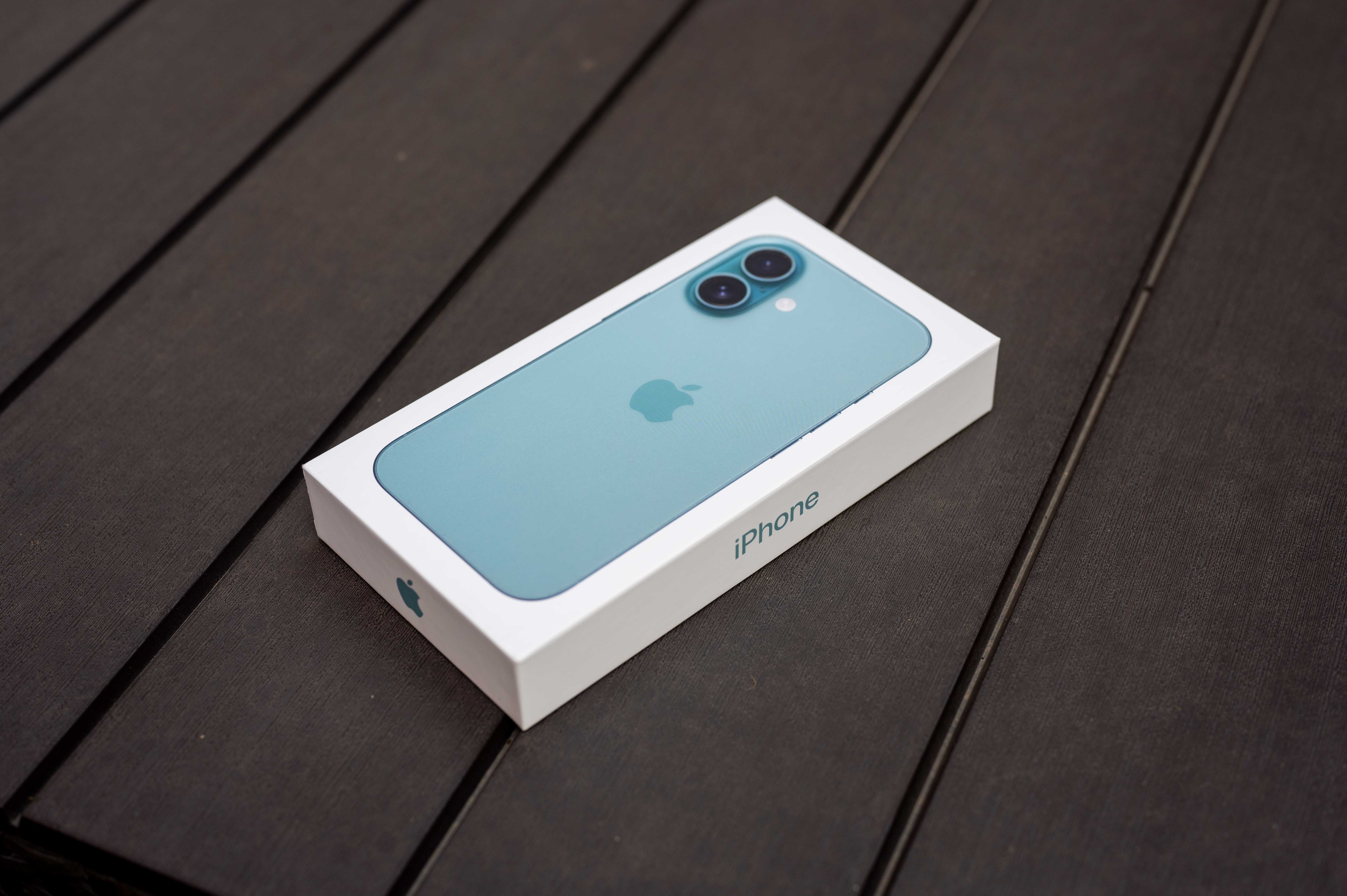
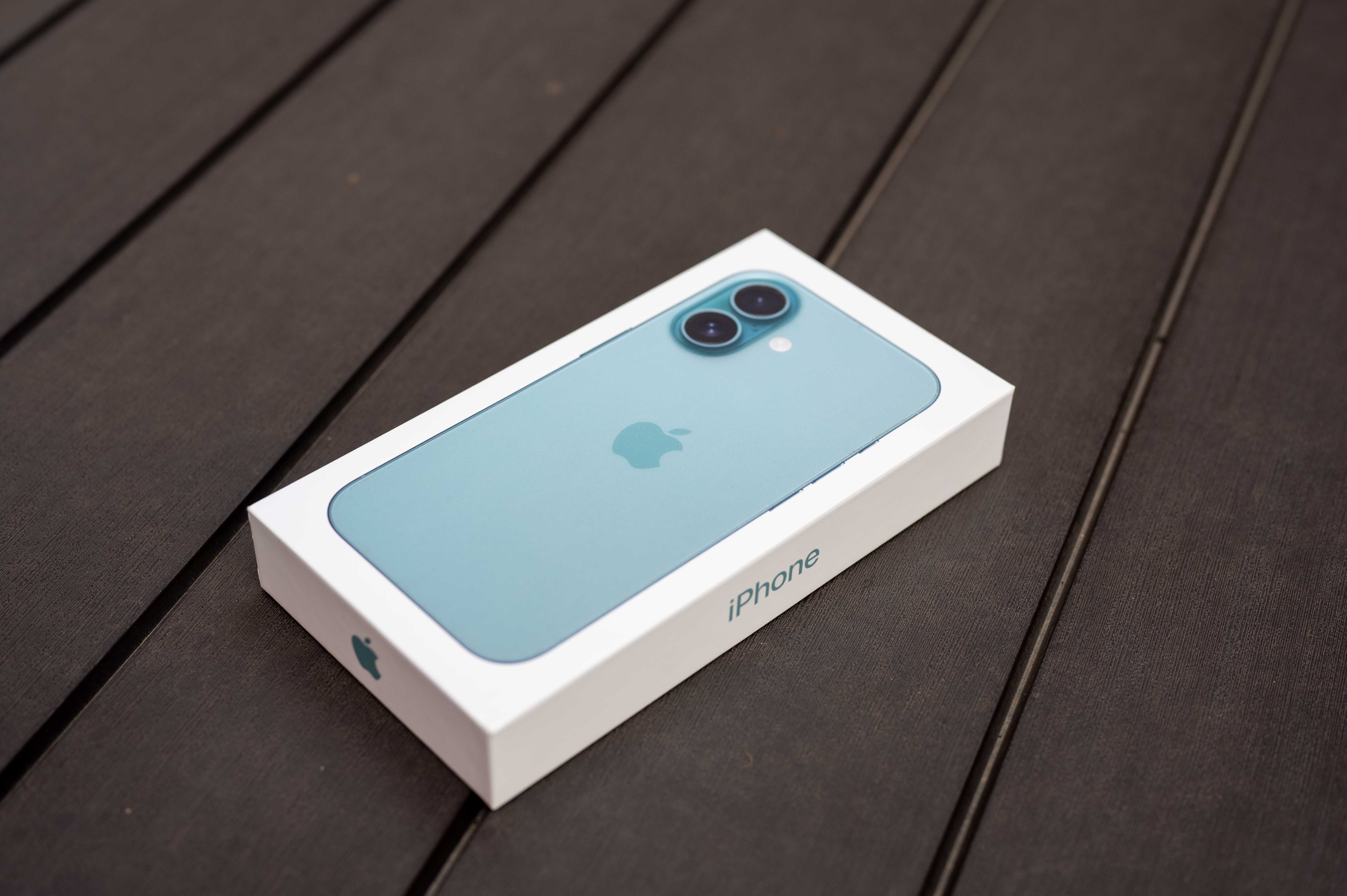
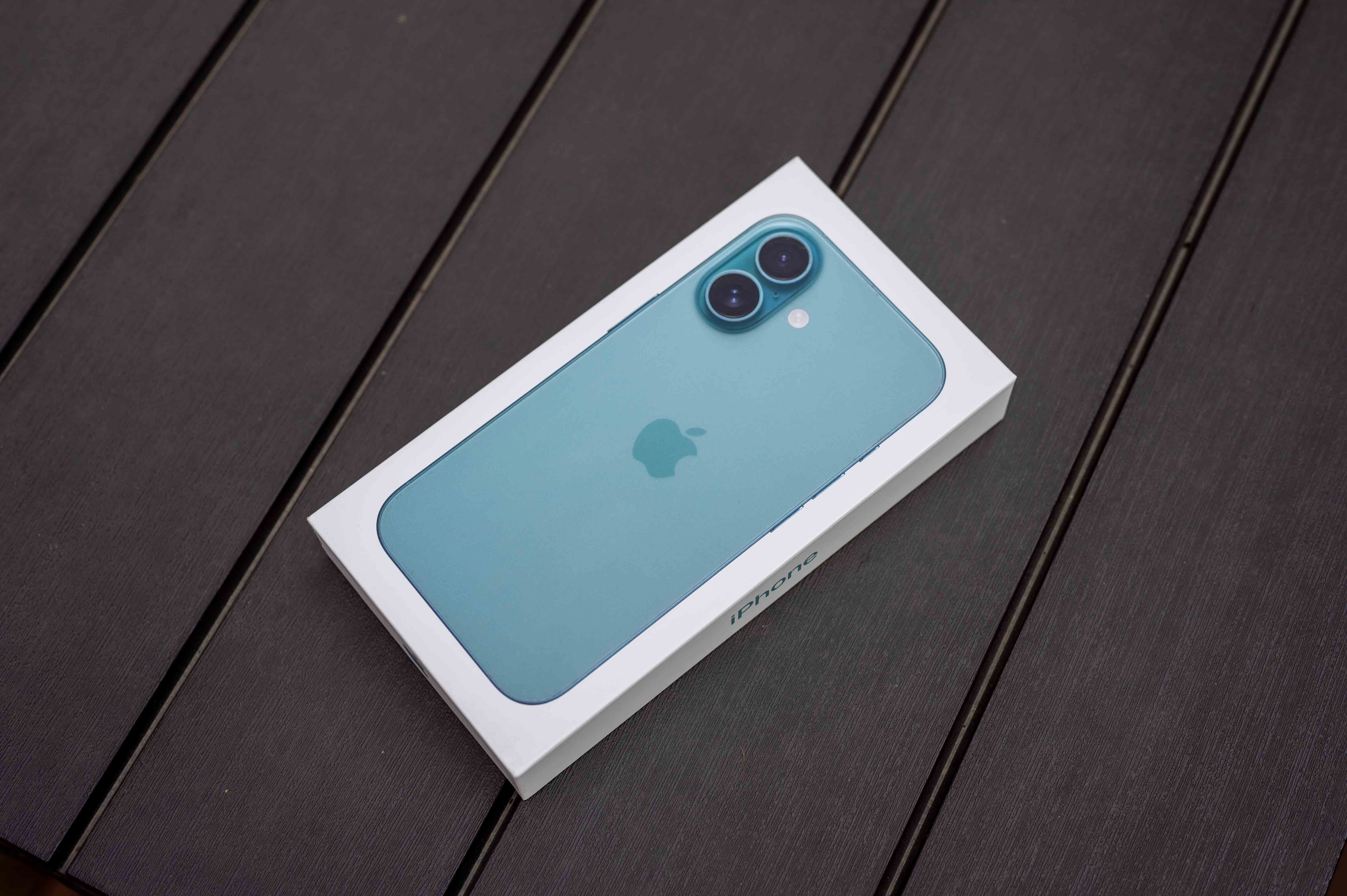
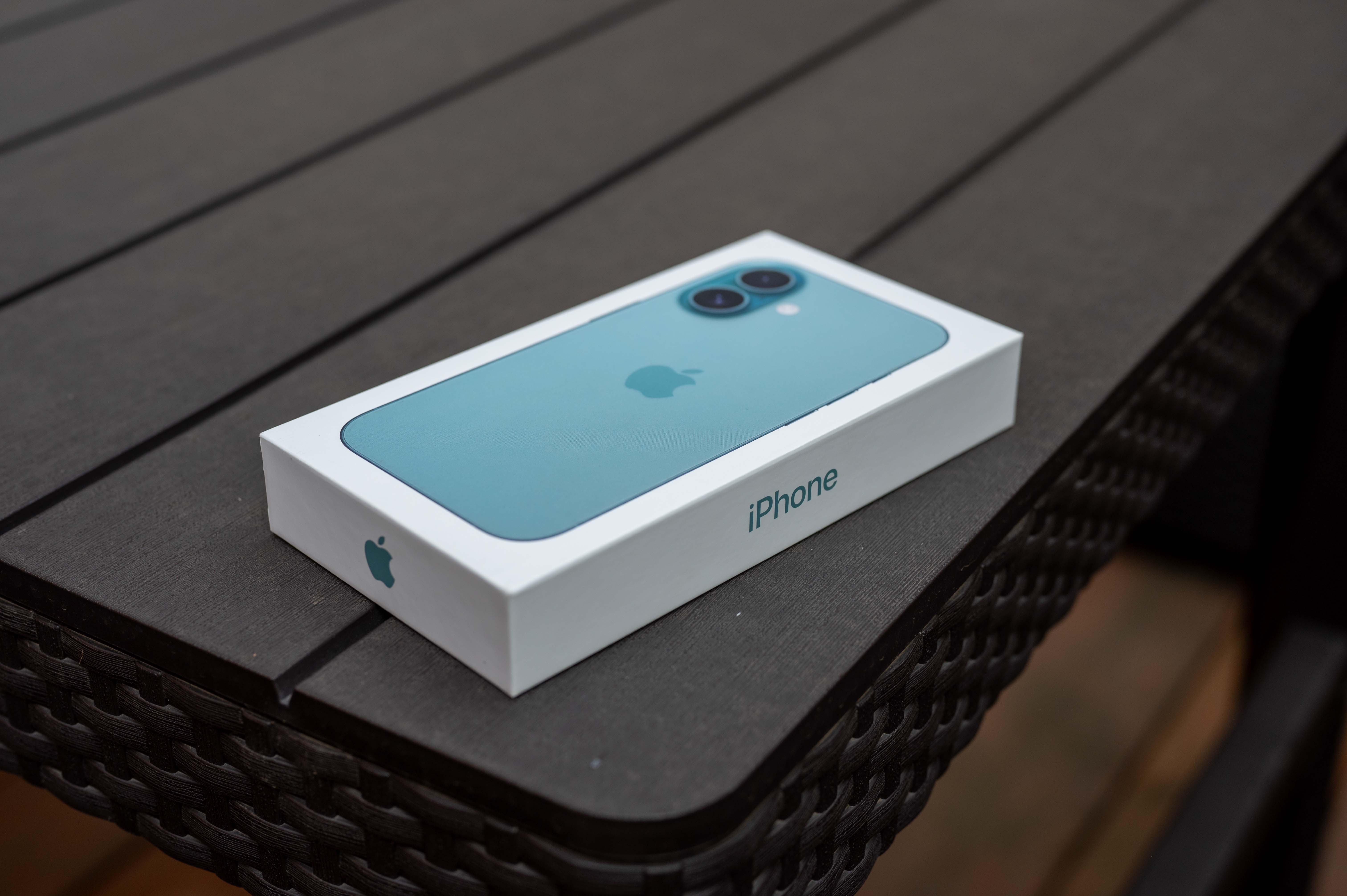
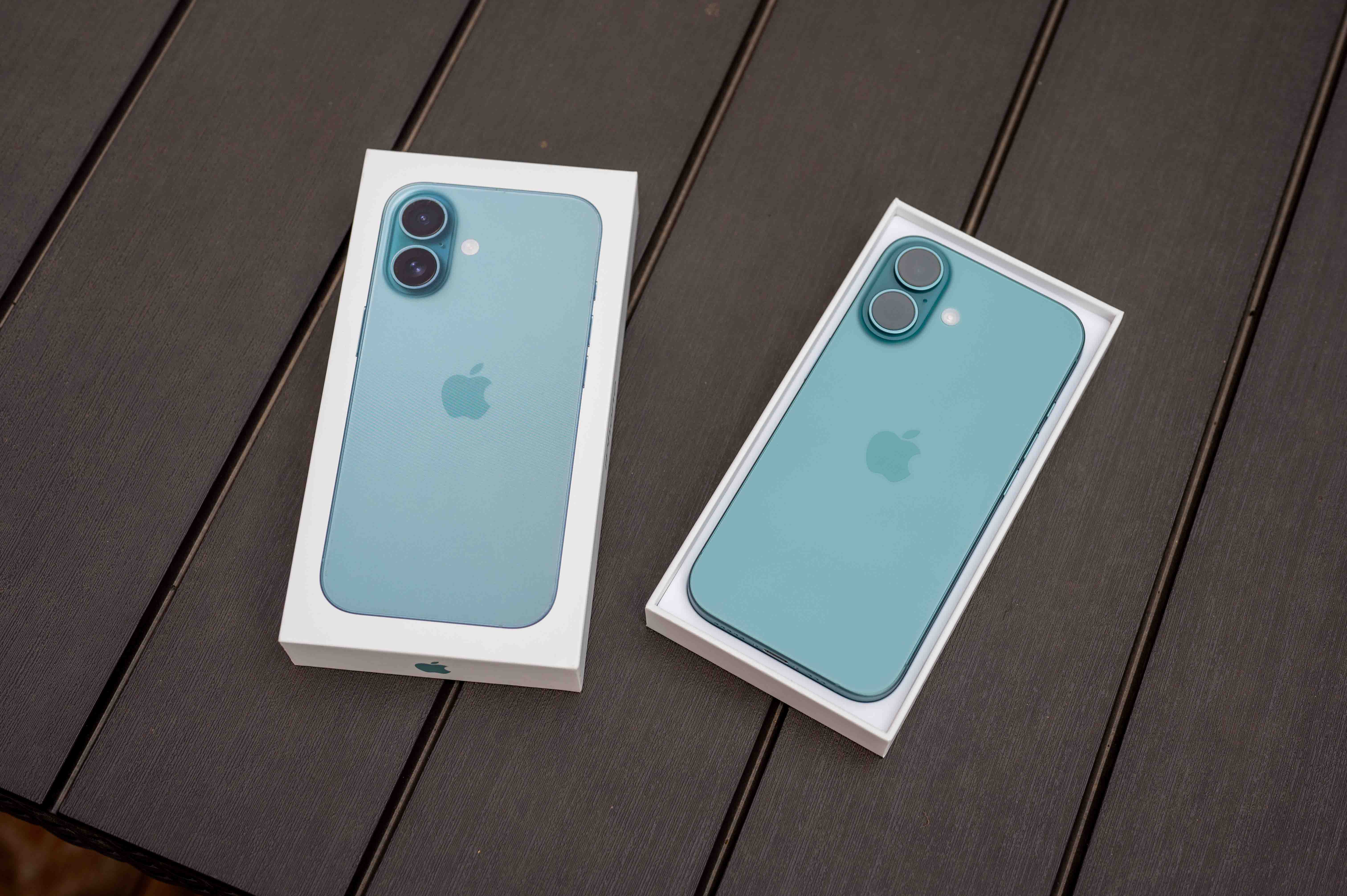
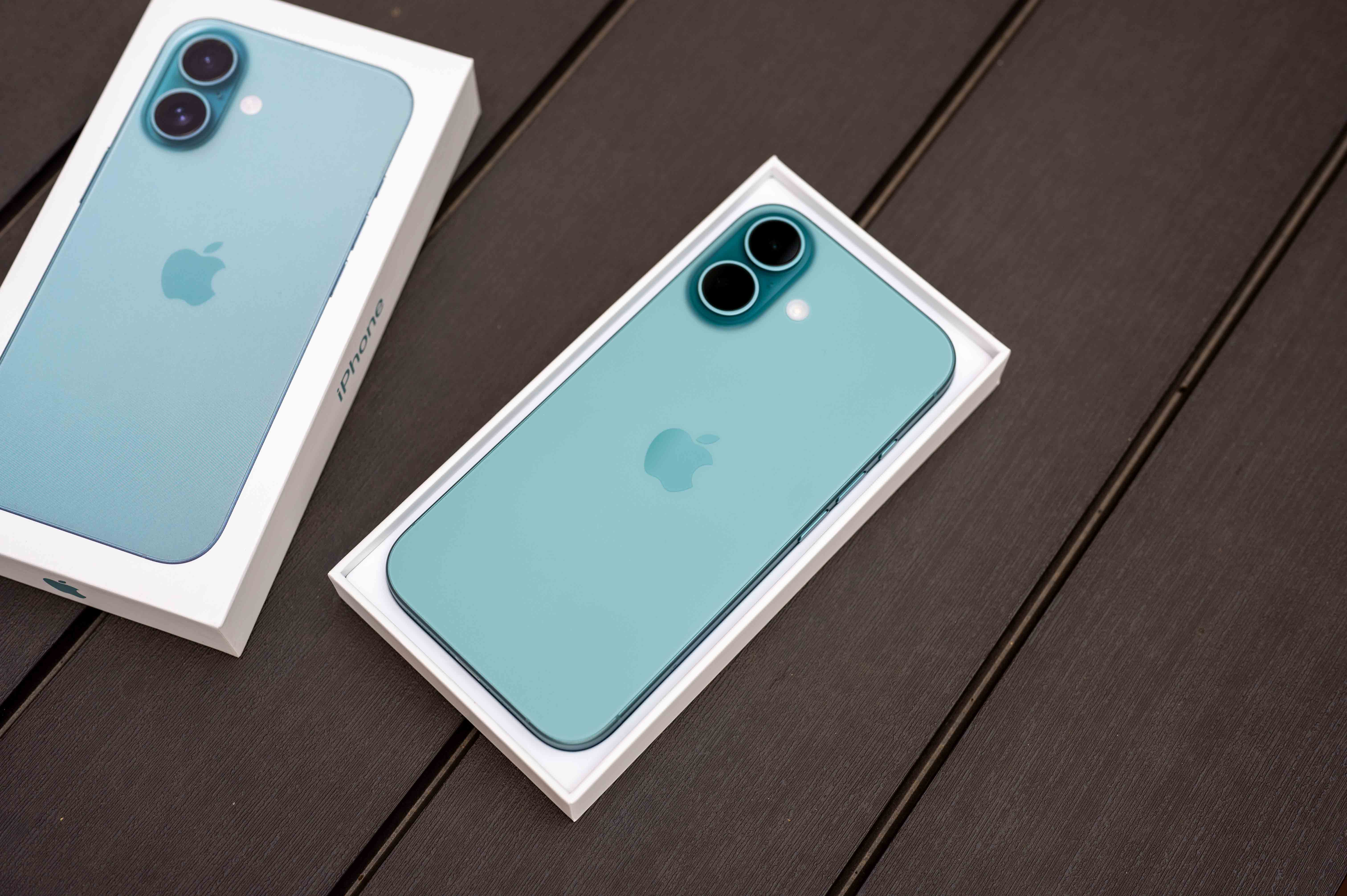
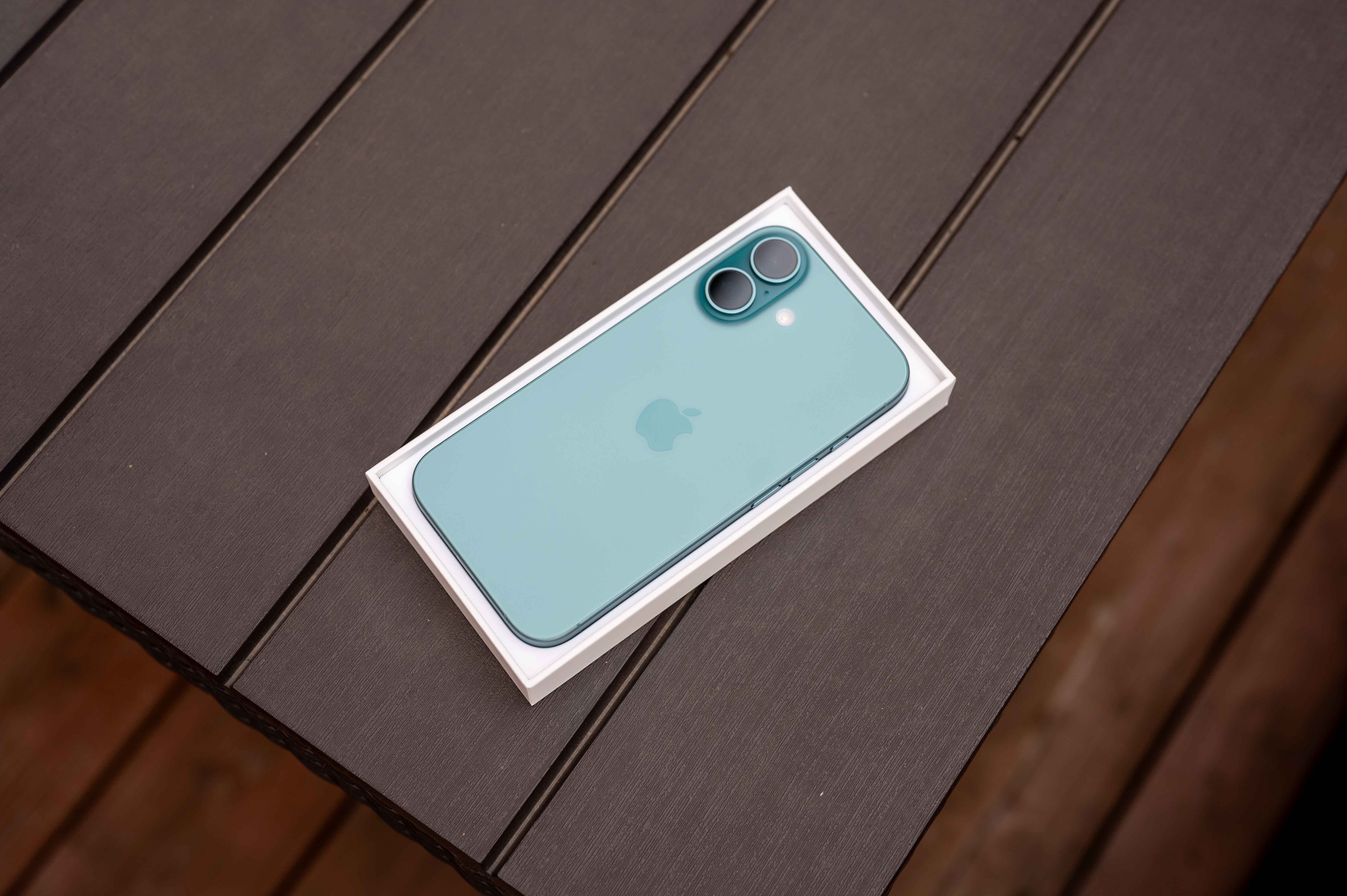
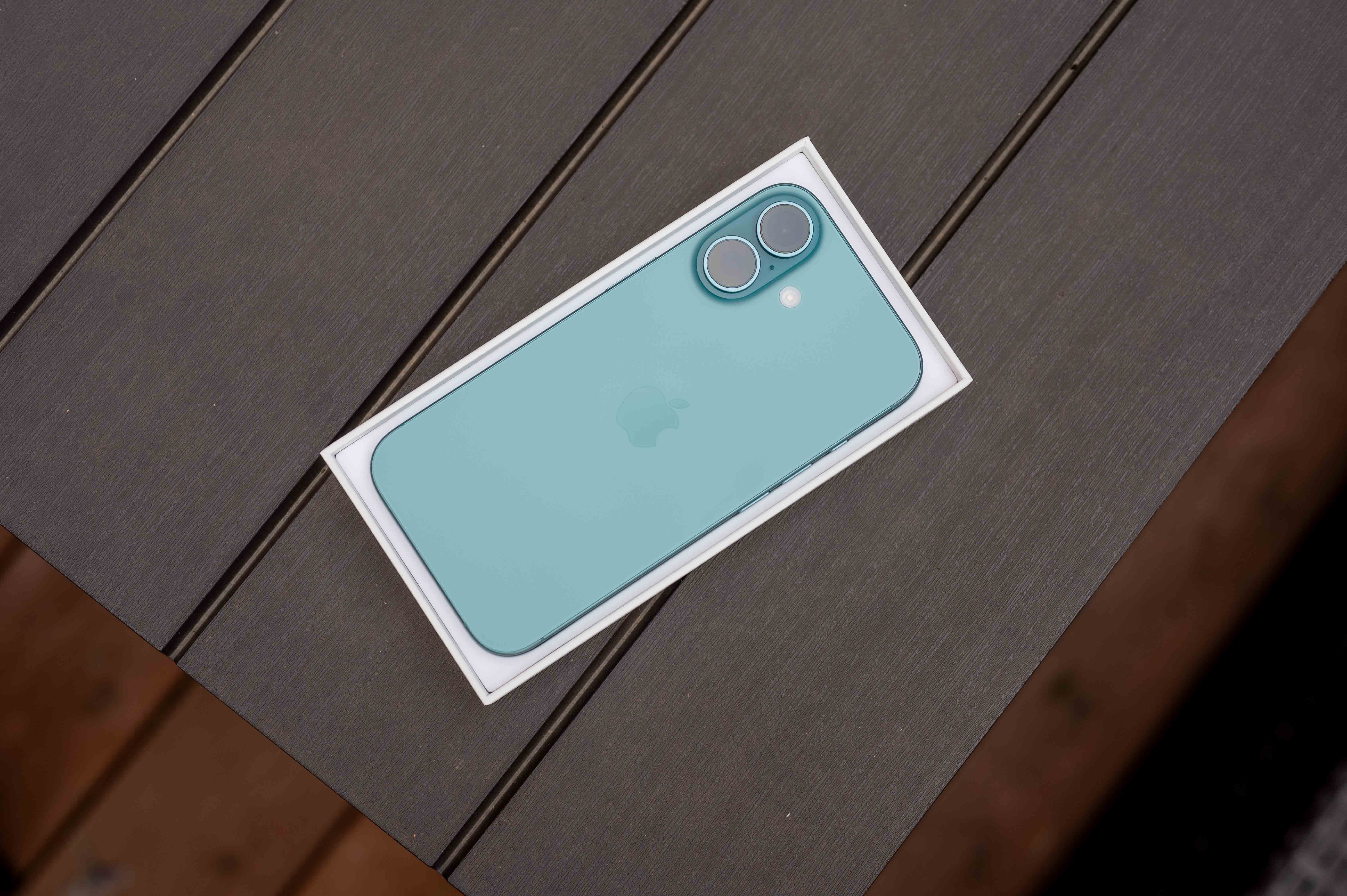
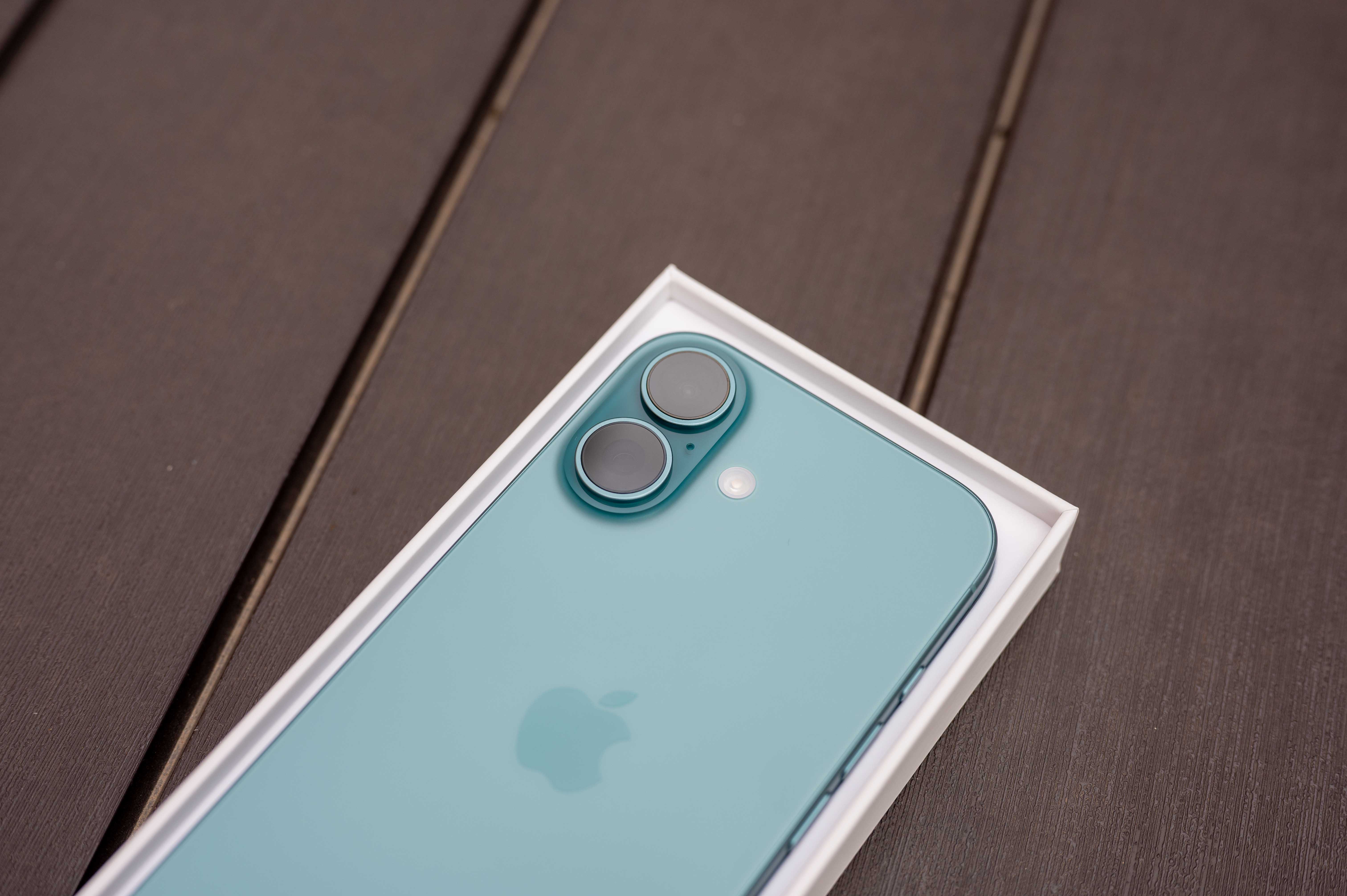
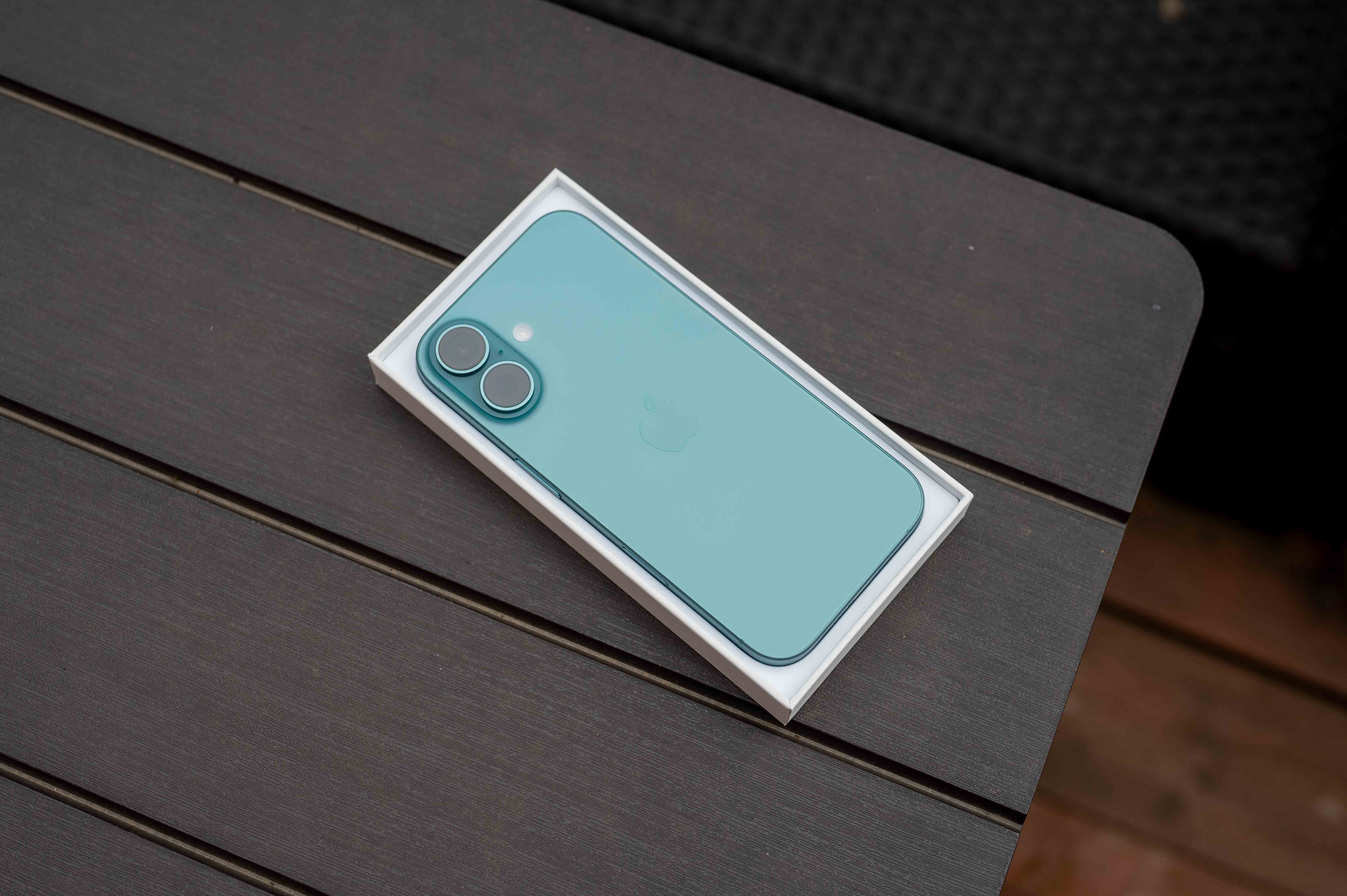
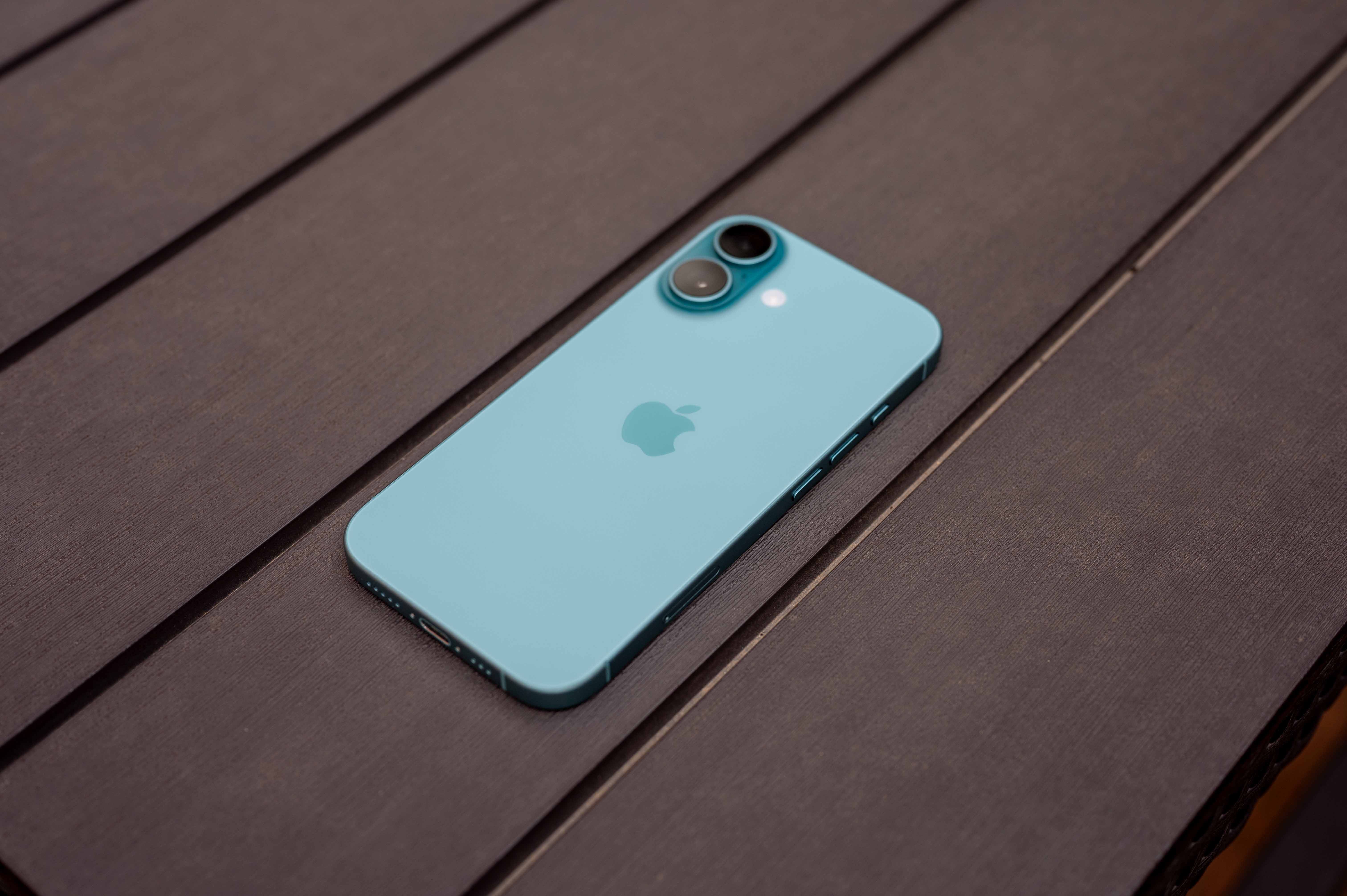
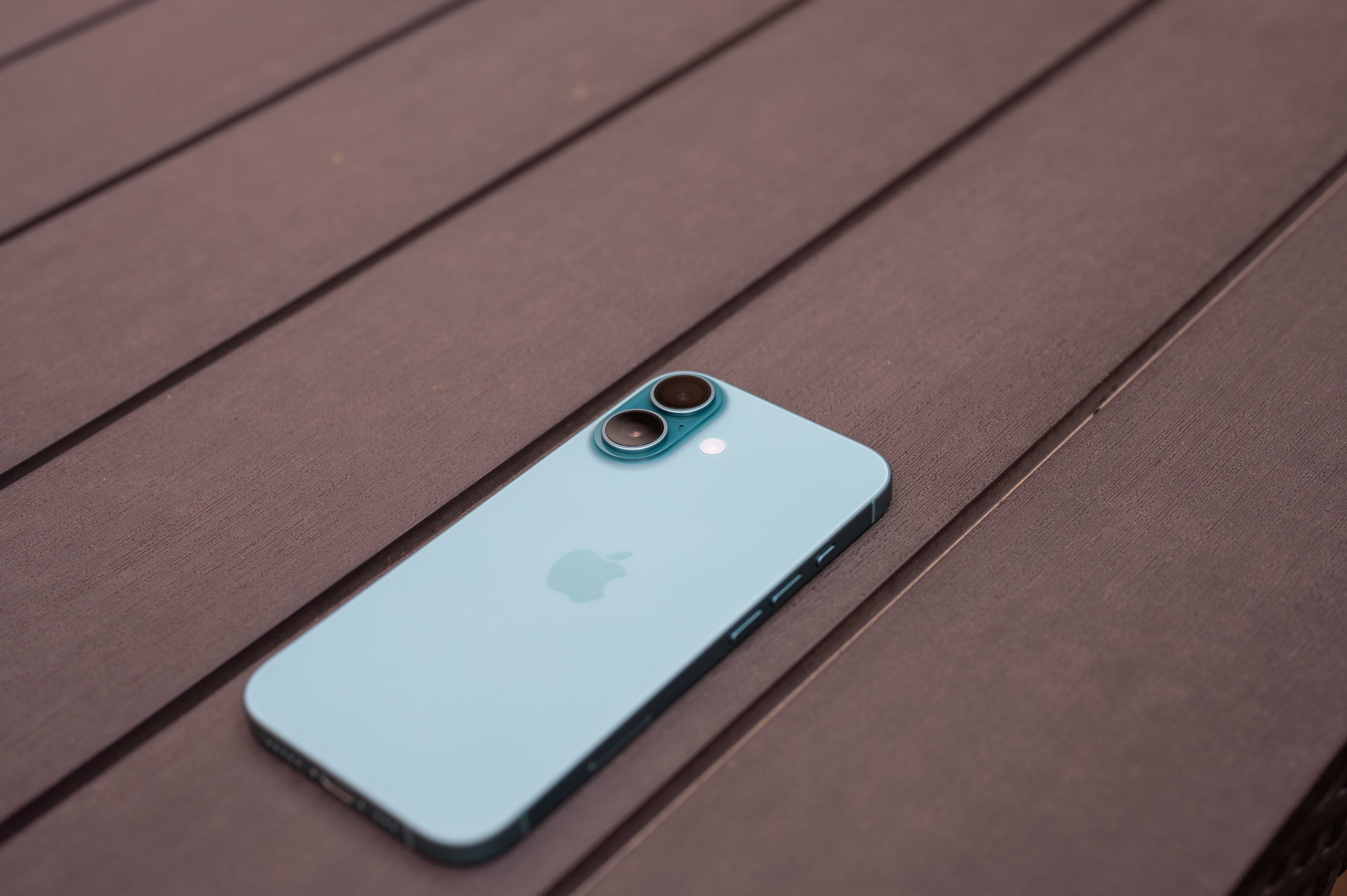
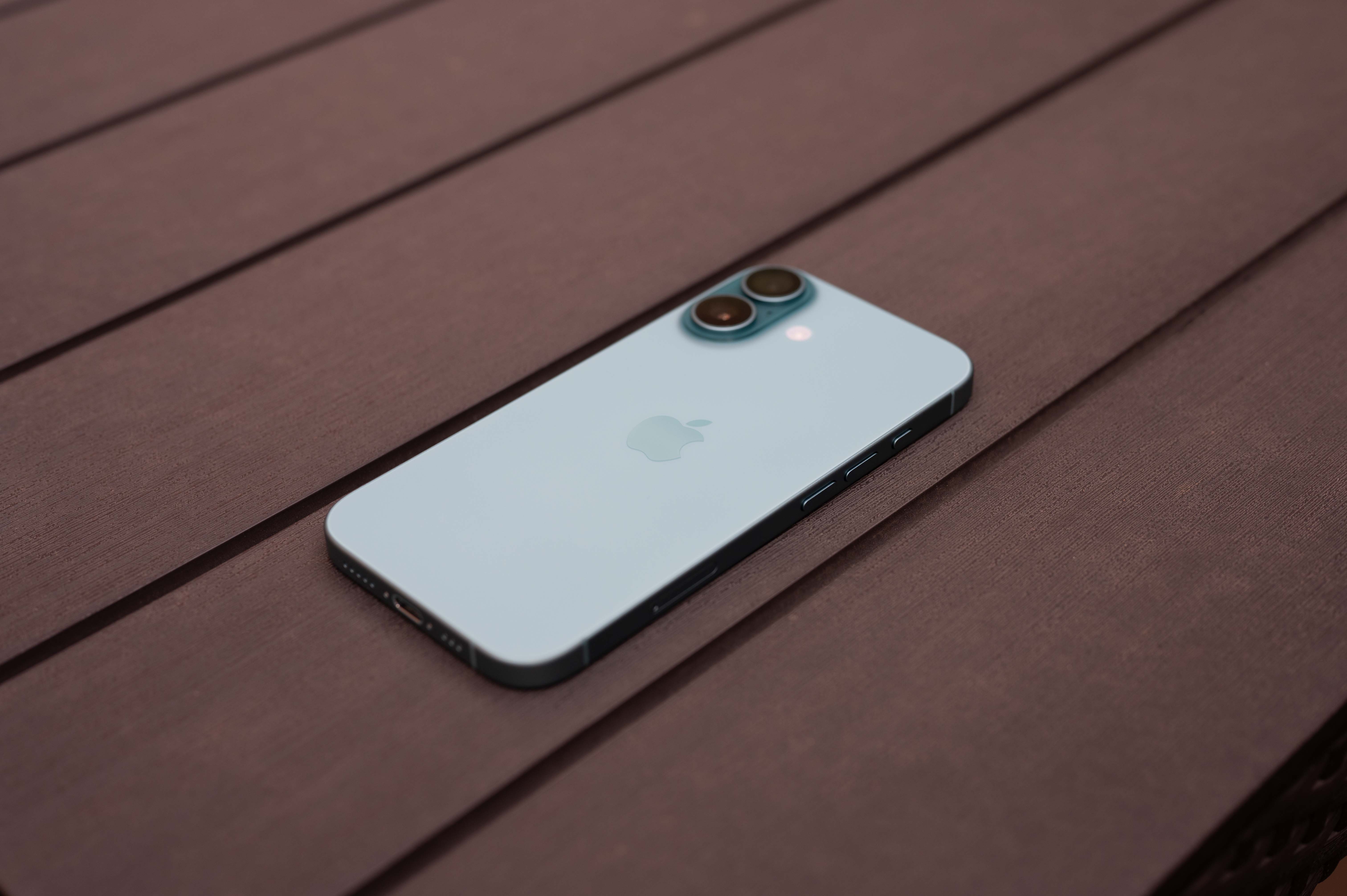
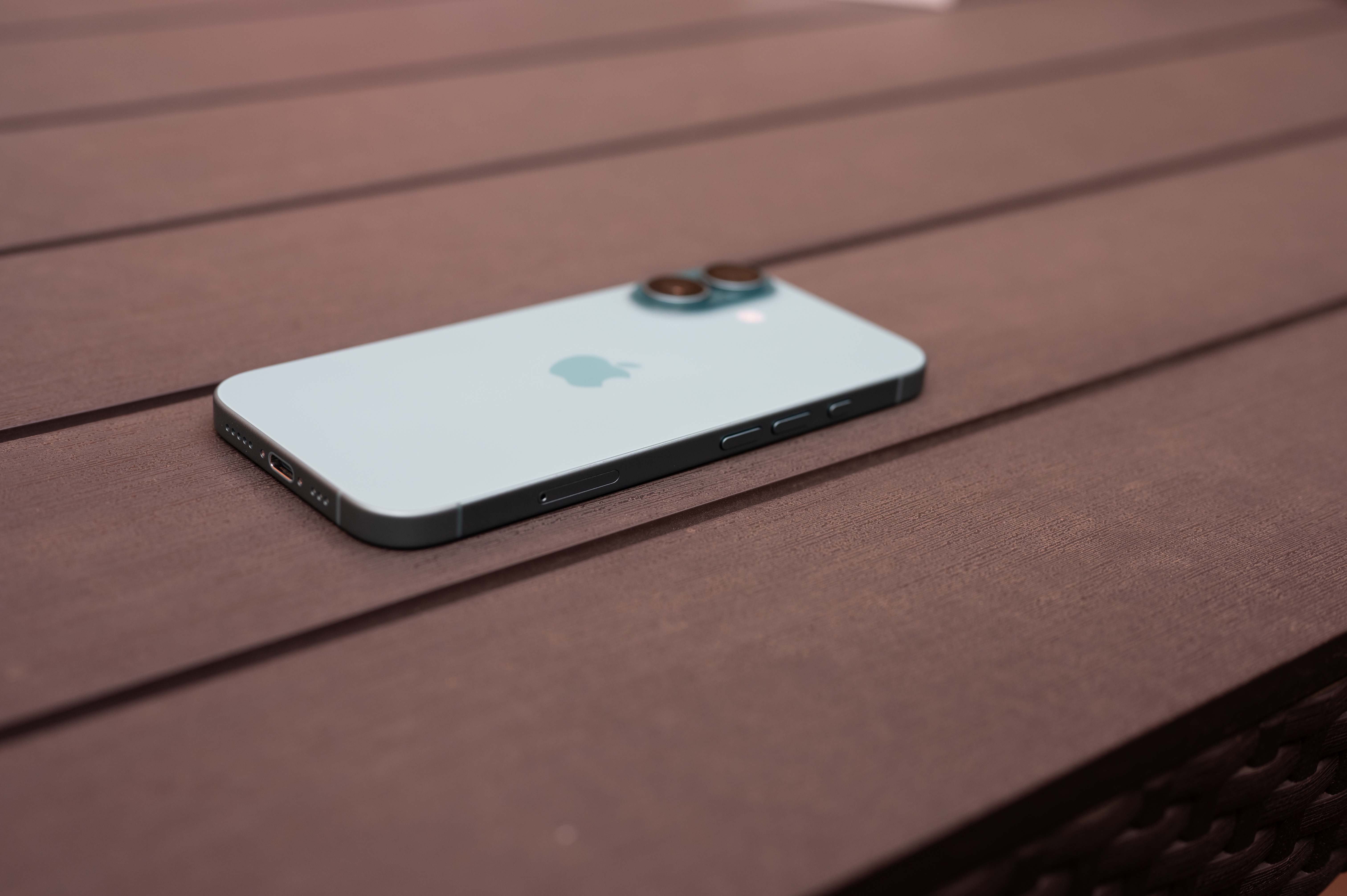
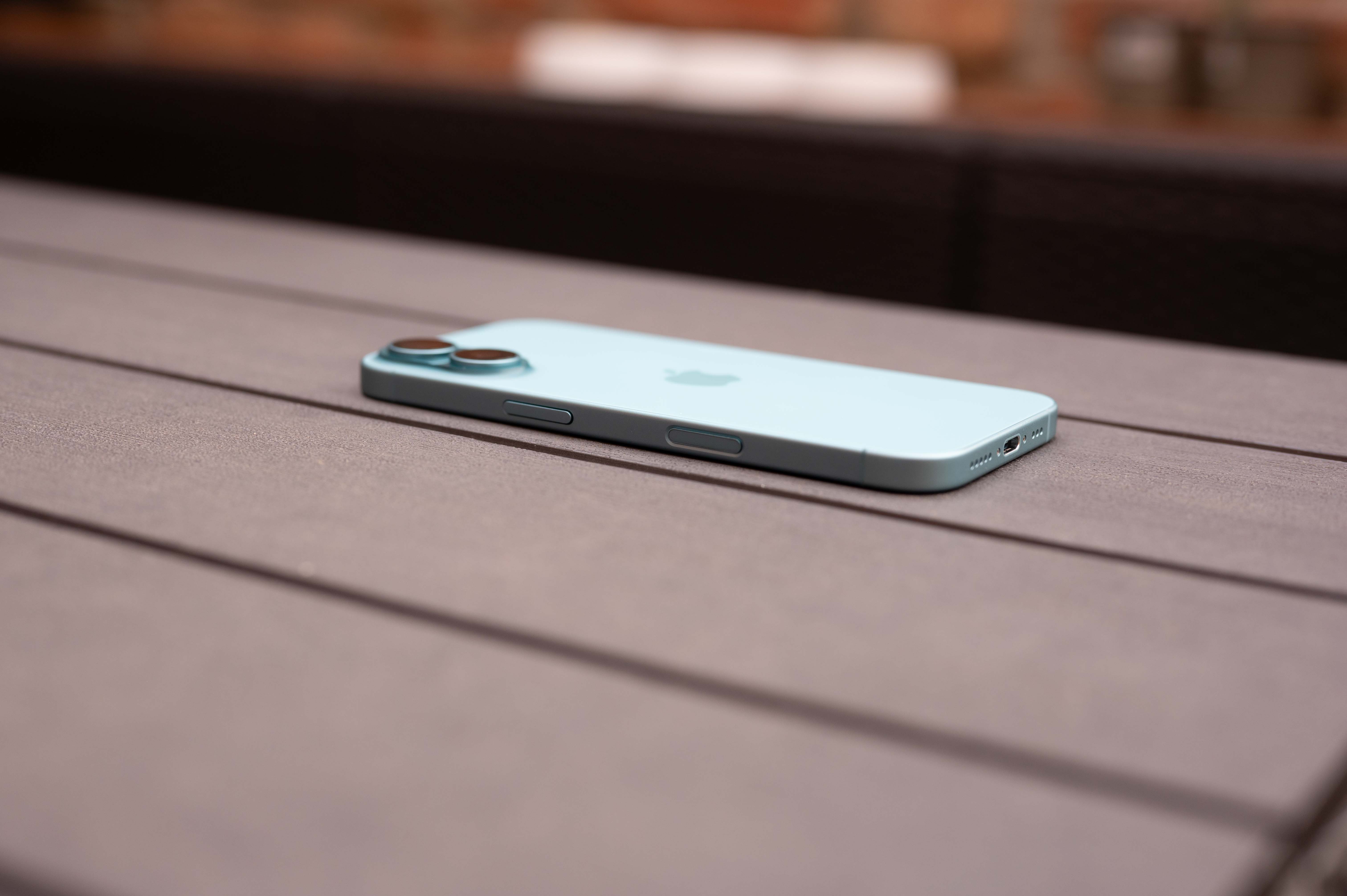
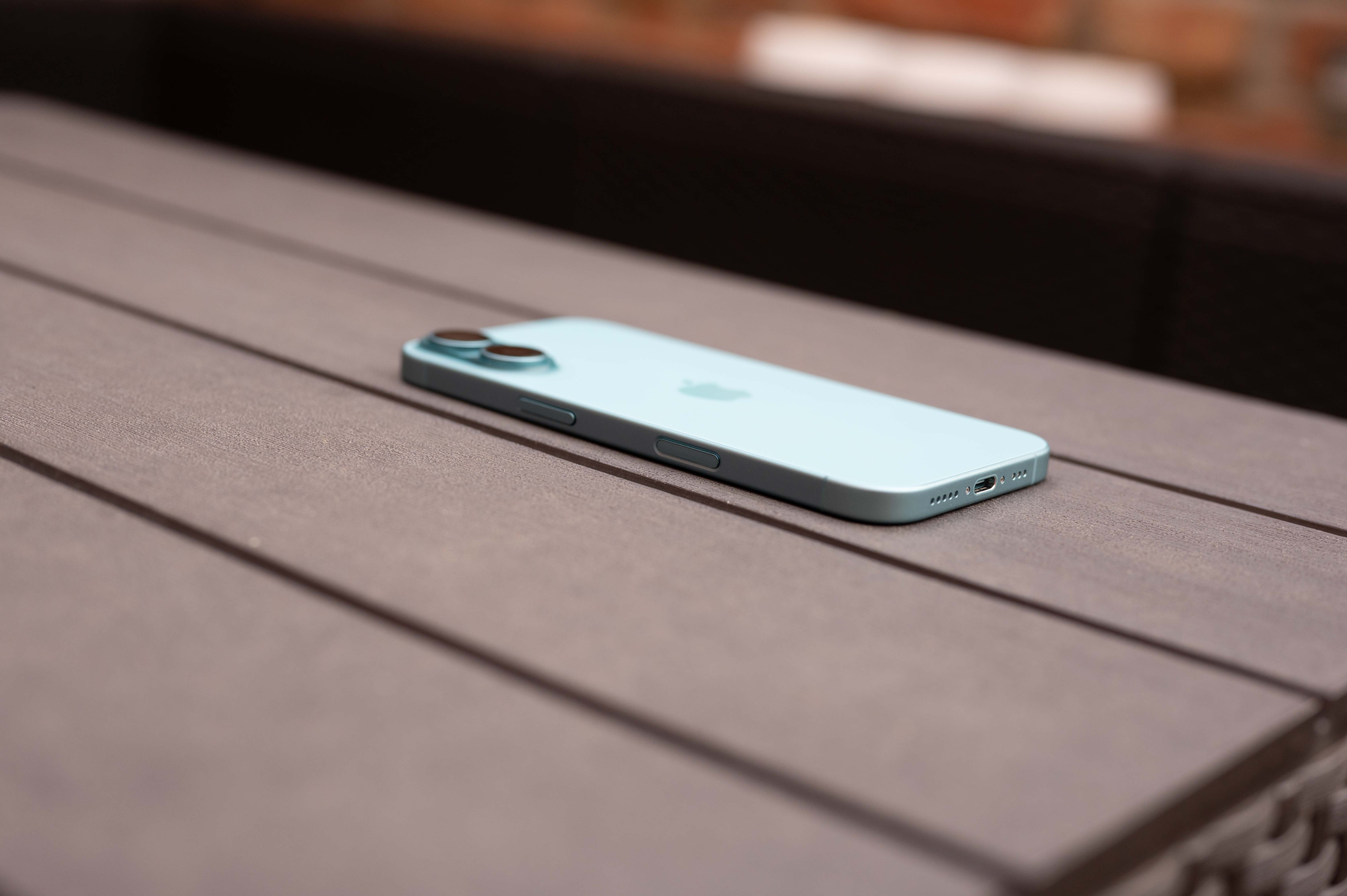
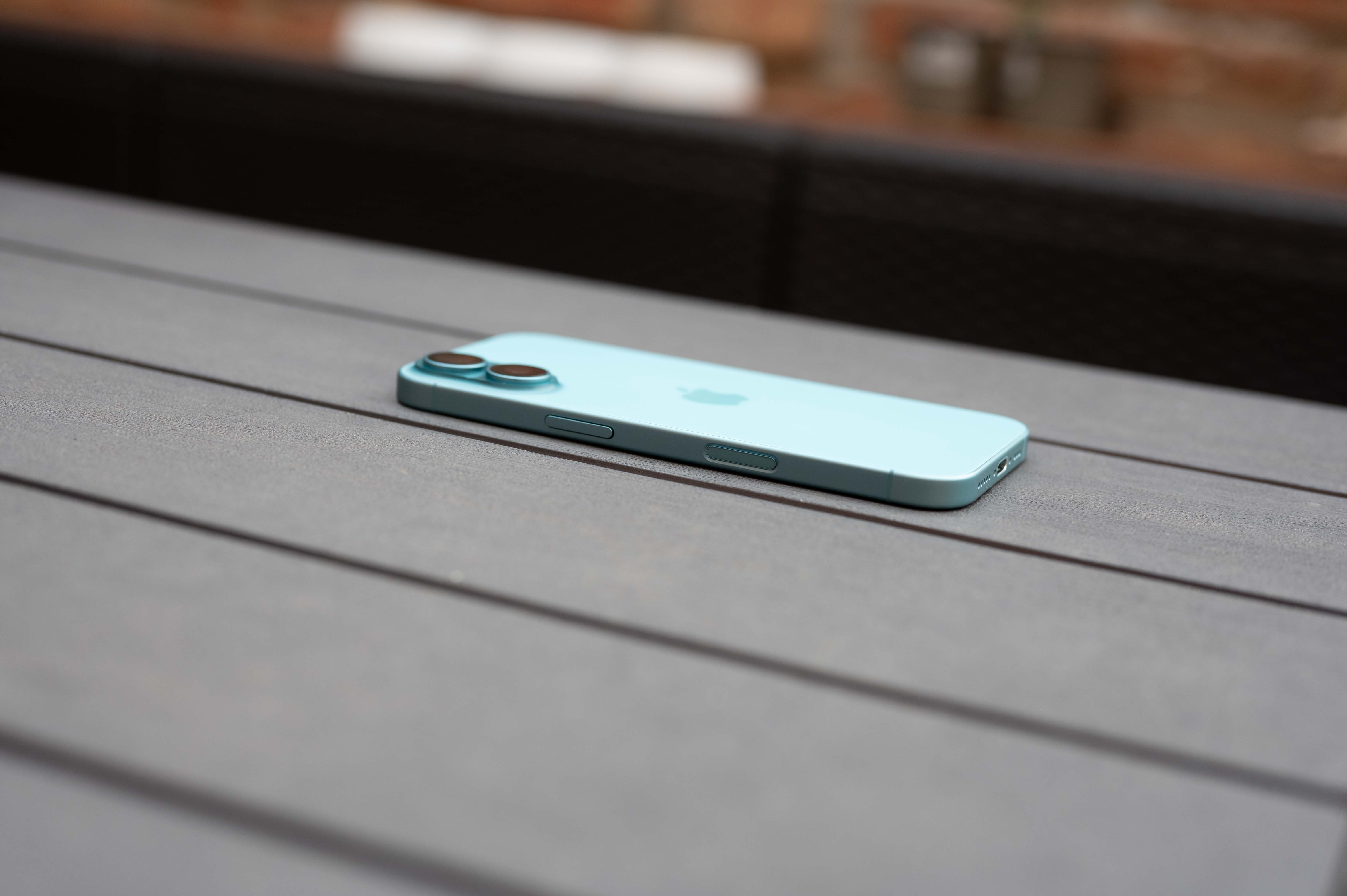
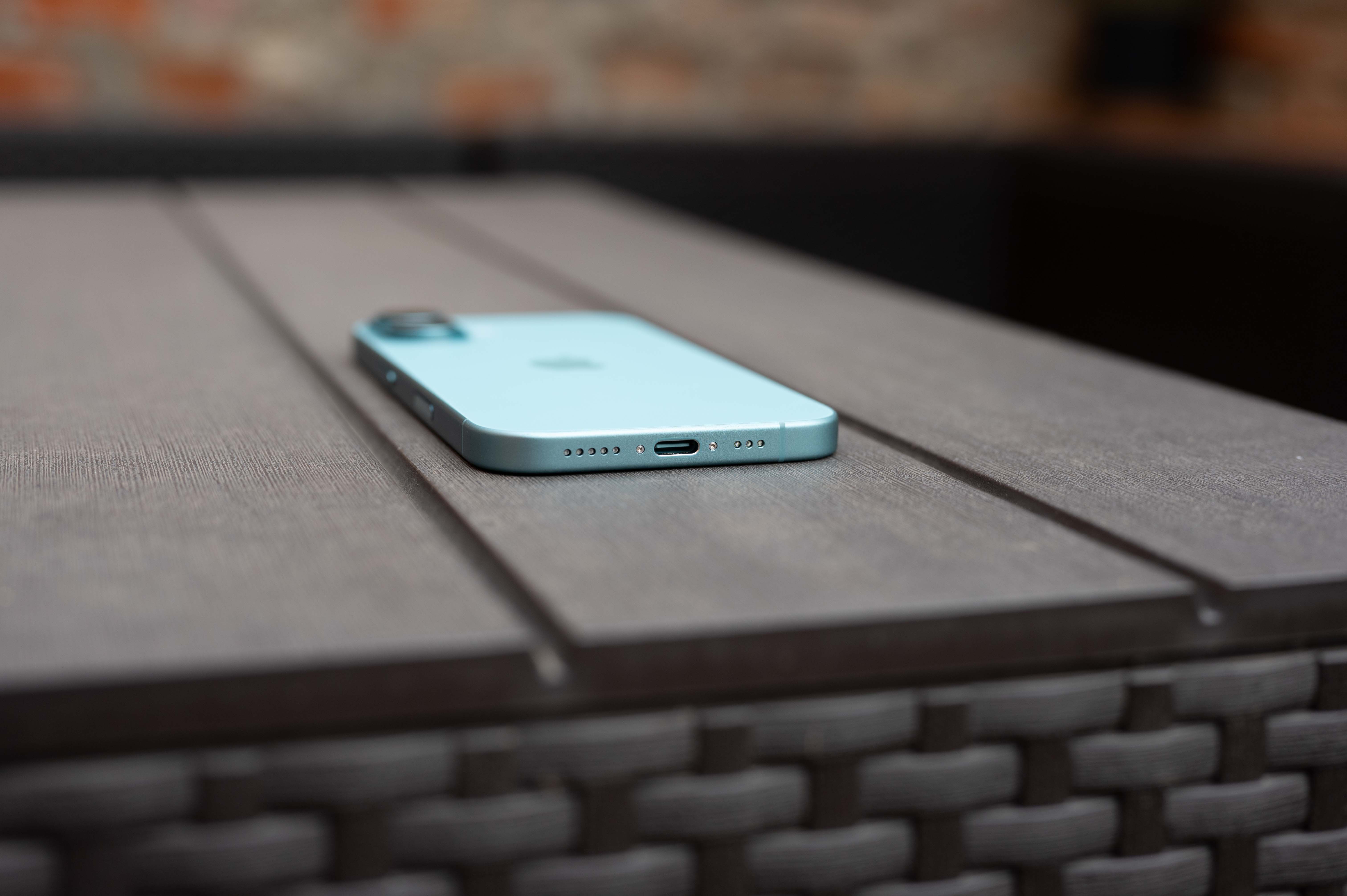
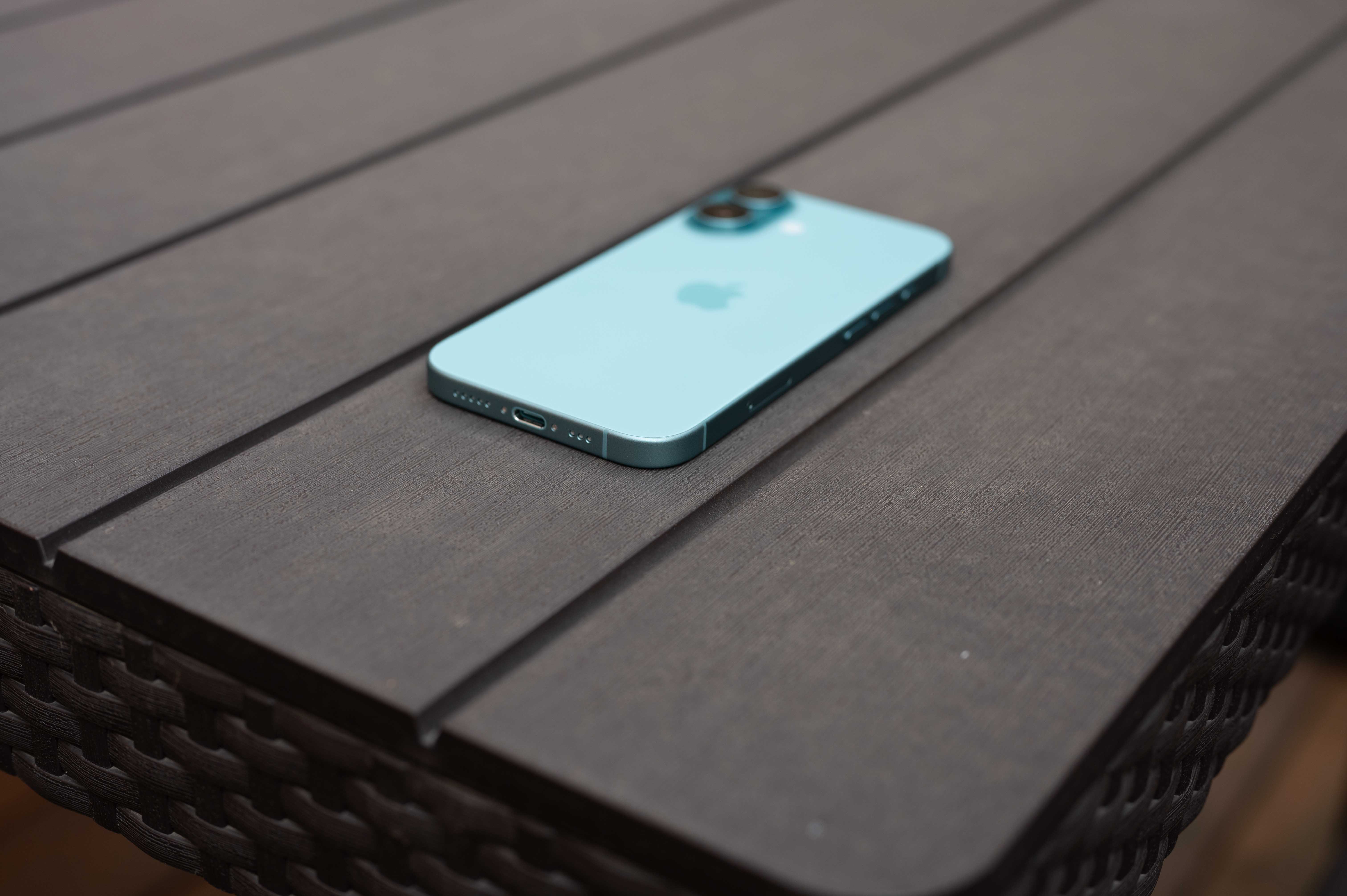
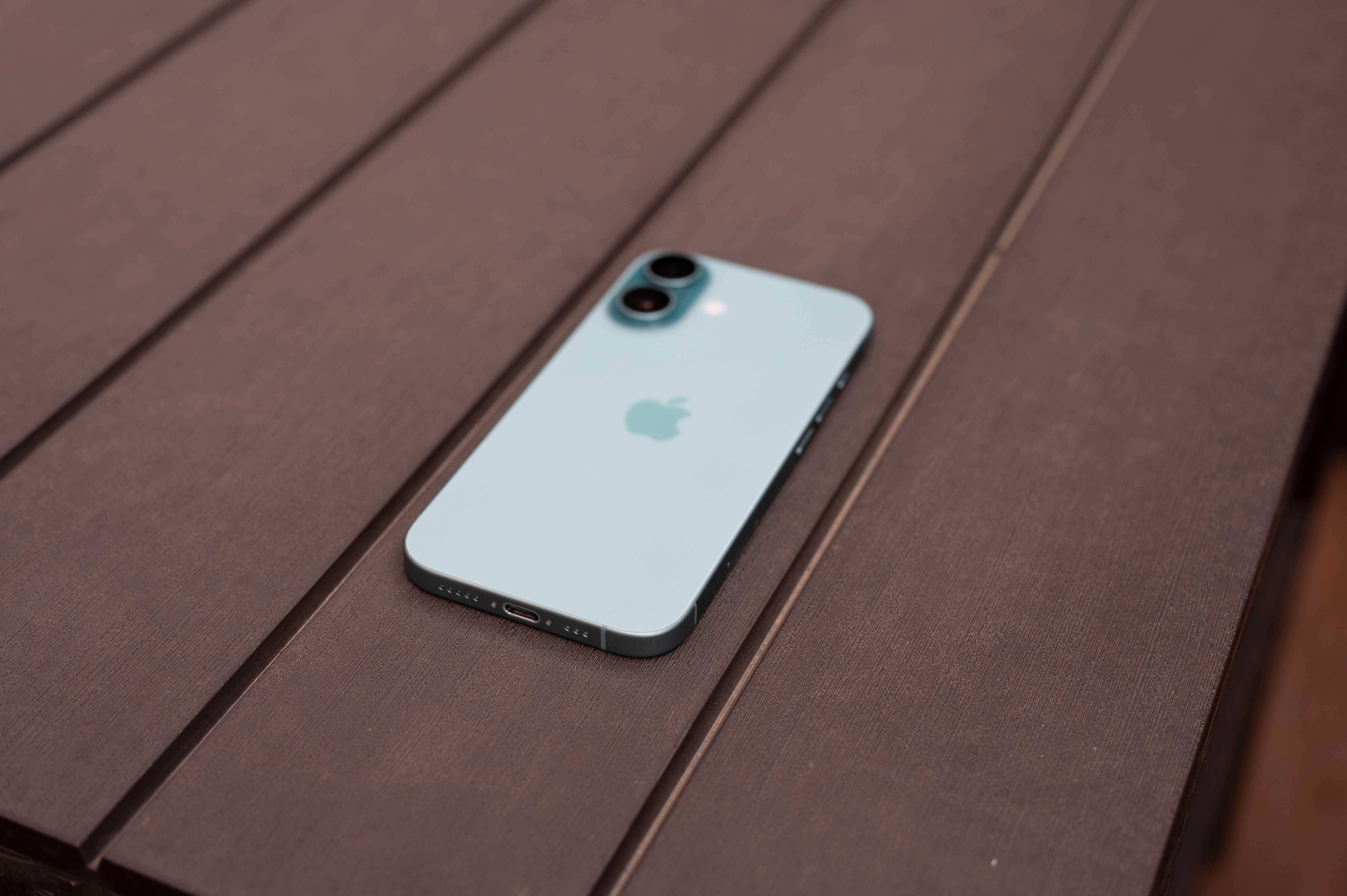
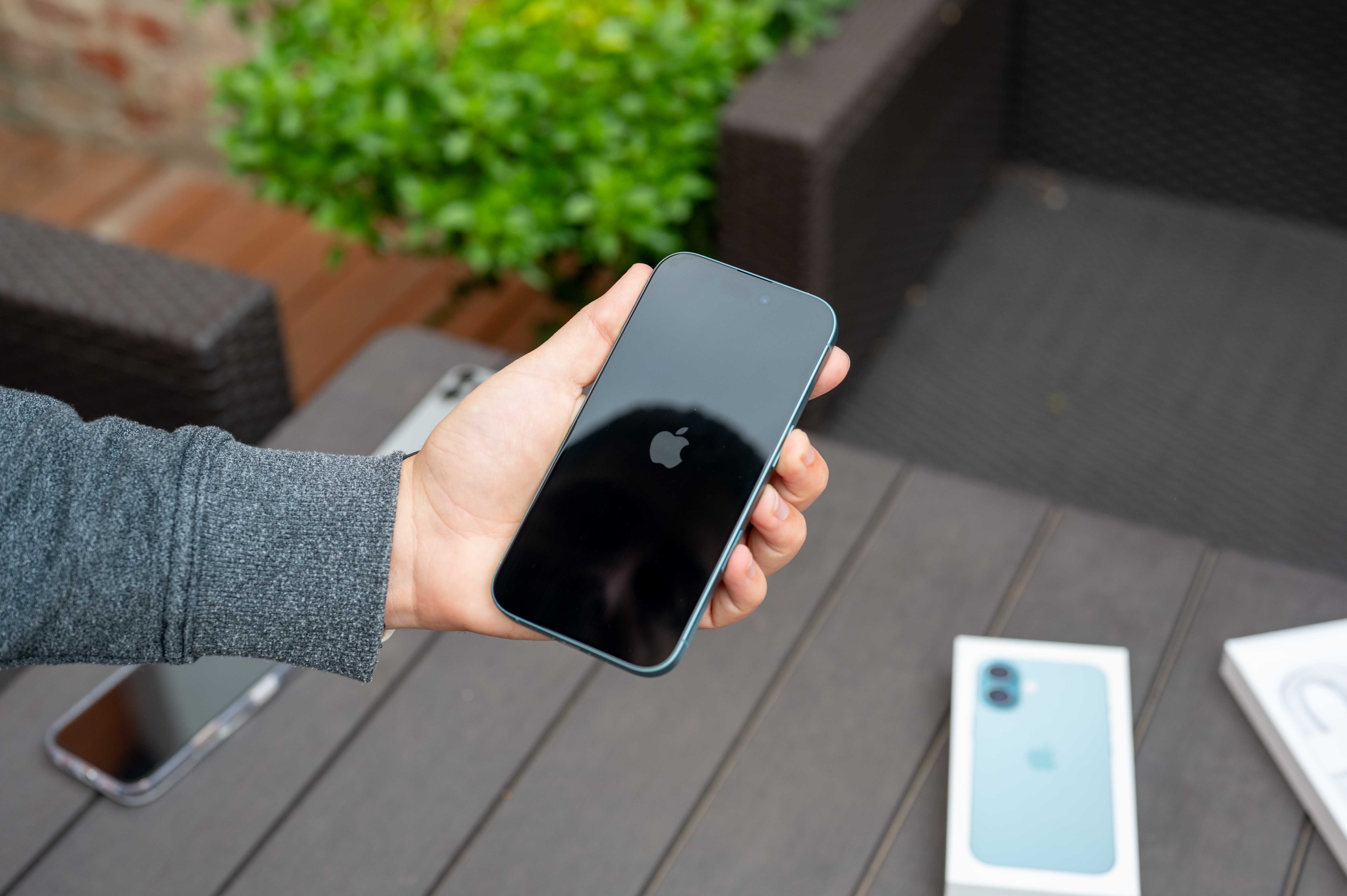
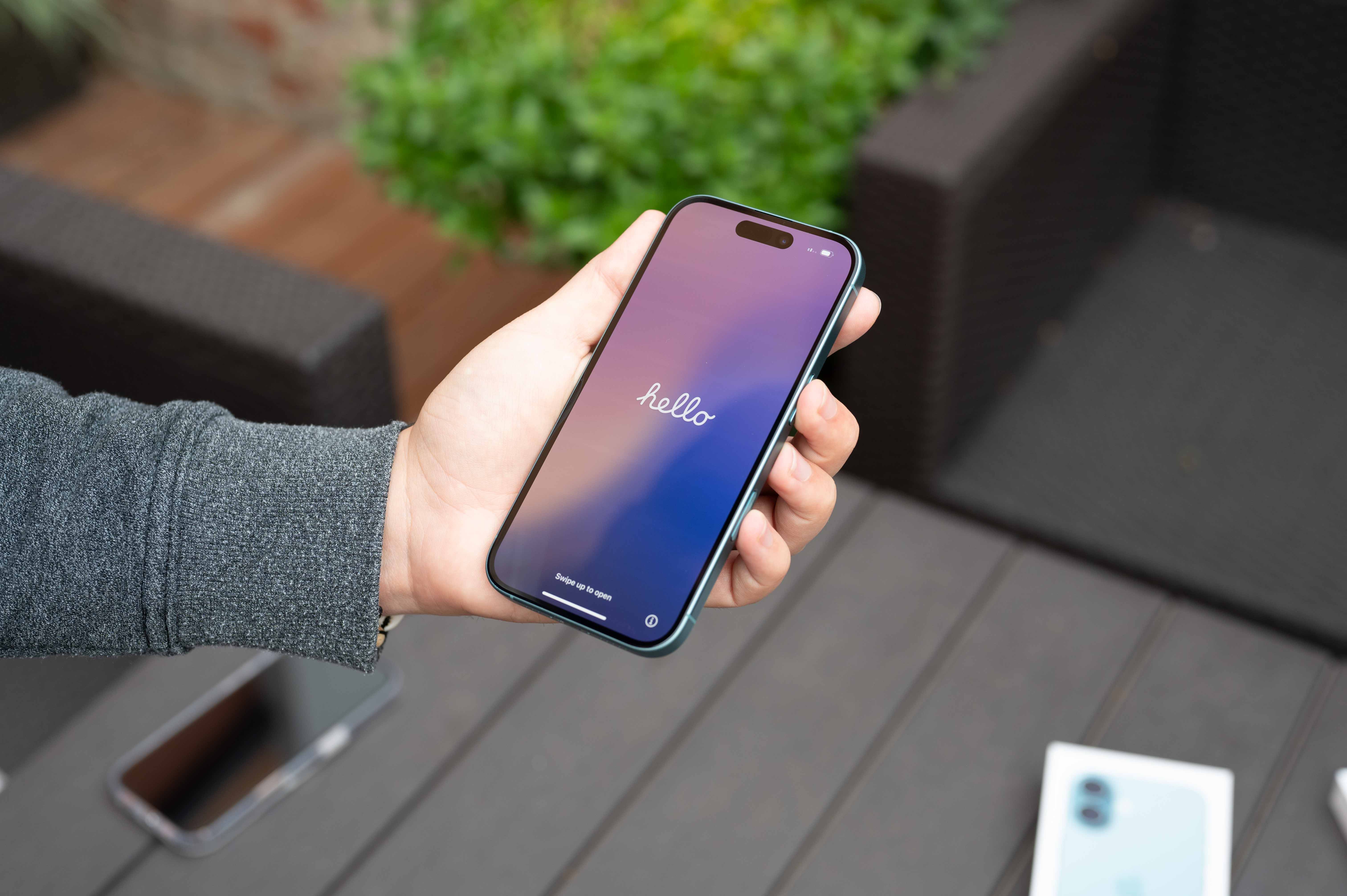
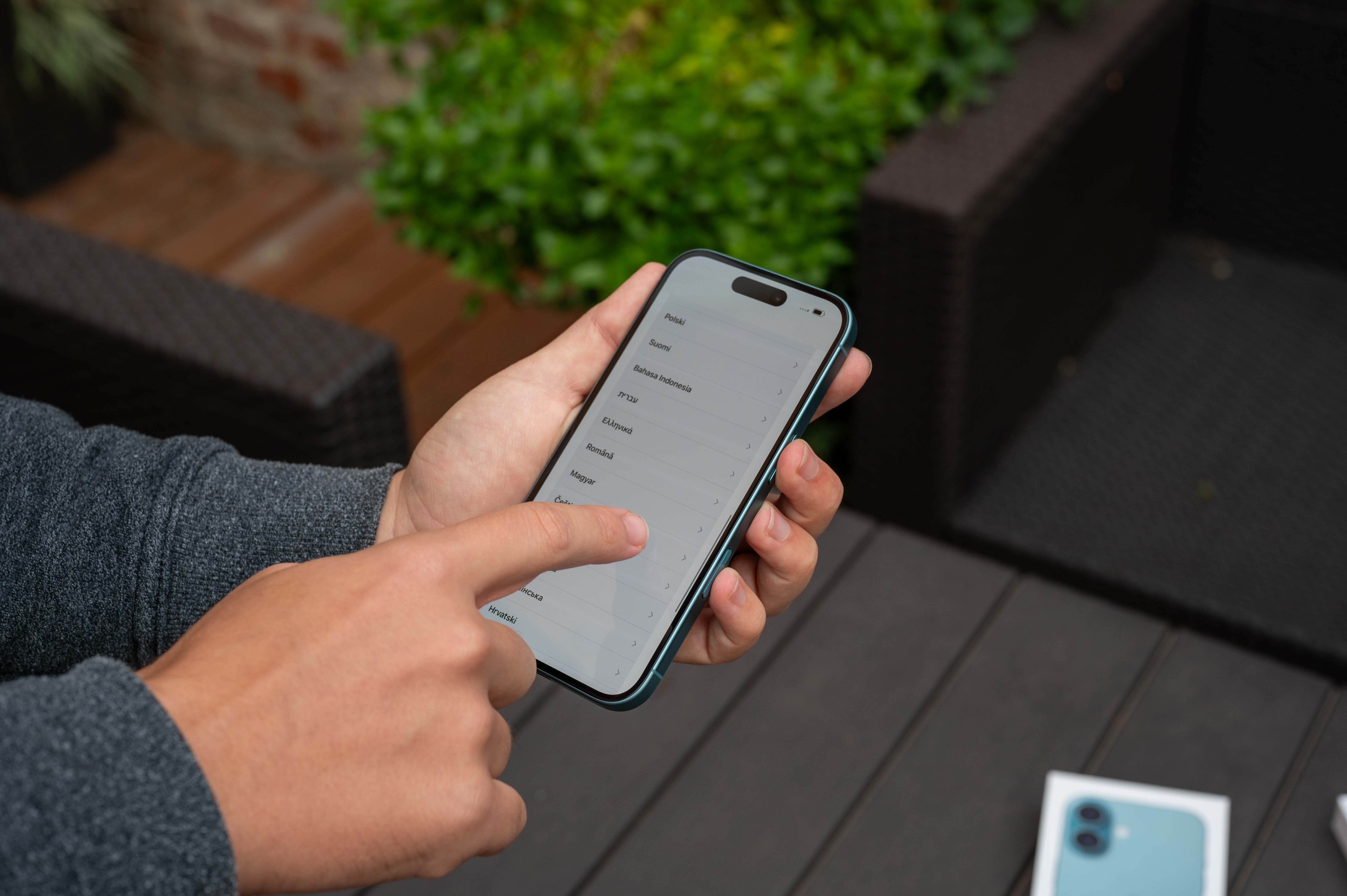
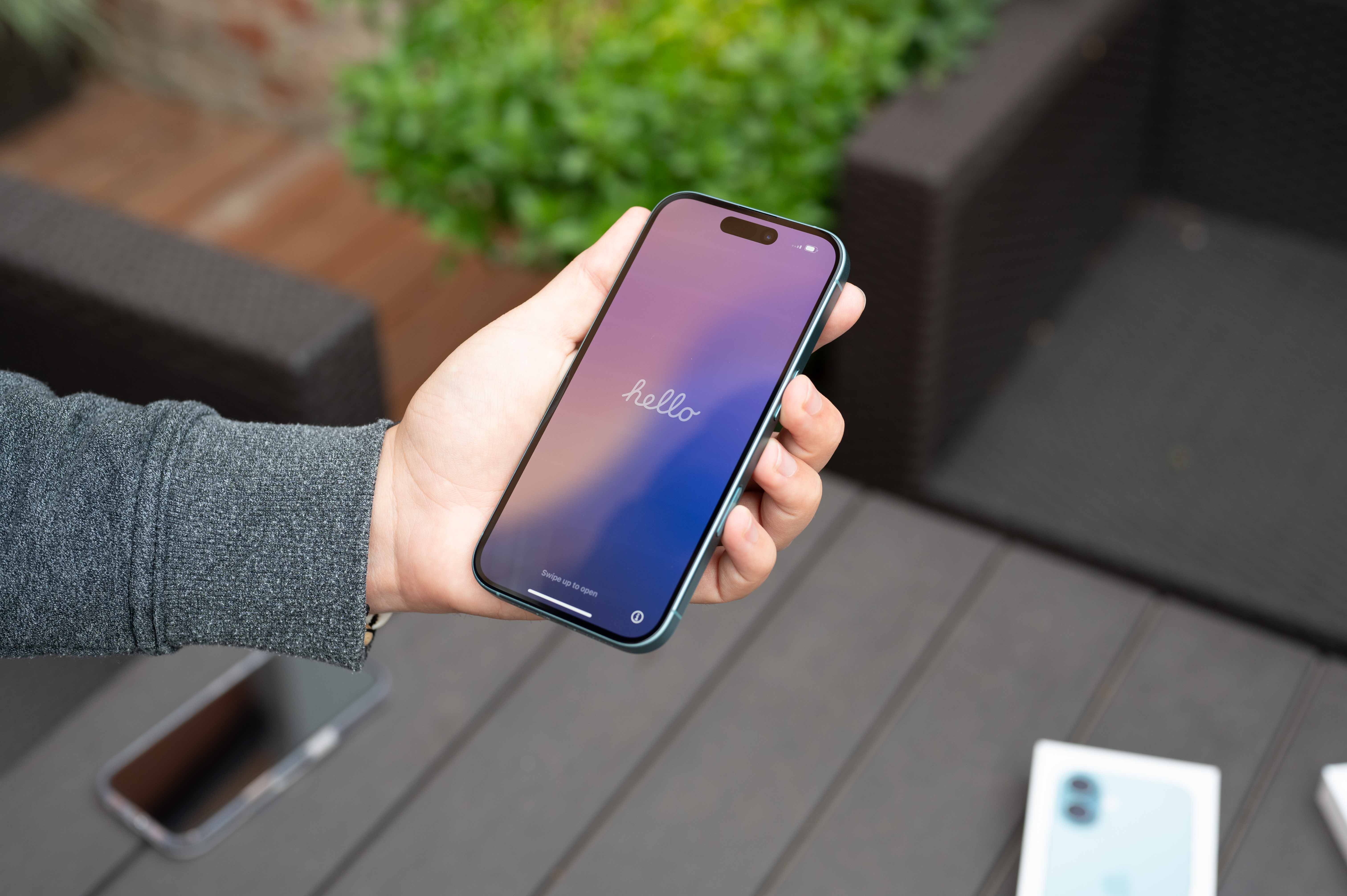
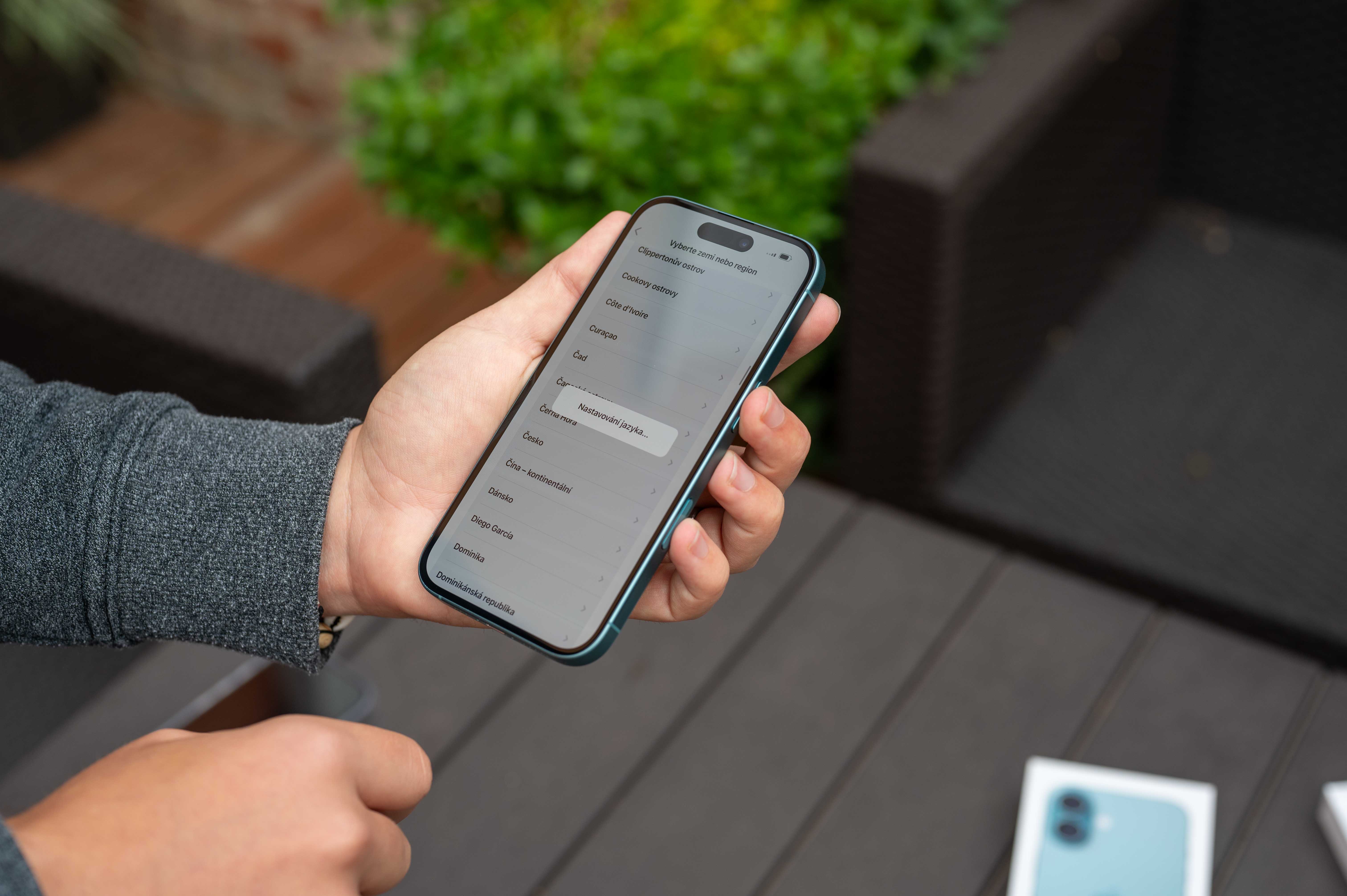
However, the implementation of a dedicated physical button for controlling the camera prompted me to experiment a little. So I changed the action of the button in the lower right corner of the Lock Screen to the calculator, because I also launch it quite often, and I started launching the camera by pressing the side button. At first, I couldn't quite get used to it and, thanks to muscle memory, I had a tendency to launch it via the element on the display, but over time I got used to this option and I must say that it's not bad at all. Even now, when it's cold outside and you're wearing gloves, the feeling of the side button (mini(at least when using a nice cover) without any problems and the camera starts up really easily and quickly.
You might be interested in
I'm certainly not saying that this little tip will teach you how to use the Camera Control button in a more complex way and suddenly you'll start taking photos with it instead of using the elements on the screen. But it's definitely a good idea to give it a try.ancEven if not for classic photography, at least for quickly launching the camera so that you can at least use it somehow. ProIt's clear that this feature isn't going to disappear from iPhones anytime soon, so it makes sense to find at least some way to access it and make using your iPhone a little easier. If you learn what I did (and don't open the camera by swiping sideways like I do), you'll feel more relaxed. miniat least one element on the display to launch something else, thus making the overall use of the phone more pleasant and easier.


Good tip.