Differentiate people by workplace or school
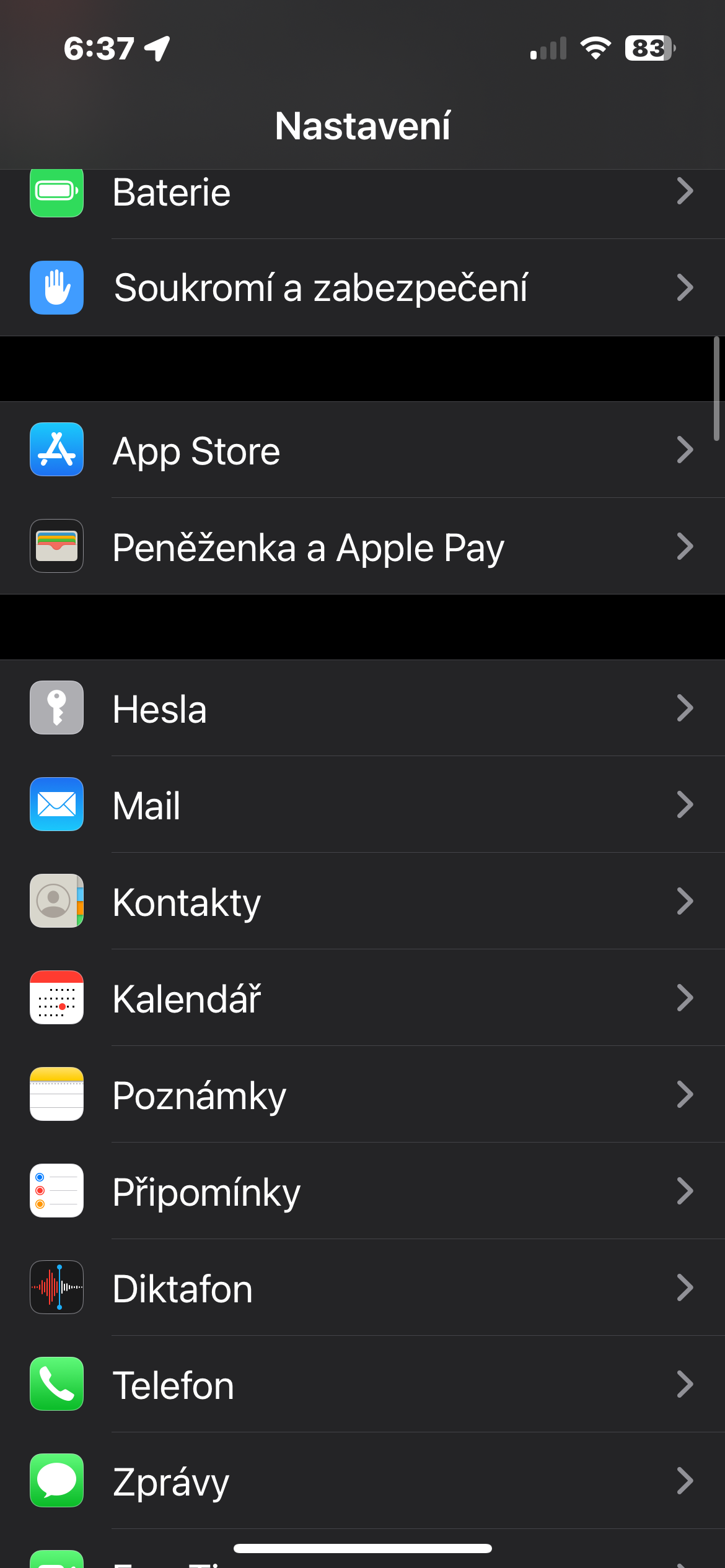
Do you have two Johns on your list? Or several Peters? Not sure if it's an English classmate or a tennis buddy? At work, it can be even more annoying when you're not sure who's from which company, especially when people change frequently. The solution is simple: just add the name of the contact's workplace, school, or other relevant organization after their name. Launch Phone -> Contacts , select the relevant contact, tap Edit , and add the school or organization in the Company section .
Gallery
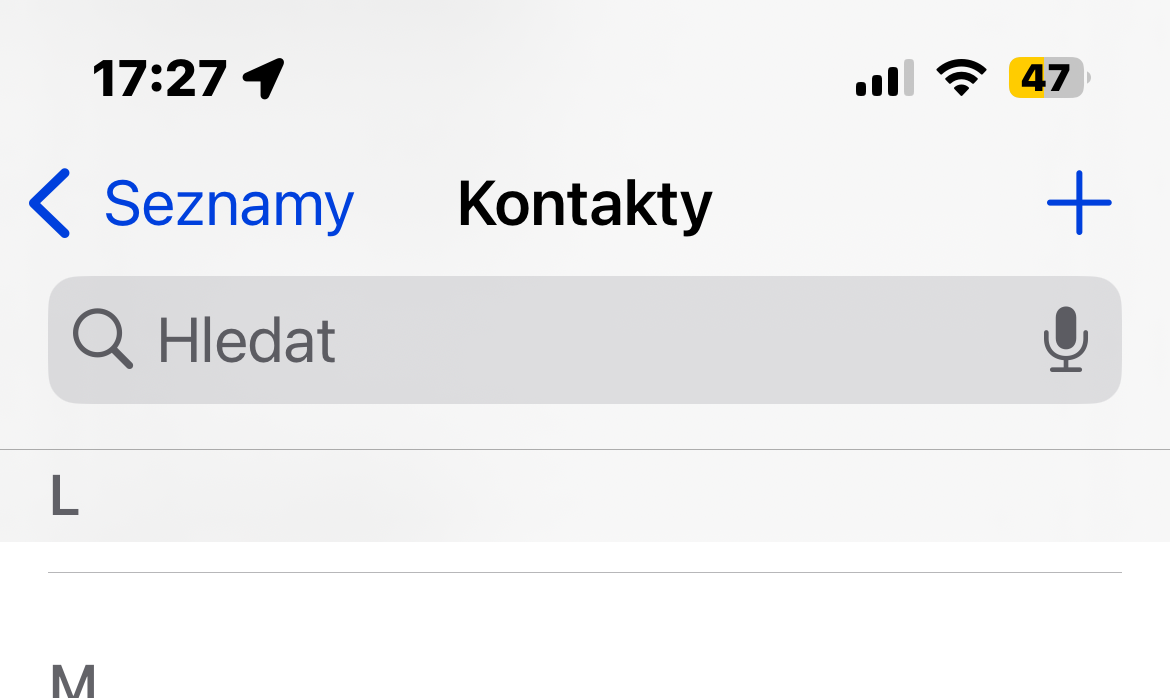
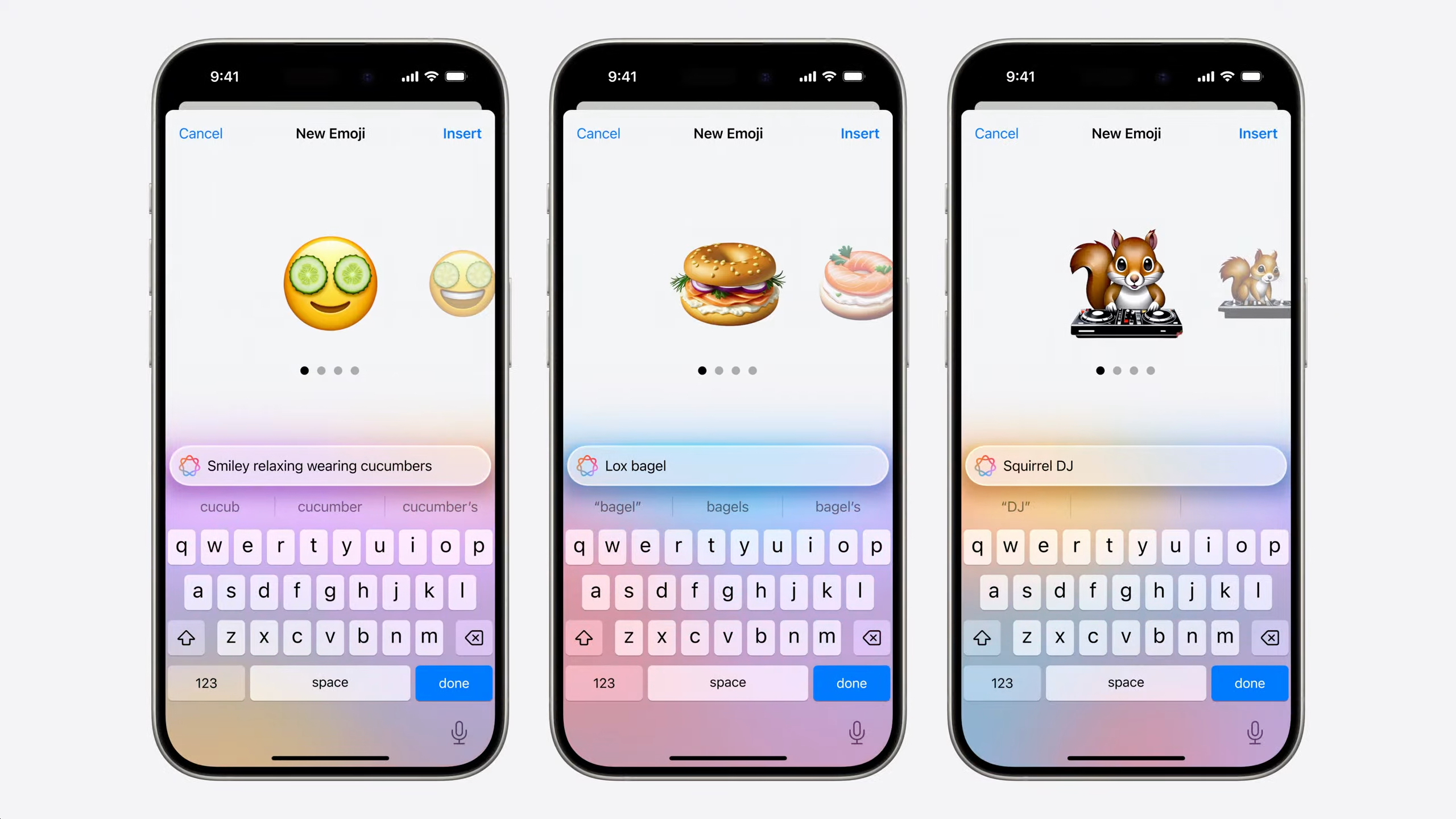
Bring your emoticon list to life
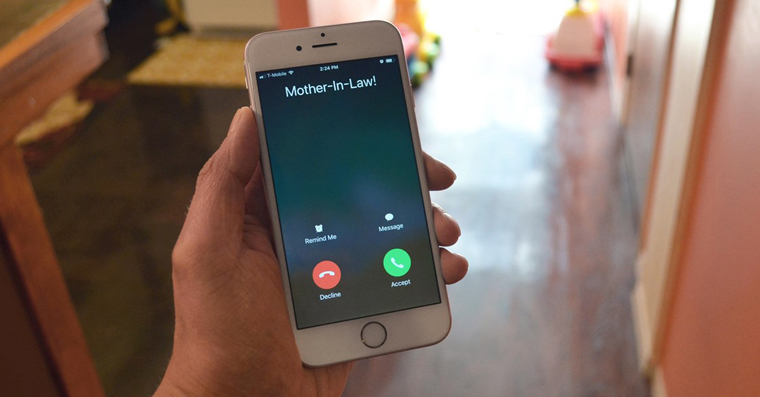
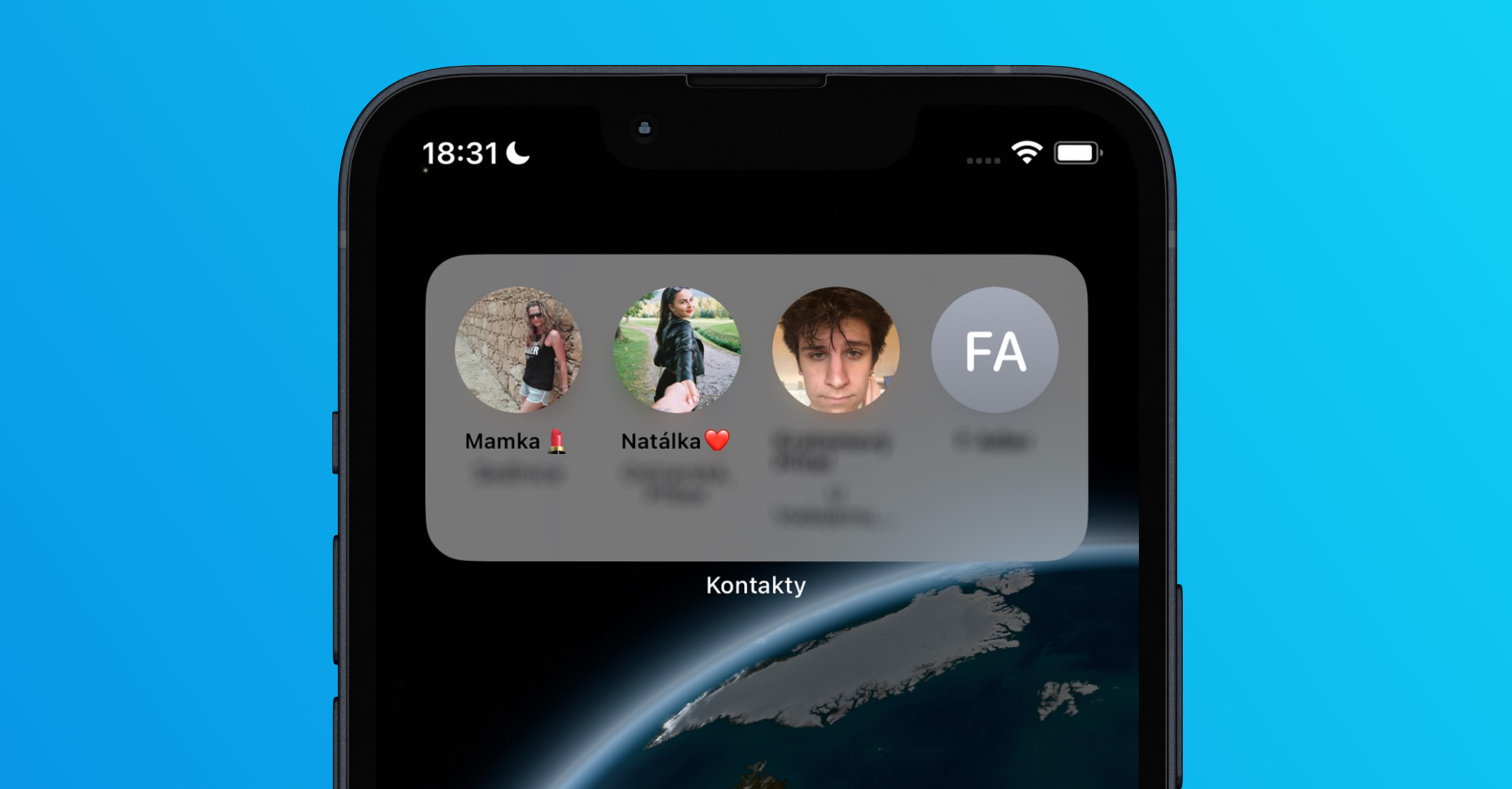
Breathe a little life and individuality into your contacts with emoji. Pro You can use emoji books to greet your college classmates. Or assign animal emoticons to your loved ones that describe them. Your contact list will be instantly more cheerful and a smile will appear on your face with every call or message. Of course, emoticons don't have to be only positive. Are you in a fight with someone and don't want to assign them an unflattering nickname in your contacts? Say it with an emoticononem.
You might be interested in
Nicknames for faster searching
Do you prefer to call your friends by nicknames, but do not want the nickname to be the main name under which you will have the person saved? You can add a nickname to his business card in Contacts. Then just enter this word and her contact will be displayed to you immediately.
How to Add a Contact Nickname on iPhone:
- Open the Phone app.
- Go to the Contacts tab.
- Tap the contact you want to add a nickname to.
- Tap Edit.
- Click Add Field.
- Select Nickname.
- Enter the contact's nickname in the new field.
- Tap Done.
Gallery


Contact postcard
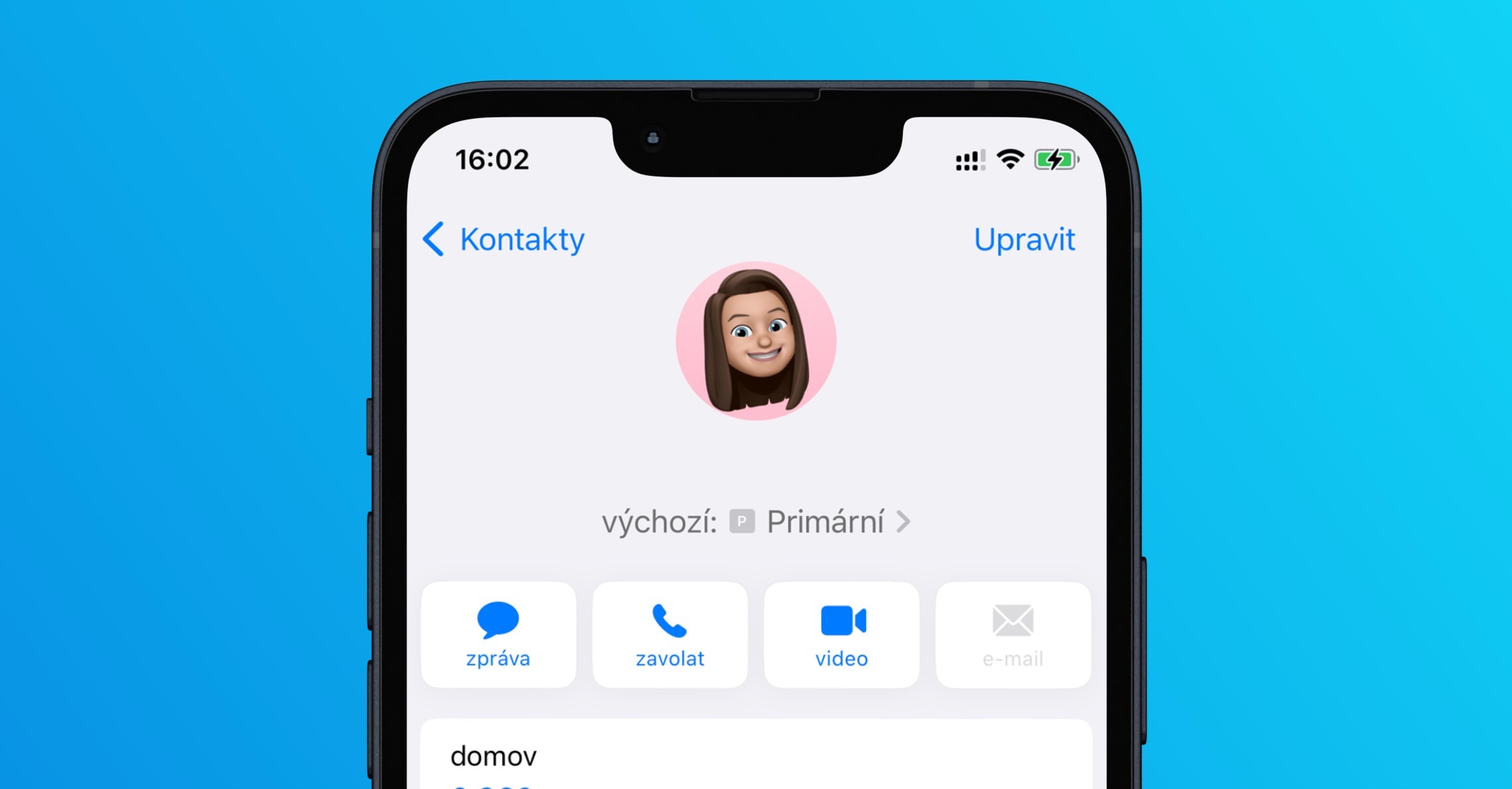
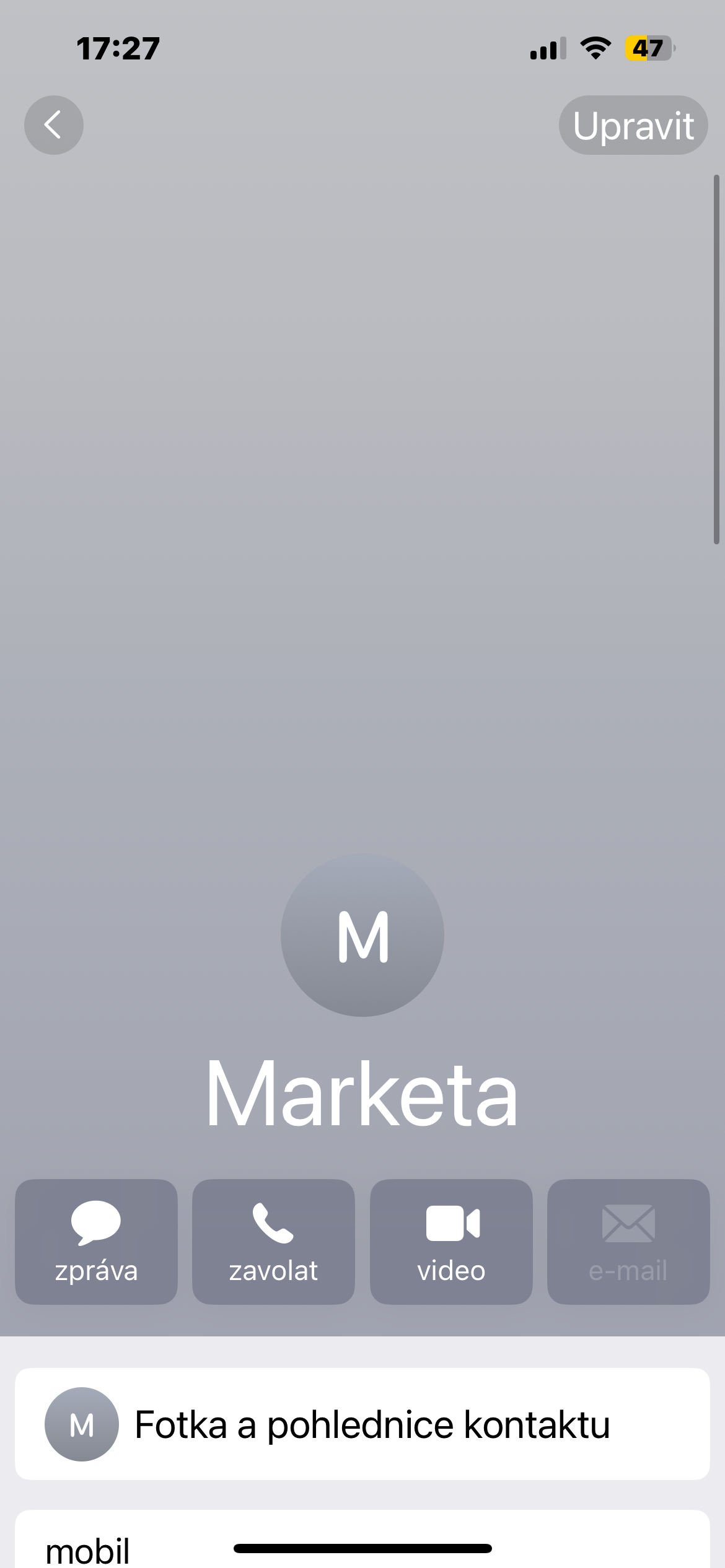
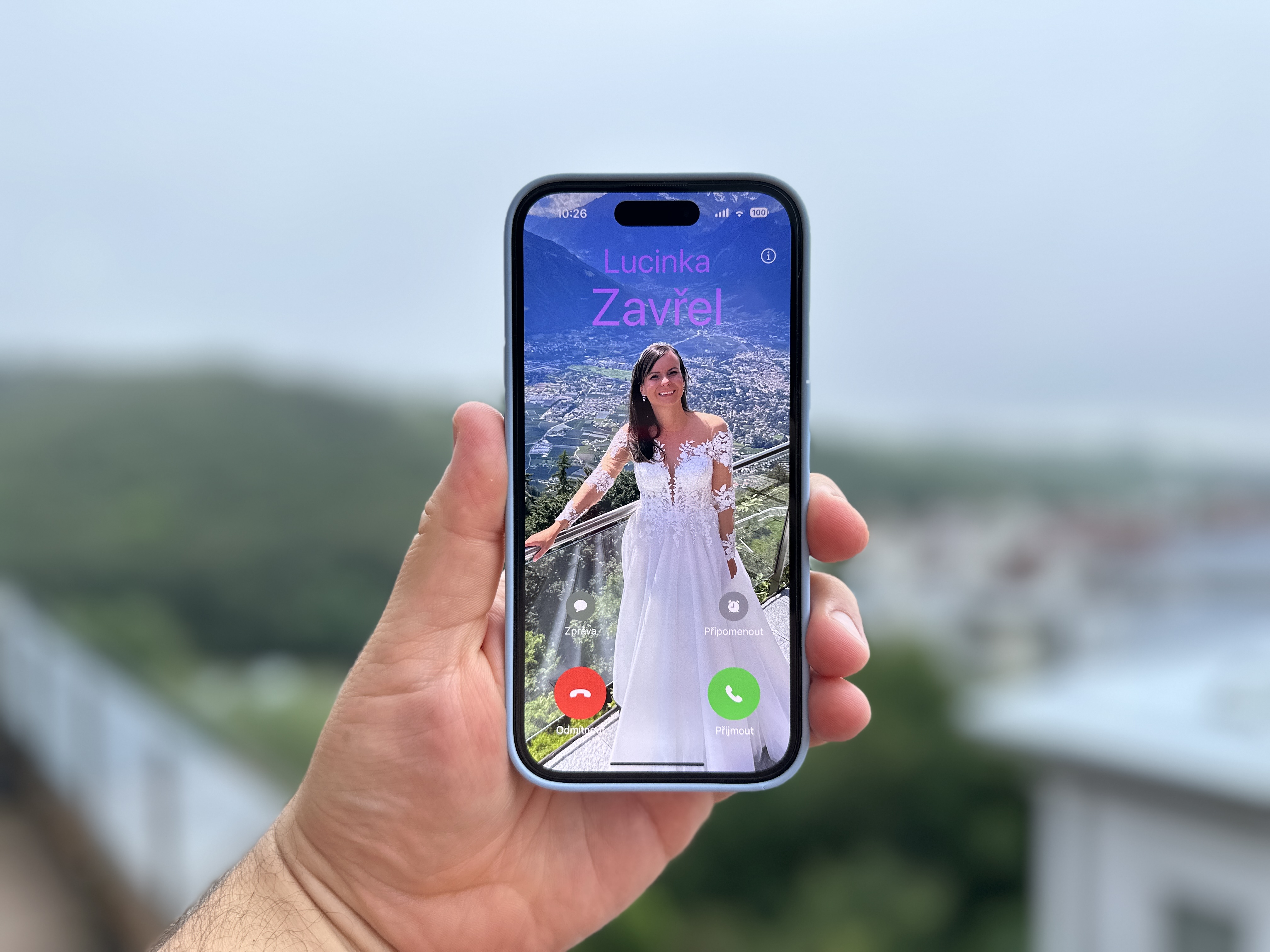
Na iPhonetea iOS 17 and later, you can also create so-called contact postcards. Instead of the boring display of the caller's name, their photo, emoji or monogram will light up across the entire screen. Create an original postcard for everyone and have fun while calling.
How to do it?
- Open Contacts and select the contact you want to create a postcard for.
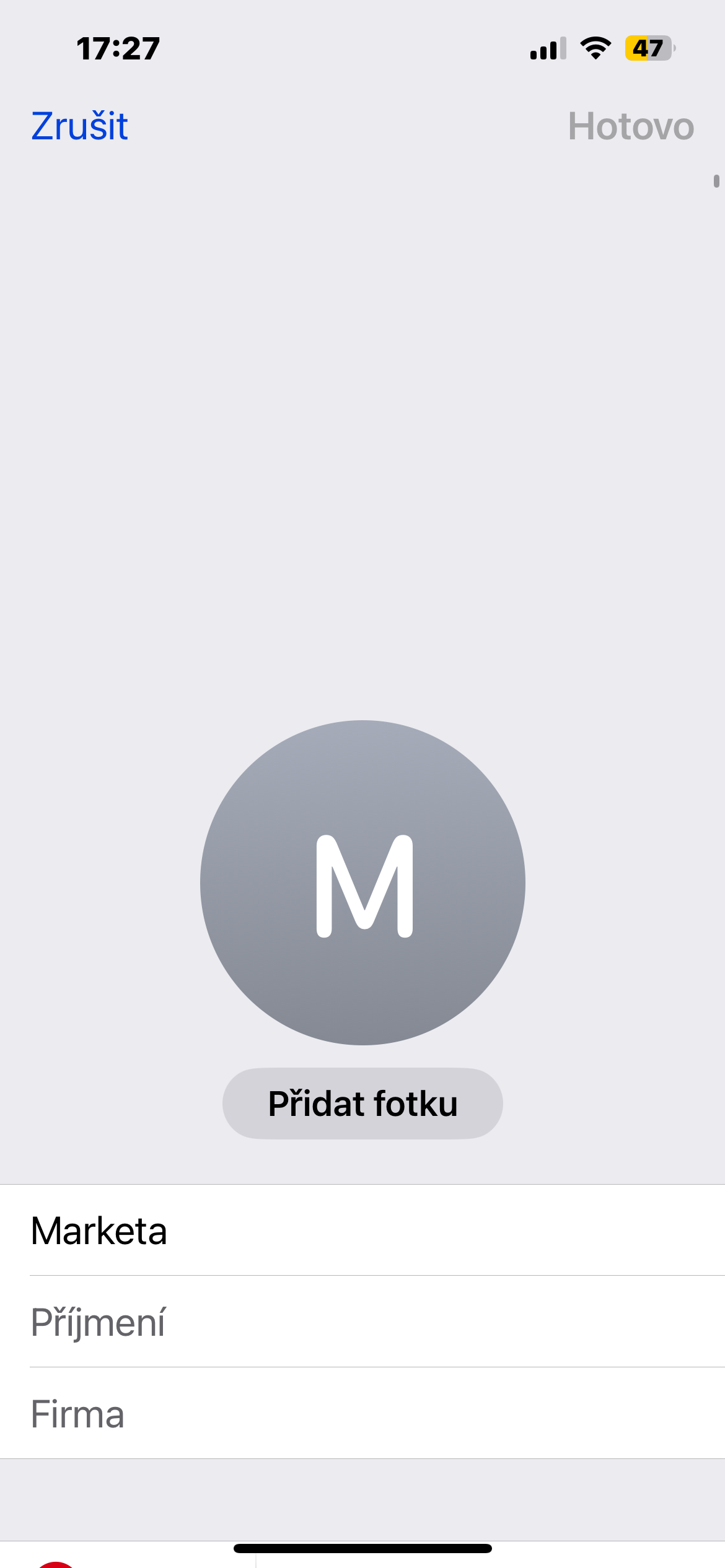
- Tap Edit and under the contact's photo, tap Add photo.
- Choose a photo, emoji, monogram or take a new one.
- Fine-tune the appearance of the photo with effects, fonts and other options.
- Tap Done, preview and confirm Continue.
You might be interested in
Sort your contacts according to you
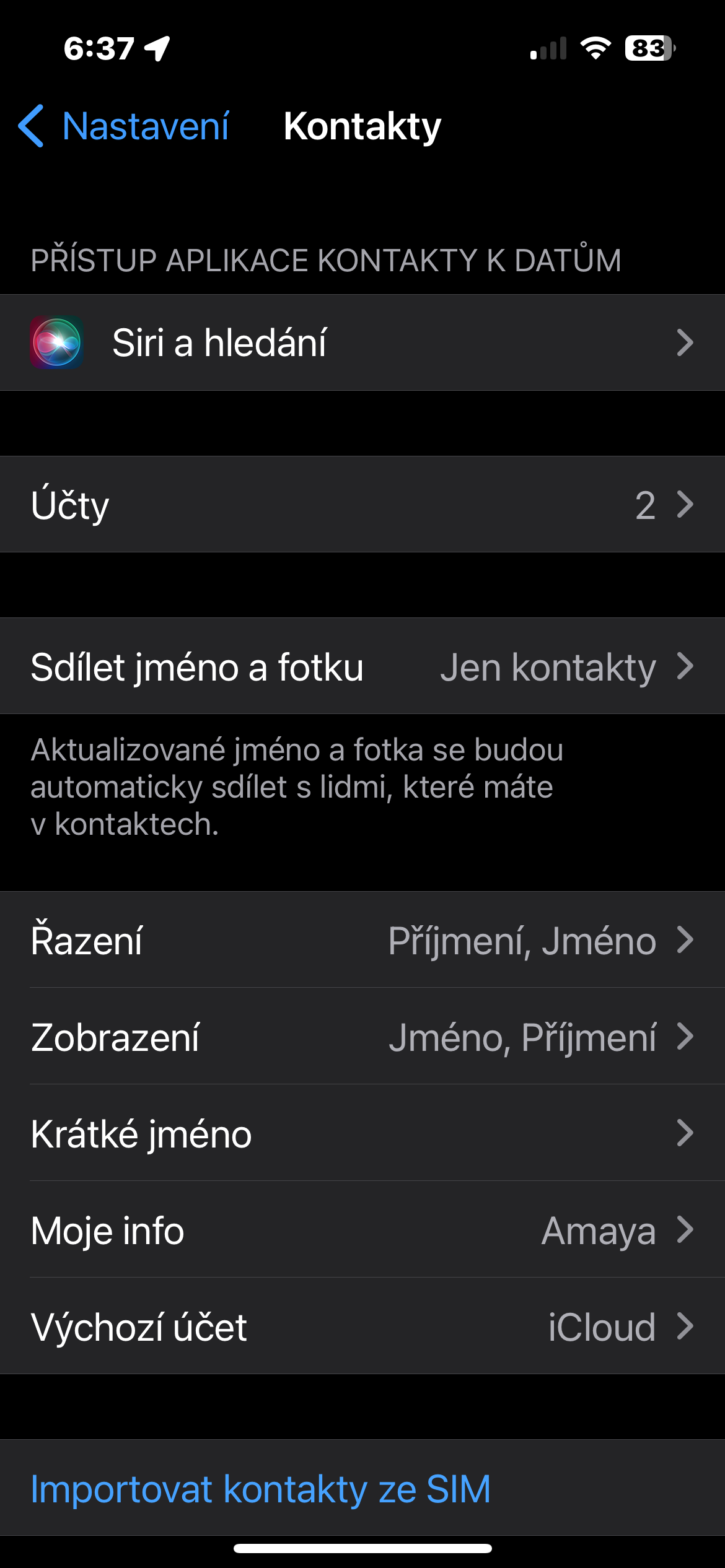
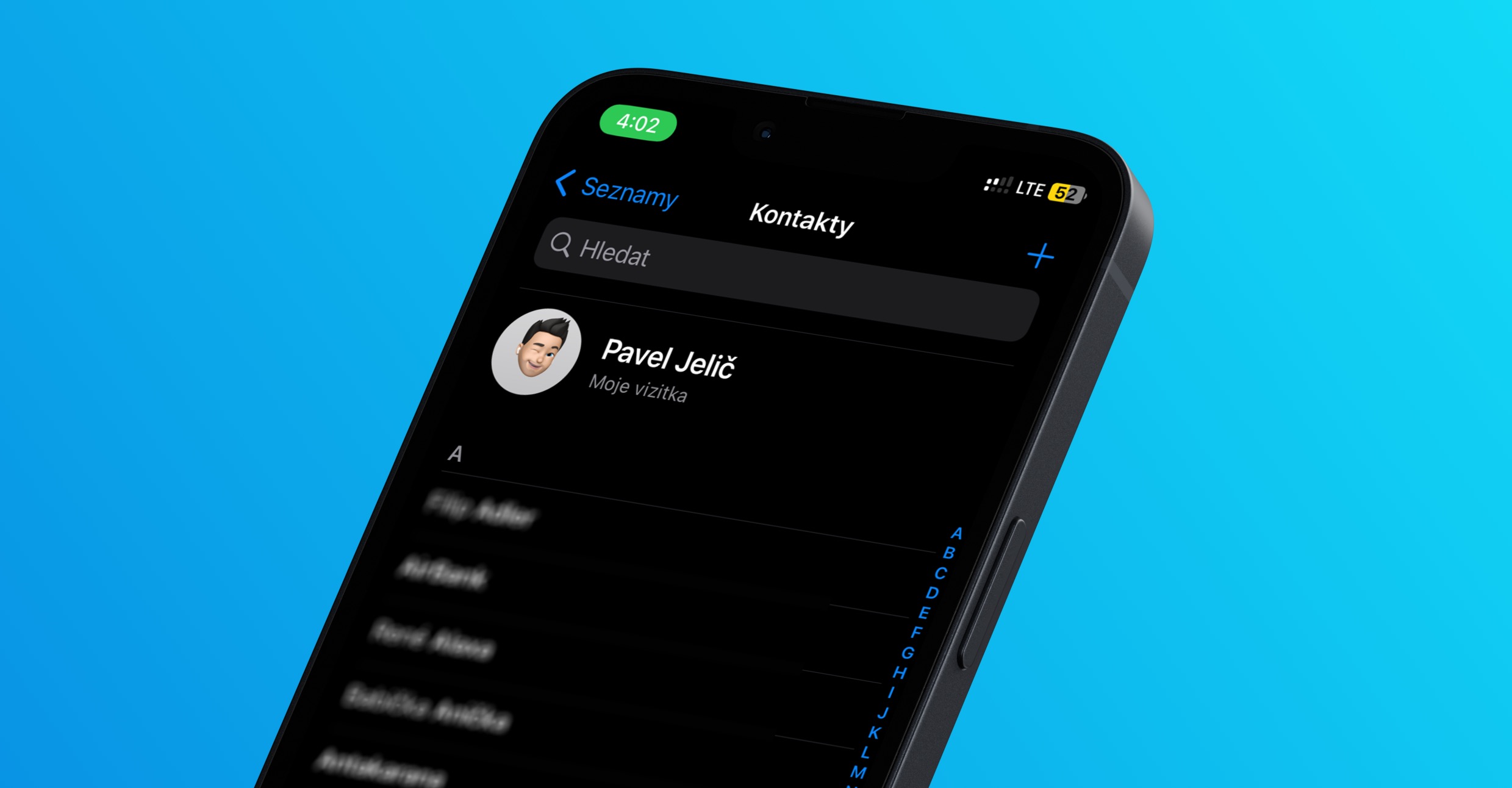
By default, contacts on iPhone are sorted alphabetically by last name. However, you can change this in settings if you prefer to sort by first name:
- In the Settings app, tap Contacts.
- Tap Sort and choose whether you want to sort by first name or last name.
Gallery