
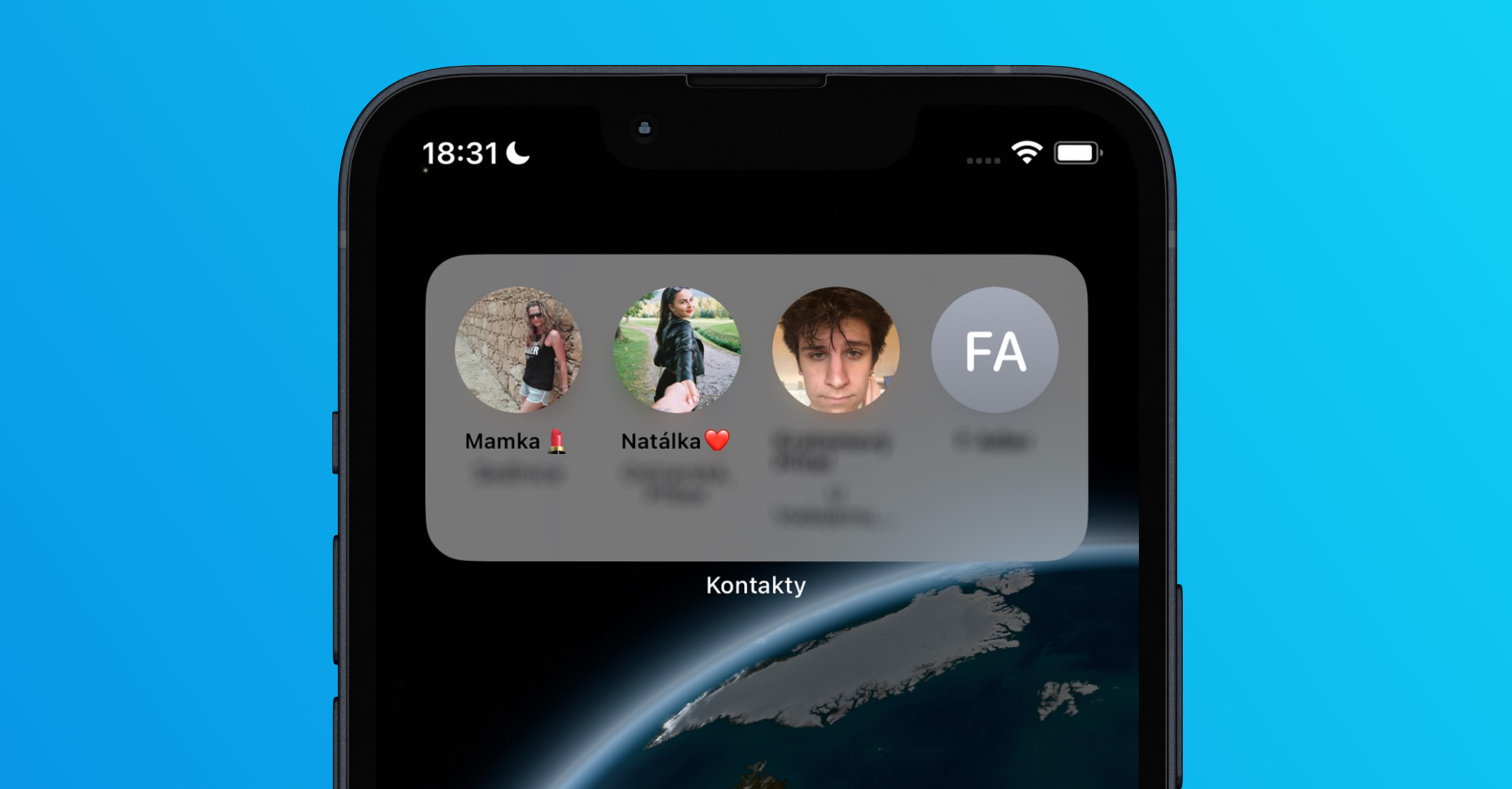
With the arrival iOS and iPadOS 14 has received a complete overhaul widgetThey now have a brand new and modern design, you can choose their size and on the iPhone you can even move them directly to the application pages. WidgetThey can quickly and easily convey various information to you, so that you always have it in sight. Unfortunately, Apple v iOS and iPadOS 14 forgot to add widget with smart contacts, which was one of the most popular. Users are of course disappointed by the absence of this widgetthey are right to complain – let's hope that the apple company will wise up and widget will be added in the next update. Until then, it is necessary to favorite widget create a manual detour. In this article, we will look at how to do it.
You might be interested in
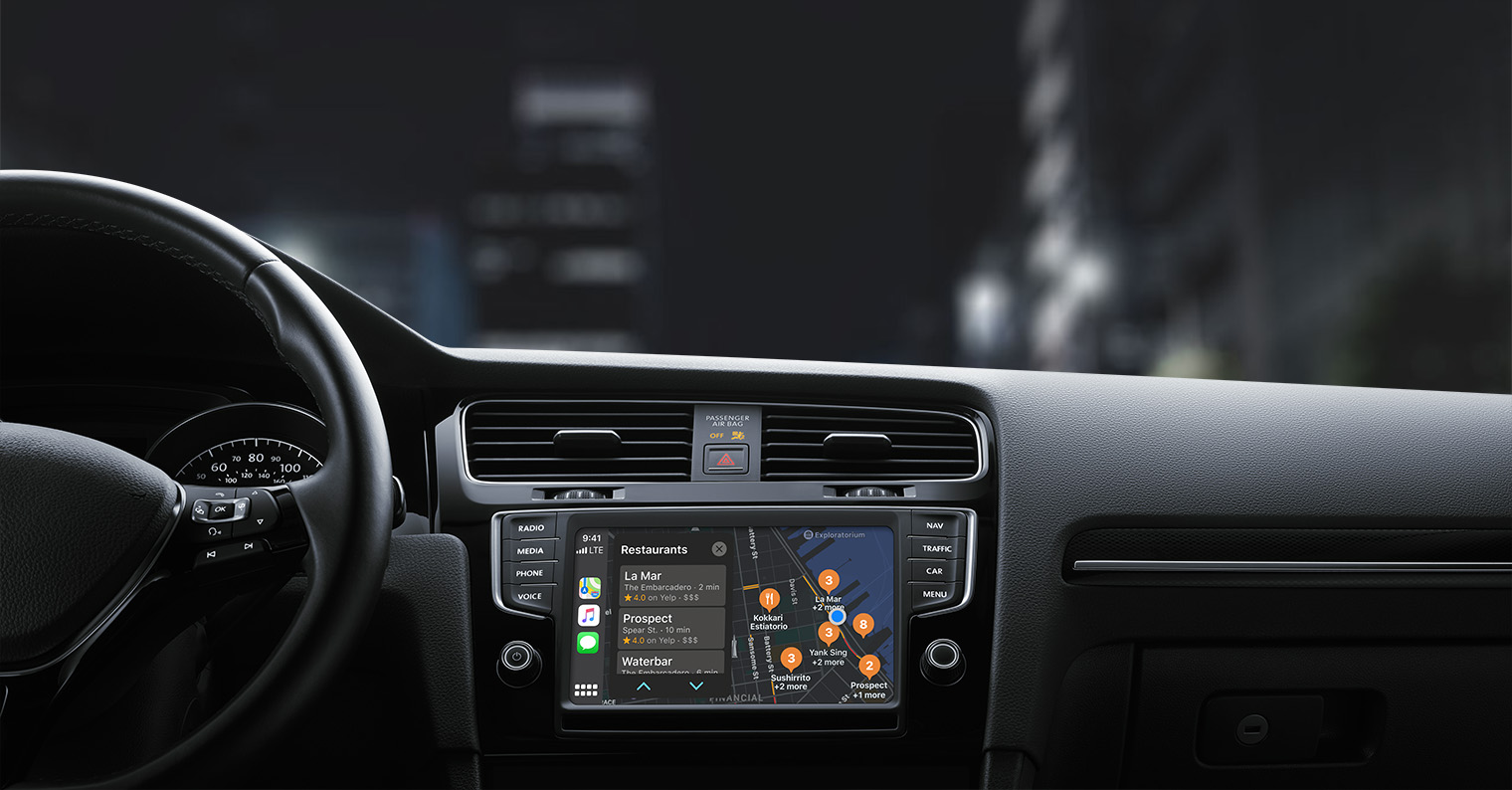
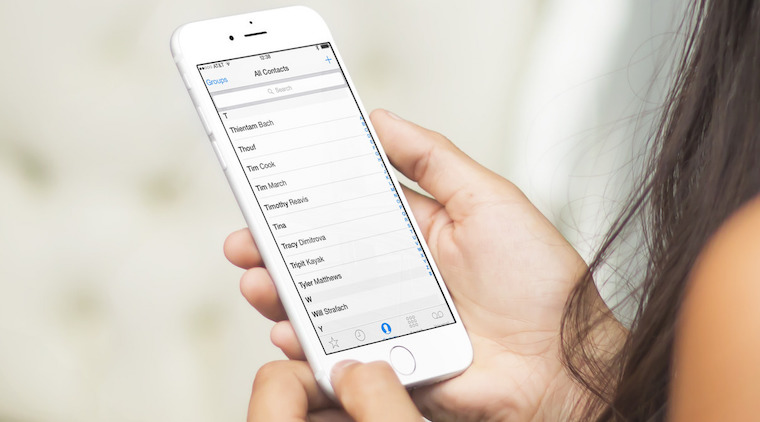
As iPhone return widget with favorite contacts
If you want to use your iPhone or iPad with the iOS or get iPadOS 14 back widget with your favorite contacts, you need to use the native Shortcuts application. If you don't have this application, you can of course download it for free from App Store. Then, simply follow the steps below depending on whether you want to add a shortcut for calling, texting, or starting a FaceTime call. You can find the individual steps below:
Call
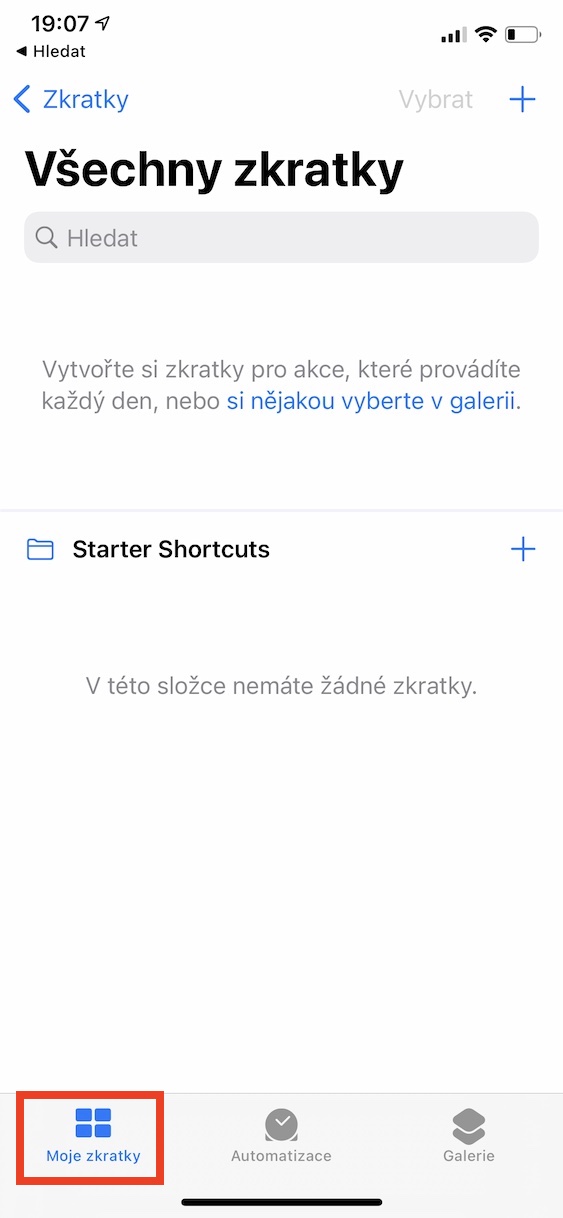
- First, of course, you need to open the app on your device Abbreviations.
- After doing so, tap on the option in the bottom menu My shortcuts.
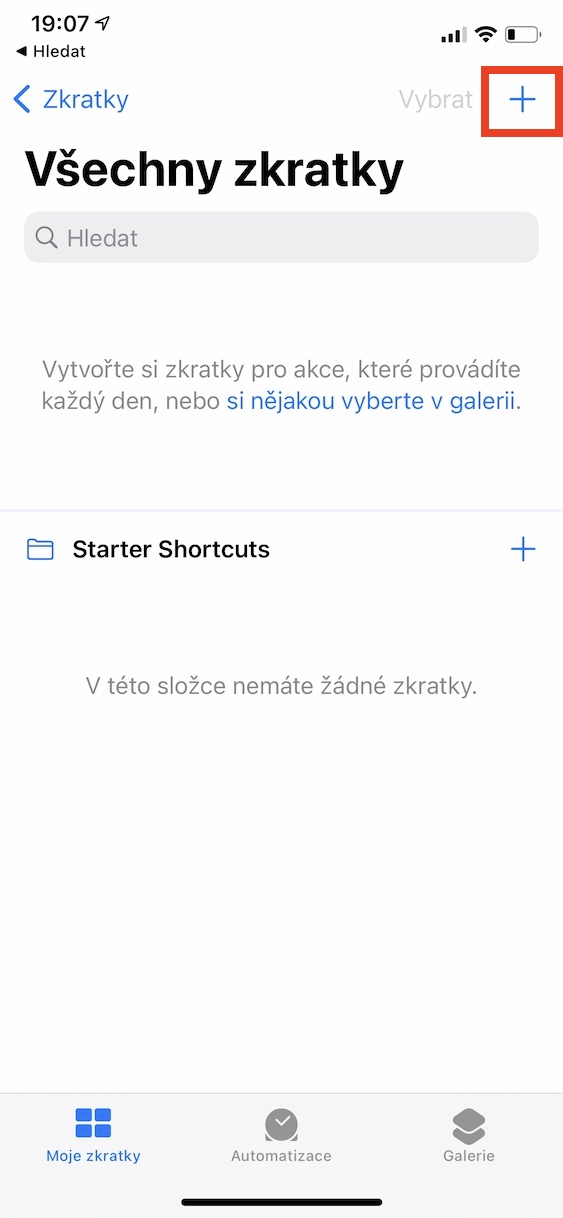
- Once you've done that, tap on at the top right the + icon.
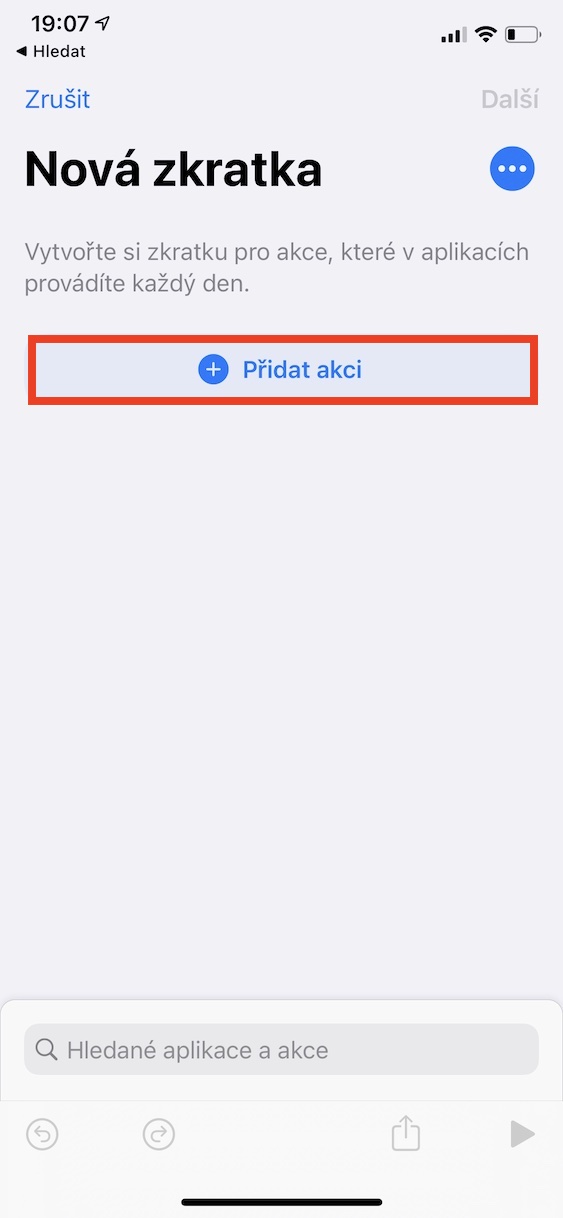
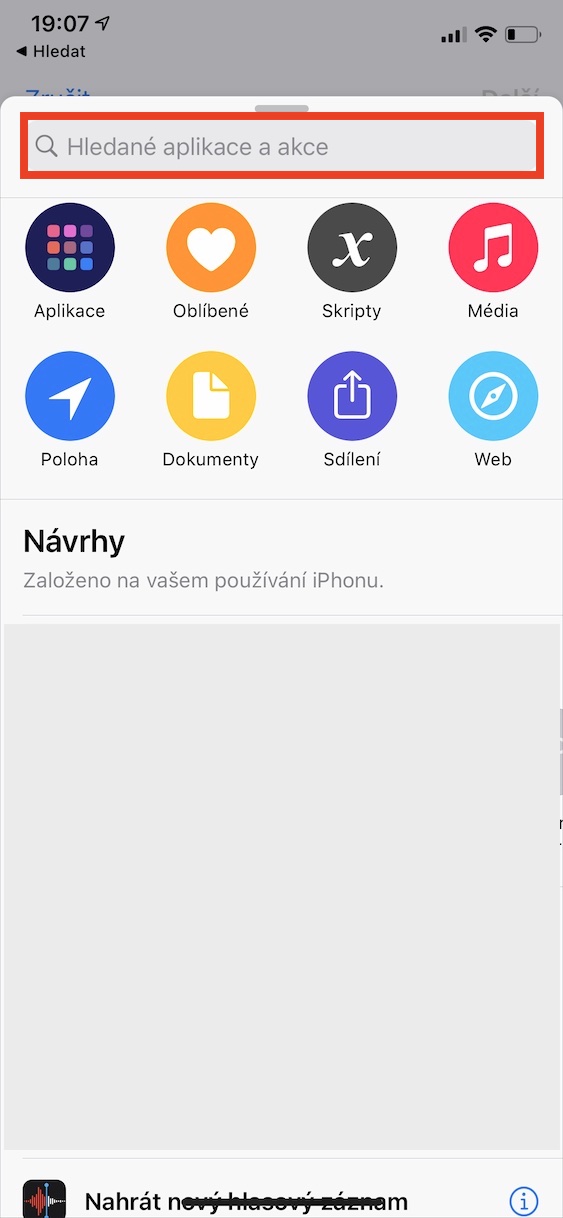
- Now it is necessary for you to click on the button Add action.
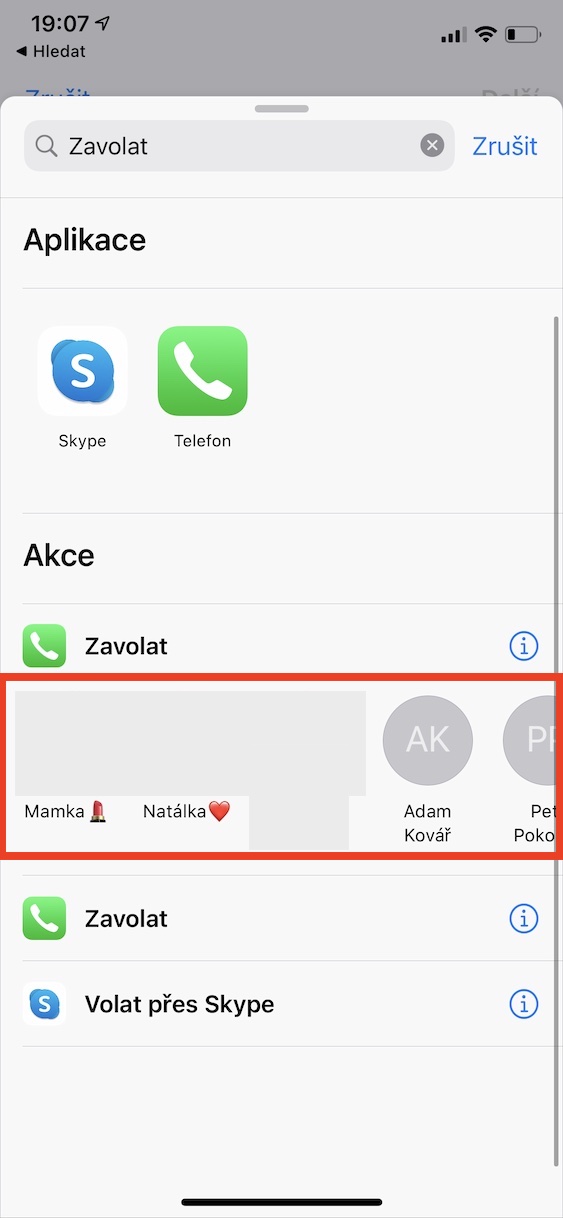
- This will bring up a new menu in which using the search field look for action Call.
- After searching you below in the section Select to call th contact, that you want to use in your favorite contacts.
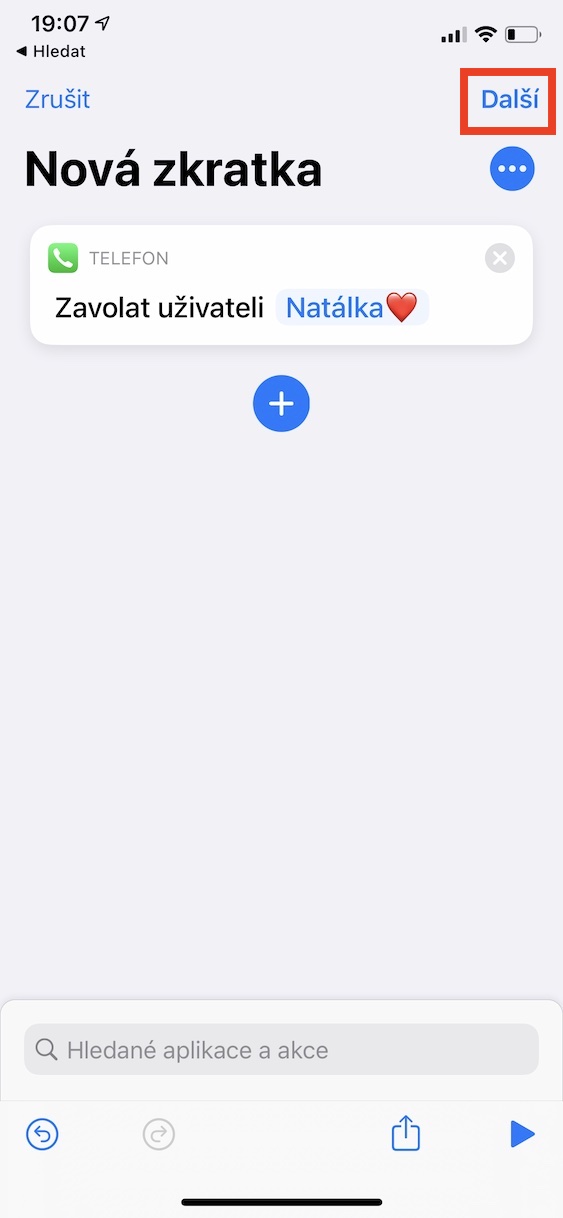
- Once you tap on a contact, tap on in the top right Next.
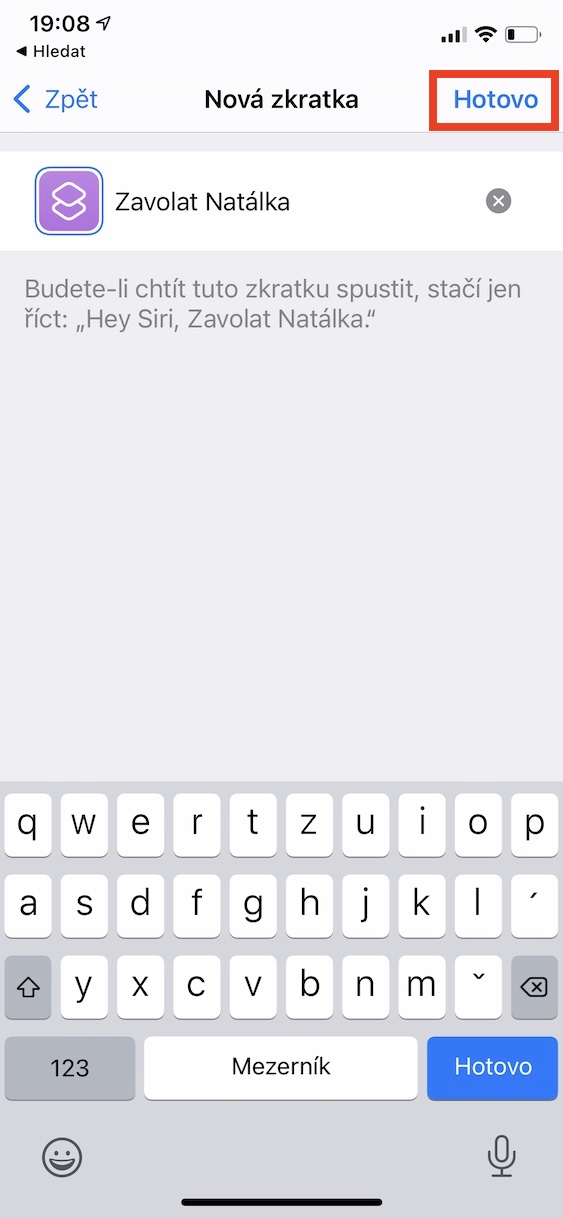
- Then you just need to make a shortcut they named – ideally in style Call [contact].
- Everything is fine.onec confirm by tapping Done top right.
Gallery
SMS or iMessage
- First, of course, you need to open the app on your device Abbreviations.
- After doing so, tap on the option in the bottom menu My shortcuts.
- Once you've done that, tap on at the top right the + icon.
- Now it is necessary for you to click on the button Add action.
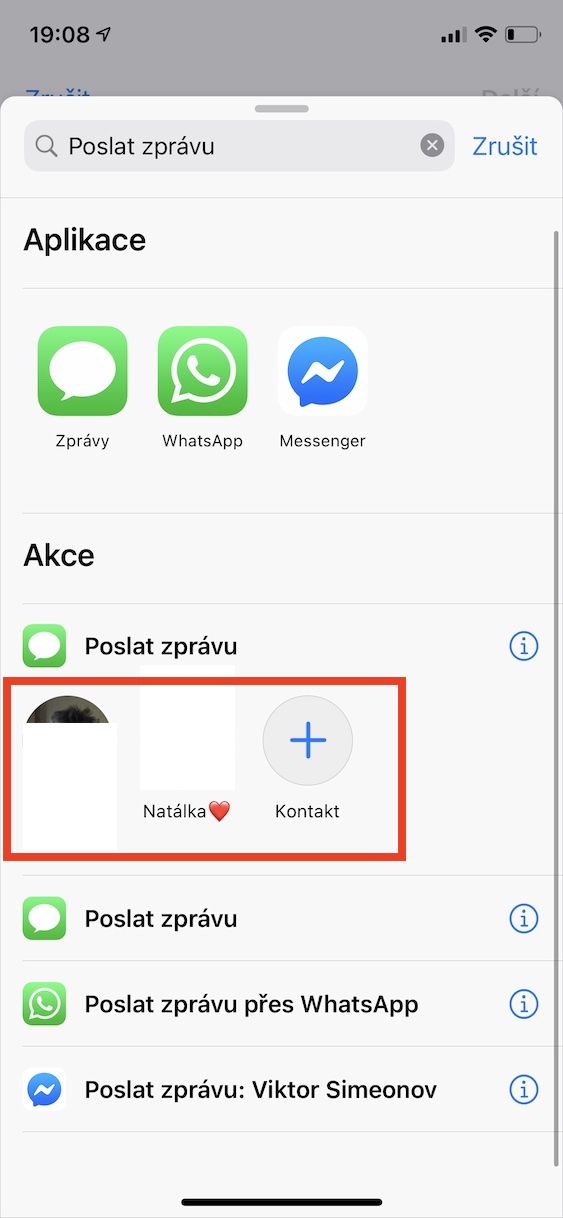
- This will bring up a new menu in which using the search field look for action Send a message.
- After searching you below in the section Select Send message th contact, that you want to use in your favorite contacts.
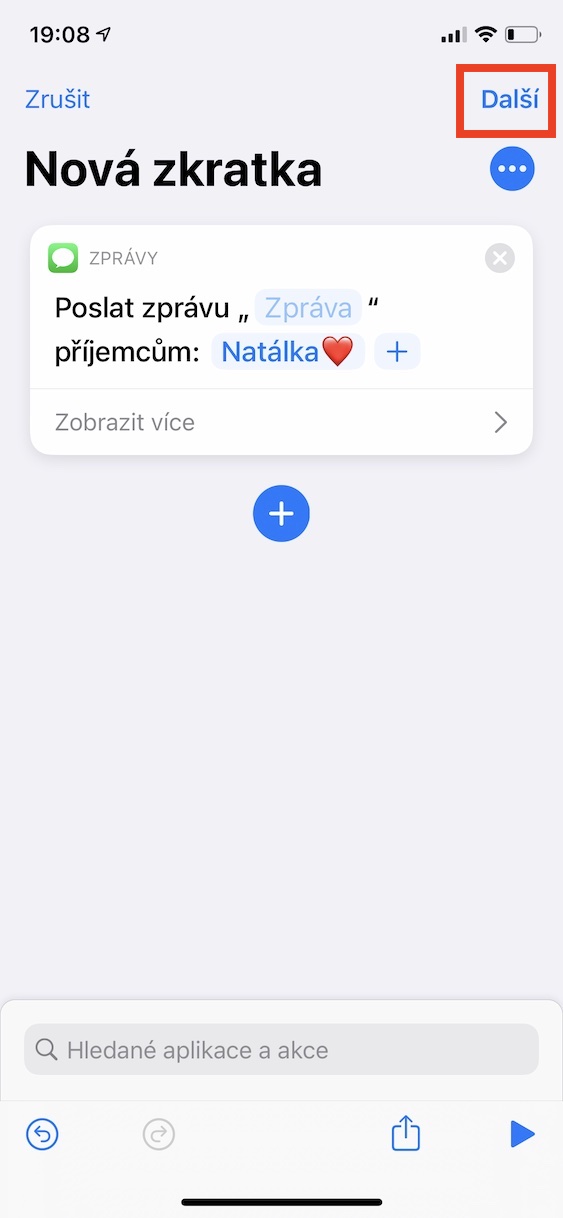
- Once you tap on a contact, tap on in the top right Next.
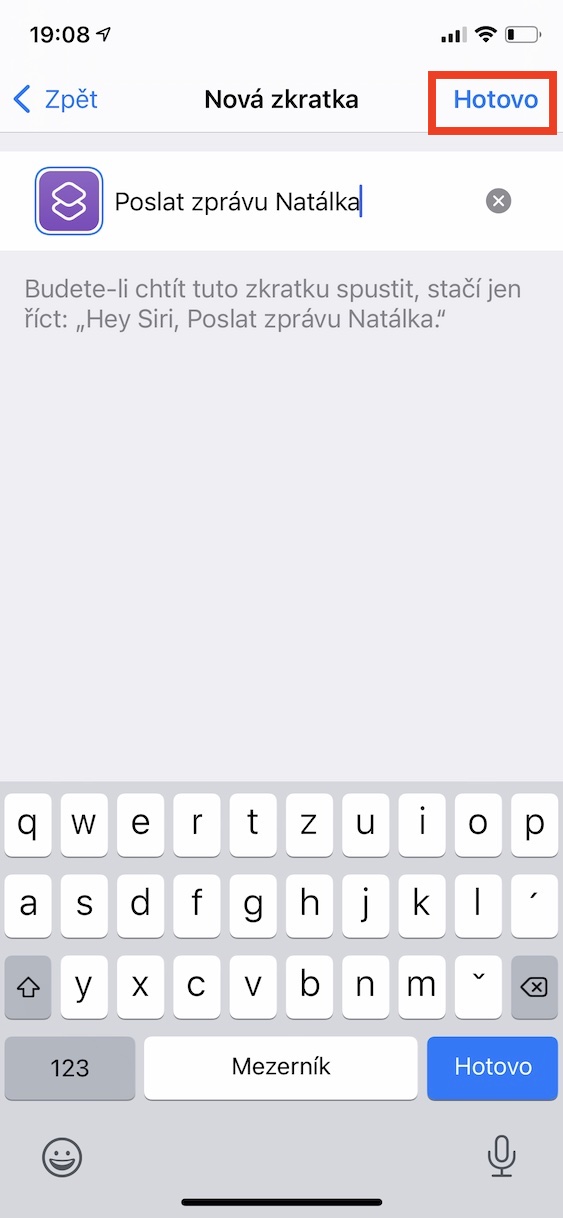
- Then you just need to make a shortcut they named – ideally in style Send a message to [contact].
- Everything is fine.onec confirm by tapping Done top right.
Gallery
FaceTime
- First, of course, you need to open the app on your device Abbreviations.
- After doing so, tap on the option in the bottom menu My shortcuts.
- Once you've done that, tap on at the top right the + icon.
- Now it is necessary for you to click on the button Add action.
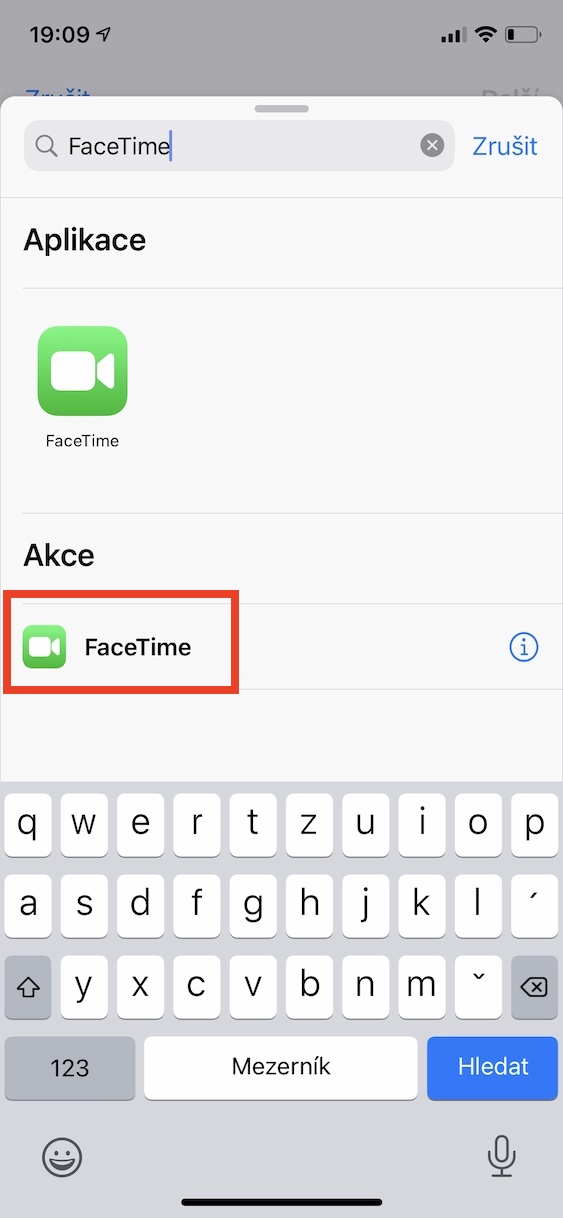
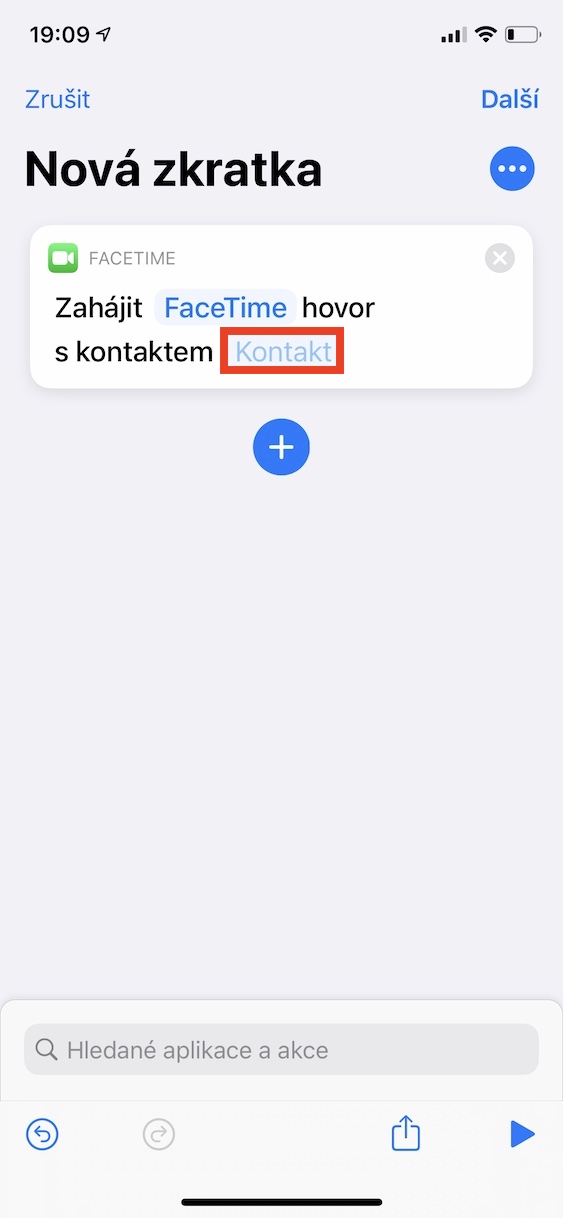
- This will bring up a new menu in which using the search field look for action Facetime.
- Now you need to click on the faded button in the inserted block Contact.
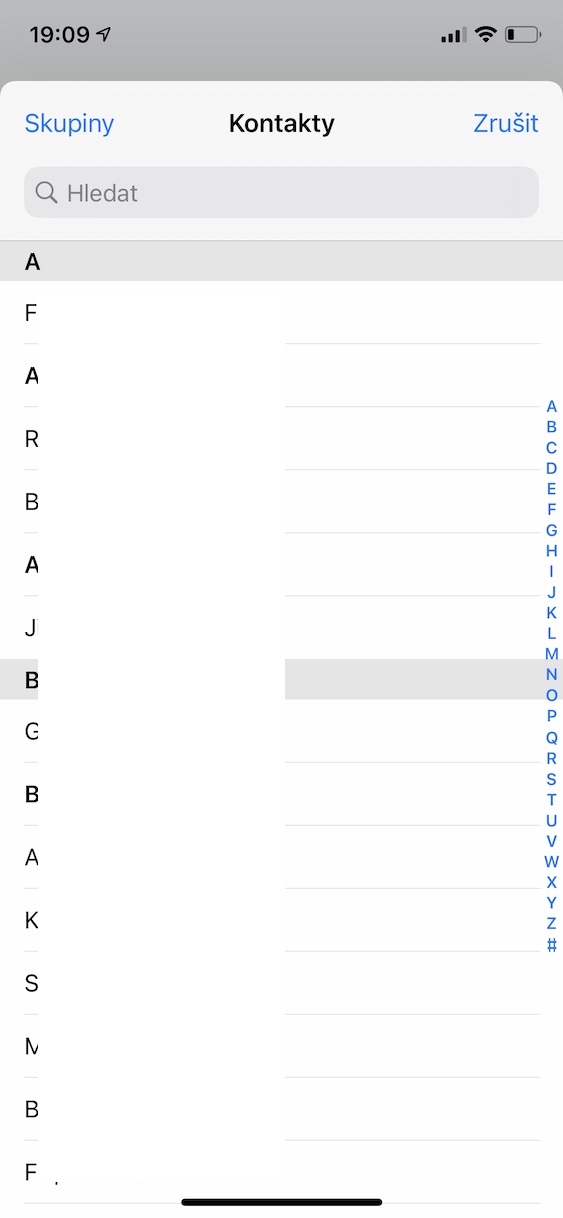
- This will open the contact list in which find a click na favorite contact.
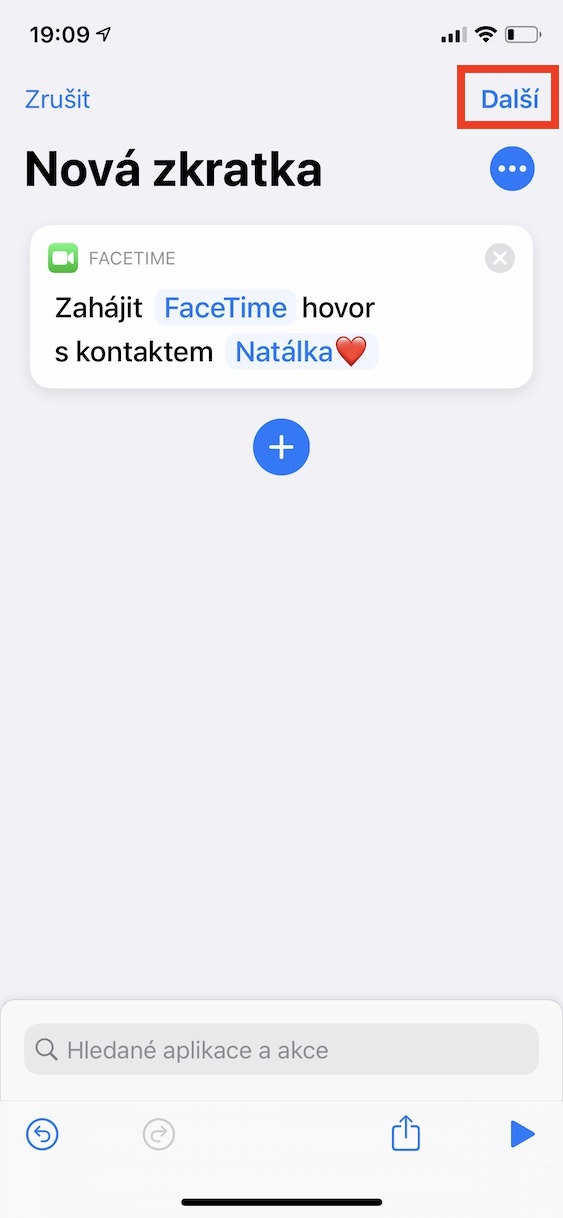
- Once you tap on a contact, tap on in the top right Next.
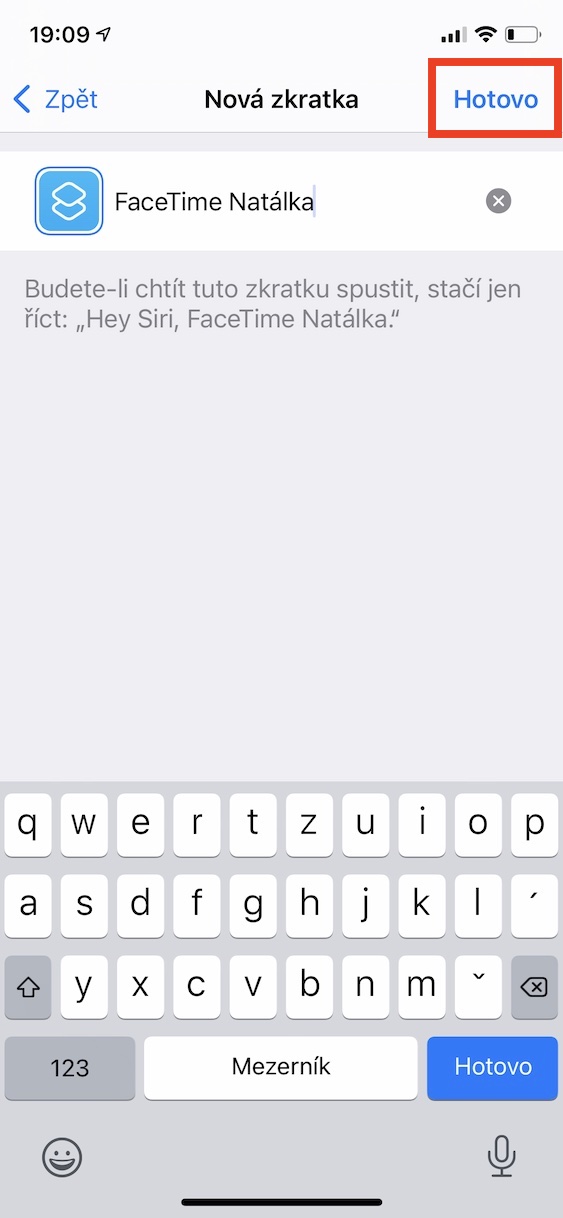
- Then you just need to make a shortcut they named – ideally in style FaceTime [contact].
- Everything is fine.onec confirm by tapping Done top right.
Gallery
Addition widgetin the Shortcuts app
If you have successfully created all your shortcuts, or favorite contacts, using the above procedure, it is now time for you to widget added to the desktop. Proceed as follows:
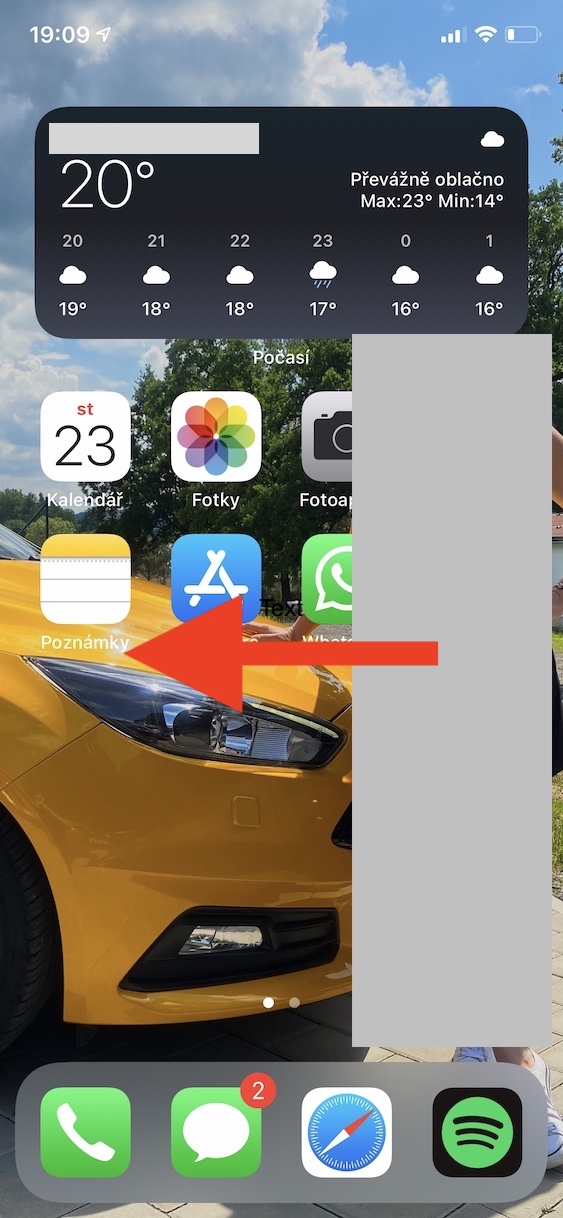
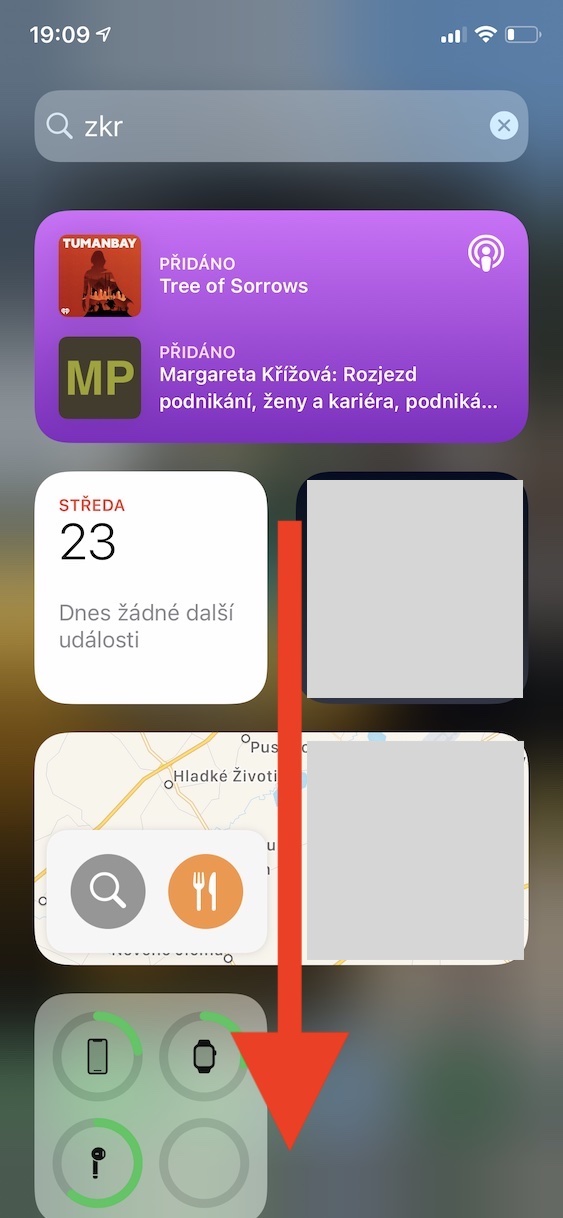
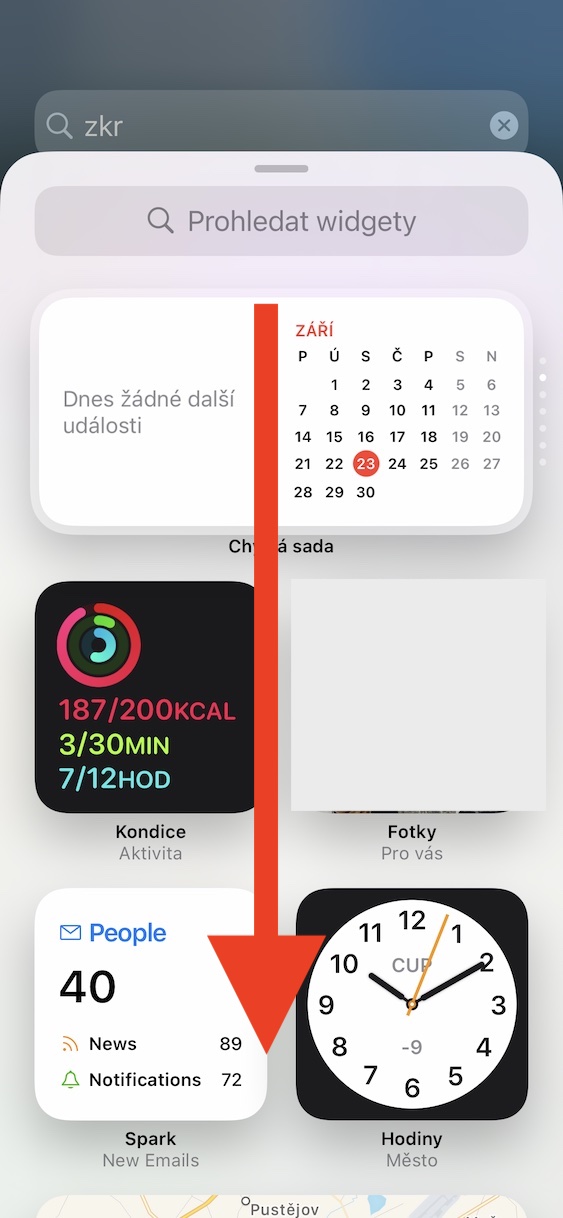
- First, on your device, move to screen s widgety, which is located on the far right.
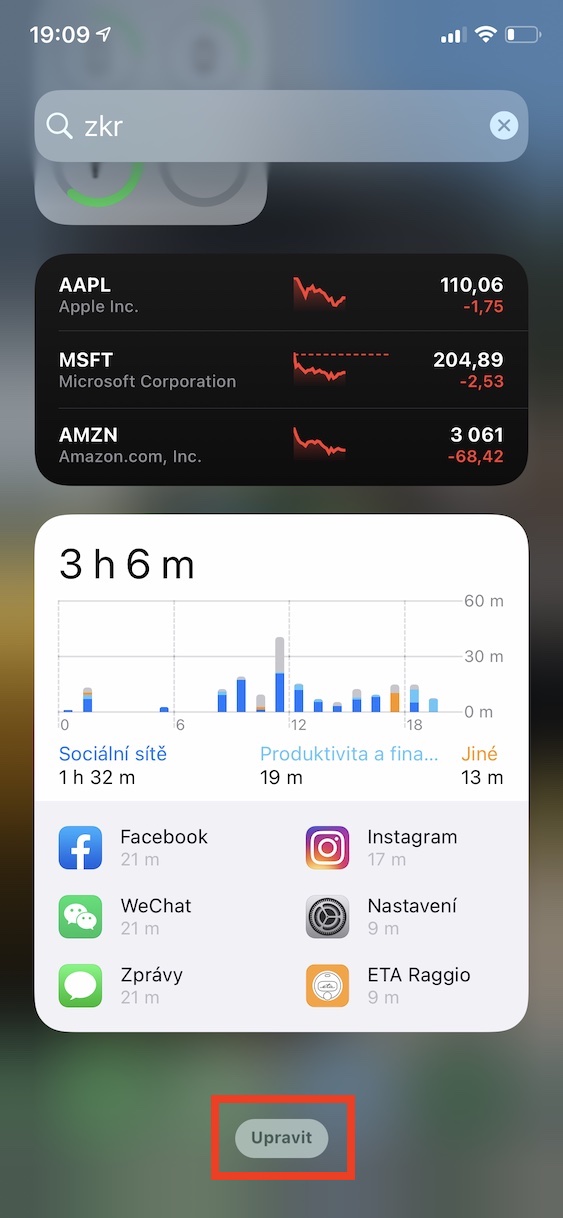
- After doing so, get off here all the way down where then tap on the option Edit.
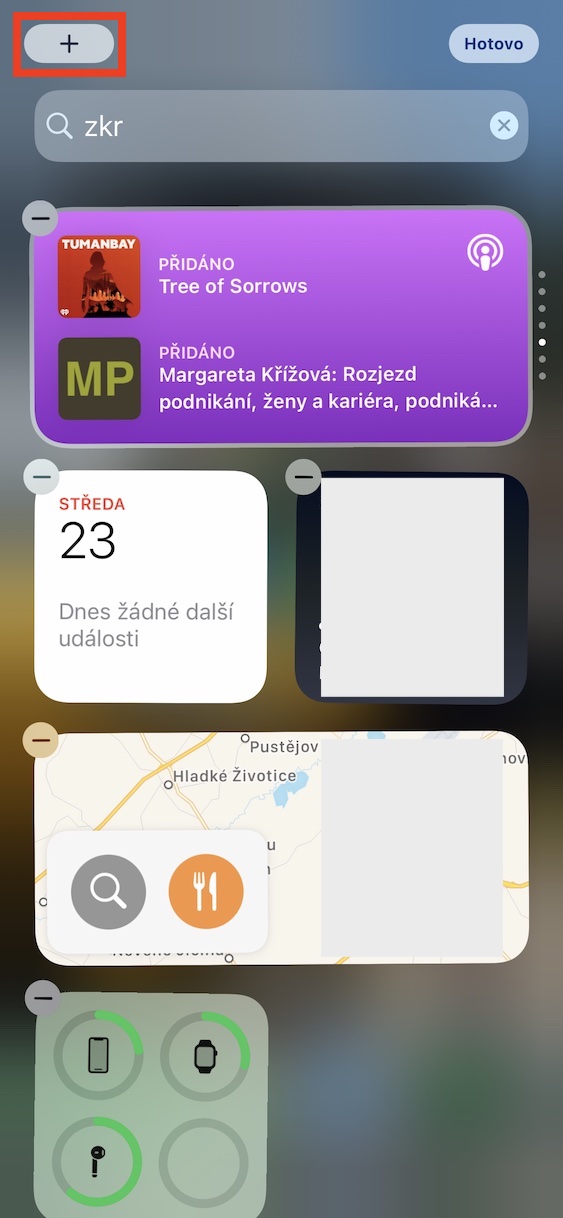
- This will put you in edit mode. widgetThen tap in the upper left corner. the + icon.
- Once you do so, it will appear all widgety, which are available.
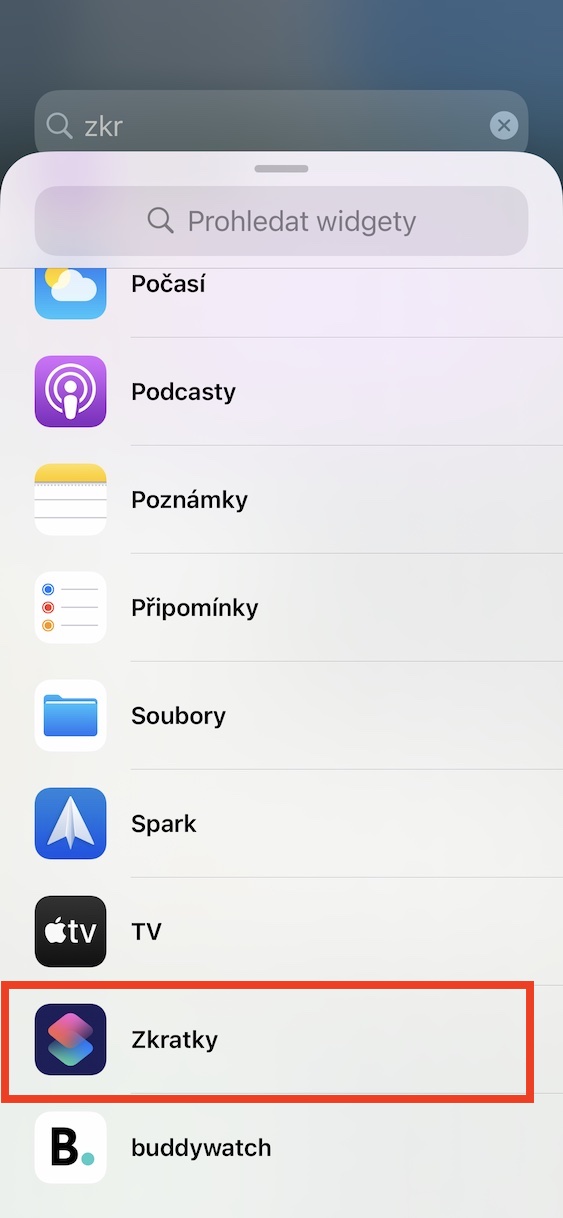
- Within this section with widgetcome down all the way down and click the row Abbreviations.
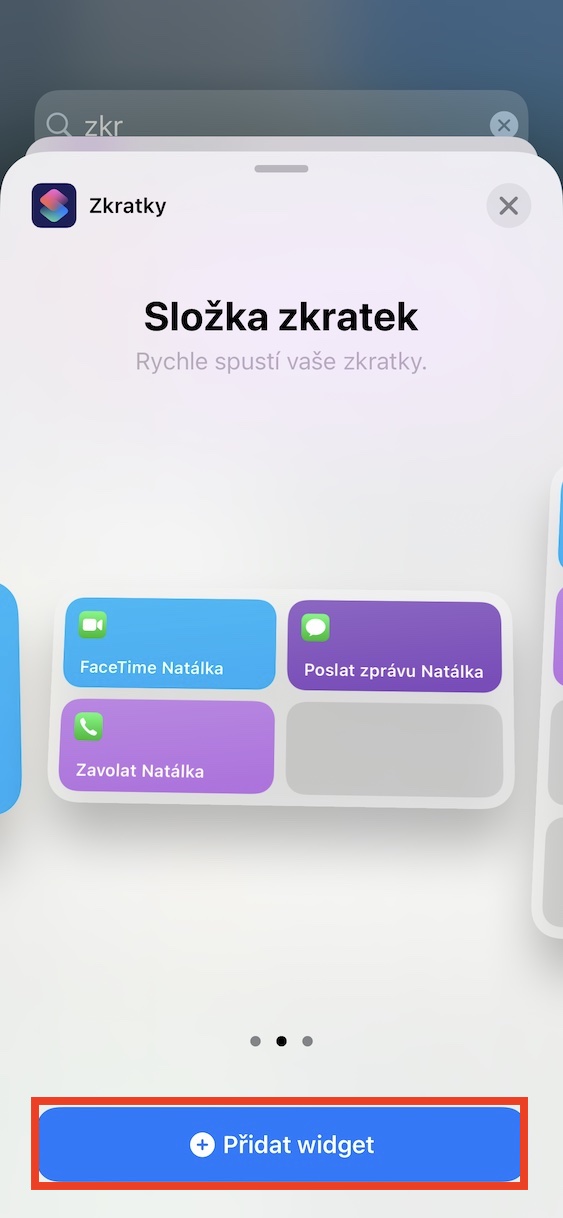
- Now it is necessary that you they chose one of three sizes widgetthey clicked on Add widget.
- Then there is an addition widgetu na area with widgety.
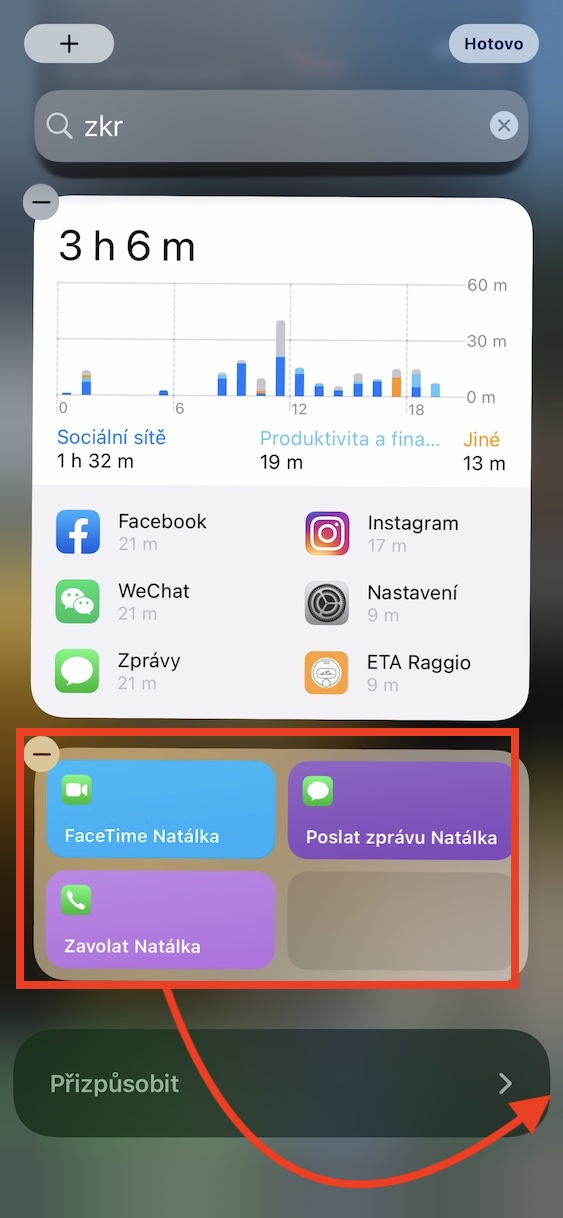
- Now this newly added widget grab it a move it on application page.
- Once you are satisfied with everything, click the button All done.
Gallery
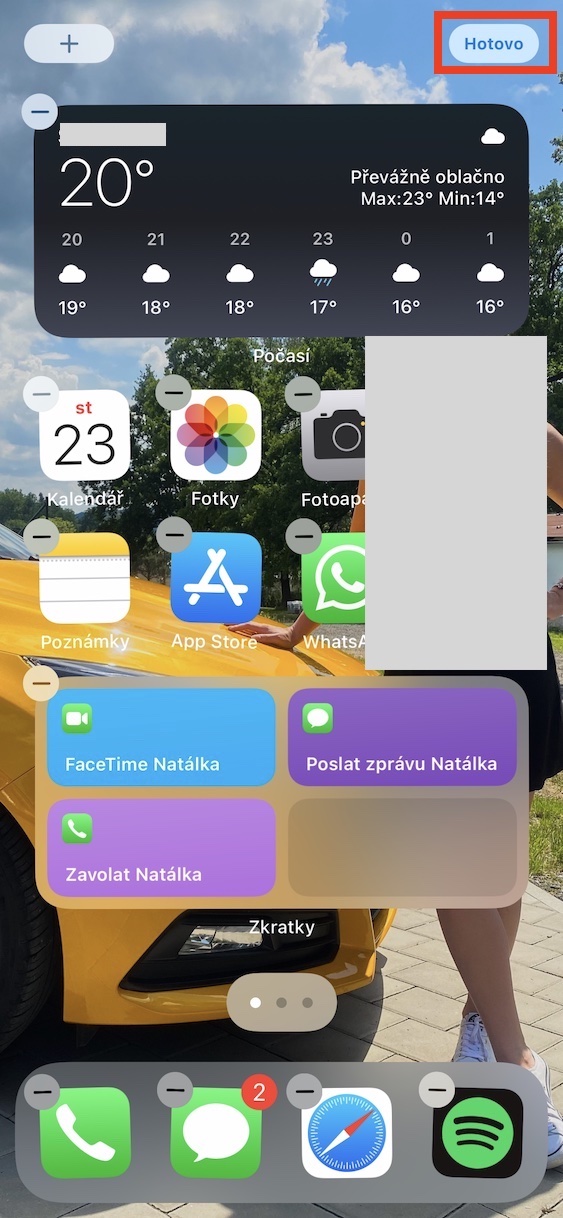
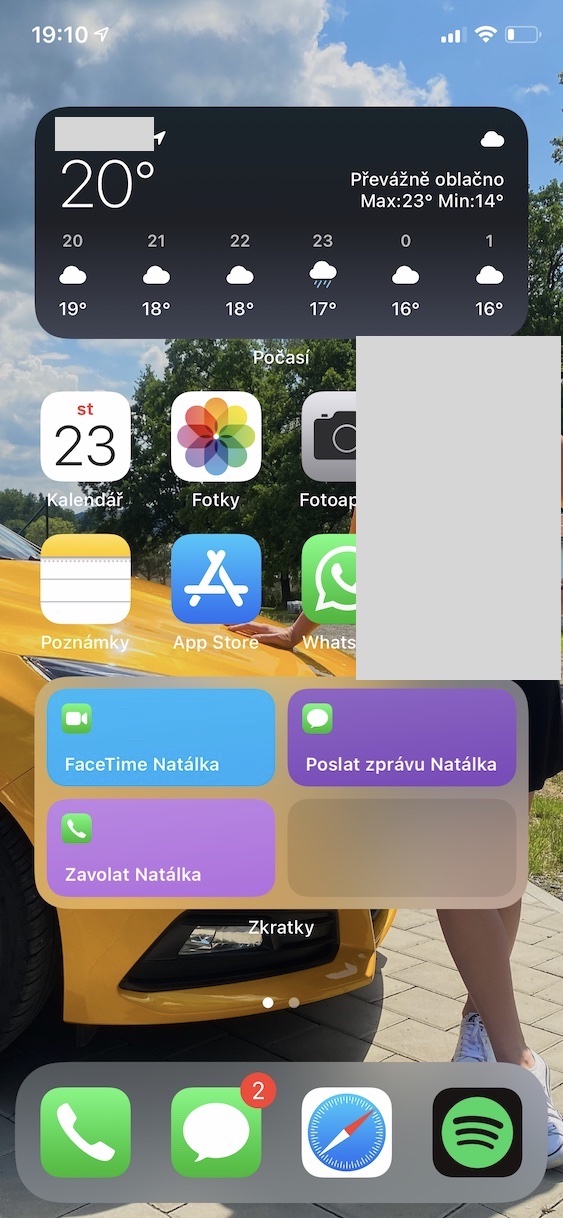
Once using the above procedure widget you add it to your desktop, you can immediately start using it to the fullest. Of course, in this case it is an emergency solution, but on the other hand it works without any problems. From my own experience I can confirm that this replacement is widgetus with favorite contacts is really great and I personally use it every day. But let's hope that it will Apple will become wiser and popular in the next update widget with favorite contacts will be added. Until then, however, we will be dependent on this alternative.



This is the most stupid behavior. widgetu... and unfortunately, it doesn't work according to imagination and intuition... it can't do smart phone and simple things... but you have to learn to live with it🥵🤬
So use it. SIRI.
This is a terribly cumbersome solution. It doesn't support contact pictures and it's terribly big. For me, a "big bad" and the lack of favorites is the biggest minus for me iOS14
I created a dynamic set, used a 1×1 tile, and browsed in that tile, I have 3 contacts there (I didn't want to create more shortcuts).
How did you manage to create a dynamic set of contact shortcuts?
Is there anyancCan I get a favorite contact in the menu when I long-press the phone icon?
No.
But I recommend FavContacts. You can't call right away because you have to confirm "call to number...", but at least you won't make a random call and you can see immediately which one you're calling. And you can set your own picture - and also the name of the contact - even if you have saved it differently.
https://apps.apple.com/us/app/favorite-contacts-launcher/id981841476
I use Widget Dial, I can dial directly by long pressing on the contact. But if I'm not mistaken, widget can only be placed on the old screen. Premium features for 25 CZK, otherwise only about 3 contacts.
Widget great thanks 👍