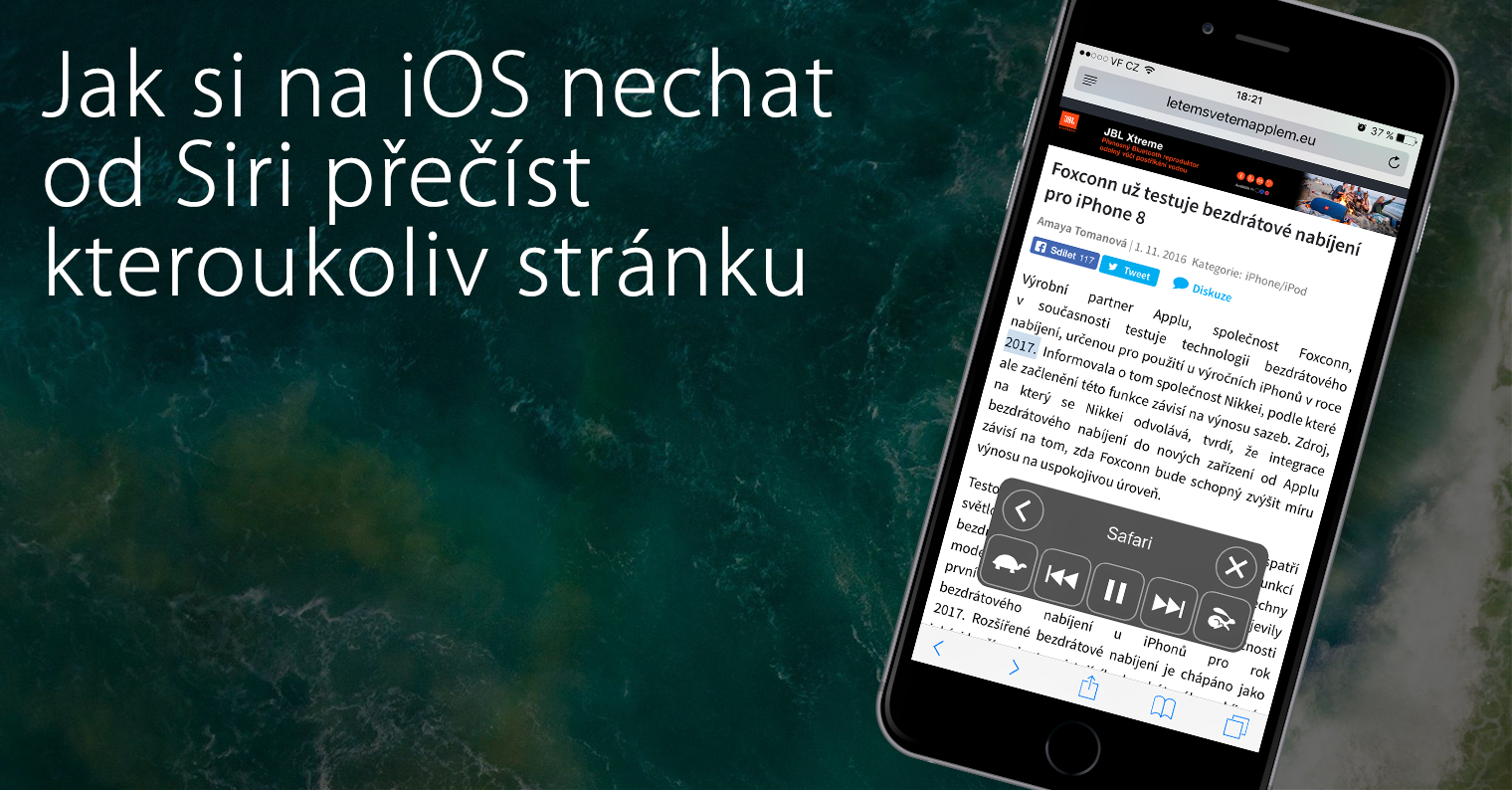
How to activate text reading aloud on iPhone? iPhones and iPads have a built-in screen reader that can read most of the text on the screen aloud with just the press of a button. There are two functions: read the screen, which can read all the text on the screen, and read the selection, which reads the selected text.
You might be interested in
In this guide, we'll show you how to use Read Selection to read emails, documents, web pages, settings, and most other text on your screen. It's a useful feature that you can use in apps that don't have a built-in content reader.
How to activate text reading aloud on iPhone
If you want to activate text reading aloud on your iPhone, follow the instructions below.
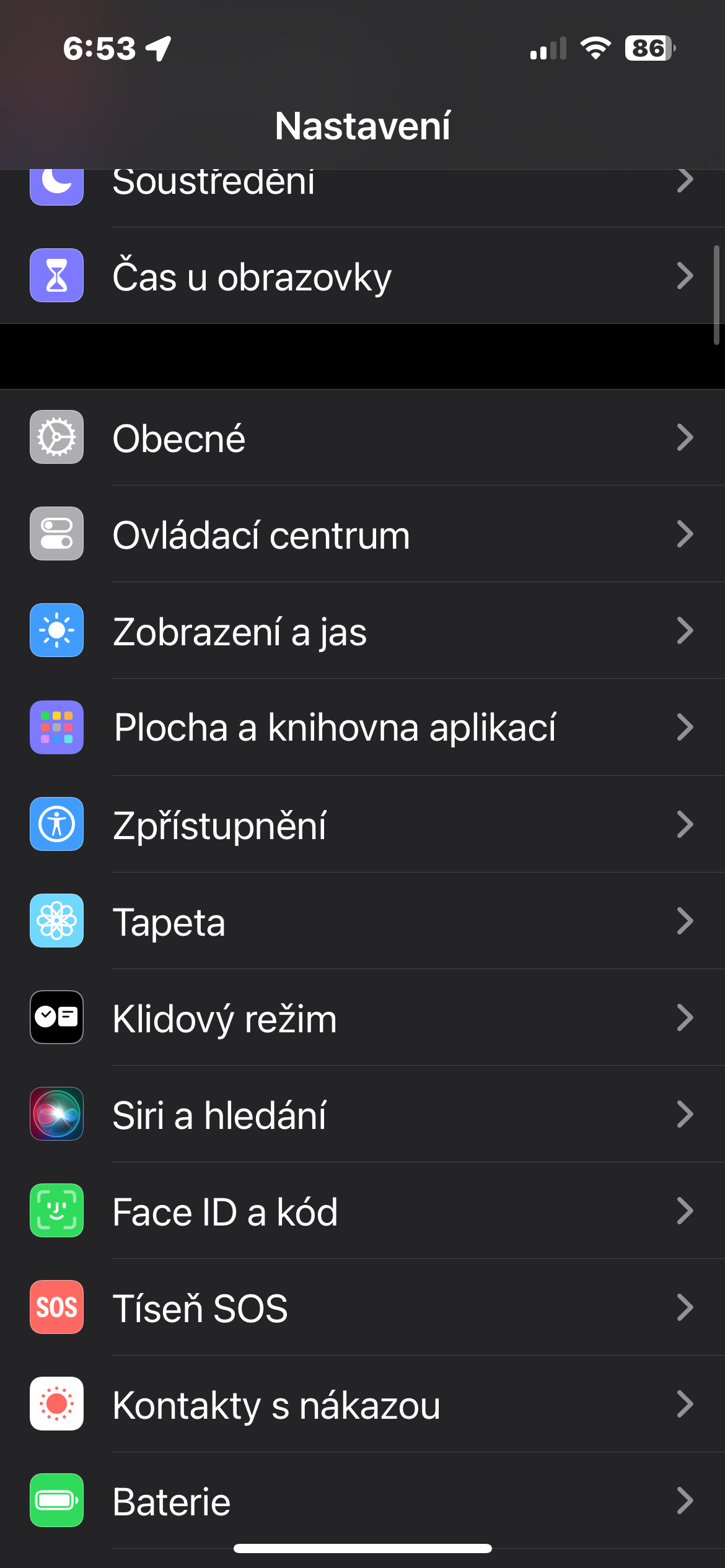
- On iPhone, run Settings.
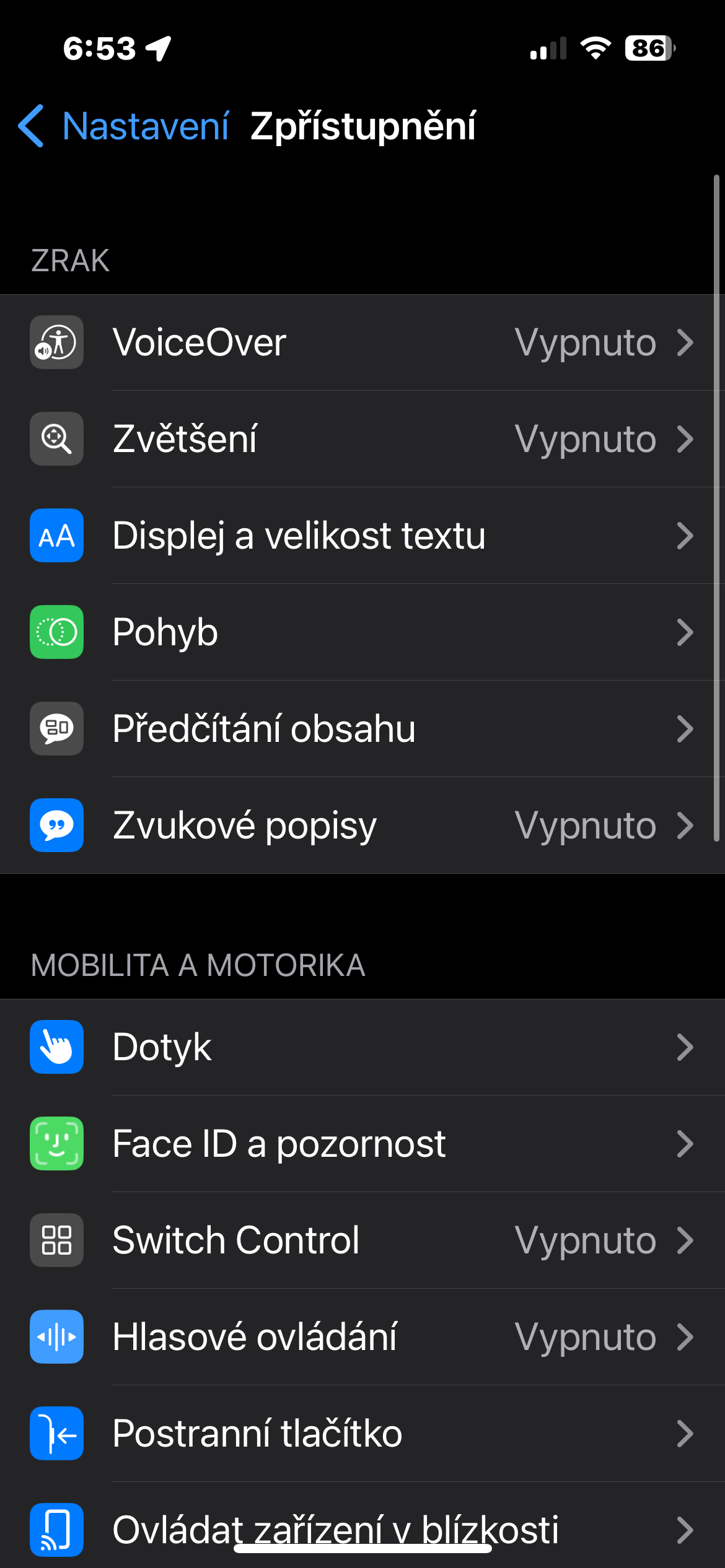
- Click on Disclosure.
- In the section Air click on Reading content.
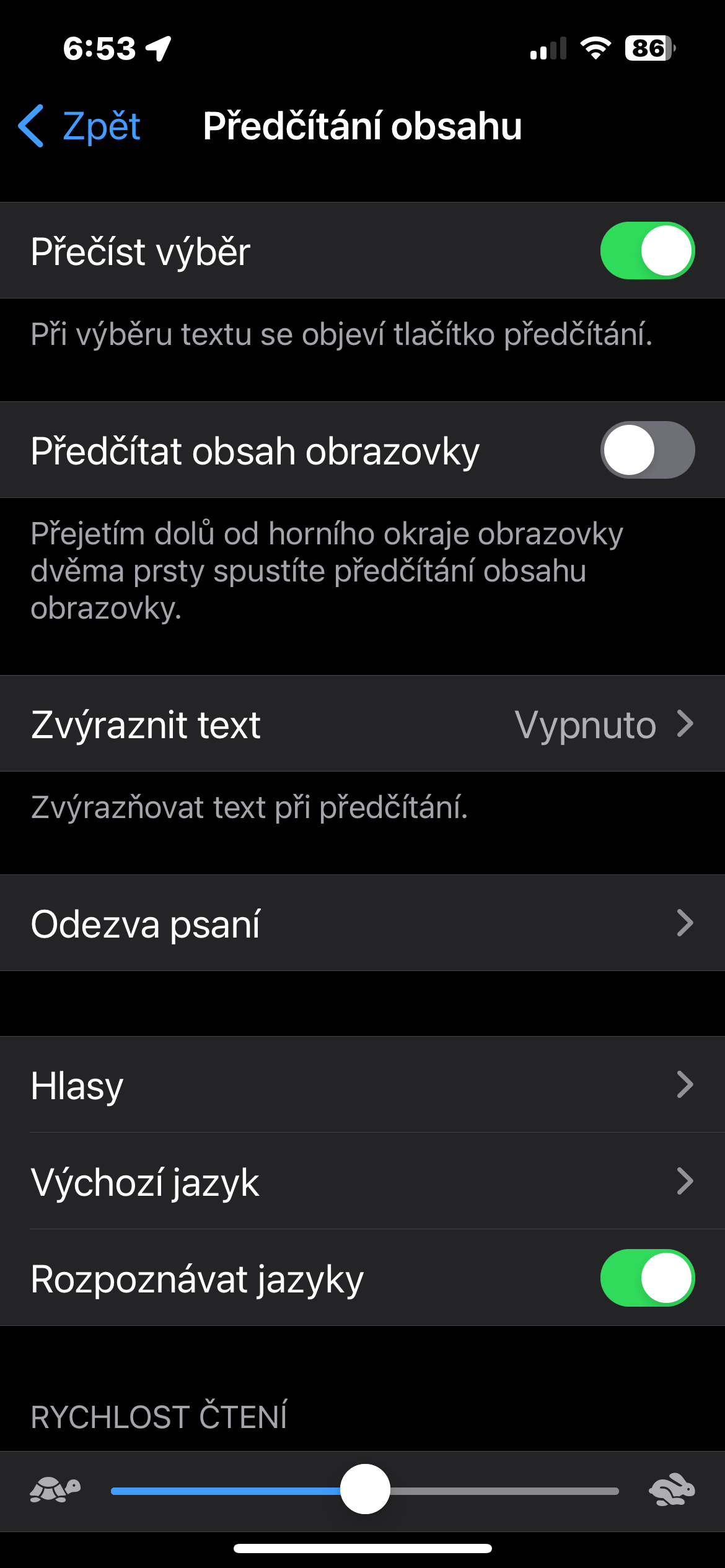
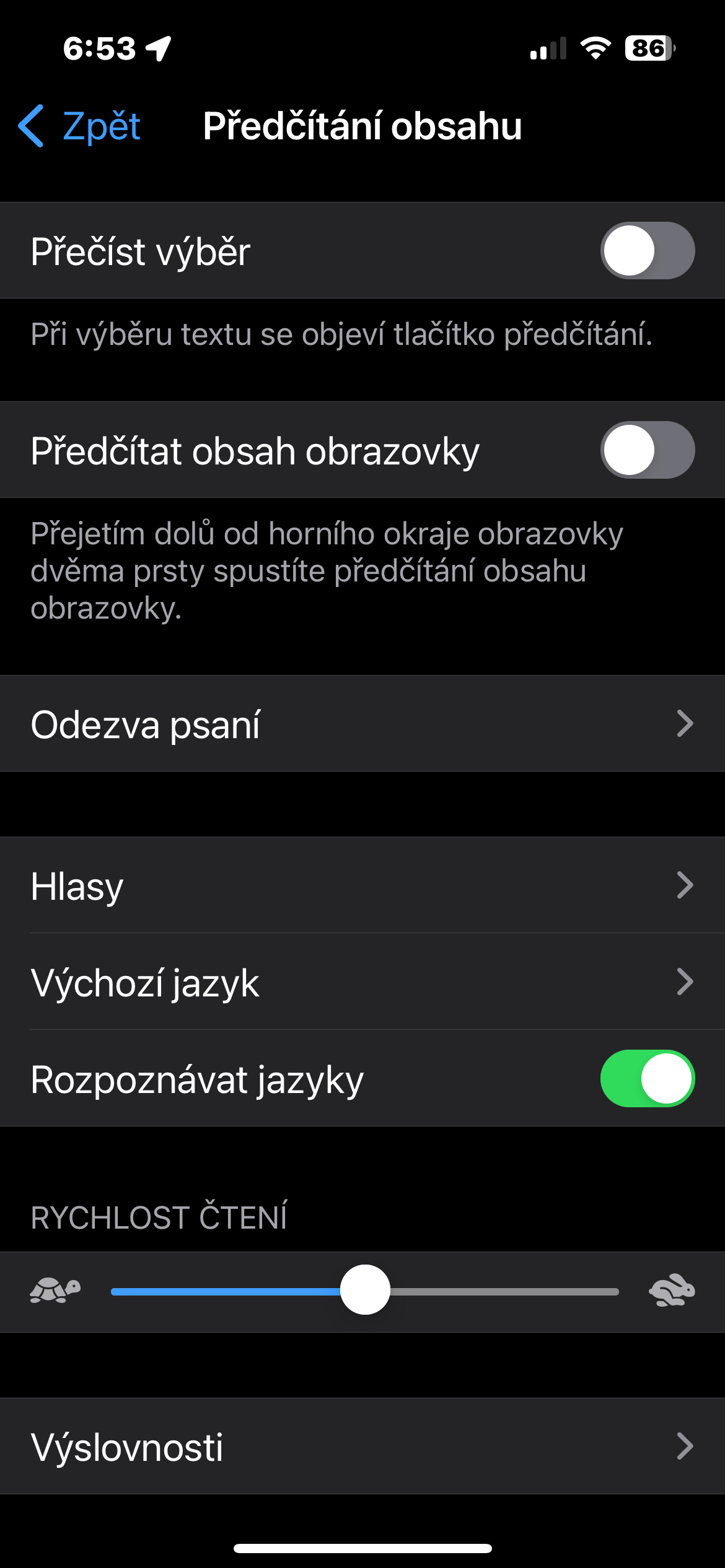
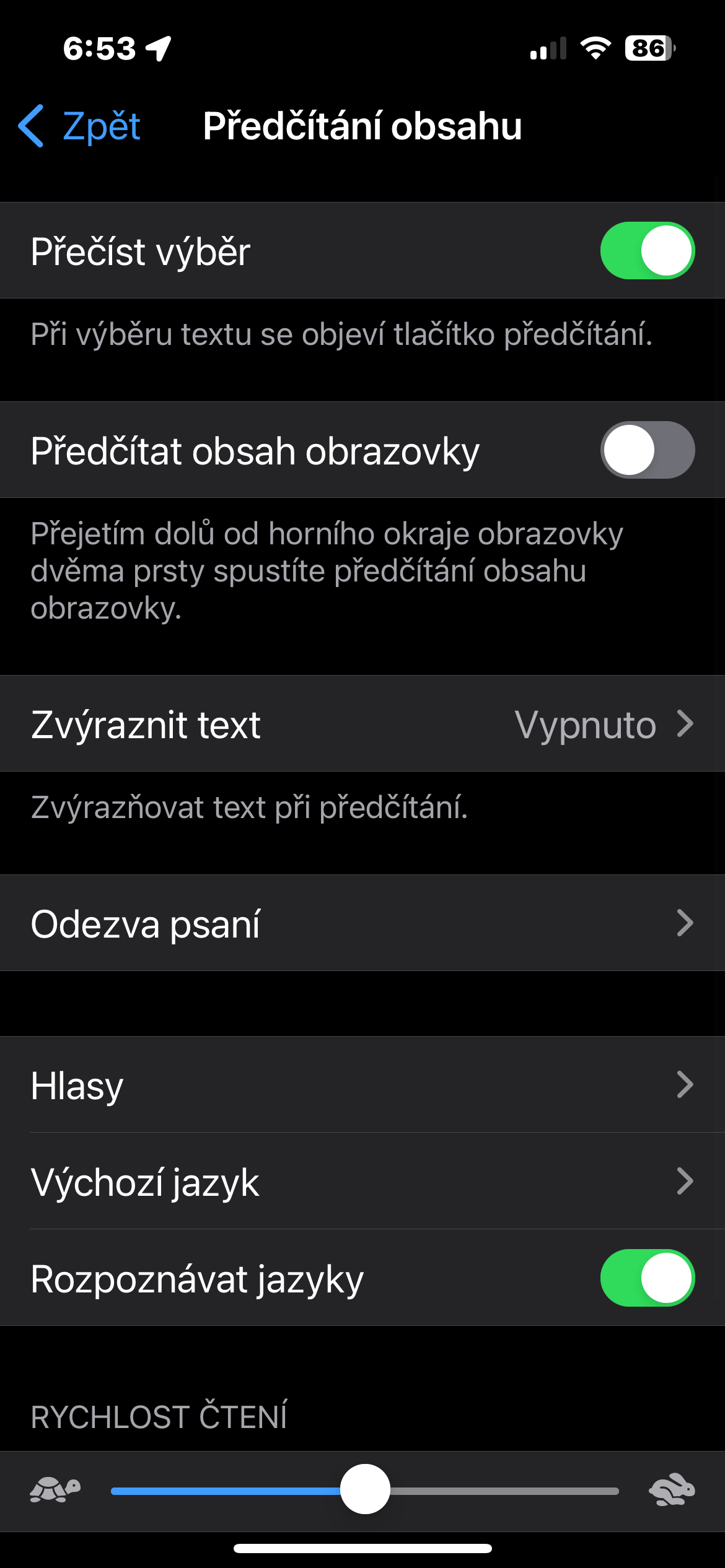
- Activate the feature as needed Read the selection, Read the contents of the screen, or both.
- You can also activate text highlighting during reading.
Gallery
If you want to read the selected text on your iPhone, just mark it in the usual way and tap on it. In the menu that appears, choose Read aloud. In case you want to activate full screen reading, swipe down with two fingers from the top edge of the display.